USER MANUAL MOVETIME MT40X TCL
natural_image
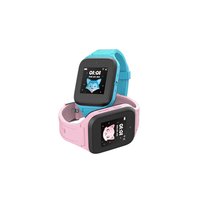
Pink smartwatch with a cartoon cat face displayed on its screen (no visible text or symbols on the device itself)
Quick Start Guide
Italiano (IT)....61 - 80
Español (ES)....81 - 100





MOVETIME
Family Watch
MT40X

natural_image
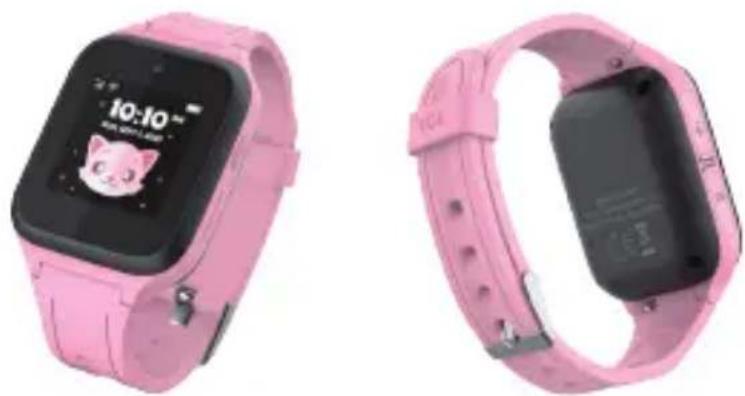
Two pink smartwatches with a 10:10 screen displaying a cartoon cat (no visible text or symbols on the devices themselves)
Quick Start Guide
TCL

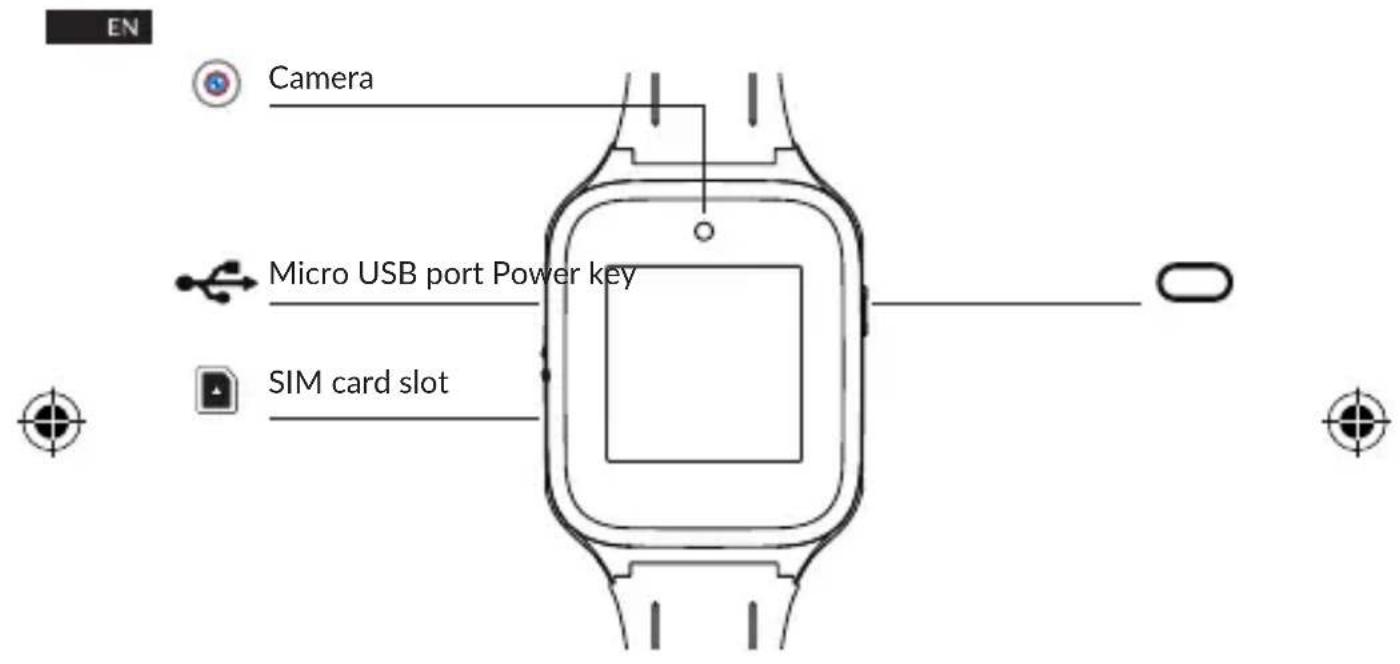
Getting to know your watch
2

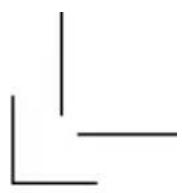

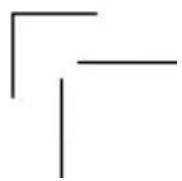
Power key
- Long press for 3s to power on.
- Long press for 3s to call SOS when the SIM card is inserted and paired with your smartphone. In any other case, long press for 3s to power off.
- Long press for 15s to force restart.
- Short press to end a call when dialling.
- Short press to wake up the device.
- Short press to go back to Home screen when the current screen is not the Home page. Press again to turn off the screen.
EN


3

Setting up your watch
EN
Getting a SIM card
A nano-SIM (not included) is required in order to set up and use your watch. Contact your network operator to request a nano-SIM with a voice and data plan.
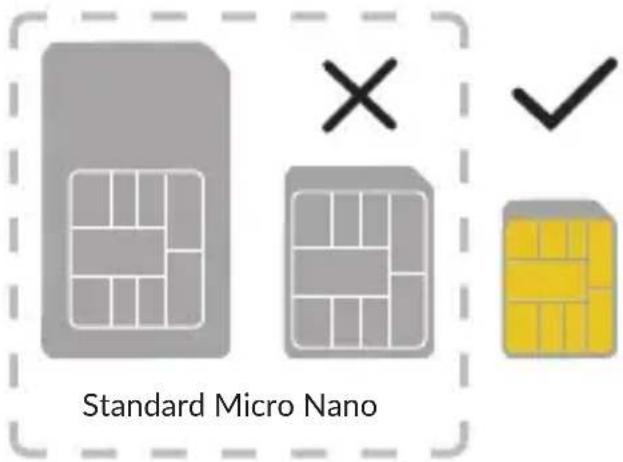
Inserting the SIM card
Remove the SIM card cover and insert the SIM card. Once inserted, push the SIM card gently using the card remover to remove it.
4

Charging your watch
Plug the micro-USB cable into your watch and connect it to a USB charger or any 1A/5V USB port.

natural_image
Illustration of a smartwatch with attached components and a pointing orange arrow (no text or symbols)
Powering on your watch
Long press the Power key for 3 seconds to power on your watch.
5

EN

EN

Language
You will be asked to select the system language when powering on your watch for the first time. To change the system language when the watch is unpaired, swipe right twice from the Home screen and then go to Settings > Language to select a language.
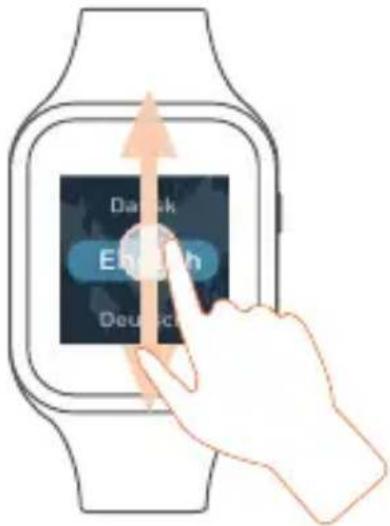
Download and install the app on your smartphone
To download the app you can:
- Search for "TCL Connect" in the Google Play store (Android 5.0 and above), or App store (iOS 10.0 and above).
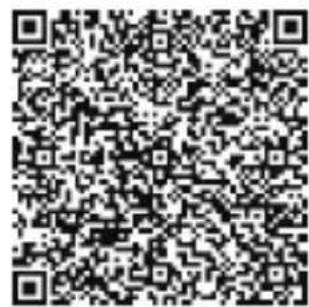
- Scan the following QR code.
6

EN
Create an account
- Touch Sign up to create your TCL Connect account.
- Enter your email address and set a password for your account. ^(1)
- Enter the verification code sent to your email address. This email address will be used to help you reset your password should you forget it.
- Touch Done.

Log in to your account
Enter your email address and password to log in. You can also log in using your Facebook / Twitter account.
EN

Pairing
Make sure the SIM card is correctly inserted and you are able to connect to the internet before pairing your watch with your phone. The connected network icon will appear at the top left of your watch's Home screen once connected to the internet.

4G network

3G network

2G network

Device is in roaming conditions

No data connection available, but calls can be set up

No network and can't make calls
There are two ways to pair your watch with your phone:
- Scan the QR code to pair your watch
Swipe left from the Home screen of your watch touch Contacts to obtain the QR code when pairing the watch for the first time.
You can also get the QR code by swiping right twice on the Home screen of your watch, then going to More > QR code.
- Enter the IMEI number to pair your watch
The IMEI number is printed on a label on the device packaging. You can also swipe right twice, go to More > Settings > About watch to


obtain the IMEI number. Enter the IMEI number of your Watch and touch Done to pair your watch with your phone.
Touch OK on your watch.
Enter your phone number in the app. Follow the instructions to complete your child's personal information (profile picture, name, birthday, phone number of the watch etc.) and touch Done.
EN
Once the MOVETIME Family Watch has been successfully paired with your phone, you will be brought to the application main screen. The location of the watch will be displayed here on the map.
Connect your watch to a Wi-Fi network via your smartphone
- Open the "TCL Connect" app. Choose the watch you want to set.
- Go to More > Wi-Fi. Touch Add.
- Select the wireless network and enter the password to connect with it. If you didn't find the wireless network you want to connect with in the list, it may have been hidden. Touch More to enter the SSID and password to connect with it.
- The 🔔 icon will appear on the top left of your watch once connected to the wireless network. Go to More > Settings > Wi-Fi on your watch to view more.
9

Using your watch
EN
Screen
Press the Power key to wake up the Home screen.
12:00
Mon, 03/12/2018


Touch
To select an application or confirm an action, use your finger to touch it.
Touch and hold
Long press the Home screen, swipe left to view different options, and touch a watch face to select it.
10

Swipe left/right
Swipe left/right to view applications, settings, and functions.
Swipe right to return to the previous page after you have entered any application.
EN
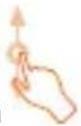
Swipe up/down
Swipe up from the Home screen to view notifications. Swipe down from the Home screen for volume and brightness controls and to turn on/off the wireless connection.


Camera
- Swipe left/right from the Home screen to select an application.
- Touch Camera and move your watch to look for a good angle for the photograph.
- Touch 📄 to take a photo.
Call
Phone call
- Swipe left from the Home screen and touch Contacts.
11

- Touch the contact and choose to place a phone call. Touch 📞 to end the call.
EN Video call
- Swipe left from the Home screen and touch Contacts.
- Touch the contact and choose 📷 to place a video call.
Touch the screen to show the control icon, and touch 📞 to end the video call.
If you want to place a video call with the watch user, you need to download the app on your smartphone or have a watch with a camera.

Message
Voice message
Touch Chat to select a contact or a group. Hold 🤨 to record, and release it to send the message.
Emoji
Touch Chat to select a contact or a group. Touch + > the select and send an emoji.
Photo
Touch Chat to select a contact or a group. There are two ways to send a photo:
- Touch+ > to select and send a photo from the Gallery.

- Touch + > to take a photo. Then select to send, or touch to go back and take the photo again.
Note: If the message fails to send, ⚠ will appear next to the message. Touch the icon to resend the message.
Friends
Adding new friends
Swipe left from the Home screen and touch Contacts > + Friend. Keep both watches in close proximity, shake them, and touch OK.
Deleting a friend
In the contact list, swipe left on the name of the friend. Touch the Delete icon 📋 that then appears on screen. Touch to confirm, or touch to cancel.
Group chat
Add friends first before you create a group. Swipe left twice from the Home screen and touch Chat > Create a group. Choose a group picture and invite friends. Touch √ to create a group, or touch ✗ cancel.
EN

Sports
Swipe left/right from the Home screen to select the application. Touch Sports to view your sports statistics including steps, distances and calories burned. If you have inserted a SIM card in your watch, you can view the daily steps rankings for you and your friends. You can touch the ♥ to "praise" their steps. You will receive a notification if one of your friends "praises" your steps. You can also swipe up to the end of this page and touch Who praised me to view the friends who have "praised" you.
Straps
Straps are available in a range of colours, styles, and materials. To purchase one, please contact retailers.
Remove straps
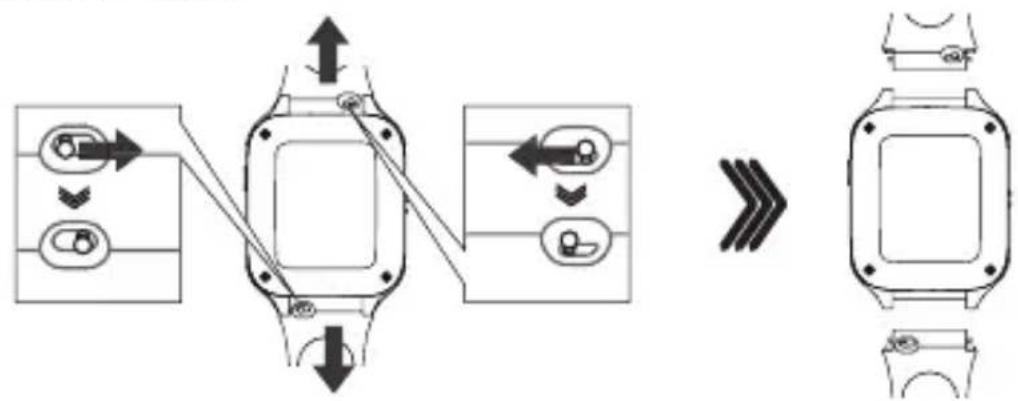
flowchart
graph TD
    A["Device 1"] --> B["State 1"]
    B --> C["State 2"]
    C --> D["State 3"]
    D --> E["State 4"]
    E --> F["State 5"]
    F --> G["State 6"]
    G --> H["State 7"]
    H --> I["State 8"]
    I --> J["State 9"]
    J --> K["State 10"]
    style A fill:#f9f,stroke:#333
    style K fill:#f9f,stroke:#333
14

Attaching new straps
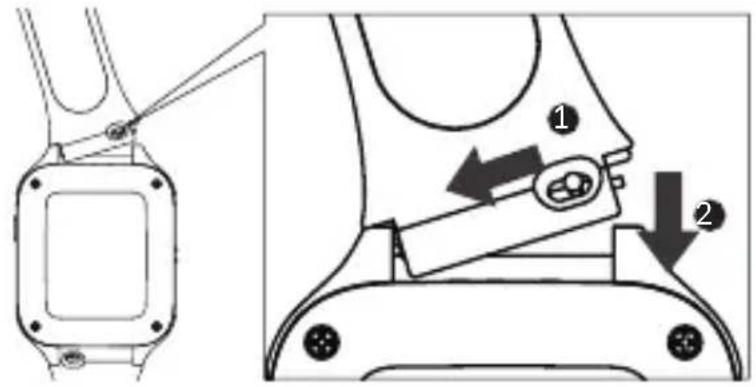
EN


Waterproof notice
This product has an IP65 rating and is suitable for everyday use. DO NOT use it when swimming, diving, scuba diving and taking shower.

15

FAQ
EN
- What SIM Card does the watch support?
MOVETIME Family Watch MT40X supports 2G: GSM 900/1800, 3G: UMTS B1/B8, 4G: LTE B1/B3/B7/B8/B20 Nano-SIM card.
- What operating systems does the application support?
Please Search for "TCL Connect" in the Google Play store (Android 5.0 and above), or App store (iOS 10.0 and above).
- If you are unable to pair with your watch:
i) Make sure the SIM is inserted correctly.
- If the SIM is inserted correctly, check to see if 4G, 3G or 2G is displayed on the top left of the screen of your watch.
- If not, long press the Power key for 15s to restart the watch.
ii) If 4G, 3G or 2G is displayed, check to make sure there are no overdue network charges that need to be paid.
- If you are unable to obtain the position of your watch:
i) Check to see if 4G, 3G or 2G is displayed on the top left of the screen of your watch.
ii) If not, long press the Power key for 15s to restart the watch.
iii) If 4G, 3G or 2G is displayed, check to make sure there are no overdue network charges that need to be paid.

- If you are unable to obtain the verification code during registration:
Please check your Junk emails. If you still cannot obtain it, please try to get the verification code again.
- How do I add family members to the contacts list?
You have two ways to add other family members:
i) Choose a family watch, then touch More > Share QR code. A QR code will appear on screen. If the invited family member is next to you they can scan it directly using their TCL Connect app. If the invited family member is not in your vicinity, you can send them the QR code.
ii) Choose a family watch, then touch More > Watch contacts > + > Add manually. Enter the names, photos, and phone numbers of the invited family members - you can also upload their photos. Touch Save to complete.
- How do I add and delete Geofences?
i) Choose a family watch, then touch More > Geofence.
ii) Touch + at the top right of this page, enter a name, choose a location on the map and set the range, then touch Save.
iii) You can swipe left on a safe zone in the list to delete it.
- How do I add and delete Alarms and Reminders?
i) Choose a family watch, then touch More > Alarms > +, Set alarm time and which days the alarm will repeat. Touch Save.
ii) You can swipe left on an alarm in the list to delete it.
Reminders can be added or deleted in the same way.

EN

- How do I set a school time?
i) Choose a family watch, then touch More > School time.
ii) Set a name for your school time, then choose the start time and end time for when you want to activate school time mode. Select which days of the week in which school time mode will be active. Touch Save.
iii) You can add more than one school time. Swipe left on each one in the list to delete it.
- Waterproof notice
This product has an IP65 rating which means it is fully protected from dust and is protected against low pressure jets of water from all directions. But please do not submerge your watch in water, for example when taking a shower, swimming, diving or scuba diving.
- Positioning accuracy
Your watch will provide 7 different positioning modes: GPS, AGPS, Beidou or Glonass, G Sens, Wi-Fi and Base Station. Position accuracy will differ according to each positioning method. Sometimes in tall buildings and other urban obstructions there is a small chance of a larger deviation.
- Data service
The watch uses mobile data to send messages and location information to family members. The data charges incurred will need to be paid by you to the network operator.

- SOS
All family members and the child should be familiar with the SOS operation. It is recommended to practice using this operation first.
- Are the materials in this product harmful to children?
All materials used have passed the required safety tests.
- Storage and use of my location data
For all data related to you, we will only use the queries you submit to us. We will not use your data for any commercial application or development without authorization.

For more information, please refer to the help section in the TCL Connect app or visit www.tclcom.com/wearables/.
19







MOVETIME
Family Watch
MT40X
natural_image
Two pink smartwatches with a 10:10 screen displaying a cartoon cat (no visible text or symbols on the devices themselves)
natural_image
Abstract geometric pattern with nested rectangles and a central rectangle (no text or symbols)


Standard Micro Nano
natural_image
Illustration of a smartwatch with attached cable and connector, showing a pointing orange arrow (no text or symbols)
FR


FR
Créer un compte
flowchart
graph TD
    A["Left Interface"] --> B["Device with Control Icon"]
    B --> C{Control Icon Intersection?}
    C -->|Yes| D["Right Interface"]
    C -->|No| E["Device with Control Icon"]
    D --> F["Final Device"]
    E --> F
    style A fill:#f9f,stroke:#333
    style F fill:#bbf,stroke:#333
35

Résistance à l'eau
MOVETIME Family Watch
natural_image
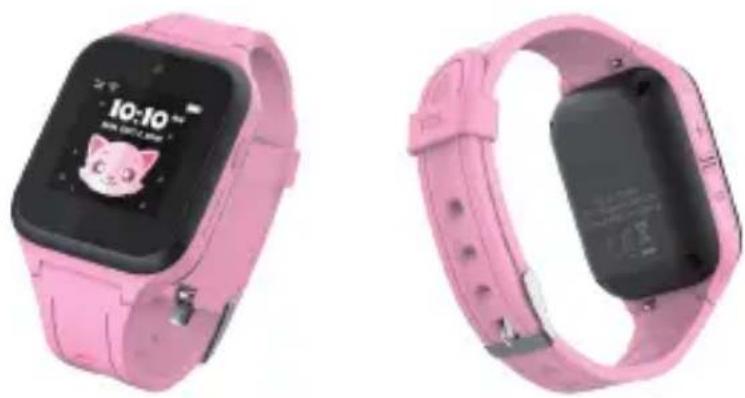
Two pink smartwatches with a cat logo displayed on the left and front (no visible text or symbols on the devices themselves)
Bedienungsanleitung
TCL
natural_image
Illustration of a smartwatch with attached hardware components and an orange arrow indicating direction (no text or symbols)
Uhr einschalten
Konto erstellen
natural_image
Technical diagram of a mechanical device with labeled parts and directional arrows (no text or symbols)
55

Wasserdichtigkeit
natural_image
Two pink smartwatches with a 10:10 screen displaying a cartoon cat (no visible text or symbols on the devices themselves)
natural_image
Illustration of a smartwatch with attached cable and connector, showing no text or symbols
75

natural_image
Two pink smartwatches with a 10:10 screen displaying a cartoon cat (no visible text or symbols on the devices themselves)
Guía rápida
TCL

natural_image
Illustration of a smartwatch with attached cable and connector, showing a pointing orange arrow (no text or symbols)
Crear una cuenta
95

ES
CJB1NS003AAA