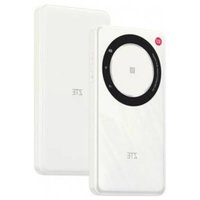
USER MANUAL U30 Air ZTE
ZTE Smart Life
natural_image
Simple icon of a padlock with a grid pattern inside, no text or symbols present.
(U)SIM
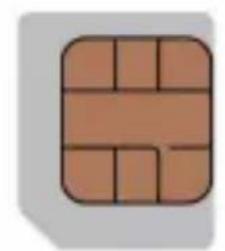
natural_image
Simple geometric pattern with a brick wall and rounded corners (no text or symbols)
micro-SIM
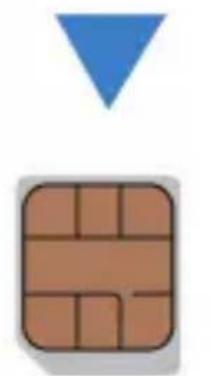
natural_image
Simple graphic with a blue downward triangle above a brown brick wall (no text or symbols)
nano-SIM
natural_image
Diagram of an open electronic device showing internal structure and a blue arrow indicating rotation (no text or symbols)
natural_image
Technical line drawing of a device casing with internal compartments and a highlighted inset showing a device being inserted (no text or symbols present)
- Włóż akumulator.
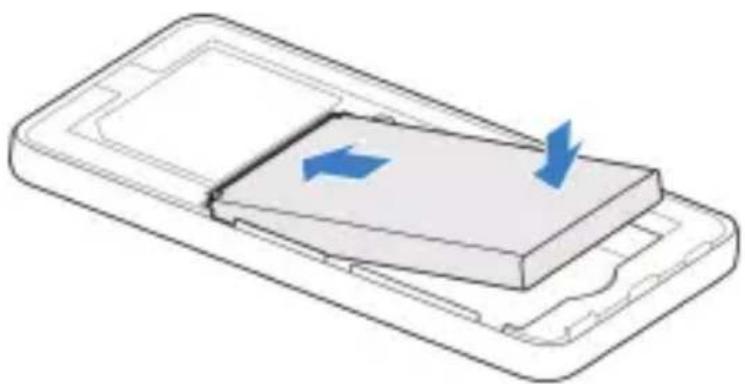
natural_image
Diagram of a device with two blue arrows indicating directional flow or movement, no text or symbols present
- Załóż pokrywę.
natural_image
Diagram of a device showing a lid and internal circuitry with a blue arrow indicating the component (no text or symbols present)
natural_image
Simple diagram of a horizontal bar with two buttons and an arrow pointing to the left (no text or symbols)
UWAGA:
natural_image
Diagram showing a remote control device connected to a desktop computer via cable (no text or symbols present)
Copyright © 2024 ZTE CORPORATION.
5G N1/3/7/8/20/28/40/77: 23 dBm
5G N78: 25 dBm
802.11 b/g/n/a/ac: Pasmo 2,4 GHz < 23 dBm
Pasmo 5 GHz < 23 dBm
Uwaga WE
https://certification.ztedevices.com
NO. 55, Hi-tech Road South, Shenzhen, P.R.China
ZTE Smart Life
natural_image
Simple icon of a padlock with a grid pattern inside, no text or symbols present.
(U)SIM

natural_image
Simple geometric pattern with a brick wall and rounded corners (no text or symbols)
micro-SIM
natural_image
Simple graphic with a blue downward triangle above a brown brick wall (no text or symbols)
nano-SIM
natural_image
Diagram of an open electronic device showing internal structure and a blue arrow indicating rotation (no text or symbols)
natural_image
Technical line drawing of a device casing with internal components, showing a magnified inset of the internal structure (no text or symbols)
- Inserte la batería.
natural_image
Diagram of a device with two blue arrows indicating directional flow or movement, no text or symbols present
natural_image
Diagram of a device showing a lid and internal circuitry with a blue arrow indicating the component (no text or symbols present)
natural_image
Simple illustration of a horizontal bar with two buttons and an arrow pointing to the left (no text or symbols)
NOTA:
natural_image
Illustration of a remote control device connected to a desktop computer via cable (no text or symbols)
Luces indicadoras e interfaces
• Visite https://www.ztedevices.com.
Copyright © 2024 ZTE CORPORATION.
5G N1/3/7/8/20/28/40/77: 23 dBm
5G N78: 25 dBm
802.11 a/b/g/n/ac: Banda de 2,4 GHz <23 dBm
Banda de 5 GHz <23 dBm
Precauciones de CE
natural_image
Symbol of a trash bin crossed with no text or numbers, accompanied by a black rectangular bar (no text or symbols present)
https://certification.ztedevices.com
NO. 55, Hi-tech Road South, Shenzhen (R. P. China)
ZTE Smart Life
natural_image
Simple icon of a padlock with a grid pattern inside, no text or symbols present.
(U)SIM
natural_image
Simple geometric pattern with a brick wall and rounded corners (no text or symbols)
micro-SIM
natural_image
Simple graphic with a blue downward triangle above a brown brick wall (no text or symbols)
nano-SIM
natural_image
Diagram of a computer case with an open lid and internal components, showing a blue arrow indicating a specific area (no text or symbols present)
natural_image
Technical line drawing of a device casing with internal components, showing a magnified inset of the internal structure (no text or symbols)
natural_image
Diagram of a device with two blue arrows indicating directional flow or movement, no text or symbols present
- Replacez le couvercle.
natural_image
Diagram of a device showing a lid and internal circuitry with a blue arrow indicating the component (no text or symbols present)
natural_image
Simple illustration of a horizontal bar with two buttons and an arrow pointing to the left (no text or symbols)
REMARQUE :
natural_image
Diagram showing a remote connected to a computer via cable, with no visible text or symbols.
Copyright © 2024 ZTE CORPORATION.
natural_image
Symbol of a trash bin crossed with no text or numbers, representing waste sorting or disposal (no text present)
CE
https://certification.ztedevices.com
natural_image
Simple icon of a brick wall inside a rounded rectangle (no text or symbols)
(U)SIM
natural_image
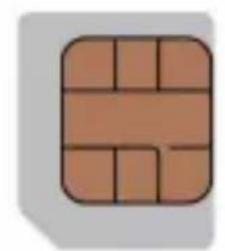
Simple geometric pattern with a brick wall and rounded corners (no text or symbols)
micro-SIM
natural_image
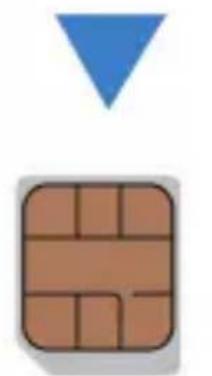
Simple graphic with a blue downward triangle above a brown brick wall (no text or symbols)
nano-SIM
natural_image
Diagram of a computer case with an open lid and internal components, showing a blue arrow indicating a specific area (no text or symbols present)
natural_image
Diagram of a device casing with internal components and an inset showing a device being inserted into a tray (no text or symbols present)
natural_image
Diagram of a device with two blue arrows indicating directional flow or movement, no text or symbols present
natural_image
Diagram of a device showing a lid and internal circuitry with a blue arrow indicating the component (no text or symbols present)
natural_image
Simple diagram of a horizontal bar with two buttons and an arrow pointing to the left (no text or symbols)
HINWEIS:
natural_image
Illustration of a remote control device connected to a desktop computer via cable (no text or symbols)
Copyright © 2024 ZTE CORPORATION.
5G N1/3/7/8/20/28/40/77: 23 dBm
5G N78: 25 dBm
802.11 b/g/n/a/ac: 2,4-GHz-Band < 23 dBm
5-GHz-Band < 23 dBm
CE-Warnung
Akku-Warnung
natural_image
Symbol of a trash bin crossed out by two crossed lines, with a solid black rectangle below (no text or labels)
https://certification.ztedevices.com
https://certification.ztedevices.com
NR. 55, Hi-tech Road South, Shenzhen, VR China
ZTE Smart Life
natural_image
Simple icon of a brick wall inside a rounded rectangle (no text or symbols)
(U)SIM
natural_image
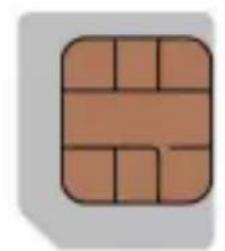
Simple geometric pattern with a brick wall and rounded corners (no text or symbols)
micro-SIM
natural_image
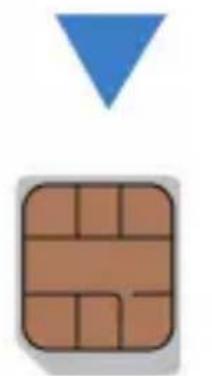
Simple graphic with a blue downward triangle above a brown brick wall (no text or symbols)
nano-SIM
natural_image
Diagram of a computer case with an open lid and internal components, showing a blue arrow indicating a specific area (no text or symbols present)
natural_image
Technical line drawing of a device casing with internal components, showing a magnified inset of the internal structure (no text or symbols)
natural_image
Diagram of a device with two blue arrows indicating directional flow or movement, no text or symbols present
natural_image
Diagram of a device showing a lid and internal circuitry with a blue arrow indicating the component (no text or symbols present)
natural_image
Simple horizontal bar with two buttons labeled 'B' and 'O' and an arrow pointing to the left (no text or symbols on the bar itself)
NOTA:
natural_image
Illustration of a remote control device connected to a desktop computer via cable (no text or symbols)
Copyright © 2024 ZTE CORPORATION.
5G N1/3/7/8/20/28/40/77: 23 dBm
5G N78: 25 dBm
802.11 b/g/n/a/ac: Banda a 2,4 GHz < 23 dBm
Banda a 5 GHz < 23 dBm
Avvertenza CE
Avvertenza batteria
natural_image
Symbol of a trash bin crossed with a diagonal line, no text or numbers present
https://certification.ztedevices.com
https://certification.ztedevices.com
N. 55, Hi-tech Road South, Shenzhen, R. P. Cinese
Getting started with your device
ZTE Smart Life helps you easily access and manage U30Air with your smartphone.
ZTE Smart Life
Easy to manage your device
1. Prepare
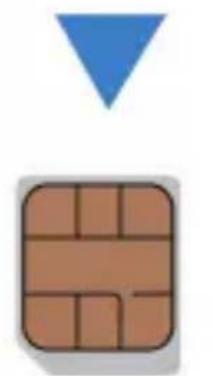
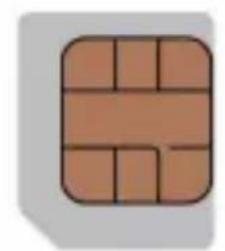
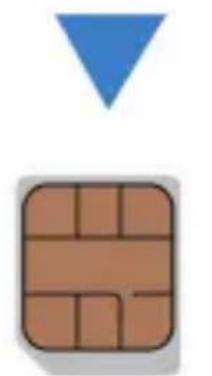
• A valid nano-SIM card.

natural_image
Simple icon of a brick wall inside a rounded rectangle (no text or symbols)
(U)SIM
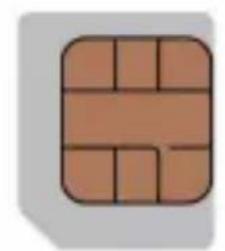
natural_image
Simple geometric pattern with a brick wall and rounded corners (no text or symbols)
micro-SIM
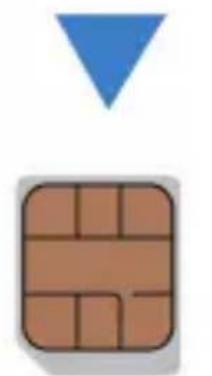
natural_image
Simple graphic with a blue downward triangle above a brown brick wall pattern (no text or symbols)
nano-SIM
- Please open the back cover and view the label to get the default information.
2. Insert the nano-SIM Card and Battery
- Open the back cover.
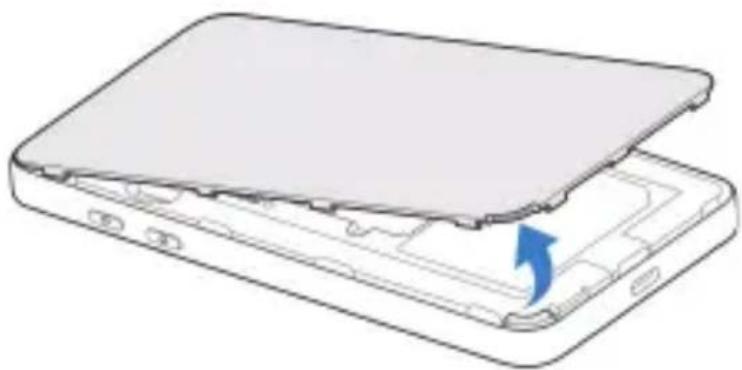
natural_image
Diagram of a computer case with an open lid and internal components, showing a blue arrow indicating a specific area (no text or symbols present)
- Insert the nano-SIM card into the slot.
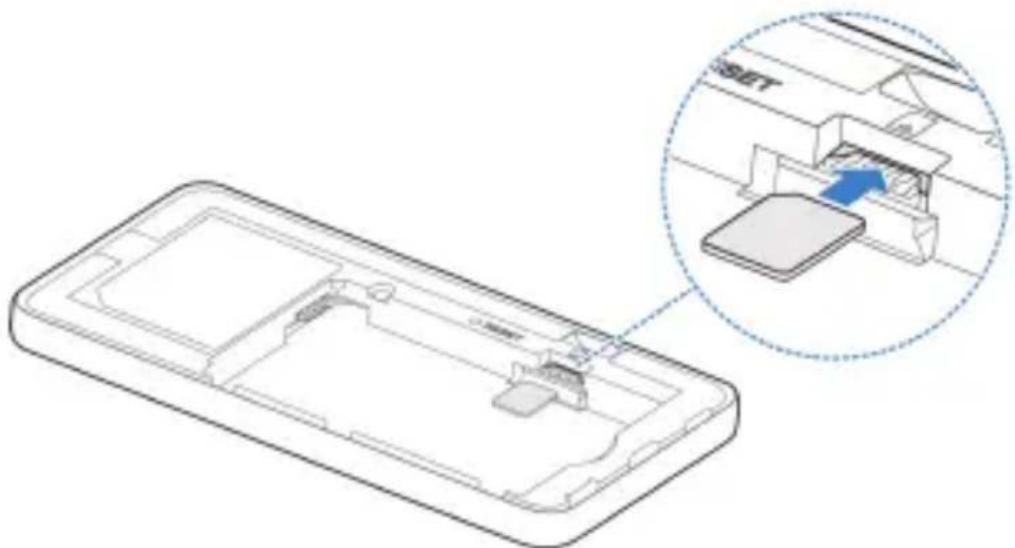
natural_image
Technical line drawing of a device casing with internal components, showing a magnified inset of the internal structure (no text or symbols)
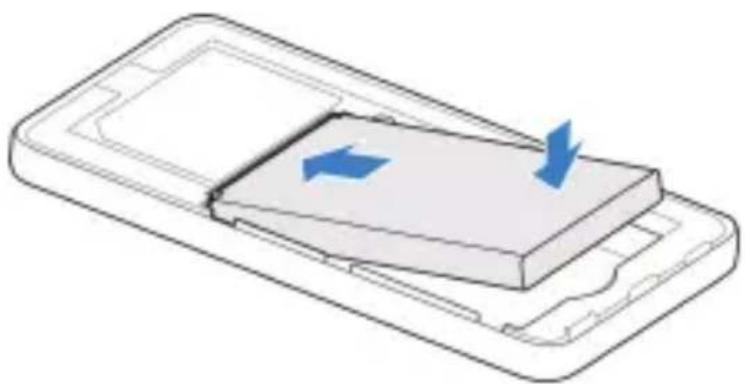
- Insert the battery.
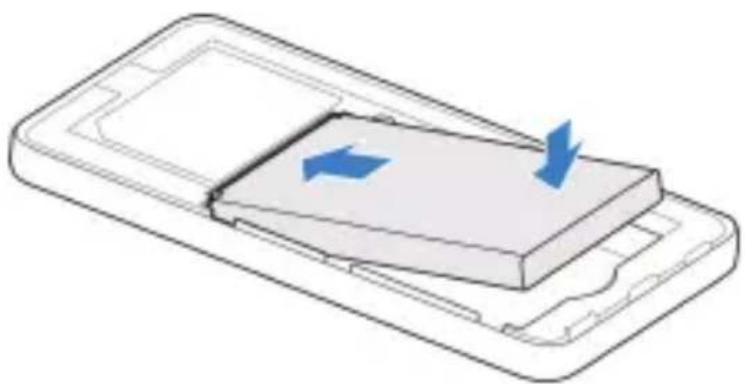
natural_image
Diagram of a device with two blue arrows indicating directional flow or movement, no text or symbols present
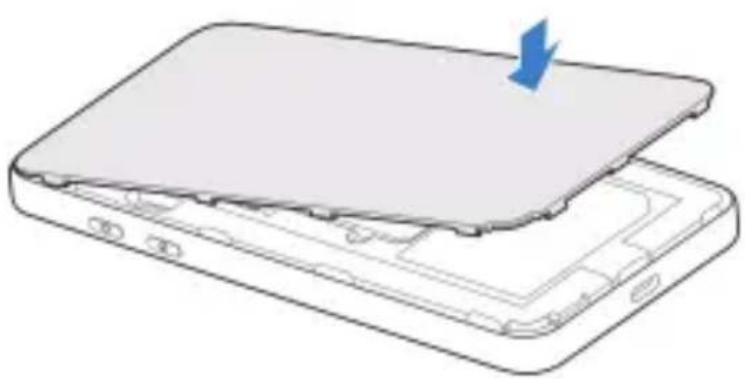
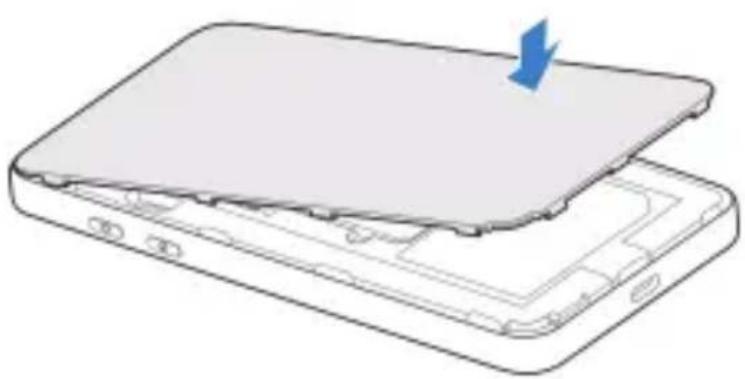
- Put the cover back.
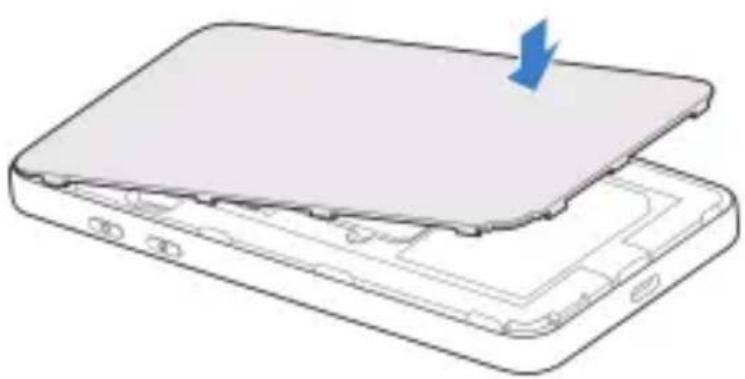
natural_image
Diagram of a device showing a lid and internal circuitry with a blue arrow indicating the component (no text or symbols present)
3. Start Your Device
Press and hold the power button for about 3 seconds to power on the device. After a moment the device will connect to the Internet automatically.

natural_image
Simple horizontal bar with two circular buttons and a blue arrow pointing to the left end (no text or symbols)
NOTE:
If the battery is extremely low, you may be unable to power on the device. Please charge your device first.
4. Access the Internet
- Wi-Fi: Get the default SSID and password on the label and connect to the Wi-Fi network with your mobile device, and then access the Internet.
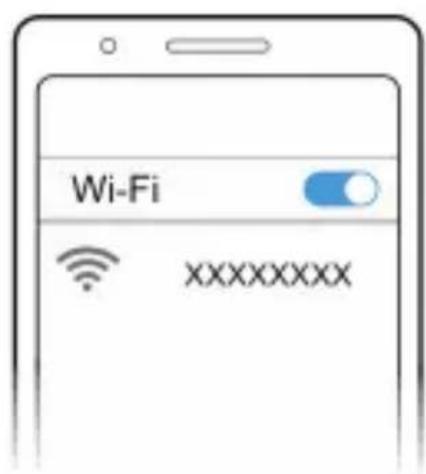
Please note that this device supports 5GHz Wi-Fi by default. It cannot support 2.4GHz Wi-Fi and 5GHz Wi-Fi simultaneously.
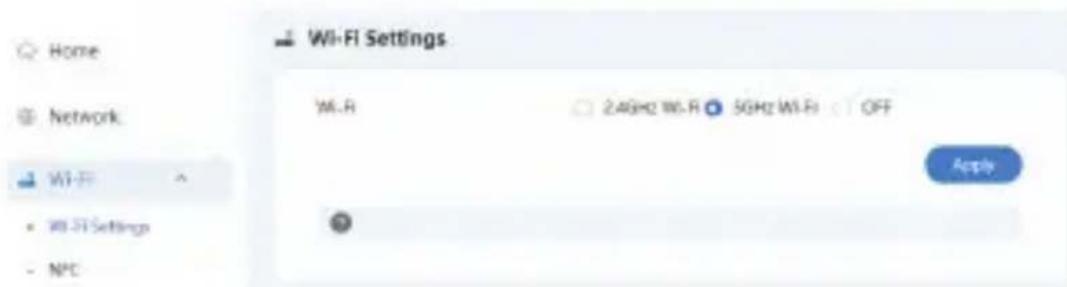
If your Wi-Fi client devices only support 2.4GHz Wi-Fi, you can switch between the 2.4GHz and 5GHz Wi-Fi networks by either:
- Pressing and holding theWi-Fi key (refer to page 8) for about 3 seconds, or
• Using the Web UI under Wi-Fi > Wi-Fi Settings to switch to 2.4GHz mode.
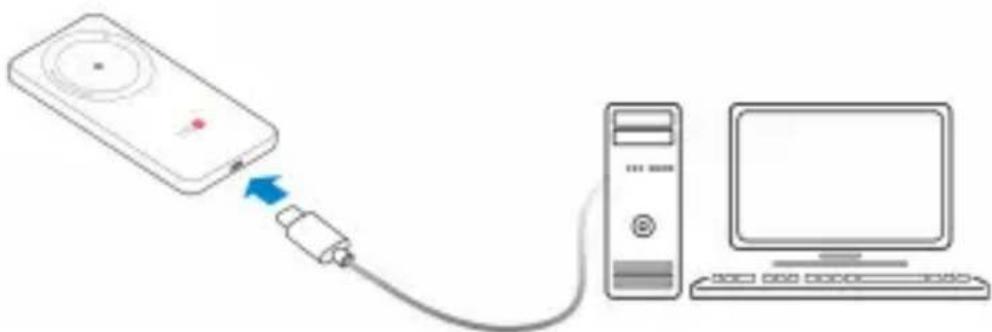
- USB Type-C Cable: Connect with the computer via USB port and then access the Internet.
natural_image
Illustration of a remote control device connected to a desktop computer via cable (no text or symbols)
5. Change Your Device Settings
You can change the device settings by logging in to the management web page.
- Open the back cover and view the label to get the default device manager Website IP address and Password.
- Launch the Internet browser and enter the device manager Website IP address in the address bar.
- Input the password and log in to the web page.
- After the management web page is opened, you can change some default settings.
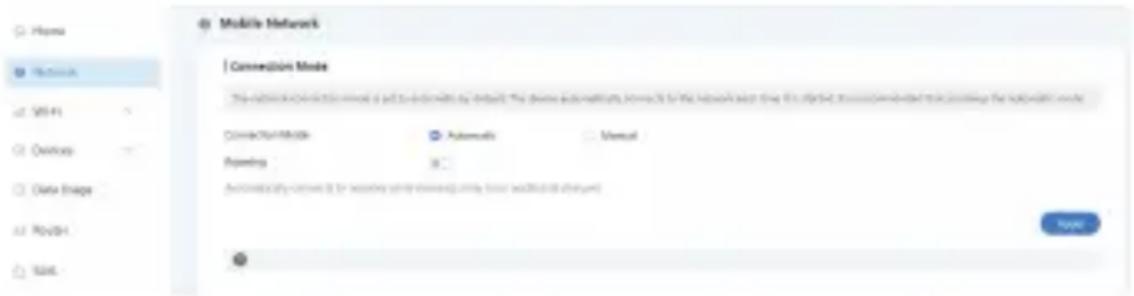
International Roaming
Please note that the Roaming feature on this device is set to Off by default. To enable it, use the Web UI under Network > Mobile Network > Roaming.

WARNING!
Enabling the roaming feature may incur additional charges. Please check with your mobile operator for data and pricing. Select this option with caution.
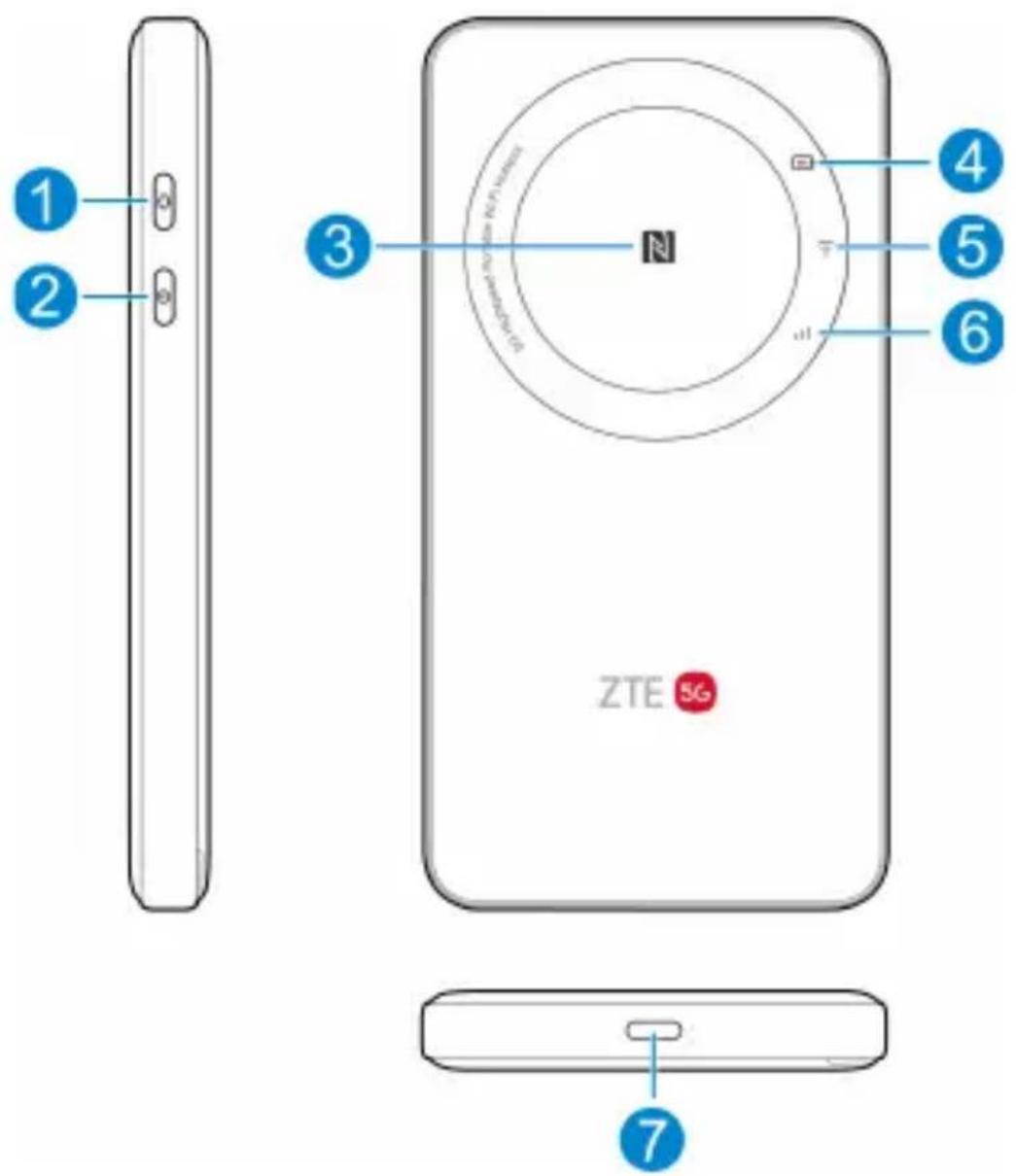
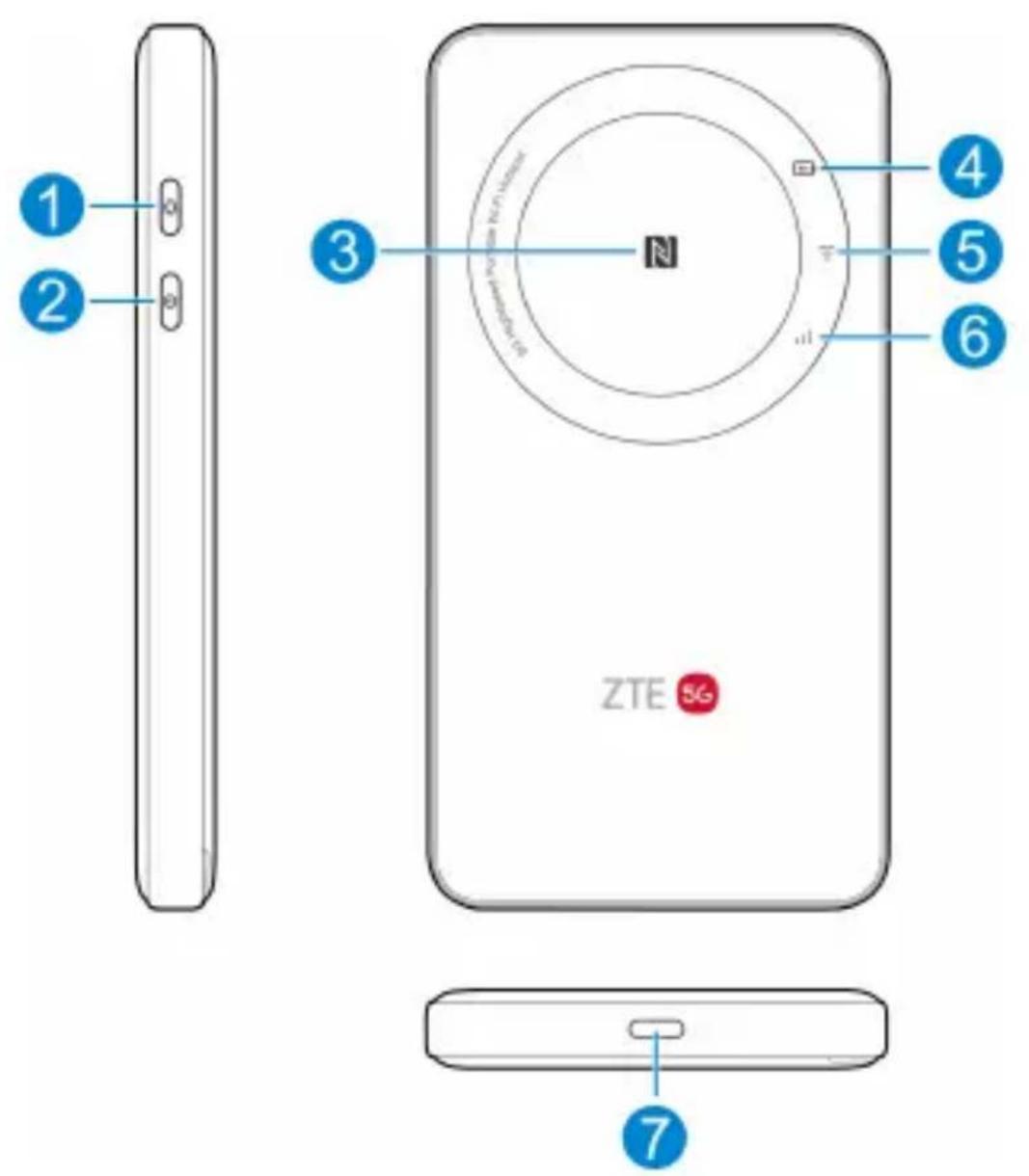
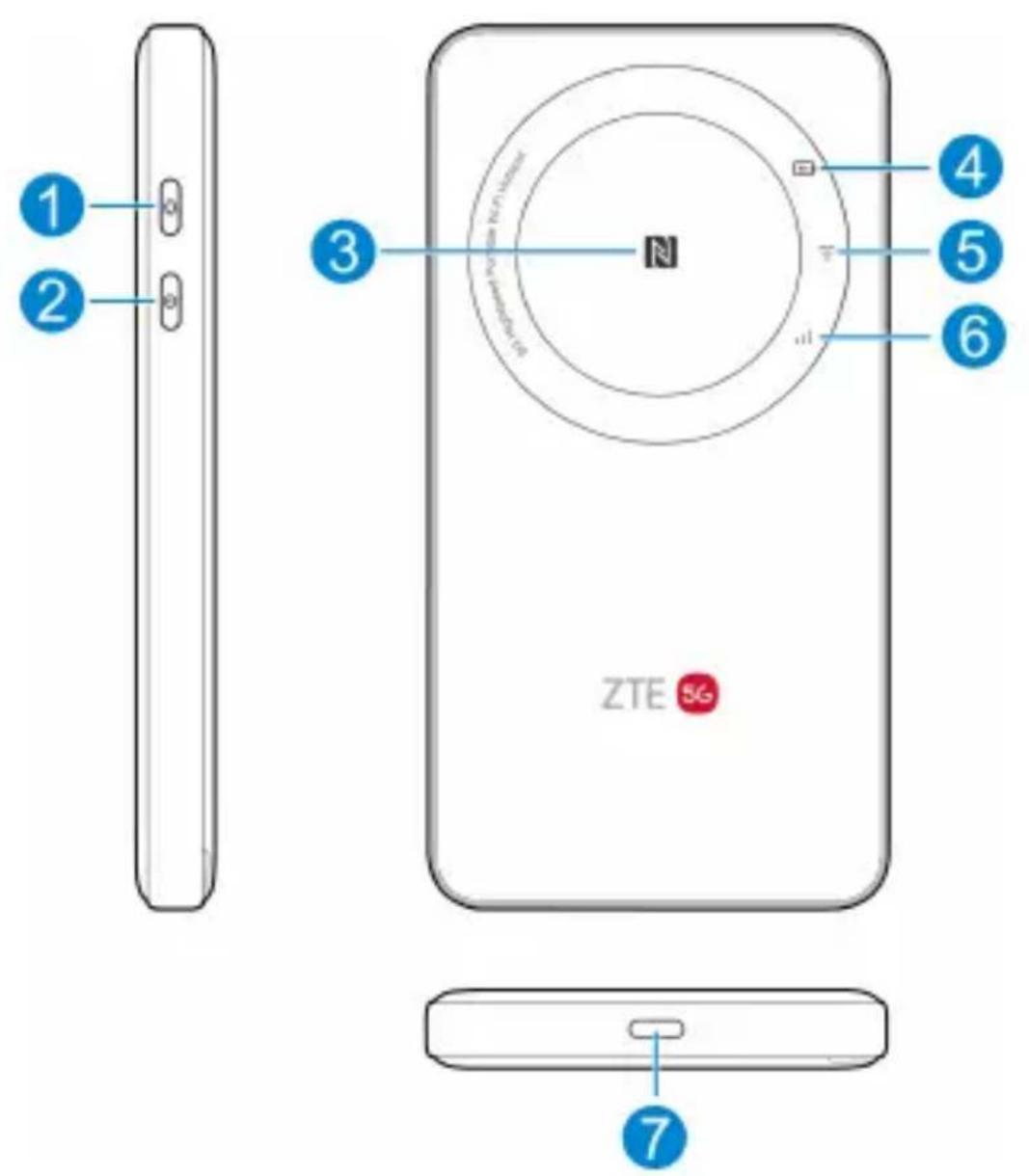
Indicator Lights and Interfaces
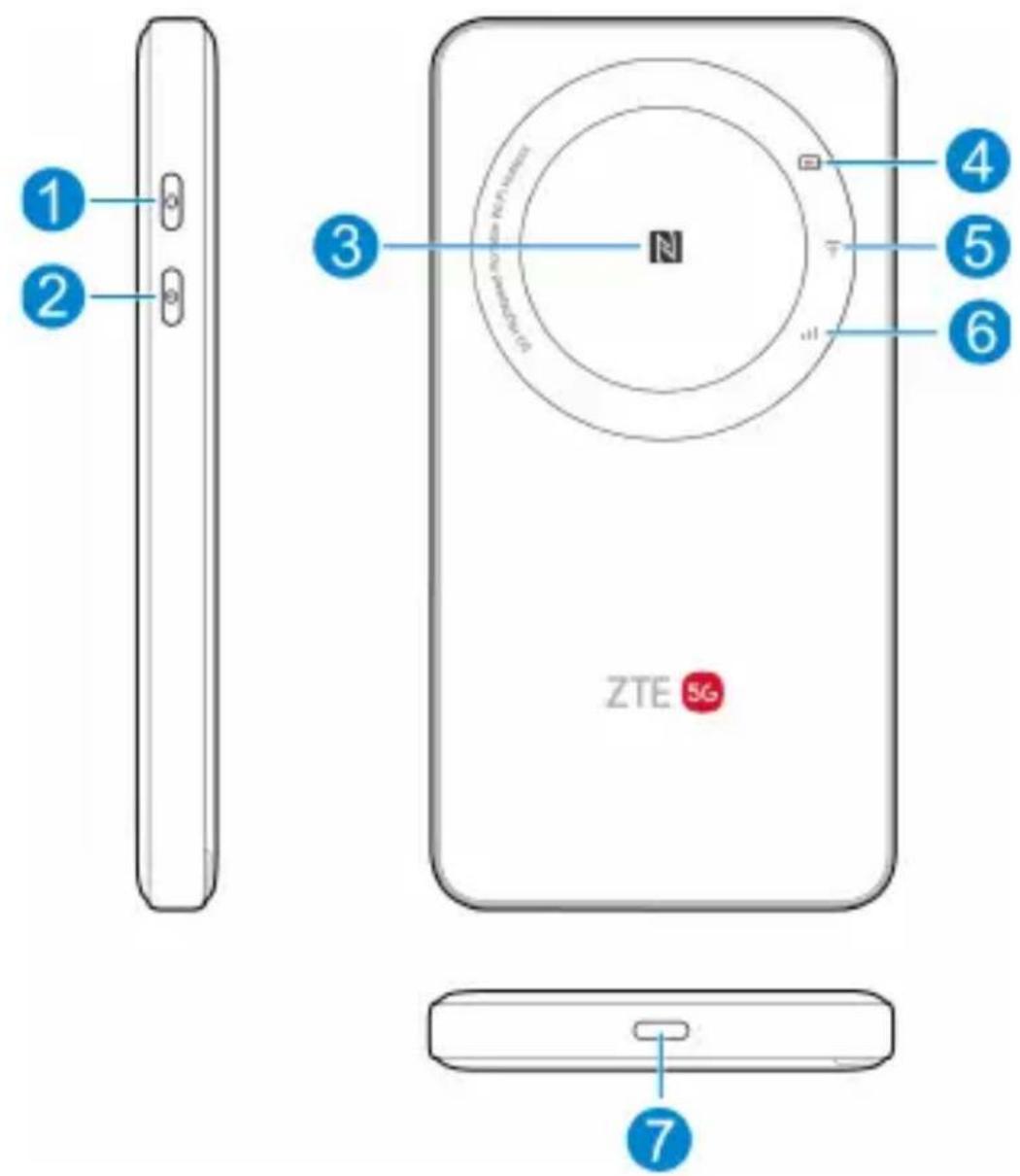
| 1 Wi-Fi key | Press and hold for about 3 seconds to switch between the 2.4 GHz and 5 GHz Wi-Fi network. |
| 2 Power key | Press and hold for about 3 seconds to power on/off your device. |
| 3 NFC | Activate the NFC function on your Android mobile phone, put your phone here and then connect to the Wi-Fi network without entering the password. |
4  | Red solid: The battery level is low.Blue solid: The battery level is medium.White solid: The battery level is high or full.Blinking: The battery is being charged.Light off: Your device is powered off and not being charged. |
5  | White solid: 5 GHz Wi-Fi is active.Blue solid: 2.4 GHz Wi-Fi is active.Light off: Wi-Fi is off or the device is powered off. |
| 6 | ... | Red solid: The device is in error status.The device is not registered to the mobile network.There is no nano-SIM card inserted.There is no network service available.Blue solid: The device is connected to the 4G/3G mobile network.White solid: The device is connected to the 5G network.White blinking: The software is being upgraded.Light off: The device is powered off. |
| 7 | Charging/USBType-C jack | Charge the device or connect to the USB port of a computer. |
* After the device has not been operated for about 15 seconds, the indicator lights turn off and it's in power-saving mode. You can press any key to turn on the indicator lights.
*Open the back cover and you can find the RESET hole. Press to restore your device to the factory settings.
Problem Recommended Action
| The connection between your device and a client through Wi-Fi cannot be established | ·Ensure that the Wi-Fi function is enabled.·Refresh the network list and select the correct SSID.·Check the IP address, and ensure that your client can automatically obtain an IP address.·Enter the correct network key (Wi-Fi password) when you connect the client to your device. |
| The client connected to the device cannot access the Internet. | ·Ensure that your nano-SIM card is available.·Change the location and find a place with good signal.·Check the settings of the WAN connection mode.·Contact your service provider and confirm your APN settings. |
Problem Recommended Action
The
management
web page
cannot be
visited.
- Enter the correct address. Please view the label on your device to get the default Device Manager Website IP address.
- Use only one network adapter in your PC.
- Do not use any proxy server.
Get More Help
You can get help by:
- Sending an email to mobile@zte.com.cn
- Visiting https://www.ztedevices.com
Copyright © 2024 ZTE CORPORATION.
All rights reserved.
No part of this publication may be quoted, reproduced, translated or used in any form or by any means, electronic or mechanical, including photocopying and microfilm, without the prior written permission of ZTE Corporation.
Notice
ZTE Corporation reserves the right to make modifications on print errors or update specifications in this guide without prior notice.
Disclaimer
Images and screenshots used in this guide may differ from the actual product. Content in this guide may differ from the actual product or software.
Trademarks
ZTE and the ZTE logos are trademarks of ZTE
Corporation.
Other trademarks and trade names are those of their respective owners.
Version No.: R1.0
To the User
- If inadequately shielded, some electronic devices, for example, the electronic system of vehicles, may be affected by the electromagnetic interference caused by the device. Consult the manufacturers of such devices before using the device if necessary.
- Operating the device may interfere with medical instruments such as hearing aids and pacemakers. Always keep the device more than 20 centimeters away from such medical instruments when your device is powered on. Power off the device if necessary. Consult a physician or the manufacturers of medical instruments before using the device if necessary.
- Be aware of the usage limitation when using the device at places such as oil warehouses or chemical factories, where there are explosive gases or explosive products being processed. Power off the device if necessary.
- Do not use electronic transmission devices in aircraft, at petrol stations or in hospitals. Observe and obey all warning signs, and power off the device in these conditions.
- Do not touch the inner antenna area unless necessary. Otherwise the performance of the device may be affected.
- Do not use the device in an enclosed environment or where heat dissipation is poor. Prolonged work in such space may cause excessive heat and raise ambient temperature, which may lead to automatic shutdown of the device for your safety. In the case of such an event, cool the device in a well-ventilated place before turning on for normal use.
- Keep the device out of the reach of small children. The device may cause an injury if used as a toy.
- When the device is operating, do not touch the metallic parts. Failing to do so may cause burns.
- Use original accessories or accessories that are authorized. Using any unauthorized accessories may affect the performance of the device and violate the related national regulations about telecom terminals.
- Avoid using the device near or inside metallic constructions or establishments that can emit electromagnetic waves, because signal reception may be affected.
- The device is not waterproof. Keep the device dry and store it in a shady and cool place.
- Do not use the device immediately after a sudden temperature change, because dew may be generated inside and outside the device. Do not use it until it becomes dry.
- Handle the device carefully. Do not drop, bend or strike it. Otherwise the device may be damaged.
- Only qualified personnel can dismantle and repair the device.
- The humidity between 5% and 95% is recommended.
- Do not connect the charger while using the device for a long period. Failing to do so will trigger the protection mechanism of the battery, and the battery will not be charged. If you want to charge the battery, please reconnect the charger.
- Do not connect the charger while using the device for a long period or use the device and battery in non-operating temperature. Failing to do so will shorten battery life or cause battery swelling or leakage. If the battery shows signs of swelling or leakage, please stop use immediately.
- Do not place or use your device inside or near heating equipment, high-pressure containers or strong electromagnetic environment, such as water heaters, microwave ovens, or hot cooking utensils. Otherwise, your device may be damaged.
- For pluggable equipment, the socket-outlet shall be installed near the equipment and shall be easily accessible.
Battery Safety
- Using ZTE-unapproved or incompatible battery, charger or power adapter may damage your device, shorten its lifespan or cause a fire, explosion or other hazards.
- The recommended operating temperatures are 0 °C to 35 °C and the storage temperatures are -20 °C to +45 °C. Extreme temperatures can damage the device and reduce the charging capacity and lifespan of your device and battery.
- Do not place the device or the battery in or near heating equipment, such as microwave ovens, stoves or radiators. Keep the device and the battery away from excessive heat and direct sunlight. If not, the device or the battery may overheat and cause explosion or fire.
- Please disconnect the charger when the battery is fully charged. Overcharging may shorten the battery life.
- Do not short-circuit the battery, as this can cause excessive heat and fire.
- Do not throw the battery into a fire to avoid explosion.
- Do not disassemble, squeeze or puncture the battery, as this can cause explosion or fire.
- When not using the battery for a long period, please charge the battery about half then remove the battery from your device and store it in a cool dry place.
- If the battery damages or shows signs of swelling or leakage, please stop use immediately and contact ZTE or ZTE authorized service provider for replacement.
- Return the worn-out battery to the provider or put it in the designated recycle place. Do not put it in household waste.
- There is a risk of explosion if the wrong battery model is replaced.

WARNING!
If the battery is broken, you should avoid contact with the contents inside. If they contaminate the skin, immediately rinse with plenty of water and seek medical help when necessary.
Limited Warranty
This warranty does not apply to defects or errors in the product caused by:
i. Reasonable abrasion.
ii. End users' failure to follow ZTE's installation, operation or maintenance instructions or procedures.
iii. End users' mishandling, misuse, negligence, or improper installation, disassembly, storage, servicing or operation of the product.
iv. Modifications or repairs not provided by ZTE or a ZTE-certified individual.
v. Power failures, surges, fire, flood, accidents, and actions of third parties or other events outside ZTE's reasonable control.
vi. Usage of third-party products or usage in conjunction with third-party products if such defects are due to the combined usage.
vii. Any other cause beyond the range of normal usage intended for the product.
End users have no right to reject or return the product, or receive a refund for the product from ZTE under the above-mentioned situations.
This warranty is end users' sole remedy and ZTE's sole liability for defective or nonconforming items, and is in lieu of all other warranties, expressed, implied or statutory, including but not limited to the implied warranties of merchantability and fitness for a particular purpose, unless otherwise required under the mandatory provisions of the law.
Limitation of Liability
ZTE shall not be liable for any loss of profits or indirect, special, incidental or consequential damages resulting from or arising out of or in connection with using of this product, no matter whether or not ZTE had been advised, knew or should have known of the possibility of such damages, including, but not limited to lost profits, interruption of business, cost of capital, cost of substitute facilities or product, or any downtime cost.
Specific Absorption Rate (SAR)
Your mobile device is a radio transmitter and receiver. It is designed not to exceed the limits for exposure to radio waves recommended by international guidelines. These guidelines were developed by the independent scientific organization ICNIRP and include safety margins designed to assure the protection of all persons, regardless of age and health.
The guidelines use a unit of measurement known as Specific Absorption Rate, or SAR. The SAR limit for mobile devices is 2 W/kg and the highest SAR value for this device when tested at the body was 1.656 W/kg* with 5 mm distance.
As SAR is measured utilizing the device's highest transmitting power, the actual SAR of this device while operating is typically below that indicated above. This is due to automatic changes to the power level of the device to ensure it only uses the minimum power required to communicate with the network.
* The tests are carried out in accordance with EN 50566, EN 62209-2 and EN 50663.
Specification
This radio equipment operates with the following frequency bands and maximum radio-frequency power.

NOTE:
All ZTE products are compliant with these power limits required by the European Union. Frequency bands supported by the product vary by model.
UMTS Band 1/8: 23 dBm
LTE Band 1/2/3/4/7/8/20/28/38: 23 dBm
5G N1/3/7/8/20/28/40/77: 23 dBm
5G N78: 25 dBm
802.11 b/g/n/a/ac: 2.4 GHz Band < 23 dBm
5 GHz Band < 23 dBm
CE Caution
Battery Caution
Risk of explosion if battery is replaced by an incorrect type. Dispose of used batteries according to the instructions.
USB Port
The USB interface version of this product is USB 3.0
Proper Use
As described in this guide, your device can be used only in right location. If possible, please do not touch the antenna area on your device.
Disposal of Your Old Appliance
natural_image
Symbol of a trash bin crossed with a diagonal line, no text or numbers present
-
When this crossed-out wheeled bin symbol is attached to a product, it means the product is covered by the European Directive 2012/19/EU.
-
All electrical and electronic products should be disposed of separately from the municipal waste stream via designated collection facilities appointed by the government or the local authorities.
-
The correct disposal of your old appliance will help prevent potential negative consequences for the environment and human health.
For this product's recycling information based on WEEE directive, please send an e-mail to weee@zte.com.cn
CE
Hereby, ZTE Corporation declares that the radio equipment type U30 Air is in compliance with Directive 2014/53/EU.
The full text of the EU declaration of conformity is available at the following Internet address:
https://certification.ztedevices.com
UK PSTI Statements of Compliance
Hereby, ZTE Corporation declares that U30 Air is in compliance with The Product Security and Telecommunications Infrastructure (Security Requirements for Relevant Connectable Products) Regulations 2023.
The full text of the UK PSTI Statements of Compliance is available at the following Internet address:
https://certification.ztedevices.com
The device is restricted to indoor use only when operating in the 5150 to 5350 MHz frequency range.
 | AT BE BG HR CY CZ DK | | | |
| EE FI FR DE EL HU IE | | | |
| IT LV LT LU MT NL PL | | | |
| PT RO SK SI ES $E UK(NI) | | | |
| NO IS LI CH TR | | | |
ZTE CORPORATION
NO. 55, Hi-tech Road South, Shenzhen, P.R.China
Postcode: 518057