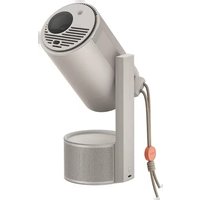
MoGo 3 Pro - Projector XGIMI - Free user manual and instructions
Find the device manual for free MoGo 3 Pro XGIMI in PDF.


| Product type | LED Projector |
| Brand | XGIMI |
| Model | MoGo 3 Pro |
| Model number | XN13A |
| Power supply | AC adapter: input 100-240 V AC, 50/60 Hz, 1.8 A max; output 20 V DC, 3.25 A |
| Operating system | Google TV |
| Voice assistant | Google Assistant |
| Wireless connectivity | Wi-Fi 2.4 GHz and 5 GHz, Bluetooth |
| Ports | 1 x USB Type-C (PD 3.0), 1 x Micro HDMI (ARC), 1 x USB 2.0 |
| Keystone correction | Automatic and manual (4 points) |
| Focus | Automatic and manual |
| Smart features | Obstacle avoidance, automatic alignment to 16:9 or 16:10 screen |
| Compatibility | Google Cast, Dolby Audio |
| Safety | RG2 (IEC 62471-5:2015), consumer laser product (EN 50689:2021), do not look directly at the beam |
| Operating temperature | 0 °C to 40 °C |
| Certifications | FCC, IC, CE |
| Manufacturer | XGIMI Technology Co., Ltd. |
| After-sales service | Contact XGIMI support – do not disassemble by yourself |
| Lens maintenance | Use an air blower; do not wipe with paper or cloth |
| Device cleaning | Do not use chemicals, detergents, or liquids; avoid moisture |
| Storage | Dry and ventilated environment, temperature between 0 °C and 40 °C |
Frequently Asked Questions - MoGo 3 Pro XGIMI
User questions about MoGo 3 Pro XGIMI
0 question about this device. Answer the ones you know or ask your own.
Ask a new question about this device
Download the instructions for your Projector in PDF format for free! Find your manual MoGo 3 Pro - XGIMI and take your electronic device back in hand. On this page are published all the documents necessary for the use of your device. MoGo 3 Pro by XGIMI.
USER MANUAL MoGo 3 Pro XGIMI
Please read the user guide carefully before using this product.
Thank you for buying and using XGIMI products. You should read this user guide carefully before using the product for both your safety and interest. XGIMI assumes no responsibility for any personal injury, damage to property or other loss caused due to failure to operate this product according to the instructions or precautions in this user guide.
About this user guide
The copyright of this user guide belongs to XGIMI. The trademarks and names mentioned in this user guide belong to their respective owners. The content in the user guide may differ from the product.
Google TV and Google Cast are trademarks of Google LLC.
Google Assistant is not available in certain languages and countries. Availability of services varies by country and language.
HDMI®
I HDMI High-Definition Multimedia interface and the HDMI Logo are trademarks or registered trademarks of HDMI Licensing Administrator, Inc.
Dolby Audio
Dolby, Dolby Audio, and the double-D symbol are trademarks of Dolby Laboratories.
* Model: XN13A
* XGIMI Technology reserves the right to interpret and amend this user guide.
OVERVIEW
Ports

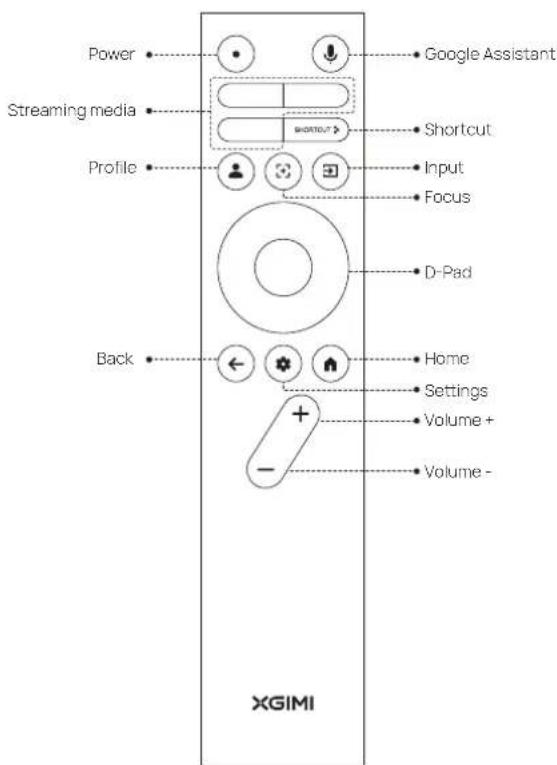
Remote
Getting Started
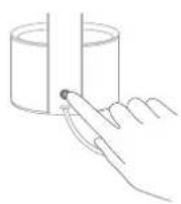
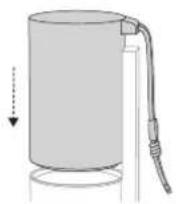
1 Device on/off
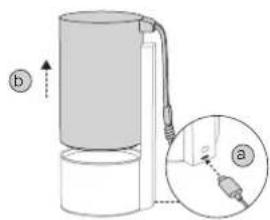
a Connect the power cable and wait for the indicator light to go out.
b Lift the projector to turn it on.
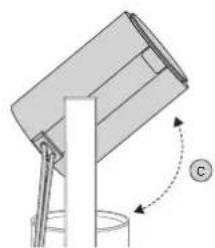
natural_image
Diagram of a mechanical device with a cylindrical base and rotating arm, showing no text or symbols.© Rotate the projector. The projector enters viewing mode
In the power-on state, press and hold the power button or close the projector vertically to shut it down.
② Remote Control Pairing
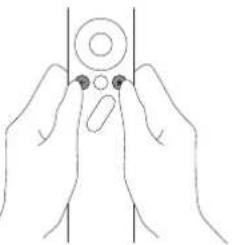
Position the remote control within 10cm of the device, press " 🔒" and " 🔒" simultaneously. An indicator light will begin flashing as the remote control enters pairing mode. Release the buttons when the flashing begins. After hearing a "ding" sound, the connection is successful. If pairing fails, wait 30 seconds and repeat the steps above.
natural_image
Line drawing of two hands holding a circular object with a small protrusion (no text or symbols)3 Functions Description of Remote Control
You can use the focus key on the remote to focus. Press it for auto focus. Press and hold it for manual focus, and use the left and right keys to manually adjust the focus.
4 Extra spacing between keystone & correction
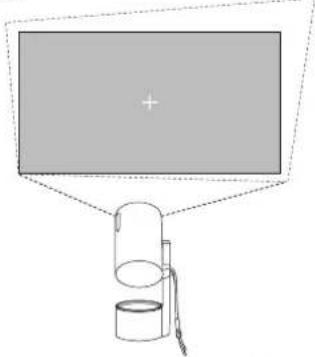
When the automatic keystone correction function is enabled, the frame will be adjusted automatically if you move the device to another location.
natural_image
Simple line drawing of a monitor with a plus sign and a cylindrical container attached to a stand (no text or symbols)When the automatic obstacle avoidance function is enabled, the frame will automatically avoid obstacles if there are any in the projection area. When the automatic screen alignment function is enabled, the frame will automatically match the screen if there is a 16:9 or 16:10 screen in the projection area.
natural_image
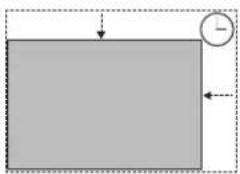
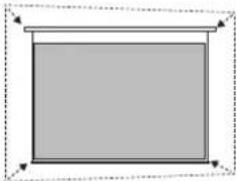
Simple diagram with a gray rectangle and a circular indicator labeled 'L' (no text or symbols within the shapes)Use the " * " button on the remote control to go to Settings > Projector > Keystone > Auto Keystone Correction Select " Auto Keystone Correction" to enable the automatic keystone correction function. Select " Manual Keystone Correction" to adjust the four points and the size of the frame.
natural_image
Simple gray rectangle with a horizontal line and corner arrows, no text or symbols present.⑤ Google Assistant
Press the Google Assistant button on your remote control and use your voice to search for movies and shows, inquiry answers, recommendations to match your mood, control your smart home devices, and more.
6 Google Cast
Google Cast
Easily cast your favorite movies, music, and more to your TV with Google Cast.
Simply tap the Cast button from apps you already know and love to stream entertainment from your phone, tablet or laptop to the TV. While you're streaming, you can keep using your phone for other things like scrolling through social media, sending texts, and even accepting calls.
⑦ System Upgrade
- Online upgrade The online upgrade can be performed through system settings. Note: The online upgrade can be made through system settings "
Important Precautions
- Do not stare directly into the projector lens or have it facing you as the light may be harmful to your eyes.
- Do not block the device's air inlet/outlet to prevent heat dissipation issues and damage to the internal electronic components.
- Do not wipe the lens with cleaning paper, cloth, or other materials as doing so may damage the lens. Please use an air blower to remove dust from the lens instead.
- Do not wash the device with cleaning chemicals, detergents, or any other liquid to prevent the circuit board from corroding. Avoid exposing the device to rainwater, moisture, and mineral-containing liquids.
- Keep the device, its components and accessories, out of the reach of children.
- Make sure that the device is used in a dry and ventilated environment.
- Do not store the device in extremely hot or cold temperatures as doing so will shorten the life of the device. Place and use the device in an environment of 0^ C- 40^ C.
- Do not put the device into any heating equipment (such as a dryer or microwave oven) for drying.
- Do not squeeze the device or place nay obstructions above or behind it to avoid damaging the device and blocking the light path.
- Do not throw, strike, or sharply vibrate the device to prevent damaging the internal circuit board.
- Do not try to disassemble and assemble the device yourself. If any issue occurs, please contact the after-sales service of XGIMI.
- Do not repair any product on your own. If the device or any component does not work properly, consult the after-sales service of XGIMI in a timely manner or return the defective product to XGIMI for repair.
- Due to different HDMI specifications, some HDMI cables and devices may not be compatible with the product. Using uncertified HDMI cables may cause display or connection failures. Please use HDMI cables with good radiation shielding.
- As with any bright source, do not stare into the direct beam, RG2 IEC 62471-5:2015

RG2
IEC 60825-1:2014
CONSUMER LASER PRODUCT EN 50689:2021
FCC Warning
The device meets the provisions of part 15 of the FCC Rules. The device meets the following 2 conditions:
(1) The device will not cause harmful interference.
(2) The device must accept any interference received, including interference that may result in unintended operations. The product's user guide or operating instructions must remind users that intentional or unintentional modification and replacement of transmitters without explicit approval from the responsible compliance party may prevent the user from operating the device. If the user guide is provided in a form other than paper, such as, provided in a computer disk or through the Internet, the information required in that section can be included in the user guide in the alternative form under the premise that users have access to the alternative form.
For B-class digital or peripheral devices, instructions provided to users must include the following or similar statements and be placed in a prominent place of the user guide:
The device has been tested to meet the restrictions of part 15 of the FCC Rules for B-class digital devices. These restrictions are aimed at providing the effective prevention of harmful interference in a residential installation. If installation and use are not performed according to the instructions, the device will generate and radiate radio frequency energy, and may cause harmful interference to radio communication. However, there is no guarantee that interference will not occur in a particular installation. If the device does cause harmful interference to radio or television reception (determined by stopping and starting the device), it is suggested that users a exempt to correct the interference through one or more of the following measures:
- Reposition the direction of the receiving antenna.
- Increase the distance between the device and the receiver.
- Connect the device into an outlet on a circuit different from that to which the receiver is connected.
- Consult distributors or experienced radio/television technicians to seek help.
- This device is acting as a subordinate device and operating in the 2.4 GHz (2.402-2.480 GHz, 2.412-2.462 GHz) band or 5 GHz (5.180-5.240 GHz, 5.260-5.320 GHz, 5.500-5.700 GHz, 5.745-5.825 GHz) band.

FCC ID: 2AR82-SKIWB663U11
IC Warning
This device complies with Industry Canada License-exempt RSS standard(s).
Operation is subject to the following two conditions:
(1) This device may not cause interference and
(2) This device must accept any interference, including interference that may cause undesired operation of the device.
IC: 24728-SKIWB663U11
WARNING: Please refer the information on exterior box om enclosures for electrical and safety information before installing or operating the apparatus.
This warning only applies to remote controllers or portal device.
CAUTION:
-
Risk of explosion exists if the battery is replaced with an incorrect battery type.
-
Disposing of the battery into fire or a hot oven, or mechanically crushing or cuing it can result in an explosion.
-
Leaving the battery in an extremely high temperature can result in an explosion or the leakage of flammable liquid or gas.
-
Subjecting the battery to extremely low air pressure may result in an explosion or the leakage of flammable liquid or gas.
CE Maintenance
- This product shall only be connected to a USB interface of version USB2.0.
- Adapter shall be installed near the equipment and shall be easily accessible.
- EUT operating temperature range: 0–40°C.
- Adapter: The plug considered as disconnect device of adapter. Power supply and ADP (rating): Input: AC 100V-240V, 50/60 Hz, 1.8A Max Output: DC 20.0V, 3.25A
- The device complies with RF specifications when it is used at a distance of 20 cm away from your body.
- To prevent possible damage to hearing, do not listen at high volume levels for long periods.

Declaration of Compliance
XGIMI Technology Co., Ltd. hereby declares that this product is in compliance with the essential requirements and other relevant provisions of Directive 2014/53/EU.
This product is allowed to be used in the EU member states outlined to the right.
Operations in the 5.15-5.25 GHz band are restricted to indoor usage only.
This frequency applies to member states or geographical areas within member states where restrictions on pu- ing into service or requirements for authorization of use exist.
| BE | EL | LT | PT |
| BG | ES | LU | RO |
| CZ | FR | HU | SI |
| DK | HR | MT | SK |
| DE | IT | NL | FI |
| EE | CY | AT | SE |
| IE | LV | PL | UK |
Radiation Exposure Statement
For remote control, this device complies with FCC and IC radiation exposure limits set forth for an uncontrolled environment.
The transmitter must not be placed or operated in conjunction with any other antenna or transmitter.
For the LED projector, the device meets FCC and IC radiation exposure limits specified for uncontrolled environments. In the installation and operation of the device, the distance between the transmitter and a human body should be at least 20 cm.
Notes:
The 5.150-5.250 GHz frequency range is only for indoor use.
This frequency applies to member states or geographical areas within member states where restrictions on use or authorization requirements exist.
| # | ||
| BE | HR | AT |
| BG | IT | PL |
| CZ | CY | PT |
| DK | LV | RO |
| DE | LT | SI |
| EE | LU | SK |
| IE | HU | FI |
| EL | MT | SE |
| ES | NL | UK |
| FR | ||
Disposal instructions for used products:

This product is designed and manufactured with high quality materials and components that are recyclable.
This symbol on the product indicates that the product is protected under the Directive 2012/19/EU.
* Only use attachments and accessories specified or provided by the manufacturer (such as the dedicated power supply adapter).
* This product may emit harmful light radiation.
natural_image
Diagram of a mechanical device with a rotating arm and base, no visible text or symbolsnatural_image
Line drawing of two hands holding a circular object with a pointed tip, no text or symbols presentnatural_image
Simple diagram with a gray rectangle and a circular symbol, no text or labels presentDie Taste „ auf der
natural_image
Simple gray rectangle with dashed border and corner arrows (no text or symbols)5 Google Assistant
natural_image
Diagram of a mechanical device with a lever and rotating arm, no text or symbols presentnatural_image
Line drawing of two hands holding a circular object with a small protrusion, no text or symbols presentnatural_image
Simple diagram with a rectangle and a circular arrow, no text or symbols present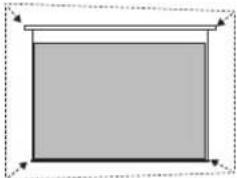
natural_image
Simple gray rectangle with a horizontal line above it, enclosed in a dashed border (no text or symbols)natural_image
Diagram of a mechanical assembly with a cylindrical component and a rotating arm, no text or symbols presentnatural_image
Line drawing of two hands holding a circular object with a small protrusion (no text or symbols)natural_image
Simple line drawing of a lamp with a container and a plus sign, no text or symbols present.natural_image
Simple diagram with a rectangle and a clock icon, no text or symbols present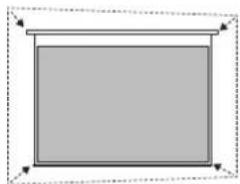
natural_image
Simple gray rectangle with dashed border and corner arrows, no text or symbols present5 Google Assistant
natural_image
Diagram of a mechanical assembly with a cylindrical component and rotating arm (no text or symbols)natural_image
Line drawing of two hands holding a circular object with a small protrusion (no text or symbols)natural_image
Simple line drawing of a lamp with a cylindrical base and a plus sign above it (no text or symbols)natural_image
Simple diagram with a gray rectangle and a circular symbol, no text or labels present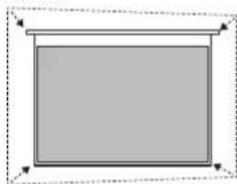
natural_image
Simple gray rectangle with a horizontal line above it, no text or symbols present.5 Assistente Google
natural_image
Diagram of a mechanical device with a cylindrical component and rotating arm (no text or symbols)natural_image
Line drawing of two hands holding a circular object with a pointed tip, no text or symbols present③ 画像のフォーカス調整
natural_image
Simple line drawing of a monitor with a plus sign and a cylindrical container beside it (no text or symbols)natural_image
Simple diagram showing a gray rectangle with arrows pointing downward and a small circle with a dashed line extending from its right side (no text or symbols)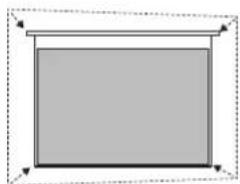
natural_image
Simple geometric diagram with a rectangle and horizontal line, no text or symbols present⑤ Googleアシスタント
natural_image
Line drawing of two hands holding a circular object with a small protrusion (no text or symbols)③ 리모컨 기능 설명
natural_image
Simple line drawing of a lamp with a stand and a screen, no text or symbols present자동 장애물 회피 기능을
활성화하면 두사 영역에 장애들이
있을 때 프레임이 자동으로
장애물을 피합니다.자동 화면
정렬 기능을 활성화하면 투사
natural_image
Simple diagram with a gray rectangle and a circular symbol, no text or labels present
natural_image
Simple gray rectangle enclosed in a dashed border with corner arrows (no text or symbols)⑤ Google
natural_image
Diagram of a mechanical device with a rotating arm and base, showing no text or symbolsnatural_image
Line drawing of two hands holding a circular object with small protrusions, no text or symbols presentnatural_image
Simple diagram with a gray rectangle and a circular symbol, no text or labels present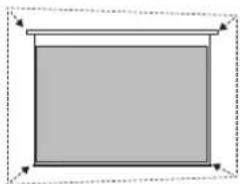
natural_image
Simple gray rectangle with dashed border and corner arrows (no text or symbols)5 Asystent Google
natural_image
Diagram of a mechanical device with rotating arm and base, no visible text or symbolsnatural_image
Line drawing of two hands holding a circular object with a small protrusion (no text or symbols)natural_image
Simple line drawing of a lamp with a stand and a screen, no text or symbols presentnatural_image
Simple diagram with a gray rectangle and a circular symbol, no text or labels present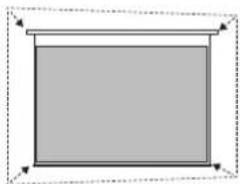
natural_image
Simple gray rectangle enclosed in a dashed border with arrows indicating corners (no text or symbols)5 Google Assistant
natural_image
Diagram of a mechanical device with a rotating arm and base, showing no text or symbols.natural_image
Line drawing of two hands holding a circular object with two small dots, no text or symbols presentnatural_image
Simple diagram with a gray rectangle and a circular symbol, no text or labels present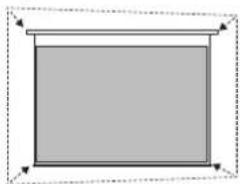
natural_image
Simple gray rectangle with dashed border and corner arrows (no text or symbols)5 Google Ассистент
natural_image
Diagram of a mechanical device with a rotating arm and base, showing no text or symbolsnatural_image
Simple line drawing of a lamp with a cup and a stand, no text or symbols presentnatural_image
Simple diagram with a rectangle, downward arrow, and a circle with minus sign (no text or symbols)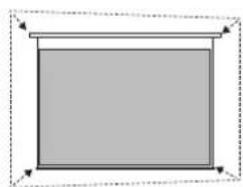
natural_image
Simple gray rectangle enclosed in a dashed border with corner arrows (no text or symbols)⑤ Google 助理
natural_image
Diagram of a mechanical device with rotating arm and base, no visible text or symbolsnatural_image
Simple line drawing of a lamp with a stand and a screen, no text or symbols presentnatural_image
Simple gray rectangle inside a dashed border with arrows indicating direction (no text or symbols)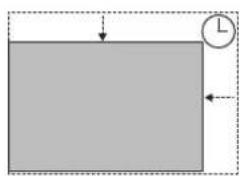
natural_image
Simple geometric diagram showing a rectangle with a downward arrow and a circle labeled 'L' (no text or symbols beyond basic geometry)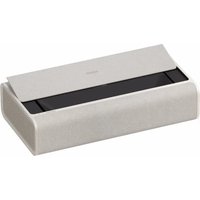

- Please read the user guide carefully before using this product.
- About this user guide
- HDMI®
- Dolby Audio
- OVERVIEW
- Getting Started
- Device on/off
- ② Remote Control Pairing
- Functions Description of Remote Control
- Extra spacing between keystone & correction
- ⑤ Google Assistant
- Google Cast
- Google Cast
- ⑦ System Upgrade
- Important Precautions
- FCC Warning
- IC Warning
- CAUTION:
- CE Maintenance
- Declaration of Compliance
- Radiation Exposure Statement
- Google Assistant
- Assistente Google
- ③ 画像のフォーカス調整
- ⑤ Googleアシスタント
- ③ 리모컨 기능 설명
- ⑤ Google
- Asystent Google
- Google Ассистент
- ⑤ Google 助理
Brand : XGIMI
Model : MoGo 3 Pro
Category : Projector