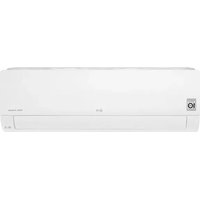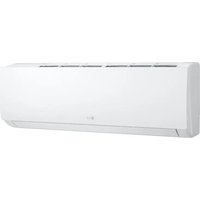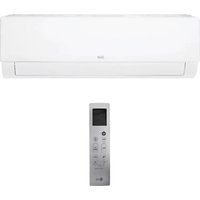
LSN363HLV3 - Air Conditioning LG - Free user manual and instructions
Find the device manual for free LSN363HLV3 LG in PDF.


User questions about LSN363HLV3 LG
0 question about this device. Answer the ones you know or ask your own.
Ask a new question about this device
Download the instructions for your Air Conditioning in PDF format for free! Find your manual LSN363HLV3 - LG and take your electronic device back in hand. On this page are published all the documents necessary for the use of your device. LSN363HLV3 by LG.
USER MANUAL LSN363HLV3 LG
Read this owner's manual thoroughly before operating the appliance and keep it handy for reference at all times.
TYPE: WALL MOUNTED
ENGLISH FRANÇAIS ESPAÑOL
TABLE OF CONTENTS
2 TABLE OF CONTENTS
3 SAFETY INSTRUCTIONS
3 IMPORTANT SAFETY INSTRUCTIONS
7 OPERATION
7 Notes for Operation
7 Parts and Functions
8 Wireless Remote Control
13 Restarting the Air Conditioner Automatically
13 Using the Mode Function
15 Using the Jet Mode Function
16 Using the Fan Speed Function
16 Using the Air Flow Direction Function
17 Setting the On/Off Timer
18 Using the Sleep Function (Optional)
18 Using the Simple Timer Function (Optional)
19 Using the Energy Display Function (Optional)
19 Using the Light Off Function (Optional)
19 Using the Comfort Air Function (Optional)
20 Using the Energy Saving Function (Optional)
20 Using the Energy Control Function (Optional)
21 Using Special Functions
23 How to Enter Installer Setting Mode
24 SMART FUNCTIONS
24 LG ThinQ Application
26 Smart Diagnosis ^TM
27 MAINTENANCE
29 Clean the Air Filter
30 Clean the Micro Dust and Triple Filter (Optional)
31 TROUBLESHOOTING
35 LIMITED WARRANTY
35 USA
37 CANADA
SAFETY INSTRUCTIONS
READ ALL INSTRUCTIONS BEFORE USE
Your safety and the safety of others are very important.
We have provided many important safety messages in this manual and on your appliance. Always read and follow all safety messages.

This is the safety alert symbol.
This symbol alerts you to potential hazards that can kill or injure you and others.
All safety messages will follow the safety alert symbol and either the word WARNING, or CAUTION.

WARNING
If you do not follow instructions, it could result in death or serious injury.

CAUTION
If you do not follow instructions, it could result in minor or moderate injury or damage to the product.
All safety messages will tell you what the potential hazard is, tell you how to reduce the chance of injury, and tell you what may happen if the instructions are not followed.
IMPORTANT SAFETY INSTRUCTIONS

WARNING
To reduce the risk of explosion, fire, death, electric shock, injury or scalding to persons when using this product, follow basic precautions, including the following:
- Installation or repairs made by unauthorized persons can pose hazards to you and others.
- Installation MUST conform to the local building codes or, in the absence of local codes, the National Electrical Code NFPA 70/ANSI C1-1003 or current edition and Canadian Electrical Code Part1 CSA C.22. 1.
- The information contained in the manual is intended for use by a qualified service technician who is familiar with the safety procedures and equipped with the proper tools and test instruments.
- Failure to read and follow all instructions in this manual can result in equipment malfunction, property damage, personal injury and/or death.
- When the power cord is to be replaced, the replacement work shall be performed by authorized personnel using only genuine replacement parts.
- This appliance is not intended for use by persons (including children) with reduced physical, sensory or mental capabilities, or lack of experience and knowledge, unless they have been given supervision or instruction concerning use of the appliance by a person responsible for their safety. Children should be supervised to ensure that they do not play with the appliance.
Installation
- Do not install the air conditioner on an unstable surface or in a place where there is danger of it falling.
- Contact an authorized service center when installing or relocating the air conditioner.
• Install the panel and the cover of the control box safely. - Do not install the air conditioner in a place where flammable liquids or gases such as gasoline, propane, paint thinner, etc., are stored.
- Make sure that the pipe and the power cable connecting the indoor and outdoor units are not pulled too tight when installing the air conditioner.
- Use standard circuit breaker and fuse that conform to the rating of the air conditioner.
- Do not input air or gas into the system except with the specific refrigerant.
- Use non-flammable gas (nitrogen) to check for leak and to purge air; using compressed air or flammable gas may cause fire or explosion.
- The indoor/outdoor wiring connections must be secured tightly, and the cable should be routed properly so that there is no force pulling the cable from the connection terminals. Improper or loose connections can cause heat generation or fire.
• Install dedicated electric outlet and circuit breaker before using the air conditioner. - Do not connect the ground wire to a gas pipe, a lightning rod, or a telephone ground wire.
- If the supply cord is damaged, it must be replaced by the manufacturer, its service agent or similarly qualified person in order to avoid a hazard.
- Do not install the unit in potentially explosive atmospheres.
Operation
- Be sure to use only those parts listed in the service parts list. Never attempt to modify the equipment.
- Make sure that children do not climb on or hit the outdoor unit.
- Dispose of the batteries in a place where there is no danger of fire.
- Use only the refrigerant specified on the air conditioner label.
- Cut off the power supply if there is any noise, smell, or smoke coming from the air conditioner.
- Do not leave flammable substances such as gasoline, benzene, or thinner near the air conditioner.
- Contact an authorized service center when the air conditioner is submerged by flood waters.
- Do not use the air conditioner for an extended period of time in a small place without proper ventilation.
-
In the event of a gas leak (such as Freon, propane gas, LP gas, etc.) ventilate sufficiently before using the air conditioner again.
-
Be sure to ventilate sufficiently when the air conditioner and a heating appliance such as a heater are used simultaneously.
- Do not block the inlet or outlet of air flow.
- Do not insert hands or other objects through the air inlet or outlet while the air conditioner is operating.
- Make sure that the power cable is neither dirty, loose, nor broken.
- Never touch, operate, or repair the air conditioner with wet hands.
- Do not place any objects on the power cable.
- Do not place a heater or other heating appliances near the power cable.
- Do not modify or extend the power cable. Scratches or peeling insulation on the power cables may result in fire or electric shock, and should be replaced.
- Cut off the power supply immediately in the event of a blackout or a thunderstorm.
• Take care to ensure that power cable could not be pulled out or damaged during operation. - Do not touch refrigerant pipe, water pipe and any internal parts while the unit is operating or immediately after operation.
Maintenance
- Do not clean the appliance by spraying water directly onto the product.
- Before cleaning or performing maintenance, disconnect the power supply and wait until the fan stops.

CAUTION
To reduce the risk of minor injury to persons, malfunction, or damage to the product or property when using this product, follow basic precautions, including the following:
Installation
- Do not install the air conditioner in an area where it is directly exposed to sea wind (salt spray).
• Install the drain hose properly for the smooth drainage of water condensation. - Exercise caution when unpacking or installing the air conditioner.
- Do not touch the leaking refrigerant during installation or repair.
- Transport the air conditioner with two or more people or use a forklift.
- Install the outdoor unit such that it is protected from direct sunlight. Do not place the indoor unit in a place where it is directly exposed to sunlight via the windows.
- Safely dispose of packing materials such as screws, nails, plastic bag or batteries using proper packaging after installation or repair.
- Install the air conditioner in a place where the noise from the outdoor unit or the exhaust fumes will not inconvenience the neighbors. Failure to do so may result in conflict with the neighbors.
Operation
- Remove the batteries if the remote control is not to be used for an extended period of time.
- Make sure that the filter is installed before operating the air conditioner.
- Be sure to check if there is a refrigerant leak after installing or repairing the air conditioner.
- Follow the standards of the corresponding region or country for handling the refrigerant and the air conditioner and for disassembling the air conditioner.
- Do not place any object on the air conditioner.
- Never mix different types of batteries, or old and new batteries for the remote control.
- Do not let the air conditioner run for a long time when humidity is very high or when a door or a window has been left open.
- Stop using the remote control if there is a fluid leak in the battery. If your clothes or skin are exposed to the leaking battery fluid, wash off with clean water.
- Do not expose people, animals, or plants to the cold or hot wind from the air conditioner for extended periods of time.
- If the leaking battery fluid has been swallowed, rinse the inside of the mouth thoroughly and consult a doctor.
- Do not drink the water drained from the air conditioner.
- Do not use the product for special purposes, such as preserving foods, works of art, and etc. It is an air conditioner for consumer purposes, not a precision refrigeration system. There is risk of damage or loss of property.
- Do not recharge or disassemble the batteries.
Maintenance
- Never touch the metal parts of the air conditioner when removing the air filter.
- Use a sturdy stool or ladder when cleaning, maintaining, or repairing the air conditioner at a height.
- Never use strong cleaning agents or solvents when cleaning the air conditioner or spray water. Use a smooth cloth.
- To clean the interior, contact an authorized service center or dealer. Using harsh detergents may cause corrosion or damage to the unit.
OPERATION
Notes for Operation
Suggestion for Energy Saving
- Do not over-cool the space. This may be harmful for your health and may consume more electricity.
- Block sunlight with blinds or curtains while you are operating the air conditioner.
- Keep doors or windows closed tightly while you are operating the air conditioner.
- Adjust the direction of the air flow vertically or horizontally to circulate indoor air.
- Speed up the fan to cool or warm indoor air quickly, within a short period of time.
- Open windows regularly for ventilation. The indoor air quality may deteriorate if the air conditioner is used for long durations.
- Clean the air filter once every 2 weeks. Dust and impurities collected in the air filter may block the air flow or reduce the unit performance.
Parts and Functions
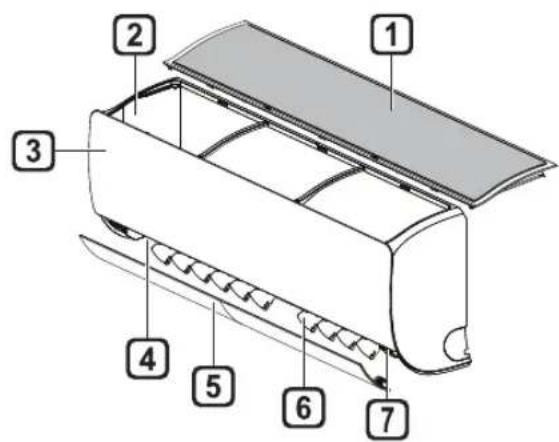
Indoor Unit Outdoor Unit
text_image
Diagram of a car air conditioner unit with numbered parts labeled 1 through 7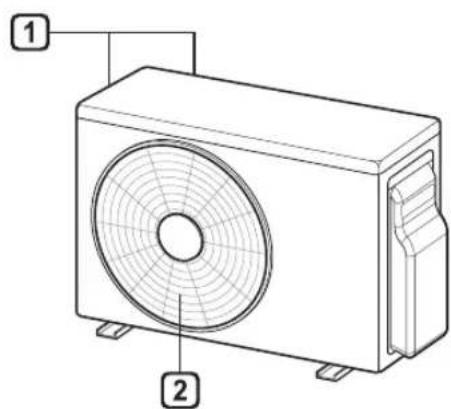
text_image
Technical diagram of a air conditioner unit with labeled parts 1 and 2① Air Filter
② Air Intake
3 Front Cover
4 Air Outlet
⑤ Air Deflector (Horizontal Vane)
6 Air Deflector (Vertical Louver)
7 On/Off Button
1 Air Intake Vents
② Air Outlet Vents
NOTE
- The number and location of operation lamps may vary according to the model of the air conditioner.
- The feature may be changed according to the type of model.
Wireless Remote Control
Inserting Batteries
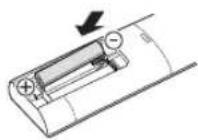
If the display screen of the remote control begins to fade, replace the batteries. Insert AAA (1.5 V) batteries before using the remote control.
1 Remove the battery cover.
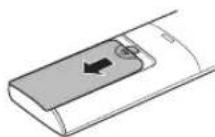
2 Insert the new batteries and make sure that the + and - terminals of the batteries are installed correctly.
NOTE
- Do not use batteries other than alkaline.
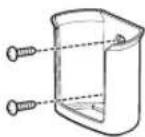
Installing the Remote Control Holder (Optional)
To protect the remote control, install the holder where there is no direct sunlight.
1 Choose a safe and easily accessible location.
2 Fix the holder by fastening 2 screws firmly with a screwdriver.
Operating Method
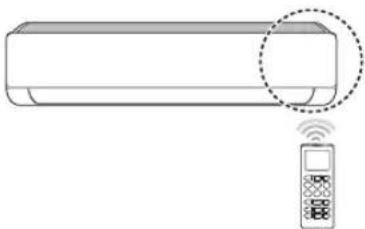
Point the remote control towards the signal receiver at the right side of the air conditioner to operate it.
natural_image
Line drawing of a modern air conditioner with a remote control unit emitting signal waves (no text or symbols)NOTE
- The remote control may operate other electronic devices if it is directed towards them. Make sure to point the remote control towards the air conditioner signal receiver.
- For proper operation, use a soft cloth to clean the signal transmitter and receiver.
- In case of a function not provided in the product, no buzzer sound occurs from the product when a button for such function on the remote control is pressed except for Air Flow Direction (SWING),
Energy Display ( _kW[3s] ), Air Purification function

Setting the Current Time
1 Insert batteries.
- The icon below blinks at the bottom of the display screen.

2 Press or button to select the minutes.
3 Press SET/CANCEL button to finish.
NOTE
- The On/Off Timer is available after setting the current time.
Using the °C/°F Conversion Function (Optional)
This function changes unit between ^ C and ^ F
- Press and hold button about 5 seconds.
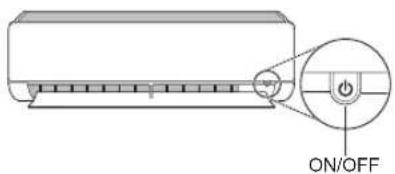
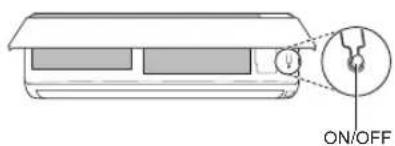
Operating the Air Conditioner without the Remote Control
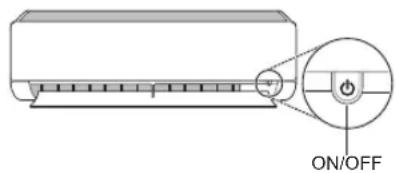
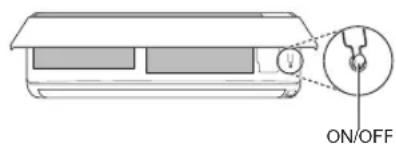
You can use the ON/OFF button of the indoor unit to operate the air conditioner when the remote control is unavailable.
1 Open the front cover (Type2) or horizontal vane (Type1).
2 Press the ON/OFF button.
Type1
text_image
ON/OFFType2
text_image
ON/OFFNOTE
- The stepping motor may be broken, if the horizontal vane opens rapidly.
• The fan speed is set to high. - The feature may be changed according to the type of model.
- The temperature cannot be altered when using this emergency ON/OFF button.
- For cooling-only models, the temperature is set to 22 °C
- For cooling & heating models, the temperature is set from 22 °C to 24 °C
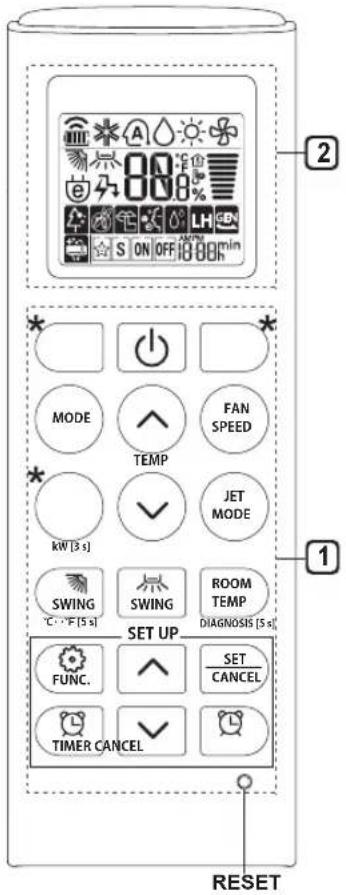
Using Wireless Remote Control
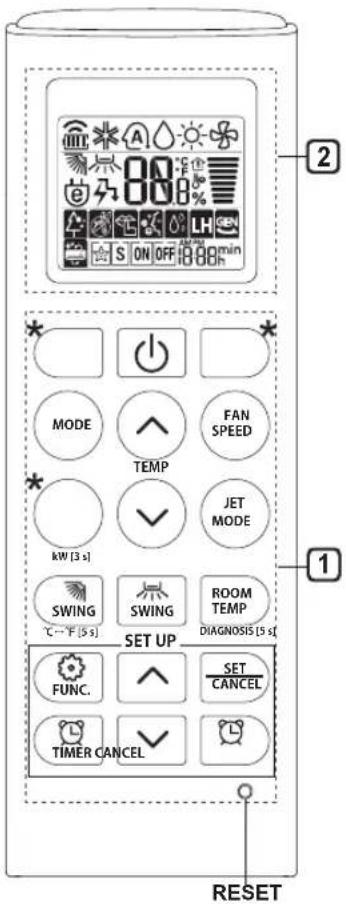
You can operate the air conditioner more conveniently with the remote control.
text_image
2 * MODE FAN SPEED TEMP kW [3 s] JET MODE SWING SWING ROOM TEMP DIAGNOSIS [5 s] SET UP FUNC. SET CANCEL TIMER CANCEL RESET| 1 Button | 2 Display Screen | Description |
| - To turn | on/off the air conditioner. | |
| 88°C | To adjust the desired room temperature in cooling, heating or auto changeover mode. | |
| MODE | To select the cooling mode. | |
| To select the heating mode. | ||
| To select the dehumidification mode. | ||
| To select the fan mode. | ||
| To select the auto changeover/auto operation mode. | ||
| JET MODE | Po | To change room temperature quickly. |
| FAN SPEED | To adjust the fan speed. | |
| To adjust the air flow direction vertically or horizontally. |
NOTE
- * buttons may be changed according to the type of model.
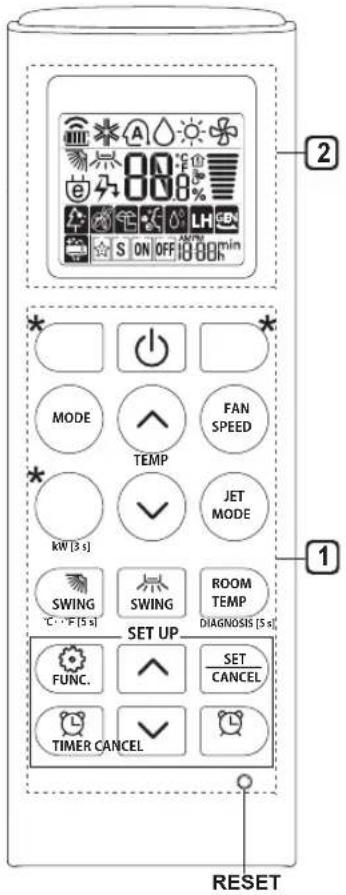
text_image
2 * MODE FAN SPEED TEMP JET MODE KW [3 s] SWING SWING ROOM TEMP DIAGNOSIS [5 s] SET UP FUNC. SET CANCEL TIMER CANCEL RESET| 1 Button | 2 Display Screen | Description |
| To turn on/off air conditioner automatically at desired time. | ||
| SET/CANCEL | - | To set/cancel the special functions and timer. |
| - To cancel the timer settings. | ||
| - To adjust time. | ||
| *LIGHT OFF | - | To set the brightness of the display on the indoor unit. |
| ROOM TEMP | To display the room temperature. | |
| °C←°F [5 s] To change unit between °C and °F | ||
| *ENERGY SAVING | To minimize power consumption. | |
| *COMFORT AIR | To adjust the air flow to deflect wind. | |
| kW [3 s] - | To set whether or not to display information regarding energy. | |
| *ENERGY CTRL. | To bring the effect of the power saving. | |
| *COMFORT SLEEP | To make a comfortable sleeping environment. | |
| DIAGNOSIS [5 s] | - | To conveniently check maintenance information of a product. |
text_image
2 * MODE FAN SPEED TEMP JET MODE KW [3 s] SWING SWING ROOM TEMP DIAGNOSIS [5 s] SET UP FUNC. SET CANCEL TIMER CANCEL RESET| 1 Button | 2 Display Screen | Description | Available Function |
| The lon generator uses millions of ions to help improve indoor air quality. | X | ||
| To reduce noise from outdoor units. | X | ||
| To keep your skin moisturized by generating ion clusters. | X | ||
| To lower indoor humidity quickly. | X | ||
| To maintain a minimum room temperature and prevent objects in the room from freezing. | O(Optional) | ||
| To scare away a mosquito. | X | ||
| To remove moisture generated inside the indoor unit. | O | ||
| To make a comfortable sleeping environment. | X | ||
| RESET - | To initialize the remote control settings. | O |
NOTE
• Some functions may not be supported, depending on the model.
- * buttons may be changed according to the type of model.
- Press the SET/CANCEL button to operate the selected FUNC..
Restarting the Air Conditioner Automatically
When the air conditioner is turned on again after a power failure, this function restores the previous settings.
Disabling Auto Restart
1 Open the front cover (Type2) or horizontal vane (Type1).
2 Press the ON/OFF button and hold it for 6 seconds, then the unit will beep twice and the lamp will blink twice 4 times.
- To re-enable the function, press the ON/OFF button and hold it for 6 seconds. The unit will beep twice and the lamp will blink 4 times.
Type1
text_image
ON/OFFType2
text_image
ON/OFFNOTE
- The feature may be changed according to the type of model.
- If you press and hold the ON/OFF button for 3 – 5 seconds, instead of 6 seconds, the unit will switch to the test operation. In the test operation, the unit blows out strong cooling air for 18 minutes and then returns to factory default settings.
Using the Mode Function
This function allows you to select the desired function.
Cooling Only Model
| Cooling Mode | |
| Auto Operation(AI) Mode | |
| Dehumidification Mode | |
| Fan Mode |
Cooling & Heating Model
| Cooling Mode | |
| Auto Changeover Mode | |
| Dehumidification Mode | |
| Heating Mode | |
| Fan Mode |
Cooling Mode
1 Turn the appliance on.
2 Press MODE button repeatedly to select the Cooling Mode.
* is displayed on the display screen.
3 Press or button to set the desired temperature.
Auto Operation (Artificial Intelligence)
Cooling Only Model
This mode automatically sets the fan speed and temperature depending on the room temperature.
1 Turn the appliance on.
2 Press MODE button repeatedly to select the Auto Operation.
A is displayed on the display screen.
3 Press ☐ button to select the desired operation code if the temperature is higher or lower than the desired temperature.


| Code Description | |
| 2 Cold | |
| 1 A little cold | |
| 0 Maintain room temperature | |
| -1 A little hot | |
| -2 Hot | |
NOTE
- In this mode, you cannot adjust the fan speed, but you can set the air deflector to rotate automatically.
Auto Changeover Mode
Cooling & Heating Model
This mode changes the mode automatically to maintain the set temperature at ±2 ^
1 Turn the appliance on.
2 Press MODE button repeatedly to select the Auto Changeover Mode.
A is displayed on the display screen.
3 Press or button to set the desired temperature.
4 Press FAN SPEED button to adjust the fan speed.
Dehumidification Mode
This mode removes excess moisture from a highly humid environment or during the rainy season, in order to prevent mildew from setting in. This mode adjusts the room temperature and the fan speed automatically to maintain the optimal level of humidity.
1 Turn the appliance on.
2 Press MODE button repeatedly to select the Dehumidification Mode.
is displayed on the display screen.
NOTE
- In this mode you cannot adjust the room temperature, it is adjusted automatically.
- The room temperature is not displayed on the display screen.
- In the dehumidification mode, compressor and indoor fan may not operate when the room temperature is below 24 °C
Heating Mode
1 Turn the appliance on.
2 Press MODE button repeatedly to select the Heating Mode.
- is displayed on the display screen.
3 Press or button to set the desired temperature.
NOTE
will be displayed on the indoor unit when defrosting is operating.
- Furthermore, this indication will be displayed on the indoor unit:
- When preheating is operating.
- When the room temperature has been reached to the set temperature.
Fan Mode
This mode only circulates the indoor air without changing the room temperature.
1 Turn the appliance on.
2 Press MODE button repeatedly to select the Fan Mode.
is displayed on the display screen.
3 Press FAN SPEED button to adjust the fan speed.
NOTE
or will be displayed on the indoor unit when fan mode is operating.
Using the Jet Mode Function
Changing Room Temperature Quickly
This function allows you to cool indoor air quickly during the summer or warm it quickly during winter.
- Cooling & Heating model: The Jet Mode function is available with Cooling, Heating and Dehumidification Mode.
- Cooling Only model: The Jet Mode function is available with Cooling, Dehumidification, Fan, Auto Operation Mode and Air Purification function.
1 Turn the appliance on.
2 Press MODE button repeatedly to select the desired mode.
3 Press JET MODE button.
P is displayed on the display screen.
NOTE
- Jet Heating Mode is not available on some models.
- In Jet Cooling Mode, strong air blows out for 30 minutes.
• After 30 minutes later, setting temperature is maintaining 18 °C
If you want to change the temperature, Press or button to set the desired temperature.
- In Jet Heating Mode, strong air blows out for 30 minutes.
• After 30 minutes later, setting temperature is maintaining 30 °C
If you want to change the temperature, Press or button to set the desired temperature.
- This function may operate differently from the remote control display.
Using the Fan Speed Function
Adjusting the Fan Speed
- Press FAN SPEED button repeatedly to adjust the fan speed.
| Display Screen Speed | |
 | High |
 | Medium - High |
 | Medium |
 | Medium - Low |
 | Low |
| atural Wind | |
NOTE
- The fan speed of Natural Wind adjusts automatically.
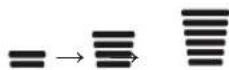
- The fan speed icons are displayed on some indoor units.

- Indoor unit display is displayed only 5 seconds and return to the setting temperature on some models.
Using the Air Flow Direction Function
This function adjusts the direction of the air flow vertically (horizontally).
- Press SWING (SWING) button repeatedly and select the desired direction.
- Select() to adjust the direction of the air flow automatically.
NOTE
- Adjusting the air flow direction horizontally may not be supported, depending on the model.
- Adjusting the air deflector arbitrarily may cause product failure.
- If you restart the air conditioner, it starts to operate with the previously set direction of air flow, so the air deflector may not match the icon displayed on the remote control. When this occurs, press SWING
or SWING button to adjust the direction of the air flow again.
- This function may operate differently from the remote control display.
Setting the On/Off Timer
This function sets the air conditioner to turn on/off automatically at desired time.
On/Off Timer can be set together.
Setting the On Timer
1 Press TIMER button repeatedly.
- The icon below blinks at the bottom of the display screen.
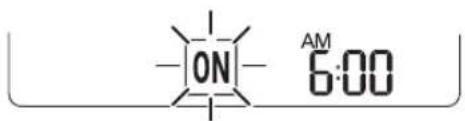
text_image
-ON- AM 6:002 Press or button to select the minutes.
3 Press SET/CANCEL button to finish.
- After setting the timer, current time and icon are displayed on the display screen indicating that the desired time is set.
Canceling the On Timer
1 Press TIMER button repeatedly.
- The icon below blinks at the bottom of the display screen.
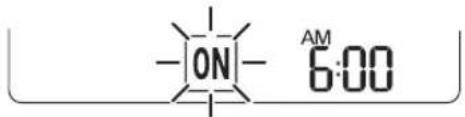
text_image
-ON- AM 6:002 Press SET/CANCEL button to cancel the setting.
Setting the Off Timer
1 Press TIMER button repeatedly.
- The icon below blinks at the bottom of the display screen.
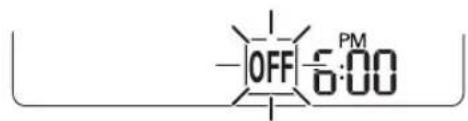
text_image
-OFF 6:00 PM2 Press or button to select the minutes.
3 Press SET/CANCEL button to finish.
- After setting the timer, current time a OFF icon are displayed on the display screen indicating that the desired time is set.
NOTE
- This function is disabled when you set Simple Timer.
Canceling the Off Timer
1 Press TIMER button repeatedly.
- The icon below blinks at the bottom of the display screen.
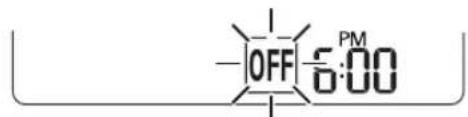
text_image
-OFF 5:00 PM2 Press SET/CANCEL button to cancel the setting.
Canceling the Timer Setting
- Press button to cancel all timer settings.
Using the Sleep Function (Optional)
This function turns off the air conditioner automatically when you go to sleep.
1 Turn the appliance on.
2 Press TIMER button repeatedly.
- The icon below blinks at the bottom of the display screen.
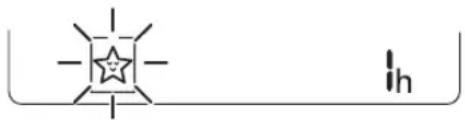
text_image
-1 - - in3 Press or button to select the hour (up to 7 hours).
4 Press SET/CANCEL button to finish. ★ is displayed on the display screen.
NOTE
H is displayed on some indoor units.
- Indoor unit display is displayed from 1H to 7H which is displayed only 5 seconds and then return to the setting temperature.
- In the Cooling and Dehumidification Mode, the temperature increases by 1 °C after 30 minutes and additional 1 °C after another 30 minutes for a more comfortable sleep.
- The temperature increases up to 2 °C from the preset temperature.
- Although the remark for fan speed on the display screen may be changed, the fan speed is adjusted automatically.
Using the Simple Timer Function (Optional)
This function turns off the air conditioner automatically when you go to sleep.
1 Turn the appliance on.
2 Press TIMER button repeatedly.
- The icon below blinks at the bottom of the display screen.
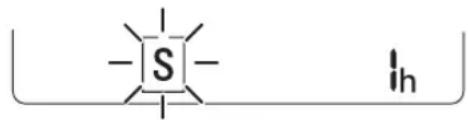
chemical
Simple chemical structure diagram showing a central sulfur atom bonded to two peripheral atoms, with an additional label 'h' on the right side.3 Press or button to select the hour (up to 7 hours).
4 Press SET/CANCEL button to finish.
[S] is displayed on the display screen.
NOTE
- This function is disabled when you set Off Timer.
Using the Energy Display Function (Optional)
This function displays the amount of electricity generated on the indoor display as the product operates.
Display the Current Energy Usage
1 Turn the appliance on.
2 Press ○ button and hold it about 3 seconds.
- The instantaneous power consumption (9 or 88) is displayed for a while on some indoor units.
Display the Cumulative Energy Usage (Optional)
1 Turn the appliance on.
2 Press ○ button and hold it about 3 seconds twice.
- The cumulative power consumption (8) is displayed for a while on some indoor units.
NOTE
• The unit of the displayed value is kW.
- It is not displayed on the wireless remote control.
- kW refers to instantaneous power consumption.
- kWh refers to cumulative power consumption.
- If it is more than 99 kWh, which is the range of expression, maintain it as 99 kWh.
• Power off resets its value. - Display wattage under 10 kW(h) with 0.1 kW(h) unit, and display one over 10 kW(h) with 1 kW(h) unit.
- The actual power may differ from the power displayed.
Using the Light Off Function (Optional)
Display Screen Brightness
You can set the brightness of the indoor unit display screen.
- Press LIGHT OFF button.
NOTE
• Turn on/off the Display screen.
- If the brightness of an indoor appliance's display is set to OFF, pressing a button on the remote control automatically turns the display on for a while.
- This function may operate differently, depending on the model.
Using the Comfort Air Function (Optional)
Comfort Vane Operation
This function conveniently sets the vane to a preset position to deflect the supply air away from blowing directly onto the occupants in the room.
1 Turn the appliance on.
2 Press COMFORT AIR button repeatedly and select the desired direction.
• or is/displayed on the display screen.
NOTE
• or is displayed on some indoor units.
- This function is disabled when you press MODE or JET MODE button.
- This function is disabled and auto swing of vertical direction is set up when you press 📂 SWING button.
- When this function is off, the horizontal vane operates automatically depending on the set mode.
Using the Energy Saving Function (Optional)
This function minimizes power consumption during Cooling and increases the set temperature to the optimal level for a more comfortable environment. The temperature automatically settles at 22 °C if desired temperature is below 22 °C. The temperature remains constant if it is above 22 °C
1 Turn the appliance on.
2 Press MODE button repeatedly to select the Cooling Mode.
3 Press ENERGY SAVING button.
e is displayed on the display screen.
Using the Energy Control Function (Optional)
1 Turn the appliance on.
2 Press ENERGY CTRL. button.
- Press ENERGY CTRL. button repeatedly to select each step.
NOTE
- 1 step : The power Input is decreased by 20 % compared to rated power input.
80s_x displayed on the display screen.
- 2 step : The power Input is decreased by 40 % compared to rated power input.
60s displayed on the display screen.
- 3 step (Optional): The power Input is decreased by 60% compared to rated power input.
40s displayed on the display screen.
(1 step) (2 step) is displayed on some indoor units.
• This function is available with Cooling Mode.
- Capacity may decrease when Energy Control mode is selected.
- Desired temperature is displayed about 5 seconds if you press FAN SPEED, or button.
- Room temperature is displayed about 5 seconds if you press ROOM TEMP button.
Using Special Functions
1 Turn the appliance on.
2 Press FUNC. button repeatedly to select the desired function.
3 Press SET/CANCEL button to finish.
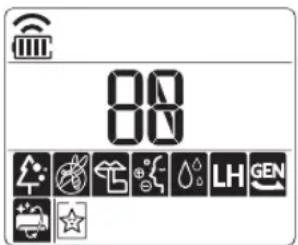
text_image
80 LH GEN| Display Screen | Description | Available Function |
| [BDK4] | The lon generator uses millions of ions to help improve indoor air quality. | X |
| [ACOD] | To reduce noise from outdoor units. | X |
 | To keep your skin moisturized by generating ion clusters. | X |
 Po Po | To lower indoor humidity quickly. | X |
 LH LH | To maintain a minimum room temperature and prevent objects in the room from freezing. | O(Optional) |
 | To scare away a mosquito. | X |
 | To remove moisture generated inside the indoor unit. | O |
 SL SL | To make a comfortable sleeping environment. | X |
NOTE
- Some functions may not be supported, depending on the model.
- Some functions may operate differently from the remote control display.
Canceling Special Functions
1 Press FUNC. button repeatedly to select the desired function.
2 Press SET/CANCEL button to cancel the function.
Using the Silent Function (Optional)
This function prevents potential claims by neighbors, reducing noise from outdoor units.

is displayed on the display screen.
NOTE
- This function is disabled when you press MODE or ENERGY CTRL. or JET MODE button.
- This function is available with Cooling, Heating, Auto Changeover, Auto Operation Mode.
Using the Jet Dry Function (Optional)
This function maximizes the performance of dehumidification.

P are displayed on the display screen.
NOTE
- This function is available with Cooling, Dehumidification, Auto Operation, Fan Mode and Air Purification function.
- This function is not available with Sleep function.
- This function is disabled when you press MODE button.
Using the Auto Clean Function
In the Cooling and Dehumidification Mode, moisture is generated inside the indoor unit. This function removes such moisture.

is displayed on the display screen.
NOTE
- Some functions cannot be used while the Auto Clean function is in operation.
- If you turn off the unit, the fan continues to run for 30 minutes and cleans the inside of the indoor unit.
0 is displayed on some indoor units, depending on the model.
Using the Low Heating Function (Optional)
This function operates the heating system to maintain a minimum room temperature and prevent objects in the room from freezing where there is no permanent resident, such as a vacation.

LH are displayed on the display screen.
NOTE
- This function is available with Heating Mode.
- During LH operation, when you press buttons such as ⬆, MODE, FAN SPEED, and then return to Heating Mode.
- If JET MODE button is pressed during LH operation, this function is disabled and Power Heating Mode is operated immediately. (only for power heating model)
- In case an error occurred, operation can be interrupted for the protection of the product.
- COMFORT AIR and button cannot be used while the LH function is in operation.
Using the Comfort Sleep Function (Optional)
This function operates the air conditioner automatically to make the comfortable sleep environment.

51 are displayed on the display screen.
NOTE
- This function is available with Cooling Mode.
- The vane stops swing and sets indirect airflow angle, after 30 minutes from start even though the room temperature doesn't decrease to optimal temperature to sleep.
- It is possible that a comfortable sleep environment is different according to the people.
How to Enter Installer Setting Mode

CAUTION
Installer setting mode is to set the detail function of the remote controller. If the installer setting mode is not set correctly, it can cause problem to the product, use injury or property damage. This is must set by an certificated installer, and any installation or change that is carried out by a non-certificated person should be responsible for the results.
1 With the JET MODE button pressed, press the reset button.
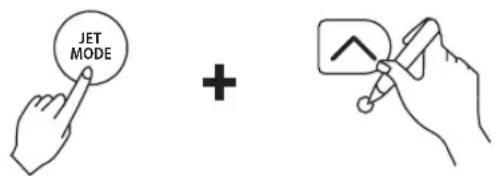
text_image
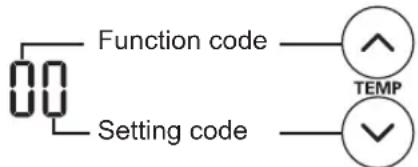
JET MODE +2 By using the or button, Set fuction code and setting value. (Please refer the installer setting code table.)
text_image
Function code Setting code TEMP3 Press the ⏻ button toward the indoor uniut 1 time.
4 Reset the remote controller to use the general operation mode.
Compressor on/off Function (Optional)
- This function is for Setting Compressor on/off value on heating mode as below for indoor unit. (Only for heat pump model.)
• How to set with remote controller (Code table)
| Function | Function Code | Setting Code | Setting Temp. | Setting Code | Remote controller LCD | |
| Comp On | Comp Off | |||||
| Optional heating Compressor on/off | 6 | 0 Default | 0 60 | |||
| 1 4 °C 6 | °C 1 61 | |||||
| 2 2 °C 4 | °C 2 62 | |||||
| 3 -1 °C 1 | °C 3 63 | |||||
SMART FUNCTIONS
LG ThinQ Application
This feature is only available on models with the 📄 or ThinQ logo.
The LG ThinQ application allows you to communicate with the appliance using a smartphone.
LG ThinQ Application Features
Communicate with the appliance from a smartphone using the convenient smart features.
Smart Diagnosis™
If you experience a problem while using the appliance, this smart diagnosis feature will help you diagnose the problem.
Settings
Allows you to set various options on the appliance and in the application.
NOTE
- If you change your wireless router, internet service provider, or password, delete the registered appliance from the LG ThinQ application and register it again.
- The application is subject to change for appliance improvement purposes without notice to users.
• Functions may vary by model.
Before Using LG ThinQ Application
1 Check the distance between the appliance and the wireless router (Wi-Fi network).
- If the distance between the appliance and the wireless router is too far, the signal strength becomes weak. It may take a long time to register or installation may fail.
2 Turn off the Mobile data or Cellular Data on your smartphone.
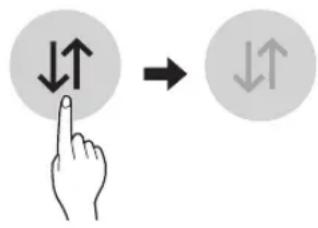
text_image
Diagram showing hand press icon pointing to two directional arrows, one with up/down arrow and one with down arrow3 Connect your smartphone to the wireless router.
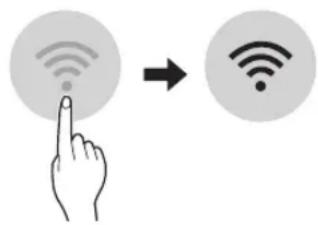
text_image
Diagram showing a hand interacting with a Wi-Fi icon and a Wi-Fi symbol, indicating wireless signal interaction.NOTE
- To verify the Wi-Fi connection, check that icon on the control panel is lit.
- The appliance supports 2.4 GHz Wi-Fi networks only. To check your network frequency, contact your Internet service provider or refer to your wireless router manual.
- LG ThinQ is not responsible for any network connection problems or any faults, malfunctions, or errors caused by network connection.
- If the appliance is having trouble connecting to the Wi-Fi network, it may be too far from the router. Purchase a Wi-Fi repeater (range extender) to improve the Wi-Fi signal strength.
- The Wi-Fi connection may not connect or may be interrupted because of the home network environment.
- The network connection may not work properly depending on the Internet service provider.
-
The surrounding wireless environment can make the wireless network service run slowly.
-
The appliance cannot be registered due to problems with the wireless signal transmission. Unplug the appliance and wait about a minute before trying again.
- If the firewall on your wireless router is enabled, disable the firewall or add an exception to it.
- The wireless network name (SSID) should be a combination of English letters and numbers. (Do not use special characters.)
- Smartphone user interface (UI) may vary depending on the mobile operating system (OS) and the manufacturer.
- If the security protocol of the router is set to WEP, you may fail to set up the network. Please change it to other security protocols (WPA2 is recommended) and register the product again.
Installing the LG ThinQ Application
Search for the LG ThinQ application from the Google Play Store or Apple App Store on a smartphone. Follow instructions to download and install the application.
Open Source Software Notice Information
To obtain the source code that is contained in this product, under GPL, LGPL, MPL, and other open source licenses that have the obligation to disclose source code, and to access all referred license terms, copyright notices and other relevant documents please visit https://opensource.lge.com.
LG Electronics will also provide open source code to you on CD-ROM for a charge covering the cost of performing such distribution (such as the cost of media, shipping, and handling) upon email request to opensource@lge.com.
This offer is valid to anyone in receipt of this information for a period of three years after our last shipment of this product.
Smart Diagnosis™
This feature is only available on models with the 🎨 or 📞 logo.
Use this feature to help you diagnose and solve problems with your appliance.
NOTE
- For reasons not attributable to LGE's negligence, the service may not operate due to external factors such as, but not limited to, Wi-Fi unavailability, Wi-Fi disconnection, local app store policy, or app unavailability.
- The feature may be subject to change without prior notice and may have a different form depending on where you are located.
Using LG ThinQ to Diagnose Issues
If you experience a problem with your Wi-Fi equipped appliance, it can transmit troubleshooting data to a smartphone using the LG ThinQ application.
- Launch the LG ThinQ application and select the Smart Diagnosis™ feature in the menu. Follow the instructions provided in the LG ThinQ application.
Using Audible Diagnosis to Diagnose Issues
Follow the instructions below to use the audible diagnosis method.
- Launch the LG ThinQ application and select the Smart Diagnosis™ feature in the menu. Follow the instructions for audible diagnosis provided in the LG ThinQ application.
1 Plug the power plug in the outlet properly.
2 Place the mouthpiece of your smartphone close to the car logo.
3 Press and hold the DIAGNOSIS [5 s] button for 5 seconds or longer while holding the smartphone mouthpiece to the logo until the data transfer is complete.
- Keep the smartphone in place until the data transfer has finished. Time remaining for data transfer is displayed.
4 After the data transfer is complete, the diagnosis will be displayed in the application.
NOTE
- For best results, do not move the phone while the tones are being transmitted.
- Be sure to keep ambient noise to a minimum or the phone may not correctly receive the buzzer beeps from the indoor unit.
MAINTENANCE
WARNING
- Before cleaning or performing maintenance, disconnect the power supply and wait until the fan stops.
If the air conditioner will not be used for an extended period of time, dry the air conditioner to maintain it in best condition. Clean the product regularly to maintain optimal performance and to prevent possible breakdown.
- Dry the air conditioner in Fan mode for 3 to 4 hours and disconnect the power. There may be internal damage if moisture is left in its components.
- Before using the air conditioner again, dry the inner components of the air conditioner in Fan mode for 3 to 4 hours. This will help to remove the odor generated from moisture.
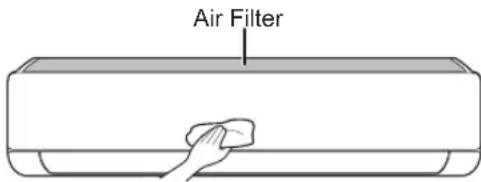
text_image
Air Filter- The feature may be changed according to the type of model.
| Type Description Interval | ||
| Air Filter Clean with a vacuum or hand wash. 2 weeks | ||
| Triple Filter Clean with a vacuum or brush. Every 3 months | ||
| Micro Dust Filter Clean with a vacuum or brush. Once a month | ||
| Ionizer (Optional) Use dry cotton bud to remove any dust. Every 6 months | ||
| Indoor Unit | Clean the indoor unit surface by using a soft, dry cloth. Regularly | |
| Have a professional clean the condensate drain pan. Once a year | ||
| Have a professional clean the condensate drain pipe. Every 4 months | ||
| Replace the remote control batteries. Once a year | ||
| Outdoor Unit | Have a professional clean the heat exchanger coils and the panel vents. (Consult with technician.) | Once a year |
| Have a professional clean the fan. | Once a year | |
| Have a professional clean the condensate drain pan. Once a year | ||
| Have a professional verify that all the fan assembly is firmly tightened. | Once a year | |
| Clean the electric components with air. | Once a year | |
NOTE
- Never use water that is higher than 40 °C when you clean the filters. It may cause deformation or discoloration.
- Never use volatile substances when you clean the filters. They may damage the surface of the product.
- Do not wash the micro dust filter with water, because the filter can be damaged (Optional).
- Do not wash the triple filter with water, because the filter can be damaged (Optional).
Clean the Air Filter
Clean the air filters once every 2 weeks, or more, if necessary.
NOTE
• The air filter can be broken when it is bent.
- When the air filter is not assembled correctly, dust and other substances can enter into the indoor unit.
Type1
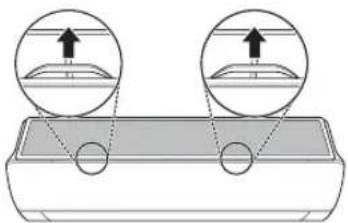
If you look at the indoor unit from above it, can assemble the top filter easily.
1 Turn off the power to the unit.
2 Hold the knobs of the air filter, lift it up slightly.
natural_image
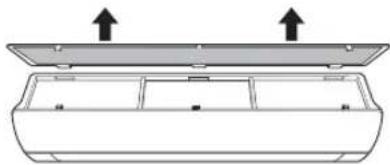
Diagram showing two circular insets with arrows pointing to a rectangular object, no text or symbols present.3 Remove it from the indoor unit.
natural_image
Diagram of a rectangular device with two upward arrows indicating top-down orientation (no text or symbols)4 Clean the filter with a vacuum cleaner or with lukewarm water with neutral detergent.
5 Dry the filter in the shade.
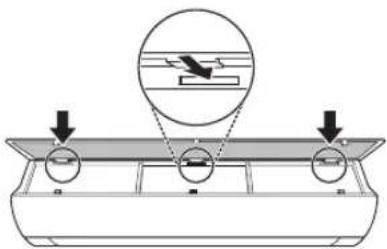
6 Insert the hooks of the air filter into the front cover.
text_image
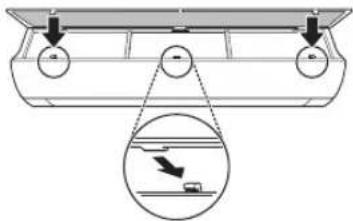
Diagram illustrating a mechanical or electrical setup with labeled components and directional arrows, including a magnified inset showing a device or component.7 Push down hooks to assemble the air filter.
text_image
Diagram showing a vehicle under load with pulleys and a magnified view of the load on a road surface.8 Check the side of the front cover for correct assembly of the air filter.
Type2
1 Turn off the power to the unit.
2 Open the front cover.
- Lift up both sides of the cover slightly.
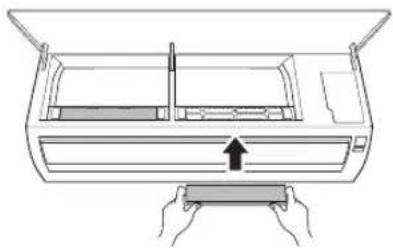
3 Hold the knobs of the air filters, pull them down slightly and remove them from the indoor unit.
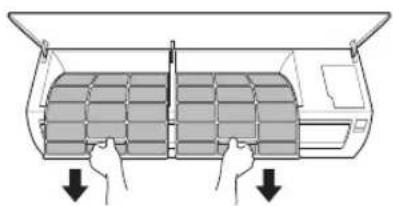
natural_image
Diagram of a double door with hands holding a grid panel, showing airflow direction (no text or symbols)4 Clean the filters with a vacuum cleaner or with lukewarm water with neutral detergent.
5 Dry the filters in the shade.
6 Insert the hooks of the air filters into the front cover.
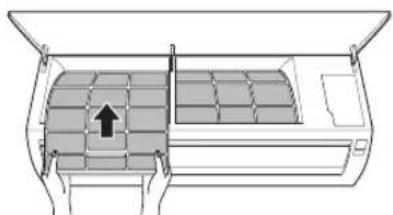
natural_image
Diagram of a car air conditioner unit with airflow direction indicated by arrows (no text or symbols)7 Check the side of the front cover for correct assembly of the air filters.
Clean the Micro Dust and Triple Filter (Optional)
1 Turn off the power to the unit.
2 Remove the air filters from the indoor unit.
3 Remove the micro dust and triple filter from the indoor unit.
Type1
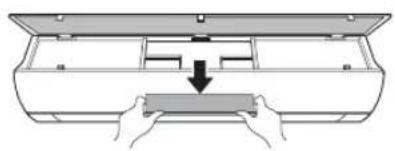
natural_image
Diagram showing hands installing a component into a device casing (no text or symbols present)Type2
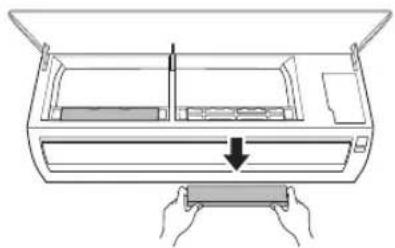
natural_image
Diagram of a printer or printer with hands holding a tray, showing internal structure and a downward arrow (no text or symbols)4 Clean the filter with a vacuum cleaner.
5 Insert the micro dust and triple filter.
Type1
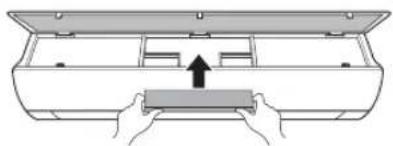
natural_image
Diagram of hands holding a rectangular object inside a container with an open lid (no text or symbols)Type2
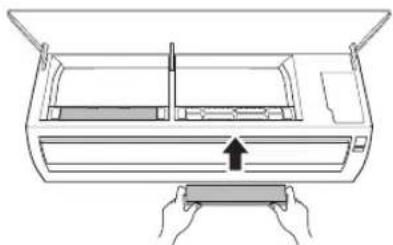
natural_image
Diagram of hands holding a rectangular device with an arrow indicating upward motion (no text or symbols)6 Assemble the air filters.
7 Check the side of the front cover for correct assembly of the air filters.
NOTE
- The feature and location of micro dust and triple filter may vary according to the type of model.
TROUBLESHOOTING
Self-diagnosis Function
This product has a built-in self-diagnosis function. If an error occurs, the lamp of the indoor unit will blink in 2 second intervals. If this occurs, contact your local dealer or service center.
Before Calling for Service
Please check the following before you contact the service center. If the problem persists, contact your local service center.
| Symptoms Possible Causes & Solution | |
| The air conditioner does not work normally. | Burning smell and strange sounds are coming from the unit.Turn off the air conditioner, switch OFF, or disconnect the power supply, and contact the service center. |
| Water leaks from the indoor unit even when the humidity level is low.Turn off the air conditioner, switch OFF, or disconnect the power supply, and contact the service center. | |
| The power cable is damaged or it is generating excessive heat.Turn off the air conditioner, switch OFF, or disconnect the power supply, and contact the service center. | |
| A switch, a circuit breaker (safety, ground), or a fuse is not operated properly.Turn off the air conditioner, switch OFF, or disconnect the power supply, and contact the service center. | |
| The unit generates an error code from its self-diagnosis.Turn off the air conditioner, switch OFF, or disconnect the power supply, and contact the service center. | |
| The air conditioner does not work. | The air conditioner is unplugged.Check whether the power cord is plugged into the outlet or the power isolators are switched on. |
| A fuse exploded, or the power supply is blocked.Replace the fuse or check if the circuit breaker has tripped. | |
| A power failure has occurred.Turn off the air conditioner when a power failure occurs.When the power is restored, wait 3 minutes, and then turn on the air conditioner. | |
| The voltage is too high or too low.Check if the circuit breaker has tripped. | |
| The air conditioner was turned off automatically at a preset time.Turn the air conditioner on. | |
| The battery setting in the remote controller is incorrect.Make sure that the batteries are inserted correctly in your remote controller.If the batteries are placed correctly, but the air conditioner still does not operate, replace the batteries and try again. | |
| The air conditioner does not emit cool air. | Air is not circulating properly.Make sure that there are no curtains, blinds, or pieces of furniture blocking the front of the air conditioner. |
| The air filter is dirty.Clean the air filter once every 2 weeks.See “Clean the Air Filter” for more information. | |
| The room temperature is too high.In summer, cooling the indoor air fully may take some time. In this case, select the Jet Mode to cool the indoor air quickly. | |
| Cold air is escaping from the room.Make sure that no cold air is escaping through the ventilation points in the room. | |
| The desired temperature is higher than the current temperature.Set the desired temperature to a level lower than the current temperature. | |
| There is a heating source nearby.Avoid using heat generators like electric ovens or gas burners while the air conditioner is in operation. | |
| Fan Mode is selected.During Fan Mode, air blows from the air conditioner without cooling or heating the indoor air.Switch the operation mode to cooling operation. | |
| Outside temperature is too high.The cooling effect may not be sufficient. | |
| The fan speed cannot be adjusted. | The Jet Mode, or Auto Operation Mode is selected.In some operation modes, you cannot adjust the fan speed. Select an operation mode in which you can adjust the fan speed. |
| The temperature cannot be adjusted. | The Fan Mode or Jet Mode is selected.In some operation modes, you cannot adjust the temperature. Select an operation mode in which you can adjust the temperature. |
| The air conditioner stops during operation. | The air conditioner is suddenly turned off.The Timer Function may have timed out, which turns the unit off. Check the timer settings. |
| A power failure has occurred during operation.Wait for the power to come back. If you have the Auto Restart function enabled, your unit will resume its last operation several minutes after power is restored. | |
| The indoor unit is still operating even when the unit has been turned off. | The Auto Clean function is being operated.Allow the Auto Clean function to continue since it removes any remaining moisture inside the indoor unit. If you do not want this feature, you can turn the unit off. |
| The air outlet on the indoor unit is discharging mist. | The cooled air from the air conditioner makes mist.When the room temperature decreases, this phenomenon will disappear. |
| Water leaks from the outdoor unit. | In the heating operations, condensed water drops from the heat exchanger.This symptom requires installing a drain hose under the base pan. Contact the installer. |
| There is noise or vibration. | A clicking sound can be heard when the unit starts or stops due to movement of the reversing valve.Creaking sound: The plastic parts of the indoor unit creak when they shrink or expand due to sudden temperature changes.Flowing or Blowing sound: This is the flow of refrigerant through the air conditioner.These are normal symptoms. The noise will stop. |
| The indoor unit gives off an odor. | Odors (such as cigarette smoke) may be absorbed into the indoor unit and discharged with airflow.If the smell does not disappear, you need to wash the filter. If this does not work, contact the service center to clean your heat exchanger. |
| The air conditioner does not emit warm air. | When Heating Mode starts, the vane is almost closed, and no air comes out, even though the outdoor unit is operating.This symptom is normal. Please wait until the unit has generated enough warm air to blow through the indoor unit. |
| The outdoor unit is in Defrosting Mode.In Heating Mode, ice/frost is built up on the coils when the outside temperature falls. This function removes a layer of frost on the coil, and it should finish in approximately 15 minutes. | |
| Outside temperature is too low.The heating effect may not be sufficient. | |
| Your home appliance and smartphone is not connected to the Wi-Fi network. | The password for the Wi-Fi that you are trying to connect to is incorrect.Find the Wi-Fi network connected to your smartphone and remove it, then register your appliance on LG ThinQ. |
| Mobile data for your smartphone is turned on.Turn off the Mobile data of your smartphone and register the appliance using the Wi-Fi network. | |
| The wireless network name (SSID) is set incorrectly.The wireless network name (SSID) should be a combination of English letters and numbers. (Do not use special characters.) | |
| The router frequency is not 2.4 GHz.Only a 2.4 GHz router frequency is supported. Set the wireless router to 2.4 GHz and connect the appliance to the wireless router. To check the router frequency, check with your Internet service provider or the router manufacturer. | |
| The distance between the appliance and the router is too far.If the distance between the appliance and the router is too far, the signal may be weak and the connection may not be configured correctly. Move the location of the router so that it is closer to the appliance. | |
NOTE
• Some functions may not be supported, depending on the model.
LIMITEDWARRANTY
USA
TERMS AND CONDITIONS
ARBITRATION NOTICE: THIS LIMITED WARRANTY CONTAINS AN ARBITRATION PROVISION THAT REQUIRES YOU AND LG ELECTRONICS ("LG") TO RESOLVE DISPUTES BY BINDING ARBITRATION INSTEAD OF IN COURT, UNLESS YOU CHOOSE TO OPT OUT. IN ARBITRATION, CLASS ACTIONS AND JURY TRIALS ARE NOT PERMITTED. PLEASE SEE THE SECTION TITLED "PROCEDURE FOR RESOLVING DISPUTES" BELOW.
PROCEDURE FOR RESOLVING DISPUTES:
ALL DISPUTES BETWEEN YOU AND LG ARISING OUT OF OR RELATING IN ANY WAY TO THIS LIMITED WARRANTY OR THE PRODUCT SHALL BE RESOLVED EXCLUSIVELY THROUGH BINDING ARBITRATION, AND NOT IN A COURT OF GENERAL JURISDICTION. BINDING ARBITRATION MEANS THAT YOU AND LG ARE EACH WAIVING THE RIGHT TO A JURY TRIAL AND TO BRING OR PARTICIPATE IN A CLASS ACTION.
Definitions. For the purposes of this section, references to “LG” mean LG Electronics U.S.A., Inc., its parents, subsidiaries and affiliates, and each of their officers, directors, employees, agents, beneficiaries, predecessors in interest, successors, assigns and suppliers; references to “dispute” or “claim” shall include any dispute, claim or controversy of any kind whatsoever (whether based in contract, tort, statute, regulation, ordinance, fraud, misrepresentation or any other legal or equitable theory) arising out of or relating in any way to the sale, condition or performance of the product or this Limited Warranty.
Notice of Dispute. In the event you intend to commence an arbitration proceeding, you must first notify LG in writing at least 30 days in advance of initiating the arbitration by sending a letter to LG at LG Electronics, USA, Inc. Attn: Legal Department-Arbitration 111 Sylvan Avenue, Englewood Cliffs, NJ 07632. You and LG agree to engage in good faith discussions in an attempt to amicably resolve your claim. The notice must provide your name, address, and telephone number; identify the product that is the subject of the claim; and describe the nature of the claim and the relief being sought. If you and LG are unable to resolve the dispute within 30 days, either party may proceed to file a claim for arbitration.
Agreement to Binding Arbitration and Class Action Waiver. Upon failure to resolve the dispute during the 30 day period after sending written notice to LG, you and LG agree to resolve any claims between us only by binding arbitration on an individual basis, unless you opt out as provided below. Any dispute between you and LG shall not be combined or consolidated with a dispute involving any other person's or entity's product or claim. More specifically, without limitation of the foregoing, any dispute between you and LG shall not under any circumstances proceed as part of a class or representative action. Instead of arbitration, either party may bring an individual action in small claims court, but that small claims court action may not be brought on a class or representative basis.
Arbitration Rules and Procedures. To begin arbitration of a claim, either you or LG must make a written demand for arbitration. The arbitration will be administered by the American Arbitration Association (“AAA”) and will be conducted before a single arbitrator under the AAA’s Consumer Arbitration Rules that are in effect at the time the arbitration is initiated (referred to as the “AAA Rules”) and under the procedures set forth in this section. The AAA Rules are available online at www.adr.org/consumer. Send a copy of your written demand for arbitration, as well as a copy of this provision, to the AAA in the manner described in the AAA Rules. You must also send a copy of your written demand to LG at LG Electronics, USA, Inc. Attn: Legal Department-Arbitration 111 Sylvan Avenue, Englewood Cliffs, NJ 07632. If there is a conflict between the AAA Rules and the rules set forth in this section, the rules set forth in this section will govern. This arbitration provision is governed by the Federal Arbitration Act. Judgment may be entered on the arbitrator’s award in any court of competent jurisdiction. All issues are for the arbitrator to decide, except that issues relating to the scope and enforceability of the arbitration provision and to the arbitrability of the dispute are for the court to decide. The arbitrator is bound by the terms of this provision.
Governing Law. The law of the state of your residence shall govern this Limited Warranty and any disputes between us except to the extent that such law is preempted by or inconsistent with applicable federal law.
Fees/Costs. You do not need to pay any fee to begin an arbitration. Upon receipt of your written demand for arbitration, LG will promptly pay all arbitration filing fees to the AAA unless you seek more than \$25,000 in damages, in which case the payment of these fees will be governed by the AAA Rules. Except as otherwise provided for herein, LG will pay all AAA filing, administration and arbitrator fees for any arbitration initiated in accordance with the AAA Rules and this arbitration provision. If you prevail in the arbitration, LG will pay your attorneys' fees and expenses as long as they are reasonable, by considering factors including, but not limited to, the purchase amount and claim amount. Notwithstanding the foregoing, if applicable law allows for an award of reasonable attorneys' fees and expenses, an arbitrator can award them to the same extent that a court would. If the arbitrator finds either the substance of your claim or the relief sought in the demand is frivolous or brought for an improper purpose (as measured by the standards set forth in Federal Rule of Civil Procedure 11(b)), then the payment of all arbitration fees will be governed by the AAA Rules. In such a situation, you agree to reimburse LG for all monies previously disbursed by it that are otherwise your obligation to pay under the AAA Rules. Except as otherwise provided for, LG waives any rights it may have to seek attorneys' fees and expenses from you if LG prevails in the arbitration.
Hearings and Location. If your claim is for \25,000 or less, you may choose to have the arbitration conducted solely on the basis of (1) documents submitted to the arbitrator, (2) through a telephonic hearing, or (3) by an in-person hearing as established by the AAA Rules. If your claim exceeds \25,000, the right to a hearing will be determined by the AAA Rules. Any in-person arbitration hearings will be held at a location within the federal judicial district in which you reside unless we both agree to another location or we agree to a telephonic arbitration.
Opt Out. You may opt out of this dispute resolution procedure. If you opt out, neither you nor LG can require the other to participate in an arbitration proceeding. To opt out, you must send notice to LG no later than 30 calendar days from the date of the first consumer purchaser's purchase of the product by either: (i) sending an e-mail to optout@lge.com, with the subject line: "Arbitration Opt Out" or (ii) calling 1-800-980-2973. You must include in the opt out e-mail or provide by telephone: (a) your name and address; (b) the date on which the product was purchased; (c) the product model name or model number; and (d) the serial number (the serial number can be found (i) on the product; or (ii) online by accessing https://www.lg.com/us/support and clicking on "How do I find my model number?").
You may only opt out of the dispute resolution procedure in the manner described above (that is, by e-mail or telephone); no other form of notice will be effective to opt out of this dispute resolution procedure. Opting out of this dispute resolution procedure will not affect the coverage of the Limited Warranty in any way, and you will continue to enjoy the full benefits of the Limited Warranty. If you keep this product and do not opt out, then you accept all terms and conditions of the arbitration provision described above.
CANADA
TERMS AND CONDITIONS
ARBITRATION NOTICE: THIS LIMITED WARRANTY CONTAINS AN ARBITRATION PROVISION THAT REQUIRES YOU AND LG TO RESOLVE DISPUTES BY BINDING ARBITRATION INSTEAD OF IN COURT, UNLESS THE LAWS OF YOUR PROVINCE OR TERRITORY DO NOT PERMIT THAT, OR, IN OTHER JURISDICTIONS, IF YOU CHOOSE TO OPT OUT. FOR FURTHER CLARITY, THIS ARBITRATION PROVISION IS NOT APPLICABLE TO CONSUMERS RESIDING IN ONTARIO AND QUÉBEC. IN ARBITRATION, CLASS ACTIONS AND JURY TRIALS ARE NOT PERMITTED. PLEASE SEE THE SECTION TITLED "PROCEDURE FOR RESOLVING DISPUTES" BELOW.
DISCLAIMER:
IF YOU ARE A CONSUMER SUBJECT TO QUÉBEC AND ONTARIO'S CONSUMER PROTECTION ACT, THE EXCLUSION OF WARRANTIES CONTAINED IN THIS SECTION DO NOT EXCLUDE OR LIMIT THE RIGHTS AND REMEDIES THAT YOU MAY HAVE UNDER SUCH ACT, INCLUDING THE RIGHT TO MAKE A CLAIM UNDER ANY OF THE STATUTORY WARRANTIES PROVIDED THEREUNDER.
PROCEDURE FOR RESOLVING DISPUTES:
EXCEPT WHERE PROHIBITED AT LAW (INCLUDING WITH RESPECT TO QUÉBEC AND ONTARIO CONSUMERS), ALL DISPUTES BETWEEN YOU AND LG ARISING OUT OF OR RELATING IN ANY WAY TO THIS LIMITED WARRANTY OR THE PRODUCT SHALL BE RESOLVED EXCLUSIVELY THROUGH BINDING ARBITRATION, AND NOT IN A COURT OF GENERAL JURISDICTION. EXCEPT WHERE PROHIBITED AT LAW (INCLUDING WITH RESPECT TO QUÉBEC AND ONTARIO CONSUMERS), YOU AND LG BOTH IRREVOCABLY AGREE TO WAIVE THE RIGHT TO A JURY TRIAL AND TO BRING OR PARTICIPATE IN A CLASS ACTION.
Definitions. For the purposes of this section, references to “LG” mean LG Electronics Canada, Inc., its parents, subsidiaries and affiliates, and each of their officers, directors, employees, agents, beneficiaries, predecessors in interest, successors, assigns and suppliers; references to “dispute” or “claim” shall include any dispute, claim or controversy of any kind whatsoever (whether based in contract, tort, statute, regulation, ordinance, fraud, misrepresentation or any other legal or equitable theory) arising out of or relating in any way to the sale, condition or performance of the product or this Limited Warranty.
Notice of Dispute. In the event you intend to commence an arbitration proceeding, you must first notify LG in writing at least 30 days in advance of initiating the arbitration by sending a letter to LGECI Legal Team at 20 Norelco Drive, North York, Ontario, Canada M9L 2X6 (the "Notice of Dispute"). You and LG agree to engage in good faith discussions in an attempt to amicably resolve your claim. The notice must provide your name, address, and telephone number; identify the product that is the subject of the claim; and describe the nature of the claim and the relief being sought. If you and LG are unable to resolve the dispute within 30 days of LG's receipt of the Notice of Dispute, the dispute shall be resolved by binding arbitration in accordance with the procedure set out herein. You and LG both agree that, during the arbitration proceeding, the terms (including any amount) of any settlement offer made by either you or LG will not be disclosed to the arbitrator until the arbitrator determines the dispute.
Agreement to Binding Arbitration and Class Action Waiver. Upon failure to resolve the dispute during the 30 day period after LG's receipt of the Notice of Dispute, you and LG agree to resolve any claims between you and LG only by binding arbitration on an individual basis, unless you opt out as provided below, or you reside in a jurisdiction that prevents full application of this clause in the circumstances of the claims at issue (in which case if you are a consumer, this clause will only apply if you expressly agree to the arbitration). To the extent permitted by applicable law, any dispute between you and LG shall not be combined or consolidated with a dispute involving any other person's or entity's product or claim. More specifically, without limitation of the foregoing, except to the extent such a prohibition is not permitted at law, any dispute between you and LG shall not under any circumstances proceed as part of a class or representative action. Instead of arbitration, either party may bring an individual action in small claims court, but that small claims court action may not be brought on a class or representative basis except to the extent this prohibition is not permitted at law in your province or territory of jurisdiction as it relates to the claims at issue between you and LG. This does not apply to consumers in Ontario and Québec. In accordance with provincial legislation, the consumer and LG may agree to resolve the dispute using any procedure available, including commencing the action before the competent courts of those provinces.
Arbitration Rules and Procedures. To begin arbitration of a claim, either you or LG must make a written demand for arbitration. The arbitration will be private and confidential, and conducted on a simplified and expedited basis before a single arbitrator chosen by the parties under the provincial or territorial commercial arbitration law and rules of the province or territory of your residence. You must also send a copy of your written demand to LG at LG Electronics, Canada, Inc., Attn: Legal Department- Arbitration, 20 Norelco Drive, North York, Ontario M9L 2X6. This arbitration provision is governed by your applicable provincial or territorial commercial arbitration legislation. For consumers in Ontario and Québec, the applicable arbitration legislation only applies if consumers agree to submit the dispute to arbitration. Judgment may be entered on the arbitrator's award in any court of competent jurisdiction. All issues are for the arbitrator to decide, except that, issues relating to the scope and enforceability of the arbitration provision and to the arbitrability of the dispute are for the court to decide. The arbitrator is bound by the terms of this provision.
Governing Law. The law of the province or territory of your purchase shall govern this Limited Warranty and any disputes between you and LG except to the extent that such law is preempted by or inconsistent with applicable federal or provincial/territorial law. Should arbitration not be permitted for any claim, action, dispute or controversy between you and LG, you and LG attorn to the exclusive jurisdiction of the courts of the province or territory of your purchase for the resolution of the claim, action, dispute or controversy between you and LG.
Fees/Costs. You do not need to pay any fee to begin an arbitration. Upon receipt of your written demand for arbitration, LG will promptly pay all arbitration filing fees unless you seek more than \$25,000 in damages, in which case the payment of these fees will be governed by the applicable arbitration rules. Except as otherwise provided for herein, LG will pay all filing, administration and arbitrator fees for any arbitration initiated in accordance with the applicable arbitration rules and this arbitration provision. If you prevail in the arbitration, LG will pay your attorneys' fees and expenses as long as they are reasonable, by considering factors including, but not limited to, the purchase amount and claim amount. Notwithstanding the foregoing, if applicable law allows for an award of reasonable attorneys' fees and expenses, an arbitrator can award them to the same extent that a court would. If the arbitrator finds either the substance of your claim or the relief sought in the demand is frivolous or brought for an improper purpose (as measured by the applicable laws), then the payment of all arbitration fees will be governed by the applicable arbitration rules. In such a situation, you agree to reimburse LG for all monies previously disbursed by it that are otherwise your obligation to pay under the applicable arbitration rules. Except as otherwise provided for, LG waives any rights it may have to seek attorneys' fees and expenses from you if LG prevails in the arbitration.
Hearings and Location. If your claim is for \25,000 or less, you may choose to have the arbitration conducted solely (1) on the basis of documents submitted to the arbitrator, (2) through a telephonic hearing, or (3) by an in-person hearing as established by the applicable arbitration rules. If your claim exceeds \25,000, the right to a hearing will be determined by the applicable arbitration rules. Any inperson arbitration hearings will be held at the nearest, most mutually-convenient arbitration location available within the province or territory in which you reside unless you and LG both agree to another location or agree to a telephonic arbitration.
Severability and Waiver. If any portion of this Limited Warranty (including these arbitration procedures) is unenforceable, the remaining provisions will continue in full force and effect to the maximum extent permitted by applicable law. Should LG fail to enforce strict performance of any provision of this Limited Warranty (including these arbitration procedures), it does not mean that LG intends to waive or has waived any provision or part of this Limited Warranty.
Opt Out. The arbitration provision requires you and LG to resolve disputes by binding arbitration instead of court, unless the laws of your province or territory do not permit that, or, in other jurisdictions, if you choose to opt out. The arbitration provision does not apply to consumers in Ontario and Québec.
For individuals that fall within the binding arbitration provisions, you may opt out of this dispute resolution procedure. If you opt out, neither you nor LG can require the other to participate in an arbitration proceeding. To opt out, you must send notice to LG no later than 30 calendar days from the date of the first consumer purchaser's purchase of the product by either (i) sending an e-mail to optout@lge.com, with the subject line: "Arbitration Opt Out;" or (ii) calling 1-800-980-2973. You must include in the opt out e-mail or provide by telephone: (a) your name and address; (b) the date on which the product was purchased; (c) the product model name or model number; and (d) the serial number (the serial number can be found (i) on the product; or (ii) online by accessing https://www.lg.com/ca_en/findmodel_serial/).
In the event that you “Opt Out”, the law of the province or territory of your residence shall govern this Limited Warranty and any disputes between you and LG except to the extent that such law is preempted by or inconsistent with applicable federal or provincial/territorial law. Should arbitration not be permitted for any claim, action, dispute or controversy between you and LG, you and LG agree to attorn to the exclusive jurisdiction of the courts of the province or territory of your residence for the resolution of the claim, action, dispute or controversy between you and LG.
You may only opt out of the dispute resolution procedure in the manner described above (that is, by e-mail or telephone); no other form of notice will be effective to opt out of this dispute resolution procedure. Opting out of this dispute resolution procedure will not affect the coverage of the Limited Warranty in any way, and you will continue to enjoy the full benefits of the Limited Warranty. If you keep this product and do not opt out, then you accept all terms and conditions of the arbitration provision described above.
Conflict of Terms. In the event of a conflict or inconsistency between the terms of this Limited Warranty and the End User License Agreement (“EULA”) in regards to dispute resolution, the terms of this Limited Warranty shall control and govern the rights and obligations of the parties and shall take precedence over the EULA.
MANUEL D'UTILISATION
CLIMATISEUR

text_image
Diagram of a car air conditioner unit with numbered parts for identification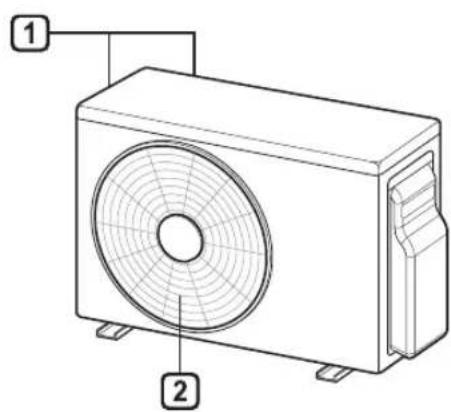
text_image
Technical diagram of a front-end air conditioner unit with labeled parts 1 and 2natural_image
Illustration of a horizontal air conditioner with a remote control unit emitting signal waves (no text or symbols)REMARQUE
text_image
2 * MODE FAN SPEED TEMP JET MODE KW [3 s] SWING SWING ROOM TEMP DIAGNOSIS [5 s] SET UP FUNC. SET CANCEL TIMER CANCEL RESETtext_image
2 * MODE FAN SPEED TEMP JET MODE KW [3 s] SWING SWING ROOM TEMP DIAGNOSIS [5 s] SET UP FUNC. SET CANCEL TIMER CANCEL RESETchemical
Simple chemical structure diagram showing a central sulfur atom bonded to two peripheral atoms, with an additional label 'Ih' attached.Application LG ThinQ
text_image
Diagram showing hand press icon pointing to two directional arrows, one with up/down arrow and one with down arrowtext_image
Diagram showing a hand interacting with wireless signals to form a Wi-Fi symbol, indicating signal transmission or interaction.REMARQUE
natural_image
Diagram showing two circular objects with upward arrows pointing to a rectangular object, no text or symbols present.natural_image
Diagram of a rectangular device with three internal compartments and two upward arrows indicating top-down orientation (no text or symbols)text_image
Diagram showing a mechanical or electrical setup with three circular components and an inset magnified view of a sliding mechanism.text_image
Diagram showing a mechanical or structural setup with two circular components and an inset magnified view of a suspended object.natural_image
Diagram of a car air conditioner unit with hands holding boxes, showing internal compartments and airflow direction arrows (no text or symbols)natural_image
Diagram of an air conditioner unit showing airflow direction and component placement (no text or symbols)natural_image
Diagram showing hands installing a component into a device casing (no text or symbols present)Type 2
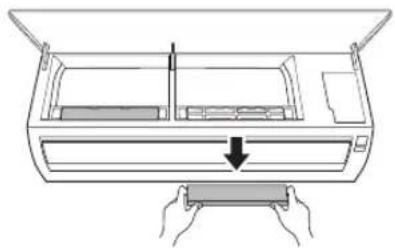
natural_image
Diagram of a printer or printer with hands holding a tray, showing internal structure and an arrow indicating compression (no text or symbols present)natural_image
Diagram of hands installing a component into a box with an upward arrow (no text or symbols)Type 2
natural_image
Diagram of a hand holding a rectangular device with an arrow indicating upward motion (no text or symbols present)text_image
Diagram of a car air conditioner unit with numbered parts labeled 1 through 7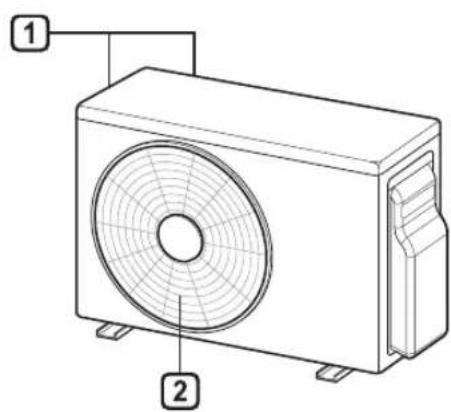
text_image
Technical diagram of a air conditioner unit with labeled parts 1 and 2① Filtro de aire
2 Entrada de aire
3 Cubierta delantera
4 Salida de aire
5 Deflector de aire (aleta horizontal)
6 Deflector de aire (rejilla vertical)
7 Botón de Encendido/Apagado (On/Off)
natural_image
Line drawing of a rectangular air conditioner with a remote control unit emitting signal waves (no text or symbols)NOTA
text_image
2 * MODE FAN S ON OFF 1000min TEMP JET MODE kW [3 s] SWING SWING ROOM TEMP DIAGNOSIS [5 s] SET UP FUNC. SET CANCEL TIMER CANCEL RESETtext_image
2 * MODE FAN S ON OFF 1000min TEMP JET MODE KW [3 s] SWING SWING ROOM TEMP DIAGNOSIS [5 s] SET UP FUNC. SET CANCEL TIMER CANCEL RESETtext_image
2 * MODE FAN S ON OFF 1000 min TEMP JET MODE KW [3 s] SWING SWING ROOM TEMP DIAGNOSIS [5 s] SET UP FUNC. SET CANCEL TIMER CANCEL RESETtext_image
-OFF-5:00PMchemical
Simple chemical structure diagram showing a central sulfur atom bonded to two peripheral atoms, with an additional label 'Ih' attached.text_image
Diagram showing hand press icon pointing to two directional arrows with up/down bidirectional arrowstext_image
Diagram showing a hand interacting with a Wi-Fi icon and a Wi-Fi symbol, indicating wireless signal interaction.NOTA
natural_image
Diagram showing two circular objects with upward arrows pointing to a rectangular object, no text or symbols present.natural_image
Diagram of a rectangular device with three internal compartments and two upward arrows indicating top-down orientation (no text or symbols)text_image
Diagram showing a mechanical or electrical setup with three circular components and an inset magnified view of a component with a downward arrow.text_image
Diagram showing a mechanical or structural setup with two circular components and an inset magnified view of a suspended object.natural_image
Diagram of a car air conditioner unit with hands holding cooling panels (no text or symbols)natural_image
Diagram of an air conditioner unit showing airflow direction and component placement (no text or symbols)natural_image
Diagram showing hands installing a component into a device casing (no text or symbols present)Tipo 2
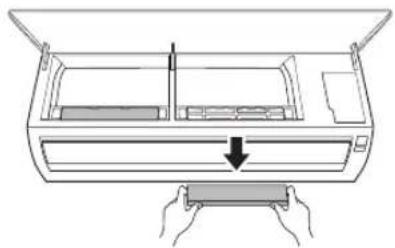
natural_image
Diagram of a printer or printer with hands holding a tray, showing internal structure and an arrow indicating compression (no text or symbols present)natural_image
Diagram of hands installing a component into a box with an upward arrow (no text or symbols)Tipo 2
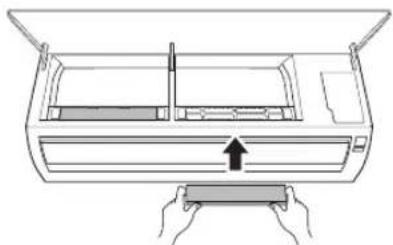
natural_image
Diagram of a printer or printer with hands holding a tray, showing internal structure and an arrow indicating motion (no text or symbols)| US | Please call the installing contractor of your product, as warranty service will be provided by them. |
| CANADA | Service call Number # : (888) LG Canada, (888) 542-2623Numéro pour les appels de service : LG Canada, 1-888-542-2623 |