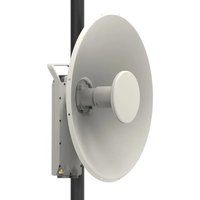
425 - Network Equipment Cambium Networks - Free user manual and instructions
Find the device manual for free 425 Cambium Networks in PDF.


| Product type | Point-to-multipoint (PMP) and point-to-point (PTP) radio equipment for fixed outdoor installation |
| Brand | Cambium Networks |
| Model | 425 |
| Frequency bands | 5 GHz: 5470-5725 MHz and 5725-5875 MHz (depending on country) |
| Maximum power | Up to 4 W (36 dBm) EIRP depending on band and regulations |
| Connectivity | RJ45 Ethernet port with PoE (Power over Ethernet) |
| Antenna | Integrated or external via SMA connectors (dual polarity); max gain: 25 dBi for subscriber, 17 dBi for access point |
| Power supply | Power over Ethernet (PoE) via included indoor power supply unit (AC or DC) |
| Safety | Mandatory grounding; lightning protection; minimum safety distance: 10 cm |
| Installation | Professional installation mandatory; compliance with national regulations and local codes |
| Configuration | Web interface via default IP address 169.254.1.1; credentials admin/admin |
| Main functions | Data transmission over microwave links; support for PMP and PTP modes |
| Standards | Compliant with EU directive 2014/53/EU; CE marking |
| Environment | Fixed outdoor use; operating temperature not specified |
| Maintenance and cleaning | Avoid exposure to excessive moisture; clean with a dry, non-abrasive cloth |
| Spare parts and repairability | No user-serviceable parts; contact Cambium Networks support for any intervention |
Frequently Asked Questions - 425 Cambium Networks
User questions about 425 Cambium Networks
0 question about this device. Answer the ones you know or ask your own.
Ask a new question about this device
Download the instructions for your Network Equipment in PDF format for free! Find your manual 425 - Cambium Networks and take your electronic device back in hand. On this page are published all the documents necessary for the use of your device. 425 by Cambium Networks.
USER MANUAL 425 Cambium Networks
natural_image
Exterior view of a multi-level surveillance camera mounted on an elevated highway, with vehicles in the background (no signage or text visible)
Cambium Networks™

natural_image
Aerial night view of a town nestled on a rocky hillside with a river in the background (no visible text or symbols)
natural_image
Young girl in blue shirt using tablet at a classroom (no visible text or symbols)
natural_image
Overhead view of a busy outdoor café with people seated around a table (no visible text or signage)
natural_image
Desert landscape with oil rig and surrounding hills under a dramatic cloudy sky (no text or symbols visible)QUICK START GUIDE
ePMP
System Release 4.6

natural_image
Aerial view of a coastal industrial or port facility with ships, storage tanks, and turquoise waters under a blue sky with clouds (no visible text or symbols)
natural_image
Man working at a wooden mill bench with a laptop and paper nearby (no visible text or symbols)Reservation of Rights
Cambium reserves the right to make changes to any products described herein to improve reliability, function, or design, and reserves the right to revise this document and to make changes from time in content hereof with no obligation to notify any person of revisions or changes. Cambium recommends reviewing the Cambium Networks website for the latest changes and updates to product Cambium does not assume any liability arising out of the application or use of any product, software circuit described herein; neither does it convey license under its patent rights or the rights of other possible that this publication may contain references to, or information about Cambium products (machines and programs), programming, or services that are not announced in your country. Such references or information must not be construed to mean that Cambium intends to announce such Cambium products, programming, or services in your country.
Copyrights
This document, Cambium products, ^rd Party software products described in this document may include or describe copyrighted Cambium and ^rd Party supplied computer programs stored in semiconductor memories or other media. Laws in the United States and other countries preserve for Cambium, its licensors, and other Party supplied software certain exclusive rights for copyrighted material, including the exclusive right to copy, reproduce in any form, distribute and make derivative works of the copyrighted material. Accordingly, any copyrighted material of Cambium, its licensors, or the ^rd Party software supplied material contained in the Cambium products described in this document may not be copied, reproduced, reverse engineered, distributed, merged or modified in any manner without the express written permission of Cambium. Furthermore, the purchase of Cambium products shall not be deemed to grant either directly or by implication, estoppel, or otherwise, any license to the copyrights, patents or patent applications of Cambium or other 3rd Party supplied software, except for the normal non-exclusive, royalty free license to use that arises by operation of law in the sale product.
Restrictions
Software and documentation are copyrighted materials. Making unauthorized copies is prohibited by law. No part of the software or documentation may be reproduced, transmitted, transcribed, stored in a retrieval system, or translated into any language or computer language, in any form or by any means without prior written permission of Cambium.
License Agreements
The software described in this document is the property of Cambium and its licensors. It is furnished express license agreement only and may be used only in accordance with the terms of such an agreement.
High Risk Materials
Cambium and its supplier(s) specifically disclaim any express or implied warranty of fitness for any risk activities or uses of its products including, but not limited to, the operation of nuclear facilities aircraft navigation or aircraft communication systems, air traffic control, life support, or weapons system ("High Risk Use").
This product is not restricted in the EU. Any High Risk is unauthorized, is made at your own risk shall be responsible for any and all losses, damage or claims arising out of any High-Risk Use.
Contents
Contents 3
English 9
Intended use, installation, and operation 9.
Installation, operation, and safety 9
Safety 10
Power supply...10.
Mounting ..11
Configuration ..11
Configuring the management PC 11
Connecting to the PC and powering up 11
Conforming to the limits...11
Operating in the EU 11
Restrictions and requirements for authorization for use 12
Simplified EU declaration of conformity...12
Waste Electrical and Electronic Equipment (WEEE) directive
Cambium Networks 13
Czech (CZ)
13
Správnost 14
Autorská práva 14
Omezení 14
Licenční dohody 14
Mounting ideograms...56
ePMP 3000L.56
ePMP 3000.57
ePMP 3000 Pole or Wall Mount 58
eMP3000 Dual-Horn Antenna 59
Force 300-25 59
Force 300-25L (Fixed Pole Mount) 60
Force 300-25L (Optional Tilt Pole Mount) 60
Force 300-16 61
Force 300 CSM 61
Force 300 CSML 62
Force 300-13 Pole Mount 63
Force 300-13L Pole Mount 64
Force 300-19/R Pole Mount 65
Force 300-19/R Wall Mount 66
ePMP MP 3000 67
Force 400C 67
Force 425 68
Intended use, installation, and operation
The Cambium Networks ePMP radio products support data transmission over Point-to-Multipoint (PMP) and Point-to-Point (PTP) microwave links. This radio equipment is intended for professional applications for fixed outdoor installations only. These radios are available with an integrated antenna.
Connectorized units can operate with a selection of separately purchased dual-polarity external antenna through 2 x SMA-type female connectors. The installer is responsible to operate the radio equipment, the accessories as intended and according to the description provided by the antenna manufacturer. maximum antenna gain allowed for external antennas is 25 dBi for subscriber modules and 17 dBi for access point sectors.
Installation and operation of this product is complex, and Cambium therefore recommends professional installation and management of the system to ensure that operation complies with the regulations of region where the product is installed. Please follow the instructions in this leaflet. Further guidance PMP / PTP installation and operation is available in the product user guide.
The installer must have sufficient skills, knowledge, and experience to perform the installation task an responsible for:
- Familiarity with current applicable national regulations including radio regulations, electrical installation regulations, surge protection regulations and ‘working at heights’ regulations
• Installation in accordance with Cambium Networks instructions
• Confirming that the equipment settings are compliant with national or regional regulations
Installation, operation, and safety
Please observe the following important instructions during installation. This will set the equipment in compliance with national regulatory regulations.
- Ensure that the equipment is fitted with the latest firmware version (System Release 3.5.5 or 4.1.2 later). The software is available from the Cambium Support Center web site.
- During equipment set-up, verify that the correct region code is set (the region code is pre-set if factory for EU products) and then select the correct country code for the particular country when product is being deployed.
- For connectorized units, enter the antenna gain into the ‘Antenna Gain’ setting under the Configuration > Radio menu.
Observe the following safety rules:
- Ensure that the device and the structure to which it is mounted can withstand the maximum wi speeds at a proposed site.
- Always power down and unplug the equipment before servicing. The ePMP power supply is the primary disconnect device.
- Strong Radio Frequency (RF) fields will be present close to the antenna when the transmitter is Always turn off the power to the device before undertaking maintenance activities in front of the antenna.
- Observe the minimum safe distance limit for ePMP products provided below.
- Ensure that equipment is installed in a position avoiding any radiation hazard to humans.
- Exercise extreme care when working at heights. Observe national ‘working at heights’ regulations. U trained ‘competent’ staff.
• Exercise extreme care when working near power lines.
Safety
- ePMP devices and mounting structures must be properly grounded to protect against lightning. is the user's responsibility to install the equipment in accordance with national regulations. It is recommended that installation be contracted to a professional installer.
- Always use the specified ePMP platform power supply units (PSU) to power the equipment. Failure to use the specified Cambium supplied PoE could result in equipment damage and may cause a safety hazard.
-
Structures, equipment, and people must be protected against electrostatic discharge:
-
by siting equipment in a lightning protection zone
- by installation of appropriate lightning conductors to conduct the surge current to ground via a separate preferential solid path.
• The enclosure may be hot to the touch when in operation.
- Safety may be compromised if outdoor rated cables are not used for connections that will be exposed to the outdoor environment. Install Cambium recommended cables.
Power supply
The power supply unit that is connected to the ePMP modules is rated for indoor use. The ePMP are installed outdoors and terminated to network equipment using Cat5e cables with RJ45 connectors. The Cat5e cables are plugged into an AC or DC power supply to inject Power over Ethernet (PoE) the module. The Cat5e cables connected to the power supply transitioning from indoors to outdoors must be rated for outdoor use.

Attention
All RJ45 Ethernet LAN cables used for providing power or are connected to power ports (PoE) must be UL certified with VW-1 markings.

Attention
All cables used for outdoor installations must be suitable to be used for that environment and rated accordingly.
Mounting
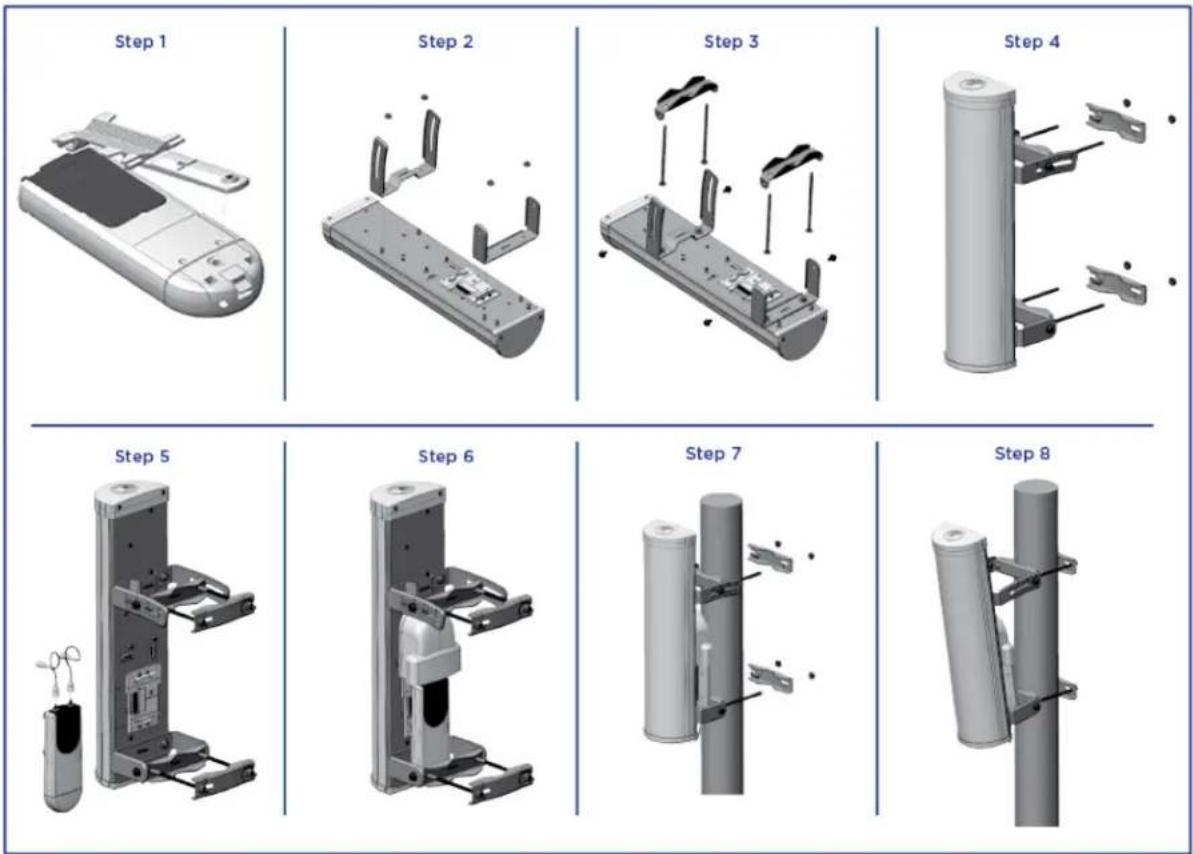
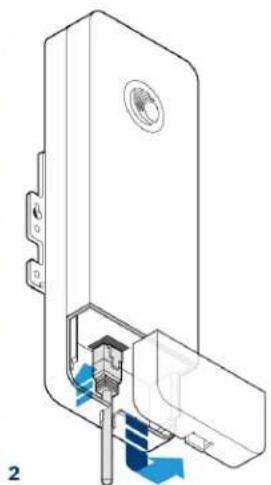
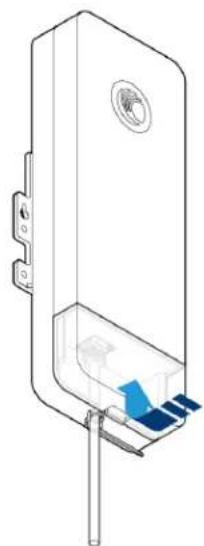
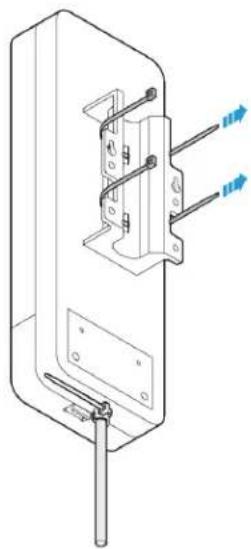
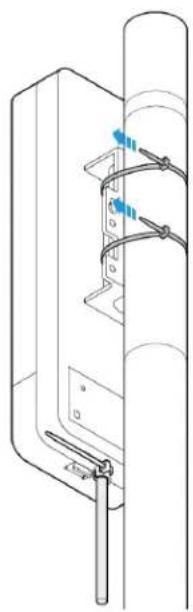
Refer to the Mounting ideograms for mounting instructions.
Configuration
Configuring the management PC
- Select Properties for the Ethernet port. In Windows 7 this is found in Control Panel > Network and Internet > Network Connections > Local Area Connection.
- Select Internet Protocol (TCP/IP).
- Click Properties.
- Enter an IP address that is valid for the 169.254.X.X network, avoiding 169.254.0.0 and 169.254 (Eg: 169.254.1.3).
- Enter a subnet mask of 255.255.0.0. Leave the default gateway blank.
Connecting to the PC and powering up
- Check that the ODU ETH port is connected to the Ethernet + Power port of the power sup
- Connect the PC Ethernet port to the LAN port of the PSU using a standard (not crossed) cable.
- Apply mains or battery power to the PSU. The green Power LED should illuminate continuous
- Check that the ODU red Ethernet LED illuminates continuously.
- Open a web browser and type: 169.254.1.1.
When prompted, enter admin/admin to login to the GUI and complete the configuration.
Conforming to the limits
Ensure that the link is configured to conform to local regulatory requirements by configuring the Co parameter (located in the web management interface at Configuration > Radio > General).
When using connectorized devices with external antennas, also ensure that the antenna gain is configured correctly in the device (the Antenna Gain parameter is located in the web management interface at Configuration > Radio > Power Control).
Operating in the EU
In the EU, the 5 GHz ePMP products operate in the following frequency bands up to the maximum shown:
| Operating Frequency Band | EU Standard | Maximum Power Limit (EIRP) | Permitted usage 5 GHz | units that support this frequency band |
| 5470 - 5725 MHz | EN 301 893 | 1 Watt / 30 | dBm Available for genera usage within all EU nations | All EPMP |
| 5725 - 5875 MHz | EN 302 502 | 4 Watts / 36 dBm | Permitted in some EU nations, see notes 1 - | All EPMP 5 |
| Note 1: | Operation in the 5.8 GHz band is notpermitted in the following European countries: AT, BC, CZ, CY, FR, HR, IT, LU, LV, NL, PL, TR. In other countries, government licenses may be re to allow operation, please check your national government website. |
| Note 2 | The radio applies national frequency allocations, power and DFS settings for each country code. |
| Note 3: | In the UK and Ireland, light licensing applies. Obtain a license from your government web: |
| Note 4: | For Norway, use of the 5725-5795 MHz and 5815-5850 MHz frequency bands is authorized |
| Note 5: | 5725 -5875 MHz operation is enabled by downloading and applying a license key from th Cambium website. |
For ePMP products deployed in the EU, the minimum safe distance between the equipment and hur is 10 cm.
Restrictions and requirements for authorization for use
- This radio equipment is for outdoor use only.
- The ePMP products can be configured to operate in unlicensed frequency bands subject to frequent planning within individual countries. Operators / End users must ensure that the equipment is inst and operated in accordance with the regulations applicable to the country of operation and obtain any necessary licenses or permits.
Simplified EU declaration of conformity
Hereby, the manufacturer Cambium Networks Ltd, declares that the radio equipment types ePMP 300 GHz Access Point / 3000L 5 GHz Access Point / ePMP 5 GHz Force 300-25 High Gain Radio / Force 300-19 / 5 GHz Force 300-19R / 5 GHz Force 300-16 Radio / 5 GHz Force 300-13 / 5 GHz 300-13L / 5 GHz Force 300-LC / 5 GHz Force 300 CSM / 5 GHz Force 300-22L / 5 GHz Force Radios are in compliance with Directive 2014/53/EU. The full text of the EU declaration of conformi available at the following internet address: http://www.cambiumnetworks.com/ec_dofc
Waste Electrical and Electronic Equipment (WEEE) directive
Please do not dispose of Electronic and Electric Equipment or Electronic and Electric Accessories with your household waste. In some countries or regions, collection systems have been set up to handle waste of electrical and electronic equipment. In European Union countries, please contact your local equipment supplier representative or Cambium Networks Support Centre for information about the waste collection system in your country.
Cambium Networks
Cambium Networks delivers wireless communications that work for businesses, communities, and cities worldwide. Millions of our radios are deployed to connect people, places and things with a unified wireless fabric that spans multiple standards and frequencies of fixed wireless and Wi-Fi, all managed centrally via the cloud. Our multi-gigabit wireless fabric offers a compelling value proposition over traditional fiber and alternative wireless solutions. We work with our Cambium certified ConnectedPartners to deliver purpose-built networks for service provider, enterprise, industrial, and government connectivity solutions in urban, suburban, and rural environments, with wireless that just works.
| User Guides http://www.cambiumnetworks.com/guides | |
| Technical training https://learning.cambiumnetworks.com/learn | |
| Support website (enquiries) https://support.cambiumnetworks.com | |
| Main website http://www.cambiumnetworks.com | |
| Sales enquiries solutions@cambiumnetworks.com | |
| Warranty https://www.cambiumnetworks.com/support/standard-warranty/ | |
| Telephone number list http://www.cambiumnetworks.com/contact-us/ | |
| Address Cambium Networks Limited,Unit B2, Linhay Business Park,Eastern Road,Ashburton,Devon, TQ13 7UPUnited Kingdom |

Cambium Networks™
www.cambiumnetworks.com
Cambium Networks and the stylized circular logo are trademarks of Cambium Networks, Ltd. All other trademarks are the property of their respective owners.
Správnost
eMP3000 Dual-Horn Antenna
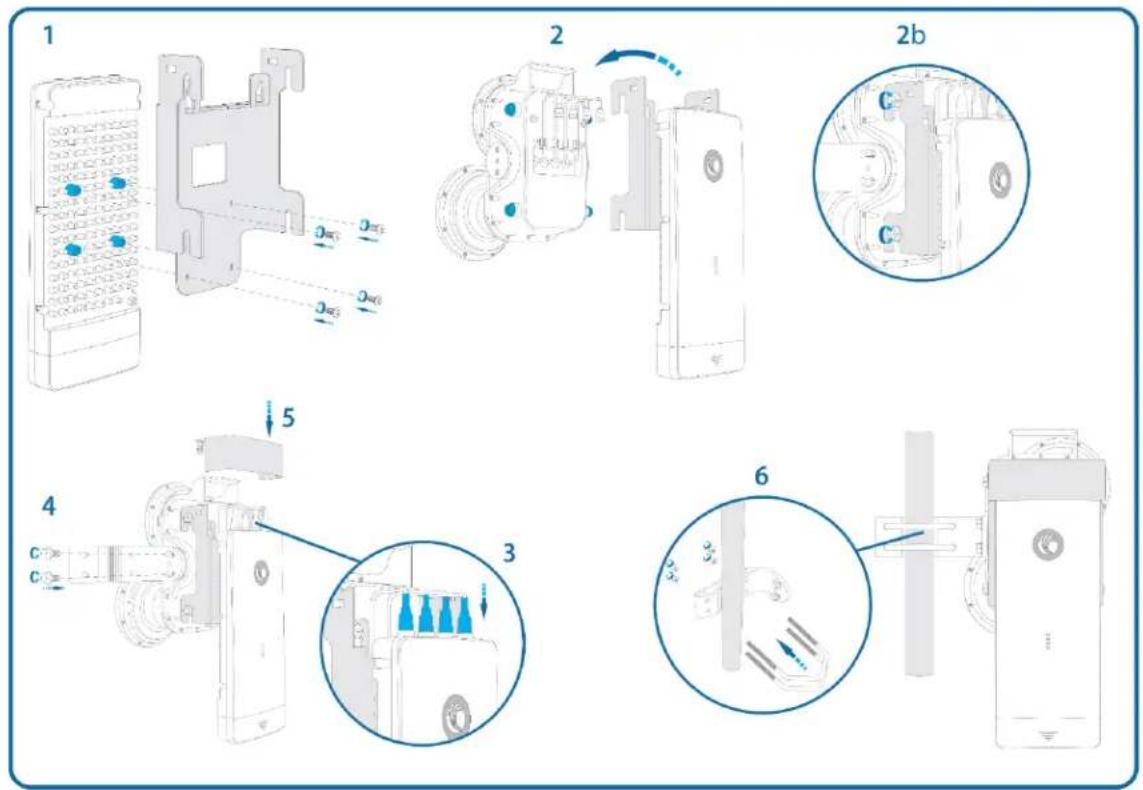
Force 300-25
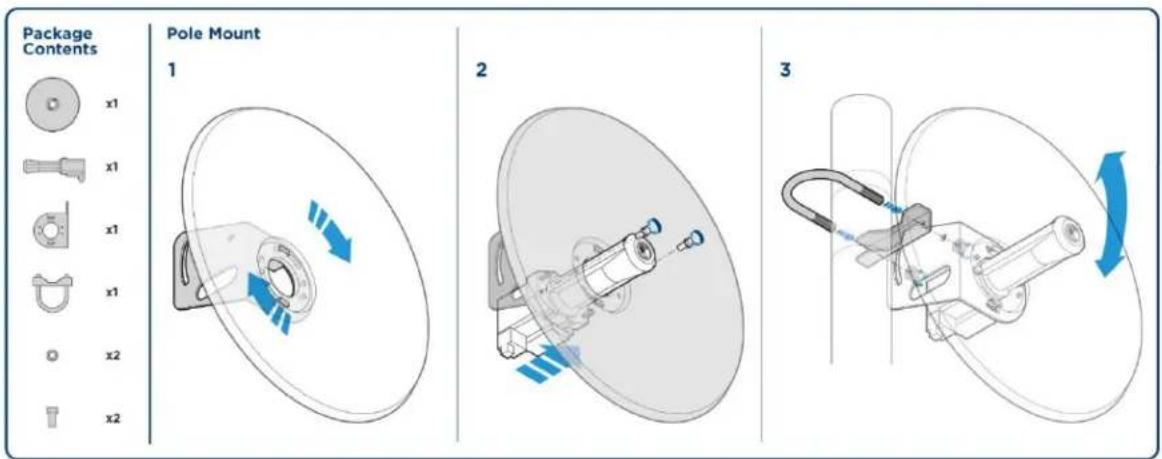
Force 300-25L (Fixed Pole Mount)
Pole Mount (Non-tilt)
1 Attach Dish to Mounting Bracket using 4 bolts.
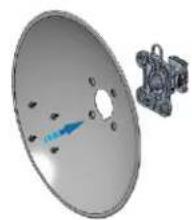
natural_image
3D rendered mechanical component with a circular fan and attached bracket (no text or symbols visible)3 Attach Dish assembly to pole using supplied Mounting Clamps.
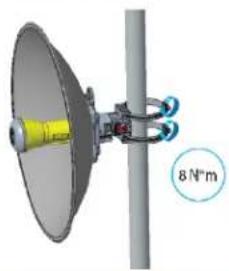
natural_image
3D diagram of a satellite dish mounted on a pole with a 8 N·m scale indicator (no text or symbols beyond the scale)5 Attach the RJ45 cable cover.
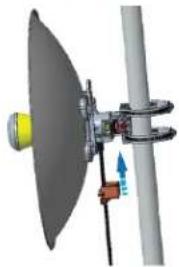
natural_image
Mechanical device with a circular fan and attached rod, showing no visible text or symbols2 Attach Feed Horn to Dish.
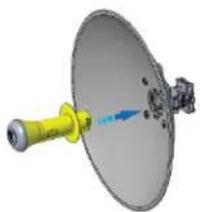
natural_image
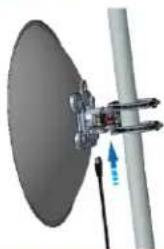
3D rendering of a satellite dish with a yellow connector and blue directional arrow (no text or symbols)4 Attach the RJ45 cable.
natural_image
Diagram of a satellite dish mounted on a pole with directional arrows indicating movement (no text or symbols)Package Content

1 = Dish


1 e Mounting Bracket (Non-tilt)

4 x Mo Boles

2 x Mounting Clamps

1 x RU45 Port Cover
Force 300-25L (Optional Tilt Pole Mount)
Optional Pole Mount (Tilt)
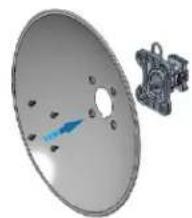
1 Attach Dish to Mounting Bracket using 4 bolts.
natural_image
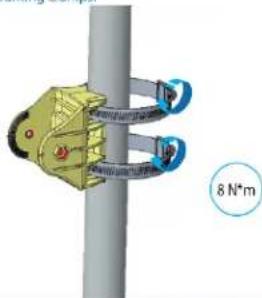
3D rendered image of a circular mechanical component with a blue arrow pointing to a hole, alongside a separate metallic bracket (no text or symbols visible)3 Attach optional mount to pole using supplied Mounting Clamps.
natural_image
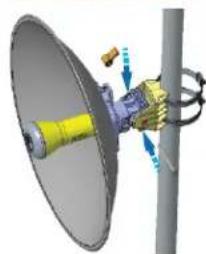
Diagram of a mechanical clamp or bracket assembly mounted on a vertical pole, with a circular annotation showing '8 N*m' (no readable text or symbols)5 Insert the M6 bolt and secure the Dish assembly by tightening the knob. Adjust the Dish angle as necessary.
natural_image
3D diagram of a mechanical device with a yellow component mounted on a vertical pole, showing directional arrows (no text or symbols)2 Attach Feed Horn to Dish.
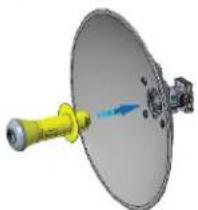
natural_image
3D rendering of a satellite dish with a yellow connector and blue arrow indicating direction (no text or symbols)4 Attach the Dish assembly to the mounting bracket.

natural_image
Mechanical assembly diagram showing a rotating disc and a connected clamp mechanism (no text or symbols)Package Content

1 x Dish

x Feed Horn

1 x Mounting Bracket (Non-dit)

4 x M6 Bolts

2 x Mounting Clamps

1 x 3U45 Port Cover
* Optional Mount Package Content

1 x Mounting Bracket (Tilt)

1 x Knob
1 x Mo Bolt
* Solid separately
Force 300-16
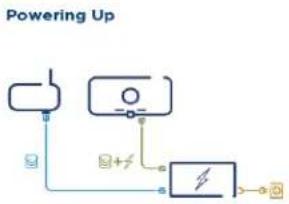
flowchart
graph TD
    A["Powering Up"] --> B["Battery"]
    A --> C["Switch"]
    A --> D["Water Splitter"]
    C --> E["Power Supply"]
    D --> F["Power Supply"]
DHCP /192.168.0.1 (Master) /192.168.02 (Slave)
admin/admin
https://cloud.camblumnetworks.com
https://support.cambiumnetworks.com
Force 300 CSM
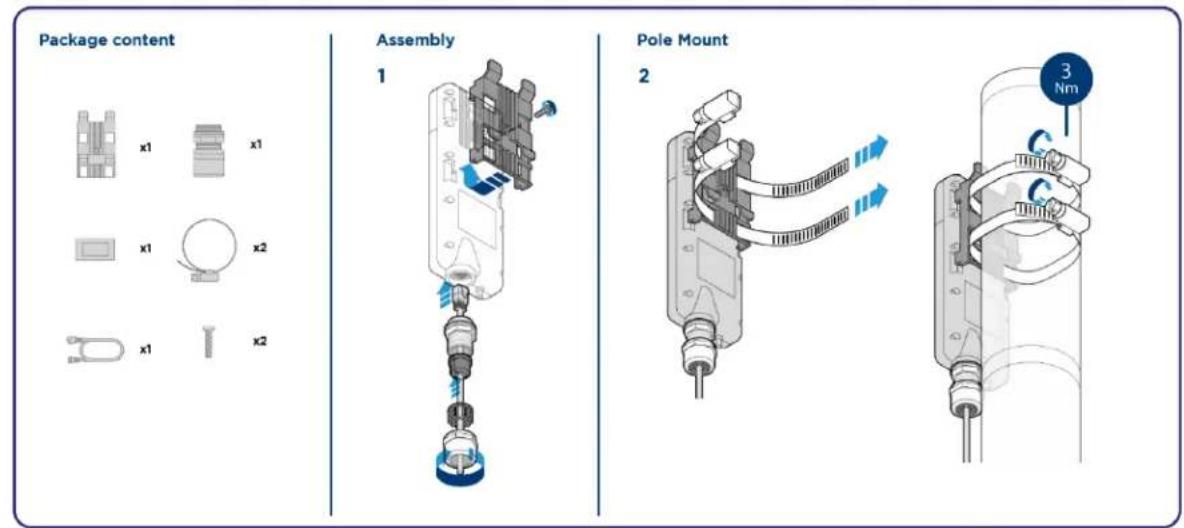
Force 300 CSML
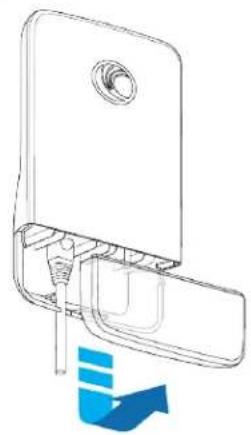
Force 300-13 Pole Mount
Pole Mount
1
natural_image
Technical line drawing of a mechanical device with a blue arrow indicating direction (no text or symbols)3
natural_image
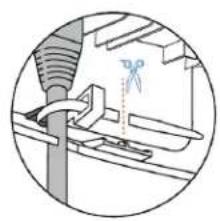
Diagram of a mechanical assembly with scissors and tool, no visible text or symbols5
natural_image
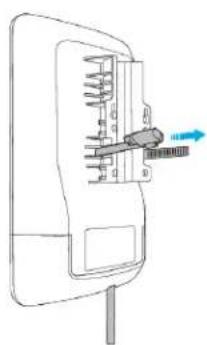
Diagram of a mechanical component with a tool inserted, showing internal structure and a blue arrow indicating direction (no text or symbols present)6
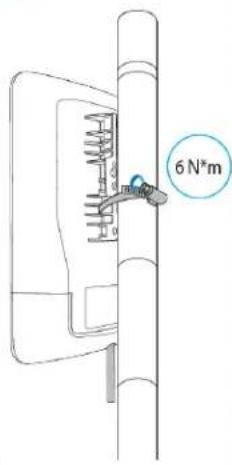
2
natural_image
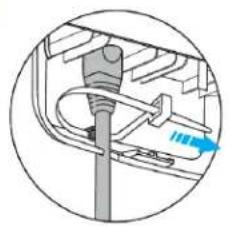
Diagram of a mechanical or electrical component with a vertical rod and cable, no visible text or symbols4
natural_image
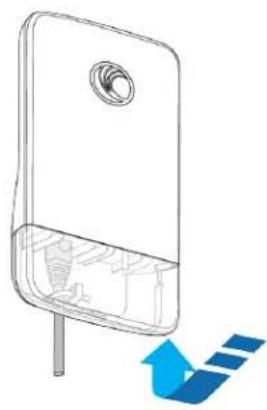
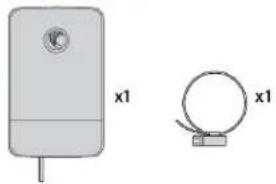
Diagram of a device with internal components and a blue arrow indicating direction (no text or symbols)Package Content
natural_image
Two electronic components: a cylindrical device with a circular top and a wire coil, both labeled 'x1' (no text or symbols on the devices themselves)Force 300-13L Pole Mount
Pole Mount
1
natural_image
Technical line drawing of a mechanical device with internal components and blue flow arrows (no text or symbols)3
natural_image
Technical line drawing of a mechanical component with internal parts and mounting brackets (no text or symbols)4
natural_image
Technical line drawing of a mechanical or electrical component with no visible text or symbols5
natural_image
Diagram of a vertical device with attached cables and connectors, no text or symbols present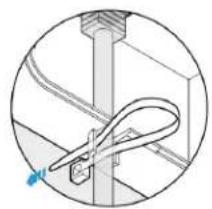
natural_image
Technical diagram of a mechanical assembly with a curved tool and mounting bracket (no text or symbols)Package Content

x1

x2

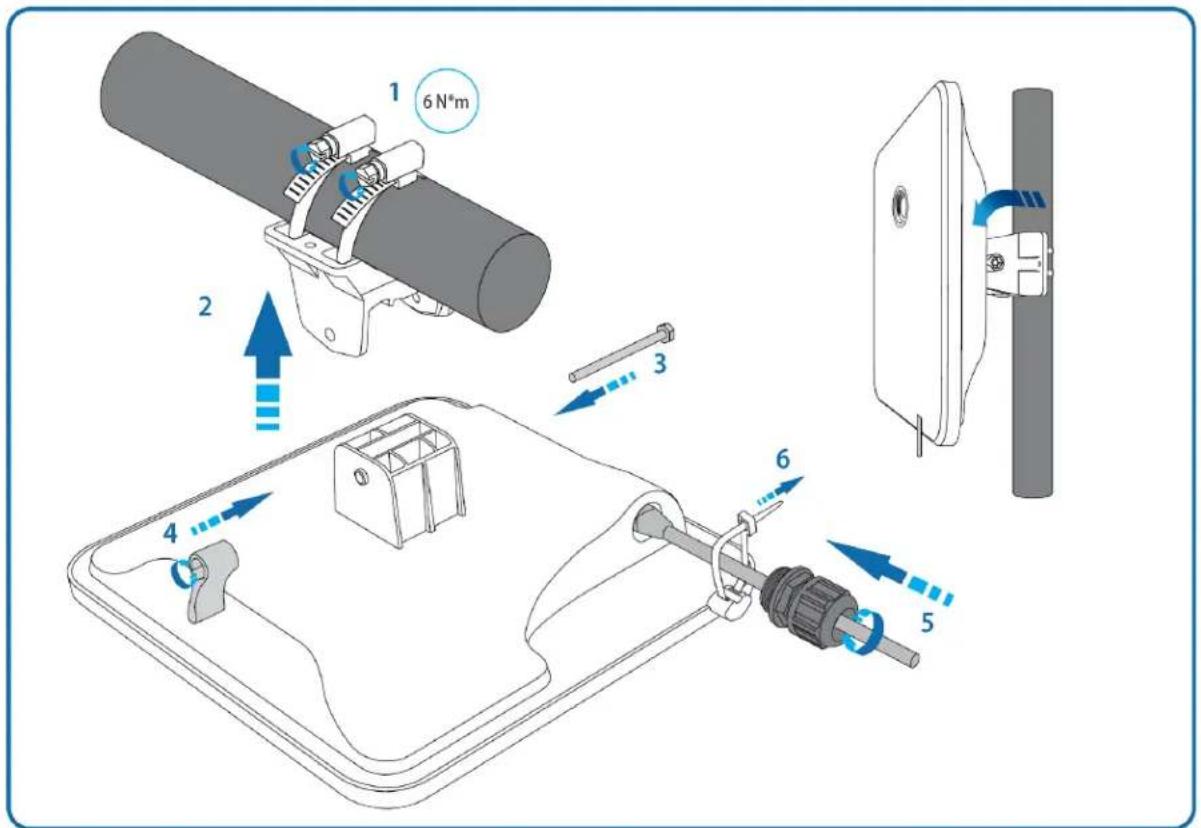
Force 300-19/R Pole Mount
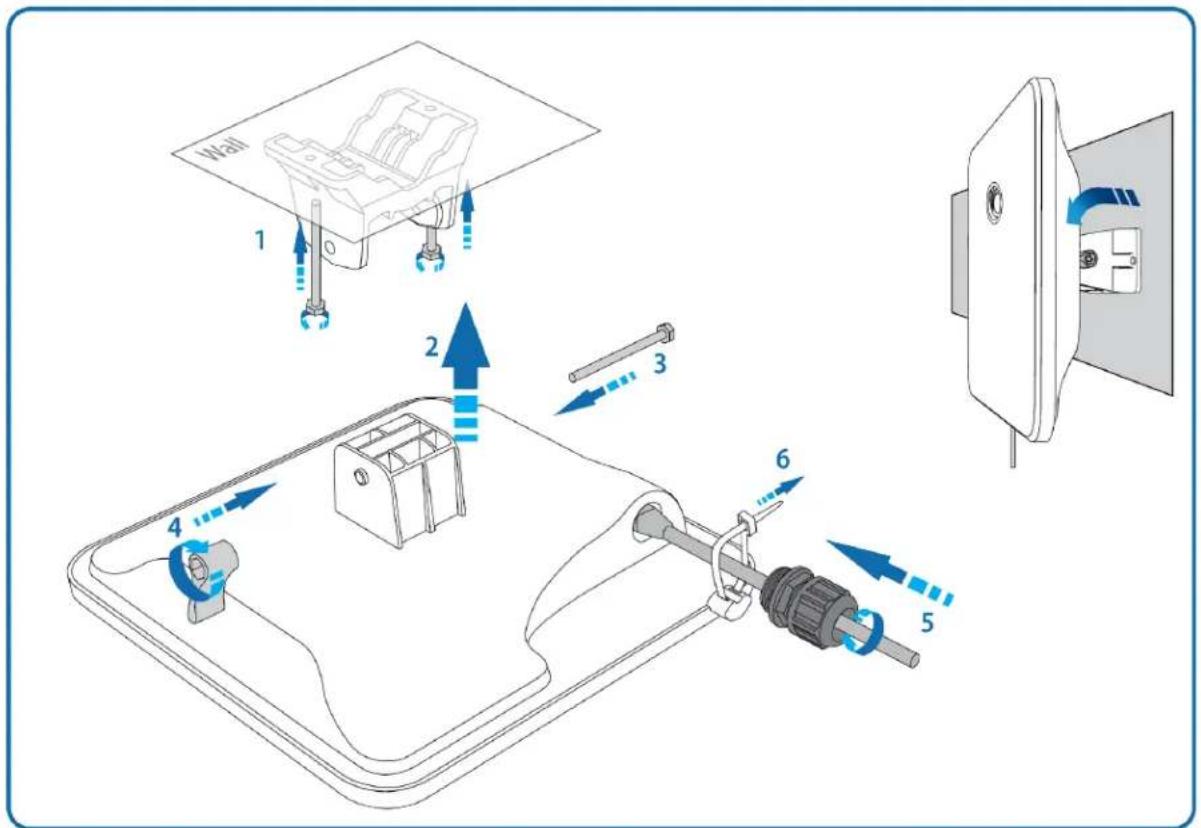
Force 300-19/R Wall Mount
Force 400C
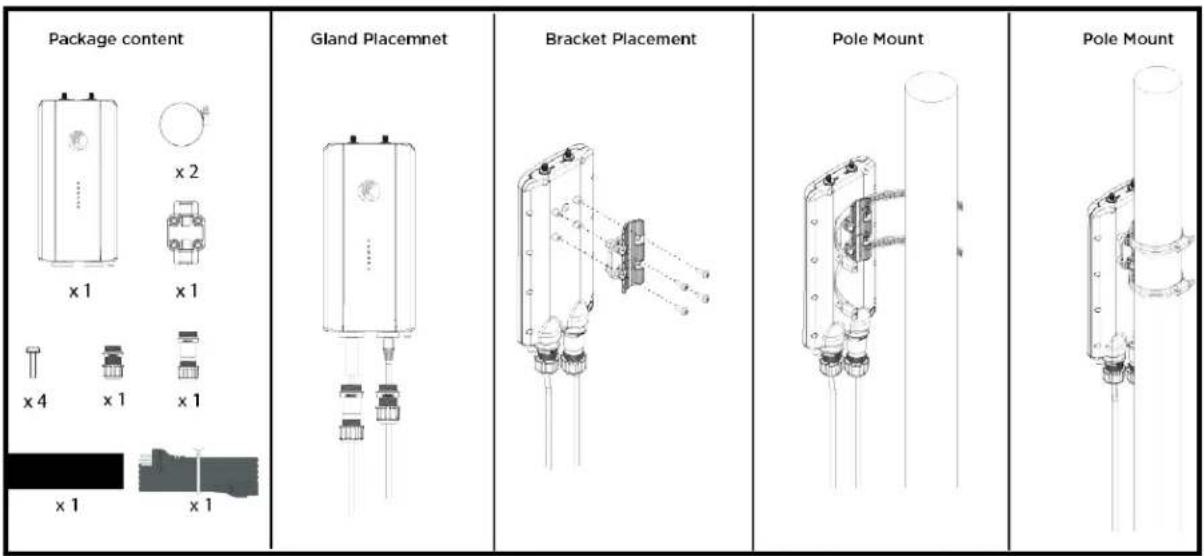
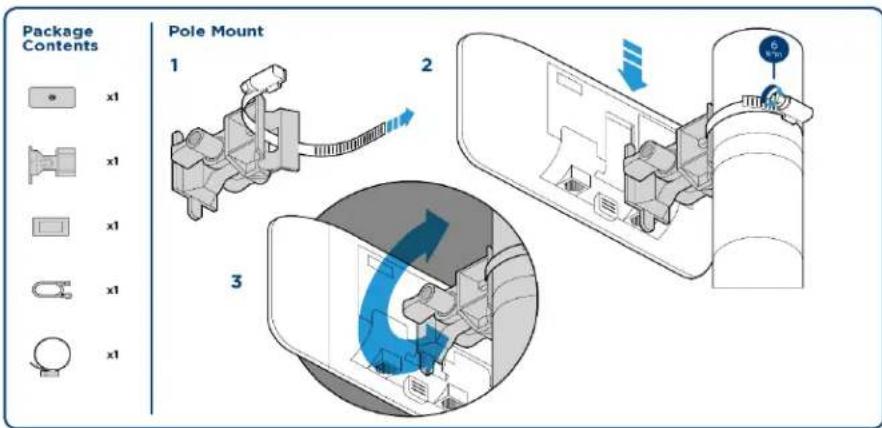
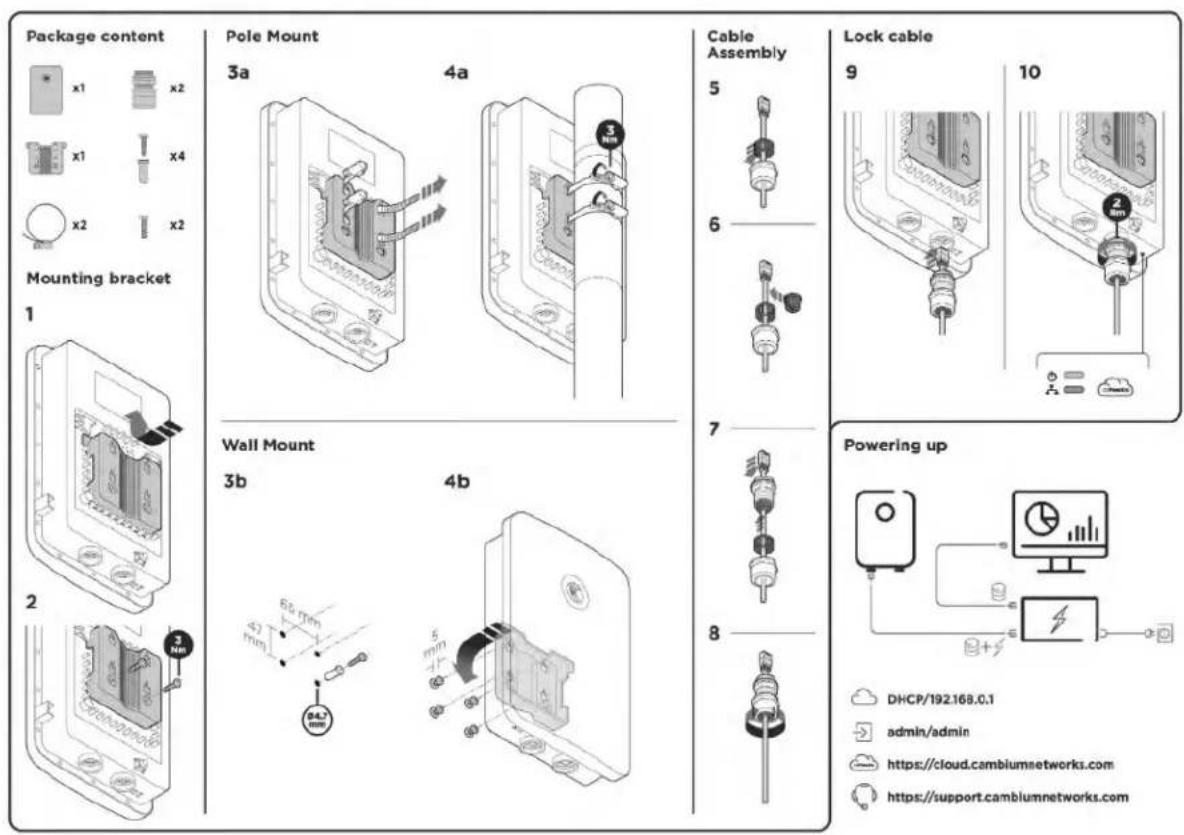
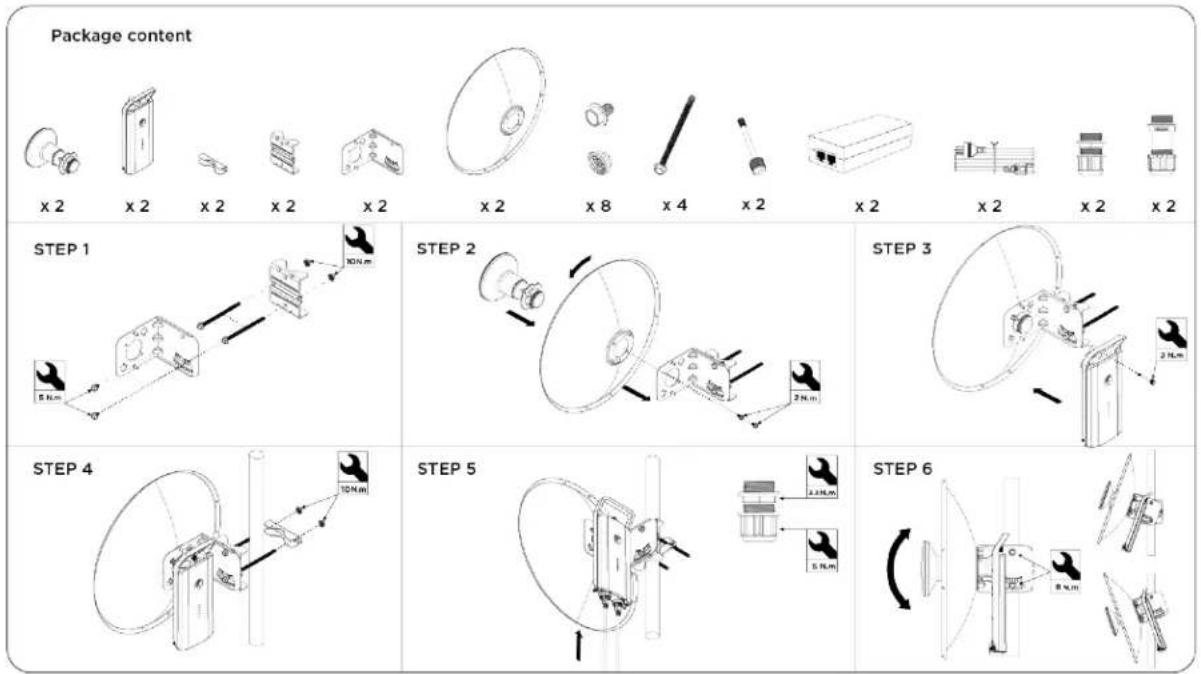
Force 425


- Cambium Networks™
- Reservation of Rights
- Copyrights
- Restrictions
- License Agreements
- High Risk Materials
- Contents
- Contents 3
- English 9
- Czech (CZ)
- Mounting ideograms...56
- Intended use, installation, and operation
- Installation, operation, and safety
- Safety
- Power supply
- Attention
- Mounting
- Configuration
- Configuring the management PC
- Connecting to the PC and powering up
- Conforming to the limits
- Operating in the EU
- Restrictions and requirements for authorization for use
- Simplified EU declaration of conformity
- Waste Electrical and Electronic Equipment (WEEE) directive
- Cambium Networks
- Správnost
- eMP3000 Dual-Horn Antenna
- Force 300-25
- Force 300-25L (Fixed Pole Mount)
- Force 300-25L (Optional Tilt Pole Mount)
- Force 300-16
- Force 300 CSM
- Force 300 CSML
- Force 300-13 Pole Mount
- Force 300-13L Pole Mount
Brand : Cambium Networks
Model : 425
Category : Network Equipment