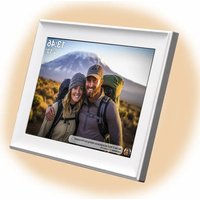
PFF-1080 - Digital photo frame DENVER - Free user manual and instructions
Find the device manual for free PFF-1080 DENVER in PDF.


| Product Type | Digital Photo Frame |
| Brand | DENVER |
| Model | PFF-1080 |
| Power Supply | Type-C power adapter, input 100-240V~ 50/60Hz, output 5V/1.5A |
| Connectivity | Wi-Fi 802.11 b/g/n (2.4 GHz) |
| External Storage | microSD card up to 128 GB, USB flash drive |
| Main Functions | Display photos and videos, send via Frameo app (iOS/Android), night mode, slideshow, reactions, weather and clock widgets |
| Operating Temperature | -10°C to 40°C |
| Box Contents | Photo frame, power adapter, user manual |
| Safety | Do not open the device, do not expose to water or heat, use original adapter |
| Energy Efficiency | Average active efficiency: 77.8%; low load efficiency: 70.27%; no-load consumption: 0.06W |
| Radio Frequency | 2412-2472 MHz, max power 14.68 dBm |
Frequently Asked Questions - PFF-1080 DENVER
User questions about PFF-1080 DENVER
0 question about this device. Answer the ones you know or ask your own.
Ask a new question about this device
Download the instructions for your Digital photo frame in PDF format for free! Find your manual PFF-1080 - DENVER and take your electronic device back in hand. On this page are published all the documents necessary for the use of your device. PFF-1080 by DENVER.
USER MANUAL PFF-1080 DENVER
Important safety information
WARNING: Please read the safety instructions carefully before using the product for the first time and keep the instructions for future reference. Read all the safety information below before using this Frameo product.
-
This product is not a toy. Keep it out of reach of children. If operated by children, please always make adult supervision.
-
Please keep the product away from pets.

- Do not try to open the Frameo product! The device may contain parts with deadly voltage.
- Do not expose to heat, water, moisture, direct sunlight!
- Only charge with the original adapter supplied with this product!
- Repairs or service should only be performed by qualified personnel.
- To reduce the risk of fire or electric shock, do not expose this apparatus to rain or moisture.
The apparatus shall not be exposed to dripping or splashing and that objects filled with liquids, such as vases, shall not be placed on apparatus.
- The direct plug-in adapter is used as disconnect device, the disconnect device shall remain readily operable. So make sure there is space around the power outlet for easy access.
- Product operating and storage temperature is from -10 degree Celsius to 40 degree Celsius.
Under and over this temperature might affect the function.
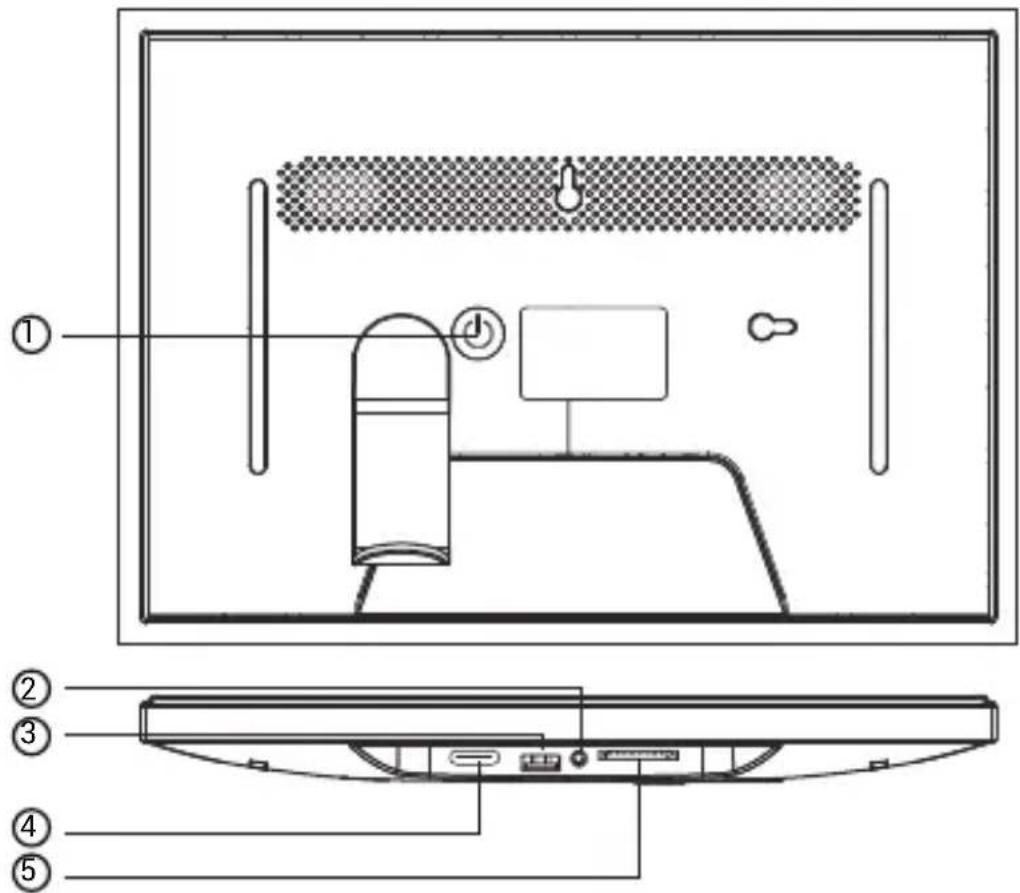
1. POWER
When it is on, press and hold power button for approximately 3 seconds to access reboot or power off menu. Short press on power button will turn off/ on screen (but leave the photo frame in on position).
2. Audio output
Headphone: Audio output connection for headphones.
3. USB
Insert USB stick here to import pictures.
4. TYPE C
Connect TYPE C adapter to power on the device.
5. SD card
Load external max 128GB SD memory card here.

User Manual
2024
ENG 3
Gettingstarted
Congratulations on your brand new Frameo photo frame!
If you are new to using Frameo then start by following the Frameo quick setup or follow the on-screen guide when powering it on for the first time.
Once you have set up your Frameo frame, you can start connecting it to your friends and family.
Frameoapp
To send photos to your frame, use the Frameo app for iOS or Android.

natural_image
Abstract red logo with white hand silhouettes forming a stylized 'S' shape (no text or symbols)Frameo App
Instantly Share Photos & Videos



Scan code to find the app
Videotutorials
Check out our "Frameo Tutorials" playlist on YouTube with informative videos where we guide you on how to get started using Frameo. Scan the code to the right or use the link to find the playlist.



bit.ly/3zKtxWX
Frameoquicksetup
When starting your frame for the first time, you will need to set up the frame.
- Select a language. This will be the language used on the Frameo.
- Connect your frame to the internet by connecting it to Wi-Fi.
- Verify or correct the date and time.
- Frameo may ask you to update to the latest version. It is recommended to update your framebeforecontinuingifaskedto.
- Enter your name, and the location where you have placed your frame e.g. "John Doe" and "Living room", "Kitchen" or "Office". Finally set the timezone if not already correct.
StartusingFrameo
The next step is to connect Frameo with your friends and family by providing them with a code from your frame.
If you want to be able to send photos to the frame yourself, start by downloading the app for iOS or Android on App Store or Google Play. Then use the code to connect your frame and app as described below.
Connecting a new friend
Make sure that your friend has downloaded and installed the Frameo app.
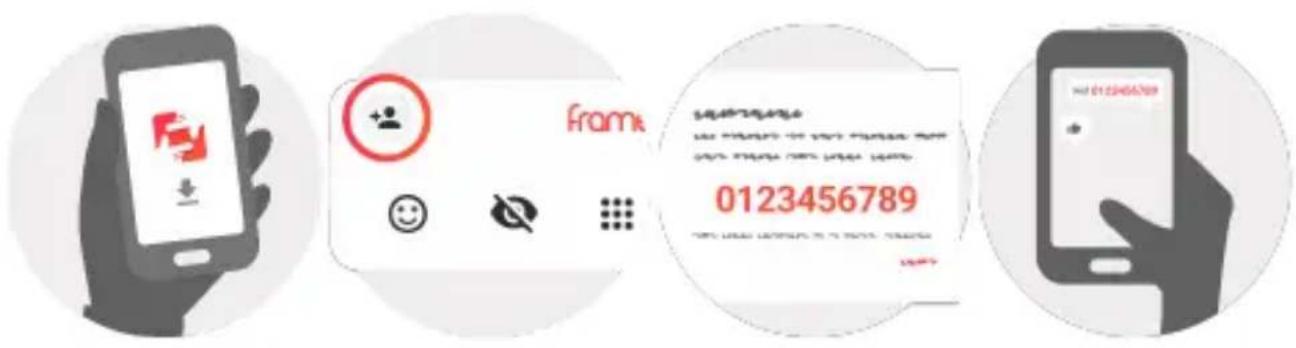
Click the add friend icon on your frame . A dialog will appear showing a connection code, which is valid for 12 hours.
Now share this code in whatever fashion you prefer e.g. SMS, E-Mail, IM, phone call, to your friend.
Once your friends have added the code in their Frameo app, they will automatically appear on your frame and be able to send you photos.
Read chapter Change options for a friend to allow connected friends, to retrieve and share the connection code via the smartphone app.
NavigatingyourFrameo
Swipe left or right to go through your photos.
To access the menu, simply tap once on the screen.

frameo


In the menu you will find the most used features.

Addfriend
This will generate a code that you can share with your friends and family so they can connect and send photos to your frame.

Settings
Opens the Settings.

Powermenu
Opens the Power menu.

React
Opens the React menu.
NB.TheReactmenucanalsobeaccessedbydouble-tappingonthescreen.

Hidephoto
Hides the current photo. This means that the photo will no longer be shown in the slideshow. If needed, the photo can be shown again through the settings menu.

Gallery
Opens a gallery which allows for easy and fast navigation through your photos.

Fittoframe/Fillframe
This toggles how the photo is shown.
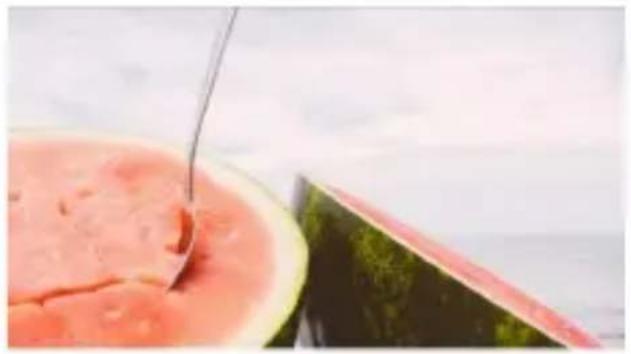
The Fill frame option is the default. The photo is scaled so that it fills the whole screen. It will be centered around what is selected as the most important part. See the first picture below.
Fit to frame will make sure that the entire photo is shown on the screen. See the second picture below.
natural_image
Close-up of a bowl of watermelon with a spoon, next to a cut of a whole fruit (no text or symbols visible)
natural_image
Close-up of a halved watermelon slice with a spoon, set against a cloudy sky background (no text or symbols visible)
Adjustphoto
Allows you to adjust the position of the photo in the frame for an even better fit. Here you can also
use to rotate your photo, and you can use to edit the caption on imported photos. For received photos, please ask the sender to edit the caption in the Frameo app.
Interactingwithvideos
When a video is shown, two additional controls are shown. One for play/pause of the video and one to control the volume level for video sounds.

Press to start the video playback. Pressing will pause the video playback.

Press to open the volume slider. Use the slider to adjust the volume level for video sounds.
Pressing will mute the video while pressing will unmute the video.
Powermenu
Tap the power icon to access the power menu. Here you can power off using , restart your frame using or enter sleep mode using .


NB.Makesuretoalwaysusethepoweroffbuttononthedeviceorinthepowermenutoturn Frameooff.NeverdisconnectpowerwhenFrameoisrunning.
Reactmenu
Tap one of the reactions to let the sender know how it made you feel.




Externalstoragemenu
When inserting an external storage (e.g. a microSD card) a menu will automatically appear with three options: Press to play photos directly from the external storage, press to import photos to the internal memory of your frame or press to make a backup of your frame.


ClockandWeatherwidgets
The current time and weather will appear in the upper-right corner of the frame when the frame has received at least one photo. Tapping either of these will open the weather menu.
Weathermenu
The weather menu contains more detailed weather forecasts and has shortcuts to weather-related settings.

Shows the weather location of your frame. Tap to access the weather location settings.
1DAY
1-day forecast, which includes weather conditions for time periods of the day.
4DAY
4-day forecast. Tap to see the weather forecast for the next four days.

Displays the frame's current time. Tap to access the time settings.
Settings
Through the settings, you can personalise your frame to your needs.
My frame
Framename
Changes the name of your frame. This is also the name that connected friends and family will see in their list of connected frames in the smartphone app.
Framelocation
Changes the location of your frame. This is the location displayed on your friends' and family's list of connected frames which can help to distinguish frames from each other.
Setlanguage
Sets the language used on the frame.
Weatherlocation
Sets the location for the frame's weather feature, ensuring that your frame displays the appropriate weather forecast for you.
Temperatureunit
Toggles between the Fahrenheit and Celsius temperature scales.
Date
Sets the date used on the frame.
Time
Sets the time used on the frame.
Frameo will automatically try to set the correct date and time when connected to the internet.
Timezone
Sets the time zone used on the frame.
Setfirstdayofweek
Sets which day of the week is considered the first.
Enable/Disable24-hourformat
Enables, and disables, 24-hour time format.
Manage photos
In the manage photos menu, you can see how many photos are on your frame and the storage they use. You can also see the amount of storage left available on your device for storing new photos.
Show/hidephotos
Select which photos to hide by tapping them. Hidden photos will NOT be deleted from your frame, and you can always select them to be shown again.
Use to hide or show all photos.
Deletephotos
Select photos that you want to permanently delete from your frame by tapping the photo.
Use to select or deselect all and to permanently delete the selected photos.
Importphotos
Allows you to import photos from an external storage (e.g. microSD card).
Before you try to import photos, make sure you have an external storage (e.g. microSD card) inserted into your frame with the photos you wish to import.
Start by selecting the photos that you want to import onto your frame. Once selected, tap the import button to start the import process.
Use to select or deselect all photos on the external storage (e.g. microSD card).
Use to set the sort order of photos before import and to order by ascending/descending.
NB: Please note, many frames will need a FAT32 formatted microSD card with a maximum of 32GB of storage. Please check with the brand of your frame for more information regarding compatibility for your specific device.
Transferfromcomputer
Allows you to transfer photos from a computer using a USB cable. Enable the feature and then follow the on-screen guide for step-by-step instructions on how to transfer photos to your frame.
For more information, please visit our help center: https://frameo.net/usb_faq
Exportphotos
Allows you to export photos from the frame to external storage (e.g. microSD card).
Theexportfunctionwillexportallphotosontheframeaswellasprofilepictures.
Playfromexternalstorage
Enables / disables playback of photos and videos directly from an external storage (e.g. microSD card) without taking up space on the frame.
My Friends
This list contains all the connected friends that are allowed to send photos to your frame.
Changeoptionsforafriend
Click the options icon to open the friend options menu.
From here, you can allow / disallow if a friend may share the code to the frame. If this is enable the friend can retrieve and share the code to the frame from his/her app.
You can also allow / disallow a friend to use the Frafeature: Allow friend to see photos from this frame.
From the options menu you can also delete a friend, by pressing the DELETE FRIEND button. This will remove the friend from the list and thereby remove their permission to send photos to the frame. You will then be asked to confirm the removal and if you would like to remove all photos previously received from this friend.
Addperson
To allow a new person to send you photos, simply tap the add friend button and share the presented code in whatever way you prefer.
Display
Brightnesslevel
Adjust the brightness level of the screen.
Sleepmode
Frameo offers a sleep mode which turns off the screen to reduce power consumption. The default setting is to turn off the screen at 23:00 and turn on the screen again at 07:00 every day. This can be altered by changing your sleep schedule(s). It is possible to have multiple schedules active at once to e.g. have different settings for weekdays and the weekend or a separate schedule to turn off the frame while at work.
Yourframeisnotpowereddownorinstandby,soyouwillstillbeabletoreceivephotosduring sleepmode.
Slideshow
Timer
Set the duration that a photo should be displayed before showing the next photo.
Fillframe
Set the default frame photo setting. Check to set default to fill which makes the photos fit the device screen according to the most important part of the photo. Uncheck to make the photo fit inside the screen of the device, adding background bars on the sides or top/bottom.
Framebackground
Choose between several different frame background options to be shown as bars if the photo does not fill the screen.
Photodisplayorder
Sets the order in which your photos are displayed on the frame.
- By date taken: Photos are shown in order of when it was taken.
- By date received: Photos are shown in order of when it was received.
- Shuffle: Photos are shuffled and shown in a random order.
Reversephotodisplayorder
Sets whether photos are displayed newest to oldest or oldest to newest.
Showcaption
Set whether or not to display the captions that your friends have sent with the photo. Check to display captions. Uncheck to hide captions.
Showclock
Set whether or not to display the clock widget in the upper-right corner of the slideshow.
Showweather
Set whether or not to display the weather widget in the upper-right corner of the slideshow.
Autoplay
Enables/disables autoplay of videos in the slideshow. Videos can always be manually started regardless of this setting.
Videoplayback
Determines how videos should be played when autoplay is enabled.
- Loop videos: The video will loop until the slideshow timer is up.
- Play once: The video will play once and show its thumbnail until the timer is up.
- Play once and continue: The video will play once and continue to the next photo, or video, once it completes.
Automute
Enable to automatically mute the video volume after a short period of time of not interacting with the frame.
Videovolume
Adjust the volume level for video sounds on the frames.
Wi-Fi
Set which Wi-Fi the frame connects to. If you are connecting to a network with a captive portal, Connection status will say that Wi-Fi login is required and show . Tap this to open a login screen where you can enter credentials to access the network.
Wi-Fidetails
Use to show details about the current connected Wi-Fi.
ResetWi-Fi
Use to delete all Wi-Fi information and restart your frame.
Notifications
Shownnotifications
Enables/disables whether notifications are shown in the slideshow (e.g. when a new photo is received).
Notificationvolume
Adjust the volume level for notification sounds.
Storagespace
Enables/disables notifications shown when frame storage is low.
Backup
Enables/disables notifications shown if automatic backup has failed.
Networkconnection
Enables/disables notifications showing network connection status.
Newphotos
Enables/disables notifications shown when receiving new photos.
Newfriends
Enables/disables notifications shown when new friends are added.
Softwareupdate
Enables/disables notifications shown when a software update has been installed.
Featurenews
Enables/disables notifications shown when new exciting features are added.
Dateandtime
Enables/disables notifications shown if time or date is not set correctly.
Backup and Restore
Setupacloudbackup(Frameo+)
Tap Set up cloud backup and select a friend that has an active Frameo+ subscription, to initiate a cloud backup of your frame.
If you already have a backup set up, tap it to see more details.
Backup status will indicate what state your backup is in, with a symbol.
Cloud symbols and their meaning:

Backup complete and secured in the cloud

Cloud backup in progress

Frame is currently not backed up in the cloud

Waiting for other device to act (check the Frameo app on your phone)

Cloud backup failed
Externalstoragebackup
Backupframetoexternalstorage(e.g.microSDcard)
Tap to make a backup of your photos, friends and settings. The time of the latest successful backup is also displayed here.
Anyexistingbackupontheexternalstoragewillbeoverridden!
NB: Please note, many frames will need a FAT32 formatted microSD card with a maximum of 32GB of storage. Please check with the brand of your frame for more information regarding compatibility for your specific device.
Automaticbackup
If checked, your frame will automatically take a backup within 30 hours of receiving new photos or making changes to your frame.
Restorefrombackup
Beforeyouattempttorestoreyourframe,startbyconfirmingthatyourbackupisup-to-date.This isdonebyconfirmingthedateunder"Backupframetoexternalstorage(e.g.microSDcard)".If e.g.thelastbackupistoooldorifnobackupismade,thenpressthe"Backupframetoexternal storage(e.g.microSDcard)"buttontomakeanewbackup.
NB: Tokeepboththeoldandthenewframeoperationalatthesametimeafterrestoringfrom backup, pleasemakesurethatbothframesareupdatedtothelatestversionbeforehand.
If you wish to restore a backup on a frame that has already been set up, then you must first reset the frame. This is done by pressing the "Reset frame" button. This will delete all data on the Frameo and reset the Frameo to its setup screen.
On the setup screen you can select the "Restore from backup" button which will restore your frame according to the backup.
If the “Restore from backup” button isn’t visible, then confirm that the external storage (e.g. microSD card) is correctly mounted.
Resetframe
Removes all data from your frame.
This will permanently remove all your photos, friends/connections and settings.
Help
Guide
Shows the quick start guide, which was shown when you first started the frame.
Support
Find contact information for Frameo's support team, and find technical device information.
The menu features a special QR code that is there for our support staff to scan. It contains additional device details and information, enabling our support team to efficiently address your specific concerns and provide accurate assistance. Simply take a photo of the QR code and share it with our support staff.
About
PeerID
This is a unique ID for your photo frame. When contacting our support, please provide this ID with your message.
Frameoversion
Shows what version of the Frameo software is currently installed on your frame.
Checkforupdate
Check if an update is available for your frame.
Betaprogram
If checked, the device will join the Beta program, where it will receive updates more frequently and before normal release devices.
Thirdpartyattributions
Opensourcelibraries
Opens a list of open source libraries used in the app and their licenses
Shareanonymousanalyticsdata
Sharing anonymous analytics data helps us tremendously to improve the Frameo software. We understand if you do not wish to share this data with us. Keep it checked if you wish to help us improve Frameo. Set unchecked to deny the sharing of anonymous analytics data.
Privacy
For more information regarding privacy, please visit http://privacy.frameo.net
Support
Please visit https://support.frameo.net/hc for FAQ, support and to provide feedback.
Warranty, Compliance, Support and Safety information
For more information regarding warranty, hardware compliance, support and safety, please refer to the material included in the package.
| EN | |
| Manufacturer's name or trade mark, commercial registration number ad address | SHENZHEN SHI GUANGKAYUAN TECHNOLOGY LTD/Commercial registration no. :91440300053998927W/ 2 floor, 41 TianSheng Road, JinLiao villag, GongMing Street, Guangming, Shenzhen, Guangdong, P.R. China |
| Model identifier | GKYPS0150050EU1 |
| Input voltage | 100-240Vac |
| Input AC frequency | 50-60Hz 0.5A |
| Output voltage | 5.0Vdc, |
| Output current | 1.5A |
| Output power | 7.5W |
| Average active efficiency | 77.8% |
| Efficiency at low load (10%) | 70.27% |
| No-load power consumption | 0.06W |
Please notice - All products are subject to change without any notice. We take reservations for errors and omissions in the manual.
ALL RIGHTS RESERVED, COPYRIGHT DENVER A/S

denver.eu

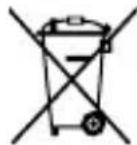

Electric and electronic equipment contains materials, components and substances that can be hazardous to your health and the environment, if the waste material (discarded electric and electronic equipment) is not handled correctly.
Electric and electronic equipment is marked with the crossed out trash can symbol, seen above. This symbol signifies that electric and electronic equipment should not be disposed of with other household waste, but should be disposed of separately.
All cities have established collection points, where electric and electronic equipment can either be submitted free of charge at recycling stations and other collection sites, or be collected from the households. Additional information is available at the technical department of your city.
Hereby, Denver A/S declares that the radio equipment type PFF-1080 is in compliance with Directive 2014/53/EU. The full text of the EU declaration of conformity is available at the following internet address: denver.eu and then click the search ICON on topline of website. Write model number: PFF-1080. Now enter product page, and RED directive is found under downloads/other downloads.
Operating Frequency Range: 2412 -2472 MHz
Max Output Power: 14.68 dbm
DENVER A/S
Omega 5A, Soeften
DK-8382 Hinnerup
Denmark
www.facebook.com/denver.eu
1. POWER
natural_image
Abstract logo design with red circular background and white hand-like shapes forming a stylized 'S' or 'R' shape (no text or symbols)frameo
Bedienungsanleitung
2024
Der Einstieg
natural_image
Abstract logo design with red and white hand-like shapes (no text or symbols)Für Android:
natural_image
Close-up of sliced watermelon with visible flesh and a spoon, alongside a close-up of the fruit's nose (no text or symbols)
Foto einstellen
natural_image
Three simple icons: power button, refresh arrow, and crescent moon (no text or labels)natural_image
Four yellow emoji icons: a heart with a red circle, a smiling face, an exclamation mark, and a frowning face (no text or symbols)1. POWER
natural_image
Abstract logo design with red circular background and white hand-like shapes forming a stylized 'S' or 'R' shape (no text or symbols)frameo
Brugermanual
2024
natural_image
Abstract graphic of two white thumbs-up icons on a red background (no text or symbols)Find Frameo-app'en ved at scanne denne kode:

Til Android:
Søg efter "Frameo" i Google Play.
Til iOS:
Navigér din Frameo
natural_image
Close-up of a spoon dipping into a bowl of red sauce next to a watermelon slice (no text or symbols visible)
natural_image
Close-up of a sliced watermelon with visible seeds and a knife, set against a cloudy sky background (no text or symbols)
Justér billede
natural_image
Three simple icons: power button, refresh arrow, and crescent moon (no text or labels)natural_image
Four emoji icons: a red heart, a smiling face, an exclamation mark, and a sad face (no text or symbols)Ekstern lagringsmenu
1. KRACHT
natural_image
Abstract logo with red circular background and white hand-like shapes forming a stylized 'S' or 'D' shape (no text or symbols)frameo
natural_image
Abstract graphic of white thumbs-up icons on red background (no text or symbols)VoorAndroid:
natural_image
Close-up of a sliced watermelon with a spoon, next to a partially cut watermelon slice (no text or symbols visible)
natural_image
Close-up of a watermelon slice with a spoon, partially cut in a halved pan (no text or symbols visible)
Fotoaanpassen
Hiermeekuntudepositievandefotoinhetframewijzigenvooreenbeterepasvorm.Hierkunt
1. PUISSANCE
natural_image
Abstract logo design with red circular background and white hand-like shapes forming a stylized 'S' or 'R' shape (no text or symbols)frameo
Mode d'emploi
2024
Pour commencer
natural_image
Abstract logo design with red and white hand-like shapes (no text or symbols)Pour Android :
natural_image
Close-up of a bowl of red sauce with a spoon, next to a cut of watermelon (no text or symbols visible)
natural_image
Close-up of a halved watermelon cut with a straw, against a cloudy sky background (no text or symbols visible)
Ajuster la photo
natural_image
Three simple icons: power button, refresh arrow, and crescent moon (no text or labels)natural_image
Four yellow emoji icons: a heart with a red circle, a happy face with a smiling emoji, an exclamation mark with an open mouth, and a sad face with an open mouth (no text or symbols)Librairies open source
1. POTENCIA
natural_image
Abstract logo design with red circular background and white hand-like shapes forming a stylized 'S' or 'R' shape (no text or symbols)frameo
Manual de usuario
2024
Introducción
natural_image
Abstract logo with red background and white hand-like shapes (no text or symbols)Para Android:
natural_image
Close-up of a sliced watermelon with a spoon, next to a cut of watermelon (no text or symbols visible)
natural_image
Close-up of a halved watermelon slice with a spoon, set against a cloudy sky background (no text or symbols visible)
Ajustar la foto
natural_image
Three simple icons: power button, refresh arrow, and crescent moon (no text or labels)natural_image
Four yellow emoji icons: a red heart, a smiling face, an exclamation mark, and a sad face (no text or symbols)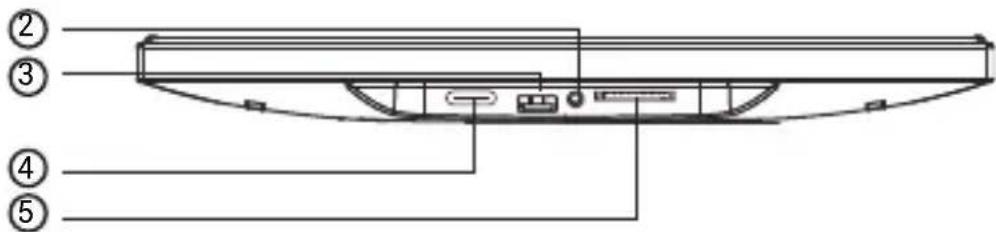
1. POTENZA
natural_image
Abstract logo design with red circular background and white hand-like shapes forming a stylized 'S' or 'R' shape (no text or symbols)frameo
Manuale d'uso
2024
Per iniziare
natural_image
Abstract logo with red background and white hand-like shapes (no text or symbols)Android:
cerca "Frameo" su Google Play.
iOS:
natural_image
Close-up of a halved watermelon slice with sliced pieces, showing red flesh and pink flesh (no text or symbols visible)
Regola foto
natural_image
Three black icons on white background: power button, refresh arrow, and crescent moon (no text or symbols)natural_image
Four emoji icons: a red heart, a smiling face, an open mouth, and a frowning face (no text or symbols)natural_image
Three simple icons: play button, download arrow, and refresh circle (no text or symbols)1. PODER
natural_image
Abstract logo with red circular background and white hand-like shapes forming a stylized 'S' or 'D' shape (no text or symbols)frameo
Manual do Utilizador
2024
Introdução
natural_image
Abstract logo with red background and white hand-like shapes (no text or symbols)Para Android:
Pesquise por "Frameo" na Google Play.
Para iOS:
Navegar na sua Frameo
natural_image
Close-up of a spoon dipping into a bowl of watermelon, with a cut of watermelon in the background (no text or symbols visible)
natural_image
Close-up of a halved watermelon cut open to reveal its interior, with a blurred background showing sky and red cloth (no text or symbols visible)
Ajustar fotografia
natural_image
Three simple electrical and mechanical icons: power button, refresh arrow, and crescent moon (no text or symbols)natural_image
Four yellow emoji icons: a heart, a happy face, an exclamation, and a sad face, arranged horizontally (no text or symbols)Menu de armazenamento externo
1. POWER
natural_image
Abstract logo with red circular background and white hand-like shapes forming a stylized 'S' or 'D' shape (no text or symbols)frameo
Bruksanvisning
2024
Komma igång
Grattis till din helt nya Frameo-fotoram!
natural_image
Abstract graphic of two white thumbs-up icons on a red background (no text or symbols)För Android:
Navigera din Frameo
natural_image
Close-up of a bowl of red sauce being stirred with a spoon, next to a cut watermelon slice (no text or symbols visible)
natural_image
Close-up of a halved watermelon cut with a straw, set against a cloudy sky background (no text or symbols visible)
Justera foto
natural_image
Three simple icons: power button, refresh arrow, and crescent moon (no text or labels)natural_image
Four yellow emoji icons: a red heart, a smiling face, an exclamation mark, and a sad face (no text or symbols)1. POWER
natural_image
Abstract logo with red circular background and white hand-like shapes forming a stylized 'S' or 'D' shape (no text or symbols)frameo
Käyttöopas
2024
Aloitusohjeet
natural_image
Abstract logo with red and white hand-like shapes (no text or symbols)Android:
natural_image
Close-up of a sliced watermelon with a spoon, next to a triangular cut (no text or symbols visible)
natural_image
Close-up of a halved watermelon cut with visible flesh and sliced pieces, set against a cloudy sky background (no text or symbols)
Säädä valokuvaa
1. POWER
natural_image
Abstract logo with red circular background and white hand-like shapes forming a stylized 'S' or 'D' shape (no text or symbols)frameo
Brukermanual
2024
Komme i gang
Gratulerer med dine nye Frameo bilderamme!
natural_image
Abstract logo with red background and white hand-like shapes (no text or symbols)For Android:
Navigere i Frameo
natural_image
Close-up of a sliced watermelon with a spoon, next to a triangular cut (no text or symbols visible)
natural_image
Close-up of a halved watermelon slice and a whole, with blurred background (no text or symbols)
Tilpasse bildet
natural_image
Three simple electrical and mechanical icons: power, refresh, and crescent (no text or symbols)natural_image
Four yellow emoji icons: a red heart, a smiling face, an open mouth, and a frowning face (no text or symbols)Meny for eksternminne
1. MOC
natural_image
Abstract logo design with red circular background and white hand-like shapes forming a stylized 'S' or 'R' shape (no text or symbols)frameo
Instrukcja obsługi
2024
Pierwsze kroki
natural_image
Abstract logo with red background and white hand-like shapes (no text or symbols)natural_image
Close-up of a sliced watermelon in a bowl with a spoon, next to a cut of watermelon (no text or symbols visible)
natural_image
Close-up of a whole watermelon cut with a knife, against a cloudy sky background (no text or symbols visible)
Dostosuj zdjęcie
natural_image
Simple vertical slider with red dot and speaker icons at bottom (no text or labels)Menu zasilania
natural_image
Three simple icons: power button, refresh arrow, and crescent moon (no text or labels)natural_image
Four emoji icons: a red heart, a smiling face with closed eyes, an exclamation mark, and a sad face (no text or symbols)(Push "1" for support)
For technical questions, please write to:
support.hq@denver.eu
For all other questions please write to:
contact.hq@denver.eu
Benelux
DENVER BENELUX B.V.
Barwoutswaarder 13C+D
3449 HE Woerden
The Netherlands
Phone: 0900-3437623
E-Mail: support.nl@denver.eu
Spain/Portugal
DENVER SPAIN S.A
Ronda Augustes y Louis Lumiere, n° 23 - nave 16
Parque Tecnológico
46980 PATERNA
Valencia (Spain)
Spain
Phone: +34 960 046 883
Mail: support.es@denver.eu
Portugal:
Phone: +35 1255 240 294
E-Mail:denver.service@satfiel.com
Germany
Denver Germany GmbH Service
Max-Emanuel-Str. 4
94036 Passau
Phone: +49 851 379 369 40
support.de@denver.eu
Fairfixx GmbH
Repair and service
(for TV, E-Mobility/Hoverboards/Balanceboards,
Smartphones & Tablets) 141.422
Phone: +49 851 379 369 69
LetMeRepair Poland sp. z o.o.
If your country is not listed above,
please write an email to
support@denver.eu

ENERG

PFF-1080
Denver
bar
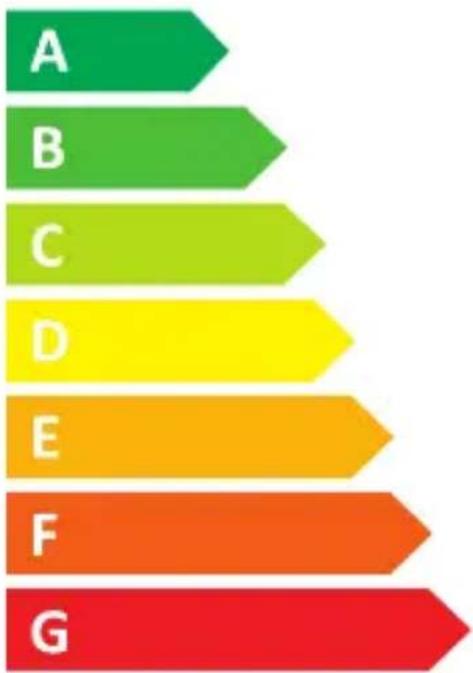
| Category | Value | |---|---| | A | 10 | | B | 20 | | C | 30 | | D | 40 | | E | 50 | | F | 60 | | G | 70 |
5 kWh/1000h

- Important safety information
- POWER
- Audio output
- USB
- TYPE C
- SD card
- User Manual
- Gettingstarted
- Frameoapp
- Videotutorials
- Frameoquicksetup
- StartusingFrameo
- Connecting a new friend
- NavigatingyourFrameo
- Addfriend
- Settings
- Powermenu
- React
- NB.TheReactmenucanalsobeaccessedbydouble-tappingonthescreen.
- Hidephoto
- Gallery
- Fittoframe/Fillframe
- Adjustphoto
- Interactingwithvideos
- Reactmenu
- Externalstoragemenu
- ClockandWeatherwidgets
- Weathermenu
- 1DAY
- 4DAY
- My frame
- Framename
- Framelocation
- Setlanguage
- Weatherlocation
- Temperatureunit
- Date
- Time
- Timezone
- Setfirstdayofweek
- Enable/Disable24-hourformat
- Manage photos
- Show/hidephotos
- Deletephotos
- Importphotos
- Transferfromcomputer
- Exportphotos
- Playfromexternalstorage
- My Friends
- Changeoptionsforafriend
- Addperson
- Display
- Brightnesslevel
- Sleepmode
- Slideshow
- Timer
- Fillframe
- Framebackground
- Photodisplayorder
- Reversephotodisplayorder
- Showcaption
- Showclock
- Showweather
- Autoplay
- Videoplayback
- Automute
- Videovolume
- Wi-Fi
- Wi-Fidetails
- ResetWi-Fi
- Notifications
- Shownnotifications
- Notificationvolume
- Storagespace
- Backup
- Networkconnection
- Newphotos
- Newfriends
- Softwareupdate
- Featurenews
- Dateandtime
- Backup and Restore
- Setupacloudbackup(Frameo+)
- Externalstoragebackup
- Backupframetoexternalstorage(e.g.microSDcard)
- Automaticbackup
- Restorefrombackup
- Resetframe
- Help
- Guide
- Support
- About
- PeerID
- Frameoversion
- Checkforupdate
- Betaprogram
- Thirdpartyattributions
- Shareanonymousanalyticsdata
- Privacy
- Warranty, Compliance, Support and Safety information
- frameo
- Bedienungsanleitung
- Der Einstieg
- Foto einstellen
- Brugermanual
- Navigér din Frameo
- Justér billede
- Ekstern lagringsmenu
- KRACHT
- Fotoaanpassen
- PUISSANCE
- Mode d'emploi
- Pour commencer
- Ajuster la photo
- Librairies open source
- POTENCIA
- Manual de usuario
- Introducción
- Ajustar la foto
- POTENZA
- Manuale d'uso
- Per iniziare
- Regola foto
- PODER
- Manual do Utilizador
- Introdução
- Navegar na sua Frameo
- Ajustar fotografia
- Menu de armazenamento externo
- Bruksanvisning
- Komma igång
- Navigera din Frameo
- Justera foto
- Käyttöopas
- Aloitusohjeet
- Säädä valokuvaa
- Brukermanual
- Komme i gang
- Navigere i Frameo
- Tilpasse bildet
- Meny for eksternminne
- MOC
- Instrukcja obsługi
- Pierwsze kroki
- Dostosuj zdjęcie
- Menu zasilania
- Benelux
- Spain/Portugal
- Germany
Brand : DENVER
Model : PFF-1080
Category : Digital photo frame