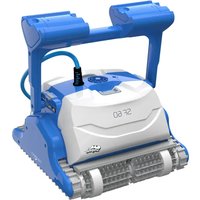
Dolphin Nautilus CC Plus w/Wi-Fi - Pool MAYTRONICS - Free user manual and instructions
Find the device manual for free Dolphin Nautilus CC Plus w/Wi-Fi MAYTRONICS in PDF.


User questions about Dolphin Nautilus CC Plus w/Wi-Fi MAYTRONICS
0 question about this device. Answer the ones you know or ask your own.
Ask a new question about this device
Download the instructions for your Pool in PDF format for free! Find your manual Dolphin Nautilus CC Plus w/Wi-Fi - MAYTRONICS and take your electronic device back in hand. On this page are published all the documents necessary for the use of your device. Dolphin Nautilus CC Plus w/Wi-Fi by MAYTRONICS.
USER MANUAL Dolphin Nautilus CC Plus w/Wi-Fi MAYTRONICS
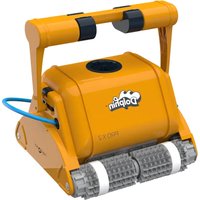
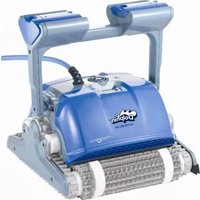
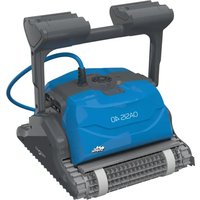
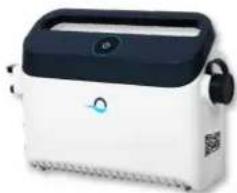
Robot Pool Cleaner by Maytronics
EN User Instructions
natural_image
Exterior view of a modern vacuum cleaner with mesh and power cord (no visible text or symbols)8180090
What You'll Find Inside the Box
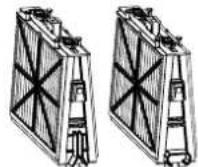
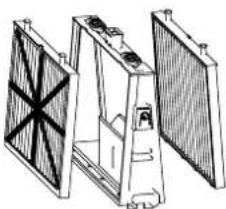
Filter and cartridges
natural_image
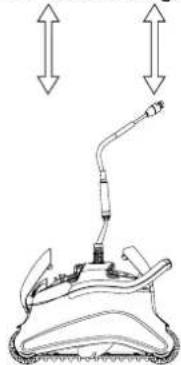
Diagram of a mechanical device with two upward arrows indicating direction, no text or symbols presentRobot pool cleaner
natural_image
White and black portable electronic device with control panel and buttons (no visible text or symbols)Power supply Unit
| Part X Comment | ||
| Base frame for filter elements 2 | ||
| Filters | 2/4 Filters Depend on model | |
| Bag for filters storage 1 | ||
| Power supply unit 1 | ||
| Robot pool cleaner 1 | ||
| Optional components available on request from your robot pool cleaner distributor | ||
Section 1 - Description of Main Components
1. Filters
natural_image
Technical line drawing of a solar panel assembly (no text or symbols)Base frame + fine or ultra-fine cartridge Depend on model
2. Brushes
There are three types of optional brushes, each designed to provide optimal traction on different pool surfaces. Only one type set is provided with your robot pool cleaner.
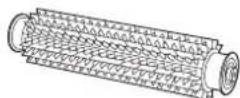
PVC Brush
For concrete, PVC, fiberglass and liner.
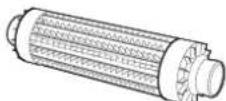
Combined Brush
For rough ceramic surface and mosaic tiles.
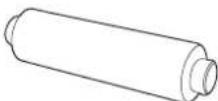
Wonder Brush
For smooth ceramics.
3. Power supply unit
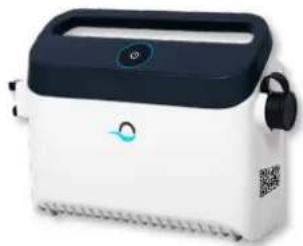
Digital Switch-mode Power Supply
- Input: 100 VAC – 250 VAC
- 50-60 Hz
• 180 W - Output: <30 VDC
• IP 54 - Bluetooth®/Wi-Fi® max. trans. power 10 mW EIRR, 2.4 GHz frequency
natural_image
White and black portable electronic device with a digital display and QR code (no visible text or symbols)Section 2 – Robot pool cleaner Operation
Part 1 – Preparing the Robot Pool Cleaner for Use
Laying out the cable
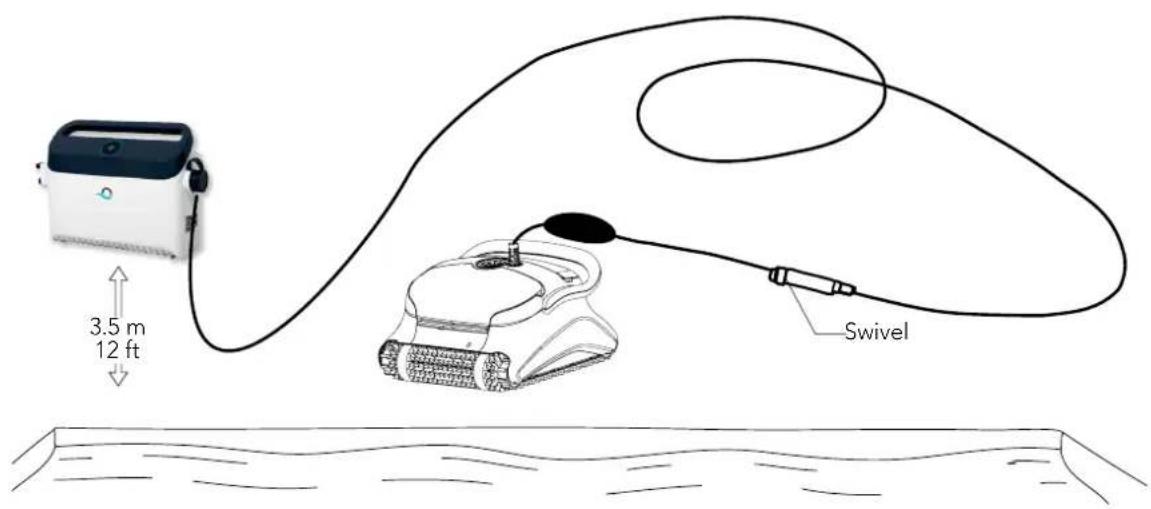
Unwind minimal required cable to cover the entire pool size, straight the cable along the pool side. Make sure there are no twists or kinks.
text_image
3.5 m 12 ft SwivelOnly use the original supplied power supply unit.
The Power supply unit is splash proof – do not immerse it in water.
⚠️ Unplug the power supply unit before any servicing activity.
Do not plug the power supply unit in before placing the pool cleaner in the water.
⚠ Ensure the mains outlet is protected by a ground fault interrupter (GFI) or an earth leakage interrupter (ELI).
Important: Do not enter the swimming pool while the pool cleaner is working.
Part 2 - Into the water
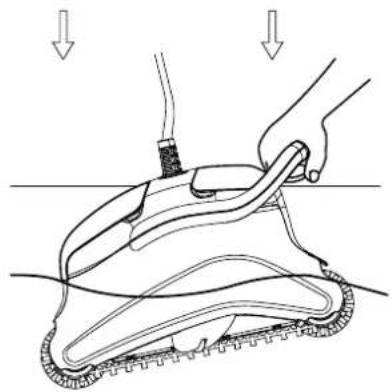
Inserting the robot pool cleaner into the pool.
Place the robot pool cleaner into the pool and release the handle.
natural_image
Illustration of a hand holding a tool over a mechanical component, with arrows indicating motion or force direction (no text or symbols present)Note: When using the combined brushes or Wonder brushes, gently squeeze the Wonder brush material until it is totally wet.
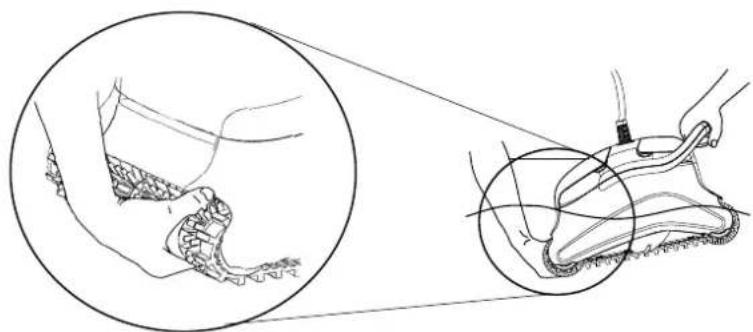
natural_image
Illustration of a shoe being handled with a tool, showing foot positioning and meshing (no text or symbols)Turning the robot pool cleaner ON
- Plug the floating cable from the robot pool cleaner into the power supply unit.
- Plug the electrical cable from the power supply unit into the mains.
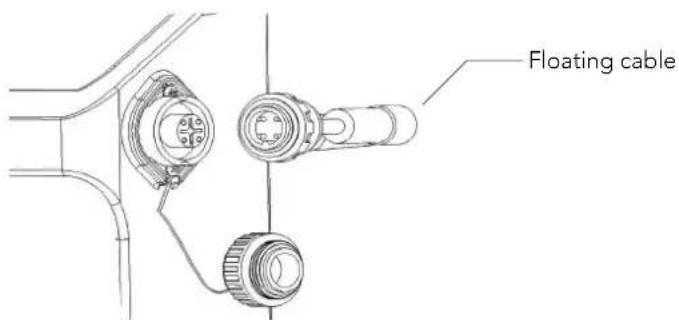
text_image
Floating cableUsing the power supply
Your power supply is designed to provide you with the most advanced features to improve your experience.
- A single on/off button for an easy operation.
• LED indicators for the advanced features.
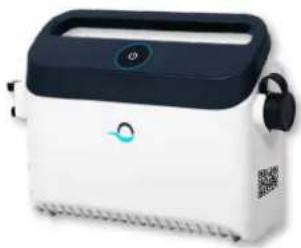
natural_image
White and black portable electronic device with a digital display and QR code (no visible text or symbols)LED indications table:
| Lights display Meaning | |
| Blue circle Blinks 4 times Occur after connecting the power-supply to the power outlet. | |
| Blue connectivity light is consistent Bluetooth® connected | |
| Green and Blue connectivity lights blink alternately | Pairing process is ongoing |
| Green connectivity light is on Wi-Fi | ® connected to home network |
Part 3 - Taking the robot pool cleaner out of the water

Unplug power supply before any servicing activity.
- If the robot pool cleaner has not finished its cycle, turn off the power supply unit and unplug the mains.
- Pull the floating cable gently until the robot pool cleaner has risen to the surface, then lift by the handle.
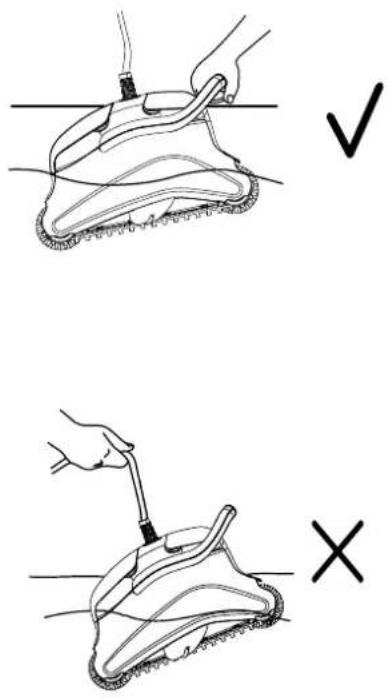
text_image
Diagram showing two-step cleaning or repair procedure with check and cross icons indicating correct and incorrect states.Important: Do NOT lift the robot pool cleaner from the water by its cable.
Section 3 - Routine Maintenance
Part 1 - Extracting and cleaning the filter elements

plug power supply before any servicing activity.
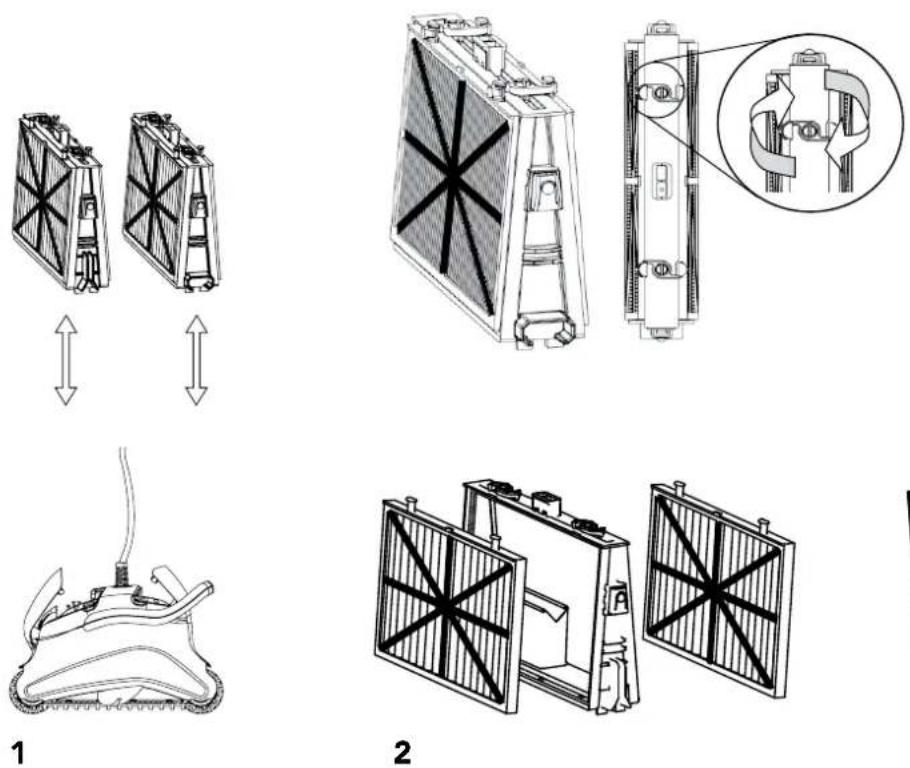
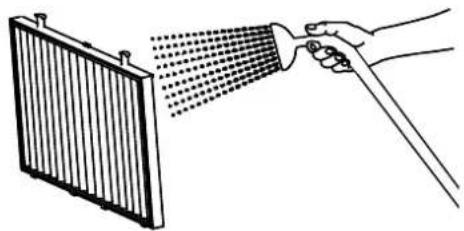
natural_image
Illustration of a hand spraying water onto a radiator (no text or symbols)3
Reassembling the filter elements
Insert the locating tabs at the bottom of the filter element into their groves on the base frame, then close the "S" clip.
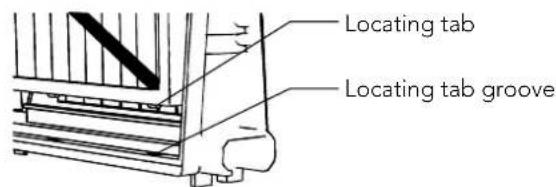
text_image
Locating tab Locating tab groove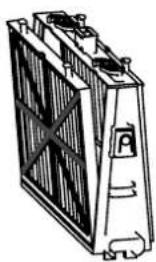
natural_image
Illustration of a battery with internal circuitry and mounting points (no text or symbols)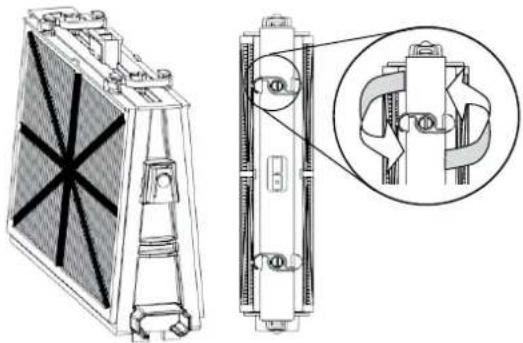
natural_image
Technical line drawing of a heat exchanger or fan device with internal components and a magnified inset showing internal mechanical assembly (no text or symbols)Reinstall the filters according to the diagram DO NOT FORCE THE FILTERS INTO PLACE.
text_image
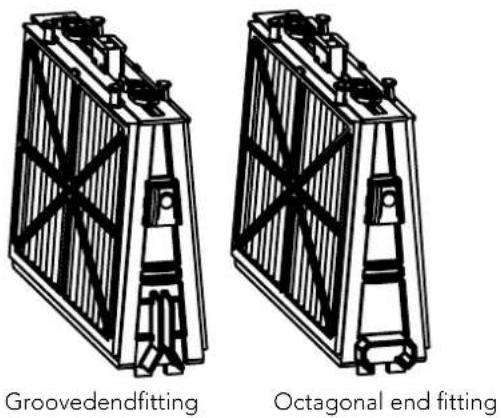
Groovedendfitting Octagonal end fittingRecommendation: Rinse all brushes with clean water after each cleaning cycle.
Part 2 - Dismantling and cleaning the impeller

Unplug power supply before any servicing activity.
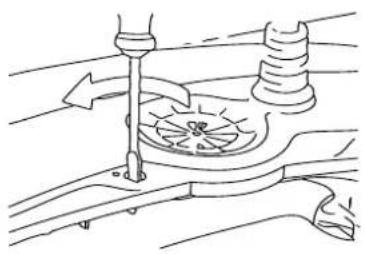
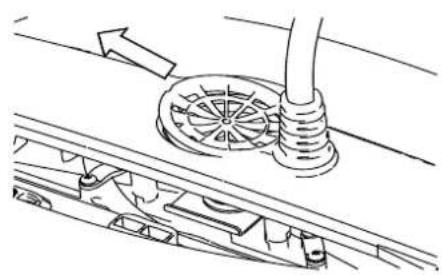
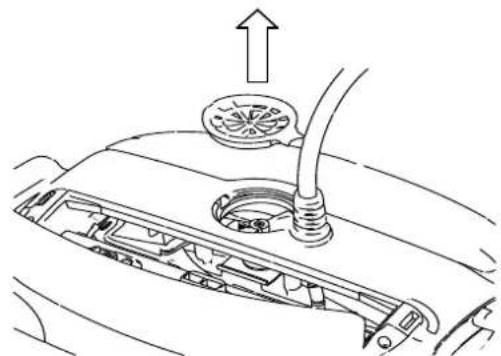
Dismantle the impeller cover and clean around the impeller housing, then reassemble.
natural_image
Technical line drawing of a mechanical assembly with no visible text or symbols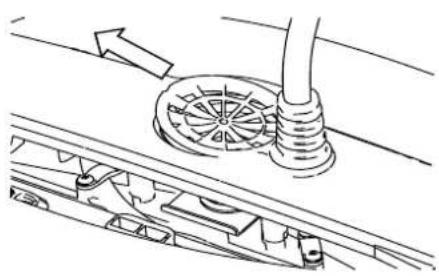
natural_image
Technical line drawing of a mechanical assembly with no visible text or symbols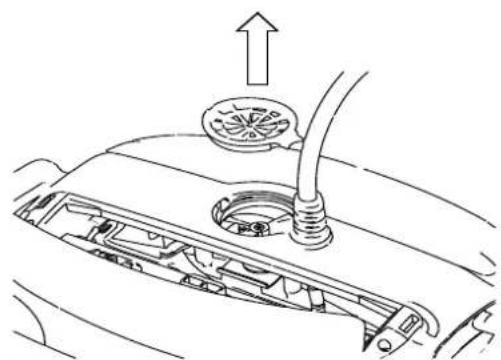
natural_image
Diagram of a car's front engine compartment showing intake manifold and exhaust pipe (no text or labels)1
2
3
Section 4 – Storage Advice
Coil the cable and store in dry cool area.
✗ Do NOT store the robot pool cleaner exposed to direct sunlight.
✗ Do NOT store the robot pool cleaner exposed to excessive heat.
✗ Do NOT store the robot pool cleaner exposed to frost.
Section 5 - Using the MyDolphin™ Plus IoT Mobile App
Please download the Maytronics MyDolphin™ Plus app to your mobile smart device from either Google Play for Android or the Appstore for iOS.
The Maytronics MyDolphin™ Plus app is cloud-connected, enabling control from anywhere at anytime, with real-time connectivity.
Getting Started with the MyDolphin™ Plus App
The app is compatible with the following smart devices:
- Apple (iOS) – version 10 and up – iPhone, iPad, iPod
-
Android – version 5 and up operating system
-
Make sure your mobile smart device (phone/tablet) is connected to your home/pool Wi-Fi® network.
- Make sure you have your Wi-Fi® network name and password in reach.
- Ensure Bluetooth ^® is enabled on your smart device.
- Android users - please make sure your GPS and Location Services are ON.
- For iOS 13 only - while the app is working, enable Bluetooth® & location.
- Please make sure your router is on 2.4Ghz Wi-Fi® frequency only.
Prepare the Pool Cleaner for Connection
- Connect the Pool Cleaner to the power supply.
- The connectivity LED light indicator on your power supply will start flashing blue.
- Place the Pool Cleaner in the water.
- Press the ON button on your IoT power supply, to start the Pool Cleaner.
Activate the Pool Cleaner Using your Mobile Smart Device
- Activate the MyDolphin™ Plus app.
- Click Agree and allow all the required permissions.
- Sign up by creating an account or use your Gmail/Facebook accounts.
- Scan the QR code located on the side of the power supply.
- Alternatively, press "Search for your robot manually" to pair with your Pool Cleaner. The app will start pairing with your power supply.
- Wait for the steady blue connectivity LED light and a success message in the app.
- Connect to your home/pool Wi-Fi® network.
- Enter the password of your home Wi-Fi® network, and press CONTINUE After a short while, your power supply will flash green and blue.
- Wait for the steady green connectivity LED light and a success message in the app.
NOTE: Please make sure to fill in the Warranty details and name your Dolphin Pool Cleaner.
LED Lights
Connectivity LEDs

The connectivity LED light on the power supply has several modes:
- Flashing blue light - waiting for Bluetooth® connection.
- Steady blue light - connected via Bluetooth®.
- Flashing green light - power supply is connected to your home/pool Wi-Fi® network and trying to connect to the cloud.
- Steady green light - power supply is now connected to the Wi-Fi® network and to the cloud.
- Alternating blue and green light - power supply is connected via Bluetooth® and to the cloud.
Appear also while using the remote-control.
On/Off LEDs

- Steady blue light - Power supply is ON, and the pool cleaner is working.
- Flashing green light - waiting for the next operation
- Alternate blue/green/red lights – program updating remotely.
Please wait until process is completed.
- Steady red light - error. Refer to troubleshooting.
- Orange light - Filter is clogged up. Please clean the filter.
Tips
- If the app is stuck on the same screen for over 2 minutes, close the app and re-open it.
- To test your Wi-Fi signal strength and quality, play a video via your smart device browser.
Power supply On/Off button features:
- Operating - Press the On/Off button for up to 5 sec.
- Quick start - This feature activates a specific feature via the power supply.
*In selected models, these features can be changed via the app.
To activate the quick start feature, press and hold the On/Off button for 5 sec.
The blue light will blink 3 times.
- Automation mode - This feature allows you to connect to your smart-home.
To activate the automation mode, press and hold the On/Off button for 15 sec.
The blue light will blink 3 times.
Troubleshooting Guide
Before contacting your robot pool cleaner distributor please read through this guide.
The pool water condition must be within the following parameters:
| PH: 7.0 – 7.8 NaCl: Max 5,000 ppm | |
| Temperature: 6°C(43°F) to 34°C(93°F) Chlorine: Max 4 ppm |
| Symptom Solution | |
| Cable twisting or cable coils up Check for any obstruction in the pool | |
| Remove excess cable from the pool | |
| Make sure filter cartridge is clean | |
| Straighten cable and lay it in the sun periodically | |
| Robot pool cleaner is moving in circles or does not reach all pool areas | Check for foreign objects in moving parts |
| Make sure filter elements are clean and that the filter doors are closed | |
| Make sure that there is enough cable laid out to cover the whole pool | |
| Before using the robot pool cleaner at the beginning of the season you should brush any algae from the floor and walls of the pool | |
| Robot pool cleaner not sinking Make sure the Wonder brushes or | the combined brushes are soaked in water |
| Motor is not working | Check if the impeller is blocked |
| Check if the drive system is blocked | |
| Electrical problem (power supply), check power source. If power source is in order, please contact your robot pool cleaner distributor | |
| Robot pool cleaner flips on its side Clean the filter cartridge |
MyDolphin™ Plus - Troubleshooting
Before using the app, make sure you have:
- Cellular connection 3G/4G/5G or Wi-Fi®, with strong signal strength
• Power supply support 2.4Ghz ONLY - Bluetooth® enabled
| Action What To Do | |
| Pool cleaner does not connect to Wi-Fi®, and the power supply is Flashing green light | power supply is trying to connect to your home/pool Wi-Fi® network and cloud.1. Weak internet signal.2. Get the power supply closer to the Wi-Fi® source.3. Consider use Wi-Fi® extender for a stronger signal. |
| Second connection after losing router/ Wi-Fi®:How to change to Bluetooth® after first Wi-Fi® /3G connection. | Losing router/ Wi-Fi®:1. Open the app. The "our cloud services seems to be down" message will appear (can take a few seconds) and the globe on the top bar will turn red.2. Scroll down and click "choose another solution" which will direct you to the Bluetooth® option. (*this solution will be a one-time solution. Note that in order to continue with Bluetooth® connection, the end user must be near the robot).3. The app will connect to Wi-Fi® automatically when the connectivity returns. If it doesn't reconnect, restart the app.4. If network interruptions continue, try to improve the quality of the home router signal (move closer to the router). |
| Initial connection.How to connect with Bluetooth® only. | Before you start: CONNECT VIA Wi-Fi®, 3G/4G MUST BE OPEN1. Plug in the power supply.2. Connect the robot to the power supply.3. Download the new MyDolphinTM Plus app.4. Login to the app and allow the required permissions.5. Scan the QR code and follow the app instructions.6. Click "go online" (at this stage, iOS users need to minimize the app and re-open it. Android users can click "choose network" and "Later"). |
| How to change to Wi-Fi® after initial Bluetooth® connection. | 1. Make sure your Bluetooth® and Wi-Fi® are enabled.2. Open the MyDolphinTM Plus app and connect to the robot via Bluetooth®.3. Go to Settings and click "Wi-Fi® Settings".4. Follow the app instructions to go online. |
| Changing your Wi-Fi® network. | Router was replaced1. Log into the app → you will see a connection error.2. Go to "settings" at the top bar on the screen.3. Go to "Wi-Fi® settings" → Click "change Wi-Fi® network" → "change to the new Wi-Fi® network" (enter the Wi-Fi® name and passcode) → Click "continue" and wait to receive notification that the robot has been configured to the new Wi-Fi®.4. Simultaneously, the LED color on the power supply will turn solid green (this is the confirmation that the Wi-Fi® is connected). |
| For Android users.Power supply replacement for new Wi-Fi® connection. | New power supply for a robot connected through Wi-Fi®1. Turn on the power supply while it is connected to the robot and let it work for several seconds (it will sync with the robot).2. Login to the app. A connection error message will appear.3. Go to "check other solutions".4. Click on the Bluetooth® icon in the top bar.5. Click "change connectivity", "set Wi-Fi® connectivity" and then "go online".6. Enter your Wi-Fi® name and password. You see the home screen.The power supply LED will flash green. |
| For iOS users.Power supply replacement for new Wi-Fi® connection | New power supply for a robot connected through Wi-Fi®1. Turn on the power supply while it is connected to the robot and let it work for several seconds (it will sync with the robot).2. Login to the app. A connection error message will appear.3. Go to “settings”, on the top bar → click on “robot details” → “disconnect from the robot” →“proceed” → “search for nearby robots” → your robot” → click on “change connectivity” → ”set Wi-Fi®connectivity” → ”go online”.4. Enter your Wi-Fi®name and password. |
| Motor unit replacement for unit that was not reported to the support system by the technician. | 1. Disconnect the power supply from the wall socket before use.2. After replacing the motor unit (MU), reconnect the power supply to the wall socket and turn on the power supply. Let the robot work for several seconds.3. Open the MyDolphinTM Plus app. You will see a connection error.4. Go to “settings” in the top bar → “robot details” → “disconnect from the robot” →“Proceed” → “search for nearby robots” find and select the “new Dolphin MU s/n” → a “is this your robot?” message will appear. After checking the s/n number, press “Yes this is my robot” → The MU will link to robot and the app → home screen.If you do not recognize the serial number, press to add the robot s/n manually or scan the QR Code. |
If none of these solutions do not solve your problem, contact Maytronics Customer Care:
North America
1-888-365-7446 ext. 1002
customersupport@maytronicsus.com
France
+33 (0)4 42 98 14 90
support@maytronics.fr
Australia, NZ, South Africa
1 300 693 657
infoau@maytronics.com
Rest of the world / Maytronics HQ
00 800 69694141 (toll free number)
00 972 77 96 14 204 (international call)
wecare@maytronics.com
For full information and additional troubleshooting please visit us at: www.maytronics.com
natural_image
Diagram of a mechanical device with two upward arrows indicating direction (no text or symbols)natural_image
White portable electronic device with black lid and control buttons (no visible text or symbols)natural_image
Technical line drawing of a mechanical assembly with two vertical panels and a central housing (no text or symbols)natural_image
White and black portable electronic device with a blue control panel and ear tag (no visible text or symbols)text_image
3.5 m 12 ft Pivot (Swivel)natural_image
Diagram of a hand holding a tool above a mechanical device with arrows indicating motion or force (no text or symbols present)natural_image
Illustration of a shoe being handled with a tool, showing hand positioning and foot positioning (no text or symbols)natural_image
White and black portable electronic device with a circular sensor and control panel (no visible text or symbols)text_image
Diagram showing two methods of cleaning a shoe, marked with check and cross symbols indicating correct and incorrect states.natural_image
Illustration of a hand spraying water onto a radiator (no text or symbols)1
2
3
Remontage
natural_image
Illustration of a heat exchanger or cooling unit with visible cooling fins and cooling elements (no text or symbols)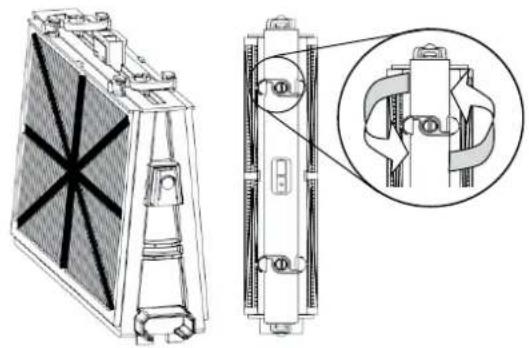
natural_image
Technical line drawing of a heat exchanger or cooling unit with internal components and a magnified inset showing internal structure (no text or symbols)natural_image
Two identical line drawings of a rectangular industrial or structural component with diagonal bracing and mounting feet (no text or symbols)natural_image
Technical line drawing of a mechanical assembly with no visible text or symbols1
natural_image
Technical line drawing of a mechanical assembly with rotating components and a central hub (no text or symbols)2
natural_image
Diagram of a car's front engine compartment showing intake manifold and exhaust pipe (no text or labels)3
customersupport@maytronicsus.com
France
+33 (0)4 42 98 14 90
support@maytronics.fr
natural_image
Diagram of a mechanical device with a tool and directional arrows indicating motion (no text or symbols)natural_image
White and black portable electronic device with control panel and buttons (no visible text or symbols)natural_image
Technical line drawing of a mechanical assembly with no visible text or symbolsBastidor base + cartucho fino o ultrafino Depende del modelo
2. Cepillos
natural_image
White and black portable electronic device with control panel and buttons (no visible text or symbols)natural_image
Diagram of a hand holding a tool interacting with a mechanical device, showing motion lines and force arrows (no text or symbols)natural_image
Medical illustration showing a surgical procedure on a patient's foot, with magnified inset detail (no text or labels)natural_image
White and dark portable electronic device with a blue circular logo and QR code (no visible text or symbols)natural_image
Illustration of a hand holding a rope tied to a surface, with a checkmark (no text or symbols present)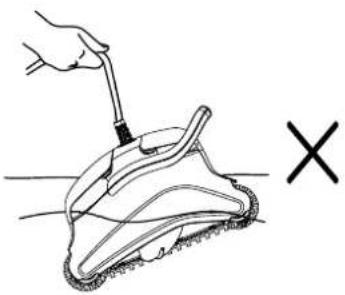
natural_image
Illustration of a hand using a tool to lift a cleaning or cleaning tool, with a 'X' symbol below (no text or labels)natural_image
Two identical diagrams of a battery or similar device with internal components and bidirectional arrows indicating flow or movement (no text or symbols present)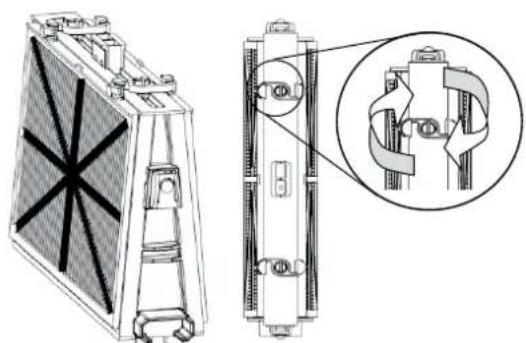
natural_image
Technical line drawing of a heat exchanger or cooling unit with internal components and a close-up inset showing internal mechanical assembly (no text or symbols)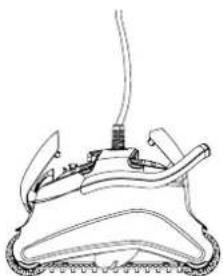
natural_image
Line drawing of a mechanical device with a central spring and attached cable (no text or symbols)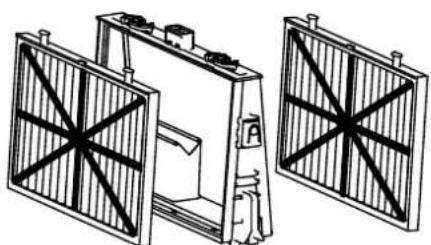
natural_image
Technical line drawing of a mechanical assembly with two rectangular panels and diagonal cross-bracing (no text or symbols)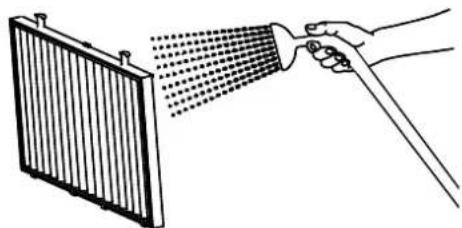
natural_image
Illustration of a hand spraying water onto a panel with a hose (no text or symbols)1
2
3
Reensamblar
customersupport@maytronicsus.com
Francia
+33 (0)4 42 98 14 90
support@maytronics.fr
Robot Pool Cleaner by Maytronics
8180090