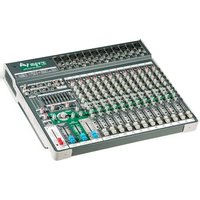
VGM14 - Hand blender YORKVILLE - Free user manual and instructions
Find the device manual for free VGM14 YORKVILLE in PDF.


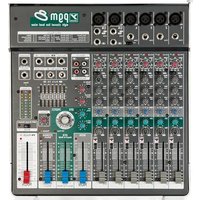
| Product Type | 14-channel audio mixing console |
| Brand | Yorkville |
| Model | VGM14 |
| Number of channels | 14 (10 mono, 2 stereo) |
| Microphone inputs (XLR) | 12 balanced inputs |
| Line inputs (6.35 mm jack) | 14 balanced/unbalanced inputs |
| RCA inputs | 1 unbalanced stereo pair |
| Main outputs | Balanced XLR and 6.35 mm jack |
| Zone/sub output | Balanced 6.35 mm jack |
| Headphone output | 6.35 mm stereo jack |
| USB input/output | USB type B connector (24-bit audio) |
| Phantom power | 48 V, switchable, on channels 1–10 |
| Mono channel EQ | 3-band with sweepable mid (150 Hz – 5 kHz) |
| Stereo channel EQ | 4-band (Low, Low Mid, High Mid, High) |
| Graphic equalizer | 9-band stereo, assignable Main/Mon |
| Digital effects | 24-bit, 16 presets with Modify control |
| Per-channel compressor | Yes, soft-knee on mono channels 1–10 |
| High-pass filter | 80 Hz, 18 dB/octave, on all channels |
| Power supply | Universal switching power supply 100–240 V AC |
| Power consumption | 26 VA typical |
| Dimensions (W x D x H) | 48.3 x 40.6 x 7.1 cm |
| Weight | 5.9 kg |
| Construction | Steel chassis |
| Warranty | 2 years (10 years on cabinet) |
Frequently Asked Questions - VGM14 YORKVILLE
User questions about VGM14 YORKVILLE
0 question about this device. Answer the ones you know or ask your own.
Ask a new question about this device
Download the instructions for your Hand blender in PDF format for free! Find your manual VGM14 - YORKVILLE and take your electronic device back in hand. On this page are published all the documents necessary for the use of your device. VGM14 by YORKVILLE.
USER MANUAL VGM14 YORKVILLE
IMPORTANT SAFETY INSTRUCTIONS

This lightning flash with arrowhead symbol, within an equilateral triangle, is intended to alert the user to the presence of uninsulated "dangerous voltage" within the product's enclosure that may be of sufficient
magnitude to constitute a risk of electric shock to persons.
The exclamation point within an equilateral triangle is intended to alert the user to the presence of important operating and maintenance (servicing) instructions in the literature accompanying the appliance.

Instructions pertaining to a risk of fire, electric shock, or injury to a person
CAUTION: TO REDUCE THE RISK OF ELECTRIC SHOCK, DO NOT REMOVE COVER (OR BACK).
NO USER SERVICEABLE PARTS INSIDE.
REFER SERVICING TO QUALIFIED SERVICE PERSONNEL.
THIS DEVICE IS FOR INDOOR USE ONLY!
Read Instructions: The Owner's Manual should be read and understood before operation of your unit. Please, save these instructions for future reference and heed all warnings.
Clean only with dry cloth.
Packaging: Keep the box and packaging materials, in case the unit needs to be returned for service.
Warning: To reduce the risk or fire or electric shock, do not expose this apparatus to rain or moisture. Do not use this apparatus near water!
Warning: When using electric products, basic precautions should always be followed, including the following:
Power Sources
Your unit should be connected to a power source only of the voltage specified in the owners manual or as marked on the unit. This unit has a polarized plug. Do not use with an extension cord or receptacle unless the plug can be fully inserted. Precautions should be taken so that the grounding scheme on the unit is not defeated. An apparatus with CLASS I construction shall be connected to a Mains socket outlet with a protective earthing ground. Where the MAINS plug or an appliance coupler is used as the disconnect device, the disconnect device shall remain readily operable.
Hazards
Do not place this product on an unstable cart, stand, tripod, bracket or table. The product may fall, causing serious personal injury and serious damage to the product. Use only with cart, stand, tripod, bracket, or table recommended by the manufacturer or sold with the product. Follow the manufacturer's instructions when installing the product and use mounting accessories recommended by the manufacturer. Only use attachments/accessories specified by the manufacturer
Note: Prolonged use of headphones at a high volume may cause health damage on your ears.
The apparatus should not be exposed to dripping or splashing water; no objects filled with liquids should be placed on the apparatus.
Terminals marked with the "lightning bolt" are hazardous live; the external wiring connected to these terminals require installation by an instructed person or the use of ready made leads or cords.
Ensure that proper ventilation is provided around the appliance. Do not install near any heat sources such as radiators, heat registers, stoves, or other apparatus (including amplifiers) that produce heat.
No naked flame sources, such as lighted candles, should be placed on the apparatus.
Power Cord
Do not defeat the safety purpose of the polarized or grounding-type plug. A polarized plug has two blades with one wider than the other. A grounding type plug has two blades and a third grounding prong. The wide blade or the third prong are provided for your safety. If the provided plug does not fit into your outlet, consult an electrician for replacement of the obsolete outlet. The AC supply cord should be routed so that it is unlikely that it will be damaged. Protect the power cord from being walked on or pinched particularly at plugs. If the AC supply cord is damaged DO NOT OPERATE THE UNIT. To completely disconnect this apparatus from the AC Mains, disconnect the power supply cord plug from the AC receptacle. The mains plug of the power supply cord shall remain readily operable.
Unplug this apparatus during lightning storms or when unused for long periods of time.
Service
The unit should be serviced only by qualified service personnel. Servicing is required when the apparatus has been damaged in any way, such as power-supply cord or plug is damaged, liquid has been spilled or objects have fallen into the apparatus, the apparatus has been exposed to rain or moisture, does not operate normally, or has been dropped.
NSTRUCTIONS
Introduction
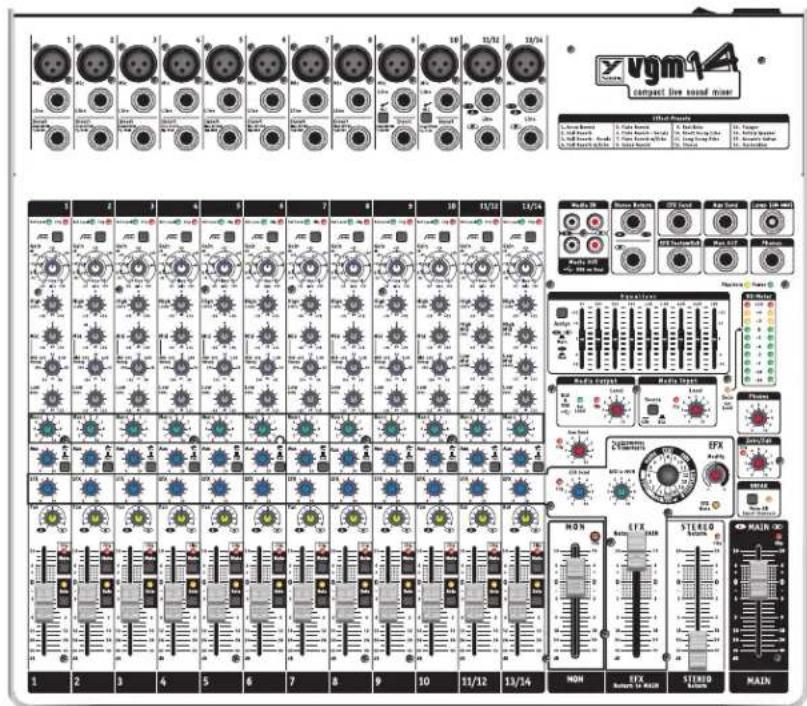
Welcome to the Yorkville Sound VGM14, a versatile, compact, low-noise live audio mixer designed for use in small to medium size clubs, churches and corporate events as well as home studios. The VGM14 is suited for use with powered loudspeakers, power amplifiers as well as other types of recording gear.
The Yorkville Sound VGM14 features:
- A simple, soft-knee audio compressor on the mono channels providing a better mix
- Set Level LEDs on channel inputs for easy Channel Gain adjustment
- A switchable hi-impedance guitar input on two channels
• 48-volt phantom power - Parametric EQ on the mono channels, 4 band EQ on the stereo channels
- Aux bus with a pre/post switch on all channels
- Onboard 24-bit digital effects with 16 adjustable presets
• Audio compression on the internal effects for cleaner digital effects - Assignable stereo graphic equalizer
- Break switch mutes all input channels
- All input channels feature their own Mute switch
- All input channels feature a Solo function
- Clip LEDs on all critical signal inputs and outputs
- Set Level LED on the Media Output for optimum USB audio level
• Balanced XLR and T.R.S. phone jack outputs
• Zone/Sub adjustable output
• USB audio input and output
• Universal switching power supply operates on 100 to 240 volts AC - LED lamp connector
Realizing that some VGM14 users may be unfamiliar with certain features, this manual will help to explain the various functions through describing specific functions for by user.
For general information about mixing and other facets of sound-reinforcement check out our P.A. User Guide available on the internet... (http://www.yorkville.com).
Input Channel Features
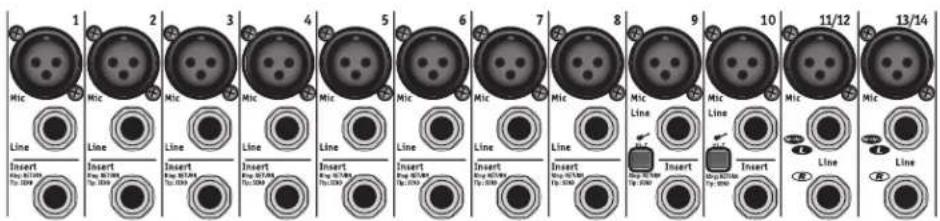
1. Microphone Inputs
All mono and stereo input channels have microphone XLR inputs. These microphone inputs are balanced for maximum noise suppression. The VGM14 active input circuitry accepts microphones with impedances ranging from 50 ohms through 10,000* ohms. All low impedance microphones are compatible. Phantom power (covered in the Rear Panel section of this manual) is available on all Mic inputs when activated. This feature is for condenser microphones but dynamic microphones can also connect simultaneously without problems.
*Although it would be customary to plug high impedance microphones into the Line jacks, most of them will also work in the Mic inputs, provided the microphone's built-in XLR connections are wired with the audio signal on pin 2 and pin 3 is connected to pin 1.
2. Balanced Line Inputs
Mono line-level sources, such as guitar amplifier line-level outputs, keyboards, and hi-impedance microphones connect to the mono or stereo channels through the line input jacks. The Left and Right Line inputs on the stereo channels are wired internally so that a single (mono) signal connected to the L/Mono input will also be patched over to the Right input (as long as a phone plug is not plugged into the Right jack). This simplifies connecting a mono source, should the need arise (in the situation where all the mono channels are taken).
You can connect stereo audio sources such as a CD-player, MP3 player or tape deck to the Line inputs on the stereo channels. Use RCA to phone plug adapters to connect RCA cables to the Line inputs. It is possible to connect stereo sources to the mono channels; however you will need to plug the Left and Right signals into separate channels to avoid the risk of inter-modulation distortion. The inter-modulation distortion may be caused by using a "Y" connector to combine the left and right signals into a single Line jack. If you connect a stereo source to two mono channels don't forget to adjust the Pan controls so that one is set to L(eft) and the other is set to R(ight). this will make sure that the left and right music signals remain separate.
Channels 9 and 10 have high impedance, unbalanced 14 -inch inputs. They're optimized for instruments such as electric or acoustic guitars. To change to a high impedance input, push the appropriate Hi-Z switch.
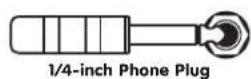
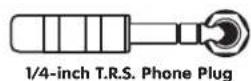
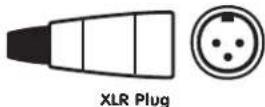
The balanced connector wiring is:
Tip (or XLR pin 2) = hot, in phase;
Ring (or XLR pin 3) = hot, reverse phase;
Sleeve (or XLR pin 1) = ground
You can connect an unbalanced source to the Line inputs with a standard unbalanced shielded patch cable without any adverse effects.

Input Wiring tips:
- For all input connectivity use shielded wire only. Cables with a foil shield or a high-density braid are best.
- When changing input connections, turn down the level controls on the mixer to eliminate pops and thumps out of the loudspeakers.
- Keep input connection cables as short as possible to minimize noise and hum.
A slight modification to a balanced patch cable will help achieve noise cancellation when connecting the VGM14 to an unbalanced unit. Simply modify one end of a balanced patch cord and de-solder the wire from the ring tab, then resolder the wire to the shield tab making sure that it does not touch anything else. Now re-assemble the plug and mark it with some tape for future reference. This will be the end that you plug into the unbalanced music source (this will also work with an RCA connector).
For best performance when connecting turntables, a phono RIAA pre-amplifier must be used to connect to the VGM14 inputs.
Connecting signals to both types of inputs on any one channel (Mic and Line In) is NOT recommended. To do so may change the gain of the input circuit.
3. Insert Jacks
These are 1/4-inch Tip-Ring-Sleeve (TRS) connectors, combining send and return functions for patching outboard signal processing directly into a channel. A suitable patch cable for this function (e.g. Yorkville model PC-6iSPH) would consist of a single TRS (stereo) 1/4-inch plug and two lengths of shielded cable with a common ground branching to two regular (mono) 1/4-inch plugs. The TRS wiring is tip/send, ring/return and sleeve/ground. Since the PC-6iSPH comes with the leads marked Tip and Ring, connect the Tip plug to the input of the signal processor (EQ, compressor, echo, etc.); connect the Ring plug to the processor's output. The TRS plug would go into the Insert jack.
The send function is post-Gain and post-HPF (high-pass-filter). Alternately, the Insert jack may be used to send an audio signal from that channel to a powered monitor (some people want to hear only themselves). Simply use an unbalanced shielded patch cable – in this one case, a balanced cable will not work. Be sure to insert the plug only to the first "click" when using the Insert as a channel send, otherwise the signal is interrupted and the channel will not work. If this happens, you have inserted the plug too far. Simply pull the plug out gently to the first stop.
4. Gain Control
The VGM14 features active channel input circuitry with exceptionally high audio headroom. The Gain control adjusts the input gain level to match it with the input audio signal level. There are two gradation circles on the gain controls, the outer one (-24 dB to +60 dB) is the gain for the Mic Input, the inner one (-36 dB to +45 dB) is for the Line input. This control has a wide range of 84 dB and is very useful to the user when setting the gain.
Here is a quick way to ensure that the Gain is adjusted correctly for the highest headroom and lowest noise during a sound check. First turn the Channel Fader to the infinity symbol. With a music source playing into the mixer's channel, turn the Gain control clockwise until the Set Level LED begins to flash. Having the Set Level LED flashing shows you that you have the optimum gain setting for the music level on that channel input. Having the Set Level LED remain on continuously indicates that you should turn down the Gain control until the Set Level LED is flashing. Having the Set Level LED remain on continuously indicates that the input audio compressor is active. Now turn up the Channel Fader to the desired audio level for the overall music mix. How to use the input audio compressor is explained below.
The VGM14's Clip LED will turn on at 3 dB below the onset of actual clipping. It's okay to have this LED flash occasionally during music peaks. You'll find that this, or any audio system, performs with less distortion (and less noise) when the gain controls are set properly.

Mono Channel
5. Input Channel Audio Compressor
Each of the mono input channels of the VGM14 (channels 1-10) has an internal dual-slope soft-knee audio compressor. The VGM14's compression function is suitable for keyboards, percussive sources, and vocals.
A compressor reduces the dynamic range of the music providing a more constant level. Like having a sound engineer dynamically adjusting the gain of each channel for the optimum audio level.
The VGM14 compressor works automatically in the background. It can reduce clipping of the audio signal during loud passages in the music which provides a tighter sound typically heard in audio recordings. You can adjust how much compression you want with the input channel Gain control.
Here is how to use the compressor: in automatic mode, set the Gain level so that the Set Level LED is just blinking to the music. The compressor will remain off until someone yells into the microphone or there is a loud percussive sound, then the compressor will lower the gain, reducing the possibility of clipping. To adjust for little to no compression, have the music source playing into the input channel. Turn up the input channel Gain control to the point where the Set Level LED is just blinking with the music. At this point the full dynamic range of the music source will be experienced. Continuing to turn the input channel Gain control clockwise, the music will get louder. To maintain the same audio level turn down the Channel Fader for the channel being adjusted. The further the input channel Gain control is turned clockwise, or the louder the music source becomes, the greater the compression will be experienced.
If the Clip LED blinks occasionally then the maximum amount of compression has been reached. If the Clip LED remains on for longer periods, turn down the input Gain level until the Clip LED blinks occasionally.
6. High Pass Filter Button
Situated at the top of the channel strip, this switch activates a High-Pass Filter (a bass roll-off of 18 dB per octave below 80 Hz). The HPF (High-Pass Filter) is useful for controlling unwanted low-frequency spillover picked up by microphones located too close to the bass drum, bass amp or the keyboard amp. It is also effective in optimizing acoustic guitar pickups that sound boomy from the guitar body resonance (the lowest note on a concert-tuned guitar is 81.2 Hz, so you are not losing anything by rolling off the input response below 80 Hz). Additionally, the HPF works to reduce breath pops and wind noise from vocal microphones. Any microphone, or pickup, connected to a source that does not go below 80 Hz should have the HPF activated. This includes most wind instruments, most male voices, nearly all female voices and all drum microphones except for the kick-drum.
Why roll off the bass on these channels? ...Because you will get better sound clarity and improve the system's gain before feedback.
7. Mono Channel EQ
The VGM14's mono channels feature 3-band Equalization consisting of Low and High shelving filters and a sweepable Mid control. The Low and High shelving filters are preconfigured at 80 Hz and 12 kHz with a control range of +/-15dB. The sweepable Mid EQ has a selectable frequency range from 150Hz to 5 kHz, with a control range of +/-15dB. The tone control frequencies were carefully chosen to help achieve the best quality of sound.
It's best to set the channel EQ during a sound check. It is best to minimize the amount of EQ "boost" or "cut" you add to the audio. +/-15dB represents a considerable level change.
For vocals turning the Low control counterclockwise will reduce the boominess of male voices. For male or female vocals it will also "clean up" the mix, as this channel will reduce the bass sound from instruments heard by this microphone.
The Mid control is a very powerful because adjusting it affects the tone of any music source. Including the sweep frequency control makes the mid EQ even more useful albeit more complicated. A good rule-of-thumb to follow is, use as little boost and cut as possible to the signal. If a vocal, or instrument, sounds "honky" you would typically "cut" (or turn the Mid control counter clockwise) in order to reduce the selected mid frequency. You
might also try to dial the boost control into the 2 o'clock position and rotate the frequency control from 150 Hz to 5 kHz which might help you to find the annoying frequency in the audio source. Then, with the frequency control set to that particular annoying frequency, slowly turn the Mid level control down to the (-) side of "0" to obtain the best sound.
One possible cure for a bad feedback problem is to use the sweepable Mid EQ to attenuate only the frequency that is causing the feedback. That way, fewer innocent frequencies are affected. Simply set the Mid level control to the 10 o'clock position then slowly rotate the sweep frequency control from 150 Hz to 5 kHz until the feedback stops. Now turn the Mid level control up slightly to normalize the frequency response as much as possible without feedback.
Cymbals can sound hotter, or an instrument can sound brighter, when you boost the High EQ control. Be cautious and only add a little boost. Too much boost can be the cause of the dreaded, squealing feedback. Cutting the High EQ setting can reduce hiss coming from some audio sources, and may make some bass toned instruments sound warmer.
Although frequency sweep controls have graced the channel EQs of recording mixers for many years, they're usually found on more upscale P.A. mixers used for live applications. As a result, many P.A. users, even veterans, are a little unfamiliar with their function. The Sweep control determines the range of frequencies that are affected by the Mid cut/boost, it moves (or sweeps) the Mid control's peak (or notch) in response up to several thousand Hertz, or down to below 100 Hz. As a result, it may have quite a noticeable effect on the sound quality, especially since the MID cut or boost will be interacting with whatever cuts (or boosts) you may have set with the Low or High EQ controls.
The Sweep control can shape the sound similar to the way a typical EQ does but more precise since you have control of the frequency being affected. It is worthwhile to spend some time becoming acquainted with how it works.

Be cautious, if you boost the Low tone control and then add a Mid boost at 150 Hz, this would create a situation of overlapping boosted frequencies. This can potentially damage your woofers due to excessive low frequency content. Similarly, watch out for your tweeters/horns if you set the Mid frequency at 5 kHz at then turn up the High tone control.
As music plays through a channel on the mixer and speakers, adjust that channel's Mid tone control, first boosting, then cutting, and then sweeping back and forth. (Note: if the Mid control is set to the center position, the Sweep control will have no effect at all). Repeat the process with the channel's Low and High EQ controls at various settings (remember to keep the volume at a safe level).
Note: Setting the Mid Sweep frequency to 2.5 kHz is the same frequency of the fixed Mid controls on our other mixers.
Together, Mid and Sweep controls can be used to accomplish a variety of tasks from combating feedback to improving the way things sound through the P.A. or on recording. Here are some of those tasks and settings:
Note: These are approximate settings only. Use them as a starting point and "tune around" them.
- Killing feedback? Set Mid at -6 dB and slowly rotate Sweep until the feedback stops. If needed cut the MID further.
- Bonky sounding snare drum? -6 dB @ 200 Hz (roll off Low EQ -6 dB)
- Boomy bass drum? -6 dB @ 300 Hz (Low EQ @ +6 dB and High EQ @ +3 dB)
- Washy sounding cymbals? -9 dB @ 300 Hz (roll off Low EQ -15 dB)
- Excessive hiss from guitar, bass or keyboard amp? +3 dB @ 5 kHz (High EQ rolled off -9 dB)
- Fading vocal range (notes too low for singer)? +3 dB @ 80 Hz (Low EQ rolled off -6 dB)
- Puffing on harmonica mic? -9 dB @ 80Hz (Low EQ rolled off -12 dB)
- Rack Toms? -3 dB @ 400 Hz
• Floor tom? -6 dB @ 200 Hz

Stereo Channel
Generally speaking, you'll probably end up with the Mid control in cut mode for most problem solving uses of the Sweep control. In any case you will learn to use this feature judiciously. The best P.A. EQ setting is the one with the least adjustment, but when you need to solve a problem it is good to know how to use the tools.
8. Stereo Channel EQ
The VGM14's stereo channels feature 4-band Equalization with a control range of +/-15 dB. The High EQ is shelving at 12.5 kHz, Low EQ shelves at 80 Hz, the High Mid EQ is centered at 3 kHz, and the Low Mid EQ is centered at 400 Hz. The 4-band Equalization was carefully selected to help achieve the best quality of sound for line level and stereo sources.
As with the Mono Channel EQ it is best to set the channel EQ during a sound check. It is best to minimize the amount of EQ "boost" or "cut" you add to the audio. +/-15 dB represents a considerable level change.
9. Mon (Monitor)
The Mon (Monitor) is the audio signal sent to the stage monitors for the musicians. This control adjusts the level of signal from each channel to the master section's Mon fader. The signal for the channel's Mon control is independent of the Channel Fader (pre-fader); adjusting the Channel Fader will not affect your monitor mix.
Note: When feedback occurs, the cause is often the audio signals from the stage monitors feeding back to the microphones. When this happens, the first thing to do is turn down the master section's MON fader, this will make sure that the monitors (and not the main P.A.) is the cause of the feedback. If the cause is the monitors follow these steps:
A. Turn up the master section's Mon fader until feedback is just starting.
B. Now turn down each channel's Mon control just a little, and then return the control back to the original position. This will help you discover which control reduced the feedback the most.
C. With that information, reduce the level on that particular control to the point of no feedback. By using the Mon control, you will most-likely eliminate the feedback without affecting that channel's level through the main P.A.
With the VGM14's independent monitor mix, it can be beneficial to assign the internal graphic equalizer to the Mon output and use the graphic equalizer to help control feedback.
10. Aux (Auxiliary)
The Aux (Auxiliary) feature can be used to send audio for use as a 2 ^nd Mon (Monitor), a 2nd EFX, a additional subwoofer signal, or it can be used for a separate mix to be sent to another piece of outboard gear. The switch, located beside the Aux level control, selects either a pre-channel fader signal or a post-channel fader signal.
- In the Pre position, the audio signal is sent to the Aux mix before the signal is sent to the channel fader. Since the channel fader does not affect the level of this signal you can use the Aux control as a 2 ^nd Monitor mix.
- In the Post position, the audio signal is sent to the Aux mix after the channel fader, this means the channel fader's level affects the signal set to the Aux mix. This behavior allows the Aux control ideal for use as a 2^nd EFX mix, a separate Subwoofer signal, or for use as a separate audio signal for a zone or other purpose.
Note: If used as a Subwoofer buss, the Aux control allows you to specify specific channels, such as the bass instrument channels, optimizing a clean well defined bass sound.
11. Digital Effects (EFX)
The channel EFX controls adjust the level of signal from each channel to the EFX Send control. The signal sent to the EFX control comes from the Channel Fader (post-fader). Adjusting the Channel Fader will change the level of the dry signal and the EFX signal. The signal from the EFX Send control continues to the internal effects generator and to the EFX Send jack, for use with an external effects unit.


Effect Presets
| 1. Room Reverb2. Hall Reverb3. Hall Reverb - Vocals4. Hall Reverb w/Echo | 5. Plate Reverb6. Plate Reverb - Vocals7. Plate Reverb w/Echo8. Gated Reverb | 9. Fast Echo10. Short Decay Echo11. Long Decay Echo12. Chorus | 13. Flanger14. Rotary Speaker15. Acoustic Guitar16. Harmonizer |
Alternatively, if you don't require any effects, the signal from the EFX Send jack can be connected to the input of an additional monitor system or another amp/speaker system (using a standard balanced patch cord). In this case, the EFX controls act as send controls achieving a semi-separate mix. Remember that the Channel Fader level control also affects this signal (it's a post-fader signal).
12. Pan Control (Mono Channels)
The Pan control routes the channel's signal after the channel's fader (post-fader) to the left and right Main buss channels. Signal levels are compensated at the Pan controls L&R extremes so that 'panning' during a performance will result in a minimal sound level change in the center-field audience areas.
In audio terminology, a buss is a mix-down channel where all the signals from the input channels are blended into one signal. The VGM14 has 5 busses: MAIN, MONITOR, EFFECTS, AUX (pre and post), and MEDIA OUT.
13. Balance Control (Stereo Channels)
This controls the stereo channel signal routing to the Main Fader. Similar to the Pan Control, the Balance Control can shift the center image between the left and right Main buss channels.
14. Mute Switch
Each channel's Mute Switch defeats that particular channel's left, right, and all of its 'sends' signals. The Mute function is a timesaving feature that enables you to mute channels without turning down the Channel Fader that's been set for performance.
It is good practice to mute all unused channels during a performance, open microphones increase the possibility of feedback and can make an audio mix sound muddy.
15. Clip/Mute LED
The Clip LED illuminates at 3 dB below the channel's actual clipping level; with the Clip LED threshold set below actual clipping level, it's allowable to have occasional clip-light activity without worrying about distortion. As a result, you may use the Clip LED to help adjust for proper gain with the Channel Fader control. When the Mute switch is depressed, the Clip LED will illuminate at half-brightness to indicate the mute condition, it still flickers to indicate clipping.
16. PFL Solo Switch and LED
Each channel features a PFL Solo switch (pre-fader listen) and Solo LED. When the Solo switch is pressed and the Solo LED illuminates, the audio before the fader (pre-fader) of that channel is sent to the VU-meter and the headphones. The level shown on the VU meter is independent of the Phones level control. The VU-meter will display the audio level after the channel tone controls but before the mute switch; this helps to verify the channel audio level. You should set the level for 0dB on the VU-meter. The Solo audio can be heard in the Phones to preview the audio signal before it's mixed with the other channels. With the channel mute switch engaged, you can "cue up" audio sources before you add them to the main mix.
17. Channel Fader
The Channel Fader control's taper is expanded in the upper mid-slide area for precise volume adjustments, it's condensed at the extremes allowing you to increase (or decrease) the audio level quickly. The audio signal sent after the Channel Fader goes to the channel EFX, Aux (switch in the Post position), Media Output, and the Pan controls simultaneously.
Master Section
1. Media Input
The Media Input provides two source connectors, RCA and USB. The unbalanced RCA jacks accept the typical audio signals from CD-players, MP3 players or any standard line level audio play-back device. The USB input can connect to the USB connector on computers. The Media In level control allows you to adjust the incoming audio level for both the RCA and USB inputs. If the Media In Clip LED illuminates, turn the Media In level down until the LED doesn't illuminate.
The audio from the Media In level control goes directly to the Main fader. Pressing the Break switch will mute all of the input channels except for the Media In so that the audio passing through the Media Input can play when the band is on "break."
2. Media Output (Record Output)
In traditional mixers, the Record Out audio signal typically branches off after the Main fader. This typically results in a
low-level record audio signal not allowing the audio level to be strong enough to reach 0 dB on your recording device level meters. Unlike traditional mixers, the VGM14 has a separate audio buss connecting all of the input channels, Media In, and the Stereo Return to the Media Output Level control. Using the Media Output Level control you can set the record level for 0 dB on your recording device level meters for optimum headroom and minimum noise.
A unique feature on the VGM14 is the Set Level LED. It helps solve a common problem seen on other USB output mixers. Without this feature either have audio signals too low (resulting in high audio noise), or audio signals too large resulting in clipping and harsh digital noise. To use it turn up the Media Output level control until the green Set Level LED starts flashing. As long as you do not have the Media Output Clip LED flash you have the optimum level audio signal converted into a digital USB signal.
3. EFX Send Control
Audio signals from each channel EFX level control sum at the master EFX Send level control. Through the EFX Send control, audio signal is sent to the EFX Send phone jack on the panel and is also routed to the internal digital effects generator.
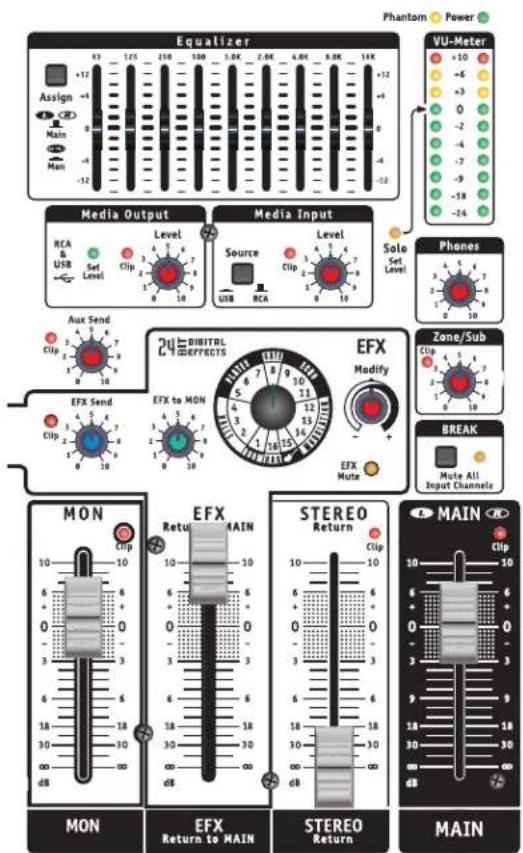
To start, select the channels you desire effects on (vocals, lead guitar, brass instruments and keyboards - most likely not on the drums or the bass guitar). During the sound check, turn up the EFX Send control level to 5. On the channels that you want effects, turn the EFX control up about halfway; turn up the Channel Faders to about 0dB. Now dial in one of the sixteen desired effects, the simplified list of the presets is located at the top of the mixer.
Next, position the 'EFX - Return to Main' fader (main sliders) to 0 dB. Turn up the MAIN fader to a moderate listening level for previewing. Adjust the 'EFX Return to MAIN' control to increase or decrease the effect's intensity in the main mix. Similar to the 'EFX Return to MAIN' control, there is an 'EFX to MON' control for adding effects to the monitor signal if desired.
4. Internal Digital Effects Generator
The VGM14 includes an onboard, 24-bit, digital effects generator with 16 versatile presets. Use the EFX selection control to choose from the 16 presets of different effects such as reverb, echo, chorus, flange as well as a rotary speaker. There's an acoustic guitar effect to enhance the quality of sound from an acoustic guitar's piezo pick-up. The 'EFX Modify' control allows you to adjust the selected effect for an almost unlimited number of variations.
Similar to the audio compressor on the input channels, there's an audio compressor used for the audio signal sent to the internal effects generator. This compressor behaves like an automatic gain circuit, ensuring an optimum audio signal enters the internal effects generator. If the EFX Send Clip LED blinks occasionally the maximum amount of compression is being used. If the Clip LED remains illuminated for longer periods, turn down the 'EFX Send' level until the LED blinks occasionally.
It is possible to use the internal digital effects and an external effects unit at the same time. You can set one effects unit for reverb, and the other for a 'special' effect not used often (like echo). Connect a cable from the EFX Send jack to the input of your external effects unit, then connect a cable from the output of your external effects unit into the Stereo Return jacks of the VGM14. You will then be able to use the Stereo Return fader to control the level of the external effects.
5. Footswitch Jack
To switch the internal effects on and off, connect a standard footswitch to the Foot-switch jack. The EFX Mute LED illuminates when the internal effects are muted ('off') by the Footswitch. Only use a TRS (Tip, Ring, Sleeve) cable.
6. MON Fader
Audio signals from each channel Mon level control sum at the Mon fader. The Mon fader adjusts the level of each channel's signal into the monitor mix. From the Mon fader the audio signal arrives at the Mon output phone jack, located on the top panel. The highlighted section on the Mon fader's graphics shows the fader's usual operating position. If the Mon fader's knob is up at 10 dB, or down at -18 dB, check the position of the channel Gain or Mon controls; be sure that they are not turned to either extreme of their setting range.
7. MAIN Fader
Audio signals from each channel Pan level control sum at the Main fader. The Main fader adjusts the level of each channel's signal in the main mix. From the Main fader, the audio signal passes through the Main EQ to the Main Out phone jacks on the front panel and to the Main Output XLR jacks on the rear panel. The highlighted area on the Main fader front panel graphic shows the fader's usual operating position. If the Main fader's knob is up at 10 dB or down at -30 dB you may want to check the position of the channel Gain or Channel Fader controls to be sure that they are not turned to the extreme of their setting range.
To ensure maximum signal head room and clarity, set the channel Gain and Fader controls first for a good signal without clipping, then set the master for the overall volume desired.
8. Main (L/R) and Mon Graphic Equalizer
The VGM14 features a stereo 9-band Graphic Equalizer which is assignable for use with the Main or Mon mix. The Equalizer's adjustment range is +/-12 dB with frequency centers at one-octave intervals from 63 Hz to 16 kHz.
Using the Equalizer Assign switch in the Main position, you can adjust the main speaker response during a sound check (be careful, do not use radical boosts). This might be useful for minimizing feedback but remember; stage monitor speakers are most often the cause of feedback.
Naturally, stage monitor feedback will also be heard out the main speakers at the mixer station, which can lead you to the illusion that the main system is the cause. Therefore, to minimize stage monitor feedback, place the EQ Assign switch into the Mon position.
First set up your mixer with the proper channel Mon level settings. Turn the Main fader to the minimum gain position and make sure that the Equalizer faders are all set to 0 dB. Now slowly turn up the Mon fader until feedback begins, then turn down the Mon fader to keep the feedback from getting too loud. Try to figure out, the best you can, the frequency of the ringing tone; reduce the Mon EQ fader closest to the frequency of the feedback. You should only need to reduce the fader by about -3 dB on Equalizer scale.
For a second ringing tone, turn up the Mon fader again, cautiously, to the onset of feedback again. Try to figure out the frequency of the second ringing tone, it will most-likely be different from the first feedback frequency. Finally, reduce the Mon Equalizer fader closest to the frequency of the feedback. Now you can turn up your Main fader, and reduce your Mon fader to obtain the proper gain for both signals with reduced feedback.
You can continue this process to find the third and fourth feedback frequencies.
You can use an outboard graphic equalizer or other digital processor, for the output not assigned to use the internal Equalizer by connecting it to the appropriate output of your VGM14.
When setting the Main Equalizer, do not automatically set to a 'smiling' curve as with a home stereo – this will cost your system both headroom and gain before feedback. Initially, keep the Equalizer curve as close to flat (all sliders at center) as possible; then, make necessary (minor) adjustments as needed during a sound check to cut feedback frequencies. Again, you should only need to reduce the graphic Equalizer's faders to about -3 dB on the front panel EQ scale.
9. Phones Level
The Phones level control adjusts the stereo audio level to the headphones plugged into the Phones jack. The audio signal for the headphones is post Main Equalizer so that you can hear the same audio signal on the Main Out phone and Main Output XLR jacks.
The Phones (headphones) jack is a stereo jack compatible with headphones having an impedance down to 8 ohms but we recommend for best performance using headphones with an impedance of 80 ohms or higher.
10. Zone/Sub Level
The Zone/Sub level control adjusts the audio level of the Zone/Sub signal. The post Main fader left and right channels are summed and sent to the Zone/Sub level control. The output of this control goes to the Zone/Sub TRS phone jack located on the back panel.
Used as a separate adjustable mono output, the Zone/Sub signal can provide audio for a distributive audio system, or fill loudspeakers, used with the main loudspeaker system. You can also use the Zone/Sub audio signal for powered subwoofers adding the convenience of a level control at your console. To control crossover point, a crossover control typically is located on the powered subwoofer's control panel.
11. Break Switch
The Break switch is a great feature, it may be used when the band goes on break or while showing a video during a presentation since it mutes potential room noise that might be picked up by the vocal microphones. When engaged, the Break LED blinks and the audio signals from channels 1 through 14 are muted. Music can still be played through the system by using the Media In jacks.
12. VU-Meter
The VU-Meter indicates the post Main EQ left and right audio levels. A good operating level is when the music peaks illuminate the 0dB LEDs. Having the yellow +3 dB and +6 dB LEDs flash occasionally is acceptable. You do not want the red +10dB LEDs coming on as this indicates the possibility of clipping. Use the 0dB LED as the set level point for Solo PFL signals.
13. Top Panel Input/Output Jacks
The Aux Out, Mon Out, and EFX Send phone jacks on the top panel are TRS output jacks (balanced tip ring sleeve configuration). Use them to connect either balanced or unbalanced audio signals. The Stereo Return jacks are TRS balanced input jacks. You can connect to the balanced or unbalanced outputs of audio equipment. The Media In and Media Out RCA jacks are unbalanced.
14. LED Lamp
ONLY Connect 12VDC LED Lamps with a current consumption of 120mA (0.12 Amps) or less to the BNC connector on the top panel, the lamp output is current limit protected.

Rear Panel
1. Power Switch and Fuse
The power switch is located on the rear panel. It is unlikely that the fuse would blow but if there is the suspicion that the fuse has blown first:

A. Confirm that there is 120VAC/230VAC at the point where the VGM14 power plug connects to either a wall plug, a power-bar or an extension cord.
B. Confirm that the power switch is turned on.
C. If the VGM14 Power LED is still off, disconnect the AC power cord from the VGM14.
D. Use a screwdriver to slide out the fuse drawer located on the IEC AC power socket of the VGM14.
E. If you can see that the fuse is blown replace with the same type T500mAL (sloblo) type fuse. It is very important to replace the fuse with exactly the same type of fuse.
F. When powering up the VGM14 with the new fuse and the fuse blows again, then your VGM14 may require service from an authorized service technician.
2. Phantom Power Switch
Phantom Power is available on all XLR microphone inputs, including the stereo channels. Even though dynamic microphones do not need phantom power, having the phantom power turned on will not harm dynamic microphones. When connecting microphones it is safest to turn off the phantom power to avoid loud pops. The Phantom Power switch is located on the rear of the mixer. Beside the Power LED the Phantom Power LED is in the upper right area of the control panel.
To obtain the best performance from your condenser microphones 48 volt Phantom
Power is available on channels 1 through 10.
natural_image
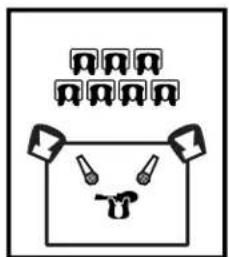
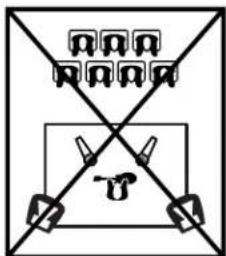
Simple line drawing of a container with arrows indicating flow or movement (no text or symbols)Keep the Main Speakers between mics and audience to minimize feedback
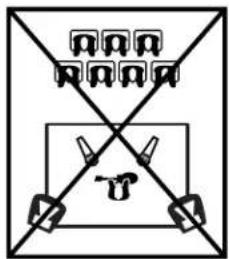
DO NOT place Main Speakers in back of the stage!!
3. Main Out XLR / 1/4 jacks
The Main Out left and right XLR and 1/4-inch jacks are located on the rear panel. These are true low impedance balanced outputs. For the best noise immunity use well shielded cables.
4. Zone Out Jack
The Zone Out phone jack on the rear panel is a TRS (balanced tip ring sleeve configuration) output jack. Use it to connect to balanced and unbalanced audio inputs.
5. USB Input/Output
To your computer, the VGM14's USB connection appears like a standard "USB Audio CODEC." The VGM14's USB output is fully USB 2.0 compliant; you can use it to connect directly to one of the USB ports on your computer. The connection to the computer powers the USB circuitry inside the VGM14.
Since the VGM14's USB bus delivers high quality digital audio to (and from) your computer, as well as bus powering the USB interface, we suggest the use of a high quality, shielded, USB cable for best performance. Ideally, you should connect directly to one of the USB ports on your computer.
Since connecting through a USB hub can reduce power and bandwidth for each USB device connected, this should be avoided when possible.
The VGM14 USB is compatible with USB 1.1 and 2.0 interfaces but USB 2.0 is preferred for the cabling and computer connection as it makes better use of system bandwidth. If you must use a hub, it should be a powered USB 2.0 compliant hub; this is especially important if you plan to use multiple units for more channels of simultaneous digital audio input.
You can use both RCA output jacks and the USB Out at the same time, which is handy when you want to run to a computer and to a local source monitor.
On the rear panel is a USB standard B connector. Use a USB standard A to standard B cable to connect the VGM14 to your computer.
Once the USB connection is made and your computer is on, the VGM14 USB interface circuitry is powered by your computer over the USB bus and the unit will automatically connect and try to set your computer "Default Audio Device" to be "USB Audio CODEC". Usually the computer will do this automatically whenever a USB device is first connected, but it is sometimes necessary to make the selection manually.
These settings should be made while the two units are connected. Select one of the following sound recording (input) settings:
- WINDOWS 98SE: Settings » Control Panel » Multimedia
Choose the preferred device: "USB Audio Device" - WINDOWS XP: Settings » Control Panel » Sounds and Audio Devices » Audio.
Choose the mixer device: "USB Audio CODEC"
Or Programs » Accessories » Entertainment » Volume Control » Options » Properties Choose the mixer device: "USB Audio CODEC" - WINDOWS VISTA / Windows 7: Settings » Control Panel » Sound » Playback Tab and Record Tab.
Choose: "USB Audio CODEC" - Windows 8: Settings » Control Panel » Hardware and Sound » Manage Audio Devices » Playback Tab and Record Tab.
Choose: "USB Audio CODEC"
• Mac OS 9.1 +: Control Panel » Sound.
Choose: "USB Audio CODEC"
• Mac OS X 10.x +: System Preferences » Sound
Choose: "USB Audio CODEC"
Your computer audio output "Speaker" is now set to be the "USB Audio CODEC" and playback audio is routed to the VGM14, this must be done while the VGM14 is connected to the computer and powered on. After the above settings are made, your computer will automatically reconfigure itself back to these settings every time the VGM14 is reconnected to the computer. There are many computer recording software packages available today that allow for multi-track recording.
If you are using multiple units and connecting more than one over the USB bus, they will appear as "USB Audio CODEC," "USB Audio CODEC 2," etc. in your recording application. Please refer to your recording software documentation for the best way to assign channels and set recording and monitoring parameters.
Latency, the time delay between your audio input and the USB output to your computer, is very short (under 2 milliseconds) in the VGM14. The latency of your recording software and computer software drivers can be much more than this. Typically, on a Mac, the core audio interface has low latency, so this is usually not an issue. USB audio drivers that come with Windows can have enough latency to cause a discrete delay when monitoring live. If this becomes an issue there are low latency ASIO drivers available that can greatly reduce your Windows audio latency.
For more USB connectivity information visit http://www.yorkville.com
SPECIFICATIONS
Number of Channels 14
Channel Inserts 10
Mono Channel EQ 3-Band with mid Sweep
Stereo Channel EQ 4-Band
Balance Controls on channels 11/12 and 13/14
Pan Controls channels 1-10
Channel Overload Protection Yes
Inputs - XLR (bal) 12
Inputs - 1/4-inch 14
Inputs - RCA (unbal) 1 Stereo Pair
Solo Switches Yes - All Channels
Mute Switches Yes - All Channels
Hi Pass Switches Yes - All Channels
Activity / Solo LED Yes - All Channels
Clip /Mute LED Yes - All Channels
Phantom Power 48 volt + LED indicator
Internal Effects 24 Bit Stereo / 16 Effects with Modify Control
Auxiliary Send Yes
Effects Send Yes
External Stereo Effects Return Yes
Internal Effects Return to Main Yes
Internal Effects Return to Monitor Yes
Reverb / Effects Footswitch Yes
Record Outputs Yes (RCA and USB)
Max Gain to Line Out -Mic Input (dB) 80dB
Max Gain to Line Out -Line Input (dB) 65dB
Mixer - Signal to Noise Ratio (dB) Greater than 100dB
Mixer - Frequency Response (Tone and EQ Flat,+/-2dB) 20Hz - 20KHz
Mixer - Input Referred Noise to line out, @ 150 ohms (dBv) -118dBv (@ 150 ohms)
Mixer THD (Main out w/ -10dB input) Less Than 0.05%
Typical crosstalk -1 kHz (dB) Less Than -60dB
CMRR @ 60Hz (min/typ) 55dB/65dB
Power Consumption (typ/max) 26VA (typical)
Cooling Fan
Transformer Type SMPS
Chassis Construction Steel
Console Lamp Connector 12V DC (BNC) Yes - 12V DC (BNC)
Other Features Zone Output, Hi-Z Inputs (Ch9&10) USB I/O
Dimensions (DWH, inches) 16 x 19 x 2.8
Dimensions (DWH, cm) 40.6 x 48.3 x 7.1
Weight (lbs/kg) 13/5.9
* Specifications subject to change without notice
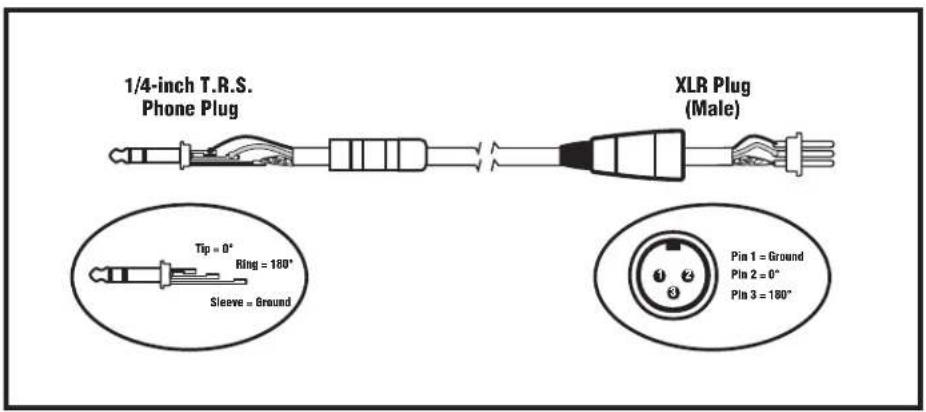
Balanced 1/4-inch T.R.S. to Balanced XLR
Introduction.
Bague (ou XLR 3 broches) = sous tension, phase inverse;
Manchon (ou XLR broche 1) = masse
| 1. Room Reverb2. Hall Reverb3. Hall Reverb - Vocals4. Hall Reverb w/Echo | 5. Plate Reverb6. Plate Reverb - Vocals7. Plate Reverb w/Echo8. Gated Reverb | 9. Fast Echo10. Short Decay Echo11. Long Decay Echo12. Chorus | 13. Flanger14. Rotary Speaker15. Acoustic Guitar16. Harmonizer |
Panneau Arrière
natural_image
Simple line drawing of a face with triangular eyes and a mouth, no text or symbols presentKeep the Main Speakers between mics and audience to minimize feedback
DO NOT place Main Speakers in back of the stage!!
Balanced 1/4-inch T.R.S. to Balanced XLR
flowchart
graph TD
    A["Input"] --> B["Main Monitor and Zone"]
    B --> C["Main EX & Foswitch"]
    C --> D["EffectS"]
    D --> E["Select Monitoring"]
    E --> F["Main EX Radar"]
    F --> G["Main EX Radar to Main"]
    G --> H["Main EX Radar to Main Bus"]
    H --> I["Main EX Radar to Main Bus"]
    I --> J["Main EX Radar to Main Bus"]
    J --> K["Main EX Radar to Main Bus"]
    K --> L["Main EX Radar to Main Bus"]
    L --> M["Main EX Radar to Main Bus"]
    M --> N["Main EX Radar to Main Bus"]
    N --> O["Main EX Radar to Main Bus"]
    O --> P["Main EX Radar to Main Bus"]
    P --> Q["Main EX Radar to Main Bus"]
    Q --> R["Main EX Radar to Main Bus"]
    R --> S["Main EX Radar to Main Bus"]
    S --> T["Main EX Radar to Main Bus"]
    T --> U["Main EX Radar to Main Bus"]
    U --> V["Main EX Radar to Main Bus"]
    V --> W["Main EX Radar to Main Bus"]
    W --> X["Main EX Radar to Main Bus"]
    X --> Y["Main EX Radar to Main Bus"]
    Y --> Z["Main EX Radar to Main Bus"]
    Z --> AA["Main EX Radar to Main Bus"]
    AA --> AB["Main EX Radar to Main Bus"]
    AB --> AC["Main EX Radar to Main Bus"]
    AC --> AD["Main EX Radar to Main Bus"]
    AD --> AE["Main EX Radar to Main Bus"]
    AE --> AF["Main EX Radar to Main Bus"]
    AF --> AG["Main EX Radar to Main Bus"]
    AG --> AH["Main EX Radar to Main Bus"]
    AH --> AI["Main EX Radar to Main Bus"]
    AI --> AJ["Main EX Radar to Main Bus"]
    AJ --> AK["Main EX Radar to Main Bus"]
    AK --> AL["Main EX Radar to Main Bus"]
    AL --> AM["Main EX Radar to Main Bus"]
    AM --> AN["Main EX Radar to Main Bus"]
    AN --> AO["Main EX Radar to Main Bus"]
    AO --> AP["Main EX Radar to Main Bus"]
    AP --> AQ["Main EX Radar to Main Bus"]
    AQ --> AR["Main EX Radar to Main Bus"]
    AR --> AS["Main EX Radar to Main Bus"]
    AS --> AT["Main EX Radar to Main Bus"]
    AT --> AU["Main EX Radar to Main Bus"]
    AU --> AV["Main EX Radar to Main Bus"]
    AV --> AW["Main EX Radar to Main Bus"]
    AW --> AX["Main EX Radar to Main Bus"]
    AX --> AY["Main EX Radar to Main Bus"]
    AY --> AZ["Main EX Radar to Main Bus"]
    AZ --> BA["Main EX Radar to Main Bus"]
    BA --> BB["Main EX Radar to Main Bus"]
    BB --> BC["Main EX Radar to Main Bus"]
    BC --> BD["Main EX Radar to Main Bus"]
    BD --> BE["Main EX Radar to Main Bus"]
    BE --> BF["Main EX Radar to Main Bus"]
    BF --> BG["Main EX Radar to Main Bus"]
    BG --> BH["Main EX Radar to Main Bus"]
    BH --> BI["Main EX Radar to Main Bus"]
    BI --> BJ["Main EX Radar to Main Bus"]
    BJ --> BK["Main EX Radar to Main Bus"]
    BK --> BL["Main EX Radar to Main Bus"]
    BL --> BM["Main EX Radar to Main Bus"]
    BM --> BN["Main EX Radar to Main Bus"]
    BN --> BO["Main EX Radar to Main Bus"]
    BO --> BP["Main EX Radar to Main Bus"]
    BP --> BQ["Main EX Radar to Main Bus"]
    BQ --> BR["Main EX Radar to Main Bus"]
    BR --> BS["Main EX Radar to Main Bus"]
    BS --> BT["Main EX Radar to Main Bus"]
    BT --> BU["Main EX Radar to Main Bus"]
    BU --> BV["Main EX Radar to Main Bus"]
    BV --> BW["Main EX Radar to Main Bus"]
    BW --> BX["Main EX Radar to Main Bus"]
    BX --> BY["Main EX Radar to Main Bus"]
    BY --> BZ["Main EX Radar to Main Bus"]
    BZ --> CA["Main EX Radar to Main Bus"]
    CA --> CB["Main EX Radar to Main Bus"]
    CB --> CC["Main EX Radar to Main Bus"]
    CC --> CD["Main EX Radar to Main Bus"]
    CD --> CE["Main EX Radar to Main Bus"]
    CE --> CF["Main EX Radar to Main Bus"]
    CF --> CG["Main EX Radar to Main Bus"]
    CG --> CH["Main EX Radar to Main Bus"]
    CH --> CI["Main EX Radar to Main Bus"]
    CI --> CJ["Main EX Radar to Main Bus"]
    CJ --> CK["Main EX Radar to Main Bus"]
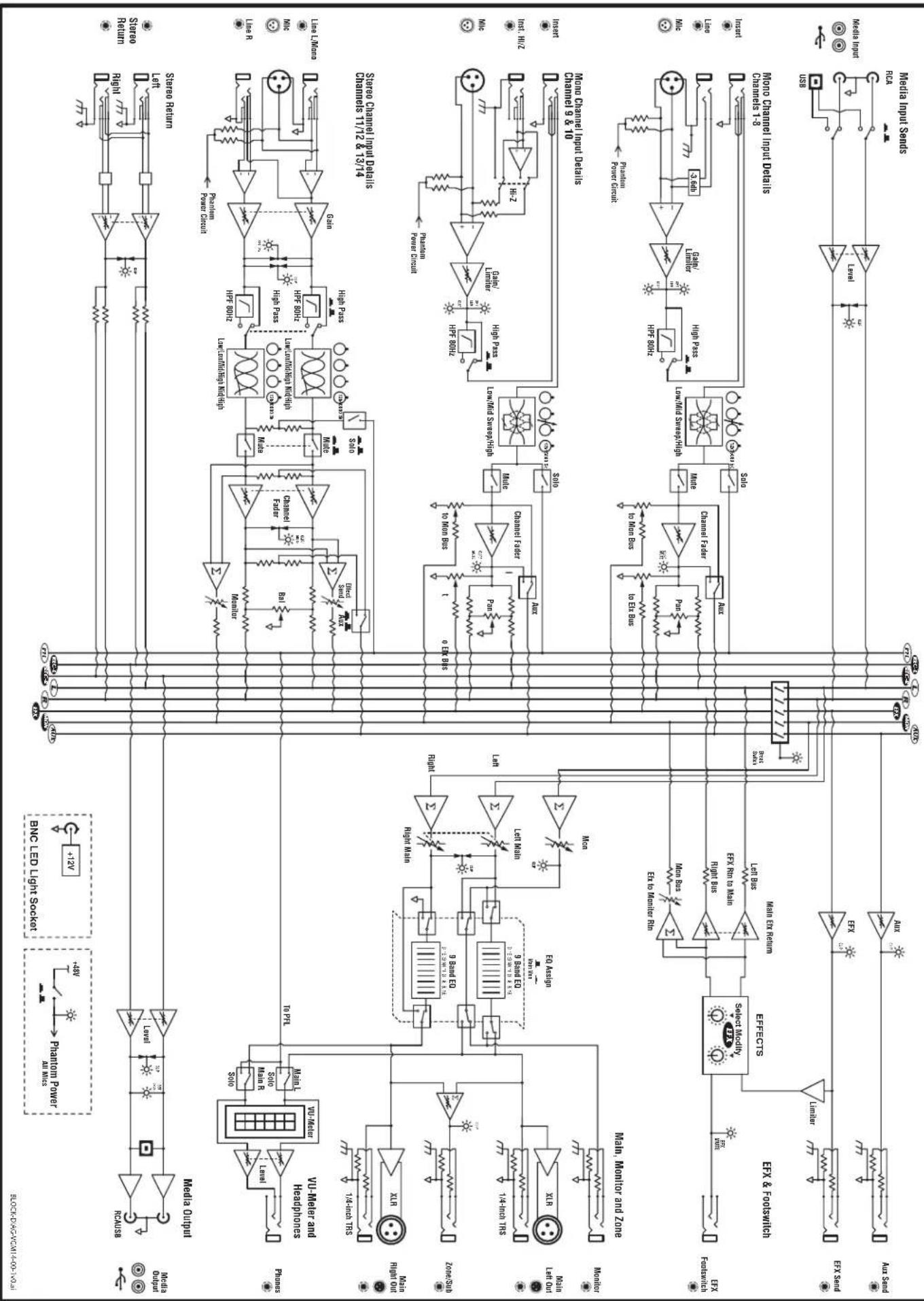
DESEDED BY WORK VALLE SOLUTION TYPE: YS1097 Block Diagram for VGM14

Two & Ten Year Warranty
Unlimited Warranty
Yorkville's two and ten-year unlimited warranty on this product is transferable and does not require registration with Yorkville Sound or your dealer. If this product should fail for any reason within two years of the original purchase date (ten years for the wooden enclosure), simply return it to your Yorkville dealer with original proof of purchase and it will be repaired free of charge. This includes all Yorkville products, except for the YSM Series studio monitors, Coliseum Mini Series and TX Series Loudspeakers.
Freight charges, consequential damages, weather damage, damage as a result of improper installation, damages due to exposure to extreme humidity, accident or natural disaster are excluded under the terms of this warranty. Warranty does not cover consumables such as vacuum tubes or par bulbs. See your Yorkville dealer for more details. Warranty valid only in Canada and the United States.
Garantie Illimitée
Voice: (905) 837-8481 Voice: (716) 297-2920
Fax: (905) 837-8746 Fax: (716) 297-3689

www.yorkville.com
Yorkville Sound
550 Granite Court
Pickering, Ontario
L1W-3Y8 CANADA
Yorkville Sound Inc.
4625 Witmer Industrial Estate
Niagara Falls, New York
14305 USA

natural_image
World map illustration with horizontal black lines, no text or labels presentWEB: www.yorkville.com
Niagara Falls, New York
14305 USA
Voice: (716) 297-2920
Fax: (716) 297-3689

Quality and Innovation Since 1963
Printed in China
manual-owners-VGM14-00-3v1 • December 14, 2016


- IMPORTANT SAFETY INSTRUCTIONS
- Power Sources
- Hazards
- Power Cord
- Service
- NSTRUCTIONS
- Introduction
- Input Channel Features
- Microphone Inputs
- Balanced Line Inputs
- Input Wiring tips:
- Insert Jacks
- Gain Control
- Input Channel Audio Compressor
- High Pass Filter Button
- Mono Channel EQ
- Stereo Channel EQ
- Mon (Monitor)
- Aux (Auxiliary)
- Digital Effects (EFX)
- Pan Control (Mono Channels)
- Balance Control (Stereo Channels)
- Mute Switch
- Clip/Mute LED
- PFL Solo Switch and LED
- Channel Fader
- Master Section
- Media Input
- Media Output (Record Output)
- EFX Send Control
- Internal Digital Effects Generator
- Footswitch Jack
- MON Fader
- MAIN Fader
- Main (L/R) and Mon Graphic Equalizer
- Phones Level
- Zone/Sub Level
- Break Switch
- VU-Meter
- Top Panel Input/Output Jacks
- LED Lamp
- Rear Panel
- Power Switch and Fuse
- Phantom Power Switch
- Main Out XLR / 1/4 jacks
- Zone Out Jack
- USB Input/Output
- SPECIFICATIONS
- Introduction.
- Panneau Arrière
- Two & Ten Year Warranty
- Unlimited Warranty
- Garantie Illimitée
Brand : YORKVILLE
Model : VGM14
Category : Hand blender