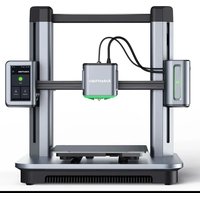
M5 - 3D Printer AnkerMake - Free user manual and instructions
Find the device manual for free M5 AnkerMake in PDF.


User questions about M5 AnkerMake
0 question about this device. Answer the ones you know or ask your own.
Ask a new question about this device
Download the instructions for your 3D Printer in PDF format for free! Find your manual M5 - AnkerMake and take your electronic device back in hand. On this page are published all the documents necessary for the use of your device. M5 by AnkerMake.
USER MANUAL M5 AnkerMake
Anker Innovations Limited. All rights reserved. AnkerMake and AnkerMake Logo are trademarks of Anker Innovations Limited, registered in the United States and other countries. All other trademarks are the property of their respective owners.
51005003445 V01
AnkerMake
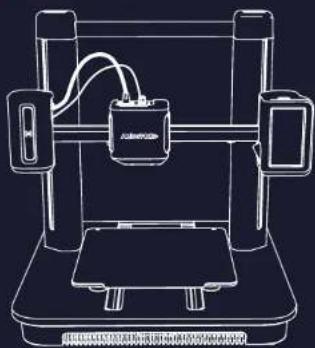
natural_image
Line drawing of a 3D printer with attached circuit board and control panel (no text or symbols)AnkerMake M5
QUICK START GUIDE
English 001
Deutsch 026
Español 049
Français 072
Italiano 095
Nederlands 118
Português 141
日本語 164
한국어 184
تَيْبِرَغَل 207
AT A GLANCE
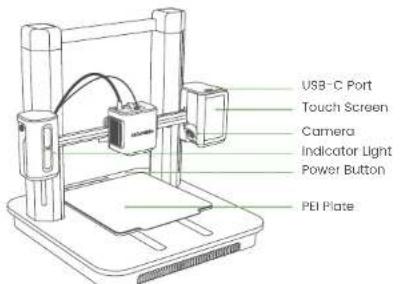
text_image
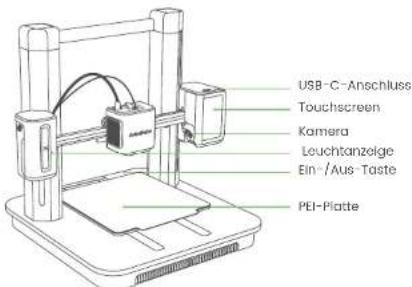
USB-C Port Touch Screen Camera Indicator Light Power Button PEI Plate| Indicator Light* Description | |
| Flashing Orange Slowly Heating up | |
| Facing Green Repeatedly Printing | |
| Flashing Red An alarm Is going off |
For more indicator light status, visit https://www.ankermake.com. Product Name: AnkerMake M5 Model: V811
ASSEMBLING THE PRINTER
What You Need
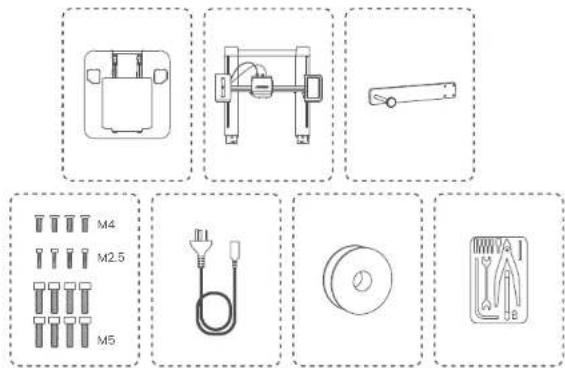
text_image
Diagram showing various electrical components and their corresponding labels, including motor, fuse, and cable.EN 002001
Step 1. Installing Gantry Frame
- Open the box, then place the foam cover on the ground.
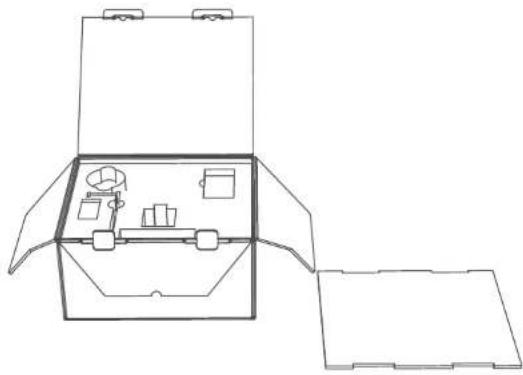
natural_image
Line drawing of a box with internal compartments and accessories, no text or symbols presentEN
- Take out all the accessories in the foam, then place the protection foam on the ground as support.
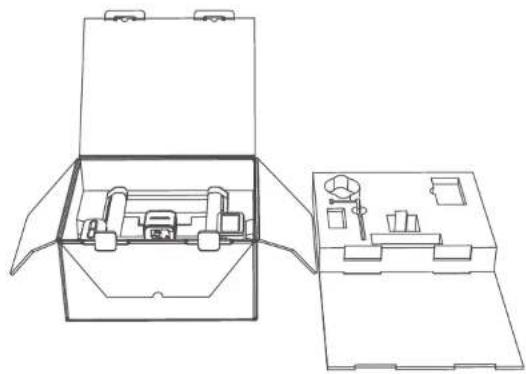
natural_image
Line drawing of a mechanical device box with internal components and a separate open case (no text or symbols)EN 004003
- Take out the gantry frame with its protection foam and place it on the support foam.
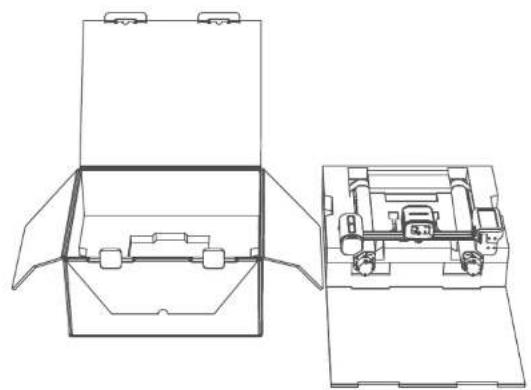
natural_image
Technical line drawing of a mechanical device with open and side views (no text or symbols)EN
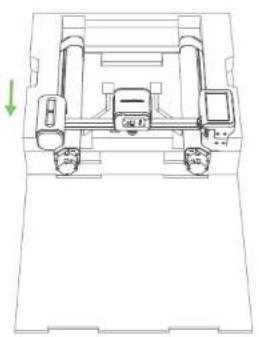
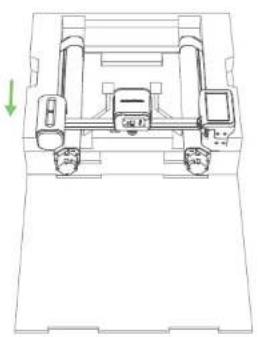
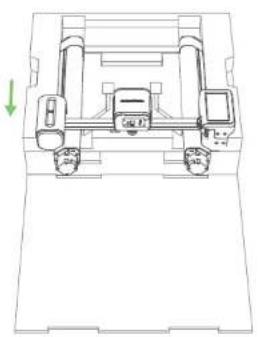
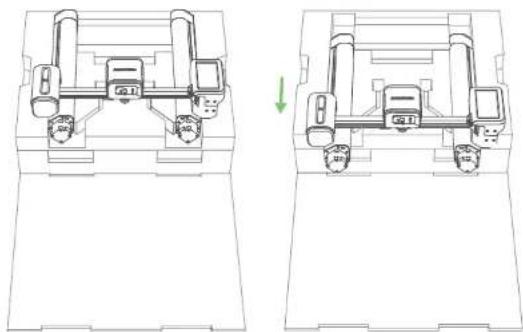
- Take the gantry frame out of the packaging foam, then put it back as shown below.
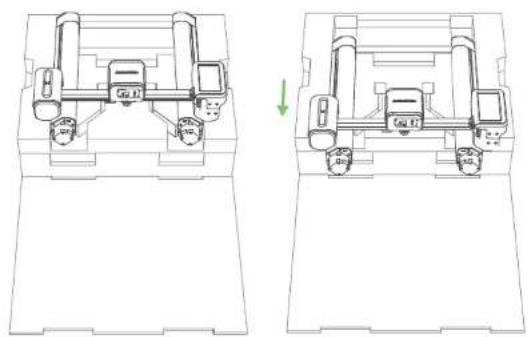
natural_image
Technical line drawing of a mechanical assembly with two views showing internal components and a green arrow indicating direction (no text or symbols)EN 006005
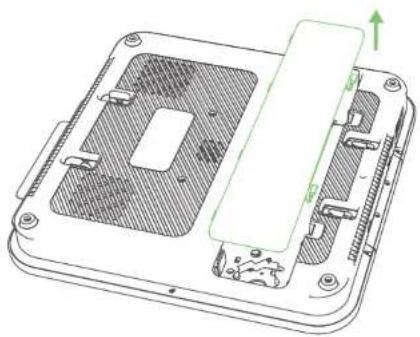
natural_image
Technical line drawing of a computer processor casing with internal components and a green directional arrow indicating movement (no text or symbols)EN
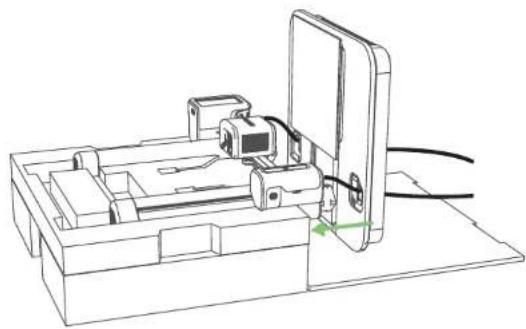
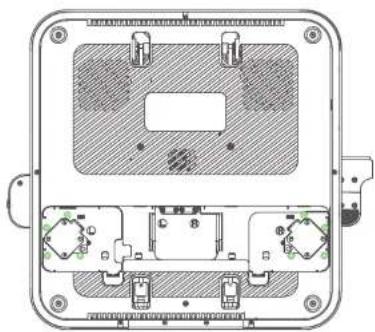
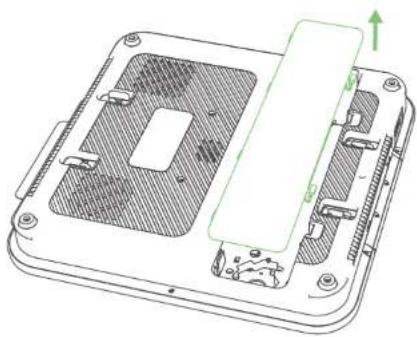
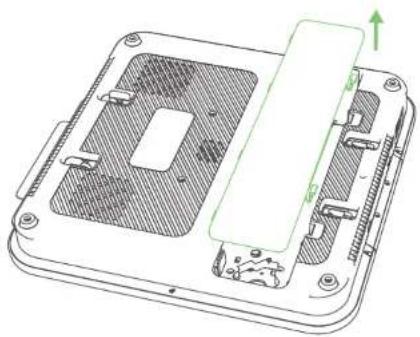
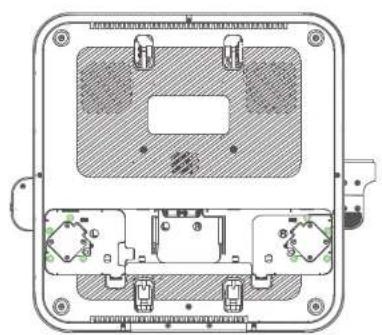
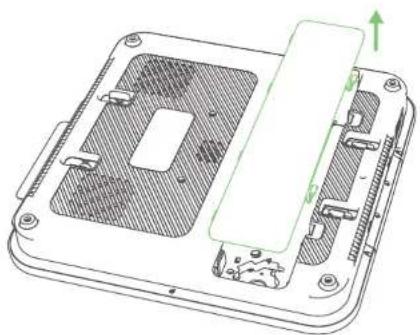
- Mount the platform through the holes. 5. Detach the bottom cover from the p
natural_image
Technical line drawing of a mechanical assembly with no visible text or symbolsEN 008007
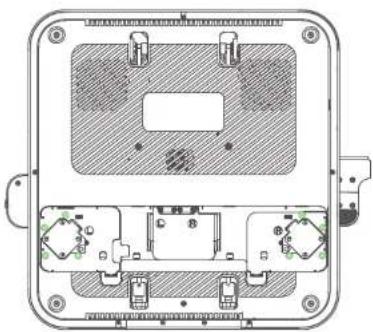
- Fasten screws into the platform.
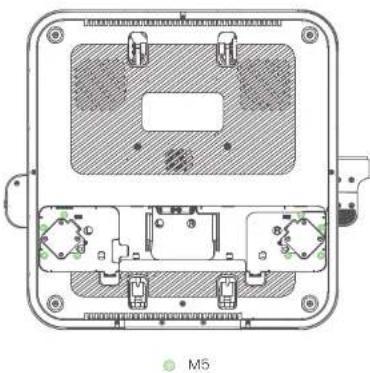
natural_image
Technical diagram of an electrical meter with internal components and mounting holes (no text or symbols)EN
Step 2. Wiring
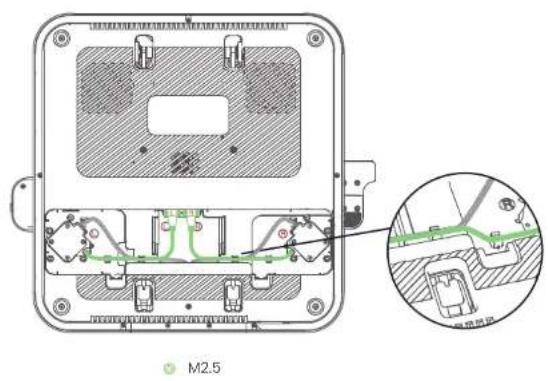
- Connect the motor wires.
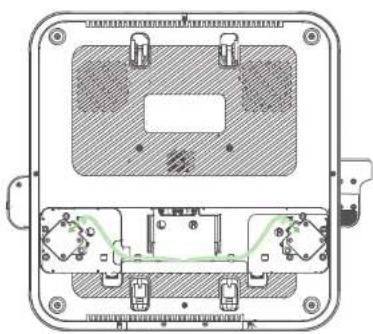
natural_image
Cross-sectional diagram of an electronic device casing with internal components and mounting holes (no text or symbols)EN 010009
text_image
M2.5EN
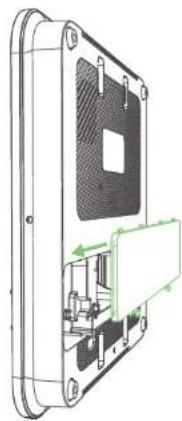
- Put the bottom cover back onto the platform.2. Connect and fix the USB-C ca
natural_image
Technical line drawing of a device interior with internal components and a green arrow indicating direction (no text or symbols)EN 012011
Step 3. Installing Filament Holder
Secure the filament holder with screws.
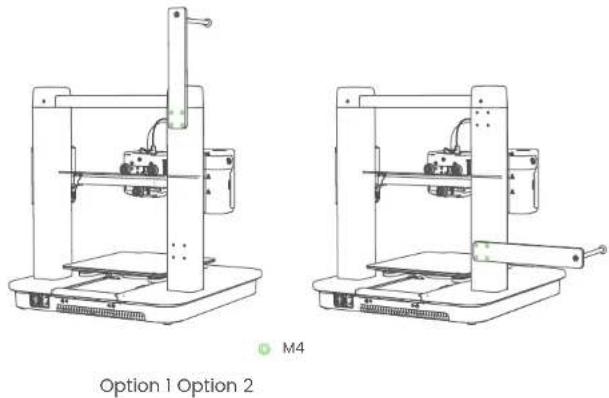
M4
Option 1 Option 2
EN
Step 4. Connecting to Power
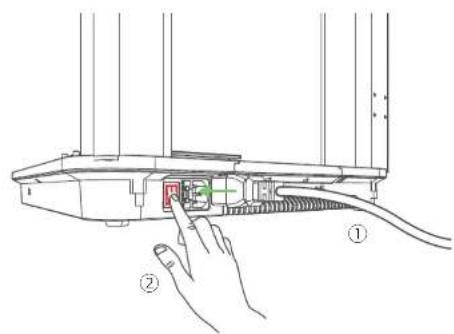
- Connect the printer to a power outlet with the power cable, then power on the printer.
text_image
Diagram showing a hand inserting a component into a device with labeled parts ① and ②- Follow instructions on the touch screen to complete the initial setup.
EN 014013
SETTING UP THE SYSTEM
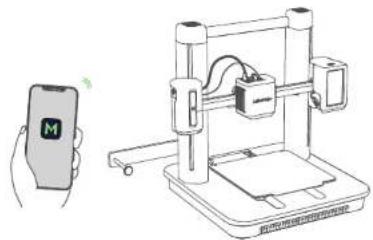
- Download and install the AnkerMake app, then sign up for an account.


- Follow on-screen instructions to add the printer to your device list and connect it to Wi-Fi.
natural_image
Illustration of a mobile phone scanning a 3D printer with a control panel (no text or symbols)EN
LEVELING HEAT BED
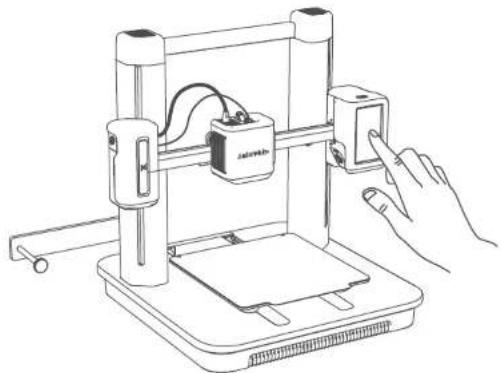
On the touch screen, go to Control > Auto-Level to level the heat bed.
natural_image
Line drawing of a 3D printer with a hand operating the base panel (no text or symbols present)EN 016015
LOADING FILAMENT
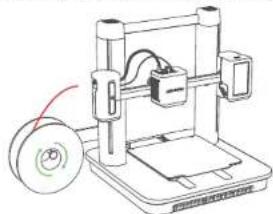
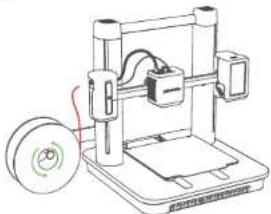
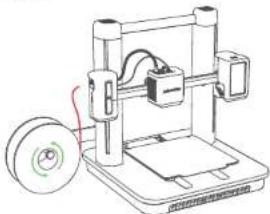
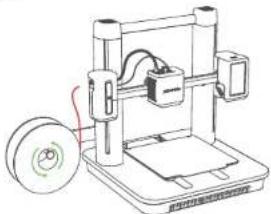
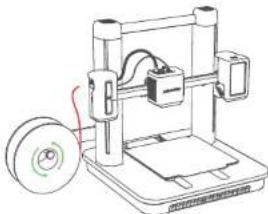
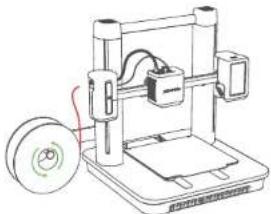
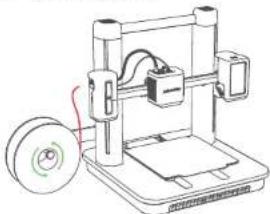
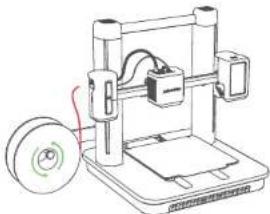
- Place the filament onto the holder.
natural_image
Line drawing of a 3D printer with a spool and paper sheet (no text or symbols)√
natural_image
Line drawing of a 3D printer with a spool and paper plane (no text or symbols)×
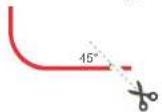
- Cut the tip of the filament at a 45^ angle.
EN
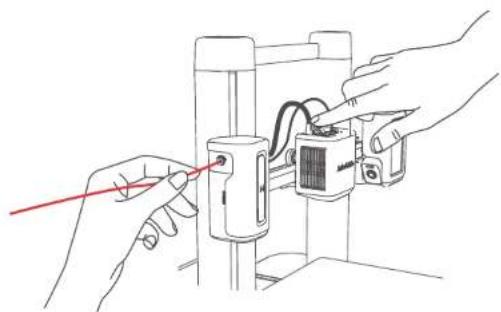
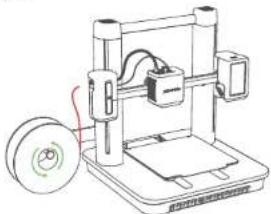
- Insert the filament until it reaches the extruder. Then press and hold the button on top of the extruder while continuing to insert the filament. Stop when you feel some resistance.
natural_image
Line drawing of hands connecting a cable to a mechanical component with a red wire (no text or symbols)EN 018017
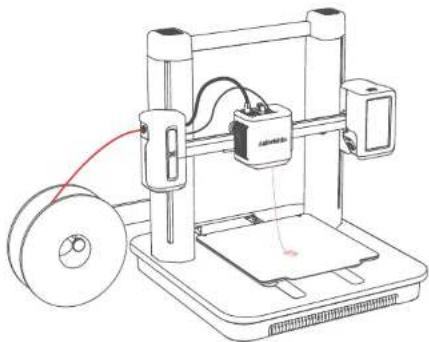
- On the touch screen, tap Load on Control > Extrude. Wait until filament flows out of the nozzle, then tap Stop.
natural_image
Line drawing of a 3D printer with spool and mechanical components (no text or symbols)EN
INSTALLING ANKERMAKE SLICER
For the best printing experience, download and install AnkerMake Slicer to your computer from ankermake.com/software.
The AI recognition capabilities will be not available when the printer works with other 3D slicer software, such as Cura and Simplify3D.

natural_image
3D modeling software interface showing a white object inside a wireframe cube with tool panels and control panel (no readable text or symbols)EN 020019
SAFETY
• The power cord shall be connected to socket-outlet with earthing connection.
• The power supply should be installed near the equipment and the socket-outlet must be easily accessible.
• Only use the power cord provided by the manufacturer. Using unauthorized power cords may cause danger and violate the authorization of the product as well as the guarantee.
- Plug of the power cord is considered as the disconnect device. Once unplugged, the product is considered to be disconnected from the power source.
- Do not use the device in an environment where the temperature is too high or too low. Never expose the device to strong sunshine or wet environments.
- The suitable temperature range for the product and its accessories is 15-35°C.
- It is recommended to supply the device in an environment with a temperature that ranges from 15°C \~25°C
- When supplying, place the device in an environment that has a normal room temperature and good ventilation.
• This equipment is not suitable for use in locations where children
are likely to be present. This equipment is not intended for use by children.
- Moving parts. Keep body parts away from moving parts.
- CAUTION Hot parts. Do not touch.
• Do not use the product in any way other than described herein in order to avoid personal injury or property damage.
- User should comply with the laws and regulations of the corresponding countries and regions where the equipment is located (used), abide by professional ethics, pay attention to safety obligations, and strictly prohibit the use of our products or equipment for any illegal purposes. Our company will not be responsible for any violators' legal liability under any circumstances.
EN
NOTICE
Notice (United States Of America)
FCC Statement
This device complies with Part I5 of the FCC Rules. Operation is subject to the following two conditions: (1) this device may not cause harmful Interference, and (2) this device must accept any Interference received, including Interference that may cause undesired operation. Warning: Changes or modifications not expressly approved by the party responsible for compliance could void the user's authority to operate the equipment.
Note: This equipment has been tested and found to comply with the limits for a Class B digital device, pursuant to Part 15 of the FCC Rules. These limits are designed to provide reasonable protection against harmful interference in a residential installation.
This equipment generates uses and can radiate radio frequency energy and, if not installed and used in accordance with the instructions, may cause harmful interference to radio communications. However, there is no guarantee that interference will not occur in a particular installation. If this equipment does cause harmful interference to radio or television reception, which can be determined by tuning the equipment off and on, the user is encouraged to try to correct the interference by one or more of the following measures: (1) Reorient or relocate the receiving antenna. (2) Increase the separation between the equipment and receiver. (3) Connect the equipment into an outlet on a circuit different from that to which the receiver is connected. (4) Consult the dealer or an experienced radio/TV technician for help.
FCC Radio Frequency Exposure Statement
The device has been evaluated to meet general RF exposure requirements. The device can be used in fixed/mobile exposure condition. The min separation distance is 20cm.
Notice: Shielded cables
All connections to other computing devices must be made using shielded cables to maintain compliance with FCC regulations.
EN 022021
Notice (Canada)
This device complies with Industry Canada licence-exempt RSS standard(s). Operation is subject to the following two conditions:
(1) this device may not cause interference and
(2) this device must accept any interference, including interference that may cause undesired operation of the device.
This Class B digital apparatus complies with Canadian ICES-003.
When using the product, maintain a distance of 20cm from the body to ensure compliance with RF exposure requirements.
The following importer is the responsible party
Company Name: Fantasia Trading LLC
Address: 5350 Ontario Mills Pkwy, Suite 100, Ontario, CA 91764
Telephone: 1-800-988-7973
Notice (Europe and United Kingdom)
CE
This product complies with the radio interference requirements of the European Community.
Declaration of Conformity
Hereby, Anker Innovations Limited declares that this device is in compliance with the essential requirements and other relevant provisions of Directive 2014/53/EU. For the declaration of conformity, visit the Web site: https://ankermake.com.
UK CA
This product complies with the radio interference requirements of the United Kingdom
Declaration of Conformity
Hereby, Anker Innovations Limited declares that this device is in compliance with Radio Equipment Regulations 2017(SI 2017/1206). The full text of the UK declaration of conformity is available at the following Internet address: https://ankermake.com.
RF exposure information:
The Maximum Permissible Exposure (MPE) level has been calculated based on a distance of d = 20 cm between the device and the human body. To maintain compliance with RF exposure requirement, use product that maintain a 20 cm distance between the device and human body.
Frequency bands and power are as below:
| Function Bands Operation Frequency Max Power | ||
| Wi-Fi 2.4GHz 2412-2472MHz EIRP 19.10 dBm | ||
| Bluetooth 2.4GHz 2402-2480 MHz EIRP 8.0 dBm | ||
The following importer is the responsible party (contract for EU matters).
The following importer is the responsible party (contract for UK matters)
Anker Technology (UK) Limited I GNR8, 49 Clarendon Road, Watford, Hertfordshire, WDI7 IHP, United Kingdom

Your product is designed and manufactured with high quality materials and components, which can be recycled and reused.

This symbol means the product must not be discarded as household waste, and should be delivered to an appropriate collection facility for recycling. Proper disposal and recycling helps protect natural resources, human health and the environment. For more information on disposal and recycling of this product, contact your local municipality, disposal service, or the shop where you bought this product.
Trademarks
Bluetooth
The Bluetooth ^® word mark and logos are registered trademarks owned by the Bluetooth SIG, Inc. and any use of such marks by Anker Innovations Limited is under license. Other trademarks and trade names are those of their respective owners.
EN
AUF EINEN BLICK
natural_image
Line drawing of a closed toolbox with internal compartments and accessories (no text or symbols)DE 028027
natural_image
Line drawing of a toolbox with internal components and an open case (no text or symbols)DE
natural_image
Technical line drawing of a mechanical device with open and side views (no text or symbols)DE 030029
natural_image
Technical line drawing of a mechanical assembly with no visible text or symbolsDE
natural_image
Technical line drawing of a vehicle chassis with wheels and a green arrow indicating motion (no text or symbols)natural_image
Technical line drawing of a computer processor casing with internal components and a green directional arrow indicating movement (no text or symbols)DE 032031
natural_image
Technical line drawing of a mechanical assembly with no visible text or symbolsDE
natural_image
Technical diagram of an electrical enclosure with internal components and mounting feet (no text or labels)M5
DE 034033
natural_image
Technical diagram of an electrical enclosure showing internal components and wiring (no text or labels)DE
natural_image
Technical line drawing of a device casing with internal components and mounting holes (no text or symbols)DE
text_image
Diagram showing hands connecting a device to a cable with labeled components, including a red connector and wiring.natural_image
Illustration of a mobile phone connected to a 3D printer with a green sensor, no text or symbols present.DE 040039
natural_image
Line drawing of a 3D printer with a hand interacting with the front panel (no text or symbols present)DE
EINLEGEN DES FILAMENTS
natural_image
Line drawing of a 3D printer with a spool and paper holder (no text or symbols)√
natural_image
Line drawing of a 3D printer with a spool attached, no text or symbols present×
natural_image
Line drawing of hands connecting a mechanical component to a vertical rod (no text or symbols present)DE
natural_image
Line drawing of a 3D printer with spool and cable, no text or symbols presentDE 044043
INSTALLIEREN DES ANKERMAKE SLICERS
natural_image
3D modeling software interface showing a white object in a wireframe cube with tool panels and no visible text or symbols on the object itself.DE
SICHERHEIT
Anker Technology (UK) Limited I GNR8, 49 Clarendon Road, Watford, Hertfordshire, WDI7 IHP, United Kingdom

text_image
Diagram showing various electrical components and their corresponding labels, including motor, fuse, and plug-in brackets.ES 050049
natural_image
Line drawing of a box with internal compartments and accessories, no text or symbols presentES
natural_image
Line drawing of a mechanical device inside an open case, showing internal components and a separate view (no text or symbols)ES 052051
natural_image
Technical line drawing of a mechanical device with open and side views (no text or symbols)ES
natural_image
Technical line drawing of a mechanical assembly with two views (top and side), no visible text or symbolsES 054053
natural_image
Technical line drawing of a mechanical assembly with no visible text or symbolsES
natural_image
Technical line drawing of a mechanical assembly with no visible text or symbolsES 056055
natural_image
Technical diagram of an electrical meter with internal components and mounting holes (no text or labels)M5
ES
PASO 2. Cableado
natural_image
Cross-sectional diagram of an electronic device casing with internal components and mounting holes (no text or symbols)ES 058057
natural_image
Technical line drawing of a mechanical assembly with internal components and directional arrows (no text or symbols)ES 060059
text_image
Diagram showing hands connecting a device to a cable with labeled components, including a red connector and green connectors.natural_image
Illustration of a 3D printer setup with a hand holding a smartphone and a device on top (no text or symbols visible)ES
natural_image
Line drawing of a 3D printer setup with a hand interacting with the front panel (no text or symbols present)ES 064063
CARGA DEL FILAMENTO
natural_image
Line drawing of a 3D printer with a spool and paper sheet (no text or symbols)√
natural_image
Line drawing of a 3D printer with a spool and cable, no text or symbols present×
natural_image
Line drawing of hands connecting a cable to a mechanical device with a red tool (no text or symbols)ES 066065
natural_image
Line drawing of a 3D printer with spool and cable, no text or symbols presentES
natural_image
3D modeling software interface showing a white object inside a wireframe cube with tool panels (no readable text or symbols)ES 068067
SEGURIDAD
natural_image
Line drawing of a closed toolbox with internal compartments and accessories (no text or symbols)FR 074073
natural_image
Line drawing of a toolbox with internal components and an open case (no text or symbols)FR
natural_image
Technical line drawing of a mechanical device with open and side views (no text or symbols)FR 076075
natural_image
Technical line drawing of a mechanical assembly with no visible text or symbolsFR
natural_image
Technical line drawing of a vehicle chassis with wheels and a control panel (no text or symbols)natural_image
Technical line drawing of an electronic device with a green arrow indicating upward motion (no text or symbols present)FR 078077
natural_image
Technical line drawing of a mechanical assembly with no visible text or symbolsFR
natural_image
Technical line drawing of an electronic device casing with internal components and mounting holes (no text or symbols)M5
FR 080079
ÉTAPE 2. Câblage
natural_image
Technical diagram of an electrical enclosure showing internal components and wiring (no text or labels)FR
natural_image
Technical line drawing of a device casing with internal components and a green arrow indicating motion (no text or symbols)FR
ÉTAPE 3. Installation du support de filament
text_image
Diagram showing a hand inserting a cable into a device with labeled parts ① and ②natural_image
Illustration of a mobile phone connected to a 3D printer with a green sensor, no text or symbols present.FR 086085
MISE À NIVEAU DU LIT CHAUFFANT
natural_image
Line drawing of a 3D printer setup with a hand interacting with the front panel (no text or symbols present)FR
CHARGEMENT DU FILAMENT
natural_image
Line drawing of a 3D printer with a spool and paper holder (no text or symbols)√
natural_image
Line drawing of a 3D printer with a spool attached, showing no text or symbols×
natural_image
Line drawing of hands connecting a mechanical component to a vertical rod (no text or symbols present)FR
natural_image
Line drawing of a 3D printer with spool and cable, no text or symbols presentFR 090089
INSTALLATION DE ANKERMAKE SLICER
natural_image
3D model of a white object inside a wireframe cube in a design software interface (no visible text or symbols on the model itself)FR
SÉCURITÉ
Anker Technology (UK) Limited I GNR8, 49 Clarendon Road, Watford, Hertfordshire, WDI7 IHP, United Kingdom

text_image
Diagram showing various electrical components and their corresponding labels, including motor, fuse, and cable.IT 096095
natural_image
Line drawing of a box with internal components and a separate open lid (no text or symbols)IT
natural_image
Line drawing of a toolbox open with internal components, no text or symbols presentIT 098097
natural_image
Technical line drawing of a mechanical device with open and side views (no text or symbols)IT
natural_image
Technical line drawing of a mechanical assembly with two views showing internal components and a green arrow indicating direction (no text or symbols)IT 100099
natural_image
Technical line drawing of a computer processor casing with internal components and a green directional arrow indicating movement (no text or symbols)natural_image
Technical line drawing of a mechanical assembly with no visible text or symbolsnatural_image
Technical line drawing of a mechanical or electrical enclosure with internal components and mounting points (no text or symbols)IT
FASE 2. Cablaggio
natural_image
Technical line drawing of a mechanical housing or enclosure with internal components and mounting holes (no text or symbols)IT 104103
natural_image
Technical line drawing of a device interior with internal components and a green arrow indicating direction (no text or symbols)IT 106105
natural_image
Technical line drawings of two 3D printer machines with no visible text or symbolsOpzione 1 Opzione 2
IT
text_image
Diagram showing a hand inserting a component into a device with labeled parts ① and ②natural_image
Illustration of a 3D printer setup with a smartphone and a mounted device (no text or symbols visible)IT
natural_image
Line drawing of a 3D printer with a hand operating the button (no text or symbols)IT 110109
natural_image
Line drawing of a 3D printer with a spool and paper sheet (no text or symbols)√
natural_image
Line drawing of a 3D printer with a spool and paper plane (no text or symbols)×
natural_image
Line drawing of hands connecting a cable to a mechanical device (no text or symbols)IT 112111
natural_image
Line drawing of a 3D printer with spool and cable, no text or symbols presentIT
natural_image
3D modeling software interface showing a white 3D object inside a wireframe cube with tool panels and no visible text or symbols on the object itself.IT 114113
SICUREZZA
Anker Technology (UK) Limited I GNR8, 49 Clarendon Road, Watford, Hertfordshire, WD17 THP, United Kingdom

natural_image
Line drawing of a closed toolbox with internal compartments and accessories (no text or symbols)NL 120119
natural_image
Line drawing of a toolbox with internal components and an open case (no text or symbols)NL
natural_image
Technical line drawing of a mechanical device with open and side views (no text or symbols)NL 122121
natural_image
Technical line drawing of a mechanical assembly with no visible text or symbolsNL
natural_image
Technical line drawing of a vehicle chassis with wheels and a green arrow indicating motion (no text or symbols)natural_image
Technical line drawing of an electronic device showing internal components and a green upward arrow indicating motion (no text or symbols present)NL 124123
natural_image
Technical line drawing of an electrical enclosure with internal components and mounting points (no text or symbols)M5
natural_image
Technical line drawing of a mechanical assembly with no visible text or symbolsNL
NL 126125
STAP 2. Bedrading
natural_image
Technical diagram of an electrical enclosure showing internal components and wiring (no text or labels)NL
natural_image
Technical line drawing of an electronic device with internal components and mounting holes (no text or symbols)NL
STAP 3. De filamenthouder installeren
natural_image
Technical line drawings of two 3D printer machines with no visible text or symbolsNL 130129
text_image
Diagram showing a hand inserting a component into a device with labeled parts ① and ②natural_image
Illustration of a 3D printer setup with a handheld device and a mounted machine (no text or symbols visible)NL 132131
DE WARMTEPLAAT RECHTZETTEN
natural_image
Line drawing of a 3D printer setup with a hand operating the base (no text or symbols)NL
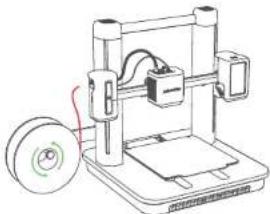
HET FILAMENT LADEN
natural_image
Line drawing of a 3D printer with a spool and paper holder (no text or symbols)√
natural_image
Line drawing of a 3D printer with a spool attached, showing no text or symbols×
natural_image
Line drawing of hands connecting a mechanical component to a vertical rod (no text or symbols present)NL
natural_image
Line drawing of a 3D printer with spool and mechanical components (no text or symbols)NL 136135
ANKERMAKE SLICER INSTALLEREN
natural_image
3D modeling software interface showing a white object inside a wireframe cube with tool panels and no visible text or symbols on the object itself.NL
VEILIGHEID
Anker Technology (UK) Limited I GNR8, 49 Clarendon Road, Watford, Hertfordshire, WDI7 IHP, United Kingdom

text_image
Diagram showing various electrical components and their corresponding labels, including motor, fuse, and socket parts.PT 142141
natural_image
Line drawing of a box with internal compartments and accessories, no text or symbols presentPT
natural_image
Line drawing of a mechanical device inside an open case, showing internal components and a separate view (no text or symbols)PT 144143
natural_image
Technical line drawing of a mechanical device with open and side views (no text or symbols)PT
natural_image
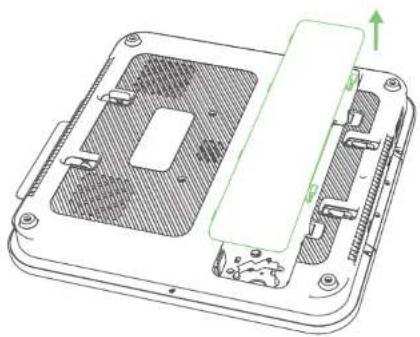
Technical line drawing of a mechanical assembly with two views showing internal components and a green arrow indicating direction (no text or symbols)PT 146145
natural_image
Technical line drawing of a computer processor casing with internal components and a green directional arrow indicating movement (no text or symbols)natural_image
Technical line drawing of a mechanical assembly with no visible text or symbolsPT 148147
natural_image
Technical diagram of an electrical meter with internal components and mounting holes (no text or labels)M5
PT
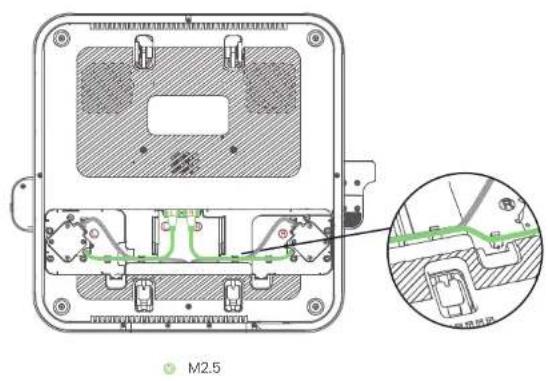
PASSO 2. Cablagem
natural_image
Cross-sectional diagram of an electronic device casing with internal components and mounting holes (no text or symbols)PT 150149
text_image
M2.5PT
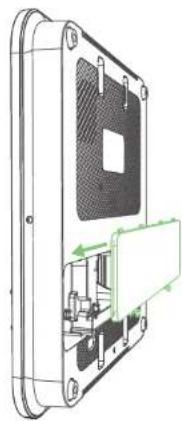
- Volte a colocar a tampa inferior na plataforma. 2. Ligue e prenda os cabos U:
natural_image
Technical line drawing of a device interior with internal components and a green arrow indicating direction (no text or symbols)PT 152151
text_image
Diagram showing a hand inserting a component into a device with labeled parts ① and ②natural_image
Illustration of a 3D printer setup with a smartphone and a mounted device (no text or symbols visible)PT
natural_image
Line drawing of a 3D printer with a hand operating the base panel (no text or symbols)PT 156155
natural_image
Line drawing of a 3D printer with a spool and paper sheet (no text or symbols)√
natural_image
Line drawing of a 3D printer with a spool and paper plane (no text or symbols)×
natural_image
Line drawing of hands connecting a cable to a mechanical component with a red wire (no text or symbols)PT 158157
natural_image
Line drawing of a 3D printer with spool and mechanical components (no text or symbols)PT
natural_image
3D modeling software interface showing a white object inside a transparent cube with tool panels and no visible text or symbols on the object itself.PT 160159
SEGURANÇA
natural_image
Line drawing of a box with internal components and a separate open lid (no text or symbols)JP 166165
natural_image
Line drawing of a toolbox with internal components and an open case (no text or symbols)JP
natural_image
Technical line drawing of a mechanical device with open and side views (no text or symbols)JP 168167
natural_image
Technical line drawing of a mechanical assembly with no visible text or symbols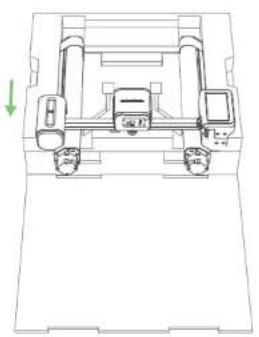
natural_image
Technical line drawing of a mechanical assembly with wheels and a central component (no text or symbols)natural_image
Technical line drawing of a computer processor internal structure with no visible text or symbolsnatural_image
Technical line drawing of a mechanical assembly with no visible text or symbolsnatural_image
Technical line drawing of an electrical enclosure with internal components and mounting holes (no text or symbols)M5
手順2配線
natural_image
Technical diagram of an electrical enclosure showing internal components and wiring (no text or labels)JP
natural_image
Technical diagram of an electrical enclosure with internal wiring and mounting points, showing a magnified inset (no text or labels)M2.5
JP 174173
natural_image
Technical line drawing of a device casing with internal components and mounting holes (no text or symbols)手順3フィラメントホルダーの取り付け
natural_image
Technical line drawings of two 3D printer holders with mounting base (no text or symbols)text_image
Diagram showing hands connecting a device to a cable with labeled components, including a red connector and numbered parts.natural_image
Illustration of a handheld device next to a 3D printer with a mounted device (no text or symbols visible)JP 178177
ヒートベッドのレベリング
natural_image
Line drawing of a 3D printer setup with a hand interacting with the front panel (no text or symbols present)JP
フィラメントのセット
natural_image
Line drawing of a 3D printer with a spool and paper holder (no text or symbols)√
natural_image
Line drawing of a 3D printer with a spool attached, showing no text or symbols×
natural_image
Line drawing of hands connecting a cable to a mechanical component (no text or symbols)JP
natural_image
Line drawing of a 3D printer with spool and cable, no text or symbols presentJP 182181
natural_image
3D modeling software interface showing a white 3D object inside a cube with tool panels and control panel (no readable text or symbols)JP
安全に関する注意事項
natural_image
Line drawing of a closed toolbox with internal compartments and accessories (no text or symbols)KO 188187
natural_image
Line drawing of a mechanical device box with internal components and a separate open case (no text or symbols)KO
natural_image
Technical line drawing of a mechanical device with open and side views (no text or symbols)KO 190189
natural_image
Technical line drawing of a mechanical assembly with no visible text or symbols
natural_image
Technical line drawing of a vehicle chassis with wheels and a green arrow indicating direction (no text or symbols)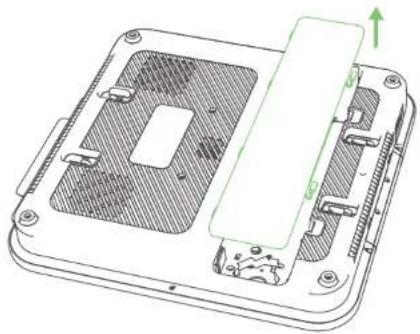
natural_image
Technical line drawing of a computer processor internal structure with no visible text or symbolsnatural_image
Technical line drawing of a mechanical assembly with no visible text or symbolsKO
natural_image
Technical line drawing of an electronic device casing with internal components and mounting holes (no text or symbols)M5
KO 194193
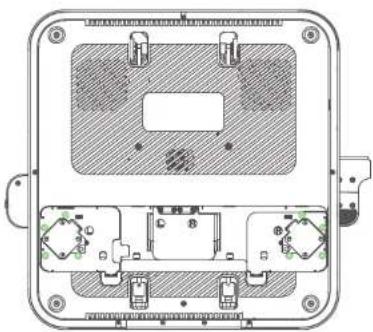
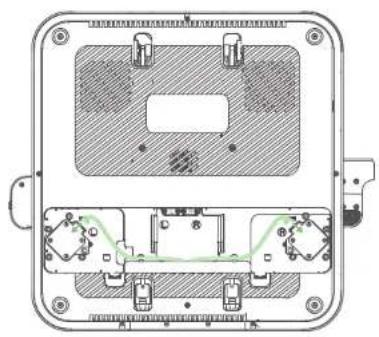
2 단계.케이블 연결하기
1.모터 와이어를 연결합니다.
natural_image
Technical diagram of an electrical enclosure showing internal components and wiring (no text or labels)KO
natural_image
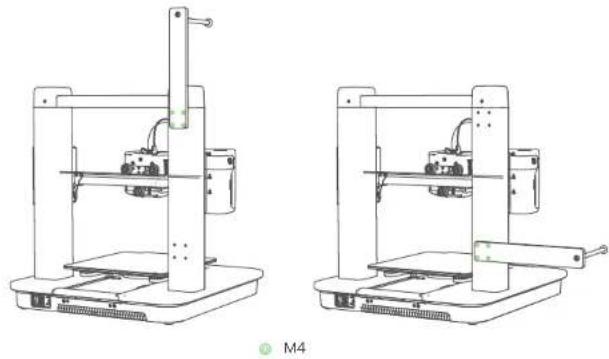
Technical line drawing of a mechanical component with internal structure and mounting holes (no text or symbols)3 단계. 필라멘트 홀더 설치하기
필라멘트 흔더를 나사로 고정합니다.
KO 198197
4 단계.전원에 연결하기
text_image
Diagram showing a hand inserting a component into a device with labeled parts ① and ②natural_image
Illustration of a handheld device next to a 3D printer with a control panel (no text or symbols visible)KO 200199
히트 베드 수평 맞추기
natural_image
Line drawing of a 3D printer setup with a hand interacting with the front panel (no text or symbols present)KO
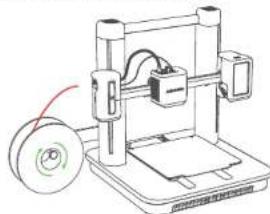
필라멘트 로드하기
- 필라멘트를 흩더에 놓습니다.
natural_image
Line drawing of a 3D printer with a spool and paper holder (no text or symbols)√
natural_image
Line drawing of a 3D printer with a spool attached, showing no text or symbols×
natural_image
Line drawing of hands connecting a cable to a mechanical component (no text or symbols)KO
natural_image
Line drawing of a 3D printer with spool and cable, no text or symbols presentKO 204203
AnkerMake Slicer 설치하기
natural_image
3D modeling software interface showing a white 3D object inside a wireframe cube with tool panels and control buttons (no readable text or symbols on the object itself)KO
안전사항
natural_image
Three technical line drawings of electrical components or devices, shown in separate dashed-line sections (no text or symbols)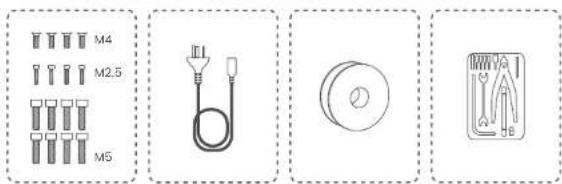
text_image
M4 M2.5 M5AR 208207
natural_image
Line drawing of an open and closed mechanical tool kit (no text or symbols)AR
natural_image
Line drawing of an open box containing mechanical components and a separate flat lid (no text or symbols)AR 210209
natural_image
Technical line drawing of a mechanical device with open and side views (no text or symbols)AR
natural_image
Technical line drawing of a mechanical assembly with two views showing internal components and a downward arrow indicating a transformation (no text or symbols present)AR 212211
natural_image
Technical line drawing of an electronic device with a central chip and surrounding components (no text or symbols)natural_image
Technical line drawing of a mechanical assembly with no visible text or symbolsAR 214213
natural_image
Technical diagram of an electronic device casing with internal components and mounting holes (no text or symbols)M5
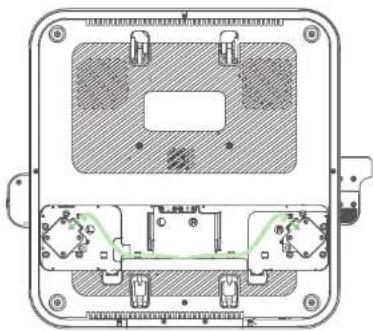
natural_image
Technical diagram of an electrical enclosure with internal components and mounting holes (no text or labels)AR
AR 216215
natural_image
Technical line drawing of a mechanical assembly with internal components and a green directional arrow (no text or symbols)AR 218217
natural_image
Technical line drawing of a 3D printer or printer assembly (no text or symbols visible)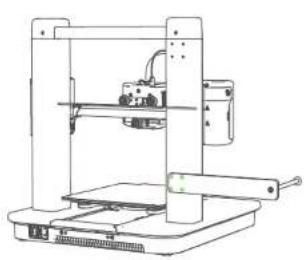
natural_image
Technical line drawing of a 3D printer or filing machine (no text or symbols visible)M4
الخبر 2-expير 1
AR
text_image
Diagram showing a hand inserting a component into a device with labeled parts ① and ②natural_image
Illustration of a smart device with a hand holding a smartphone and connected to a base station (no text or symbols visible)natural_image
Line drawing of a 3D printer with a hand operating the base panel (no text or symbols)AR
AR 222221
تحميل Chip
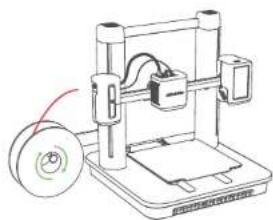
natural_image
Line drawing of a 3D printer with a spool attached, no text or symbols present√
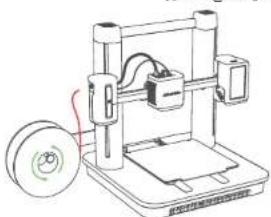
natural_image
Line drawing of a 3D printer with a spool and control panel (no text or symbols)×
natural_image
Line drawing of hands connecting a cable to a mechanical device (no text or symbols)AR 224223
natural_image
Line drawing of a 3D printer with spool and cable, no text or symbols presentnatural_image
3D modeling software interface showing a white object inside a wireframe cube with tool panels and no visible text or symbols on the object itself.AR 226225