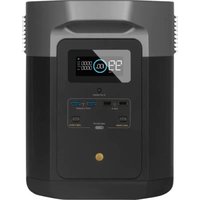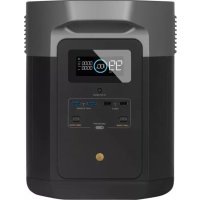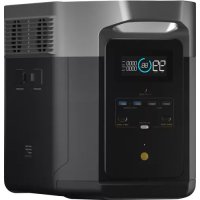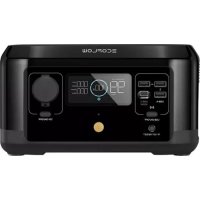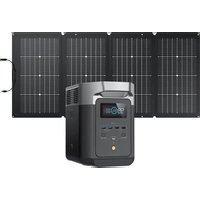
DELTA 2 P - Generator ECOFLOW - Free user manual and instructions
Find the device manual for free DELTA 2 P ECOFLOW in PDF.


| Product Type | Portable Power Station / Solar Generator |
| Brand | EcoFlow |
| Model | DELTA 2 P |
| Battery Capacity | 1,024 Wh (51.2 V) |
| Battery Type | Lithium Iron Phosphate (LFP) |
| Life Cycles | 3,000 cycles to 80% capacity |
| Net Weight | ≈ 12 kg |
| Dimensions | 400 × 211 × 281 mm |
| AC Output Power | 1,800 W (surge 2,700 W), 230 V~, 50/60 Hz |
| Maximum Power with X-Boost | 2,400 W |
| Output Ports | 4 × AC outlets, 2 × USB-A (12 W), 2 × USB-A fast (18 W), 2 × USB-C (100 W), 1 × cigarette lighter (126 W), 2 × DC5521 (38 W) |
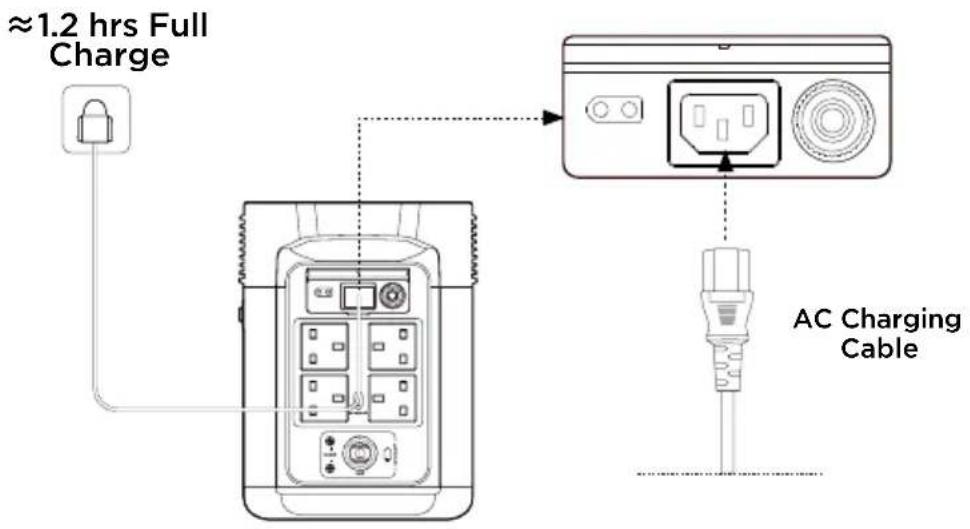
| AC Charging | X-Stream 1,200 W max, full charge in ~1.2 h |
| Solar Charging | 11-60 V, 15 A max, 500 W max |
| Car Charging | 12 V/24 V, 8 A default |
| Connectivity | Wi-Fi and Bluetooth (EcoFlow app) |
| Emergency Power Supply (EPS) | Switchover < 30 ms (does not replace a UPS) |
| Operating Temperature | Discharge: -10 °C to 45 °C; Charge: 0 °C to 45 °C |
| Storage | -10 °C to 45 °C (optimal 20-30 °C) |
| Maintenance and Cleaning | Wipe with a dry, soft, clean cloth |
| Repairability | Original parts available, contact EcoFlow customer service |
| Warranty | Warranty card included (see terms on official website) |
Frequently Asked Questions - DELTA 2 P ECOFLOW
User questions about DELTA 2 P ECOFLOW
0 question about this device. Answer the ones you know or ask your own.
Ask a new question about this device
Download the instructions for your Generator in PDF format for free! Find your manual DELTA 2 P - ECOFLOW and take your electronic device back in hand. On this page are published all the documents necessary for the use of your device. DELTA 2 P by ECOFLOW.
USER MANUAL DELTA 2 P ECOFLOW
Read all safety tips, warning messages, terms of use, and disclaimers carefully. Refer to the terms of use and disclaimer at https://ecoflow.com/pages/terms-of-use and stickers on the product before use. Users take full responsibility for all usage and operations. Familiarize yourself with the related regulations in your area. You are solely responsible for being aware of all relevant regulations and using EcoFlow products in a way that is compliant.
- Specifications 1
2. Safety Instructions
2.1 Usage 3
2.2 Disposal Guide 4
3. Getting Started
3.1 Product Details 5
3.2 LCD Screen 7
3.3 General Product Usage 7
3.4 AC Charging 9
3.5 Solar Charging 9
3.6 Car Charging 10
3.7 Using Smart Extra Battery 10
3.8 APP 11
3.9 X-Boost 11
3.10 Emergency Power Supply (EPS) 11
- FAQs 12
- Troubleshooting 13
- What's In the Box 14
- Storage & Maintenance 14
1. Specifications
General Info
| Net Weight | Approximately 12kg (27lbs) |
| Dimensions | 400x211x281mm (15.7x8.3x11.1in) |
| Capacity | 1024Wh, 51.2V— |
| Wi-Fi | Supported |
| Bluetooth | Supported |
Output Ports
| AC (x4) | Pure Sine Wave, 1800W total (surge 2700W), 230V~ (50Hz/60Hz) |
| Max Device(s) Power Supported by X-Boost | 2400W |
| USB-A (x2) | 5V=2.4A, 12W Max per port, total 24W |
| USB-A Fast Charge (x2) | 5V=2.4A 9V=2A 12V=1.5A, 18W Max per port, total 36W |
| USB-C (x2) | 5/9/12/15/20V=5A, 100W Max per port, total 200W |
| Car Charger | 12.6V=10A, 126W Max |
| DC5521 Output (x2) | 12.6V=3A, 38W Max per port |
* A car charger shares power with the DC5521 output port, offering a maximum output of 126W.
Input Ports
| AC Charging | X-Stream Fast Charge 1200W max |
| AC Input Voltage | 220-240V~ 10A, 50Hz/60Hz |
| Solar Charging | 11-60V ≡ 15A Max, 500W Max |
| Car Charging | Supports 12V/24V Battery, Default 8A |
Battery Info
| Cell Chemistry | LFP |
| Cycle Life | 3000 cycles to 80%+ capacity |
| Protection | Over Voltage Protection, Overload Protection, Over Temperature Protection, Short Circuit Protection, Low Temperature Protection, Low Voltage Protection, Overcurrent Protection |
Environmental Operating Temperature
| Optimal Operating Temperature | 20°C ~ 30°C (68°F ~ 86°F) |
| Discharge Temperature | -10°C ~ 45°C (14°F ~ 113°F) |
| Charge Temperature | 0°C ~ 45°C (32°F ~ 113°F) |
| Storage Temperature | -10°C ~ 45°C (14°F ~ 113°F)(optimal: 20°C ~ 30°C (68°F ~ 86°F)) |
* Whether the product can be charged or discharged depends on the actual temperature of the battery pack.
Add-ons
| Smart Extra Battery | Supported (sold separately) |
| Smart Generator | Supported (sold separately) |
2. Safety Instructions
2.1 Usage
- Do not use the product near a heat source, such as a fire source or a heating furnace.
- Avoid contact with liquids of any kind. Do not use in the rain or high humidity.
- Do not use around strong static electricity or magnetic fields.
- Do not disassemble in any way or puncture.
- Avoid using wires or other metal objects that may result in a short circuit.
- Do not use third-party components or accessories. Consult official EcoFlow channels if you need to replace any component or accessory.
- When using the product, please strictly follow the operating environment temperature specified in this user manual. If the temperature is too high, it may result in a fire or explosion; if the temperature is too low, the product performance may be severely reduced, or the product may cease to work.
- Do not stack any heavy objects on the product.
- Do not lock the fan forcibly during use or place the product in an unventilated or dusty area.
- Ensure the product is not hit, dropped, or heavily vibrated. Securely fasten the product when transporting to avoid damage. If severely damaged, turn off the power source immediately and discontinue using the product.
- If you accidentally drop the product into water during use, please place it in a safe open area, and stay away from it until it is completely dry. The dried product should not be used again, and should be properly disposed of according to Section 2.2 below. If the product catches fire, we recommend that you use the fire extinguishers in the following order: water or water mist, sand, fire blanket, dry powder, and finally a carbon dioxide fire extinguisher.
- Only clean the ports with a dry cloth.
- Place on a flat surface to keep the product from falling over. If the product is overturned and severely damaged, turn it off immediately, place the battery in an open area, keep it away from people and combustibles, and dispose of it in accordance with local laws and regulations
- Keep out of reach of children and pets.
- Store the product in a dry and ventilated place.
- It is recommended to use moisture barrier bags in wet environments (for example, places by the sea or waterways) to prevent the product from getting soaked. If water is found inside the product, it must not be used or turned on again. Please take anti-electric shock measures before touching the product. Following this, place the product in a safe, waterproof and open area. Once complete contact EcoFlow Customer Service immediately.
-
This product is not recommended for powering medical emergency equipment related to personal safety, including but not limited to medical grade ventilators (hospital version CPAP: Continuous Positive Airway Pressure), artificial lungs (ECMO, Extracorporeal Membrane Please follow your doctor's instructions and consult with the manufacturer for restrictions on the use of the equipment. If used for general medical equipment, please be sure to monitor the power status to ensure that the power does not run out.
-
When in use, power supply products will generate electromagnetic fields, which are likely to affect the normal operation of medical implants or personal medical equipment such as pacemakers, cochlear implants, hearing aids, defibrillators etc. If these types of medical equipment are being used, please contact the manufacturer to inquire about any restrictions on the use of such equipment. These measure are fundamental to ensure a safe distance between the medical implants (for example, pacemakers, cochlear implants, hearing aids, defibrillators etc.) and this product while in use.
- When the power supply is connected in normal mode to a refrigerator, power fluctuations may cause the power supply to automatically shut down. When connecting the power supply to a refrigerator that stores medicine, vaccines or other valuable items, it is recommended to set the AC output to "Always on" in the app. This helps support a continuous power supply and ensures a safe and efficient power consumption state.
2.2 Disposal Guide
- If conditions permit, make sure that the battery is fully discharged before disposing it in a designated battery recycling bin. The product contains batteries with potentially dangerous chemicals, so it is strictly prohibited to dispose of it in ordinary trash cans. For more details, please follow the local laws and regulations on battery recycling and disposal.
- If the battery cannot be fully discharged due to a product failure, please do not dispose of the battery directly in the battery recycling box. In such case, you should contact a professional battery recycling company for further processing.
- Please dispose of over-discharged batteries that cannot be recharged.
3. Getting Started
3.1 Product Details
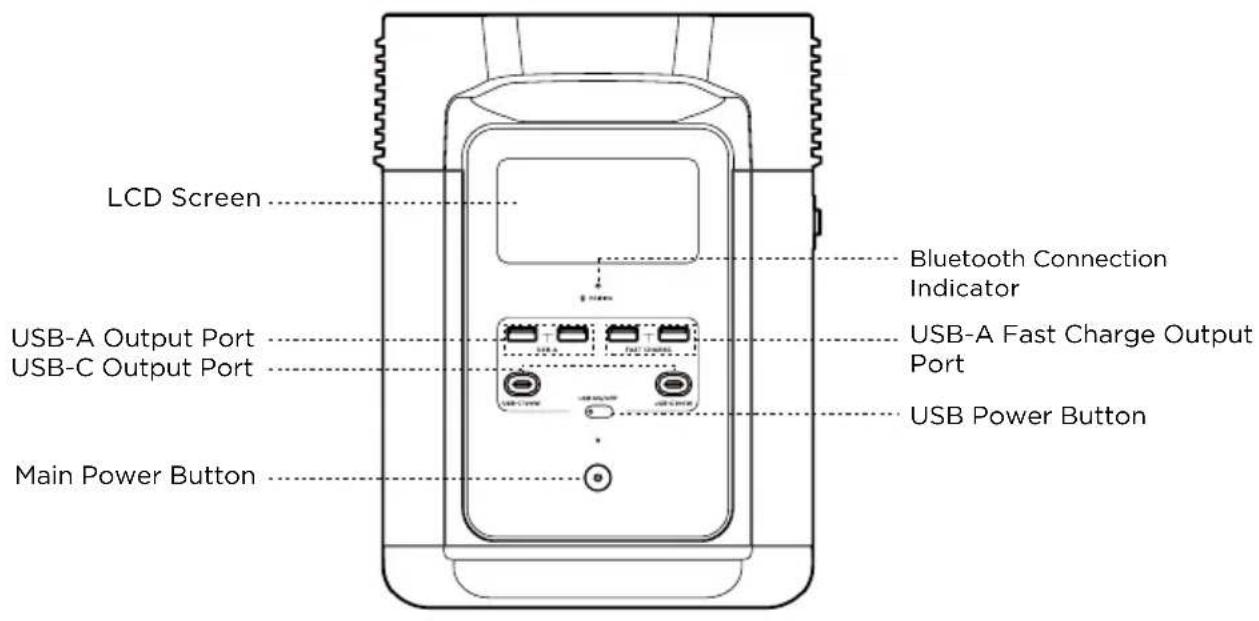
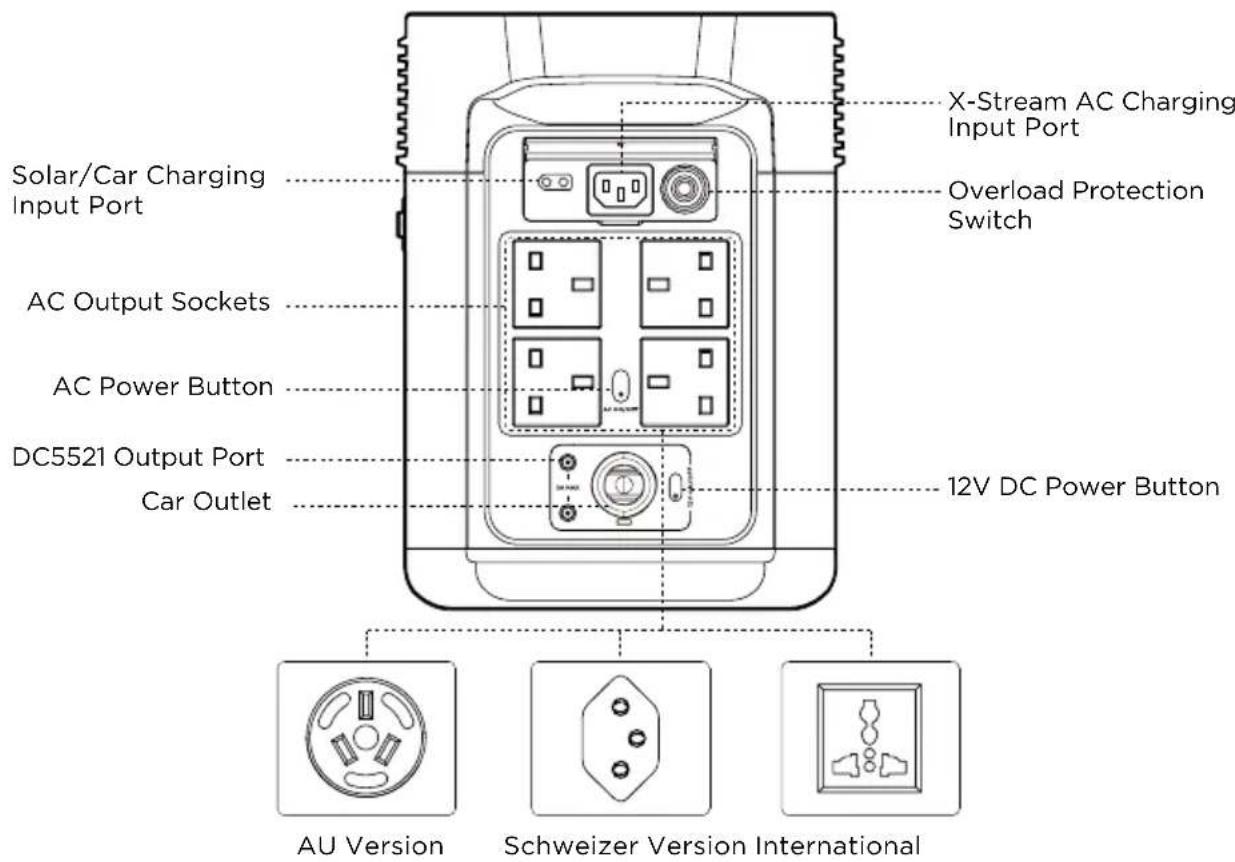
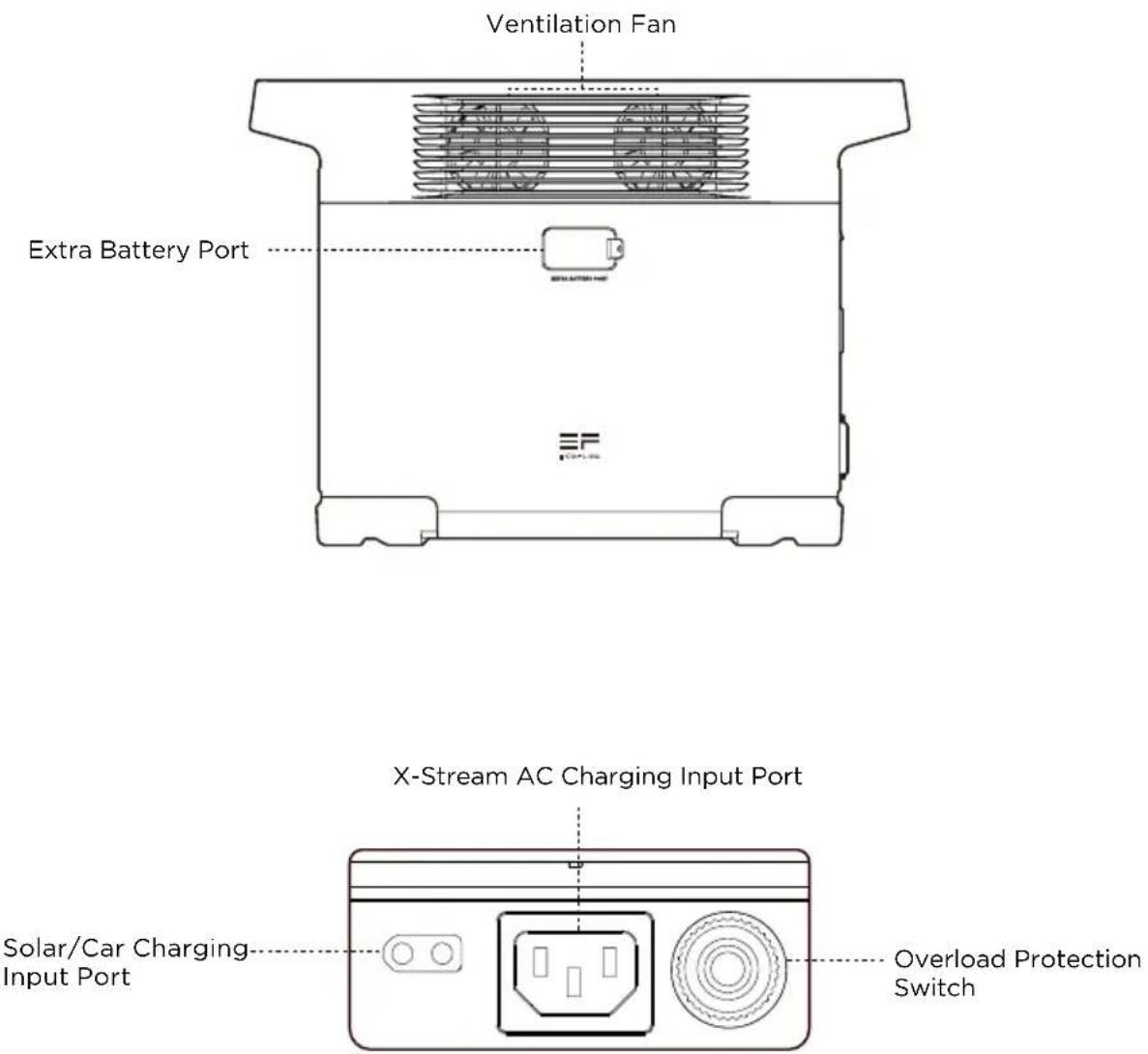
Note: The above figure shows the different types of sockets in different countries. It is for reference only, please refer to the actual product.
3.2 LCD Screen
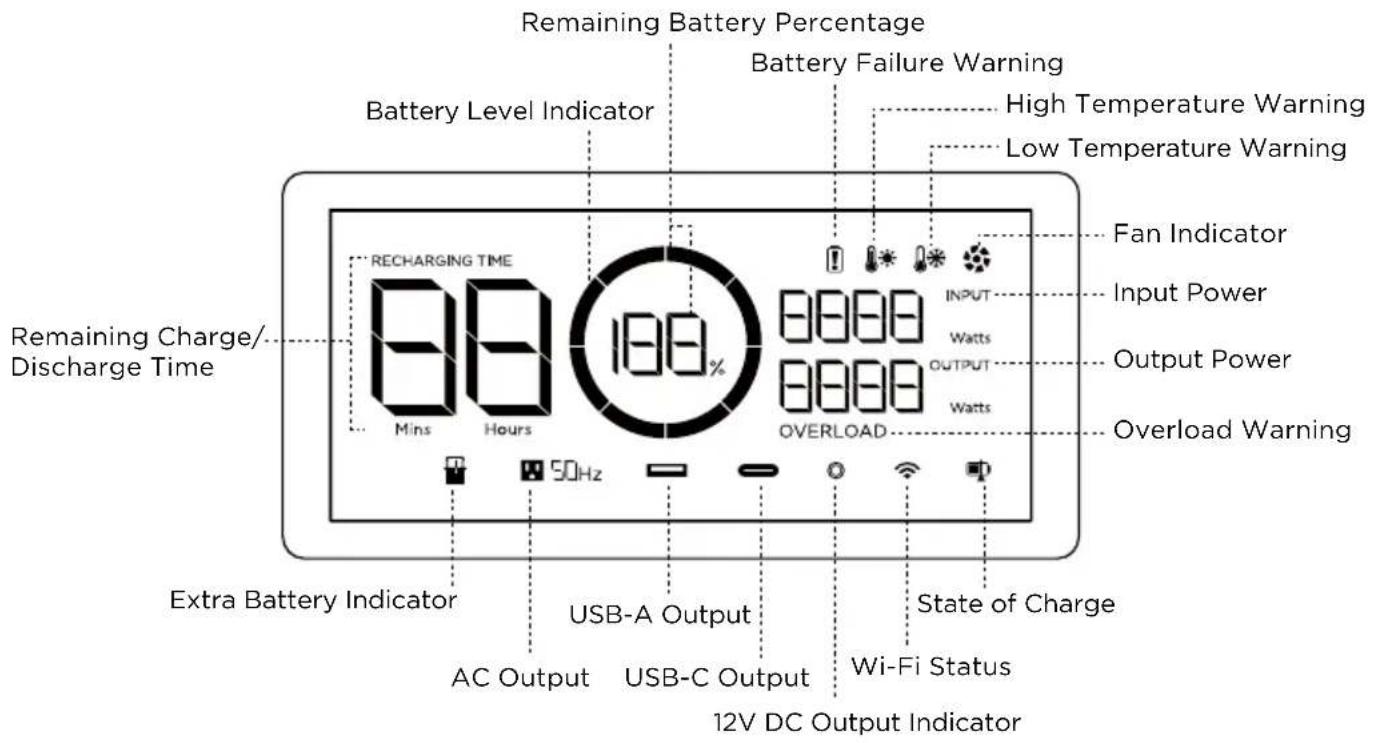
Battery Level Indicator: The indicator will repeatedly fill while charging. If product is at 0% charge, the indicator will flash to warn you.
WI-FI Status: The devices that support Bluetooth connection will be connected to the App directly or to the Internet after the the network connection process is completed. If it is successfully connected to the Internet, the icon will stay on.
* See Section 5 for more troubleshooting steps.
3.3 General Product Usage
natural_image
Line drawing of a portable electronic device with control panel and indicator lights (no text or symbols)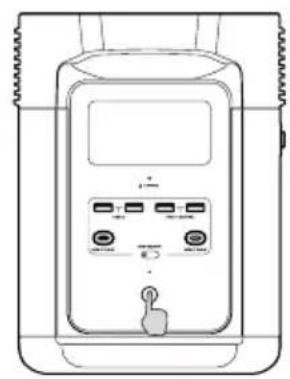
natural_image
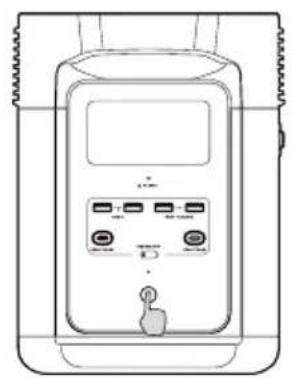
Line drawing of a portable electronic device with control panel and indicator lights (no text or symbols)Short Press to Turn On Long Press to Turn Off
Product On, Product Off, LCD Screen On
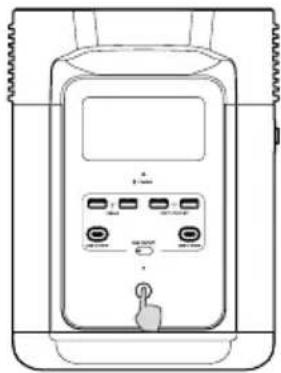
Short press the Main Power Button to turn on the product; the LCD Screen will light up and the battery level indicator icon will display.
The product enters sleep mode after 5 minutes of idle operation; the LCD Screen will automatically turn off. When the product senses any load change or operations, the LCD Screen will automatically light up. To turn the LCD Screen on or off, please short press the Main Power Button.
To power off the product, press and hold the Main Power Button.
The default product standby time is 2 hours. With other Power Buttons turned off and no other load access for 2 hours, the product will automatically shut down. The standby time can be set on the App.
USB Output Port
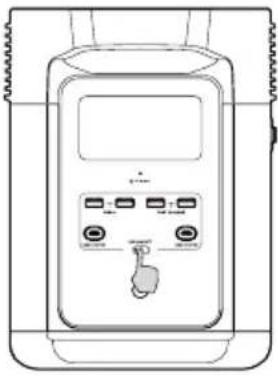
With the Main Power Button turned on, short press the USB Power Button to use the USB Output Port. Short press the USB Power Button again to turn it off.
With the USB Power Button on, the product will not automatically shut down.
natural_image
Line drawing of a handheld electronic device with control panel and buttons (no text or symbols)Short Press USB Power Button
12V DC Output Port
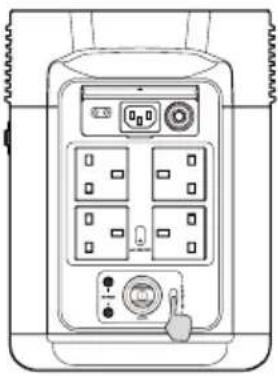
With the Main Power Button turned on, short press the 12V DC Power Button to use the 12V DC Output port. Short press the 12V DC Power Button again to turn it off.
With the 12V DC Power Button on, the product will not automatically shut down.
natural_image
Technical line drawing of a device control panel with buttons and indicator lights (no text or symbols)Short Press 12V DC Power Button
AC Output Port
With the Main Power Button turned on, short press the AC Power Button to use the AC Output ports. Short press the AC Power Button again to turn it off.
The default standby time of the AC Output port is 12 hours. Without any load access for 12 hours, the AC Power will automatically turn off.
Please turn off AC power button when not in use to save power consumption.

natural_image
Line drawing of a device front panel with control buttons and indicator lights (no text or symbols)Short Press AC Power Button
3.4 AC Charging
EcoFlow's X-Stream fast charge technology is specifically designed for AC charging. The AC charging speed can be adjusted via the EcoFlow app. In case of unusual situations where the AC input current remains higher than 20A, the X-Stream charging input port will initiate a self-protection function, and the Overload Protection Switch on the product will automatically pop up. After confirming that there is no product failure, you can press the Overload Protection Switch to resume charging.
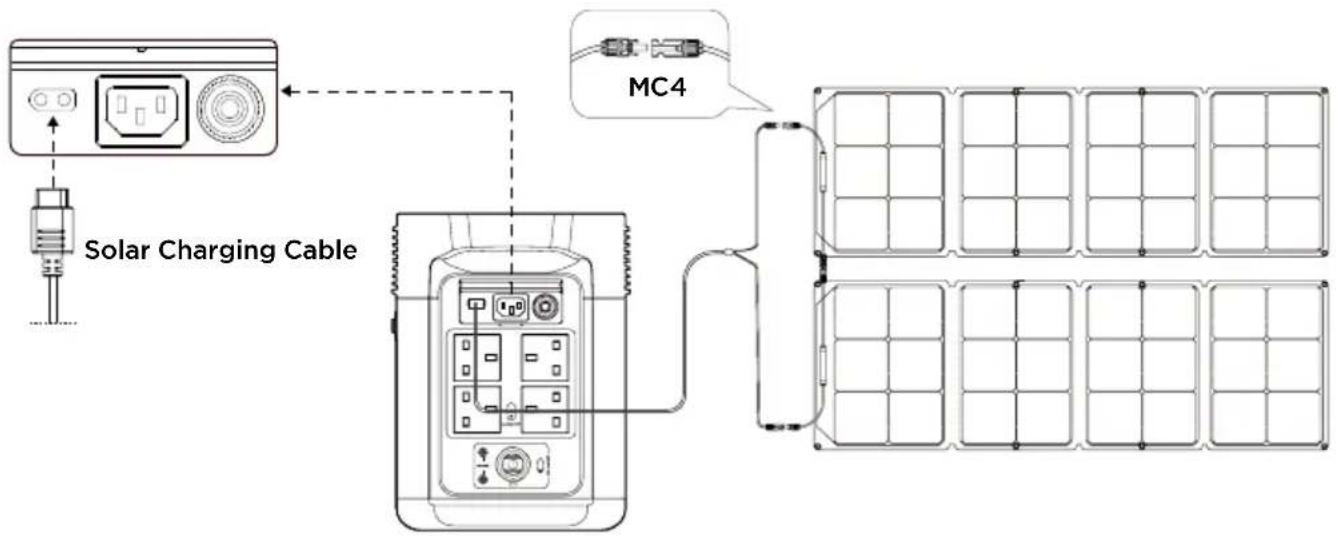
3.5 Solar Charging
Users can connect solar panels in series as shown in the figure to recharge the product.
flowchart
graph TD
    A["Solar Charging Cable"] --> B["MC4"]
    B --> C["Grid Array"]
    D["PC"] --> E["Switch"]
    F["AC"] --> G["Switch"]
    H["Ground"] --> I["Switch"]
*Solar charging cable (MC4-XT60 adapter cable) is supplied separately. When using an EcoFlow solar panel to charge the product, please follow the instructions that come with the solar panel. Before connecting the solar panel, please ensure that the solar panel's output voltage is within 60V to avoid product damages.
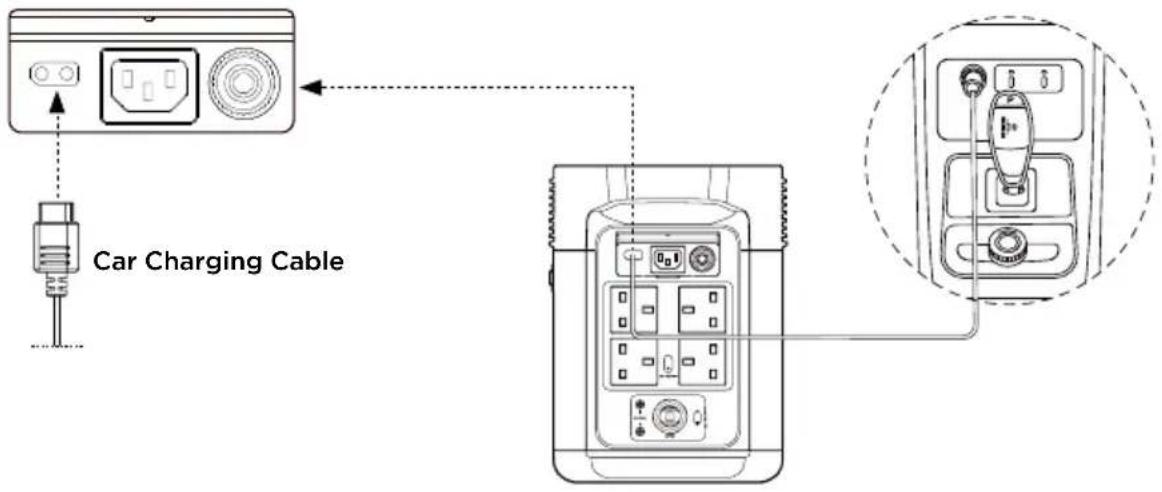
3.6 Car Charging
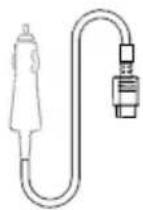
Please charge using the car charger after you've started the car to avoid failure to start due to insufficient car battery. In addition, please make sure that Car Charging Input Port and the Car Charging Cable are in good condition. EcoFlow takes no responsibilities for any losses or damages caused by failures to follow instructions.
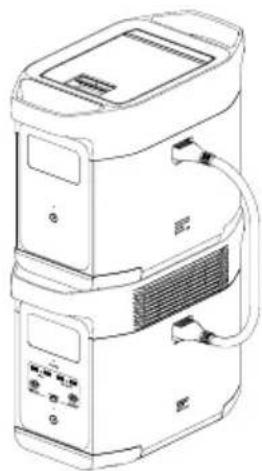
3.7 Using Smart Extra Battery
This product can be connected to a maximum of one power pack to meet the needs of larger capacity. Please refer to the user manuals of DELTA 2 Smart Extra Battery and Smart Generator for Detailed instructions.
Extra Battery, please follow the instructions below:
- Before connecting the product to a Smart Extra Battery, please make sure that both the product and the Smart Extra Battery are turned off.
- After connecting the product to a Smart Extra Battery, please make sure that both of their LCD screens display an extra battery icon before using it.
- Do not directly connect or remove the Smart Extra Battery during charging and discharging processes. If you need to connect or remove it midway, please turn off the product first.
- Do not touch the metal terminals of the Smart Extra Battery connector with your hands or other objects. If foreign objects adhere to the metal terminals, please gently wipe them with a dry cloth.
natural_image
Line drawing of a multi-tiered electronic device with control panel and ventilation slots (no text or symbols)3.8 APP
Control, monitor and customize your portable power station from afar with the EcoFlow App. Download at: https://download.ecoflow.com/app
Privacy Policy
By using EcoFlow Products, Applications and Services, you consent to the EcoFlow Term of Use and Privacy Policy, which you can access via the "About" section of the "User" page on the EcoFlow App or on the official EcoFlow website at https://www.ecoflow.com/policy/terms-of-use and https://www.ecoflow.com/policy/privacy-policy

EcoFlow app
3.9 X-Boost
To avoid operation failure due to overload protection, the X-Boost feature will be automatically enabled when the total output exceeds the rated output power, which enables the product to power high wattage appliances at the rated output power.
X-Boost Tips:
- X-Boost is enabled by default; you can enable or disable it in the EcoFlow App.
- X-Boost is not available when the AC output is turned on in a recharging state (in bypass mode) and when X-Boost is disabled.
- X-Boost is not applicable for all electrical appliances; it's incompatible with appliances with strict voltage requirements. Appliances with voltage protection (such as precise instruments) are not supported. X-Boost mode is more suitable for heating devices. Please conduct your own tests with your devices with X-Boost enabled.
3.10 Emergency Power Supply (EPS)
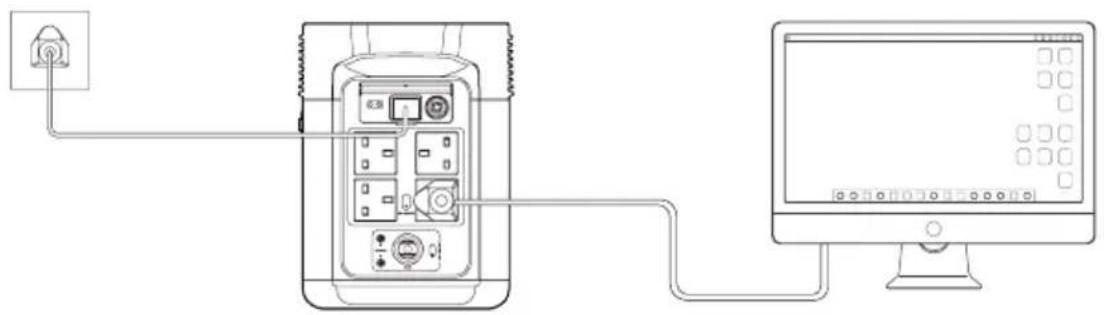
The product supports EPS. When you connect the grid power to the AC Input Port of the product through an AC Charging cable, you can power electrical devices through the AC Output Sockets (AC power will come from the grid and not the power station in this situation). In case of a sudden blackout, the product can automatically switch to the battery powered supply mode within 30ms. As a basic UPS function, this function does not support Oms switching. Please do not connect the product to any device that requires Oms UPS, such as data servers and workstations. Please test and confirm the compatibility before using the product. We recommend that you only charge one device at a time and avoid using multiple ones at the same time to avoid overload protection. EcoFlow takes no responsibilities for any device failures or data losses caused by failures to follow instructions.
4. FAQs
- What battery does the product use?
It uses high-quality LFP battery.
- What devices can the product's AC output port power?
With high rated power and peak power, the product's AC output port can power most household appliances. Before you use it, we recommend that you confirm the power of the appliances first and ensure the power sum of all loaded appliances is lower than the rated power.
- How long can the product charge my devices?
The charging time is shown on the product's LCD Screen, which can be used to estimate the charging time of most appliances with stable power usage.
- How can I know if the product is charging?
When it's charging, the remaining charging time will be shown on the LCD Screen. Meanwhile, the charging indicator icon begins to rotate with the remaining battery percentage and the input power shown on the right of the circle.
- How to clean the product?
Please gently wipe it with a dry, soft, clean cloth or paper towel.
- How to store the product?
Before storing, please turn off the product first, and then store it in a dry, ventilated place at room temperature. Do not place it near water sources. For long-term storage, please discharge the battery to 30% and recharge it to 60% every three months to extend its battery life.
- Can I bring the product on a plane?
No.
5. Troubleshooting
| Indicator Problem | Solution | |||
 | OVERLOAD | Icons Flash together | USB-A Overload Protection | Resume normal operation by removing the electrical device connected to the USB-A port. |
 | OVERLOAD | Icons Flash together | USB-C Overload Protection | Resume normal operation by removing the electrical device connected to the USB-C port. |
 | RGING TIME | Icons Flash together | High Temperature Charge Protection | Charging can be resumed automatically after the battery cools down. |
 | Icons Flash together | High Temperature Discharge Protection | The power supply can be resumed automatically after the battery cools down. | |
| RECHARGING TIME | Icons Flash together | Low Temperature Charge Protection | Charging can be resumed automatically after battery temperature rises above 41°F(5 °C). | |
| Icons Flash together | Low Temperature Discharge Protection | The power supply can be resumed automatically after the battery temperature rises above 10°F(-12 °C). | ||
| OV | Icons Flash together | AC Output Overload Protection | Normal operation will be resumed automatically after you remove the overloaded device and restart the product.Electrical appliances should be used within rated power.(Refer to X-Boost instructions to get more details about power limitations). | |
| SOHz | Icons Flash together | AC High Temperature Protection | Please confirm whether the fan inlet and outlet are blocked, if not, normal operation will be resumed automatically after the product temperature drops. | |
| SOHz | Icons Flash together | AC Low Temperature Protection | Normal operation will be resumed automatically after the product is used at optimum environmental temperatures. | |
| Icon Flashes | Fan Blockage | Please check if the fan is blocked by foreign materials. | ||
| OVERLOAD | Icons Flash together | Car Charger Overload Protection | The product will resume normal operation automatically after you remove the device connected to the car charger. | |
| Icons Flash together | Car Charger High Temperature Protection | After the product cools down, it will resume normal operation automatically. | ||
| Icon Stays On | Battery Failure | Contact EcoFlow Customer Service | ||
If the Alarm Prompt shows on the product LCD screen during use and does not disappear after a restart, please stop using it immediately (do not try to charge or discharge).
If you require any other assistance, please contact EcoFlow Customer Service.
6. What's In the Box
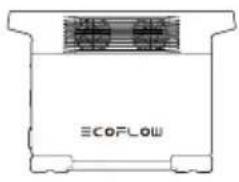
natural_image
Simple line drawing of a container with a side panel and label 'ECOFLOW' (no other text or symbols)DELTA 2
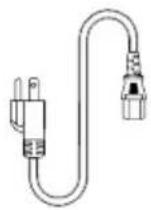
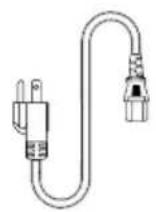
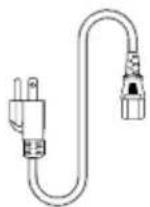
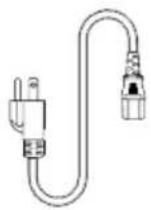
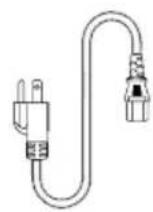
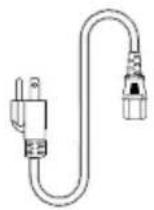
AC Charging Cable
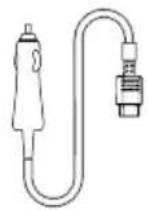
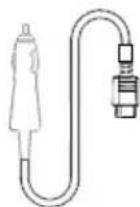
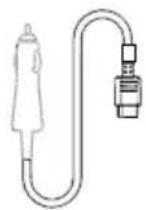
Car Charging Cable
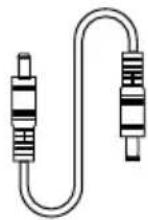
DC5521 to DC5525 Cable
User Manual & Warranty Card
7. Storage & Maintenance
- Ideally, use and store the product between 20^ C \~ 30^ C ( 68^ F \~ 86^ F), and always keep it away from water, intense heat, and sharp objects. Do not store in temperatures above 45^ C ( 113^ F) or below -10^ C ( 14^ F) for an extended period.
- Storing a battery with a low charge for a long period shortens its lifespan. DELTA 2 mitigates the damage by putting the battery into hibernation mode. To get the most out of the battery, make sure it is about 60% before putting DELTA 2 into long-term storage, and then once every three months, discharge the battery to 30% and recharge it back to 60% .
ECOFLOW
natural_image
Line drawing of a portable electronic device with control panel and indicator lights (no text or symbols)natural_image
Line drawing of a portable electronic device with control panel and indicator lights (no text or symbols)natural_image
Line drawing of a medical device with control panel and buttons (no text or symbols)natural_image
Line drawing of a device front panel with four circular buttons and a hand pointing to the button (no text or symbols)natural_image
Line drawing of a portable electronic device with four buttons and a central display (no text or symbols)natural_image
Line drawing of a dual-tiered electronic device with control panel and display (no text or symbols)3.8 App
EcoFlow-App
3.9 X-Boost
4. FAQ-Bereich
natural_image
Simple line drawing of a container with a fan and label 'ECOFLOW' (no other text or symbols)DELTA 2 DC5521-zu-DC5525-Kabel
natural_image
Line drawing of a device front panel with buttons and a hand cursor (no text or symbols)natural_image
Line drawing of a device with ports and a button, no text or symbols presentnatural_image
Line drawing of a handheld electronic device with control panel and buttons (no text or symbols)natural_image
Line drawing of a portable electronic device with four buttons and a control panel (no text or symbols)natural_image
Line drawing of a control panel with four buttons and a digital display (no text or symbols)natural_image
Line drawing of a dual-tiered electronic device with control panel and ventilation slots (no text or symbols)3.8 Application
Application EcoFlow
3.9 Technologie X-Boost
4. Foire aux questions
natural_image
Simple line drawing of a container with a fan and label 'ECOFLow' (no other text or symbols)DELTA 2
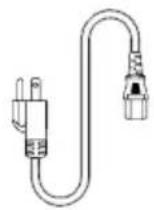
Câble de charge CA
natural_image
Line drawing of a handheld electronic device with control buttons and a dial (no text or symbols)natural_image
Line drawing of a portable electronic device with control panel and buttons (no text or symbols)3.8 APP
https://download.ecoflow.com/app
App EcoFlow
3.9 X-Boost
natural_image
Line drawing of a device connected to a computer monitor, showing wiring and power outlet (no text or symbols)4. DOMANDE FREQUENTI
natural_image
Simple line drawing of a container with a fan and label 'ECOFLOW' (no other text or symbols)DELTA 2
natural_image
Line drawing of a medical device with buttons and a finger pressing the button (no text or symbols)natural_image
Line drawing of a handheld electronic device with control panel and indicator lights (no text or symbols)natural_image
Line drawing of a portable electronic device with control panel and buttons (no text or symbols)Pulsar interruptor USB
natural_image
Line drawing of a portable electronic device with four rotary buttons and a control panel (no text or symbols)natural_image
Line drawing of a multi-tiered electronic device with control panel and ventilation slots (no text or symbols)3.8 Aplicación
Aplicación EcoFlow
3.9 X-Boost
natural_image
Simple line drawing of a container with two fans and the text 'ECOFLOW' at the bottom (no other text or symbols)DELTA 2 Cable DC552ableDc65525ga de CA
natural_image
Line drawing of a handheld electronic device with control panel and indicator lights (no text or symbols)natural_image
Line drawing of a handheld electronic device with control panel and indicator lights (no text or symbols)natural_image
Line drawing of a handheld electronic device with control buttons and a finger pointing to the left side (no text or symbols)natural_image
Line drawing of a control panel with four buttons and a central display (no text or symbols)natural_image
Line drawing of a dual-tiered electronic device with control panel and ventilation slots (no text or symbols)3.8 APP
Downloaden op: https://download.ecoflow.com/app
Privacybeleid
EcoFlow-app
3.9 X-Boost
3.10 Noodvoeding (Emergency Power Supply/EPS)
natural_image
Line drawing of a device connected to a computer monitor, showing wiring and power outlet (no text or symbols)natural_image
Simple line drawing of a container with two fans and the text 'ECOFLOW' at the bottom (no other text or symbols)DELTA 2 Kabel DC552Cnapra0655251
natural_image
Line drawing of a handheld electronic device with control panel and buttons (no text or symbols)natural_image
Line drawing of a handheld electronic device with control panel and indicator lights (no text or symbols)natural_image
Line drawing of a handheld electronic device with control buttons and a dial (no text or symbols)natural_image
Line drawing of a multi-tiered industrial machine with control panel and ventilation slots (no text or symbols)Приложение EcoFlow
3.9 X-Boost
natural_image
Line drawing of a handheld electronic device with control buttons and a finger pointing to the button (no text or symbols)短按啟動
natural_image
Line drawing of a portable electronic device with control buttons and a digital display (no text or symbols)長按關閉
產品啟動、關閉及LCD顯示器亮起
natural_image
Line drawing of a handheld electronic device with control buttons and a dial (no text or symbols)短按USB輸出電源開關
12V 直流輸出端口
短按 12V 直流電源開關
交流輸出端口
短按交流電源開關
3.4 交流充電
natural_image
Line drawing of a multi-tiered electronic device with control panel and display (no text or symbols)3.8 應用程式
下載網址:https://download.ecoflow.com/app
私隱政策
EcoFlow應用程式
3.9 X-Boost
natural_image
Line drawing of a device connected to a computer monitor via cable (no text or symbols present)4. 常見問題
- 產品使用甚麼電池?
產品使用高品質 LFP 電池。
- 交流輸出端口可為哪些裝置供電?
natural_image
Simple line drawing of a container with a labeled side panel (ECOFLOW), no text or symbols present.DELTA 2