Chauvet Maverick MK2 Profile - Light projector

Maverick MK2 Profile - Light projector Chauvet - Free user manual and instructions

Find the device manual for free Maverick MK2 Profile Chauvet in PDF.

📄 224 pages English EN Download 💬 AI Question
Notice Chauvet Maverick MK2 Profile - page 17
View the manual : Français FR Deutsch DE English EN Español ES Nederlands NL
Pick your language and provide your email: we'll send you a specifically translated version.

User questions about Maverick MK2 Profile Chauvet

0 question about this device. Answer the ones you know or ask your own.

Ask a new question about this device

The email remains private: it is only used to notify you if someone responds to your question.

No questions yet. Be the first to ask one.

Download the instructions for your Light projector in PDF format for free! Find your manual Maverick MK2 Profile - Chauvet and take your electronic device back in hand. On this page are published all the documents necessary for the use of your device. Maverick MK2 Profile by Chauvet.

USER MANUAL Maverick MK2 Profile Chauvet

natural_image Technical line drawing of a mechanical device with labeled components (no readable text or symbols)

EDITION NOTES

The Maverick MK2 Profile User Manual includes a description, safety precautions, installation, programming, operation, and maintenance instructions for the Maverick MK2 Profile as of the release date of this edition.

Trademarks

CHAUVET, the Chauvet logo, and Maverick MK2 Profile are registered trademarks or trademarks of Chauvet & Sons, LLC (d/b/a Chauvet and Chauvet Lighting) in the United States and other countries. Other company and product names and logos referred to herein may be trademarks of their respective companies.

The works of authorship contained in this manual, including, but not limited to, all designs, texts, and images are owned by Chauvet.

© Copyright 2019 Chauvet & Sons, LLC. All rights reserved.

Electronically published by Chauvet in the United States of America.

Manual Use

Chauvet authorizes its customers to download and print this manual for professional information purposes only. Chauvet expressly prohibits the usage, copy, storage, distribution, modification, or printing of this manual or its content for any other purpose without written consent from Chauvet.

Document Printing

For best results, print this document in color, on letter size paper (8.5 x 11 in), double-sided. If using A4 paper (210 x 297 mm), configure the printer to scale the content accordingly.

Intended Audience

Any person installing, operating, and/or maintaining this product should completely read through the guide that shipped with the product, and this manual, before installing, operating, or maintaining this product.

Disclaimer

Chauvet believes that the information contained in this manual is accurate in all respects. However, Chauvet assumes no responsibility and specifically disclaims any and all liability to any party for any loss, damage or disruption caused by any errors or omissions in this document, whether such errors or omissions result from negligence, accident or any other cause. Chauvet reserves the right to revise the content of this document without any obligation to notify any person or company of such revision, however, Chauvet has no obligation to make, and does not commit to make, any such revisions. Download the latest version from www.chauvetprofessional.com.

RF Exposure Warning for North America and Australia

Warning! This equipment complies with FCC radiation exposure limits set forth for an uncontrolled environment. This equipment should be installed and operated with a minimum distance of 20 cm between the radiator and your body. This transmitter must not be co-located or operating in conjunction with any other antenna or transmitter.

Document Revision

This Maverick MK2 Profile User Manual is the 3 ^rd edition of this document. Go to www.chauvetprofessional.com for the latest version.

NOTAS DE LA EDICIÓN

Safety Notes.... 2
Personal Safety.... 2
Mounting and Rigging.... 2
Power and Wiring.... 2
Operation.... 2

2. Introduction.... 3

Description 3 Features 3

Product Overview 3

Product Dimensions 4

3. Setup.... 5

AC Power....5 AC Plug....5 Fuse Replacement....5

Mounting....6
Orientation....6
Rigging....6
Mounting diagram....6

DMX Linking....7
DMX Personalities....7
Remote Device Management (RDM)....7

Signal Connection....7
Art-NetTM Connection....7
sACN Connection....7
Connection diagram....7

4. Operation.... 9

Touchscreen Control Panel....9 Control Panel Operation....9 Battery-Powered Display....9

Menu Map 10

Operating Settings Configuration.... 15 Home Screen.... 15 Start Address.... 15

Network Setup.... 15 IP mode.... 15 Universe.... 15 IP address.... 16

Personality....16 Settings....17

Control mode 17

Pan/tilt orientation 17

Display orientation 17

Pan/tilt angle range 17

Blackout on pan/tilt movement.... 18

Blackout on color movement.... 18

Blackout on gobo movement 18

Touchscreen calibration.... 18

Touchscreen lock 18

Lock screen.... 19

Swap pan and tilt 19

Pan/tilt speed 19

WDMX reset.... 19

Backlight timer 19

Loss of data 20

Fan speed 20

Dimmer curve.... 20

Dimmer speed.... 20

Pulse Width Modulation 20

Smart zoom.... 20

Beam correction.... 21

Preset select 21

Preset sync 21

Reset functions 21

Factory reset 22

Test Mode 22

Auto test 22

Manual test 22

System Information 22

DMX Values 23

50Ch 23

33Ch.... 27

Color Wheel 30

Gobo Designs 30

Gobo Dimension Chart.... 30

Gobo Replacement 31

Procedure.... 31

Offset Mode 32

Web Server 35

  1. Maintenance.... 36

Product Maintenance 36

  1. Technical Specifications.... 37

Photometrics Chart 38

Returns.... 39

Contact Us.... 40

ÍNDICE

Remote Device Management (RDM) 47

Remote Device Management.... 88

Signal Connections 88

Art-Net™ Connection 88

sACN Connection.... 88

Signalanschlüsse 131

Remote Device Management (RDM) 173

Signaalverbindingen.... 173

Art-Net ^™ -verbindingen 173

sACN-verbindingen 173

Verbindingsdiagram 173

4. Werking 174

Aanraakscherm-bedieningspaneel.... 174

Neem contact Op....209

1. Before You Begin

What Is Included

• Maverick MK2 Profile

• 2 Omega brackets with mounting hardware

- Seetronic Powerkon IP65 power cord

- Quick Reference Guide

Unpacking Instructions

Carefully unpack the product immediately and check the container to make sure all the parts are in the package and are in good condition.

Claims

If the box or the contents (the product and included accessories) appear damaged from shipping, or show signs of mishandling, notify the carrier immediately, not Chauvet. Failure to report damage to the carrier immediately may invalidate your claim. In addition, keep the box and contents for inspection.

For other issues, such as missing components or parts, damage not related to shipping, or concealed damage, file a claim with Chauvet within 7 days of delivery.

Text Conventions

Convention Meaning

1-512 A range of values
50/60 A set of values of which only one can be chosen
Settings A menu option not to be modified
A key to be pressed on the product's control panel
ON A value to be entered or selected

Symbols

Symbol Meaning

Chauvet Maverick MK2 Profile - Symbols - 1Critical installation, configuration, or operation information. Not following these instructions may make the product not work, cause damage to the product, or cause harm to the operator.
Chauvet Maverick MK2 Profile - Symbols - 2Important installation or configuration information. The product may not function correctly if this information is not used.
Chauvet Maverick MK2 Profile - Symbols - 3Useful information

Expected LED Lifespan

LEDs gradually decline in brightness over time, primarily because of heat. LEDs that are arranged in clusters experience higher operating temperatures than single LEDs. For this reason, operating clustered LEDs at their fullest intensity significantly reduces the LEDs' lifespan. Under normal conditions, this lifespan is 40,000 to 50,000 hours. If extending this lifespan is vital, lower the operating temperature by improving the ventilation around the product, thus reducing the ambient temperature. In addition, limiting the overall projection intensity may extend the LEDs' lifespan.

Chauvet Maverick MK2 Profile - Expected LED Lifespan - 1

  • Any reference to data or power connections in this manual assumes the use of Seetronic IP-rated cables.
  • This product contains no user-serviceable parts. Any reference to servicing in this User Manual will only apply to properly trained, certified technicians. Do not open the housing or attempt any repairs.
  • The term “DMX” used throughout this manual refers to the USITT DMX512-A digital data transmission protocol.
  • All applicable local codes and regulations apply to proper installation of this product.

Chauvet Maverick MK2 Profile - Expected LED Lifespan - 2

Safety Notes

Read all the following safety notes before working with this product. These notes contain important information about the installation, usage, and maintenance of this product.

Personal Safety

  • Avoid direct eye exposure to the light source while the product is on.
  • Always disconnect the product from the power source before servicing.
    • Always connect the product to a grounded circuit to avoid the risk of electrocution.
  • Do not touch the product's housing when operating because it may be very hot.

Mounting and Rigging

  • This product is not intended for permanent installation.
  • This product is for indoor use only! To prevent risk of fire or shock, do not expose this product to rain or moisture (IP20).
  • CAUTION: When transferring product from extreme temperature environments, (e.g., cold truck to warm, humid ballroom) condensation may form on the internal electronics of the product. To avoid causing a failure, allow product to fully acclimate to the surrounding environment before connecting it to power.
  • Mount this product in a location with adequate ventilation, at least 20 in (50 cm) from adjacent surfaces.
    • Make sure there are no flammable materials close to the product when operating.
  • When hanging this product, always secure to a fastening device using a safety cable.
  • Never carry the product by the power cord or any moving part.

Power and Wiring

  • Make sure the power cord is not crimped or damaged.
  • Always make sure you are connecting the product to the proper voltage in accordance with the specifications in this manual or on the product's specification label.
  • To eliminate unnecessary wear and improve its lifespan, during periods of non-use completely disconnect the product from power via breaker or by unplugging it.
  • Never connect this product to a dimmer pack or rheostat.
    • Make sure to replace the fuse with another of the same type and rating.
    • Never disconnect this product by pulling or tugging on the power cable.

Operation

  • Do not operate this product if there is damage on the housing, lenses, or cables. Have the damaged parts replaced by an authorized technician at once.
  • Do not cover the ventilation slots when operating to avoid internal overheating.
  • The maximum ambient temperature is 113^ (45 °C). Do not operate the product at higher temperatures.
    • In case of serious operation problem, stop using this product immediately!

Chauvet Maverick MK2 Profile - Operation - 1

If your Chauvet product requires service, contact Chauvet Technical Support.

2. Introduction

Description

The Maverick MK2 Profile delivers ultimate artistic precision via its advanced four-blade dual-position rotating framing system, a stunningly bright 440W LED engine, two 6-position rotating slot and lock gobo wheels, CMY+CTO color mixing, a 7-position + white color wheel, variable frost, 3-facet prism, and a 13° to 37° zoom range. Take control with DMX, sACN, Art-Net™, or WDMX, and test with RDM. As an added feature, this outstanding moving head can receive TCP/IP in, and send out DMX simplifying cable runs.

Features

  • Fully featured 440 W LED yoke profile fixture, including CMY+CTO color mixing, a four-blade framing shutter system with rotation, a color wheel, 3:1 zoom, and two rotating gobo wheels
  • 16-bit dimming of master dimmer for smooth control of fades
    • Variable CMY+CTO color-mixing system to create a wide pallet of colors
    • Two rotating, indexing, and interchangeable slot and lock gobo wheels
    • DMX, WDMX, sACN, and Art-Net™ for full flexibility of control options
    • RDM control over DMX for fixture reporting
  • 13^ to 37^ zoom angle for variable beam sizes
  • Iris, 3-facet prism and frost for beam control
    • True 1-compatible power input
  • Battery backup display with auto rotate depending on fixture orientation

Product Overview
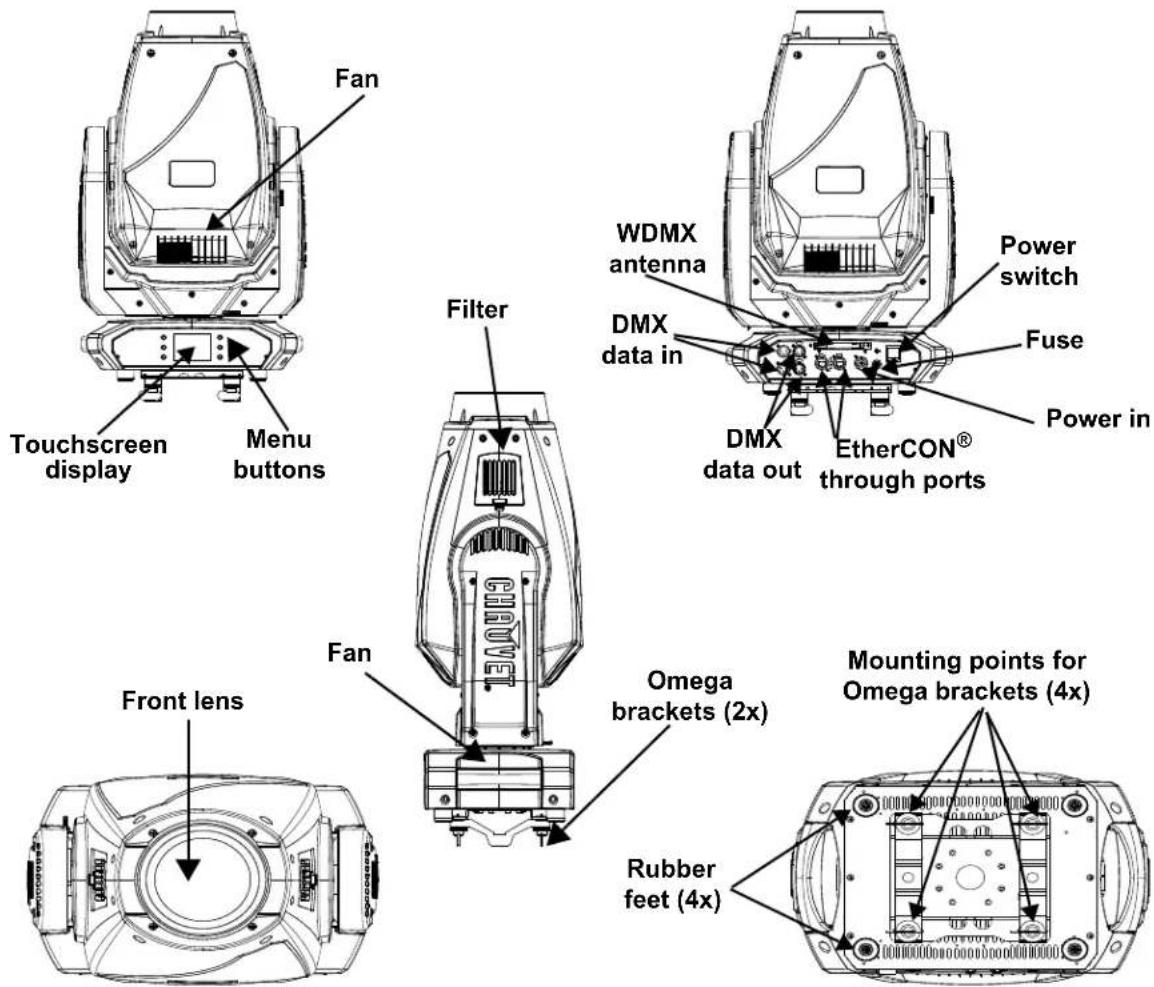
Chauvet Maverick MK2 Profile - Features - 1

text_image Fan Touchscreen display Menu buttons Filter WDMX antenna Power switch DMX data in Fuse DMX data out EtherCON® through ports Power in Front lens Fan Omega brackets (2x) Mounting points for Omega brackets (4x) Rubber feet (4x)

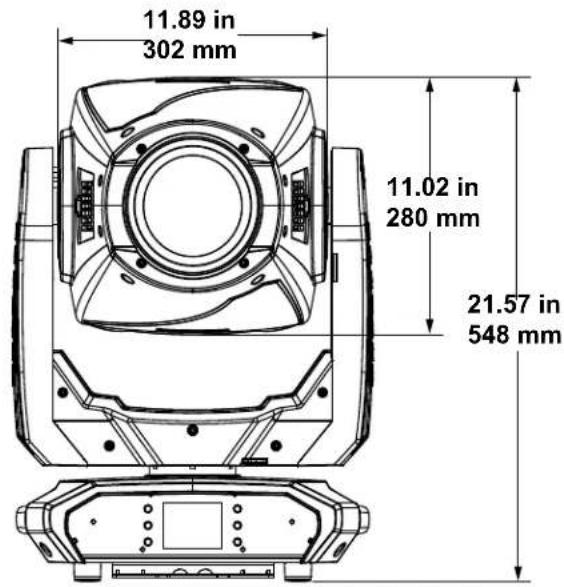
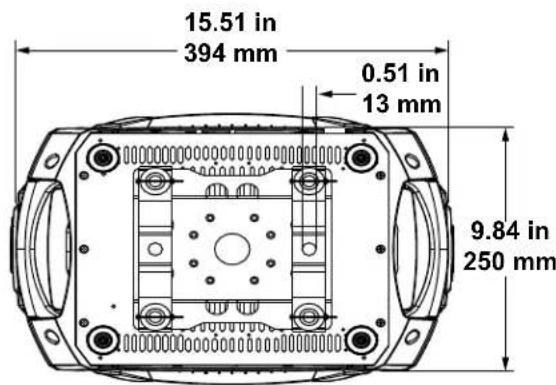
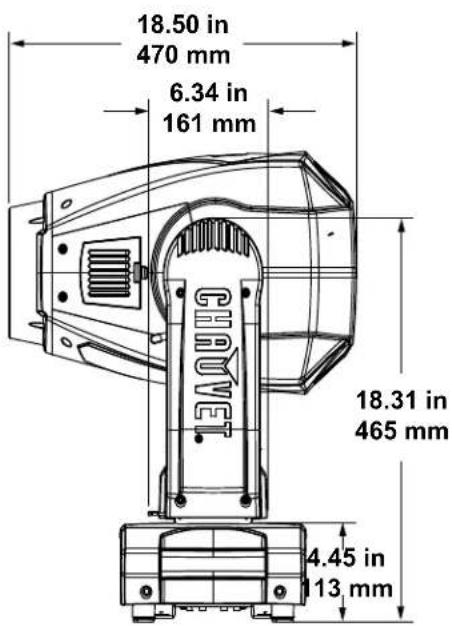
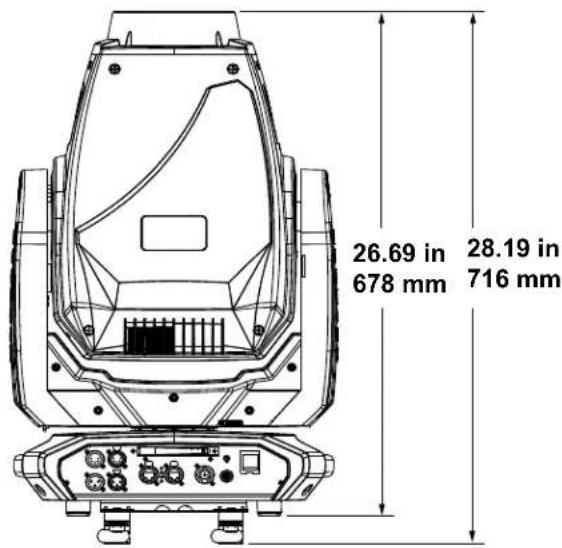
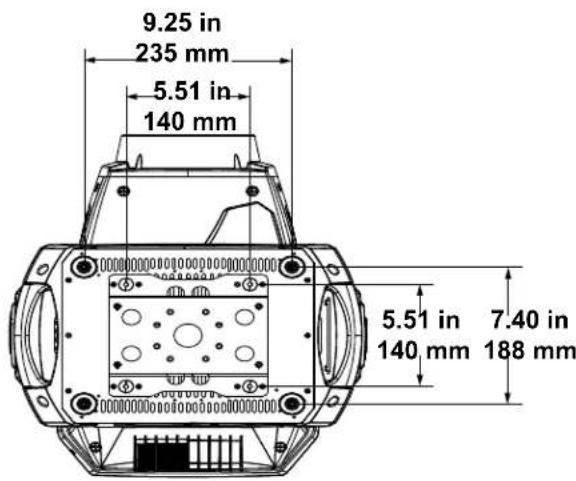
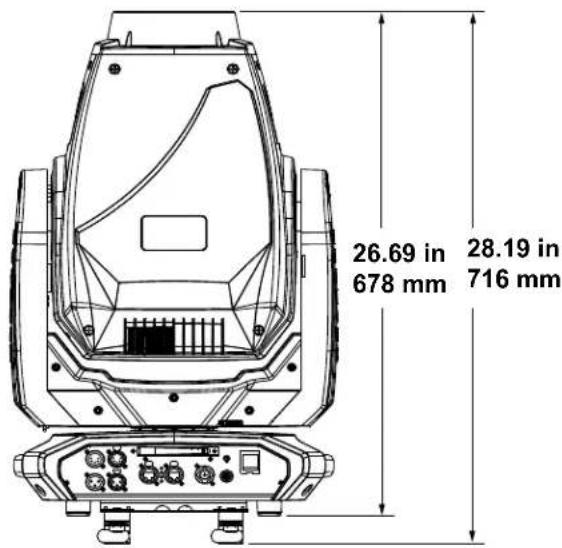
Product Dimensions
Chauvet Maverick MK2 Profile - Features - 2

text_image 11.89 in 302 mm 11.02 in 280 mm 21.57 in 548 mm

Chauvet Maverick MK2 Profile - Features - 3

text_image 15.51 in 394 mm 0.51 in 13 mm 9.84 in 250 mm

Chauvet Maverick MK2 Profile - Features - 4

text_image 18.50 in 470 mm 6.34 in 161 mm GEVER 18.31 in 465 mm 4.45 in 13 mm

Chauvet Maverick MK2 Profile - Features - 5

text_image 26.69 in 28.19 in 678 mm 716 mm

Chauvet Maverick MK2 Profile - Features - 6

text_image 9.25 in 235 mm 5.51 in 140 mm 5.51 in 7.40 in 140 mm 188 mm

3. Setup

AC Power

Each Maverick MK2 Profile has an auto-ranging power supply that works with an input voltage range of 100 to 240 VAC, 50/60 Hz. To determine the power requirements (circuit breaker, power outlet, and wiring) for each Maverick MK2 Profile, refer to the label affixed to the product. You can also refer to the Technical Specifications chart in this manual.

The listed current rating indicates the maximum current draw during normal operation. For more information, download Sizing Circuit Breakers from the Chauvet website: www.chauvetprofessional.com

- Always connect the product to a protected circuit (a circuit breaker or fuse). Make sure the product has an appropriate electrical ground to avoid the risk of electrocution or fire.

Chauvet Maverick MK2 Profile - AC Power - 1

- To eliminate unnecessary wear and improve its lifespan, completely disconnect the product from power via breaker or by unplugging it during periods of non-use.

- Never connect the product to a rheostat (variable resistor) or dimmer circuit, even if the rheostat or dimmer channel serves only as a 0 to 100% switch.

AC Plug

The Maverick MK2 Profile comes with a power input cord terminated with a Seetronic Powerkon A connector on one end and an Edison plug on the other end (US market). If the power input cord that came with your product has no plug, or if you need the change the plug, use the table below to wire the new plug.

ConnectionWire (U.S.)Wire (Europe)Screw Color
AC Live Black Brown Yellow/brass
AC Neutral White Blue Silver
AC GroundGreen/yellowGreen/yellowGreen

Fuse Replacement

  1. Disconnect the product from power.
  2. Using a flat-head screwdriver, unscrew the fuse holder cap from the housing.
  3. Remove the blown fuse from the holder and replace with a fuse of the exact same type and rating (F 12 A, 250 V).
  4. Screw the fuse holder cap in place and reconnect power.

Chauvet Maverick MK2 Profile - Fuse Replacement - 1

Disconnect the product from the power outlet before replacing the fuse. Always replace a blown fuse with one of the same type and rating.

Mounting

Before mounting the product, read and follow the safety recommendations indicated in the Safety Notes. For our CHAUVET Professional line of mounting clamps, go to http://trusst.com/products/.

Orientation

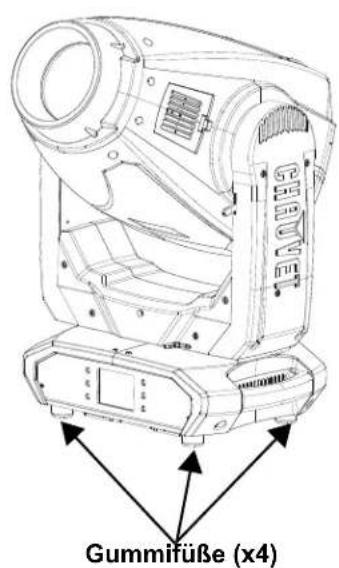
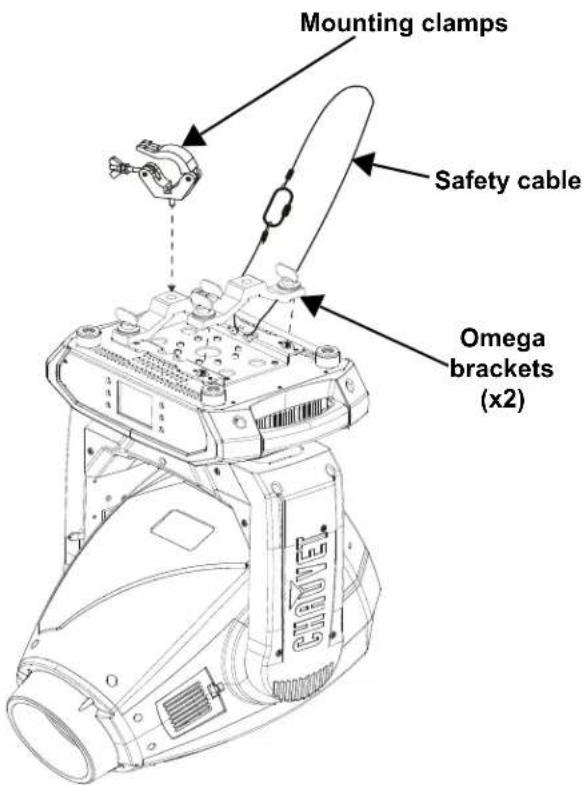
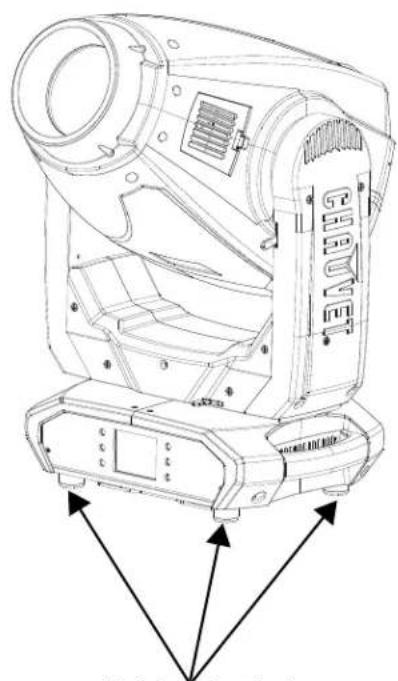
Always mount this product in a safe position and ensure that there is adequate room for ventilation, configuration, and maintenance. The Maverick MK2 Profile can be suspended upright or upside down using the two Omega brackets included, or it can be placed on it rubber feet on a flat-level surface.

Rigging

Chauvet recommends using the following general guidelines when mounting this product:

  • When selecting an installation location, consider easy access to this product for operation, programming adjustments, and routine maintenance.
  • The product is not intended for permanent installation.
  • Make sure to mount this product away from any flammable material.
  • Never mount in places where rain, high humidity, extreme temperature changes, or restricted ventilation may affect the product.
  • If hanging this product, make sure that the mounting location can support the product's weight. See the Technical Specifications for the weight-bearing requirements of this product.
  • When hanging this product, always secure to a fastening device using a safety cable. For our CHAUVET Professional line of safety cables, go to http://trusst.com/products/.
  • When mounting the product on the floor, make sure that the product and cables are away from people and vehicles.
  • Place the Maverick MK2 Profile so that it can move freely without hitting anything or anybody.
  • Leave enough slack on the cables to prevent tension and pull on the plugs.

Mounting diagram

Chauvet Maverick MK2 Profile - Mounting diagram - 1

text_image Mounting clamps Safety cable Omega brackets (x2)

Overhead Mounting

Chauvet Maverick MK2 Profile - Mounting diagram - 2

natural_image Technical line drawing of a mechanical device with labeled components and directional arrows (no readable text or symbols)

Rubber feet (x4)
Surface Mounting

DMX Linking

You can link the Maverick MK2 Profile to a DMX controller using a 3- or 5-pin DMX connection. If using other DMX-compatible products with this product, you can control each individually with a single DMX controller.

DMX Personalities

The Maverick MK2 Profile uses a 3- or 5-pin DMX data connection for the 33- and 50-channel DMX personalities.

  • Refer to the Introduction for a brief description of each DMX personality.
  • Refer to the Operation____ chapter to learn how to configure the Maverick MK2 Profile to work in these personalities.
  • The DMX provides detailed information regarding the DMX personalities.

Remote Device Management (RDM)

Remote Device Management, or RDM, is a standard for allowing DMX-enabled devices to communicate bi-directionally along existing DMX cabling. Check the DMX controller's User Manual or with the manufacturer, as not all DMX controllers have this capability. The Maverick MK2 Profile supports RDM protocol that allows feedback to make changes to menu map options.

Signal Connection

The Maverick MK2 Profile can receive DMX, WDMX, Art-Net™, or sACN. The Maverick MK2 Profile has two Amphenol XLRnet through ports, and 3- and 5-pin DMX in and out ports.

For more information about DMX, read the DMX primer at:

https://www.chauvetprofessional.com/wp-content/uploads/2016/06/DMX_Primer.pdf

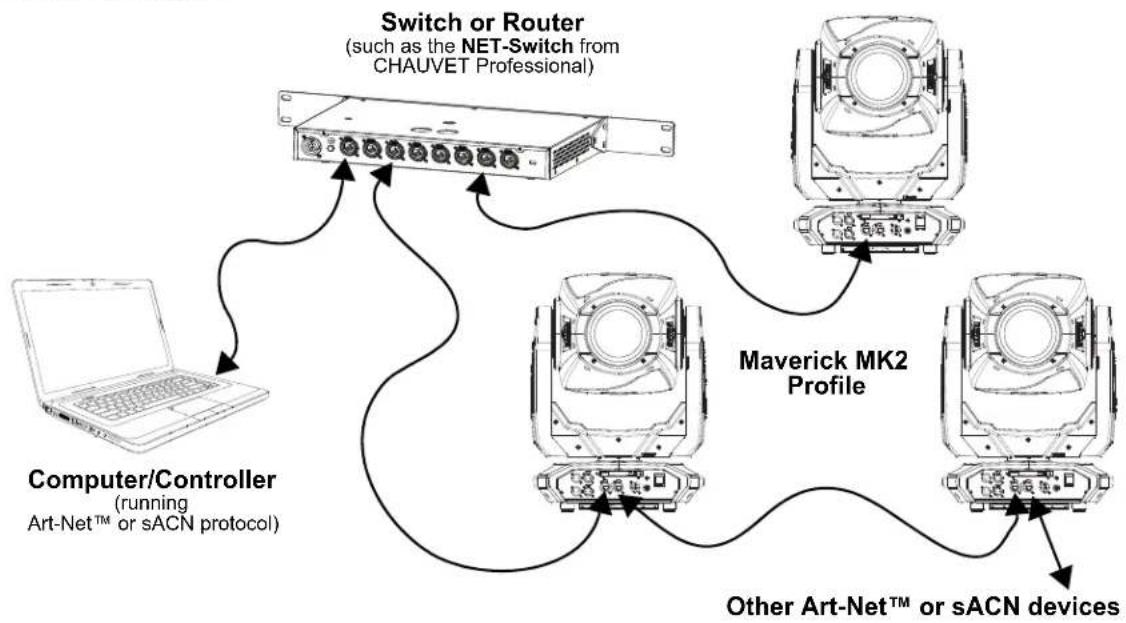
Art-Net™ Connection

Art-Net™ is an Ethernet protocol that uses TCP/IP, which transfers a large amount of DMX512 data using an Amphenol XLRnet RJ45 connection over a large network. An Art-Net™ protocol document is available from www.chauvetprofessional.com.

Art-Net™ designed by and copyright Artistic Licence Holdings Ltd.

sACN Connection

Streaming ACN, also known as ANSI E1.31, is an Ethernet protocol that uses the layering and formatting of Architecture for Control Networks to transport DMX512 data over IP or any other ACN-compatible network. ACN is maintained by the Professional Lighting and Sound Association (PLASA).

Connection diagram

Chauvet Maverick MK2 Profile - Connection diagram - 1

flowchart
graph TD
    A["Computer/Controller (running Art-Net™ or sACN protocol)"] --> B["Switch or Router (such as the NET-Switch from CHAUVET Professional)"]
    B --> C["Maverick MK2 Profile"]
    C --> D["Other Art-Net™ or sACN devices"]
    D --> B

Chauvet Maverick MK2 Profile - Connection diagram - 2

The three LED indicators in between the Ethernet through ports indicate a connection to a network and activity on that network. They do not indicate whether or not the Maverick MK2 Profile is receiving a signal from a controller.

4. Operation

Touchscreen Control Panel

The Maverick MK2 Profile has a touchscreen display and six control buttons. Navigate the menu structure by pressing the buttons, touching the images of the buttons on the sides of the display, or touching the desired menu option on the display directly. The touchscreen can be locked and calibrated through the Settings options in the menu (see Touchscreen calibration and Touchscreen lock).

Control Panel Operation

Button Function
Navigates upwards through the menu list or increases the numeric value when in a function
Exits from the current menu or function
Navigates downwards through the menu list or decreases the numeric value when in a function
Navigates leftwards through the menu list
Enables the currently displayed menu or sets the currently selected value into the selected function
Navigates rightwards through the menu list

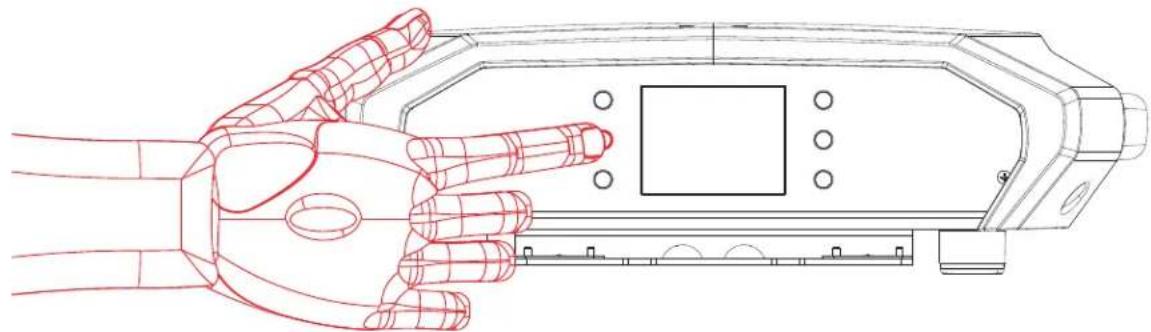
Battery-Powered Display

Press and hold until menu screen appears (approx 15 sec.).

Chauvet Maverick MK2 Profile - Battery-Powered Display - 1

natural_image Line drawing of a robotic hand holding a device with a control panel (no text or symbols)

Menu Map

Main Level Programming Levels Description
Start Address000-512Network setting
Network SetupIP ModeManualManually sets IP address
DHCPNetwork sets IP address
StaticProduct sets IP address
Universe 000-255Sets the universe
IP 002.xxx.xxx.xxxSets IP address in Manual mode
SubMask 255.xxx.xxx.xxxSets Subnet Mask in Manual mode
PersonalityDMX 33CHYESChoose 33 channels of DMX
NO
DMX 50CHYESChoose 50 channels of DMX
NO
SettingsControl ModeDMXSets the DMX personality
WDMX Sets the WDMX personality
sACN Sets the sACN personality
ArtNet Sets the Art-NetTM personality
Pan ReverseYESReversed pan
NO Normal pan
Tilt ReverseYESReversed tilt
NO Normal tilt
Screen ReverseYESInverted display
NO Normal display
AUTO Automatic display orientation
Pan Angle540540° pan range
360 360° pan range
180180° pan range
Tilt Angle270270° tilt angle
180180° tilt angle
9090° tilt angle
BL. O. P/T MoveYES Enable blackout while pan/tilt moves
NO Disable blackout while pan/tilt moves
BL. O. Color MoveYES Enable color blackout
NO Disable color blackout
BL. O. Gobo MoveYES Enable gobo blackout
NO Disable gobo blackout
CalibrationYES Calibrate touchscreen
NO Keep current settings
Touchscreen LockYES Display does not respond to touch
NO Display responds to touch
Lock ScreenYESLock the buttons and touchscreen Passcode: 0920
NO
Swap XYYES Do not swap pan and tilt
NO Pan controls tilt; tilt controls pan
XY ModeFast Fast pan and tilt
SlowSlow pan and tilt
WDMX ResetYES Reset the wireless DMX
NO Do not reset wireless DMX
Backlight Timer30SDisplay turns off after 30 seconds
1MDisplay turns off after 1 minute
5MDisplay turns off after 5 minutes
ON Display stays on
Loss of DataHoldHolds last signal received
Close Blacks out fixture
Main Level Programming Levels Description
SettingsFansAutoFan speed according to product temperature
Full Fan speedset on high
ECO Quiet mode
Theatrical DimmingYESLegacy dimming matches older Maverick MK2 Profile
NO Updated dimming
Dimmer CurveLinearSet the dimmer curve
Square
I Square
SCurve
Dimmer SpeedSmoothSet the dimmer speed
Fast
PWM Option600Pulse Width Modulation (PWM) selection
1200
2000
4000
6000
15000
Smart ZoomOFFLimits the zoom range for optimal focus
ON
Beam CorrectionOFF Creates a flat field when using shutters. This will also offset the gobos by 1 position in wheel #1
ON
Preset SelectPRESET ARecorded preset menu options PRESET B
PRESET C
Preset SyncNO Allow recorded preset menu options to be transferred to other Maverick MK2 Profiles in the DMX daisy chain
YES
Reset FunctionPan/TiltYES/NOReset individual functions or all functions from start-up
Iris/Prism
Color/CMY+Blade
Gobo/GoboRotate
FrostAll
Factory SettingsYESReset all functions to default factory settings
NO
TestManual TestAuto Test Auto test the product
Pan000-255Individually test each function/channel
Pan Fine
Tilt
Tilt Fine
P/T Speed
Dimmer
Dimmer Fine
Shutter
Virtual Shaking
Cyan
Magenta
Yellow
CTO
Color
Gobo
Gobo Rotate
Gobo Index
Gobo 2
Gobo 2 Rotate
Gobo 2 Index
Blade 1-1
Blade 1-1 Fine
Blade 1-2
Blade 1-2 Fine
Blade 2-1
Blade 2-1 Fine
Blade 2-2
Blade 2-2 Fine
Blade 3-1
Blade 3-1 Fine
Blade 3-2
Blade 3-2 Fine
Blade 4-1
Blade 4-1 Fine
Blade 4-2
Blade 4-2 Fine
Blade Rotate
Blade Rotate Fine
Focus
Focus Fine
Focus Auto
Zoom
Zoom Fine
Prism
Prism Rotate
Iris
Frost
CMY Macro
CMY Macro Speed
Special Function
Main LevelProgramming LevelsDescription
InformationFixture InformationVer V_Shows firmware version
Running Mode____ Shows current running mode
Address ____Shows current starting address
Temperature ____Shows current product temperature in °C
Fixture Hours ________Shows number of hours product has been powered on
IP ____.Shows current IP address
SubMask ____Shows current Subnet Mask
MAC ____.Shows current MAC address
Fan InformationBase Fan 1 Speed____Shows speed of base and head fans in rpm
Base Fan 2 Speed____
Head Fan 1 Speed____
Head Fan 2 Speed____
Error InformationNo Error!*Shows any errors, or “No Error!”
Channel InformationFrequencyHzShows all current values from input signals, 000–255
Pan000–255
Pan Fine
Tilt
Tilt Fine
P/T Speed
Dimmer
Dimmer Fine
Shutter
Virtual Shaking
Cyan
Magenta
Yellow
CTO
Color
Gobo
Gobo Rotate
Gobo Index
Gobo 2
Gobo 2 Rotate
Gobo 2 Index
Main Level Programming Levels Description
InformationChannel InformationBlade 1-1000–255Shows all current values from input signals, 000–255
Blade 1-1 Fine
Blade 1-2
Blade 1-2 Fine
Blade 2-1
Blade 2-1 Fine
Blade 2-2
Blade 2-2 Fine
Blade 3-1
Blade 3-1 Fine
Blade 3-2
Blade 3-2 Fine
Blade 4-1
Blade 4-1 Fine
Blade 4-2
Blade 4-2 Fine
Blade Rotate
Blade Rotate Fine
Blade Macro
Focus
Focus Fine
Focus Auto
Zoom
Zoom Fine
Prism
Prism Rotate
Iris
Frost
CMY Macro
CMY Macro Speed
Special Function

Operating Settings Configuration

Home Screen

The Maverick MK2 Profile has a home screen that shows the protocol mode, the IP address or DMX address, the DMX personality, and the current product temperature. To see the home screen, press

repeatedly until it shows on the display. On the Home Screen, press one of the menu buttons to immediately access any part of the menu (e.g., Personality, Starting Address, or Universe) or press the button to access the main menu.

Start Address

To set the starting address, set the Control mode and then follow the instructions below:

  1. Press repeatedly until the Home Screen shows on the display. Press .
  2. Use , , , or to select Start Address, or touch the display where it says Start Address.
  3. If using the buttons instead of the touchscreen, press .
  4. Enter the starting address (001-512) with one of the following methods:

- Type the address number using the number pad that shows on the touchscreen display.

- Using the buttons (or the button icons on the sides of the display):

a. Use or to select the digit to be altered.
b. Use or to increase or decrease the number value of that digit.
c. Repeat until the address is set as desired.

  1. Press .

Network Setup

Chauvet Maverick MK2 Profile - Network Setup - 1

The universe of the TCP/IP protocol will be the universe of the DMX function.

IP mode

The IP address of the Maverick MK2 Profile can be set manually, by the network, or to a preset static address specific to each product. To set the IP Mode, follow the instructions below:

  1. Press repeatedly until the Home Screen shows on the display. Press .
  2. Use , , , or to select Network Setup, or touch the display where it says Network Setup.
  3. If using the buttons instead of the touchscreen, press .
  4. Use or to select IP Mode, or touch the display where it says IP Mode.
  5. If using the buttons instead of the touchscreen, press .
  6. Use , , , or to select from:

  7. Manual – set the IP address with the control panel

  8. DHCP – the network sets the IP address
  9. Static – a preset address specific to each product, or touch the display where it says the desired mode

  10. Press .

Universe

The Universe must be assigned through the product menu. To set the Universe, do the following:

  1. Press repeatedly until the Home Screen shows on the display. Press .
  2. Use , , , or to select Network Setup, or touch the display where it says Network Setup.
  3. If using the buttons instead of the touchscreen, press .
  4. Use or to select Universe, or touch the display where it says Universe.
  5. If using the buttons instead of the touchscreen, press .
  6. Enter the universe address (0–255) with one of the following methods:

• Type the universe number using the number pad that shows on the touchscreen display.

- Using the buttons (or the button icons on the sides of the display):

a. Use or to select the digit to be altered.
b. Use or to increase or decrease the number value of that digit.
c. Repeat until the universe or subnet is set as desired.

  1. Press .

IP address

To set the IP address in Manual IP Mode, do the following:

  1. Press repeatedly until the Home Screen shows on the display. Press .
  2. Use , , , or to select Network Setup, or touch the display where it says Network Setup.
  3. If using the buttons instead of the touchscreen, press .
  4. Use or to select IP, or touch the display where it says IP.
  5. If using the buttons instead of the touchscreen, press .
  6. Set the IP address (from 000.000.000.000 to 255.255.255.255) with one of the following methods:

- Through the touchscreen:

a. Touch the display where it shows the byte (set of three numbers) to be changed.
b. Use the number pad on the display to enter the desired number.
c. Repeat until the IP address is set as desired.

- With the buttons:

a. Use or to select the byte (set of three numbers) to be changed.
b. Use or to increase or decrease the value.
c. Repeat until the IP address is set as desired.

  1. Press .

Subnet mask

To set the Subnet Mask in Manual IP Mode, do the following:

  1. Press repeatedly until the Home Screen shows on the display. Press .
  2. Use , , , or to select Network Setup, or touch the display where it says Network Setup.
  3. If using the buttons instead of the touchscreen, press .
  4. Use or to select SubMask, or touch the display where it says SubMask.
  5. If using the buttons instead of the touchscreen, press .
  6. Set the Subnet Mask (from 000.000.000.000 to 255.255.255.255) with one of the following methods:

• Through the touchscreen:

a. Touch the display where it shows the byte (set of three numbers) to be changed.
b. Use the number pad on the display to enter the desired number.
c. Repeat until the subnet mask is set as desired.

- With the buttons:

a. Use or to select the byte (set of three numbers) to be changed.
b. Use or to increase or decrease the value.
c. Repeat until the subnet mask is set as desired.

  1. Press .

Chauvet Maverick MK2 Profile - Subnet mask - 1

In DHCP or Static IP Mode, the IP and SubMask menu settings have no effect on the product.

Personality

To set which DMX personality to use, do the following:

  1. Press repeatedly until the Home Screen shows on the display. Press .
  2. Use , , , or to select Personality, or touch the display where it says Personality.
  3. If using the buttons instead of the touchscreen, press .
  4. Use , , , or to select 33Ch or 50Ch, or touch the display where it says the desired option.
  5. If using the buttons instead of the touchscreen, press .
  6. Use , , , or to select NO (cancel) or YES (confirm), or touch the display where it says the desired option.
  7. Press .

Settings

To reach the Settings menu, follow the instructions below:

  1. Press repeatedly until the Home Screen shows on the display. Press .
  2. Use , , , or to select Settings, or touch the display where it says Settings.
  3. If using the buttons instead of the touchscreen, press .

Control mode

The Maverick MK2 Profile can be set to respond to DMX, WDMX, Art-Net™, or sACN. The protocol configuration must be set for the product to respond correctly to the controller(s). See the Menu Map for more information.

To configure the protocol for the Maverick MK2 Profile, follow the instructions below:

  1. Navigate to the Settings menu.
  2. Use or to select Control Mode, or touch the display where it says Control Mode.
  3. If using the buttons instead of the touchscreen, press .
  4. Use , , , or to select DMX, WDMX, sACN, or ArtNet, or touch the display where it says the desired option.
  5. Press .

Chauvet Maverick MK2 Profile - Control mode - 1

For WDMX control, ensure the antenna is raised, and there are no obstructions between the controller and the product. See WDMX reset for troubleshooting information.

Pan/tilt orientation

To set whether the pan or tilt orientation is normal or inverted:

  1. Navigate to the Settings menu.
  2. Use or to select Pan Reverse or Tilt Reverse, or touch the display where it says the desired setting.
  3. If using the buttons instead of the touchscreen, press .
  4. Use , , , or to select NO (normal orientation) or YES (inverted orientation), or touch the display where it says the desired option.
  5. Press .

Display orientation

To set which way the display faces, do the following:

  1. Navigate to the Settings menu.
  2. Use or to select Screen Reverse, or touch the display where it says Screen Reverse.
  3. If using the buttons instead of the touchscreen, press .
  4. Use , , , or to select NO (display is normal), YES (display is inverted), or AUTO (the display automatically detects which way the product is facing and orients itself accordingly), or touch the display where it says the desired option.
  5. Press .

Pan/tilt angle range

To set the range of motion the pan or tilt is permitted:

  1. Navigate to the Settings menu.
  2. Use or to select Pan Angle or Tilt Angle, or touch the display where it says the desired setting.
  3. If using the buttons instead of the touchscreen, press .
  4. Use , , , or to select 540, 360, or 180 (540°, 360°, or 180° for pan angle) or 270, 180,90 (270°, 180°, or 90° for tilt angle), or touch the display where it says the desired option.
  5. Press .

Blackout on pan/tilt movement

To set whether the product will black out during pan or tilt movement, follow the instructions below:

  1. Navigate to the Settings menu.
  2. Use or to select BL. O. P/T Move, or touch the display where it says BL. O. P/T Move.
  3. If using the buttons instead of the touchscreen, press .
  4. Use , , , or to select NO (do not black out) or YES (black out during movement), or touch the display where it says the desired option.
  5. Press .

Blackout on color movement

To set whether the product will black out during pan or tilt movement, follow the instructions below:

  1. Navigate to the Settings menu.
  2. Use or to select BL. O. Color Move, or touch the display where it says BL. O. Color Move.
  3. If using the buttons instead of the touchscreen, press .
  4. Use , , , or to select NO (do not black out) or YES (black out during movement), or touch the display where it says the desired option.
  5. Press .

Blackout on gobo movement

To set whether the product will black out during pan or tilt movement, follow the instructions below:

  1. Navigate to the Settings menu.
  2. Use or to select BL. O. Gobo Move, or touch the display where it says BL. O. Gobo Move.
  3. If using the buttons instead of the touchscreen, press .
  4. Use , , , or to select NO (do not black out) or YES (black out during movement), or touch the display where it says the desired option.
  5. Press .

Touchscreen calibration

If the touchscreen is not responding correctly, it may need to be calibrated. To do so:

  1. Navigate to the Settings menu.
  2. Use or to select Calibration, or touch the display where it says Calibration.
  3. If using the buttons instead of the touchscreen, press .
  4. Use , , , or to select NO (do not calibrate) or YES (calibrate), or touch the display where it says the desired option.
  5. Press .
  6. Follow the instructions, touching the points as they appear on the display.

Touchscreen lock

To lock or unlock the touchscreen for the control panel, do the following:

  1. Navigate to the Settings menu.
  2. Use or to select Touchscreen Lock, or touch the display where it says Touchscreen Lock.
  3. If using the buttons instead of the touchscreen, press .
  4. Use , , , or to select NO (display will respond to touch) or YES (display will not respond to touch), or touch the display where it says the desired option.
  5. Press .

Lock screen

To completely lock or unlock the control panel, follow the instructions below:

  1. Navigate to the Settings menu.
  2. Use or to select Lock Screen, or touch the display where it says Lock Screen.
  3. If using the buttons instead of the touchscreen, press .
  4. Use , , , or to select NO (display will respond to touch or buttons) or YES (display will not respond to touch or buttons), or touch the display where it says the desired option.
  5. Press .

To unlock the touchscreen and menu buttons, do the following:

  1. Touch the display touchscreen anywhere or push any menu button.
  2. Enter the passcode 0920 using the touchscreen or buttons.
  3. Press .

Swap pan and tilt

To switch the pan and tilt functions so that what normally controls the pan controls the tilt and what normally controls the tilt controls the pan, do the following:

  1. Navigate to the Settings menu.
  2. Use or to select Swap XY, or touch the display where it says Swap XY.
  3. If using the buttons instead of the touchscreen, press .
  4. Use , , , or to select NO (normal pan and tilt) or YES (pan controls tilt, tilt controls pan), or touch the display where it says the desired option.
  5. Press .

Pan/tilt speed

To set the maximum speed of the pan and tilt:

  1. Navigate to the Settings menu.
  2. Use or to select XY Mode, or touch the display where it says XY Mode.
  3. If using the buttons instead of the touchscreen, press .
  4. Use , , , or to select Slow or Fast, or touch the display where it says the desired option.
  5. Press .

WDMX reset

To reset the WDMX connection from the Maverick MK2 Profile, do the following:

  1. Navigate to the Settings menu.
  2. Use or to select WDMX Reset, or touch the display where it says WDMX Reset.
  3. If using the buttons instead of the touchscreen, press .
  4. Use , , , or to select NO (do not reset connection) or YES (reset the connection), or touch the display where it says the desired option.
  5. Press .

Chauvet Maverick MK2 Profile - WDMX reset - 1

Once a WDMX receiver has been linked to a specific WDMX transmitter, it will remain linked to that specific transmitter until it is linked to a different one.

Backlight timer

To set the amount of time after inactivity before the display backlight turns off:

  1. Navigate to the Settings menu.
  2. Use or to select Backlight Timer, or touch the display where it says Backlight Timer.
  3. If using the buttons instead of the touchscreen, press .
  4. Use , , , or to select 30S (after 30 seconds of inactivity), 1M (after 1 minute of inactivity), 5M (after 5 minutes of inactivity), or ON (does not turn off), or touch the display where it says the desired option.
  5. Press .

Loss of data

In case of an input signal being lost in any way, the Maverick MK2 Profile will respond in one of two ways. the product will either hold the last signal received, or black out all LED output.

To set which way the product responds, follow the instructions below:

  1. Navigate to the Settings menu.

  2. Use or to select Loss of Data, or touch the display where it says Loss of Data.

  3. If using the buttons instead of the touchscreen, press .

  4. Use , , , or to select Hold (hold last signal received) or Close (black out all LED output), or touch the display where it says the desired option.

  5. Press .

Fan speed

To set the speed of the fans, do the following:

  1. Navigate to the Settings menu.

  2. Use or to select Fans, or touch the display where it says Fans.

  3. If using the buttons instead of the touchscreen, press .

  4. Use , , , or to select Auto (fan speed set according to product temperature), Full (maximum speed), or ECO (quiet fans mode), or touch the display where it says the desired option.

  5. Press .

Dimmer curve

To set the dimmer curve, follow the instructions below:

  1. Navigate to the Settings menu.

  2. Use or to select Dimmer Curve, or touch the display where it says Dimmer Curve.

  3. If using the buttons instead of the touchscreen, press .

  4. Use , , , or to select Linear, Square, I Squa, or SCurve, or touch the display where it says the desired option.

  5. Press .

Dimmer speed

To set the dimmer speed, do the following:

  1. Navigate to the Settings menu.

  2. Use or to select Dimmer Speed, or touch the display where it says Dimmer Speed.

  3. If using the buttons instead of the touchscreen, press .

  4. Use , , , or to select Smooth or Fast, or touch the display where it says the desired option.

  5. Press .

Pulse Width Modulation

To set the PWM frequency, follow the instructions below:

  1. Navigate to the Settings menu.

  2. Use or to select PWM Option, or touch the display where it says PWM Option.

  3. If using the buttons instead of the touchscreen, press .

  4. Use , , , or to select the PWM frequency, from 600 Hz, 1200 Hz, 2000 Hz, 4000 Hz, 6000 Hz, or 15000 Hz, or touch the display where it says the desired option.

  5. Press .

Smart zoom

To set the zoom range to optimal focus, do the following:

  1. Navigate to the Settings menu.

  2. Use or to select Smart Zoom, or touch the display where it says Smart Zoom.

  3. If using the buttons instead of the touchscreen, press .

  4. Select YES, or touch the display where it says the desired option.

  5. Press .

Beam correction

To achieve a flat field while using the shutters, use the beam correction feature. To do so, follow the instructions below:

  1. Navigate to the Settings menu.

  2. Use or to select Beam Correction, or touch the display where it says Beam Correction.

  3. If using the buttons instead of the touchscreen, press .

  4. Select YES, or touch the display where it says the desired option.

  5. Press .

Chauvet Maverick MK2 Profile - Beam correction - 1

When Beam Correction is activated, Gobo Wheel 1 is offset by one set of values in the DMX configuration.

Preset select

This option saves three different preset menu option configurations. To record and set these presets, follow the instructions below:

  1. Navigate to the Settings menu.

  2. Use or to select Preset Select, or touch the display where it says Preset Select.

  3. If using the buttons instead of the touchscreen, press .

  4. Use , , , or to select the presets, from PRESET A, PRESET B, or PRESET C, or touch the display where it says the desired option.

  5. Press .

  6. The product will reset. Any changes made to the menu options will be saved to this preset.

Chauvet Maverick MK2 Profile - Preset select - 1

- Default is PRESET A. If you make changes inside PRESET A, those changes are saved to PRESET A without having to do anything.

- To create a new preset, highlight and select PRESET SELECT. Highlight PRESET B or PRESET C and press . When you make that selection, the product will reset automatically. Go back and make the changes you need to make in the menu. This will automatically save to the preset you are in.

Preset sync

To sync all menu presets to other Maverick MK2 Profiles, follow the instructions below:

  1. Connect all Maverick MK2 Profiles via DMX cable.

  2. Navigate to the Settings menu.

  3. Use or to select Preset Sync, or touch the display where it says Preset Sync.

  4. If using the buttons instead of the touchscreen, press .

  5. Select YES or touch the display where it says the desired option.

  6. Press .

Chauvet Maverick MK2 Profile - Preset sync - 1

• To sync other Maverick MK2 Profiles, you connect those products by a DMX cable.

- The product can be in any control mode except WDMX. ArtNet, DMX, and sACN are all acceptable.

- All menu options are transferred, including the DMX address. Only the IP address in not affected in the other products.

- Connect Maverick MK2 Profiles only.

Reset functions

To reset the pan, tilt, or all functions as if from startup:

  1. Navigate to the Settings ____ menu.

  2. Use or to select Reset Function, or touch the display where it says Reset Function.

  3. If using the buttons instead of the touchscreen, press .

  4. Use or to select the function to reset, from Pan/Tilt, Iris/Prism, Color/CMY+Blade, Gobo/Gobo Rotate, Frost, or All, or touch the display where it says the desired option.

  5. If using the buttons instead of the touchscreen, press .

  6. Use , , , or to select NO (do not reset) or YES (reset), or touch the display where it says the desired option.

  7. Press .

Factory reset

To restore the Maverick MK2 Profile to factory default settings, do the following:

  1. Navigate to the Settings menu.

  2. Use or to select Factory Settings, or touch the display where it says Factory Settings.

  3. If using the buttons instead of the touchscreen, press .

  4. Use , , , or to select NO (do not reset) or YES (reset to factory settings), or touch the display where it says the desired option.

  5. Press .

Test Mode

Auto test

To perform an auto test of the Maverick MK2 Profile functions, follow the instructions below:

  1. Press

    repeatedly until the Home Screen shows on the display. Press .
  2. Use , , , or to select Test, or touch the display where it says Test.

  3. If using the buttons instead of the touchscreen, press .

  4. Use or to select Auto Test, or touch the display where it says Auto Test.

  5. Press .

Manual test

To test the functions of the product manually, follow the instructions below:

  1. Press repeatedly until the Home Screen shows on the display. Press .
  2. Use , , , or to select Test, or touch the display where it says Test.
  3. If using the buttons instead of the touchscreen, press .
  4. Use or to select Manual Test, or touch the display where it says Manual Test.
  5. If using the buttons instead of the touchscreen, press .
  6. Use or to select the function to test, or touch the display where it says the desired function.
  7. If using the buttons instead of the touchscreen, press .
  8. Change the value of the tested function with one of the following methods:

• Type the desired value using the number pad that shows on the touchscreen display.

• Use , , , or to increase or decrease the value.

  1. Press .

System Information

All information about the current status of the Maverick MK2 Profile is available through the product's Information menu. To view this, follow the instructions below:

  1. Press repeatedly until the Home Screen shows on the display. Press .
  2. Use , , , or to select Information, or touch the display where it says Information.
  3. If using the buttons instead of the touchscreen, press .
  4. Use or to select from Fixture Information (shows firmware version, running mode, starting address, etc.), Fan Information (shows speed of the head fans in rpm), Error Information (shows any errors or No Error!), or Channel Information (shows the current value of all signal input channels), or touch the display where it says the desired option.
  5. Press .
  6. Use or to scroll through the information.

DMX Values
50Ch

ChannelFunction Value Percent/Setting
1Pan000 ⇔ 2550-100%
2Fine pan000 ⇔ 255Fine control (16-bit)
3Tilt000 ⇔ 2550-100%
4Fine tilt000 ⇔ 255Fine control (16-bit)
5Pan/tilt speed000 ⇔ 2550-100%
6Dimmer000 ⇔ 2550-100%
7Fine dimmer000 ⇔ 255Fine control (16-bit)
8 Shutter000 ⇔ 003Closed
004 ⇔ 007Open
008 ⇔ 076Slow to fast
077 ⇔ 145Pulse effect, slow to fast
146 ⇔ 215Random effect, slow to fast
216 ⇔ 255Open
9 Virtual strobe000 ⇔ 001No function
002 ⇔ 128Shaking strobe, slow to fast
129 ⇔ 255Fade in/out, slow to fast
10Cyan000 ⇔ 2550-100%
11Magenta000 ⇔ 2550-100%
12Yellow000 ⇔ 2550-100%
13CTO000 ⇔ 2550-100%
14Color wheel000 ⇔ 006Open
007 ⇔ 013Red
014 ⇔ 020Orange
021 ⇔ 027Green
028 ⇔ 034Blue
035 ⇔ 041Magenta
042 ⇔ 048CTO
049 ⇔ 059UV
060 ⇔ 187Split colors
188 ⇔ 219Clockwise color scroll, fast to slow
220 ⇔ 223Stop
224 ⇔ 255Counterclockwise color scroll, slow to fast
15Gobo wheel 1(see Gobo Designs)000 ⇔ 008Open
009 ⇔ 017Gobo 1 (ring of rings)
018 ⇔ 026Gobo 2 (checker vortex)
027 ⇔ 035Gobo 3 (triangle)
036 ⇔ 044Gobo 4 (star field)
045 ⇔ 053Gobo 5 (lenticular glass)
054 ⇔ 063Gobo 6 (beam correction)
064 ⇔ 073Gobo 6 shaking
074 ⇔ 082Gobo 5 shaking
083 ⇔ 091Gobo 4 shaking
092 ⇔ 100Gobo 3 shaking
101 ⇔ 109Gobo 2 shaking
110 ⇔ 118Gobo 1 shaking
119 ⇔ 127Open
128 ⇔ 191Clockwise gobo scroll, slow to fast
192 ⇔ 255Counterclockwise gobo scroll, slow to fast
ChannelFunction ValuePercent/Setting
16 Gobo 1 rotate000 ⇔ 063 Rotating gobo index064 ⇔ 145 Clockwise rotation, fast to slow146 ⇔ 149 Stop150 ⇔ 231 Counterclockwise rotation, slow to fast232 ⇔ 255 Bounce effect
17Gobo wheel 1 index fine000 ⇔ 255 Fine control (16-bit)
18Gobo wheel 2 (see Gobo Designs)000 ⇔ 008 Open009 ⇔ 017 Gobo 1 (spiral)018 ⇔ 026 Gobo 2 (dot chiclets)027 ⇔ 035 Gobo 3 (splat breakup)036 ⇔ 044 Gobo 4 (wavy bar)045 ⇔ 053 Gobo 5 (shower glass)054 ⇔ 063 Gobo 6 (lenticular glass)064 ⇔ 073 Gobo 6 shaking074 ⇔ 082 Gobo 5 shaking083 ⇔ 091 Gobo 4 shaking092 ⇔ 100 Gobo 3 shaking101 ⇔ 109 Gobo 2 shaking110 ⇔ 118 Gobo 1 shaking119 ⇔ 127 Open128 ⇔ 191 Clockwise gobo scroll, slow to fast192 ⇔ 255 Counterclockwise gobo scroll, slow to fast
19 Gobo 2 rotate000 ⇔ 063 Rotating gobo index064 ⇔ 145 Clockwise rotation, fast to slow146 ⇔ 149 Stop150 ⇔ 231 Counterclockwise rotation, slow to fast232 ⇔ 255 Bounce effect
20Gobo wheel 2 index fine000 ⇔ 255 Fine control (16-bit)
21Blade 1a000 ⇔ 255 0–100%
22Blade 1a fine000 ⇔ 255 Fine control (16-bit)
23Blade 1b000 ⇔ 255 0–100%
24Blade 1b fine000 ⇔ 255 Fine control (16-bit)
25Blade 2a000 ⇔ 255 0–100%
26Blade 2a fine000 ⇔ 255 Fine control (16-bit)
27Blade 2b000 ⇔ 255 0–100%
28Blade 2b fine000 ⇔ 255 Fine control (16-bit)
29Blade 3a000 ⇔ 255 0–100%
30Blade 3a fine000 ⇔ 255 Fine control (16-bit)
31Blade 3b000 ⇔ 255 0–100%
32Blade 3b fine000 ⇔ 255 Fine control (16-bit)
33 Blade 4a 000 ⇔255 0–100%
34Blade 4a fine000 ⇔ 255 Fine control (16-bit)
35Blade 4b000 ⇔ 255 0–100%
36Blade 4b fine000 ⇔ 255 Fine control (16-bit)
37Frame rotate000 ⇔ 255 0–100%
38Frame fine rotate000 ⇔ 255 Fine control (16-bit)
39Focus000 ⇔ 255 0–100%
40Fine focus000 ⇔ 255 Fine control (16-bit)
ChannelFunction Value Percent/Setting
41 Auto focus000 ⇔ 010No function
011 ⇔ 0300–5 m
031 ⇔ 0506 m
051 ⇔ 0707 m
071 ⇔ 0908 m
091 ⇔ 1109 m
111 ⇔ 13010 m
131 ⇔ 15012.5 m
151 ⇔ 17015 m
171 ⇔ 19017.5 m
191 ⇔ 21020–60 m
211 ⇔ 255Auto-detect distance
42Zoom000 ⇔ 255Narrow to wide
43Fine zoom000 ⇔ 255Fine control (16-bit)
44 Prism000 ⇔ 004No function
005 ⇔ 255Prism effect
45 Prism rotate000 ⇔ 127Rotating position
128 ⇔ 189Clockwise rotation, fast to slow
190 ⇔ 193Stop
194 ⇔ 255Counterclockwise rotation, slow to fast
46 Iris000 ⇔ 063Big to small
064 ⇔ 127Auto change, slow to fast
128 ⇔ 191Slow zoom out, fast zoom in (slow to fast)
192 ⇔ 255Slow zoom in, fast zoom out (slow to fast)
47Frost000 ⇔ 2550–100%
48 CMY Macro000 ⇔ 009No function
010 ⇔ 255CMY macro
49CMY Macro speed000 ⇔ 255100–0%
ChannelFunction Value Percent/Setting
50 Control000 ⇔ 007No function
008 ⇔ 015XY blackout
016 ⇔ 023C blackout
024 ⇔ 031G blackout
032 ⇔ 039XYC blackout
040 ⇔ 047XYG blackout
048 ⇔ 055XYCG blackout
056 ⇔ 095No function
096 ⇔ 103X reset
104 ⇔ 111Y reset
112 ⇔ 119Color reset
120 ⇔ 127Gobo and gobo rotating set
128 ⇔ 135No function
136 ⇔ 143Prism reset
144 ⇔ 151Framing shutter reset
152 ⇔ 159All reset
160 ⇔ 167Iris reset
168 ⇔ 175Frost reset
176 ⇔ 183Zoom reset
184 ⇔ 191CMY reset
192 ⇔ 199Fan, low speed
200 ⇔ 207Fan, full speed
208 ⇔ 215Fan auto
216 ⇔ 220Beam correction off
221 ⇔ 225Iris, fast mode
226 ⇔ 230Iris, smooth mode
231 ⇔ 235XY swap on
236 ⇔ 240XY swap off
241 ⇔ 245Beam correction on (will offset the gobos 1 position in wheel #1)
246 ⇔ 250XY fast mode
251 ⇔ 255XY smooth mode

33Ch

ChannelFunction Value Percent/Setting
1Pan000 ⇔ 2550–100%
2Fine pan000 ⇔ 255Fine control (16-bit)
3Tilt000 ⇔ 2550–100%
4Fine tilt000 ⇔ 255Fine control (16-bit)
5Pan/tilt speed000 ⇔ 2550–100%
6Dimmer000 ⇔ 2550–100%
7Shutter000 ⇔ 003Closed
004 ⇔ 007Open
008 ⇔ 076Slow to fast
077 ⇔ 145Pulse effect, slow to fast
146 ⇔ 215Random effect, slow to fast
216 ⇔ 255Open
8Virtual strobe000 ⇔ 001No function
002 ⇔ 128Shaking strobe, slow to fast
129 ⇔ 255Fade in/out, slow to fast
9Cyan000 ⇔ 2550–100%
10Magenta000 ⇔ 2550–100%
11Yellow000 ⇔ 2550–100%
12CTO000 ⇔ 2550–100%
13Color wheel000 ⇔ 006Open
007 ⇔ 013Red
014 ⇔ 020Orange
021 ⇔ 027Green
028 ⇔ 034Blue
035 ⇔ 041Magenta
042 ⇔ 048CTO
049 ⇔ 059UV
060 ⇔ 187Split colors
188 ⇔ 219Clockwise color scroll, fast to slow
220 ⇔ 223Stop
224 ⇔ 255Counterclockwise color scroll, slow to fast
14Gobo wheel 1(see Gobo Designs)000 ⇔ 008Open
009 ⇔ 017Gobo 1 (ring of rings)
018 ⇔ 026Gobo 2 (checker vortex)
027 ⇔ 035Gobo 3 (triangle)
036 ⇔ 044Gobo 4 (star field)
045 ⇔ 053Gobo 5 (lenticular glass)
054 ⇔ 063Gobo 6 (beam correction)
064 ⇔ 073Gobo 6 shaking
074 ⇔ 082Gobo 5 shaking
083 ⇔ 091Gobo 4 shaking
092 ⇔ 100Gobo 3 shaking
101 ⇔ 109Gobo 2 shaking
110 ⇔ 118Gobo 1 shaking
119 ⇔ 127Open
128 ⇔ 191Clockwise gobo scroll, slow to fast
192 ⇔ 255Counterclockwise gobo scroll, slow to fast
15Gobo 1 rotate000 ⇔ 063Rotating gobo index
064 ⇔ 145Clockwise rotation, fast to slow
146 ⇔ 149Stop
150 ⇔ 231Counterclockwise rotation, slow to fast
232 ⇔ 255Bounce effect
ChannelFunctionValuePercent/Setting
16Gobo wheel 2(see Gobo Designs)000 ⇔ 008Open
009 ⇔ 017Gobo 1 (spiral)
018 ⇔ 026Gobo 2 (dot chiclets)
027 ⇔ 035Gobo 3 (splat breakup)
036 ⇔ 044Gobo 4 (wavy bar)
045 ⇔ 053Gobo 5 (shower glass)
054 ⇔ 063Gobo 6 (lenticular glass)
064 ⇔ 073Gobo 6 shaking
074 ⇔ 082Gobo 5 shaking
083 ⇔ 091Gobo 4 shaking
092 ⇔ 100Gobo 3 shaking
101 ⇔ 109Gobo 2 shaking
110 ⇔ 118Gobo 1 shaking
119 ⇔ 127Open
128 ⇔ 191Clockwise gobo scroll, slow to fast
192 ⇔ 255Counterclockwise gobo scroll, slow to fast
17Gobo 2 rotate000 ⇔ 063Rotating gobo index
064 ⇔ 145Clockwise rotation, fast to slow
146 ⇔ 149Stop
150 ⇔ 231Counterclockwise rotation, slow to fast
232 ⇔ 255Bounce effect
18Blade 1a000 ⇔ 2550–100%
19Blade 1b000 ⇔ 2550–100%
20Blade 2a000 ⇔ 2550–100%
21Blade 2b000 ⇔ 2550–100%
22Blade 3a000 ⇔ 2550–100%
23Blade 3b000 ⇔ 2550–100%
24Blade 4a000 ⇔ 2550–100%
25Blade 4b000 ⇔ 2550–100%
26Frame rotate000 ⇔ 2550–100%
27Focus000 ⇔ 2550–100%
28Zoom000 ⇔ 255Narrow to wide
29Prism000 ⇔ 004No function
005 ⇔ 255Prism effect
30Prism rotate000 ⇔ 127Rotating position
128 ⇔ 189Clockwise rotation, fast to slow
190 ⇔ 193Stop
194 ⇔ 255Counterclockwise rotation, slow to fast
31Iris000 ⇔ 063Big to small
064 ⇔ 127Auto change, slow to fast
128 ⇔ 191Slow zoom out, fast zoom in (slow to fast)
192 ⇔ 255Slow zoom in, fast zoom out (slow to fast)
32Frost000 ⇔ 2550–100%
ChannelFunction Value Percent/Setting
33 Control000 ⇔ 007No function
008 ⇔ 015XY blackout
016 ⇔ 023C blackout
024 ⇔ 031G blackout
032 ⇔ 039XYC blackout
040 ⇔ 047XYG blackout
048 ⇔ 055XYCG blackout
056 ⇔ 095No function
096 ⇔ 103X reset
104 ⇔ 111Y reset
112 ⇔ 119Color reset
120 ⇔ 127Gobo and gobo rotating set
128 ⇔ 135No function
136 ⇔ 143Prism reset
144 ⇔ 151Framing shutter reset
152 ⇔ 159All reset
160 ⇔ 167Iris reset
168 ⇔ 175Frost reset
176 ⇔ 183Zoom reset
184 ⇔ 191CMY reset
192 ⇔ 199Fan, low speed
200 ⇔ 207Fan, full speed
208 ⇔ 215Fan auto
216 ⇔ 220Beam correction off
221 ⇔ 225Iris, fast mode
226 ⇔ 230Iris, smooth mode
231 ⇔ 235XY swap on
236 ⇔ 240XY swap off
241 ⇔ 245Beam correction on (will offset the gobos 1 position in wheel #1)
246 ⇔ 250XY fast mode
251 ⇔ 255XY smooth mode

Color Wheel

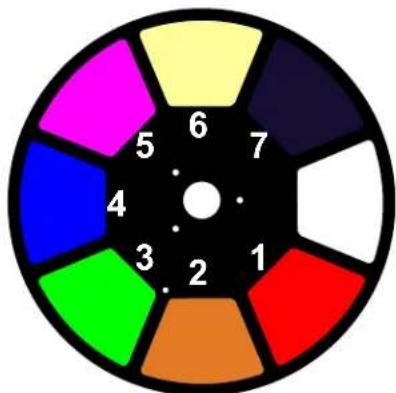
Chauvet Maverick MK2 Profile - Color Wheel - 1

pie | Segment | Value | |---|---| | Yellow | 6 | | Dark Blue | 7 | | White | 1 | | Red | 2 | | Orange | 3 | | Green | 4 | | Blue | 5 | | Magenta | 6 | The chart is a circular layout with no explicit title or axis labels. The values are estimated based on the numerical labels inside the circle.

Colors available:

  1. Red
  2. Orange
  3. Green
  4. Blue
  5. Magenta
  6. CTO
  7. UV

Gobo Designs

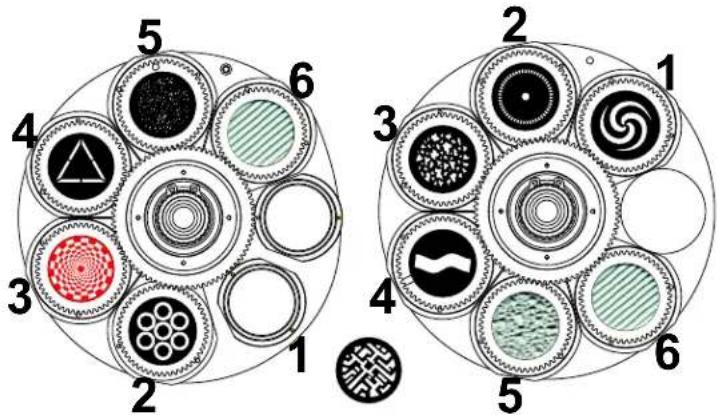
Chauvet Maverick MK2 Profile - Gobo Designs - 1

text_image 1 2 3 4 5 6

Gobo Wheel 1*

  1. Rings of rings
  2. Checker vortex
  3. Triangle
  4. Star field
  5. Lenticular glass
  6. Beam correction

Chauvet Maverick MK2 Profile - Gobo Designs - 2

Chauvet Maverick MK2 Profile - Gobo Designs - 3

text_image 1 2 3 4 5 6

Gobo Wheel 2

  1. Spiral
  2. Dot chiclets
  3. Splat breakups
  4. Wavy bar
  5. Shower glass
  6. Lenticular glass

* When Beam Correction is activated, Gobo Wheel 1 is offset by one set of values in the DMX configuration.

Gobo Dimension Chart

Chauvet Maverick MK2 Profile - Gobo Dimension Chart - 1

text_image 32 mm 28 mm OUTSIDE IMAGE

Gobo Replacement

The gobos in both gobo wheels 1 and 2 are removable from their gobo holders. This operation is quite simple, although it requires the technician to be careful and to follow the recommended procedure.

Chauvet Maverick MK2 Profile - Gobo Replacement - 1

  • Make sure to disconnect the product's power cord before replacing a gobo.
    • Always replace a gobo with a gobo of the same dimensions.
  • When inserting a glass gobo, always make sure that the shiny side of the gobo (glass base) faces the lamp. This provides a layer of protection against the high temperature from the lamp.

Procedure

  1. Turn the product off and disconnect it from the power outlet.
  2. Open the head cover by loosening the screws on the top cover.
  3. Separate the gobo holder away from the gobo wheel by pushing it toward the front of the moving head. Be careful not to push the gobo out of the gobo holder.
  4. Extract the gobo holder by pulling it outward.
  5. On a flat surface, remove the expansion ring that holds the gobo in place and remove the gobo from the gobo holder.
  6. Insert a new gobo and hold it in place with the expansion ring.
  7. Slide the tip of the gobo holder under the pressure plate near the center of the gobo wheel.
  8. Push the gobo holder inwards. DO NOT force the gobo holder into the gobo wheel slot. If correctly installed, the gobo holder should easily slide into the gobo wheel slot.

Diagram

Chauvet Maverick MK2 Profile - Diagram - 1

natural_image Architectural floor plan showing room layouts and equipment (no visible text or labels)

Locate

Chauvet Maverick MK2 Profile - Diagram - 2

natural_image Architectural site plan showing building layouts and a red arrow indicating a specific area (no text or labels visible)

Pull Back Remove

Chauvet Maverick MK2 Profile - Diagram - 3

natural_image Technical line drawing of a mechanical assembly with no visible text or symbols

Chauvet Maverick MK2 Profile - Diagram - 4

natural_image Circular diagram with eight circular components, each containing a unique patterned design (no text or symbols)

Chauvet Maverick MK2 Profile - Diagram - 5

text_image Gobo holder Gobo Retaining spring

Offset Mode

The Offset mode provides fine adjustments for the home position of all the moving parts in the optical path and the pan and tilt movements. This allows the moving parts to reduce the light output or to not show any border when in their home position. To access this mode, follow the instructions below:

  1. Starting from the Main Level screen, press and hold

    until the passcode screen appears.
  2. Enter the passcode 2323 using one of the following methods:

• Through the touchscreen: Use the number pad on the screen to enter 2323.

- With the buttons:

a. Use to select the number to be changed.

b. Use to increase the value.

c. Repeat until 2323 has been entered.

  1. Press .

  2. This brings you into the Zero Adjust menu screen.

PAN

  1. Use or to select PAN.

  2. Press .

  3. Use or to increase or decrease the starting value, from 000–255.

  4. Press .

TILT

  1. Use or to select TILT.

  2. Press

  3. Use or to increase or decrease the starting value, from 000–255.

  4. Press .

COLOR

  1. Use or to select COLOR.

  2. Press .

  3. Use or to increase or decrease the starting value, from 000–255.

  4. Press .

GOBO

  1. Use or to select GOBO.

  2. Press

  3. Use or to increase or decrease the starting value, from 000–255.

  4. Press .

GOBO ROTATE

  1. Use or to select GOBO ROTATE.

  2. Press .

  3. Use or to increase or decrease the starting value, from 000–255.

  4. Press .

GOBO 2

  1. Use or to select GOBO 2.

  2. Press

  3. Use or to increase or decrease the starting value, from 000–255.

  4. Press .

GOBO 2 ROTATE

  1. Use or to select GOBO 2 ROTATE.

  2. Press .

  3. Use or to increase or decrease the starting value, from 000–255.

  4. Press .

FOCUS 1

  1. Use or to select FOCUS 1.

  2. Press

  3. Use or to increase or decrease the starting value, from 000–255.

  4. Press .

FOCUS 2

  1. Use or to select FOCUS 2.

  2. Press .

  3. Use or to increase or decrease the starting value, from 000–255.

  4. Press .

FOCUS GOBO 2

  1. Use or to select FOCUS GOBO 2.
  2. Press
  3. Use or to increase or decrease the starting value, from 000–255.
  4. Press .

ZOOM

  1. Use or to select ZOOM.
  2. Press .
  3. Use or to increase or decrease the starting value, from 000–255.
  4. Press .

PRISM

  1. Use or to select PRISM.
  2. Press
  3. Use or to increase or decrease the starting value, from 000–255.
  4. Press .

IRIS

  1. Use or to select IRIS.
  2. Press .
  3. Use or to increase or decrease the starting value, from 000–255.
  4. Press .

FROST

  1. Use or to select FROST.
  2. Press
  3. Use or to increase or decrease the starting value, from 000–255.
  4. Press .

CYAN

  1. Use or to select CYAN.
  2. Press .
  3. Use or to increase or decrease the starting value, from 000–255.
  4. Press .

MAGENTA

  1. Use or to select MAGENTA.
  2. Press
  3. Use or to increase or decrease the starting value, from 000–255.
  4. Press .

YELLOW

  1. Use or to select YELLOW.
  2. Press
  3. Use or to increase or decrease the starting value, from 000–255.
  4. Press .

CTO

  1. Use or to select CTO.
  2. Press .
  3. Use or to increase or decrease the starting value, from 000–255.
  4. Press .

BLADE 1-1

  1. Use or to select BLADE 1-1.
  2. Press
  3. Use or to increase or decrease the starting value, from 000–255.
  4. Press .

BLADE 1-2

  1. Use or to select BLADE 1-2.
  2. Press .
  3. Use or to increase or decrease the starting value, from 000–255.
  4. Press .

BLADE 2-1

  1. Use or to select BLADE 2-1.
  2. Press
  3. Use or to increase or decrease the starting value, from 000–255.
  4. Press .

BLADE 2-2

  1. Use or to select BLADE 2-2.
  2. Press .
  3. Use or to increase or decrease the starting value, from 000–255.
  4. Press .

BLADE 3-1

  1. Use or to select BLADE 3-1.
  2. Press .
  3. Use or to increase or decrease the starting value, from 000–255.
  4. Press .

BLADE 3-2

  1. Use or to select BLADE 3-2.
  2. Press .
  3. Use or to increase or decrease the starting value, from 000–255.
  4. Press .

BLADE 4-1

  1. Use or to select BLADE 4-1.
  2. Press
  3. Use or to increase or decrease the starting value, from 000–255.
  4. Press .

BLADE 4-2

  1. Use or to select BLADE 4-2.
  2. Press .
  3. Use or to increase or decrease the starting value, from 000–255.
  4. Press .

BLADE ROTATE

  1. Use or to select BLADE ROTATE.
  2. Press .
  3. Use or to increase or decrease the starting value, from 000–255.
  4. Press .

DIMMER 1

  1. Use or to select DIMMER 1.
  2. Press
  3. Use or to increase or decrease the starting value, from 000–255.
  4. Press .

DIMMER 2

  1. Use or to select DIMMER 2.
  2. Press .
  3. Use or to increase or decrease the starting value, from 000–255.
  4. Press .

MAC Address

To adjust the fourth, fifth, or sixth digit of the MAC address, do the following:

  1. Use or to select MAC4, MAC5, or MAC6.
  2. Press .
  3. Use or to increase or decrease the value, from 000–255.
  4. Press .

Web Server

The Maverick MK2 Profile Web Server can be accessed by any computer on the same network as the product. It allows network access to system information and settings (e.g., control setup, manual testing of all functions, firmware updates, and the ability to change the Web Server password).

  1. Connect the product to power, and set the IP mode to Static.
  2. Connect the product to a Windows ^ computer with a network cable.
  3. On the computer, set the IP address of the new network to have the same first 3 digits as the IP address of the product (see IP address).
  4. Enter the IP address of the product into the URL bar of a Web browser on the computer.
  5. Enter both the User Name and Password as admin to log in.

Information

The Information page on the Web Server displays the current settings and the system information of the Maverick MK2 Profile.

Setup

The Setup page on the Web Server provides options for control, similar to the Settings menu on the product. Click Save Settings to send the new configuration to the product.

Manual Test

The Manual Test page on the Web Server allows all output functions of the product to be controlled through the browser. To set all functions back to default, click Reset.

Firmware Update

The Upgrade page on the Web Server allows the product to be updated with the latest firmware. Go to https://www.chauvetprofessional.com/products/maverick-mk2-profile to download firmware updates.

Security

The Security page on the Web Server gives the option to change the password to the connected product's Web server. Enter the old password (admin by default) and the new password twice, then click Save Settings to change the password.

5. Maintenance

Product Maintenance

Dust build-up reduces light output performance and can cause overheating. This can lead to reduction of the light source's life and/or mechanical wear. To maintain optimum performance and minimize wear, clean your lighting products at least twice a month. However, be aware that usage and environmental conditions could be contributing factors to increase the cleaning frequency.

To clean the product, follow the instructions below:

  1. Unplug the product from power.
  2. Wait until the product is at room temperature.
  3. Use a vacuum (or dry compressed air) and a soft brush to remove dust collected on the external surface/vents.
  4. Clean all transparent surfaces with a mild soap solution, ammonia-free glass cleaner, or isopropyl alcohol.
  5. Apply the solution directly to a soft, lint-free cotton cloth or a lens-cleaning tissue.
  6. Softly drag any dirt or grime to the outside of the transparent surface.
  7. Gently polish the transparent surfaces until they are free of haze and lint.

Chauvet Maverick MK2 Profile - Product Maintenance - 1

Always dry the transparent surfaces carefully after cleaning them.

6. Technical Specifications

Dimensions and Weight

Length Width Height Weight

15.5 in (394 mm) 10.9 in (279 mm) 26.7 in (679 mm) 69.8 lb (31.7 kg)

Note: Dimensions in inches are rounded.

Power

Power Supply Type Range Voltage Selection
Switching (internal) 100 to 240 VAC, 50/60 Hz Auto-ranging
Parameter120 V, 60 Hz208 V, 60 Hz230 V, 50 Hz
Consumption750 W732 W734 W
Operating current 6.32 A3.5 A3.1 A
FuseF 12 A, 250 VF 12 A, 250 VF 12 A, 250 V
Power I/OU.S./WorldwideUK/Europe
Power input connectorSeetronic Powerkon IP65Seetronic Powerkon IP65
Power output connectorSeetronic Powerkon IP65Seetronic Powerkon IP65
Power cord plugEdison (US)Local plug

Light Source

TypeColorQuantityPowerCurrentLifespan
LEDCool white1440 W6.5 A50,000 hours

Photometrics

Beam AngleField AngleZoom AngleIlluminance @ 5 m (12°)Illuminance @ 5 m (37°)Color Temperature
12°–35°13°–37°13°–37°14,981 lux2,098 lux5,883 K

DMX/ Art-Net™/ sACN

I/O ConnectorsChannel Range
3- and 5-pin XLR/Amphenol XLR Net RJ45 connectors in/out33 and 50 channels

Thermal

Maximum External Temp.Cooling System
113 °F (45 °C) Convection

Ordering

Product NameItem CodeUPC Number
Maverick MK2 Profile08011312781462216603

Photometrics Chart

NarrowMaverick MK2 Profile (Imperial)Wide
Distance12° Beam Diameter13° Field DiameterFootcandleFootcandle35° Beam Diameter37° Field Diameter
15 ft 3.15 ft 3.42 ft1,665 233 ft9.46 ft10.04 ft
20 ft 4.20 ft 4.56 ft936 131 ft12.61 ft13.38 ft
30 ft 6.31 ft 6.84 ft416 58 ft18.92 ft20.08 ft
40 ft 8.41 ft 9.11 ft234 33 ft25.22 ft26.77 ft
50 ft10.51 ft11.39 ft1502131.53 ft33.46 ft
75 ft15.77 ft17.09 ft67947.29 ft50.19 ft
100 ft21.02 ft22.79 ft37563.06 ft66.92 ft
125 ft26.28 ft28.48 ft24378.82 ft83.65 ft
150 ft31.53 ft34.18 ft17294.59 ft100.38 ft

Chauvet Maverick MK2 Profile - Dimensions and Weight - 1

NarrowMaverick MK2 Profile (Metric)Wide
Distance12° Beam Diameter13° Field DiameterLuxLux35° Beam Diameter37° Field Diameter
1 m0.21 m0.23 m374,52552,4500.63 m0.67 m
2 m0.42 m0.46 m93,63113,1131.26 m1.34 m
5 m1.05 m1.14 m14,9812,0983.15 m3.35 m
8 m1.68 m1.82 m5,8528205.04 m5.35 m
10 m2.10 m2.28 m3,7455256.31 m6.69 m
15 m3.15 m3.42 m1,6652339.46 m10.04 m
20 m4.20 m4.56 m93613112.61 m13.38 m
25 m5.26 m5.70 m5998415.76 m16.73 m
30 m6.31 m6.84 m4165818.92 m20.08 m

Chauvet Maverick MK2 Profile - Dimensions and Weight - 2

Returns

In case you need to get support or return a product:

  • If you are located in the US, contact Chauvet World Headquarters.
  • If you are located in the UK or Ireland, contact Chauvet Europe Ltd.
  • If you are located in Benelux, contact Chauvet Europe BVBA.
  • If you are located in France, contact Chauvet France.
  • If you are located in Germany, contact Chauvet Germany.
  • If you are located in Mexico, contact Chauvet Mexico.

- If you are located in any other country, DO NOT contact Chauvet. Instead, contact your local distributor. See www.chauvetprofessional.com for distributors outside the US, UK, Ireland, Benelux, France, Germany, or Mexico.

Chauvet Maverick MK2 Profile - Returns - 1

If you are located outside the U.S., UK, Ireland, Benelux, France, Germany, or Mexico, contact your distributor of record and follow their instructions on how to return Chauvet products to them. Visit our website www.chauvetprofessional.com for contact details.

Call the corresponding Chauvet Technical Support office and request a Return Merchandise Authorization (RMA) number before shipping the product. Be prepared to provide the model number, serial number, and a brief description of the cause for the return.

To submit a service request online, go to www.chauvetprofessional.com/service-request.

Send the merchandise prepaid, in its original box, and with its original packing and accessories. Chauvet will not issue call tags.

Clearly label the package with the RMA number. Chauvet will refuse any product returned without an RMA number.

Chauvet Maverick MK2 Profile - Returns - 2

Write the RMA number on a properly affixed label. DO NOT write the RMA number directly on the box.

Before sending the product, clearly write the following information on a piece of paper and place it inside the box:

  • Your name
  • Your address
  • Your phone number
    • R M A n u m b e r
  • A brief description of the problem

Be sure to pack the product properly. Any shipping damage resulting from inadequate packaging will be your responsibility. FedEx packing or double-boxing are recommended.

Chauvet Maverick MK2 Profile - Returns - 3

Chauvet reserves the right to use its own discretion to repair or replace returned product(s).

Contact Us

General Information Technical Support

Chauvet World Headquarters

Address: 5200 NW 108th Ave. Voice: (844) 393-7575

Sunrise, FL 33351 Fax: (954) 756-8015

Voice: (954) 577-4455 Email: chauvetcs@chauvetlighting.com

Fax: (954) 929-5560

Toll Free: (800) 762-1084 Website: www.chauvetprofessional.com

Chauvet Europe Ltd

Address: Unit 1C Email: UKtech@chauvetlighting.eu

Brookhill Road Industrial Estate

Pinxton, Nottingham, UK Website: www.chauvetprofessional.eu

NG16 6NT

Voice: +44 (0) 1773 511115

Fax: +44 (0) 1773 511110

Chauvet Europe BVBA

Address: Stokstraat 18 Email: BNLtech@chauvetlighting.eu

9770 Kruishoutem

Belgium Website: www.chauvetprofessional.eu

Voice: +32 9 388 93 97

Chauvet France

Address: 3, Rue Ampère91380 Chilly-MazarinEmail: FRtech@chauvetlighting.fr

France Website: www.chauvetprofessional.eu

Voice: +33 1 78 85 33 59

Chauvet Germany

Address: Bruno-Bürgel-Str. 11 Email: DEtech@chauvetlighting.de

28759 Bremen

Germany Website: www.chauvetprofessional.eu

Voice: +49 421 62 60 20

Chauvet Mexico

Address: Av. de las Partidas 34 - 3B Email: servicio@chauvet.com.mx

(Entrance by Calle 2)

Zona Industrial Lerma Website: www.chauvetprofessional.mx

Lerma, Edo. de México, CP 52000

Voice: +52 (728) 690-2010

Visit the applicable website above to verify our contact information and instructions to request support. Outside the US, UK, Ireland, Benelux, France, Germany, or Mexico, contact the dealer of the record.

1. Antes de Empezar

Qué va Incluido

• Maverick MK2 Profile

- 2 soportes Omega con material de montaje

- Cable de alimentación Seetronic Powerkon IP65

- Manual de usuario

Instrucciones de Desembalaje

Desembale el producto con cuidado inmediatamente y compruebe la caja para asegurarse de que todas las partes están en el paquete y en buen estado.

Reclamaciones

Si la caja o el contenido (el producto y los accesorios incluidos) parecen dañados a cause del transporte o muestran signos de manipulación inadecuada, notifíqueselo inmediatamente al transportista, y no a Chauvet. Si no lo a hace oportunamente, puede quedar invalidada su reclamación al transportista. Además, guarde la caja y todo el material de embalaje para su inspección.

Para otras incidencias, como componentes o partes que falten, daños no relacionados con el transporte o daños no evidentes, presente una reclamación a Chauvet en el plazo de 7 días de la entrega.

Convenciones del Manual

Convención Significado
1–512 Un rango de valores
50/60Un conjunto de valores de los cuales solo se pude escoger uno
Settings Unaopción de menú que no se puede modificar
Una tecla que se tiene que se pulsar en el panel de control del producto
ON Un valor que se tiene que introducir o seleccionar

Símbolos

Símbolo Significado
Chauvet Maverick MK2 Profile - Símbolos - 1Instalación, configuración o información sobre funcionamiento crítica. Hacer caso omiso de esta información puede hacer que el producto no funcione, que se averíe, o causar daños al usuario.
Chauvet Maverick MK2 Profile - Símbolos - 2Instalación o información de configuración importante. El producto puede no funcionar correctamente si esta información no se usa.
Chauvet Maverick MK2 Profile - Símbolos - 3Información útil.

Vida Útil Prevista del LED

Los LED van perdiendo brillo paulatinamente con el tiempo, principalmente a causa del calor. Agrupados, los LED arrojan unas temperaturas de funcionamiento superiores a las condiciones ideales de un LED individual. Por esta razón, usar LED agrupados a su máxima intensidad reduce significativamente la vida del LED. Bajo condiciones normales, esta vida puede ser de 40.000 o 50.000 horas. Si la extensión de la duración es vital, baje la temperatura de funcionamiento mejorando la ventilación alrededor del producto y reduzca la temperatura ambiente a un rango óptimo. Además, limitar la intensidad de proyección total puede contribuir a alargar la vida del LED.

Chauvet Maverick MK2 Profile - Vida Útil Prevista del LED - 1

- Cualquier referencia a datos o conexiones de alimentación en este manual supone el uso de cables Seetronic con clasificación IP.

- Este producto no contiene piezas reparables por el usuario. Cualquier referencia a la reparación en este Manual de usuario se aplicará solamente a técnicos certificados, adecuadamente instruidos por Chauvet. No abra la carcasa ni intente ninguna reparación.

- Todos los códigos locales y regulaciones correspondientes se aplican a la instalación adecuada de este producto.

- El término "DMX" utilizado en este manual se refiere al protocolo de transmisión de datos digitales USITT DMX512-A.

Chauvet Maverick MK2 Profile - Vida Útil Prevista del LED - 2

Notas de Seguridad

Por favor, lea todas las siguientes Notas de Seguridad antes de poner en funcionamiento este producto. Estas notas incluyen información importante de seguridad sobre la instalación, uso y mantenimiento de este producto.

Seguridad Personal

  • Evite la exposición directa de los ojos a la fuente de luz mientras es producto esté encendido.
  • Desconecte siempre el producto de la fuente de alimentación antes de limpiarlo o cambiar el fusible.
  • Conecte siempre el producto a un circuito con toma de tierra para evitar el riesgo de electrocución.
  • No toque la carcasa del producto cuando esté en funcionamiento, porque podría estar muy caliente.

Montaje e Instalación

  • Este producto no está destinado a una instalación permanente.
  • ¡Este producto es para uso en interiores solamente! Para evitar riesgos de incendio o descarga, no exponga este producto a la lluvia o la humedad (IP20).
  • CUIDADO: Cuando traslade el producto entre ambientes de temperatura extrema (p. ej., desde un camión frío a una sala de fiestas húmeda y caliente) se puede formar condensación en la electrónica interna del producto. Para evitar que se produzca un fallo, deje que el producto se aclimate totalmente al entorno antes de conectar la alimentación.
  • Monte este producto en una ubicación con ventilación adecuada, al menos a 20 in (50 cm) de superficies adyacentes.
  • Asegúrese de que no hay materiales inflamables cerca del producto cuando esté en funcionamiento.
  • Si cualga este producto, asegúrelo siempre a un dispositivo de seguridad usando un cable de seguridad.
  • Nunca mueva el producto agarrándolo por el cable de alimentación o por cualquier parte móvil.

Alimentación y Cableado

  • Asegúrese de que el cable de alimentación no está retorcido ni estropeado.
  • Asegúrese siempre de que conecta el producto a la tensión adecuada, en concordancia con las especificaciones de este manual o de la etiqueta de especificación del producto.
  • Para evitar un desgaste innecesario y alargar su vida útil, desconecte completamente el producto de la alimentación mediante el interruptor o desenchufándolo durante periodos en que no se use.
  • Nunca conecte este producto a un regulador de intensidad o reostato.
  • Asegúrese de reemplazar el fusible con otro del mismo tipo y clasificación.
  • Nunca desconecte este producto agarrando o tirando del cable de alimentación.

Funcionamiento

  • No haga funcionar este producto si hay daño en la carcasa, las lentes o las cables. Haga que en técnico autorizado sustituya todas las piezas estropeadas.
  • No cubra las ranuras de ventilación cuando esté funcionando, para evitar sobrecalentamiento interno.
  • La temperatura ambiente máxima es de 113 °F (45 °C). No haga funcionar el producto a temperaturas más altas.
  • ¡En caso de un problema grave de funcionamiento, deje de usar este producto inmediatamente!

Chauvet Maverick MK2 Profile - Funcionamiento - 1

Si su producto Chauvet necesita reparación, póngase en contacto con el Servicio Técnico de Chauvet.

2. Introducción

Descripción

El Maverick MK2 Profile proporciona la precisión artística definitiva a través de su sistema de bastidor giratorio avanzado de doble posición y cuatro hojas, un increíblemente brillante motor LED de 440 W, dos ranuras giratorias de 6 posiciones y ruedas de gobo con enclavamiento, mezcla de color CMY+CTO, una rueda de color de 7 posiciones + blanco, difusor variable, prisma de 3 cara y un rango de zoom de 14° a 36°. Contrólelo con DMX, sACN, Art-Net™ o WDMX, y pruébelo con RDM. Como característica añadida, esta extraordinaria cabeza móvil puede recibir TCP/IP y enviar DMX, simplificando el cableado.

Características

  • Aparato LED de perfil de yugo de 440 W, con funciones completas, que incluye mezcla de color CMY+CTO, un sistema de obturador giratorio con bastidor de cuatro hojas, una rueda de color, zoom 3:1 y dos ruedas giratorias de gobo
  • Atenuador maestro de 16 bits para transiciones suaves de color
  • Sistema de mezcla de color CMY+CTO variable para crear una amplia paleta de colores
  • Dos ruedas de gobo giratorias, con indexado y ranura y bloqueo intercambiables
  • DMX, WDMX, sACN, y Art-Net™ para una total flexidad de opciones de control
  • Control RDM sobre DMX para obtener informes del aparato
  • Ángulo de zoom de 13° a 37° para variar los tamaños del haz
  • Iris, prisma de 3 caras y difusor para el control del haz
  • Entrada de alimentación compatible con True 1
    • Pantalla auxiliar por batería con rotación automática dependiendo de la orientación del dispositivo

Vista General del Producto
Chauvet Maverick MK2 Profile - Características - 1

text_image Ventilador Pantalla táctil Botones de menú Filtros Ventilador Lente frontal Soportes Omega (2x) Patas de goma (4x) Antena WDMX DMX entrada de datos DMX salida de datos Puertos de paso etherCON® Interruptor de alimentación Portafusibles Entrada de alimentación Puntos de montaje para soportes Omega (4x)

Dimensiones del Producto
Chauvet Maverick MK2 Profile - Características - 2

text_image 11.89 in 302 mm 11.02 in 280 mm 21.57 in 548 mm

Chauvet Maverick MK2 Profile - Características - 3

text_image 15.51 in 394 mm 0.51 in 13 mm 9.84 in 250 mm

Chauvet Maverick MK2 Profile - Características - 4

text_image 18.50 in 470 mm 6.34 in 161 mm GEVET 18.31 in 465 mm 4.45 in 13 mm

Chauvet Maverick MK2 Profile - Características - 5

text_image 26.69 in 28.19 in 678 mm 716 mm

Chauvet Maverick MK2 Profile - Características - 6

text_image 9.25 in 235 mm 5.51 in 140 mm 5.51 in 7.40 in 140 mm 188 mm

3. Instalación

Corriente Alterna

El Maverick MK2 Profile tiene una fuente de alimentación con detección automática que puede funcionar con un rango de tensión de entrada de 100 a 240 VCA, 50/60 Hz. Para determinar los requerimientos de alimentación (disyuntor, toma de alimentación y cableado), use el valor de tensión que aparece en la etiqueta fijada en el panel trasero del producto o consulte las Especificaciones Técnicas de este manual. La especificación de corriente listada indica el consumo de corriente promedio en condiciones normales. Para obtener más información, descargue Sizing Circuit Breakers del sitio web de Chauvet: www.chauvetprofessional.com

Chauvet Maverick MK2 Profile - Corriente Alterna - 1

  • Conecte siempre el producto a un circuito protegido (disyuntor o fusible). Asegúrese de que el producto tiene una toma de tierra adecuada para evitar el riesgo de electrocución o incendio.
  • Para evitar un desgaste innecesario y alargar su vida útil, desconecte complemente el producto de la alimentación, mediante el interruptor o desenchufándolo, durante los periodos en los que no se use.
  • Nunca conecte el producto a un reostato (resistor variable) o circuito de atenuación, incluso si el canal del reostato o atenuador sirve solo como conmutador 0 a 100%.

Enchufe CA

El Maverick MK2 Profile viene con un cable de entrada de alimentación terminado con un conector Seetronic Powerkon en un extremo y un enchufe Edison en el otro extremo (mercado de los EE. UU.). Si el cable de entrada de alimentación que vino con su producto no tiene enchufe, o si necesita cambiar el enchufe, use la tabla a continuación para conectar el nuevo.

Conexión Cable (EE. UU.) Wire (Europa) Color del tornillo
AC Cargado NegroMarrón Amarillo/latón
AC Neutro BlancoAzul Plata
AC TierraVerde/amarilloVerde/amarilloVerde

Sustitución del Fusible

  1. Desconecte el producto de la alimentación.
  2. Utilizando un destornillador plano, desatornille la tapa del portafusibles de la carcasa.
  3. Quite el fusible fundido del portafusibles y sustitúyalo con otro del mismo tipo y categoría exactamente (F 12 A, 250 V).
  4. Vuelva a atornillar la tapa del portafusibles en su sitio y conecte de nuevo la alimentación.

Chauvet Maverick MK2 Profile - Sustitución del Fusible - 1

Desconecte el producto de la alimentación antes de sustituir el fusible. Sustituya siempre el fusible fundido con uno del mismo tipo y categoría.

Montaje

Antes de montar el producto, lea y siga las recomendaciones de seguridad indicadas en las Notas de Seguridad.

Orientación

Monte siempre este producto en una posición segura y asegúrese de que haya espacio adecuado para la ventilación, la configuración y el mantenimiento. El Maverick MK2 Profile se puede suspender hacia arriba o hacia abajo con los dos soportes Omega incluidos, o se puede colocar sobre los pies de goma sobre una superficie plana.

Colocación

Chauvet recomienda utilizar las siguientes pautas generales al montar este producto:

  • Antes de decidir una ubicación para el producto, asegúrese siempre de que hay fácil acceso al producto para su mantenimiento y programación.
  • El producto no está destinado a la instalación permanente.
  • Asegúrese de montar este producto lejos de cualquier material inflamable.
  • Nunca lo monte en lugares donde la lluvia, la alta humedad, los cambios extremos de temperatura o la ventilación restringida puedan afectar al producto.
  • Asegúrese de que la estructura o superficie sobre la que está montando el producto puede soportar su peso (vea las Especificaciones Técnicas).
  • Cuando monte este producto en alto, use siempre un cable de seguridad. Para conocer línea de cables de seguridad CHAUVET Professional, visite http://trusst.com/products/.
  • Cuando monte el producto en el piso, asegúrese de que el producto y los cables estén alejados de personas y vehículos.
  • Coloque el Maverick MK2 Profile para que pueda moverse libremente sin golpear a nada ni a nadie.
  • Deje suficiente holgura en los cables para evitar la tensión y tire de los enchufes.

Diagrama de montaje
Chauvet Maverick MK2 Profile - Colocación - 1

text_image Abrazadera Cable d'alimentacion Soportes Omega (x2)

Montaje Superior

Chauvet Maverick MK2 Profile - Colocación - 2

text_image Patas de goma (x4)

Montaje en el Piso

Enlace DMX

Puede enlazar el Maverick MK2 Profile a un controlador DMX usando una conexión DMX de 3 o 5 pines. Si usa otros productos compatibles con DMX con este producto, puede controlar cada uno individualmente con un solo controlador DMX.

Personalidades de DMX

El Maverick MK2 Profile utiliza usa una conexión de datos DMX de 3 o 5 pines para sus personalidades DMX de 33 y 50 canales.

  • Consulte la Introducción para ver una breve descripción de cada personalidad DMX.
  • Consulte el capítulo Funcionamiento para aprender cómo configurar el Maverick MK2 Profile para funcionar en estas personalidades.
  • El apartado Valores DMX encontrará información detallada relativa a las personalidades DMX.

Remote Device Management (RDM)

Remote Device Management (gestión remota del dispositivo) o RDM, es un estándar que permite a los dispositivos con capacidad DMX comunicarse bidireccionalmente por un cableado DMX existente. Consulte el manual de usuario del controlador DMX o pregunte al fabricante, ya que no todos los controladores DMX tienen esta capacidad. El Maverick MK2 Profile es compatible con el protocolo RDM, que permite la comunicación para realizar cambios a las opciones del mapa de menú.

Conexiones de Señal

El Maverick MK2 Profile puede recibir señales DMX, WDMX, Art-Net™ o sACN. El Maverick MK2 Profile tiene dos puertos de paso Amphenol XLRnet, y puertos DMX de entrada y salida de 3 y 5 pines. Para obtener más información sobre DMX, lea el manual de DMX en: https://www.chauvetprofessional.com/wp-content/uploads/2016/06/DMX_Primer.pdf.

Conexión Art-Net™

Art-Net™ es un protocolo Ethernet que usa TCP / IP que transfiere una gran cantidad de datos DMX512 usando una conexión Amphenol XLRnet RJ45 a través de una red grande. Un documento de protocolo Art-Net™ está disponible en www.chauvetprofessional.com. Art-Net™ diseñado por Artistic License Holdings Ltd.

Conexión sACN

Transmisión ACN, también conocido como ANSI E1.31, es un protocolo Ethernet que utiliza la disposición y el formato de la Architecture for Control Networks (ACN) para transportar datos DMX512 a través de IP o cualquier otra red compatible con ACN. ACN es mantenido por la Professional Lighting and Sound Association (PLASA).

Diagrama de conexión
Chauvet Maverick MK2 Profile - Conexión sACN - 1

flowchart
graph TD
    A["Laptop"] --> B["Computadora/Controlador (ejecutando el protocolo Art-Net™ o sACN)"]
    B --> C["Interruptor o Enrutador (como el NET-Switch de CHAUVET Professional)"]
    C --> D["Maverick MK2 Profile"]
    D --> E["Other Art-Net™ or sACN devices"]
    C --> F["Computer"]

Chauvet Maverick MK2 Profile - Conexión sACN - 2

Los tres indicadores LED entre puertos Ethernet indican una conexión a una red y actividad en esa red. No indican si Maverick MK2 Profile recibe o no una señal de un controlador.

4. Funcionamiento

Panel de Control de Pantalla Táctil

El Maverick MK2 Profile dispone de una pantalla táctil y de 6 botones de control. Navegue por la estructura del menú presionando los botones, tocando las imágenes de los botones en los lados de la pantalla, o tocando la opción de menú deseada en la pantalla directamente. La pantalla táctil se puede bloquear y calibrar a través de las opciones de Settings (configuración) en el menú (ver Calibración de la pantalla táctil y Bloqueo de la pantalla táctil).

Descripción del Panel de Control

Button Function
Navega hacia arriba por la lista del menú o aumenta el valor numérico cuando está en una función
Sale del menú o función actual
Navega hacia abajo por la lista del menú o disminuye el valor numérico cuando está en una función
Navega hacia la izquierda por la lista del menú
Habilita el menú actualmente en pantalla o configura el valor seleccionado actualmente dentro de la función seleccionada
Navega hacia la derecha por la lista del menú

Pantalla a Batería

Pulse y mantenga pulsado hasta que aparezca la pantalla de menú (aproximadamente 15 segundos).

Chauvet Maverick MK2 Profile - Pantalla a Batería - 1

natural_image Line drawing of a robotic hand holding a device with a screen and buttons (no text or symbols)

Mapa de Menú

Nivel Principal Niveles de Programación Descripción
Start Address 000-512 Configuración de red
Network SetupIP ModeManualConfigurar la dirección manualmente
DHCPLa red configura la dirección IP
StaticEl producto configura la dirección IP
Universe 000-255Establecer el universo
IP 002.243.075.222Configurar la dirección IP en modo manual
SubMask 255.000.000.000Configurar la máscara de subred en modo manual
PersonalityDMX 33CHYESSeleccionar 33 canales de DMX
NO
DMX 50CHYESSeleccionar 50 canales de DMX
NO
SettingsControl ModeDMXEstablece la personalidad DMX
WDMX Establecela personalidad WDMX
sACN Establecela personalidad sACN
ArtNetEstablece la personalidad Art-NetTM
Pan ReverseNODesplazamiento lateral normal
YES Desplazamiento lateral inversa
Tilt ReverseNOInclinación normal
YES Inclinación inversa
Screen ReverseNOPantalla normal
YES Pantalla inversa
AUTO Orientación de pantalla automático
Pan Angle540Rango de desplazamiento lateral: 540°
360Rango de desplazamiento lateral: 360°
180Rango de desplazamiento lateral: 180°
Tilt Angle270Rango de inclinación: 270°
180Rango de inclinación: 180°
90Rango de inclinación: 90°
BL. O. P/T MoveYESIr a blackout mientras hay movimiento panorámico/inclinación
NONo ir a blackout mientras hay movimiento panorámico/inclinación
BL. O. Color MoveYESIr a blackout de color
NO No ir a blackout de color
BL. O. Gobo MoveYESIr a blackout de gobo
NO No ir a blackout de gobo
CalibrationYESCalibrar la pantalla táctil
NO Mantener la configuración actual
Touchscreen LockYESLa pantalla no responde al toque
NO La pantalla responden al toque
Lock ScreenYESBloqueo los botones y pantalla táctil
NOContraseña: 0920
SettingsSwap XYYESPanorámica controla inclinación, inclinación controla panorámica
NONo intercambiar panorámica e inclinación
XY ModeFastPanorámica e inclinación rápidas
Slow Panorámica e inclinación lentas
WDMX ResetYESRestablecer WDMX
NO No restablecer WDMX
Backlight Timer30SLa pantalla se apaga a los 30 segundos
1MLa pantalla se apaga a los 1 minuto
5MLa pantalla se apaga a los 5 minutos
ON La pantalla permanece encendida
Loss of DataHoldMantiene la última señal recibida
Close Pone el dispositivo en blackout
FansAutoVelocidad del ventilador según la temperatura del producto
FullVelocidad del ventilador configurada como alta
ECO Modo silencioso
Theatrical DimmingNO Atenuación actualizada
YESLa atenuaciones heredadas coincidirán con los Maverick MK2 Profiles más antiguos
Dimmer CurveLinearConfigura la curva del atenuador
Square
I Square
SCurve
Dimmer SpeedSmoothCambia la velocidad del atenuador
Fast
PWM Option600Selección de Pulse Width Modulation (PWM)
1200
2000
4000
6000
15000
Smart ZoomOFFLimita el rango de zoom para un enfoque óptimo
ON
Beam CorrectionOFF Crea un campo plano cuando se usan obturadores. Esto corregirá también los gobos en la posición 1 de la rueda n.° 1
ON
Preset SelectPRESET AOpciones de menú preconfiguradas grabadas
PRESET B
PRESET C
Preset SyncNO Permite transferir las opciones de menú preconfiguradas grabadas a otros Maverick MK2 Profile de la cadena DMX
YES
Nivel Principal Niveles de Programación Descripción
SettingsReset FunctionPan/TiltYES/NORestablece las funciones individuales o todas las funciones desde el arranque
Iris/Prism
Color/CMY + Blade
Gobo/GoboRotate
Frost
All
Factory SettingsYESRestablece el dispositivo a la configuración de fábrica
NO
TestAuto Test Probar automatico el producto
Manual TestPan000–255Prueba individualmente cada función / canal
Pan Fine
Tilt
Tilt Fine
P/T Speed
Dimmer
Dimmer Fine
Shutter
Virtual Shaking
Cyan
Magenta
Yellow
CTO
Color
Gobo
Gobo Rotate
Gobo Index
Gobo 2
Gobo 2 Rotate
Gobo 2 Index
Blade 1-1
Blade 1-1 Fine
Blade 1-2
Blade 1-2 Fine
Blade 2-1
Blade 2-1 Fine
Blade 2-2
Blade 2-2 Fine
Blade 3-1
Blade 3-1 Fine
Blade 3-2
Blade 3-2 Fine
Blade 4-1
Blade 4-1 Fine
Blade 4-2
Blade 4-2 Fine
Blade Rotate
TestManual TestBlade Rotate Fine000–255Prueba individualmente cada función / canal
Focus
Focus Fine
Focus Auto
Zoom
Zoom Fine
Prism
Prism Rotate
Iris
Frost
CMY Macro
CMY Macro Speed
Special Function
InformationFixture InformationVer V_Muestra la versión de firmware
Running Mode----Muestra el modo de ejecución actual
Address _ _Muestra la dirección de inicio actual
Temperature _ _Muestra la temperatura actual del producto en °C
Fixture Hours _ _Muestra el número de horas que el producto ha estado encendido
IP _ _ _ _Muestra la dirección IP actual
SubMask _ _ _Muestra la máscara de subred actual
MAC _ _ _ _Muestra la dirección MAC actual
Fan InformationBase Fan 1 Speed _ _Muestra la velocidad de los ventiladores base y cabeza en rpm
Base Fan 2 Speed _ _
Head Fan 1 Speed _ _
Head Fan 2 Speed _ _
Error InformationNo Error!*Muestra cualquier error o “No Error!”

Nivel Principal Niveles de Programación Descripción

InformationChannel InformationFrequency HzMuestra todos los valores actuales de las señales de entrada, 000-255
Pan000-255
Pan Fine
Tilt
Tilt Fine
P/T Speed
Dimmer
Dimmer Fine
Shutter
Virtual Shaking
Cyan
Magenta
Yellow
CTO
Color
Gobo
Gobo Rotate
Gobo Index
Gobo 2
Gobo 2 Rotate
Gobo 2 Index
Blade 1-1
Blade 1-1 Fine
Blade 1-2
Blade 1-2 Fine
Blade 2-1
Blade 2-1 Fine
Blade 2-2
Blade 2-2 Fine
Blade 3-1
Blade 3-1 Fine
Blade 3-2
Blade 3-2 Fine
Blade 4-1
Blade 4-1 Fine
Blade 4-2
Blade 4-2 Fine
Blade Rotate
Blade Rotate Fine
Blade Rotate Macro
Focus
Focus Fine
Focus Auto
Zoom
Zoom Fine
Prism
Prism Rotate
Iris
Frost
CMY Macro
CMY Macro Speed
Special Function

Configuración de Ajustes de Funcionamiento

Pantalla de Inicio

El Maverick MK2 Profile tiene una pantalla de inicio que muestra los protocolos, personalidades, direcciones de inicio, direcciones IP y universos actuales. Para ver la pantalla de inicio, pulse

repetidamente hasta que aparezca en la pantalla. Desde la pantalla de inicio, toque cualquiera de los ajustes de control que aparecen para saltar inmediatamente a esa parte del menú (p. ej., personalidad, dirección de inicio o universo) o pulse para llegar al menú principal.

Dirección de Inicio

Para establecer la dirección de inicio, siga luego estas instrucciones:

  1. Pulse repetidamente hasta llegar a la Pantalla de Inicio. Pulse .
  2. Utilice , , o para seleccionar Start Address o toque la pantalla donde pone Start Address.
  3. Si utiliza los botones en lugar de la pantalla táctil, pulse .
  4. Introduzca la dirección de inicio (000–512) mediante uno de los métodos siguientes:
  5. Escriba el número de la dirección utilizando el teclado numérico que aparece en la pantalla táctil.
    • Utilice los botones (o los iconos de botones de los laterales de la pantalla):
    a. Utilice LEFT> o para seleccionar el dígito que desee modificar.
    b. Utilice o para aumentar o disminuir el valor numérico de ese digito.
    c. Repita hasta haber configurado la dirección deseada.

  6. Pulse .

Configuración de Red

Chauvet Maverick MK2 Profile - Configuración de Red - 1

El universo del protocolo TCP / IP será el universo de la función DMX.

Modo IP

La dirección IP del Maverick MK2 Profile se puede establecer manualmente, por la red, o a una dirección estática preconfigurada, específica para cada producto. Para configurar el modo de IP, siga las instrucciones siguientes:

  1. Pulse repetidamente hasta llegar a la Pantalla de Inicio. Pulse .
  2. Utilice , , o para seleccionar Network Setup, o toque la pantalla donde pone Network Setup.
  3. Si utiliza los botones en lugar de la pantalla táctil, pulse .
  4. Utilice o para seleccionar IP Mode, o toque la pantalla donde pone IP Mode.
  5. Si utiliza los botones en lugar de la pantalla táctil, pulse .
  6. Utilice , , o para seleccionar entre:
  7. Manual – configurar la dirección IP con el panel de control
  8. DHCP – la red establece la dirección IP
  9. Static – una dirección estática preconfigurada, específica para cada producto, o toque la pantalla donde se encuentre el modo deseado.

  10. Pulse .

Universo

El Universo debe ser asignado a través del menú del producto. Para configurar el Universo haga lo siguiente:

  1. Pulse repetidamente hasta llegar a la Pantalla de Inicio. Pulse .
  2. Utilice , , o para seleccionar Network Setup, o toque la pantalla donde pone Network Setup.
  3. Si utiliza los botones en lugar de la pantalla táctil, pulse .
  4. Utilice o para seleccionar Universe, o toque la pantalla donde pone Universe.
  5. Si utiliza los botones en lugar de la pantalla táctil, pulse .
  6. Introduzca la dirección de inicio (000–255) mediante uno de los métodos siguientes:
  7. Escriba el número de la dirección utilizando el teclado numérico que aparece en la pantalla táctil.
    • Utilice los botones (o los iconos de botones de los laterales de la pantalla):
    a. Utilice LEFT> o para seleccionar el dígito que desee modificar.
    b. Utilice o para aumentar o disminuir el valor numérico de ese digito.
    c. Repita hasta haber configurado la dirección deseada.

  8. Pulse .

Dirección IP

Para configurar la dirección IP, haga lo siguiente:

  1. Pulse repetidamente hasta llegar a la Pantalla de Inicio. Pulse .
  2. Utilice , , o para seleccionar Network Setup, o toque la pantalla donde pone Network Setup.
  3. Si utiliza los botones en lugar de la pantalla táctil, pulse .
  4. Utilice o para seleccionar IP, o toque la pantalla donde pone IP.
  5. Si utiliza los botones en lugar de la pantalla táctil, pulse .
  6. Introduzca la dirección IP (de 000.000.000.000 a 255.255.255.255) mediante uno de los métodos siguientes:

• Mediante la pantalla táctil:

a. Toque la pantalla donde se encuentre el byte (conjunto de tres números) que necesite cambiar.
b. Utilice el teclado numérico de la pantalla para introducir el número que desee.
c. Repita hasta haber configurado la dirección IP deseada.

- Con los botones:

a. Utilice o para seleccionar el byte (conjunto de tres números) que necesite cambiar.
b. Utilice o para aumentar o disminuir el valor.
c. Repita hasta haber configurado la dirección IP deseada.

  1. Pulse .

Máscara de subred

Para configurar la máscara de subred, haga lo siguiente:

  1. Pulse repetidamente hasta llegar a la Pantalla de Inicio. Pulse .
  2. Utilice , , o para seleccionar Network Setup, o toque la pantalla donde pone Network Setup.
  3. Si utiliza los botones en lugar de la pantalla táctil, pulse .
  4. Utilice o para seleccionar SubMask, o toque la pantalla donde pone SubMask.
  5. Si utiliza los botones en lugar de la pantalla táctil, pulse .
  6. Introduzca la dirección IP (de 000.000.000.000 a 255.255.255.255) mediante uno de los métodos siguientes:

• Mediante la pantalla táctil:

a. Toque la pantalla donde se encuentre el byte (conjunto de tres números) que necesite cambiar.
b. Utilice el teclado numérico de la pantalla para introducir el número que desee.
c. Repita hasta haber configurado la dirección IP deseada.

- Con los botones:

a. Utilice o para seleccionar el byte (conjunto de tres números) que necesite cambiar.
b. Utilice o para aumentar o disminuir el valor.
c. Repita hasta haber configurado la dirección IP deseada.

  1. Pulse .

Chauvet Maverick MK2 Profile - Máscara de subred - 1

En el modo DHCP o IP estático, la configuración del menú de IP y de SubMask no tiene efecto en el producto.

Personalidad

Para establecer qué personalidad DMX usar, haga lo siguiente:

  1. Pulse repetidamente hasta llegar a la Pantalla de Inicio. Pulse .
  2. Utilice , , o para seleccionar Personality, o toque la pantalla donde pone Personality.
  3. Si utiliza los botones en lugar de la pantalla táctil, pulse .
  4. Utilice , , o para seleccionar DMX 33CH o DMX 50CH, o toque la pantalla donde se encuentre el ajuste deseado.
  5. Si utiliza los botones en lugar de la pantalla táctil, pulse .
  6. Utilice , , o para seleccionar NO (cancelar) o YES (confirmar), o toque la pantalla donde se encuentre la opción deseada.
  7. Pulse .

Configuración

Para acceder al menú Settings, siga las instrucciones siguientes:

  1. Pulse repetidamente hasta llegar a la Pantalla de Inicio. Pulse .
  2. Utilice , , o para seleccionar Settings, o toque la pantalla donde pone Settings.
  3. Si utiliza los botones en lugar de la pantalla táctil, pulse .

Modo control

El Maverick MK2 Profile se puede configurar para responder a DMX, WDMX, Art-Net™, sACN. La configuración del protocolo debe establecerse para que el producto repsonda correctamente a los controladores. Vea el Mapa de Menú para más información.

Para configurar el protocolo para el Maverick MK2 Profile, siga estas instrucciones:

  1. Desplácese al menú Configuración.
  2. Utilice o para seleccionar Control Mode, o toque la pantalla donde pone Control Mode.
  3. Si utiliza los botones en lugar de la pantalla táctil, pulse .
  4. Utilice , , o para seleccionar DMX, WDMX, sACN, ArtNet, o toque la pantalla donde se encuentre la opción deseada.
  5. Pulse .

Chauvet Maverick MK2 Profile - Modo control - 1

Para el control WMDX, asegúrese de que la antena esté elevada y que no haya obstrucciones entre el controlador y el producto. Ver Restablecer WDMX para información de solución de problemas.

Orientación panorámica/inclinación

Para configurar si la orientación panorámica o de inclinación es normal o invertida:

  1. Desplácese al menú Configuración.
  2. Utilice o para seleccionar Pan Reverse o Tilt Reverse, o toque la pantalla donde se encuentre el ajuste deseado.
  3. Si utiliza los botones en lugar de la pantalla táctil, pulse .
  4. Utilice , , o para seleccionar NO (orientación normal) o YES (orientación invertida), o toque la pantalla donde se encuentre la opción deseada.
  5. Pulse .

Orientación de la pantalla

Para configurar hacia dónde apunta la pantalla, haga lo siguiente:

  1. Desplácese al menú Configuración.
  2. Utilice o para seleccionar Screen Reverse, o toque la pantalla donde pone Screen Reverse.
  3. Si utiliza los botones en lugar de la pantalla táctil, pulse .
  4. Utilice , , o para seleccionar NO (pantalla normal), YES (pantalla invertida), o AUTO (la pantalla detecta automáticamente hacia donde mira el producto y se orienta oportunamente), o toque la pantalla donde se encuentre la opción deseada.
  5. Pulse .

Rango de ángulo de panorámica/inclinación

Para establecer el rango de movimiento para la panorámica o inclinación:

  1. Desplácese al menú Configuración.
  2. Utilice o para seleccionar Pan Angle o Tilt Angle, o toque la pantalla donde se encuentre el ajuste deseado.
  3. Si utiliza los botones en lugar de la pantalla táctil, pulse .
  4. Utilice , , o para seleccionar 540, 360 o 180 (540°, 360° o 180° para panorámica) y 270, 180 o 90 (270°, 180° o 90° para inclinación), o toque la pantalla donde se encuentre la opción deseada.
  5. Pulse .

Blackout en movimiento panorámica/inclinación

Para establecer si el producto irá a blackout durante el movimiento panorámico o de inclinación, siga estas instrucciones:

  1. Desplácese al menú Configuración.
  2. Utilice o para seleccionar BL. O. P/T Move, o toque la pantalla donde pone BL. O. P/T Move.
  3. Si utiliza los botones en lugar de la pantalla táctil, pulse .
  4. Utilice , , o para seleccionar NO (sin blackout) o YES (black durante el movimiento), o toque la pantalla donde se encuentre la opción deseada.
  5. Pulse .

Blackout en el movimiento del color

Para establecer si el producto irá a blackout durante el movimiento del color, siga estas instrucciones:

  1. Desplácese al menú Configuración.
  2. Utilice o para seleccionar BL. O. Color Move, o toque la pantalla donde pone BL. O. Color Move.
  3. Si utiliza los botones en lugar de la pantalla táctil, pulse .
  4. Utilice , , o para seleccionar NO (sin blackout) o YES (blackout durante el movimiento), o toque la pantalla donde se encuentre la opción deseada.
  5. Pulse .

Blackout sobre gobo movimiento

Para establecer si el producto irá a blackout durante el movimiento del gobo, siga estas instrucciones:

  1. Desplácese al menú Configuración.
  2. Utilice o para seleccionar BL. O. Gobo Move, o toque la pantalla donde pone BL. O. Gobo Move.
  3. Si utiliza los botones en lugar de la pantalla táctil, pulse .
  4. Utilice , , o para seleccionar NO (sin blackout) o YES (blackout durante el movimiento), o toque la pantalla donde se encuentre la opción deseada.
  5. Pulse .

Calibración de la pantalla táctil

Si la pantalla táctil no responde correctamente, es posible que necesite calibrarla. Para ello:

  1. Desplácese al menú Configuración.
  2. Utilice o para seleccionar Calibration, o toque la pantalla donde pone Calibration.
  3. Si utiliza los botones en lugar de la pantalla táctil, pulse
  4. Utilice , , o para seleccionar NO (no calibrar) o YES (calibrar), o toque la pantalla donde se encuentre la opción deseada.
  5. Pulse .
  6. Siga las instrucciones, tocando los puntos según aparezcan en la pantalla.

Bloqueo de la pantalla táctil

Para bloquear o desbloquear la pantalla táctil para el panel de control, haga lo siguiente:

  1. Desplácese al menú Configuración.
  2. Utilice o para seleccionar Touchscreen Lock, o toque la pantalla donde pone Touchscreen Lock.
  3. Si utiliza los botones en lugar de la pantalla táctil, pulse .
  4. Utilice , , o para seleccionar NO (la pantalla responderá a los toques) o YES (la pantalla no responderá a los toques), o toque la pantalla donde se encuentre la opción deseada.
  5. Pulse .

Pantalla de bloqueo

Para bloquear o desbloquear completamente el panel de control, siga estas instrucciones:

  1. Desplácese al menú Configuración.
  2. Utilice o para seleccionar Lock Screen, o toque la pantalla donde pone Lock Screen.
  3. Si utiliza los botones en lugar de la pantalla táctil, pulse
  4. Utilice , , o para seleccionar NO (el panel de control no se bloqueará) o YES (se necesitará una contraseña para acceder al panel de control), o toque la pantalla donde se encuentre la opción deseada.
  5. Pulse .

Para acceder al panel de control cuando se haya bloqueado:

  1. Toque la pantalla táctil en cualquier lugar o presione cualquier botón de menú.
  2. Introduzca la contraseña 0920 usando la pantalla táctil o los botones.
  3. Pulse .

Intercambiar panorámica e inclinación

Para cambiar las funciones de panorámica e inclinación de forma que lo que normalmente controla la panorámica controle la inclinación y lo que normalmente controla la inclinación controle la panorámica, haga lo siguiente:

  1. Desplácese al menú Configuración.
  2. Utilice o para seleccionar Swap XY, o toque la pantalla donde pone Swap XY.
  3. Si utiliza los botones en lugar de la pantalla táctil, pulse .
  4. Utilice , , o para seleccionar NO (panorámica e inclinación normales) or YES (panorámica controla inclinación, inclinación controla panorámica), o toque la pantalla donde se encuentre la opción deseada.
  5. Pulse .

Velocidad panorámica/inclinación

Para establecer la velocidad máxima de panorámica e inclinación:

  1. Desplácese al menú Configuración.
  2. Utilice o para seleccionar XY Mode, o toque la pantalla donde pone XY Mode.
  3. Si utiliza los botones en lugar de la pantalla táctil, pulse .
  4. Utilice , , o para seleccionar Slow o Fast, o toque la pantalla donde se encuentre la opción deseada.
  5. Pulse .

Restablecer WDMX

Para restablecer la conexión WDMX del Maverick MK2 Profile, haga lo siguiente:

  1. Desplácese al menú Configuración.
  2. Utilice o para seleccionar WDMX Reset, o toque la pantalla donde pone WDMX Reset
  3. Si utiliza los botones en lugar de la pantalla táctil, pulse .
  4. Utilice , , o para seleccionar NO (no restablecer la conexión) o YES (restablecer la conexión), o toque la pantalla donde se encuentre la opción deseada.
  5. Pulse .

Chauvet Maverick MK2 Profile - Restablecer WDMX - 1

Una vez se haya vinculado un receptor WDMX a un transmisor WDMX específico, este permanecerá vinculado a ese transmisor específico hasta que se vincule a otro diferente.

Temporizador de retroiluminación

Para establecer la cantidad de tiempo de inactividad antes de que se apague la retroiluminación de la pantalla:

  1. Desplácese al menú Configuración.

  2. Utilice o para seleccionar Backlight Timer, o toque la pantalla donde pone Backlight Timer.

  3. Si utiliza los botones en lugar de la pantalla táctil, pulse .

  4. Utilice , , o para seleccionar 30S (tras 30 segundos de inactividad), 1M (tras 1 minuto de inactividad), 5M (tras 5 minutos de inactividad) o ON (no se apaga), o toque la pantalla donde se encuentre la opción deseada.

  5. Pulse .

Pérdida de datos

En caso de pérdida de señal de entrada de cualquier tipo, el Maverick MK2 Profile responderá entre dos formas posibles: el producto mantendrá la última señal recibida o apagará la emisión de luz de todos los LED.

Para configurar el modo en que responde el producto, siga estas instrucciones:

  1. Desplácese al menú Configuración.

  2. Utilice o para seleccionar Loss of Data, o toque la pantalla donde pone Loss of Data.

  3. Si utiliza los botones en lugar de la pantalla táctil, pulse

  4. Utilice , , o para seleccionar Hold (mantener la última señal recibida) o Close (apagar la emisión de todos los LED), o toque la pantalla donde se encuentre la opción deseada.

  5. Pulse .

Velocidad del ventilador

Para ajustar la velocidad de los ventiladores, haga lo siguiente:

  1. Desplácese al menú Configuración.

  2. Utilice o para seleccionar Fans, o toque la pantalla donde pone Fans.

  3. Si utiliza los botones en lugar de la pantalla táctil, pulse .

  4. Utilice , , o para seleccionar Auto (velocidad del ventilador según la temperatura del producto), Full (máxima velocidad), o ECO (modo silencio de ventilador), o toque la pantalla donde se encuentre la opción deseada.

  5. Pulse .

Curva de atenuador

Para configurar la velocidad del atenuador, haga lo siguiente:

  1. Desplácese al menú Configuración.

  2. Utilice o para seleccionar Dimmer Curve, o toque la pantalla donde pone Dimmer Curve.

  3. Si utiliza los botones en lugar de la pantalla táctil, pulse .

  4. Utilice , , o para seleccionar Linear, Square, I Squa, o SCurve, o toque la pantalla donde se encuentre la opción deseada.

  5. Pulse .

Velocidad del atenuador

Para configurar la velocidad del atenuador, haga lo siguiente:

  1. Desplácese al menú Configuración.

  2. Utilice o para seleccionar Dimmer Speed, o toque la pantalla donde pone Dimmer Speed.

  3. Si utiliza los botones en lugar de la pantalla táctil, pulse .

  4. Utilice , , o para seleccionar Smooth o Fast, o toque la pantalla donde se encuentre la opción deseada.

  5. Pulse .

Pulse Width Modulation

Para configurar la frecuencia PWM, siga estas instrucciones:

  1. Desplácese al menú Configuración.
  2. Utilice o para seleccionar PWM Option, o toque la pantalla donde pone PWM Option.
  3. Si utiliza los botones en lugar de la pantalla táctil, pulse .
  4. Utilice , , o para seleccionar a frecuencia PWM, 600 Hz, 1200 Hz, 2000 Hz, 4000 Hz, 6000 Hz, or 15000 Hz, o toque la pantalla donde se encuentre la opción deseada.
  5. Pulse .

Zoom inteligente

Para establecer el rango de zoom en un enfoque óptimo, haga lo siguiente:

  1. Desplácese al menú Configuración.
  2. Utilice o para seleccionar Smart Zoom, o toque la pantalla donde pone Smart Zoom.
  3. Si utiliza los botones en lugar de la pantalla táctil, pulse .
  4. Seleccione YES, o toque la pantalla donde se encuentre la opción deseada.
  5. Pulse .

Corrección del haz

Para lograr un campo plano mientras usa los obturadores, use la función de corrección del haz. Para hacerlo, siga estas instrucciones:

  1. Desplácese al menú Configuración.
  2. Utilice o para seleccionar Beam Correction, o toque la pantalla donde pone Beam Correction.
  3. Si utiliza los botones en lugar de la pantalla táctil, pulse .
  4. Seleccione YES, o toque la pantalla donde se encuentre la opción deseada.
  5. Pulse .

Chauvet Maverick MK2 Profile - Corrección del haz - 1

Cuando se activa la Beam Correction, la Rueda de Gobos 1 se compensa con un conjunto de valores en la configuración DMX.

Selección de preconfiguraciones

Esta opción guarda 3 configuraciones de opciones de menú con ajustes preestablecidos. Para configurar estos ajustes preestablecidos, siga las instrucciones siguientes:

  1. Desplácese al menú Configuración.
  2. Utilice o para seleccionar Preset Select, o toque la pantalla donde pone Preset Select.
  3. Si utiliza los botones en lugar de la pantalla táctil, pulse .
  4. Utilice , , o para seleccionar PRESET A, PRESET B o PRESET C, o toque la pantalla donde se encuentre la opción deseada.
  5. Pulse
  6. El producto se reiniciará. Cualquier cambio realizado sobre las opciones de menú se guardará en esta preconfiguración.

Chauvet Maverick MK2 Profile - Selección de preconfiguraciones - 1

  • PRESET A es la predeterminada. Si realiza cambios en PRESET A, estos cambios se guardarán en PRESET A sin tener que hacer nada.
  • Para crear un nuevo ajuste preestablecido, resalte y seleccione PRESET SELECT. Resalte PRESET B o PRESET C y pulse . Cuando realice esta selección, el producto se reiniciará automáticamente. Vuelva atrás y haga los cambios que necesite en el menú. Esto se guardará automáticamente en el ajuste preestablecido en el que se encuentre.

Sincronización de preconfiguraciones

Para sincronizar todas las preconfiguraciones de menú a otros Maverick MK2 Profiles, siga estas instrucciones:

  1. Conecte todos los Maverick MK2 Profiles mediante un cable DMX.

  2. Desplácese al menú Configuración.

  3. Utilice o para seleccionar Preset Sync, o toque la pantalla donde pone Preset Sync.

  4. Si utiliza los botones en lugar de la pantalla táctil, pulse .

  5. Seleccione YES o toque la pantalla donde se encuentre la opción deseada.

  6. Pulse .

Chauvet Maverick MK2 Profile - Sincronización de preconfiguraciones - 1

- Para sincronizar otros Maverick MK2 Profiles, conecte esos productos mediante un cable DMX.

- El producto puede estar en cualquier modo de control excepto WDMX. ArtNet, DMX y sACN son todos aceptables.

- Se transfieren todas las opciones de menú, incluida la dirección DMX. Lo único que no se ve afectado en los otros productos es la dirección IP.

- Conecte solo los Maverick MK2 Profiles.

Funciones de restablecer

Para restablecer la panorámica, la inclinación o todas las funciones, como en el arranque:

  1. Desplácese al menú Configuración.

  2. Utilice o para seleccionar Reset Function, o toque la pantalla donde pone Reset Function.

  3. Si utiliza los botones en lugar de la pantalla táctil, pulse .

  4. Utilice o para seleccionar la función que vaya a restablecer Pan/Tilt, Iris/Prism, Color/CMY+Blade, Gobo/Gobo Rotate, Frost o All, o toque la pantalla donde se encuentre la función deseada.

  5. Si utiliza los botones en lugar de la pantalla táctil, pulse .

  6. Utilice , , o para seleccionar NO (no restablecer) o YES (restablecer), o toque la pantalla donde se encuentre la opción deseada.

  7. Pulse .

Restablecer a valores de fábrica

Para restablecer el Maverick MK2 Profile a los valores predeterminados de fábrica, haga lo siguiente:

  1. Desplácese al menú Configuración.

  2. Utilice o para seleccionar Factory Settings, o toque la pantalla donde pone Factory Settings.

  3. Si utiliza los botones en lugar de la pantalla táctil, pulse .

  4. Utilice , , o para seleccionar NO (no restablecer) o YES (restablecer a valores de fábrica), o toque la pantalla donde se encuentre la opción deseada.

  5. Pulse .

Modo de Prueba

Prueba automática

Para realizar una prueba automática de las funciones del Maverick MK2 Profile, siga estas instrucciones:

  1. Pulse repetidamente hasta llegar a la Pantalla de Inicio. Pulse .
  2. Utilice , , o para seleccionar Test, o toque la pantalla donde pone Test.
  3. Si utiliza los botones en lugar de la pantalla táctil, pulse .
  4. Utilice o para seleccionar Auto Test, o toque la pantalla donde pone Auto Test.
  5. Pulse .

Prueba manual

Para probar las funciones del producto manualmente, haga lo siguiente:

  1. Pulse repetidamente hasta llegar a la Pantalla de Inicio. Pulse .
  2. Utilice , , o para seleccionar Test Mode o toque la pantalla donde pone Test Mode.
  3. Si utiliza los botones en lugar de la pantalla táctil, pulse .
  4. Utilice o para seleccionar Manual Test, o toque la pantalla donde pone Manual Test.
  5. Si utiliza los botones en lugar de la pantalla táctil, pulse .
  6. Utilice o para seleccionar la función que vaya a probar, o toque la pantalla donde se encuentre la función deseada.
  7. Si utiliza los botones en lugar de la pantalla táctil, pulse .
  8. Cambie el valor de la función probada con uno de los métodos siguientes:
  9. Escriba el valor deseado utilizando el teclado numérico que aparece en la pantalla táctil.
  10. Utilice , , o para aumentar o disminuir el valor.

  11. Pulse .

Información del Sistema

Toda la información sobre el estado actual del Maverick MK2 Profile está Information menu. Para ver esto, siga las instrucciones:

  1. Pulse repetidamente hasta llegar a la Pantalla de Inicio. Pulse .
  2. Utilice , , o para seleccionar Information, o toque la pantalla donde pone Information.
  3. Si utiliza los botones en lugar de la pantalla táctil, pulse .
  4. Utilice o para seleccionar Fixture Information (muestra la versión de firmware, modo de ejecución, dirección de inicio, etc.), Fan Information (muestra la velocidad de los ventiladores en rpm), Error Information (muestra cualquier error o No Error!) o Channel Information (muestra el valor actual de todos los canales de entrada de señal), o toque la pantalla donde se encuentre la opción deseada.

  5. Pulse

  6. Utilice o para desplazarse por la información.

Valores DMX

50Ch

Canal Función Valor Porcentaje/Configuración
1Panorámico000 ⇔ 2550–100%
2Panorámico fino000 ⇔ 255Control fino (16 bits)
3Inclinación000 ⇔ 2550–100%
4Inclinación fina000 ⇔ 255Control fino (16 bits)
5Velocidad de panorámico/inclinación000 ⇔ 2550–100%
6Atenuador000 ⇔ 2550–100%
7Atenuador fino000 ⇔ 255Control fino (16 bits)
8 Obturador000 ⇔ 003Apagado
004 ⇔ 007Encendido
008 ⇔ 076Lento a rápido
077 ⇔ 145Pulso estroboscópico, lento a rápido
146 ⇔ 215Estroboscópica aleatoria, lento a rápido
216 ⇔ 255Encendido
9 Estroboscópica virtual000 ⇔ 001Sin función
002 ⇔ 128Sacudiendo la luz estroboscópica, lento a rápido
129 ⇔ 255Cambio de color, lento a rápido
10Cian000 ⇔ 2550–100%
11Magenta000 ⇔ 2550–100%
12Amarillo000 ⇔ 2550–100%
13CTO000 ⇔ 2550–100%
14Rueda de color000 ⇔ 006Encendido
007 ⇔ 013Rojo
014 ⇔ 020Naranja
021 ⇔ 027Verde
028 ⇔ 034Azul
035 ⇔ 041Magenta
042 ⇔ 048CTO
049 ⇔ 059UV
060 ⇔ 187Colores dividendos
188 ⇔ 219Desplazamiento de color en sentido horario, rápido a lento
220 ⇔ 223Mantener
224 ⇔ 255Desplazamiento de color en sentido antihorario, lento a rápido
CanalFunciónValorPorcentaje/Configuración
15Rueda de gobo 1(verDiseños de Gobo)000 ⇔ 008Encendido
009 ⇔ 017Gobo 1 (anillo de anillos)
018 ⇔ 026Gobo 2 (vórtice ajedrezado)
027 ⇔ 035Gobo 3 (triángulo)
036 ⇔ 044Gobo 4 (campo de estrellas)
045 ⇔ 053Gobo 5 (vidrio lenticular)
054 ⇔ 063Gobo 6 (corrección del haz)
064 ⇔ 073Gobo 6 vibrando
074 ⇔ 082Gobo 5 vibrando
083 ⇔ 091Gobo 4 vibrando
092 ⇔ 100Gobo 3 vibrando
101 ⇔ 109Gobo 2 vibrando
110 ⇔ 118Gobo 1 vibrando
119 ⇔ 127Encendido
128 ⇔ 191Desplazamiento del gobo en sentido horario, rápido a lento
192 ⇔ 255Desplazamiento del gobo en sentido antihorario, lento a rápido
16 Gobo 1 rotar000 ⇔ 063Índice de gobo rotativo
064 ⇔ 145Rotación en sentido horario, rápido a lento
146 ⇔ 149Mantener
150 ⇔ 231Rotación en sentido antihorario, lento a rápido
232 ⇔ 255Efecto rebote
17Gobo rueda 1índice fino000 ⇔ 255Control fino (16 bits)
18Rueda de gobo 2(verDiseños de Gobo)000 ⇔ 008Encendido
009 ⇔ 017Gobo 1 (espiral)
018 ⇔ 026Gobo 2 (pastillas punteadas)
027 ⇔ 035Gobo 3 (salpicaduras)
036 ⇔ 044Gobo 4 (barra ondulada)
045 ⇔ 053Gobo 5 (mampara de ducha)
054 ⇔ 063Gobo 6 (vidrio lenticular)
064 ⇔ 073Gobo 6 vibrando
074 ⇔ 082Gobo 5 vibrando
083 ⇔ 091Gobo 4 vibrando
092 ⇔ 100Gobo 3 vibrando
101 ⇔ 109
110 ⇔ 118Gobo 2 vibrando
119 ⇔ 127Gobo 1 vibrando
128 ⇔ 191Encendido
192 ⇔ 255Desplazamiento del gobo en sentido horario, rápido a lento
Desplazamiento del gobo en sentido antihorario, lento a rápido
19 Gobo 2 rotar000 ⇔ 063Índice de gobo rotativo
064 ⇔ 145Rotación en sentido horario, rápido a lento
146 ⇔ 149Mantener
150 ⇔ 231Rotación en sentido antihorario, lento a rápido
232 ⇔ 255Efecto rebote
20Gobo rueda 1índice fino000 ⇔ 255Control fino (16 bits)
21 Hoja 1a000 ⇔ 2550–100%
22Hoja 1a fino000 ⇔ 255Control fino (16 bits)
23Hoja 1b000 ⇔ 2550–100%
24Hoja 1b fino000 ⇔ 255Control fino (16 bits)
25Hoja 2a000 ⇔ 2550–100%
26Hoja 2a fino000 ⇔ 255Control fino (16 bits)
27Hoja 2b000 ⇔ 2550–100%
28Hoja 2b fino000 ⇔ 255Control fino (16 bits)
29Hoja 3a000 ⇔ 2550–100%
30Hoja 3a fino000 ⇔ 255Control fino (16 bits)
31Hoja 3b000 ⇔ 2550–100%
32Hoja 3b fino000 ⇔ 255Control fino (16 bits)
33Hoja 4a000 ⇔ 2550–100%
34Hoja 4a fino000 ⇔ 255Control fino (16 bits)
35Hoja 4b000 ⇔ 2550–100%
36Hoja 4b fino000 ⇔ 255Control fino (16 bits)
37Bastidor fino000 ⇔ 2550–100%
38Bastidor fino rotar000 ⇔ 255Control fino (16 bits)
39Enfoque000 ⇔ 2550–100%
40Enfoque fino000 ⇔ 255Control fino (16 bits)
41 Enfoque automático000 ⇔ 010Sin función
011 ⇔ 0300–5 m
031 ⇔ 0506 m
051 ⇔ 0707 m
071 ⇔ 0908 m
091 ⇔ 1109 m
111 ⇔ 13010 m
131 ⇔ 15012.5 m
151 ⇔ 17015 m
171 ⇔ 19017.5 m
191 ⇔ 21020–60 m
211 ⇔ 255Distancia de detección automática
42Zoom000 ⇔ 255Ancho a estrecho
43Zoom fino000 ⇔ 255Control fino (16 bits)
44 Prisma000 ⇔ 004Sin función
005 ⇔ 255Efecto prisma
45 Prisma rotar000 ⇔ 127Posición giratoria
128 ⇔ 189Rotación en sentido horario, rápido a lento
190 ⇔ 193Mantener
194 ⇔ 255Rotación en sentido antihorario, lento a rápido
46 Iris000 ⇔ 063Grande a pequeño
064 ⇔ 127Cambio automático, lento a rápido
128 ⇔ 191Reducción lenta, ampliación rápida (lenta a rápida)
192 ⇔ 255Acercamiento lento, alejamiento rápido (lento a rápido)
47Escarcha000 ⇔ 2550–100%
48 Macro CMY000 ⇔ 009Sin función
010 ⇔ 255Macro CMY
49Velocidad de macro CMY000 ⇔ 255100–0%

Canal Función Valor Porcentaje/Configuración

50 Control000 ⇔ 007 Sin función008 ⇔ 015 Blackout XY016 ⇔ 023 C blackout024 ⇔ 031 G blackout032 ⇔ 039 Blackout XYC040 ⇔ 047 Blackout XYG048 ⇔ 055 Blackout XYCG056 ⇔ 095 Sin función096 ⇔ 103 Reinicio de X104 ⇔ 111 Reinicio de Y112 ⇔ 119 Reinicio de color120 ⇔ 127 Gobo y gobo rotativo128 ⇔ 135 Sin función136 ⇔ 143 Reinicio de prisma144 ⇔ 151 Restablecimiento del obturador de encuadre152 ⇔ 159 Todo reinicio160 ⇔ 167 Reinicio del iris168 ⇔ 175 Reinicio de escarcha176 ⇔ 183 Reinicio de zoom184 ⇔ 191 Reinicio de CMY192 ⇔ 199 Ventilador, baja velocidad200 ⇔ 207 Ventilador, a toda velocidad208 ⇔ 215 Ventilador automático216 ⇔ 220 Corrección del haz desactivada221 ⇔ 225 Iris, modo rápido226 ⇔ 230 Iris, modo suave231 ⇔ 235 Intercambio XY activado236 ⇔ 240 Intercambio XY desactivado241 ⇔ 245 Haz de corrección encendido(compensará los gobos 1 posición en la rueda # 1)246 ⇔ 250 XY, modo suave251 ⇔ 255 XY, modo rápido

33Ch

Canal Función Valor Porcentaje/Configuración
1Panorámico000 ⇔ 2550–100%
2Panorámico fino000 ⇔ 255Control fino (16 bits)
3Inclinación000 ⇔ 2550–100%
4Inclinación fina000 ⇔ 255Control fino (16 bits)
5Velocidad de panorámico/inclinación000 ⇔ 2550–100%
6Atenuador000 ⇔ 2550–100%
7 Obturador000 ⇔ 003Apagado
004 ⇔ 007Encendido
008 ⇔ 076Lento a rápido
077 ⇔ 145Pulso estroboscópico, lento a rápido
146 ⇔ 215Estroboscópica aleatoria, lento a rápido
216 ⇔ 255Encendido
8 Estroboscópica virtual000 ⇔ 001Sin función
002 ⇔ 128Sacudiendo la luz estroboscópica, lento a rápido
129 ⇔ 255Cambio de color, lento a rápido
9Cian000 ⇔ 2550–100%
10Magenta000 ⇔ 2550–100%
11Amarillo000 ⇔ 2550–100%
12CTO000 ⇔ 2550–100%
13Rueda de color000 ⇔ 006Encendido
007 ⇔ 013Rojo
014 ⇔ 020Naranja
021 ⇔ 027Verde
028 ⇔ 034Azul
035 ⇔ 041Magenta
042 ⇔ 048CTO
049 ⇔ 059UV
060 ⇔ 187Colores dividendos
188 ⇔ 219Desplazamiento de color en sentido horario, rápido a lento
220 ⇔ 223Mantener
224 ⇔ 255Desplazamiento de color en sentido antihorario, lento a rápido
14Rueda de gobo 1(ver Diseños de Gobo)000 ⇔ 008Encendido
009 ⇔ 017Gobo 1 (anillo de anillos)
018 ⇔ 026Gobo 2 (vórtice ajedrezado)
027 ⇔ 035Gobo 3 (triángulo)
036 ⇔ 044Gobo 4 (campo de estrellas)
045 ⇔ 053Gobo 5 (vidrio lenticular)
054 ⇔ 063Gobo 6 (corrección del haz)
064 ⇔ 073Gobo 6 vibrando
074 ⇔ 082Gobo 5 vibrando
083 ⇔ 091Gobo 4 vibrando
092 ⇔ 100Gobo 3 vibrando
101 ⇔ 109Gobo 2 vibrando
110 ⇔ 118Gobo 1 vibrando
119 ⇔ 127Encendido
128 ⇔ 191Desplazamiento del gobo en sentido horario, rápido a lento
192 ⇔ 255Desplazamiento del gobo en sentido antihorario, lento a rápido
CanalFunciónValorPorcentaje/Configuración
15 Gobo 1 rotar000 ⇔ 063Índice de gobo rotativo
064 ⇔ 145Rotación en sentido horario, rápido a lento
146 ⇔ 149Mantener
150 ⇔ 231Rotación en sentido antihorario, lento a rápido
232 ⇔ 255Efecto rebote
16Rueda de gobo 2(see Diseños de Gobo)000 ⇔ 008Encendido
009 ⇔ 017Gobo 1 (espiral)
018 ⇔ 026Gobo 2 (dot chiclets)
027 ⇔ 035Gobo 3 (splat breakup)
036 ⇔ 044Gobo 4 (wavy bar)
045 ⇔ 053Gobo 5 (shower glass)
054 ⇔ 063Gobo 6 (lenticular glass)
064 ⇔ 073Gobo 6 vibrando
074 ⇔ 082Gobo 5 vibrando
083 ⇔ 091Gobo 4 vibrando
092 ⇔ 100Gobo 3 vibrando
101 ⇔ 109Gobo 2 vibrando
110 ⇔ 118Gobo 1 vibrando
119 ⇔ 127Encendido
128 ⇔ 191Desplazamiento del gobo en sentido horario, rápido a lento
192 ⇔ 255Desplazamiento del gobo en sentido antihorario, lento a rápido
17 Gobo 2 rotar000 ⇔ 063Índice de gobo rotativo
064 ⇔ 145Rotación en sentido horario, rápido a lento
146 ⇔ 149Mantener
150 ⇔ 231Rotación en sentido antihorario, lento a rápido
192 ⇔ 255Efecto rebote
18Hoja 1a000 ⇔ 2550–100%
19Hoja 1b000 ⇔ 2550–100%
20Hoja 2a000 ⇔ 2550–100%
21Hoja 2b000 ⇔ 2550–100%
22Hoja 3a000 ⇔ 2550–100%
23Hoja 3b000 ⇔ 2550–100%
24Hoja 4a000 ⇔ 2550–100%
25Hoja 4b000 ⇔ 2550–100%
26Frame rotate000 ⇔ 2550–100%
27Focus000 ⇔ 2550–100%
28Zoom000 ⇔ 255Ancho a estrecho
29 Prisma000 ⇔ 004Sin función
005 ⇔ 255Efecto prisma
30 Prisma rotar000 ⇔ 127Posición giratoria
128 ⇔ 189Rotación en sentido horario, rápido a lento
190 ⇔ 193Mantener
194 ⇔ 255Rotación en sentido antihorario, lento a rápido
31 Iris000 ⇔ 063Grande a pequeño
064 ⇔ 127Cambio automático, lento a rápido
128 ⇔ 191Reducción lenta, ampliación rápida (lenta a rápida)
192 ⇔ 255Acercamiento lento, alejamiento rápido(lento a rápido)
32Escarcha000 ⇔ 2550–100%

Canal Función Valor Porcentaje/Configuración

33 Control000 ⇔ 007Sin función
008 ⇔ 015Blackout XY
016 ⇔ 023C blackout
024 ⇔ 031G blackout
032 ⇔ 039Blackout XYC
040 ⇔ 047Blackout XYG
048 ⇔ 055Blackout XYCG
056 ⇔ 095Sin función
096 ⇔ 103Reinicio de X
104 ⇔ 111Reinicio de Y
112 ⇔ 119Reinicio de color
120 ⇔ 127Gobo y gobo rotativo
128 ⇔ 135Sin función
136 ⇔ 143Reinicio de prisma
144 ⇔ 151Restablecimiento del obturador de encuadre
152 ⇔ 159Todo reinicio
160 ⇔ 167Reinicio del iris
168 ⇔ 175Reinicio de escarcha
176 ⇔ 183Reinicio de zoom
184 ⇔ 191Reinicio de CMY
192 ⇔ 199Ventilador, baja velocidad
200 ⇔ 207Ventilador, a toda velocidad
208 ⇔ 215Ventilador automático
216 ⇔ 220Corrección del haz desactivada
221 ⇔ 225Iris, modo rápido
226 ⇔ 230Iris, modo suave
231 ⇔ 235Intercambio XY activado
236 ⇔ 240Intercambio XY desactivado
241 ⇔ 245Haz de corrección encendido(compensará los gobos 1 posición en la rueda # 1)
246 ⇔ 250XY, modo suave
251 ⇔ 255XY, modo rápido

Rueda de Color

Chauvet Maverick MK2 Profile - Rueda de Color - 1

pie | Segment | Value | |---|---| | 1 | 6 | | 2 | 7 | | 3 | 4 | | 4 | 5 | | 5 | 6 | | 6 | 7 | | 7 | 1 |

Colores disponibles:

  1. Rojo
  2. Naranja
  3. Verde
  4. Azul
  5. Magenta
  6. CTO
  7. UV

Diseños de Gobo

Chauvet Maverick MK2 Profile - Diseños de Gobo - 1

text_image 1 2 3 4 5 6 2 3 4 5 6

Rueda de Gobo 1*

  1. Anillo de anillos
  2. Vórtice ajedrezado
  3. Triángulo
  4. Campo de estrellas
  5. Vidrio lenticular
  6. Corrección del haz

Rueda de Gobo 2

  1. Espiral
  2. Pastillas punteadas
  3. Salpicaduras
  4. Barra ondulante
  5. Mampara de ducha
  6. Vidrio lenticular

* Cuando se activa la Beam Correction, la Rueda de Gobos 1 se compensa con un conjunto de valores en la configuración DMX.

Carta de Dimensiones de Gobo

Chauvet Maverick MK2 Profile - Carta de Dimensiones de Gobo - 1

text_image 32 mm 28 mm OUTSIDE IMAGE

Sustitución del Gobo

Los gobos en la ruedas de gobo 1 y 2 se pueden extraer de sus soportes. A continuación puede ver el procedimiento recomendado que debe seguir exactamente para sustituir los gobos de la rueda de gobo 1.

Chauvet Maverick MK2 Profile - Sustitución del Gobo - 1

  • Asegúrese de desconectar el cable de alimentación del producto antes de reemplazar un gobo.
  • Sustituya siempre un gobo con otro de las mismas dimensiones.
  • Cuando inserte un gobo de vidrio, asegúrese siempre de que la parte brillante del gobo (la base de vidrio) mira hacia la lámpara. Esto proporciona una capa de protección contra la alta temperatura de la lámpara.

Procedimiento

  1. Apague el aparato y desconéctelo de la toma de alimentación.
  2. Abra la tapa de la cabeza aflojando los tornillos de la tapa superior.
  3. Separe la placa del gobo de la rueda de gobos empujándola hacia el frente de la cabeza móvil. Tenga cuidado de no sacar el gobo fuera del soporte del gobo.
  4. Extraiga el soporte del gobo tirando hacia afuera.
  5. En una superficie plana, quite el anillo de expansión que sujeta el gobo en su sitio y quite el gobo de su soporte.
  6. Inserte un gobo nuevo y colóquelo en su sitio con el anillo de expansión.
  7. Deslice el extremo del soporte del gobo bajo la placa de presión junto al centro de la rueda de gobos.
  8. Empuje el soporte del gobo hacia adentro. NO fuerce el soporte del gobo en la ranura de la rueda de gobos. Si está correctamente instalado, el soporte del gobo deberá deslizarse fácilmente en la ranura de la rueda de gobos.

Diagrama

Chauvet Maverick MK2 Profile - Diagrama - 1

natural_image Architectural floor plan showing room layouts and structural elements (no visible text or labels)

Localizar

Chauvet Maverick MK2 Profile - Diagrama - 2

natural_image Architectural site plan showing building layouts and a red arrow indicating a location (no text or labels visible)

Retirar Remover

Chauvet Maverick MK2 Profile - Diagrama - 3

natural_image Technical line drawing of a mechanical assembly with no visible text or symbols

Chauvet Maverick MK2 Profile - Diagrama - 4

natural_image Circular diagram showing eight types of mechanical components with no visible text or symbols

Chauvet Maverick MK2 Profile - Diagrama - 5

text_image Sostenedor del gobo Gobo Resorte de retención

Modo Offset

El modo Offset proporciona ajustes finos para la posición inicial de todas las partes móviles del recorrido óptico y de los movimientos panorámico y de inclinación. Esto permite que las partes móviles no muestren ningún borde o reducir la emisión de luz cuando están en la posición inicial. Para acceder a este modo, siga las instrucciones siguientes:

  1. Empezando en la pantalla de Nivel principal, pulse y mantenga pulsado hasta que aparezca la pantalla de contraseña.
  2. Introduzca la contraseña 2323 mediante uno de los métodos siguientes:

- Con la pantalla táctil: utilice el teclado numérico de la pantalla para escribir 2323.

- Con los botones:

a. Utilice para seleccionar el número que vaya a cambiar.
b. Utilice para aumentar el valor.
c. Repita hasta haber introducido 2323.

  1. Pulse .

  2. Esto le llevará a la pantalla de menú Ajuste cero.

PANORÁMICA

Para ajustar el punto de inicio del motor de movimiento panorámico, siga estas instrucciones:

  1. Utilice o para seleccionar PAN.
  2. Pulse
  3. Utilice o para aumentar o disminuir el valor de inicio, en el rango 000–255.
  4. Pulse .

INCLINACIÓN

Para ajustar el punto de inicio del motor de movimiento de inclinación, siga estas instrucciones:

  1. Utilice o para seleccionar TILT.
  2. Pulse .
  3. Utilice o para aumentar o disminuir el valor de inicio, en el rango 000-255.
  4. Pulse .

COLOR

Para ajustar el punto de inicio del motor de zoom, siga estas instrucciones:

  1. Utilice o para seleccionar COLOR.
  2. Pulse .
  3. Utilice o para aumentar o disminuir el valor de inicio, en el rango 000–255.
  4. Pulse .

GOBO

Para ajustar el punto de inicio del motor de zoom, siga estas instrucciones:

  1. Utilice o para seleccionar GOBO.
  2. Pulse .
  3. Utilice o para aumentar o disminuir el valor de inicio, en el rango 000–255.
  4. Pulse .

GOBO ROTAR

Para ajustar el punto de inicio del motor de zoom, siga estas instrucciones:

  1. Utilice o para seleccionar GOBO ROTATE.
  2. Pulse
  3. Utilice o para aumentar o disminuir el valor de inicio, en el rango 000–255.
  4. Pulse .

GOBO 2

Para ajustar el punto de inicio del motor de zoom, siga estas instrucciones:

  1. Utilice o para seleccionar GOBO 2.
  2. Pulse .
  3. Utilice o para aumentar o disminuir el valor de inicio, en el rango 000–255.
  4. Pulse .

GOBO 2 ROTAR

Para ajustar el punto de inicio del motor de zoom, siga estas instrucciones:

  1. Utilice o para seleccionar GOBO 2 ROTATE.
  2. Pulse .
  3. Utilice o para aumentar o disminuir el valor de inicio, en el rango 000–255.
  4. Pulse .

FOCUS 1

Para ajustar el punto de inicio del motor de zoom, siga estas instrucciones:

  1. Utilice o para seleccionar FOCUS 1.
  2. Pulse
  3. Utilice o para aumentar o disminuir el valor de inicio, en el rango 000–255.
  4. Pulse .

FOCUS 2

Para ajustar el punto de inicio del motor de zoom, siga estas instrucciones:

  1. Utilice o para seleccionar FOCUS 2.
  2. Pulse .
  3. Utilice o para aumentar o disminuir el valor de inicio, en el rango 000-255.
  4. Pulse .

FOCUS GOBO 2

Para ajustar el punto de inicio del motor de zoom, siga estas instrucciones:

  1. Utilice o para seleccionar FOCUS GOBO 2.
  2. Pulse .
  3. Utilice o para aumentar o disminuir el valor de inicio, en el rango 000–255.
  4. Pulse .

ZOOM

Para ajustar el punto de inicio del motor de zoom, siga estas instrucciones:

  1. Utilice o para seleccionar ZOOM.
  2. Pulse .
  3. Utilice o para aumentar o disminuir el valor de inicio, en el rango 000–255.
  4. Pulse .

PRISMA

Para ajustar el punto de inicio del motor de zoom, siga estas instrucciones:

  1. Utilice o para seleccionar PRISM.
  2. Pulse
  3. Utilice o para aumentar o disminuir el valor de inicio, en el rango 000-255.
  4. Pulse .

IRIS

Para ajustar el punto de inicio del motor de zoom, siga estas instrucciones:

  1. Utilice o para seleccionar IRIS.
  2. Pulse .
  3. Utilice o para aumentar o disminuir el valor de inicio, en el rango 000–255.
  4. Pulse .

ESCARCHA

Para ajustar el punto de inicio del motor de zoom, siga estas instrucciones:

  1. Utilice o para seleccionar FROST.
  2. Pulse .
  3. Utilice o para aumentar o disminuir el valor de inicio, en el rango 000–255.
  4. Pulse .

CIAN

Para ajustar el punto de inicio del motor de zoom, siga estas instrucciones:

  1. Utilice o para seleccionar CYAN.
  2. Pulse .
  3. Utilice o para aumentar o disminuir el valor de inicio, en el rango 000–255.
  4. Pulse .

MAGENTA

Para ajustar el punto de inicio del motor de zoom, siga estas instrucciones:

  1. Utilice o para seleccionar MAGENTA.
  2. Pulse
  3. Utilice o para aumentar o disminuir el valor de inicio, en el rango 000–255.
  4. Pulse .

AMARILLO

Para ajustar el punto de inicio del motor de zoom, siga estas instrucciones:

  1. Utilice o para seleccionar YELLOW.
  2. Pulse
  3. Utilice o para aumentar o disminuir el valor de inicio, en el rango 000–255.
  4. Pulse .

CTO

Para ajustar el punto de inicio del motor de zoom, siga estas instrucciones:

  1. Utilice o para seleccionar CTO.
  2. Pulse .
  3. Utilice o para aumentar o disminuir el valor de inicio, en el rango 000–255.
  4. Pulse .

HOJA 1-1

Para ajustar el punto de inicio del motor de zoom, siga estas instrucciones:

  1. Utilice o para seleccionar BLADE 1-1.
  2. Pulse .
  3. Utilice o para aumentar o disminuir el valor de inicio, en el rango 000–255.
  4. Pulse .

HOJA 1-2

Para ajustar el punto de inicio del motor de zoom, siga estas instrucciones:

  1. Utilice o para seleccionar BLADE 1-2.
  2. Pulse .
  3. Utilice o para aumentar o disminuir el valor de inicio, en el rango 000–255.
  4. Pulse .

HOJA 2-1

Para ajustar el punto de inicio del motor de zoom, siga estas instrucciones:

  1. Utilice o para seleccionar BLADE 2-1.
  2. Pulse
  3. Utilice o para aumentar o disminuir el valor de inicio, en el rango 000–255.
  4. Pulse .

HOJA 2-2

Para ajustar el punto de inicio del motor de zoom, siga estas instrucciones:

  1. Utilice o para seleccionar BLADE 2-2.
  2. Pulse .
  3. Utilice o para aumentar o disminuir el valor de inicio, en el rango 000–255.
  4. Pulse .

HOJA 3-1

Para ajustar el punto de inicio del motor de zoom, siga estas instrucciones:

  1. Utilice o para seleccionar BLADE 3-1.
  2. Pulse .
  3. Utilice o para aumentar o disminuir el valor de inicio, en el rango 000–255.
  4. Pulse .

HOJA 3-2

Para ajustar el punto de inicio del motor de zoom, siga estas instrucciones:

  1. Utilice o para seleccionar BLADE 3-2.
  2. Pulse .
  3. Utilice o para aumentar o disminuir el valor de inicio, en el rango 000–255.
  4. Pulse .

HOJA 4-1

Para ajustar el punto de inicio del motor de zoom, siga estas instrucciones:

  1. Utilice o para seleccionar BLADE 4-1.
  2. Pulse .
  3. Utilice o para aumentar o disminuir el valor de inicio, en el rango 000–255.
  4. Pulse .

HOJA 4-2

Para ajustar el punto de inicio del motor de zoom, siga estas instrucciones:

  1. Utilice o para seleccionar BLADE 4-2.
  2. Pulse
  3. Utilice o para aumentar o disminuir el valor de inicio, en el rango 000–255.
  4. Pulse .

ROTACIÓN DE HOJA

Para ajustar el punto de inicio del motor de zoom, siga estas instrucciones:

  1. Utilice o para seleccionar BLADE ROTATE.
  2. Pulse .
  3. Utilice o para aumentar o disminuir el valor de inicio, en el rango 000-255.
  4. Pulse .

ATENUADOR 1

Para ajustar el punto de inicio del motor de zoom, siga estas instrucciones:

  1. Utilice o para seleccionar DIMMER 1.
  2. Pulse .
  3. Utilice o para aumentar o disminuir el valor de inicio, en el rango 000–255.
  4. Pulse .

ATENUADOR 2

Para ajustar el punto de inicio del motor de zoom, siga estas instrucciones:

  1. Utilice o para seleccionar DIMMER 2.
  2. Pulse .
  3. Utilice o para aumentar o disminuir el valor de inicio, en el rango 000–255.
  4. Pulse .

Dirección MAC

Para ajustar el cuarto, quinto o sexto dígito de la dirección MAC, haga lo siguiente:

  1. Utilice o para seleccionar MAC4, MAC5 o MAC6.
  2. Pulse
  3. Utilice o para aumentar o disminuir el valor de inicio, en el rango 000–255.
  4. Pulse .

Servidor Web

Al servidor web del Maverick MK2 Profile puede acceder cualquier ordenador que se encuentre en la misma red que el producto. Permite acceso de red a la información y configuración del sistema, (p. ej., ajustes de control, prueba manual de todas las funciones, actualizaciones de firmware y la capacidad de cambiar la contraseña del servidor web).

  1. Conecte el producto a la alimentación y configure el modo Modo IP en Static.
  2. Conecte el producto a un ordenador Windows ^ con un cable de red.
  3. En el ordenador, configure la dirección IP de la nueva red para que tenga los mismos tres primeros dígitos que la dirección IP del producto (ver Dirección IP).
  4. Introduzca la dirección IP del producto en la barra de direcciones de un navegador web del ordenador.
  5. Introduzca admin como nombre de usuario y como contraseña para iniciar sesión.

Información

La página de información del servidor web muestra la configuración actual y la información del sistema del Maverick MK2 Profile.

Instalacion

La página Instalacion del servidor web proporciona opciones de control, similar al menú Setup. Haga clic en Save Settings para enviar la nueva configuración al producto.

Prueba Manual

La página Prueba manual del servidor web permite controlar todas las opciones de salida del producto a través del navegador. Para devolver todas las funciones a sus valores predeterminados, haga clic en Reset.

Actualización de Firmware

La página Actualización del servidor web permite actualizar el producto con el firmware más reciente. Visite https://www.chauvetprofessional.com/products/maverick-mk2-profile para descargar las actualizaciones de firmware.

Seguridad

La página Seguridad del servidor web posibilita cambiar la contraseña a los productos conectados al servidor web. Introduzca la contraseña (admin de manera predeterminada) y la contraseña nueva dos veces, y luego haga clic en Save Settings para cambiar la contraseña.

5. Mantenimiento

Mantenimiento del producto

El polvo acumulado reduce el rendimiento de la salida de luz y puede provocar sobrecalentamiento. Esto puede conducir a una reducción de la vida de la fuente de luz e incrementar el desgaste mecánico. Para mantener un rendimiento óptimo y minimizar el desgaste, debe limpiar este producto con frecuencia. Como norma general, limpie este producto al menos dos veces al mes. Sin embargo, el uso y las condiciones ambientales influyen para un aumento de la frecuencia de limpieza.

Para limpiar el producto, siga las instrucciones siguientes:

  1. Desenchufe el producto de la alimentación.
  2. Espere a que el producto esté a temperatura ambiente.
  3. Use un aspirador (o aire seco comprimido) y un cepillo suave para quitar el polvo depositado en orificios de aireación externos.
  4. Limpie todas las superficies exteriores con una solución suave de limpiador de cristales sin amoniaco o alcohol isopropílico.
  5. Aplique la solución directamente sobre un paño suave que no deje pelusa o un paño de limpiar lentes.
  6. Quite todo el polvo o suciedad de los bordes externos de la superficie de la lente.
  7. Con cuidado, frote las superficies de la lente hasta que no quede turbiedad ni pelusas.

Chauvet Maverick MK2 Profile - Mantenimiento del producto - 1

Seque siempre meticulosamente y con cuidado las superficies exteriores después de limpiarlas.

6. Especificaciones Técnicas

Dimensiones y Peso

Longitud Anchura Altura Peso

394 mm (15,5") 279 mm (10,9") 679 mm (26,7") 31,7 kg (69,8 lb)

Nota: Las dimensiones en pulgadas están redondeadas.

Alimentación

Tipo de fuente de alimentación Rango Selección de tensión

Conmutación (interna)100 a 240 VCA, 50/60 HzDetección automática (autorango)
Parámetro120 V, 60 Hz208 V, 60 Hz230 V, 50 Hz
Consumo 750 W 732 W 734 W
Corriente de funcionamiento6.32 A3.5 A3.1 A
FusibleF 12 A, 250 VF 12 A, 250 VF 12 A, 250 V
E/S alimentaciónEE.UU./MundialUK/Europa
Conector de entrada de alimentaciónSeetronic Powerkon IP65Seetronic Powerkon IP65
Conector de salida de alimentaciónSeetronic Powerkon IP65Seetronic Powerkon IP65
Enchufe del cable de alimentaciónEdison (US)Enchufe local

Fuente de luz

TipoColorCantidadAlimentaciónIntensidadDuración
LEDCool white1440 W6.5 A50,000 horas

Fotometría

Ángulo de hazÁngulo de campoÁngulo de zoomlluminancia @ 5 m (12°)lluminancia @ 5 m (37°)Temperatura del color
12°–35°13°–37°13°–37°14,981 lux2,098 lux5,883 K

Térmicas

Temperatura externa máximaSistema de refrigeración
45 °C (113 °F)Convección

DMX/ Art-Net™/ sACN

Conectores E/SRango de canal
XLR de 3 y 5 pines,Conectores Amphenol XLR Net RJ45de entrada/salida33 y 50 canales

Pedidos

Nombre de productoCódigo de artículoCódigo UPC
Maverick MK2 Profile08011312781462216603

Chauvet Maverick MK2 Profile - Alimentación - 1

Chauvet Maverick MK2 Profile - Alimentación - 2

UL 1573 CSA C22.2 No. 166 E113093

Chauvet Maverick MK2 Profile - Alimentación - 3

Chauvet Maverick MK2 Profile - Alimentación - 4

Tabla de Fotometría

EstrechoMaverick MK2 Profile (Imperial)Amplio
Distancia12°Diámetro del Haz13°Diámetro del campoFootcandleFootcandle35°Diámetro del Haz37°Diámetro del campo
15 ft 3.15 ft 3.42 ft1,665 238 ft9.46 ft10.04 ft
20 ft 4.20 ft 4.56 ft936 131 ft12.61 ft13.38 ft
30 ft 6.31 ft 6.84 ft416 58 ft18.92 ft20.08 ft
40 ft8.41 ft9.11 ft2343325.22 ft
50 ft10.51 ft11.39 ft1502131.53 ft
75 ft15.77 ft17.09 ft67947.29 ft
100 ft21.02 ft22.79 ft37563.06 ft
125 ft26.28 ft28.48 ft24378.82 ft
150 ft31.53 ft34.18 ft17294.59 ft

Campo Haz Campo

EstrechoMaverick MK2 Profile (Métrico)Amplio
Distancia12° Diámetro del Haz13° Diámetro del campoLuxLux35° Diámetro del Haz37° Diámetro del campo
1 m0.21 m0.23 m374,52552,4500.63 m0.67 m
2 m0.42 m0.46 m93,63113,1131.26 m1.34 m
5 m1.05 m1.14 m14,9812,0983.15 m3.35 m
8 m1.68 m1.82 m5,8528205.04 m5.35 m
10 m2.10 m2.28 m3,7455256.31 m6.69 m
15 m3.15 m3.42 m1,6652339.46 m10.04 m
20 m4.20 m4.56 m93613112.61 m13.38 m
25 m5.26 m5.70 m5998415.76 m16.73 m
30 m6.31 m6.84 m4165818.92 m20.08 m

Campo Haz Campo

Devoluciones

En caso de que necesite asistencia o devolver un producto:

  • Si se encuentra en EE. UU., póngase en contacto con la Oficina Central de Chauvet.
    • Si se encuentra en el Reino Unido o Irlanda, póngase en contacto con Chauvet Europe Ltd.
  • Si se encuentra en Benelux, póngase en contacto con Chauvet Europe BVBA.
  • Si se encuentra en Francia, póngase en contacto con Chauvet France.
  • Si se encuentra en Alemania, póngase en contacto con Chauvet Germany.
  • Si se encuentra en México, póngase en contacto con Chauvet Mexico.
  • Si se encuentra en cualquier otro país, NO contacte con Chauvet. Contacte con su distribuidor local. Vea www.chauvetprofessional.com para distribuidores fuera de EE.UU., Reino Unido, Irlanda, Benelux, Francia, Alemania o México.

Chauvet Maverick MK2 Profile - Devoluciones - 1

Si se encuentra fuera de los EE.UU., Reino Unido, Irlanda, Benelux, Francia, Alemania o México, póngase en contacto con su distribuidor de registro y siga sus instrucciones sobre cómo devolverle a ellos los productos Chauvet. Visite www.chauvetprofessional.com para detalles de contacto.

Llame a la oficina de Asistencia Técnica Chauvet correspondiente y pida un número de Autorización de Devolución de la mercancía (RMA) antes de enviar el producto. Esté preparado para proporcionar el número de modelo, número de serie y una breve descripción de la causa de la devolución.

Para enviar una solicitud de servicio en línea, vea www.chauvetprofessional.com/service-request.

Envíe la mercancía a portes pagados, en su caja original y con su embalaje y accesorios originales. Chauvet no expedirá etiquetas de devolución.

Etiquete el paquete claramente con el número de RMA. Chauvet rechazará cualquier producto devuelto sin un número de RMA.

Chauvet Maverick MK2 Profile - Devoluciones - 2

Escriba el número de RMA en una etiqueta convenientemente adherida. NO escriba el número de RMA directamente sobre la caja.

Antes de enviar el producto, escriba claramente la siguiente información en una hoja de papel y colóquela dentro de la caja:

  • Su nombre
  • Su dirección
  • Su número de teléfono
  • Número de RMA

- Una breve descripción del problema

Asegúrese de que empaqueta el producto adecuadamente. Cualquier daño en el transporte que resulte de un empaquetado inadecuado será responsabilidad suya. Se recomienda empaquetado FedEx o de doble caja.

Chauvet Maverick MK2 Profile - Devoluciones - 3

Chauvet se reserva el derecho de usar su propio criterio para reparar o reemplazar productos devueltos.

Contacto

Información General Servicio Técnico

Oficina Central de Chauvet

Dirección: 5200 NW 108th Ave. Voz: (844) 393-7575

Sunrise, FL 33351 Fax: (954) 756-8015

Voz: (954) 577-4455 Email: chauvetcs@chauvetlighting.com

Fax: (954) 929-5560

Número gratuito: (800) 762-1084 Sitio web: www.chauvetprofessional.com

Chauvet Europe Ltd

Dirección: Unit 1C Email: UKtech@chauvetlighting.eu

Brookhill Road Industrial Estate

Pinxton, Nottingham, UK Sitio web: www.chauvetprofessional.eu

NG16 6NT

Voz: +44 (0) 1773 511115

Fax: +44 (0) 1773 511110

Chauvet Europe BVBA

Dirección: Stokstraat 18 Email: BNLtech@chauvetlighting.eu

9770 Kruishoutem

Belgium Sitio web: www.chauvetprofessional.eu

Voz: +32 9 388 93 97

Chauvet France

Dirección: 3, Rue Ampère Email: FRtech@chauvetlighting.fr

91380 Chilly-Mazarin

France Sitio web: www.chauvetprofessional.eu

Voz: +33 1 78 85 33 59

Chauvet Germany

Dirección: Bruno-Bürgel-Str. 11 Email: DEtech@chauvetlighting.de

28759 Bremen

Germany Sitio web: www.chauvetprofessional.eu

Voz: +49 421 62 60 20

Chauvet Mexico

Dirección: Av. de las Partidas 34 - 3B Email: servicio@chauvet.com.mx

(Entrada por Calle 2)

Zona Industrial Lerma Sitio web: www.chauvetprofessional.mx

Lerma, Edo. de México, CP 52000

Voz: +52 (728) 690-2010

Visite el sitio web correspondiente que aparece arriba para verificar nuestra información de contacto e instrucciones para solicitar asistencia. Fuera de los EE. UU., Reino Unido, Irlanda, Benelux, Francia, Alemania o México, póngase en contacto con el distribuidor del registro.

1. Avant de Commencer

Ce Qui Est Compris

• Maverick MK2 Profile

- 2 fixations Omega avec matériel de montage

- Seetronic Powerkon IP65 cordon d'alimentation

• Manuel d'Utilisation

Instructions Relatives au Déballage

Déballez l'appareil avec précaution et vérifiez le contenu afin de vous assurer que rien ne vous manque et que tout est en bon état.

Réclamations

Si l'emballage ou le contenu (l'appareil et ses accessoires compris) semble avoir été endommagé pendant le transport, ou s'il présente des signes de manipulation sans précaution, veuillez dès réception en notifier immédiatement le transporteur et non Chauvet. Ne pas enregistrer votre réclamation auprès du transporteur en temps et en heure peut entraîner une non validation de celle-ci. De plus, gardez l'emballage et tous les matériaux d'emballage pour inspection. Pour tout autre problème comme la non-livraison de pièces ou composants, des dommages non en rapport avec la livraison ou des vices cachés, veuillez déposer votre réclamation auprès de Chauvet dans les 7 jours suivant la livraison.

Conventions manuelles

Convention Signification
1–512 Une plage de valeurs
50/60Un ensemble de valeurs parmi lequel on ne peut en choisir qu'une
Settings Une option de menu ne pouvant être modifiée
Un bouton sur lequel appuyer sur le panneau de commande de l'appareil
ON Une valeur à saisir ou à sélectionner

Symboles

Symbole Signification
Chauvet Maverick MK2 Profile - Symboles - 1Consignes importantes en matière d'installation, de configuration et de fonctionnement. Le non-respect de ces consignes peut entraîner le non-fonctionnement de l'appareil ou lui causer des dommages. De même, l'utilisateur peut s'en trouver affecté.
Chauvet Maverick MK2 Profile - Symboles - 2Consignes importantes en matière d'installation ou de configuration. Le produit peut ne pas fonctionner correctement si ces instructions ne sont pas suivies.
Chauvet Maverick MK2 Profile - Symboles - 3Informations utiles.

Durée de Vie des LED

La luminosité des LED décline au fil du temps, principalement à cause de la chaleur. Les LED agencées en groupes ont des températures de fonctionnement plus élevées que les LED simples. Pour cette raison, le fonctionnement de LED en groupe à leur intensité maximale réduit leur durée de vie de manière significative. Dans des conditions normales, cette durée de vie est de 40 000 à 50 000 heures. Si votre priorité est de maximiser la durée de vie, il est nécessaire de faire baisser la température de fonctionnement en améliorant la ventilation autour de l'appareil, ce qui fait baisser la température ambiante. En outre, limiter l'intensité globale de la projection peut prolonger la durée de vie des LED.

Chauvet Maverick MK2 Profile - Durée de Vie des LED - 1

  • Toute référence à des données ou à des connexions d'alimentation dans ce manuel suppose l'utilisation de câbles de classe IP Seetronic.
  • Cet appareil ne contient aucune pièce réparable par l'utilisateur. Toute référence à des réparations dans ce manuel d'utilisation ne s'applique qu'à des techniciens certifiés ayant reçu une formation adéquate. Ne pas ouvrir le boîtier ou essayer d'effectuer des réparations.
  • Le terme «DMX» utilisé dans ce manuel fait référence au protocole de transmission de données numériques USITT DMX512-A.
  • Tous les codes et règlements locaux applicables s'appliquent pour une installation correcte de cet appareil.

Chauvet Maverick MK2 Profile - Durée de Vie des LED - 2

Consignes de Sécurité

Veuillez lire les consignes de sécurité qui suivent avant d'utiliser cet appareil. Ces consignes comprennent d'importantes informations en matière d'installation, d'utilisation et de maintenance de l'appareil.

Sécurité des Personnes

  • Évitez tout contact visuel direct avec la source lumineuse quand cet appareil est en marche.
  • Toujours débrancher l'appareil de la source d'alimentation avant de le nettoyer ou de remplacer le fusible.
  • Toujours connecter l'appareil à un circuit à la terre pour éviter les risques d'électrocution.
  • Ne touchez pas le boîtier de l'appareil lorsqu'il est en fonctionnement, celui-ci pouvant être très chaud.

Montage et Fixation

  • Ce produit n'est pas destiné à une installation permanente.
  • Cet appareil doit uniquement être utilisé en intérieur ! Afin d'éviter tout risque d'incendie ou de décharge électrique, veillez à n'exposer cet appareil ni à la pluie ni à l'humidité. (IP20).
  • ATTENTION : Lorsque l'appareil est déplacé d'un environnement à température extrême à un autre (par exemple d'un camion froid vers une salle de spectacle chaude et humide), de la condensation peut se former sur les composants électriques internes. Pour éviter de causer des dommages, laissez l'appareil s'acclimater entièrement au milieu environnant avant de le mettre sous tension.
  • Installez cet appareil dans un endroit bien ventilé à au moins 50 cm (20 po) des surfaces adjacentes.
  • Veillez à ce qu'il ne se trouve jamais à proximité d'aucun matériel inflammable lorsqu'il est en fonctionnement.
  • En cas de suspension de l'appareil, veillez à toujours le fixer à un dispositif d'attache en utilisant un câble de sécurité.
  • Ne transportez jamais l'appareil par son cordon d'alimentation ou toute autre pièce mobile.

Alimentation et Câblage

  • Assurez-vous que le cordon d'alimentation n'est pas pincé ou endommagé.
  • Assurez-vous de toujours brancher cet appareil sur la bonne tension comme indiqué dans les spécifications techniques de ce manuel ou sur l'étiquette des spécifications de l'appareil.
  • Durant les périodes de non-utilisation, pour éviter toute usure inutile et pour prolonger la durée de vie, déconnectez entièrement l'appareil en le débranchant de l'alimentation électrique ou en coupant le disjoncteur.
  • Ne connectez jamais cet appareil à un bloc de gradateurs ou à un rhéostat.
  • Ne remplacez jamais le fusible par un type et une qualification différents.
  • Ne débranchez jamais cet appareil en tirant sur le cordon d'alimentation.

Utilisation

  • Ne pas utiliser cet appareil si vous constatez que le boîtier, les lentilles ou les câbles ont subit des dommages. Faites remplacer les pièces endommagées dès que possible par un technicien agréé.
  • Ne recouvrez pas les fentes de ventilation lors du fonctionnement pour éviter toute surchauffe interne.
  • La température ambiante maximale est de 45 °C (113 °F). Ne faites pas fonctionner l'appareil à des températures plus élevées.
  • En cas de problème de fonctionnement grave, arrêtez l'appareil immédiatement !

Chauvet Maverick MK2 Profile - Utilisation - 1

Si votre appareil Chauvet nécessite une réparation, veuillez contacter le support technique de Chauvet.

2. Introduction

Description

Le Maverick MK2 Profile offre une précision artistique ultime grâce à son système avancé d'obturateur rotatif à quatre pâles et à deux positions, un moteur LED 440 W d'une luminosité étonnante, deux roues de gobos à 6 positions, un mélange de couleurs CMY+CTO, une roue à 7 positions + blanc, un gel variable, un prisme 3 faces et un zoom avec une amplitude de 13° à 37°. Prenez le contrôle par DMX, sACN, Art-Net™ ou EDMX, et effectuez vos tests par RDM. En outre, cette extraordinaire lyre spot peut recevoir des signaux en entrée par TCP/IP et envoyer des signaux DMX, ce qui permet de simplifier le câblage.

Caractéristiques

  • Projecteur LED 440 W à fixation de type étrier et doté nombreuses fonctions, dont un mélange de couleurs CMJ+CTO, un système d'obturateur rotatif à quatre pâles, une roue de couleur, un zoom 3:1 et deux roues de gobos rotatives
  • Gradation 16 bits du gradateur maître pour un contrôle en douceur des fondus enchaînés
  • Système de mélange de couleurs CMY + CTO variable permettant d'obtenir une large palette de couleurs
  • Deux roues de gobos rotatives, indexées et interchangeables avec fentes verrouillables
    • Support des protocoles DMX, WDMX, sACN, et Art-Net™ pour une flexibilité totale de contrôle
  • Contrôle RDM par DMX pour des rapports sur le projecteur
    • Angle de zoom allant de 13° à 37° pour des tailles de faisceaux variables
  • Équipé d'un iris, d'un prisme à 3 facettes et d'un gel pour le contrôle du faisceau
  • Entrée d'alimentation compatible True 1
  • Afficheur avec batterie de secours avec une rotation automatique en fonction de l'orientation de l'appareil

Vue d'Ensemble du Produit
Chauvet Maverick MK2 Profile - Caractéristiques - 1

text_image Ventilateur Écran tactile Buotons de menu Filtre Lentille frontale Ventilateur Fitture Antenne WDMX Données DMX en entrée Données DMX en sortie Interrupteur Fusible Entrée d'alimentacion Ports de transmission etherCON® Supports Omega (2x) Pieds en caoutchouc (4x) Points de montage pour supports Omega (4x)

Dimensions du Produit
Chauvet Maverick MK2 Profile - Caractéristiques - 2

text_image 11.89 in 302 mm 11.02 in 280 mm 21.57 in 548 mm

Chauvet Maverick MK2 Profile - Caractéristiques - 3

text_image 15.51 in 394 mm 0.51 in 13 mm 9.84 in 250 mm

Chauvet Maverick MK2 Profile - Caractéristiques - 4

text_image 18.50 in 470 mm 6.34 in 161 mm GEVER 18.31 in 465 mm 4.45 in 13 mm

Chauvet Maverick MK2 Profile - Caractéristiques - 5

text_image 26.69 in 28.19 in 678 mm 716 mm

Chauvet Maverick MK2 Profile - Caractéristiques - 6

text_image 9.25 in 235 mm 5.51 in 140 mm 5.51 in 7.40 in 140 mm 188 mm

3. Configuration

Alimentation CA

Le Maverick MK2 Profile est doté d'une alimentation universelle interne et il peut fonctionner avec des tensions d'entrée comprises entre 100 et 240 V CA, 50/60 Hz. Pour déterminer les besoins en énergie de l'appareil (disjoncteur, prise de courant et câblage), utilisez la valeur de courant figurant sur l'étiquette apposée sur le panneau arrière de l'appareil, ou consultez la section Spécificités Techniques de ce manuel.

La capacité nominale affichée indique la consommation courante dans des conditions normales d'utilisation. Pour plus d'informations, téléchargez les disjoncteurs sizing du site Web Chauvet : www.chauvetprofessional.com.

Chauvet Maverick MK2 Profile - Alimentation CA - 1

  • Toujours connecter l'appareil à un circuit protégé (disjoncteur ou fusible). Assurez-vous que l'appareil soit correctement mis à la terre pour éviter tout risque d'électrocution ou d'incendie.
  • Durant les périodes de non-utilisation, pour éviter tout usure inutile et pour prolonger la durée de vie, déconnectez-entièrement l'appareil en le débranchant de l'alimentation électrique ou en coupant le disjoncteur.
  • Ne connectez jamais l'appareil à un rhéostat (résistance variable) ou un circuit gradateur, même si vous n'avez l'intention de vous servir du rhéostat ou du canal d'assombrissement que comme interrupteur 0 à 100%.

Prise CA

Le Maverick MK2 Profile est livré avec un cordon d'alimentation avec un connecteur Seetronic Powerkon à une extrémité et une fiche Edison à l'autre extrémité (marché américain). Si le cordon d'alimentation fourni avec votre produit n'a pas de fiche ou si vous avez besoin de changer la fiche, utilisez le tableau ci-dessous pour câbler la nouvelle fiche.

ConnexionCâble (États-Unis)Câble (Europe)Couleur de la vis
Conducteur CA NoirMarron Jaune/Cuivré
Neutre CA Blanc Bleu Argenté
Terre CA Vert/Jaune Vert/JauneVert

Remplacement des Fusibles

  1. Débranchez l'appareil de l'alimentation.
  2. Avec un tournevis plat, dévissez la capuchon du porte-fusible du boîtier.
  3. Enlevez le fusible grillé du porte fusible et remplacez-le par un fusible de même type et de même ampérage (F 12 A, 250 V).
  4. Remettez en place et vissez le capuchon du porte-fusible, puis rebranchez.

Chauvet Maverick MK2 Profile - Remplacement des Fusibles - 1

Débranchez l'appareil avant de procéder au remplacement du fusible. Remplacez toujours un fusible obsolète avec un de même type et même ampérage.

Installation

Avant d'installer ce produit, lisez, assimilez et suivez les recommandations en matière de sécurité reprises dans la section Consignes de Sécurité. Pour notre gamme de brides de montage CHAUVET Professional, visitez le site : http://trusst.com/products/

Orientation

Installez toujours ce produit dans une position sûre et veillez à ce qu'il y ait suffisamment de place pour la ventilation, la configuration et la maintenance. Le Maverick MK3 Wash peut être suspendu à la verticale ou à l'envers à l'aide des 2 supports Omega inclus, ou bien il peut être placé sur ses pieds en caoutchouc sur une surface plane et à niveau.

Suspension

  • Avant de choisir un emplacement pour l'appareil, assurez-vous qu'il soit facile d'y accéder pour toute opération de maintenance et de programmation.
  • Le produit n'est pas destiné à une installation permanente.
  • Assurez-vous de monter ce produit loin de tout matériau inflammable.
  • Ne montez jamais dans des endroits où la pluie, une humidité élevée, des changements de température extrêmes ou une ventilation limitée peuvent affecter le produit.
    • Assurez-vous que la structure ou la surface sur laquelle vous installez l'appareil peut en supporter le poids (voir les Spécificités Techniques)
  • Lors de la suspension de l'appareil à une structure, vous devriez utiliser un clip de fixation en mesure de supporter la charge nécessaire. Pour la ligne de câbles de sécurité CHAUVET Professional, visitez le site http://trusst.com/products/.
  • Lors du montage du produit sur le sol, assurez-vous que le produit et ses câbles sont éloignés des personnes et des véhicules.
  • Placez le Maverick MK2 Profile de sorte qu'il puisse se déplacer librement sans toucher quoi que ce soit.
    • Laissez suffisamment de mou sur les câbles pour éviter les tensions et tirez sur les fiches.

Schéma de installation

Chauvet Maverick MK2 Profile - Schéma de installation - 1

text_image Clip de fixation Câble de sécurité Support Omega (x2)

Montage en Hauteur

Chauvet Maverick MK2 Profile - Schéma de installation - 2

text_image Rubber feet (x4) Pieds en caoutchouc (x4)

Montage au Sol

Chainage DMX

Vous pouvez relier le Maverick MK2 Profile à un contrôleur DMX en utilisant une connexion DMX à 3 ou 5 broches. Si vous utilisez d'autres appareils compatibles DMX avec cette unité, vous pouvez contrôler chacun d'entre eux de manière individuelle avec un seul contrôleur DMX.

Personnalités DMX

Le Maverick MK2 Profile utilise une connexion de données DMX à 3 et 5 broches pour ses personnalités DMX à 33 et 50 canaux :

  • Reportez-vous à l'Introduction pour une brève description de chaque personnalité DMX.
  • Reportez-vous au chapitre Fonctionnement__ pour apprendre à configurer le Maverick MK2 Profile pour qu'il fonctionne avec ces personnalités.
  • La section sur les Valeurs DMX ____ fournit des informations détaillées sur les personnalités DMX.

Remote Device Management

Le protocole RDM (gestion des périphériques à distance) est un standard pour la communication bidirectionnelle des appareils dotés de fonctions DMX dans un câblage DMX existant. Vérifiez le manuel d'utilisation du contrôleur DMX ou demandez au fabricant car tous les contrôleurs DMX ne disposent pas de cette fonctionnalité. Le Maverick MK2 Profile prend en charge le protocole RDM qui permet au signal DMX retour d'apporter des modifications aux options du plan de menu de l'appareil.

Signal Connections

Le Maverick MK2 Profile peut recevoir le signal DMX, WDMX, Art-Net™ ou sACN. Le Maverick MK2 Profile est doté de deux port Amphenol XLRnet et du ports DMX à 3 et 5 broches. Pour plus d'informations sur le DMX, lisez l'amorce DMX à l'adresse suivante : https://www.chauvetprofessional.com/wp-content/uploads/2016/06/DMX_Primer.pdf.

Art-Net™ Connection

Art-Net™ est un protocol Ethernet par TCP/IP qui permet de transférer de grandes quantités de données DMX512 en utilisant une connexion Amphenol XLRnet RJ45 sur un grand réseau. Une introduction au protocole Art-Net™ est disponible sur le site internet www.chauvetprofessional.com Chauvet Professional recommande d'utiliser le mode Unicast pour de meilleurs résultats.

Art-Net™ conçu et droit d'auteur par Artistic Licence Holdings Ltd.

sACN Connection

Également appelé ANSI E1.31, le streaming ACN est un protocole Ethernet qui utilise les couches et le formatage de l'Architecture for Control Networks pour transporter des données DMX512 pa IP ou tout autre réseau compatible ACN. L'ACN est maintenu pa la PLASA (Professional Lighting and Sound Association).

Diagramme de connexion
Chauvet Maverick MK2 Profile - sACN Connection - 1

flowchart
graph TD
    A["Laptop"] --> B["Ordinateur/Contrôleur (exécutant le protocole Art-Net™ ou sACN)"]
    B --> C["Commutateur ou Routeur (comme le NET-Switch de CHAUVET Professional)"]
    C --> D["Maverick MK2 Profile"]
    D --> E["Autres périphériques Art-Net™ ou sACN"]
    E --> F["Computer"]

Chauvet Maverick MK2 Profile - sACN Connection - 2

Les trois LED indicateur situés entre les ports Ethernet indiquent une connexion à un réseau et un activité sur ce réseau. Ils n'indiquent pas si le Maverick MK2 Profile reçoit ou non un signal d'un contrôleur.

4. Fonctionnement

Panneau de Commande Tactile

Le Maverick MK2 Profile est équipé d'un affichage avec un écran tactile ainsi que de 6 boutons de commande. Naviguez dans la structure du menu en appuyant sur les boutons, en touchant les images des boutons sur les côtés de l'écran ou en touchant directement l'option de menu souhaitée sur l'écran. L'écran tactile peut être verrouillé et calibré via 'option Settings (paramétrage) de menu (voir Noir général pendant mouvement de couleur et Verrouillage de l'écran tactile).

Description du Tableau de Commandes

Bouton Fonction
<UP> Permet de naviguer vers le haut dans la liste du menu ou d'incrémenter une valeur numérique dans une fonction
<MENU> Permet de sortir de menu ou de la fonction en cours
<DOWN> Permet de naviguer vers le bas dans la liste du menu ou de décrémenter une valeur numérique dans une fonction
<LEFT> Permet de se déplacer vers la gauche dans le menu
<ENTER> Active l'entrée de menu actuellement affichée ou confirme la valeur actuellement sélectionnée pour la fonction en cours de sélection
<RIGHT> Permet de se déplacer vers la droite dans le menu

Affichage à piles

Appuyez sur la touche et maintenez-la enfoncée jusqu'à ce que l'écran du menu apparaisse (environ 15 secondes).

Chauvet Maverick MK2 Profile - Affichage à piles - 1

natural_image Line drawing of a robotic hand holding a device with a screen and buttons (no text or symbols)

Carte du Menu

Niveau PrincipalNiveaux de Programmation Description
Start Address000-512 Paramètre réseau
Network SetupIP ModeManualRéglage manuel de l'adresse IP
DHCPL'adresse IP est définie pa le réseau
StaticL'adresse IP est définie pa l'appareil
Universe 000-255 Définit l'univers
IP 002.xxx.xxx.xxxRéglage de l'adresse IP en mode manuel
SubMask 255.xxx.xxx.xxxRéglage du masque de sous-réseau en mode manuel
PersonalityDMX 33CHYESChoisissez 33 canaux de DMX
NO
DMX 50CHYESChoisissez 50 canaux de DMX
NO
SettingsControl ModeDMX Définit la personnalité DMX
WDMX Définit la personnalité WDMX
sACN Définit la personnalité sACN
ArtNet Définit la personnalité Art-NetTM
Pan ReverseYESFonctionnement normal du pan
NOFonctionnement inversé du pan
Tilt ReverseYESFonctionnement normal du tilt
NOFonctionnement inversé du tilt
Screen ReverseYESL'écran s'affiche à normal
NOL'écran s'affiche à l'envers
AUTOOrientation automatique de l'écran
Pan Angle540Plage d'angle de pan: 540°
360Plage d'angle de pan: 360°
180Plage d'angle de pan: 180°
Tilt Angle270Plage d'angle de tilt: 270°
180Plage d'angle de tilt: 180°
90Plage d'angle de tilt: 90°
BL. O. P/T MoveYESNoir général pendant le panoramique/inclinaison
NOPas de noir général pendant le panoramique/inclinaison
BL. O. Color MoveYES Activer la perte de couleur
NO Désactiver la perte de couleur
BL. O. Gobo MoveYES Activer la blackout des gobos
NO Désactiver la blackout des gobos
CalibrationYESCalibration de l'écran tactile
NO Conserver le paramètres actuels
Touchscreen LockYESL'écran ne réponds pas au toucher
NO L'écran réponds au toucher
Lock ScreenYESBoutons de verrouillage et écran tactile
NOMot de Passe: 0920
Swap XYYESLe panoramique contrôle le inclinaison et inversement
NONe pas permuter le panoramique/inclinaison
XY ModeFastLe panoramique/inclinaison rapides
SlowLe panoramique/inclinaison lents
WDMX ResetYESRéinitialiser le WDMX
NONe pas réinitialiser le WDMX
SettingsBacklight Timer30SL'affichage s'éteint après 30 secondes d'inactivité
1ML'affichage s'éteint après 1 minute d'inactivité
5ML'affichage s'éteint après 5 minutes d'inactivité
ONL'affichage reste allumé
Loss of DataHoldConservation du dernier signal reçu
CloseExtinction de l'unité
FansAutoLa vitesse du ventilateur s'adapte à la température d'appareil
FullLa vitesse du ventilateur est réglée sur la vitesse haute
ECO Mode silencieux
Theatrical DimmingYES Mise à jour de la gradation
NOAncienne gradation qui correspond à l'ancien Maverick MK2 Profile
Dimmer CurveLinearDéfinir la courbe de gradation
Square
I Square
SCurve
Dimmer SpeedSmoothModifier la vitesse de gradation
Fast
PWM Option600Sélection de Pulse Width Modulation (PWM)
1200
2000
4000
6000
15000
Smart ZoomOFFLimitation de l'amplitude de zoom pour une mise au point optimale
ON
Beam CorrectionOFF Permet de créer un champ plat lors de l'utilisation des volets d'obturation. Effectue également un décalage des gobos d'une position dans la roue n°1
ON
Niveau PrincipalNiveaux de Programmation Description
SettingsPreset SelectPRESET AOptions de menu des préréglages enregistrés
PRESET B
PRESET C
Preset SyncNO Permet de transférer les options de menu des préréglages enregistrés vers d'autres appareilsMaverick MK2 Profile de la chaîne DMX en guirlande
YES
Reset FunctionPan/TiltYES/NORéinitialiser chaque fonction de manière individuelle ou toutes les fonctions à partir du démarrage
Iris/Prism
Color/CMY+Blade
Gobo/GoboRotate
Frost
All
Factory SettingsYESRéinitialisation aux paramètres par défaut d'usine
NO
Auto Test Auto tester le produit
TestManual TestPan000–255Testez individuellement chaque fonction / canal
Pan Fine
Tilt
Tilt Fine
P/T Speed
Dimmer
Dimmer Fine
Shutter
Virtual Shaking
Cyan
Magenta
Yellow
CTO
Color
Gobo
Gobo Rotate
Gobo Index
Gobo 2
Gobo 2 Rotate
Gobo 2 Index
Blade 1-1
Blade 1-1 Fine
Blade 1-2
Blade 1-2 Fine
Blade 2-1
Blade 2-1 Fine
Blade 2-2
Blade 2-2 Fine
Blade 3-1
Blade 3-1 Fine
Blade 3-2
Blade 3-2 Fine
Blade 4-1
Blade 4-1 Fine
Blade 4-2
Blade 4-2 Fine
Blade Rotate
Blade Rotate Fine
Focus
Focus Fine
Focus Auto
Zoom
Zoom Fine
Prism
Prism Rotate
Iris
Frost
CMY Macro
CMY Macro Speed
Special Function
Niveau PrincipalNiveaux de ProgrammationDescription
InformationFixture InformationVer V_Affiche la version du micrologiciel
Running Mode____ Affiche le mode d'exécution actuel
Address ____Affiche l'adresse de départ actuelle
Temperature ________Affiche la température actuelle de l'appareil en °C
Fixture Hours ________Affiche le nombre d'heure pendant lequel l'appareil est resté allumé
IP ____Affiche l'adresse IP actuelle
SubMask ________Affiche le masque de sous-réseau actuel
MAC ____Affiche l'adresse MAC actuelle
Fan InformationBase Fan 1 Speed ____Affiche la vitesse des ventilateurs de tête en tr/min
Base Fan 2 Speed ____
Head Fan 1 Speed____
Head Fan 2 Speed____
Error InformationNo Error!*Affiche n'importe erreurs ou “No Error!”
Channel InformationFrequencyHzAffiche toutes les valeurs actuelles des signaux en entrée, 000 à 255
Pan000–255
Pan Fine
Tilt
Tilt Fine
P/T Speed
Dimmer
Dimmer Fine
Shutter
Virtual Shaking
Cyan
Magenta
Yellow
CTO
Color
Gobo
Gobo Rotate
Gobo Index
Gobo 2
Gobo 2 Rotate
Gobo 2 Index
Niveau PrincipalNiveaux de Programmation Description
InformationChannel InformationBlade 1-1000–255Affiche toutes les valeurs actuelles des signaux en entrée, 000 à 255
Blade 1-1 Fine
Blade 1-2
Blade 1-2 Fine
Blade 2-1
Blade 2-1 Fine
Blade 2-2
Blade 2-2 Fine
Blade 3-1
Blade 3-1 Fine
Blade 3-2
Blade 3-2 Fine
Blade 4-1
Blade 4-1 Fine
Blade 4-2
Blade 4-2 Fine
Blade Rotate
Blade Rotate Fine
Blade Macro
Focus
Focus Fine
Focus Auto
Zoom
Zoom Fine
Prism
Prism Rotate
Iris
Frost
CMY Macro
CMY Macro Speed
Special Function

Configuration des Paramètres de Fonctionnement

Écran d'Accueil

Le Maverick MK2 Profile est équipé d'un écran d'accueil qui affiche le paramètres courant pour les protocoles de contrôle, les personnalités, les adresses de départ, les adresses IP et les univers. Pour accéder à l'écran d'accueil, appuyez sur le bouton

de manière répétée jusqu'à ce qu'il s'affiche. Dans l'écran d'accueil, appuyez sur n'importe lequel des paramètres de contrôle affichés pour accéder directement à cette partie du menu (par exemple, la personnalité, l'adresse de départ ou l'univers) ou appuyez sur le bouton pour accéder au menu principal.

Adresse de Départ

Pour définir l'adresse de départ, définissez le Mode de contrôle, puis suivez les instructions ci-dessous:

  1. Appuyez plusieurs fois sur jusqu'à ce que l'Écran d'Accueil apparaisse à l'écran. Appuyez sur .
  2. Utilisez , , ou pour sélectionner Start Address, ou touchez l'écran où il est indiqué Start Address.
  3. Si vous utilisez les boutons à la place de l'écran tactile, appuyez sur la touche .
  4. Saisissez l'adresse de départ (001-512) avec l'une des méthodes qui suiventÿ :

  5. Saisissez le numéro de l'adresse en utilisant le clavier numérique qui s'affiche sur l'écran tactile.
    • Utilisez les boutons (ou les boutons en forme d'icônes sur les bords de l'écran) :

a. Utilisez les touches ou pour sélectionner le chiffre à modifier.
b. Utilisez les touches ou pour augmenter ou diminuer la valeur de ce chiffre.
c. Répétez les étapes jusqu'à ce que l'adresse soit configurée comme souhaitée.

  1. Appuyez sur la touche .

Paramètres Réseau

Chauvet Maverick MK2 Profile - Paramètres Réseau - 1

L'univers du protocole TCP / IP sera l'univers de la fonction DMX.

Mode IP

L'adresse IP du Maverick MK2 Profile peut être définie manuellement, par le réseau ou par une adresse statique spécifique à chaque produit. Pour configurer le mode IP, suivez les instructions ci-dessous :

  1. Appuyez plusieurs fois sur jusqu'à ce que l'Écran d'Accueil apparaisse à l'écran. Appuyez sur .
  2. Utilisez , , ou pour sélectionner Network Setup, ou touchez l'écran où il est indiqué Network Setup.
  3. Si vous utilisez les boutons à la place de l'écran tactile, appuyez sur la touche .
  4. Utilisez ou pour sélectionner IP Mode, ou touchez l'écran où il est indiqué IP Mode.
  5. Si vous utilisez les boutons à la place de l'écran tactile, appuyez sur la touche .
  6. Utilisez , , ou pour sélectionner parmi :
  7. Manual – définition de l'adresse IP avec le panneau de commande
  8. DHCP – le réseau définit l'adresse IP
  9. Static – une adresse IP prédéfinie spécifique pour chaque appareil, ou bien touchez l'écran pour choisir le mode

  10. Appuyez sur la touche .

Universe

L'univers doit être attribué via le menu du produit. Pour définir l'univers, procédez comme suit :

  1. Appuyez plusieurs fois sur jusqu'à ce que l'Écran d'Accueil apparaisse à l'écran. Appuyez sur .
  2. Utilisez , , ou pour sélectionner Network Setup, ou touchez l'écran où il est indiqué Network Setup.
  3. Si vous utilisez les boutons à la place de l'écran tactile, appuyez sur la touche .
  4. Utilisez ou pour sélectionner Universe ou touchez l'écran où il est indiqué Universe.
  5. Si vous utilisez les boutons à la place de l'écran tactile, appuyez sur la touche .
  6. Enter the universe address (000–255) with one of the following methods:

- Saisissez le numéro de l'adresse en utilisant le clavier numérique qui s'affiche sur l'écran tactile.

• Utilisez les boutons (ou les boutons en forme d'icônes sur les bords de l'écran) :

a. Utilisez les touches ou pour sélectionner le chiffre à modifier.
b. Utilisez les touches ou pour augmenter ou diminuer la valeur de ce chiffre.
c. Répétez cette opération jusqu'à ce que l'univers ou le sous-réseau soit défini comme vous le souhaitez.

  1. Appuyez sur la touche .

Adresse IP

Pour définir l'adresse IP en mode IP manuel, procédez comme suit :

  1. Appuyez plusieurs fois sur jusqu'à ce que l'Écran d'Accueil apparaisse à l'écran. Appuyez sur .
  2. Utilisez , , ou pour sélectionner Network Setup, ou touchez l'écran où il est indiqué Network Setup.
  3. Si vous utilisez les boutons à la place de l'écran tactile, appuyez sur la touche .
  4. Utilisez ou pour sélectionner IP ou touchez l'écran où il est indiqué IP.
  5. Si vous utilisez les boutons à la place de l'écran tactile, appuyez sur la touche .
  6. Définissez l'adresse IP (entre 000.000.000.000 et 255.255.255.255) avec l'une des méthodes suivantes :

- En utilisant l'écran tactile :

a. Touchez l'écran sur l'octet (ensemble de trois chiffres) à modifier.
b. Utilisez le pavé numérique à l'écran pour saisir le nombre désiré.
c. Répétez les étapes jusqu'à ce que l'adresse IP soit configurée comme souhaitée.

- Avec les boutons :

a. Utilisez les touches ou pour sélectionner l'octet (ensemble de trois chiffres) à modifier.
b. Utilisez les touches ou pour augmenter ou diminuer la valeur.
c. Répétez les étapes jusqu'à ce que l'adresse IP soit configurée comme souhaitée.

  1. Appuyez sur la touche .

Masque de sous-réseau

Pour définir le masque de sous-réseau en mode IP manuel, procédez comme suit :

  1. Appuyez plusieurs fois sur jusqu'à ce que l'Écran d'Accueil apparaisse à l'écran. Appuyez sur .
  2. Utilisez , , ou pour sélectionner Network Setup, ou touchez l'écran où il est indiqué Network Setup.
  3. Si vous utilisez les boutons à la place de l'écran tactile, appuyez sur la touche .
  4. Utilisez ou pour sélectionner SubMask ou touchez l'écran où il est indiqué SubMask.
  5. Si vous utilisez les boutons à la place de l'écran tactile, appuyez sur la touche .
  6. Définissez le masque de sous-réseau (entre 000.000.000.000 et 255.255.255.255) avec l'une des méthodes suivantes :

- En utilisant l'écran tactile :

a. Touchez l'écran sur l'octet (ensemble de trois chiffres) à modifier.
b. Utilisez le pavé numérique à l'écran pour saisir le nombre désiré.
c. Continuez jusqu'à ce que le masque de sous-réseau soit configuré comme souhaité.

- Avec les boutons:

a. Utilisez les touches ou pour sélectionner l'octet (ensemble de trois chiffres) à modifier.
b. Utilisez les touches ou pour augmenter ou diminuer la valeur.
c. Continuez jusqu'à ce que le masque de sous-réseau soit configuré comme souhaité.

  1. Appuyez sur la touche .

Chauvet Maverick MK2 Profile - Masque de sous-réseau - 1

En mode DHCP ou IP statique, les paramètres des menu IP et SubMask n'ont aucune incidence sur le fonctionnement de l'appareil.

Personnalité

Pour définir la personnalité DMX à utiliser, procédez comme suit :

  1. Appuyez plusieurs fois sur jusqu'à ce que l'Écran d'Accueil apparaisse à l'écran. Appuyez sur .
  2. Utilisez , , ou pour sélectionner Personality, ou touchez l'écran où il est indiqué Personality.
  3. Si vous utilisez les boutons à la place de l'écran tactile, appuyez sur la touche .
  4. Utilisez , , ou pour sélectionner DMX 33CH ou DMX 50CH, ou touchez l'écran où il indique l'option souhaitée.
  5. Si vous utilisez les boutons à la place de l'écran tactile, appuyez sur la touche .
  6. Utilisez , , ou pour sélectionner NO (annuler) ou YES (confirmer), ou touchez l'écran où il indique l'option souhaitée.
  7. Appuyez sur la touche .

Configuration

Pour accéder au menu Configuration, suivez les instructions ci-dessous :

  1. Appuyez sur la touche de manière répétée jusqu'à ce que l'Écran d'Accueil s'affiche sur l'écran. Appuyez sur la touche .
  2. Sélectionnez l'élément Setup en touchant l'écran ou en utilisant les touches , , ou .
  3. Si vous utilisez les boutons à la place de l'écran tactile, appuyez sur la touche .

Mode de contrôle

Le Maverick MK2 Profile peut être réglé pour répondre à DMX, WDMX, Art-Net™ ou sACN. La configuration du protocole doit être définie pour que le produit réponde correctement au (x) contrôleur (s). Voir la Carte du Menu pour plus d'informations. Pour configurer le protocole du Maverick MK2 Profile, suivez les instructions ci-dessous :

  1. Accédez au menu Configuration.
  2. Utilisez ou pour sélectionner Control Mode, ou touchez l'écran où il est indiqué Control Mode.
  3. Si vous utilisez les boutons à la place de l'écran tactile, appuyez sur la touche .
  4. Utilisez , , ou pour sélectionner DMX, WDMX, sACN, ArtNet, ou touchez l'écran où il indique l'option souhaitée.
  5. Appuyez sur la touche .

Chauvet Maverick MK2 Profile - Mode de contrôle - 1

Pour le contrôle par WDMX, assurez-vous que l'antenne soit bien droite et qu'il n'y ait aucun obstacle dans la ligne directe entre le contrôleur et l'appareil. Consultez la section Réinitialisation WDMX pour plus d'informations sur la résolution des problèmes.

Orientation du panoramique/inclinaison

Pour définir une orientation de panoramique/inclinaison normale ou inversée :

  1. Accédez au menu Configuration.
  2. Sélectionnez un réglage parmi Pan Reverse (panoramique inverse) ou Tilt Reverse (inclinaison inverse) en touchant l'écran ou en utilisant les touches ou .
  3. Si vous utilisez les boutons à la place de l'écran tactile, appuyez sur la touche .
  4. Sélectionnez l'option NO (orientation normale) ou YES (orientation inversée) en touchant l'écran ou en utilisant les touches , , ou .
  5. Appuyez sur la touche .

Orientation de l'affichage

Pour définir l'orientation de l'écran, procédez comme suit :

  1. Accédez au menu Configuration.
  2. Sélectionnez l'élément Screen Reverse en touchant l'écran ou en utilisant les touches ou .
  3. Si vous utilisez les boutons à la place de l'écran tactile, appuyez sur la touche .
  4. Sélectionnez parmi les options NO (écran normal), YES (écran inversé), ou AUTO (l'écran détecte automatiquement dans quel sens l'appareil est orienté et s'adapte en conséquence) en touchant l'écran ou en utilisant les touches , , ou .
  5. Appuyez sur la touche .

Amplitude d'angle de panoramique/inclinaison

Pour définir l'amplitude de mouvement autorisé pour la panoramique ou l'inclinaison :

  1. Accédez au menu Configuration.
  2. Sélectionnez un réglage parmi Pan Angle (angle de panoramique) ou Tilt Angle (angle d'inclinaison) en touchant l'écran ou en utilisant les touches ou .
  3. Si vous utilisez les boutons à la place de l'écran tactile, appuyez sur la touche .
  4. Sélectionnez parmi les options 540, 360 ou 180 (540°, 360° ou 180° pour la panoramique) et 270, 180 ou 90 (270°, 180° ou 90° pour l'inclinaison) en touchant l'écran ou en utilisant les touches , , ou .
  5. Appuyez sur la touche .

Noir général pendant mouvement de panoramique/inclinaison

Pour définir si l'appareil doit s'éteindre pendant le mouvement de panoramique ou d'inclinaison, suivez les instructions ci-dessous :

  1. Accédez au menu Configuration.
  2. Sélectionnez l'élément BL. O. P/T Move en touchant l'écran ou en utilisant les touches ou .
  3. Si vous utilisez les boutons à la place de l'écran tactile, appuyez sur la touche .
  4. Sélectionnez l'option NO (ne pas s'éteindre) ou YES (extinction pendant le mouvement) en touchant l'écran ou en utilisant les touches , , ou .
  5. Appuyez sur la touche .

Noir général pendant mouvement de couleur

Pour définir si l'appareil doit s'éteindre pendant le mouvement de la couleur, suivez les instructions ci-dessous :

  1. Accédez au menu Configuration.
  2. Utilisez ou pour sélectionner BL. O. Color Move, ou touchez l'écran où il est indiqué BL. O. Color Move.
  3. Si vous utilisez les boutons à la place de l'écran tactile, appuyez sur la touche .
  4. Utilisez , , ou pour sélectionner NO (ne pas s'éteindre) ou YES (extinction pendant le mouvement), ou touchez l'écran où il indique l'option souhaitée.
  5. Appuyez sur la touche .

Noir général pendant mouvement de gobo

Pour définir si l'appareil doit s'éteindre pendant le mouvement des gobos, suivez les instructions ci-dessous :

  1. Accédez au menu Configuration.
  2. Utilisez ou pour sélectionner BL. O. Gobo Move, ou touchez l'écran où il est indiqué BL. O. Gobo Move.
  3. Si vous utilisez les boutons à la place de l'écran tactile, appuyez sur la touche .
  4. Utilisez , , ou pour sélectionner NO (ne pas s'éteindre) ou YES (extinction pendant le mouvement), ou touchez l'écran où il indique l'option souhaitée.
  5. Appuyez sur la touche .

Calibrage de l'écran tactile

Si l'écran tactile ne répond pas correctement, il peut être nécessaire de le calibrer. Pour cela :

  1. Accédez au menu Configuration.
  2. Sélectionnez l'élement Calibration en touchant l'écran ou en utilisant les touches ou .
  3. Si vous utilisez les boutons à la place de l'écran tactile, appuyez sur la touche .
  4. Sélectionnez l'option NO (ne pas calibrer) ou YES (calibrer) en touchant l'écran ou en utilisant les touches , , ou .
  5. Appuyez sur la touche .
  6. Suivez les instructions en touchant les points à l'écran au fur et à mesure qu'ils apparaissent.

Verrouillage de l'écran tactile

Pour verrouiller ou déverrouiller l'écran tactile du panneau de commande, procédez comme suit :

  1. Accédez au menu Configuration.
  2. Sélectionnez l'élement Touchscreen Lock en touchant l'écran ou en utilisant les touches ou .
  3. Si vous utilisez les boutons à la place de l'écran tactile, appuyez sur la touche .
  4. Sélectionnez l'option NO (l'affichage répond au toucher) ou YES (l'écran ne répond pas au toucher) en touchant l'écran ou en utilisant les touches , , ou .
  5. Appuyez sur la touche .

Verrouillage de l'écran

Pour verrouiller ou déverrouiller l'intégralité du panneau de commande, suivez les instructions ci-dessous :

  1. Accédez au menu Configuration.
  2. Sélectionnez l'élement Lock Screen en touchant l'écran ou en utilisant les touches ou .
  3. Si vous utilisez les boutons à la place de l'écran tactile, appuyez sur la touche .
  4. Sélectionnez l'option NO (le panneau de commande ne sera pas verrouillé) ou YES (le panneau de commande nécessitera un code d'accès) en touchant l'écran ou en utilisant les touches , , ou .
  5. Appuyez sur la touche .

Pour accéder au panneau de commande lorsqu'il a été verrouillé :

  1. Appuyez sur .
  2. Saisissez le code d'accès 0920 avec l'une des méthodes suivantes :

- Avec l'écran tactile : utilisez le pavé numérique sur l'écran pour saisir 0920.

- Avec les boutons:

a. Utilisez la touche pour sélectionner le numéro à modifier.
b. Utilisez la touche pour augmenter la valeur.
c. Répétez l'opération jusqu'à ce que le code 0920 ait été saisi.

  1. Appuyez sur la touche .

Permutation du panoramique et de l'inclinaison

Pour permuter les fonctions de panoramique et d'inclinaison afin que ce qui contrôle normalement le panoramique contrôle l'inclinaison et ce qui contrôle normalement l'inclinaison contrôle le panoramique, procédez comme suit :

  1. Accédez au menu Configuration.
  2. Sélectionnez l'élement Swap XY en touchant l'écran ou en utilisant les touches ou .
  3. Si vous utilisez les boutons à la place de l'écran tactile, appuyez sur la touche .
  4. Sélectionnez l'option NO (panoramique et inclinaison normaux) ou YES (panoramique contrôle inclinaison, inclinaison contrôle panoramique) en touchant l'écran ou en utilisant les touches , , ou .
  5. Appuyez sur la touche .

Vitesse de panoramique/inclinaison

Pour régler la vitesse maximum du panoramique et de l'inclinaison :

  1. Accédez au menu Configuration.
  2. Sélectionnez l'élement XY Mode en touchant l'écran ou en utilisant les touches ou .
  3. Si vous utilisez les boutons à la place de l'écran tactile, appuyez sur la touche .
  4. Sélectionnez parmi les choix Slow ou Fast en touchant l'écran ou en utilisant les touches , , ou .
  5. Appuyez sur la touche .

Réinitialisation WDMX

Pour réinitialiser la connexion WDMX du Maverick MK2 Profile, effectuez les actions suivantes :

  1. Accédez au menu Configuration.
  2. Sélectionnez l'élement WDMX Reset en touchant l'écran ou en utilisant les touches ou .
  3. Si vous utilisez les boutons à la place de l'écran tactile, appuyez sur la touche .
  4. Sélectionnez l'option NO (ne pas réinitialiser la connexion) ou YES (préinitialiser la connexion) en touchant l'écran ou en utilisant les touches , , ou .
  5. Appuyez sur la touche .

Chauvet Maverick MK2 Profile - Réinitialisation WDMX - 1

Une fois qu'un récepteur WDMX a été connecté à un émetteur WDMX, il reste lié à cet émetteur jusqu'à ce qu'il soit connecté à un émetteur différent.

Délai de rétro-éclairage

Pour régler la durée d'inactivité avant que le rétroéclairage de l'écran ne s'éteigne :

  1. Accédez au menu Configuration.
  2. Sélectionnez l'élement Backlight Timer en touchant l'écran ou en utilisant les touches ou .
  3. Si vous utilisez les boutons à la place de l'écran tactile, appuyez sur la touche .
  4. Sélectionnez parmi les options 30S (après 30 secondes d'inactivité), 1M (après 1 minute d'inactivité), 5M (après 5 minutes d'inactivité) ou ON (ne s'éteint pas) en touchant l'écran ou en utilisant les touches , , ou .
  5. Appuyez sur la touche .

Perte de données

En cas de perte du signal d'entrée, le Maverick MK2 Profile réagira de l'une des deux manières suivantes : le produit conserve le dernier signal reçu ou éteint toutes les sorties LED.

Pour définir la façon dont le produit doit réagir, suivez les instructions ci-dessous :

  1. Accédez au menu Configuration.
  2. Sélectionnez l'élement Loss of Data en touchant l'écran ou en utilisant les touches ou .
  3. Si vous utilisez les boutons à la place de l'écran tactile, appuyez sur la touche .
  4. Sélectionnez l'option Hold (conserver le dernier signal reçu) ou Close (éteindre toutes les sorties LED) en touchant l'écran ou en utilisant les touches , , ou .
  5. Appuyez sur la touche .

Vitesse du ventilateur

Pour régler la vitesse des ventilateurs, effectuez les actions suivantes :

  1. Accédez au menu Configuration.
  2. Sélectionnez l'élement Fans en touchant l'écran ou en utilisant les touches ou .
  3. Si vous utilisez les boutons à la place de l'écran tactile, appuyez sur la touche .
  4. Sélectionnez parmi les choix Auto (vitesse de ventilateur réglée en fonction de la température de l'appareil), Full (vitesse maximum) ou ECO (ventilateurs en mode silencieux) en touchant l'écran ou en utilisant les touches , , ou .
  5. Appuyez sur la touche .

Courbe de gradation

Pour configurer la courbe de gradation, suivez les instructions ci-dessous :

  1. Accédez au menu Configuration.
  2. Sélectionnez l'élement Dimmer Curve en touchant l'écran ou en utilisant les touches ou .
  3. Si vous utilisez les boutons à la place de l'écran tactile, appuyez sur la touche .
  4. Sélectionnez parmi les choix Linear (linéaire), Square (rectangulaire), I Squa (rectangulaire inverse) ou SCurve (courbe en S) en touchant l'écran ou en utilisant les touches , , ou .
  5. Appuyez sur la touche .

Vitesse du gradateur

Pour régler la vitesse du gradateur, procédez comme suit :

  1. Accédez au menu Configuration.
  2. Sélectionnez l'élement Dimmer Speed en touchant l'écran ou en utilisant les touches ou .
  3. Si vous utilisez les boutons à la place de l'écran tactile, appuyez sur la touche .
  4. Sélectionnez parmi les choix Smooth (fluide) ou Fast (rapide) en touchant l'écran ou en utilisant les touches , , ou .
  5. Appuyez sur la touche .

Pulse Width Modulation

Pour définir la fréquence PWM, suivez les instructions ci-dessous :

  1. Accédez au menu Configuration.
  2. Sélectionnez l'élement Dimmer Speed en touchant l'écran ou en utilisant les touches ou .
  3. Si vous utilisez les boutons à la place de l'écran tactile, appuyez sur la touche .
  4. Utilisez , , ou pour sélectionner la fréquence PWM, 600 Hz, 1200 Hz, 2000 Hz, 4000 Hz, 6000 Hz ou 15000 Hz, ou touchez l'écran où il indique l'option souhaitée.
  5. Appuyez sur la touche .

Zoom intelligent

Pour définir la gamme de zoom sur la mise au point optimale, procédez comme suit :

  1. Accédez au menu Configuration.
  2. Sélectionnez l'élement Smart Zoom en touchant l'écran ou en utilisant les touches ou .
  3. Si vous utilisez les boutons à la place de l'écran tactile, appuyez sur la touche .
  4. Sélectionnez YES, ou touchez l'écran où il indique l'option souhaitée.
  5. Appuyez sur la touche .

Correction de faisceau

Pour obtenir un champ plat tout en utilisant les obturateurs, utilisez la fonction de correction du faisceau. Pour ce faire, suivez les instructions ci-dessous :

  1. Accédez au menu Configuration.
  2. Sélectionnez l'élement Beam Correction en touchant l'écran ou en utilisant les touches ou .
  3. Si vous utilisez les boutons à la place de l'écran tactile, appuyez sur la touche .
  4. Sélectionnez YES, ou touchez l'écran où il indique l'option souhaitée.
  5. Appuyez sur la touche .

Chauvet Maverick MK2 Profile - Correction de faisceau - 1

La Roue de Gobo 1 est décalée d'un jeu de valeurs dans la configuration DMX lorsque la Beam Correction est activée.

Sélection de préréglage

Cette option permet d'enregistrer 3 configurations d'options de menu prédéfinies différentes. Pour enregistrer et définir ces préréglages, suivez les instructions ci-dessous :

  1. Accédez au menu Configuration.
  2. Sélectionnez l'élement Preset Select en touchant l'écran ou en utilisant les touches ou .
  3. Si vous utilisez les boutons à la place de l'écran tactile, appuyez sur la touche .
  4. Sélectionnez un préréglage parmi les choix PRESET A (préréglage A), PRESET B (préréglage B) ou PRESET C (préréglage C) en touchant l'écran ou en utilisant les touches , , ou .
  5. Appuyez sur la touche .
  6. L'appareil sera réinitialisé. Toute modification effectuée dans les options des menus est sauvegardée dans ce préréglage.

Chauvet Maverick MK2 Profile - Sélection de préréglage - 1

  • La valeur par défaut est PRESET A. Si vous apportez des modifications à PRESET A, elle s'enregistrent dans PRESET A sans que vous ayez à vous en soucier.
  • Pour créer un nouveau préréglage, mettez en surbrillance et sélectionnez PRESET SELECT. Mettez en surbrillance PRESET B ou PRESET C puis appuyer sur . Lorsque vous effectuez cette sélection, l'appareil se réinitialise automatiquement. Revenez en arrière et effectuez les modifications nécessaires dans le menu. Ces modifications seront automatiquement enregistrées dans le préréglage actuel.

Synchronisation des préréglages

Pour synchroniser tous les préréglages de menu avec d'autres Maverick MK2 Profile, suivez les instructions ci-dessous :

  1. Connectez tous les Maverick MK2 Profilees avec un câble DMX.
  2. Accédez au menu Configuration.
  3. Sélectionnez l'élement Preset Sync en touchant l'écran ou en utilisant les touches ou .
  4. Si vous utilisez les boutons à la place de l'écran tactile, appuyez sur la touche .
  5. Sélectionnez YES ou touchez l'écran sur l'option souhaitée.
  6. Appuyez sur la touche .

Chauvet Maverick MK2 Profile - Synchronisation des préréglages - 1

  • Pour synchroniser d'autres Maverick MK2 Profile, vous devez connecter ces appareils à l'aide d'un câble DMX.
  • L'appareil peut se trouver dans n'importe quel mode de contrôle sauf WDMX. ArtNet, DMX et sACN ne posent pas de problème.
  • Toutes les options des menus sont transférées, y compris l'adresse DMX. Seule l'adresse IP n'est pas modifiée dans les autres appareils.
  • Connectez les Maverick MK2 Profile seulement.

Fonctions de réinitialisation

Pour réinitialiser le panoramique, l'inclinaison ou toutes les fonctions à leur état initial :

  1. Accédez au menu Configuration .
  2. Sélectionnez l'élement Reset Function en touchant l'écran ou en utilisant les touches ou .
  3. Si vous utilisez les boutons à la place de l'écran tactile, appuyez sur la touche .
  4. Sélectionnez la fonction à réinitialiser parmi Pan/Tilt, Iris/Prism, Color/CMY+Blade, Gobo/Gobo Rotate, Frost ou All en touchant l'écran ou en utilisant les touches ou .
  5. Si vous utilisez les boutons à la place de l'écran tactile, appuyez sur la touche .
  6. Sélectionnez l'option NO (ne pas réinitialiser) ou YES (réinitialiser) en touchant l'écran ou en utilisant les touches , , ou .
  7. Appuyez sur la touche .

Réinitialisation aux réglages d'usine

Pour réinitialiser le Maverick MK2 Profile au réglages d'usine, effectuez les actions suivantes :

  1. Accédez au menu Configuration .
  2. Sélectionnez l'élement Factory Settings en touchant l'écran ou en utilisant les touches ou .
  3. Si vous utilisez les boutons à la place de l'écran tactile, appuyez sur la touche .
  4. Sélectionnez l'option NO (ne pas réinitialiser) ou YES (réinitialiser au réglages d'usine) en touchant l'écran ou en utilisant les touches , , ou .
  5. Appuyez sur la touche .

Test Mode

Test auto

Pour effectuer un test automatique des fonctions du Maverick MK2 Profile, suivez les instructions ci-dessous :

  1. Appuyez sur la touche de manière répétée jusqu'à ce que l'Écran d'Accueil s'affiche sur l'écran. Appuyez sur la touche .
  2. Utilisez , , ou pour sélectionner Test, ou touchez l'écran où il est indiqué Test.
  3. Si vous utilisez les boutons à la place de l'écran tactile, appuyez sur la touche .
  4. Utilisez ou pour sélectionner Auto test, ou touchez l'écran où il est indiqué Auto test.
  5. Appuyez sur la touche .

Test manuel

Pour tester les fonctions du produit manuellement, procédez comme suit :

  1. Appuyez sur la touche de manière répétée jusqu'à ce que l'Écran d'Accueil s'affiche sur l'écran. Appuyez sur la touche .
  2. Utilisez , , ou pour sélectionner Test, ou touchez l'écran où il est indiqué Test.
  3. Si vous utilisez les boutons à la place de l'écran tactile, appuyez sur la touche .
  4. Utilisez or pour sélectionner Manual test, ou touchez l'écran où il est indiqué Manual test.
  5. Si vous utilisez les boutons à la place de l'écran tactile, appuyez sur la touche .
  6. Utilisez ou pour sélectionner la fonction à tester, ou touchez l'écran où il indique l'option souhaitée.
  7. Si vous utilisez les boutons à la place de l'écran tactile, appuyez sur la touche .
  8. Changez la valeur de la fonction testée avec l'une des méthodes suivantes :
  9. Tapez la valeur souhaitée à l'aide du pavé numérique affiché sur l'écran tactile.
    • Utilisez , , ou pour augmenter ou diminuer la valeur.
  10. Appuyez sur la touche .

Informations système

Toutes les informations sur l'état actuel du Maverick MK2 Profile sont disponibles dans le menu Information du produit. Pour afficher ces informations, suivez les instructions ci-dessous :

  1. Appuyez sur la touche de manière répétée jusqu'à ce que l'écran d'accueil s'affiche sur l'écran. Appuyez sur la touche .
  2. Sélectionnez l'élément Information en touchant l'écran ou en utilisant les touches , , ou .
  3. Si vous utilisez les boutons à la place de l'écran tactile, appuyez sur la touche .
  4. Sélectionnez parmi les options Fixture Information (affiche la version du microprogramme, le mode de fonctionnement, l'adresse de départ), Fan Information (indique la vitesse des ventilateurs de la lyre en tr/min), Error Information (affiche toutes les erreurs ou No Error! (pas d'erreur)) ou Channel Information (affiche la valeur actuelle de tous les canaux d'entrée du signal) en touchant l'écran ou en utilisant les touches ou .

  5. Appuyez sur la touche .

  6. Utilisez les touches ou pour faire défiler les informations.

Valeurs DMX

50Ch

Canal Fonction Valeur Pourcentage/Paramétrage
1Panoramique000 ⇔ 2550–100%
2Panoramique fin000 ⇔ 255Contrôle fin (16 bits)
3Inclinaison000 ⇔ 2550–100%
4Inclinaison fin000 ⇔ 255Contrôle fin (16 bits)
5Vitesse panoramique/inclinaison000 ⇔ 2550–100%
6Gradateur000 ⇔ 2550–100%
7Fin gradateur000 ⇔ 255Contrôle fin (16 bits)
8 Obturateur000 ⇔ 003Fermé
004 ⇔ 007Ouvert
008 ⇔ 076Lent à rapide
077 ⇔ 145Effet de pouls, lent à rapide
146 ⇔ 215Effet aléatoire, lent à rapide
216 ⇔ 255Ouvert
9 Stroboscope virtuel000 ⇔ 001Pas de fonction
002 ⇔ 128Secouant stroboscopique, lent à rapide
129 ⇔ 255Ouverture/fermeture en fondu, lent à rapide
10Cyan000 ⇔ 2550–100%
11Magenta000 ⇔ 2550–100%
12Jaune000 ⇔ 2550–100%
13CTO000 ⇔ 2550–100%
14Palette de couleurs000 ⇔ 006Ouvert
007 ⇔ 013Rouge
014 ⇔ 020Orange
021 ⇔ 027Vert
028 ⇔ 034Bleu
035 ⇔ 041Magenta
042 ⇔ 048Jaune
049 ⇔ 059UV
060 ⇔ 187Couleurs split
188 ⇔ 219Défilement des couleurs horaire, rapide à lent
220 ⇔ 223Arrêt
224 ⇔ 255Défilement des couleurs anti-horaire, lent à rapide
15Roue de gobo 1(voir Dessins Gobo)000 ⇔ 008Ouvert
009 ⇔ 017Gobo 1 (cercle d'anneaux)
018 ⇔ 026Gobo 2 (vortex de damier)
027 ⇔ 035Gobo 3 (triangle)
036 ⇔ 044Gobo 4 (champ d'étoile)
045 ⇔ 053Gobo 5 (verre lenticulaire)
054 ⇔ 063Gobo 6 (correction de faisceau)
064 ⇔ 073Gobo 6 tremblement
074 ⇔ 082Gobo 5 tremblement
083 ⇔ 091Gobo 4 tremblement
092 ⇔ 100Gobo 3 tremblement
101 ⇔ 109Gobo 2 tremblement
110 ⇔ 118Gobo 1 tremblement
119 ⇔ 127Ouvert
128 ⇔ 191Défilement de gobos horaire, rapide à lent
192 ⇔ 255Défilement de gobos anti-horaire, lent à rapide
CanalFonctionValeurPourcentage/Paramétrage
16 Gobo 1 tourner000 ⇔ 063Index de gobo en rotation
064 ⇔ 145Rotation dans le sens horaire, rapide à lente
146 ⇔ 149Arrêt
150 ⇔ 231Rotation dans le sens anti-horaire, lent à rapide
232 ⇔ 255Effet de rebond
17Roue de gobo 1 index fin000 ⇔ 255Contrôle fin (16 bits)
18Roue de gobo 2 (voir Dessins Gobo)000 ⇔ 006Ouvert
007 ⇔ 013Gobo 1 (spirale)
014 ⇔ 020Gobo 2 (cercle de points)
021 ⇔ 027Gobo 3 (éclaboussures)
028 ⇔ 034Gobo 4 (barre ondulée)
035 ⇔ 041Gobo 5 (vitre de douche)
042 ⇔ 048Gobo 6 (verre lenticulaire)
071 ⇔ 077Gobo 6 tremblement
078 ⇔ 084Gobo 5 tremblement
085 ⇔ 091Gobo 4 tremblement
092 ⇔ 098Gobo 3 tremblement
099 ⇔ 105Gobo 2 tremblement
106 ⇔ 112Gobo 1 tremblement
113 ⇔ 127Ouvert
128 ⇔ 191Défilement de gobos horaire, rapide à lent
192 ⇔ 255Défilement de gobos anti-horaire, lent à rapide
19 Gobo 2 tourner000 ⇔ 063Index de gobo en rotation
064 ⇔ 145Rotation dans le sens horaire, rapide à lente
146 ⇔ 149Arrêt
150 ⇔ 231Rotation dans le sens antihoraire, lent à rapide
232 ⇔ 255Effet de rebond
20Roue de gobo 2 index fin000 ⇔ 255Contrôle fin (16 bits)
21Lame 1a000 ⇔ 2550–100%
22Lame 1a fine000 ⇔ 255Contrôle fin (16 bits)
23Lame 1b000 ⇔ 2550–100%
24Lame 1b fine000 ⇔ 255Contrôle fin (16 bits)
25Lame 2a000 ⇔ 2550–100%
26Lame 2a fine000 ⇔ 255Contrôle fin (16 bits)
27Lame 2b000 ⇔ 2550–100%
28Lame 2b fine000 ⇔ 255Contrôle fin (16 bits)
29Lame 3a000 ⇔ 2550–100%
30Lame 3a fine000 ⇔ 255Contrôle fin (16 bits)
31Lame 3b000 ⇔ 2550–100%
32Lame 3b fine000 ⇔ 255Contrôle fin (16 bits)
33Lame 4a000 ⇔ 2550–100%
34Lame 4a fine000 ⇔ 255Contrôle fin (16 bits)
35Lame 4b000 ⇔ 2550–100%
36Lame 4b fine000 ⇔ 255Contrôle fin (16 bits)
37Rotation du cadre000 ⇔ 2550–100%
38Rotation fin du cadre 000 ⇔255Contrôle fin (16 bits)
39Focus000 ⇔ 2550–100%
40Fine focus000 ⇔ 255Contrôle fin (16 bits)
41 Focus automatique000 ⇔ 010Aucune fonction
011 ⇔ 0300–5 m
031 ⇔ 0506 m
051 ⇔ 0707 m
071 ⇔ 0908 m
091 ⇔ 1109 m
111 ⇔ 13010 m
131 ⇔ 15012.5 m
151 ⇔ 17015 m
171 ⇔ 19017.5 m
191 ⇔ 21020–60 m
211 ⇔ 255Détecter automatiquement la distance
42Zoom000 ⇔ 255Large à étroit
43Zoom fin000 ⇔ 255Contrôle fin (16 bits)
44 Prisme000 ⇔ 004Aucune fonction
005 ⇔ 255Effet de prisme
45 Rotation du prisme000 ⇔ 127Position de rotation
128 ⇔ 189Rotation dans le sens horaire, rapide à lent
190 ⇔ 193Arrêt
194 ⇔ 255Rotation dans le sens anti-horaire, lent à rapide
46 Iris000 ⇔ 063Petit à grand
064 ⇔ 127Changement automatique, lent à rapide
128 ⇔ 191Zoom arrière lent, zoom rapide (lent à rapide)
192 ⇔ 255Zoom lent, zoom rapide (lent à rapide)
47Frost000 ⇔ 2550–100%
48 Macro CMY000 ⇔ 009Pas de fonction
010 ⇔ 255Macro CMY
49Vitesse macro CMY000 ⇔ 255100–0%
50 Control000 ⇔ 007Aucune fonction
008 ⇔ 015Noir général XY
016 ⇔ 023Noir général C
024 ⇔ 031Noir général G
032 ⇔ 039Noir général XYC
040 ⇔ 047Noir général XYG
048 ⇔ 055Noir général XYCG
056 ⇔ 095Aucune fonction
096 ⇔ 103X réinitialiser
104 ⇔ 111Y réinitialiser
112 ⇔ 119Réinitialisation de la couleur
120 ⇔ 127Set rotatif gobo et gobo
128 ⇔ 135Aucune fonction
136 ⇔ 143Prisme réinitialiser
144 ⇔ 151Cadrage réinitialisé
152 ⇔ 159Réinitialisation totale
160 ⇔ 167Réinitialisation iris
168 ⇔ 175Réinitialisation gel
176 ⇔ 183Réinitialisation zoom
184 ⇔ 191Réinitialisation CMY
192 ⇔ 199Ventilateur, basse vitesse
200 ⇔ 207Ventilateur à pleine vitesse
208 ⇔ 215Ventilateur automatique
216 ⇔ 220Correction du faisceau désactivée
221 ⇔ 225Iris, mode rapide
226 ⇔ 230Iris, mode lisse
231 ⇔ 235Permutation XY activée
236 ⇔ 240Permutation XY désactivée
241 ⇔ 245Correction du faisceau activé(compensera les gobos 1 position dans la roue n° 1)
246 ⇔ 250Mode lisse XY
251 ⇔ 255Mode rapide XY

33Ch

Canal Fonction Valeur Pourcentage/Paramétrage
1Panoramique000 ⇔ 2550–100%
2Panoramique fin000 ⇔ 255Contrôle fin (16 bits)
3Inclinaison000 ⇔ 2550–100%
4Inclinaison fin000 ⇔ 255Contrôle fin (16 bits)
5Vitesse panoramique/inclinaison000 ⇔ 2550–100%
6Gradateur000 ⇔ 2550–100%
7 Obturateur000 ⇔ 003Fermé
004 ⇔ 007Ouvert
008 ⇔ 076Lent à rapide
077 ⇔ 145Effet de pouls, lent à rapide
146 ⇔ 215Effet aléatoire, lent à rapide
216 ⇔ 255Ouvert
8 Stroboscope virtuel000 ⇔ 001Pas de fonction
002 ⇔ 128Secouant stroboscopique, lent à rapide
129 ⇔ 255Ouverture/fermeture en fondu, lent à rapide
9Cyan000 ⇔ 2550–100%
10Magenta000 ⇔ 2550–100%
11Jaune000 ⇔ 2550–100%
12CTO000 ⇔ 2550–100%
13Palette de couleurs000 ⇔ 006Ouvert
007 ⇔ 013Rouge
014 ⇔ 020Orange
021 ⇔ 027Vert
028 ⇔ 034Bleu
035 ⇔ 041Magenta
042 ⇔ 048Jaune
049 ⇔ 059UV
060 ⇔ 187Couleurs split
188 ⇔ 219Défilement des couleurs horaire, rapide à lent
220 ⇔ 223Arrêt
224 ⇔ 255Défilement des couleurs anti-horaire, lent à rapide
14Roue de gobo 1(voir Dessins Gobo)000 ⇔ 008Ouvert
009 ⇔ 017Gobo 1 (cercle d'anneaux)
018 ⇔ 026Gobo 2 (vortex de damier)
027 ⇔ 035Gobo 3 (triangle)
036 ⇔ 044Gobo 4 (champ d'étoile)
045 ⇔ 053Gobo 5 (verre lenticulaire)
054 ⇔ 063Gobo 6 (correction de faisceau)
064 ⇔ 073Gobo 6 tremblement
074 ⇔ 082Gobo 5 tremblement
083 ⇔ 091Gobo 4 tremblement
092 ⇔ 100Gobo 3 tremblement
101 ⇔ 109Gobo 2 tremblement
110 ⇔ 118Gobo 1 tremblement
119 ⇔ 127Ouvert
128 ⇔ 191Défilement de gobos horaire, rapide à lent
192 ⇔ 255Défilement de gobos anti-horaire, lent à rapide
CanalFonctionValeurPourcentage/Paramétrage
15 Gobo 1 tourner000 ⇔ 063Index de gobo en rotation
064 ⇔ 145Rotation dans le sens horaire, rapide à lente
146 ⇔ 149Arrêt
150 ⇔ 231Rotation dans le sens antihoraire, lent à rapide
232 ⇔ 255Effet de rebond
16Roue de gobo 2(voirDessins Gobo)000 ⇔ 006Ouvert
007 ⇔ 013Gobo 1 (spirale)
014 ⇔ 020Gobo 2 (cercle de points)
021 ⇔ 027Gobo 3 (éclaboussures)
028 ⇔ 034Gobo 4 (barre ondulée)
035 ⇔ 041Gobo 5 (vitre de douche)
042 ⇔ 048Gobo 6 (verre lenticulaire)
071 ⇔ 077Gobo 6 tremblement
078 ⇔ 084Gobo 5 tremblement
085 ⇔ 091Gobo 4 tremblement
092 ⇔ 098Gobo 3 tremblement
099 ⇔ 105Gobo 2 tremblement
106 ⇔ 112Gobo 1 tremblement
113 ⇔ 127Ouvert
128 ⇔ 191Défilement des gobos horaire, rapide à lent
192 ⇔ 255Défilement des gobos antihoraire, lent à rapide
17 Gobo 2 tourner000 ⇔ 063Index de gobo en rotation
064 ⇔ 145Rotation dans le sens horaire, rapide à lente
146 ⇔ 149Arrêt
150 ⇔ 231Rotation dans le sens antihoraire, lent à rapide
232 ⇄ 255Effet de rebond
18Lame 1a000 ⇔ 2550–100%
19Lame 1b000 ⇔ 2550–100%
20Lame 2a000 ⇔ 2550–100%
21Lame 2b000 ⇔ 2550–100%
22Lame 3a000 ⇔ 2550–100%
23Lame 3b000 ⇔ 2550–100%
24Lame 4a000 ⇔ 2550–100%
25Lame 4b000 ⇔ 2550–100%
26Rotation du cadre000 ⇔ 2550–100%
27Focus000 ⇔ 2550–100%
28Zoom000 ⇔ 255Large à étroit
29 Prisme000 ⇔ 004Aucune fonction
005 ⇔ 255Effet de prisme
30 Rotation du prisme000 ⇔ 127Position de rotation
128 ⇔ 189Rotation dans le sens horaire, rapide à lent
190 ⇔ 193Arrêt
194 ⇔ 255Rotation dans le sens antihoraire, lent à rapide
31 Iris000 ⇔ 063Petit à grand
064 ⇔ 127Changement automatique, lent à rapide
128 ⇔ 191Zoom arrière lent, zoom rapide (lent à rapide)
192 ⇔ 255Zoom lent, zoom rapide (lent à rapide)
32 Frost 000⇔ 2550–100%
33 Control000 ⇔ 007Aucune fonction
008 ⇔ 015Noir général XY
016 ⇔ 023Noir général C
024 ⇔ 031Noir général G
032 ⇔ 039Noir général XYC
040 ⇔ 047Noir général XYG
048 ⇔ 055Noir général XYCG
056 ⇔ 095Aucune fonction
096 ⇔ 103X réinitialiser
104 ⇔ 111Y réinitialiser
112 ⇔ 119Réinitialisation de la couleur
120 ⇔ 127Set rotatif gobo et gobo
128 ⇔ 135Aucune fonction
136 ⇔ 143Prisme réinitialiser
144 ⇔ 151Cadrage réinitialisé
152 ⇔ 159Réinitialisation totale
160 ⇔ 167Réinitialisation iris
168 ⇔ 175Réinitialisation gel
176 ⇔ 183Réinitialisation zoom
184 ⇔ 191Réinitialisation CMY
192 ⇔ 199Ventilateur, basse vitesse
200 ⇔ 207Ventilateur à pleine vitesse
208 ⇔ 215Ventilateur automatique
216 ⇔ 220Correction du faisceau désactivée
221 ⇔ 225Iris, mode rapide
226 ⇔ 230Iris, mode lisse
231 ⇔ 235Permutation XY activée
236 ⇔ 240Permutation XY désactivée
241 ⇔ 245Correction du faisceau activé(compensera les gobos 1 position dans la roue n° 1)
246 ⇔ 250Mode lisse XY
251 ⇔ 255Mode rapide XY

Palette de Couleurs

Chauvet Maverick MK2 Profile - Palette de Couleurs - 1

pie | Segment | Value | |---|---| | 1 | 6 | | 2 | 7 | | 3 | 4 | | 4 | 5 | | 5 | 6 | | 6 | 7 | | 7 | 6 |

Couleurs disponibles::

  1. Rouge
  2. Orange
  3. Vert
  4. Bleu
  5. Magenta
  6. CTO
  7. UV

Dessins Gobo

Chauvet Maverick MK2 Profile - Dessins Gobo - 1

Roue de Gobo 1\*

  1. Cercle d'anneaux
  2. Vortex de damier
  3. Triangle
  4. Champ d'étoiles
  5. Verre lenticulaire
  6. Correction de faisceau

Roue de Gobo 2

  1. Spirale
  2. Cercle de points
  3. Éclaboussures
  4. Barre ondulée
  5. Vitre de douche
  6. Verre lenticulaire

Tableau des Dimensions de Gobo
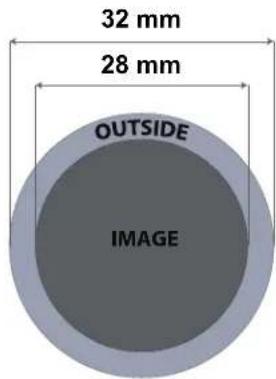
Chauvet Maverick MK2 Profile - Tableau des Dimensions de Gobo - 1

text_image 32 mm 28 mm OUTSIDE IMAGE

Changement de gobo

Les gobos de la roue de gobo 1 peuvent être enlevés de leurs porte-gobo. La procédure recommandée ci-dessous doit être soigneusement suivie pour le remplacement des gobos dans la roue de gobos 1.

Chauvet Maverick MK2 Profile - Changement de gobo - 1

  • Assurez-vous de débrancher le cordon d'alimentation du produit avant de remplacer un gobo.
  • Remplacez toujours un gobo par un gobo de la même dimension.
  • Lors de l'insertion d'un gobo en verre, assurez-vous toujours que le côté brillant du gobo (base en verre) fait face à la lampe. Cela permet d'assurer une couche de protection contre la température élevée de la lampe.

Procédure

  1. Mettez l'appareil hors tension et débranchez-le de la prise de courant.
  2. Ouvrez le couvercle de la tête en desserrant de ¼ de tour les 4 vis Phillips situées sur les côtés du couvercle supérieur.
  3. Enlevez le porte-gobo de la roue de gobos en le poussant vers l'avant de la tête mobile. Veillez à ne pas pousser le gobo en dehors du porte-gobo.

  4. Extraire le porte-gobo en le tirant vers l'extérieur.

  5. Sur une surface plane, retirez la bague d'expansion qui maintient le gobo en place et retirez-le du porte-gobo.

  6. Insérez un nouveau gobo et maintenez-le en place avec la bague d'expansion.

  7. Faites glisser la pointe du porte-gobo sous la plaque de pression près du centre de la roue du gobo.

  8. Poussez le porte-gobo vers l'intérieur. NE PAS forcer le porte-gobo dans la fente sur la roue. S'il est correctement installé, le support gobo doit facilement glisser dans la fente de la roue de gobo.

Diagramme
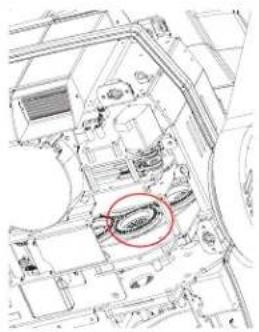
Chauvet Maverick MK2 Profile - Diagramme - 1

natural_image Architectural floor plan sketch with a red circle highlighting a specific area (no text or labels visible)

Localisez
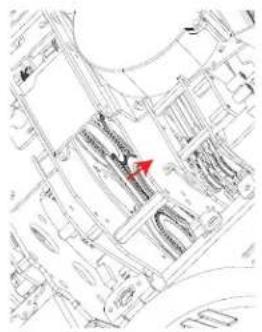
Chauvet Maverick MK2 Profile - Diagramme - 2

natural_image Architectural site plan showing building layouts and a red arrow indicating a location (no text or labels)

Reculez Enlevez
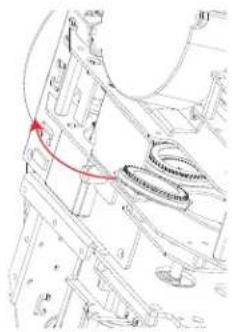
Chauvet Maverick MK2 Profile - Diagramme - 3

natural_image Technical line drawing of a mechanical assembly with no visible text or symbols
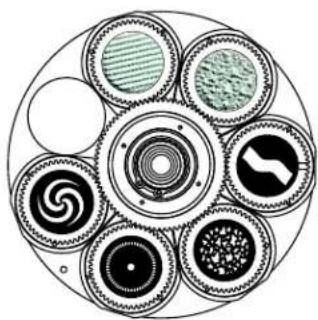
Chauvet Maverick MK2 Profile - Diagramme - 4

natural_image Circular diagram showing eight types of mechanical components with concentric rings and circular elements (no text or symbols)
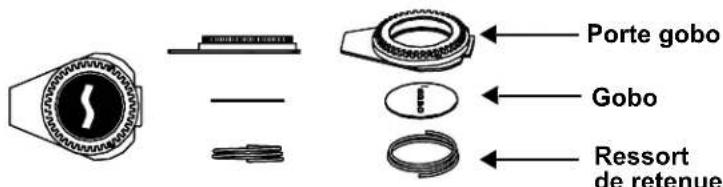
Chauvet Maverick MK2 Profile - Diagramme - 5

text_image Porte gobo Gobo Ressort de retenue

Mode Décalage

Le mode Offset (décalage) permet d'effectuer des réglages fins pour la position initiale de toutes les pièces mobiles sur le trajet optique et pour les mouvements de panoramique et d'inclinaison. Ceci permet aux pièces mobiles de ne présenter aucune bordure ou de réduire les sorties lumineuses lorsqu'elles sont dans leur position initiale. Pour accéder à ce mode, procédez comme suit :

  1. À partir de l'écran principal, maintenez enfoncée la touche jusqu'à ce que l'écran de saisie du code d'accès apparaisse.
  2. Saisissez le code d'accès 2323 avec l'une des méthodes suivantes :

- Avec l'écran tactile : utilisez le pavé numérique sur l'écran pour saisir 2323.

- Avec les boutons :

a. Utilisez la touche pour sélectionner le numéro à modifier.
b. Utilisez la touche pour augmenter la valeur.
c. Répétez l'opération jusqu'à ce que le code 2323 ait été saisi.

  1. Appuyez sur la touche .

  2. Vous arrivez alors sur l'écran du menu Zero Adjust (réglage du zéro).

PANORAMIQUE

Pour régler le point de départ du moteur panoramique, suivez les instructions ci-dessous :

  1. Utilisez les touches ou pour sélectionner l'élément PAN.
  2. Appuyez sur la touche .
  3. Utilisez les touches ou pour augmenter ou diminuer la valeur de démarrage entre 000–255.
  4. Appuyez sur la touche .

INCLINAISON

Pour régler le point de départ du moteur d'inclinaison, suivez les instructions ci-dessous :

  1. Utilisez les touches ou pour sélectionner l'élément TILT.
  2. Appuyez sur la touche .
  3. Utilisez les touches ou pour augmenter ou diminuer la valeur de démarrage entre 000–255.
  4. Appuyez sur la touche .

COULEUR

Pour régler le point de départ du moteur de zoom, suivez les instructions ci-dessous :

  1. Utilisez les touches ou pour sélectionner l'élément COLOR.
  2. Appuyez sur la touche .
  3. Utilisez les touches ou pour augmenter ou diminuer la valeur de démarrage entre 000–255.
  4. Appuyez sur la touche .

GOBO

Pour régler le point de départ du moteur de zoom, suivez les instructions ci-dessous :

  1. Utilisez les touches ou pour sélectionner l'élément GOBO.
  2. Appuyez sur la touche .
  3. Utilisez les touches ou pour augmenter ou diminuer la valeur de démarrage entre 000–255.
  4. Appuyez sur la touche .

ROTATION DE GOBO

Pour régler le point de départ du moteur de zoom, suivez les instructions ci-dessous :

  1. Utilisez les touches ou pour sélectionner l'élément GOBO ROTATE.
  2. Appuyez sur la touche .
  3. Utilisez les touches ou pour augmenter ou diminuer la valeur de démarrage entre 000–255.
  4. Appuyez sur la touche .

GOBO 2

Pour régler le point de départ du moteur de zoom, suivez les instructions ci-dessous :

  1. Utilisez les touches ou pour sélectionner l'élément GOBO 2.
  2. Appuyez sur la touche .
  3. Utilisez les touches ou pour augmenter ou diminuer la valeur de démarrage entre 000–255.
  4. Appuyez sur la touche .

ROTATION DE GOBO 2

Pour régler le point de départ du moteur de zoom, suivez les instructions ci-dessous :

  1. Utilisez les touches ou pour sélectionner l'élément GOBO 2 ROTATE.
  2. Appuyez sur la touche .
  3. Utilisez les touches ou pour augmenter ou diminuer la valeur de démarrage entre 000–255.
  4. Appuyez sur la touche .

FOCUS 1

Pour régler le point de départ du moteur de zoom, suivez les instructions ci-dessous :

  1. Utilisez les touches ou pour sélectionner l'élément FOCUS 1.
  2. Appuyez sur la touche .
  3. Utilisez les touches ou pour augmenter ou diminuer la valeur de démarrage entre 000–255.
  4. Appuyez sur la touche .

FOCUS 2

Pour régler le point de départ du moteur de zoom, suivez les instructions ci-dessous :

  1. Utilisez les touches ou pour sélectionner l'élément FOCUS 2.
  2. Appuyez sur la touche .
  3. Utilisez les touches ou pour augmenter ou diminuer la valeur de démarrage entre 000–255.
  4. Appuyez sur la touche .

FOCUS GOBO 2

Pour régler le point de départ du moteur de zoom, suivez les instructions ci-dessous :

  1. Utilisez les touches ou pour sélectionner l'élément FOCUS GOBO 2.
  2. Appuyez sur la touche .
  3. Utilisez les touches ou pour augmenter ou diminuer la valeur de démarrage entre 000–255.
  4. Appuyez sur la touche .

ZOOM

Pour régler le point de départ du moteur de zoom, suivez les instructions ci-dessous :

  1. Utilisez les touches ou pour sélectionner l'élément ZOOM.
  2. Appuyez sur la touche .
  3. Utilisez les touches ou pour augmenter ou diminuer la valeur de démarrage entre 000–255.
  4. Appuyez sur la touche .

PRISM

Pour régler le point de départ du moteur de zoom, suivez les instructions ci-dessous :

  1. Utilisez les touches ou pour sélectionner l'élément PRISM.
  2. Appuyez sur la touche .
  3. Utilisez les touches ou pour augmenter ou diminuer la valeur de démarrage entre 000–255.
  4. Appuyez sur la touche .

IRIS

Pour régler le point de départ du moteur de zoom, suivez les instructions ci-dessous :

  1. Utilisez les touches ou pour sélectionner l'élément IRIS.
  2. Appuyez sur la touche .
  3. Utilisez les touches ou pour augmenter ou diminuer la valeur de démarrage entre 000–255.
  4. Appuyez sur la touche .

FROST

Pour régler le point de départ du moteur de zoom, suivez les instructions ci-dessous :

  1. Utilisez les touches ou pour sélectionner l'élément FROST.
  2. Appuyez sur la touche .
  3. Utilisez les touches ou pour augmenter ou diminuer la valeur de démarrage entre 000–255.
  4. Appuyez sur la touche .

CYAN

Pour régler le point de départ du moteur de zoom, suivez les instructions ci-dessous :

  1. Utilisez les touches ou pour sélectionner l'élément CYAN.
  2. Appuyez sur la touche .
  3. Utilisez les touches ou pour augmenter ou diminuer la valeur de démarrage entre 000–255.
  4. Appuyez sur la touche .

MAGENTA

Pour régler le point de départ du moteur de zoom, suivez les instructions ci-dessous :

  1. Utilisez les touches ou pour sélectionner l'élément MAGENTA.
  2. Appuyez sur la touche .
  3. Utilisez les touches ou pour augmenter ou diminuer la valeur de démarrage entre 000–255.
  4. Appuyez sur la touche .

YELLOW

Pour régler le point de départ du moteur de zoom, suivez les instructions ci-dessous :

  1. Utilisez les touches ou pour sélectionner l'élément YELLOW.
  2. Appuyez sur la touche .
  3. Utilisez les touches ou pour augmenter ou diminuer la valeur de démarrage entre 000–255.
  4. Appuyez sur la touche .

CTO

Pour régler le point de départ du moteur de zoom, suivez les instructions ci-dessous :

  1. Utilisez les touches ou pour sélectionner l'élément CTO.
  2. Appuyez sur la touche .
  3. Utilisez les touches ou pour augmenter ou diminuer la valeur de démarrage entre 000–255.
  4. Appuyez sur la touche .

LAME 1-1

Pour régler le point de départ du moteur de zoom, suivez les instructions ci-dessous :

  1. Utilisez les touches ou pour sélectionner l'élément BLADE 1-1.
  2. Appuyez sur la touche .
  3. Utilisez les touches ou pour augmenter ou diminuer la valeur de démarrage entre 000–255.
  4. Appuyez sur la touche .

LAME 1-2

Pour régler le point de départ du moteur de zoom, suivez les instructions ci-dessous :

  1. Utilisez les touches ou pour sélectionner l'élément BLADE 1-2.
  2. Appuyez sur la touche .
  3. Utilisez les touches ou pour augmenter ou diminuer la valeur de démarrage entre 000–255.
  4. Appuyez sur la touche .

LAME 2-1

Pour régler le point de départ du moteur de zoom, suivez les instructions ci-dessous :

  1. Utilisez les touches ou pour sélectionner l'élément BLADE 2-1.
  2. Appuyez sur la touche .
  3. Utilisez les touches ou pour augmenter ou diminuer la valeur de démarrage entre 000–255.
  4. Appuyez sur la touche .

LAME 2-2

Pour régler le point de départ du moteur de zoom, suivez les instructions ci-dessous :

  1. Utilisez les touches ou pour sélectionner l'élément BLADE 2-2.
  2. Appuyez sur la touche .
  3. Utilisez les touches ou pour augmenter ou diminuer la valeur de démarrage entre 000–255.
  4. Appuyez sur la touche .

LAME 3-1

Pour régler le point de départ du moteur de zoom, suivez les instructions ci-dessous :

  1. Utilisez les touches ou pour sélectionner l'élément BLADE 3-1.
  2. Appuyez sur la touche .
  3. Utilisez les touches ou pour augmenter ou diminuer la valeur de démarrage entre 000–255.
  4. Appuyez sur la touche .

LAME 3-2

Pour régler le point de départ du moteur de zoom, suivez les instructions ci-dessous :

  1. Utilisez les touches ou pour sélectionner l'élément BLADE 3-2.
  2. Appuyez sur la touche .
  3. Utilisez les touches ou pour augmenter ou diminuer la valeur de démarrage entre 000–255.
  4. Appuyez sur la touche .

LAME 4-1

Pour régler le point de départ du moteur de zoom, suivez les instructions ci-dessous :

  1. Utilisez les touches ou pour sélectionner l'élément BLADE 4-1.
  2. Appuyez sur la touche .
  3. Utilisez les touches ou pour augmenter ou diminuer la valeur de démarrage entre 000–255.
  4. Appuyez sur la touche .

LAME 4-2

Pour régler le point de départ du moteur de zoom, suivez les instructions ci-dessous :

  1. Utilisez les touches ou pour sélectionner l'élément BLADE 4-2.
  2. Appuyez sur la touche .
  3. Utilisez les touches ou pour augmenter ou diminuer la valeur de démarrage entre 000–255.
  4. Appuyez sur la touche .

ROTATION DE LA LAME

Pour régler le point de départ du moteur de zoom, suivez les instructions ci-dessous :

  1. Utilisez les touches ou pour sélectionner l'élément BLADE ROTATE.
  2. Appuyez sur la touche .
  3. Utilisez les touches ou pour augmenter ou diminuer la valeur de démarrage entre 000–255.
  4. Appuyez sur la touche .

GRADATEUR 1

Pour régler le point de départ du moteur de zoom, suivez les instructions ci-dessous :

  1. Utilisez les touches ou pour sélectionner l'élément DIMMER 1.
  2. Appuyez sur la touche .
  3. Utilisez les touches ou pour augmenter ou diminuer la valeur de démarrage entre 000–255.
  4. Appuyez sur la touche .

GRADATEUR 2

Pour régler le point de départ du moteur de zoom, suivez les instructions ci-dessous :

  1. Utilisez les touches ou pour sélectionner l'élément DIMMER 2.
  2. Appuyez sur la touche .
  3. Utilisez les touches ou pour augmenter ou diminuer la valeur de démarrage entre 000–255.
  4. Appuyez sur la touche .

Adresse MAC

Pour régler les quatrième, cinquième ou sixième chiffres de l'adresse MAC, procédez comme suit :

  1. Utilisez les touches ou pour sélectionner parmi les choix MAC4, MAC5 ou MAC6.
  2. Appuyez sur la touche .
  3. Utilisez les touches ou pour augmenter ou diminuer la valeur de démarrage entre 000–255.
  4. Appuyez sur la touche .

Serveur Web

Le serveur Web du Maverick MK2 Profile est accessible par n'importe quel ordinateur se trouvant sur le même réseau que l'appareil. Il permet un accès réseau aux informations systèmes et aux paramètres (par exemple, configuration du contrôle, test manuel de toutes les fonctions, mises à jour du microprogramme et modification du mot de passe du serveur web).

  1. Branchez l'appareil sur l'alimentation puis réglez le Mode IP sur Static.
  2. Connectez l'appareil à un ordinateur Windows ^ avec un câble réseau
  3. Sur l'ordinateur, paramétrez l'adresse IP du nouveau réseau afin d'avoir les trois mêmes premiers chiffres que l'adresse IP de l'appareil (voir la section Adresse IP).
  4. Saisissez l'adresse IP de l'appareil dans la barre d'adresse d'un navigateur Internet sur l'ordinateur.
  5. Saisissez admin en tant que nom d'utilisateur et mot de passe pour vous identifier.

Information

La page Information du serveur Web affiche les paramètres actuels et les informations système du Maverick MK2 Profile.

Configuration

La page Configuration du serveur Web propose des options de contrôle similaires à celles du menu Setup sur l'appareil. Cliquez Save Settings (enregistrer les paramètres) pour envoyer la nouvelle configuration vers l'appareil.

Test Manuel

La page Test Manuel du serveur Web permet de contrôler toutes les fonctions de sortie de l'appareil via le navigateur. Pour rétablir la valeur par défaut de toutes les fonctions, cliquez sur Reset.

Mise à Jour de Micrologiciel

La page Upgrade (mise à niveau) du serveur Web permet de mettre à jour l'appareil avec la dernière version du microprogramme. Rendez-vous sur https://www.chauvetprofessional.com/products/maverick-mk2-profile les mises à jour du microprogramme.

Sécurité

La page Security (sécurité) du serveur Web permet de changer le mot de passe du serveur Web de l'appareil connecte. Saisissez l'ancien mot de passe (admin, par défaut) et le nouveau mot de passe deux fois, puis cliquez sur Save Settings (enregistrer les paramètres) pour changer le mot de passe.

5. Entretien

Entretien de l'appareil

L'accumulation de poussière réduit la production de lumière et peut entraîner une surchauffe de l'appareil. Cela peut entrainer une diminution de la durée de vie de la source de lumière et/ou une usure mécanique. Pour conserver des performances optimales et réduire l'usure, nettoyez vos appareils d'éclairage au moins deux fois par mois. Veuillez cependant bien garder à l'esprit que l'utilisation et les conditions environnementales peuvent contribuer à augmenter la fréquence de nettoyage.

Pour nettoyer l'appareil, suivez les instructions ci-dessous :

  1. Débranchez l'appareil.
  2. Attendez que l'appareil soit à la température ambiante.
  3. Utilisez un aspirateur (ou un compresseur d'air) et une brosse douce pour enlever la poussière accumulée sur les surfaces/évents externes.
  4. Nettoyez toutes les surfaces transparentes avec une solution douce de nettoyant pour vitres sans ammoniaque ou de l'alcool isopropylique.
  5. Appliquez la solution directement sur un chiffon de coton doux et non pelucheux ou un tissu de nettoyage d'objectif.
  6. Essuyez soigneusement toute trace de saleté ou d'encrassement sur la surface transparente.
  7. Nettoyez en douceur les surfaces transparentes jusqu'à ce que toute peluche ou trace ait disparue.

Chauvet Maverick MK2 Profile - Entretien de l'appareil - 1

Assurez-vous de bien sécher toutes les surfaces transparentes après les avoir nettoyer.

6. Spécificités Techniques

Dimensions et poids

Longueur Largeur Hauteur Poids
394 mm (15,5 po)279 mm (10,9 po)679 mm (26,7 po)31,7 kg (69,8 lb)
Remarque : Les dimensions en pouce sont arrondies.

Alimentation

Type d'alimentation Plage Sélection de tension
Commutation (interne) Entre 100 et 240 VCA, 50/60 Hz Universelle
Paramètre120 V, 60 Hz208 V, 50 Hz230 V, 50 Hz
Consommation 750 W732 W734 W
Courant de fonctionnement6,32 A3,5 A3,1 A
FusibleF 12 A, 250 VF 12 A, 250 VF 12 A, 250 V
E/S alimentationUS/MondeUK/Europe
Connecteur d'entrée d'alimentationSeetronic Powerkon IP65Seetronic Powerkon IP65
Connecteur de sortie d'alimentationSeetronic Powerkon IP65Seetronic Powerkon IP65
Prise du cordon d'alimentationEdison (US)Prise locale

Source lumineuse

TypeCouleurQuantitéAlimentationCourantDurée de vie
LEDBlanc froid1440 W6,5 A50.000 heures
Photométrie
Angle de faisceauAngle de champAngle de zoomLumineux @ 5 m (12°)Lumineux @ 5 m (37°)Température de couleur
12°–35°13°–37°13°–37°14.981 lux2.098 lux5.883 K

DMX/ Art-Net™/ sACN

Connecteurs E/SPlage de canaux
XLR 3 et 5 broches,Connecteurs Amphenol XLR Net RJ45 entrée/sortie33 et 50 canaux

Thermique

Température externe maximumSystème de refroidissement
45 °C (113 °F)Convection
Commande
No du produitCode de l'articleCode UPC
Maverick MK2 Profile08011312781462216603

Tableau Photométrique

ÉtroitMaverick MK2 Profile (Impérial)Grand
Distance12°Diamètre du Faisceau13°Diamètre du ChampFootcandleFootcandle35°Diamètre du Faisceau37°Diamètre du Champ
15 ft 3.15 ft 3.42 ft1,665 238 ft9.46 ft10.04 ft
20 ft 4.20 ft 4.56 ft936 131 ft12.61 ft13.38 ft
30 ft 6.31 ft 6.84 ft416 58 ft18.92 ft20.08 ft
40 ft 8.41 ft 9.11 ft234 33 ft25.22 ft26.77 ft
50 ft10.51 ft11.39 ft150 ft21 ft31.53 ft33.46 ft
75 ft15.77 ft17.09 ft67 ft9 ft47.29 ft50.19 ft
100 ft21.02 ft22.79 ft37 ft5 ft63.06 ft66.92 ft
125 ft26.28 ft28.48 ft24 ft3 ft78.82 ft83.65 ft
150 ft31.53 ft34.18 ft17 ft2 ft94.59 ft100.38 ft

Champ Faisceau Champ

ÉtroitMaverick MK2 Profile (Métrique)Grand
Distance12°Diamètre du Faisceau13°Diamètre du ChampLuxLux35°Diamètre du Faisceau37°Diamètre du Champ
1 m0.21 m0.23 m374,52552,4500.63 m0.67 m
2 m0.42 m0.46 m93,63113,1131.26 m1.34 m
5 m1.05 m1.14 m14,9812,0983.15 m3.35 m
8 m1.68 m1.82 m5,8528205.04 m5.35 m
10 m2.10 m2.28 m3,7455256.31 m6.69 m
15 m3.15 m3.42 m1,6652339.46 m10.04 m
20 m4.20 m4.56 m93613112.61 m13.38 m
25 m5.26 m5.70 m5998415.76 m16.73 m
30 m6.31 m6.84 m4165818.92 m20.08 m

Champ Faisceau Champ

Renvois

Dans le cas où vous avez besoin d'aide ou pour retourner un produit :

  • Si vous résidez aux États-Unis, contactez le siège mondial de Chauvet.
    • Si vous vivez au Royaume-Uni ou en Irlande, contactez Chauvet Europe Ltd.
  • Si vous vivez au Benelux, contactez Chauvet Europe BVBA.
  • Si vous vivez au France, contactez Chauvet France.
  • Si vous vivez à l'Allemagne, contactez Chauvet Germany.
  • Si vous vivez au Mexique, contactez Chauvet Mexico
  • Si vous résidez n'importe où ailleurs, NE contactez pas Chauvet. Contactez votre revendeur. Rendez-vous sur www.chauvetprofessional.com pour découvrir la liste des revendeurs en dehors des États-Unis, du Royaume-Uni, de l'Irlande, du Benelux, de la France, de l'Allemagne ou du Mexique.

Chauvet Maverick MK2 Profile - Renvois - 1

Si vous résidez en dehors des États-Unis, du Royaume-Uni, de l'Irlande, du Benelux, de la France, de l'Allemagne ou du Mexique contactez votre revendeur et suivez leurs instructions quant à la procédure à suivre pour renvoyer votre appareil. Consultez notre site Web www.chauvetprofessional.com pour trouver leurs coordonnées.

Téléphonez au centre d'assistance technique de Chauvet correspondant et demandez un numéro d'autorisation de retour (NAR) avant de nous réexpédier l'appareil. Pour l'obtenir, il vous sera demandé de fournir le numéro du modèle, le numéro de série ainsi qu'une brève description de l'objet du retour.

Pour soumettre une demande de service en ligne, rendez-vous sur www.chauvetprofessional.com/service-request.

Vous devez nous retournez la marchandise en port prépayé, dans ses boîte et emballage d'origine et avec tous ses accessoires. Chauvet ne délivrera pas d'étiquettes de renvoi.

Indiquez lisiblement le NAR sur une étiquette apposée sur le colis. Chauvet refusera la réception de tout appareil pour lequel aucun NAR n'a été demandé.

Chauvet Maverick MK2 Profile - Renvois - 2

Inscrivez le NAR sur une étiquette convenablement collée. N'écrivez PAS le NAR directement sur le colis.

Avant de nous retourner le colis, inscrivez les informations suivantes, de manière lisible, sur une feuille de papier, que vous placerez à l'intérieur du colis :

  • Votre nom
  • Votre adresse
  • Votre numéro de téléphone
    • Le numéro de NAR

- Une courte description du problème

Veillez à emballer l'appareil de manière adéquate. Vous serez tenu responsable de tout dommage survenant lors de l'expédition de retour dû à un emballage inadéquat. Nous vous recommandons d'utiliser un emballage double ou celui de FedEx.

Chauvet Maverick MK2 Profile - Renvois - 3

Chauvet se réserve le droit, à sa convenance, de réparer ou remplacer tout appareil qui lui est retourné.

Nous Contacter

Informations Générales Support Technique

Siège mondial de Chauvet

Adresse : 5200 NW 108th Ave. Téléphone : (844) 393-7575

Sunrise, FL 33351 Télécopie : (954) 756-8015

Téléphone : (954) 577-4455 E-mail : chauvetcs@chauvetlighting.com

Télécopie : (954) 929-5560

N° vert : (800) 762-1084 Site web : www.chauvetprofessional.com

Chauvet Europe Ltd

Adresse : Unit 1C E-mail : UKtech@chauvetlighting.eu

Brookhill Road Industrial Estate

Pinxton, Nottingham, UK Site web : www.chauvetprofessional.eu

NG16 6NT

Téléphone : +44 (0) 1773 511115

Fax: +44 (0) 1773 511110

Chauvet Europe BVBA

Adresse : Stokstraat 18 E-mail : BNLtech@chauvetlighting.eu

9770 Kruishoutem

Belgium Site web : www.chauvetprofessional.eu

Téléphone : +32 9 388 93 97

Chauvet France

Adresse : 3, Rue Ampère

91380 Chilly-Mazarin

E-mail : FRtech@chauvetlighting.fr

France Site web : www.chauvetprofessional.eu

Téléphone : +33 1 78 85 33 59

Chauvet Germany

Adresse : Bruno-Bürgel-Str. 11

28759 Bremen

E-mail : DEtech@chauvetlighting.de

Germany Site web : www.chauvetprofessional.eu

Téléphone : +49 421 62 60 20

Chauvet Mexico

Adresse : Av. de las Partidas 34 - 3B

(Entrance by Calle 2)

E-mail : servicio@chauvet.com.mx

Zona Industrial Lerma Site web: www.chauvetprofessional.mx

Lerma, Edo. de México, CP 52000

Téléphone : +52 (728) 690-2010

Visitez le site Web concerné ci-dessus pour vérifier nos coordonnées et les instructions pour demander de l'assistance. En dehors des États-Unis, du Royaume-Uni, de l'Irlande, du Benelux, de la France, de l'Allemagne ou du Mexique, contactez le revendeur de l'enregistrement.

1. Erste Schritte

Packungsinhalt

  • Maverick MK2 Profile
    • 2 Omega-Halterungen mit Befestingungsmaterial

• Seetronic Powekon IP65 Netzkabel
• Bedienungsanleitung

Anweisungen für das Auspacken

Packen Sie das Produkt sofort vorsichtig aus und überprüfen Sie, ob Sie alle Teile unbeschädigt erhalten haben.

Schadensmeldung

Wenn die Verpackung oder die in der Verpackung befindlichen Teile (Gerät und Zubehör) beschädigt sind oder Mängel durch nicht einwandfreie Behandlung aufweisen, benachrichtigen Sie umgehend das Transportunternehmen, nicht jedoch Chauvet. Eine nicht zeitnah erfolgte Benachrichtigung kann dazu führen, dass Sie Ihren Gewährleistungsanspruch gegenüber dem Transportunternehmen verlieren. Bewahren Sie überdies die Verpackung für eine spätere Überprüfung auf.

Bei anderen Problemen wie etwa fehlende Komponenten oder Teile, Schäden, die nicht durch den Transport entstanden sind, oder nicht offensichtliche Schäden, machen Sie Ihren Anspruch gegenüber Chauvet innerhalb von 7 Tagen ab Lieferung der Waren geltend.

Konventionen des Handbuchs

Konvention Bedeutung

1–512 Eine Bandbreite an Werten
50/60 Ein Wertesatz, aus dem nur ein Wert ausgewählt werden kann
Settings Eine Menüoption, die nicht geändert werden kann
Eine zu betätigende Taste auf dem Bedienfeld des Geräts
ON Ein Wert, der eingegeben oder ausgewählt werden muss

Symbole

Symbol Bedeutung
Chauvet Maverick MK2 Profile - Konventionen des Handbuchs - 1Wichtige Informationen zur Installation, Konfiguration und zum Betrieb. Bei Nichtbeachtung dieser Informationen kann es zu Fehlfunktionen oder Beschädigungen des Geräts oder zu Verletzungen des Bedieners kommen.
Chauvet Maverick MK2 Profile - Konventionen des Handbuchs - 2Wichtige Informationen zur Installation oder Konfiguration. Wenn diese Informationen nicht beachtet werden, kann es zu Fehlfunktionen kommen.
Chauvet Maverick MK2 Profile - Konventionen des Handbuchs - 3Nützliche Informationen.

Voraussichtliche LED-Lebensdauer

LEDs verlieren mit der Zeit an Helligkeit, vor allem aufgrund der Wärme. LEDs, die in Cluster angeordnet sind, haben eine höhere Betriebstemperatur als einzelne LEDs. Aus diesem Grund haben in Cluster angeordnete LEDs bei voller Leistung eine wesentlich kürzere Lebensdauer. Unter normalen Bedingungen beträgt diese 40.000 bis 50.000 Betriebsstunden. Ist es wichtig, diese Lebensdauer zu verlängern, senken Sie durch eine gute Belüftung der Umgebung Produkts die Umgebungs- und damit die Betriebstemperatur. Außerdem kann durch eine Reduzierung der Leuchtintensität auch die Lebensdauer der LED verlängert werden.

Chauvet Maverick MK2 Profile - Voraussichtliche LED-Lebensdauer - 1

  • Alle Verweise auf Daten- oder Stromanschlüsse in diesem Handbuch setzen die Verwendung von Seetronic-Kabeln mit Schutzart IP voraus.
  • Die eingebauten Komponenten sind für den Kunden wartungsfrei. In dieser Bedienungsanleitung enthaltene Verweise auf Wartungs-oder Reparaturmaßnahmen sind ausschließlich für ordnungsgemäß geschulte, zertifizierte Techniker bestimmt. Öffnen Sie das Gehäuse nicht und versuchen Sie nicht selbst, Reparaturen vorzunehmen.

Chauvet Maverick MK2 Profile - Voraussichtliche LED-Lebensdauer - 2

- Der in diesem Handbuch verwendete Begriff „DMX“ bezieht sich auf das digitale Datenübertragungsprotokoll USITT DMX512-Ä.

• Die anwendbaren lokalen Vorschriften und Regulierungen sind für eine ordnungsgemäße Installation dieses Geräts stets zu beachten.

Sicherheitshinweise

Lesen Sie sich vor der Inbetriebnahme dieses Geräts alle folgenden Sicherheitshinweise durch. Sie enthalten wichtige Informationen über die Installation, Verwendung und Wartung dieses Geräts.

Persönliche Sicherheit

• Vermeiden Sie eine direkte Augenexposition der Lichtquelle, während das Produkt eingeschaltet ist.
- Trennen Sie das Produkt immer von der Stromquelle, bevor Sie die Sicherung reinigen oder austauschen.
- Schließen Sie das Produkt immer an einen geerdeten Stromkreis an, um Stromschläge zu vermeiden.
- Berühren Sie während des Betriebs nicht das Gehäuse des Geräts, da es sehr heiß sein kann.

Befestigung und Aufhängung

  • Dieses Produkt ist nicht für eine dauerhafte Installation vorgesehen.
  • Dieses Produkt ist nur für den Innenbereich geeignet! Setzen Sie dieses Produkt nicht Regen oder Feuchtigkeit aus, um die Gefahr eines Brandes oder eines Schlags zu vermeiden (IP20).
  • VORSICHT: Wenn Sie ein Produkt aus Umgebungen mit extremen Temperaturen (z. B. kalter LKW in einen warmen, feuchten Ballsaal) transportieren, kann sich Kondensation auf der internen Elektronik des Produkts bilden. Um zu vermeiden, dass ein Fehler auftritt, lassen Sie das Produkt vollständig an die Umgebung angepasst werden, bevor Sie es an das Stromnetz anschließen.
  • Montieren Sie dieses Produkt an einem Ort mit ausreichender Belüftung, mindestens 50 cm von benachbarten Oberflächen entfernt.
  • Stellen Sie sicher, dass sich während des Betriebs keine brennbaren Materialien in der Nähe des Produkts befinden.
  • Sichern Sie das Produkt beim Aufhängen immer mit einem Sicherheitskabel an einer Befestigungsvorrichtung.
  • Tragen Sie das Produkt niemals am Netzkabel oder an einem beweglichen Teil.

Stromversorgung und Verkabelung

  • Stellen Sie sicher, dass das Netzkabel nicht gequetscht oder beschädigt ist.
  • Stellen Sie immer sicher, dass Sie das Produkt gemäß den Angaben in diesem Handbuch oder auf dem Typenschild des Produkts an die richtige Spannung anschließen.
  • Um unnötigen Verschleiß zu vermeiden und die Lebensdauer zu verbessern, trennen Sie das Produkt während des Nichtgebrauchs vollständig über einen Trennschalter oder durch Ziehen des Netzsteckers vom Strom.
  • Schließen Sie das Produkt niemals an einen Dimmerpack oder einen Rheostat an.
  • Stellen Sie sicher, dass Sie die Sicherung durch eine andere mit dem gleichen Typ und der gleichen Nennleistung ersetzen.
  • Trennen Sie dieses Produkt niemals durch Ziehen am Netzkabel.

Operation

  • Verwenden Sie dieses Produkt nicht, wenn das Gehäuse, die Linsen oder die Kabel beschädigt sind. Lassen Sie die beschädigten Teile sofort von einem autorisierten Techniker austauschen.
  • Decken Sie die Lüftungsschlitze während des Betriebs nicht ab, um interne Überhitzung zu vermeiden.
    • Die maximale Umgebungstemperatur beträgt 45 °C. Betreiben Sie das Produkt nicht bei höheren Temperaturen.
  • Stellen Sie die Verwendung dieses Produkts bei ernsthaften Betriebs Problemen sofort ein!

Chauvet Maverick MK2 Profile - Operation - 1

Wenn Ihr Chauvet-Produkt gewartet weden muss, wenden Sie sich an den technischen Support von Chauvet.

2. Einleitung

Beschreibung

Der Maverick MK2 Profile liefert eine äußerst künstlerische Präzision durch sein technisch anspruchsvolles rotierendes Four-Blade Bildeinstellungssystem mit Zweifach-Position, einem äußerst hell strahlenden 440 W LED-Leuchtmittel, zwei rotierenden Goborädern mit 6-Positionen und Slot-und-Lock-Funktion, einem CMY + CTO Farbmischungssystem, einem Farbrad mit 7-Positionen + Weiß, variablem Frost-Effekt, 3-Facetten-Prismen und einem Zoombereich von 13° bis 37°. Die Steuerung erfolgt per DMX, sACN, Art-Net™ oder WDMX und die Testfunktion mit RDM. Als zusätzliche Funktion, kann dieser überragende Moving Head TCP/IP empfangen und DMX In-und-Out senden, was die Kabelführung vereinfacht.

Eigenschaften

• Voll ausgestatteter 440 W LED- Punktstrahler mit Befestigungsbügel, CMY + CTO Farbmischung, einem rotierenden Four-Blade Bildeinstellungssystem mittels Blenden, einem Farbrad, einem 3:1 Vergrößerungsbereich und zwei rotierenden Gobo Rädern
• 16-Bit-Dimmung des Master-Dimmers für eine gleichmäßige Steuerung der Fades
• Variables CMY + CTO Farbmischungssystem zum Entwerfen einer breiten Farbpalette
• Zwei rotierende, indexierende und austauschbare Gobo Räder mit Slot-and-Lock-Funktion
- DMX, WDMX, sACN und Art-Net™ für volle Flexibilität der Steuerungsoptionen
• RDM-Steuerung über DMX für Geräterückmeldung
- Zoombereich von 13° bis 37° für unterschiedliche Strahlgrößen
- Blende, 3-Facetten-Prismen und Frost-Effekt zur Strahlsteuerung
• True 1 kompatibler Stromanschluss
• Anzeige für Akku-Backup mit automatischer Rotation abhängig von der Geräteausrichtung

Produktüberblick
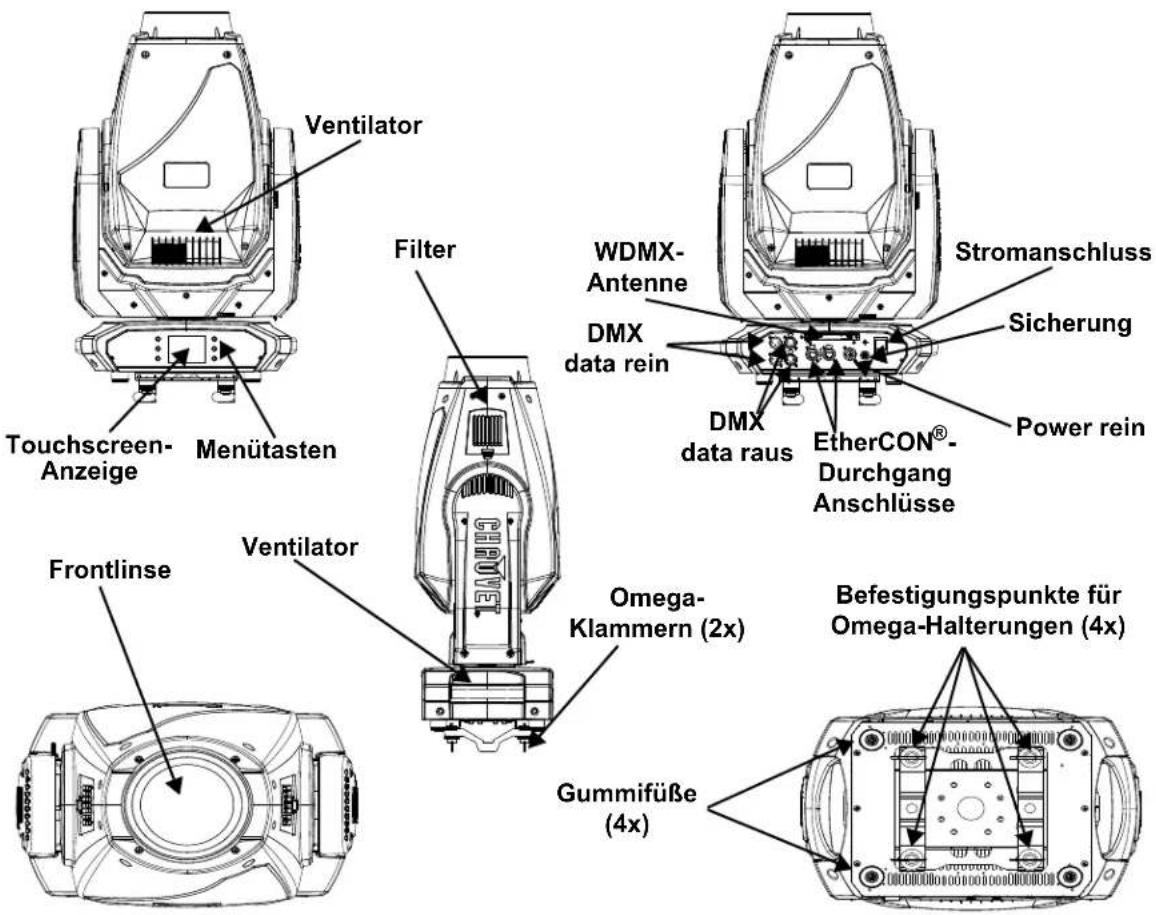
Chauvet Maverick MK2 Profile - Eigenschaften - 1

text_image Ventilator Touchscreen- Anzeige Menütasten Filter WDMX- Antenne DMX data rein Stromanschluss Sicherung DMX data raus EtherCON®- Durchgang Anschlüsse Power rein Frontlinse Ventilator Omega- Klammern (2x) Gummifüße (4x) Befestigungspunkte für Omega-Halterungen (4x)

Produktabmessungen
Chauvet Maverick MK2 Profile - Eigenschaften - 2

text_image 11.89 in 302 mm 11.02 in 280 mm 21.57 in 548 mm

Chauvet Maverick MK2 Profile - Eigenschaften - 3

text_image 15.51 in 394 mm 0.51 in 13 mm 9.84 in 250 mm

Chauvet Maverick MK2 Profile - Eigenschaften - 4

text_image 18.50 in 470 mm 6.34 in 161 mm 18.31 in 465 mm 4.45 in 13 mm

Chauvet Maverick MK2 Profile - Eigenschaften - 5

text_image 26.69 in 28.19 in 678 mm 716 mm

Chauvet Maverick MK2 Profile - Eigenschaften - 6

text_image 9.25 in 235 mm 5.51 in 140 mm 5.51 in 7.40 in 140 mm 188 mm

3. Einrichten des Geräts

Jeder Maverick MK2 Profile verfügt über ein Vorschaltgerät, das automatisch die anliegende Spannung erkennt, sobald der Netzstecker in die Schukosteckdose gesteckt wird, und kann mit einer Eingangsspannung von 100\~240 V AC, 50/60 Hz arbeiten. Um die erforderlichen Kennzahlen des Netzanschlusses für jeden Maverick MK2 Profile zu ermitteln, verwenden Sie den aktuellen Wert, der sich auf dem Hinweisschild am Gerät befindet. Oder lesen Sie dazu den Abschnitt Technische Daten in dieser Anleitung.

Der aufgeführte Nennstrom entspricht dem maximalen Stromverbrauch des Geräts unter normalen Betriebsbedingungen. Detaillierte Informationen finden Sie unter "Bemessung von Leistungsschaltern" auf der Website von Chauvet: www.chauvetprofessional.com

Chauvet Maverick MK2 Profile - Einrichten des Geräts - 1

  • Schließen Sie dieses Gerät nur an einen abgesicherten Stromkreislauf (Leistungsschalter oder Sicherung) an. Stellen Sie sicher, dass das Gerät entsprechend an die Masse angeschlossen ist, um die Gefahr elektrischer Schläge oder eines Brands zu vermeiden.
  • Um unnötigen Verschleiß zu vermeiden und die Lebensdauer des Geräts zu verlängern, trennen Sie während längerer Perioden des Nichtgebrauchs das Gerät vom Stromnetz – entweder per Trennschalter oder durch Herausziehen des Steckers aus der Steckdose.
  • Schließen Sie dieses Gerät niemals an einen Regelwiderstand oder Dimmer an, auch nicht, wenn der Regelwiderstand oder Dimmer nur als 0 bis 100% Schalter dient.

Wechselstromstecker

Das Stromversorgungskabel des Maverick MK2 Profile ist mit einem Seetronic Powerkon-Steckverbinder an einem Ende und am anderen mit einem Edison-Stecker (US-Markt) abgeschlossen. Verfügt das mit Ihrem Gerät mitgelieferte Stromversorgungskabel nicht über einen Stecker, oder müssen Sie diesen austauschen, greifen Sie zum Anschließen des neuen Steckers auf folgende Tabelle zurück.

VerbindungWire (U.S.)Wire (Europe)Schraubenfarbe
AC Live SchwarzeBraun Gelb/brass
AC Neutral Weiß Blau Silber
AC Ground Grün/gelbGrün/gelbGrün

Auswechseln der Sicherung

  1. Trennen Sie das Gerät vom Stromnetz.
  2. Mit einem Flachkopfschraubendreher lösen Sie die Abdeckung des Sicherungshalters vom Gehäuse.
  3. Entfernen Sie die durchgebrannte Sicherung von der Klemme, und ersetzen Sie diese durch eine Sicherung des gleichen Typs und mit den gleichen Werten (F 12 A, 250 V).
  4. Schrauben Sie die Abdeckung der Sicherung wieder ein, und schließen Sie das Gerät wieder an das Stromnetz an.

Chauvet Maverick MK2 Profile - Auswechseln der Sicherung - 1

Trennen Sie das Gerät von der Stromquelle, bevor Sie die Sicherung auswechseln. Die Sicherung darf nur durch eine vollkommen gleichwertige ersetzt werden.

Montage

Lesen Sie vor der Montage des Geräts die in den Sicherheitshinweisen enthaltenen Sicherheitsempfehlungen durch. Informationen zu unserer CHAUVET-Produktlinie für Befestigungsklemmen finden Sie unter: http://trusst.com/products/

Montagerichtung

Stellen Sie sicher, dass dieses Gerät immer in einer gesicherten Position mit ausreichendem Raum für Belüftung, Konfiguration und Wartung montiert ist. Der Maverick MK2 Profile kann aufrecht oder kopfüber aufgebaut werden, wobei die zwei beiliegenden Omega-Befestigungsbügel verwendet werden; alternativ kann er aber auch mit seinen Gummifüßen auf einem flachen Untergrund aufgestellt werden.

Hängende Montage

Chauvet empfiehlt die Beachtung folgender allgemeiner Richtlinien bei der Montage dieses Geräts

  • Berücksichtigen Sie bei der Auswahl des Installationsorts, dass Sie bequem für den Betrieb, für Programmiereingaben und für routinemäßige Wartungsarbeiten auf dieses Gerät zugreifen können.
  • Dieses Produkt eignet sich nicht für eine permanente Installation.
  • Stellen Sie sicher, dass das Gerät mit einem Sicherheitsabstand zu entzündlichen Materialien betrieben wird.
  • Bauen Sie dieses Gerät nie an Orten auf, an denen dieses Regen, hoher Luftfeuchte, extremen Temperaturen oder einer eingeschränkten Belüftung ausgesetzt ist.
  • Stellen Sie bei einer hängenden Montage sicher, dass die Konstruktion, auf der Sie das Gerät montieren, dessen Gewicht tragen kann. Im Abschnitt Technische Daten sind die Anforderungen an die Tragfähigkeit dieses Geräts aufgeführt.
  • Verwenden Sie bei der hängenden Montage dieses Geräts zur Sicherung immer ein ordnungsgemäßes Sicherheitskabel. Informationen zu unserer CHAUVET Professional-Produktlinie für Sicherheitskabel finden Sie unter http://trusst.com/products/.
  • Bei einer Positionierung des Geräts auf einen ebenen Untergrund müssen das Gerät und die Kabel mit einem Abstand zu Personen und Fahrzeugen aufgestellt bzw. verlegt werden.
  • Platzieren Sie den Maverick MK2 Profile so, dass er sich frei bewegen kann, ohne in der Nähe befindliche Gegenstände oder Personen zu treffen.
    • Verlegen Sie die Kabel so, dass sie nicht gespannt sind und keine Kräfte an den Steckern auftreten.

Montageansicht
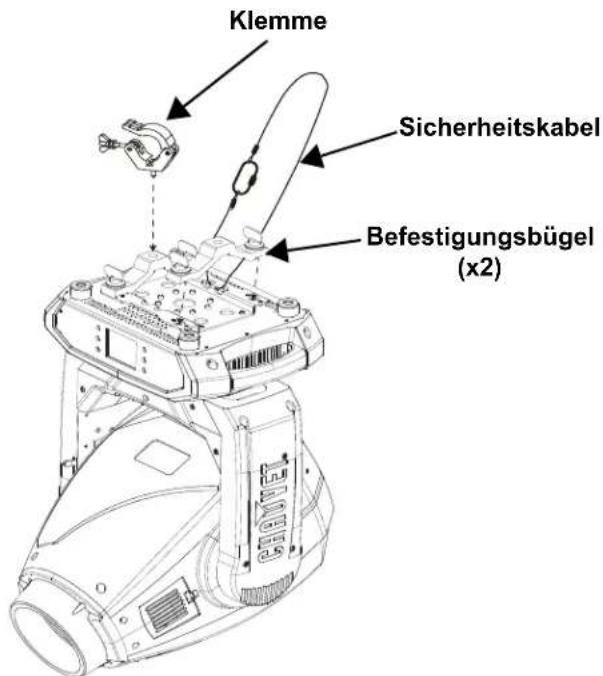
Chauvet Maverick MK2 Profile - Hängende Montage - 1

text_image Klemme Sicherheitskabel Befestigungsbügel (x2)

Überkopfmontage

Chauvet Maverick MK2 Profile - Hängende Montage - 2

text_image Gummifüße (x4)

Bodenmontage

DMX Linking

Sie können den Maverick MK2 Profile über den 3- oder 5-poligen DMX-Anschluss mit einem DMX Controller verbinden. Falls Sie andere DMX-fähige Geräte mit diesem Gerät verwenden, können Sie jedes Einzelne mittels eines individuellen DMX-Controllers ansteuern.

DMX Personalities

Der Maverick MK2 Profile verwendet eine 3- und 5-polige DMX-Datenverbindung für die 33- und 50-Kanal-DMX-Modi.

  • Beziehen Sie sich auf die Einleitung zwecks einer Kurzbeschreibung jeder DMX-Eigenschaft.
  • Beziehen Sie sich auf das Kapitel Betrieb um sich mit dem Einrichten des Maverick MK2 Profile und dem Arbeiten mit diesen Eigenschaften vertraut zu machen.
  • Die DMX-Werte liefert detaillierte Informationen bezüglich der DMX-Eigenschaften.

Remote Device Management (RDM)

Remote Device Management bzw. RDM ist ein Standard, mit dem DMX-aktivierte Geräte bidirektional entlang bestehender DMX-Kabel kommunizieren können. Lesen Sie die Bedienungsanleitung des DMX-Controllers oder wenden Sie sich an den Hersteller, da nicht alle DMX-Controller über diese Funktion verfügt. Der Maverick MK2 Profile unterstützt das RDM-Protokoll, das ein Feedback zur Vornahme von Änderungen der Menüoptionen erlaubt.

Signalanschlüsse

Der Maverick MK2 Profile kann Signale per DMX, WDMX, Art-Net™ oder sACN empfangen. Der Maverick MK2 Profile verfügt über 2 Amphenol XLRnet Durchgangs-Anschlüsse sowie 3- und 5-polige DMX-Anschlüsse. Für weitere Informationen zu DMX lesen Sie "DMX - Eine Einführung" unter: https://www.chauvetprofessional.com/wp-content/uploads/2016/06/DMX_Primer.pdf.

Art-Net-Verbindung

Art-Net™ ist ein Ethernet-Protokoll, das mit TCP/IP eine große Menge an DMX512-Daten über ein großes Netzwerk an eine Amphenol XLRnet RJ45-Verbindung überträgt. Das Dokument des Art-Net-Protokolls können Sie unter www.chauvetprofessional.com herunterladen.

Art-Net™ wurde von Artistic Licence Holdings Ltd entwickelt und ist urheberrechtlich geschützt.

sACN-Verbindung

Das auch als ANSI E1.31 bekannte Streaming-ACN ist ein Ethernet-Protokoll, das auf das Layering und die Formatierung von Architecture for Control Networks zurückgreift, um DMX512-Daten "over IP" oder ein anderes mit ACN kompatibles Netzwerk übermittelt. ACN wird von der Professional Lighting and Sound Association (PLASA) bereitgestellt.

Schaltplan
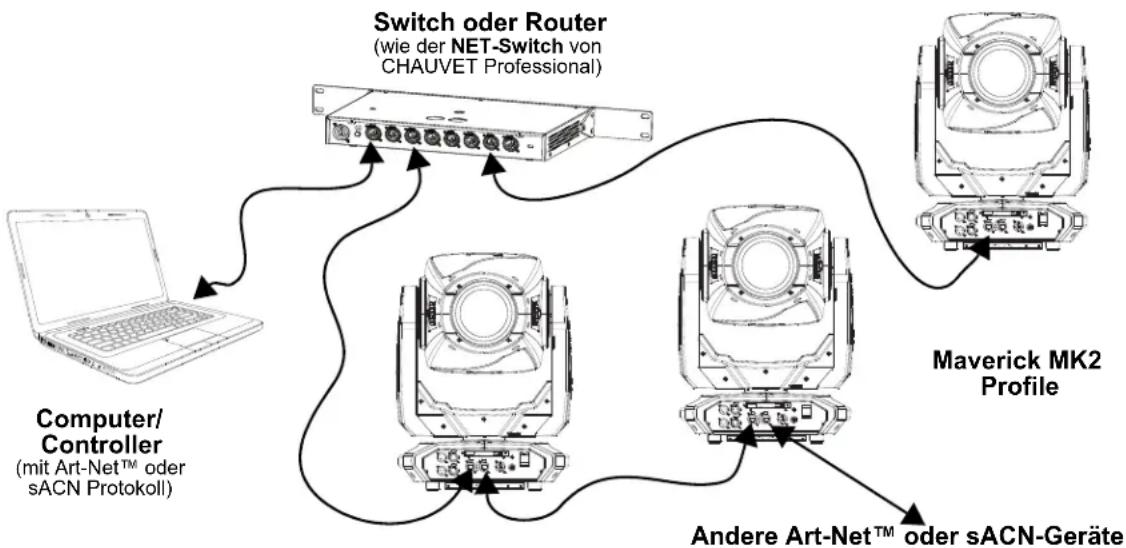
Chauvet Maverick MK2 Profile - Schaltplan - 1

flowchart
graph TD
    A["Laptop"] --> B["Computer/Controller (mit Art-Net™ oder sACN Protokoll)"]
    B --> C["Switch oder Router (wie der NET-Switch von CHAUVET Professional)"]
    C --> D["Maverick MK2 Profile"]
    D --> E["Andere Art-Net™ oder sACN-Geräte"]
    E --> C

Chauvet Maverick MK2 Profile - Schaltplan - 2

Die drei LED-Kontrollleuchten zwischen den Ethernet-Durchgangs-Anschlüssen zeigen eine Verbindung mit einem Netzwerk sowie Aktivität in diesem Netzwerk an. Sie zeigen nicht an, ob der Maverick MK2 Profile ein Signal von einem Controller erhält oder nicht.

4. Betrieb

Berührungsempfindliches Bedienfeld

Der Maverick MK2 Profile verfügt über ein Touchscreen-Display sowie 6 Steuerungstasten. Navigieren Sie zur Menüstruktur, indem Sie auf die Tasten drücken, die Bilder der Tasten an den Seiten des Displays berühren oder direkt auf die gewünschte Menüoption auf dem Display tippen. Der Touchscreen kann über die Settings (Einstellungsoptionen) im Menü gesperrt und kalibriert werden (siehe Touchscreen-Kalibrierung und Touchscreen-Sperre).

Beschreibung des Bedienfelds

Taste Funktion
Damit navigieren Sie sich durch die Menüpunkte nach oben oder erhöhen den numerischen Wert der entsprechenden Funktion
Damit verlassen Sie das aktuelle Menü oder die Funktion
Damit navigieren Sie sich durch die Menüpunkte nach unten oder verringern den numerischen Wert der entsprechenden Funktion
Damit navigieren Sie nach links durch die Menüpunkte
Damit wird das aktuell angezeigte Menü aktiviert oder der aktuell ausgewählte Wert einer Funktion eingestellt
Damit navigieren Sie nach rechts durch die Menüpunkte

Batteriebetriebene Anzeige

Drücken Sie auf diese Taste und halten Sie sie (für ca. 15 Sekunden) gedrückt, bis der Menü-Bildschirm erscheint.
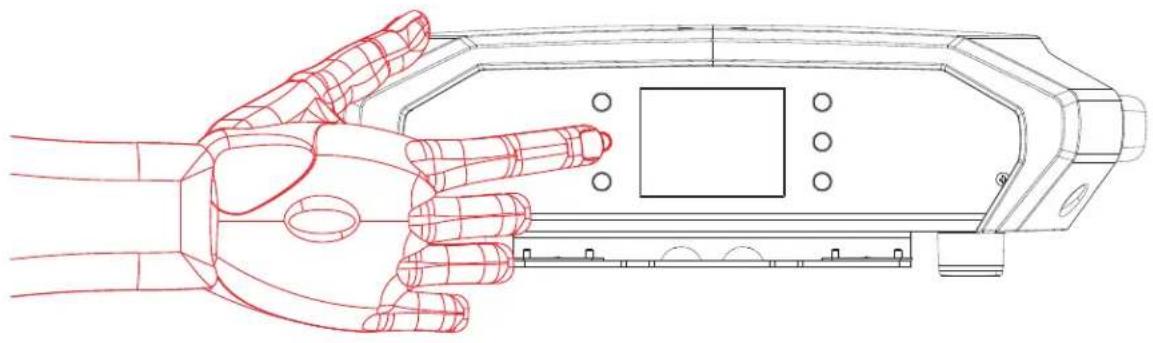
Chauvet Maverick MK2 Profile - Batteriebetriebene Anzeige - 1

natural_image Line drawing of a robotic hand holding a device with a control panel (no text or symbols)

Menüplan

Hauptlevel Programmierebenen Beschreibung
Start Address000-512 Netzwerkeinstellung
Network SetupIP ModeManual IP-Adresse manuell einstellen
DHCP Netzwerk legt die IP-Adresse fest
Static Produkt legt die IP-Adresse fest
Universe 000-255 Setzt das Universum
IP 002.xxx.xxx.xxxLegt die IP-Adresse im manuellen Modus fest
SubMask 255.xxx.xxx.xxxLegt Subnetzmaske im manuellen Modus fest
PersonalityDMX 33CHYESWählen Sie 33 DMX-Kanäle
NO
DMX 50CHYESWählen Sie 50 DMX-Kanäle
NO
SettingsControl ModeDMX Legt die DMX-Persönlichkeit fest
WDMX Legt die WDMX-Persönlichkeit fest
sACN Legt die sACN-Persönlichkeit fest
ArtNet Legt die Art-NetTM-Persönlichkeit fest
Pan ReverseYES Schwenk Normal
NOUmgekehrte Schwenkung
Tilt ReverseYES Neigung Normal
NOUmgekehrte Neigung
Screen ReverseYES Normale Anzeige
NOUmgekehrte Anzeige
AUTO Automatische Anzeigerichtung
Pan Angle540Schwenkungsbereich 540°
360Schwenkungsbereich360°
180Schwenkungsbereich180°
Tilt Angle270Neigungsbereich 270°
180Neigungsbereich 180°
90Neigungsbereich 90°
BL. O. P/T MoveYESWährend Schwenkung/Neigung verdunkeln
NOAktuelle Einstellungen speichern
BL. O. Color MoveYES Farbverdunkelung aktivieren
NODeaktivieren Sie die Farbverdunkelung
BL. O. Gobo MoveYES Gobo-Blackout aktivieren
NODeaktiviere den Gobo-Blackout
CalibrationYES Touchscreen kalibrieren
NOBehalten Sie die aktuellen Einstellungen bei
Touchscreen LockYES Display reagiert nicht auf Berührung
NODisplay reagiert auf Berührung
Lock ScreenYESSperrt die Tasten und den Touchscreen-Bildschirm Sicherheitscode: 0920
NO
Swap XYYESSchwenkung steuert Neigung, Neigung steuert Schwenkung
NOWährend Schwenkung und Neigung nicht tauschen
XY ModeFastSchnelle Schwenkung und Neigung
SlowLangsame Schwenkung und Neigung
WDMX ResetYESWDMX zurücksetzen
NOWDMX nicht zurücksetzen
Hauptlevel Programmierebenen Beschreibung
SettingsBacklight Timer30SAnzeige schaltet nach 30 Sekunden ab
1MAnzeige schaltet nach 1 Minute ab
5MAnzeige schaltet nach 5 Minuten ab
ONAnzeige bleibt an
Loss of DataHoldHält das zuletzt erhaltene Signal
CloseVerdunkelt Gerät
FansAutoLüfterdrehzahl gemäßGerätetemperatur
Full Lüfterdrehzahl auf volle Drehzahl
ECO Lautloser Modus
Theatrical DimmingYES Dimming wird aktualisiert
NOVorhandene Dimming stimmt mit den älterer Maverick MK2 Profile-Geräte übereinstimmt
Dimmer CurveLinearStellt die Dimmungskurve ein
Square
I Square
SCurve
Dimmer SpeedSmoothStellt die Dimmungsgeschwindigkeit ein
Fast
PWM Option600Auswahl der Pulse Width Modulation (PWM)
1200
2000
4000
6000
15000
Smart ZoomOFFBegrenzt den Zoombereich auf eine optimale Bildschärfe
ON
Beam CorrectionOFF Ermöglichte eine Flachfeld-Projektion unter Einsatz von Blenden. Damit gleichen Sie auch die Gobos über die Position 1 im Rad #1 aus
ON
Preset SelectPRESET AAufgezeichnete Voreinstellungs-Menüoptionen
PRESET B
PRESET C
Preset SyncNO Ermöglicht die Übermittlung aufgezeichneter Voreinstellungs-Menüoptionen an andere Maverick MK2 Spot-Geräte in der DMX-Serienschaltung
YES
Reset FunctionPan/TiltYES/NOSetzt einzelne oder alle Funktionen ab Start zurück
Iris/Prism
Color/CMY+Blade
Gobo/GoboRotate
Frost
All
Factory SettingsYESSetzt auf die standardmäßigen Werkseinstellungen zurück
NO
TestManual TestPan000-255Testen Sie jede Funktion / jeden Kanal einzeln
Pan Fine
Tilt
Tilt Fine
P/T Speed
Dimmer
Dimmer Fine
Shutter
Virtual Shaking
Cyan
Magenta
Yellow
CTO
Color
Gobo
Gobo Rotate
Gobo Index
Gobo 2
Gobo 2 Rotate
Gobo 2 Index
Blade 1-1
Blade 1-1 Fine
Blade 1-2
Blade 1-2 Fine
Blade 2-1
Blade 2-1 Fine
Blade 2-2
Blade 2-2 Fine
Blade 3-1
Blade 3-1 Fine
Blade 3-2
Blade 3-2 Fine
Blade 4-1
Blade 4-1 Fine
Blade 4-2
Blade 4-2 Fine
Blade Rotate
Blade Rotate Fine
Focus
Focus Fine
Focus Auto
Zoom
Zoom Fine
Prism
Prism Rotate
Iris
Frost
CMY Macro
CMY Macro Speed
Special Function
HauptlevelProgrammierebenenBeschreibung
InformationFixture InformationVer V_Zeigtdie Firmware-Version an
Running Mode____Zeigt den aktuellen Betriebsmodus an
Address ____Zeigt die aktuelle Startadresse an
Temperature ____Zeigt die aktuelle Temperatur des Geräts in °C an
Fixture Hours ____Zeigt an, wie lange das Gerät eingeschaltet gewesen ist
IP ____.Zeigt die aktuelle IP-Adresse an
SubMask ____.Zeigt die aktuelle Subnetzmaske an
MAC ____.Zeigt die aktuelle MAC-Adresse an
Fan InformationBase Fan 1 Speed____Zeigt die Drehzahl der Basis- und Hauptlüfter in U/min an
Base Fan 2 Speed____
Head Fan 1 Speed____
Head Fan 2 Speed____
Error InformationNo Error!* Zeigt alle Fehler oder “No Error!”
Channel InformationFrequencyHzZeigt alle aktuellen Werte von Eingangssignalen an, 000–255
Pan000–255
Pan Fine
Tilt
Tilt Fine
P/T Speed
Dimmer
Dimmer Fine
Shutter
Virtual Shaking
Cyan
Magenta
Yellow
CTO
Color
Gobo
Gobo Rotate
Gobo Index
Gobo 2
Gobo 2 Rotate
Gobo 2 Index
Hauptlevel Programmierebenen Beschreibung
InformationChannel InformationBlade 1-1000–255Zeigt alle aktuellen Werte von Eingangssignalen an, 000–255
Blade 1-1 Fine
Blade 1-2
Blade 1-2 Fine
Blade 2-1
Blade 2-1 Fine
Blade 2-2
Blade 2-2 Fine
Blade 3-1
Blade 3-1 Fine
Blade 3-2
Blade 3-2 Fine
Blade 4-1
Blade 4-1 Fine
Blade 4-2
Blade 4-2 Fine
Blade Rotate
Blade Rotate Fine
Blade Macro
Focus
Focus Fine
Focus Auto
Zoom
Zoom Fine
Prism
Prism Rotate
Iris
Frost
CMY Macro
CMY Macro Speed
Special Function

Konfiguration der Betriebseinstellungen

Startbildschirm

Der Maverick MK2 Profile verfügt über einen Startbildschirm, auf dem die aktuellen Steuerungsprotokolle, Modi, Startadressen, IP-Adressen und Umgebungen angezeigt werden. Um zum Startbildschirm zu gelangen, drücken Sie wiederholt auf
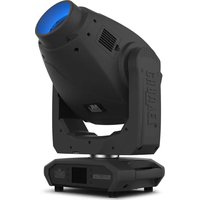
, bis er auf der Anzeige angezeigt wird. Auf dem Startbildschirm tippen Sie auf eine der angezeigten Steuerungseinstellungen, um sofort zu diesem Teil des Menüs zu gelangen, wie etwa den Modus, der Startadresse, der Umgebung; alternativ drücken Sie auf , um zum Hauptmenü zu gelangen.

Startadresse

Um die Startadresse einzustellen, stellen Sie den Steuerungsmodi ein und folgen Sie dann den Anweisungen unten:

  1. Drücken Sie wiederholt , bis der Startbildschirm auf dem Display angezeigt wird. Drücken Sie .
  2. Mit oder legen Sie die Start Address fest; alternativ tippen Sie auf die Schaltfläche Start Address auf dem Display.
  3. Bei Verwendung der Tasten anstatt des Touchscreens drücken Sie auf .
  4. Geben Sie anhand einer der folgenden Methoden die Startadresse (001–512) ein:

- Geben Sie über das Nummerntastenfeld auf dem Touchscreen-Display die Nummer der Adresse ein.

• Mit den Tasten (oder den Tasten-Symbolen an der Seite des Displays):

a. Mit oder wählen Sie die zu ändernde Ziffer aus.
b. Mit oder erhöhen oder verringern Sie den Wert dieser Ziffer.
c. Wiederholen Sie dies, bis die gewünschte Adresse eingestellt ist.

  1. Betätigen Sie .

Netzwerkeinrichtung

Chauvet Maverick MK2 Profile - Netzwerkeinrichtung - 1

Das Universum des TCP / IP-Protokolls ist das Universum der DMX-Funktion.

IP-Modus

Die IP-Adresse des Maverick MK2 Profile kann manuell, über das Netzwerk oder über eine voreingestellte statische Adresse, die jedem Gerät einmalig zugeordnet ist, festgelegt werden. Zum Festlegen des IP-Modus gehen Sie wie folgt vor:

  1. Drücken Sie wiederholt , bis der Startbildschirm auf dem Display angezeigt wird. Drücken Sie .
  2. Mit , , oder legen Sie die Network Setup fest; alternativ tippen Sie auf die Schaltfläche Network Setup auf dem Display.
  3. Bei Verwendung der Tasten anstatt des Touchscreens drücken Sie auf .
  4. Mit oder wählen Sie IP Mode aus; alternativ tippen Sie auf die Schaltfläche IP Mode auf dem Display.
  5. Bei Verwendung der Tasten anstatt des Touchscreens drücken Sie auf .
  6. Mit , , oder wählen Sie Folgendes aus:

  7. Manual – stellen Sie die IP-Adresse auf dem Bedienfeld ein
    • DHCP – das Netzwerk stellt IP-Adresse ein

  8. Static – eine voreingestellte statische Adresse, die jedem Gerät einmalig zugeordnet ist, alternativ tippen Sie auf die Schaltfläche mit dem gewünschten Modus auf dem Display.

  9. Betätigen Sie .

Universum

The Universe must be assigned through the product menu. To set the Universe, do the following:

  1. Drücken Sie wiederholt , bis der Startbildschirm auf dem Display angezeigt wird. Drücken Sie .
  2. Mit , , oder wählen Sie Network Setup aus, alternativ tippen Sie auf die Schaltfläche Network Setup auf dem Display.
  3. Bei Verwendung der Tasten anstatt des Touchscreens drücken Sie auf .
  4. Mit oder wählen Sie Universe, alternativ tippen Sie auf die Schaltfläche Universe auf dem Display.
  5. Bei Verwendung der Tasten anstatt des Touchscreens drücken Sie auf .
  6. Geben Sie die Universumsadresse (000–255) mit einer der folgenden Methoden ein:

- Geben Sie die Universumsnummer auf dem Ziffernblock ein, der auf dem Touchscreen angezeigt wird,

- Mit der Tasten (oder der Tastensymbole an den Seiten des Displays):

a. Mit oder um die zu ändernde Ziffer auszuwählen.
b. Mit oder um den Zahlenwert dieser Ziffer zu erhöhen oder zu verringern.
c. Wiederholen Sie diesen Vorgang, bis das Universum oder Subnetz wie gewünscht eingestellt ist.

  1. Betätigen Sie .

IP-Adresse

Im manuellen IP-Modus muss die IP-Adresse über das Gerätemenü zugewiesen werden. Zum Einstellen der IP-Adresse im manuellen IP-Modus gehen Sie wie folgt vo:

  1. Drücken Sie wiederholt , bis der Startbildschirm auf dem Display angezeigt wird. Drücken Sie .
  2. Mit , , oder wählen Sie Network Setup aus, alternativ tippen Sie auf die Schaltfläche Network Setup auf dem Display.
  3. Bei Verwendung der Tasten anstatt des Touchscreens drücken Sie auf .
  4. Mit oder wählen Sie Universe, alternativ tippen Sie auf die Schaltfläche Universe auf dem Display.
  5. Bei Verwendung der Tasten anstatt des Touchscreens drücken Sie auf .
  6. Geben Sie anhand einer der folgenden Methoden die IP-Adresse (000.000.000.000 bis 255.255.255.255) ein:

- Über den Touchscreen:

a. Tippen Sie auf die Schaltfläche, an dem das zu ändernde "Byte" (drei Ziffern) auf dem Display angezeigt wird.
b. Geben Sie über das Nummerntastenfeld auf dem Display die gewünschte Zahl ein.
c. Wiederholen Sie dies, bis die gewünschte IP-Adresse eingestellt ist.

• Mit den Tasten:

a. Mit oder wählen Sie das zu ändernde "Byte" (drei Ziffern) auf aus.
b. Mit oder erhöhen oder verringern Sie den Wert.
c. Wiederholen Sie dies, bis die gewünschte IP-Adresse eingestellt ist.

  1. Betätigen Sie .

Subnetzmaske

Im manuellen IP-Modus muss die Subnetzmaske über das Gerätemenü zugewiesen werden. Zum Einstellen der Subnetzmaske im manuellen IP-Modus gehen Sie wie folgt vor:

  1. Drücken Sie wiederholt , bis der Startbildschirm auf dem Display angezeigt wird. Drücken Sie .
  2. Mit , , oder wählen Sie Network Setup aus, alternativ tippen Sie auf die Schaltfläche Network Setup auf dem Display.
  3. Bei Verwendung der Tasten anstatt des Touchscreens drücken Sie auf .
  4. Mit oder wählen Sie IP, alternativ tippen Sie auf die Schaltfläche SubMask auf dem Display.
  5. Bei Verwendung der Tasten anstatt des Touchscreens drücken Sie auf
  6. Geben Sie anhand einer der folgenden Methoden die Subnetzmaske (000.000.000.000 bis 255.255.255.255) ein:

- Über den Touchscreen:

a. Tippen Sie auf die Schaltfläche, an dem das zu ändernde "Byte" (drei Ziffern) auf dem Display angezeigt wird.
b. Geben Sie über das Nummerntastenfeld auf dem Display die gewünschte Zahl ein.
c. Wiederholen Sie dies, bis die gewünschte Subnetzmaske eingestellt ist.

- Mit den Tasten:

a. Mit oder wählen Sie das zu ändernde "Byte" (drei Ziffern) auf aus.
b. Mit oder erhöhen oder verringern Sie den Wert.
c. Wiederholen Sie dies, bis die gewünschte Subnetzmaske eingestellt ist.

  1. Betätigen Sie .

Chauvet Maverick MK2 Profile - Subnetzmaske - 1

Im DHCP- oder statischen IP-Modus haben die Menüeinstellungen IP und SubMask keine Auswirkungen auf das Produkt.

Persönlichkeit

Gehen Sie wie folgt vor, um festzulegen, welche DMX-Persönlichkeit verwendet werden soll:

  1. Drücken Sie wiederholt , bis der Startbildschirm auf dem Display angezeigt wird. Drücken Sie .
  2. Mit , , oder wählen Sie Personality aus, alternativ tippen Sie auf die Schaltfläche Personality auf dem Display.
  3. Bei Verwendung der Tasten anstatt des Touchscreens drücken Sie auf .
  4. Mit , , oder wählen Sie DMX 33CH oder DMX 50CH aus, alternativ tippen Sie auf die Schaltfläche mit der gewünschten Option auf dem Display.
  5. Bei Verwendung der Tasten anstatt des Touchscreens drücken Sie auf .
  6. Mit , , oder wählen Sie NO (stornieren) oder YES (bestätigen), alternativ tippen Sie auf die Schaltfläche mit der gewünschten Option auf dem Display.
  7. Betätigen Sie .

Einstellungen

Befolgen Sie die nachstehenden Anweisungen, um zum Menü Settings zu gelangen:

  1. Drücken Sie wiederholt , bis der Startbildschirm auf dem Display angezeigt wird. Drücken Sie .
  2. Mit , , oder wählen Sie Settings aus, alternativ tippen Sie auf die Schaltfläche Settings auf dem Display.
  3. Bei Verwendung der Tasten anstatt des Touchscreens drücken Sie auf .

Steuerungsmodi

Der Maverick MK2 Profile kann so eingestellt werden, dass er auf DMX, WDMX, Art-Net™ oder sACN reagiert. Die Protokollkonfiguration muss eingestellt sein, damit das Produkt korrekt auf die Controller reagiert. Weitere Informationen finden Sie in der Menüplan Befolgen Sie die nachstehenden Anweisungen, um das Protokoll für Maverick MK2 Profile, zu konfigurieren:

  1. Navigieren Sie zum Menü Einstellungen.
  2. Mit oder wählen Sie Control Mode aus, alternativ tippen Sie auf die Schaltfläche Control Mode auf dem Display.
  3. Bei Verwendung der Tasten anstatt des Touchscreens drücken Sie auf .
  4. Mit , , oder wählen Sie DMX, WDMX, sACN, oder ArtNet, alternativ tippen Sie auf die Schaltfläche mit der gewünschten Option auf dem Display.
  5. Betätigen Sie .

Chauvet Maverick MK2 Profile - Steuerungsmodi - 1

Stellen Sie bei der WDMX-Steuerung sicher, dass die Antenne ausgefahren ist und sich zwischen Controller und Gerät keine Hindernisse befinden. Weitere Informationen zur Fehlerbehebung finden Sie unter WDMX zurücksetzen.

Schwenkungs-/Neigungsausrichtung

So stellen Sie ein, ob die Schwenkungs-/Neigungsausrichtung entweder normal oder umgekehrt ist:

  1. Navigieren Sie zum Menü Einstellungen.
  2. Mit oder wählen Sie Pan Reverse oder Tilt Reverse aus; alternativ tippen Sie auf die Schaltfläche mit der gewünschten Einstellung auf dem Display.
  3. Bei Verwendung der Tasten anstatt des Touchscreens drücken Sie auf .
  4. Mit , , oder wählen Sie NO (normale Ausrichtung) oder YES (umgekehrte Ausrichtung) aus; alternativ tippen Sie auf die Schaltfläche mit der gewünschten Option auf dem Display.
  5. Betätigen Sie .

Display-Ausrichtung

Zur Einstellung, nach welcher Seite das Display zeigt, gehen Sie wie folgt vor:

  1. Navigieren Sie zum Menü Einstellungen.
  2. Mit oder wählen Sie Screen Reverse aus; alternativ tippen Sie auf die Schaltfläche Screen Reverse auf dem Display.
  3. Bei Verwendung der Tasten anstatt des Touchscreens drücken Sie auf .
  4. Mit , , oder wählen Sie NO (display ist normal), YES (display ist umgekehrt) oder AUTO (das Display erkennt automatisch, nach welcher Seite das Geräts ausgerichtet ist und richtet sich selbst entsprechend aus) aus; alternativ tippen Sie auf die Schaltfläche mit der gewünschten Option auf dem Display.
  5. Betätigen Sie .

Schwenkungs-/Neigungswinkelbereich

So stellen Sie den zulässigen Bewegungsbereich der Schwenkung oder Neigung ein:

  1. Navigieren Sie zum Menü Einstellungen.
  2. Mit oder wählen Sie Pan Angle or Tilt Angle aus; alternativ tippen Sie auf die Schaltfläche mit der gewünschten Einstellung auf dem Display.
  3. Bei Verwendung der Tasten anstatt des Touchscreens drücken Sie auf .
  4. Mit , , oder wählen Sie 540, 360 oder 180 (540°, 360° oder 180° für die Schwenkung) und 270, 180 oder 90 (270°, 180° oder 90° für die Neigung) aus; alternativ tippen Sie auf die Schaltfläche mit der gewünschten Option auf dem Display.
  5. Betätigen Sie .

Blackout bei Schwenkungs-/Neigungsbewegung

Zur Einstellung, ob das Gerät während der Schwenkungs- oder Neigungsbewegung verdunkelt wird, gehen Sie wie folgt vor:

  1. Navigieren Sie zum Menü Einstellungen.
  2. Mit oder wählen Sie BL. O. P/T Move; alternativ tippen Sie auf die Schaltfläche BL. O. P/T Move auf dem Display.
  3. Bei Verwendung der Tasten anstatt des Touchscreens drücken Sie auf .
  4. Mit , , oder wählen Sie NO (keine Verdunkelung) oder YES (Verdunkelung während der Bewegung) aus; alternativ tippen Sie auf die Schaltfläche mit der gewünschten Option auf dem Display.
  5. Betätigen Sie .

Blackout bei Farbbewegung

Zur Einstellung, ob das Gerät während der Farbbewegung verdunkelt wird, gehen Sie wie folgt vor:

  1. Navigieren Sie zum Menü Einstellungen.
  2. Mit oder wählen Sie BL. O. Color Move aus, alternativ tippen Sie auf die Schaltfläche BL. O. Color Move auf dem Display.
  3. Bei Verwendung der Tasten anstatt des Touchscreens drücken Sie auf .
  4. Mit , , oder wählen Sie NO (keine Verdunkelung) oder YES (Verdunkelung während der Bewegung) aus; alternativ tippen Sie auf die Schaltfläche mit der gewünschten Option auf dem Display.
  5. Betätigen Sie .

Blackout bei Gobobewegung

Zur Einstellung, ob das Gerät während der Gobobewegung verdunkelt wird, gehen Sie wie folgt vor:

  1. Navigieren Sie zum Menü Einstellungen.
  2. Mit oder wählen Sie BL. O. Gobo Move aus, alternativ tippen Sie auf die Schaltfläche BL. O. Gobo Move auf dem Display.
  3. Bei Verwendung der Tasten anstatt des Touchscreens drücken Sie auf .
  4. Mit , , oder wählen Sie NO (keine Verdunkelung) oder YES (Verdunkelung während der Bewegung) aus; alternativ tippen Sie auf die Schaltfläche mit der gewünschten Option auf dem Display.
  5. Betätigen Sie .

Touchscreen-Kalibrierung

Reagiert das Touchscreen-Display nicht richtig, muss es eventuell neu kalibriert werden. Dazu gehen Sie wie folgt vor:

  1. Navigieren Sie zum Menü Einstellungen .
  2. Mit oder wählen Sie Calibration aus; alternativ tippen Sie auf die Schaltfläche Calibration auf dem Display.
  3. Bei Verwendung der Tasten anstatt des Touchscreens drücken Sie auf .
  4. Mit , , oder wählen Sie NO (keine Kalibrierung) oder YES (Kalibrierung) aus; alternativ tippen Sie auf die Schaltfläche mit der gewünschten Option auf dem Display.
  5. Betätigen Sie .
  6. Befolgen Sie die Anweisungen und tippen Sie auf die jeweilig auf dem Display angezeigten Punkte.

Touchscreen-Sperre

Zum Sperren oder Entsperren des Touchscreen-Displays für das Bedienfeld gehen Sie wie folgt vor:

  1. Navigieren Sie zum Menü Einstellungen.
  2. Mit oder wählen Sie Touchscreen Lock aus; alternativ tippen Sie auf die Schaltfläche Touchscreen Lock auf dem Display.
  3. Bei Verwendung der Tasten anstatt des Touchscreens drücken Sie auf .
  4. Mit , , oder wählen Sie NO (Display reagiert auf Antippen) oder YES (Display reagiert nicht auf Antippen) aus; alternativ tippen Sie auf die Schaltfläche mit der gewünschten Option auf dem Display.
  5. Betätigen Sie .

Bildschirm sperren

Zum vollständigen Sperren oder Entsperren des Bedienfelds gehen Sie wie folgt vor:

  1. Navigieren Sie zum Menü Einstellungen.
  2. Mit oder wählen Sie Lock Screen aus; alternativ tippen Sie auf die Schaltfläche Lock Screen auf dem Display.
  3. Bei Verwendung der Tasten anstatt des Touchscreens drücken Sie auf .
  4. Mit , , oder wählen Sie NO (Bedienfeld wird nicht gesperrt) oder YES (für den Zugriff auf das Bedienfeld ist ein Sicherheitscode erforderlich) aus; alternativ tippen Sie auf die Schaltfläche mit der gewünschten Option auf dem Display.
  5. Betätigen Sie .

Gehen Sie wie folgt vor, um den Touchscreen und die Menütasten zu entsperren:

  1. Berühren Sie den Touchscreen des Displays an einer beliebigen Stelle oder drücken Sie eine beliebige Menütaste.
  2. Geben Sie den Passcode 0920 über den Touchscreen oder die Tasten ein.
  3. Betätigen Sie .

Zwischen Schwenkung und Neigung wechseln

Um zwischen den Schwenkungs- und Neigungsfunktionen zu wechseln, sodass das Steuerelement, mit dem normalerweise die Schwenkung gesteuert wird, dann die Neigung gesteuert wird, und umgekehrt, gehen Sie wie folgt vor:

  1. Navigieren Sie zum Menü Einstellungen .
  2. Mit oder wählen Sie Swap XY aus; alternativ tippen Sie auf die Schaltfläche Swap XY auf dem Display.
  3. Bei Verwendung der Tasten anstatt des Touchscreens drücken Sie auf .
  4. Mit , , oder wählen Sie NO (normale Schwenkung und Neigung) oder YES (Schwenkung steuert Neigung, Neigung steuert Schwenkung) aus; alternativ tippen Sie auf die Schaltfläche mit der gewünschten Option auf dem Display.
  5. Betätigen Sie .

Schwenk- und Neigegeschwindigkeit

So stellen Sie die maximale Geschwindigkeit der Schwenkung und Neigung ein:

  1. Navigieren Sie zum Menü Einstellungen .
  2. Mit oder wählen Sie XY Mode aus; alternativ tippen Sie auf die Schaltfläche XY Mode auf dem Display.
  3. Bei Verwendung der Tasten anstatt des Touchscreens drücken Sie auf .
  4. Mit , , oder wählen Sie Slow oder Fast aus; alternativ tippen Sie auf die Schaltfläche mit der gewünschten Option auf dem Display.
  5. Betätigen Sie .

WDMX zurücksetzen

Zum Zurücksetzen der WDMX-Verbindung vom Maverick MK2 Profile gehen Sie wie folgt vor:

  1. Navigieren Sie zum Menü Einstellungen.
  2. Mit oder wählen Sie WDMX Reset aus; alternativ tippen Sie auf die Schaltfläche WDMX Reset auf dem Display.
  3. Bei Verwendung der Tasten anstatt des Touchscreens drücken Sie auf .
  4. Mit , , oder wählen Sie NO (Verbindung nicht zurücksetzen) oder YES (Verbindung zurücksetzen) aus; alternativ tippen Sie auf die Schaltfläche mit der gewünschten Option auf dem Display.
  5. Betätigen Sie .

Chauvet Maverick MK2 Profile - WDMX zurücksetzen - 1

Sobald ein WDMX-Empfänger mit einem bestimmten WDMX-Sender verbunden ist, bleibt er so lange mit diesem bestimmten Sender verbunden, bis er mit einem anderen verbunden wird.

Timer der Hintergrundbeleuchtung

So stellen Sie die Dauer der Inaktivität ein, bei der die Hintergrundbeleuchtung des Displays abschaltet:

  1. Navigieren Sie zum Menü Einstellungen .

  2. Mit oder wählen Sie Backlight Timer aus; alternativ tippen Sie auf die Schaltfläche Backlight Timer auf dem Display.

  3. Bei Verwendung der Tasten anstatt des Touchscreens drücken Sie auf .

  4. Mit , , oder wählen Sie 30S (nach 30 Sekunden Inaktivität), 1M (nach 1 Minute Inaktivität), 5M (nach 5 Minuten Inaktivität) oder ON (schaltet nicht ab) aus; alternativ tippen Sie auf die Schaltfläche mit der gewünschten Option auf dem Display.

  5. Betätigen Sie .

Datenverlust

Geht ein Eingangssignal verloren, reagiert der Maverick MK2 Profile auf zwei Arten: Entweder das Gerät hält das zuletzt empfangene Signal oder alle LEDs werden verdunkelt.

Um einzustellen, auf welche Art das Gerät reagiert, gehen Sie wie folgt vor:

  1. Navigieren Sie zum Menü Einstellungen .

  2. Mit oder wählen Sie Loss of Data aus; alternativ tippen Sie auf die Schaltfläche Loss of Data auf dem Display.

  3. Bei Verwendung der Tasten anstatt des Touchscreens drücken Sie auf .

  4. Mit , , oder wählen Sie Hold (hält das zuletzt empfangene Signal) oder Close (alle LEDs werden verdunkelt) aus; alternativ tippen Sie auf die Schaltfläche mit der gewünschten Option auf dem Display.

  5. Betätigen Sie .

Lüfterdrehzahl

Zum Einstellen der Lüfterdrehzahl gehen Sie wie folgt vor:

  1. Navigieren Sie zum Menü Einstellungen.

  2. Mit oder wählen Sie Fans aus; alternativ tippen Sie auf die Schaltfläche Fans auf dem Display.

  3. Bei Verwendung der Tasten anstatt des Touchscreens drücken Sie auf .

  4. Mit , , oder wählen Sie Auto (Einstellung der Lüfterdrehzahl gemäß Gerätetemperatur), Full (maximale Lüfterdrehzahl) oder ECO (leister Lüfterbetrieb) aus; alternativ tippen Sie auf die Schaltfläche mit der gewünschten Option auf dem Display.

  5. Betätigen Sie .

Dimmungskurve

Zum Festlegen der Dimmungskurve gehen Sie wie folgt vor:

  1. Navigieren Sie zum Menü Einstellungen.

  2. Mit oder wählen Sie Dimmer Curve aus; alternativ tippen Sie auf die Schaltfläche Dimmer Curve auf dem Display.

  3. Bei Verwendung der Tasten anstatt des Touchscreens drücken Sie auf .

  4. Mit , , oder wählen Sie Linear, Square, I Squa oder SCurve aus; alternativ tippen Sie auf die Schaltfläche mit der gewünschten Option auf dem Display.

  5. Betätigen Sie .

Dimmungsgeschwindigkeit

Zum Einstellen der Dimmungsgeschwindigkeit gehen Sie wie folgt vor:

  1. Navigieren Sie zum Menü Einstellungen.

  2. Mit oder wählen Sie Dimmer Speed aus; alternativ tippen Sie auf die Schaltfläche Dimmer Speed auf dem Display.

  3. Bei Verwendung der Tasten anstatt des Touchscreens drücken Sie auf .

  4. Mit , , oder wählen Sie Smooth oder Fast aus; alternativ tippen Sie auf die Schaltfläche mit der gewünschten Option auf dem Display.

  5. Betätigen Sie .

Pulse Width Modulation

Befolgen Sie die nachstehenden Anweisungen, um die PWM-Frequenz einzustellen:

  1. Navigieren Sie zum Menü Einstellungen.
  2. Mit oder wählen Sie PWM Option aus; alternativ tippen Sie auf die Schaltfläche PWM Option auf dem Display.
  3. Bei Verwendung der Tasten anstatt des Touchscreens drücken Sie auf .
  4. Mit , , oder wählen Sie PWM-Frequenz 600 Hz, 1200 Hz, 2000 Hz, 4000 Hz, 6000 Hz oder 15000 Hz aus; alternativ tippen Sie auf die Schaltfläche mit der gewünschten Option auf dem Display.
  5. Betätigen Sie .

Intelligenter Zoom

Gehen Sie wie folgt vor, um den Zoombereich auf den optimalen Fokus einzustellen:

  1. Navigieren Sie zum Menü Einstellungen .
  2. Mit oder wählen Sie Smart Zoom aus; alternativ tippen Sie auf die Schaltfläche Smart Zoom auf dem Display.
  3. Bei Verwendung der Tasten anstatt des Touchscreens drücken Sie auf .
  4. Wählen Sie YES, alternativ tippen Sie auf die Schaltfläche mit der gewünschten Option auf dem Display.
  5. Betätigen Sie .

Strahlkorrektur

Verwenden Sie die Strahlkorrekturfunktion, um bei Verwendung der Verschlüsse ein flaches Feld zu erzielen. Befolgen Sie dazu die folgenden Anweisungen:

  1. Navigieren Sie zum Menü Einstellungen .
  2. Mit oder wählen Sie Beam Correction aus; alternativ tippen Sie auf die Schaltfläche Beam Correction auf dem Display.
  3. Bei Verwendung der Tasten anstatt des Touchscreens drücken Sie auf .
  4. Wählen Sie YES, alternativ tippen Sie auf die Schaltfläche mit der gewünschten Option auf dem Display.
  5. Betätigen Sie .

Chauvet Maverick MK2 Profile - Strahlkorrektur - 1

Wenn die Beam Correction aktiviert ist, wird das Goborad 1 in der DMX-Konfiguration um einen Wertesatz versetzt.

Auswahl der Voreinstellung

Mit dieser Option können Sie 3 verschiedene, voreingestellte Konfigurationen von Menüoptionen auswählen. Zum Speichern und Einstellen dieser Voreinstellungen gehen Sie wie folgt vor:

  1. Navigieren Sie zum Menü Einstellungen.
  2. Mit oder wählen Sie Preset Select aus; alternativ tippen Sie auf die Schaltfläche Preset Select auf dem Display.
  3. Bei Verwendung der Tasten anstatt des Touchscreens drücken Sie auf .
  4. Mit , , oder wählen Sie die Voreinstellungen aus PRESET A, PRESET B oder PRESET aus; alternativ tippen Sie auf die Schaltfläche mit der gewünschten Option auf dem Display.
  5. Betätigen Sie .
  6. Das Gerät wird zurückgesetzt. An den Menüoptionen vorgenommene Änderungen werden in dieser Voreinstellung gespeichert.

Chauvet Maverick MK2 Profile - Auswahl der Voreinstellung - 1

  • Standard ist die PRESET A. Wenn Sie innerhalb von PRESET A, Änderungen vornehmen, werden diese Änderungen in PRESET A gespeichert, ohne dass Sie weitere Schritte unternehmen müssen.
  • Zum Erstellen einer neuen Voreinstellung markieren Sie PRESET SELECT und wählen es aus. Markieren Sie PRESET B oder PRESET C und drücken Sie . Bei dieser Auswahl wird das Gerät automatisch zurück und nehmen Sie die erforderlichen Änderungen im Menü vor. Damit werden diese automatisch in der Voreinstellung gespeichert, in der Sie sich befinden.

Voreinstellungs-Synchronisation

Zum Synchronisieren aller Menü-Voreinstellungen mit anderen Maverick MK2 Profile-Geräten gehen Sie wie folgt vor:

  1. Verbinden Sie alle Maverick MK2 Profile-Geräte per DMX-Kabel miteinander.

  2. Navigieren Sie zum Menü Einstellungen.

  3. Mit oder wählen Sie Preset Sync aus; alternativ tippen Sie auf die Schaltfläche Preset Sync auf dem Display.

  4. Bei Verwendung der Tasten anstatt des Touchscreens drücken Sie auf .

  5. Wählen Sie YES aus; alternativ tippen Sie auf die Schaltfläche mit der gewünschten Option auf dem Display.

  6. Betätigen Sie .

Chauvet Maverick MK2 Profile - Voreinstellungs-Synchronisation - 1

- Zum Synchronisieren anderer Maverick MK2 Profile-Geräte müssen Sie diese per DMX-Kabel miteinander verbinden.

- Das Geräte kann sich in allen Steuerungs-Modi außer WDMX befinden. ArtNet, DMX, sACN sind alle akzeptabel.

- Alle Menüoptionen, einschließlich der DMX-Adresse, werden übertragen. Nur die IP-Adresse ist bei anderen Geräten nicht betroffen.

• Verbinde nur Maverick MK2 Profile.

Funktionen zum Zurücksetzen

So setzen Sie die Schwenkungs-, Neigungs- oder alle Funktionen auf den Zustand beim Starten des Geräts zurück:

  1. Navigieren Sie zum Menü Einstellungen.

  2. Mit oder wählen Sie Reset Function aus; alternativ tippen Sie auf die Schaltfläch Reset Function auf dem Display.

  3. Bei Verwendung der Tasten anstatt des Touchscreens drücken Sie auf .

  4. Mit oder wählen Sie aus Pan/Tilt, Iris/Prism, Color/CMY+Blade, Gobo/Gobo Rotate, Frost oder All die Funktion aus die zurückgesetzt werden soll; alternativ tippen Sie auf die Schaltfläche mit der gewünschten Option auf dem Display.

  5. Bei Verwendung der Tasten anstatt des Touchscreens drücken Sie auf .

  6. Mit , , oder wählen Sie NO (nicht zurücksetzen) oder YES (zurücksetzen) aus; alternativ tippen Sie auf die Schaltfläche mit der gewünschten Option auf dem Display.

  7. Betätigen Sie .

Zurücksetzen auf Werkseinstellung

Um den Maverick MK2 Profile auf die Werkseinstellungen zurückzusetzen, gehen Sie wie folgt vor:

  1. Navigieren Sie zum Menü Einstellungen .

  2. Mit oder wählen Sie Factory Settings aus; alternativ tippen Sie auf die Schaltfläche Factory Settings auf dem Display.

  3. Bei Verwendung der Tasten anstatt des Touchscreens drücken Sie auf .

  4. Mit , , oder wählen Sie NO (nicht zurücksetzen) oder YES (auf Werkseinstellungen zurücksetzen) aus; alternativ tippen Sie auf die Schaltfläche mit der gewünschten Option auf dem Display.

  5. Betätigen Sie .

Test-Modus

Automatischer Test

Zur Durchführung eines Selbsttests der Funktionen des Maverick MK2 Profile gehen Sie wie folgt vor:

  1. Drücken Sie wiederholt auf , bis der Startbildschirm auf dem Display angezeigt wird. Betätigen Sie .
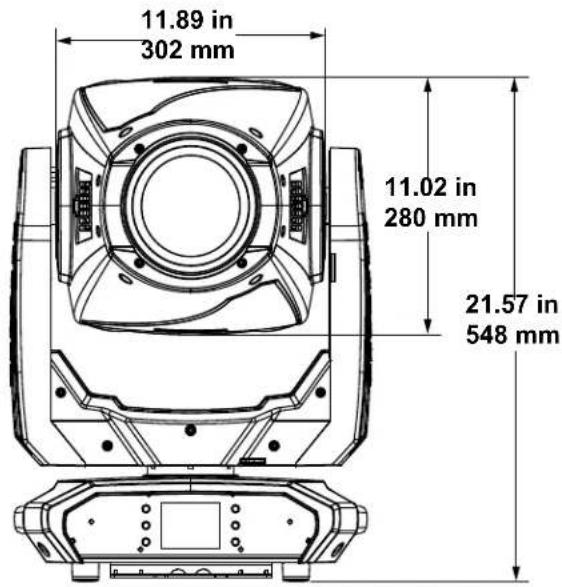
  2. Mit , , oder wählen Sie Test aus; alternativ tippen Sie auf die Schaltfläch Test auf dem Display.
  3. Bei Verwendung der Tasten anstatt des Touchscreens drücken Sie auf .
  4. Mit oder wählen Sie Auto test aus; alternativ tippen Sie auf die Schaltfläch Auto Test auf dem Display.
  5. Betätigen Sie .

Manual Test

Zum manuellen Testen aller Funktionen des Geräts gehen Sie wie folgt vor:

  1. Drücken Sie wiederholt auf , bis der Startbildschirm auf dem Display angezeigt wird. Betätigen Sie .
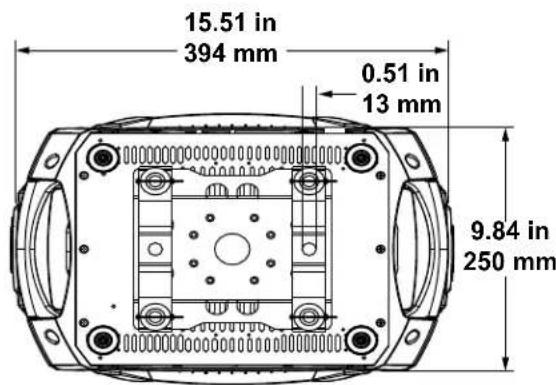
  2. Mit , , oder wählen Sie Test aus; alternativ tippen Sie auf die Schaltfläch Test auf dem Display.
  3. Bei Verwendung der Tasten anstatt des Touchscreens drücken Sie auf .
  4. Mit oder wählen Sie Manual test aus; alternativ tippen Sie auf die Schaltfläch Manual Test auf dem Display.
  5. Bei Verwendung der Tasten anstatt des Touchscreens drücken Sie auf .
  6. Mit oder die zu testende Funktion aus; alternativ tippen Sie auf die Schaltfläche mit der gewünschten Option auf dem Display.
  7. Bei Verwendung der Tasten anstatt des Touchscreens drücken Sie auf .
  8. Ändern Sie den Wert der getesteten Funktion mit einer der folgenden Methoden: • Geben Sie über das Nummerntastenfeld auf dem Touchscreen-Display den gewünschten Wert ein • Mit , , oder erhöhen oder verringern Sie den Wert.
  9. Betätigen Sie .

Systeminformationen

Alle Informationen zum aktuellen Status des Maverick MK2 Profile können über das Information menü des Geräts abgerufen werden. Zum Anzeigen dieser Informationen gehen Sie wie folgt vor:

  1. Drücken Sie wiederholt auf , bis der Startbildschirm auf dem Display angezeigt wird. Betätigen Sie .
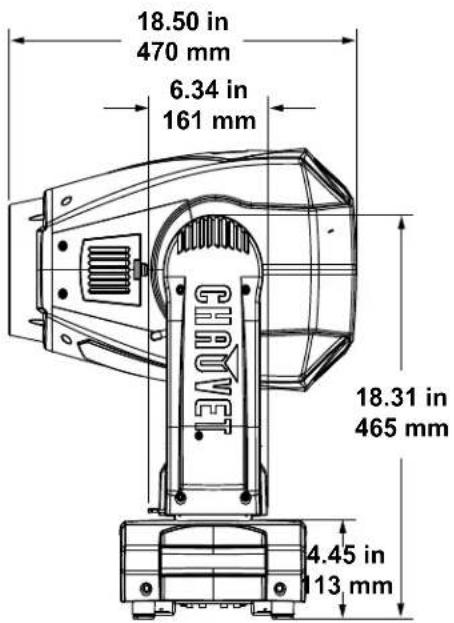
  2. Mit , , oder wählen Sie Information aus; alternativ tippen Sie auf die Schaltfläche Information auf dem Display.
  3. Bei Verwendung der Tasten anstatt des Touchscreens drücken Sie auf .
  4. Mit oder wählen Sie Fixture Information (Firmwareversion, Betriebsmodus, Startadresse usw), Fan Information (Drehzahl der Lüfter in U/min), Error Information (Fehler oder No Error!) oder Channel Information (aktueller Wert aller Signaleingangskanäle); alternativ tippen Sie auf die Schaltfläche mit der gewünschten Option auf dem Display.

  5. Betätigen Sie .

  6. Mit oder scrollen Sie durch die Informationen.

DMX-Werte
50Ch

Kanal Funktion Wert Prozent/Einstellung
1Schwenkung000 ⇔ 2550–100%
2Schwenkung fein000 ⇔ 255Feinsteuerung (16 Bit)
3Neigung000 ⇔ 2550–100%
4Neigung fein000 ⇔ 255Feinsteuerung (16 Bit)
5Schwenk-/Neigegeschwindigkeit000 ⇔ 2550–100%
6Dimmer000 ⇔ 2550–100%
7Feiner dimmer000 ⇔ 255Feinsteuerung (16 Bit)
8Shutter000 ⇔ 003Aus
004 ⇔ 007Ein
008 ⇔ 076Strobe, langsam bis schnell
077 ⇔ 145Pulseffekt, langsam bis schnell
146 ⇔ 215Zufälls-Effekt, langsam bis schnell
216 ⇔ 255Ein
9Virtueller Blitz000 ⇔ 001Keine Funktion
002 ⇔ 128Strobe schütteln, langsam bis schnell
129 ⇔ 255Einblenden/ausblenden, langsam bis schnell
10Cyan000 ⇔ 2550–100%
11Magenta000 ⇔ 2550–100%
12Gelb000 ⇔ 2550–100%
13CTO000 ⇔ 2550–100%
14Farbkreis000 ⇔ 006Ein
007 ⇔ 013Rot
014 ⇔ 020Orange
021 ⇔ 027Grün
028 ⇔ 034Blau
035 ⇔ 041Magenta
042 ⇔ 048CTO
049 ⇔ 059UV
060 ⇔ 187Geteilte Farben
188 ⇔ 219Farbe im uhrzeigersinn scrollen, schnell bis langsam
220 ⇔ 223Aus
224 ⇔ 255Farbe gegen den Uhrzeigersinn scrollen, langsam bis schnell
15Goboräder 1(siehe Gobo-Designs)000 ⇔ 008Ein
009 ⇔ 017Gobo 1 (Ring der Ringe)
018 ⇔ 026Gobo 2 (Checker-Wirbel)
027 ⇔ 035Gobo 3 (Dreieck)
036 ⇔ 044Gobo 4 (Sternfeld)
045 ⇔ 053Gobo 5 (Linsenglas)
054 ⇔ 063Gobo 6 (Strahlkorrektur)
064 ⇔ 073Gobo 6 zittert
074 ⇔ 082Gobo 5 zittert
083 ⇔ 091Gobo 4 zittert
092 ⇔ 100Gobo 3 zittert
101 ⇔ 109Gobo 2 zittert
110 ⇔ 118Gobo 1 zittert
119 ⇔ 127Ein
128 ⇔ 191Linksdrehendes Gobo-Scrollen, langsam bis schnell
192 ⇔ 255Rechtsdrehendes Gobo-Scrollen, langsam bis schnell
16 Gobo 1 Drehung000 ⇔ 063Drehbarer Gobo-Index
064 ⇔ 145Im Uhrzeigersinn drehen, schnell bis langsam
146 ⇔ 149Halt
150 ⇔ 231Gegen den Uhrzeigersinn drehen, langsam bis schnell
232 ⇔ 255Bounce-Effekt
17Goboräder 1 Index fein000 ⇔ 255Feinsteuerung (16 Bit)
18Goboräder 2 (siehe Gobo-Designs)000 ⇔ 008Ein
009 ⇔ 017Gobo 1 (Spirale)
018 ⇔ 026Gobo 2 (Punkt-Chiclets)
027 ⇔ 035Gobo 3 (Splot-Trennung)
036 ⇔ 044Gobo 4 (Gewellter Balken)
045 ⇔ 053Gobo 5 (Duschlas)
054 ⇔ 063Gobo 6 (Linsenglas)
064 ⇔ 073Gobo 6 zittert
074 ⇔ 082Gobo 5 zittert
083 ⇔ 091Gobo 4 zittert
092 ⇔ 100Gobo 3 zittert
101 ⇔ 109Gobo 2 zittert
110 ⇔ 118Gobo 1 zittert
119 ⇔ 127Ein
128 ⇔ 191Linksdrehendes Gobo-Scrollen, langsam bis schnell
192 ⇔ 255Rechtsdrehendes Gobo-Scrollen, langsam bis schnell
19 Gobo 2 Drehung000 ⇔ 063Drehbarer Gobo-Index
064 ⇔ 145Im Uhrzeigersinn drehen, schnell bis langsam
146 ⇔ 149Halt
150 ⇔ 231Gegen den Uhrzeigersinn drehen, langsam bis schnell
41 Autofokus000 ⇔ 010Keine Funktion
011 ⇔ 0300–5 m
031 ⇔ 0506 m
051 ⇔ 0707 m
071 ⇔ 0908 m
091 ⇔ 1109 m
111 ⇔ 13010 m
131 ⇔ 15012.5 m
151 ⇔ 17015 m
171 ⇔ 19017.5 m
191 ⇔ 21020–60 m
211 ⇔ 255Entfernung automatisch erkennen
42Zoomen000 ⇔ 255Schmal bis breit
43Feiner Zoom000 ⇔ 255Feinsteuerung (16 Bit)
44 Prisma000 ⇔ 004Keine Funktion
005 ⇔ 255Prismeneffekt
45 Prism rotate000 ⇔ 127Drehposition
128 ⇔ 189Drehung im Uhrzeigersinn, schnell bis langsam
190 ⇔ 193Halt
194 ⇔ 255Drehung gegen den Uhrzeigersinn, langsam bis schnell
46 Iris000 ⇔ 063Groß zu klein
064 ⇔ 127Automatischer Wechsel, langsam bis schnell
128 ⇔ 191Langsames Herauszoomen, schnelles Hineinzoomen (langsam bis schnell)
192 ⇔ 255Langsames Hineinzoomen, schnelles Herauszoomen (langsam bis schnell)
47Frost000 ⇔ 2550–100%
48 CMY Macro000 ⇔ 009Keine Funktion
010 ⇔ 255CMY-Makro
49CMY Macro speed000 ⇔ 255100–0%
Kanal Funktion Wert Prozent/Einstellung
50 Control000 ⇔ 007Keine Funktion
008 ⇔ 015XY-Verdunkelung
016 ⇔ 023C-Verdunkelung
024 ⇔ 031G-Verdunkelung
032 ⇔ 039XYC-Verdunkelung
040 ⇔ 047XYG-Verdunkelung
048 ⇔ 055XYCG-Verdunkelung
056 ⇔ 095Keine Funktion
096 ⇔ 103X zurücksetzen
104 ⇔ 111Y zurücksetzen
112 ⇔ 119Farbreset
120 ⇔ 127Gobo und Goborotationsset
128 ⇔ 135Keine Funktion
136 ⇔ 143Prisma zurückgesetzt
144 ⇔ 151Rahmung Verschluss zurücksetzen
152 ⇔ 159Alles zurückgesetzt
160 ⇔ 167Iris zurückgesetzt
168 ⇔ 175Frost zurückgesetzt
176 ⇔ 183Zoom zurückgesetzt
184 ⇔ 191CMY zurückgesetzt
192 ⇔ 199Lüfter, niedrige Drehzahl
200 ⇔ 207Lüfter, volle Geschwindigkeit
208 ⇔ 215Fan-Auto
216 ⇔ 220Strahlkorrektur aus
221 ⇔ 225Iris, schneller Modus
226 ⇔ 230Iris, ruhig Modus
231 ⇔ 235XY Austausch Ein
236 ⇔ 240XY Austausch aAus
241 ⇔ 245Strahlkorrektur ein(Versetzt die Position von Gobos 1 in Rad 1)
246 ⇔ 250XY-Glättungsmodus
251 ⇔ 255XY-Schnellmodus

33Ch

Kanal Funktion Wert Prozent/Einstellung
1Schwenkung000 ⇔ 2550–100%
2Schwenkung fein000 ⇔ 255Feinsteuerung (16 Bit)
3Neigung000 ⇔ 2550–100%
4Neigung fein000 ⇔ 255Feinsteuerung (16 Bit)
5Schwenk-/Neigegeschwindigkeit000 ⇔ 2550–100%
6Dimmer000 ⇔ 2550–100%
7Shutter000 ⇔ 003Aus
004 ⇔ 007Ein
008 ⇔ 076Strobe, langsam nach schnell
077 ⇔ 145Pulseffekt, langsam nach schnell
146 ⇔ 215Zufälls-Effekt, langsam nach schnell
216 ⇔ 255Ein
8Virtueller Blitz000 ⇔ 001Keine Funktion
002 ⇔ 128Strobe schütteln, langsam bis schnell
129 ⇔ 255Einblenden/ausblenden, langsam bis schnell
9Cyan000 ⇔ 2550–100%
10Magenta000 ⇔ 2550–100%
11Gelb000 ⇔ 2550–100%
12CTO000 ⇔ 2550–100%
13Farbkreis000 ⇔ 006Ein
007 ⇔ 013Rot
014 ⇔ 020Orange
021 ⇔ 027Grün
028 ⇔ 034Blau
035 ⇔ 041Magenta
042 ⇔ 048CTO
049 ⇔ 059UV
060 ⇔ 187Geteilte Farben
188 ⇔ 219Farbe im uhrzeigersinn scrollen, schnell bis langsam
220 ⇔ 223Aus
224 ⇔ 255Farbe gegen den Uhrzeigersinn scrollen, langsam bis schnell
14Goboräder 1(siehe Gobo-Designs)000 ⇔ 008Ein
009 ⇔ 017Gobo 1 (Ring der Ringe)
018 ⇔ 026Gobo 2 (Checker-Wirbel)
027 ⇔ 035Gobo 3 (Dreieck)
036 ⇔ 044Gobo 4 (Sternfeld)
045 ⇔ 053Gobo 5 (Linsenglas)
054 ⇔ 063Gobo 6 (Strahlkorrektur)
064 ⇔ 073Gobo 6 zittert
074 ⇔ 082Gobo 5 zittert
083 ⇔ 091Gobo 4 zittert
092 ⇔ 100Gobo 3 zittert
101 ⇔ 109Gobo 2 zittert
110 ⇔ 118Gobo 1 zittert
119 ⇔ 127Ein
128 ⇔ 191Linksdrehendes Gobo-Scrollen, langsam bis schnell
192 ⇔ 255Rechtsdrehendes Gobo-Scrollen, langsam bis schnell
15 Gobo 1 rotate000 ⇔ 063Drehbarer Gobo-Index
064 ⇔ 145Im Uhrzeigersinn drehen, schnell bis langsam
146 ⇔ 149Halt
150 ⇔ 231Gegen den Uhrzeigersinn drehen, langsam bis schnell
232 ⇔ 255Bounce-Effekt
16Gobo wheel 2(siehe Gobo-Designs)000 ⇔ 008Ein
009 ⇔ 017Gobo 1 (Spirale)
018 ⇔ 026Gobo 2 (Punkt-Chiclets)
027 ⇔ 035Gobo 3 (Splot-Trennung)
036 ⇔ 044Gobo 4 (Gewellter Balken)
045 ⇔ 053Gobo 5 (Duschlas)
054 ⇔ 063Gobo 6 (Linsenglas)
064 ⇔ 073Gobo 6 zittert
074 ⇔ 082Gobo 5 zittert
083 ⇔ 091Gobo 4 zittert
092 ⇔ 100Gobo 3 zittert
101 ⇔ 109Gobo 2 zittert
110 ⇔ 118Gobo 1 zittert
119 ⇔ 127Ein
128 ⇔ 191Linksdrehendes Gobo-Scrollen, langsam bis schnell
192 ⇔ 255Rechtsdrehendes Gobo-Scrollen, langsam bis schnell
17 Gobo 2 rotate000 ⇔ 063Drehbarer Gobo-Index
064 ⇔ 145Im Uhrzeigersinn drehen, schnell bis langsam
146 ⇔ 149Halt
150 ⇔ 231Gegen den Uhrzeigersinn drehen, langsam bis schnell
232 ⇔ 255Bounce-Effekt
18Blade 1a000 ⇔ 2550–100%
19Blade 1b000 ⇔ 2550–100%
20Blade 2a000 ⇔ 2550–100%
21Blade 2b000 ⇔ 2550–100%
22Blade 3a000 ⇔ 2550–100%
23Blade 3b000 ⇔ 2550–100%
24Blade 4a000 ⇔ 2550–100%
25Blade 4b000 ⇔ 2550–100%
26Rahmen drehen000 ⇔ 2550–100%
27Fokus000 ⇔ 2550–100%
28Zoomen000 ⇔ 255Schmal bis breit
29 Prisma000 ⇔ 004Keine Funktion
005 ⇔ 255Prismeneffekt
30 Prism rotate000 ⇔ 127Drehposition
128 ⇔ 189Drehung im Uhrzeigersinn, schnell bis langsam
190 ⇔ 193Halt
194 ⇔ 255Drehung gegen den Uhrzeigersinn, langsam bis schnell
31 Iris000 ⇔ 063Groß zu klein
064 ⇔ 127Automatischer Wechsel, langsam bis schnell
128 ⇔ 191Langsames Herauszoomen, schnelles Hineinzoomen (langsam bis schnell)
192 ⇔ 255Langsames Hineinzoomen, schnelles Herauszoomen (langsam bis schnell)
32Frost000 ⇔ 2550–100%
Kanal Funktion Wert Prozent/Einstellung
33 Control000 ⇔ 007Keine Funktion
008 ⇔ 015XY-Verdunkelung
016 ⇔ 023C-Verdunkelung
024 ⇔ 031G-Verdunkelung
032 ⇔ 039XYC-Verdunkelung
040 ⇔ 047XYG-Verdunkelung
048 ⇔ 055XYCG-Verdunkelung
056 ⇔ 095Keine Funktion
096 ⇔ 103X zurücksetzen
104 ⇔ 111Y zurücksetzen
112 ⇔ 119Farbreset
120 ⇔ 127Gobo und Goborotationsset
128 ⇔ 135Keine Funktion
136 ⇔ 143Prisma zurückgesetzt
144 ⇔ 151Rahmung Verschluss zurücksetzen
152 ⇔ 159Alles zurückgesetzt
160 ⇔ 167Iris zurückgesetzt
168 ⇔ 175Frost zurückgesetzt
176 ⇔ 183Zoom zurückgesetzt
184 ⇔ 191CMY zurückgesetzt
192 ⇔ 199Lüfter, niedrige Drehzahl
200 ⇔ 207Lüfter, volle Geschwindigkeit
208 ⇔ 215Fan-Auto
216 ⇔ 220Strahlkorrektur aus
221 ⇔ 225Iris, schneller Modus
226 ⇔ 230Iris, ruhig Modus
231 ⇔ 235XY Austausch Ein
236 ⇔ 240XY Austausch aAus
241 ⇔ 245Strahlkorrektur ein(Versetzt die Position von Gobos 1 in Rad 1)
246 ⇔ 250XY-Glättungsmodus
251 ⇔ 255XY-Schnellmodus

Farbkreis

Chauvet Maverick MK2 Profile - Farbkreis - 1

pie | Segment | Value | |---|---| | Yellow | 6 | | Dark Blue | 7 | | White | 1 | | Red | 2 | | Orange | 3 | | Green | 4 | | Blue | 5 | | Magenta | 6 | The chart displays a single numerical value for each segment of the circle. The values are explicitly labeled on each segment.

Farben erhältlich:

  1. Rot
  2. Orange
  3. Grün
  4. Blau
  5. Magenta
  6. CTO
  7. UV

Gobo-Designs

Chauvet Maverick MK2 Profile - Gobo-Designs - 1

text_image 1 2 3 4 5 6 2 3 4 5 6

Goboräder 1*

  1. Ring der Ringe
  2. Checker-Wirbel
  3. Dreieck
  4. Sternfeld
  5. Linsenglas
  6. Strahlkorrektur

Goboräder 2

  1. Spirale
  2. Punkt-Chiclets
  3. Splot-Trennung
  4. Gewellter Balken
  5. Duschglas
  6. Linsenglas

* Wenn die Beam Correction aktiviert ist, wird das Goborad 1 in der DMX-Konfiguration um einen Wertesatz versetzt.

Gobo-Maßtabelle

Chauvet Maverick MK2 Profile - Gobo-Maßtabelle - 1

text_image 32 mm 28 mm OUTSIDE IMAGE

Auswechseln der Gobos

Die Gobos im Goborad 1 und 2 lassen sich aus ihren Gobo-Halterungen herausnehmen. Nachfolgend die empfohlene Vorgehensweise beim Auswechseln der Gobos, die sorgfältig zu befolgen ist.

Chauvet Maverick MK2 Profile - Auswechseln der Gobos - 1

  • Stellen Sie sicher, dass das Stromversorgungskabel des Gerätes beim Auswechseln des Gobo abgezogen ist.
  • Ersetzen Sie ein Gobo nur durch ein anderes Gobo mit den gleichen Abmessungen.
  • Stellen Sie beim Einsetzen eines Glas-Gobos sicher, dass die glänzende Seite des Gobos (Glasboden) immer dem Leuchtmittel zugewandt ist. Diese verfügt über eine Schutzschicht gegen die hohe Temperatur des Leuchtmittels.

Verfahren

  1. Schalten Sie das Gerät aus und trennen Sie es vom Stromnetz.
  2. Öffnen Sie die Kopfabdeckung, indem Sie die Schrauben an der oberen Abdeckung lösen.
  3. Trennen Sie den Gobo-Halter vom Goborad durch Drücken in Richtung Vorderseite des Moving Head. Achten Sie darauf, dass das Gobo nicht aus der Halterung herausgedrückt wird.
  4. Entfernen Sie die Gobo-Halterung, indem Sie sie nach außen ziehen.
  5. Entfernen Sie den Ausdehnungsring, der das Gobo in Position hält, auf einer flachen Oberfläche und entfernen Sie das Gobo aus der Gobo-Halterung.
  6. Setzen Sie ein neues Gobo ein und befestigen Sie es mit dem Ausdehnungsring.
  7. Schieben Sie die Spitze des Gobo-Halters unter die Druckplatte mittig auf das Goborad.
  8. Drücken Sie den Gobo-Halter nach innen. Drücken Sie den Gobo-Halter NICHT mit Gewalt in den Schlitz für das Goborad. Richtig installiert sollte der Gobo-Halter leichtgängig in den Schlitz für das Goborad gleiten.

Diagramm

Chauvet Maverick MK2 Profile - Diagramm - 1

natural_image Technical line drawing of an internal mechanical or architectural component with no visible text or symbols

Finden

Chauvet Maverick MK2 Profile - Diagramm - 2

natural_image Architectural site plan showing building layouts and a red arrow indicating a location (no text or labels visible)

Ziehen Entfernen

Chauvet Maverick MK2 Profile - Diagramm - 3

natural_image Technical line drawing of a mechanical assembly with no visible text or symbols

Chauvet Maverick MK2 Profile - Diagramm - 4

natural_image Circular diagram showing eight types of mechanical components with concentric rings and circular elements (no text or symbols)

Chauvet Maverick MK2 Profile - Diagramm - 5

text_image Gobohalter Gobo Haltefeder

Offset-Modus

Im Offset-Modus kann eine Feinanpassung der Startposition aller beweglichen Teile im optischen Pfad sowie der Schwenkungs- und Neigungsbewegungen erfolgen. Damit kann verhindert werden, dass die beweglichen Teile in ihrer Startposition nicht in den optischen Pfad ragen und die Lichtleistung reduzieren:

  1. Beginnen Sie in der Menüstruktur mit der Hauptebene; drücken Sie auf

    und halten Sie es gedrückt, bis der Bildschirm mit dem Sicherheitscode erscheint.
  2. Geben Sie anhand einer der folgenden Methoden den Sicherheitscode 2323 ein:

- Über das Touchscreen-Display: Geben Sie über das Nummerntastenfeld auf dem Display 2323 ein.

• Mit den Tasten:

a. Mit wählen Sie die zu ändernde Nummer aus.

b. Mit erhöhen Sie den Wert.

c. Wiederholen Sie dies, bis 2323 eingegeben wurde.

  1. Betätigen Sie .

  2. Damit gelangen Sie zum Menü-Bildschirm Zero Adjust.

SCHWENKUNG

Zum Anpassen des Startpunktes des Schwenkungsmotors gehen Sie wie folgt vor:

  1. Mit oder wählen Sie PAN aus.

  2. Betätigen Sie .

  3. Mit oder erhöhen oder verringern Sie den Ausgangswert, von 000–255.

  4. Betätigen Sie .

NEIGUNG

Zum Anpassen des Startpunktes des Neigungsmotors gehen Sie wie folgt vor:

  1. Mit oder wählen Sie TILT aus.

  2. Betätigen Sie

  3. Mit oder erhöhen oder verringern Sie den Ausgangswert, von 000–255.

  4. Betätigen Sie .

FARBE

Zum Anpassen des Startpunktes des Zoommotors gehen Sie wie folgt vor:

  1. Mit oder wählen Sie COLOR.

  2. Betätigen Sie

  3. Mit oder erhöhen oder verringern Sie den Ausgangswert, von 000–255.

  4. Betätigen Sie .

GOBO

Zum Anpassen des Startpunktes des Zoommotors gehen Sie wie folgt vor:

  1. Mit oder wählen Sie GOBO.

  2. Betätigen Sie .

  3. Mit oder erhöhen oder verringern Sie den Ausgangswert, von 000–255.

  4. Betätigen Sie .

GOBO DREHEN

Zum Anpassen des Startpunktes des Zoommotors gehen Sie wie folgt vor:

  1. Mit oder wählen Sie GOBO ROTATE.

  2. Betätigen Sie .

  3. Mit oder erhöhen oder verringern Sie den Ausgangswert, von 000–255.

  4. Betätigen Sie .

GOBO 2

Zum Anpassen des Startpunktes des Zoommotors gehen Sie wie folgt vor:

  1. Mit oder wählen Sie GOBO 2.

  2. Betätigen Sie .

  3. Mit oder erhöhen oder verringern Sie den Ausgangswert, von 000–255.

  4. Betätigen Sie .

GOBO 2 DREHEN

Zum Anpassen des Startpunktes des Zoommotors gehen Sie wie folgt vor:

  1. Mit oder wählen Sie GOBO 2 ROTATE.
  2. Betätigen Sie .
  3. Mit oder erhöhen oder verringern Sie den Ausgangswert, von 000–255.
  4. Betätigen Sie .

FOKUS 1

Zum Anpassen des Startpunktes des Zoommotors gehen Sie wie folgt vor:

  1. Mit oder wählen Sie FOCUS 1.
  2. Betätigen Sie
  3. Mit oder erhöhen oder verringern Sie den Ausgangswert, von 000–255.
  4. Betätigen Sie .

FOKUS 2

Zum Anpassen des Startpunktes des Zoommotors gehen Sie wie folgt vor:

  1. Mit oder wählen Sie FOCUS 2.
  2. Betätigen Sie .
  3. Mit oder erhöhen oder verringern Sie den Ausgangswert, von 000–255.
  4. Betätigen Sie .

FOKUS GOBO 2

Zum Anpassen des Startpunktes des Zoommotors gehen Sie wie folgt vor:

  1. Mit oder wählen Sie FOCUS GOBO 2.
  2. Betätigen Sie .
  3. Mit oder erhöhen oder verringern Sie den Ausgangswert, von 000–255.
  4. Betätigen Sie .

ZOOMEN

Zum Anpassen des Startpunktes des Zoommotors gehen Sie wie folgt vor:

  1. Mit oder wählen Sie ZOOM.
  2. Betätigen Sie .
  3. Mit oder erhöhen oder verringern Sie den Ausgangswert, von 000–255.
  4. Betätigen Sie .

PRISMA

Zum Anpassen des Startpunktes des Zoommotors gehen Sie wie folgt vor:

  1. Mit oder wählen Sie PRISM.
  2. Betätigen Sie .
  3. Mit oder erhöhen oder verringern Sie den Ausgangswert, von 000–255.
  4. Betätigen Sie .

IRIS

Zum Anpassen des Startpunktes des Zoommotors gehen Sie wie folgt vor:

  1. Mit oder wählen Sie IRIS.
  2. Betätigen Sie .
  3. Mit oder erhöhen oder verringern Sie den Ausgangswert, von 000–255.
  4. Betätigen Sie .

FROST

Zum Anpassen des Startpunktes des Zoommotors gehen Sie wie folgt vor:

  1. Mit oder wählen Sie FROST.
  2. Betätigen Sie
  3. Mit oder erhöhen oder verringern Sie den Ausgangswert, von 000–255.
  4. Betätigen Sie .

CYAN

Zum Anpassen des Startpunktes des Zoommotors gehen Sie wie folgt vor:

  1. Mit oder wählen Sie CYAN.
  2. Betätigen Sie .
  3. Mit oder erhöhen oder verringern Sie den Ausgangswert, von 000–255.
  4. Betätigen Sie .

MAGENTA

Zum Anpassen des Startpunktes des Zoommotors gehen Sie wie folgt vor:

  1. Mit oder wählen Sie MAGENTA.
  2. Betätigen Sie .
  3. Mit oder erhöhen oder verringern Sie den Ausgangswert, von 000–255.
  4. Betätigen Sie .

GELB

Zum Anpassen des Startpunktes des Zoommotors gehen Sie wie folgt vor:

  1. Mit oder wählen Sie YELLOW.
  2. Betätigen Sie
  3. Mit oder erhöhen oder verringern Sie den Ausgangswert, von 000–255.
  4. Betätigen Sie .

CTO

Zum Anpassen des Startpunktes des Zoommotors gehen Sie wie folgt vor:

  1. Mit oder wählen Sie CTO.
  2. Betätigen Sie .
  3. Mit oder erhöhen oder verringern Sie den Ausgangswert, von 000–255.
  4. Betätigen Sie .

BLADE 1-1

Zum Anpassen des Startpunktes des Zoommotors gehen Sie wie folgt vor:

  1. Mit oder wählen Sie BLADE 1-1.
  2. Betätigen Sie .
  3. Mit oder erhöhen oder verringern Sie den Ausgangswert, von 000–255.
  4. Betätigen Sie .

BLADE 1-2

Zum Anpassen des Startpunktes des Zoommotors gehen Sie wie folgt vor:

  1. Mit oder wählen Sie BLADE 1-2.
  2. Betätigen Sie .
  3. Mit oder erhöhen oder verringern Sie den Ausgangswert, von 000–255.
  4. Betätigen Sie .

BLADE 2-1

Zum Anpassen des Startpunktes des Zoommotors gehen Sie wie folgt vor:

  1. Mit oder wählen Sie BLADE 2-1.
  2. Betätigen Sie .
  3. Mit oder erhöhen oder verringern Sie den Ausgangswert, von 000–255.
  4. Betätigen Sie .

BLADE 2-2

Zum Anpassen des Startpunktes des Zoommotors gehen Sie wie folgt vor:

  1. Mit oder wählen Sie BLADE 2-2.
  2. Betätigen Sie .
  3. Mit oder erhöhen oder verringern Sie den Ausgangswert, von 000–255.
  4. Betätigen Sie .

BLADE 3-1

Zum Anpassen des Startpunktes des Zoommotors gehen Sie wie folgt vor:

  1. Mit oder wählen Sie BLADE 3-1.
  2. Betätigen Sie .
  3. Mit oder erhöhen oder verringern Sie den Ausgangswert, von 000–255.
  4. Betätigen Sie .

BLADE 3-2

Zum Anpassen des Startpunktes des Zoommotors gehen Sie wie folgt vor:

  1. Mit oder wählen Sie BLADE 3-2.
  2. Betätigen Sie .
  3. Mit oder erhöhen oder verringern Sie den Ausgangswert, von 000–255.
  4. Betätigen Sie .

BLADE 4-1

Zum Anpassen des Startpunktes des Zoommotors gehen Sie wie folgt vor:

  1. Mit oder wählen Sie BLADE 4-1.
  2. Betätigen Sie .
  3. Mit oder erhöhen oder verringern Sie den Ausgangswert, von 000–255.
  4. Betätigen Sie .

BLADE 4-2

Zum Anpassen des Startpunktes des Zoommotors gehen Sie wie folgt vor:

  1. Mit oder wählen Sie BLADE 4-2.
  2. Betätigen Sie
  3. Mit oder erhöhen oder verringern Sie den Ausgangswert, von 000–255.
  4. Betätigen Sie .

BLADE ROTIEREND

Zum Anpassen des Startpunktes des Zoommotors gehen Sie wie folgt vor:

  1. Mit oder wählen Sie BLADE ROTATE.
  2. Betätigen Sie .
  3. Mit oder erhöhen oder verringern Sie den Ausgangswert, von 000–255.
  4. Betätigen Sie .

DIMMER 1

Zum Anpassen des Startpunktes des Zoommotors gehen Sie wie folgt vor:

  1. Mit oder wählen Sie DIMMER 1.
  2. Betätigen Sie .
  3. Mit oder erhöhen oder verringern Sie den Ausgangswert, von 000–255.
  4. Betätigen Sie .

DIMMER 2

Zum Anpassen des Startpunktes des Zoommotors gehen Sie wie folgt vor:

  1. Mit oder wählen Sie DIMMER 2.
  2. Betätigen Sie .
  3. Mit oder erhöhen oder verringern Sie den Ausgangswert, von 000–255.
  4. Betätigen Sie .

MAC-Adresse

Zum Anpassen der vierten, fünften oder sechsten Ziffer der MAC-Adresse gehen Sie wie folgt vor:

  1. Mit oder wählen Sie MAC4, MAC5 oder MAC6.
  2. Betätigen Sie .
  3. Mit oder erhöhen oder verringern Sie den Ausgangswert, von 000–255.
  4. Betätigen Sie .

Webserver

Der Zugriff auf den Maverick MK2 Profile Webserver kann von jedem Computer aus erfolgen, der sich im gleichen Netzwerk wie das Gerät befindet. Er erlaubt einen Netzwerkzugriff auf Systeminformationen, Einstellungen wie die Steuerungseinrichtung, manuelle Tests aller Funktionen, Firmware-Aktualisierungen und die Möglichkeit, das Kennwort für den Webserver zu ändern.

  1. Schließen Sie das Gerät an der Stromversorgung an und stellen Sie den IP-Modus auf Static ein.
  2. Verbinden Sie das Gerät per Netzwerkkabel mit einem Windows-Computer.
  3. Auf dem Computer stellen Sie die IP-Adresse des neuen Netzwerks ein, damit er die gleichen ersten drei Ziffern hat wie die IP-Adresse des Geräts (siehe IP-Adresse).
  4. Geben Sie die IP-Adresse des Geräts in die Browserleiste des Browsers im Computer ein.
  5. Geben Sie zur Anmeldung sowohl Benutzername als auch Kennwort admin ein.

Information

Auf der Seite Information im Webserver sind die aktuellen Einstellungen und die Systeminformationen des Maverick MK2 Profile zu sehen.

Setup

Auf der Seite Setup im Webserver sind Optionen zur Steuerung aufgeführt, ähnlich wie im Menü Settings des Geräts. Klicken Sie auf Save Settings um die neue Konfiguration an das Gerät zu senden.

Manual Test

Auf der Seite Manual Test im Webserver können alle Ausgabefunktionen des Geräts über den Browser gesteuert werden. Zum Zurücksetzen aller Einstellungen auf die Werkseinstellungen klicken Sie auf Reset.

Firmware Update

Auf der Seite Upgrade im Webserver kann das Gerät mit der neuesten Firmware aktualisiert werden. Firmware-Aktualisierungen können unter: https://www.chauvetprofessional.com/products/maverick-mk2-profile.

Security

Auf der Seite Security im Webserver kann das Kennwort für die Herstellung der Verbindung mit dem Webserver des Produkts geändert werden. Geben Sie das alte Kennwort ein (standardmäßig: admin) und dann das neue Kennwort zwei Mal. Klicken Sie dann auf Save Settings um das Kennwort zu ändern.

5. Wartung

Wartung des Geräts

Staubablagerungen reduzieren die Lichtabgabe und können zu Überhitzung führen. Das kann die Lebensdauer des Leuchtmittels reduzieren und/oder die mechanische Abnutzung beschleunigen. Zum Erhalt der optimalen Leistungsfähigkeit und der Minimierung der Abnutzung sollten Sie Ihren Lichteffekt mindestens zweimal pro Monat reinigen. Allerdings hängt die erforderliche Häufigkeit der Reinigung von der Nutzung und den Umgebungsbedingungen ab.

Zum Reinigen des Geräts befolgen Sie die Anweisungen unten:

  1. Trennen Sie das Gerät vom Stromnetz.
  2. Warten Sie, bis das Gerät auf Raumtemperatur abgekühlt ist.
  3. Verwenden Sie einen Staubsauger (oder Druckluft) sowie eine weiche Bürste, um den Staub auf der Oberfläche des Geräts und in den Lüftungsbereichen zu entfernen.
  4. Reinigen Sie alle transparenten Oberflächen mit einer milden Seifenlösung, mit ammoniakfreiem Glasreiniger oder Isopropylalkohol.
  5. Geben Sie die Lösung direkt auf ein weiches, faserfreies Baumwolltuch oder Linsenreinigungstuch.
  6. Ziehen Sie sanft Schmutz oder Ablagerungen in Richtung der Außenkanten der transparenten Oberflächen.
  7. Polieren Sie sorgfältig diese transparenten Oberflächen, bis alle Schmutzfilme und Fasern verschwunden sind.

Chauvet Maverick MK2 Profile - Wartung des Geräts - 1

Trocknen Sie die transparenten Oberflächen immer sorgfältig nach der Reinigung ab.

6. Technische Daten

Abmessungen und Gewicht

Länge Breite Höhe Gewicht
394 mm (15,5 Zoll)279 mm (10,9 Zoll)679 mm (26,7 Zoll)31,7 kg (69,8 lb)
Hinweis: Abmessungen in Zoll sind gerundet.

Leistungsaufnahme

Eingangsspannung Bereich Spannungsschalter
Vorschaltgerät (integriert) 100-240 V AC 50/60 Hz Autom. Spann.-Erkennung
Parameter120 V / 60 Hz208 V / 60 Hz230 V / 50 Hz
Stromverbrauch750 W732 W734 W
Betriebsstromstärke6,32 A3,5 A3,1 A
SicherungF 12 A, 250 VF 12 A, 250 V F 12 A, 250 V
I/O-EingangsbuchseUSA/weltweitGB/Europa
StromeingangsbuchseSeetronic Powerkon IP65Seetronic Powerkon IP65
StromausgangsbuchseSeetronic Powerkon IP65Seetronic Powerkon IP65
NetzkabelsteckerEdison (USA) Lokaler Stecker

Leuchtquelle

TypFarbeMengeLeistungStromBetriebsdauer
LEDKaltes Weiß1440 W6,5 A50.000 hours

Lichttechnische Daten

AbstrahlwinkelFeldwinkelZoomwinkelBeleuchtungs- stärke @ 5 m (12°)Beleuchtungs- stärke @ 5 m (37°)Farbtemperatur
12°–35°13°–37°13°–37°14.981 lux2.098 lux5.883 K

DMX/ Art-Net™/ sACN

I/O-BuchsenKanalbereich
3- und 5-polig XLR,Amphenol XLR Net RJ45-Anschlüsse ein/aus33 oder 50 Kanäle

Wärmeentwicklung

Laser Max. externe Temp.Kühlsystem
45 °C (113 °F)Convección

Bestellung

ProduktbezeichnungArtikelcodeUPC-Code
Maverick MK2 Profile08011312781462216603

Photometrie-Diagramm

SchmalMaverick MK2 Profile (Kaiserliche)Weit
Abstand12° Strahldur chmesser13° Feld-durch-messerFootcandleFootcandle35° Strahldur chmesser37° Feld-durch-messer
15 ft 3.15 ft 3.42 ft1,665 233 ft9.46 ft10.04 ft
20 ft 4.20 ft 4.56 ft936 131 ft12.61 ft13.38 ft
30 ft 6.31 ft 6.84 ft416 58 ft18.92 ft20.08 ft
40 ft8.41 ft9.11 ft2343325.22 ft
50 ft10.51 ft11.39 ft1502131.53 ft
75 ft15.77 ft17.09 ft67947.29 ft
100 ft21.02 ft22.79 ft37563.06 ft
125 ft26.28 ft28.48 ft24378.82 ft
150 ft31.53 ft34.18 ft17294.59 ft

Chauvet Maverick MK2 Profile - Technische Daten - 1

NarrowMaverick MK2 Profile (Metrisch)Weit
Abstand12° Strahldur chmesser13° Feld-durch-messerLuxLux35° Strahldur chmesser37° Feld-durch-messer
1 m0.21 m0.23 m374,52552,4500.63 m0.67 m
2 m0.42 m0.46 m93,63113,1131.26 m1.34 m
5 m1.05 m1.14 m14,9812,0983.15 m3.35 m
8 m1.68 m1.82 m5,8528205.04 m5.35 m
10 m2.10 m2.28 m3,7455256.31 m6.69 m
15 m3.15 m3.42 m1,6652339.46 m10.04 m
20 m4.20 m4.56 m93613112.61 m13.38 m
25 m5.26 m5.70 m5998415.76 m16.73 m
30 m6.31 m6.84 m4165818.92 m20.08 m

Chauvet Maverick MK2 Profile - Technische Daten - 2

Reklamationen

Wenn Sie Unterstützung benötigen oder ein Gerät zurückgeben möchten:

  • Wenn Sie Ihren Wohnsitz in den USA haben, wenden sich an Chauvet World Headquarters.
  • Wenn Sie Ihren Wohnsitz in GB oder Irland haben, wenden Sie sich an Chauvet Europe Ltd.
  • Wenn Sie Ihren Wohnsitz in Benelux haben, wenden Sie sich an Chauvet Europe BVBA.
  • Wenn Sie Ihren Wohnsitz in Frankreich haben, wenden sich an Chauvet France.
  • Wenn Sie Ihren Wohnsitz in Deutschland haben, wenden sich an Chauvet Germany.
  • Wenn Sie Ihren Wohnsitz in Mexiko haben, wenden Sie sich an Chauvet Mexiko.
  • Wenn Sie in einem anderen Land leben, wenden Sie sich NICHT an Chauvet. Wenden Sie sich stattdessen an Ihren lokalen Lieferanten. Unter www.chauvetprofessional.com finden Sie die Lieferanten außerhalb der USA, GB, Irlands, Benelux, Frankreich, Deutschland, und Mexikos.

Chauvet Maverick MK2 Profile - Reklamationen - 1

Kunden außerhalb der USA, GB, Irland, Benelux, Frankreich, Deutschland, oder Mexiko wenden sich an den aufgeführten Lieferanten und befolgen die Anweisungen zum Zurücksenden der Geräte von Chauvet. Um zu den Kontaktdaten zu gelangen, besuchen Sie bitte unsere Website unter www.chauvetprofessional.com.

Nehmen Sie telefonisch Kontakt mit dem Technischen Support von Chauvet auf, und fordern Sie vor dem Verschicken eine Warenrücksendegenehmigungsnummer (RMA) an. Seien Sie darauf vorbereitet, die Modellnummer, Seriennummer und eine kurze Beschreibung des Grundes für das Zurückschicken angeben zu können.

Um eine Serviceanfrage online zu stellen, gehen Sie zu www.chauvetprofessional.com/service-request. Senden Sie die Ware frei, in der Originalverpackung und mit den originalen Zubehörteilen zurück. Chauvet lässt keine Retouren abholen.

Schreiben Sie die RMA gut leserlich auf die Verpackung. Chauvet weist alle Waren zurück, die keine RMA besitzen.

Chauvet Maverick MK2 Profile - Reklamationen - 2

Schreiben Sie die RMA auf ein ordnungsgemäß angebrachtes Hinweisschild. Die RMA NICHT DIREKT auf den Karton schreiben.

Bevor Sie die Ware versenden, schreiben Sie klar und deutlich folgende Informationen auf einen Bogen Papier und legen ihn in die Verpackung:

• I h r N a m e
- Ihre Adresse
- Ihre Telefonnummer
• RMA-Nummer
- Eine kurze Problembeschreibung

Achten Sie auf eine sachgemäße Verpackung der Ware. Schäden, die durch unsachgemäßes Verpacken entstanden sind, liegen in Ihrer Verantwortung. Eine FedEx-Verpackung oder doppelte Verpackung wird empfohlen.

Chauvet Maverick MK2 Profile - Reklamationen - 3

Chauvet behält sich das Recht vor, nach eigenem Ermessen über Reparatur oder Ersatz der Ware zu befinden.

Kontaktiere Uns

Allgemeine Information Technischer Support

Chauvet World Headquarters

Adresse: 5200 NW 108th Ave. Telefon: (844) 393-7575

Sunrise, FL 33351 Fax: (954) 756-8015

Telefon: (954) 577-4455 Email: chauvetcs@chauvetlighting.com

Fax: (954) 929-5560

Zollfrei: (800) 762-1084 Webseite: www.chauvetprofessional.com

Chauvet Europe Ltd

Adresse: Unit 1C Email: UKtech@chauvetlighting.eu

Brookhill Road Industrial Estate

Pinxton, Nottingham, UK Webseite: www.chauvetprofessional.eu

NG16 6NT

Telefon: +44 (0) 1773 511115

Fax: +44 (0) 1773 511110

Chauvet Europe BVBA

Adresse: Stokstraat 18 Email: BNLtech@chauvetlighting.eu

9770 Kruishoutem

Belgium Webseite: www.chauvetprofessional.eu

Telefon: +32 9 388 93 97

Chauvet France

Adresse: 3, Rue Ampère91380 Chilly-MazarinEmail: FRtech@chauvetlighting.fr

France Webseite: www.chauvetprofessional.eu

Telefon: +33 1 78 85 33 59

Chauvet Germany

Adresse: Bruno-Bürgel-Str. 11 Email: DEtech@chauvetlighting.de

28759 Bremen

Germany Webseite: www.chauvetprofessional.eu

Telefon: +49 421 62 60 20

Chauvet Mexico

Adresse: Av. de las Partidas 34 - 3B Email: servicio@chauvet.com.mx

(Eingang von der Calle 2)

Zona Industrial Lerma Webseite: www.chauvetprofessional.mx

Lerma, Edo. de México, CP 52000

Telefon: +52 (728) 690-2010

Kunden außerhalb der USA, GB, Irland, Benelux, Frankreich, Deutschland, oder Mexiko wenden sich an ihren Lieferanten. Befolgen Sie die Anweisungen zum Erhalt von Unterstützung oder zur Rückgabe eines Produkts. Um zu den Kontaktdaten zu gelangen, besuchen Sie unsere Website.

1. Voordat tu begint

Wat is er inbegrepen

• Maverick MK2 Profile
• 2 Omegabeugels met bevestigingsapparatuur

  • Seetronic Powerkon IP65 stroomsnoer
  • Gebruikershandleiding

Uitpakinstructies

Pak het product direct voorzichtig uit en controleer de doos om te controleren of alle onderdelen in de verpakking zitten en in goede conditie zijn.

Claims

Als de doos of de inhoud (het product en meegeleverde accessoires) beschadigd zijn door de verzending of tekenen van ruwe behandeling vertonen, laat dit dan onmiddellijk weten aan de vervoerder en niet aan Chauvet. Als u dit niet tijdig doet, kan uw claim bij de vervoerder verlopen. Daarnaast moet u de verpakking en al het verpakkingsmateriaal bewaren voor inspectie.

Voor andere problemen, zoals missende componenten of onderdelen, schade die niet is veroorzaakt door de verzending, kunt u binnen 7 dagen na ontvangst een claim indienen bij Chauvet.

Tekstconventies

Conventie Betekenis
1–512 Een reeks waarden
50/60 Een set waarden waarvan er slechts één gekozen kan worden
Settings Een menuoptie die niet gewijzigd kan worden
Een toets die op het bedieningspaneel van het product moet worden ingedrukt
ON Een waarde die ingevuld of geselecteerd moet worden

Symbolen

Symbool Betekenis
Kritieke installatie-, configuratie- of bedieningsinformatie. Het negeren van deze informatie kan ervoor zorgen dat het product niet werkt, beschadigd raakt of leidt tot letsel van de gebruiker.
Belangrijke installatie- of configuratie-informatie. Als deze informatie niet wordt gebruikt kan het product net correct functioneren.
Nuttige informatie.

Verwachte levensduur van de LED-lamp

LED-lampen gaan met de loop der tijd achteruit in helderheid, voornamelijk door warmte. Als ze worden verpakt in clusters, ervaren LED-lampen hogere gebruikstemperaturen dan in ideale omstandigheden met één LED-lamp. Hierdoor kan het gebruik van geclusterde LED-lampen tot maximale intensiteit de levensduur van de LED-lamp aanzienlijk verminderen. Onder normale omstandigheden kan deze levensduur 40.000 tot 50.000 uur zijn. Als het verlengen van deze levensduur erg belangrijk is, kan de bedrijfstemperatuur worden verlaagd door de ventilatie rond het product te verbeteren en de omgevingstemperatuur te verlagen naar een optimale gebruikstemperatuur. Daarnaast kan het beperken van de algehele projectie-intensiteit de levensduur van de LED's verder helpen verlengen.

Chauvet Maverick MK2 Profile - Verwachte levensduur van de LED-lamp - 1

- Elke verwijzing naar gegevens of stroomaansluitingen in deze handleiding veronderstelt het gebruik van Seetronic IP-kabels.

- Dit product bevat geen onderdelen die door de gebruiker te onderhouden zijn. Een verwijzing naar onderhoud in deze gebruikershandleiding zal alleen van toepassing zijn op voldoende opgeleide gecertificeerde technici van Chauvet. Open nooit de behuizing en probeer geen reparaties uit te voeren.

- De term "DMX" die in deze handleiding wordt gebruikt, verwijst naar het USITT DMX512-A protocol voor digitale gegevensoverdracht.

- Alle geldende plaatselijke normen en regelgeving zijn van toepassing voor juiste installatie van dit product.

Chauvet Maverick MK2 Profile - Verwachte levensduur van de LED-lamp - 2

Veiligheidsinstructies

Lees alle volgende vieligheidsvoorschriften voordat u dit product gebruikt. Deze voorschriften bevatten belangrijke informatie over de installatie, het gebruik en het onderhoud van dit product.

Persoonlijke Veiligheid

  • Vermijd directe blootselling van het oog aan de lichtbron als het product in werking is.
  • Ontkoppel dit product vóór het onderhoud altijd eerst van zijn voedingsbron.
  • Sluit dit product altijd aan op een geaard circuit om elektrocutierisico's uit te sluiten.
  • Raak de behuizing van dit product tijdens gebruik niet aan, omdat het zeer warm kan worden.

Montage en Ophangen

  • Dit product is niet bedoeld voor permanente installatie.
  • Het product is alleen voor gebruik binnenshuis! Om het risico op brand en schokken te vermijden mag u dit product niet blootstellen aan regen of vocht (IP20).
  • LET OP: Bij het verplaatsen van het product uit extreme omgevingen (bijv. koude vrachtwagen naar warme, vochtige balzaal), kan er condensvorming optreden op de elektronica van het product. Om storingen te vermijden moet het product volledig kunnen acclimatiseren aan de omgeving voordat het op stroom wordt aangesloten.
  • Monteer dit product op een plek met voldoende ventilatie, ten minste 50 cm van de aangrenzende oppervlakken.
  • Zorg ervoor dat er geen brandbare materialen in de buurt van dit product zijn wanneer het in werking is.
  • Als dit product wordt opgehangen, moet u het altijd met een veiligheidskabel vastmaken aan een bevestigingsmiddel.
  • Draag het product nooit aan het stroomsnoer of een bewegend onderdeel.

Stroom en Bedrading

  • Zorg ervoor dat het stroomsnoer niet knikt of beschadigt.
  • Controleer altijd of u dit product koppelt aan de juiste spanning, volgens de specificaties in deze handleiding of op het specificatielabel van het product.
  • Om onnodige slijtage te elimineren en zijn levensduur te verlengen, gedurende perioden wanneer het product niet wordt gebruikt, moet u het product van de stroom afsluiten door een aardlekschakelaar om te zetten of door het te ontkoppelen.
  • Sluit dit product nooit aan op een dimmer of een regelweerstand.
    • Zorg ervoor dat u de zekering vervangt door een andere van hetzelfde type en dezelfde klasse.
  • Koppel dit product nooit los van het stopcontact door aan het elektriciteitssnoer te trekken of te rukken.

Werking

  • Gebruik dit product niet als u schade ziet aan de behuizing, lenzen of kabels. Laat de beschadigde onderdelen direct vervangen door een bevoegd monteur.
  • Dek de ventilatiesleuven tijdens gebruik niet af om inwendige oververhitting te vermijden.
  • De maximale omgevingstemperatuur bedraagt 45 °C. Gebruik dit product niet bij een hogere temperatuur.
  • Stop direct met het gebruik van dit product in geval van ernstige gebruiksproblemen!

Chauvet Maverick MK2 Profile - Werking - 1

Neem contact op met de technische ondersteuning van Chauvet als uw Chauvet-product onderhoud nodig heeft.

2. Inleiding

Beschrijving

De Maverick MK2 Profile levert ultieme artistieke nauwkeurigheid via zijn geavanceerde vier-schoepen tellende roterende framing-systeem met twee posities, een verbluffend heldere LED-engine van 440 W, twee roterende gleuf- en vergrendeling-gobo-wielen met 6 standen, CMY+CTO-kleurenmenging, een 7- standen + wit kleurenwiel, variabele frost, prisma met 3-facetten en een zoombereik van 13° tot 37°. Neem de controle met DMX, sACN, Art-Net™ of WDMX en test met RDM. Als extra functie ka deze uitstekende bewegende kop TCP/IP als invoer ontvangen en DMX uitvoeren, wat de kabelloop vereenvoudigt.

Eigenschappen

  • Volledig uitgerust LED-beugelprofielarmatuur van 440 W, met CMY+CTO-kleurenmenging, een framingshuttersysteem met vier schoepen en rotatie, een kleurenwiel, 3:1 zoom en twee roterende gobowielen
  • 16-bits dimmen van de masterdimmer voor een vloeiende aansturing van vervagingen
  • Variabele CMY+CTO kleurenmengsysteem voor het creëren van een breed kleurenpallet
  • Twee roterende, indexerende en verwisselbare sleuf- en vergrendelende gobo-wielen
  • DMX, WDMX, sACN en Art-Net™ voor volledige flexibiliteit van besturingsopties
  • RDM-bediening over DMX voor armatuurrapportage
  • 13° tot 37° zoomhoek voor variabele bundelgroottes
  • Iris, prisma met 3 facetten, en frost voor straalregeling
    • True 1-compatibele voedingsingang
  • Accubackupbeeldscherm met automatische rotatie afhankelijk van armatuuroriëntatie

Productoverzicht
Chauvet Maverick MK2 Profile - Eigenschappen - 1

text_image Ventilator Aanraakscherm Menu-knoppen Filter Voorlens Fan WDMX antenne DMX gegevens in DMX gegevens uit Zekering Stroom-schakelaar Power in EtherCON®-doorvoerpoorten Voorlens Omega beugels (2x) Rubberen voeten (4x) Bevestigingspunten voor Omega-beugels (4x)

Productafmetingen
Chauvet Maverick MK2 Profile - Eigenschappen - 2

text_image 11.89 in 302 mm 11.02 in 280 mm 21.57 in 548 mm

Chauvet Maverick MK2 Profile - Eigenschappen - 3

text_image 15.51 in 394 mm 0.51 in 13 mm 9.84 in 250 mm

Chauvet Maverick MK2 Profile - Eigenschappen - 4

text_image 18.50 in 470 mm 6.34 in 161 mm 18.31 in 465 mm 4.45 in 13 mm GEARVET

Chauvet Maverick MK2 Profile - Eigenschappen - 5

text_image 26.69 in 28.19 in 678 mm 716 mm

Chauvet Maverick MK2 Profile - Eigenschappen - 6

text_image 9.25 in 235 mm 5.51 in 140 mm 5.51 in 7.40 in 140 mm 188 mm

3. Instelling

AC-stroom

De Maverick MK2 Profile heeft een voeding met automatisch bereik, die kan werken met een ingangsspanning van 100 tot 240 VAC, 50/60 Hz. Om de vermogensvereisten te bepalen van het product (aardlekschakelaar, stopcontact en bedrading), moet de huidige waarde worden gebruikt die staat vermeld op het etiket dat is bevestigd aan het achterpaneel van het product of moet Technische Specificaties in deze handleiding geraadpleegd worden.

Het gemelde spanningsvermogen geeft het gemiddelde stroomverbruik aan onder normale omstandigheden. Download Sizing Circuit Breakers van de Chauvet-website voor meer informatie: www.chauvetprofessional.com.

Chauvet Maverick MK2 Profile - AC-stroom - 1

  • Sluit het product altijd aan op een beschermd circuit (aardlekschakelaar of zekering). Zorg ervoor dat het product voldoende elektrisch is geaard om het risico op elektrocutie of brand te vermijden.
  • Sluit om onnodige slijtage te verhinderen en de levensduur te verlengen tijdens periodes van niet-gebruik het product via stroomonderbreker of de stekker volledig van stroom af.
  • Sluit het product nooit aan op een reostaat (variabele weerstand) of dimmercircuit, zelfs als het reostaat- of dimmerkanaal alleen dient als een 0 tot 100%-schakelaar dient.

AC-stroom

De Maverick MK2 Profile wordt geleverd met een voedingskabel die is afgesloten met een Seetronic Powerkon-connector aan het ene uiteinde en een Edison-stekker aan het andere uiteinde (Amerikaanse markt). Als het netsnoer dat bij uw product is geleverd geen stekker heeft of als u de stekker wilt vervangen, gebruikt u de onderstaande tabel om de nieuwe stekker aan te sluiten.

Aansluiting Snoer(VS) Snoer (Europa) Schroefkleur
AC Live Zwart Bruin Geel/messing
AC Neutraal Wit Blauw Zilver
AC AardeGroen/geelGroen/geelGroen

Vervangen van de zekering

  1. Ontkoppel het apparaat van de stroom.
  2. Gebruik een platkopschroevendraaier en schroef de kap van de zekeringshouder los van de behuizing.
  3. Verwijder de doorgebrande zekering uit de houder en vervang deze met een andere zekering van hetzelfde type en vermogen (F12 A, 250 V).
  4. Schroef de kap van de zekeringhouder terug en steek de stekker er weer in.

Chauvet Maverick MK2 Profile - Vervangen van de zekering - 1

Ontkoppel het product van de stroom uit voordat u de zekering vervangt. Vervang de zekering met een van hetzelfde type en met dezelfde waarde.

Montage

Vóór montage van het product moet u de veiligheidsaanbevelingen lezen en volgen die zijn aangegeven in de Veiligheidsinstructies. Ga voor onze CHAUVET Professional lijn van montageklemmen naar: http://trusst.com/products/

Oriëntatie

De Maverick MK2 Profile-producten moeten worden gemonteerd in een positie volgens de planning voor veilig lasergebruik. Daarnaast moet er in voldoende ventilatie rond het product zijn voorzien.

Opbouw

  • Vóór het nemen van een besluit over de locatie van het product, moet u er altijd voor zorgen dat en eenvoudige toegang is tot het product, voor onderhoud en programmering.
  • Het product is niet bedoeld voor permanente installatie.
  • Zorg ervoor dat u dit product uit de buurt van ontvlambaar materiaal monteert.
  • Monteer nooit op plaatsen waar regen, hoge luchtvochtigheid, extreme temperatuurschommelingen of beperkte ventilatie van invloed kunnen zijn op het product.
  • Controleer of de constructie of het oppervlak waar u het product op monteert het gewicht van het product kan dragen (zie Technische Specificaties).
  • Hang dit product altijd met een veiligheidskabel aan een bevestigingsapparaat. Ga voor onze CHAUVET Professional-lijn met veiligheidskabels naar http://trusst.com/products/.
  • Zorg er bij het monteren van het product op de vloer voor dat het product en de kabels zich niet bij mensen en voertuigen bevinden.
  • Plaats de Maverick MK2 Profile zo dat deze vrij kan bewegen zonder iets of iemand te raken.
  • Laat voldoende speling op de kabels om spanning te voorkomen en trek aan de pluggen.

Montagediagram

Chauvet Maverick MK2 Profile - Montagediagram - 1

text_image Montageklem Veiligheidskabel Omega - beugel (x2)

Montage boven het hoofd

Chauvet Maverick MK2 Profile - Montagediagram - 2

natural_image Technical line drawing of a mechanical device with labeled components and directional arrows (no readable text or symbols)

Rubberen voeten (x4)
Plaantsing op de vloer

DMX-koppeling

U kunt de Maverick MK2 Profile koppelen aan een DMX-controller met behulp van een 3- of 5-pins DMX-verbinding. Als u andere DMX-compatibele producten met dit product gebruikt, kunt u elk afzonderlijk bedienen met een enkele DMX-controller.

DMX Personalities

De Maverick MK2 Profile maakt gebruik van een 3- en 5-pins DMX-dataverbinding voor de 33- and 50-kanaals DMX-persoonlijkheden.

  • Raadpleeg de Inleiding ____ voor een korte beschrijving van elke DMX-persoonlijkheid.
  • Raadpleeg het hoofdstuk Werking ____ voor meer informatie over het configureren van de Maverick MK2 Profile om te werken in deze persoonlijkheden.
  • Het gedeelte DMX Values biedt gedetailleerde informatie over de DMX-persoonlijkheden.

Remote Device Management (RDM)

Remote Device Management, of RDM is een standaard waarmee DMX-apparaten dankzij DMX-kabels in twee richtingen kunnen communiceren. Controleer de gebruikershandleiding van de DMX-regelaar of met de fabrikant aangezien niet alle DMX-regelaars deze mogelijkheid hebben. De Maverick MK2 Profile ondersteunt RDM-protocol waarmee feedback wijzigingen aan menumap-opties mogelijk maakt.

Signaalverbindingen

De Maverick MK3 Wash kan DMX-, WDMX-, Art-Net™- of sACN-signalen ontvangen. De Maverick MK2 Profile heeft twee Amphenol XLRnet via poorten en 3- en 5-pins DMX-in- en -uitgangen. Lees de DMX-primer op voor meer informatie over DMX: https://www.chauvetprofessional.com/wp-content/uploads/2016/06/DMX_Primer.pdf.

Art-Net™-verbindingen

Art-Net™ is een ethernet-protocol dat gebruikmaakt van TCP/IP dat over een groot netwerk grote hoeveelheden DMX512-gegevens verzendt met behulp van een Amphenol XLRnet RJ45-verbinding. Een Art-Net™ protocoldocument is te verkrijgen op www.chauvetprofessional.com Chauvet Professional raadt het gebruik van unicast-modus voor het beste resultaat.

Art-Net™ ontworpen en auteursrecht door Artistic Licence Holdings Ltd.

sACN-verbindingen

Streaming-ACN staat ook wel bekend als ANSI E1.31 en is een ethernetprotocol dat de laag- en opmaakstructuur gebruikt van Architecture for Control Networks om DMX512-gegevens te transporteren over IP of een ander ACN compatibel netwerk. ACN wordt onderhouden door de Professional Lighting and Sound Association (PLASA).

Verbindingsdiagram

Chauvet Maverick MK2 Profile - Verbindingsdiagram - 1

flowchart
graph TD
    A["Computer/Controller (met Art-Net™ of sACN protocol)"] --> B["Schakelaar of Router (zoals de NET-Switch van CHAUVET Professional)"]
    B --> C["Maverick MK2 Profile"]
    B --> D["Andere Art-Net™- of SACN-apparaten"]
    C --> B
    D --> B

Chauvet Maverick MK2 Profile - Verbindingsdiagram - 2

De drie LED-indicatoren tussen de Ethernet-door-poorten geven een verbinding met een netwerk en activiteit op dat netwerk aan. Ze geven niet aan of de Maverick MK2 Profile een signaal van een controller ontvangt.

4. Werking

Aanraakscherm-bedieningspaneel

De Maverick MK2 Profile heeft een aanraakscherm en 6 bedieningsknoppen. Navigeer door de menustructuur door op de knoppen te drukken, de afbeeldingen van de knoppen aan de zijkanten van het scherm aan te raken of de gewenste menu-optie op het scherm direct aan te raken. Via de opties Settings in het menu kan het aanraakscherm worden vergrendeld en gekalibreerd (raadplegen Vergrendel scherm en Aanraakschermvergrendeling.).

Beschrijving Bedieningspaneel

Button Function
Navigeert omhoog via het menu of verhoogt de numerieke waarde wanneer in een functie
Sluit het huidige menu of functie af
Navigeert omlaag via het menu of verlaagt de numerieke waarde wanneer in een functie
Navigeert naar links door de menulijst
Activeert het huidige getoonde menu of plaatst de huidige geselecteerde waarde in de geselecteerde functie
Navigeert naar rechts door de menulijst

Display op Batterijstroom

Ingedrukt houden totdat het menuscherm verschijnt (ongeveer 15 sec.).

Chauvet Maverick MK2 Profile - Display op Batterijstroom - 1

natural_image Line drawing of a robotic hand holding a device panel (no text or symbols)

Menumap

Hoofdniveau Programmeerniveaus Beschrijving
Start Address000-512 Netwerk instellingen
Network SetupIP ModeManualStelt het IP-adres handmatig in
DHCP Netwerk stelt het IP-adres in
Static Product stelt het IP-adres in
Universe 000-255 Stelt het universum
IP 002.xxx.xxx.xxxStelt het IP-adres in handmatige modus in
SubMask 255.xxx.xxx.xxxStelt het Subnet Mask in handmatige modus in
PersonalityDMX 33CHYESKies 33 kanalen van DMX
NO
DMX 50CHYESKies 50 kanalen van DMX
NO
SettingsControl ModeDMXStelt de DMX-persoonlijkheid in
WDMX Stelt de WDMX-persoonlijkheid in
sACN Stelt de sACN-persoonlijkheid in
ArtNet Stelt de Art-NetTM-persoonlijkheid in
Pan ReverseYESNormale zwenkbediening
NO Omgekeerde zwenkbediening
Tilt ReverseYESNormale kantelbediening
NO Omgekeerde kantelbediening
Screen ReverseYESDisplay in normale oriëntatie
NO Display in ondersteboven oriëntatie
AUTOAutomatische oriëntatie van het display
Pan Angle540540° zwenhoekbereik
360360° zwenhoekbereik
180180° zwenhoekbereik
Tilt Angle270270° kantelhoekbereik
180180° kantelhoekbereik
9090° kantelhoekbereik
BL. O. P/T MoveYESVerduisteren tijdens kantelen/ zwenken
NONiet verduisteren tijdens kantelen / zwenken
BL. O. Color MoveYESSchakel blackout in
NO Schakel blackout uit
BL. O. Gobo MoveYESSchakel gobo-blackout in
NO Schakel gobo-blackout uit
CalibrationYESKalibreer touchscreen
NO Huidige instellingen behouden
Hoofdniveau Programmeerniveaus Beschrijving
SettingsTouchscreen LockYESBeeldscherm reageert niet op aanrakingen
NOBeeldscherm reageert op aanrakingen
Lock ScreenYESLock knoppen en touch screen Toegangscode: 0920
NO
Swap XYYESZwenken regelt kantelen, kantelen regelt zwenken
NONiet kantelen en zwenken verwisselen
XY ModeFastSnel zwenken en kantelen
SlowLangzaam zwenken en kantelen
WDMX ResetYESWDMX resetten
NO Niet WDMX resetten
Backlight Timer30SBeeldscherm schakelt uit na 30 seconden
1MBeeldscherm schakelt uit na 1 minuut
5MBeeldscherm schakelt uit na 5 minuten
ON Beeldscherm blijft aan
Loss of DataHoldHoudt laatst ontvangen signaal vast
Close Verduister de armatuur
FansAutoVentilatorsnelheid in overeenstemming met de producttemperatuur
FullVentilatorsnelheid op hoog ingesteld
ECO Stille modus
Theatrical DimmingYES Dimmen bijgewerkt
NOVerouderd dimmen past bij oudere Maverick MK2-profielen
Dimmer CurveLinearStelt de dimcurve in
Square
I Square
SCurve
Dimmer SpeedSmoothWijzigt de dimsnelheid
Fast
HoofdniveauProgrammeerniveausBeschrijving
SettingsPWM Option600Selectie van Pulse Width Modulation (PWM)
1200
2000
4000
6000
15000
Smart ZoomOFFBeperkt het zoombereik voor een optimale focus
ON
Beam CorrectionOFF Creëert een plat veld bij het gebruik van shutters. Dit verplaatst ook de gobo's met 1 positie in wiel #1
ON
Preset SelectPRESET AOpgenomen vooringestelde menuopties
PRESET B
PRESET C
Preset SyncNO Zorgt ervoor dat opgenomen vooringestelde menuopties worden overgezet op andere Maverick MK2 Profile in de DMX-keten
YES
Reset FunctionPan/TiltYES/NOReset individuele functies of alle functies vanaf opstarten
Iris/Prism
Color/CMY+Blade
Gobo/GoboRotate
Frost
All
Factory SettingsYESReset naar standaard fabrieksinstellingen
NO
Hoofdniveau Programmeerniveaus Beschrijving
TestManual TestPan000–255Test elke functie / kanaal afzonderlijk
Pan Fine
Tilt
Tilt Fine
P/T Speed
Dimmer
Dimmer Fine
Shutter
Virtual Shaking
Cyan
Magenta
Yellow
CTO
Color
Gobo
Gobo Rotate
Gobo Index
Gobo 2
Gobo 2 Rotate
Gobo 2 Index
Blade 1-1
Blade 1-1 Fine
Blade 1-2
Blade 1-2 Fine
Blade 2-1
Blade 2-1 Fine
Blade 2-2
Blade 2-2 Fine
Blade 3-1
Blade 3-1 Fine
Blade 3-2
Blade 3-2 Fine
Blade 4-1
Blade 4-1 Fine
Blade 4-2
Blade 4-2 Fine
Blade Rotate
Blade Rotate Fine
Focus
Focus Fine
Focus Auto
Zoom
Zoom Fine
Prism
Prism Rotate
Iris
Frost
CMY Macro
CMY Macro Speed
Special Function
HoofdniveauProgrammeerniveausBeschrijving
InformationFixture InformationVer V_ Toont de firmware versie
Running Mode____ Toont de huidige bedrijfsmodus
Address ____Toont het huidige startadres
Temperature ________Toont de huidige temperatuur van het product in °C
Fixture Hours ________Toont het aantal uren dat het product is ingeschakeld
IP ____.Toont het huidige IP-adres
SubMask ________ Toont het huidige Subnet Mask
MAC ____.____ Toont het huidige MAC-adres
Fan InformationBase Fan 1 Speed____Toont snelheid van basis- en hoofdventilatoren in toeren per minuut
Base Fan 2 Speed____
Head Fan 1 Speed____
Head Fan 2 Speed____
Error InformationNo Error!*Toont fouten of No Error!
Channel InformationFrequencyHzToont alle huidige waarden van ingangssignalen, 000–255
Pan000–255
Pan Fine
Tilt
Tilt Fine
P/T Speed
Dimmer
Dimmer Fine
Shutter
Virtual Shaking
Cyan
Magenta
Yellow
CTO
Color
Gobo
Gobo Rotate
Gobo Index
Gobo 2
Gobo 2 Rotate
Gobo 2 Index
Hoofdniveau Programmeerniveaus Beschrijving
InformationChannel InformationBlade 1-1000–255Toont alle huidige waarden van ingangssignalen, 000–255
Blade 1-1 Fine
Blade 1-2
Blade 1-2 Fine
Blade 2-1
Blade 2-1 Fine
Blade 2-2
Blade 2-2 Fine
Blade 3-1
Blade 3-1 Fine
Blade 3-2
Blade 3-2 Fine
Blade 4-1
Blade 4-1 Fine
Blade 4-2
Blade 4-2 Fine
Blade Rotate
Blade Rotate Fine
Blade Macro
Focus
Focus Fine
Focus Auto
Zoom
Zoom Fine
Prism
Prism Rotate
Iris
Frost
CMY Macro
CMY Macro Speed
Special Function

Configuratie Gebruiksinstellingen

Startscherm

De Maverick MK2 Profile heeft een startscherm dat de huidige aansturingsprotocollen, persoonlijkheden, startadressen, IP-adressen en universes toont. Om het startscherm te zien drukt u

herhaaldelijk in totdat het op het beeldscherm wordt weergegeven. Raak vanuit het startscherm een van weergegeven bedieningsinstellingen aan om direct naar dat deel van het menu te gaan (bijv. de personality, het startadres of universe) of druk op om het hoofdmenu te bereiken.

Start Adres

Om het startadres in te stellen, stelt u de Bedieningsmodus in en volg u de onderstaande instructies:

  1. Druk herhaaldelijk op totdat het Startscherm weergegeven wordt op het beeldscherm. Druk op .
  2. Gebruik , , , of om Start Address te selecteren of raak het scherm aan waar staat Start Address.
  3. Als de knoppen in plaats van het aanraakscherm gebruikt worden, druk op .
  4. Voer het startadres (001–512) in met een van de volgende methoden:
  5. Typ het gewenste waarde in met behulp van het numerieke toetsenblok dat op het aanraakscherm weergegeven wordt.
  6. De knoppen gebruiken (of de knoppictogrammen aan de zijkanten van het scherm):
    a. Gebruik LEFT> of om het te wijzigen cijfer te selecteren.
    b. Gebruik of om de nummerwaarde van dat cijfer te verhogen of te verlagen. c. Herhaal dit totdat het adres naar wens is ingesteld.

  7. Druk op .

Netwerkopzet

Chauvet Maverick MK2 Profile - Netwerkopzet - 1

Het universum van het TCP / IP-protocol wordt het universum van de DMX-functie.

IP-modus

Het IP-adres van de Maverick MK2 Profile kan specifiek voor elk product handmatig, door het netwerk of op een vooraf ingesteld statisch adres ingesteld worden. Volg onderstaande instructies om de IP-modus in te stellen:

  1. Druk herhaaldelijk op totdat het Startscherm weergegeven wordt op het beeldscherm Druk op .
  2. Gebruik , , , of om Network Setup te selecteren of raak het scherm aan waar staat Network Setup.
  3. Als de knoppen in plaats van het aanraakscherm gebruikt worden, druk op .
  4. Gebruik of om IP Mode te selecteren of raak het aanraakscherm aan waarIP Mode.
  5. Als de knoppen in plaats van het aanraakscherm gebruikt worden, druk op .
  6. Gebruik , , , of om te selecteren uit:

- Manual – stel het IP-adres in via het bedieningspaneel

- DHCP – het netwerk stelt het IP-adres in

- Static – een vooraf ingesteld adres specifiek voor elk product, of raak het scherm waar de gewenste modus staat

  1. Druk op .

Universum

Het universum moet worden toegewezen via het productmenu. Ga als volgt te werk om het universum in te stellen:

  1. Druk herhaaldelijk op totdat het Startscherm weergegeven wordt op het beeldscherm. Druk op .
  2. Gebruik , , , of om Network Setup te selecteren of raak het scherm aan waar staat Network Setup.
  3. Als de knoppen in plaats van het aanraakscherm gebruikt worden, druk op .
  4. Gebruik of om Universe te selecteren of raak het aanraakscherm aan waar Universe.
  5. Als de knoppen in plaats van het aanraakscherm gebruikt worden, druk op .
  6. Vul het universeadres (000–255) met een van de volgende methoden in:

- Typ het universumnummer met behulp van het numerieke toetsenblok dat op het touchscreen wordt weergegeven.

- De knoppen gebruiken (of de knoppictogrammen aan de zijkanten van het scherm):

a. Gebruik LEFT> of om het te wijzigen cijfer te selecteren.
b. Gebruik of om de nummerwaarde van dat cijfer te verhogen of te verlagen.
c. Herhaal dit totdat het universum naar wens is ingesteld.

  1. Druk op .

IP adres

Doe het volgende om het IP-adres in te stellen:

  1. Druk herhaaldelijk op totdat het Startscherm weergegeven wordt op het beeldscherm. Druk op .
  2. Gebruik , , , of om Network Setup te selecteren of raak het scherm aan waar staat Network Setup.
  3. Als de knoppen in plaats van het aanraakscherm gebruikt worden, druk op .
  4. Gebruik of om IP te selecteren of raak het aanraakscherm aan waar IP.
  5. Als de knoppen in plaats van het aanraakscherm gebruikt worden, druk op .
  6. Stel het IP-adres in (van 000.000.000.000 tot 255.255.255.255) met een van de volgende methoden:

• Via het aanraakscherm:

a. Raak het scherm aan waar de byte wordt weergegeven (set van drie cijfers) die veranderd moeten worden.
b. Gebruik de cijfertoetsen op het beeldscherm om het gewenste nummer in te vullen.
c. Herhaal dit totdat het IP-adres naar wens is ingesteld.

- Met de toetsen:

a. Gebruik of om de byte (set van drie cijfers) te selecteren die veranderd moeten worden.
b. Gebruik of om de waarde te verhogen of te verlagen.
c. Herhaal dit totdat het IP-adres naar wens is ingesteld

  1. Druk op .

Subnet mask

Doe het volgende om het Subnet Mask in te stellen:

  1. Druk herhaaldelijk op totdat het Startscherm weergegeven wordt op het beeldscherm. Druk op .
  2. Gebruik , , , of om Network Setup te selecteren of raak het scherm aan waar staat Network Setup.
  3. Als de knoppen in plaats van het aanraakscherm gebruikt worden, druk op .
  4. Gebruik of om SubMask te selecteren of raak het aanraakscherm aan waar SubMask.
  5. Als de knoppen in plaats van het aanraakscherm gebruikt worden, druk op
  6. Stel het Subnet Mask in (van 000.000.000.000 tot 255.255.255.255) met een van de volgende methoden:

• Via het aanraakscherm:

a. Raak het scherm aan waar de byte wordt weergegeven (set van drie cijfers) die veranderd moeten worden.
b. Gebruik de cijfertoetsen op het beeldscherm om het gewenste nummer in te vullen.
c. Herhaal dit totdat het Subnet mask naar wens is ingesteld.

- Met de toetsen:

a. Gebruik of om de byte (set van drie cijfers) te selecteren die veranderd moeten worden.
b. Gebruik of om de waarde te verhogen of te verlagen.
c. Herhaal dit totdat het Subnet Mask naar wens is ingesteld.

  1. Druk op .

Chauvet Maverick MK2 Profile - Subnet mask - 1

In DHCP of Static IP-modus, hebben de menu-instellingen IP en SubMask geen effect op het product.

Persoonlijkheid

Doe het volgende om het DMX Persoonlijkheid in te stellen:

  1. Druk herhaaldelijk op totdat het Startscherm weergegeven wordt op het beeldscherm. Druk op .
  2. Gebruik , , , of om Personality te selecteren of raak het scherm aan waar staat Personality.
  3. Als de knoppen in plaats van het aanraakscherm gebruikt worden, druk op .
  4. Gebruik , , , of om DMX 33CH of DMX 50CH of raak het scherm aan waar de gewenste optie staat.
  5. Als de knoppen in plaats van het aanraakscherm gebruikt worden, druk op .
  6. Gebruik , , , of om NO (annuleren) of YES (bevestigen) of raak het scherm aan waar de gewenste optie staat.
  7. Druk op .

Instellingen

Volg onderstaande instructies om het menu Settings te bereiken:

  1. Druk herhaaldelijk op totdat het Startscherm weergegeven wordt op het beeldscherm. Druk op .
  2. Gebruik , , , of om Settings te selecteren of raak het scherm aan waar staat Settings.
  3. Als de knoppen in plaats van het aanraakscherm gebruikt worden, druk op .

Bedieningsmodus

De Maverick MK2 Profile kan worden ingesteld om te reageren op DMX, WDMX, Art-Net™, sACN, of een combinatie van die protocollen. De protocolconfiguratie moet zodanig zijn dat het product correct reageert op de controller(s).

Zie de Menumap voor meer informatie. Volg de onderstaande instructies om het protocol voor de Maverick MK2 Profile te configureren:

  1. Navigeer naar het menu Instellingen.
  2. Gebruik of om Control Mode te selecteren of raak het scherm aan waar staat Control Mode.
  3. Als de knoppen in plaats van het aanraakscherm gebruikt worden, druk op .
  4. Gebruik , , , of om DMX, WDMX, sACN of ArtNet of raak het scherm aan waar de gewenste optie staat.
  5. Druk op .

Chauvet Maverick MK2 Profile - Bedieningsmodus - 1

Zorg er voor de WDMX-aansturing voor dat de antenne omhoog staat en dat er geen obstructies tussen de regelaar en het product zijn. Zie WDMX-resetten informatie over het oplossen van problemen.

Zwenk-/kanteloriëntatie

Om in te stellen of de zwenk- of kanteloriëntatie normaal of geïnverteerd is:

  1. Navigeer naar het menu Instellingen.
  2. Gebruik of om Pan Reverse of Tilt Reverse of raak het scherm aan waar de gewenste optie staat.
  3. Als de knoppen in plaats van het aanraakscherm gebruikt worden, druk op .
  4. Gebruik , , , of om NO (normale oriëntatie) of YES (geïnverteerde oriëntatie) of raak het scherm aan waar de gewenste optie staat.
  5. Druk op .

Beeldschermoriëntatie

Doe het volgende om in te stellen op welke manier het beeldscherm gericht is:

  1. Navigeer naar het menu Instellingen.
  2. Gebruik of om Screen Reverse te selecteren of raak het scherm aan waar staat Screen Reverse.
  3. Als de knoppen in plaats van het aanraakscherm gebruikt worden, druk op .
  4. Gebruik <ÜP>, , , of om NO (beeldscherm is normaal), YES (beeldscherm is geïnverteerd) of AUTO (het beeldscherm detecteert automatisch op welke manier het product gericht is en oriënteert zich dienovereenkomstig) of raak het scherm aan waar de gewenste optie staat.
  5. Druk op .

Zwenk-/Kantelhoekbereik

Om het bewegingsbereik in te stellen waarin de zwenking of kanteling toegestaan is:

  1. Navigeer naar het menu Instellingen.
  2. Gebruik of om Pan Angle of Tilt Angle of raak het scherm aan waar de gewenste optie staat.
  3. Als de knoppen in plaats van het aanraakscherm gebruikt worden, druk op .
  4. Gebruik , , , of om 540, 360 of 180 (540°, 360° of 180° voor zwenken) en 270, 180 of 90 (270°, 180°, of 90° voor kantelen), of raak het scherm aan waar de gewenste optie staat.
  5. Druk op .

Verduistering bij zwenk-/kantelbeweging

Volg de onderstaande instructies om in te stellen of het product verduistert tijdens zwenk- of kantelbeweging:

  1. Navigeer naar het menu Instellingen.
  2. Gebruik of om BL. O. P/T Move te selecteren of raak het scherm waar BL. O. P/T Move staat.
  3. Als de knoppen in plaats van het aanraakscherm gebruikt worden, druk op .
  4. Gebruik , , , of om NO (niet verduisteren) of YES (verduisteren tijdens beweging) te selecteren of raak het scherm aan waar de gewenste optie staat.
  5. Druk op .

Blackout op kleurbeweging

Volg de onderstaande instructies om in te stellen of het product zwart wordt tijdens kleurbewegingen:

  1. Navigeer naar het menu Instellingen.
  2. Gebruik of om BL. O. Color Move te selecteren of raak het scherm aan waar staat BL. O. Color Move.
  3. Als de knoppen in plaats van het aanraakscherm gebruikt worden, druk op .
  4. Gebruik <ÜP>, , , of om NO (do not black out) of YES (verduisteren tijdens beweging) te selecteren of raak het scherm aan waar de gewenste optie staat.
  5. Druk op .

Blackout op gobo-beweging

Volg de onderstaande instructies om in te stellen of het product zwart wordt tijdens gobobeweging:

  1. Navigeer naar het menu Instellingen.
  2. Gebruik of om BL. O. Gobo Move te selecteren of raak het scherm aan waar staat BL. O. Gobo Move.
  3. Als de knoppen in plaats van het aanraakscherm gebruikt worden, druk op .
  4. Gebruik , , , of om NO (niet verduisteren) of YES (verduisteren tijdens beweging) te selecteren of raak het scherm aan waar de gewenste optie staat.
  5. Druk op .

Kalibratie aanraakscherm

Als het aanraakscherm niet correct reageert moet het mogelijk gekalibreerd worden. Om dit te doen:

  1. Navigeer naar het menu Instellingen.
  2. Gebruik of om Calibration te selecteren of raak het scherm aan waar staat Calibration.
  3. Als de knoppen in plaats van het aanraakscherm gebruikt worden, druk op .
  4. Gebruik <ÜP>, , , of om NO (niet verduisteren) of YES (verduisteren tijdens beweging) te selecteren of raak het scherm aan waar de gewenste optie staat.
  5. Druk op .
  6. Volg de instructies en raak de punten aan wanneer ze op het scherm verschijnen.

Aanraakschermvergrendeling

Doe het volgende om het aanraakscherm voor het bedieningspaneel te vergrendelen of ontgrendelen:

  1. Navigeer naar het menu Instellingen.
  2. Gebruik of om Touchscreen Lock te selecteren of raak het scherm aan waar staat Touchscreen Lock staat.
  3. Als de knoppen in plaats van het aanraakscherm gebruikt worden, druk op .
  4. Gebruik , , , of om NO (beeldscherm reageert op aanraking) of YES (beeldscherm reageert niet op aanraking) te selecteren of raak het scherm aan waar de gewenste optie staat.
  5. Druk op .

Vergrendel scherm

Volg de onderstaande instructies om het bedieningspaneel te vergrendelen of ontgrendelen:

  1. Navigeer naar het menu Instellingen.
  2. Gebruik of om Lock Screen te selecteren of raak het aanraakscherm aan waar Lock Screen staat.
  3. Als de knoppen in plaats van het aanraakscherm gebruikt worden, druk op .
  4. Gebruik , , , of om NO (bedieningspaneel vergrendelt niet) of YES (bedieningspaneel vereist een wachtwoordcode voor toegang) te selecteren of raak het scherm aan waar de gewenste optie staat.
  5. Druk op .

Om naar het bedieningspaneel te gaan wanneer dat vergrendeld is:

  1. Druk op .
  2. Vul de wachtwoordcode 0920 met een van de volgende methoden in:

- Via het aanraakscherm: gebruik het numerieke toetsenbord op het scherm om 0920 in te voeren.

- Met de toetsen:

a. Gebruik om het nummer te selecteren dat gewijzigd moet worden.
b. Gebruik om de waarde te verhogen.
c. Herhaal dit totdat 0920 is ingevoerd.

  1. Druk op .

Zwenken en kantelen wisselen

Doe het volgende om de zwenk- en kantelfuncties te wisselen zodat wat normaal de zwenking aanstuurt de kanteling aanstuurt en wat normaal de kanteling aanstuurt de zwenking aanstuurt:

  1. Navigeer naar het menu Instellingen.
  2. Gebruik of om Swap XY te selecteren of raak het aanraakscherm aan waar Swap XY staat.
  3. Als de knoppen in plaats van het aanraakscherm gebruikt worden, druk op .
  4. Gebruik , , , of om NO (normaal zwenken en kantelen) of YES (zwenken stuurt kantelen aan, kantelen stuurt zwenken aan) te selecteren of raak het scherm aan waar de gewenste optie staat.
  5. Druk op .

Zwenk-/kantelsnelheid

Om de maximale snelheid van het zwenken en kantelen in te stellen:

  1. Navigeer naar het menu Instellingen.
  2. Gebruik of om XY Mode te selecteren of raak het aanraakscherm aan waar XY Mode staat.
  3. Als de knoppen in plaats van het aanraakscherm gebruikt worden, druk op .
  4. Gebruik , , , of om Slow (langzaam) of Fast (snel) te selecteren of raak het scherm aan waar de gewenste optie staat.
  5. Druk op .

WDMX-resetten

Doe het volgende om de WDMX-verbinding vanuit de Maverick MK2 Profile te resetten:

  1. Navigeer naar het menu Instellingen
  2. Gebruik of om WDMX Reset te selecteren of raak het aanraakscherm aan waar WDMX Reset staat.
  3. Als de knoppen in plaats van het aanraakscherm gebruikt worden, druk op .
  4. Gebruik , , , of om NO (verbinding niet resetten) of YES (de verbinding resetten) te selecteren of raak het scherm aan waar de gewenste optie staat.
  5. Druk op .

Chauvet Maverick MK2 Profile - WDMX-resetten - 1

Nadat een WDMX-ontvanger aan een specifieke WDMX-zender gekoppeld is, blijft het aan die specifieke zender gekoppeld totdat het aan een andere gekoppeld is.

Timer achtergrondverlichting

Om de tijdsduur na inactiviteit in te stellen voordat de achtergrondverlichting van het beeldscherm uitschakelt:

  1. Navigeer naar het menu Instellingen.
  2. Gebruik of om Backlight Timer te selecteren of raak het aanraakscherm aan waar Backlight Timer staat.
  3. Als de knoppen in plaats van het aanraakscherm gebruikt worden, druk op .
  4. Gebruik <ÜP>, , , of om 30S (30 seconden inactiviteit), 1M (na 1 minuut inactiviteit), 5M (na 5 minuten inactiviteit), of ON (schakelt niet uit) te selecteren of raak het scherm aan waar de gewenste optie staat.
  5. Druk op .

Gegevensverlies

Wanneer een invoersignaal op enigerlei wijze verloren gaat, zal de Maverick MK2 Profile op één van twee manieren reageren. Ofwel het product houdt het laatst ontvangen signaal vast of alle LED-uitvoer wordt verduisterd.

Volg onderstaande instructies om in te stellen op welke manier het product reageert:

  1. Navigeer naar het menu Instellingen.
  2. Gebruik of om Loss of Data te selecteren of raak het aanraakscherm aan waar Loss of Data staat.
  3. Als de knoppen in plaats van het aanraakscherm gebruikt worden, druk op .
  4. Gebruik , , , of om Hold (laatst ontvangen signaal vasthouden) of Close (alle LED-uitvoer verduisteren) te selecteren of raak het scherm aan waar de gewenste optie staat.
  5. Druk op .

Ventilatorsnelheid

Doe het volgende om de snelheid van de ventilatoren in te stellen:

  1. Navigeer naar het menu Instellingen.
  2. Gebruik of om Fans te selecteren of raak het aanraakscherm aan waar Fans staat.
  3. Als de knoppen in plaats van het aanraakscherm gebruikt worden, druk op .
  4. Gebruik <ÜP>, , , of om Auto (ventilatorsnelheid ingesteld volgens producttemperatuur), Full (maximale snelheid) of EXO (modus met stille ventilatoren) te selecteren of raak het scherm aan waar de gewenste optie staat.
  5. Druk op .

Dimmercurve

Volg onderstaande instructies om de dimmercurve in te stellen:

  1. Navigeer naar het menu Instellingen.
  2. Gebruik of om Dimmer Curve te selecteren of raak het aanraakscherm aan waar Dimmer Curve staat.
  3. Als de knoppen in plaats van het aanraakscherm gebruikt worden, druk op .
  4. Gebruik , , , of om Linear, Square, I Squa, of SCurve te selecteren of raak het scherm aan waar de gewenste optie staat.
  5. Druk op .

Dimmersnelheid

Doe het volgende om de dimmersnelheid in te stellen:

  1. Navigeer naar het menu Instellingen.
  2. Gebruik of om Dimmer Speed te selecteren of raak het aanraakscherm aan waar Dimmer Speed staat.
  3. Als de knoppen in plaats van het aanraakscherm gebruikt worden, druk op .
  4. Gebruik , , , of om Smooth (vloeiend) of Fast (snel) te selecteren of raak het scherm aan waar de gewenste optie staat.
  5. Druk op .

Pulse Width Modulation

Volg de onderstaande instructies om de PWM-frequentie in te stellen:

  1. Navigeer naar het menu Instellingen.
  2. Gebruik of om PWM Option te selecteren of raak het aanraakscherm aan waar PWM Option staat.
  3. Als de knoppen in plaats van het aanraakscherm gebruikt worden, druk op .
  4. Gebruik , , of om de PWM-frequentie te selecteren uit 600Hz, 1200Hz, 2000Hz, 4000Hz, 6000Hz of 15000Hz, of raak het scherm aan waar de gewenste optie staat.
  5. Druk op .

Smart zoom

Om het zoombereik optimaal in te stellen, doet u het volgende:

  1. Navigeer naar het menu Instellingen.
  2. Gebruik of om Smart Zoom te selecteren of raak het aanraakscherm aan waar Smart Zoom staat.
  3. Als de knoppen in plaats van het aanraakscherm gebruikt worden, druk op .
  4. Gebruik YES, of raak het scherm aan waar de gewenste optie staat.
  5. Druk op .

Bundelcorrectie

Gebruik de functie voor bundelcorrectie om tijdens het gebruik van de luiken een vlak veld te krijgen. Volg hiervoor de onderstaande instructies:

  1. Navigeer naar het menu Instellingen.
  2. Gebruik of om Beam Correction te selecteren of raak het aanraakscherm aan waar Beam Correction staat.
  3. Als de knoppen in plaats van het aanraakscherm gebruikt worden, druk op .
  4. Gebruik YES, of raak het scherm aan waar de gewenste optie staat.
  5. Druk op .

Chauvet Maverick MK2 Profile - Bundelcorrectie - 1

Wanneer Beam Correction is gactiveerd, wordt Gobo Wheel 1 in de DMX-configuratie met één set waarden gecompenseerd.

Voorinstelling selecteren

Deze optie slaat 3 verschillende vooringestelde menu-optieconfiguraties op. Volg onderstaande instructies om deze voorinstellingen op te nemen en in te stellen:

  1. Navigeer naar het menu Instellingen.
  2. Gebruik of om Preset Select te selecteren of raak het aanraakscherm aan waar Preset Select staat.
  3. Als de knoppen in plaats van het aanraakscherm gebruikt worden, druk op .
  4. Gebruik , , , of om de voorinstellingen te selecteren, uit PRESET A, PRESET B, of PRESET C of raak het scherm aan waar de gewenste optie staat.
  5. Druk op .
  6. Het product wordt gereset. Eventuele wijzigingen aan de menuopties worden in deze voorinstelling opgeslagen.

Chauvet Maverick MK2 Profile - Voorinstelling selecteren - 1

  • Standaard is PRESET A. Als u wijzigingen aanbrengt in PRESET A, worden die wijzigingen opgeslagen in PRESET A zonder dat u daar iets voor hoeft te doen.
  • Voor het creëren van een nieuwe voorinstelling, markeert en selecteert u PRESET SELECT. Markeer PRESET B of PRESET C en druk op . Wanneer u die selectie maakt wordt het product automatisch gereset. Ga terug en breng de nodige wijzigingen in het menu aan. Dit slaat automatisch de voorinstelling op waarin u zich bevindt.

Synchronisatie voorinstellingen

Volg de onderstaande instructies om alle menuvoorinstellingen te synchroniseren met andere Maverick MK2 Profilees:

  1. Verbind alle Maverick MK2 Profilees via DMX-kabel.

  2. Navigeer naar het menu Instellingen.

  3. Gebruik of om Preset Sync te selecteren of raak het aanraakscherm aan waar Preset Sync staat.

  4. Als de knoppen in plaats van het aanraakscherm gebruikt worden, druk op .

  5. Selecteer YES of raak het beeldscherm aan waar de gewenste optie staat.

  6. Druk op .

Chauvet Maverick MK2 Profile - Synchronisatie voorinstellingen - 1

- Om andere Maverick MK2 Profileeste synchronisen verbindt u die producten via een DMX-kabel.

- Het product kan in elke besturingsmodus zijn behalve in WDMX. ArtNet, DMX, sACN zijn allemaal aanvaardbaar.

- Alle menu-opties worden overgedragen, inclusief het DMX-adres. Alleen het IP-adres wordt niet beïnvloed door in de andere producten.

Functions resetten

Om de zwenking, kanteling of alle functies te resetten, zoals bij het opstarten:

  1. Navigeer naar het menu Instellingen.

  2. Gebruik of om Reset Function te selecteren of raak het aanraakscherm aan waar Reset Function staat.

  3. Als de knoppen in plaats van het aanraakscherm gebruikt worden, druk op .

  4. Gebruik <ÜP> of om de te resetten functie te selecteren, vanuit Pan/Tilt, Iris/Prism, Color/CMY+Blade, Gobo/Gobo Rotate, Frost of All of raak het aanraakscherm aan waar de te testen functie staat.

  5. Als de knoppen in plaats van het aanraakscherm gebruikt worden, druk op .

  6. Gebruik , , , of om uit NO (niet resetten) of YES (resetten) te selecteren of raak het scherm aan waar de gewenste optie staat.

  7. Druk op .

Reset naar fabrieksinstellingen

Doe het volgende om de Maverick MK2 Profile naar fabrieksinstellingen te herstellen:

  1. Navigeer naar het menu Instellingen.

  2. Gebruik of om Factory Settings te selecteren of raak het aanraakscherm aan waar Factory Settings staat.

  3. Als de knoppen in plaats van het aanraakscherm gebruikt worden, druk op .

  4. Gebruik , , , of om NO (niet resetten) of YES (resetten naar fabrieksinstellingen) te selecteren of raak het scherm aan waar de gewenste optie staat.

  5. Druk op .

Testmodus

Autotest

Volg de onderstaande instructies voor het uitvoeren van een autotest van de Maverick MK2 Profile-functies:

  1. Druk herhaaldelijk op totdat het Startscherm weergegeven wordt op het beeldscherm. Druk op .
  2. Gebruik , , of om Test te selecteren of raak het scherm aan waar staat Test.
  3. Als de knoppen in plaats van het aanraakscherm gebruikt worden, druk op .
  4. Gebruik of om Auto test te selecteren of raak het scherm aan waar staatAuto test.
  5. Druk op .

Handmatige test

Doe het volgende om de functies van het product handmatig te testen:

  1. Druk herhaaldelijk op totdat het Startscherm weergegeven wordt op het beeldscherm. Druk op .
  2. Gebruik , , , of om Test te selecteren of raak het scherm aan waar staat Test.
  3. Als de knoppen in plaats van het aanraakscherm gebruikt worden, druk op .
  4. Gebruik of om Manual Test te selecteren of raak het aanraakscherm aan waar Manual Test staat.
  5. Als de knoppen in plaats van het aanraakscherm gebruikt worden, druk op .
  6. Gebruik of om de te testen functie te selecteren of raak het aanraakscherm aan waar de te testen functie staat.
  7. Als de knoppen in plaats van het aanraakscherm gebruikt worden, druk op .
  8. Wijzig de waarde van de geteste functie met één van de volgende methoden:
  9. Typ het gewenste waarde in met behulp van het numerieke toetsenblok dat op het aanraakscherm weergegeven wordt.
  10. Gebruik , , of om de waarde te verhogen of te verlagen.

  11. Druk op .

Systeeminformatie

Alle informatie over de huidige status van de Maverick MK2 Profile is beschikbaar via het menu Information van het product. Volg onderstaande instructies om deze informatie te bekijken:

  1. Druk herhaaldelijk op totdat het Startscherm weergegeven wordt op het beeldscherm. Druk op .
  2. Gebruik , , , of om Sys Info (systeeminformatie) te selecteren of raak het scherm aan waar Sys Info staat.
  3. Als de knoppen in plaats van het aanraakscherm gebruikt worden, druk op .
  4. Gebruik of om te selecteren uit Fixture Information (toont firmwareversie, bedrijfsmodus, startadres, etc.), Fan Information (toont de snelheid van de kopventilatoren in rpm), Error Information (toont eventuele fouten of No Error!), of Channel Information (toont de huidige waarde van alle signaalingangskanalen) of raak het scherm aan waar de gewenste optie staat.

  5. Druk op .

  6. Gebruik of om door de informatie te bladeren.

DMX Values

50Ch

KanaalFunctie Waarde Percentage/Instelling
1Zwenken000 ⇔ 2550–100%
2Fijn zwenken000 ⇔ 255Fijne controle (16-bit)
3Kantelen000 ⇔ 2550–100%
4Fijn kantelen000 ⇔ 255Fijne controle (16-bit)
5Zwenken-/kantelsnelheid000 ⇔ 2550–100%
6Dimmer000 ⇔ 2550–100%
7Dimmer fijn000 ⇔ 255Fijne controle (16-bit)
8Sluiter000 ⇔ 003Sluiten
004 ⇔ 007Open
008 ⇔ 076Langzaam tot snel
077 ⇔ 145Pulse effect, langzaam tot snel
146 ⇔ 215Willekeurig effect, langzaam tot snel
216 ⇔ 255Open
9Virtuele stroboscoop000 ⇔ 001Geen functie
002 ⇔ 128Stroboscoop schudden, langzaam tot snel
129 ⇔ 255Vervagen in, langzaam tot snel
10Cyaan000 ⇔ 2550–100%
11Magenta000 ⇔ 2550–100%
12Geel000 ⇔ 2550–100%
13CTO000 ⇔ 2550–100%
14Kleurenwiel000 ⇔ 006Open
007 ⇔ 013Rood
014 ⇔ 020Oranje
021 ⇔ 027Groen
028 ⇔ 034Blauw
035 ⇔ 041Magenta
042 ⇔ 048CTO
049 ⇔ 059UV
060 ⇔ 187Gesplitste kleuren
188 ⇔ 219Met de klok mee kleuren scrollen, snel tot langzaam
220 ⇔ 223Stoppen
224 ⇔ 255Tegen de klok in kleuren scrollen, langzaam to snel
15Gobowiel 1(zie Gobo Ontwerpen)000 ⇔ 008Open
009 ⇔ 017Gobo 1 (ring van ringen)
018 ⇔ 026Gobo 2 (ruit-draaikolk)
027 ⇔ 035Gobo 3 (driehoek)
036 ⇔ 044Gobo 4 (sterrenveld)
045 ⇔ 053Gobo 5 (enticulair glas)
054 ⇔ 063Gobo 6 (bundelcorrectie)
064 ⇔ 073Gobo 6 schudden
074 ⇔ 082Gobo 5 schudden
083 ⇔ 091Gobo 4 schudden
092 ⇔ 100Gobo 3 schudden
101 ⇔ 109Gobo 2 schudden
110 ⇔ 118Gobo 1 schudden
119 ⇔ 127Open
128 ⇔ 191Gobo-bladeren met de klok mee, langzaam tot snel
192 ⇔ 255Gobo-bladeren tegen de klok in, langzaam tot snel
KanaalFunctieWaardePercentage/Instelling
16 Gobo 1 roteren000 ⇔ 063Roterende gobo-index
064 ⇔ 145Rotatie met de klok mee, snel tot langzaam
146 ⇔ 149Stoppen
150 ⇔ 231Linksom draaien, langzaam tot snel
232 ⇔ 255Bounce-effect
17Gobowiel 1 index fijn000 ⇔ 255Fijne controle (16-bit)
18Gobowiel 2 (zie Gobo Ontwerpen)000 ⇔ 008Open
009 ⇔ 017Gobo 1 (spiraal)
018 ⇔ 026Gobo 2 (punt chiclets)
027 ⇔ 035Gobo 3 (pats uit elkaar vallen)
036 ⇔ 044Gobo 4 (golvende balk)
045 ⇔ 053Gobo 5 (doucheglas)
054 ⇔ 063Gobo 6 (lenticulair glas)
064 ⇔ 073Gobo 6 schudden
074 ⇔ 082Gobo 5 schudden
083 ⇔ 091Gobo 4 schudden
092 ⇔ 100Gobo 3 schudden
101 ⇔ 109Gobo 2 schudden
110 ⇔ 118Gobo 1 schudden
119 ⇔ 127Open
128 ⇔ 191Gobo-bladeren met de klok mee, langzaam tot snel
192 ⇔ 255Gobo-bladeren tegen de klok in, langzaam tot snel
19 Gobo 2 roteren000 ⇔ 063Roterende gobo-index
064 ⇔ 145Rotatie met de klok mee, snel tot langzaam
146 ⇔ 149Stoppen
150 ⇔ 231Linksom draaien, langzaam tot snel
231 ⇔ 255Bounce-effect
20Gobowiel 2 index fijn000 ⇔ 255Fijne controle (16-bit)
21Schoep 1a000 ⇔ 2550–100%
22Schoep 1a fijn000 ⇔ 255Fijne controle (16-bit)
23Schoep 1b000 ⇔ 2550–100%
24Schoep 1b fijn000 ⇔ 255Fijne controle (16-bit)
25Schoep 2a000 ⇔ 2550–100%
26Schoep 2a fijn000 ⇔ 255Fijne controle (16-bit)
27Schoep 2b000 ⇔ 2550–100%
28Schoep 2b fijn000 ⇔ 255Fijne controle (16-bit)
29Schoep 3a000 ⇔ 2550–100%
30Schoep 3a fijn000 ⇔ 255Fijne controle (16-bit)
31Schoep 3b000 ⇔ 2550–100%
32Schoep 3b fijn000 ⇔ 255Fijne controle (16-bit)
33Schoep 4a000 ⇔ 2550–100%
34 Schoep 4a fijn 000 ⇔255Fijne controle (16-bit)
35Schoep 4b000 ⇔ 2550–100%
36Schoep 4b fijn000 ⇔ 255Fijne controle (16-bit)
37Frame draaien000 ⇔ 2550–100%
38Frame fijn draaien000 ⇔ 255Fijne controle (16-bit)
39Focus000 ⇔ 2550–100%
40Fijne focus000 ⇔ 255Fijne controle (16-bit)
Kanaal Functie Waarde Percentage/Instelling
41 Autofocus000 ⇔ 010Geen functie
011 ⇔ 0300–5 m
031 ⇔ 0506 m
051 ⇔ 0707 m
071 ⇔ 0908 m
091 ⇔ 1109 m
111 ⇔ 13010 m
131 ⇔ 15012.5 m
151 ⇔ 17015 m
171 ⇔ 19017.5 m
191 ⇔ 21020–60 m
211 ⇔ 255Afstand automatisch detecteren
42Zoom000 ⇔ 255Breed tot nauw
43Fijne zoom000 ⇔ 255Fijne controle (16-bit)
44 Prisma000 ⇔ 004Geen functie
005 ⇔ 255Prisma-effect
45 Prisma draaien000 ⇔ 127Roterende positie
128 ⇔ 189Rotatie met de klok mee, snel tot langzaam
190 ⇔ 193Stoppen
194 ⇔ 255Linksom draaien, langzaam tot snel
46 Iris000 ⇔ 063Groot tot klein
064 ⇔ 127Auto change, langzaam tot snel
128 ⇔ 191Langzaam uitzoomen, snel inzoomen (langzaam tot snel)
192 ⇔ 255Langzaam inzoomen, snel uitzoomen (langzaam tot snel)
47Frost000 ⇔ 2550–100%
48 CMY-macro000 ⇔ 009Geen functie
010 ⇔ 255CMY-macro
49CMY-macro snelheid000 ⇔ 255100–0%

Kanaal Functie Waarde Percentage/Instelling
50 Regeling

000 ⇔ 007Geen functie
008 ⇔ 015XY-verduistering
016 ⇔ 023C-verduistering
024 ⇔ 031G-verduistering
032 ⇔ 039XYC-verduistering
040 ⇔ 047XYG-verduistering
048 ⇔ 055XYCG-verduistering
056 ⇔ 095Geen functie
096 ⇔ 103X resetten
104 ⇔ 111Y resetten
112 ⇔ 119Kleur resetten
120 ⇔ 127Gobo en gobo roterende set
128 ⇔ 135Geen functie
136 ⇔ 143Prisma resetten
144 ⇔ 151Framing sluiter reset
152 ⇔ 159Alles gereset
160 ⇔ 167Iris resetten
168 ⇔ 175Frost resetten
176 ⇔ 183Zoom resetten
184 ⇔ 191CMY resetten
192 ⇔ 199Ventilator, lage snelheid
200 ⇔ 207Ventilator, volle snelheid
208 ⇔ 215Ventilator automatisch
216 ⇔ 220Beam correctie uitgeschakeld
221 ⇔ 225Iris, snelle modus
226 ⇔ 230Iris, vloeiende modus
231 ⇔ 235XY wissel aan
236 ⇔ 240XY wissel uit
241 ⇔ 245Beam correctie aan (zal de positie van de gobo's 1 in wiel # 1 compenseren)
246 ⇔ 250XY vloeiende modus
251 ⇔ 255XY snelle modus

33Ch

KanaalFunctie Waarde Percentage/Instelling
1Zwenken000 ⇔ 2550–100%
2Fijn zwenken000 ⇔ 255Fijne controle (16-bit)
3Kantelen000 ⇔ 2550–100%
4Fijn kantelen000 ⇔ 255Fijne controle (16-bit)
5Zwenken-/kantelsnelheid000 ⇔ 2550–100%
6Dimmer000 ⇔ 2550–100%
7Sluiter000 ⇔ 003Sluiten
004 ⇔ 007Open
008 ⇔ 076Langzaam tot snel
077 ⇔ 145Pulse effect, langzaam tot snel
146 ⇔ 215Willekeurig effect, langzaam tot snel
216 ⇔ 255Open
8Virtuele stroboscoop000 ⇔ 001Geen functie
002 ⇔ 128Stroboscoop schudden, langzaam tot snel
129 ⇔ 255Vervagen in, langzaam tot snel
9Cyaan000 ⇔ 2550–100%
10Magenta000 ⇔ 2550–100%
11Geel000 ⇔ 2550–100%
12CTO000 ⇔ 2550–100%
13Kleurenwiel000 ⇔ 006Open
007 ⇔ 013Rood
014 ⇔ 020Oranje
021 ⇔ 027Groen
028 ⇔ 034Blauw
035 ⇔ 041Magenta
042 ⇔ 048CTO
049 ⇔ 059UV
060 ⇔ 187Gesplitste kleuren
188 ⇔ 219Met de klok mee kleuren scrollen, snel tot langzaam
220 ⇔ 223Stoppen
224 ⇔ 255Tegen de klok in kleuren scrollen, langzaam to snel
14Gobowiel 1(zie Gobo Ontwerpen)000 ⇔ 008Open
009 ⇔ 017Gobo 1 (ring van ringen)
018 ⇔ 026Gobo 2 (ruit-draaikolk)
027 ⇔ 035Gobo 3 (driehoek)
036 ⇔ 044Gobo 4 (sterrenveld)
045 ⇔ 053Gobo 5 (enticulair glas)
054 ⇔ 063Gobo 6 (bundelcorrectie)
064 ⇔ 073Gobo 6 schudden
074 ⇔ 082Gobo 5 schudden
083 ⇔ 091Gobo 4 schudden
092 ⇔ 100Gobo 3 schudden
101 ⇔ 109Gobo 2 schudden
110 ⇔ 118Gobo 1 schudden
119 ⇔ 127Open
128 ⇔ 191Gobo-bladeren met de klok mee, langzaam tot snel
192 ⇔ 255Gobo-bladeren tegen de klok in, langzaam tot snel
15Gobo 1 roteren000 ⇔ 063Roterende gobo-index
064 ⇔ 145Rotatie met de klok mee, snel tot langzaam
146 ⇔ 149Stoppen
150 ⇔ 231Linksom draaien, langzaam tot snel
232 ⇔ 255Bounce-effect
Kanaal Functie Waarde Percentage/Instelling
16Gobowiel 2 (zie Gobo Ontwerpen)000 ⇔ 008Open
009 ⇔ 017Gobo 1 (spiraal)
018 ⇔ 026Gobo 2 (punt chiclets)
027 ⇔ 035Gobo 3 (pats uit elkaar vallen)
036 ⇔ 044Gobo 4 (golvende balk)
045 ⇔ 053Gobo 5 (doucheglas)
054 ⇔ 063Gobo 6 (lenticulair glas)
064 ⇔ 073Gobo 6 schudden
074 ⇔ 082Gobo 5 schudden
083 ⇔ 091Gobo 4 schudden
092 ⇔ 100Gobo 3 schudden
101 ⇔ 109Gobo 2 schudden
110 ⇔ 118Gobo 1 schudden
119 ⇔ 127Open
128 ⇔ 191Gobo-bladeren met de klok mee, langzaam tot snel
192 ⇔ 255Gobo-bladeren tegen de klok in, langzaam tot snel
17 Gobo 2 roteren000 ⇔ 063Roterende gobo-index
064 ⇔ 145Rotatie met de klok mee, snel tot langzaam
146 ⇔ 149Stoppen
150 ⇔ 231Linksom draaien, langzaam tot snel
232 ⇔ 255Bounce-effect
18Schoep 1a000 ⇔ 2550–100%
19Schoep 1b000 ⇔ 2550–100%
20Schoep 2a000 ⇔ 2550–100%
21Schoep 2b000 ⇔ 2550–100%
22Schoep 3a000 ⇔ 2550–100%
23Schoep 3b000 ⇔ 2550–100%
24Schoep 4a000 ⇔ 2550–100%
25Schoep 4b000 ⇔ 2550–100%
26Frame draaien000 ⇔ 2550–100%
27Focus000 ⇔ 2550–100%
28Zoom000 ⇔ 255Breed tot nauw
29 Prisma000 ⇔ 004Geen functie
005 ⇔ 255Prisma-effect
30 Prism draaien000 ⇔ 127Roterende positie
128 ⇔ 189Rotatie met de klok mee, snel tot langzaam
190 ⇔ 193Stoppen
194 ⇔ 255Linksom draaien, langzaam tot snel
31 Iris000 ⇔ 063Groot tot klein
064 ⇔ 127Auto change, langzaam tot snel
128 ⇔ 191Langzaam uitzoomen, snel inzoomen (langzaam tot snel)
192 ⇔ 255Langzaam inzoomen, snel uitzoomen (langzaam tot snel)
32Frost000 ⇔ 2550–100%

Kanaal Functie Waarde Percentage/Instelling

33 Regeling000 ⇔ 007Geen functie
008 ⇔ 015XY-verduistering
016 ⇔ 023C-verduistering
024 ⇔ 031G-verduistering
032 ⇔ 039XYC-verduistering
040 ⇔ 047XYG-verduistering
048 ⇔ 055XYCG-verduistering
056 ⇔ 095Geen functie
096 ⇔ 103X resetten
104 ⇔ 111Y resetten
112 ⇔ 119Kleur resetten
120 ⇔ 127Gobo en gobo roterende set
128 ⇔ 135Geen functie
136 ⇔ 143Prisma resetten
144 ⇔ 151Framing sluiter reset
152 ⇔ 159Alles gereset
160 ⇔ 167Iris resetten
168 ⇔ 175Frost resetten
176 ⇔ 183Zoom resetten
184 ⇔ 191CMY resetten
192 ⇔ 199Ventilator, lage snelheid
200 ⇔ 207Ventilator, volle snelheid
208 ⇔ 215Ventilator automatisch
216 ⇔ 220Beam correctie uitgeschakeld
221 ⇔ 225Iris, snelle modus
226 ⇔ 230Iris, vloeiende modus
231 ⇔ 235XY wissel aan
236 ⇔ 240XY wissel uit
241 ⇔ 245Beam correctie aan (zal de positie van de gobo's 1 in wiel # 1 compenseren)
246 ⇔ 250XY vloeiende modus
251 ⇔ 255XY snelle modus

Kleurenwiel

Chauvet Maverick MK2 Profile - Kleurenwiel - 1

pie | Segment | Value | |---|---| | 1 | 6 | | 2 | 7 | | 3 | 4 | | 4 | 5 | | 5 | 6 | | 6 | 7 | | 7 | 1 |

Kleuren beschikbaar:

  1. Rood
  2. Oranje
  3. Groen
  4. Blaw
  5. Magenta
  6. CTO
  7. UV

Gobo Ontwerpen

Chauvet Maverick MK2 Profile - Gobo Ontwerpen - 1

text_image 1 2 3 4 5 6 2 3 4 5 6

Gobowiel 1*

  1. Ring van ringen
  2. Ruit-draaikolk
  3. Driehoek
  4. Sterrenveld
  5. Lenticulair glas
  6. Straalcorrectie

Gobowiel 2

  1. Spiraal
  2. Punt chiclets
  3. Pats uit elkaar vallen
  4. Golvende balk
  5. Doucheglas
  6. Lenticulair glas

* Wanneer Beam Correction is geactiveerd, wordt Gobo Wheel 1 in de DMX-configuratie met één set waarden gecompenseerd.

Gobo-maattabel

Chauvet Maverick MK2 Profile - Gobo-maattabel - 1

text_image 32 mm 28 mm OUTSIDE IMAGE

Gobovervanging

De gobo's in gobowiel 1 zijn verwijderbaar uit hun gobohouders. Hieronder vindt u de aanbevolen procedure die zorgvuldig gevolgd moet worden voor het vervangen van de gobo's in gobowiel 1.

Chauvet Maverick MK2 Profile - Gobovervanging - 1

  • Zorg ervoor dat u het stroomsnoer van het product loskoppelt voordat u een gobo vervangt.
  • Vervang een gobo altijd met een gobo van dezelfde afmetingen.
  • Zorg er bij het plaatsen van een glazen gobo voor dat de glanzende zijde van de (glazen basis) naar de lamp gericht is. Dit zorgt voor een beschermingslaag tegen de hoge temperatuur van de lamp.

Procedure

  1. Schakel het product uit en haal het uit het stopcontact.
  2. Open de hoofdkap door de schroeven op de bovenkap los te draaien.
  3. Haal de gobohouder van het gobowiel door deze naar de voorkant van de bewegende kop te duwen. Let erop dat u de gobo niet uit de gobohouder duwt.
  4. Neem de gobohouder weg door hem naar buiten te trekken.
  5. Verwijder op een vlakke ondergrond de spreidring die de gobo op zijn plek houdt en verwijder de gobo uit de gobohouder.
  6. Plaats een nieuwe gobo en houd deze op zijn plek met de spreidring.
  7. Schuif de punt van de gobohouder onder de drukplaat bij het midden van het gobowiel.
  8. Duw de gobohouder naar binnen. De gobohouder mag NIET te hard in de gobowielsleuf geduwd worden. Bij een correcte installatie moet de gobohouder gemakkelijk in de gobowielsleuf glijden.

Diagram

Chauvet Maverick MK2 Profile - Diagram - 1

natural_image Architectural site plan showing building layouts and a highlighted circular area (no text or labels)

Bevind zich

Chauvet Maverick MK2 Profile - Diagram - 2

text_image Architectural site plan with labeled building blocks and a red arrow pointing to a specific area

Terugtrekken Verwijderen

Chauvet Maverick MK2 Profile - Diagram - 3

natural_image Technical line drawing of a mechanical assembly with no visible text or symbols

Chauvet Maverick MK2 Profile - Diagram - 4

natural_image Circular diagram showing eight types of mechanical components with no visible text or symbols

Chauvet Maverick MK2 Profile - Diagram - 5

text_image Gobohouder Gobo Vasthoudveer

Offsetmodus

De Offset mode (offsetmodus) voorziet in fijne aanpassingen voor de beginpositie startpositie van alle bewegende delen in het optische pad en de zwenk- en kantelbewegingen. Hierdoor kunnen de bewegende delen geen randen weergeven of de lichtuitvoer verminderen wanneer ze in hun startpositie zijn. Volg onderstaande instructies om naar deze modus te gaan:

  1. Start vanaf het scherm Main Level (hoofdniveau) en houd ingedrukt totdat het wachtwoordscherm verschijnt.
  2. Vul de wachtwoordcode 2323 met een van de volgende methoden in:

- Via het aanraakscherm: Gebruik het numerieke toetsenbord op het scherm om 2323 in te voeren.

- Met de toetsen:

a. Gebruik om het nummer te selecteren dat gewijzigd moet worden.
b. Gebruik om de waarde te verhogen.
c. Herhaal dit totdat 2323 is ingevoerd.

  1. Druk op .

  2. Dit brengt u naar het menuscherm Zero Adjust (nulaanpassing).

ZWENKEN

Volg de onderstaande instructies om het startpunt van de zwenkmotor aan te passen:

  1. Gebruik of om PAN te selecten.
  2. Druk op .
  3. Gebruik of om de startwaarde te verhogen of verlagen, van 000-255.
  4. Druk op .

KANTELEN

Doe het volgende om het startpunt van de kantelmotor aan te passen:

  1. Gebruik of om TILT te selecteren.
  2. Druk op .
  3. Gebruik of om de startwaarde te verhogen of verlagen, van 000-255.
  4. Druk op .

KLEUR

Volg de onderstaande instructies om het startpunt van de zoommotor aan te passen:

  1. Gebruik of om COLOR te selecteren.
  2. Druk op .
  3. Gebruik or om de startwaarde te verhogen of verlagen, van 000-255.
  4. Druk op .

GOBO

Volg de onderstaande instructies om het startpunt van de zoommotor aan te passen:

  1. Gebruik of om GOBO te selecteren.
  2. Druk op .
  3. Gebruik or om de startwaarde te verhogen of verlagen, van 000-255.
  4. Druk op .

GOBO ROTEREN

Volg de onderstaande instructies om het startpunt van de zoommotor aan te passen:

  1. Gebruik of om GOBO ROTATE te selecteren.
  2. Druk op .
  3. Gebruik or om de startwaarde te verhogen of verlagen, van 000–255.
  4. Druk op .

GOBO 2

Volg de onderstaande instructies om het startpunt van de zoommotor aan te passen:

  1. Gebruik of om GOBO 2 te selecteren.
  2. Druk op .
  3. Gebruik or om de startwaarde te verhogen of verlagen, van 000-255.
  4. Druk op .

GOBO 2 ROTEREN

Volg de onderstaande instructies om het startpunt van de zoommotor aan te passen:

  1. Gebruik of om GOBO 2 ROTATE te selecteren.
  2. Druk op .
  3. Gebruik or om de startwaarde te verhogen of verlagen, van 000-255.
  4. Druk op .

FOCUS 1

Volg de onderstaande instructies om het startpunt van de zoommotor aan te passen:

  1. Gebruik of om FOCUS 1 te selecteren.
  2. Druk op .
  3. Gebruik or om de startwaarde te verhogen of verlagen, van 000-255.
  4. Druk op .

FOCUS 2

Volg de onderstaande instructies om het startpunt van de zoommotor aan te passen:

  1. Gebruik of om FOCUS 2 te selecteren.
  2. Druk op .
  3. Gebruik or om de startwaarde te verhogen of verlagen, van 000-255.
  4. Druk op .

FOCUS GOBO 2

Volg de onderstaande instructies om het startpunt van de zoommotor aan te passen:

  1. Gebruik of om FOCUS GOBO 2 te selecteren.
  2. Druk op .
  3. Gebruik or om de startwaarde te verhogen of verlagen, van 000–255.
  4. Druk op .

ZOOM

Volg de onderstaande instructies om het startpunt van de zoommotor aan te passen:

  1. Gebruik of om ZOOM te selecteren.
  2. Druk op .
  3. Gebruik or om de startwaarde te verhogen of verlagen, van 000-255.
  4. Druk op .

PRISMA

Volg de onderstaande instructies om het startpunt van de zoommotor aan te passen:

  1. Gebruik of om PRISM te selecteren.
  2. Druk op .
  3. Gebruik or om de startwaarde te verhogen of verlagen, van 000–255.
  4. Druk op .

IRIS

Volg de onderstaande instructies om het startpunt van de zoommotor aan te passen:

  1. Gebruik of om IRIS te selecteren.
  2. Druk op .
  3. Gebruik or om de startwaarde te verhogen of verlagen, van 000-255.
  4. Druk op .

FROST

Volg de onderstaande instructies om het startpunt van de zoommotor aan te passen:

  1. Gebruik of om FROST te selecteren.
  2. Druk op .
  3. Gebruik or om de startwaarde te verhogen of verlagen, van 000–255.
  4. Druk op .

CYAN

Volg de onderstaande instructies om het startpunt van de zoommotor aan te passen:

  1. Gebruik of om CYAN te selecteren.
  2. Druk op .
  3. Gebruik or om de startwaarde te verhogen of verlagen, van 000–255.
  4. Druk op .

MAGENTA

Volg de onderstaande instructies om het startpunt van de zoommotor aan te passen:

  1. Gebruik of om MAGENTA te selecteren.
  2. Druk op .
  3. Gebruik or om de startwaarde te verhogen of verlagen, van 000–255.
  4. Druk op .

GEEL

Volg de onderstaande instructies om het startpunt van de zoommotor aan te passen:

  1. Gebruik of om YELLOW te selecteren.
  2. Druk op .
  3. Gebruik or om de startwaarde te verhogen of verlagen, van 000-255.
  4. Druk op .

CTO

Volg de onderstaande instructies om het startpunt van de zoommotor aan te passen:

  1. Gebruik of om CTO te selecteren.
  2. Druk op .
  3. Gebruik or om de startwaarde te verhogen of verlagen, van 000–255.
  4. Druk op .

SCHOEP 1-1

Volg de onderstaande instructies om het startpunt van de zoommotor aan te passen:

  1. Gebruik of om BLADE 1-1 te selecteren.
  2. Druk op .
  3. Gebruik or om de startwaarde te verhogen of verlagen, van 000-255.
  4. Druk op .

SCHOEP 1-2

Volg de onderstaande instructies om het startpunt van de zoommotor aan te passen:

  1. Gebruik of om BLADE 1-2 te selecteren.
  2. Druk op .
  3. Gebruik or om de startwaarde te verhogen of verlagen, van 000-255.
  4. Druk op .

SCHOEP 2-1

Volg de onderstaande instructies om het startpunt van de zoommotor aan te passen:

  1. Gebruik of om BLADE 2-1 te selecteren.
  2. Druk op .
  3. Gebruik or om de startwaarde te verhogen of verlagen, van 000-255.
  4. Druk op .

SCHOEP 2-2

Volg de onderstaande instructies om het startpunt van de zoommotor aan te passen:

  1. Gebruik of om BLADE 2-2 te selecteren.
  2. Druk op .
  3. Gebruik or om de startwaarde te verhogen of verlagen, van 000-255.
  4. Druk op .

SCHOEP 3-1

Volg de onderstaande instructies om het startpunt van de zoommotor aan te passen:

  1. Gebruik of om BLADE 3-1 te selecteren.
  2. Druk op .
  3. Gebruik or om de startwaarde te verhogen of verlagen, van 000–255.
  4. Druk op .

SCHOEP 3-2

Volg de onderstaande instructies om het startpunt van de zoommotor aan te passen:

  1. Gebruik of om BLADE 3-2 te selecteren.
  2. Druk op .
  3. Gebruik or om de startwaarde te verhogen of verlagen, van 000–255.
  4. Druk op .

SCHOEP 4-1

Volg de onderstaande instructies om het startpunt van de zoommotor aan te passen:

  1. Gebruik of om BLADE 4-1 te selecteren.
  2. Druk op .
  3. Gebruik or om de startwaarde te verhogen of verlagen, van 000-255.
  4. Druk op .

SCHOEP 4-2

Volg de onderstaande instructies om het startpunt van de zoommotor aan te passen:

  1. Gebruik of om BLADE 4-2 te selecteren.
  2. Druk op .
  3. Gebruik or om de startwaarde te verhogen of verlagen, van 000-255.
  4. Druk op .

SCHOEPROTATIE

Volg de onderstaande instructies om het startpunt van de zoommotor aan te passen:

  1. Gebruik of om BLADE ROTATE te selecteren.
  2. Druk op .
  3. Gebruik or om de startwaarde te verhogen of verlagen, van 000-255.
  4. Druk op .

DIMMER 1

Volg de onderstaande instructies om het startpunt van de zoommotor aan te passen:

  1. Gebruik of om DIMMER 1 te selecteren.
  2. Druk op .
  3. Gebruik or om de startwaarde te verhogen of verlagen, van 000–255.
  4. Druk op .

DIMMER 2

Volg de onderstaande instructies om het startpunt van de zoommotor aan te passen:

  1. Gebruik of om DIMMER 2 te selecteren.
  2. Druk op .
  3. Gebruik or om de startwaarde te verhogen of verlagen, van 000–255.
  4. Druk op .

MAC-adres

Doe het volgende om het vierde, vijfde of zesde cijfer van het MAC-adres aan te passen:

  1. Gebruik of om MAC4, MAC5, of MAC6 te selecteren.
  2. Druk op .
  3. Gebruik or om de waarde te verhogen of verlagen, van 000-255.
  4. Druk op .

Webserver

De Maverick MK2 Profile Web Server kan geopend worden met elke computer dat op hetzelfde netwerk als het product is. Het geeft netwerktoegang tot systeeminformatie en instellingen (bijv. aansturingsinstellingen, handmatig testen van alle functies, firmware-updates en de mogelijkheid om het wachtwoord van de Web Server te veranderen).

  1. Sluit het product aan op de stroom en de IP-modus op Static.
  2. Sluit het product met een netwerkkabel aan op een Windows ^ -computer.
  3. Op de computer stelt u het IP-adres van het nieuwe netwerk in naar dezelfde 3 cijfers als het IP-adres van het product (zie IP adres).
  4. Vul het IP-adres van het product in de URL-balk van een webbrowser op de computer in.
  5. Vul als admin zowel de gebruikersnaam als het wachtwoord in om in te loggen.

Informatie

De informatiepagina op de Web Server toont de huidige instellingen en de systeeminformatie van de Maverick MK2 Profile.

Instellingen

De pagina Setup op de Web Server biedt opties voor aansturing, vergelijkbaar met het menu Setup op het product. Klik op Save Settings (Instellingen opslaan) om de nieuwe configuratie naar het product te verzenden.

Handmatige Test

De pagina Manual Test op de Web Server zorgt ervoor dat alle uitvoerfuncties van het product door de browser aangestuurd worden. Klik op Reset om alle functies weer op standaardwaarden in te stellen.

Firmware-update

De pagina Upgrade op de Web Server zorgt ervoor dat het product met de nieuwste firmware bijgewerkt kan worden. Ga naar https://www.chauvetprofessional.com/products/maverick-mk2-profile.

Beveiliging

De pagina Security op de Web Server geeft de optie om het wachtwoord te wijzigen naar de verbonden Web Server van het product. Voer het oude wachtwoord (standaard admin) in en tweemaal het nieuwe wachtwoord en klik vervolgens op Save Settings (Instellingen opslaan) om het wachtwoord te wijzigen.

5. Onderhoud

Productonderhoud

De ophoping van stof verlaagt de lichtemissieprestaties en kan oververhitting veroorzaken. Dit kan leiden tot een lagere levensduur en/of mechanische slijtage van de lichtbron. Om optimale prestaties te behouden en slijtage te minimaliseren moeten uw verlichtingsproducten ten minste tweemaal per maand gereinigd worden. Let er echter op dat het gebruik en omgevingsomstandigheden ook factoren zijn voor het verhogen van de schoonmaakfrequentie.

Volg onderstaande instructies om het product te reinigen:

  1. Haal het apparaat van de stroom.
  2. Wacht totdat het product op kamertemperatuur is.
  3. Gebruik een stofzuiger (of droge perslucht) en een zachte borstel om opgehoopt stof van de externe oppervlakken en ventilatiegaten te verwijderen.

  4. Reinig alle transparante oppervlakken met een milde zeepoplossing, ammoniumvrije glasreiniger of isopropylalcohol.

  5. Pas de schoonmaakoplossing direct toe op een zachte, pluisvrije katoenen doek of een brillendoekje.

  6. Veeg vuil of roet voorzichtig naar de buitenrand van het transparante oppervlak.

  7. Poets de transparante oppervlakken voorzichtig totdat het vrij is van waas en pluisjes.

Chauvet Maverick MK2 Profile - Productonderhoud - 1

Droog de transparante oppervlakken altijd zorgvuldig na het reinigen.

6. Technische Specifications

Afmetingen en gewicht

Lengte Breedte Hoogte Gewicht

394 mm (15,5") 279 mm (10,9") 679 mm (26,7") 31,7 kg (69,8 lb)

Let op: Afmetingen in inches zijn afgerond.

Vermogen

Ingangsspanning Bereik Spanningsselectie

Schakeling (intern)100–240 VAC, 50/60 HzAutomatisch wisselend bereik
Parameter120 V, 60 Hz208 V, 60 Hz230 V, 50 Hz
Verbruik750 W732 W734 W
Bedrijfstroom6,32 A3,5 A 3,1 A
ZekeringF 12 A, 250 VF 12 A, 250 VF 12 A, 250 V
Stroom I/O VS/wereldwijdVK/Europa
StroomingangsstekkerSeetronic Powerkon IP65Seetronic Powerkon IP65
StroomuitgangsstekkerSeetronic Powerkon IP65Seetronic Powerkon IP65
StroomsnöerstekkerEdison (VS) Lokale stekker

Lightbron

TypeKleurAantalVermogenStroomsterkteLevensduur
LEDKoel wit1440 W6,5 A50.000 hours

Photometrics

StralingshoekVeldhoekZoomhoekVerlichting @ 5 m (12°)Verlichting @ 5 m (37°)Kleurtemperatuur
12°–35°13°–37°13°–37°14.981 lux2.098 lux5.883 K

DMX/ Art-Net™/ sACN

I/O-stekkerKanaalbereik
3- en 5-pins XLR,Amphenol XLR Net RJ45-connectoren in / uit33 en 50 kanalen

Thermaal

Maximale externe temperatuurKoelsysteem
113 °F (45 °C) Convection

Bestellen

ProductnaamArtikelcodeUPC-code
Maverick MK2 Profile08011312781462216603

Chauvet Maverick MK2 Profile - Vermogen - 1

Chauvet Maverick MK2 Profile - Vermogen - 2

UL 1573

CSA C22.2 No. 166

E113093

Chauvet Maverick MK2 Profile - Vermogen - 3

RoHS
Chauvet Maverick MK2 Profile - Vermogen - 4

Fotometriekaart

SmalMaverick MK2 Profile (Imperiaal)Breed
Afstand12° Bundel diameter13° Veld-diameterFootcandle F35° Bundel-diameter37° Veld-diameter
15 ft 3.15 ft 3.42 ft1,665 233 ft9.46 ft 10.04 ft
20 ft 4.20 ft 4.56 ft936 131 ft12.61 ft 13.38 ft
30 ft 6.31 ft 6.84 ft416 58 ft8.92 ft 20.08 ft
40 ft 8.41 ft 9.11 ft234 33 ft25.22 ft 26.7 ft
50 ft10.51 ft11.39 ft150 ft21 ft31.53 ft
75 ft15.77 ft17.09 ft67 ft9 ft47.29 ft
100 ft21.02 ft22.79 ft37 ft5 ft63.06 ft
125 ft26.28 ft28.48 ft24 ft3 ft78.82 ft
150 ft31.53 ft34.18 ft17 ft2 ft94.59 ft
SmalMaverick MK2 Profile (Metriek)Breed
Afstand12° Bundel diameter13° Veld-diameterLux[LH24H]35° Bundel-diameter37° Veld diameter
1 m0.21 m0.23 m374,52552,4500.63 m
2 m0.42 m0.46 m93,63113,1131.26 m
5 m1.05 m1.14 m14,9812,0983.15 m
8 m1.68 m1.82 m5,8528205.04 m
10 m2.10 m2.28 m3,7455256.31 m
15 m3.15 m3.42 m1,6652339.46 m
20 m4.20 m4.56 m93613112.61 m
25 m5.26 m5.70 m5998415.76 m
30 m6.31 m6.84 m4165818.92 m

Retouren

Als u ondersteuning nodig hebt of een product wilt retourneren:

  • Neem contact op met het Chauvet wereldwijde hoofdkwartier als u zich in de VS bevindt.
    • Als u zich in Verenigd Koninkrijk en Ierland bevindt, neem dan contact op met Chauvet Europe Ltd.
    • Als u zich in Benelux bevindt, neem dan contact op met Chauvet Europe BVBA.
  • Als u zich in Frankrijk bevindt, neem dan contact op met Chauvet France.
  • Als u zich in Duitsland bevindt, neem dan contact op met Chauvet Germany.
    • Als u zich in Mexico bevindt, neem dan contact op met Chauvet Mexico.
  • Als u zich in een ander land bevindt, neem dan GEEN contact op met Chauvet. Neem in plaats daarvan contact op met uw plaatselijke distributeur. Zie www.chauvetprofessional.com voor distributeurs buiten de VS, Verenigd Koninkrijk, Ierland, Benelux, Frankrijk, Duitsland of Mexico.

Chauvet Maverick MK2 Profile - Retouren - 1

Als u zich buiten de VS, Verenigd Koninkrijk, Ierland, Benelux, Frankrijk, Duitsland of Mexico bevindt, neem dan contact op met uw geregistreerde distributeur en volg hun instructies over het retourneren van Chauvet-producten naar hen. Ga naar onze website www.chauvetprofessional.com voor contactinformatie.

Bel de corresponderende technische afdeling van Chauvet en vraag om een retouropdrachtformulier (RMA)-nummer vóór het verzenden van het product. Zorg dat u het modelnummer, serienummer en een korte beschrijving van de retouroorzaak bij de hand hebt.

Om een serviceaanvraag online in te dienen, ga naar www.chauvetprofessional.com/service-request. Stuur het product gefrankeerd, in zijn originele doos en met zijn originele verpakking en accessoires. Chauvet geeft geen telefoon-tags.

Label het pakket duidelijk met het RMA-nummer. Chauvet weigert producten die worden geretourneerd zonder een RMA-nummer.

Chauvet Maverick MK2 Profile - Retouren - 2

Schrijf het RMA-nummer op een voldoende bevestigd etiket. Schrijf het RMA-nummer NIET direct op de doos.

Vóór het verzenden van het product moet u de volgende informatie duidelijk op een stuk papier schrijven en het binnen de doos plaatsen:

  • Uw naam:
  • Uw adres:
    • Uw telefoonnummer
  • RMA-nummer

- Een korte beschrijving van het probleem

Zorg ervoor dat u het product voldoende inpakt. Alle verzendschade die resulteert uit onvoldoende verpakking is uw verantwoordelijkheid. FedEx-verpakking of dubbele dozen worden aanbevolen.

Chauvet Maverick MK2 Profile - Retouren - 3

Chauvet behoudt zich het recht voor om (het) geretourneerde product(en) naar eigen inzicht te repareren of te vervangen.

Neem contact Op

Algemene Informatie Technische support

Chauvet wereldwijde hoofdkwartier

Adres: 5200 NW 108th Ave. Bandopname: (844) 393-7575

Sunrise, FL 33351 Fax: (954) 756-8015

Bandopname: (954) 577-4455 E-mail: chauvetcs@chauvetlighting.com

Fax: (954) 929-5560

Tolvrij: (800) 762-1084 Website: www.chauvetprofessional.com

Chauvet Europe Ltd

Adres: Unit 1C E-mail: UKtech@chauvetlighting.eu

Brookhill Road Industrial Estate

Pinxton, Nottingham, UK Website: www.chauvetprofessional.eu

NG16 6NT

Bandopname: +44 (0) 1773 511115

Fax: +44 (0) 1773 511110

Chauvet Europe BVBA

Adres: Stokstraat 18 E-mail: BNLtech@chauvetlighting.eu

9770 Kruishoutem

Belgium Website: www.chauvetprofessional.eu

Bandopname: +32 9 388 93 97

Chauvet France

Adres: 3, Rue Ampère

91380 Chilly-Mazarin

E-mail: FRtech@chauvetlighting.fr

France Website: www.chauvetprofessional.eu

Bandopname: +33 1 78 85 33 59

Chauvet Germany

Adres: Bruno-Bürgel-Str. 11

28759 Bremen

E-mail: DEtech@chauvetlighting.de

Germany Website: www.chauvetprofessional.eu

Bandopname: +49 421 62 60 20

Chauvet Mexico

Adres: Av. de las Partidas 34 - 3B

(Ingang door Calle 2)

E-mail: servicio@chauvet.com.mx

Zona Industrial Lerma Website: www.chauvetprofessional.mx

Lerma, Edo. de México, CP 52000

Bandopname: +52 (728) 690-2010

Van buiten de VS, Verenigd Koninkrijk, Ierland, Benelux, Frankrijk, Duitsland of Mexico kunt u contact opnemen met de distributeur. Volg hun instructies om support aan te vragen of om een product te retourneren. Ga naar onze website voor contactinformatie.

Table of contents Click a title to access it
Manual assistant
Powered by Anthropic
Waiting for your message
Product information

Brand : Chauvet

Model : Maverick MK2 Profile

Category : Light projector