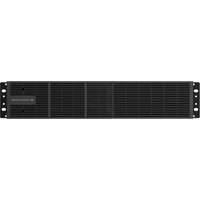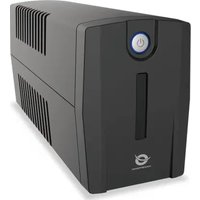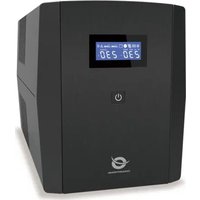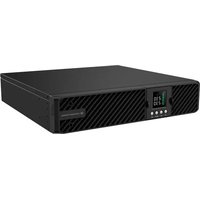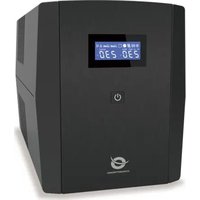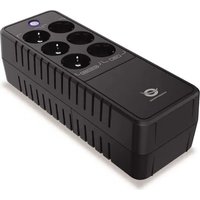
ZEUS05E - Uninterruptible power supply CONCEPTRONIC - Free user manual and instructions
Find the device manual for free ZEUS05E CONCEPTRONIC in PDF.


User questions about ZEUS05E CONCEPTRONIC
0 question about this device. Answer the ones you know or ask your own.
Ask a new question about this device
Download the instructions for your Uninterruptible power supply in PDF format for free! Find your manual ZEUS05E - CONCEPTRONIC and take your electronic device back in hand. On this page are published all the documents necessary for the use of your device. ZEUS05E by CONCEPTRONIC.
USER MANUAL ZEUS05E CONCEPTRONIC
natural_image
Abstract black logo design with curved lines forming a stylized 'O' shape (no text or symbols)CONCEPTRONIC
Multi Language Quick Guide
Office UPS
ZEUS 05E

natural_image
Stylized grayscale illustration of a city skyline with wind turbines, swirls, and airplanes (no text or symbols)Conceptronic UPS
1. Package contents
The following items are present in the package of the Conceptronic UPS:
- UPS
• Multi language quick installation guide
2. Specifications
• Capacity : 650VA 360W
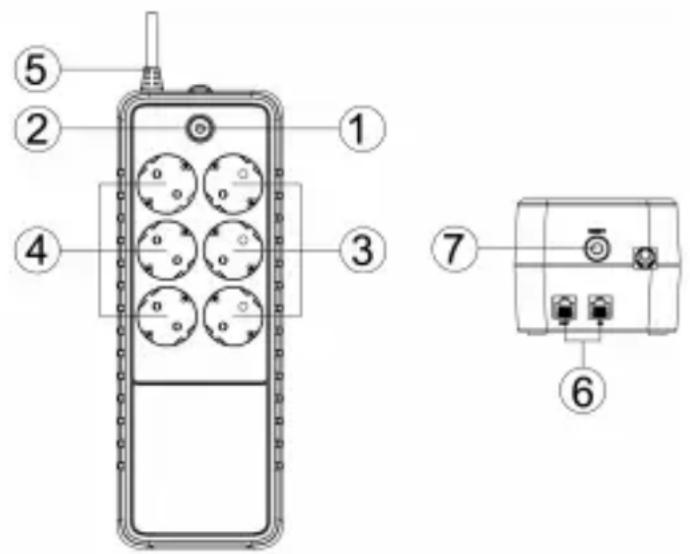
3. Product overview
text_image
Diagram of a mobile phone with numbered components and labeled parts in Chinese- Power On/Off Switch
- LED Indicators
- Battery Backup & Surge Protected Outlets
Provide battery backup and surge protection. They ensure power is provided to connected equipment over a period of time during a power failure.
- Surge Protected Outlets
Provide surge protection for bypass output.
- Input power cord
6. Modem/LAN Internet Protection (RJ45&RJ11)
Communication protection ports will protect any standard modem, fax, telephone line, or network cable.
7. Input Circuit Breaker
The Circuit Breaker provides optimal overload protection.
Definitions for illuminated led indicators
| LED | Alarm | Condition |
| On | Off | off |
| Flash | Beep 1 time In every 30 sec | Utility Failure - The UPS is providing battery power to outlets. |
| Flash | Beep 1 time In every 2 sec | Utility Failure - The UPS is providing battery power. The rapid beeps indicate the battery will run out of power shortly. |
| On/Flash | Beep 1 time In every 0.5 sec | Overload - Occurs when connected equipment exceeds the rating of the unit. Turn the UPS off and unplug at least one piece of equipment from the UPS. |
4. Installation & usage
How to determine the power requirements of your equipment
- Make sure that the total Volt-Amp (VA) requirements of your computer, monitor, and peripheral equipment does not exceed rated capacity.
- Ensure that the equipment plugged into the battery power-supplied/surge outlets does not exceed the UPS unit's rated capacity. If the rated unit capacities are exceeded, an overload condition may occur and cause the UPS unit to shut down or the circuit breaker to trip.
Hardware installation guide
- Your new UPS may be used immediately upon receipt. However, recharging the battery for at least 8 hours is recommended to ensure that the battery's maximum charge capacity is achieved. Charge loss may occur during shipping and storage. To recharge the battery, simply leave the unit plugged into an AC outlet. The unit will charge in both the on and off position.
- With the UPS unit off and unplugged, connect the computer, monitor, and any externally powered data storage device (Zip drive, Jazz drive, Tape drive), etc. into the battery power supplied outlets. DO NOT plug a laser printer, copier, space heater, vacuum, paper shredder or other large electrical device into the battery power supplied outlets. The power demands of these devices will overload and possibly damage the unit.
- Plug the UPS into a 2 pole, 3 wire grounded receptacle (wall outlet). Make sure the wall branch outlet is protected by a fuse or circuit breaker and does not service equipment with large electrical demands (e.g. air conditioner, refrigerator, copier, etc. Avoid using extension cords.
- Press the power switch to turn the unit on. The power on indicator light will illuminate and the unit will "beep".
- If an overload is detected, an audible alarm will sound and the unit will emit one long beep. To correct this, turn the UPS off and unplug at least one piece of equipment from the battery power supplied outlets. Wait 10 seconds. Make sure the circuit breaker / fuse is normal and then turns the UPS on.
- Your UPS is equipped with an auto-charge feature. When the UPS is plugged into an AC outlet, the battery will automatically recharge.
- To maintain optimal battery charge, leave the UPS plugged into an AC outlet at all times.
English
- To store your UPS for an extended period, cover it and store with the battery fully charged. Recharge the battery every three months to ensure battery life.
Software Installation on your PC
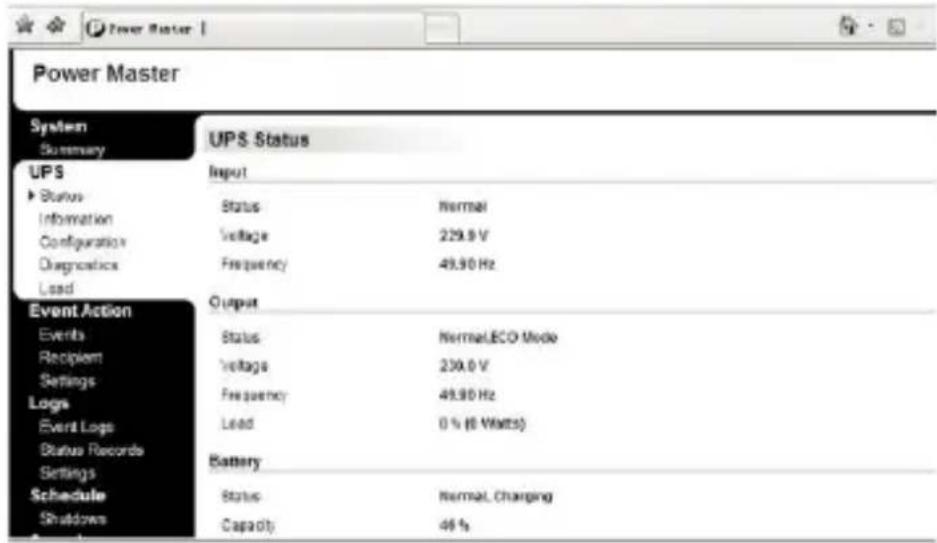
Power Master management software provides a user-friendly interface for your power systems. The graphic user-interface is intuitive and displays essential power information at a glance. Please follow procedure below to install the software. Installation procedure:
- Download Power Master from the website: http://www.powermonitor.software/2. Double-click the file and follow the installation steps. When your computer restarts, the Power Master software will appear as a blue icon located in the system tray.
text_image
Power Master System Summary UPS Status Input Status Normal Voltage 229.9 V Frequency 49.90 Hz Output Status Normal.ECO Mode Voltage 239.0 V Frequency 49.90 Hz Lead 0 % (8 Watts) Battery Status Normal Charging Capacity 46 % Event Action Events Recipient Settings Logs Event Logs Status Records Settings Schedule ShutdownsCaution:
- To prevent the risk of fire or electric shock, install in a temperature and humidity controlled indoor area, free of conductive contaminants.
- Risk of electric shock, do not remove the cover. No user serviceable parts. Refer servicing to qualified service personnel.
- Risk of electric shock, hazardous live parts inside this UPS can be energized from the battery supply even when the input AC power is disconnected.
- Risk of electric shock, Battery Circuit is not isolated from AC input, hazardous voltage may exist between battery terminals and ground. Test before touching.
Note: This manual contains important safety instructions. Please follow all instructions carefully during installation. Read this manual thoroughly before attempting to unpack, install or operate.
Note: The UPS is designed to be for use with computer loads only.
Trouble shooting
| Problem | Possible Cause | Solution |
| The UPS does not perform expected runtime | Batteries are not fully charged. | Recharge the battery by leaving the UPS plugged in. |
| The UPS will not turn on | The on/off switch is designed to prevent damage by rapidly turning it off and on. | Turn the UPS off. Wait 10 seconds and then turn the UPS on. |
| The outlets stop providing power to equipment.Circuit breaker button is projecting from the side of the unit. | Circuit breaker is tripped due to overload | Turn the UPS off and unplug at least one piece of equipment. Reset the circuit breaker by depressing the button, and then turn the UPS on. |

text_image
Diagram showing seven different types of chemical symbols and their corresponding labels: no chemical symbol, Pb, recycling symbol, sunburst, bar magnet, and cloud.Conceptronic UPS
1. Packungsinhalt
- UPS
• Multi language quick installation guide
2. Technische Daten
text_image
Diagram of a mobile phone with numbered parts and labeled internal componentstext_image
Electrical hazard symbols for various types of batteries and recyclables, including battery, recycling, sunburst, and raindrops.Conceptronic UPS
- UPS
• Multi language quick installation guide
2. Spécifications
text_image
Diagram of a mobile phone with numbered components and labeled parts, including front panel and internal control panel.text_image
Power Master System Summary UPS Status Input Status Normal Information Voltage 220.0 V Configuration Frequency 48.90 Hz Diagnostics Load Output Events Status NormalLECO Mode Recipient Voltage 220.0 V Settings Frequency 48.90 Hz Logs Load 0 % (0 Watts) Event Logs Status Records Battery Schedule Status Normal Charging Shutdown Capacity 46 %Attention
- UPS
• Multi language quick installation guide
2. Especificaciones
text_image
Diagram of a mobile phone with numbered parts and labeled control panel sectionstext_image
Power Master System Summary UPS Status Input Status Normal Information Voltage 229.0 V Configuration Frequency 48.90 Hz Load Output Events Status Normal,ECO Mode Recipient Voltage 230.0 V Settings Frequency 48.90 Hz Load 6 % (0 WMTs) Battery Status Normal, Charging Status Records Battery Shutdown Capacity 46 %Precaución
text_image
Six labeled diagrams showing different types of plastic waste or recyclable materials: a binocular, a recycling bin, a sunburst, a barcode, and cloud.Conceptronic UPS
- UPS
• Multi language quick installation guide
2. Specifiche
text_image
Diagram of a mobile phone with numbered components and labeled parts, including front panel and side panel.text_image
Six labeled diagrams showing different types of plastic waste or recyclable materials: a binocular, a recycling symbol, a sunburst, a barcode, and a cloud.Conceptronic UPS
- UPS
• Multi language quick installation guide