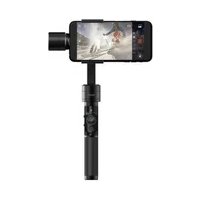
Rigiet - Horizon stabilizer Dobot - Free user manual and instructions
Find the device manual for free Rigiet Dobot in PDF.


User questions about Rigiet Dobot
0 question about this device. Answer the ones you know or ask your own.
Ask a new question about this device
Download the instructions for your Horizon stabilizer in PDF format for free! Find your manual Rigiet - Dobot and take your electronic device back in hand. On this page are published all the documents necessary for the use of your device. Rigiet by Dobot.
USER MANUAL Rigiet Dobot
text_image
Technical diagram of a RIGIET handheld device with numbered components for identificationtext_image
Technical diagram of a hand pump device with numbered parts for identificationnatural_image
Technical line drawing of a mechanical assembly with no visible text or symbolsnatural_image
Line drawing of a mechanical tool or probe with no visible text or symbolsnatural_image
Technical diagram showing a mechanical assembly with a magnified inset of a device component (no text or symbols)natural_image
Diagram showing a handheld device emitting a beam of light, with an inset close-up of the component (no text or symbols)natural_image
Illustration of a hand holding a handheld device with motion arrows indicating rotation (no text or symbols)natural_image
Diagram of a camera with a blue pointer indicating the lens (no text or symbols present)natural_image
Technical line drawing of a spray gun system with an inset close-up showing the internal components (no text or symbols)natural_image
Diagram showing a hand holding a device with a close-up view of the internal structure, connected to a device via a cable (no text or symbols present)flowchart
graph LR
    A["Rigiet APP"] --> B["IOS Version"]
    B --> C["Android Version"]
text_image
Camera home screen interface with numbered UI components for image editing and navigationnatural_image
Smartphone screenshot showing a landscape photo with a 'Slow motion' overlay and adjustment knobs (no readable text on the landscape itself)text_image
Open Show Normal Fast Flash Unselectingtext_image
Myopia Funster New All Buy Cars 00:28 Is for About To Get Good Universal Forms 00:26 Scarcer's Other Travel Guide 01:49 Tell My You Love Me Cristic Love 00:59 Sorry Dirty Love Deme Love 00:47 WHAT LEMON Cis Momma 01:49text_image
Original Sound Pathway Can't Gotext_image
Rige10008 ① ② ③ ④ ⑤ ⑥ Hardware version v1.0.1.2 Guided Initial number all data available to 8364945 Joy Click Setting A#Collection Exercise Vertical Reverse Positioning Vertical Speed Constraints Open Calibration Horizontal Follow Speed 20 40 60 80 100 Vertical Follow Speed 20 40 60 80 100text_image
Gyro Calibration Please place Rigiet horizontallynatural_image
Hand cursor clicking a button with a blue light effect (no text or symbols visible)Website: www.wentronic.com
Hersteller:
Firmenname: Shenzhen Qinmo Technology Co. Ltd
E-mail: hello@rigiet.net
Website: www.dobot.cc
Facebook: https://www.facebook.com/RigietGimbal/
Twitter: https://twitter.com/RigietOfficial
Instagram: https://www.instagram.com/rigiet.inc/
Adresse: 4F, A8, Tanglang Industrial Area, Taoyuan Street, Nanshan District, Shenzhen, PRC
Made in China
USER MANUAL Table of Contents
01 / Safety Instructions....33
02 / Scope of Delivery....36
03 / Operating elements and product parts....37
04 / Specifications....39
05 / Operating....41
06 / Rigiet App....48
07 / FAQ....57
08 / Maintenance, Care, Storage and Transportation.....58
09 / Liability Notice....59
10 / Disposal Instructions....59
11 / EU Declaration of Conformity....60
12 / Contact Information....61
1. Safety Instructions
Warning Levels
Warnings against hazards that may result in injuries in case of non-observance.

Warnings against hazards that may result in material damage in case of non-observance.

General
- Read the user manual completely and carefully before use.
The user manual is part of the product and contains important information for correct use.
- Keep this user manual.
The user manual must be available for uncertainties and passing the product.
Users shall assume the responsibility for all injuries or losses caused by failure to understand and know about the User's Manual of the Rigiet and use the product in accordance with the User's Manual.

Risk of electric shock
- Do not modify product and accessories.
- Do not short-circuit connectors and Circuits.
- Use product, product parts and accessories only in perfect condition.
A defective device may not be put into operation, but must be protected against further use.
Environmental conditions
- Reduce the use of the Rigiet or never use it in an environment characterized by salt, moisture, rainwater or splashing.
The Rigiet is not waterproof and thus vulnerable to damage or abnormal operation if exposed to such an environment.
- Reduce the use or never use the Rigiet in sandy or dusty environment.
The Rigiet is not dustproof and thus vulnerable to damage or abnormal operation if exposed to such environments.

- Don't use Rigiet in a complex electrical or magnetic environment.
Users shall be responsible for the damage or injury caused by the use of the Rigiet in the previously mentioned environments.
Target Group Information
Not meant for children.
- Secure packaging, small parts and insulation against accidental use.

Battery Hazards (Li-ion)
The batteries are replaceable.
- Remove leaked deformed or corroded batteries from the product and dispose them by appropriate protectives.
-
Adapt protective equipment to work requirements.
Batteries can be damaged and leaked if they are not used as intended. -
Do not deform, burn, disassemble the battery.
- Do not short-circuit the battery or immerse it in liquids. There is a risk of:
- Explosion
- Fire
- Heat
• Fumes or gas emission
- Do not expose the battery to heat in the form of sunshine, heat, or fire.
Extreme heat may cause explosion and/or leaking of corrosive liquid. Mechanical damage can result in gaseous substances which can be highly irritating, combustible or toxic.
- Ensure that the battery is charged sufficiently prior to use each time.
- Prevent the battery from contacting with any liquid. Never immerse the battery in water or let it get wet. Never use the battery in a rainy or wet environment. Otherwise, users shall account for the damage or loss caused by the spontaneous combustion or explosion of the battery in contact with the liquid.
- Immediately remove the battery out of the water when it has been fallen into by accident. Place it in a safe, open area, and keep away until completely dry. Do not use the dried battery again, but dispose it as described in chapter "Disposal instructions".
- If the battery catches fire, immediately use sand, fire blanket, dry powder and carbon dioxide extinguisher to extinguish the fire and prevent an explosion of the battery. Please choose fire-extinguishing media in the order above according to the actual conditions.
- Use only the supplied battery.
- Never use or charge the battery with bulges, leakage or damage.
- Do not use the battery giving off heat (battery temperature higher than 160°F (71°C)) or involving deformation, discoloration or other unusual phenomenon.
If the battery is abnormal, please contact support@dobot.cc for further treatment.
- Use the battery only in the operating temperature range specified in chapter "Specifications".
Temperatures higher than 50^ C will cause the battery to catch fire and even explode, and temperatures lower than -20^ C will seriously damage the battery.
2. Safety Instructions
- Never use the battery in a strong electrostatic or magnetic field environment.
Otherwise, the battery protection board will fail.
- Never disassemble the battery in any way or pierce it with a sharp object.
Otherwise, the battery may leak, which will cause a fire or even an explosion.
- Never mechanically impact the battery.
- Never roll or throw the battery.
- Do not place heavy objects on the battery or charger.
- Immediately flush the skin or eyes with water for at least 15 minutes and seek medical attention if the strongly corrosive electrolyte inside the battery contacts with the skin or eyes.
- Stop using the battery if it falls down or it is impacted by an external force.
- Never put the battery in a microwave or pressure cooker.
- Do not put the battery cell on a conductive surface (e.g. metal table top).
Charging
• Always charge the battery with an special charger.
Otherwise, users shall be responsible for all the consequences therefrom.
- Never charge the battery immediately after use, as it is still at high temperature. Instead, please charge it until it returns to the room temperature.
Charging temperature above 45^ C or below 0^ C may cause leakage, overheating or damage.
Moisture-proof-agent
(Silicon dioxide pellets)
- Do not eat
- Store the product out of the reach of children
2. Scope of Delivery
2. Scope of Delivery
Please carefully check whether all items listed below are included in the product package.
| Figure | Description | Quantity |
 | Smartphone stabilizer Rigiet | 1x |
 | 18650 lithium battery | 1x |
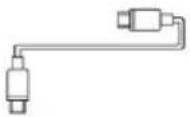 | Standard USB-to-Micro-USB- cable, 800 mm | 1x |
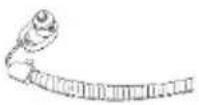 | 14 inch sling screw with grip strap, 300 mm | 1x |
 | Moisture proof agent, 10 g 1x | |
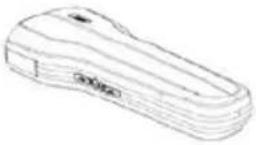 | Portable bag 1x | |
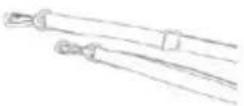 | Shoulder strap | 1x |
 | User manual | 1x |
3. Operating elements and product parts
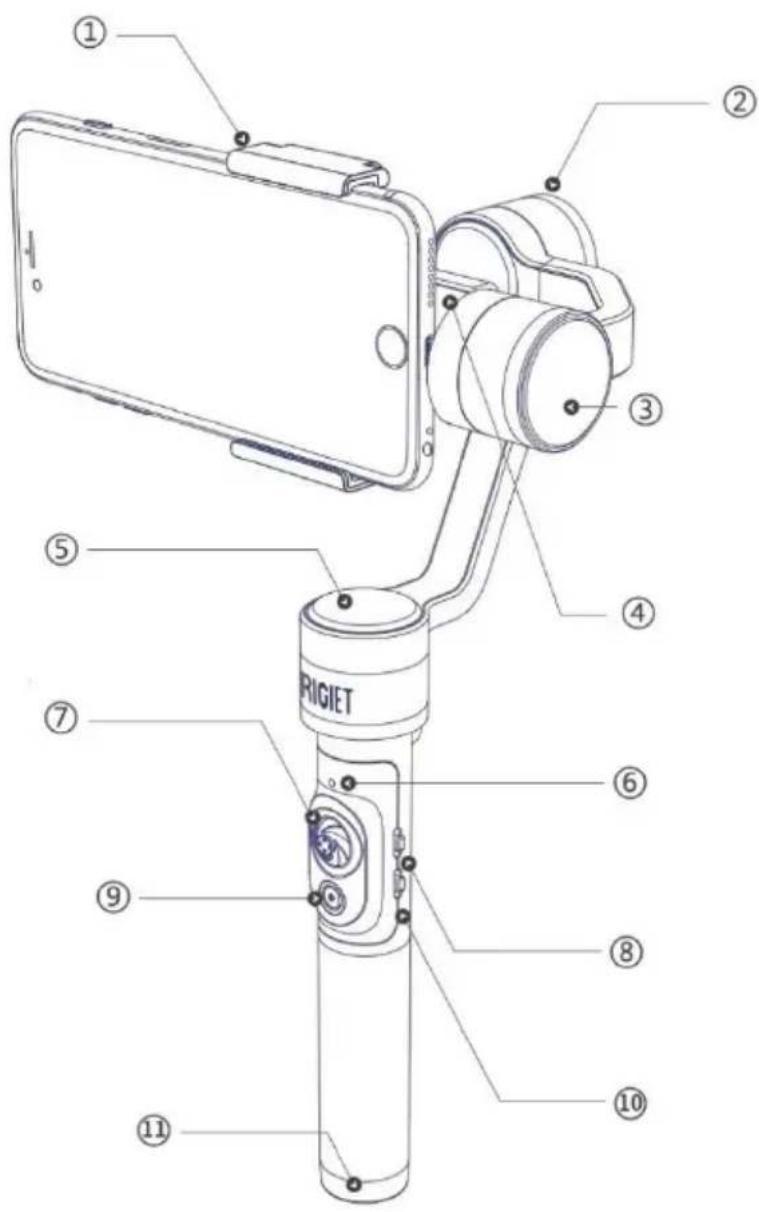
text_image
Technical diagram of a RIGIET hand pump with numbered components for identification① Phone holder
② Roll motor
③ Pitch motor
④ Phone position scale board
⑤ Yaw motor
⑥ LED status light
⑦ Joystick
⑧ Yaw & pitch mode switch
⑨ Power & shooting button
⑩ Zoom control switch
⑪ Battery case cap
3. Operating Elements and Product Parts
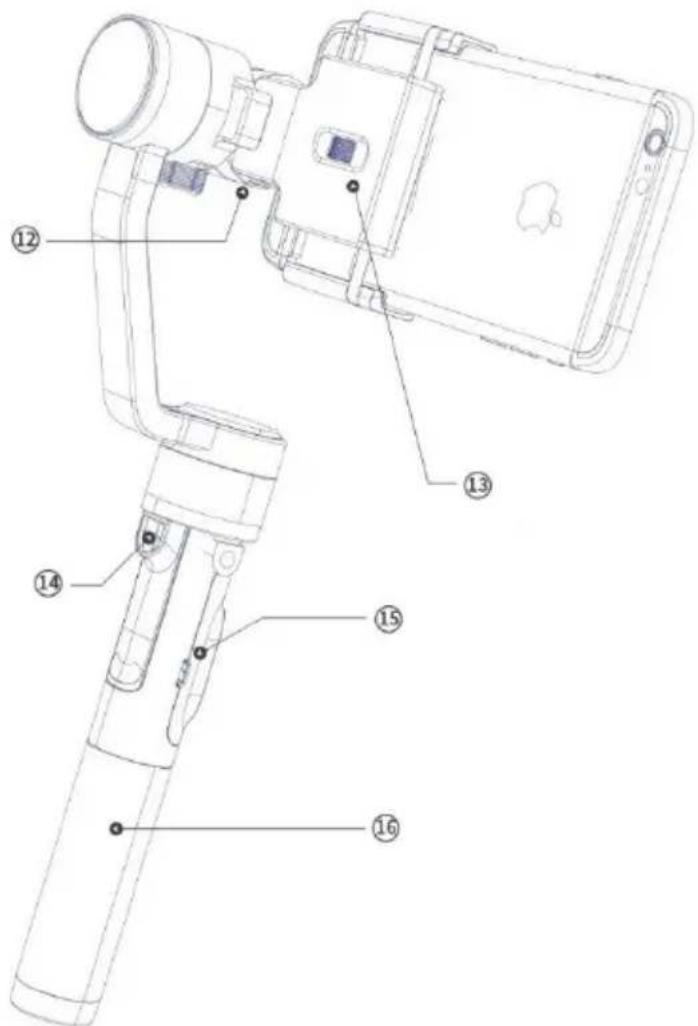
text_image
Technical diagram of a hand pump device with numbered parts for identification⑫ Rigiet to phone charging port
13 Phone holder adjustment scroll
14 14 inch screw mount
⑮ Micro USB port
16 Handle
4. Specifications
Rigiet
Article No.: 51457
| Minimum | Standard | Maximum | Remarks | |
| Operating voltage | 3.6 V | -- | 4.3 V | -- |
| Operating current | 0.4 A | 0.5 A | 5 A | -- |
| Output voltage | -- | 5 V | -- | -- |
| Output current | -- | 0.5 A | -- | -- |
| Frequency range | 2402 MHz -- | 2480 MHz | No application restriction | |
| Modulation type | GFSK | |||
| Antenna gain | -- | 1.0 dBi | -- | |
| EIRP | -- | 1.25 mW | -- | -- |
| Operating temperature | -20 °C -- +50 °C | Don't use within other temperature ranges. | ||
| Mechanical range of pitch axis | -- | 300° | -- | -- |
| Mechanical range of roll axis | -- | 270° | -- | -- |
| Mechanical range of yaw axis | -- | 300° | -- | -- |
| Controllable angle of pitch axis | -150° | 0° | +150° | -- |
| Controllable angle of roll axis | -225° | 0° | +45° | -- |
| Controllable angle of Yaw axis | -150° | 0° | +150° | -- |
| Protection class | IP 20 | -- | ||
| Dimensions | 286 x 130 x 35 mm | -- | ||
| Weight | 450 g | Excluding battery | ||
4. Specifications
Smart Phones
| Minimum | Standard | Maximum | Remarks | |
| Compatible phones | Smartphone below 6.0 inches -- | |||
| Width | 56 mm | -- | 85 mm | -- |
| Thickness | -- | -- | 9 mm | -- |
| Weight | 70 g | 180 g | 260 g | -- |
Battery
| Minimum | Standard | Maximum | Remarks | |
| Model 18650 | ||||
| Type | Li-Ion | |||
| Voltage | 3.7 V | |||
| Capacity | 3350 mA | |||
| Battery life time | 2.5 hHeavy load and long time rotation | 3 hNormal load and outdoor condition | 5 hNormal load and stationary | Rigiet balancing |
| Operating temperature range | -20 °C | -- | +50 °C | -- |
| Storage temperature range | -- | 22 – 28 °C (ideal) | +55 °C -- | |
| Charging input voltage | 4.5 V | 5.0 V | 5.0 V | -- |
| Charging input current | -- | -- | 1A | -- |
| Charging time | -- | 3 h | -- | -- |
| Charging temperature range | 0 °C | -- | +45 °C |
5. Operating
5. Operating
5.1 Initial commissioning
natural_image
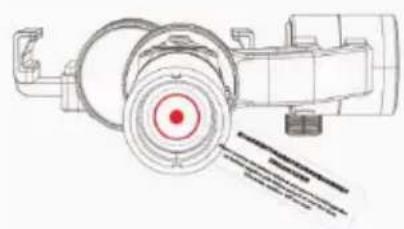
Technical line drawing of a mechanical assembly with no visible text or symbols- Screw out the battery tailstock after unpacking.
- Remove the insulating spacer in the battery compartment.
- Screw the battery tailstock tightly again.
- Charge the battery completely.
5.2 Inserting battery
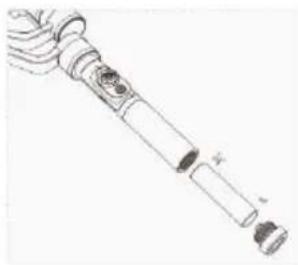
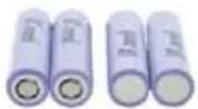
Rigiet is designed for use with replaceable battery. To ensure a correct installation, the battery must be used as indicated in the following steps:
natural_image
Technical line drawing of a mechanical component with no visible text or symbols- Screw out the battery case cap.
- Insert the battery into the handle according to its correct placement direction.
- Screw in and tighten the battery case cap.
+ -
5.3 Inserting the phone
NOTICE
Material damage
- If your smartphone has a protective cover remove it before attaching the smartphone to Rigiet.
-
Do not start Rigiet to the stabilization before the phone is inserted correctly.
-
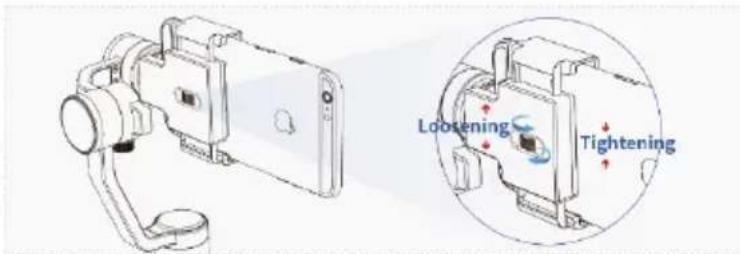
Turn on the phone holder adjustment scroll to loosen the phone holder to a width that enables phone insertion.
text_image
Loosening Tightening- Insert the smartphone in a way that it is close to the engine, and fix it by turning the phone holder adjustment scroll.
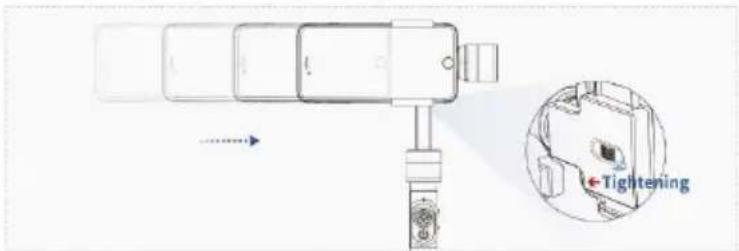
text_image
Diagram showing a device with a labeled 'Tightening' section, illustrating mechanical or electronic components.5.4 Balancing your Smartphone
NOTICE
- Do not turn on Rigiet until the smartphone is properly balanced.
When the centre of gravity of the roll motor is slightly biased, the motor can work normally. When heavily biased, the stabilization performance and the endurance time will be decreased.
- Loosen the balancing screw.
- Hold and move the balancing arm according to the sliding direction.
- Tighten the balancing screw.
- Observe whether the Rigiet can be stationarity kept in a balanced position.
- Reconfirm that the balancing screw is tightened.
If yes, the balancing is completed.
If not, repeat step 1 to 5.
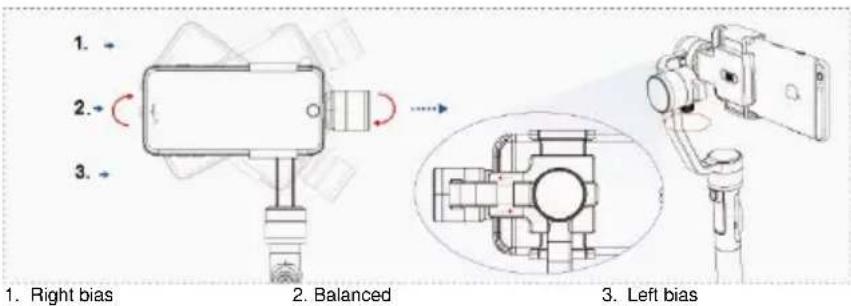
text_image
1. Right bias 2. Balanced 3. Left bias5.5 Turning on/off Rigiet
Rigiet shall be kept in a static state during start-up. Otherwise, it may not be started.
- On: press and hold power button for 2 seconds and above, and when Rigiet is noticeably stabilized, release the power button to power on the Rigiet.
- Off: press and hold power button for 2 seconds and above. When Rigiet obviously becomes powerless, release the power button and Rigiet is turned off.
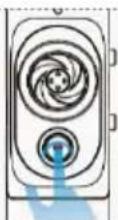
NOTICE
If the power button is pressed down for less than 2
seconds, Rigiet will stay at stand-by mode. To recover
it to normally operation from the stand-by mode, press and hold power button for 1-2 seconds. The stand-by mode is mainly used to upgrade firmware.
5.6 Rigiet status
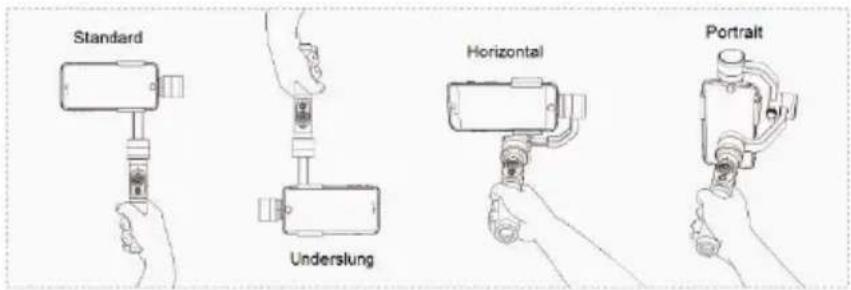
text_image
Standard Underslung Horizontal Portrait5.7 Yaw & pitch mode 3-position switch
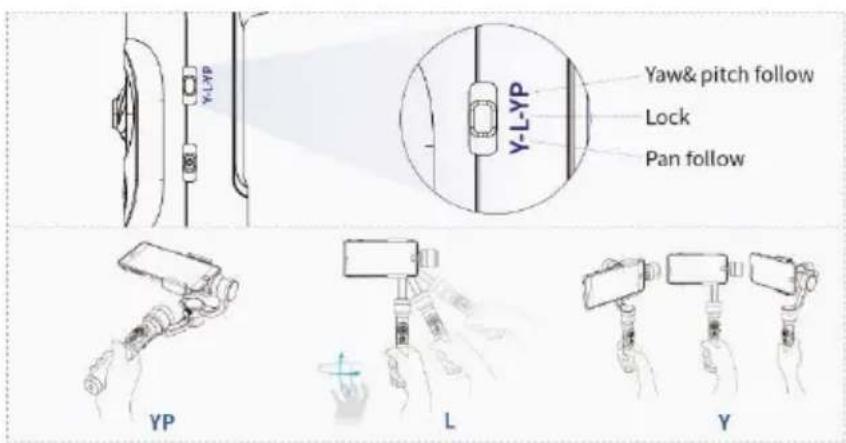
text_image
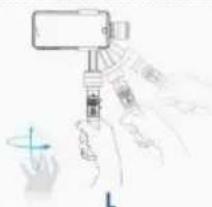
Y-L-YP Y-L-YP Yaw& pitch follow Lock Pan follow YP L YYP (yaw & pitch follow): The phone which is held on Rigiet will change its orientation along with the rotation of the handle in yaw and pitch rotation axes. This position is mainly used in the scene where the target moves in both horizontal and vertical directions.
L (lock): The vision angle of the phone which is held on Rigiet will remain unchanged. This position is mainly used in the scene where the target seldom moves while the handle moves.
Y (pan follow): The phone which is held on Rigiet will change its orientation along with rotation of the handle in the yaw rotation axis. This position is mainly used in the scene where the target moves upwards in the horizontal direction.
5. Operating
5.8 Joystick
The control of the joystick sensitivity and the rotation direction of the phone can be set in the "Expanding page" of Rigiet App, once connected.
- Move up and down to control the phone pitch rotation.
- Move left and right to control the phone yaw rotation.
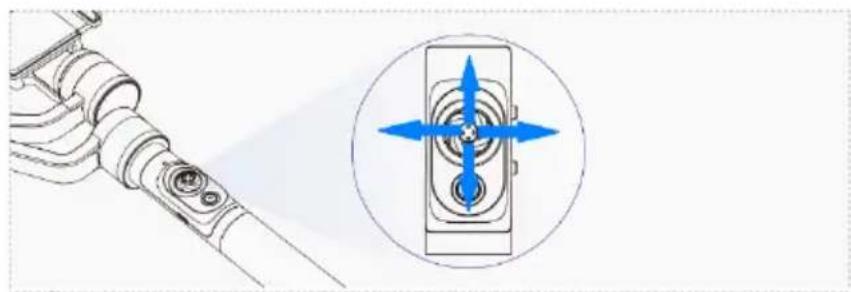
natural_image
Technical diagram showing a mechanical component with a magnified inset of its internal components (no text or symbols)Manual positioning: In addition to the rotation adjustment via joystick, the smartphone can also be adjusted manually.
- Rotate the smartphone by hand to the target vision angle.
- Release it after 1 second to stop the phone at the target vision angle.
5.9 Original stabilization position and lock mode
- Press the joystick to return Rigiet to the original stabilization position.
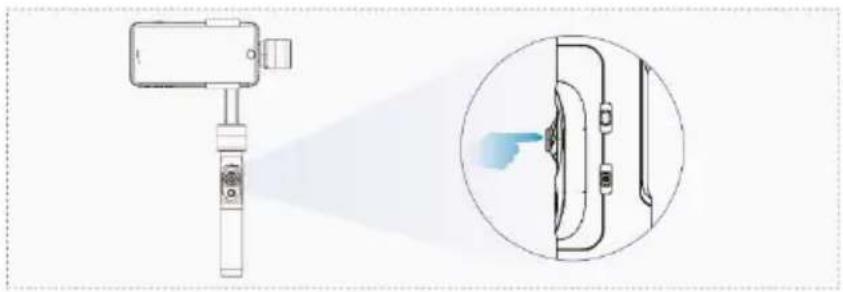
natural_image
Diagram showing a handheld device emitting a light beam to a close-up of a device's tip, with no visible text or symbols.- Hold down the joystick, and Rigiet will enter the temporary lock mode.
Regardless of the position of the yaw & pitch mode switch, the vision axis of the phone will remain unchanged. In addition, Rigiet can be switched between positive and inverted positions.
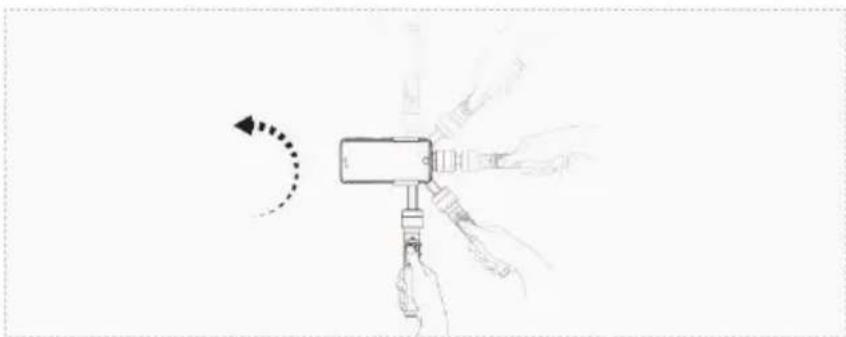
natural_image
Illustration of a hand holding a gavel with motion arrows indicating rotation (no text or symbols)If the joystick is not pressed down and the handle is rotated to the upper left or right, Rigiet will be switched to the vertical shooting state.
5.10 Power & shooting button
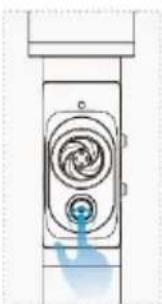
natural_image
Diagram of a camera with a blue pointer indicating the button (no text or symbols present)- Pressing and holding for < 1 second = tapping. Such operation will activate / deactivate shooting if the Rigiet App is connected and if the Rigiet App is not connected such operation is ineffective.
- Pressing and holding for 1 - 2 seconds. Such operation enables switching between the stand-by mode and normal mode.
- Pressing and holding for > 2 seconds. Such operation will turn on or turn off Rigiet.
5.11 Multi-function composite 3-position zoom control switch
The switch automatically swings back to its original position after being pushed up and down and released.
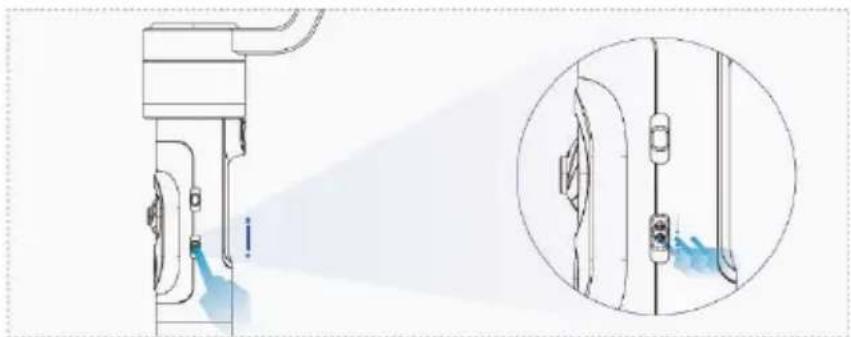
natural_image
Technical line drawing of a mechanical device with a close-up inset showing its internal components (no text or symbols)-
Tackling up a short time, < 1 second and release.
Such operation enables switching between the front and rear cameras.
Only possible if Rigiet is connected with the Rigiet App. -
Tackling down for a short time, < 1 second and release.
Such operation enables switching of shooting modes.
Only possible if the Rigiet is connected with the Rigiet App.
- Tackling up or down for a long time, > 1 second and release.
Such operation enables zooming of image.
Only possible if Rigiet is connected with the Rigiet App.
5.12 Composite battery & Rigiet status light
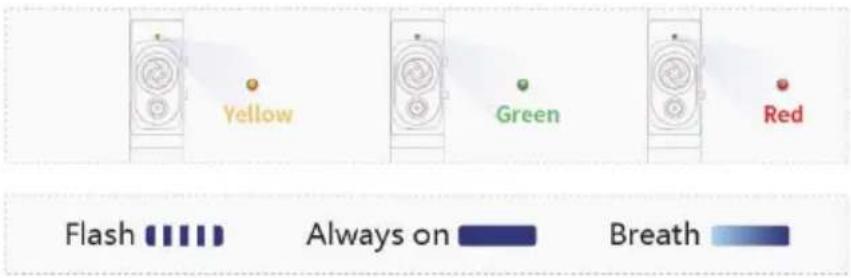
text_image
Yellow Green Red Flash Always on BreathRigiet not in use
Charging in progress
| No charging progress, battery capacity < 20% | |
| Charging in progress | |
| Charging completed |
Rigiet in stand-by mode
Charging in progress
| Without firmware update | |
| With simultaneous firmware update |
Charging completed
| Without firmware update | |
| With simultaneous firmware update |
No charging progress, battery capacity > 20%
| Without firmware update | |
| With simultaneous firmware update |
Rigiet in operating mode
Charging in progress
| Normal operating mode, without firmware update |
Charging completed
| Normal operating mode, without firmware update |
No charging progress, battery capacity > 20%
| Normal operating mode, without firmware update |
5.13 Rigiet battery charging via micro USB input port
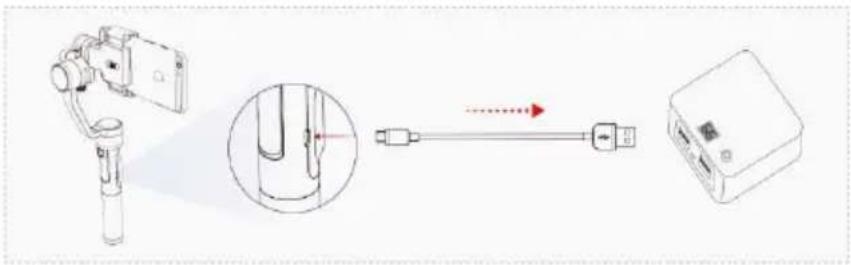
text_image
Diagram showing a device with a hand tool, a close-up view of the component, and a connected device with a red arrow indicating direction.- Use the standard USB to micro USB cable for charging. Connect the micro USB port of the cable with the battery charging micro USB input port on the Rigiet handle and the standard USB port with a 5V, 1A power adapter or power bank.
As the Rigiet battery is replaceable, you can choose to remove the battery from Rigiet and charge it directly by using a standard 18650-lithium battery charger.
6. Rigiet App
6. Rigiet App
6.1 Download mode and system requirements
- Remember to activate the bluetooth function of your phone when using the Rigiet App.
The Rigiet App is currently only available on Android and iOS phones. Tablet PC, laptop or desktop computer are not supported.
Rigiet App makes the pan head function more abundant, such as the circle follows, the circle follows the live push stream and so on, but it can also use other third party app, and use the stable and smooth function of the PTZ.
If your smartphone's OS is Android phone, it is recommended to download Rigiet App from Google Play, Tencent App Store, MI App Store, Huawei App Store and Baidu. The latest version of Rigiet App shall prevail, and the Android version shall be 4.0 or above. If your smartphone's OS is iOS phone, it is recommended to download the Rigiet from App Store. The latest version of Rigiet App shall prevail, and the iOS version shall be 10.0 or above.
flowchart
graph LR
    A["Rigiet APP"] --> B["IOS Version"]
    B --> C["Android Version"]
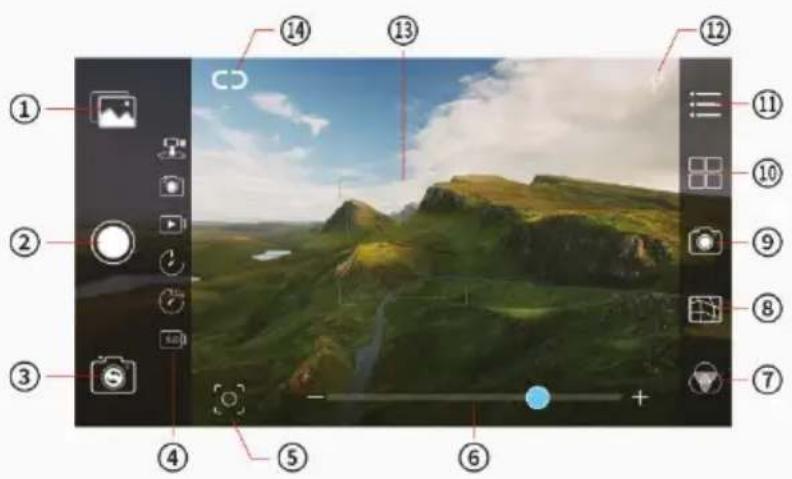
6.2 Introduction to the main interface icons
text_image
Camera menu interface with numbered UI elements for image editing, showing a landscape photo preview| No. | Name of Icon | Description | |
| 1 | Album | Click to browse the album | |
| 2 | Shooting button | Click to start/stop shooting in all shooting modes. The icon changes along with the shooting mode activated. | |
| 3 | Front and rear camera switch | Click to switch between front and rear cameras | |
| 4 | Shooting mode | PanoramaPhotoVideoTime lapseMotion timelapsSlowmotion | Available in 6 shooting modes.When a mode is selected, the position will be aligned with shooting button icon and the colour will change from white to blue. |
| 5 | Auto tracking | Click to start or stop the auto tracking function | |
| 6 | Zoom scale | Image zoom scale | |
| 7 | Filter settings | 9 kinds of filters | |
| 8 | Grid settings | A supplement to photographic position | |
| 9 | Camera settings | ISO, shutter and white balance | |
| 10 | Shooting mode settings | Different setting options available under different shooting modes. | |
| 11 | Expanding | App version numberRigiet hardware version informationRigiet battery power capacityRigiet calibrationRigiet remote controlRigiet joystick settingRigiet follow speed setting | |
| 12 | Flashlight setting | Click to switch the flashlight action mode | |
| 13 | Focus rectangle | Focus on the user-specified image area | |
| 14 | Device connecting | Click to pop up the device list, and click again to disable the connection. It will become white upon disconnection and become blue upon connection. | |
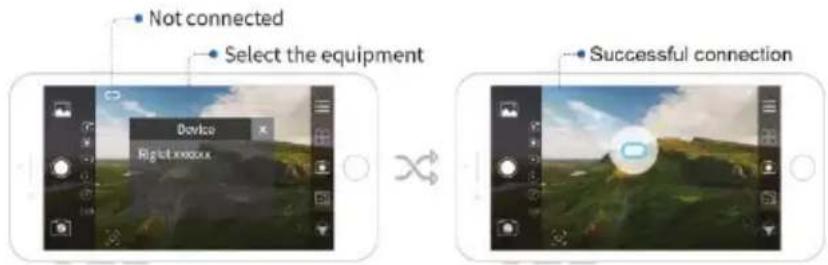
6.3 Device connecting
text_image
• Not connected • Select the equipment Device Right xxxx Successful connection- Click the device-connecting icon and turn on the screen rotation function of the phone.
- Select Rigiet in the popped-up device list.
- Wait for the device-connecting icon from white to blue.
Connection is successful.
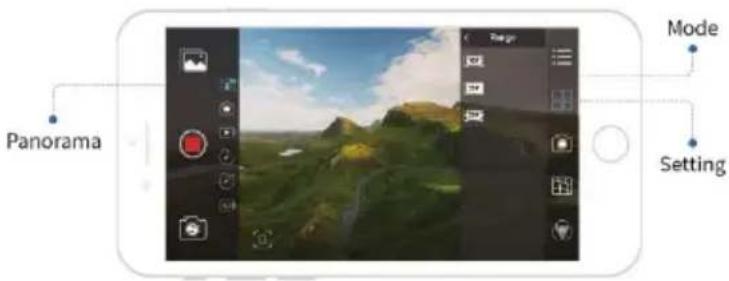
6.4 Panorama
- Hold the handle vertically and steadily for capturing a high quality panoramic photo.
- Choose an open visual field and a scenery with a clear colour for capturing a high-quality panoramic photo
text_image
Panorama Mode Setting- Slide the screen and switch the shooting mode to panorama mode. Alternatively, select it via multi-function composite 3-position zoom control switch how described in chapter 5.11, step 2.
- Click the camera settings icon to set the camera parameter if required.
- Click the shooting mode settings icon, and you can select the image quality - high, middle and low grades - and the number of views, 6, 9 or 12 of the panoramic stitching.
- Click the shooting button icon or shortly press down the power & shooting button to start a panorama recording.
6.5 Photo
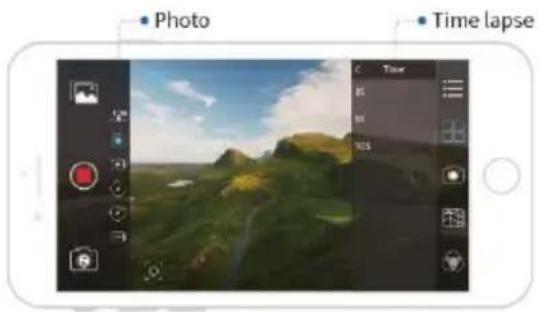
text_image
Photo Time lapse- Slide the screen and switch the shooting mode to the photo mode. Alternatively, select it via multi-function composite 3-position zoom control switch how described in chapter 5.11, step 2.
- Click the camera settings icon to set the camera parameter as required.
- Click the shooting mode settings icon, and you can select the time lapse: 0, 3, 5 or 10 seconds.
- Click the shooting button icon or shortly press down the power & shooting button to complete photo taking.
6.6 Video
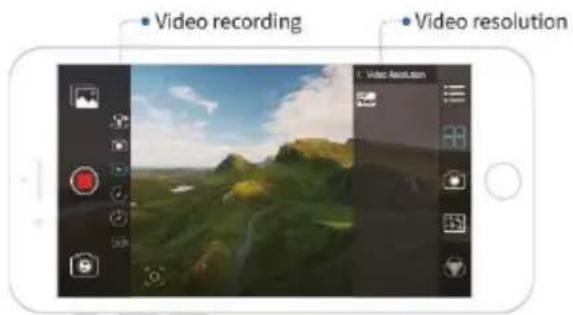
text_image
Video recording Video resolution- Slide the screen and switch the shooting mode to the video mode. Alternatively, select it via multi-function composite 3-position zoom control switch how described in chapter 5.11, step 2.
- Click the camera settings icon to set the camera parameter as required.
- Click the shooting mode settings icon, and the user can select the video frame rate resolution combination: 30 frames/720P, 60 frames/720P, 120 frames/720P, 30 frames/1080P, 60 frames/1080P, 120 frames/1080P, 30 frames/4K.
The video frame rate resolution combinations are reduced according to the model of the phone. For example, the Android phone currently only supports the video recording of 30 frames and below. - Click the shooting button icon or shortly press down the power & shooting button to start or stop the video recording.
6.7 Time-lapse
- Keep Rigiet steady to obtain the best time-lapse video effect in time-lapse mode.
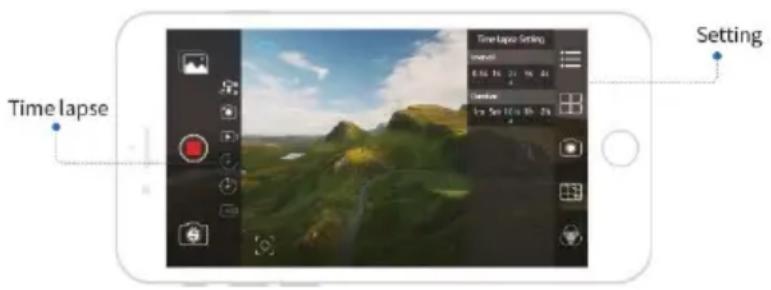
text_image
Time lapse Time lapse Setting 10:00 15:00 21:00 24:00 Duration 1.50 Sep 15:00 21:00 24:00 Setting- Slide the screen and switch the shooting mode to the time-lapse mode. Alternatively, select it via multi-function composite 3-position zoom control switch how described in chapter 5.11, step 2.
- Click the camera settings icon to set the camera parameter as required.
- Click the shooting mode settings icon, and you can select the inter-frame space and frame duration of the time-lapse photography. During the selection, the total video length is displayed synchronously.
- Click the shooting button icon or shortly press down the power & shooting button to start the time-lapse photography.
6.8 Motion time-lapse
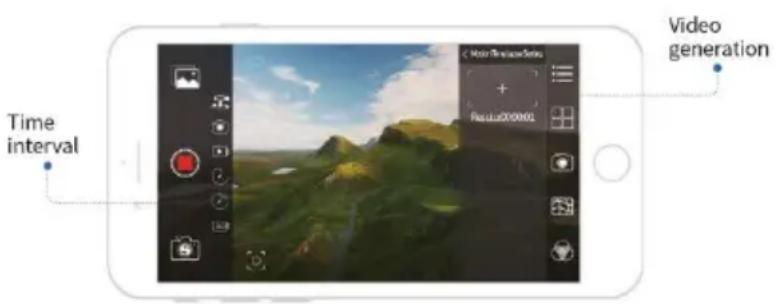
text_image
Time interval Video generation + Result:0000001- Slide the screen and switch the shooting mode to the motion time-lapse mode. Alternatively, select it via multifunction composite 3-position zoom control switch how described in chapter 5.11, step 2.
- Click the camera settings icon to set the camera parameter as required.
- Click the shooting mode settings icon, and the user can select the key vision angle of the phone during movement as well as the inter-frame space and frame duration between two key vision angles. During the selection, the resultant video length will be displayed synchronously. The motion time-lapse mode supports selection of up to 5 key vision angles.
- Click the shooting button icon or shortly press down the power & shooting button to activate motion time-lapse mode.
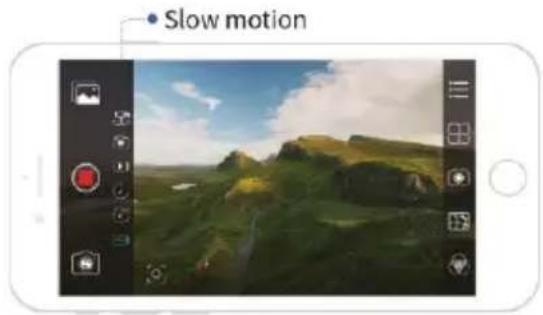
6.9 Slow Motion
The slow motion function is available depending on the type of smart phone. Generally, the iOS app retains the slow motion function only.
text_image
Slow motion- Slide the screen and switch the shooting mode to the slow motion mode. Alternatively, select it via multi-function composite 3-position zoom control switch how described in chapter 5.11, step 2.
- Click the shooting button icon or shortly press down the power & shooting button to activate or deactivate slow motion.
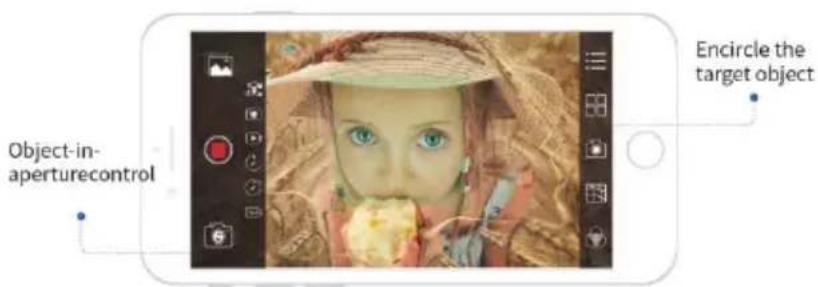
6.10 Human Face/Object Auto Tracking Function
NOTICE
The auto tracking function is applicable for photo mode, video mode and time-lapse mode only.
text_image
Object-in-aperturecontrol Encircle the target object- Click the auto tracking function icon and observe whether it changes from white to blue.
- Swipe by your finger from the upper left corner of the target to the lower right corner, and lift the finger away from the screen.
- Enter the auto tracking function status.
6. Rigiet App
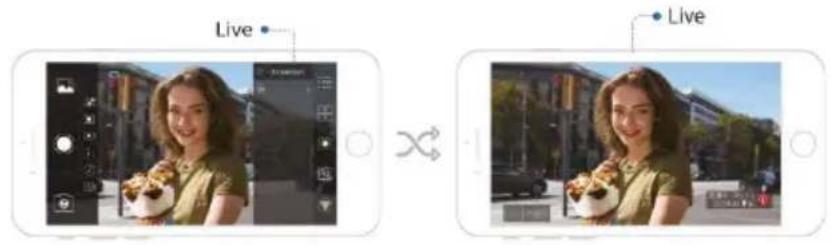
6.11 Live streaming
text_image
Live Live- Click the live streaming option under the Expanding page to select the target live platform.
- The login page of the live platform will pop up.
- After logging the account, the video of the Rigiet App will be introduced to the target live platform.
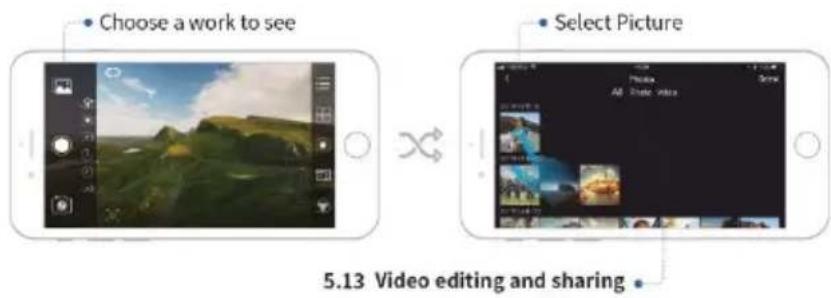
6.12 Picture sharing
text_image
Choose a work to see Select Picture 5.13 Video editing and sharing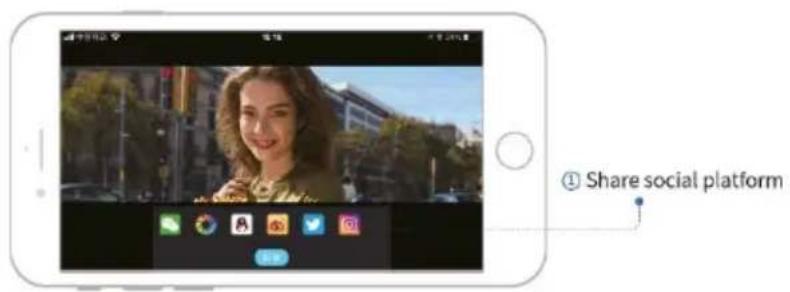
text_image
Share social platform6.13 Video editing and sharing
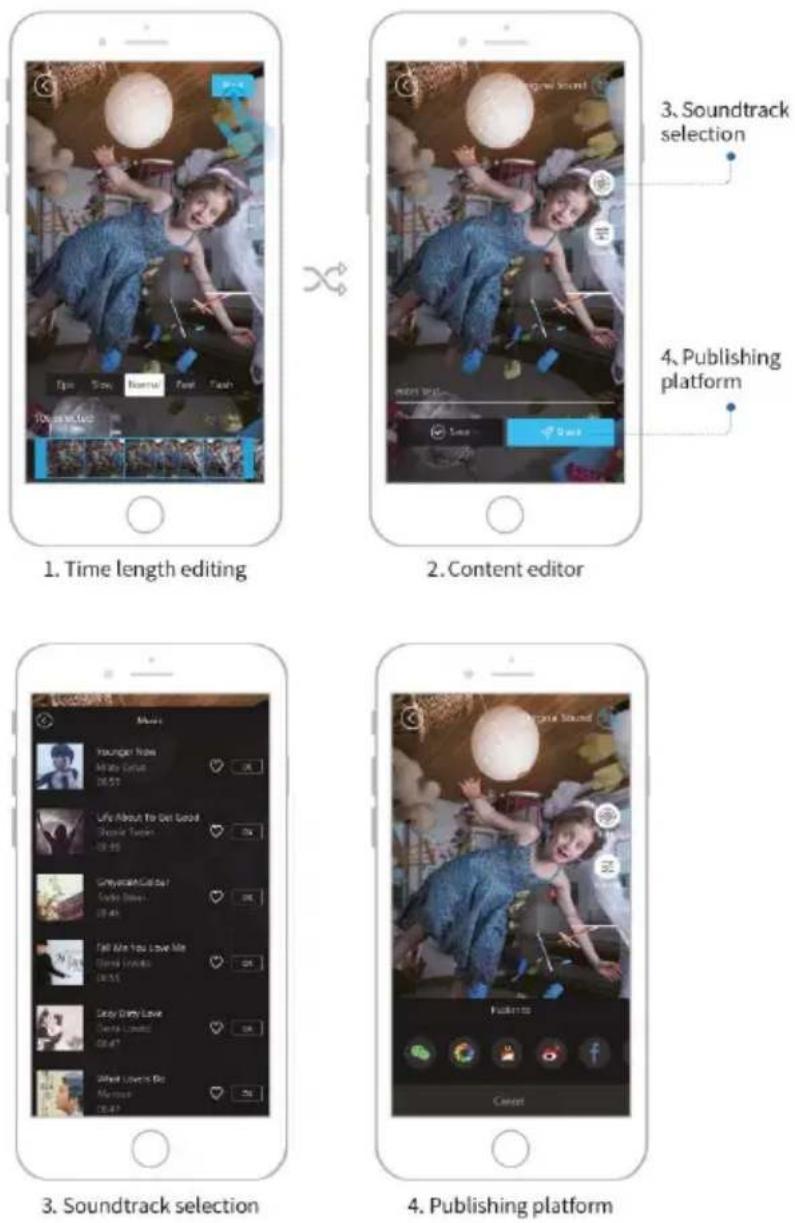
6.14 Advanced Options
text_image
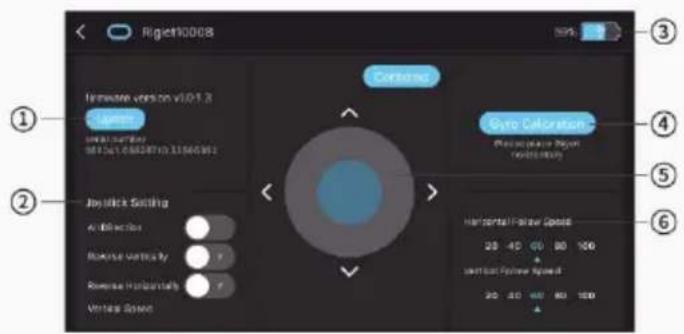
Riget10068 Remote version v10.1.3 Current Joylick Setting A Reduction Reverse Vertically Reverse Horizontal Vertical Span Centerside Grip Calibration Presetsize Region Horizontal Follow Speed 20 - 40 00 80 100 Vertical Follow Speed 20 - 40 60 80 100 ① ② ③ ④ ⑤ ⑥① Firmware version and upgrade
If upgrading versions available for the firmware of Rigiet you can click "Upgrade" to upgrade Rigiet. During upgrade keep Rigiet in charging state, and keep a stable communication between the phone and Rigiet. Otherwise, the upgrade may fail.
② Joystick control setting
Set the joystick control direction and sensitivity.
③ Battery capacity
Check the battery capacity of Rigiet: Click the status bar of the app to enter the "Expanding page" and the remaining battery capacity is displayed on the top right corner.
④ Gyroscope calibration
The gyroscope calibration is mainly used in case of environmental temperature changes, i.e. a gyroscope calibration is required each time the Rigiet enters an environment of different temperature. Otherwise, when the stabilizer is in lock mode the yaw axis will slowly drift. This does not affect other follow modes.
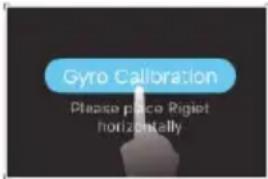
text_image
Gyro Calibration Please place Rigjet horizontally- Clicking the "Gyro Calibration" key.
- Place the stabilizer on a stationary platform such as the desktop.
- Carry out calibration according to the prompt given on the interface. The calibration takes only 5 seconds.
⑤ Remote control
natural_image
Hand cursor clicking a button with a blue plus sign (no text or symbols visible)The remote control function is used to set the rotation control and one-button centering from a distance without carrying Rigiet in your hand. E.g. if it is attached to a tripod. The remote control is carried out via a second smartphone
that is networked via Rigiet app and Bluetooth with the first one, which is located on the Rigiet. Max. distance between smartphones should not be more than 3 m. The remote control function is mainly used for a close range vision angle and posture adjustment.
⑥ Follow speed setting
The yaw follow speed setting option is used for adjustment of the Yaw follow speed, and the pitch follow speed setting option is used for the adjustment of the Pitch follow speed. The value of 20, 40, 60, 80, 100 represents the percentage of the current follow speed in the standard follow speed.
7. FAQ
7.1 Rigiet not turning on
- The battery capacity is too low. Charge the battery before use.
- Be sure to insert and balance your phone correctly.
- You may have entered stand-by mode. Press and hold the shooting button for 1-2 seconds or press down the power button for more than 2 seconds to turn off the Rigiet. Press and hold the power button again for more than 2 seconds to turn Rigiet back on.
7.2 Rigiet App connection failure
- Check, if you have turned on Bluetooth on your phone. If not, please turn it on.
- Check, if Rigiet is turned on. If not, please turn it on.
- Check, if the Bluetooth name of the target "Rigiet" is consistent with the displayed name.
- Max. distance between smartphones should not be more than 3 m. If the distance between the smartphones is greater than 3 m, please move the smartphone that is using as remote control closer to the one located on Rigiet.
7.3 Auto Track losing track
- Change the phone direction and find the object back into viewfinder.
- If Auto Track still won't work, turn it off by pressing the auto tracking function icon and re-operate it.
8. Maintenance, Care, Storage and Transport
The product is maintenance free
NOTICE
Material damage
Rigiet
- Clean only with a dry, soft cloth.
- Do not use cleaning agents and chemicals.
- Store cool and dry.
- Store the product out the reach of children and in a dry and dust protected ambience when not in use.
- Keep it clean and timely remove pollutants including the dust and sweat after use.
- Keep and use the original packaging for transport.
- Avoid stresses such as heat and cold, moisture and direct sunlight vibration and mechanical pressure.
- Carry Rigiet property.
As a hand-held precision electromechanical device, Rigiet may be subjected to damage or abnormal operation if it falls down or it is impacted, compressed or bent by an external force. - In case of questions, defects, mechanical damage, trouble and other problems, non-recoverable by the documentation, contact your dealer or producer.
Battery
- Wipe the battery with clean and dry cloth if the interface is dirty. Otherwise, it will cause poor battery contact, which may result in higher energy consumption or charging failure.
- The low-power mode of the battery will be activated in case of low battery voltage. This mode can be deactivated when the battery is charged.
- Remove the battery and store it in a special battery box when it is not used.
- Keep the battery out of the reach of children and pets.
- Never place the battery near a heat source such as stove, heater etc. or put it in the vehicle in hot days.
- Store the battery in a dry environment.
- Do not store the fully discharged battery for a long time to avoid use failure due to damaged cell owing to over discharge.
- Do not overcharge or over discharge the battery; otherwise, the cell will be damaged.
If the battery isn't used for a long time, its performance will be affected.
- Charge and discharge the battery again once every 3 months to maintain the battery activity.
- Discharge the battery to a capacity below 25% before carrying it on the plane.
- Never store or transport the battery together with glasses, watches, jewelleries and other metal objects.
- Do not transport a damaged battery. See also chapter 1 "Safety Instructions" / "Battery Hazards".
- Be sure to discharge the battery to a capacity below 50% during transportation.
9. Liability notice
The final copy rightst of the document and all other documents related to the Rigiet are reserved by the manufacturer.
The documents are subject to update without prior notice. Please visit the official website of www.dobot.cc for the latest product information.
Once you use the product, it is deemed that you have read the disclaimer and warning carefully, and understood, recognized and accepted all terms and content of the disclaimer.
You shall commit to take full responsibility for the use of the product and the possible consequences and to use the product only for a legitimate purpose, and agree to the terms and any relevant regulations, policies and guidelines established by the Rigiet.
Dobot is not responsible for the loss, injury or any legal liability arisen from the user's direct or indirect use of the product.
The user shall comply with all safety guidelines included but not limited to those mentioned herein.
The final interpretation right of the Battery Safety Instructions and all other documents is reserved by Shenzhen Qinmo Technology.
Please note the warranty conditions. They can request in their current form under info@wentronic.com.
10. Disposal Instructions
Rigiet
According to the European WEEE directive, electrical and electronic equipment must not be disposed with consumers waste. Its components must be recycled or disposed apart from each other. Otherwise contaminative and hazardous substances can pollute our environment.
As a consumer, you are committed by law to dispose electrical and electronic devices to the producer, the dealer, or public collecting points at the end of the devices lifetime for free. Particulars are regulated in national right.
The symbol on the product, in the user's manual, or at the packaging alludes to these terms. With this kind of waste separation, application, and waste disposal of used devices you achieve an important share to environmental protection.
WEEE No: 82898622
10. Disposal Instructions
Battery
(Rechargeable) batteries must not be disposed of with household waste. Their components have to be supplied separately to the recycling or disposal, because toxic and dangerous ingredients can harm the environment if not disposed of sustainably.
As a consumer, you are obliged to return them at the end of their service lives to the manufacturer, the sales outlet or established for this purpose, public collection points for free. Details regulates the respective country's law. The symbol on the product, the instruction manual and / or the packaging draws attention to those provisions. With this kind of material separation, recovery and disposal of waste (rechargeable) batteries you make an important contribution to protecting our environment.
D-34000-1998-0099
11. EU Declaration of Conformity
Hereby the Wentronic GmbH ensures, that the mentioned radio system type is conformed to Directive 2014/53/EU. The full text of EU Declaration of Conformity is available at the following Internet address: https://www.wentronic.de/en/
12. Contact Information
Importer / DACH Distribution:
Company Name: Wentronic GmbH
Website: www.wentronic.com
Producer:
Company Name: Shenzhen Qinmo Technology Co. Ltd
Phone: 0755-33100907
E-mail: hello@rigiet.net
Website: www.dobot.cc
Facebook: https://www.facebook.com/RigietGimbal/
Twitter: https://twitter.com/RigietOfficial
Instagram: https://www.instagram.com/rigiet.inc/
Address: 4F, A8, Tanglang Industrial Area, Taoyuan
Street, Nanshan District, Shenzhen, PRC
Made in China
text_image
Labeled diagram of a RIGIET self-transit device with numbered parts for identificationtext_image
Technical diagram of a hand pump device with numbered parts for identificationnatural_image
Technical line drawing of a mechanical assembly with no visible text or symbolsnatural_image
Technical line drawing of a mechanical tool or probe with no visible text or symbolsnatural_image
Technical line drawing of a mobile phone with a hand pump and camera module (no text or symbols)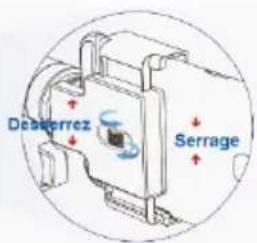
text_image
Desverrez Serragetext_image
Diagram showing a device with a serrage component and an arrow indicating direction, labeled 'Serrage'natural_image
Line drawing of a hand holding a handheld device (no text or symbols)Portrait
natural_image
Technical line drawing of a mechanical component with no visible text or symbols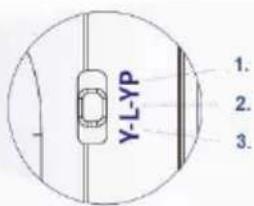
text_image
Y-LYP 1. 2. 3.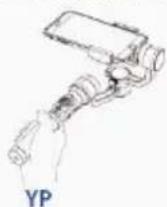
natural_image
Illustration of a hand holding a smartphone with a small globe icon nearby (no text or symbols)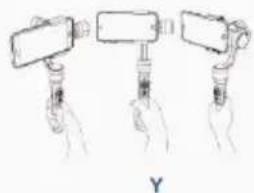
natural_image
Hand holding three identical mechanical devices with handles, no text or symbols visiblenatural_image
Technical diagram showing a mechanical assembly with a magnified inset of a control panel (no text or symbols)natural_image
Diagram showing a projector with light beam and magnified view of the lens (no text or symbols)natural_image
Illustration of a hand holding a handheld device with a curved arrow indicating rotation (no text or symbols)natural_image
Diagram of a camera lens system with a blue cursor pointing to the lens (no text or symbols present)natural_image
Technical line drawing of a mechanical device with a magnified inset showing its internal components (no text or symbols)text_image
Diagram showing a device with a sensor connected to a device via cable, with an inset close-up highlighting the component.text_image
Camera LCD screen interface with numbered UI components for image processing, showing landscape view and control buttonsnatural_image
Smartphone displaying a landscape photo with Ralenti lens and camera interface (no text or symbols on the landscape itself)text_image
Riglet30068 1 2 3 4 5 6 Lifetime version v1.0.1.3 Video Gauss Correction Photo sequence: Image Revelation Jetlock Setting A/Reference Reverse Vertically Reverse Horizontal Vertical Spreadtext_image
Gyro Calibration Please place Rigiet horizontallynatural_image
Hand cursor clicking a button with a blue circular icon and plus/minus symbols (no text or numbers)Adresse : 4F, A8, Tanglang Industrial Area, Taoyuan
Street, Nanshan District, Shenzhen, PRC
Made in China
text_image
Technical diagram of a RIGIET handheld device with numbered components for identificationtext_image
Technical diagram of a hand pump device with numbered parts for identificationnatural_image
Technical line drawing of a mechanical assembly with no visible text or symbolsnatural_image
Technical line drawing of a mechanical component with no visible text or symbolsnatural_image
Line drawing of a smartphone with a hand pump and camera module (no text or symbols)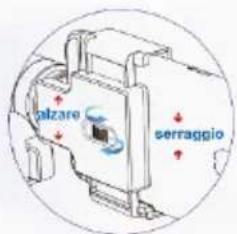
text_image
piazare serraggionatural_image
Diagram of a smartphone mounted on a stand with an attached sensor, showing no text or symbols.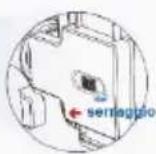
natural_image
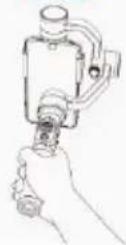
Hand holding a handheld device with a cylindrical sensor or connector (no text or symbols visible)Ritratto
natural_image
Illustration of a hand holding a smartphone with a small screen, surrounded by abstract shapes and a compass (no text or symbols)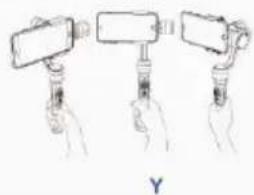
natural_image
Hand holding three identical objects with handles, no text or symbols visiblenatural_image
Technical diagram showing a mechanical assembly with a magnified inset of a device component (no text or symbols)natural_image
Diagram showing a handheld device emitting light to a screen, with an inset close-up of the screen's tip (no text or symbols present)natural_image
Illustration of a hand holding a handheld device with motion arrows indicating rotation (no text or symbols)natural_image
Diagram of a camera with a blue pointer indicating the button (no text or symbols present)natural_image
Diagram showing a spray gun emitting light into a device, with an inset close-up of the device's tip (no text or symbols present)text_image
Diagram showing a device with a camera, a close-up of a cylindrical component, and a connected device with a red arrow indicating direction.text_image
Camera home screen interface with numbered UI elements for image editing and navigationnatural_image
Smartphone screenshot showing a landscape photo with a 'Slow motion' label and adjustment knobs (no readable text on the landscape itself)text_image
Gyro Calibration Please place Rigiet horizontallynatural_image
Hand cursor clicking a button with a plus sign, no text or symbols visibleIndirizzo: 4F, A8, Tanglang Industrial Area, Taoyuan Street, Nanshan District, Shenzhen, PRC
Made in China
text_image
Technical diagram of a RIGIET handheld device with numbered parts for identificationtext_image
Technical diagram of a hand pump device with numbered parts for identificationnatural_image
Technical line drawing of a mechanical assembly with concentric circles and shafts (no text or symbols)natural_image
Technical line drawing of a mechanical component with no visible text or symbolsnatural_image
Line drawing of a smartphone with a hand handle and camera module (no text or symbols)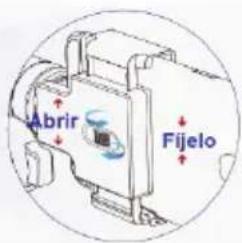
text_image
Diagram showing a device with an inset close-up of a device labeled 'Fijelo' pointing to its internal structure.natural_image
Technical diagram showing a mechanical component with a circular inset view of a device with blue directional arrows (no text or symbols)natural_image
Diagram showing a projector with light beam and magnified view of the lens (no text or symbols)natural_image
Diagram of a handheld device with a curved arrow indicating rotation or motion (no text or symbols)natural_image
Diagram of a camera with a blue pointer indicating the button (no text or symbols present)natural_image
Diagram showing a spray gun emitting light into a device, with an inset close-up of the device's tip (no text or symbols present)natural_image
Diagram showing a device with a sensor connected to a device via a cable, with an inset close-up of the component (no text or symbols present)text_image
Camera LCD screen interface with numbered UI components for image processing, showing landscape view and control buttonstext_image
Mians Younger Now @New Country 00:58 I'm About You Got Good Inside: I'm going 00:35 Democratic People I'm going to 01:46 Tell Me you Love Me I'd tell me 00:08 Sorry Dirty Love Inside: I'm going 00:47 Will it love me More than 00:47text_image
Figure10008 ① ② ③ ④ ⑤ ⑥ Command: Figure Coloration: Photo Coloration Vertical Coloration Horizontal Coloration 20 40 60 80 100 Vertical Coloration Speed 30 60 80 100text_image
Gyro Calibration Please place Rigiet horizontallynatural_image
Hand icon with a finger pressing a button, surrounded by arrows (no text or symbols)Street, Nanshan District, Shenzhen, RPC
Fabricado en China