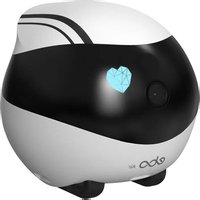
EBO Air - Surveillance Camera enabot - Free user manual and instructions
Find the device manual for free EBO Air enabot in PDF.


| Product type | Robotic surveillance camera |
| Brand | Enabot |
| Model | EBO Air |
| Dimensions (L x W x H) | 95 mm x 95 mm x 89.2 mm |
| Weight | 352 g ± 20 g |
| Power supply | Rechargeable battery 2500 mAh, DC 5V/2A charging |
| Charging time | 2 to 3 hours |
| Battery life | 2 to 6 hours depending on use |
| Camera | 1080P resolution, viewing angle D:118° H:98.5° V:62.5° |
| Main functions | Remote control, voice intercom, photo/video capture, laser, security (home guard), pet mode, video editor |
| Connectivity | Wi-Fi 2.4 GHz and 5 GHz |
| Storage | SD card up to 256 GB (not included), AVI and JPG files |
| Movement speed | 7.5 cm/s to 75 cm/s |
| Recharging | Infrared, charging station included |
| Maintenance and cleaning | Clean the camera and sensors regularly with a soft, dry cloth. Avoid moisture. |
| Safety | Programmable home guard function, Do Not Disturb mode, camera standby. Do not use near water. Parental supervision recommended for children under 3 years. |
| Spare parts and repairability | Contact customer service via the official website. Available parts (charging station, USB cable, adapter). Download logs for diagnosis. |
| General information | Standard GB8898-2011. Website: www.enabot.com. Email: ebo@enabot.com |
Frequently Asked Questions - EBO Air enabot
User questions about EBO Air enabot
0 question about this device. Answer the ones you know or ask your own.
Ask a new question about this device
Download the instructions for your Surveillance Camera in PDF format for free! Find your manual EBO Air - enabot and take your electronic device back in hand. On this page are published all the documents necessary for the use of your device. EBO Air by enabot.
USER MANUAL EBO Air enabot
natural_image
Abstract logo design featuring a white infinity symbol on a blue background (no text or symbols)Air
YOUR SMART HOME COMPANION ROBOT
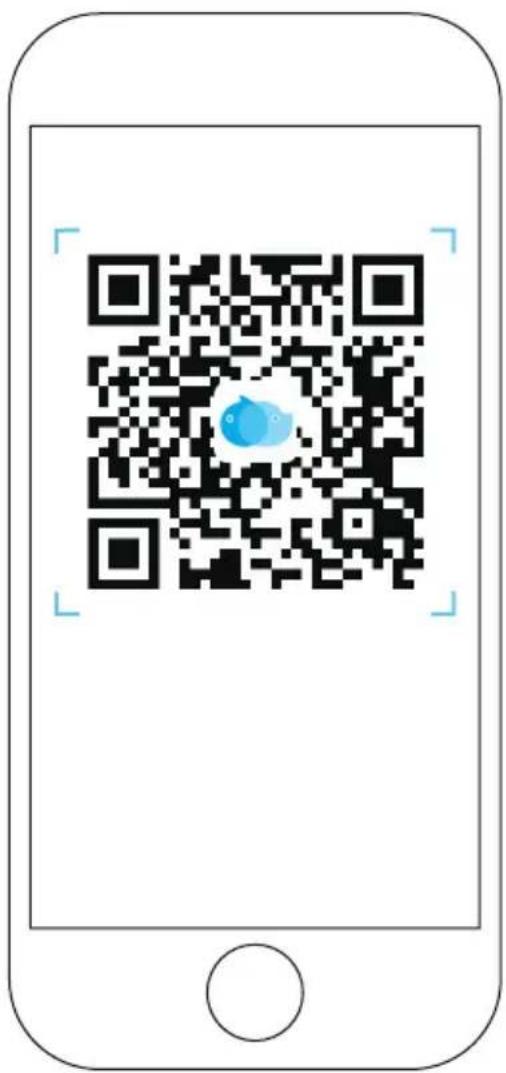
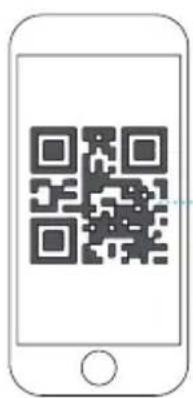
Download the EBO APP by scanning the QR code
Contents
English
- Device Connection ....01
- Interface Instructions 03
- Function Description 04
- General Instructions 05
- EBO HOME 07
Français
- Connexion De L'Appareil 08
- Description De L'interface ....10
- Description De La Fonction De La Page Du Dispositif ....11
- Instructions D' utilisation Quotidienne ....12
- EBO HOME ....14
Deutsch
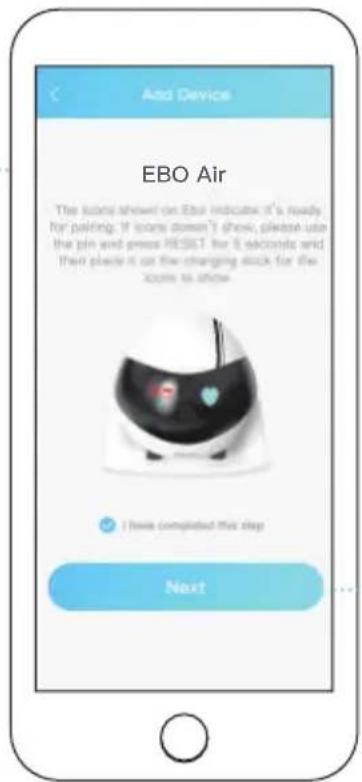
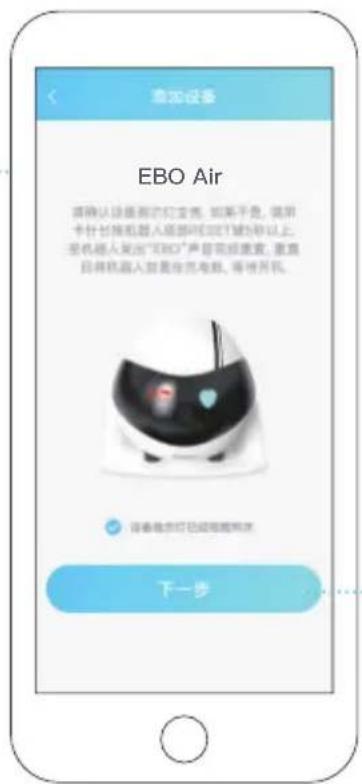
Register on EBO APP and click “+” to connect
2
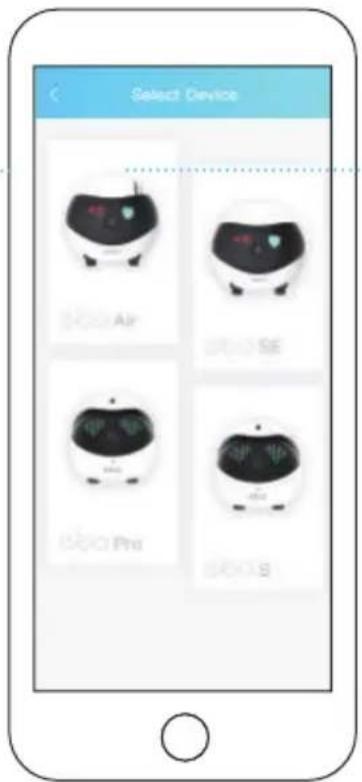
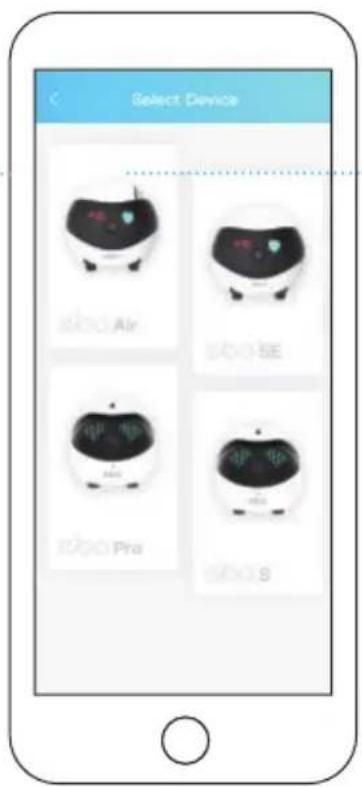
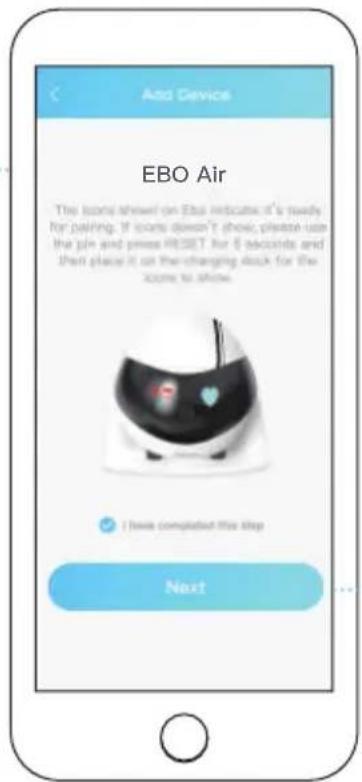
Select your device (EBO Air)
3
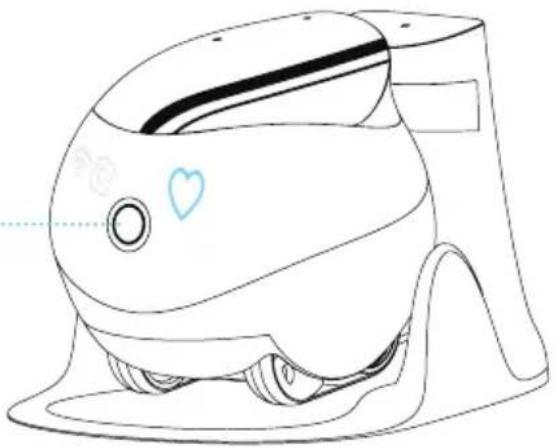
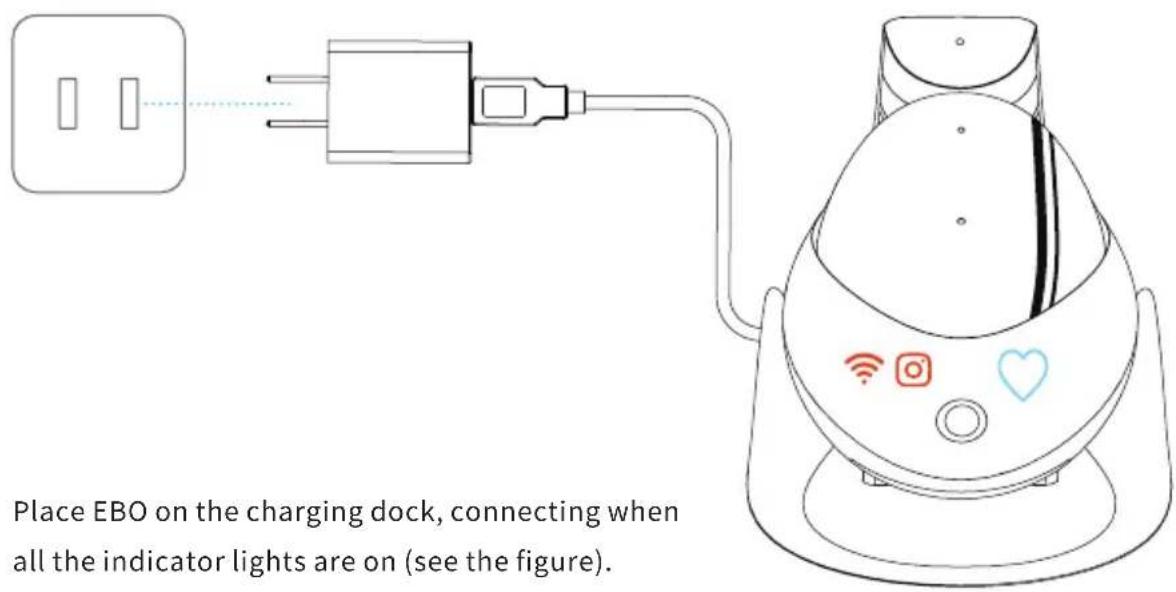
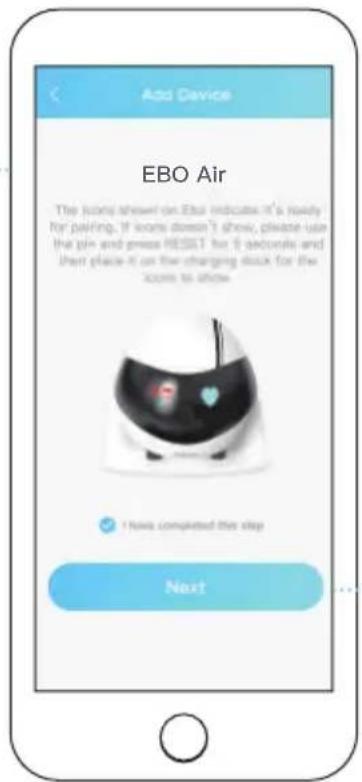
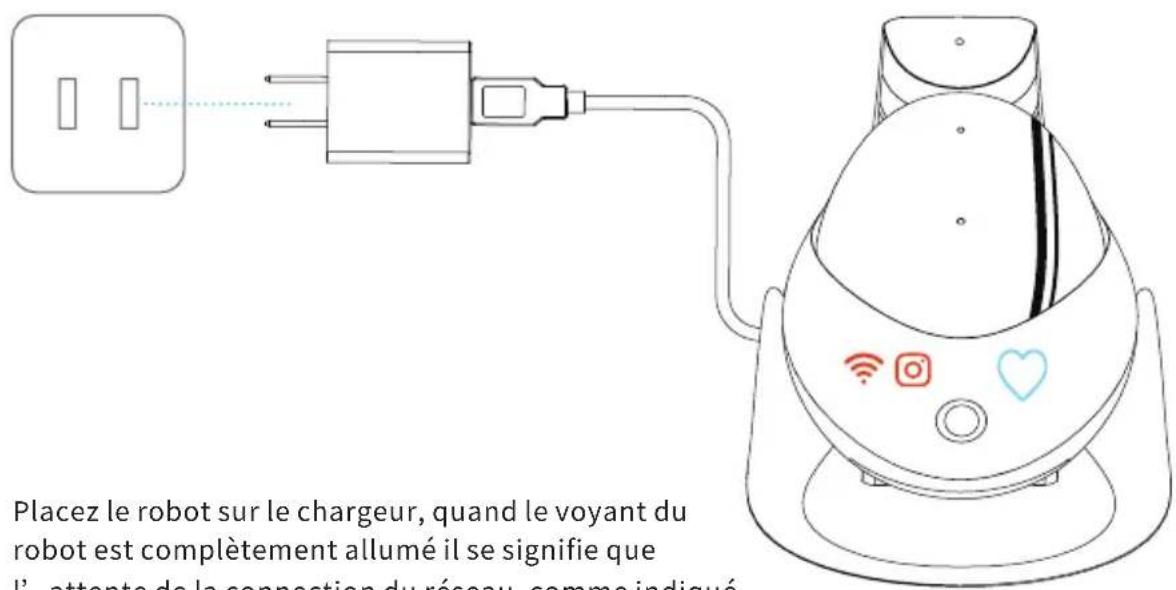
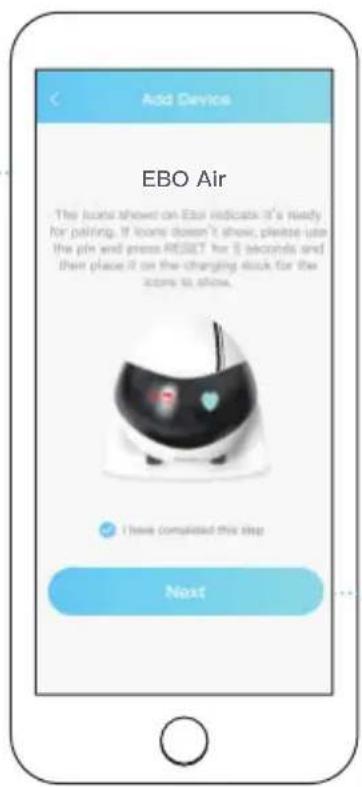
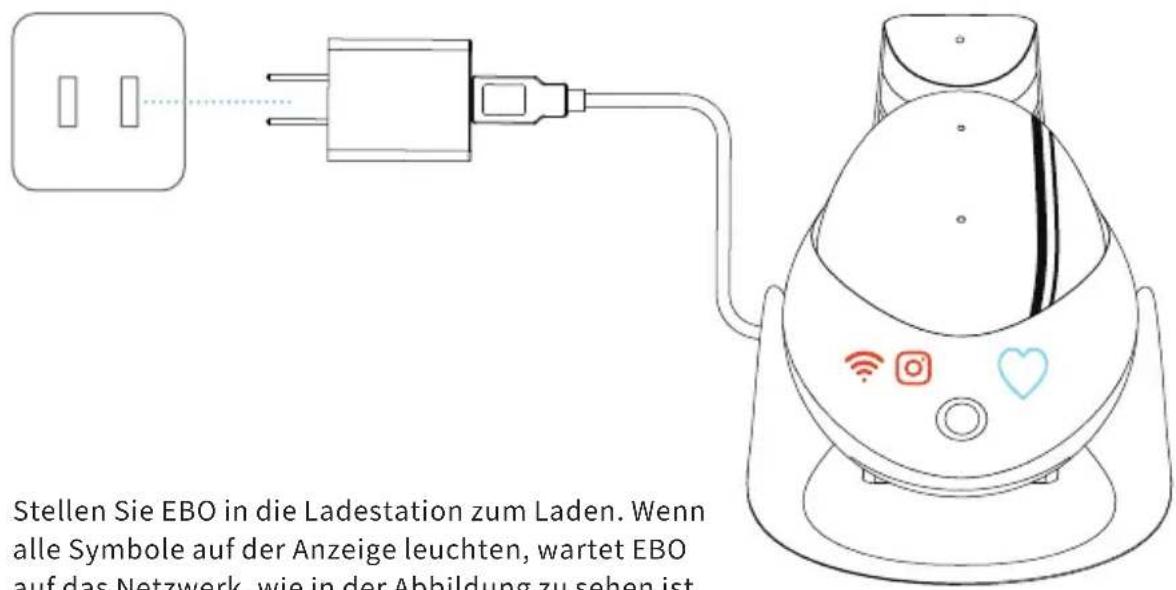
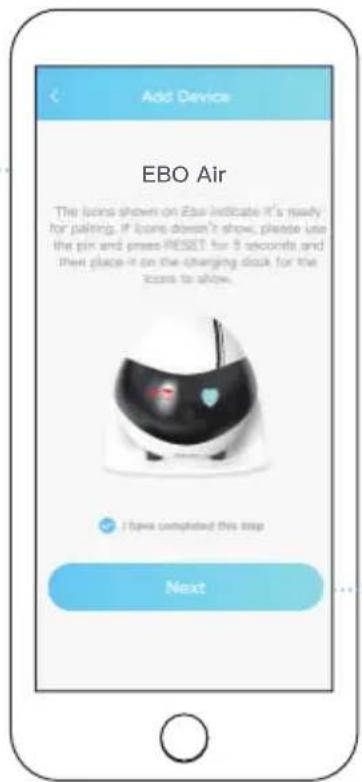
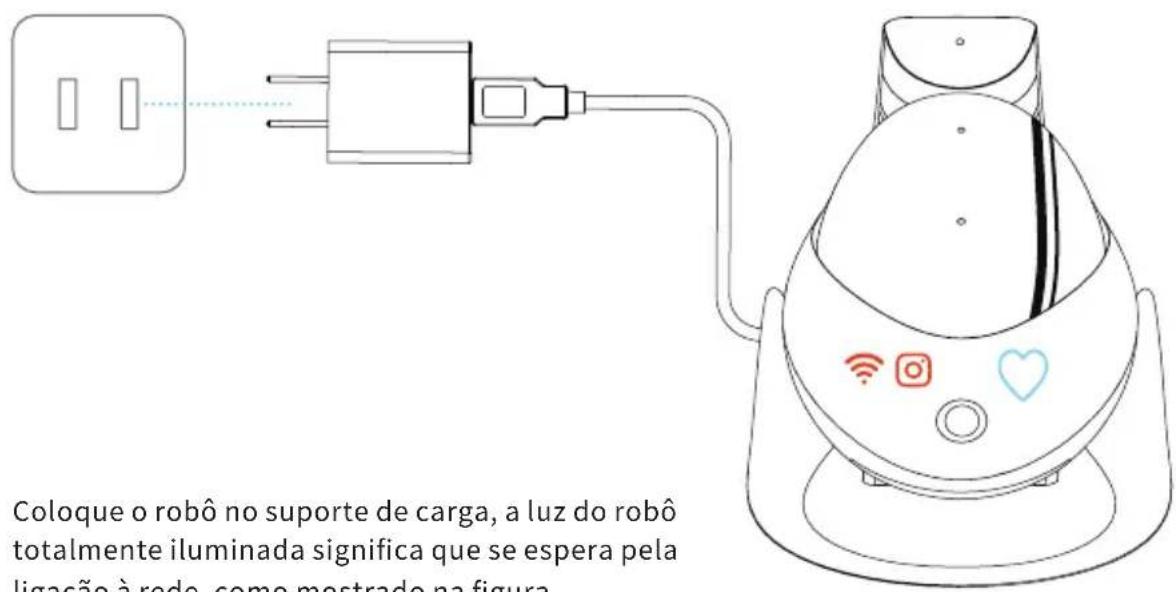
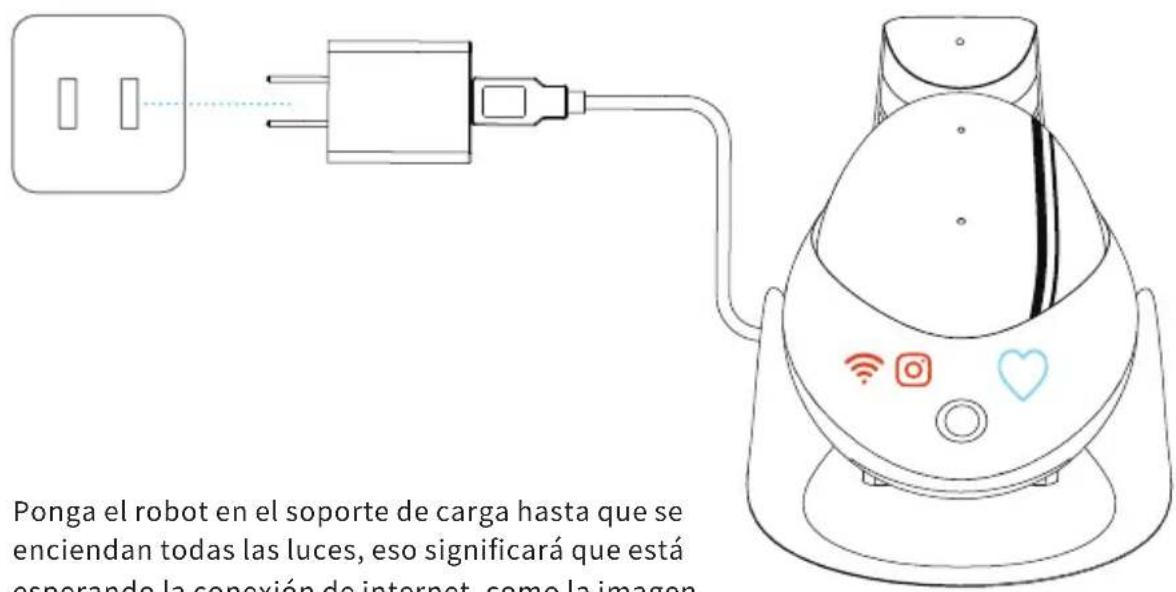
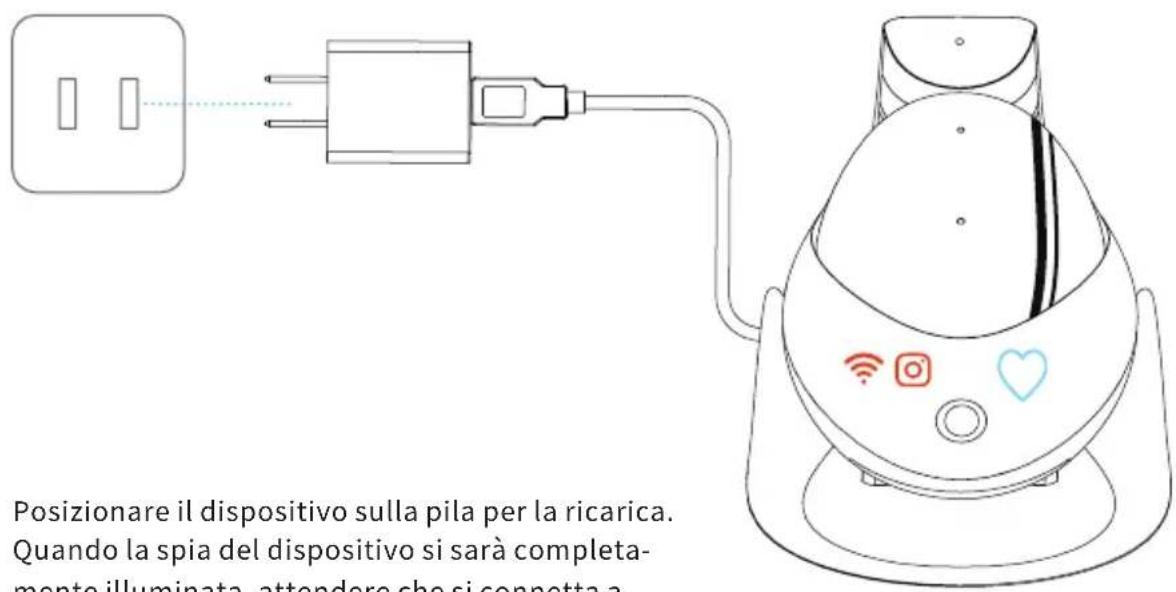
Place EBO on the charging dock
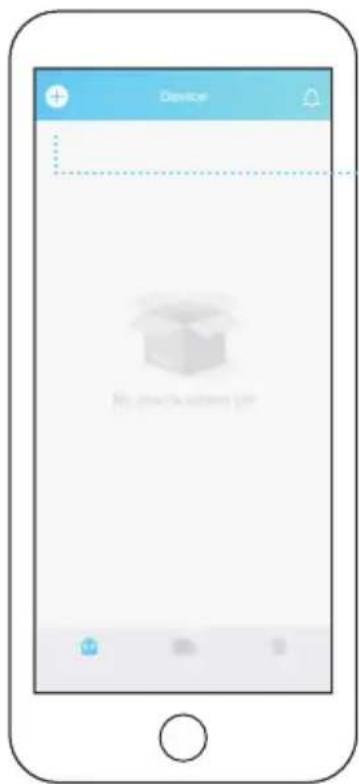
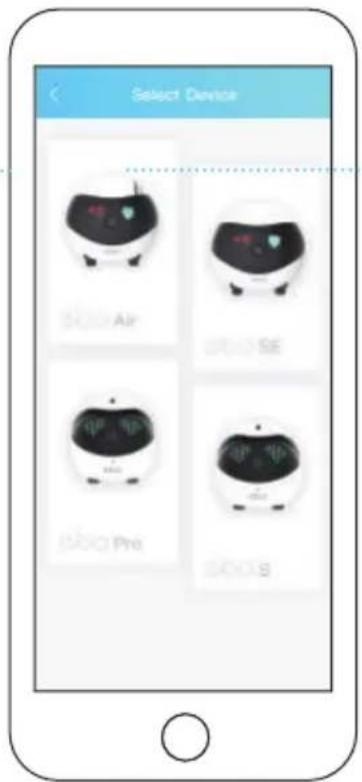
4
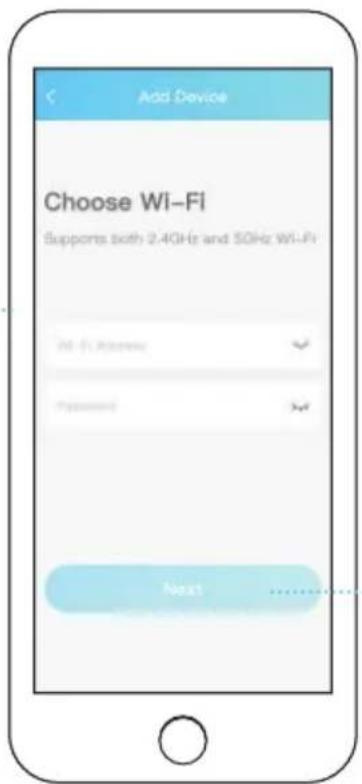
Connect to your Wi-Fi network
5
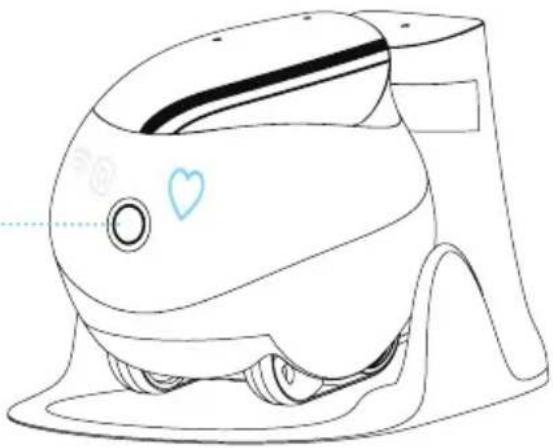
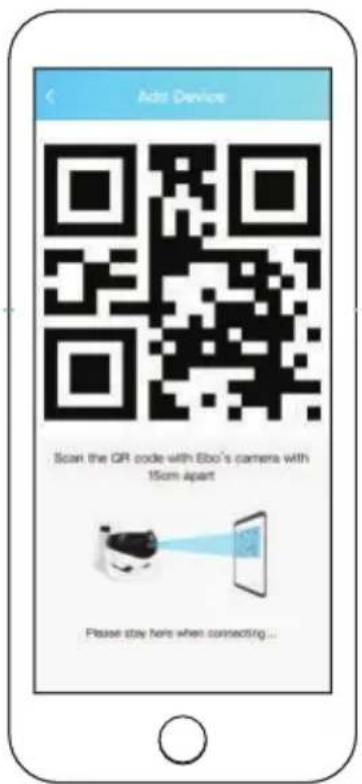
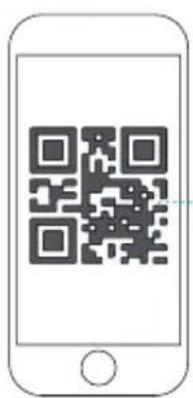
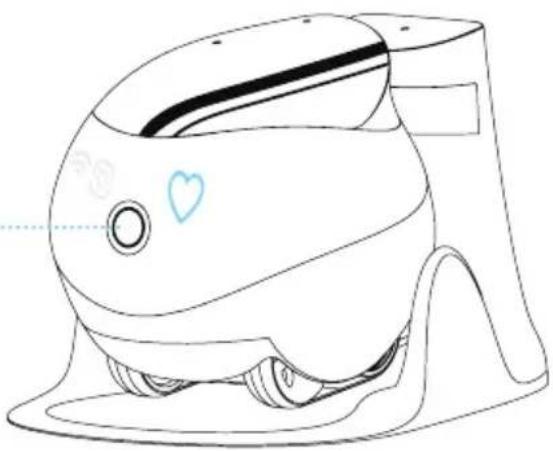
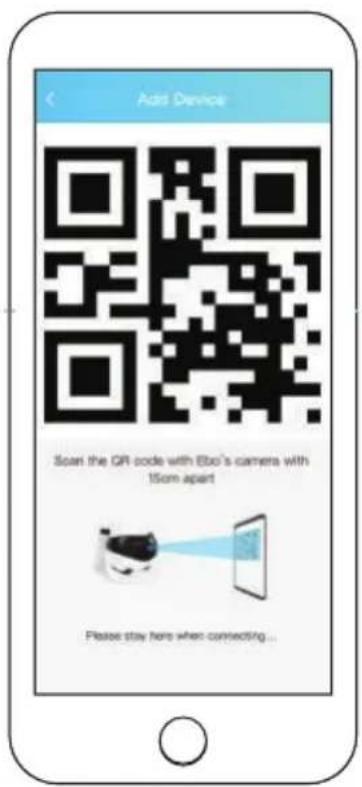
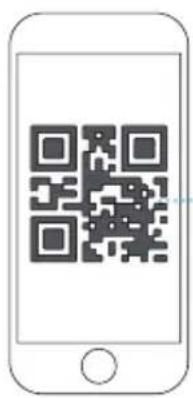
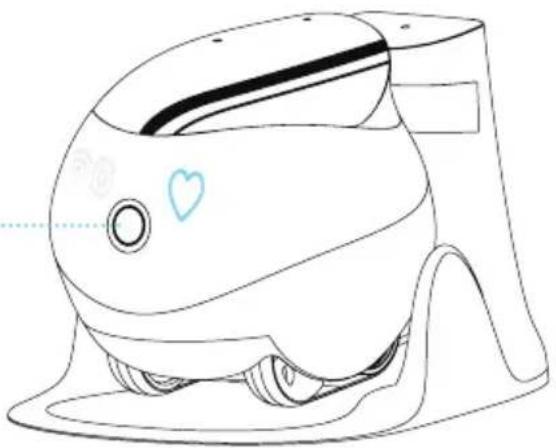
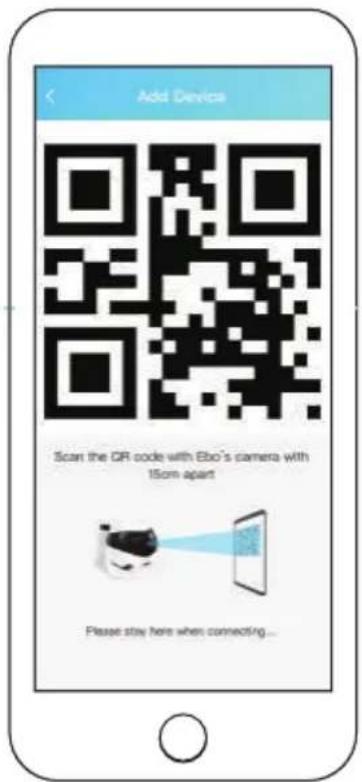
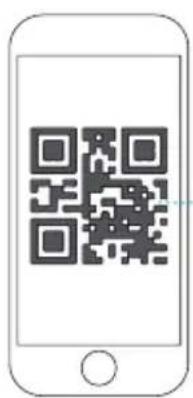
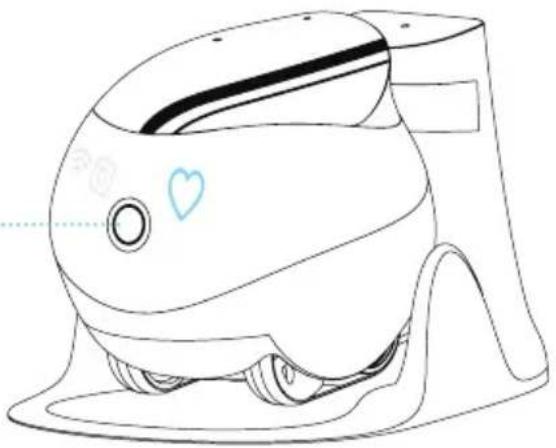
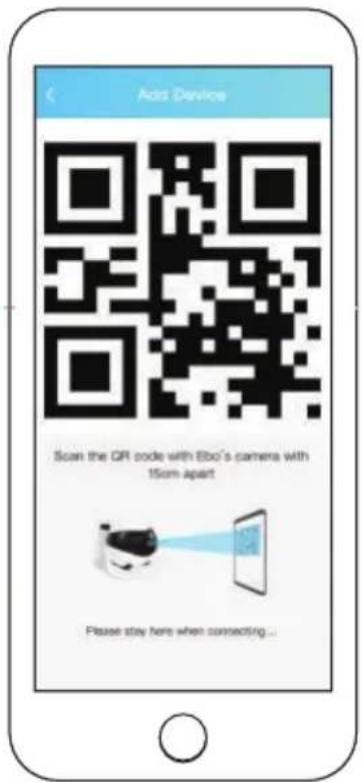
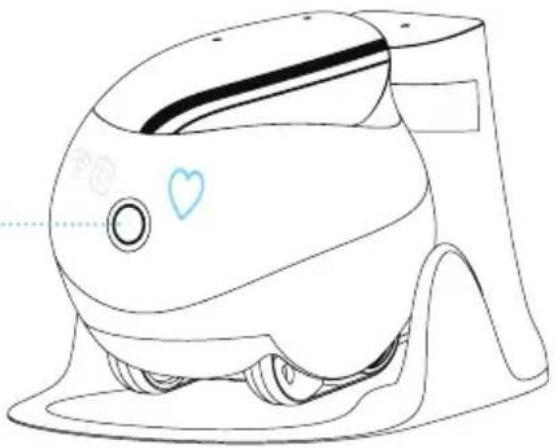
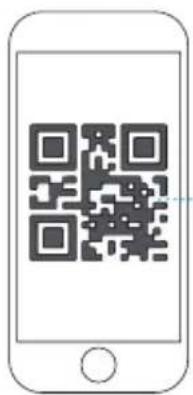
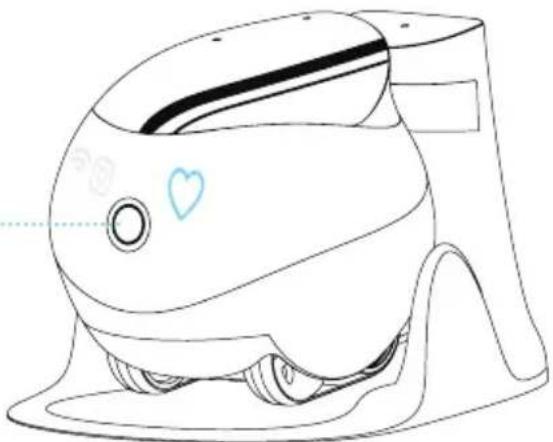
Scan the QR code using EBO's camera
6
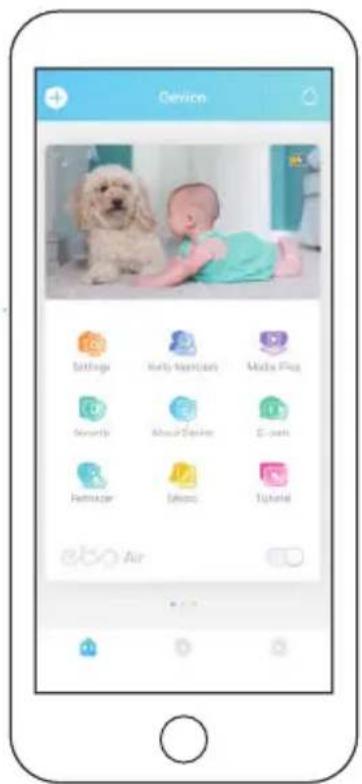
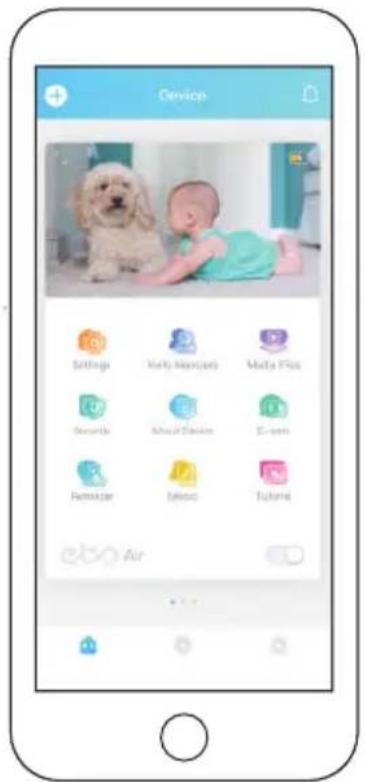
Pairing successful!
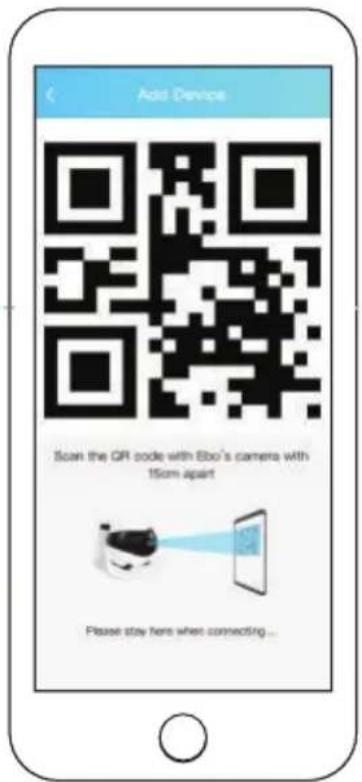
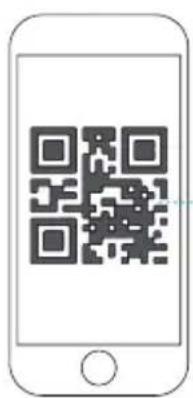
About 15cm Apart
natural_image
Line drawing of a baby shower device with a heart symbol on the nose (no text or labels)Scan the QR code using EBO's camera
When " 🔺" and " 🔒" are both off, the pairing is successful.
Interface Instructions
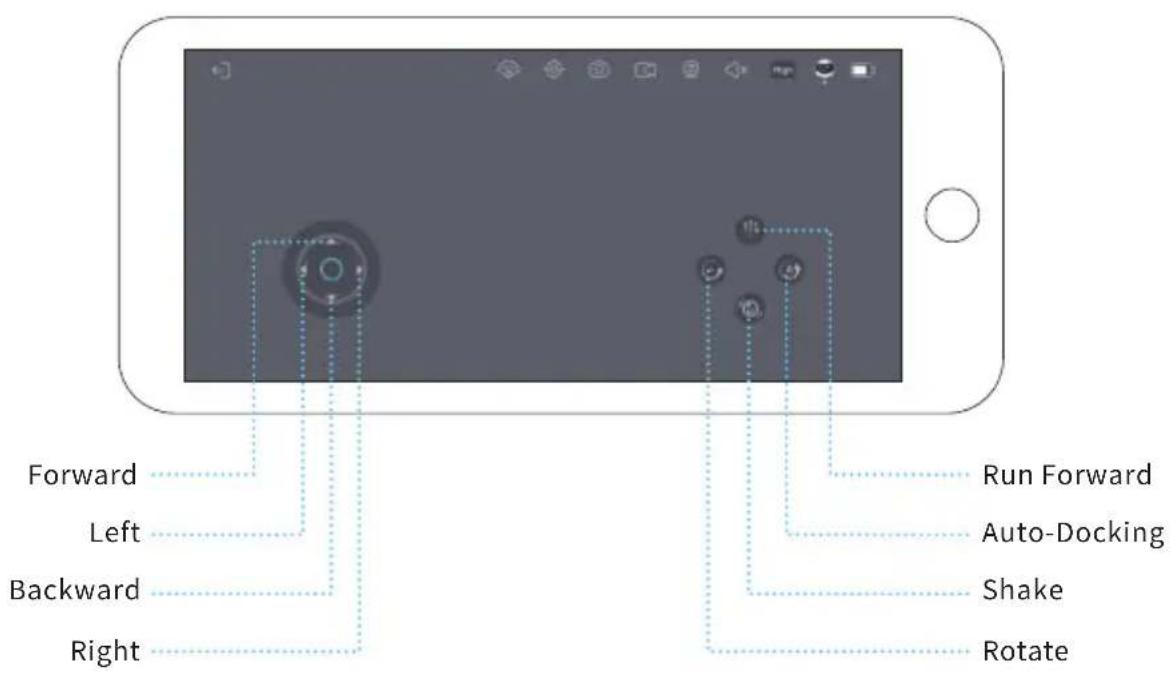
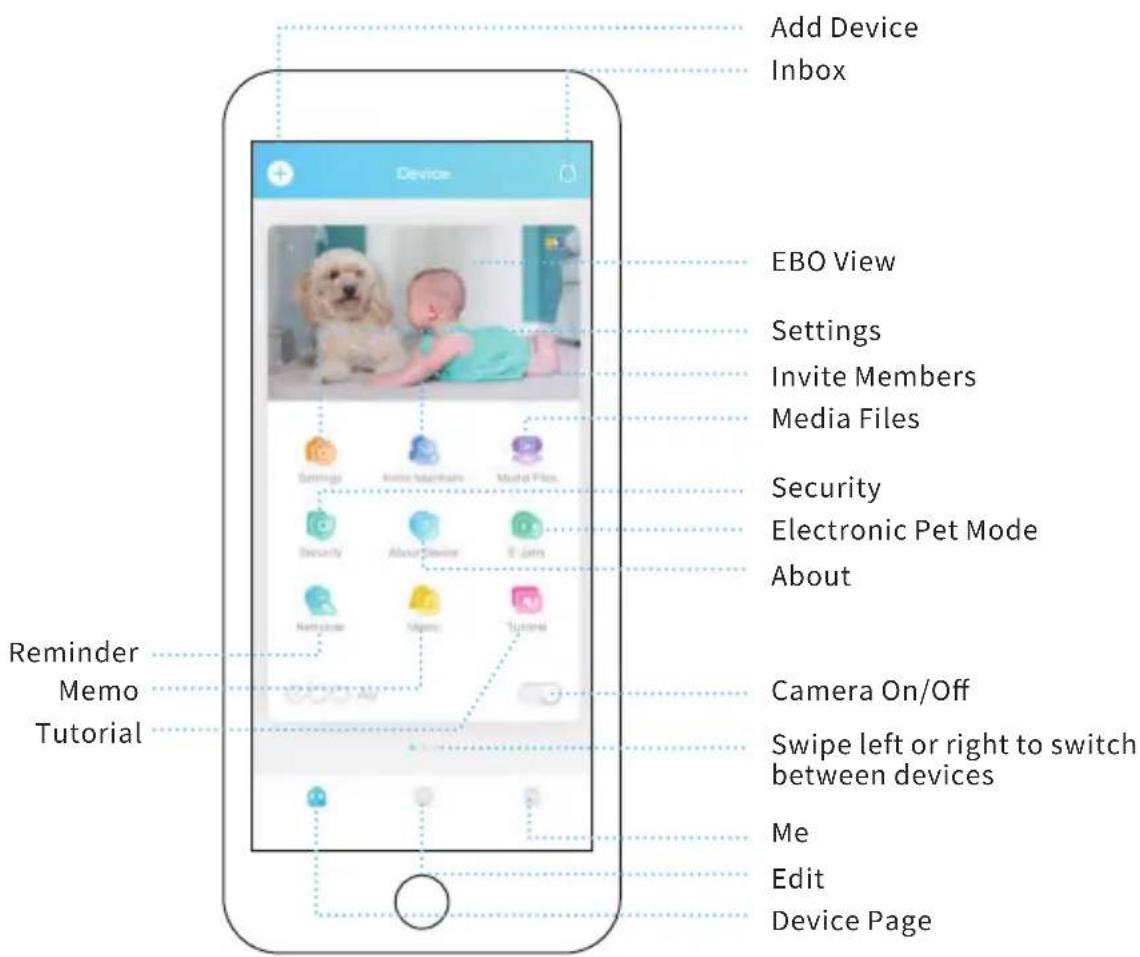
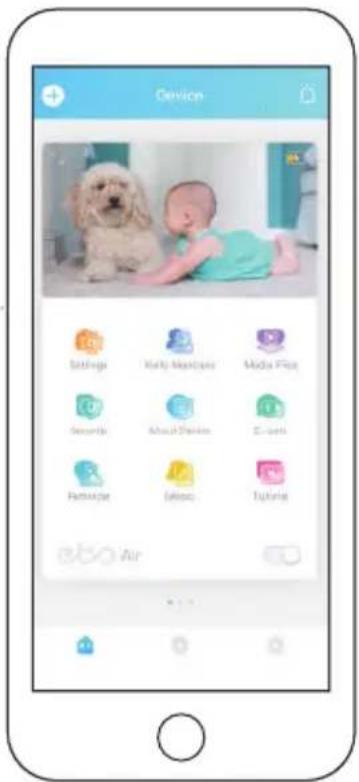
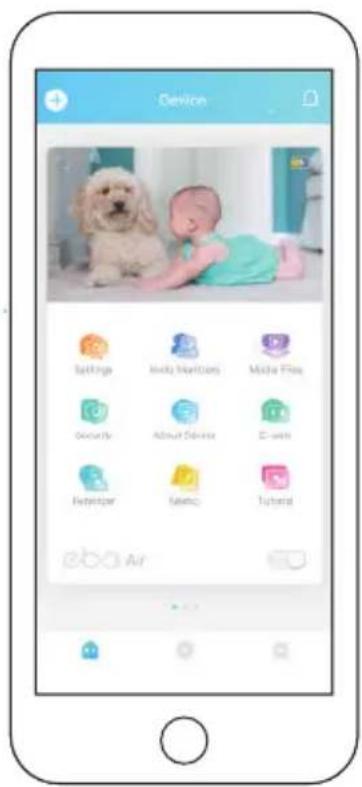
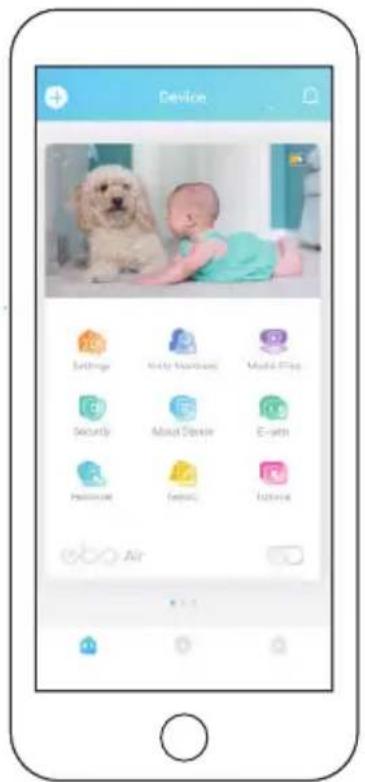
- Add Device: Click the + sign in the upper left corner of the page to quickly pair a device;
- Message: About Device, Detection Warning, Friends Share;
- EBO View: Remote Control, Talk to your Family, Take Photos/Videos, Play with your Pets;
- Settings: Wi-Fi, Device Volume, Device Light, Do-Not-Disturb Mode;
- Invite Members: EBO supports one admin user and multiple guest users;
- Media Files: Local files (stored in the local SD card), Downloaded files (files downloaded from the local SD card to the phone), Like (Archived files);
- Security: EBO will protect your home as scheduled;
- Electronic EBO will become your pet as scheduled;
Pet Mode: - About: About (Device Model, Parameters), Device Report (Robot Status-Check), Log Upload (Click And Upload Log files);
- Tutorial: How to use EBO;
- Sleep On Sleep Mode, both the camera and the speaker are automatically disabled; (CameraOn/Off):
- Edit: Can help you make video files quickly.
General Instructions
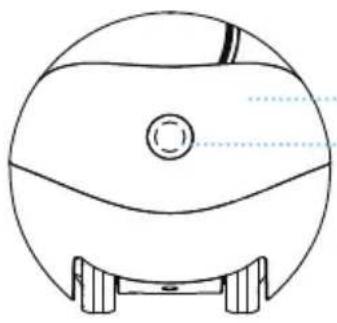
natural_image
Line drawing of a spherical object with a central circular feature and two side supports (no text or symbols)Camera
Indicator Light
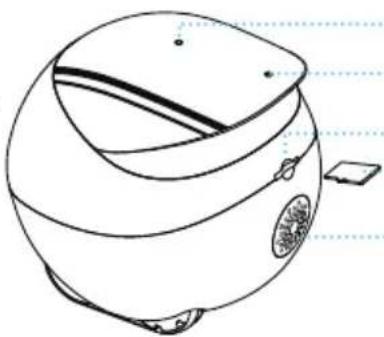
natural_image
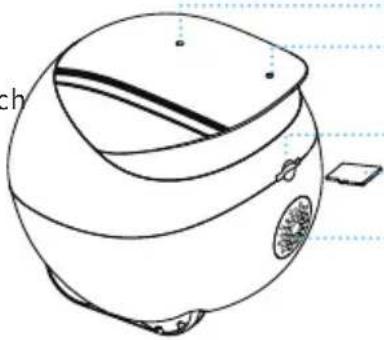
Line drawing of a spherical device with internal components and a small rectangular object on the side (no text or symbols)Mic.
DIY Accessory
Socket
Card Slot
SD Card
Speaker
natural_image
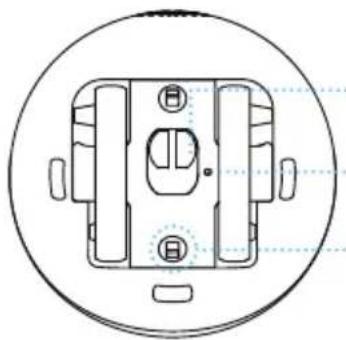
Technical line drawing of a mechanical component with mounting holes and internal features, enclosed in a circular frame (no text or symbols)Charging
Connector
Reset Button
Wheel Module
Lock
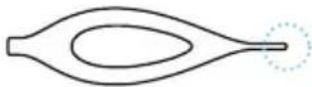
*Smaller End
Of the Pin
Need to power on/off or reset EBO?
Use the smaller end of the pin to press RESET
- POWER ON: Press RESET for 2 seconds (or place EBO on the charging dock)
- POWER OFF: Click RESET twice
- REBOOT: Click RESET 1 time when EBO is on
- RESET: Press RESET for 5 seconds unit you hear "ebo"
How to clean the wheels
Open the two black buckles at the bottom at the same time to disassemble the wheel module for cleaning.
natural_image
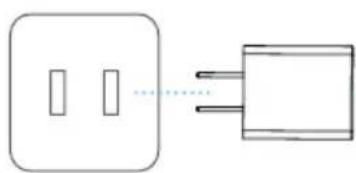
Simple line drawing of a two-pin socket connected to a three-pin plug (no text or symbols)Power Socket Adapter USB Connector
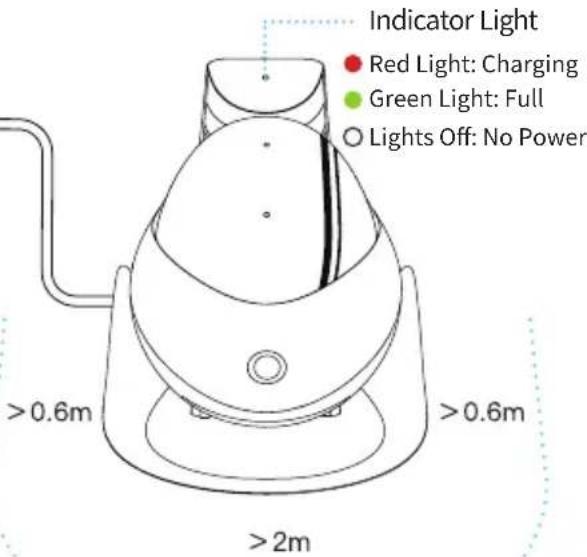
Empty Space
Note For Charging EBO:
Place the back side of the charging dock along the wall and away from any obstruction as indicated in the image.
Equipment And Parameters
| Function | Remote Control, Talk To Your Family, Take Photos, Videos, Play With Your Pets, Security, Electronic Pet Mode, Edit |
| Definition | 1080P |
| Angle | D: 118° H: 98.5° V: 62.5° |
| Auto Charging | Infrared |
| Wi-Fi | 2.4G、5G |
| Moving Speed | 7.5cm/s-75cm/s |
| Product Size | W95mm*H89.2mm*L95mm |
| Product Weight | 352g±20g |
| Battery Capacity | 2500mAh |
| Charging Voltage | DC-5V/2A |
| Charging Time | 2~3H |
| Battery Endurance | 2~6H |
| File Format | AVI、JPG |
| SD Card | Expandable To 256G Maximum |
| Executive Standard | GB8898-2011 |
COMPLIES WITH 21 CFR CHAPTER I, SUBCHAPTER J, or Complies with FDA performance standards for laser products except for deviations pursuant to Laser Notice No. 50, June 24, 2007
Precautions:
- For daily use, it is recommended to place EBO on the charging dock to ensure that EBO is always on-line;
- EBO is not waterproof. Please keep EBO away from water;
- Do not apply the "forward" function when EBO is near the stairs;
- The charger is not a toy. Children must have adult supervision;
- Children under 3 must have adult supervision;
- If you have any issues while using EBO, please contact our Customer Service at support@enabot.com.
Official Website
www.enabot.com
Social Media

@enabot_official @Enabot @enabot_ebo_


@Enabot
Contact Us
General Enquiries: ebo@enabot.com
Technical Support: support@enabot.com
Business Enquiries: sales@enabot.com
Marketing Enquiries: marketing@enabot.com
enabot
Environ 15cm
natural_image
Line drawing of a baby washing machine with a heart symbol on the side (no text or labels)natural_image
Line drawing of a spherical object with a central circular feature and two side supports (no text or symbols)Caméra
natural_image
Line drawing of a stylized helmet or device with no visible text, numbers, or symbolsnatural_image
Technical line drawing of a mechanical component with circular outline and internal features (no text or symbols)Support Technique: support@enabot.com
Questions Relatives Aux Entreprises: sales@enabot.com
Questions Relatives Au Marketing: marketing@enabot.com
enabot
Geräteverbindung

Ca. 15 cm
natural_image
Line drawing of a baby shower device with a heart symbol on the nose (no text or labels)natural_image
Line drawing of a spherical object with internal components and mounting feet (no text or symbols)Kamera
Anzeigebereich
natural_image
Line drawing of a stylized helmet or device with no visible text, numbers, or symbolsnatural_image
Technical line drawing of a mechanical component with mounting holes and a central housing (no text or symbols)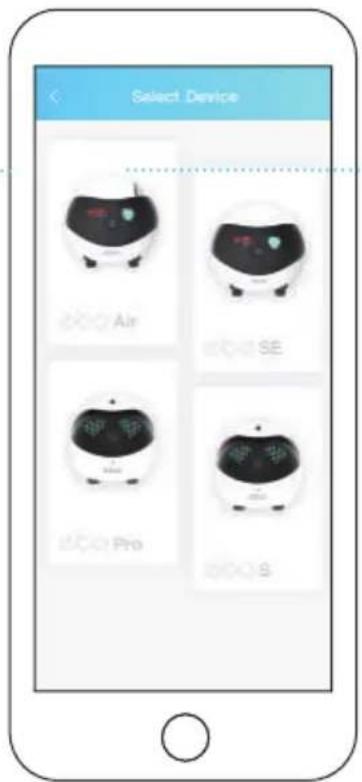
Cerca De 15cm
natural_image
Line drawing of a baby washing machine with a heart symbol on the side (no text or labels)natural_image
Line drawing of a spherical object with a central circular feature and two side supports (no text or symbols)natural_image
Line drawing of a spherical device with internal components and a small rectangular object on the side (no text or symbols)natural_image
Technical line drawing of a mechanical component with circular outline and internal features (no text or symbols)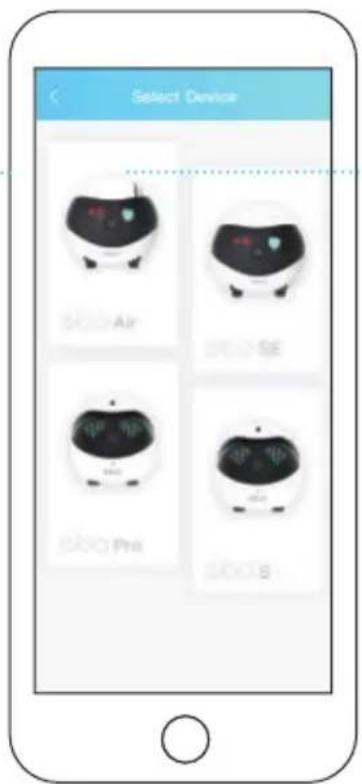
Más O Menos 15 cm
natural_image
Line drawing of a baby shower device with a heart symbol on the nose (no text or labels)natural_image
Top-down line drawing of a spherical object with internal components and mounting feet (no text or symbols)Cámara
natural_image
Line drawing of a spherical device with internal components and a small rectangular object on the side (no text or symbols)natural_image
Technical line drawing of a mechanical component with circular outline and centerlines (no text or symbols)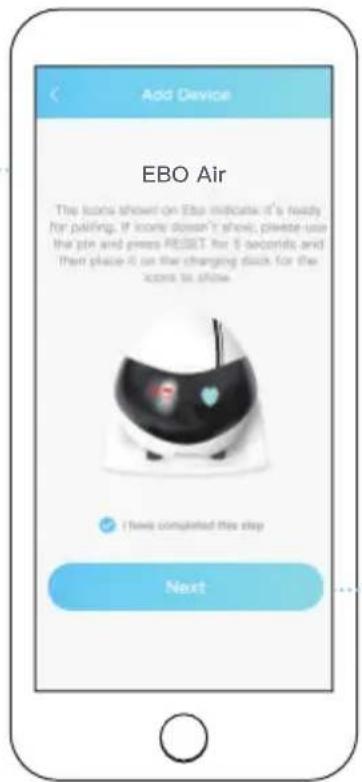
5
6
15 cm Circa
natural_image
Line drawing of a baby shower device with a heart symbol on the nose (no text or labels)natural_image
Technical line drawing of a mechanical component with circular base and internal features (no text or symbols)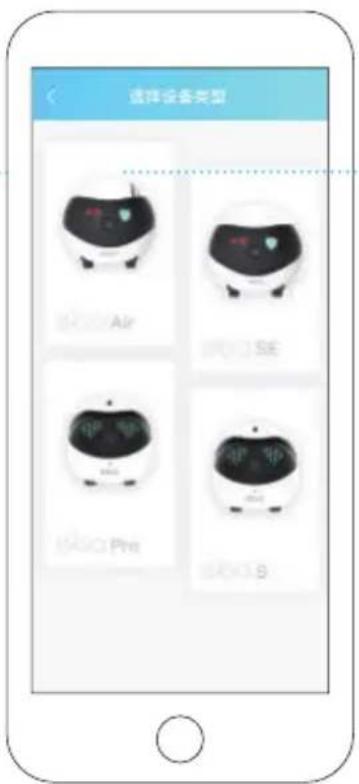
15cm左右