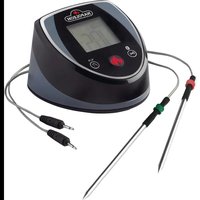
ACCU-PROBE 2.0 70077 - Food thermometer Napoleon - Free user manual and instructions
Find the device manual for free ACCU-PROBE 2.0 70077 Napoleon in PDF.


User questions about ACCU-PROBE 2.0 70077 Napoleon
0 question about this device. Answer the ones you know or ask your own.
Ask a new question about this device
Download the instructions for your Food thermometer in PDF format for free! Find your manual ACCU-PROBE 2.0 70077 - Napoleon and take your electronic device back in hand. On this page are published all the documents necessary for the use of your device. ACCU-PROBE 2.0 70077 by Napoleon.
USER MANUAL ACCU-PROBE 2.0 70077 Napoleon
text_image
APPLY SERIAL NUMBER LABEL FROM CARTON Serial No. XXXXXXXXXXXXXX MODEL NO.ACCU-PROBE 2.0 ^TM
Bluetooth®
Thermometer
natural_image
Medical imaging device with digital display and two test probes (no visible text or symbols)MODEL: 70077

WARNING
- Do not place the ACCU-PROBE 2.0™ Bluetooth® Thermometer on hot or magnetic surfaces or inside any appliances.
- The display unit and probe cords should never be immersed in water.
natural_image
Illustration of a modern electric grill with control panel and fan (no text or symbols visible)
WARNING
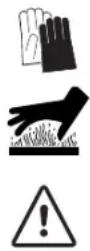
- Use a heat resistant glove to touch the cords or stainless steel probes during cooking.
- Do not try to clean the probes without reading the "MAINTENANCE" instructions in this manual.
- Do not operate the probe and cables to temperatures outside the range of -4^ to 572^ / -20^ to 300^ .
2
THANK YOU FOR CHOOSING NAPOLEON®
The Napoleon® ACCU-PROBE™ Bluetooth Thermometer allows you to program your type of meat, target temperature, and cooking time either on the touch-key display unit or using your smart device with the Napoleon App. When your food is cooked to perfection, the thermometer will alert you on your smart device.
A digital thermometer will also help reduce the chance of dried, overcooked meat caused by cutting for a visual examination, and help make cooked food look more presentable. You do not need to wait by the grill to monitor the cooking status. This saves you time and leaves you free to attend to your guests. Download the Napoleon® ACCU-PROBE 2.0™ App and enjoy smart cooking!
Any use of such marks and logos as indicated are owned by the respective owners and any such use by Wolf Steel Ltd. is under license: Bluetooth® by Bluetooth SIG, Inc. Other trademarks and trade names are those of the respective owners: Android™ and Google Play™ are trademarks of Google Inc.; Apple, iPhone®, and the Apple App Store is a trademark of Apple Inc.; iOS is a trademark or registered trademark of Cisco Inc.
Napoleon President's 1 Year Limited Warranty
NAPOLEON warrants that components in your new NAPOLEON product will be free from defects in material and workmanship from the date of purchase, for a period of 1 year from date of purchase.

If this product fails to meet your expectations for any reason, please email our customer solutions department or visit our Website for more information.
NORTH AMERICA: EUROPE:
Website: www.napoleon.com
Website: www.napoleon.com
Email: grills@napoleon.com
Email: eu.info@napoleon.com
Phone: 1-705-726-4278
Customer Solutions: 1-866-820-8686
Conditions and Limitations
NAPOLEON warrants its products against manufacturing defects to the original purchaser only, provided that the purchase was made through an authorized NAPOLEON dealer and is subject to the following conditions and limitations:
This factory warranty is non-transferable and may not be extended what-so-ever by any of our representatives. This limited warranty does not cover damages caused by misuse, lack of maintenance, grease fires, extreme environments, accident, alterations, abuse or neglect. Discoloration to plastic parts from chemical cleaners or UV exposure is not covered by this warranty.
This limited warranty further does not cover any damage determined to be caused by heat or water. NAPOLEON will not be responsible for: environmental conditions such as interference caused by other operating devices.
The bill of sale or copy will be required together with a serial number and a model number when making any warranty claims from NAPOLEON.
NAPOLEON reserves the right to have its representative inspect any product or part prior to honoring any warranty claim.
NAPOLEON shall not be liable for any transportation charges, labor costs, or export duties.

WARNING : This product can expose you to chemicals including di(2-ethylhexyl)phthalate, which are known to the State of California to cause cancer and birth defects or other reproductive harm. For more information go to www.P65Warnings.ca.gov.

- This instruction manual contains important information for the proper assembly and safe use of the Bluetooth® thermometer.
- Read and follow all warnings and instructions before using the appliance.

- ACCU-PROB 2.0E™ Bluetooth® Connected Thermometer app requires a Bluetooth-ready iOS or Android device.
- The app is available for free from the App Store ^SM or Google Play ^TM store.
Features
• 49.5" / 125.73 cm long water-resistant probes
- Cord wraps for tangle-free storage
- Measures food temperature from -4^ to 572^ / -20^ to 300^
• 160' / 50 m Bluetooth receptivity
- Magnetic mounting
• Temperature indication
- LCD display
- Custom Temperature Settings
- Manual shut-off
• Temperature readouts with or without Bluetooth connection
Where this thermometer may be used:
• Gas and Electric Stovetops
• Ovens, Convection Ovens
• Gas and Electric Grills
- Charcoal Barbecues
- Smokers
Packaging Contents
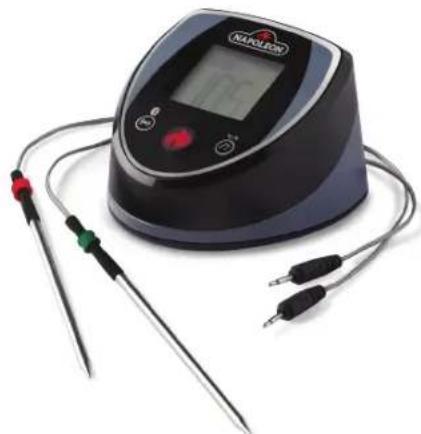
- 1 Napoleon ACCU-PROBE 2.0 ^TM Bluetooth ^ Thermometer
• 2 AAA Alkaline Batteries - 2 Detachable Stainless Steel Probes with corded plugs
- 2 Probe Wraps
• 4 Colour Probe Indicators - Quick Start Guide
The Napoleon ACCU-PROBE 2.0 ^TM Bluetooth ^® Thermometer (#70077) can work with 4 stainless steel probes simultaneously.
An additional 2-piece probe kit (#70078) is available for purchase at your closest Napoleon dealer.
Compatible Devices
The ACCU-PROBE 2.0 ^™ Bluetooth ^® Thermometer app is designed to work with a wide range of Android and iOS devices such as iPhone ^® , iPad mini ^™ and iPod ^® .
Device compatibility may not be guaranteed due to numerous different models and manufacturing standards.
4
Napoleon ACCU-PROBE 2.0™ Bluetooth® Thermometer
Cleaning and Maintenance
CAUTION! Keep the stainless steel probe sensors and cords away from children. Use care when handling the probes. Always wear a heat resistant glove to touch the stainless steel probe sensors or cords during and right after cooking. Do not use probe cables or rings to move probes.
CAUTION! Do not use the probes in microwave ovens or on a rotisserie.
- Clean the probes before using for the first time.
- Hand wash the metal portion of probes and dry thoroughly after each use. Do not wash in a dishwasher.
NOTE: The probe jacks, probe cables and display unit are water resistant but should not be left in the rain. The appliance should never be immersed in water. - Probes are rust-proof and corrosion resistant. Do not use any chemicals or cleaning solutions to clean the probes except mild soap.
- Use the cord wraps for tangle-free cord storage and to prevent kinks and folds.
- Store Bluetooth thermometer at ambient temperatures ranging from 0 °C to 35 °C/ 32 °F to 95 °F
- Only use alkaline or carbon zinc batteries. Remove batteries when storing for long periods of time.
Safeguards
- Probes can operate within -4^ to 572^ / -20^ to 300^
- Probe cords can operate within -4^ to 716^ / -20^ to 380^
! Do not allow the probes to be directly exposed to flames or temperatures exceeding 572^ F / 300^ C.
• For accurate readings, insert the probes into the center of meat ideally before it is placed on the grill.
! Point the tips downward, but do not allow the tips of probes to touch the grill grates.
Also try to ensure that probes do not touch the grill.
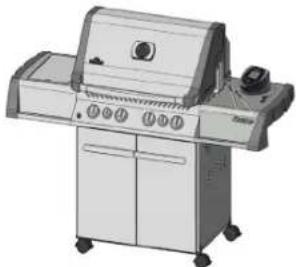
- Place meat on the side of the grill closest to the thermometer.
Position the cord at a high exit point so the cord stays sufficiently above the grill when the lid is closed.
Alternatively, probe handles may be positioned under the lid seal. Ensure the sides of the grill do not exceed the highest operating temperature.
- When using more than one probe, coloured probe rings can help identify the number of each probe. Place each ring around the probe tip and push till it reaches the base holder.
Check Clearance Prior to Cooking
Check that the cooking area does not exceed the maximum temperature and cords are not kinked or frayed by closed doors or lids.
First check the cord clearance at ambient temperature with the cooking unit closed; examine the cord for any severe kinking or bending.
Then turn the temperature unit on and use the probe to examine hot spots where the cord may make any surface contact.
Napoleon ACCU-PROBE 2.0™ Bluetooth® Thermometer
text_image
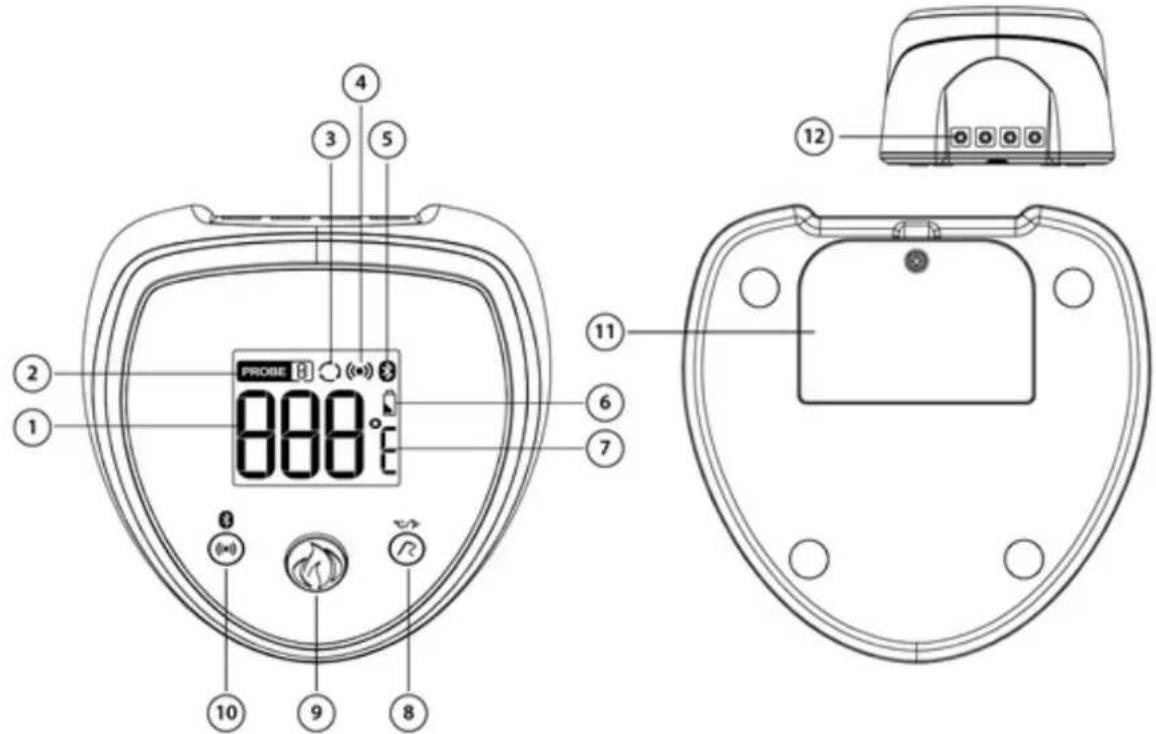
PROISE 888°C 10 9 8 2 1 3 5 4 6 7 11 12- Current Temperature – displays current temperature of the probe being used
- Probe Indicator - displays the current probe number being displayed
- Cycling Icon – the device is in display cycling mode
- Alert Sound Icon – indication of Alert Sound is set
- Bluetooth ^® Icon – indicates the connection status of Bluetooth ^®
- Battery Status – indicates the status of the batteries
- Temperature Units of Measure - °C/°F
- Probe / Unit (°C/°F) Button – toggles to select different probes / select different temperature units in °C/°F
- Power Button – turns on/off the device
- Alarm/Bluetooth® Button – switches on/off the alert sound or the Bluetooth® connection
- Battery compartment cover
- Probe Sockets - 4 sockets for 4 probes
6
Napoleon ACCU-PROBE 2.0™ Bluetooth® Thermometer – Getting Started
1. Install batteries (included)
- Remove the battery compartment cover using a screwdriver.
- Install two "AAA" alkaline or carbon zinc batteries in the compartment as indicated by the polarity symbols. If the batteries are good, the unit will beep and the display will appear.
- Do not use rechargeable or lithium batteries as these can pose a hazard near high-heat areas.
- Re-secure the battery compartment cover using a screwdriver. Ensure the thermometer displays a digital readout when powering on.
2. Initial Setup

Power: Press once to turn on the unit. Press for 3 seconds to turn off the unit.
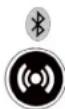
Alarm / Bluetooth: The thermometer and smart device will alert you to temperatures. Press once to enable/disable the alarm sound of the unit. Press for 2 seconds to turn on/off the Bluetooth® function.

Probe / Unit ( ^0 C/ ^0 F): Press once to toggle probe 1, 2, 3, 4 in cycling mode. Press for 2 seconds to change the temperature unit ^0 C/ ^0 F.
3. Set up the Thermometer
- The temperature will only display when a probe is inserted into the unit.
- Select a probe/cord storage wrap and unwrap the plug end of the cord.
- Insert the plug into one of the four sockets behind the unit. Make sure the probe is firmly inserted.
- To identify the probe socket: When facing the back of the unit, sockets are numbered 1 to 4 from left to right (coloured blue to black).
- Once the probe is inserted, the PROBE icon in the top left corner will reflect the position of the last probe to be inserted.
4. Connect the Bluetooth ^® Thermometer with a Smart Device. See the following pages for details.
text_image
2.41 NAPOLEON Get grilling with Napoleon This quick tour will show you the key features of the Napoleon Thermometer app. Get Started Skip
text_image
2:41 Scanning for devices... 00:00:27 Cancel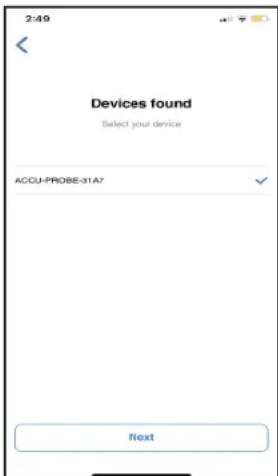
text_image
2:49 Devices found Select your device ACCU-PROBE-31A7 Next7
Connect the Thermometer with the Smart Device (first time):
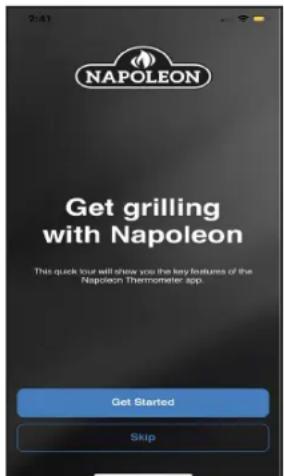
Follow these steps to pair your Smart device. Pair it close to the thermometer to eliminate risk of interference.
1. On your Smart device:
- Ensure you have Internet access and WiFi is turned on in your Settings. Also ensure Bluetooth® setting is On. (For subsequent use, ensure Location and Sound is turned on.)
- Download and install the app called Napoleon ACCU-PROBE 2.0 application which is available from the Apple App Store or Google Play store. When prompted, give permission to access files and settings.
- After the app has been installed, open it. If necessary, the app will direct you to the smart device's setting page to switch on Bluetooth for installation.
2. On the ACCU-PROBE 2.0 ^TM thermometer unit:


Press the Power button once to turn on the thermometer display.
Hold the Alarm / Bluetooth button for 2 seconds to turn on Bluetooth®. The Bluetooth® icon will flash when the thermometer is in pairing mode.
3. On your Smart device:
In the ACCU-PROBE 2.0™ app, select the ACCU-PROBE 2.0™ Bluetooth® Thermometer device when it appears in the list of available Bluetooth devices.
In the initial startup, the app may ask for permission to access to your Smart device files and location. Allow access for the app to be connected.
Once the app is selected, you can start using it.
- On the thermometer unit: When the Bluetooth ^® icon is visible but no longer flashing, it is paired with the app or no longer seeking to pair with a device.
! Note: Pair the Bluetooth® connection in the ACCU-PROBE™ app and not in the device Settings.
You cannot proceed to use the app until the ACCU-PROBE™ Bluetooth® Thermometer device appears in the list and is selected.
Quick Troubleshooting:
Refresh or restart the app and/or Bluetooth® thermometer as necessary. Refer to Troubleshooting if any problem arises.
If necessary, familiarize yourself with basic device settings such as how to connect / disconnect Bluetooth ^® from device Settings, and download from the App Store or iTunes.
- To close the app on an iPhone (iOS), quickly double-click the Home button twice or swipe up for newer model iPhones, and swipe the app window. Then reopen the app from the home screen icon.
- To close the app on an Android, simply use the back arrow to Home screen or minimize the window and close out by clicking "X".
To uninstall the app:
- iOS - Hold the ACCU-PROBE 2.0 app icon on the home page for 2 seconds and select the remove app option from the list. This should Uninstall the app.
- Android - Go to your device settings, navigate to the ACCU-PROBE app and Uninstall app or hold the app icon on the home page and select Uninstall from the options.
! If the app is not working for various reasons, restart the app and disconnect the Bluetooth® connection from the app or device Settings. Reinstall the app as shown in Steps 1 - 3 above.
! For additional support after installing the app, refer to the troubleshooting section or resource links on the Napoleon website.
Troubleshooting Chart
This is a list of common troubleshooting steps to help correct typical situations that might occur when pairing the app with the thermometer unit.
On the thermometer unit, always ensure that the Bluetooth ^® logo icon is flashing, indicating it is ready to pair with a Smart device.
| App Problem Possible Causes | / Solutions |
| The app is not installed or is not properly installed. | Check Internet connection.Connect to Internet via WiFi and download the app from the App Store or Google Play.Follow prompts to automatically install and open the app.Check for the app icon on home screen.Uninstall and reinstall app if needed. (Look under Downloads)Allow the app full access to files and your location. |
| The app is installed but shows a screen with a probe is not connected text | Ensure probes are properly inserted into the slots on your ACCU-PROBE thermometer device.Maximize Bluetooth® receptivity by facing the LCD display on the thermometer with the Smart device in close range.Completely close the app and restart it. (Be familiar with your device's basic operations and Settings.)Close out any unnecessary programs on the Smart device that may be consuming memory. |
| The app worked before, but the device name is not listed in the app device list. | App is not searching or not able to find the device.Click "Try again" if on the no devices found page or hit the back button on the devices found page to restart scanTurn the thermometer off and on. Ensure Bluetooth® is activated in the mobile Smart device Settings.Bring the Smart device close to the thermometer unit.Refresh the memory cache by closing and reopening the app.Ensure your device's Location setting is turned on.Wait about 30-60 seconds between steps. |
| The thermometer lost the Bluetooth® connection while in operation and shows a connection lost page | Try to locate cause of frequency interference or physical obstruction.Bring Smart device back within range of the thermometer (50 m/160') or line of sight.Toggle the thermometer unit off & on.Reopen the app as a last resort. |
| The alarms are not working. | Check Bluetooth® connection.Check appropriate Sounds or Notifications are turned on in your Smart device settings.Check that alarm (or vibrate) notification is selected in the ACCU-PROBETM app settings. |
ACCU-PROBE Bluetooth Thermometer Use
Each probe can be assigned its own single temperature or a custom high and low temperature range. This is useful to test cooking doneness or temperature of thawed meat.
The first two bottom buttons will allow you to choose high or low cooking temperatures and help decrease ongoing wear and tear on the probes and cords:
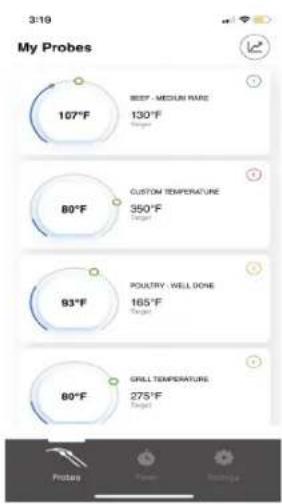
The probes tab is used for setting preset, custom, or grill temperatures. Additional alerts for your cook can also be set here. The thermometer alarm will sound when the target temperature set has been reached.
The timer setting is useful for spot-checking the temperature manually – ideal for fast cooking at high temperatures – or for reminders of various items being cooked simultaneously.

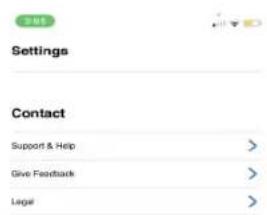
The third button displays the app settings. Users can change temperature units, edit notification sounds as well as contact support in this tab.
text_image
My Probes 107°F BEET - MEDIUM RARE 130°F Target 80°F CUSTOM TEMPERATURE 350°F Target 93°F POUTRY - WELL DONE 165°F Target 80°F GRILL TEMPERATURE 275°F Target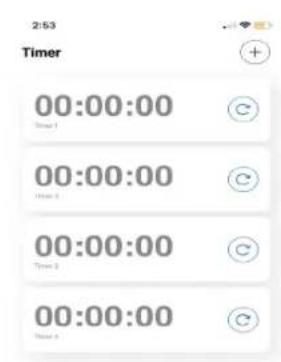
text_image
2:53 Timer 00:00:00 Time 1 00:00:00 Time 2 00:00:00 Time 3 00:00:00 Time 4
text_image
Settings Contact Support & Help > Give Feedback > Legal >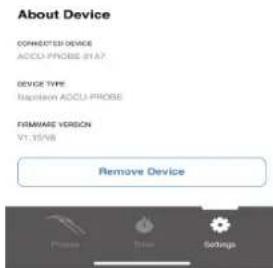
text_image
About Device CONNECTED DEVICE ACCU-PROBE 81A7 DEVICE TYPE Napoleon ACCU-PROBE FIRMWARE VERSION V1.15/V8 Remove Device Process Delete SettingsProbe Placement
To find the best insertion point, place the tip of the probe in the deepest part of the meat, and away from any bones. Wait for the temperature readout to stabilize, then move the probe around to find the lowest temperature and leave the probe there.
! WARNING: Never allow the probe to touch the grill, especially at the tip.
10
Meat Selection

Meat Cooking Chart
The below temperatures and settings are built in to the app dial. Select the desired temperature setting for each probe and click OK.
Meat Doneness Minimum Temperature
1
| Beef | Well Done 160°F/71°CMedium Well 150°F/66°CMedium 140°F/60°CMedium Rare 130°F/54°CRare 120°F/49°CCustomized |
| Pork | Well Done 155°F/68°CMedium Well 145°F/63°CLow n slow 190°F/87°CCustomized |
| Ground meat | Well Done 160°F/71°CCustomized |
| Chicken/Turkey | Well Done 165F/73CCustomized |
| Duck/Goose | Well Done 165°F/73°CCustomized |
| Fish | Well Done 145°F/62°CMedium 135°F/54°CCustomized |
| Lamb | Well Done 160°F/71°CMedium Well 150°F/66°CMedium 140°F/60°CMedium Rare 130°F/54°CRare 120°F/49°CCustomized |
| Lobster | Low & SlowCustomized |
| Baked Potato | FinishedCustomized |
| Apple/pumpkin pie | FinishedCustomized |
| Others Enter a custom | temperature |
| Set BBQ Temperature | Enter a High/Low temperature range |
1 Minimum temperatures recommended by major cookbooks and the USDA for food safety.
Temperature Alarms
A temperature alarm will sound when a selected or custom temperature setting is reached, regardless of the visibility of the applicable probe.
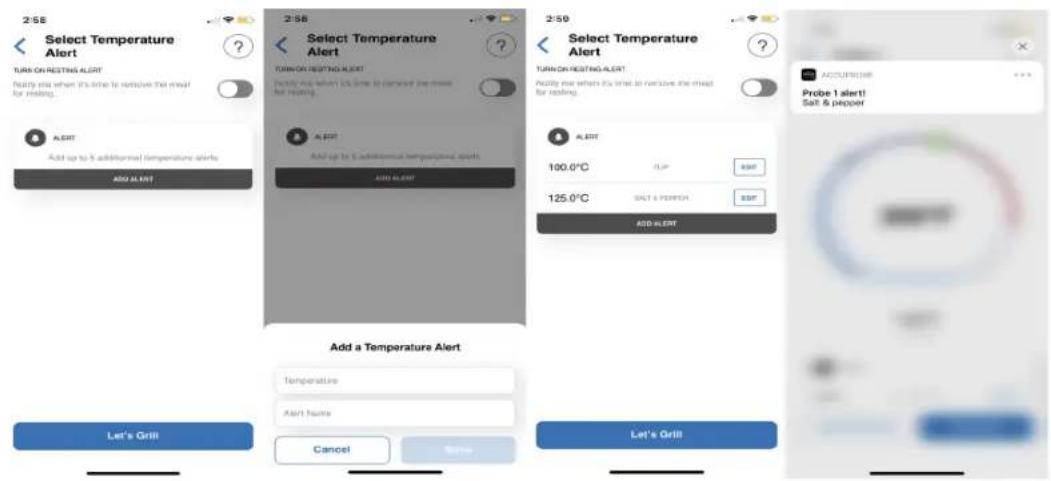
The temperature alert feature can be used for additional monitoring. You can set customized alerts for specific temperatures.
text_image
Select Temperature Alert TURCH RESTING ALERT Notify mix when it's little to remove the meal for reading. Select Temperature Alert TURCH RESTING ALERT Notify mix when it's little to remove the meal for reading. ALERT Add up to 3 additional temperature alerts ADD ALERT Select Temperature Alert TURCH RESTING ALERT Notify mix when it's little to remove the meal for reading. ALERT Add up to 3 additional temperature alerts ADD ALERT Select Temperature Alert TURCH RESTING ALERT ADD ALERT 100.0°C FLIP ADD 125.0°C SALT & POSTER ADD Add ALERT Add a Temperature Alert Temperature Alert Name Let's Grill Cancel Save Let's Grill ACCOURSE Probe 1 alert! Salt & pepperTimer Alarms
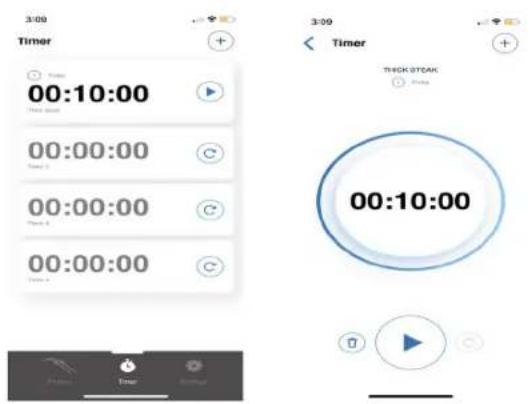
Timer alarms can be set up for repetitive cooking tasks such as turning over meat, and when time data needs to be saved.
Timers are helpful when cooking at high temperatures with or without a temperature probe.
Individual timers can be assigned descriptive labels and also probes that have been setup and connected.
The label and time data will be stored each time the app is turned off.

Use the timer to remind when to gently add spices and seasoning. This will help prevent damage to the meat fibers.
text_image
3:00 Timer + - 00:10:00 Time 5 00:00:00 Time 4 00:00:00 Time 3 00:00:00 Time 2 3:09 Timer + - THICK OTCAK Play 00:10:00 Time 1 Time 2 Time 3 Time 4 Time 512
Saved Profile
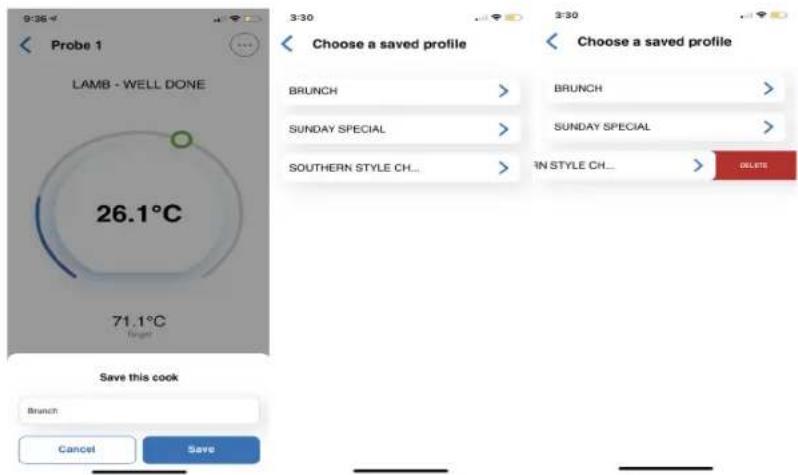
The saved profile feature is useful for settings that are frequently utilized during cooks.
Save your preferred cook settings and simply load it when setting up a probe for a quick and easy setup.
You can save up to 10 different cook preferences/settings.
text_image
Probe 1 LAMB - WELL DONE 26.1°C 71.1°C Choose a saved profile BRUNCH > SUNDAY SPECIAL > SOUTHERN STYLE CH... Choose a saved profile BRUNCH > SUNDAY SPECIAL > ERN STYLE CH... DELETE Save this cook Branch: Cancel SaveLive Graphs
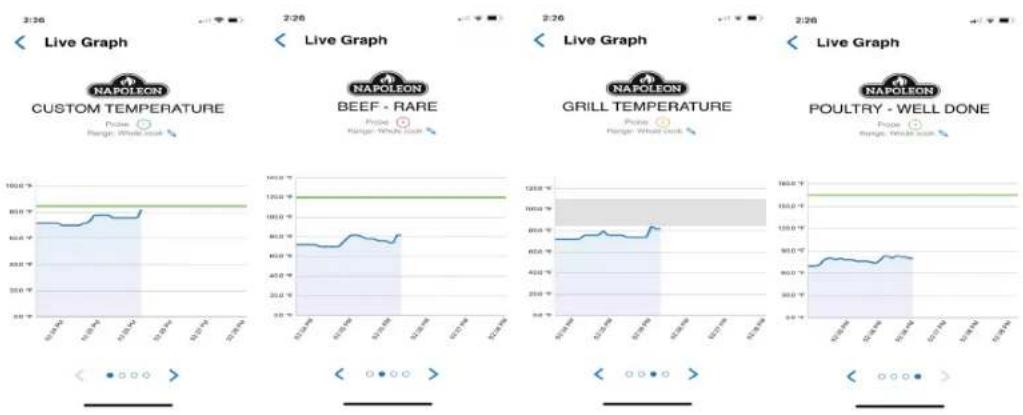
Live graphs can be used to monitor and track the temperature changes over a short period of time.
The live graph feature automatically gets initiated once a probe has been setup.
Custom temperature alerts are also visible on the graph.
line
| Time | Live Graph | Custom Temperature | BEEF - RARE | Grill Temperature | Poultry - WELL DONE | | ---------- | ---------- | ------------------ | ----------- | ----------------- | ------------------- | | 01:00 | 100.0 °C | 85.0 °C | 80.0 °C | 75.0 °C | 60.0 °C | | 03:00 | 100.0 °C | 85.0 °C | 80.0 °C | 75.0 °C | 60.0 °C | | 05:00 | 100.0 °C | 85.0 °C | 80.0 °C | 75.0 °C | 60.0 °C | | 07:00 | 100.0 °C | 85.0 °C | 80.0 °C | 75.0 °C | 60.0 °C | | 09:00 | 100.0 °C | 85.0 °C | 80.0 °C | 75.0 °C | 60.0 °C | | 11:00 | 100.0 °C | 85.0 °C | 80.0 °C | 75.0 °C | 60.0 °C | | 13:00 | 100.0 °C | 85.0 °C | 80.0 °C | 75.0 °C | 60.0 °C | | 15:00 | 100.0 °C | 85.0 °C | 80.0 °C | 75.0 °C | 60.0 °C | | 17:00 | 100.0 °C | 85.0 °C | 80.0 °C | 75.0 °C | 60.0 °C | | 19:00 | 100.0 °C | 85.0 °C | 80.0 °C | 75.0 °C | 60.0 °C | | 21:00 | 100.0 °C | 85.0 °C | 80.0 °C | 75.0 °C | 60.0 °C | | 23:00 | 100.0 °C | 85.0 °C | 80.0 °C | 75.0 °C | 60.0 °C |Bluetooth® Range Alarm
A built-in alarm will sound when the Smart device is taken out of the Bluetooth® Thermometer range. Simply bring the device back into range and the program will continue running.
Regulations
This device complies with part 15 of the FCC Rules. Operation is subject to the following two conditions: (1) This device may not cause harmful interference, and (2) this device must accept any interference received, including interference that may cause undesired operation.
FCC WARNING

This equipment has been tested and found to comply with the limits for a Class B digital device, pursuant to Part 15 of the FCC Rules. These limits are designed to provide reasonable protection against harmful interference in a residential installation.
This equipment generates, uses and can radiate radio frequency energy and, if not installed and used in accordance with the instructions, may cause harmful interference to radio communications.
However, there is no guarantee that interference will not occur in a particular installation. If this equipment does cause harmful interference to radio or television reception, which can be determined by turning the equipment off and on, the user is encouraged to try to correct the interference by one or more of the following measures:
- Place Bluetooth device and thermometer in a position that is directly facing each other.
- Increase or decrease the separation between the device and thermometer.
- Ensure the internal probe wire or probe is not damaged or has not shorted out either through moisture or excessive heat.
- Move the apparatus away from other network interference such as other Bluetooth and WiFi emitters.
- Avoid operating between or near concrete walls and other barriers that may dampen Bluetooth receptivity.
Caution:
To comply with the limits for an FCC Class B computing device, always use the shielded signal cord supplied with this unit.
CE REGULATIONS

The normal function of the product may be disturbed by strong Electro-Magnetic Interference. If so, simply reset the product to resume normal operation by following the instruction manual. In case the function could not resume, please use the product in another location.
Correct Disposal Of This Product
This marking indicates that this product should not be disposed with other household wastes throughout the EU. To prevent possible harm to the environment or human health from uncontrolled waste disposal, recycle it responsibly to promote the sustainable reuse of material resources. To return your used device, please use the return and collection systems or contact the retailer where the product was purchased. They can take this product for environmental safe recycling.

14





text_image
NAPOLEON
text_image
APPOSEZ L'ÉTIQUETTE DU NUMÉRO DE SÉRIE DU CARTON N° de série XXXXXXXXXXXXXX N° DE MODELEThermomètre ACCU-PROBE 2.0 ^MD Bluetooth ^®
natural_image
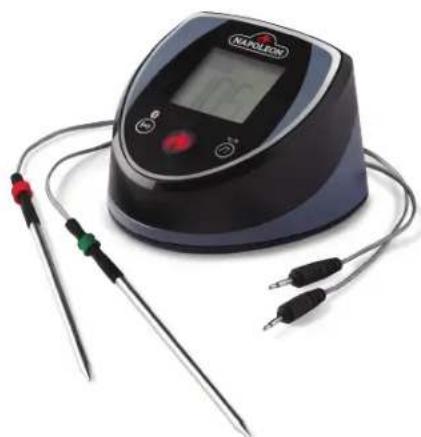
Medical imaging device with digital display and two test probes (no visible text or symbols)MODÈLE : 70077
AVERTISSEMENT
natural_image
Illustration of a standard electric grill with control panel and side-mounted dish (no text or symbols visible)AVERTISSEMENT
text_image
NAPOLEON Get grilling with Napoleon This quick your sell show you the key features of the Napoleon Thermometer app. Get Started Skip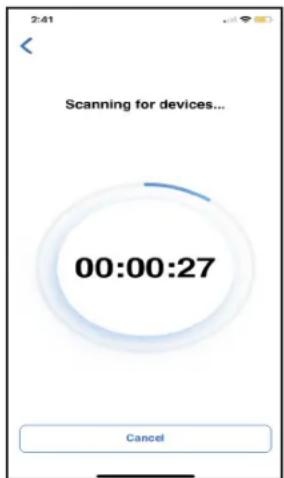
text_image
2:41 Scanning for devices... 00:00:27 Cancel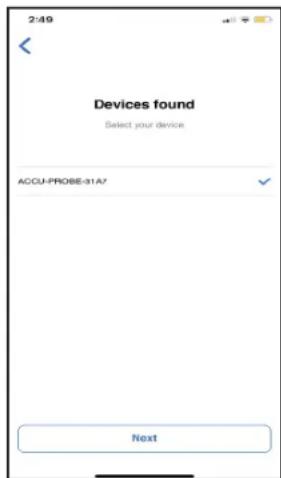
text_image
2:49 Devices found Select your device ACCU-PROBE-31A7 Next21
text_image
Select Temperature Alert TURN ON RESTING ALERT Notify when it's that to remove the reset for reading. ALERT Add up to 5 additional temperature alerts ADD ALERT 2:58 Select Temperature Alert TURN ON RESTING ALERT Notify when it's that to remove the reset for reading. ALERT Add up to 5 additional temperature alerts ADD ALERT 2:59 Select Temperature Alert TURN ON RESTING ALERT Notify when it's that to remove the reset for reading. ALERT 100.0°C P.P. 125.0°C SALT & PEEPROM ADD ALERT Add a Temperature Alert Temperature Alert Name Cancel Save Let's Grill Let's Grill ACCUREROE Probe 1 alert: Salt & peppertext_image
3:09 Timer 00:10:00 00:00:00 00:00:00 00:00:00 THICK STEAK 00:10:00Profil enregistré
text_image
Probe 1 LAMB - WELL DONE 26.1°C 71.1°C Choose a saved profile BRUNCH > SUNDAY SPECIAL > SOUTHERN STYLE CH... Choose a saved profile BRUNCH > SUNDAY SPECIAL > SOUTHERN STYLE CH... DELETE Save this cock Brunch Cancel Saveline
| Item | Value | | --------------------- | ------ | | Live Graph | 1200°C | | Custom Temperature | 800°C | | BEEF - RARE | 600°C | | Grill Temperature | 800°C | | Poultry - WELL DONE | 1500°C |Napoleon products are protected by one or more U.S. and Canadian and/or foreign patents or patents pending.
text_image
Black and white barcode image with vertical lines on both sidesN415-0486