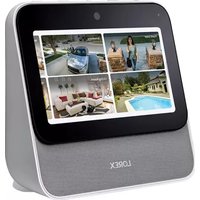
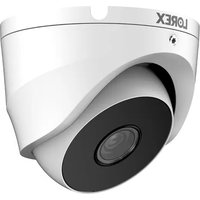
HC64ATU-W - Surveillance Camera Lorex - Free user manual and instructions
Find the device manual for free HC64ATU-W Lorex in PDF.


| Product Type | Wireless Surveillance Camera |
| Brand | Lorex |
| Model | HC64ATU-W |
| Video Resolution | High Definition (HD) |
| Night Vision | Yes, with automatic mechanical IR filter |
| Viewing Angle | Approximately 130° (estimated) |
| Power Supply | Rechargeable lithium-ion battery, 5V/2A AC adapter |
| Battery Life | Up to 3 months with normal use (estimated) |
| Connectivity | Wi-Fi 2.4 GHz and 5 GHz, range extender included |
| Audio | Built-in microphone and speaker, two-way communication |
| Motion Detection | PIR sensor, optimized person detection |
| Storage | microSD card (pre-installed in hub) or cloud via app |
| Mobile App | Lorex Home (iOS and Android) |
| Voice Assistant | Yes, 'Lorex' voice command (local processing) |
| Mounting | Wall or flat surface, adjustable bracket included |
| Dimensions (Camera) | Approximately 10 x 7 x 7 cm (estimated) |
| Weight (Camera with battery) | Approximately 500 g (estimated) |
| Operating Temperature | From -20°C to 50°C (estimated) |
| Package Contents | Camera, battery pack, adapter, cable, mounts, template, LSHSC hub, range extender, Ethernet cable |
Frequently Asked Questions - HC64ATU-W Lorex
User questions about HC64ATU-W Lorex
0 question about this device. Answer the ones you know or ask your own.
Ask a new question about this device
Download the instructions for your Surveillance Camera in PDF format for free! Find your manual HC64ATU-W - Lorex and take your electronic device back in hand. On this page are published all the documents necessary for the use of your device. HC64ATU-W by Lorex.
USER MANUAL HC64ATU-W Lorex



Safety precautions
- Read this guide carefully and keep it for future reference.
- Follow all instructions for safe use and handling of the product.
- Use the camera within given temperature, humidity and voltage levels noted in the camera's specifications.
- Do not disassemble the camera.
- Do not point the camera directly at the sun or a source of intense light.
- Do not place the camera near air conditioners and other air outlets.
- Periodic cleaning may be required. Use a damp cloth only. Do not use any harsh, chemical-based cleaners.
• Refer to the battery safety rules insert.
Disclaimers
- The LSHSC and extender are rated for indoor use only. Do not use outdoors.
- Only use the devices with the included power supply.
- Only use the devices with compatible memory. See the product support page for details on compatible memory.
- The LSHSC is required to operate the extender.
- This camera includes an Auto Mechanical IR Cut Filter. When the camera changes between Day/Night viewing modes, an audible clicking noise may be heard from the camera. This clicking is normal, and indicates that the camera filter is working.
- Audio recording without consent is illegal in certain jurisdictions. Lorex Corporation assumes no liability for use of its products that does not conform with local laws.
Attention
A REGULATED UL / CSA APPROVED power supply is REQUIRED for use with this bundle (included). Use of a non-regulated, non-conforming power supply can damage this product and voids the warranty.




Contents
Package Contents....1
Before You Start....2
LSHSC Overview....3
LSHSC Status Indicator & Basic Operations......4
LSHSC Setup....5
Network Setup....6
Device Setup....7
LSHSC App Setup....8
LSHSC Home Screen....9
LSHSC Live View....10
LSHSC Swipe-down Menu....11
LSHSC Placement....12
Lorex Voice Assistant....13
Camera Overview....14
Camera Status Indicator....15
Camera Setup & Placement....16
Camera Mounting....18
Extender Overview....20
Extender Status Indicator....21
Extender Setup & Placement....22
Extender Device Settings....23





Package Contents

Lorex Smart Home Security Center (LSHSC) (x1)

LSHSC Power Adapter (x1)

Ethernet Cable (x1)

Pre-inserted Memory Card (x1)

Wire-Free Camera (x2)*

Battery Pack (x2)*

Power Adapter (x1)*

6.6ft (2m) Power Cable (x1)*

Mounting Bracket (x2)*

Anchors (x6)* Screws (x6)*

Mounting Template (x2)*

Mounting Plate (x2)*

Extender (x1)

Power Adapter (x1)

6.6ft (2m) Power Cable (x1)
*May include one or more, depending on the package purchased.



Before You Start
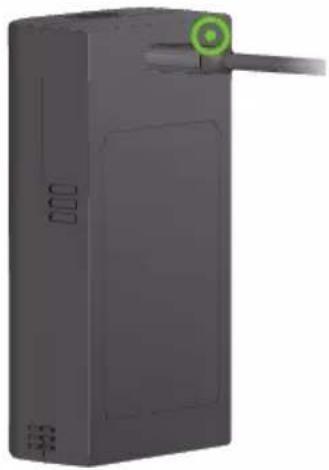
The camera batteries come partially charged (due to safety regulations). Please fully charge the batteries prior to use, and before you begin your setup. This will take 4-6 hours.
To charge the battery pack:
- Use the power adapters and cables to charge the batteries.
- When fully charged, the battery status indicator will turn green.

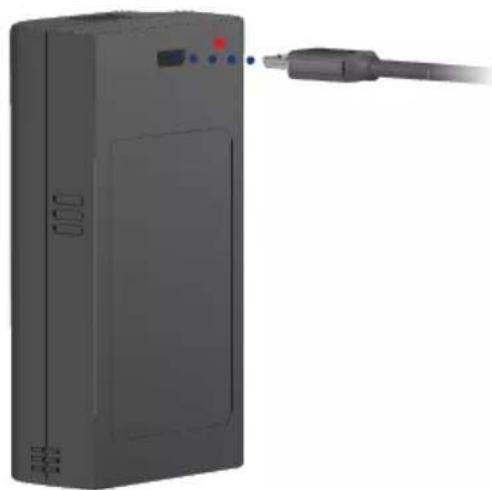
natural_image
Exterior view of a gray electronic device with a cable extending from its side (no visible text or symbols)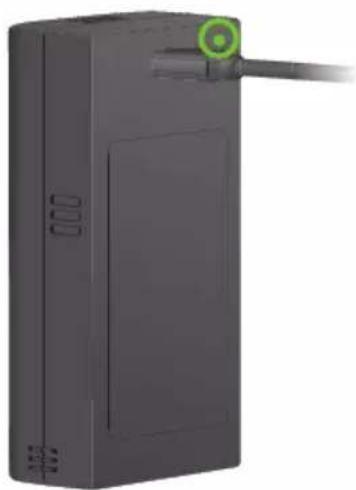
natural_image
3D rendering of a black rectangular electronic device with a green circular connector on top (no text or symbols visible)Green - Battery fully chargedRed - Battery low
2




LSHSC Overview
flowchart
graph TD
    A["1"] --> B["Block 1"]
    B --> C["Block 2"]
    C --> D["Block 3"]
    D --> E["Block 4"]
    E --> F["Block 5"]
    F --> G["Block 6"]
    G --> H["Block 7"]
    H --> I["Block 8"]
    I --> J["Block 9"]
    J --> K["Block 10"]
    style A fill:#000,stroke:#000,color:#fff
    style K fill:#000,stroke:#000,color:#fff
    note right of A
        TOP
    end
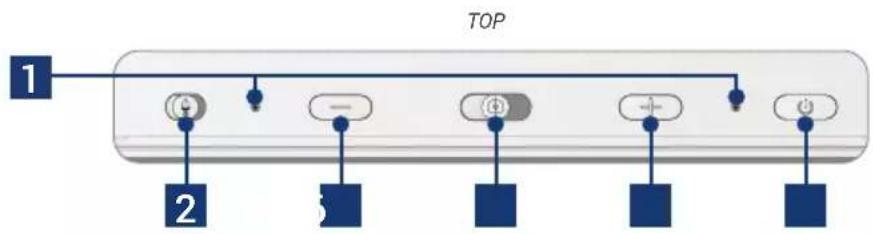
- Microphones
- Microphone on/off
- Decrease volume
- Camera lens cover
- Increase volume
- Power/lock screen
FRONT BACK
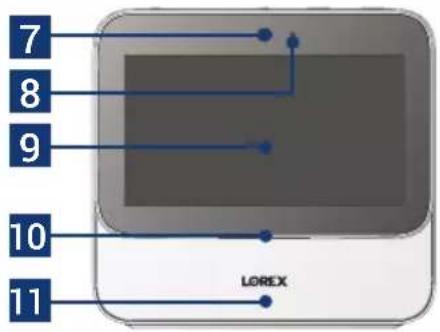
- Camera
- Light sensor
-
Touchscreen
-
Status indicator
- Speakers
- Antennas
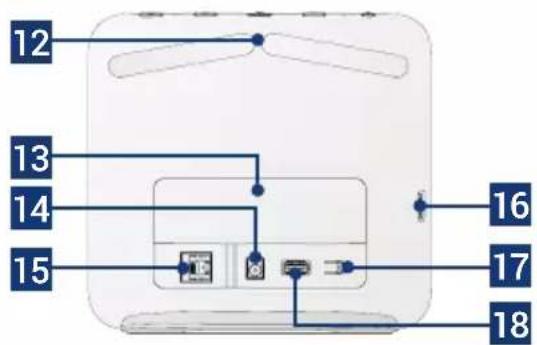
- SSD cover
- Power port
-
Ethernet port
-
microSD card slot
- Pairing/reset button
- USB port
3




LSHSC Status Indicator & Basic Operations
| Status Description | |
| (fashing) | Voice assistant activated |
| (solid) | Home (sensors only) |
| (solid) | Disarmed (sensors only) |
| (solid) | Away (sensors only) |
| (solid) | System error (sensors only) |
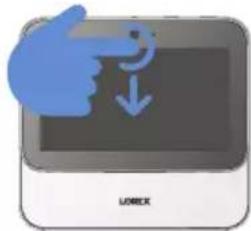
Touchscreen Gestures
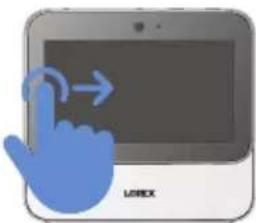
natural_image
Illustration of a hand pointing at a screen with arrows, next to a laptop labeled 'LAREX' (no text on screen or background)From the left edge, swipe right for the previous screen
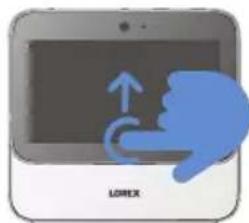
natural_image
Illustration of a tablet device with a hand gesture showing a curved arrow and thumbs-down gesture (no text or symbols)From the bottom edge, swipe up for the home screen
natural_image
Illustration of a hand pointing at a screen with a downward arrow, labeled 'LINUX' at the bottom (no other text or symbols)From the top edge, swipe down for the drop-down menu




LSHSC Setup
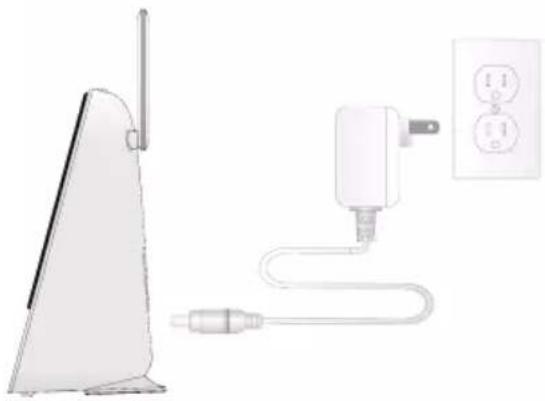
- Using the provided LSHSC power adapter, connect to a power outlet.
- Follow the on-screen instructions to complete the device setup.
Optional: Face Unlock
Enable this feature to unlock the LSHSC with your face. Make sure the built-in camera's lens cover is opened and that nothing is covering your face. Position your face directly in front of the camera with a reasonable amount of light on your face.
natural_image
Diagram showing a device connected to an electrical outlet with a plug and cable (no text or symbols present)Note:
- Three faces can be stored for the Face Unlock feature.
- If you forget both your passcode and device password, you will need to reset the LSHSC. Press down on the reset button until a warning pop-up appears. Select Yes.




Network Setup
Central placement of the LSHSC is important for the Lorex devices to communicate directly with the LSHSC and the router.
Choose your preferred connection set up method from the following three options:

Wired: Tap the wired icon and connect the LSHSC to your home router using the provided Ethernet cable.


Wireless: Tap the wireless icon, select your Wi-Fi network from the list, then enter the Wi-Fi password to connect.

Requires a dual-band router (2.4GHz / 5GHz) with 5GHz Wi-Fi network.

Offline: Tap the offline icon to setup through a direct connection. No Internet connection is required to operate it or connect it to different Lorex devices.

You will not be able to use the Lorex Home App to access the LSHSC remotely and will receive automatic update notifications.




Device Setup
To add a device, at the Device Setup screen, select the device icon and tap Next.
Note: Ensure your cameras are charged, powered on and located near the LSHSC for initial setup. Once set up, you can move your devices to their final locations as long as they are within range of the LSHSC.

If you plan to set up other types of Wi-Fi cameras and/or a doorbell on the LSHSC, visit lorex.com/compatibility to determine the right setup method for that device (either direct setup method or app setup method).




LSHSC App Setup

Make sure the LSHSC is connected to a network.
For remote access and viewing, add the LSHSC to the Lorex Home App.
- Download the Lorex Home app by scanning the QR code.
- Open the Lorex Home app, and sign in or create an account.
- Tap + in the app to add the device, then follow the in-app instructions to complete the setup.

Devices

Tap to add your first device




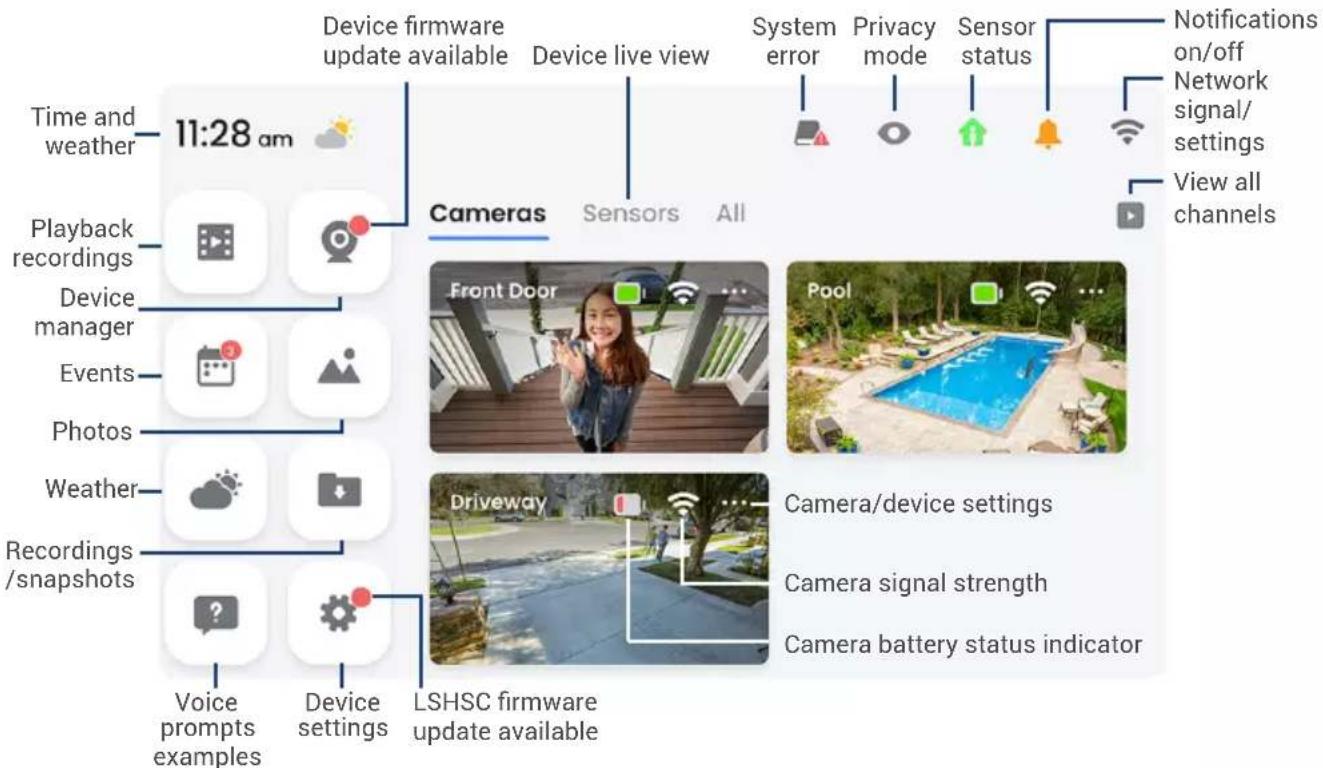
LSHSC Home Screen




LSHSC Live View
Front Door

Device name/channel selection

Device
settings
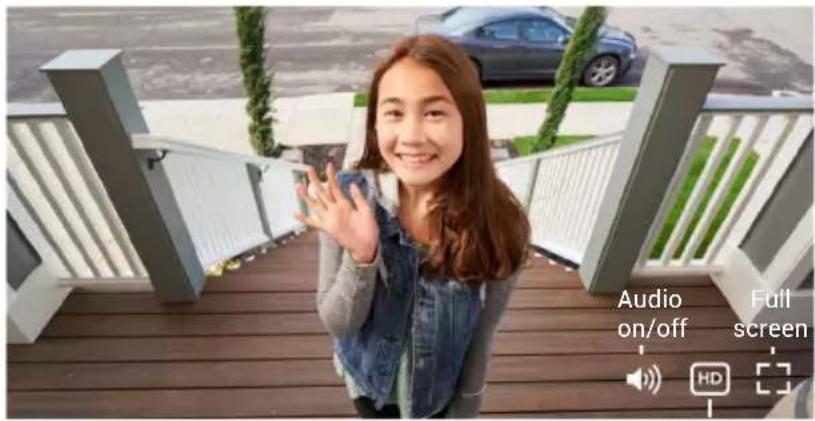
HD video
Recent Events
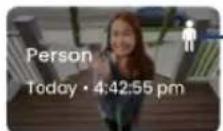
Event type

Play/pause

Take snapshot

Record video

2-way talk

Warning light*

Siren*

Privacy mode
Playback
*Only compatible cameras support this function.




LSHSC Swipe-down Menu
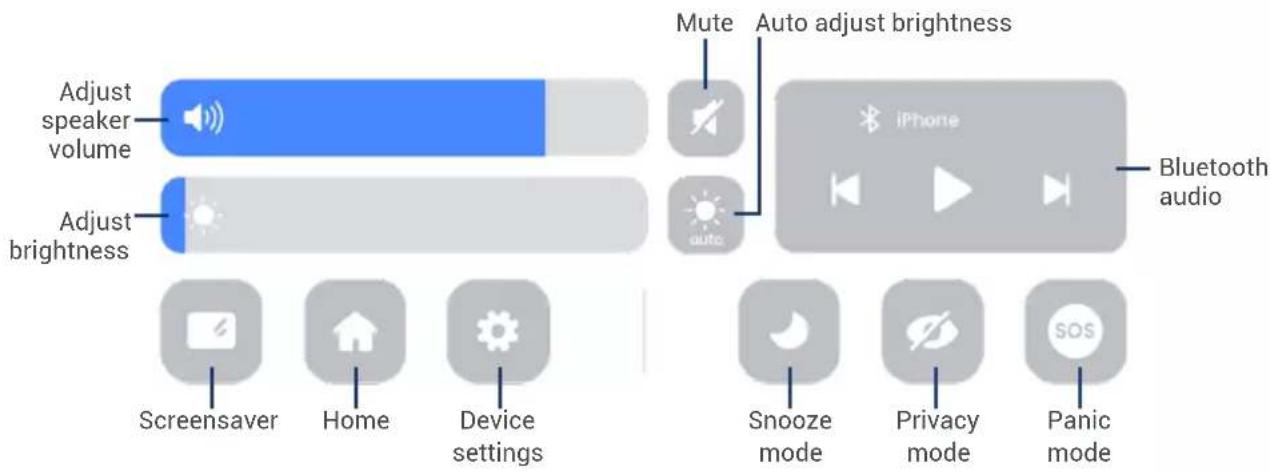
- Snooze mode: Tap to silence alerts, notifications, and light statuses that you get while your device is locked. Tap again to disable.
- Privacy mode: Tap to enable/disable privacy mode.
- Panic mode: Press and hold panic mode for 5 seconds to turn on all lights and sirens from compatible active or smart deterrence cameras/doorbell. Tap again to turn off.




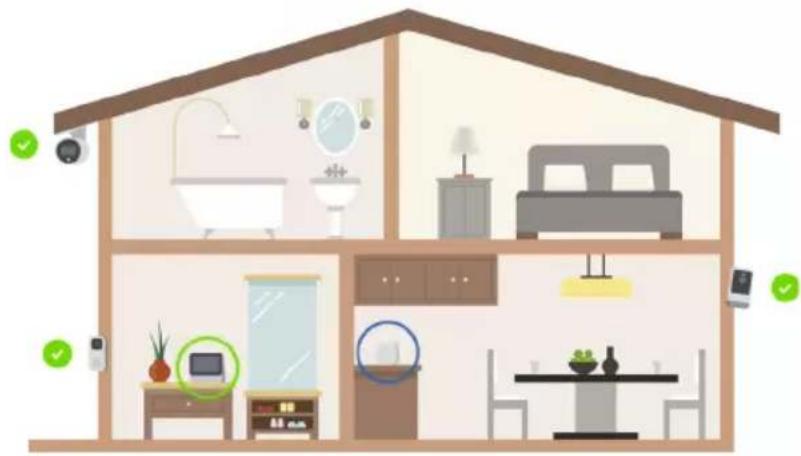
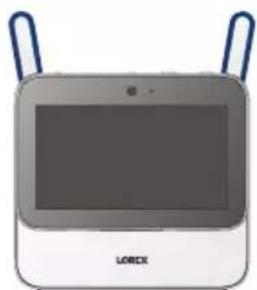
LSHSC Placement
- Place the LSHSC in a central location with good connectivity to your router and other devices.
- Reduce the number of obstructive materials, such as walls, between the LSHSC and your other Lorex devices.
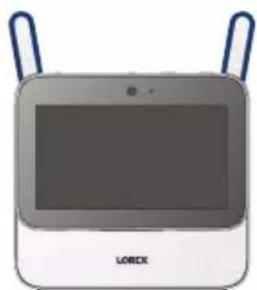
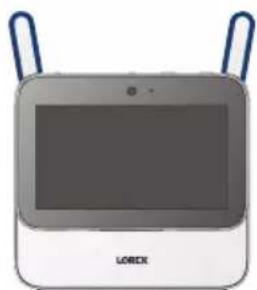
- For better wireless performance move the antennas in the upright position.
natural_image
Illustration of a white and gray electronic device with two blue handles and a screen, labeled 'LOREX' at the bottom (no other text or symbols visible)12




Lorex Voice Assistant
The Lorex voice assistant is a specially designed voice assistant for the LSHSC. It was developed with your privacy in mind. All voice processing is done inside the LSHSC. This means that no voice information leaves the device and makes response time quick. To enable this feature make sure that the microphone is turned ON and say the wake up word "Lorex".
A sample voice command: "Lorex, show me all cameras!"
For a sampling of the different voice commands, tap on the Voice Prompts icon on the home screen. For a full list of supported voice commands, visit the product page at lorex.com.
Note: Voice control also works in offline mode.




Camera Overview
FRONT BACK
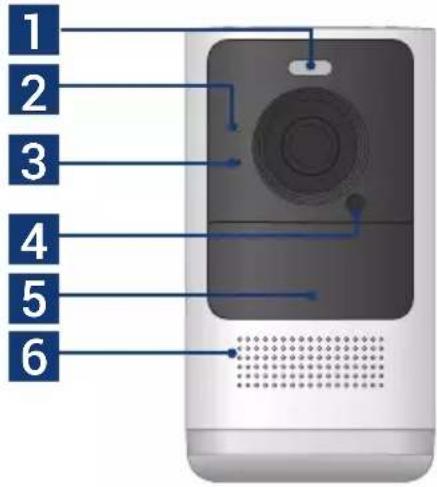
- Warning light
- Status indicator
- Microphone
- Light sensor
-
Motion sensor
-
Speaker
- Power port
- Threaded insert (for mounting)
- Pairing/reset button
- Battery pack slot
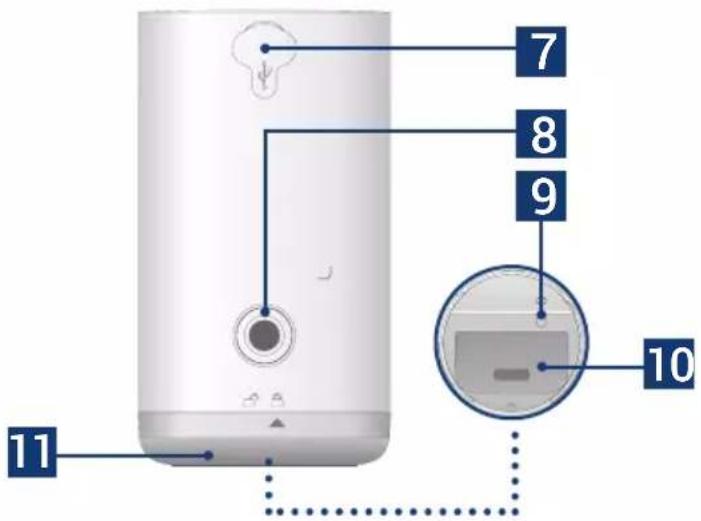
- Bottom cover




Camera Status Indicator
| Status Description | |
| Off Privacy/sleep mode or battery needs recharging | |
| (solid) | Operating correctly or motion detected |
| (flashing) | Ready for pairing |
| (flashing) | Testing Wi-Fi signal strength |
| (solid) | Factory reset |
| (flashing) | Disconnected from network |
| (alternating) | Firmware update in progress |





Camera Setup & Placement
- Pair your camera to the LSHSC per the Device Setup page (p. 7).
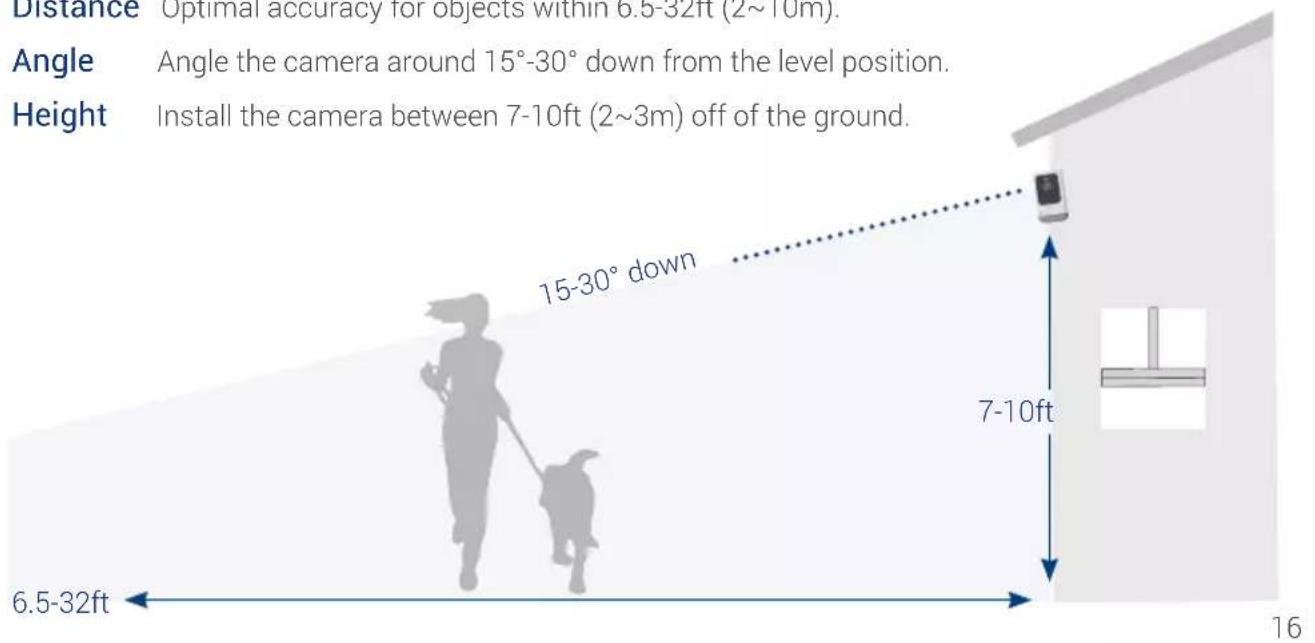
- Place the camera on any flat surface or mount it to a wall per the guidelines below to optimize motion detection accuracy.
To optimize motion detection accuracy when mounted on a wall:
Distance Optimal accuracy for objects within 6.5-32ft (2\~10m).
Angle Angle the camera around 15^-30^ down from the level position.
Height Install the camera between 7-10ft (2\~3m) off of the ground.

HC64A_QSG_TRILINGUAL_R4.indd 19

2021-06-15 4:42:12 PM



natural_image
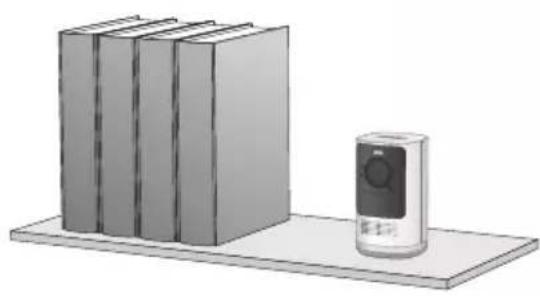
Illustration of a bookshelf with three books and a mobile phone on a shelf (no text or symbols)To optimize motion detection accuracy when placed on a shelf:
Distance Optimal accuracy for objects within 5-32ft (1.5\~10m).
Angle Make sure the flat surface/shelf is not obstructing the camera's field of view.
Height Place the camera between 4.5-6.5ft (1.4\~2m) off of the ground.
Note: Accuracy of person detection will be influenced by multiple factors, such as the person's distance from the camera, the height of the person, and the height and angle of the camera. Night vision will also impact the accuracy and distance of detection.




Camera Mounting
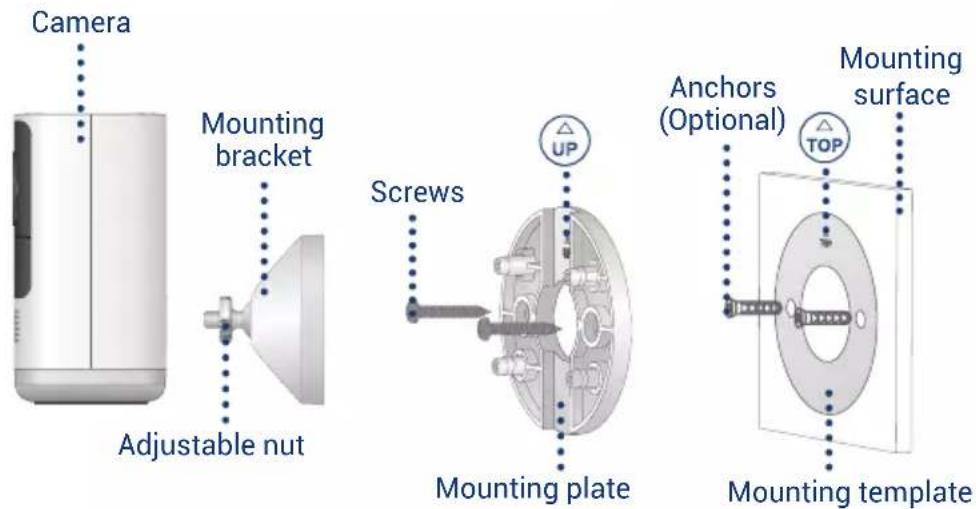
To mount the camera:
- Place the mounting template to the desired location.
Optional: Drill 7/32" (5.5mm) holes for the anchors.
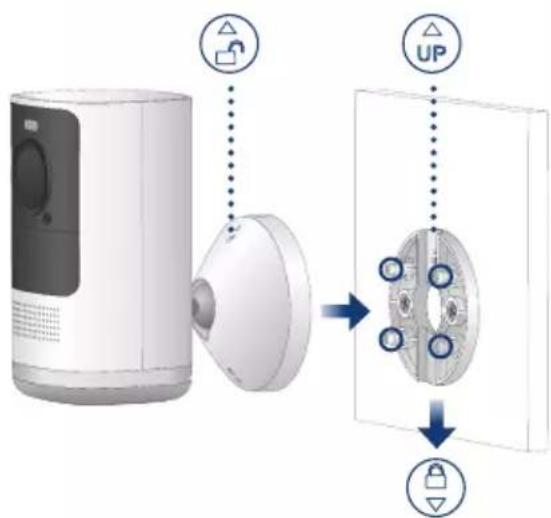
- Align the arrows of the mounting plate and template. Using a Philips screwdriver and the provided screws, secure the mounting plate to the surface.




- Align the arrows between the mounting bracket and plate. Push the bracket in to install, then slide down to lock in place. You will hear a 'click' when the bracket is installed.
- Attach the camera to the mounting bracket using the thread insert at the rear of the camera. Rotate the camera clockwise until attached, then tighten into place with the adjustable nut.
- Adjust the camera to the desired angle.
Note: If the camera is not holding in place or difficult to adjust, slide the bracket up to detach from the mounting plate. Tighten or loosen the 3 screws at the back of the mounting bracket to adjust accordingly. Repeat steps 3-5 to re-install.
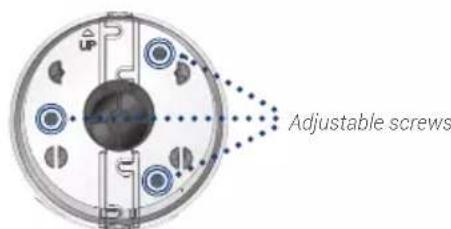
Back - Mounting bracket




Extender Overview
FRONT BACK
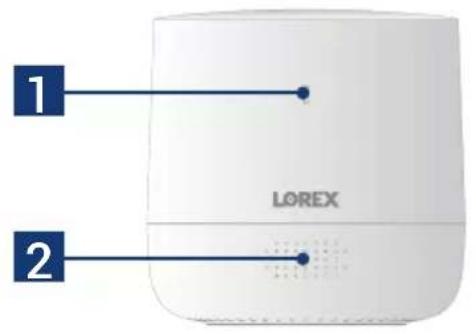
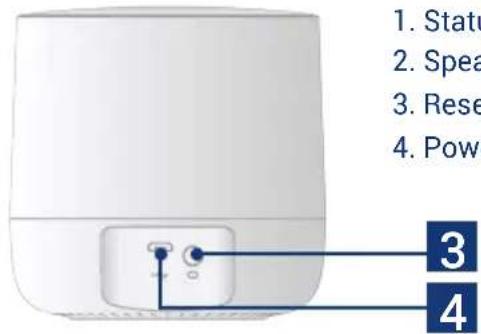
- Status indicator
- Speaker
- Reset button
- Power port
- Status indicator
- Speaker
- Reset button
- Power port




Extender Status Indicator
| Status Description | |
| Off Off or the status indicator is turned off | |
| (solid) | Operating correctly |
| (flashing) | In pairing mode |
| (solid) | Factory reset |
| (alternating) | Firmware update in progress |
| (solid) | Weak Wi-Fi signal |
| (flashing) | Alarm triggered |





Extender Setup & Placement
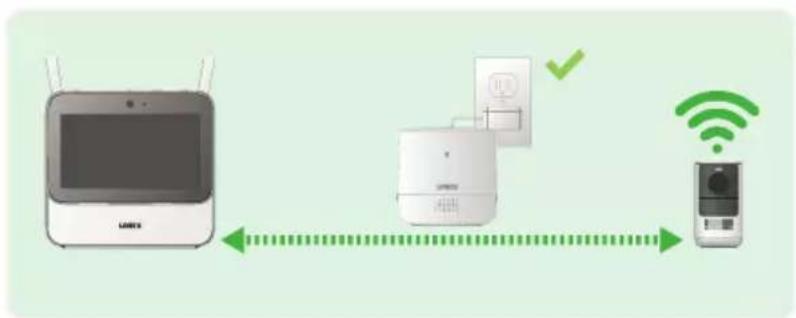
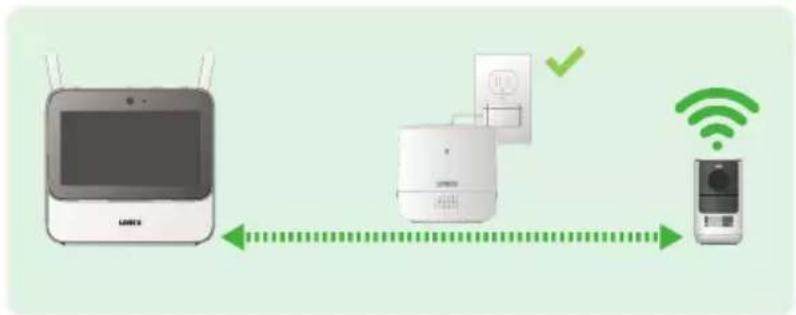
- Place the Extender between the LSHSC and your other devices.
- Connect power to the Extender using a nearby outlet.
- Pair your Extender to the LSHSC per the Device Setup page (p. 7).
Note: Reduce the number of obstructive materials, such as walls, between the extender and your other Lorex devices.
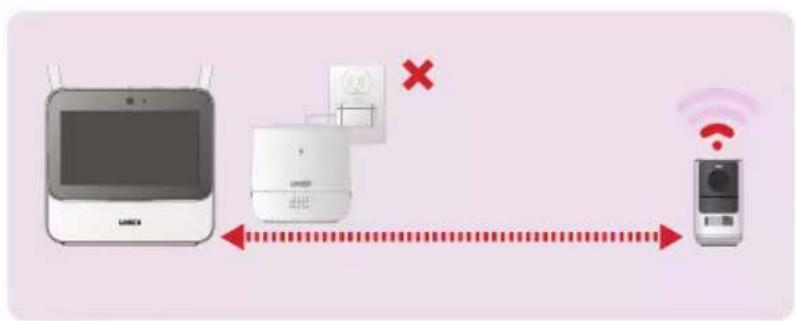
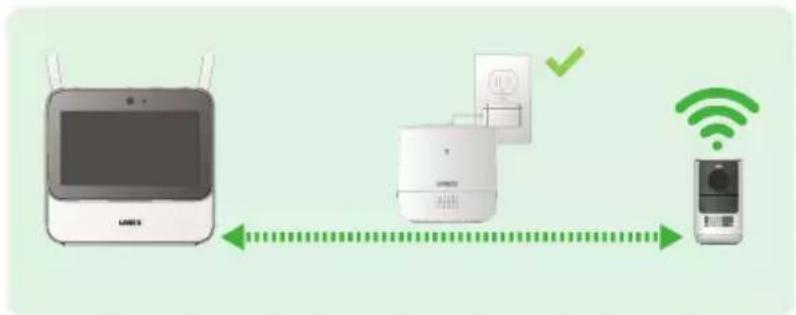
flowchart
graph LR
    A["Wi-Fi Device"] -->|Green Signal| B["Smart Phone"]
    B -->|Green Signal| C["Mobile Device"]
    style A fill:#f9f,stroke:#333
    style B fill:#ccf,stroke:#333
    style C fill:#cfc,stroke:#333




Extender Device Settings
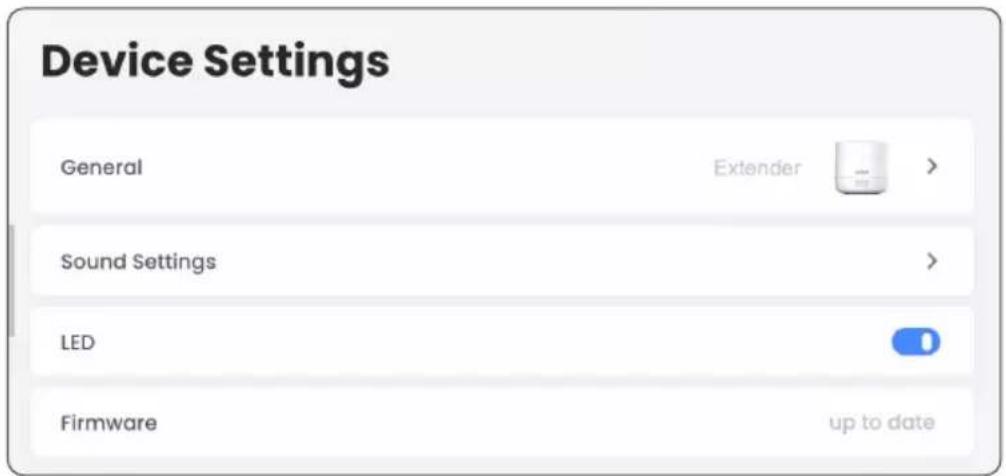
You can view the Extender's device information or change the settings for sounds, enable or disable the status indicator, and update the firmware, all through the LSHSC.
To open the extender's device settings:
- Unlock your LSHSC and tap on All from the tab above the device live view.
- Tap the device settings icon next to the Extender.




Need help?
Visit help.lorex.com for up-to-date information and resources:
- Download product guides
- Watch how-to-videos
• Find related troubleshooting tips & FAQs
Register your product
Please see our full Terms of Service and Limited Hardware Warranty Policy at lorex.com/warranty.


This device complies with part 15 of the FCC Rules. Operation is subject to the following two conditions: (1) This device may not cause harmful interference, and (2) This device must accept any interference received, including interference that may cause undesired operation.
Copyright © 2021 Lorex Corporation
As our products are subject to continuous improvement, Lorex reserves the right to modify product design, specifications and prices, without notice and without incurring any obligation. E&OE. All rights reserved.
HC64A_QSG_TRILINGUAL_R4

Ancrages (x6)* Vis (x6)*

natural_image
Exterior view of a black rectangular electronic device with a cable extending from its side (no visible text or symbols)natural_image
3D rendering of a black rectangular electronic device with a green circular icon on top (no text or symbols visible)natural_image
Illustration of a hand interacting with a tablet device (no text or symbols visible)natural_image
Illustration of a tablet device with a blue thumbs-down gesture and upward arrow, no text or symbols present.natural_image
Illustration of a hand pointing at a screen with a downward arrow, labeled 'LINK' at the bottom (no text or symbols on the diagram itself)natural_image
Diagram showing a device connected to an electrical outlet with a plug and cable (no text or symbols present)Remarque :
Devices

Tap to add your first device




natural_image
Illustration of a generic electronic device labeled 'LOREX' with two blue handles (no text or symbols on the device itself)12




Assistance vocale Lorex
natural_image
Illustration of a bookshelf with three books and a mobile phone on a shelf (no text or symbols)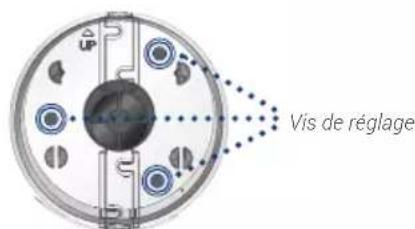
flowchart
graph LR
    A["LANX"] -->|Green Dots| B["Mobile Phone"]
    B -->|Green Cross| C["Wi-Fi Sensor"]
    style A fill:#f9f,stroke:#333
    style B fill:#ccf,stroke:#333
    style C fill:#cfc,stroke:#333




23




Besoin d'aide?
Copyright © 2021 Lorex Corporation
natural_image
Exterior view of a gray electronic device with a cable extending from its side (no visible text or symbols)Rojo: batería baja
natural_image
3D rendering of a gray rectangular electronic device with a green circular connector on top (no text or symbols visible)natural_image
Illustration of a hand interacting with a touchscreen device (no text or symbols visible)natural_image
Illustration of a tablet device with a blue speech bubble and directional arrows, no text or symbols present.natural_image
Illustration of a hand pointing at a screen with a downward arrow, labeled 'LOMEX' (no text or symbols on the device itself)natural_image
Diagram showing a triangular device connected to a plug and cable with an electrical outlet (no text or symbols)Nota:
Devices

Tap to add your first device




natural_image
Illustration of a generic electronic device with two blue handles and a screen, labeled 'LOREX' at the bottom (no other text or symbols visible)12




natural_image
Illustration of a bookshelf with three books and a mobile phone on a shelf (no text or symbols)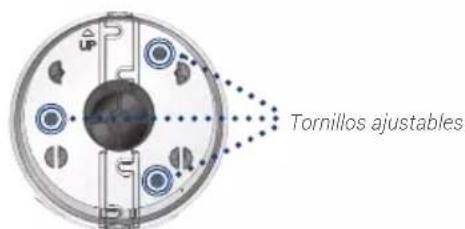
flowchart
graph LR
    A["Satellite"] -->|Wireless Signal| B["Mobile Phone"]
    B -->|Wi-Fi Signal| C["Smart TV"]




Copyright © 2021 Lorex Corporation

- Safety precautions
- Disclaimers
- Attention
- Contents
- Package Contents
- Before You Start
- To charge the battery pack:
- LSHSC Overview
- LSHSC Status Indicator & Basic Operations
- Touchscreen Gestures
- LSHSC Setup
- Optional: Face Unlock
- Note:
- Network Setup
- Device Setup
- LSHSC App Setup
- LSHSC Live View
- LSHSC Placement
- Lorex Voice Assistant
- Camera Overview
- Camera Status Indicator
- Camera Setup & Placement
- To optimize motion detection accuracy when mounted on a wall:
- To optimize motion detection accuracy when placed on a shelf:
- To mount the camera:
- Extender Overview
- Extender Status Indicator
- Extender Setup & Placement
- Extender Device Settings
- To open the extender's device settings:
- Need help?
- Register your product
- Remarque :
- Assistance vocale Lorex
- Besoin d'aide?
- Nota:
Brand : Lorex
Model : HC64ATU-W
Category : Surveillance Camera