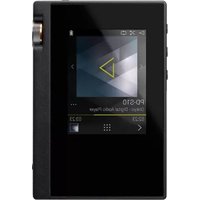
PD-S10B - Portable audio player ONKYO - Free user manual and instructions
Find the device manual for free PD-S10B ONKYO in PDF.


| Product Type | High-fidelity portable audio player |
| Brand | Onkyo |
| Model | PD-S10B |
| Display | 2.4 inches, 240 x 320 pixel resolution, capacitive touch |
| Internal memory | 16 GB (including system part) |
| External memory | 2 micro SD card slots, up to 256 GB each |
| Supported audio formats | DSD (DSF/DSDIFF, native 2.8/5.6 MHz), FLAC, etc. |
| Wireless connectivity | Wi-Fi 802.11 a/b/g/n, Bluetooth A2DP/AVRCP with aptX HD |
| Headphone output | 3.5 mm jack (16-300 Ω) and 2.5 mm balanced jack (32-600 Ω) |
| Output power | 75 mW + 75 mW (unbalanced, 32 Ω); 150 mW + 150 mW (balanced, 32 Ω) |
| Signal-to-noise ratio | 115 dB or more |
| Harmonic distortion | 0.006% or less |
| Frequency response | 20 Hz - 80,000 Hz |
| Battery life | 15 hours (FLAC 24/96, screen and wireless off) |
| Weight | 135 g |
| Dimensions (W x H x D) | 63 mm x 94 mm x 15 mm |
| Power supply | Rechargeable battery via micro USB |
| Main features | Audio playback, library, playlists, online services (TuneIn, Deezer, TIDAL), line out, A.C.G. balanced mode, equalizer, digital filters |
| Maintenance and cleaning | Protect from dust; apply the provided screen protector; do not obstruct the built-in antenna |
| Safety | Do not use both headphone jacks simultaneously; do not connect headphones outside the impedance range; use only the provided micro USB cable |
Frequently Asked Questions - PD-S10B ONKYO
User questions about PD-S10B ONKYO
0 question about this device. Answer the ones you know or ask your own.
Ask a new question about this device
Download the instructions for your Portable audio player in PDF format for free! Find your manual PD-S10B - ONKYO and take your electronic device back in hand. On this page are published all the documents necessary for the use of your device. PD-S10B by ONKYO.
USER MANUAL PD-S10B ONKYO
High Fidelity Audio Player
取扱説明書
Instruction Manual
Mode d'emploi
natural_image
Line drawing of a rectangular electronic device with a square top and two ports (no text or symbols)2
3

⑳
初期設定が自動で開始

PC から音楽をコピーする
natural_image
Illustration of a person using a laptop with a small icon on the screen (no text or symbols)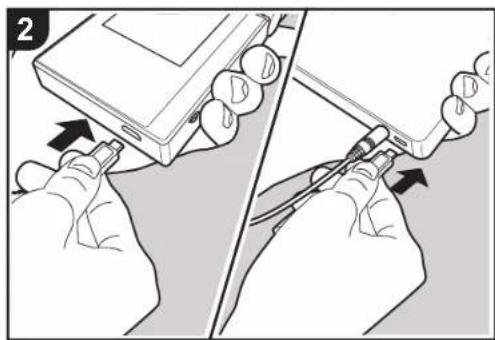
natural_image
Illustration showing hands connecting a device to a cable or connector, with no visible text or symbols
natural_image
Diagram of an open CD or DVD disc being placed into a physical case, with arrows indicating rotation direction (no text or symbols present)
natural_image
Illustration showing two-step tool manipulation: one on a device with screwdriver, the other on a smartphone with screwdriver (no text or symbols)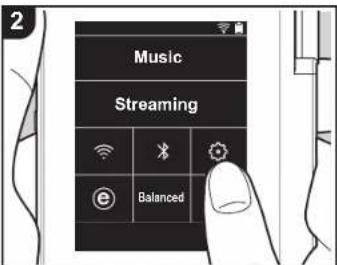
FLAC/ALAC/WAV/AIFF/MP3/AAC/MQA (44.1 kHz/48 kHz/88.2 kHz/96 kHz/176.4 kHz/192 kHz (16 bit/24 bit/32 bit)) DSD/DSF/DSDIFF *DSD ネイティブ (2.8 MHz/5.6 MHz (1 bit))
実用最大出力 (JEITA)
The Wi-Fi CERTIFIED Logo is a certification mark of Wi-Fi Alliance ^® .
e-onkyo music
http://www.jp.onkyo.com/support/servicebase.htm
■保証書について
© 2018 Onkyo & Pioneer Corporation. All rights reserved. Onkyo group has established its Privacy Policy, available at [http://www.onkyo.com/privacy/] © 2018 Onkyo & Pioneer Corporation. Tous droits de reproduction et de traduction réservés.
ONKYO
PD-S10
High Fidelity Audio Player
取扱説明書
Instruction Manual
Mode d'emploi
> Before Start > Part Names > Initial Setup > Playback
Advanced Setup | Supplementary Information | Others

Table of Contents
Before Start 2
What's in the box 3
Part Names ....4
Part Names ....4
Initial Setup 6
Turning the power on and initial settings ....6
Playback 8
Copying music with "X-DAP Link" 8
Dragging and dropping to copy music ....13
Listening to music from the "Library" ....14
Creating a play list 16
Using network services 17
Connecting BLUETOOTH ^® .....18
Line Out 19
USB Output 20
Advanced Setup 21
Various settings 21
Audio Adjust 24
Customizing the Home screen 26
Software Update 27
Supplementary Information ......29
Supplementary Information ......29
Others 30
Entering text ....30
General Specifications ....31
Cautions for use 32
> Before Start > Part Names > Initial Setup > Playback
Advanced Setup | Supplementary Information | Others

What's in the box
1
natural_image
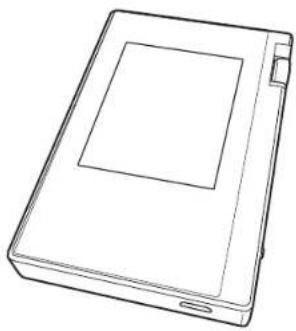
Line drawing of a rectangular electronic device with a square top and two ports at the bottom (no text or symbols)- Main unit (1)
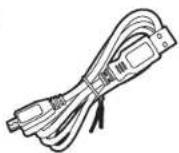
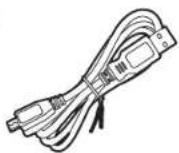
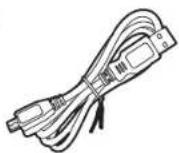
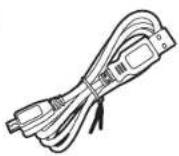
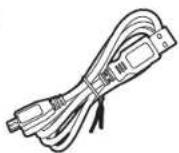
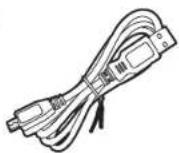
- micro USB cable (1)
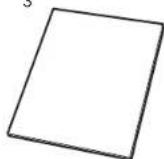
- Protective film (1)
This protects the main unit. Peel off the temporary film on the display first, then attach this film.
• Quick Start Guide (1)
* This document is an online instruction manual. It is not included as an accessory.
2
3

Part Names
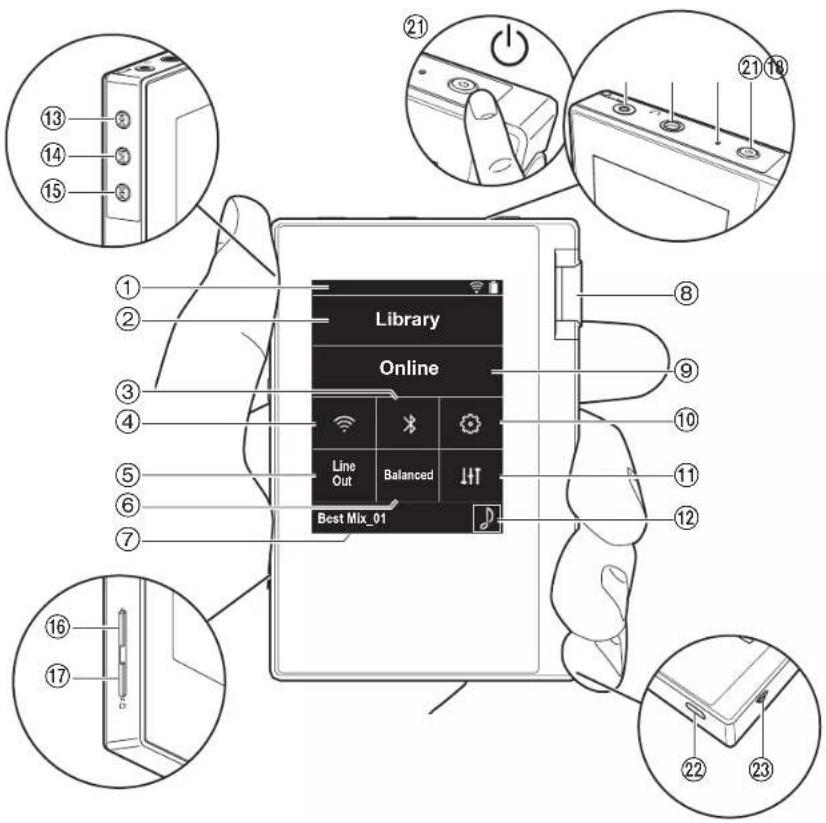
20
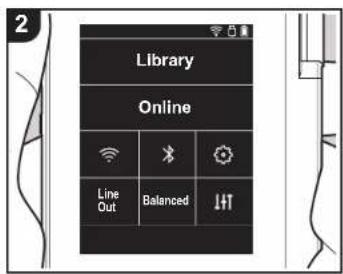
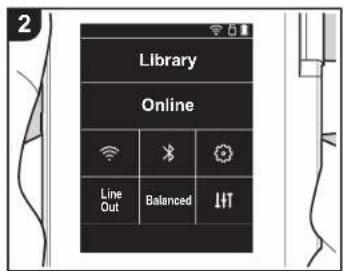
- Status bar
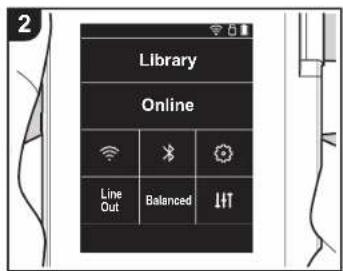
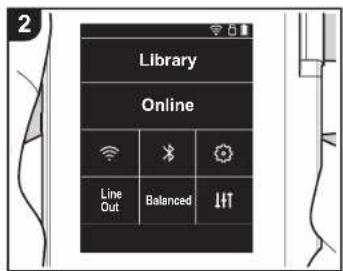
- Library: Tap to display the tracks copied from your computer (P14).
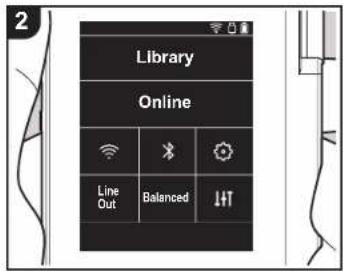
- Turn on or off the BLUETOOTH feature. "is displayed on the status bar when this is on. Pairing is necessary to connect BLUETOOTH wireless technology enabled devices. Refer to "Connecting BLUETOOTH®" (P18) for connection settings.
- Tum on or off the Wi-Fi feature. "Is displayed on the status bar when this is on. Connection settings are necessary to use Wi-Fi features. Refer to "2. Wi-Fi" (P7) for connection settings.
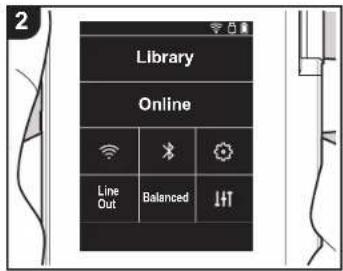
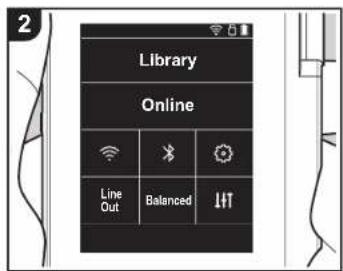
- Line Out: You can switch the headphone output to the line output mode to connect external equipment. "Line Out" is displayed on the status bar when this is on.
- Tap when using balanced headphones and switch between the "Balanced" and "ACG" modes. Balanced: Compared to the normal single-ended operation, this mode enables you to get a larger output and as the high voltage is not grounded together with the small signal, you can anticipate superior music quality. Because you get a larger output, you can drive headphones with a higher impedance. ACG: The basic operating method is the same as Balanced (mode), but uses technology to even more forcefully fix grounding standards, so you can enjoy a sound quality with improved clarity and stability than Balanced (mode). Output volume is the same as the regular single-ended operation, however.
- Shows the name of the track being played. Tap to display the play screen.
- Volume dial: Turn the dial to adjust the volume.
- Online: Tap to switch to a screen showing a list of network services, such as TuneIn Radio, etc. (P17)
- You can make various settings for the unit, such as Wi-Fi and BLUETOOTH settings (P21).
- You can set to your preferred sound quality (P24).
- Artwork: Displays the album art of the track being played. Tap to display the play screen.
- Skip (button: Skip to the next track. Press and
> Before Start > Part Names > Initial Setup > Playback
Advanced Setup | Supplementary Information | Others

hold to fast-forward through the track.
-
Play/pause (▶ button
-
Skip (P) button: Skip to the beginning of the track or to the previous track. Press and hold to rewind the track quickly.
16.micro SD card slot 1
17.micro SD card slot 2
- When inserting the micro SD card into the card slot, insert with the contacts facing up and push in completely so the card clicks into place.
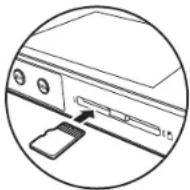
- To remove the micro SD card, first unmount it (P32). After unmounting, push the micro SD card in until you hear a click and then pull straight out. The micro SD card may spring out so take care not to lose it.
-
Headphone jack ( ) Connect headphones compatible with balanced output. (2.5 mm/4-conductor)
-
Headphone jack (J) Connect regular headphones. (3.5 mm/3-conductor)
- This unit does not support simultaneous use of the balanced headphone jack and the headphone jack. Using both jacks at the same time may result in damage.
-
Charging lamp: This lights white when charging starts. It turns off when recharging finishes. If the unit is in a state that prevents charging, it flashes white. Try charging again after waiting a while.
-
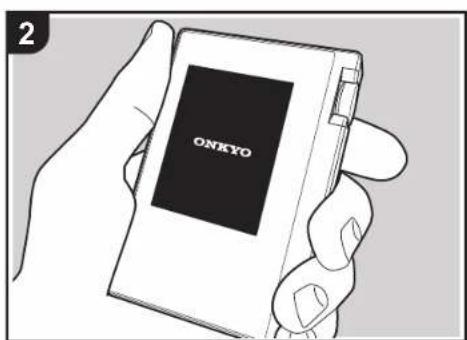
Power button (☐): Press and hold the power button to turn the power on. To turn the power off, press and hold the power button so the "Power Off?" screen is
displayed. You can turn the power off by tapping "Yes". To turn the display on or off, just press the button.
- If operation becomes unstable, you can shutdown the unit by pressing and holding the power button for 10 or more seconds. Refer to "If operation becomes unstable" (P32) for details.
-
micro USB port: To charge the unit (P6) or transfer music files (P8, P13), connect the supplied micro USB cable.
-
HOLD switch: You can lock operations on this unit by sliding the switch up. When the "Operations while Holding" (P22) setting is "Enable", the volume dial and side buttons for play, etc., can still be used.
Before Start
Part Names
Initial Setup
Playback
Advanced Setup | Supplementary Information | Others
Turning the power on and initial settings
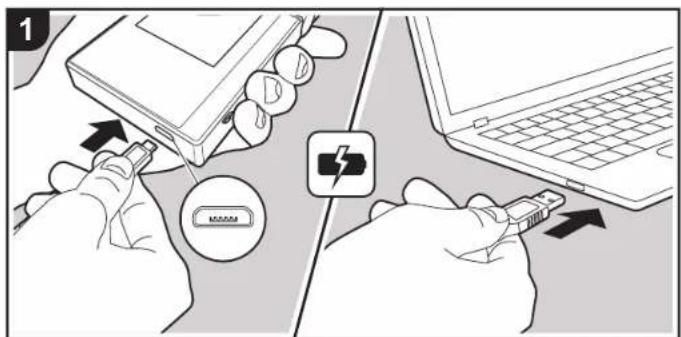
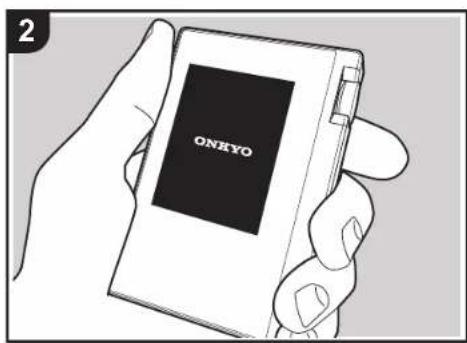
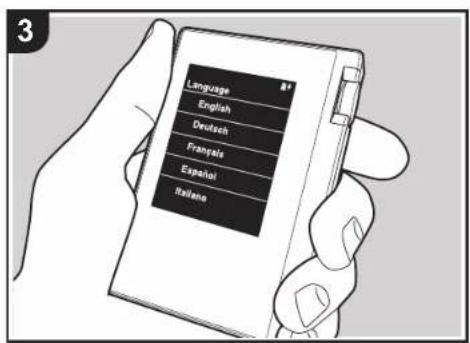
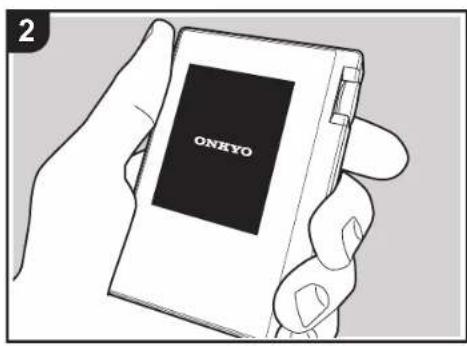
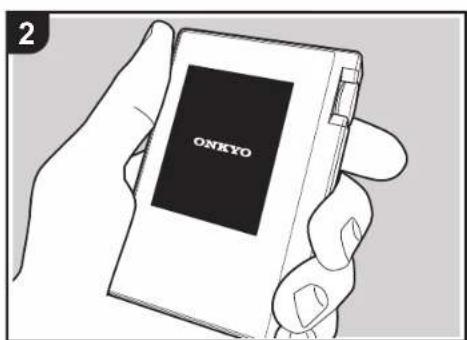
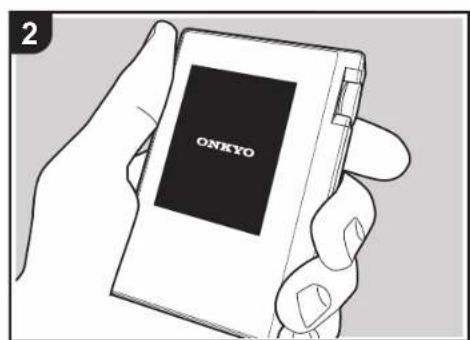
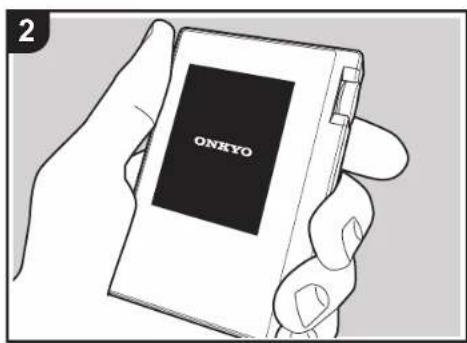
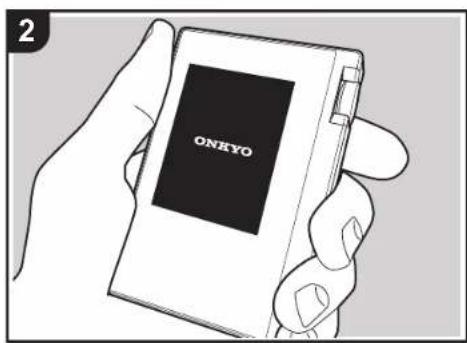
Initial Setup starts automatically
- The battery is not charged at the time of purchase. Charge the unit with the supplied micro USB cable before use. Connect so the wider side of the plug is down when inserting into this unit's micro USB port. The recharging mark is displayed at the top right of the screen when recharging.
- As malfunction may result, do not use the accessories with devices other than this unit and do not use a USB cable other than the supplied one with this unit.
- You can also recharge while the unit is on. The time for recharging may increase in this case.
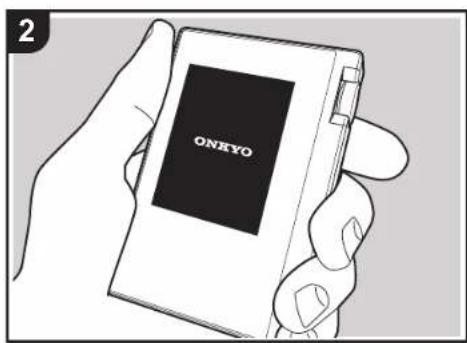
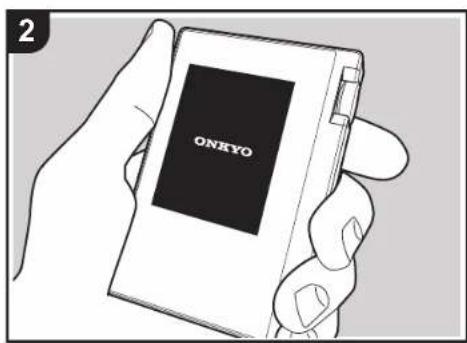
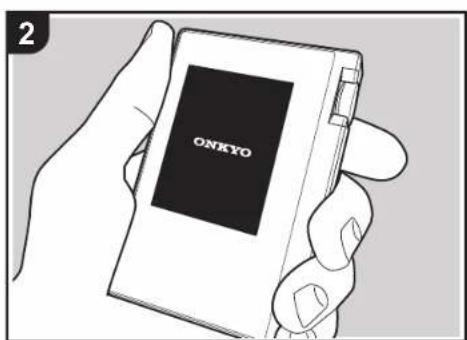
- The power comes on automatically when recharging starts, and the initial settings start.
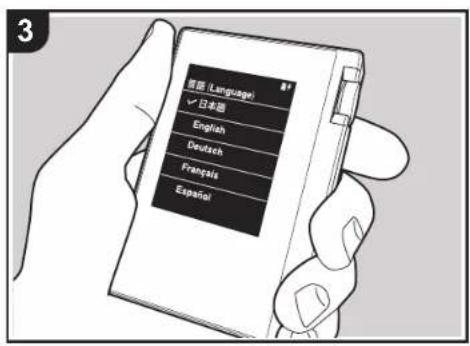
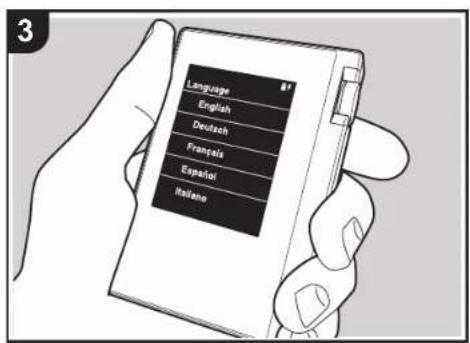
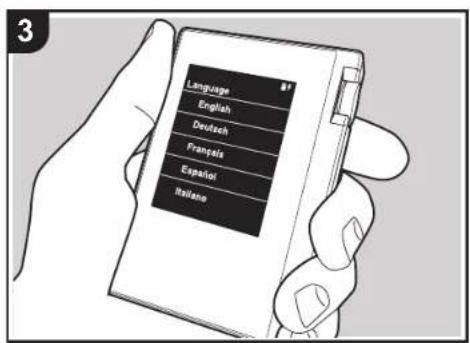
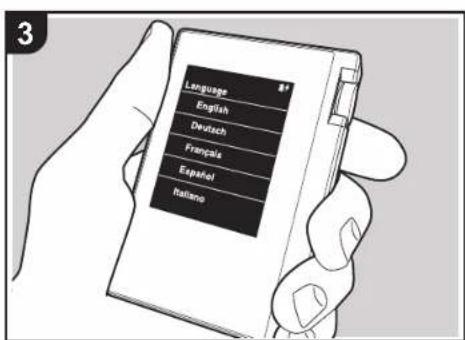
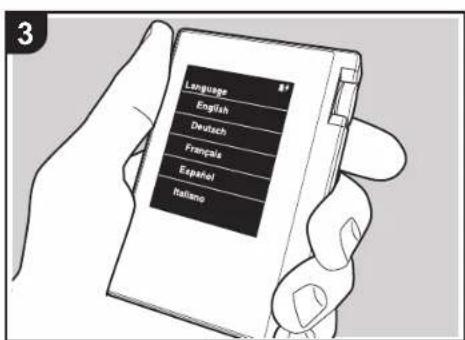
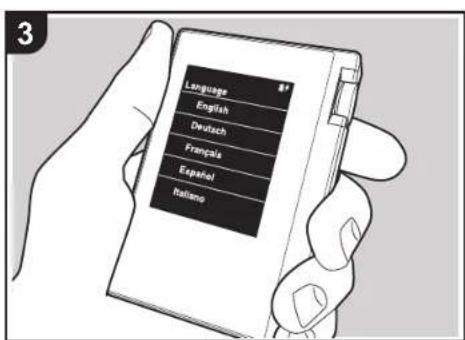
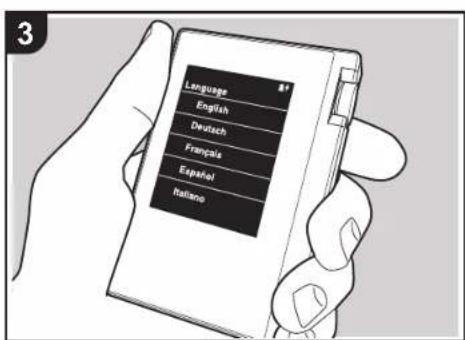
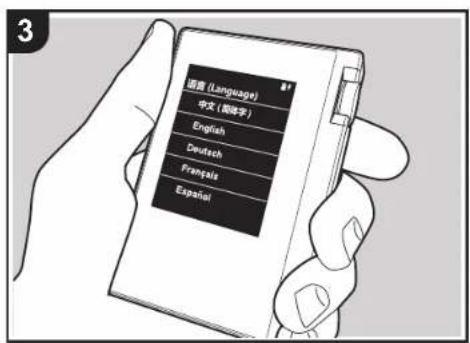
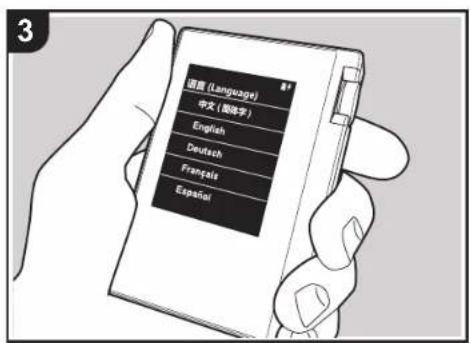
- Select the language you want to use first. Flick the list of languages up or down, then tap the language you want to use. When you select the language, a confirmation for the initial settings is displayed. Tap "Yes". If you tap "No", you will ext the initial settings and the home screen is displayed.
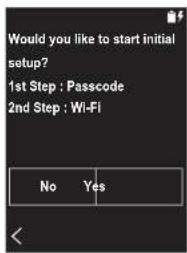
- "Passcode (P23)" and "Wi-Fi (P21)" settings can be completed later.
Before Start
Part Names
Initial Setup
Playback

Advanced Setup | Supplementary Information | Others
■ 1. Passcode
Set the pass code used to protect this unit. When you set a pass code, the pass code screen is displayed when the power is turned on or when restoring from display off. You should create a pass code to protect your account if you are going to use a network service.
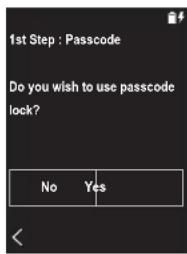
- Enter any four digit number. If you made a mistake with an entry, tap "☒"
- Enter the pass code again to confirm.
- If you enter the wrong pass code three times, a message appears asking if you want to initialize the unit's settings. Note that even if the settings are initialized, the copied music files are not deleted.
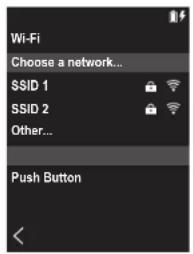
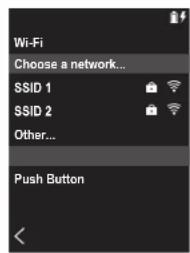
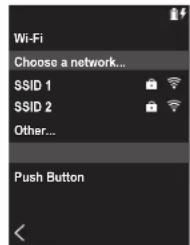
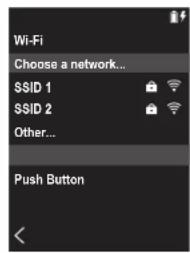
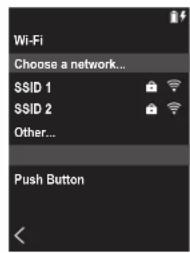
2. Wi-Fi
Set to use network services such as TuneIn Radio on this unit.
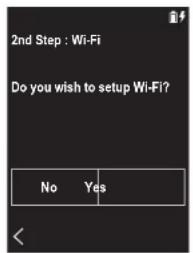
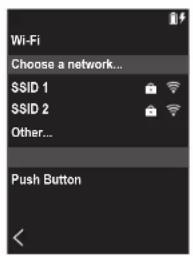
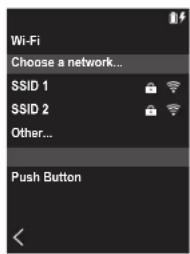
Wi-Fi can be connected in the following two ways.
Selecting SSID:
- Tap the SSID of the access point you want to connect from the SSID displayed.
- If the SSID of the access point is not displayed, tap "Other..." in the SSID list and follow the on screen instructions to configure.
- After tapping the field for entering the password, enter the password of the access point, then tap "Connect". For details on how to enter text, refer to "Entering text" (P30).
- "s displayed on the status bar on the screen when
the connections are complete.
Using the push button:
- The access point needs to have an automatic setting button.
- Tap "Push Button" on the screen and press the automatic setting button on the access point.
- The operation of the automatic setting button depends on your device. Refer to the instruction manual of your device for instructions.
- "Is displayed on the status bar on the screen when the connections are complete.
> Before Start > Part Names > Initial Setup > Play back
Advanced Setup | Supplementary Information | Others
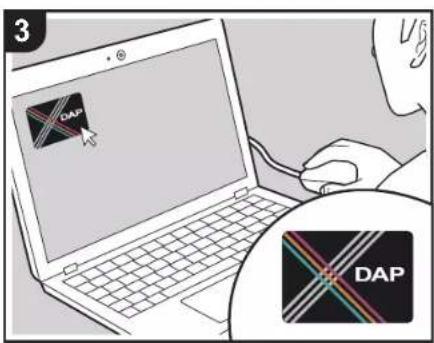
Copying music with "X-DAP Link"
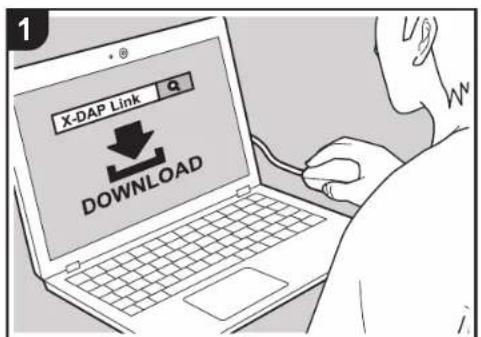
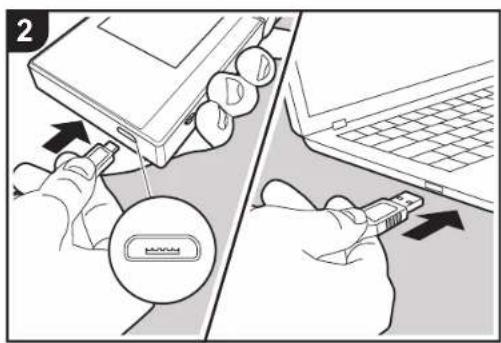
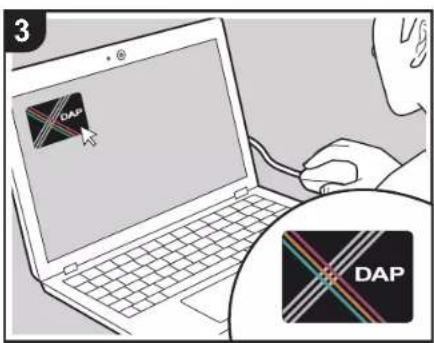
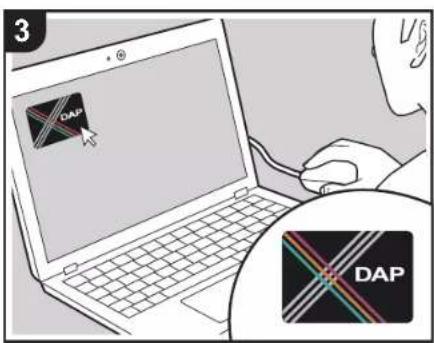
You can copy music files stored on your computer to the built-in storage on this unit or to a micro SD card in this unit, then listen to the music through the "Library" (P14). You can copy either using the data copying software "X-DAP Link" or by dragging and dropping (P13).
• X-DAP Link is compatible with Windows® 10 (32bit/64
bit), Windows ^® 8/8.1 (32 bit/64 bit), and Windows ^® 7 (32 bit/64 bit).
- To copy to a micro SD card, insert a micro SD card into the card slot (P5).
- When removing the micro SD card, unmount the micro SD card before removing it (P32).
- NTFS format micro SD cards are not supported on this unit.
Install [X-DAP Link] on your computer
This unit supports X-DAP Link versions 1.2.0 and later. When using version 1.2.0 or earlier, install the latest version before continuing.
Perform the following procedure when the unit is on.
1. Start your computer and download the installer for X-DAP Link from the following site.
http://www.jp.onkyo.com/audiovisual/portable/dap/license.htm
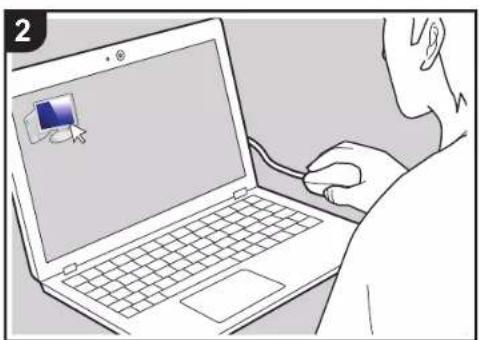
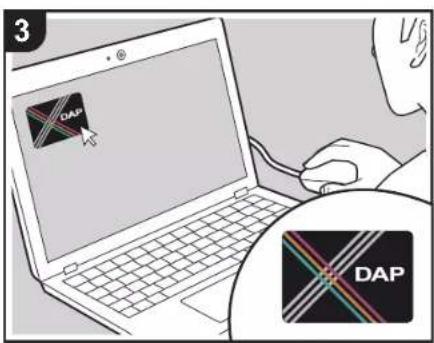
Double-click "setup.exe" to install. Follow the on-screen instructions to install. A shortcut is created on the desktop after installation.
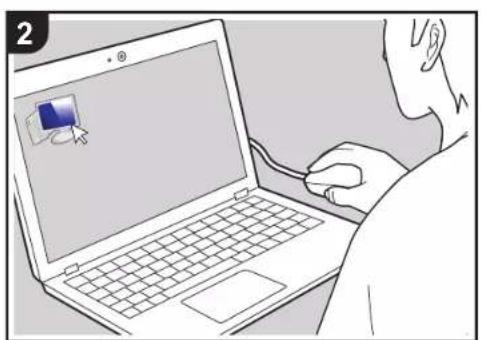
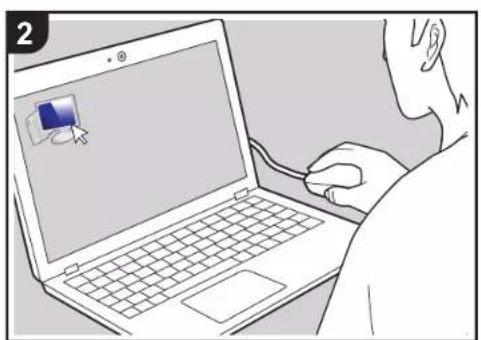
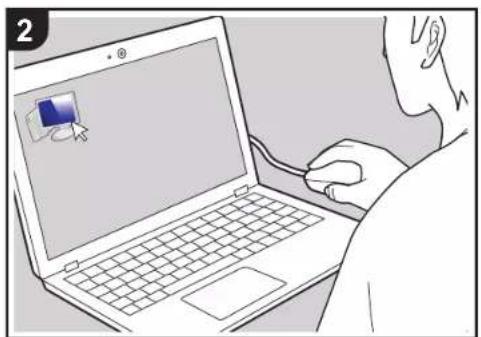
2. Connect this unit to a computer with the supplied micro USB cable. Connect so the wider side of the plug is down when inserting into this unit's micro USB port. You may damage the plug or jack if you try to insert it the wrong way.
Screen "Change to USB Mass Storage Mode?" is displayed, so tap "Yes". Do not tap "Unmount", displayed when you tap this, until the transfer of the playlist is complete. If you do tap it, unplug the micro USB cable, then connect it again.
Before Start
Part Names
Initial Setup
Playback
Advanced Setup | Supplementary Information | Others
![ONKYO PD-S10B - Install [X-DAP Link] on your computer - 1](/content/2026/04/667251/images/f430a3cae2c5eaa0b24b05b3ada8d549150b57aa0951e419a1329e60da34e35a.jpg)
- Start X-DAP Link. The following types of screens are displayed when you start it.
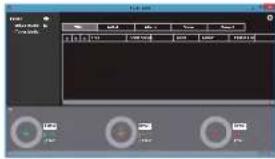
Copying music from a computer
- Click ① and select the folder that contains the music files you want to copy. If the folder you want to copy is already displayed, start selecting from ②.
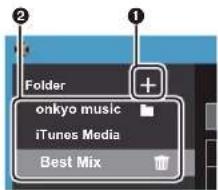
onkyo music
If there are music files you have downloaded from onkyo music (a site that distributes music files), select this folder.
iTunes Media
If you are using iTunes ^® , a play list and content are displayed. If iTunes cannot be selected, open "Preferences" - "Advanced" in iTunes, then put a check mark next to "Share iTunes Library XML with other applications".
• There may be some differences in the operations screens and how operations are performed depending
on the iTunes version. For details, see the operating instructions for iTunes.
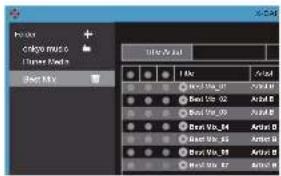
- A list of music files is displayed in the center of the screen when you select it.
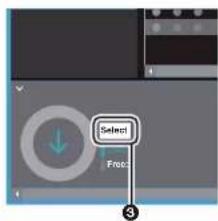
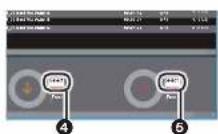
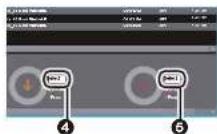
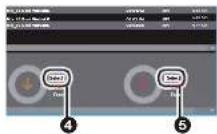
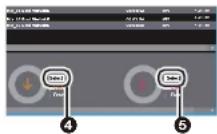
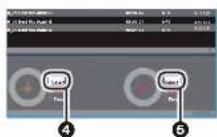
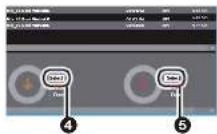
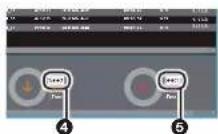
- Click ③ in the bottom left of the screen and select the copy destination. When copying to the Internal Storage of this unit, select "Internal", when copying to a micro SD card, select the "Removable disk" for the card to be copied to, then click "OK". You can also click ④ ⑤ to specify different copy destinations to ③.
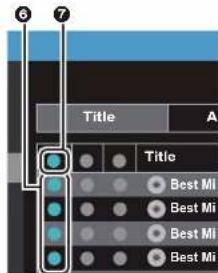
- Select the music files you want to copy according to the copy destination specified in step 3. If the copy destination was selected by clicking ③, put check marks in the column ⑥ to the left of the music files to be added. By clicking the check button ⑦ at the very top of the list, you can either select or deselect all tracks. • If there are already copied music files in the copy destination, the check button is automatically selected. If there are music files that you want to delete from this unit, deselect them.
Before Start
Part Names
Initial Setup
Playback

Advanced Setup | Supplementary Information | Others
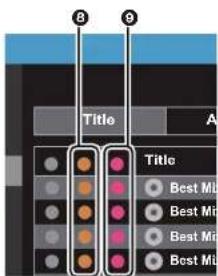
If the copy destination was selected by clicking ④, click ⑧ in the central column, and if ⑤ was clicked to select the copy destination, click the check button ⑨ in the column on the right.
- If the copy destination was selected by clicking ③ in step 3, click ⑩.
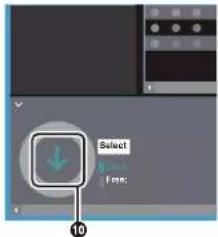
If the copy destination was selected by clicking ④, click ⑪, and if ⑤ was selected click ⑫.
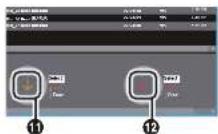
- When "OK" is selected in the confirmation screen, the selected music files are copied to this unit.
- When copying a music file and an error message is displayed, restart this unit and perform the operation again. If the error message is displayed again, use your computer to delete the "xdaplink" folder from the built-in storage of this unit.
- Tap "Unmount" on this unit's screen and unplug the micro USB cable. Refer to "Listening to music from the "Library" (P14) for play operations.
Creating a play list with "X-DAP Link"
You can create a playlist with "X-DAP Link", then transfer it together with the music files to this unit. Creating playlists with X-DAP Link is supported with X-DAP Link versions 1.3.0 or later. When using version 1.3.0 or earlier, install the latest version before continuing.
Perform the following procedure when the unit is on.
- Connect this unit to a computer with the supplied micro USB cable. Connect so the wider side of the plug is down when inserting into this unit's micro USB port. You may damage the plug or jack if you try to insert it the wrong way. Screen "Change to USB Mass Storage Mode?" is displayed, so tap "Yes". Do not tap "Unmount", displayed when you tap this, until the transfer of the playlist is complete. If you do tap it, unplug the micro USB cable, then connect it again.
- Start X-DAP Link
- Click the ① on the left of the screen and enter the
Playlist name. The playlist you created is added to the left of the screen when you click "OK".
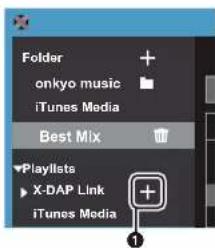
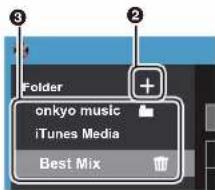
- Click ② and select the folder that contains the music files you want to add to the playlist. If the folder you want to add to the playlist is already displayed, start selecting from ③.
> Before Start > Part Names > Initial Setup > Playback
Advanced Setup | Supplementary Information | Others
- Drag and drop the music files you want to add to the playlist to the playlist you have created.
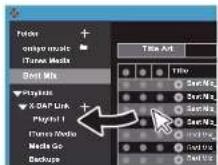
-
Repeat steps 4 and 5 to keep adding tracks to the play list.
-
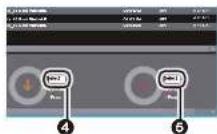
Click 4 in the bottom left of the screen and select the transfer destination.
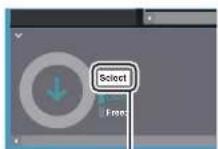
4
- When transferring to the built-in storage of this unit, select "Internal", when transferring to a micro SD card, select the "Removable disk" for the card to be copied to, then click "OK" at ⑤.
- Irrespective of the destination you transferred the playlist to, it is displayed in the same place in a list on this unit.
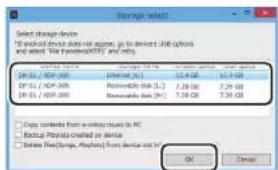
6
- When the playlist to be transferred to this unit is selected, a screen similar to the one shown below is displayed in the middle of the screen. After putting a check mark in ⑥ on the left hand edge, click ⑦.
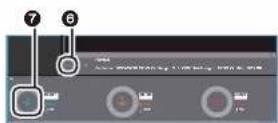
- When "OK" is selected in the confirmation screen, the selected playlist is copied to this unit.
- When transferring a playlist and an error message is displayed, restart this unit and perform the operation again. If the error message is displayed again, use your computer to delete the "xdaplink" folder from the built-in storage of this unit.
- Tap "Unmount" on this unit's screen and unplug the micro USB cable. Refer to "Loading playlists" (P16) for how to load playlists.
Backing up playlists on your computer
You can back up playlists you have created on this unit to your computer using X-DAP Link. The playlists you have backed up can be restored by transferring them from X-DAP Link.
To back up:
-
Connect this unit to a computer with the supplied micro USB cable. Screen "Change to USB Mass Storage Mode?" is displayed, so tap "Yes".
-
Start X-DAP Link.
-
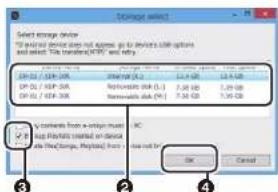
When you press ① at the bottom left of the screen, the "Storage select" screen is displayed.
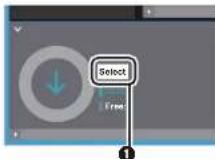
- Select the storage in ②, put a check mark next to "Backup Playlists created on device" in ③, then click "OK" at ④ to start the backup.
- Irrespective of the storage selected, the playlist files created on this unit are backed up to the PC all at once.
• Playlists created on other devices are not backed up.
Before Start
Part Names
Initial Setup
Playback
Advanced Setup | Supplementary Information | Others
- When backing up is complete, the date and time of the backup and the playlist file are added to the left of the screen.
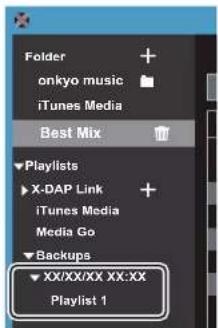
- The playlist files you have backed up cannot be edited on your computer.
To restore:
- Connect this unit to a computer with the supplied micro USB cable. Screen "Change to USB Mass Storage Mode?" is displayed, so tap "Yes".
- Start X-DAP Link
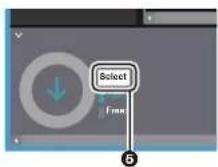
- When you press ⑤ at the bottom left of the screen, the "Storage select" screen is displayed.
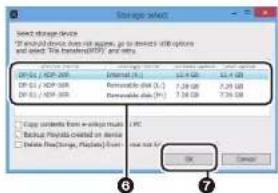
- Select the storage destination to restore the playlist file at ⑥, then click "OK" at ⑦.
- Irrespective of the storage selected as the restore destination, the playlist is restored automatically as a playlist for this unit.
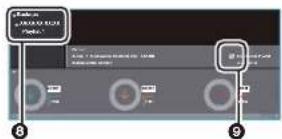
- Select the playlist file you want to restore at ⑨, then put a check mark next to "Send backup Playlist to the device" at ⑩ at the right of the screen. Note that if there is a playlist with the same name on this unit when you restore a playlist, the playlist is overwritten.
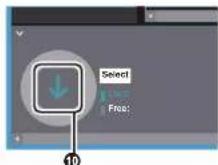
- Click 10 at the bottom left of the screen then click "OK" to start restoring the file.
> Before Start > Part Names > Initial Setup > Play back
Advanced Setup | Supplementary Information | Others
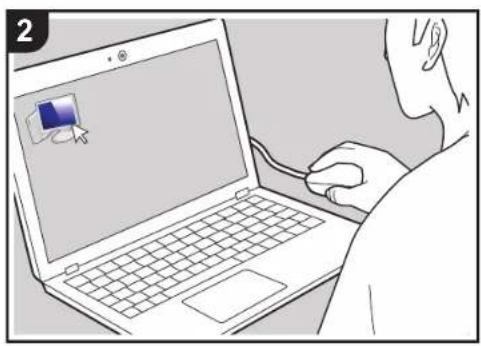
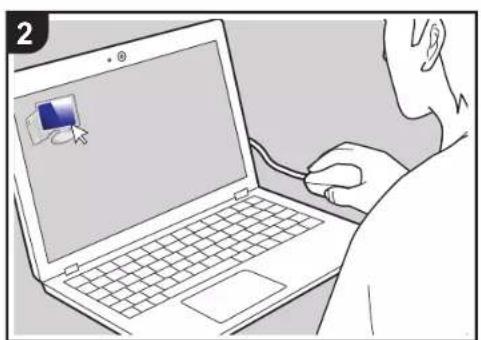
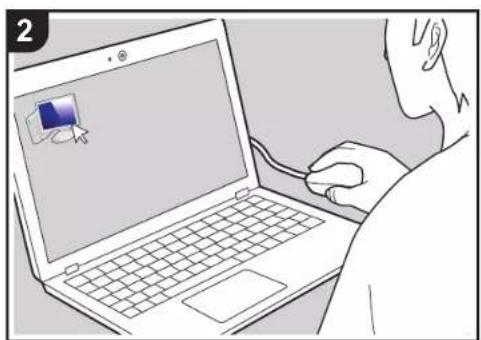
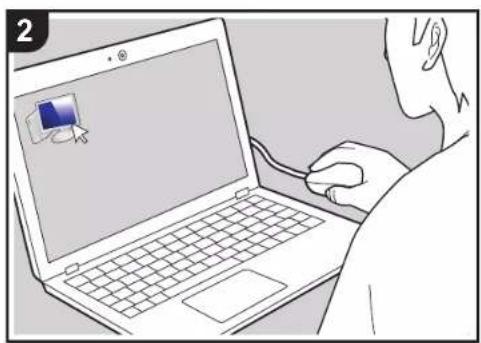
Dragging and dropping to copy music

natural_image
Illustration of a person using a laptop with a small icon on the screen (no text or symbols)You can copy music files stored on your computer to the built-in storage on this unit or dragging and dropping to a micro SD card in this unit, then listen to the music through the "Library" (P14).
- To copy to a micro SD card, insert a micro SD card into the card slot (P5).
- When removing the micro SD card, unmount the micro SD card before removing it (P32).
- NTFS format micro SD cards are not supported on this unit.
Copying music from a computer
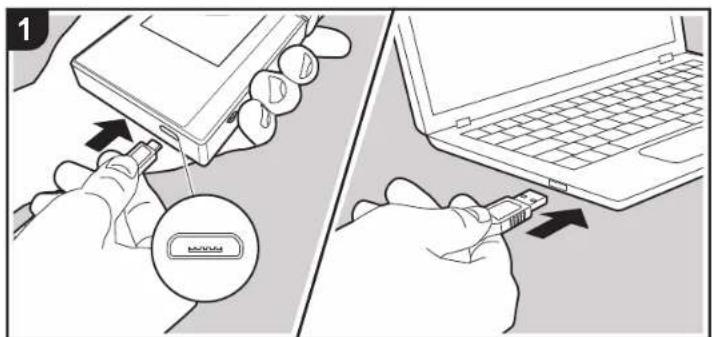
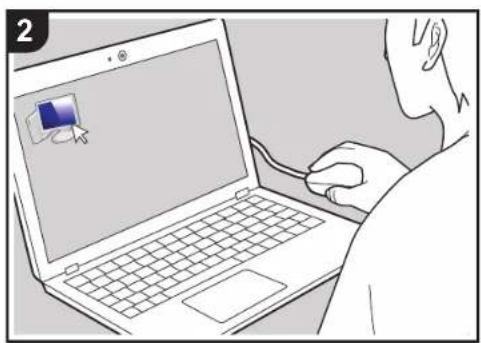
- Connect this unit to a computer with the supplied micro USB cable. Connect so the wider side of the plug is down when inserting into this unit's micro USB port. You may damage the plug or jack if you try to insert it the wrong way. Screen "Change to USB Mass Storage Mode?" is displayed, so tap "Yes". Do not tap "Unmount", displayed when you tap this, until the transfer of the playlist is complete. If you do tap it, unplug the micro USB cable, then connect it again.
- If "AutoPlay" or similar is displayed on your computer, select "Open folder to view files" and then proceed to step 3.
-
Open "PC", "My Computer", etc., on your computer.
-
Select the save destination from the list. To copy to the built-in storage in this unit, open "Internal". To copy to a micro SD card, open the "Removable disk" card you want to copy to.
- The screen displayed depends on the OS and language of your computer.
-
Drag and drop the folder on your computer that contains the music files that you want to copy to the copy destination.
-
Tap "Unmount" on this unit's screen and unplug the micro USB cable. Refer to "Listening to music from the "Library""(P14) for play operations.
> Before Start > Part Names > Initial Setup > P I a y b a c k

Advanced Setup | Supplementary Information | Others
Listening to music from the "Library"
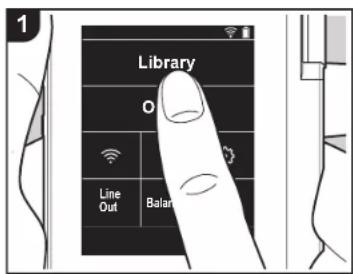
You can listen to music files copied from your computer or to music on an inserted micro SD card. Note that the operations to play are the same for both.
• Refer to (P5) for how to insert the micro SD card.
- When removing the micro SD card, unmount the micro SD card before removing it (P32).
- NTFS format micro SD cards are not supported on this unit.
■ Playing Music with the "Library"
- A categorized list of tracks you copied from your computer is displayed when you tap "Library" in the home screen.
- It may take some time for synchronized tracks to be displayed.
- Flick the list screen up and down then tap on the display category you want.
Folders
All tracks saved in the same folder level are displayed.
Playlists
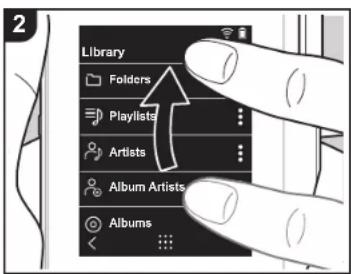
Displays a list of play lists you have created (P16).
Artists
Displays by artists as recorded in the music files as participating artists.
Album Artists
Displays by artists as recorded in the music files as artists participating in the album.
Albums
Displays by album.
Songs
Displays all tracks.
Genres
Displays by genre.
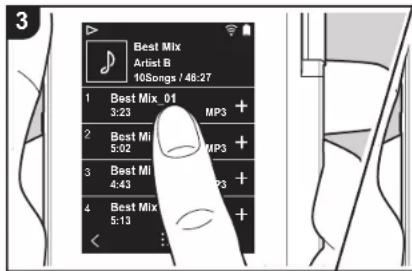
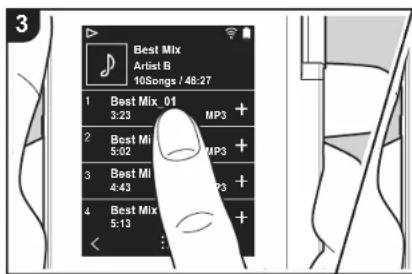
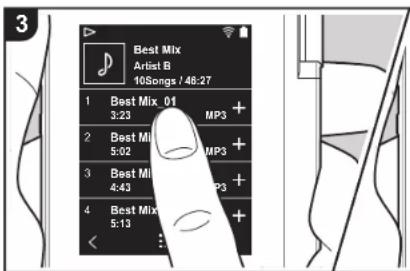
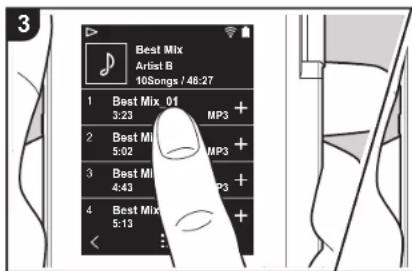
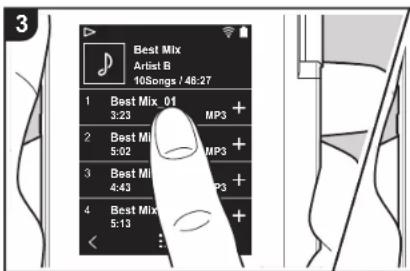
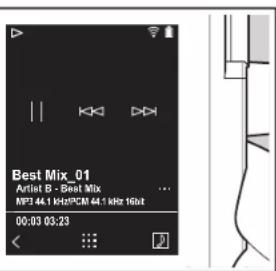
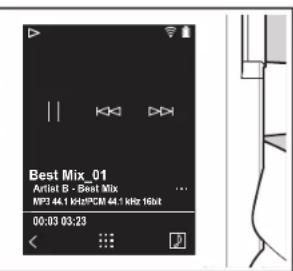
- When you tap the track you want to play in the list of tracks, the screen changes to the play screen and play starts. To return to the list of tracks, tap "at the bottom left of the screen.
- Do not connect headphones that have
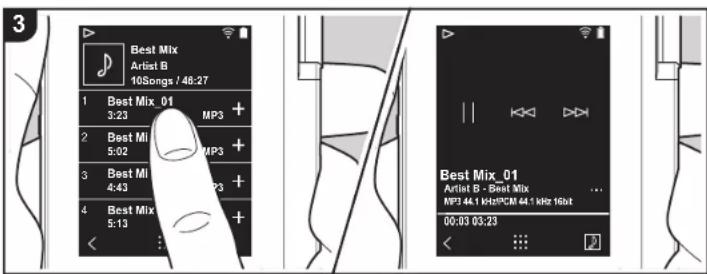
an impedance outside the rated range as this may result in damage. Refer to "General Specifications"(P31) for the headphone specifications.
- At the time of purchase, the Auto sync feature is on, so when music files are copied to this unit or a micro SD card with music files on it is inserted (P5), the data is automatically synchronized. When "Auto sync" (P22) has not been set, tracks may not be displayed.
■ Change the order of categories in "Library"
Tap " : at the right of the screen for the category you want to reorder in the "Library" categorized list, then tap either "↑ or " "↓ Tap " x " to confirm the change in order.
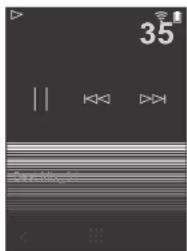
Adjusting the volume
Turn the volume dial to adjust the volume.
- The volume bar is displayed on the screen when you turn the volume dial.
> Before Start > Part Names > Initial Setup > Playback
Advanced Setup | Supplementary Information | Others
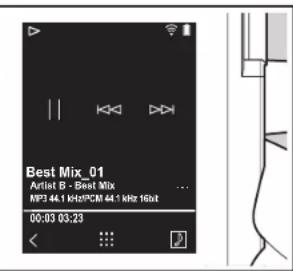
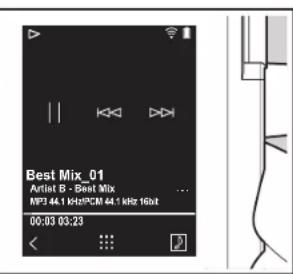
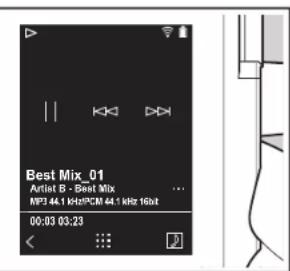
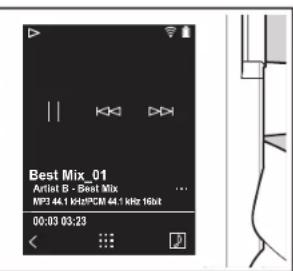
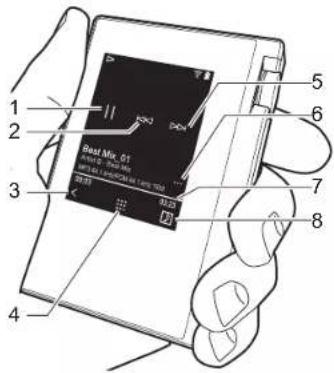
■ The play screen
Screen A
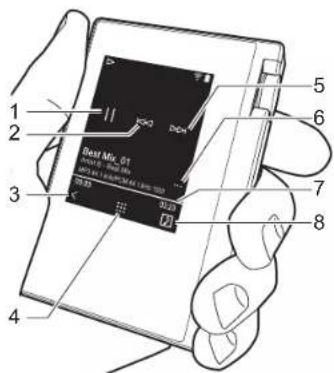
-
Play/pause (▶/■)
-
Skipping (1)
Skip to the beginning of the track or to the previous track.
-
Return to the list of tracks.
-
Switches to the home screen.
-
Skipping (▶▶)
Skip to the next track.
-
Switches to screen B.
-
Seek bar
Progresses along with the track's progress. By swiping left or right from the current play position, you can move the play position to the position where you lift your finger.
- Tap to display the album art.
Screen B
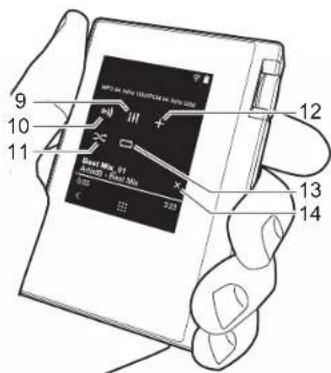
- Audio Adjust
You can set to your preferred sound quality (P24).
- Switch output between "Headphone", "Line Out", or "Bluetooth".
- When "Line Out" is selected, output through the headphone jack is at maximum volume, so do not use headphones. Adjust the volume on the connected device.
- "Bluetooth" is displayed when BLUETOOTH is on and a BLUETOOTH wireless technology enabled device is connected.
- Shuffle mode
You can switch shuffle play on or off by tapping this. " > is displayed on the
status bar on the screen when this is on.
- The track being played is added to the play list (P16).
13.Repeat mode
Tap to change the mode: 1 track repeat, → all track repeat, → no repeat. "☐1 is displayed on the status bar on the screen when 1-track repeat is set, and "☐3 displayed for all-track repeat.
- 1-track repeat cannot be set when the shuffle mode is on.
- Switches to screen A. When you have switched to screen B from the album art screen, this switches to the album art screen.
> Before Start > Part Names > Initial Setup > P I a y b a c k
Advanced Setup | Supplementary Information | Others

Creating a play list

You can select the tracks you like to create your own play list.
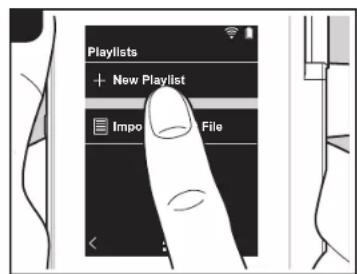
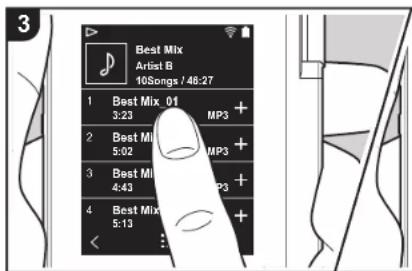
- Tap "Playlists" in the categorized list in the "Library".
- Tap "New Playlist" and enter the title. For details on how to enter text, refer to "Entering text" (P30). Tap "at the bottom left of the screen to switch to the track list when you have finished entering text.
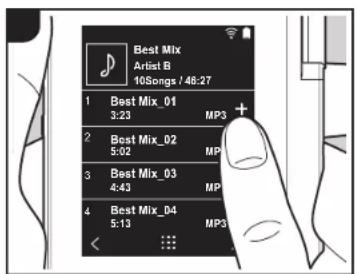
- In the list, tap the "+" to the right of the track you want to add to the play list.
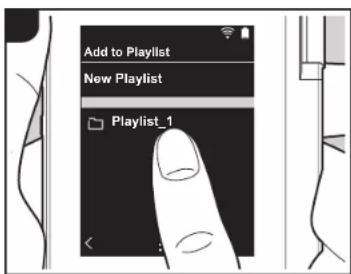
- Tap a play list you have created to register the track in the play list.
- Repeat steps 3 and 4 to keep adding tracks to the play list.
- Play lists created outside the "Library", such as in iTunes, are not displayed in the list of play lists on this unit.
■ Editing a play list
Tap "Playlists" in the list of categories in the "Library" to display the list of play lists.
To delete a play list:
Tap "at the top right of the play list you want to delete, then tap "
To change the name of a play list:
Tap " : at the top right of the play list whose name you want to change, then tap

■ Editing tracks in a play list
Tap "Playlists" in the list of categories in the "Library" to display the list of play lists. Tap the play list you want to edit next.
To delete a track from a play list:
Tap "at the top right of the track you want to delete, then tap "
- Tracks are not deleted from the unit even if you delete them from a play list.
To change the order of tracks in a play list:
Tap " : at the top right of the track you want to reorder, then tap " ↑↓
- Loading playlists
Load the playlist files transferred to the built-in storage of this unit or to a micro SD card to use as the playlist for this unit.
- This unit can load m3u, m3u8, pls, and wpl format playlist files.
- Tap "Playlists" in the categorized list in the "Library".
- Tap "Import Playlist File" to display a list of playlist files you have stored.
"Import Playlist File" displays a list of all of the playlist files that have been transferred to the built-in storage, to micro SD card 1, or to micro SD card 2.
- After tapping the file in the list that you want to load as the playlist, tap "Yes".
- The playlist file is not deleted from the list even if you load it.
> Before Start > Part Names > Initial Setup > P I a y b a c k
Advanced Setup | Supplementary Information | Others

Using network services
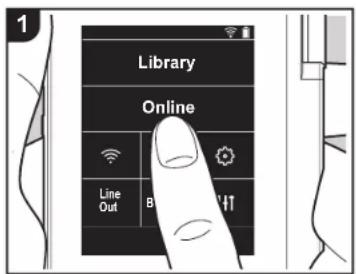
You can use network services such as Tuneln Radio, DEEZER and TIDAL by connecting this unit to a network that has an internet connection.
- There needs to be a Wi-Fi connection in order to play network services.
- Depending on the network service, the user may need to register from their computer first. Refer to the websites for each of the services for details about them.
- Functionality may be introduced by software updates and service providers may cease services, meaning that some network services and content may become unavailable in the future.
Playing Back
Perform the following procedure when the unit is on.
- Tap "Online" in the home screen of this unit.
- Tap the network service you want to use.
- Follow the on screen instructions and tap the radio station or program to start
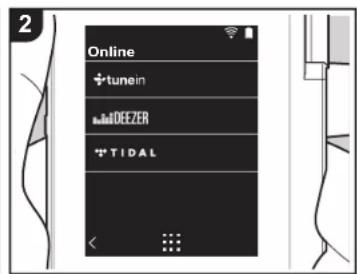
play.
- To return to the preceding screen, tap "at the bottom left of the screen.
Network service menus
You can register certain stations as your favorites or delete stations you have registered from your favorites. The menu displayed depends on the service currently selected.
A menu is displayed by tapping "at the bottom right of the screen while playing a station and then tapping "in the middle of the screen.
Regarding the TuneIn Radio Account
Creating an account on the TuneIn Radio website (tunein.com) and logging in from the unit allows you to automatically add your favorite radio stations and programs to your "My Presets" on the unit as you follow them on the website. "My Presets" are displayed in the level under TuneIn
Radio.
To display a radio station registered in "My Presets", you must log into TuneIn Radio from the unit. To log in, select "Login" - "I have a TuneIn account" in the "tunein" top list on the unit, and then enter your user name and password.
- If you associate the device on My Page within the Tuneln Radio website using the registration code obtained by selecting "Login" on the unit, you can log in from "Login" - "Login with a registration code" without entering the user name and password.
> Before Start > Part Names > Initial Setup > P I a y b a c k
Advanced Setup | Supplementary Information | Others

Connecting BLUETOOTH®
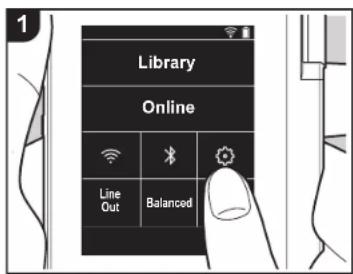
You can listen to music wirelessly by using BLUETOOTH wireless technology enabled devices such as headphones or speakers. Reception is possible over a distance of 10 m with a clear line of sight. The communication distance will be reduced in some conditions. This unit supports Qualcomm® aptX™ HD. You can enjoy higher quality wireless sound by connecting headphones and wireless speakers that support aptX HD.
- Playback will be aptX when connected with a Bluetooth enabled device that supports aptX, and aptX HD when connected with a Bluetooth enabled device that supports aptX HD.
Pairing for play
Pairing is necessary when connecting the BLUETOOTH wireless technology enabled devices for the first time. Make sure the BLUETOOTH wireless technology enabled device you want to connect is ready to be detected.
- Tap "in the home screen."
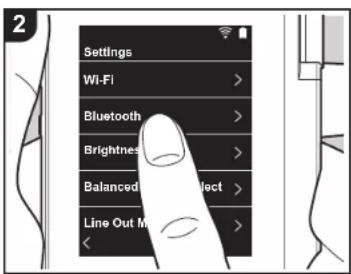
- Tap "Bluetooth".
- Turn on the BLUETOOTH feature and select the device to connect from the "Available Devices" list.
- Pairing will end after a short time.
- Tap "Library" or "Online" in the home screen.
- This unit can store the data of up to eight paired devices.
When connecting after the first time
- Tap "in the home screen."
- Tap "Bluetooth" and tap the device you want to connect in "Paired Devices".
Canceling a connection
- Tap "in the home screen."
- Tap "Bluetooth".
- Tap "at the top right of the device you want to disconnect, then tap "Disconnect".
- Pairing information is not deleted even if you cancel the connection. Tap "Forget this device" to delete the pairing
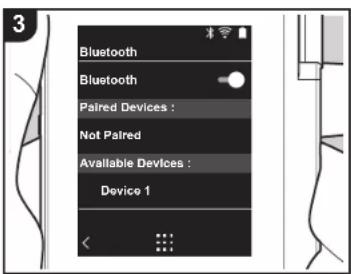
information.
> Before Start > Part Names > Initial Setup > Play back
Advanced Setup | Supplementary Information | Others

Line Out
natural_image
Illustration showing two-step hand tool application on a device, with arrows indicating tool movement (no text or symbols present)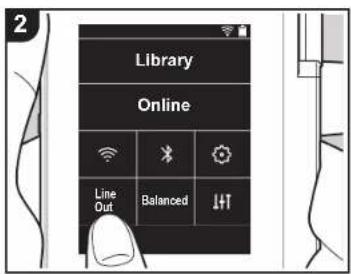
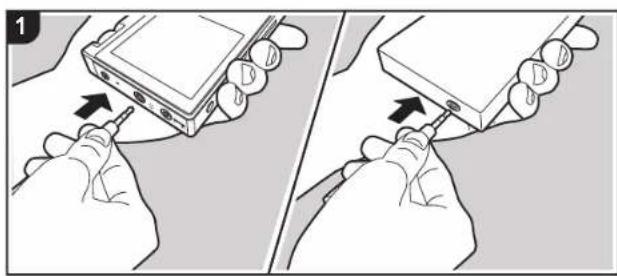
You can connect a headphone amplifier or D/A converter, for example, that has line input. You will need a headphone plug (commercially available) to connect to this unit. Make sure you have the correct type of headphone plug for the jack of the device you are connecting.
Connecting a device
- Connect the device to this unit through the headphone jack.
- Turn on the power of this unit, and select "Line Out" in the home screen to turn Line Out on. "Line Out" is displayed on the status bar on the screen when this is on.
- When "Line Out" is on, output through the headphone jack is at maximum volume, so do not use headphones. Adjust the volume on the connected device.
> Before Start > Part Names > Initial Setup > Play back
Advanced Setup | Supplementary Information | Others

USB Output
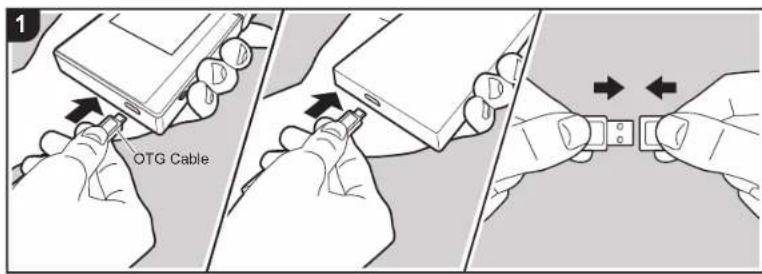
You can connect a headphone amplifier or D/A converter, for example, that has a USB connector. You will need a USB OTG (On-The-Go) cable (commercially available) to connect to this unit. Make sure you have the correct type of USB cable for the USB port of the device you are connecting to the OTG cable. If it is a micro USB port, you can use the USB cable included with this unit.
This unit is compatible with the following devices. (As of December 2017) Headphone amplifier : XPA-700, DAC-HA300
- If the attached USB-DAC does not support DoP stream, playback and attached devices may be adversely affected.
Connecting a device
- Connect this unit to the device you are connecting using an OTG cable, etc. Make sure you plug the cable in the right way up when connecting. You may
damage the plug or jack if you try to insert it the wrong way.
- Turn on the power of this unit and the connected device." "Is displayed on the status bar on the screen when this unit recognizes the connected device.
- When playing DSD format music files, DoP format can be output via USB (P22).
> Before Start > Part Names > Initial Setup > Playback
Advanced Setup | Supplementary Information | Others

Various settings
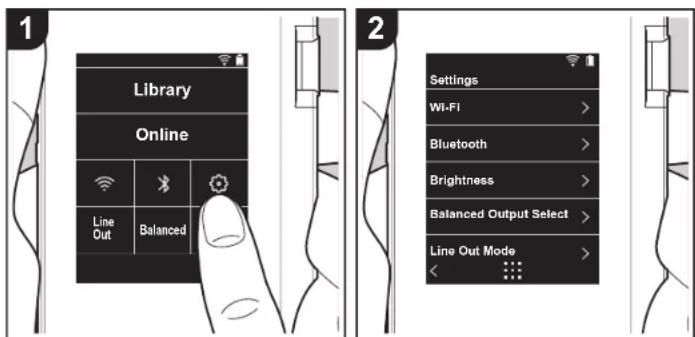
Tap ☐ to make settings for Wi-Fi and BLUETOOTH, settings for audio output, pass code settings, software updates, and a variety of other settings.
- Tap 📋 in the home screen.
- Tap the item you want to see
■ Wi-Fi
"On": Connection to a network via Wi-Fi is enabled. This also enables you to make various settings related to Wi-Fi, such as selecting the SSID of the access point to be connected. "Off (default value)": Connection by Wi-Fi is not enabled
Bluetooth
Bluetooth
"On": Enables connection with a BLUETOOTH wireless technology enabled device. This also enables you to make various settings related to BLUETOOTH, such as pairing. "Off (default value)": When BLUETOOTH is not to be used
Enable aptX™ HD: When this is On, you can get even better wireless sound from your Bluetooth wireless technology enabled headphones or speakers that support aptX HD. If sound interruptions occur while playing with aptX HD enabled, the problem may be improved by disabling this feature.
"On (default value)": Enable aptX HD "Off": Disable aptX HD. When disabled, play is with aptX or SBC, according to the codec supported by the connected Bluetooth wireless technology enabled device.
Brightness
You can adjust the brightness of the screen. The brightness can be set with the slide bar in 10 steps between "01)" and "02)". The screen becomes brighter when you slide it to the right (default value is "9").
■ Balanced Output Select
Use when balanced headphones are to be connected.
"Balanced (default value)": Compared to the normal single-ended operation, you can get a larger output and the high voltage is not grounded together with the small signal, so you can anticipate a superior effect in the quality of the music. Because you get a larger output, you can drive headphones with a higher impedance.
"ACG": The basic operating method is the same as Balanced (mode), but uses technology to even more forcefully fix grounding standards, so you can enjoy a sound quality with improved clarity and stability than Balanced (mode). Output volume is the same as the
> Before Start > Part Names > Initial Setup > Playback
Advanced Setup | Supplementary Information | Others

regular single-ended operation, however.
- This unit does not support simultaneous use of the balanced headphone jack and the headphone jack. Using both jacks at the same time may result in damage.
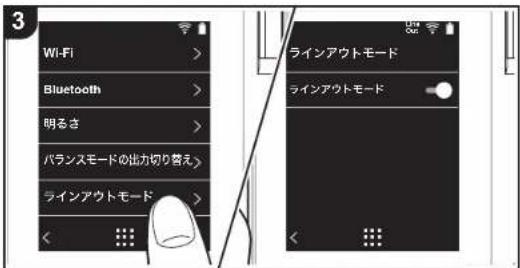
■ Line Out Mode
"On": Switch the headphone output to the line output mode to connect external equipment. When "Line Out Mode" is on, output through the headphone jack is at maximum volume, so do not use headphones. Adjust the volume on the connected device.
- When turned on for European models, you can then select either "Fixed (default value)" or "Variable". When "Variable" is selected, volume can be adjusted on this unit. If you select "Fixed", adjust the volume on the connected external device. "Off (default value)": Line output is not enabled
Audio
Gain: You can select the headphone output level to suit your headphones. Select "High (default value)", "Normal", or "Low".
- Lower the volume first if you intend to select "High".
- When connecting a pair of headphones for the first time, set to "Low" and change the volume level gradually.
Volume Limiter: You can set an upper limit for the maximum volume so that the volume does not increase too much. Select between "0" and "60 (default value)".
USB Audio: DSD format music files can be output in DoP format via USB. Note that DSD is not output if "Output DSD" is set to off.
- If the attached USB-DAC does not support DoP stream, playback and attached devices may be adversely affected.
Output DSD: "On" / "Off (default value)"
ReplayGain
When this is on, the variation in volume between each music file is corrected and played according to a standard value. To use ReplayGain, you first need to use software, etc., on a computer to embed the volume information in the music file. Enable ReplayGain: "On" / "Off (default value)"
Normalize setting: Select either "Track Gain" or "Album Gain" to use to make the volume uniform.
"Track Gain (default value)" / "Album Gain"
Preamp with RG info: When the music file has ReplayGain information, the volume level is
either increased or decreased according to the standard value. The volume level can be set in 25 steps between "-12 dB" and "12 dB". ("6 dB" is the default value)
Preamp without RG info: When the music file does not have ReplayGain information, the volume level is either increased or decreased according to the standard value. The volume level can be set in 13 steps between "-12 dB" and "0 dB". ("0 dB" is the default value)
■ Music Library Sync
Auto sync: When this is on, music files you have copied to this unit from a computer or music files on a micro SD card are automatically synchronized with the library. "On (default value)": When this function is to be used "Off": When this function is not to be used
Sync Now
If "Auto sync" is off, tap this to manually synchronize the music files with the library. You can select "Sync All" or "Sync Added Songs" after tapping this. Sync All: Select to synchronize all transferred tracks. Sync Added Songs: Select to synchronize only tracks that have been added.
■ SD Card
Unmount SD Card: You can unmount a micro SD card. The card can be damaged or may stop working properly if you fail to unmount the card first.
Format SD Card: You can initialize a micro SD card. All the data on the card will be deleted when you initialize it, so make sure you save data you want to keep to a computer, etc. To initialize, after tapping the micro SD card to be initialized, tap "Format" - "Confirm".
■ Physical Buttons
Volume Rotation: You can set the direction to turn the dial when adjusting the volume. Normal (default value): Turn clockwise to increase the volume. Reverse: Turn anticlockwise to increase the volume.
Operations while Holding
When set to "Enable", even when you slide the hold switch (P5) up to lock operations on this unit, the Volume dial and side buttons for play (P5), etc., can still be used. Tap this to change the settings for "Volume" and "Side Buttons". Volume: "Disable (default value)" / "Enable" Side Buttons: "Disable (default value)" / "Enable"
> Before Start > Part Names > Initial Setup > Playback
Advanced Setup | Supplementary Information | Others

Operations while Screen Off
When set to "Disable", the side keys, such as the Volume dial and the play button (P5), will not work while the LCD of the unit is off. Tap this to change the settings for "Volume" and "Side Buttons".
- When you slide the hold switch (P5) up to lock operations on this unit, operations are according to the settings in "Operations while Holding".
Volume: "Disable" / "Enable (default value)"
Side Buttons: "Disable" / "Enable (default value)"
Home
You can change the buttons displayed in the home screen to buttons for features you prefer.
- Change the buttons displayed in the home screen from the home screen. Refer to "Customizing the Home screen" (P26) for how to change.
■ Power Management
Auto Display Off: The unit's LCD automatically switches off when the specified time elapses with no operations.
Select "Off", "15 seconds", "30 seconds (default value)", "1 minute", "2 minutes", or "5 minutes".
Auto Power Off: The unit's power automatically switches to "Off" when the specified time elapses with no operations.
Select "Off (default value)", "10 minutes", "30 minutes", or "60 minutes".
Onkyo DapController: This restricts connections between the "Onkyo DapController" smartphone app and this unit. By setting to "Disable", the amount of battery consumed can be reduced even when BLUETOOTH is on.
"Enable (default value)": To enable connection with "Onkyo DapController".
"Disable": To disable connection with "Onkyo DapController".
Passcode
Passcode Lock: Set a four-digit pass code to protect this unit. (This is not set by default)
Change Passcode: Change the number for the set pass code. This can not be selected if a pass code has not been set.
- If you enter the wrong pass code three times, a message appears asking if you want to initialize the unit's settings. Even if the settings are initialized copied music files are not deleted.
- You should create a pass code to protect your account if you are going to use a network service.
Language
Select the language you want to use. Flick the list of languages up or down, then tap the language you want to use.
English, German, French, Spanish, Italian, Swedish, Russian, Traditional Chinese, Simplified Chinese, Japanese
■ Software Update
Update Notice: Availability of a software update will be notified via network when "Enable" is set.
"Disable": Do not notify
"Enable (default value)": Notify
Update Now: Software can be updated via a network or via a micro SD card. Select "via Network" or "via SD Card". You can not select if there is no software update.
■ Device Information
Software Version: The current software version is displayed.
MAC Address: The MAC address of this unit. This value is specific to the component and cannot be changed.
Serial Number: The unique identifier for this unit.
License: Displays a guide to our privacy policy and the licenses for open source software.
Certification (North American models only): The certificates for acquired safety standards are displayed.
Reset
Reset All Settings: The settings of the unit are initialized. Note that music files copied to the internal storage are not deleted. Also, after resetting, the initial settings screen is automatically displayed.
Factory Reset: Reset the unit to the condition it was in when you purchased it. Note that music files copied to the internal storage and settings data are all deleted.
> Before Start > Part Names > Initial Setup > Playback
Advanced Setup | Supplementary Information | Others

Audio Adjust
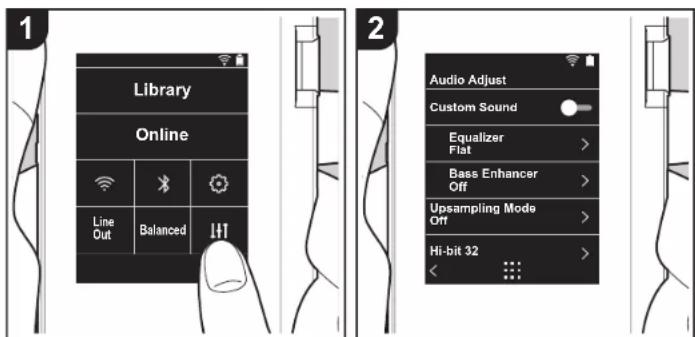
Tap↓↑o set to your preferred sound quality.
- Tap "in the home screen."
- Tap the item you want to set.
■ Custom Sound
"On": Select to use "Equalizer" and "Bass Enhancer"
"Off (default value)": When this function is not to be used
Equalizer: You can select the sound quality you like from "Flat (default value)", "Pop",
"Rock", "Jazz", "Dance", "Vocal", "Custom 1", "Custom 2", or "Custom 3".
Note that you can register your own original equalizers in Custom 1 to 3 using the following operations.
-
To edit an equalizer, first tap the equalizer you want to edit, then tap it again.
-
Tap "< >" to modify the frequency and tap "∨ ∧" to adjust the volume of the selected
frequency. - Tap "Save" when editing is finished and select the location to save to from Custom 1 to 3.
Bass Enhancer: Select a bass sound effect from one of five levels.
Select "Off (default value)", "1", "2", "3", "4", or "5".
■ Upsampling Mode
The sampling frequencies of the tracks played are upsampled for output.
Select "Off (default value)", "96k/88.2k", or "192k/176.4k".
Hi-bit 32
"On": 16bit or 24bit audio is re-quantized to 32 bit so that a smoother, more refined sound is realized.
"Off (default value)": When this function is not to be used
Digital Filter
By modifying the filter characteristics of the built-in digital converter you can enjoy three different types of modified sound quality.
Select "SHARP (default value)", "SLOW", or "SHORT".
■ Lock Range Adjust
You can improve sound quality by adjusting the lock range of the audio input signal's jitter (modulation). The lock range can be adjusted from the more precise "Narrow" up to "Wide" in seven steps. (Default Value is "Normal")
> Before Start > Part Names > Initial Setup > Playback

Advanced Setup | Supplementary Information | Others
- If you change the lock range and the sound is interrupted, adjust to the Normal or Wide ends.
> Before Start > Part Names > Initial Setup > Playback

Advanced Setup | Supplementary Information | Others
Customizing the Home screen
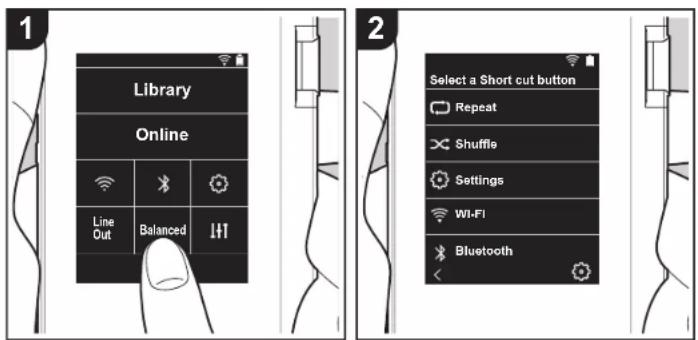
By pressing and holding the buttons in the home screen of this unit, you can change the buttons displayed to ones for features you prefer.
- "Library" and "Online" cannot be changed.
Changing shortcut buttons
- In the home screen, press and hold the button you want to change.
- In the "Select a Short cut button" screen, tap the feature you want to display in the home screen. Features that are already displayed in the home screen will be displayed in gray and you will be unable to select them. Select "None" if you do not want to place a button.
> Before Start > Part Names > Initial Setup > Playback

Advanced Setup | Supplementary Information | Others
Software Update
The updating function on this unit
This unit has functionality to update the software over a network or a micro SD card. This enables us to make improvements to a variety of operations and to add features.
How to update
There are two methods for updating the firmware: via network and via micro SD card. Use the one that best suits your environment. The update may take about 3 minutes to complete for either method: via network or micro SD card. Furthermore, existing settings are guaranteed regardless of the method used for update.
- For the latest information on updates, visit our website. There is no need to update the software on this unit if there is no update available.
- During an update, do not
- Disconnect and reconnect any cable or micro SD card, headphones, or perform any operation on the component such as turn off its power
- Accessing this unit from your computer
Disclaimers: The program and accompanying online documentation are furnished to you for use at your own risk.
We will not be liable and you will have no remedy for damages for any claim of any kind whatsoever concerning your use of the program or the accompanying online documentation, regardless of legal theory, and whether arising in tort or contract.
In no event will we be liable to you or any third party for any special, indirect, incidental, or consequential damages of any kind, including, but not limited to, compensation, reimbursement or damages on account of the loss of present or prospective profits, loss of data, or for any other reason whatsoever.
Updating the Firmware via Network
First make sure the unit is connected by Wi-Fi.
- Make sure the unit is charged sufficiently before updating.
- Tap "in the home screen."
- Tap "Software Update".
- After tapping "Update Now", the software update starts when you tap "via Network".
- You will not be able to select "via Network" if there is no software update.
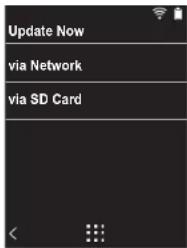
- "Completed!" is displayed when the update is complete.
- If "Failed to Update" screen is displayed, the update has failed. Redo from the beginning.
Updating via micro SD card
• Refer to (P5) for how to insert the micro SD card.
- When removing the micro SD card, unmount the micro SD card before removing it (P32).
- NTFS format micro SD cards are not supported on this unit.
- Make sure the unit is charged sufficiently before updating.
-
Insert a micro SD card into your computer.
-
Download the software file from the our website to your
> Before Start > Part Names > Initial Setup > Playback

Advanced Setup | Supplementary Information | Others
PC and unzip.
- Copy all unzipped files and folders to the root folder of a micro SD card.
• Make sure to copy the unzipped files.
-
Insert the micro SD card into a card slot (either 1 or 2) on this unit.
-
Tap "in the home screen."
-
Tap "Software Update".
-
After tapping "Update Now", the software update starts when you tap "via SD Card".
- You will not be able to select "via SD Card" if there is no software update.
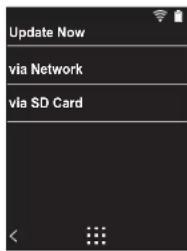
- "Completed!" is displayed when the update is complete.
- If "Failed to Update" screen is displayed, the update has failed. Redo from the beginning.
- You may need to update a number of times to update to the latest version of the firmware.
> Before Start > Part Names > Initial Setup > Playback
Advanced Setup | Supplementary Information | Other

Supplementary Information
Due to software updates after you make your purchase or software changes during production of the product, there may be additions or changes to the settings and operation available compared to what is in the instruction manual. For information about the settings and operations that have been added or changed, see the following references.
Supplementary Information
Click here <<<
En29
> Before Start > Part Names > Initial Setup > Playback
Advanced Setup | Supplementary Information | Others

Entering text

- Moves the cursor.
- Enters a space.
- Tap to enter text.
- Removes a character on the left of the cursor.
- Change the type of text.
- Confirm the text you entered.
- Switches between upper and lower cases.
- This unit enables input of the alphabet, symbols, and numbers only.
> Before Start > Part Names > Initial Setup > Playback
Advanced Setup | Supplementary Information | Others

General Specifications
Display
2.4-inch, 240 × 320 dot resolution, capacitive touch screen
Internal memory
16 GB (including system area)
External memory
2 micro SD card slot (maximum 256 GB × 2)
Network Section
Wireless LAN: IEEE802.11 a/b/g/n compliant BLUETOOTH: A2DP, AVRCP, SBC codec
Supported playback formats
FLAC/ALAC/WAV/AIFF/MP3/AAC/MQA (44.1 kHz/48 kHz /88.2 kHz /96 kHz/176.4 kHz/192 kHz (16 bit/24 bit/32 bit)) DSD/DSF/DSDIFF *DSD Native (2.8 MHz/5.6 MHz (1 bit))
Maximum Effective Output Power (JEITA)
75 mW + 75 mW (Unbalanced, 32 Ω, 1 kHz, 10 % THD) 150 mW + 150 mW (Balanced, 32 Ω, 1 kHz, 10 % THD)
THD+N (Total Harmonic Distortion+Noise) 0.006% or less
Signal to Noise Ratio
115 dB or more
Frequency band
20 Hz - 80,000 Hz
Interfaces and input/output jacks
Headphone jack: 3-conductor, 3.5 mm, impedance: 16 to 300^ Headphone jack (balanced output): 4-conductor, 2.5 mm, impedance: 32 to 600^
* Do not connect headphones that have an impedance outside the rated range as this may result in damage.
1 micro USB port (B type, combined charging and data transfer)
Gain switch
Low/Normal/High
Continuous play time
Times shown are a guide. Playback times depend on settings. FLAC 24 bit 96 kHz: 15 hours *
* With the screen off, Wireless LAN and BLUETOOTH off, playing with Music, and using a 3-conductor 3.5 mm headphone connection
Mass of main unit
135 g (4.76 oz)
External dimensions (excluding protrusions)
63 mm × 94 mm × 15 mm 2-1/2" × 3-11/16" × 9/16" (width/height/depth)
Specifications and appearance are subject to change without prior notice. We will not accept responsibility for damage arising from the connection of equipment manufactured by other companies.
> Before Start > Part Names > Initial Setup > Playback
Advanced Setup | Supplementary Information | Others

Cautions for use
■ If operation becomes unstable
- The issue may be fixed by restarting this unit. Press and hold the power button on this unit for 10 or more seconds to force the unit to shutdown, then press and hold the power button again to restart the unit. (The settings in the unit are maintained.)
■ Removing the micro SD card
- When removing the micro SD card, in the home screen tap "☐-"SD Card" - "Unmount SD Card" - "SD Card 1" - or "SD Card 2" to unmount the micro SD card, then remove it. The card can be damaged or may stop working properly if you fail to unmount the card first. Refer to (P5) for how to remove.
This unit
- Use a 4-conductor plug for the ∅2.5 mm diameter headphone jack of this unit, and use a 3-conductor plug for the ∅3.5mm diameter headphone jack. It is not compatible with microphone input.
- This unit does not support simultaneous use of the balanced headphone jack and the headphone jack. Using both jacks at the same time may result in damage.
- Take care that dust and foreign objects do not get into the entrance of the micro SD card slot, as this can cause a malfunction.
- Do not press down with force on the unit when the unit is placed with the screen facing down. This can damage the LCD and the volume dial.
- The antenna is built into the bottom of the back of the main unit. The transmission speed of the unit may be adversely affected if you block the antenna area with your hand.
■ Album artwork
If album artwork is not registered as metadata for the music file, you can use an image as the play screen for a music file by putting an image file in the same folder as the music file. Note that for music files that have already been synchronized in the library, when you add artwork, the album artwork is not shown in the list screen of the categorized display. Synchronize by tapping "Music Library Sync" - "Sync Now" - "Sync All" in the home screen.
- If album artwork is registered in the metadata, the metadata is prioritized. Supported image formats: PNG (.png), JPEG (.jpg,.jpeg) File size: 3MB or less
■ Folder and file names
If artist names, album names, and track names are not registered in the metadata of music files, folder names and file names are embedded in the metadata.
- If artist names, album names, and track names are registered in the metadata, the metadata is prioritized.
Example folder structure
☐ Parent folder - ☐ Child folder - Music file Artist name: The name of the parent folder is registered Album name: The name of the child folder is registered Track name: The name of the music file is registered
■ Electronic authorization labeling (North American models only)
You can confirm information related to authorizations using the following procedure:
- Tap "in the home screen.
- Tap "Device Information".
- Tap "Certification".
> Before Start > Part Names > Initial Setup > Playback
Advanced Setup | Supplementary Information | Others

License and Trademark
Bluetooth
The Bluetooth ^® word mark and logos are registered trademarks owned by Bluetooth SIG, Inc.
Qualcomm aptX HD

Qualcomm aptX is a product of Qualcomm Technologies International, Ltd. Qualcomm is a trademark of Qualcomm Incorporated, registered in the United States and other countries, used with permission. aptX is a trademark of Qualcomm Technologies International, Ltd., registered in the United States and other countries, used with permission.
Windows ^® 7, Windows ^® Media, and the Windows ^® logo are trademarks or registered trademarks of Microsoft Corporation in the United States and/or other countries.
WiFi
The Wi-Fi CERTIFIED Logo is a certification mark of Wi-Fi Alliance ^® .
iTunes is a trademark of Apple Inc., registered in the U.S. and other countries.
DSD and the Direct Stream Digital logo are trademarks of Sony Corporation.
"All other trademarks are the property of their respective owners."
Music and image content, etc., whose rights are owned by a third party are protected as works by copyright laws. Such content that you load into this unit may not be copied, modified, distributed or transmitted in public without the permission of the copyright holder, except where permitted under copyright law, such as copying and quoting for the purposes of personal use. Note that there may be other restrictions on loading material such as performances, shows, and exhibitions, even if only for personal use.
Important Notice Regarding Software
The software package installed in this product includes software licensed to Onkyo & Pioneer Corporation (hereinafter, called "O&P Corporation") directly or indirectly by third party developers. Please be sure to read this notice regarding such software.
Notice Regarding GNU GPL/LGPL-applicable Software
This product includes the software that is covered by GNU General Public License (hereinafter, called "GPL") or by GNU Lesser General Public License (hereinafter, called "LGPL"). O&P Corporation notifies you that, according to the attached GPL/LGPL, you have right to obtain, modify, and redistribute software source code for the listed software.
Notice Regarding MPL-applicable Software
This product includes the software that is covered by Mozilla Public License (hereinafter, called "MPL"). O&P Corporation notifies you that, according to the attached MPL, you have right to obtain, modify, and redistribute software source code for the listed software.
Perform the following procedure to see which of GPL, LGPL, and MPL apply to which pieces of software.
-
Tap * in the home screen.
-
Tap "Device Information".
-
Tap "License" and tap the software item you want to check.
You may obtain a complete machine-readable copy of the corresponding source code on a physical medium by contacting Customer Service. This offer is valid to any third party within three years after last shipment of the product. Costs of physical distribution will be charged.
ONKYO
1-10-5 Yokoami, Sumida-ku, Tokyo 130-0015 Japan
18 PARK WAY, UPPER SADDLE RIVER, NEW JERSEY 07458, U.S.A.
Tel: 1-201-785-2600
Gutenberg str. 3, D-82178 Puchheim Germany
Tel: +49-8142-4401-0
Anteros Building, Odyssey Business Park, West End Road, South Ruislip,
Middlesex, HA4 6QQ United Kingdom
Tel: +44(0)208 836 3612
- Avenue de Marais F - 95816 Argenteuil Cedex FRANCE
Tel: +33(0)969 368 050
Unit 1033, 10/F, Star House, No 3, Salisbury Road, Tsim Sha Tsui Kowloon, Hong Kong,
Tel: +852-2429-3118
E-mail: service.hk@pioneeronkyoasia.com
© 2018 Onkyo & Pioneer Corporation. All rights reserved. Onkyo group has established its Privacy Policy, available at [http://www.onkyo.com/privacy/].
natural_image
Line drawing of a rectangular electronic device with a lid and screen (no text or symbols)2
3

⑳
onkyo music
natural_image
Illustration of a person using a laptop with a cursor hovering over it (no text or symbols visible)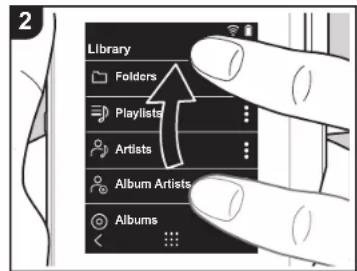
natural_image
Illustration showing two-step hand tool application on a device, with arrows indicating tool movement (no text or symbols present)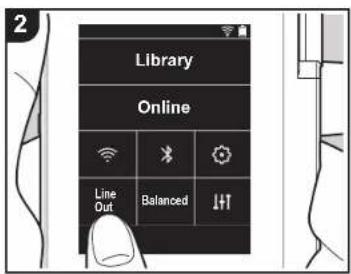
FLAC/ALAC/WAV/AIFF/MP3/AAC/MQA (44,1 kHz/48 kHz /88,2 kHz /96 kHz/176,4 kHz/192 kHz (16 bits/24 bits/32 bits))
The Bluetooth® word mark and logos are registered trademarks owned by Bluetooth SIG, Inc.
Qualcomm aptX HD

Windows ^® 7, Windows ^® Media, and the Windows ^® logo are trademarks or registered trademarks of Microsoft Corporation in the United States and/or other countries.
WiFi
The Wi-Fi CERTIFIED Logo is a certification mark of Wi-Fi Alliance®.
iTunes is a trademark of Apple Inc., registered in the U.S. and other countries.
DSD and the Direct Stream Digital logo are trademarks of Sony Corporation.
"All other trademarks are the property of their respective owners."
Anteros Building, Odyssey Business Park, West End Road, South Ruislip,
Middlesex, HA4 6QQ United Kingdom
Tel: +44(0)208 836 3612
6, Avenue de Marais F - 95816 Argenteuil Cedex FRANCE
Tel: +33(0)969 368 050
Unit 1033, 10/F, Star House, No 3, Salisbury Road, Tsim Sha Tsui Kowloon, Hong Kong,
Tel: +852-2429-3118
E-mail : service.hk@pioneeronkyoasia.com
© 2018 Onkyo & Pioneer Corporation. All rights reserved. Onkyo group has established its Privacy Policy, available at [http://www.onkyo.com/privacy/].
High Fidelity Audio Player
取扱説明書
Instruction Manual
Mode d'emploi
natural_image
Line drawing of a rectangular electronic device with a lid and screen (no text or symbols)⑳
> Antes de empezar
Música Onkyo
natural_image
Illustration of a person using a laptop with a cursor hovering over it (no text or symbols visible)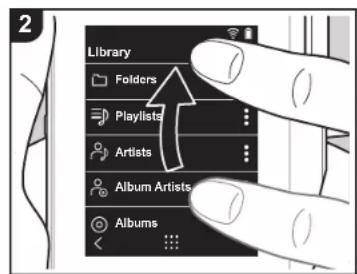
natural_image
Illustration showing two-step hand tool application on a device, with arrows indicating tool movement (no text or symbols present)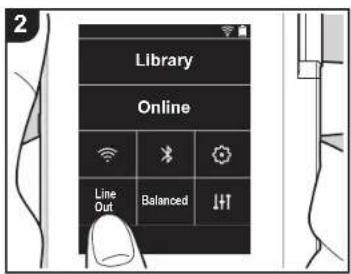
The Bluetooth® word mark and logos are registered trademarks owned by Bluetooth SIG, Inc.
Qualcomm aptX HD

Windows ^® 7, Windows ^® Media, and the Windows ^® logo are trademarks or registered trademarks of Microsoft Corporation in the United States and/or other countries.
WiFi
CERTIFIED
The Wi-Fi CERTIFIED Logo is a certification mark of Wi-Fi Alliance ^® .
iTunes is a trademark of Apple Inc., registered in the U.S. and other countries.
DSD and the Direct Stream Digital logo are trademarks of Sony Corporation.
"All other trademarks are the property of their respective owners."
"Toutes les autres marques commerciales sont la propriété de leurs propriétaires respectifs."
"El resto de marcas comerciales son propiedad de sus respectivos propietarios."
" Tutti gli altri marchi di fabbrica sono di proprietà dei rispettivi proprietari."
"Alle anderen Warenzeichen sind Eigentum ihrer jeweiligen Eigentümer."
" Alla andra varumärken tillhör deras respektive ägare. "
"Все товарные знаки являются собственностью соответствующих владельцев."
“所有其他商標為各自所有者所有。”
*所有其他商标均为其各自所有者的财产。
Anteros Building, Odyssey Business Park, West End Road, South Ruislip,
Middlesex, HA4 6QQ United Kingdom
Tel: +44(0)208 836 3612
- Avenue de Marais F - 95816 Argenteuil Cedex FRANCE
Tel: +33(0)969 368 050
Unit 1033, 10/F, Star House, No 3, Salisbury Road, Tsim Sha Tsui Kowloon, Hong Kong,
Tel: +852-2429-3118
E-mail : service.hk@pioneeronkyoasia.com
© 2018 Onkyo & Pioneer Corporation. All rights reserved. Onkyo group has established its Privacy Policy, available at [http://www.onkyo.com/privacy/].
High Fidelity Audio Player
取扱説明書
Instruction Manual
Mode d'emploi
natural_image
Line drawing of a rectangular electronic device with a flat top and side ports (no text or symbols)20
onkyo music
natural_image
Illustration of a person using a laptop with a small icon on the screen (no text or symbols visible)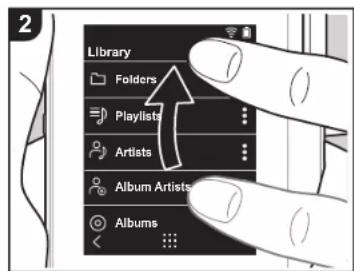
natural_image
Illustration showing two-step hand tool application on a device, with arrows indicating tool movement (no text or symbols present)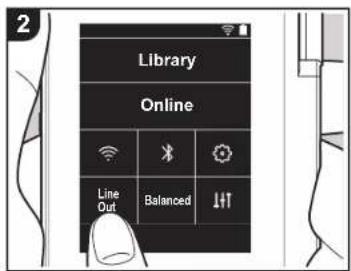
The Bluetooth® word mark and logos are registered trademarks owned by Bluetooth SIG, Inc.
Qualcomm aptX HD

Windows ^® 7, Windows ^® Media, and the Windows ^® logo are trademarks or registered trademarks of Microsoft Corporation in the United States and/or other countries.
WiFi® CERTIFIED
The Wi-Fi CERTIFIED Logo is a certification mark of Wi-Fi Alliance ^® .
iTunes is a trademark of Apple Inc., registered in the U.S. and other countries.
DSD and the Direct Stream Digital logo are trademarks of Sony Corporation.
"All other trademarks are the property of their respective owners."
'Toutes les autres marques commerciales sont la propriété de leurs propriétaires respectifs.'
"El resto de marcas comerciales son propiedad de sus respectivos propietarios."
" Tutti gli altri marchi di fabbrica sono di proprietà dei rispettivi proprietari. "
"Alle anderen Warenzeichen sind Eigentum ihrer jeweiligen Eigentümer."
" Alla andra varumärken tillhör deras respektive ägare. "
"Все товарные знаки являются собственностью соответствующих владельцев."
“所有其他商標為各自所有者所有。”
*所有其他商标均为其各自所有者的财产。
Anteros Building, Odyssey Business Park, West End Road, South Ruislip,
Middlesex, HA4 6QQ United Kingdom
Tel: +44(0)208 836 3612
- Avenue de Marais F - 95816 Argenteuil Cedex FRANCE
Tel: +33(0)969 368 050
Unit 1033, 10/F, Star House, No 3, Salisbury Road, Tsim Sha Tsui Kowloon, Hong Kong,
Tel: +852-2429-3118
E-mail: service.hk@pioneeronkyoasia.com
© 2018 Onkyo & Pioneer Corporation. All rights reserved. Onkyo group has established its Privacy Policy, available at [http://www.onkyo.com/privacy].
High Fidelity Audio Player
取扱説明書
Instruction Manual
Mode d'emploi
natural_image
Line drawing of a rectangular electronic device with a square top and small ports (no text or symbols)2
3

20
Onkyo Music
De 9
natural_image
Illustration of a person using a laptop with a small icon on the screen (no text or symbols visible)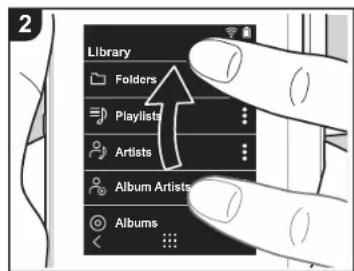
natural_image
Illustration showing two-step hand tool application on a device, with arrows indicating tool movement (no text or symbols present)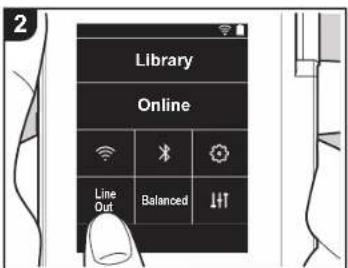
FLAC/ALAC/WAV/AIFF/MP3/AAC/MQA (44,1 kHz/48
kHz /88,2 kHz /96 kHz/176,4 kHz/192 kHz (16 Bit/24 Bit/
32 Bit))
DSD/DSF/DSDIFF *DSD Native (2.8 MHz/5.6 MHz (1
Bit))
The Bluetooth® word mark and logos are registered trademarks owned by Bluetooth SIG, Inc.
Qualcomm aptX™ HD

Windows ^® 7, Windows ^® Media, and the Windows ^® logo are trademarks or registered trademarks of Microsoft Corporation in the United States and/or other countries.

CERTIFIED
The Wi-Fi CERTIFIED Logo is a certification mark of Wi-Fi Alliance®.
iTunes is a trademark of Apple Inc., registered in the U.S. and other countries.
DSD and the Direct Stream Digital logo are trademarks of Sony Corporation.
"All other trademarks are the property of their respective owners."
"Toutes les autres marques commerciales sont la propriété de leurs propriétaires respectifs."
"El resto de marcas comerciales son propiedad de sus respectivos propietarios."
“ Tutti gli altri marchi di fabbrica sono di proprietà dei rispettivi proprietari.”
“Alle anderen Warenzeichen sind Eigentum ihrer jeweiligen Eigentümer.”
“ Alla andra varumärken tillhör deras respektive ägare. ”
"Всв товарные знаки являются собственностью соответствующих владельцев."
Anteros Building, Odyssey Business Park, West End Road, South Ruislip,
Middlesex, HA4 6QQ United Kingdom
Tel: +44(0)208 836 3612
- Avenue de Marais F - 95816 Argenteuil Cedex FRANCE
Tel: +33(0)969 368 050
Unit 1033, 10/F, Star House, No 3, Salisbury Road, Tsim Sha Tsui Kowloon, Hong Kong,
Tel: +852-2429-3118
E-mail: service.hk@pioneeronkyoasia.com
© 2018 Onkyo & Pioneer Corporation. All rights reserved. Onkyo group has established its Privacy Policy, available at [http://www.onkyo.com/privacy].
High Fidelity Audio Player
取扱説明書
Instruction Manual
Mode d'emploi
natural_image
Line drawing of a rectangular electronic device with a grid and mounting bracket (no text or symbols)20
onkyo music
6
natural_image
Illustration of a person using a laptop with a small icon on the screen (no text or symbols visible)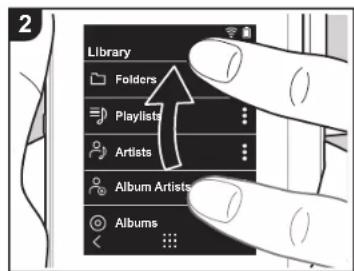
natural_image
Illustration showing two-step hand tool application on a device, with arrows indicating tool movement (no text or symbols present)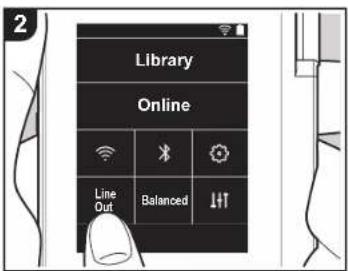
THD+N (total harmonisk distorsion+brus)
The Bluetooth ^® word mark and logos are registered trademarks owned by Bluetooth SIG, Inc.
Qualcomm aptX HD

Windows® 7, Windows® Media, and the Windows® logo are trademarks or registered trademarks of Microsoft Corporation in the United States and/or other countries.

CERTIFIED
The Wi-Fi CERTIFIED Logo is a certification mark of Wi-Fi Alliance ^® .
iTunes is a trademark of Apple Inc., registered in the U.S. and other countries.
DSD and the Direct Stream Digital logo are trademarks of Sony Corporation.
"All other trademarks are the property of their respective owners."
Anteros Building, Odyssey Business Park, West End Road, South Ruislip,
Middlesex, HA4 6QQ United Kingdom
Tel: +44(0)208 836 3612
- Avenue de Marais F - 95816 Argenteuil Cedex FRANCE
Tel: +33(0)969 368 050
Unit 1033, 10/F, Star House, No 3, Salisbury Road, Tsim Sha Tsui Kowloon, Hong Kong,
Tel: +852-2429-3118
E-mail: service.hk@pioneeronkyoasia.com
© 2018 Onkyo & Pioneer Corporation. All rights reserved. Onkyo group has established its Privacy Policy, available at [http://www.onkyo.com/privacy].
natural_image
Line drawing of a rectangular electronic device with a grid pattern and mounting bracket (no text or symbols)2
3
20
onkyo music
natural_image
Illustration of a person using a laptop with a small icon on the screen (no text or symbols)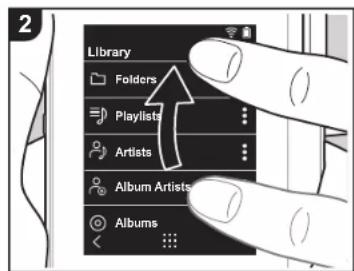
natural_image
Illustration showing two-step hand tool application on a device, with arrows indicating tool movement (no text or symbols present)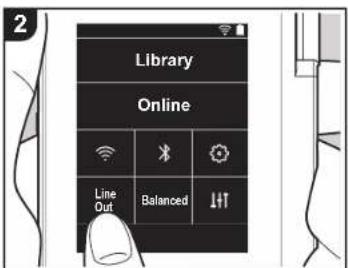
The Bluetooth® word mark and logos are registered trademarks owned by Bluetooth SIG, Inc.
Qualcomm aptX HD

Windows ^® 7. Windows ^® Media, and the Windows ^® logo are trademarks or registered trademarks of Microsoft Corporation in the United States and/or other countries.

CERTIFIED
The Wi-Fi CERTIFIED Logo is a certification mark of Wi-Fi Alliance ^® .
iTunes is a trademark of Apple Inc., registered in the U.S. and other countries.
DSD and the Direct Stream Digital logo are trademarks of Sony Corporation.
"All other trademarks are the property of their respective owners."
"Toutes les autres marques commerciales sont la propriété de leurs propriétaires respectifs."
"El resto de marcas comerciales son propiedad de sus respectivos propietarios."
“ Tutti gli altri marchi di fabbrica sono di proprietà dei rispettivi proprietari. ”
"Alle anderen Warenzeichen sind Eigentum ihrer jeweiligen Eigentümer."
* Alla andra varumärken tillhör deras respektive ägare. *
"Всв товарные знаки являются собственностью соответствующих пладельцев."
Anteros Building, Odyssey Business Park, West End Road, South Ruislip,
Middlesex, HA4 6QQ United Kingdom
Tel: +44(0)208 836 3612
- Avenue de Marais F - 95816 Argenteuil Cedex FRANCE
Tel: +33(0)969 368 050
Unit 1033, 10/F, Star House, No 3, Salisbury Road, Tsim Sha Tsui Kowloon, Hong Kong,
Tel: +852-2429-3118
E-mail: service.hk@pioneeronkyoasia.com
© 2018 Onkyo & Pioneer Corporation. All rights reserved. Onkyo group has established its Privacy Policy, available at [http://www.onkyo.com/privacy].
High Fidelity Audio Player
取扱説明書
Instruction Manual
Mode d'emploi
natural_image
Line drawing of a rectangular electronic device with a grid and mounting bracket (no text or symbols)2
3

初始設定將自動開始
從電腦複製音樂
onkyo 音樂
啟動之前
零件名稱
初始設置
播放

進階設定 | 補充資訊 | 其他
natural_image
Illustration of a person using a laptop with a small icon on the screen (no text or symbols)啟動之前
零件名稱
初始設置
播放

進階設定 | 補充資訊 | 其他
■ 播放畫面
畫面 A
natural_image
Illustration showing two-step hand tool application on a device, with arrows indicating tool direction (no text or symbols present)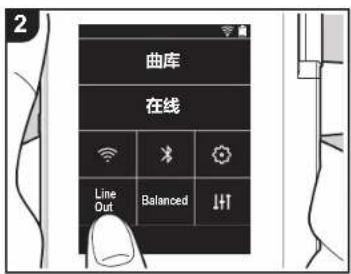
“停用”:不通知 “啟用(預設值)”:通知
FLAC/ALAC/WAV/AIFF/MP3/AAC/MQA (44.1 kHz/48
Windows ^® 7. Windows ^® Media, and the Windows ^® logo are trademarks or registered trademarks of Microsoft Corporation in the United States and/or other countries.
WiFi
CERTIFIED
The Wi-Fi CERTIFIED Logo is a certification mark of Wi-Fi Alliance ^® .
iTunes is a trademark of Apple Inc., registered in the U.S. and other countries.
DSD and the Direct Stream Digital logo are trademarks of Sony Corporation.
II other trademarks are the property of their respective owners.
Anteros Building, Odyssey Business Park, West End Road, South Ruislip,
Middlesex, HA4 6QQ United Kingdom
Tel: +44(0)208 836 3612
- Avenue de Marais F - 95816 Argenteuil Cedex FRANCE
Tel: +33(0)969 368 050
Unit 1033, 10/F, Star House, No 3, Salisbury Road, Tsim Sha Tsui Kowloon, Hong Kong,
Tel: +852-2429-3118
E-mail : service.hk@pioneeronkyoasia.com
© 2018 Onkyo & Pioneer Corporation. All rights reserved. Onkyo group has established its Privacy Policy, available at [http://www.onkyo.com/privacy/].
High Fidelity Audio Player
取扱説明書
Instruction Manual
Mode d'emploi
natural_image
Line drawing of a rectangular electronic device with a flat top and side ports (no text or symbols)2
3

从计算机复制音乐
onkyo 音乐
natural_image
Illustration of a person using a laptop with a cursor hovering nearby (no text or symbols visible)natural_image
Illustration showing two-step hand tool application on a device, with arrows indicating tool direction (no text or symbols present)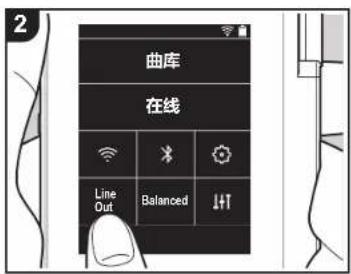
FLAC/ALAC/WAV/AIFF/MP3/AAC/MQA (44.1 kHz/48 kHz/88.2 kHz/96 kHz/176.4 kHz/192 kHz (16 位/24 位/32 位))
DSD/DSF/DSDIFF *DSD Native (2.8 MHz/5.6 MHz (1 位))
最大有效输出功率 (JEITA)
Windows® 7, Windows® Media, and the Windows® logo are trademarks or registered trademarks of Microsoft Corporation in the United States and/or other countries.
WiFi
The Wi-Fi CERTIFIED Logo is a certification mark of Wi-Fi Alliance®.
iTunes is a trademark of Apple Inc., registered in the U.S. and other countries.
DSD and the Direct Stream Digital logo are trademarks of Sony Corporation.
"All other trademarks are the property of their respective owners."
"Toutes les autres marques commerciales sont la propriété de leurs propriétaires respectifs."
"El resto de marcas comerciales son propiedad de sus respectivos propietarios."
" Tutti gli altri marchi di fabbrica sono di proprietà dei rispettivi proprietari. "
"Alle anderen Warenzeichen sind Eigentum ihrer jeweiligen Eigentümer."
" Alla andra varumärken tillhör deras respektive ägare. "
"Все товарные знаки являются собственностью соответствующих владельцев."
“所有其他商標為各自所有者所有。”
"所有其他商标均为其各自所有者的财产。"
免责声明
版权
Anteros Building, Odyssey Business Park, West End Road, South Ruislip,
Middlesex, HA4 6QQ United Kingdom
Tel: +44(0)208 836 3612
- Avenue de Marais F - 95816 Argenteuil Cedex FRANCE
Tel: +33(0)969 368 050
Unit 1033, 10/F, Star House, No 3, Salisbury Road, Tsim Sha Tsui Kowloon, Hong Kong,
Tel: +852-2429-3118
E-mail: service.hk@pioneeronkyoasia.com
© 2018 Onkyo & Pioneer Corporation. All rights reserved. Onkyo group has established its Privacy Policy, available at [http://www.onkyo.com/privacy/].
