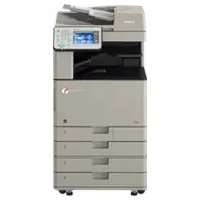
PIXMA G2460 - Printer CANON - Free user manual and instructions
Find the device manual for free PIXMA G2460 CANON in PDF.


User questions about PIXMA G2460 CANON
0 question about this device. Answer the ones you know or ask your own.
Ask a new question about this device
Download the instructions for your Printer in PDF format for free! Find your manual PIXMA G2460 - CANON and take your electronic device back in hand. On this page are published all the documents necessary for the use of your device. PIXMA G2460 by CANON.
USER MANUAL PIXMA G2460 CANON
Read Safety and Important Information (addendum) first.
natural_image
Icon showing a printer with a paper airplane and a document, symbolizing file transfer or sync (no text present)Installing the Printer...... page 1
natural_image
Line drawing of a printer with hands holding it (no text or symbols)
text_image
Diagram showing a hand pressing a printer with a red prohibition symbol indicating no usage or prohibition.Setting Up the Printer

For Setup, visit the URL
https://ij.start.canon
or scan the code with your mobile device

- Follow the instructions below if you do not have an internet connection.
1. Box Contents
- Print Heads
- Ink Bottles
Power Cord - Setup CD-ROM
● Safety and Important Information
• Getting Started (this manual)
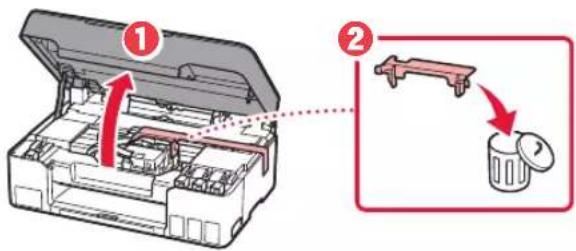
2. Removing Packing Materials
1 Remove and dispose of any packing materials and orange tape.
2 Open the scanning unit / cover, remove and dispose of the orange tape and protective material inside.
text_image
Diagram showing a mechanical device with labeled parts and a close-up of a trash bin, illustrating the process of lifting or discharging.3. Installing the Print Heads
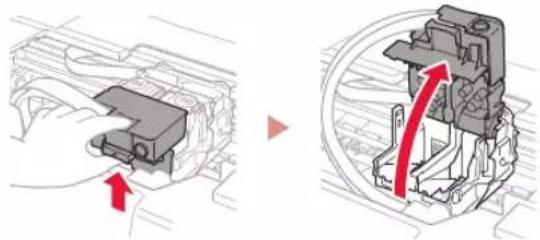
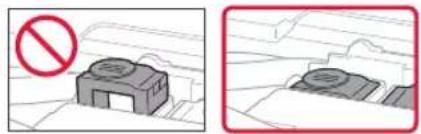
1 Open the print head locking cover.
natural_image
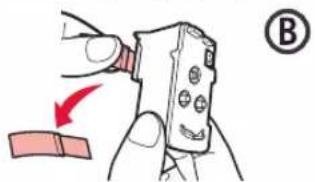
Mechanical assembly diagram showing a component before and after disassembly (no text or labels)2 Take out each print head from the package and remove the label.
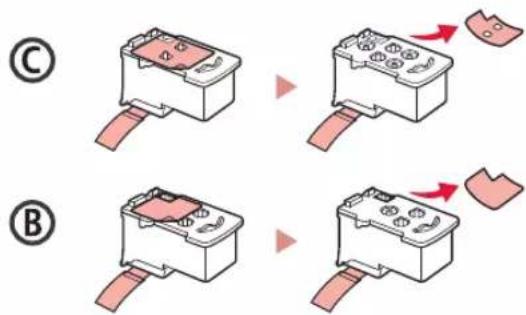
text_image
Diagram showing two steps (C and B) of a battery terminal with red arrows indicating process flow or movement.3 Remove the protective tape.
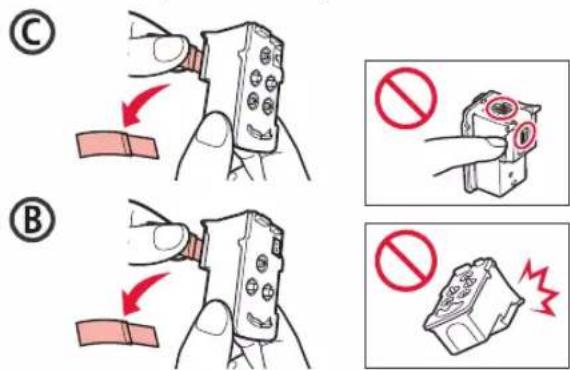
text_image
Illustration showing two-step instructions for installing a device, with labeled diagrams (C and B) and no text in Chinese.Setting Up the Printer
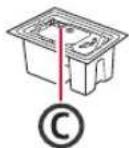
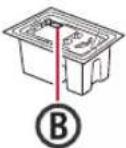
4 Insert the C (color) print head on the left and the B (black) print head on the right.
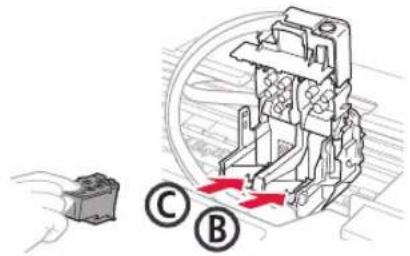
text_image
Diagram showing a mechanical component with labeled parts C and B, indicating a process or assembly step.5 Close the print head locking cover and press down until it clicks.
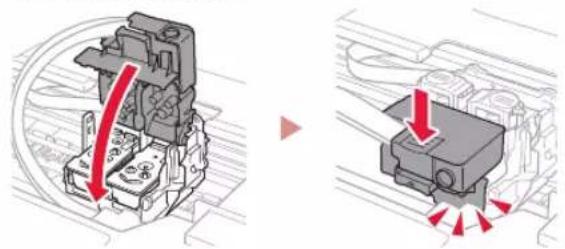
natural_image
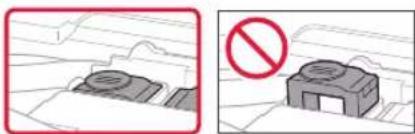
Mechanical assembly diagram showing a motor housing and its internal components with red arrows indicating motion (no text or labels)6 Press down both joint buttons completely until they click.
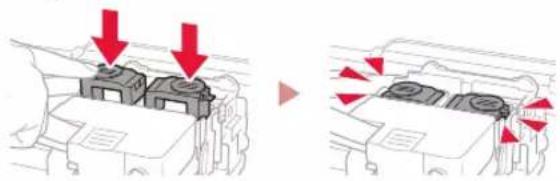
natural_image
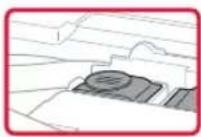
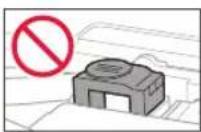
Diagram showing two mechanical components with red arrows indicating downward motion, no text or symbols presentCheck!
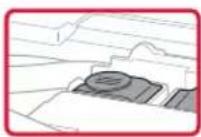
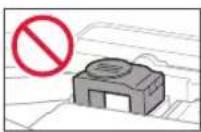
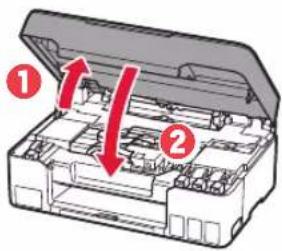
7 Close the scanning unit / cover.
- Open the scanning unit / cover fully and then close it.
text_image
Diagram of a mechanical device with numbered parts and red arrows indicating directional movement or forceCaution
Watch your fingers.
4. Turning on the Printer
1 Connect the power cord.
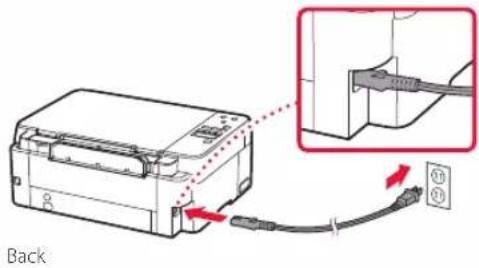
text_image
Back2 Press the ON button.
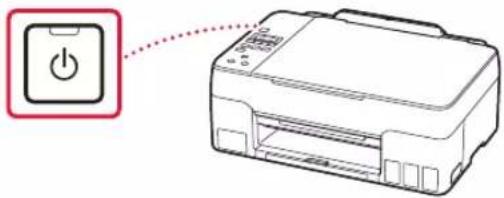
text_image
Diagram showing a power button icon connected to a printer, with a red dotted arrow indicating the connection.3 When the following screen appears, use the ◀ and ▶ buttons to select a language, and then press the OK button.
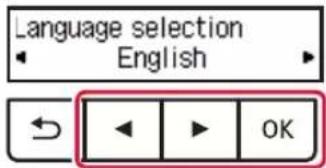
text_image
Language selection English OKImportant
If an error appears on the screen, see "If an error message (support code) appears on the screen" on page 4 and follow the instructions.
5. Pouring Ink

Important
This product requires careful handling of ink. Ink may splatter when the ink tanks are filled with ink. If ink gets on your clothes or belongings, it may not come off.
1 Open the scanning unit / cover.
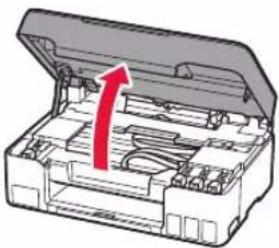
natural_image
3D diagram of an open industrial machine casing with a red arrow indicating a component (no text or symbols present)2 Open the tank cap on the left of the printer.
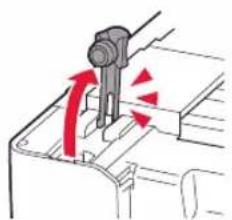
natural_image
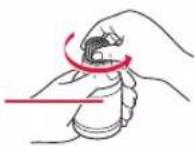
Diagram of a mechanical component with red arrows indicating motion or force direction (no text or symbols)3 Hold the ink bottle upright and gently twist the bottle cap to remove.
Check!
PGBK
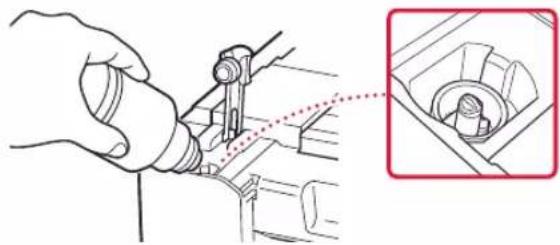
4 Align the nozzle of the ink bottle with the inlet.
natural_image
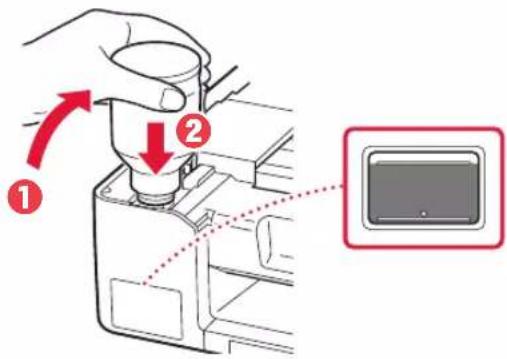
Illustration of a hand using a tool to adjust or install a mechanical component, with an inset showing a close-up of the component (no text or symbols present)5 Slowly stand the ink bottle upside down and push down to pour the ink.
- If the ink does not pour, gently remove the ink bottle and try again.
text_image
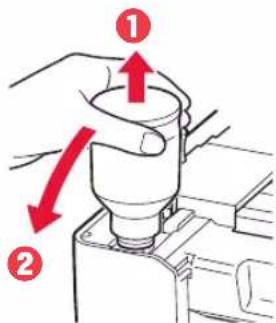
Diagram showing a hand pressing a device into a container with labeled arrows and a close-up of the screen.6 Gently remove the ink bottle from the inlet.
- Be careful not to spill the ink.
text_image
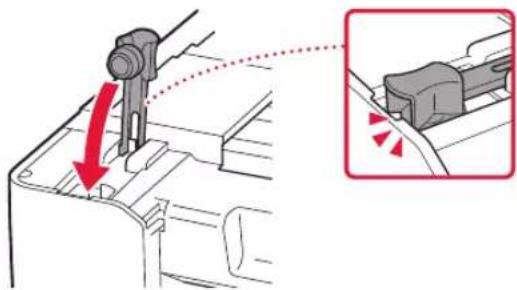
Diagram showing a hand holding a cylindrical object with red arrows indicating direction, labeled with numbers 1 and 2.7 Replace the tank cap securely.
text_image
Technical diagram showing mechanical assembly with red arrows indicating motion or force direction, alongside a magnified inset of a component detail.8 Repeat steps 2 through 7 to pour all ink into the corresponding ink tanks on the right.
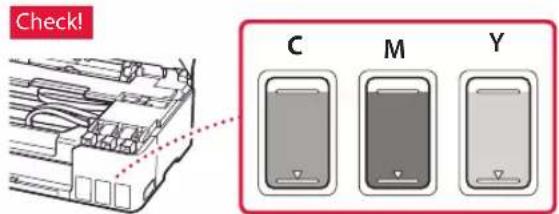
text_image
Check! C M YSetting Up the Printer
9 Close the scanning unit / cover.
- Open the scanning unit / cover fully and then close it.
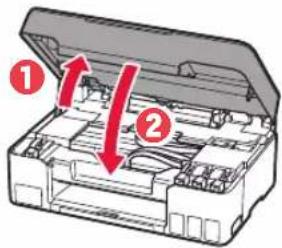
text_image
Diagram of a printer case with labeled parts and red arrows indicating movement or flowCaution
Watch your fingers.
10 When the following screen appears, use the ◀ and ▶ buttons to select Yes, and then press the OK button.
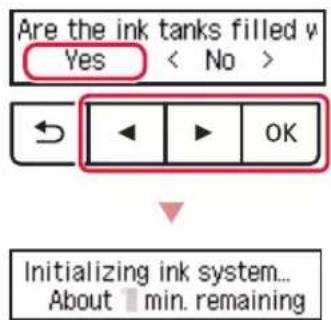
text_image
Are the ink tanks filled v Yes < No > ← ▶ OK Initializing ink system... About 1 min. remaining- Please wait momentarily until the following screen appears. Follow the on-screen instructions, and then press the OK button.
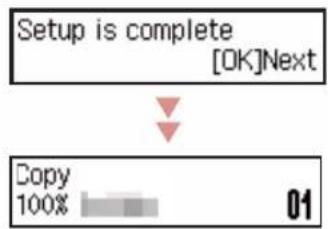
flowchart
graph TD
    A["Setup is complete [OK"]Next] --> B["Copy 100%"]
    B --> C["01"]
If you will use the printer without connecting any other devices, setup is now complete.
Select the connection method that best matches how you will use the printer.
• To use the printer without connecting to any other devices
→ Setup is now complete.
• To use the printer connecting to a computer
→ Proceed to the next page.

If an error message (support code) appears on the screen

text_image
Protective material rema Support code 1890—Support codeCheck the support code, and then follow the instructions if the displayed code is written below.
1890
Protective material remaining.
→"2. Removing Packing Materials" on page 1
1470
Print heads are not installed correctly.
→ "3. Installing the Print Heads" on page 1
1471
Print heads cannot be recognized.
→ "3. Installing the Print Heads" on page 1
5200
Ink system preparation was not completed successfully. Press the ON button to restart the printer, and then see "5. Pouring Ink" on page 3.
For all other cases, refer to the Online Manual.
6
Connecting to a Computer
If you are using multiple computers, perform these steps on each computer.
1 Access the Canon website from your computer.

https://ij.start.canon
2 Select Set Up.
3 Enter your printer's model name and click Go.
4 Click Start.
5 Click (B) Connecting to a Computer.
• The following steps are for Windows users.
6 Click Download.
7 Run the downloaded file.
• Follow the on-screen instructions.
• This may take some time.

Using the Setup CD-ROM
Double click EasySetup.exe in the CD-ROM, and then continue from step 3. If you do not have an internet connection, open the win folder in the CD-ROM and double click SETUP.exe. This will install the printer driver.
Loading Paper
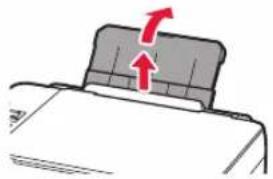
1 Extend the paper support.
natural_image
Diagram of a mechanical component with a red arrow indicating upward motion (no text or symbols)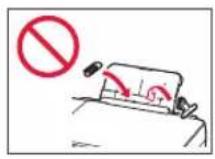
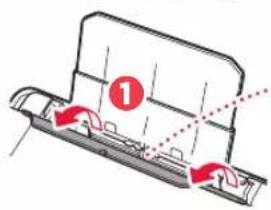
2 Open the feed slot cover and slide the right-hand side paper guide to the far right.
text_image
Diagram showing a mechanical component with red arrows indicating motion or force direction, labeled with number 1.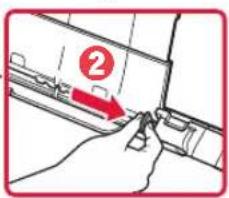
text_image
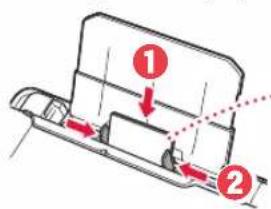
Diagram showing a hand holding a device with a numbered label '2' pointing to a component, likely indicating step 2 of operation.3 Load several sheets of paper with the print side facing up and slide the side paper guide against the edge of the paper stack.
text_image
Diagram showing two labeled parts (1 and 2) with arrows indicating movement or force, likely illustrating a mechanical or electrical assembly.
text_image
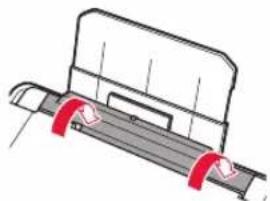
Two symbolic signs: a blank rectangle and a red prohibition symbol with a circle.4 Close the feed slot cover.
natural_image
Technical line drawing of a mechanical component with red clamps (no text or symbols)5 When Save the rear tray paper information appears on the printer's screen, press the OK button.
6 Select the paper size and type, and press the OK button.
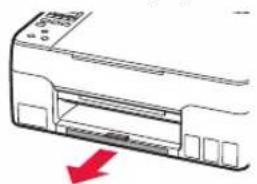
7 Extend the paper output tray.
natural_image
Diagram of a printer with a red arrow indicating compression or disassembly (no text or symbols present)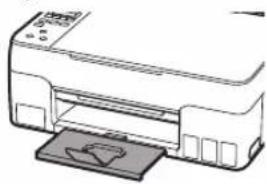
natural_image
Line drawing of a printer with a paper clip inserted (no text or symbols)Transporting Your Printer
When relocating the printer, check the following. Refer to the Online Manual for details.
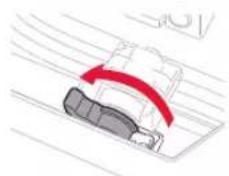
Check that both joint buttons are pressed down completely to avoid ink leaks.
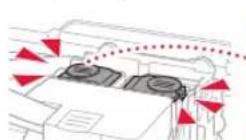
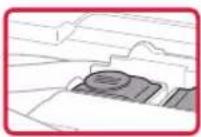
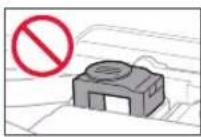
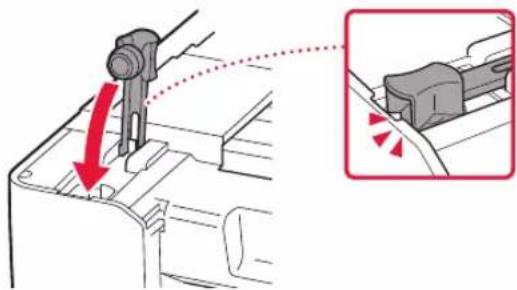
Check that the position of the ink valve lever is closed.
natural_image
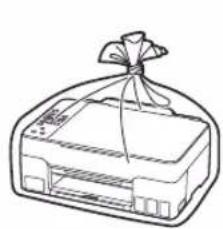
Diagram of a car being tracked with a red curved arrow indicating motion (no text or symbols)Pack the printer in a plastic bag in case ink leaks.
- Pack the printer in a sturdy box so that it is placed with its bottom facing down, using sufficient protective material to ensure safe transport.
- Do not tilt the printer. Ink may leak.
- Please handle with care and ensure the box remains flat and NOT turned upside down or on its side, as the printer may be damaged and ink in the printer may leak.
- When a shipping agent is handling transport of the printer, have its box marked "THIS SIDE UP" to keep the printer with its bottom facing down. Mark also with "FRAGILE" or "HANDLE WITH CARE".
natural_image
Line drawing of a printer with a ribbon tied around it (no text or symbols)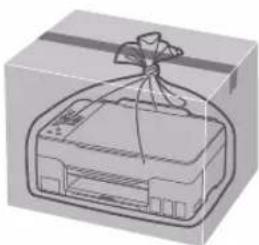
natural_image
Illustration of a box with a paper airplane and a ribbon, no text or symbols presenttext_image
Diagram showing a mechanical device open with labeled parts and a close-up of a trash bin with a handle, illustrating the process.natural_image
Mechanical assembly diagram showing a component being inserted into a housing, with red arrows indicating direction (no text or labels present)text_image
Illustration showing two-step instructions for installing a device, with red prohibition symbols indicating no protection.text_image
Technical diagram showing a mechanical assembly with labeled parts C and B, and a small component connected to it.natural_image
Technical illustration of a mechanical assembly with red arrows indicating force directions (no text or symbols present)natural_image
Diagram showing two mechanical components with red arrows indicating downward motion, no text or symbols present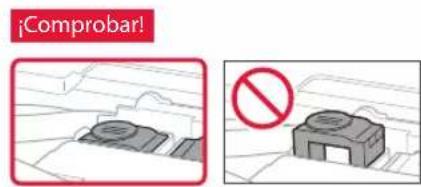
text_image
Warning sign with text '¡Comprobar!' and a prohibition symbol on a diagram showing a room with a blanket and a building.text_image
Diagram of a mechanical device with numbered parts and red arrows indicating directional movement or forcePrecaución
text_image
Diagram showing a power button icon connected to a printer, with a red dotted arrow indicating the connection.text_image
Language selection English OKImportante
natural_image
3D diagram of an open mechanical device with a red arrow indicating upward motion (no text or symbols)natural_image
Diagram of a mechanical component with red arrows indicating motion or force direction (no text or symbols)natural_image
Illustration of a hand using a tool to adjust or install a mechanical component, with an inset showing a close-up of the component (no text or symbols present)text_image
Diagram showing a hand operating a device with labeled parts and directional arrows, including a highlighted screen icon.text_image
Diagram showing a hand operating a mechanical component with red arrows indicating direction of movement or force, labeled ① and ②.text_image
Technical diagram showing mechanical assembly with red arrows indicating direction and magnified detail viewtext_image
Diagram showing a printer with a computer interface and three labeled devices (C, M, Y) below them.text_image
Diagram of a printer case with labeled parts and directional arrows indicating movement or flowPrecaución
text_image
Are the ink tanks filled v Yes < No > ← ▶ OK Initializing ink system... About 1 min. remainingflowchart
graph TD
    A["Setup is complete [OK"]Next] --> B["Dopy 100%"]
    B --> C["01"]
Protective material rema Support code 1890
Código asist. (Support code)
natural_image
Diagram of a printer with a paper lid and arrow indicating rotation (no text or symbols)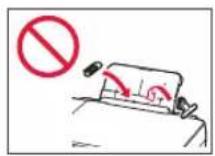
text_image
Diagram showing a mechanical component with red arrows indicating motion or force direction, labeled with number 1.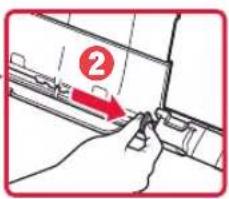
text_image
Diagram showing a hand holding a tool with a numbered label '2' pointing to a component, likely indicating step 2 of a process or procedure.text_image
Diagram showing two labeled parts (1 and 2) with arrows indicating movement or force, likely illustrating a mechanical or electrical assembly.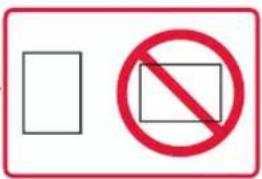
text_image
Two symbolic signs: a blank rectangle and a red prohibition symbol with a circle.natural_image
Technical line drawing of a mechanical component with red ring fasteners (no text or symbols)natural_image
Diagram of a printer with a red arrow indicating compression or disassembly (no text or symbols present)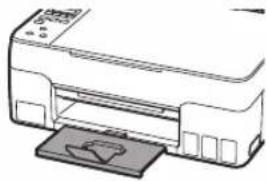
natural_image
Line drawing of a printer with a paper holder (no text or symbols)text_image
Diagram illustrating fire resistance warning and safety symbols, showing fire damage and no fire symbol in three scenarios.natural_image
Diagram of a car with a red curved arrow indicating motion or change, no text or symbols presentnatural_image
Two hand-drawn diagrams showing a gift box being wrapped around it, with no visible text or symbols.Configurando a impressora

Para configurar, visite a URL
https://ij.start.canon
text_image
Diagram showing a mechanical device open with labeled parts and a close-up of a trash bin with a handle, illustrating the process.natural_image
Mechanical assembly diagram showing a component being rotated and then tilted (no text or symbols present)text_image
Illustration showing two-step instructions for installing a device, with red prohibition symbols indicating no movement.Configurando a impressora
text_image
Diagram showing a mechanical assembly with labeled parts C and B, indicating directional movement or force vectors.natural_image
Technical illustration of a mechanical component with red arrows indicating direction (no text or symbols)natural_image
Diagram showing two mechanical components with red arrows indicating downward motion, no text or symbols presentVerificar!
text_image
Diagram of a mechanical device with numbered parts and red arrows indicating directional movement or forceCuidado
text_image
Diagram showing a printer connected to a cable with an electrical outlet, highlighting a cable connection detail.Parte traseira
text_image
Diagram showing a power button icon connected to a printer, with a red dotted arrow indicating the connection.text_image
Language selection English OKImportante
natural_image
3D diagram of an open mechanical device with a red arrow indicating a directional change or operation (no text or symbols present)natural_image
Mechanical assembly diagram showing a lever mechanism with red arrows indicating motion (no text or symbols)natural_image
Illustration of a hand using a tool to adjust or install a mechanical component, with an inset showing a close-up of the component (no text or symbols present)text_image
Diagram showing a hand operating a device with labeled parts and directional arrows, including a zoomed-in square button.6 Remova lentamente a garrafa de tinta da entrada.
text_image
Diagram showing a hand holding a cylindrical device with red arrows indicating direction of movement or force, labeled ① and ②.7 Recoloque firmemente a tampa do cartucho.
text_image
Technical diagram showing mechanical assembly with red arrows indicating direction and magnified detail viewtext_image
Verificar! C M YConfigurando a impressora
text_image
Diagram of a printer with labeled parts and directional arrows indicating process flowCuidado
text_image
Are the ink tanks filled v Yes < No > ← ▶ OK Initializing ink system... About 1 min. remainingflowchart
graph TD
    A["Setup is complete\n[OK"]Next] --> B["Dopy\n100%"]
    B --> C["01"]
text_image
Medical illustration showing a bed with a seatbelt and a patient lying on the blanket, accompanied by a no-smoking symbol.text_image
Diagram illustrating two steps of a mechanical or electrical component assembly, labeled ① and ② with arrows indicating movement.text_image
Diagram showing a vehicle collision with numbered arrows and a prohibition symbol indicating no collision.natural_image
Technical line drawing of a mechanical component with red clamps (no text or symbols)natural_image
Two line drawings of a printer with a paper insert, showing front and side views (no text or symbols)Transportando a Impressora
text_image
Diagram illustrating fire resistance warning and safety symbols for a building, with arrows indicating fire damage and a prohibition sign.natural_image
Diagram showing a car on a road with a red curved arrow indicating motion (no text or symbols)natural_image
Illustration of a bag with a ribbon tied to a box, showing a change from a simple package to a wrapped package (no text or symbols present)Configuration de l'imprimante

text_image
Diagram showing a mechanical device open with a highlighted component and its disassembly process, labeled with steps ① and ②.natural_image
Mechanical assembly diagram showing a component being inserted into a housing, with red arrows indicating direction (no text or labels present)text_image
Diagram showing two steps (C and B) of a battery pack being inserted, with arrows indicating process direction.text_image
(C) (B) (No) (No)Configuration de l'imprimante
text_image
Diagram showing a mechanical component with labeled parts C and B, indicating directional movement or assembly.natural_image
Technical diagram showing a mechanical assembly with red arrows indicating direction of motion or force (no text or symbols present)natural_image
Diagram showing two mechanical components with red arrows indicating downward motion, no text or symbols presentVérifiez!
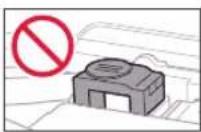
text_image
Diagram of a mechanical device with numbered parts and red arrows indicating directional movement or forceAttention
text_image
Diagram showing a power button icon connected to a printer, with a red dotted arrow pointing to the printer's power button.text_image
Language selection English OKImportant
natural_image
3D diagram of an open mechanical device with a red arrow indicating a directional component (no text or symbols)natural_image
Diagram of a mechanical component with red arrows indicating motion or force direction (no text or symbols)natural_image
Illustration of a hand using a tool to adjust or install a mechanical component, with an inset showing a close-up of the component (no text or symbols present)text_image
Diagram showing a hand pressing a device into a container with labeled arrows and a close-up of the screen.text_image
Diagram showing a hand holding a cylindrical object with red arrows indicating direction, labeled with numbers ① and ②.text_image
Technical diagram showing mechanical assembly with red arrow indicating direction and magnified detail viewtext_image
Diagram of a printer with labeled parts and directional arrows indicating process flow▲ Attention
natural_image
Diagram of a printer with a paper roll and red arrows indicating motion (no text or symbols)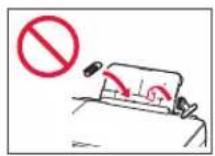
text_image
Diagram showing a mechanical component with red arrows indicating motion or force direction, labeled with number 1.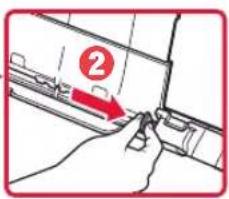
text_image
Diagram showing a hand holding a tool with a numbered label '2' pointing to a component, likely indicating step 2 of a process or procedure.text_image
Diagram showing two labeled parts (1 and 2) with arrows indicating movement or force, likely illustrating a mechanical or electrical component assembly.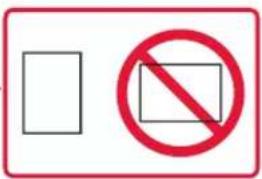
text_image
Two symbolic signs: a blank rectangle and a red prohibition symbol with a circle.natural_image
Technical line drawing of a mechanical component with red clamps (no text or symbols)natural_image
Two line drawings of a printer with arrows indicating process direction (no text or symbols)text_image
Diagram illustrating fire safety rules with labeled arrows and prohibition symbolnatural_image
Diagram showing a car with a red curved arrow indicating motion or force, no text or symbols presentnatural_image
Two wireframe diagrams showing a bag wrapped in a cloth and a box with a handle, both without any text or symbols.Настройка принтера

text_image
Diagram showing a mechanical device open with labeled parts and a close-up of a trash bin with a handle, illustrating the process.natural_image
Mechanical assembly diagram showing a component being inserted into a housing, with red arrows indicating direction (no text or labels present)text_image
Diagram showing two steps (C and B) of a battery pack being inserted, with arrows indicating process direction.text_image
Illustration showing two-step instructions for installing a device, with red prohibition symbols indicating no movement.Настройка принтера
text_image
Diagram showing a mechanical assembly with labeled parts C and B, and a small component connected to it.natural_image
Technical diagram showing mechanical assembly with red arrows indicating direction (no text or symbols)natural_image
Diagram showing a mechanical assembly with red arrows indicating downward motion, no text or symbols presentПроверка!
text_image
Diagram of a printer case with labeled parts and directional arrows indicating process flowОсторожно!
Берегите пальцы.
text_image
Diagram showing a power button icon connected to a printer, with a red dotted arrow indicating the connection.text_image
Language selection English OKВнимание!
natural_image
3D diagram of an open mechanical device with a red arrow indicating a directional change or operation (no text or symbols present)natural_image
Diagram of a mechanical component with red arrows indicating motion or force direction (no text or symbols)natural_image
Illustration of a hand using a tool to adjust or install a mechanical component, with an inset showing a close-up of the component (no text or symbols present)text_image
Diagram showing a hand pressing a device into a machine with labeled parts and directional arrows indicating motion or movement.text_image
Diagram showing a hand pressing a cylindrical component with red arrows indicating direction, labeled with numbers 1 and 2.natural_image
Mechanical assembly diagram showing a tool interacting with a component, with an inset close-up highlighting the motion direction (no text or symbols)text_image
Diagram of a printer case with labeled parts and directional arrows indicating movement or flowtext_image
Are the ink tanks filled v Yes < No > ← ▶ OK Initializing ink system... About 1 min. remainingflowchart
graph TD
    A["Setup is complete [OK"]Next] --> B["Copy 100%"]
    B --> C["01"]
natural_image
Diagram of a printer with a paper roll and red arrows indicating motion (no text or symbols)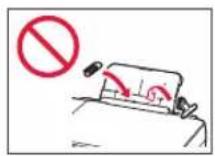
text_image
Diagram showing a mechanical component with red arrows indicating motion or force, labeled with number 1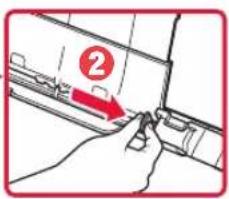
text_image
Diagram showing a hand holding a tool with a numbered label '2' pointing to a component, likely indicating step 2 of a process or procedure.text_image
Diagram showing two labeled parts (1 and 2) with arrows indicating movement or force, likely illustrating a mechanical or electrical assembly.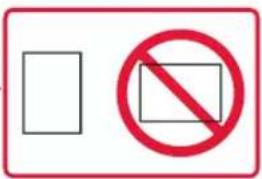
text_image
Two symbolic signs: a blank rectangle and a red prohibition symbol with a circle.natural_image
Technical line drawing of a mechanical component with red ring fasteners (no text or symbols)natural_image
Diagram of a printer front panel with a red arrow indicating compression or disassembly (no text or symbols present)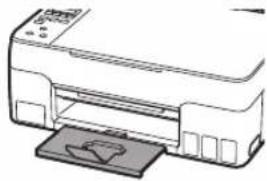
natural_image
Illustration of a printer with a paper feeding into a slot (no text or symbols visible)natural_image
Diagram of a car's seat with a red curved arrow indicating motion (no text or symbols)natural_image
Two wireframe diagrams showing a bag and a box, both with ribbon ties, no text or symbols present.text_image
Diagram showing a mechanical device open with labeled parts and a close-up of a trash bin with a handle, illustrating the process.natural_image
Mechanical assembly diagram showing a component being rotated and then tilted, with red arrows indicating motion direction (no text or symbols present)text_image
Diagram showing two steps (C and B) of a battery pack being inserted, with arrows indicating process direction.text_image
Illustration showing two-step instructions for installing a device, with red prohibition symbols indicating no movement.text_image
Diagram showing a mechanical assembly with labeled parts C and B, and a small component connected to it.natural_image
Technical illustration of a mechanical component before and after assembly, showing red arrows indicating motion or force direction (no text or symbols present)text_image
Diagram illustrating vehicle door lock mechanism with red arrows indicating downward motion and red arrows indicating clockwise rotation.Перевірте!
natural_image
Two technical diagrams showing a mechanical component and a building with a prohibition symbol (no text or labels present)text_image
Diagram of a printer case with labeled parts and red arrows indicating flow or movement⚠️Увага!
Бережіть пальці.
text_image
Diagram showing a printer connected to a cable with an electrical outlet, highlighting a cable connection detail.Задня сторона
text_image
Diagram showing a printer with a power button icon and a dotted line indicating connection to the printer.text_image
Language selection English OK
Важливо
natural_image
3D diagram of an open industrial machine casing with a red arrow indicating a component (no text or symbols present)natural_image
Diagram of a mechanical component with red arrows indicating motion or force direction (no text or symbols)natural_image
Illustration of a hand using a tool to adjust or install a mechanical component, with an inset showing a close-up of the component (no text or symbols present)text_image
Diagram showing a hand operating a device with labeled parts and directional arrows, including a magnified inset of the screen.text_image
Diagram showing a hand holding a cylindrical object with red arrows indicating direction, labeled with numbers ① and ②.text_image
Technical diagram showing mechanical assembly with red arrows indicating direction and magnified detail viewtext_image
Diagram of a printer with labeled parts and directional arrows indicating process flow⚠️ Увага!
Бережіть пальці.
text_image
Are the ink tanks filled v Yes < No > ← ▶ OK Initializing ink system... About 1 min. remainingflowchart
graph TD
    A["Setup is complete\n[OK"]Next] --> B["Dopy\n100%"]
    B --> C["01"]
natural_image
Diagram of a printer with a paper lid and arrow indicating rotation (no text or symbols)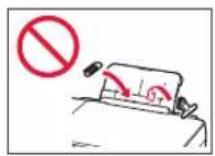
text_image
Diagram showing a mechanical component with red arrows indicating motion or force, labeled with number 1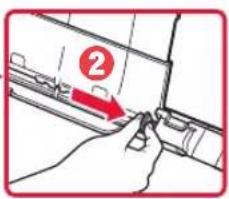
text_image
Diagram showing a hand holding a tool with a numbered label '2' pointing to a component, likely indicating step 2 of a process or procedure.text_image
Diagram showing two labeled parts (1 and 2) with arrows indicating movement or force, likely illustrating a mechanical or electrical component assembly.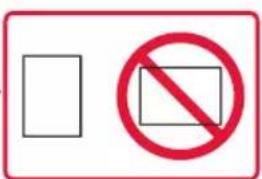
text_image
Two symbolic signs: a blank rectangle and a red prohibition symbol with a circle.natural_image
Technical line drawing of a mechanical component with red ring fasteners (no text or symbols)natural_image
Two 3D printer diagrams showing front and side views, with no visible text or symbols.natural_image
Diagram showing a car with a red curved arrow indicating motion or change, no text or symbols presentnatural_image
Two wireframe diagrams showing a bag with a cloth and a box, both wrapped in a ribbon (no text or symbols)تحميل الورق
natural_image
Technical line drawing of a mechanical component with red clamps (no text or symbols)Save the rear tray paper information 5 عند ظلهور
natural_image
Diagram of a printer with a paper lid and arrow indicating upward motion (no text or symbols)text_image
Diagram showing a mechanical component with red arrows indicating motion or force, labeled with number 1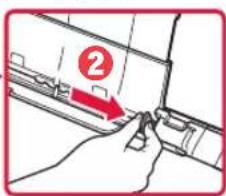
text_image
Diagram showing a hand pressing a component with a numbered label '2' pointing to the part.text_image
Diagram showing two labeled parts with arrows indicating movement or force, marked as 1 and 2.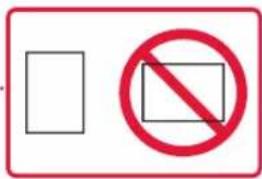
text_image
Two symbolic signs: a blank rectangle and a red prohibition symbol with a circle.natural_image
Diagram of a car with a red curved arrow indicating motion or force, no text or symbols present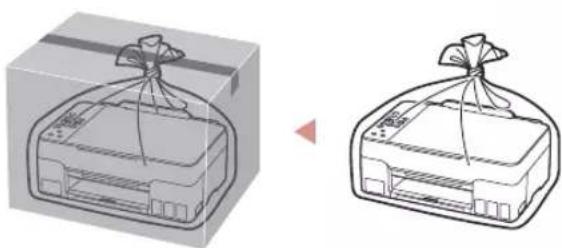
natural_image
Illustration of a gift box with a ribbon, next to a simplified image of a printer (no text or symbols)
text_image
Diagram of an open industrial machine with labeled parts and red arrows indicating downward movement or flowtext_image
Are the ink tanks filled v Yes < No >Initializing ink system... About 1 min. remaining
text_image
Setup is complete [OK]Next Copy 100% 01Protective material rema Support code 1890 Support code
text_image
Diagram showing a hand pressing a device into a container with labeled arrows and a close-up of the screen.text_image
Diagram showing a hand operating a mechanical device with labeled parts and directional arrows indicating motion or force.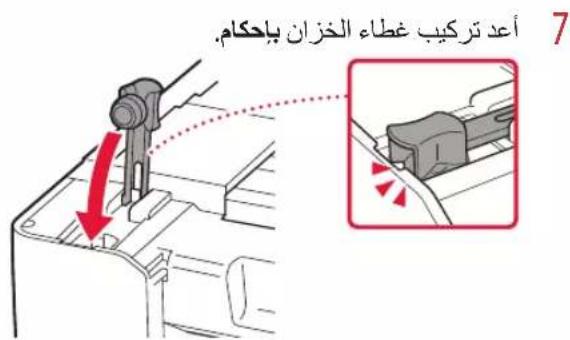
natural_image
Diagram of an open industrial machine casing with a red arrow indicating a component (no text or symbols present)natural_image
Diagram of a mechanical component with red arrows indicating motion or force direction (no text or symbols)3AmskzjajahalbprbucoroeomodyawqcmbtdwirgptaeyzjajahabrefcIeZahthe.

text_image
نحقا PGBKnatural_image
Illustration of a hand using a tool to adjust or install a mechanical component, with an inset showing a close-up of the component (no text or symbols present)
4. تشغيل الطابعة
text_image
Language selection English OK
text_image
Technical diagram showing a mechanical assembly with labeled parts C and B, and a hand holding a component.无法识别
text_image
Technical diagram showing mechanical component assembly with red arrows indicating downward motion or force vectorsnatural_image
Diagram showing engine compartment changes with red arrows indicating movement, no text or symbols present
natural_image
Two technical diagrams showing a mechanical component with a prohibition symbol, alongside a close-up of its view (no text or labels present)natural_image
Mechanical assembly diagram showing a motor component with red directional arrows indicating motion (no text or labels)text_image
Diagram showing a hand holding a device with a red arrow indicating rotation, labeled with letter C in the corner.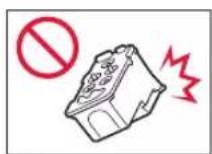
text_image
Illustration showing a hand adjusting a device with a red arrow indicating the cable or cable attachment.1. محتويات العليا
زجاجات الحبر
specialist الطاقة
natural_image
Two identical diagrams of a container with red vertical lines and circular markers labeled C and B (no text or symbols beyond labels)
text_image
Diagram of a mechanical device with labeled component 1 and red arrow indicating direction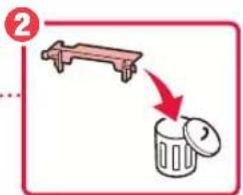
text_image
② ...Trademarks
- Windows is a trademark or registered trademark of Microsoft Corporation in the U.S. and/or other countries.