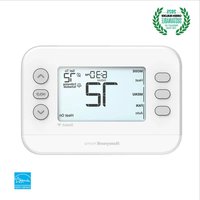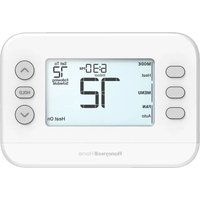
RCH9310WF - Thermostat HONEYWELL - Free user manual and instructions
Find the device manual for free RCH9310WF HONEYWELL in PDF.


User questions about RCH9310WF HONEYWELL
0 question about this device. Answer the ones you know or ask your own.
Ask a new question about this device
Download the instructions for your Thermostat in PDF format for free! Find your manual RCH9310WF - HONEYWELL and take your electronic device back in hand. On this page are published all the documents necessary for the use of your device. RCH9310WF by HONEYWELL.
USER MANUAL RCH9310WF HONEYWELL
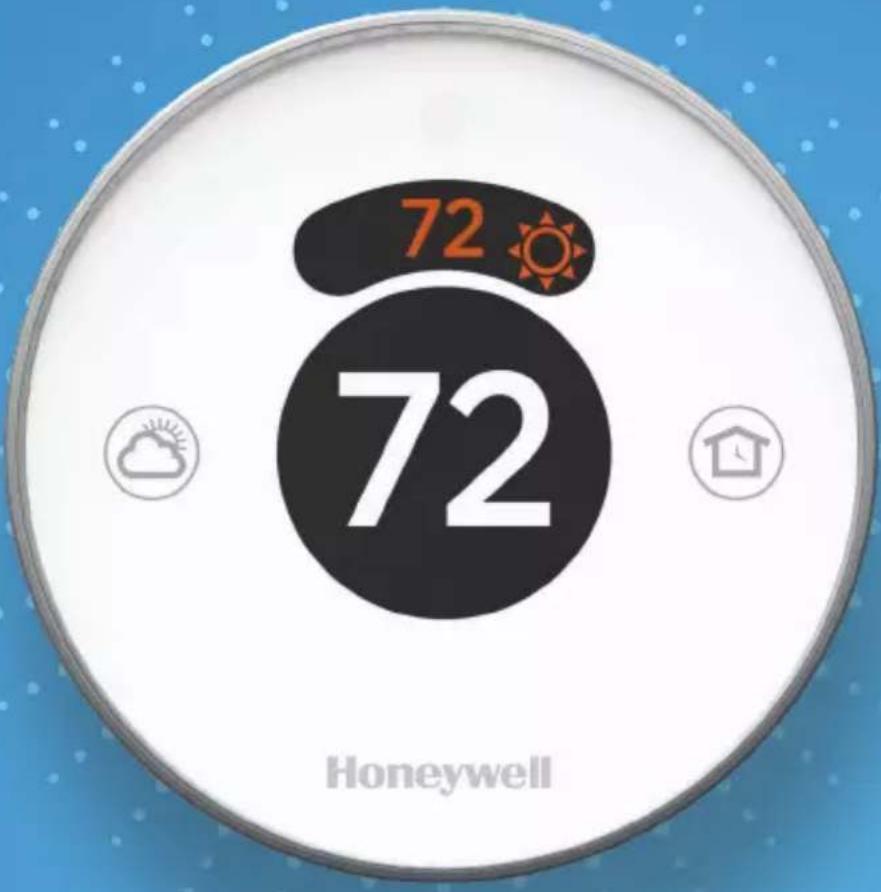
Lyric Round™ Wi-Fi Thermostat
text_image
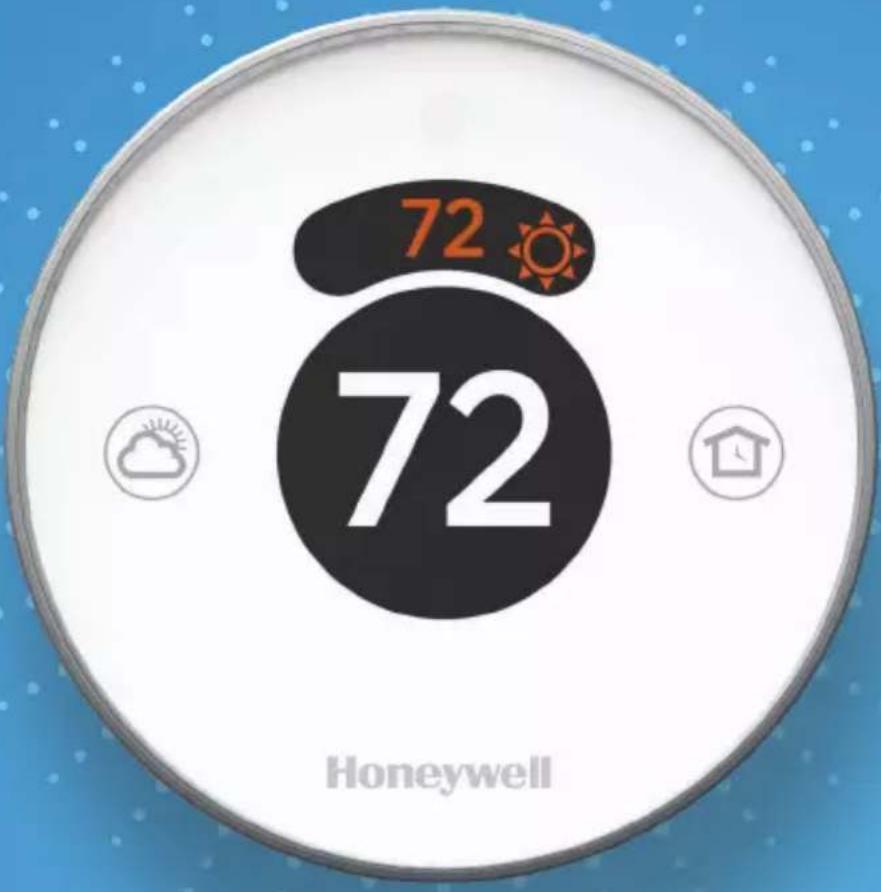
72 72 HoneywellQuick Start Guide
Compatibility
Does not work with electric baseboard heat (120-240V)
Compatible with most other heating, cooling and heat pump systems
Optional: 24 VAC power ("C" wire)
Lyric's implementation of Apple HomeKit requires 24 VAC power ("C" wire)
For help, contact:
WEB lyric.honeywell.com
EMAIL MyLyric@honeywell.com
PHONE 1-800-633-3991
SOCIAL Twitter: @Honeywell_Home, Facebook: Honeywell Home
Included in your box:
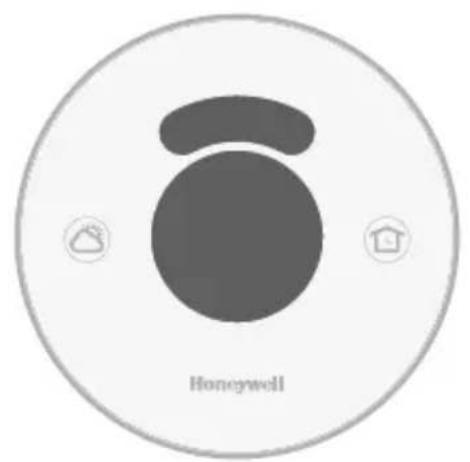
text_image
HoneywellThermostat Wall plate
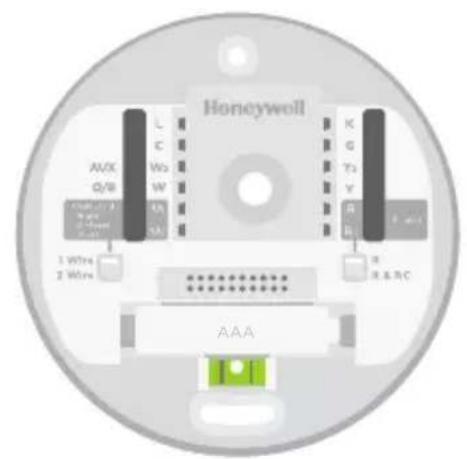
text_image
Honeywell AUX Q/8 1 Wtrx 2 Wtrx L C W0 W AA K G Y3 Y G R & RC AAA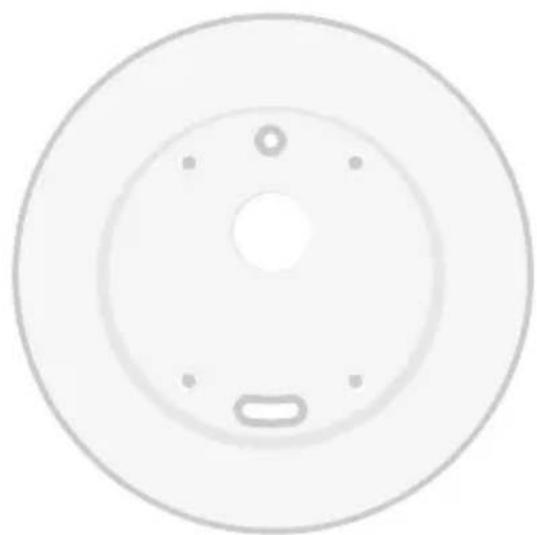
natural_image
Circular mechanical component with central hole and mounting holes (no text or symbols)Optional wall cover
Screws
Anchors
Tools you will need:

Phillips screwdriver

Small flat head screwdriver

Ballpoint pen

natural_image
Illustration of a pair of needle-nose pliers (no text or symbols on the image itself)Needle-nose pliers*
natural_image
Illustration of two wire stripper tools (no text or symbols on the tools themselves)Wire stripper*
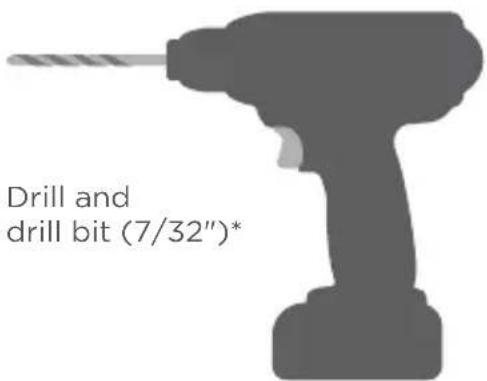
text_image
Drill and drill bit (7/32")**Tools you might need

Home Wi-Fi password

Honeywell Lyric app
To configure your system and connect to your smartphone
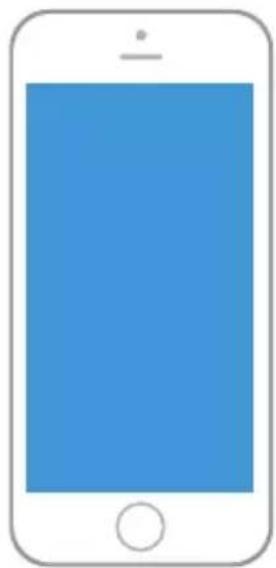
natural_image
Simple line drawing of a smartphone with a blue screen and white body (no text or symbols)Smartphone
To photograph your existing wiring and access the thermostat app

natural_image
Blue hand symbol inside a white octagonal border (no text or numbers)BEFORE YOU BEGIN
Download the Honeywell Lyric app on your smartphone.
This document is not a stand-alone guide. It is best used as a reference with the app.

Turn power OFF
To protect yourself and your equipment, Turn off the power at the breaker box or switch that controls your heating/cooling system.
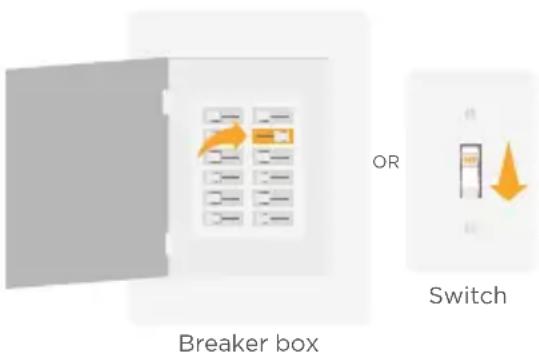
text_image
Breaker box OR Switch2 Check that your system is off
Change the temperature on your old thermostat. If you don't hear the system turn on within 5 minutes, the power is off.
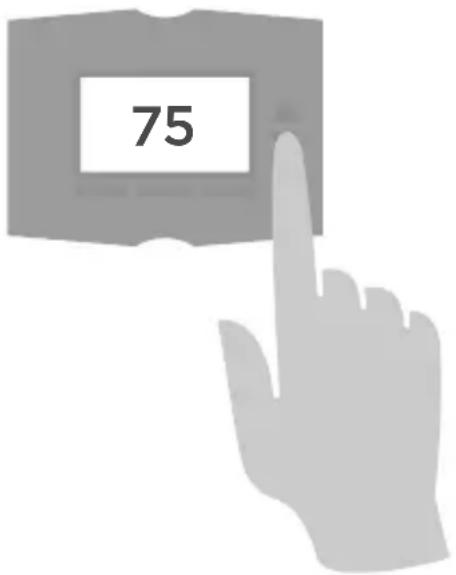
text_image
753 Remove the old thermostat's faceplate
On most thermostats, you can take off the faceplate by grasping and gently pulling or popping it off.
Some thermostats may have screws, buttons, or clasps.
Do not remove any wires from your thermostat
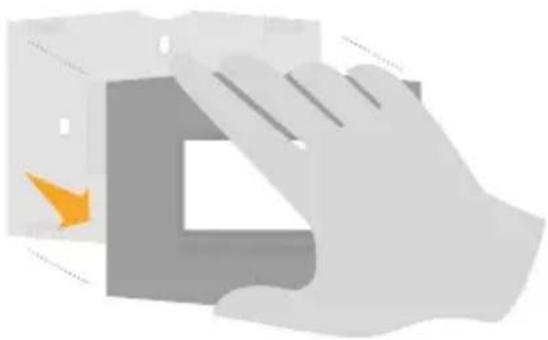
natural_image
Illustration of a hand pressing down on a gray rectangular object with an orange arrow indicating motion (no text or symbols)4 Make sure there are no 120-240V wires

Do you have thick black wires with wire nuts? Is your thermostat 120V or higher?
If you answered yes to either of these questions, you have a line voltage system and the Lyric thermostat will not work.
If you are unsure visit
lyric.honeywell.com/support
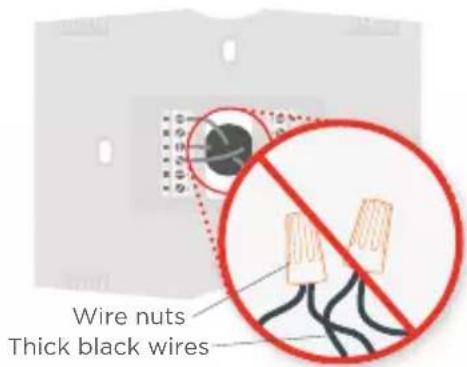
text_image
Wire nuts Thick black wires5 Take a picture of the old wiring
Be sure to include the letters next to the terminals where the wires are inserted. This will be a helpful reference when wiring your Lyric thermostat.
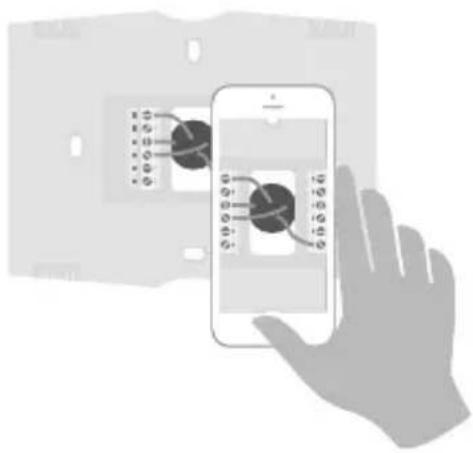
text_image
Illustration showing a hand interacting with a smartphone displaying a control interface with multiple switches and display screens.6 Remove any jumpers
A jumper connects one terminal to another terminal. It may look like a small staple or even a colored wire and must be removed before continuing.
The Lyric thermostat does not need jumpers.
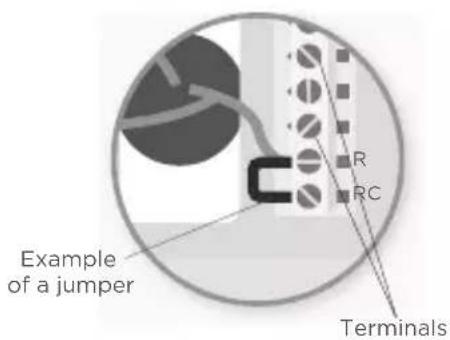
text_image
Example of a jumper R RC Terminals7 Record if you have wires in the following terminals
Do not include jumpers as part of your count.
Check all that apply:
Terminal Color of wire
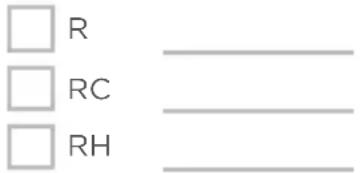
text_image
□ R □ RC □ RH8 Record the existing wire configuration
Note the color of the wires that are plugged into your old thermostat's terminals. You will need this information to correctly wire your Lyric thermostat.
Terminal Color of wire Terminal Color of wire
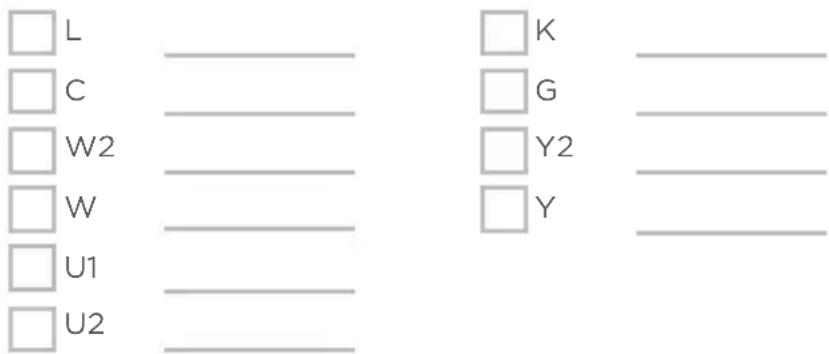
text_image
□ L ______ □ C ______ □ W2 ______ □ W ______ □ U1 ______ □ U2 ______ □ K ______ □ G ______ □ Y2 ______ □ Y ______If the wires are in terminals that are not listed, you will need additional wiring support. Visit lyric.honeywell.com/support/installation to find out if the Lyric thermostat will work for you.
9 Disconnect the wires and remove old wall plate
Use a screwdriver or a ballpoint pen to release wires from terminals.
Wrap the wires around your ballpoint pen to prevent them from falling back into the wall.
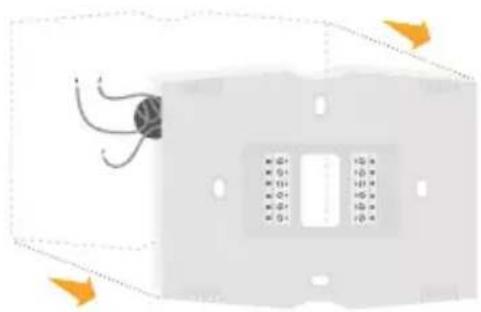
natural_image
Diagram of a wall-mounted electrical connector with internal components and directional arrows indicating rotation (no text or symbols)10 Insert the recommended wall anchors
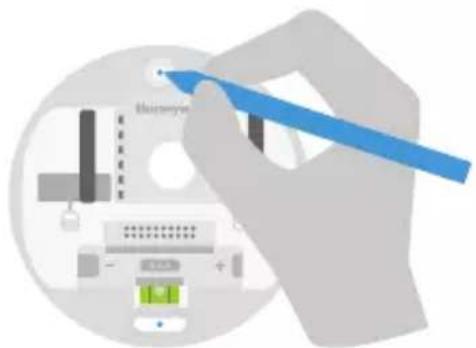
It is recommended that you use the provided anchors when mounting your thermostat.
You can use the wall plate to mark where you want to place the wall anchors.
Drill bit size 7/32"
natural_image
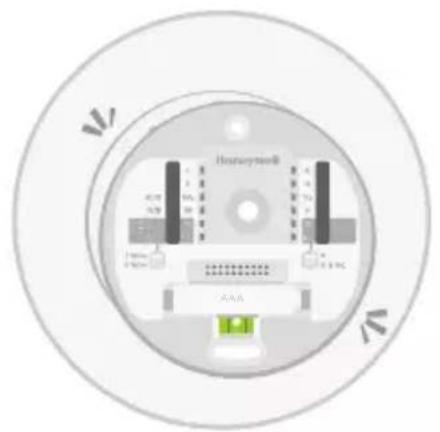
Illustration of a hand inserting a device into a circular device with a blue arrow pointing to it (no text or symbols present)11 Check for any paint gaps or screw holes left by the old thermostat
If you choose to use the optional wall cover to hide these blemishes, snap the wall plate to the optional wall cover before screwing to the wall.
natural_image
Top-down view of a Huawei network interface component (no text or symbols visible)12 Bundle and insert wires through the clear rubber holder
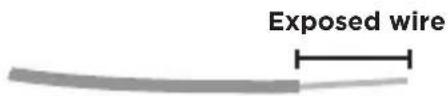
Guide the wires through the clear rubber holder on the back of the wall plate. Make sure at least 1/4-inch of each wire is exposed for easy insertion into the wire terminals.
text_image
Exposed wire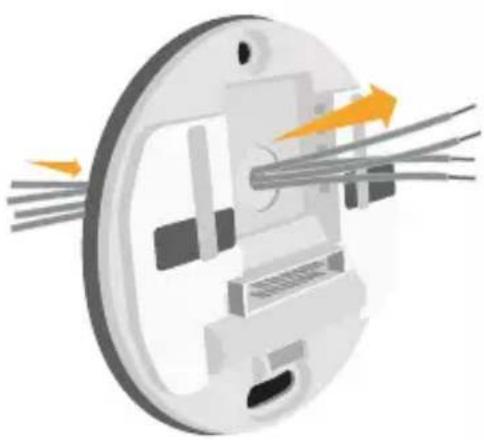
natural_image
Cross-sectional diagram of a mechanical component with internal components and external force arrows (no text or symbols)13 Review your answer from Step 7
Set the R-switch up or down based on your answer from Step 7.
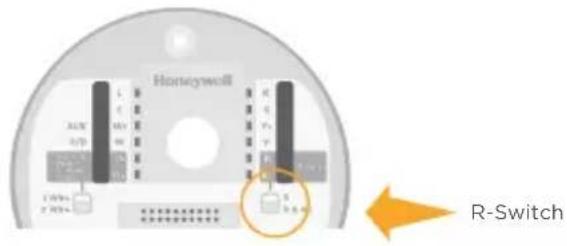
text_image
Honeywell R-SwitchIf you checked Insert Write(s) R6wTechnical(s)
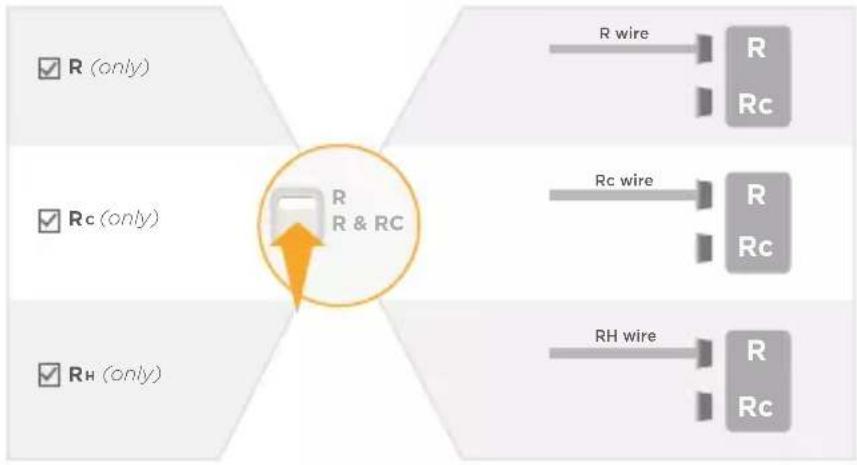
flowchart
graph TD
    A["✓ R (only)"] --> B["R & RC"]
    C["✓ Rc (only)"] --> B
    D["✓ Rh (only)"] --> B
    B --> E["R wire"]
    B --> F["R Rc"]
    B --> G["R wire"]
    B --> H["R Rc"]
    B --> I["R wire"]
    B --> J["R Rc"]
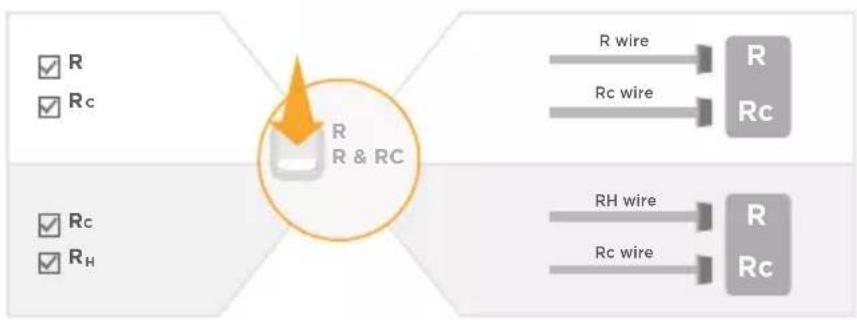
flowchart
graph TD
    A["✓ R"] --> B["R & RC"]
    C["✓ Rc"] --> B
    D["✓ Rc"] --> E["R & RC"]
    F["✓ Rc"] --> G["R & RC"]
    H["✓ Rc"] --> I["R & RC"]
    J["R wire"] --> K["R"]
    L["Rc wire"] --> M["R"]
    N["R wire"] --> O["R"]
    P["Rc wire"] --> Q["R"]
    R["R wire"] --> S["R"]
    T["Rc wire"] --> U["R"]
    V["R wire"] --> W["R"]
14 Firmly connect remaining wires from Step 8
Push each remaining wire into its corresponding terminal (one wire per terminal) until it is firmly in place. If you misplace a wire, use a ballpoint pen to push down on the terminals and release the wire.
Gently tug on wires to verify they are secure.
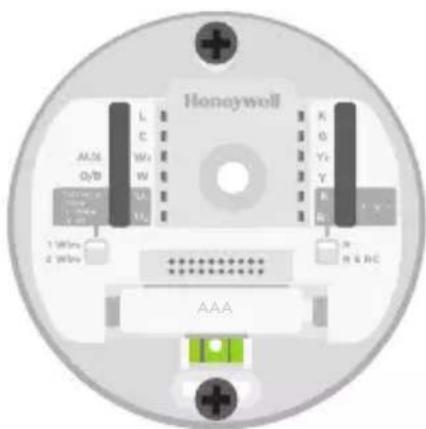
15 Use the provided screws to mount the wall plate
Make sure the wall plate is even by keeping the bubble in the level between the two lines.
text_image
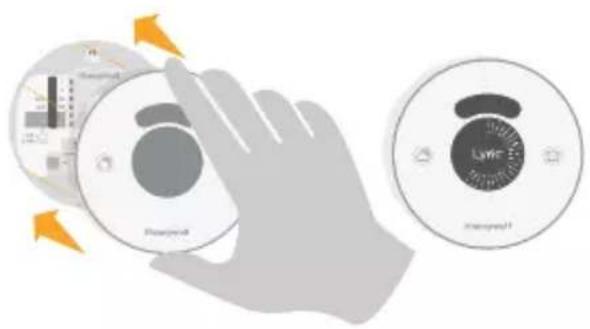
Honeywell A B C D E F G H I J K L M N O P Q R S T U V W X Y Z A B C D E F G H I J K L M N O P Q R S T U V W X Y Z A B C D E F G H I J K L M N O P Q R S T U V W Y Z A16 Firmly snap the thermostat into place
The thermostat will glow and display the Lyric screen for up to three minutes while it starts up.
text_image
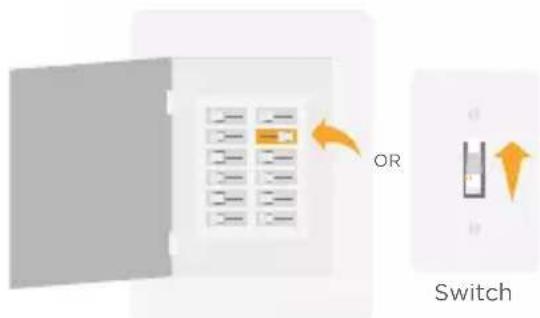
Diagram showing hand interacting with two display screens labeled 'Disassembled' and 'Laser', illustrating a smart device operation.17 Turn your power ON
Turn on the power at the breaker box or switch that controls your heating/cooling system.
text_image
OR SwitchBreaker box
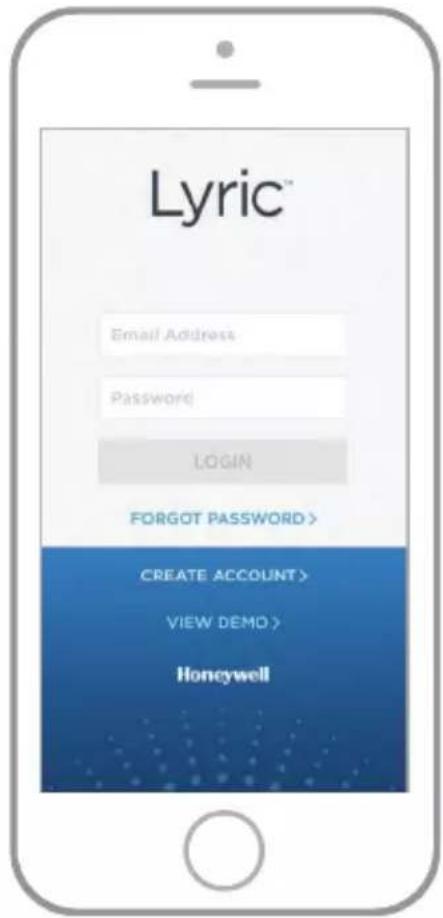
18 Log in to configure and connect
Your Lyric thermostat is not yet configured to control your heating/cooling system.
To complete your setup, download and log in to the Honeywell Lyric app.
Android
Search Google Play for Honeywell Lyric. Create an account and log in to configure and connect.

ios
Search the App Store for Honeywell Lyric. Create an account and log in to configure and connect.

text_image
Lyric™ Email Address Password LOGIN FORGOT PASSWORD > CREATE ACCOUNT > VIEW DEMO > HoneywellHow to use your Lyric thermostat
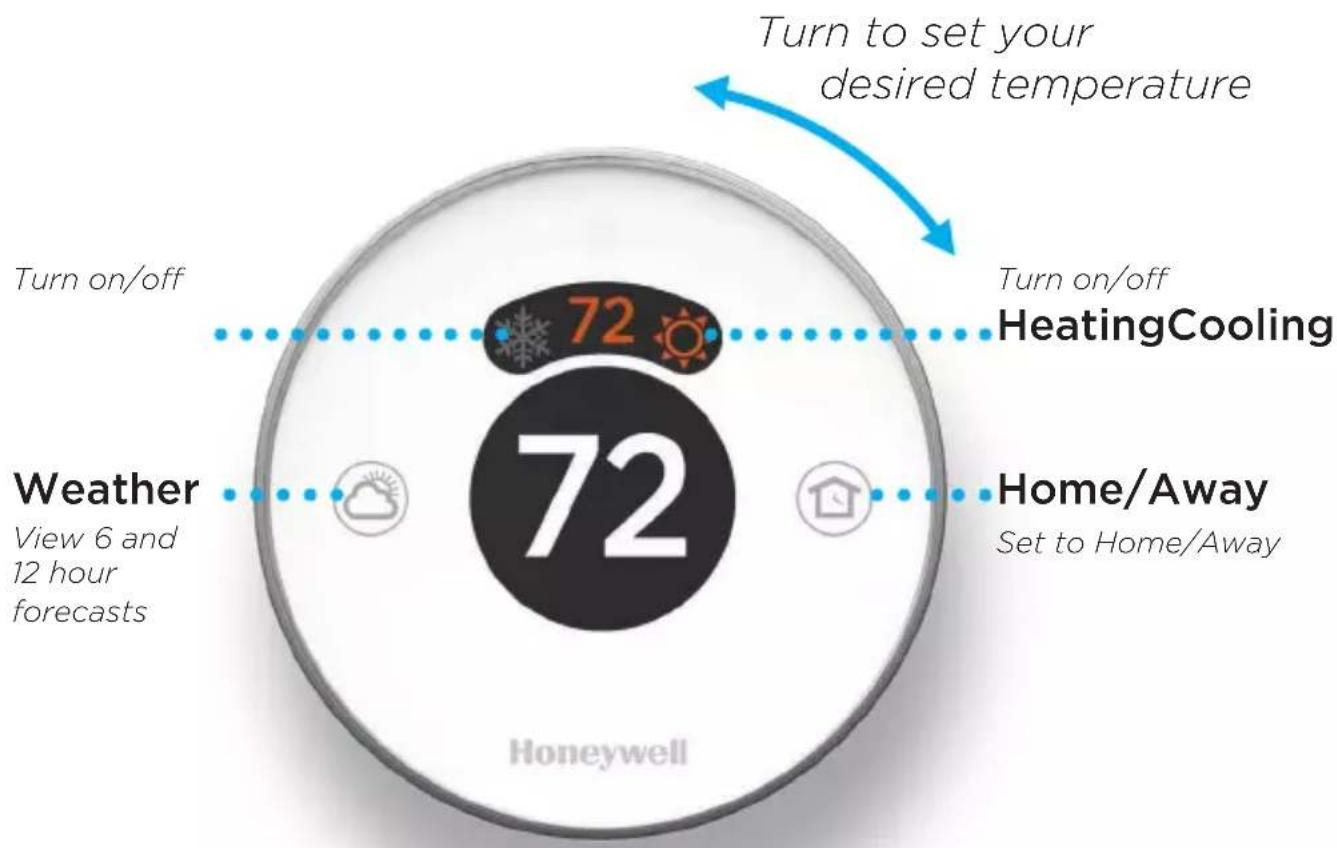
flowchart
graph TD
    A["Turn on/off"] --> B["72°C"]
    C["Turn on/off"] --> D["HeatingCooling"]
    E["Weather View 6 and 12 hour forecasts"] --> F["72°C"]
    G["Home/Away Set to Home/Away"] --> H["72°C"]
    I["Turn to set your desired temperature"] --> J["72°C"]
    K["Honeywell"] --> L["Green Cloud Icon"]
How to use your Lyric app
Once your thermostat is configured and connected to your smartphone or tablet, take advantage of the following features:
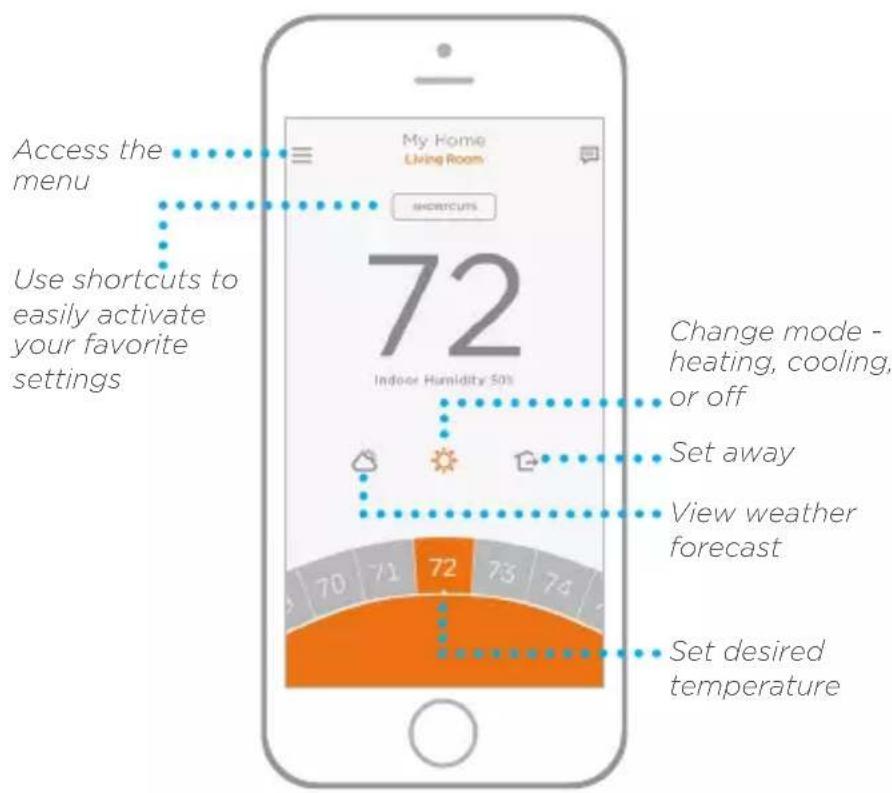
text_image
Access the menu Use shortcuts to easily activate your favorite settings 72 Indoor Humidity 50's My Home Living Room SHORTCUTS Change mode - heating, cooling, or off Set away View weather forecast Set desired temperatureInterested in more Lyric products? Visit lyric.honeywell.com to learn about all available products connected by the Lyric app.
App is regularly enhanced and may change.
Get the most from Lyric

Location Based Temperature Control
Lyric thermostat uses your smartphone's location to know when you're away, and saves you energy. Through geofence technology, it senses your return and helps make you comfortable upon arrival. You can also manually override your current setting when you'll be out for a few hours by using the Away button on the thermostat or in the app.

Custom Shortcuts
Create custom shortcuts for unique situations or save the shortcuts you really like and they'll be available on your app any time you want. Customizable comfort has never been so simple.

Comfort
View and adjust the humidity levels in your home. Lyric also considers both humidity and temperature to maintain your comfort, so 72^ always feels like 72^ .

Smart Alerts
Push notifications remind you of filter changes, notify you of high and low humidity levels, and warn you of extreme indoor temperatures.
Adaptive recovery
The Lyric thermostat learns your heating and cooling cycle times to deliver just the right temperature, right when you want it.
Auto changeover
When enabled, the thermostat automatically selects heating or cooling depending on the indoor temperature.
Notes
Honeywell
LyricRound™ Wi-Fi Thermostat
Automation and Control Solutions
Honeywell International Inc.
1985 Douglas Drive North
Golden Valley, MN 55422
lyric.honeywell.com
Wi-Fi ^® is a registered trademark of Wi-Fi Alliance ^®
U.S. Registered Trademark
© 2015 Honeywell International Inc.
Rev. 11-15 Printed in U.S.A.
text_image
Black and white barcode image with vertical lines and patterns33-00075EFS-03
Honeywell
Thermostat Wi-Fi Lyric Round™
text_image
72 72 Honeywelltext_image
HoneywellThermostat Plaque murale
text_image
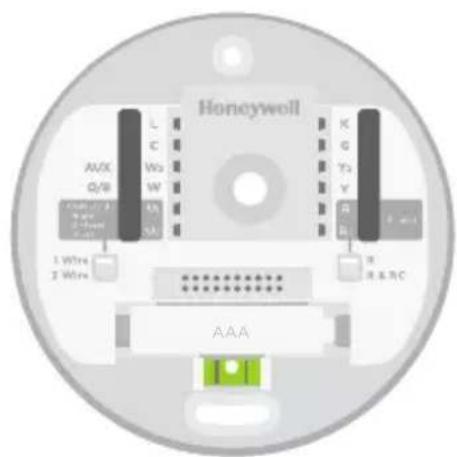
Honeywell AUX Q/W 1 Wire 2 Wire K G Ta Y R B B C AAA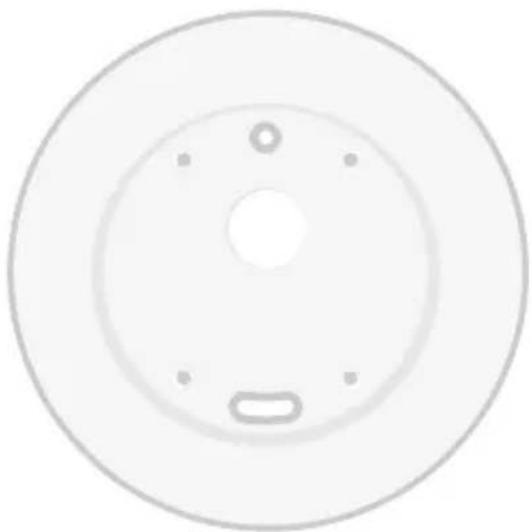
natural_image
Circular mechanical component with central hole and mounting holes (no text or symbols)natural_image
Illustration of a pair of fine metal pliers (no text or symbols on the image itself)natural_image
Illustration of two crossed metal pliers with white dots, no text or symbols presentDénudeur de fils*
text_image
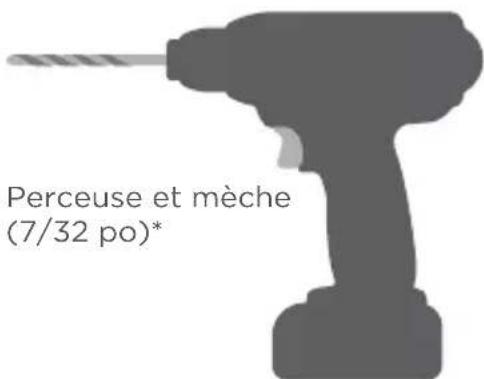
Perceuse et mèche (7/32 po)*Application Lyric Honeywell
natural_image
Simple illustration of a smartphone with a blue screen and white outline (no text or symbols)Téléphone intelligent
natural_image
Blue hand symbol inside a white octagonal border (no text or numbers)AVANT DE COMMENCER
natural_image
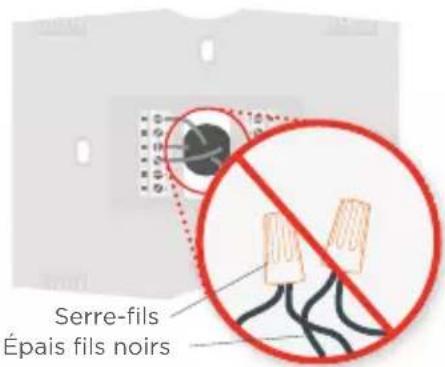
Illustration of a hand pressing down on a gray rectangular object with an orange arrow indicating motion (no text or symbols)lyric.honeywell.com/support
text_image
Illustration showing a hand interacting with a smartphone displaying a grid of icons, likely for mobile phone or app access.natural_image
Diagram of a wall-mounted electrical connector with internal components and directional arrows indicating rotation (no text or symbols)natural_image
Illustration of a hand inserting a device into a circular device with a blue pen (no text or symbols visible)natural_image
Top-down view of a Huawei network interface component (no text or symbols visible)natural_image
Cross-sectional diagram of a mechanical component with internal components and external force arrows (no text or symbols)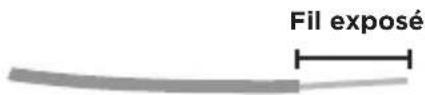
text_image
Fil exposétext_image
Honeywell K O Ys Y R R 1 W/m 2 W/m AAA L C Wt W U U R R R R R R R16 Enclenchez fermement le thermostat en position
text_image
Lyric™ Email Address Password LOGIN FORGOT PASSWORD > CREATE ACCOUNT > VIEW DEMO > HoneywellThermostat Wi-Fi Lyric Round™
Honeywell International Inc.
1985 Douglas Drive North
Golden Valley, MN 55422
lyric.honeywell.com
© 2015 Honeywell International Inc.
text_image
Black and white barcode image with vertical lines and patterns33-00075EFS-03
Honeywell
Termostato con conexión WiFi Lyric Round™
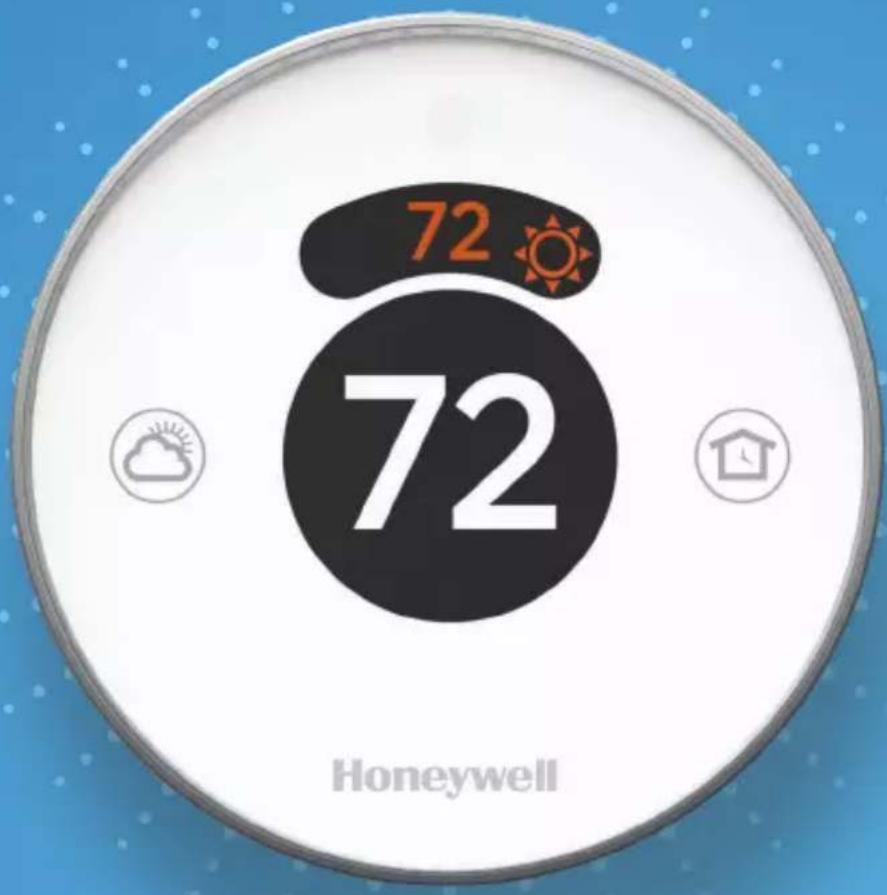
text_image
72 72 Honeywellnatural_image
Circular icon with a central black circle and two small icons at the bottom, labeled 'Honeywell' at the bottom (no text or symbols on the main graphic)text_image
Honeywell AUX Q/B L C W5 W K G Y4 Y A B 1 Wire 2 Wire AAA R R & R/C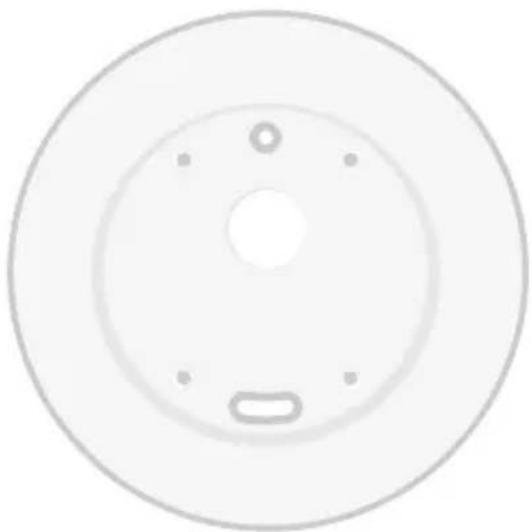
natural_image
Circular mechanical component with central hole and mounting holes (no text or symbols)natural_image
Illustration of a pair of needle-nose pliers (no text or symbols on the image itself)natural_image
Illustration of two pliers with pointed tips, no text or symbols presentPelacables*

text_image
Taladro y broca (7/32")*natural_image
Simple illustration of a smartphone with a blue screen and white outline (no text or symbols)natural_image
Blue hand symbol inside a white octagonal border (no text or numbers)ANTES DE COMENZAR
text_image
InterruptorCaja de interruptores
natural_image
Illustration of a hand pressing down on a gray rectangular object with an orange arrow indicating motion (no text or symbols)lyric.honeywell.com/support
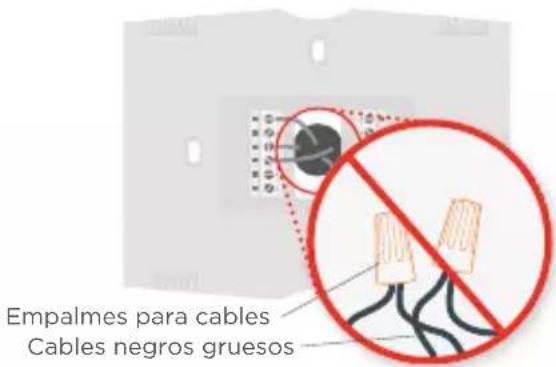
text_image
Diagram showing a hand interacting with a smartphone displaying a control interface with multiple switches and display screens.natural_image
Diagram of a wall-mounted electrical connector with internal components and directional arrows indicating rotation (no text or symbols)natural_image
Illustration of a hand inserting a device into a circular device with a blue arrow pointing to it (no text or symbols present)natural_image
Top-down view of a Huawei network interface component (no text or symbols visible)natural_image
Cross-sectional diagram of a mechanical component with internal components and external force arrows (no text or symbols)Cable expuesto
text_image
Honeywell A/B V/S 1 V/2 2 V/3 L C W M N K R S P B R & B 7 V/2 8 V/3
Interruptor R
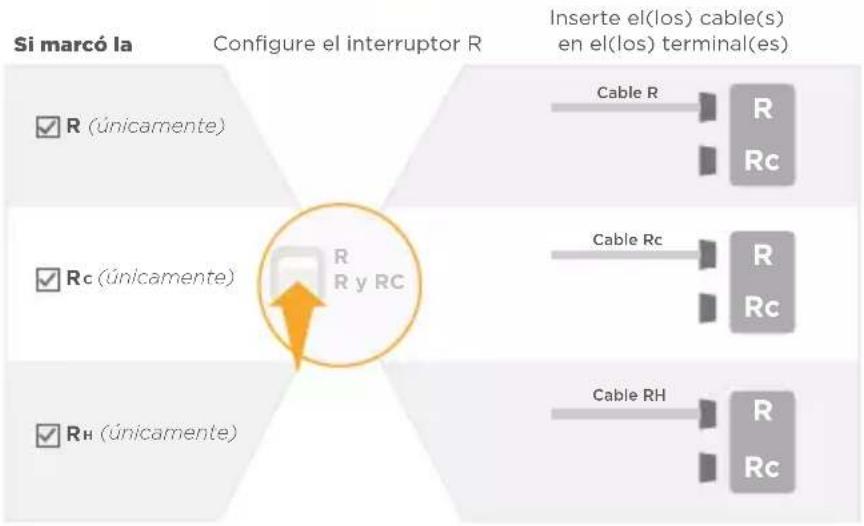
flowchart
graph TD
    A["Si marcó la"] --> B["Configure el interruptor R"]
    B --> C["Cable R"]
    B --> D["Cable Rc"]
    B --> E["Cable RH"]
    C --> F["R"]
    D --> G["R"]
    E --> H["R"]
    style A fill:#f9f,stroke:#333
    style B fill:#ccf,stroke:#333
    style C fill:#cfc,stroke:#333
    style D fill:#cfc,stroke:#333
    style E fill:#cfc,stroke:#333
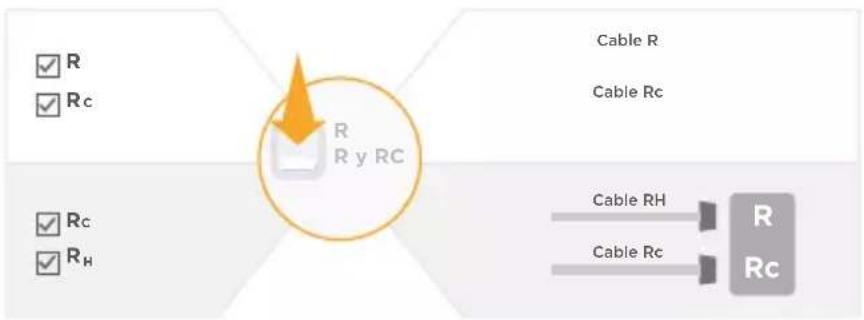
flowchart
graph TD
    A["✓ R"] --> B["Central Node"]
    C["✓ Rc"] --> B
    D["✓ Rc"] --> B
    E["✓ Rh"] --> B
    B --> F["Cable R"]
    B --> G["Cable Rc"]
    H["Cable RH"] --> I["R"]
    J["Cable Rc"] --> K["R"]
    style B fill:#f9f,stroke:#333,stroke-width:2px
text_image
Honeywell K O Y Y B G 1 W/3ms 2 W/3ms AAA R R & HCtext_image
InterruptorCaja de interruptores
text_image
Lyric™ Email Address Password LOGIN FORGOT PASSWORD > CREATE ACCOUNT > VIEW DEMO > HoneywellHoneywell International Inc.
1985 Douglas Drive North
Golden Valley, MN 55422
lyric.honeywell.com
© 2015 Honeywell International Inc.
text_image
Black and white barcode image with vertical lines and patterns33-00075EFS-03