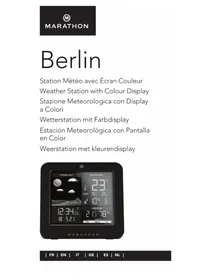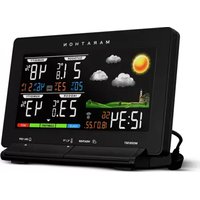
Berlin - Weather Station Marathon - Free user manual and instructions
Find the device manual for free Berlin Marathon in PDF.


| Product Type | Color screen weather station |
| Brand | Marathon |
| Model | Berlin |
| Category | Weather Station |
| Main unit power | Mains adapter (power cord) or 3 AAA batteries (limited backlight) |
| Outdoor sensor power | 2 AA batteries |
| Display | Color LCD with backlight (3 brightness levels) |
| Weather forecast | 5 icons: sunny, slightly cloudy, cloudy, rainy, snow/frost |
| Clock | Radio-controlled DCF clock, manual setting, perpetual calendar until 2099 |
| Indoor temperature | Range -10°C to +50°C, resolution 0.1°C, display °C/°F |
| Outdoor temperature | Range -20°C to +50°C, resolution 0.1°C, display °C/°F |
| Indoor humidity | Range 20% to 99% |
| Outdoor humidity | Range 0% to 99% |
| Wireless outdoor sensor | 1 sensor included, RF frequency 433 MHz, range 70 m in open field |
| Alarm functions | Daily alarm, snooze (5 min, max 7 times), high/low outdoor temperature alert |
| Min/max display | Min/Max 24h and since power on/reset for outdoor temperature and humidity |
| Comfort bar | Pleasant/unpleasant climate indicator based on indoor temperature and humidity |
| Backlight | Activated by SNOOZE/DIMMER button (5 sec on batteries, constant on mains) |
| Language settings | Day of week in 8 languages: German, French, Spanish, Italian, Dutch, Danish, Russian, English |
| Mounting | Main unit on a flat surface; outdoor sensor wall or table mount |
| Spare parts | Remote temperature sensor (ref. BA030017-RS) available at www.MarathonWatch.com |
| Cleaning | Use a soft cloth, avoid abrasive/corrosive products |
Frequently Asked Questions - Berlin Marathon
User questions about Berlin Marathon
0 question about this device. Answer the ones you know or ask your own.
Ask a new question about this device
Download the instructions for your Weather Station in PDF format for free! Find your manual Berlin - Marathon and take your electronic device back in hand. On this page are published all the documents necessary for the use of your device. Berlin by Marathon.
USER MANUAL Berlin Marathon
text_image
MARATHON 433 MHz HIPS THERMAL SENSOR HIPS PRECISION C1 C2 C3 C4natural_image
Simple line drawing of a sun and three clouds (no text or symbols)- Exploring the features
- What's in the box
- Getting started
- The weather forecast
- Setting your thermometer and hygrometer
- Setting the time and setting an alarm

Need a replacement part?
Remote Temperature Sensor
(Part No. BA030017-RS)
Visit: www.MarathonWatch.com to order a replacement!
Exploring the features
EN

Weather forecast
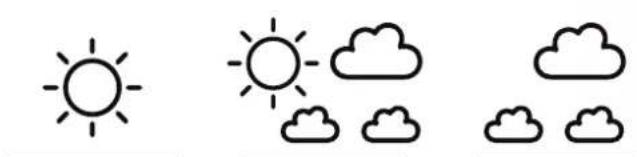
- There are totally 5 different weather status animations in the weather forecast. Sunny, Slightly Cloudy, Cloudy, Rainy and Snow

Time
• Radio Controlled Time
• Perpetual Calendar Up to Year 2099
• Day of week in 8 languages user selectable
• Daily Alarm Function
Humidity
• Indoor measurable range: 20 \~ 99%
• Outdoor measurable range: 0 \~ 99%
• Outdoor Humidity Record from Start-Up/Reset, and the corresponded time
• 24 Hours Min/Max Display for Outdoor Humidity

Temperature
• Indoor & Outdoor temperature display
• Measures °C / °F user selectable
• Outdoor Temperature Record from Start-Up/Reset, and the corresponded time
• 24 Hours Min/Max Display for Outdoor Temperature
• Comfort Indicator Bar

Wireless outdoor sensor
• Low-battery indicator for Outdoor Sensor
• Wall Mount or Table Stand
• One Wireless outdoor sensor Included
• 433MHz RF transmitting frequency
- 70 meter transmission range in an open area
What's in the box
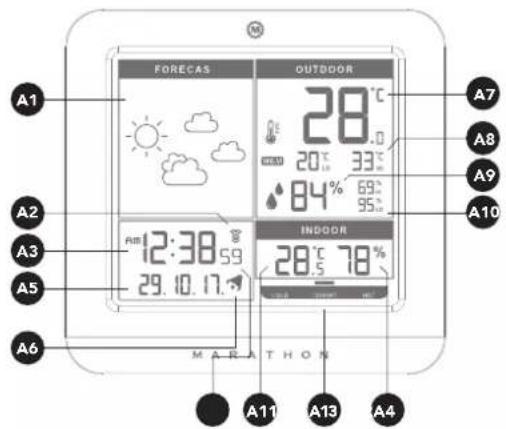
Weather station front LCD screen
A1: Weather forecast
A2: Radio control icon
A3: Time
A4: Day of week/Second
A5: Date
A6: Alarm icon
A7: Outdoor temperature
A8: Outdoor temperature memory
A9: Outdoor Humidity
A10: Outdoor humidity memory
A11: Indoor temperature
A12: Indoor humidity
A13: Comfort indicator
text_image
FORECAS OUTDOOR 28°C 20°C 33°C 84% 69° 95% INDOOR 28°C 78% 29.10.17 MAR THON A1 A2 A3 A5 A6 A7 A8 A9 A10 A11 A13 A4Weather station backing
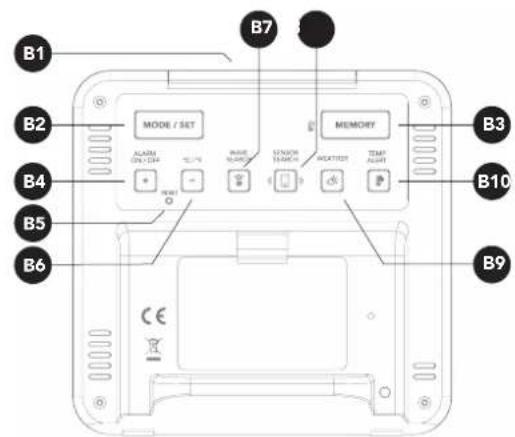
B1: SNOOZE/DIMMER button B6: -/°C/°F button
B2: MODE/SET button B7: button
B3: MEMORY button B8: 📤 button
B4: +/ ALARM ON/OFF button B9: button
B5: RESET button B10: 📋 button
text_image
B1 B2 B3 B4 B5 B6 MODE / SET ALARM ON/OFF MAIN NAME STATION NAME MEMORY ATTORTER TEMP ALART B7 B10 B9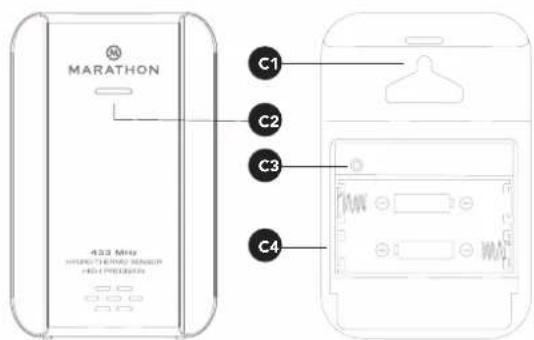
text_image
MARATHON 433 MHz INTER-TEMPRESS SENSOR HOLD PREADS C1 C2 C3 C4Outdoor sensor/transmitter
C1: Wall Mount Hole
C2: Transmission In
C3: RESET button
C4: Battery Compartment
Getting started
Powering up the weather station
Connect the power cord to the wall outlet or remove the battery compartment door and insert 3pcs AAA size battery.
NOTE:
- Before connecting the unit to power, make sure your local voltage is the same as marked on the adaptor.
- If solely powered by battery, the backlight will be off. To turn the back light on for 5 seconds, press the SNOOZE/DIMMER button.
- When the power adaptor is connected, the weather station will automatically pull power from the external power supply.
Powering up the outdoor sensor
Open battery cover, and insert 2 x AA batteries observing polarity [ + and - marks]
Proper installation
- Place the main unit on a flat surface.
- The remote sensor should be securely mounted vertically to a surface.
• Transmissions between receiver and transmitter can be reached up to 70m apart in open areas. Open areas refers to areas with no interfering obstacles such as buildings, trees, vehicles, high voltage lines, etc.
The weather forecast
natural_image
Simple line drawing of a sun and three clouds (no text or symbols)Setting your current weather conditions
- After holding the button for 3 seconds, the weather icon will flash on the LCD. Enter the current weather by pressing the - or + buttons.
Press the button to confirm the setting. The weather forecast may not be accurate if the weather entered does not match the current weather. The weather station will start the first forecast 6 hours after the current weather status has been entered. - The current weather status should be entered again if the altitude of the main unit is changed. (The Barometric pressure is lower at higher altitude location. Therefore, altitude change will affect the weather forecast).
Weather conditions
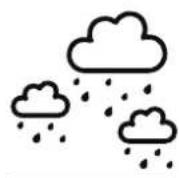
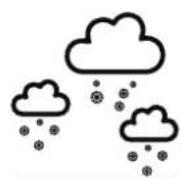
There are in total 5 different weather statuses in the weather forecast.
natural_image
Simple line drawings of sun, cloud, and cloud icons (no text or symbols)Sunny Slightly Cloudy Cloudy
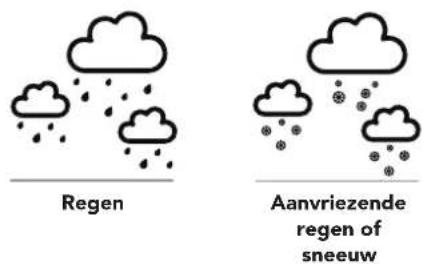
Rain
Freezing Rain or Snow
NOTE:
- The "Freezing" or "Snow" symbol is shown if there is rain and the current outdoor temperature reads under 0 degrees celsius.
- The Frost Alert: 🌐 is shown if the outdoor temperature is between -2°C \~ +3 °C
- If there are inconsistencies between your Local Weather Station and this unit, please refer to your local weather station's forecast. The manufacturer does not take responsibility for incorrect forecasting from this unit.
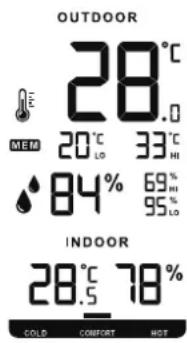
Setting your thermometer and hygrometer
text_image
OUTDOOR 28.0°C MEM 20°C 33°C HI 84% 69% 95% LO INDOOR 28.5°C 78% COLD CONFORT HOTRF transmission procedure
- The main unit will automatically start to receive the outdoor temperature & humidity conditions after the weather condition has been set.
- The outdoor sensor will automatically start to transmit temperature and humidity conditions to the weather station after batteries have been inserted.
- If the weather station is receiving transmissions from the outdoor sensor the RF icon will display on the LCD
- If the weather station has failed to receive transmissions from the outdoor sensor ("--." will display on the LCD). In this case press and hold the button for 3 seconds to reset transmission manually. RF icon displays on the LCD.
Temperature & humidity
(1) Past 24 hours highest/lowest outdoor temperature and humidity
- The weather station automatically shows the highest outdoor temperature and humidity record over the past 24 hours. For example: display of 30^ & 80% means past 24 hours recorded highest outdoor temperature is 30^ and highest outdoor humidity is 80%
- The weather station automatically shows the lowest outdoor temperature and humidity record over the past 24 hours. For example: display of means past 24 hours recorded lowest outdoor temperature is 8^ and lowest outdoor humidity is 20% .
(2) Recorded maximum/minimum outdoor temperature and humidity from powering on/reset
- Press the MEMORY button to view the lowest and highest recorded temperature and humidity from point of powering on or reset. MEM will flash on the LCD.
- When viewing these saved records, hold the MEMORY button for 3 seconds to clear the maximum and minimum record.
- When viewing these saved records, press the MEMORY button again to check the corresponding time and date of records. The saved records and corresponding time and date will flash. Press MEMORY button select to view:
- Time & date for lowest outdoor temperature memory record, Time and date for highest outdoor temperature memory record, Time & date for lowest outdoor humidity memory record, Time and date for highest outdoor humidity memory record.
- Press the °C/°F button to select Indoor/Outdoor temperature in Celsius or Fahrenheit.
- The measurable indoor temperature range is -10^ to +50^ . If the indoor temperature is out of the measurable range, LL.L (beyond the minimum temperature) or HH.H (beyond the maximum temperature) will be shown on the indoor temperature column of the LCD.
- The measurable outdoor temperature range is -20^ +50^ . If the outdoor temperature is out of the measurable range, the display will read LL.L (beyond the minimum temperature) or HH.H (beyond the maximum temperature).
NOTE: When outdoor temperature is lower than -20°C, or higher than +50°C, the outdoor sensor unit might not work properly
(4) Humidity
The humidity measurable range is 20% \~ 99%. It will display 20% if indoor humidity is lower than 20%. The outdoor humidity measurable range is 0 \~ 99%
(5) Outdoor temperature alert function
- Press the 🔊 button to activate or deactivate the outdoor temperature alert function.
-
Press the 🎨button to:
-
Select the active outdoor upper temperature alert. The icon will appear beside the outdoor temperature digit.
- Select the active outdoor upper & lower temperature alert. The icon will appear beside the outdoor temperature digit.
- Select the active outdoor lower temperature alert. The icon will appear beside the outdoor temperature digit.
- Select the to deactivate the outdoor temperature
alert. The alert icon will disappear.
- Hold the 📄 button for 3 seconds to enter the outdoor temperature alert setting. The 🔒 icons beside the outside temperature will flash. Press the + or - buttons to adjust the setting value, press the 📄 button to confirm the setting. The setting sequences are as follows: upper limit of temperature, lower limit of temperature.
- When the alarm sounds, the ☐ or ☒ons and the temperature digits will flash on the LCD. Press any buttons to stop the alert sound, otherwise, it will sound for 2 minutes, before stopping automatically.
(6) Comfort indicator bar : for the display of pleasant/unpleasant climate
It should be better to add the range of temperature and humidity for pleasant and unpleasant climate.
Setting the time and setting an alarm
text_image
Am 12:38 59 29. 10. 17.Radio controlled clock
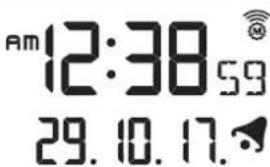
After the weather station has powered on and completed syncing temperature and humidity from the outdoor sensor, The DCF signal, radio controlled icon will automatically flash on the LCD, indicating the clock synchronizing the current time and date.
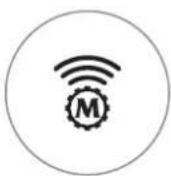
Icon Turns on
Indicates signal has been received
Icon Flashes
Indicates it is receiving DCF signal
Icon Disappears
Indicates signal has failed
NOTE:
- The clock will automatically synchronize with the radio wave signal at 3.00 a.m. every day to maintain accurate timing.
- If reception fails, scanning will stop and the ⏻will disappear from the LCD
- The clock can be set to synchronize manually by holding the button for 3 seconds. (Synchronization can take several minutes.)
- You can stop the DCF synchronization by holding the ⏻ button for 3 seconds.
- If the weather station is in daylight savings mode a DST will show on the LCD.
Manual time setting
- To enter the Clock/Calendar setting mode, press and hold the MODE/SET button for 3 seconds until the digits flash.
- Press + or - button to adjust the desired value and press the MODE button to confirm and move on to next setting.
- Hold down the + or - button to speed up setting
- Press the MODE button to confirm settings and exit from time setting mode. The time setting mode will automatically exit after 15 seconds if no button is pressed.
The setting sequence is shown as follow
1 Press = 12/24 Hour
2 Presses = Time Zone
3 Presses = Hour
4 Presses = Minute
5 Presses = Second
6 Presses = Language
7 Presses = Year
8 Presses = Month
9 Presses = Day
- The days of the week can be displayed in 8 different languages: German (GE), French (FR), Spanish (ES), Italian (IT), Dutch (NE), Danish (DA), Russian (RU), and English (EN).
- The language and their select abbreviations for each day of the week are shown in a table at the back of this manual.
NOTE:
• The Second setting is adjusted to zero only.
- Time Zone function: If your area can receive an RC-DCF frequency signal, the time zone function should be set to 0. The Time Zone function is used in areas where a DCF frequency signal can be received but the time zone is different from the German Time.
Daily alarm function
- Press MODE/SET button to select to view: Time / Time & Day of Week / Alarm Time ("AL" shown on the LCD)
- When viewing the alarm time, hold the MODE button for 3 seconds to enter the alarm setting mode. Press + or - button to adjust alarm time. Press the MODE button to confirm the setting.
- Press AL ON/OFF button to activate or deactivate the alarm function. If the alarm is activated, the icon will appear on the screen.
- Press the SNOOZE button to silence the alarm and enter snooze mode, the alarm will sound again in 5 minutes. During snooze mode the icon will flash on the LCD.
- Press any button other than the SNOOZE button, to stop the alarm. The alarm sound will continue for 2 minutes before stopping.
NOTE: The snooze function can be repeated up to 7 times.
Dimmer
Press the DIMMER button to adjust the LED brightness (off-med-high), when powered by the adaptor,
Low battery indication
The low battery icon will display beside the outdoor temperature digit indicating the outdoor sensor battery is low and batteries should be replaced.
Precautions
- Use a pin to press the reset button, if unit is not working properly.
- Avoid placing the clock near interference or metal frames such as computer and TVs.
- The clock will lose the time when the battery is removed.
-
Do not expose to direct sunlight, heavy heat, cold, high humidity or wet areas
-
The outdoor sensor must not be set up or installed under water and keep away from direct sunlight and rain
- Never clean the device using abrasive/corrosive materials or products as these may scratch the plastic and corrode electronics
- If there are inconsistencies between your Local Weather Station and this unit, please refer to your local weather station's forecast. The manufacturer will not take responsibility for incorrect forecasting from this unit.
Italiano
Sommario
text_image
MARATHON 433 MHz HOLD THERMOST REDUCT HOLD PREFERRED C1 C2 C3 C4Struttura
natural_image
Simple line drawing of a sun and three clouds (no text or symbols)text_image
MARATHON 432 MHz INTERSTHERMAL SENSOR HIGH PREDICTOR C1 C2 C3 C4Außensensor/Sender
natural_image
Simple line drawing of a sun and three clouds (no text or symbols)natural_image
Simple line drawings of sun, cloud, and cloud icons (no text or symbols)text_image
OUTDOOR 28°C E MEM 20°C LO 33°C HI 84% 69% HI 95° LO INDOOR 28.5 °C 78% COLD COBUST HOTtext_image
MARATHON 433. MHz HIVIRED THERMOST SENSOR HIVI PROCESSED C1 C2 C3 C4Sensor/transmisor exterior
natural_image
Simple line drawing of a sun and three clouds (no text or symbols)text_image
B1 B2 B3 B4 B5 B6 MODE / SET ALARM ON/OFF MAIN NAME STATION NAME MEMORY ATTORTER TEMP ALART B7 B10 B9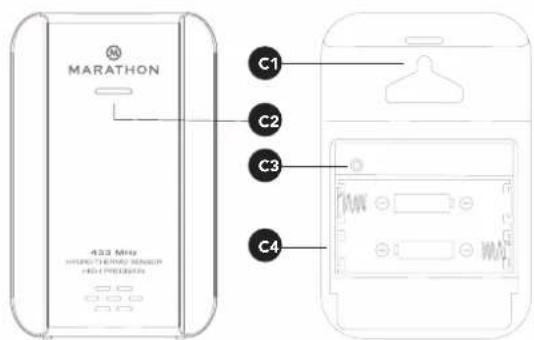
text_image
MARATHON 433 MHz INTER-TEMPRESS SENSOR HOLD PREADS C1 C2 C3 C4Buitensensor/zender
C1: Muurbevestigingsgat C3: RESET-knop
C2: Transmissie in C4: Batterijvak
NL
natural_image
Simple line drawing of a sun and three clouds (no text or symbols)natural_image
Simple line drawings of sun, cloud, and cloud icons (no text or symbols)Zonnig Licht bewolkt Bewolkt
RF-transmissieprocedure:
Marathon Watch Company Ltd.
Service Clients: / Customer Service: / Servizio clienti: /
Kundendienst / Servicio al cliente: / Klantenservice:
www.MarathonWatch.com
Conçu au Canada / Designed in Canada / Prodotto in Cina / In China Hergestellt / Diseñado en Canadá / Ontworpen in Canada

Fabriqué en Chine / Made in China / Prodotto in Cina / In China hergestellt / Hencho en China / Gemaakt in China
| Garantie de 2 ans | 2 year warranty | 2 anni di garanzia | 2 jahre garantie | 2 años garantía | 2 jaar garantie |