Terminal Mix 4 - DJ Equipment Reloop - Free user manual and instructions
Find the device manual for free Terminal Mix 4 Reloop in PDF.



User questions about Terminal Mix 4 Reloop
0 question about this device. Answer the ones you know or ask your own.
Ask a new question about this device
Download the instructions for your DJ Equipment in PDF format for free! Find your manual Terminal Mix 4 - Reloop and take your electronic device back in hand. On this page are published all the documents necessary for the use of your device. Terminal Mix 4 by Reloop.
USER MANUAL Terminal Mix 4 Reloop
natural_image
Black and white industrial CD/DVD console with dual dials and control knobs (no visible text or symbols)
natural_image
Interior view of a computer control panel with multiple circular buttons and indicator lights (no readable text or symbols)
text_image
eRELOOP®Bedienungsanleitung
ACHTUNG!
For your own safety, please read this operation manual carefully before initial operation! All persons involved in the installation, setting-up, operation, maintenance and service of this device must be appropriately qualified and observe this operation manual in detail. This product complies with the requirements of the applicable European and national regulations. Conformity has been proven. The respective statements and documents are deposited at the manufacturer.
Mode d'emploi
ATTENTION!
To prevent fire or avoid an electric shock do not expose the device to water or fluids!
Never open the housing!
ATTENTION!
Keep information for further reference!
text_image
Welcome to the Kosovo ASIO Driver 1.12 Setup Wizard The cover will guide you through the installation of Kosovo ASIO Driver 1.12. It is recommended that you close all other applications before starting Linux. The will make it possible to update relevant updates but without having to inhibit your computer. Following Kosovo drives are supported with the driver: Digital Kosovo 2.0K Ris loop 3 Terminal No. 3 Terminal No. 4 800Hz Click next to continue.text_image
Flutip 400 Driver 1.1.2 License Agreement Please notify the license terms before installing Flutip 400 Driver 1.1.2. Press Page Down to use the rest of the agreement. Copyright. © 2013-2022: Reallog This software is being licensed by you by Flutip as A FREE VERSION and it is provided for non-profit use only. Commercial usage of this product is strictly prohibited. Permission to use, copy and distribute this software without a flow is hereby granted for non-commercial use only, provided that the above copyright notice and this permission notice appears in all copies. You may not reverse If you accept the terms of the agreement, did I agree to continue; You must accept the agreement to install Flutip 400 Driver 1.1.2. < Back > Agree Canceltext_image
Choose Data Location Choose the folder or which to install iOS 800 Driver. Setup will install iOS 800 Driver - Files in the following folder. To install in a different folder, all become and select another folder. Destination Folder Space required: L.P.M. Space available: 295.324 OK Cancel Canceltext_image
Roloop ASIO Driver 1.12 Setup Wizard Completing the Roloop ASIO Driver 1.12 Setup Wizard Roloop ASIO Driver 1.12 has been installed on your computer. Old Finish to save this wizard.text_image
serato dj intro Welcome to the DJ Intro Setup Wizard This will install DJ Intro version 1.0.4 on your computer. It's recommended that you must all other applications before continuing. OK Next to continue, or Cancel to exit Setup.text_image
License Agreement Please read the following important information before continuing. Please read the following: Serial Agreement. You must accept the terms of the agreement. The following continues with the resolution. SERATO - USER LICENSE AGREEMENT ("License Agreement") Serato Inc. LP ("Serato") and its license(s) own the Software, being any and all Senate applications, and intellectual property in the Software. By installing or using the Software, you agree to the terms of this License Agreement. 1. Grant of License: Grant grants you a proposed, non- exclusive, personal license ("License") to install and save 2. I accept the agreement 3. Do not accept the agreement OK Next Canceltext_image
Select Destination Location Where should (S) Info be installed? Setup will install S1 Info into the following folder. To continue, click Next. If you would like to select a different folder... Ask it more... All found 25,798 of free disk space is required.text_image
Select Additional Tools Which additional tools should be performed? Select the additional tool you should fix help to perform while installing UI items, then add next. Additional tools: ✓ Create a desktop tooltext_image
Ready to Install Setup is now ready to install installing DX into on your computer. Click Install to continue with the installation, or add back if you want to review or change any settings. Destination Location: C:\Program Files\DX\Barley\DX\Items Additional items: Additional items: Create a desktop.com ✓ Back Install Canceltext_image
serato dj intro Completing the DJ Intro Setup Wizard Setup has finished installing DJ Intro on your computer. The application may be launched by selecting the installed com. Click Print to end Setup. Launch DJ Introtext_image
If you agree with the terms of this license, some "Figure" or related to software. If you do not agree, please call "Figure". Copyright: 100% LICENSE AGREEMENT (License Agreement). Basis here in? (Therapy) will be licensed by the Software being any and all terms applied, and include property in the software. By Investing in using the Software, you agree to the above without such license agreement. 1. List of License: Data grants you a personal, non-accessible, personal information [ ] License is required and can be used for Software on the terms of this License Agreement. The License has applied to any and all Software which is authorized solely by a name file with the hardware components. Please note that this License applies to this software as an additional link between Single Instance Database on one basis and a first link between two. If you are available, then Single Instance Database is another, also available, then it should be further provided. Please note that this License applies to this software as an additional link between Single Instance Database on one basis and a first link between two. If you are available, then Single Instance Database is another, also available, then it should be further provided.text_image
VIRTUALDJ Welcome to the VirtualDJ LE (Terminal Mix 4) Setup Wizard The Setup Wizard allows you to change the way VirtualDJ LE (Terminal Mix 4) Features are installed at any computer so to remove it from your computer. Click Next to confirm or Cancel to exit the Setup Wizard. OK Next Canceltext_image
End-Over License Agreement Please read the following license agreement (canfully) TITLE SUMMARY: The license gives you the right to be solved and uses the software on a resolution of all computer, by one person. • It does not give you the right to be met or sell computer systems (or which the software is installed, or to not or will the software or part of it). • The software is distributed "Use all" and is warranty of any kind is expressed. • Assume Provisions and the experts obtain all confidential property rights in the software. I accept the terms in the License Agreement Next Back Next Canceltext_image
Choose Setup Type Choose the setup type that best suite your needs Typical Inside the most common program features. Recommended for most users. Capture Allows users to choose which program features will be installed and where they will be installed. Recommended for advanced users.text_image
Ready to install Virtual3D Ltd (Terminal Hx 4) Click install to install the installation. Click back to review or change any of your installation settings. Click Cancel to call the version. OK Install Canceltext_image
Welcome to the VirtualDJ LC (SmartBox) Installer You will be guided through the steps necessary to install this software. Access Continuetext_image
Software settings English Data set: This version gives you the right to install and uses the software on a software interface. This version is designed to install or install any other software. It is also designed to install or install any other software. The software is installed at the end and is necessary for any kind of use. Additionally, the software is designed to install or install any other software. The software is installed at the end and is necessary for any kind of use. The software is installed at the end and is necessary for any kind of use. The software is installed at the end and is necessary for any kind of use. The software is installed at the end and is necessary for any kind of use. The software is installed at the end and is necessary for any kind of use. The software is installed at the end and is necessary for any kind of use. The software is installed at the end and is necessary for any kind of use. The software are installed at the end and is necessary for any kind of use. The software is installed at the end and is necessary for any kind of use. The software is installed at the end and is necessary for any kind of use. The software is installed at the end and is necessary for any kind of use. The software is installed at the end and is necessary for any kind of use. The software is installed at the end and is necessary for any kind of use. The software is installed at the ends and is necessary for any kind of use. The software is installed at the ends and is necessary for any kind of use. The software is installed at the ends and is necessary for any kind of use. The software is installed at the ends and is necessary for any kind of use. The software is installed at the ends and is necessary for any kind of use. The software is installed at the ends and is necessary for any kind of use. The software is installed at the ends and is necessary to be installed in all four sections. The software has been installed in all four sections, but it does not have been installed in all four sections. The software has been installed in all four sections, but it does not have been installed in all four sections. The software has been installed in all four sections, but it does not have been installed in all four sections. The software has been installed in all four sections, but it does not have been installed in all four sections. The software has been installed in all four sections, but it does not have been installed in all four sections. The software has been installed at the ends and is necessary to be installed in all four sections, but it does not have been installed in all four sections, except that it does not have been installed in all four sections, except that it does not have been installed in all four sections, except that it does not have been installed in all four sections, except that it does not have been installed in all four sections, except that it does not have been installed in all four sections, except that it does not have been installed in all four sections, except that it does not have been installed in all four sections, except that it does not have been installed in all five sections, except if it does not have been installed in all five sections, except if it does not have been installed in all five sections, except if it does not have been installed in all five sections, except if it does not have been installed in all five sections, except if it does not have been installed in all five sections, except if it does not have been installed in all five sections, except if it does not have been installed in all five sections, except if it does not have been installed in all six sections, except if it does not have been installed in all six sections, except if it does not have been installed in all six sections, except if it does not have been installed in all six sections, except if it does not have been installed in all six sections, except if it does not have been installed in all six sections, except if it does not have been installed in all six sections, except if it does not have been installed in all seven sections, except if it does not have been installed in all seven sections, except if it does not have been installed in all seven sections, except if it does not have been installed in all eight sections, except if it does not have been installed in all eight sections, except if it does not have been installed in all eight sections, except if it does not have been installed in all nine sections, except if it does not have been installed in all nine sections, except if it does not have been installed in all ten sections, except if it does not have been installed in all ten sections, except if it does not have been installed in all ten sections, except if it does not have been installed in all ten sections, except if it does not have been installed in all ten sections, except if it does not have been installed in all ten sections, except if it does not have been installed in all ten sections, except if it does not have been installed in all ten sections, except if it does not have become an important component without additional features such as data storage or tools used to create new components such as data storage or tools used to build new components such as data storage or tools used to build new components such as data storage or tools used to build new components such as data storage or tools used to build new components such as data storage or tools used to build new components such as data storage or tools used to build new components such as data storage or tools used to build new components such as data storage or tools used to build new components such as data storage or tools used to build new components such as data storage or tools used to build more than 100% of total resources. The software has been installed in all four sections. The software has been installed in all four sections, but this version has been installed in all four sections. The software has been installed in all four sections, but this version has been installed in all four sections. The software has been installed in all four sections, but this version has been installed in all four sections. The software has been installed in all four sections, but this version has been installed in all four sections. The software has been installed in all four sections, but this version has been installed in all four sections. The software has been installed in all five sections. The software has been installed in all five sections, but this version has been installed in all five sections. The software has been installed in all five sections, but this version has been installed in all five sections. The software has been installed in all five sections, but this version has been installed in all five sections. The software has been installed in all five sections, but this version has been installed in all five sections. The software has been installed in all five sections, but this version has been installed in all five sections. The software has been installed in all six sections. The software has been installed in all six sections, but this version has been installed in all six sections. The software has been installed in all six sections, but this version has been installed in all six sections. The software has been installed in all six sections, but this version has been installed in all six sections. The software has been installed in all six sections, but this version has been installed in all six sections. The software has been installed in all seven sections. The software has been installed in all seven sections, but this version has been installed in all seven sections. The software has been installed in all seven sections, but this version has been installed in all seven sections. The software has been installed in all eight sections. The software has been installed in all eight sections, but this version has been installed in all eight sections. The software has been installed in all eight sections, but this version has been installed in all eight sections. The software has been installed in all nine sections. The software has been installed in all nine sections, but this version has been installed in all nine sections. The software has been installed in all nine sections, but this version has been installed in all nine sections. The software has been installed in all ten sections, but this version has been installed in all nine sections. The software has been installed in all ten sections, but this version has been installed in all nine sections. The software has been installed in the same section: All three categories are available to include: (1) Software (2) Software (3) Software (4) Software (5) Software (6) Software (7) Software (8) Software (9) Software (10) Software (11) Software (12) Software (13) Software (14) Software (15) Software (16) Software (17) Software (18) Software (19) Software (20) Software (21) Software (22) Software (23) Software (24) Software (25) Software (26) Software (27) Software (28) Software (29) Software (30) Software (31) Software (32) Software (33) Software (34) Software (35) Software (36) Software (37) Software (38) Software (39) Software (40) Software (41) Software (42) Software (43) Software (44) Software (45) Software (46) Software (47) Software (48) Software (49) Software (50) Software (51) Software (52) Software (53) Software (54) Software (55) Software (56) Software (57) Software (58) Software (59) Software (60) Software (61) Software (62) Software (63) Software (64) Software (65) Software (66) Software (67) Software (68) Software (69) Software (70) Software (71) Software (72) Software (73) Software (74) Software (75) Software (76) Software (77) Software (78) Software (79) Software (80) Software (81) Software (82) Software (83) Software (84) Software (85) Software (86) Software (87) Software (88) Software (89) Software (90) Software (91) Software (92) Software (93) Software (94) Software (95) Software (96) Software (97) Software (98) Software (99) Software (100).CAUTION! For your own safety, please read this operation manual carefully before initial operation! All persons involved in the installation, setting-up, operation, maintenance and service of this device must be appropriately qualified and follow this operation manual in detail. This product complies with the requirements of the applicable European and national regulations. Conformity has been proven. The respective statements and documents are deposited at the manufacturer.
INDEX
SAFETY INSTRUCTIONS....19
APPLICATION IN ACCORDANCE WITH REGULATIONS....19
MAINTENANCE....20
-
SETUP 20
-
INITIAL OPERATION....22
-
COMPUTER CONFIGURATION 22
3.1 ASIO Driver Installation....22
3.2 Serato DJ Intro Installation 23
3.2.1 Serato DJ Intro Installation / Windows....23
3.2.2 Serato DJ Intro Installation / Mac OSX 24
3.3 Virtual DJ LE 4-Deck Reloop Edition Installation....24
3.3.1 Virtual DJ LE 4-Deck Reloop Edition Installation / Windows.....24
3.3.2 VirtualDJ LE 4-Deck Reloop Edition Installation / Mac OSX......25
3.4 Traktor Support 25
- OPERATION....26
4.1 Software Function Chart.... 26
4.2 Routing Functions....28
4.2.1 Microphone....28
4.2.3 Outputs 28
- DEVICE SETTINGS AND TESTS....28
5.1 Firmware Version Check....28
5.2 LED Dimmer 28
5.3 Jog Sensitivity....28
5.4 Carrying Out The Firmware Update 29
5.5 MIDI Channel Assignment 29
- APPENDIX....29
6.1 Minimum System Requirements 29
6.2 MIDI Assignment Chart....30
6.3 Troubleshooting.... 31
6.4 Technical Specifications 32
Congratulations on purchasing the Reloop Terminal Mix 4. Thank you for placing your trust in our disc jockey technology. Before operating this equipment we ask you to carefully study and follow all instructions.
Please remove the Reloop Terminal Mix 4 from its packaging. Before initial operation please make sure that the device has not been visibly damaged during transport. If you detect any damage to the power cable or the casing, do not operate the device and contact your specialised dealer.
SAFETY INSTRUCTIONS
CAUTION! Please exercise particular caution when handling 1,5A / 6V, 60/50Hz power voltage (optional). This voltage rating may lead to a critical electrical shock! Any damage caused by the non-observance of this operation manual excludes any warranty claims. The manufacturer is not liable for any damage to property or for personal injury caused by improper handling or non-observance of the safety instructions.
This device has left the factory in perfect condition. To maintain this condition and to ensure a risk-free operation the user must observe the safety instructions and warnings contained in this operation manual.
For reasons of safety and certification (CE) the unauthorised conversion and/or modification of the device is prohibited. Please note that in the event of damage caused by the manual modification to this device any warranty claims are excluded.
The inside of the device does not contain any parts which require maintenance, with the exception of wear parts that can be exchanged from the outside. Only qualified staff must carry out maintenance, otherwise warranty does not apply!
The fuse must exclusively be exchanged against fuses of the same class, with the same trigger features and nominal current rating.
Make sure that the power will only be supplied after the device has been fully set up. Always plug in the mains plug last. Ensure that the mains switch is in the "OFF" position when connecting the device to power.
Only use cables that comply with regulations. Make sure that all jacks and bushes are tightened and correctly hooked up. Refer to your dealer if you have any questions.
Ensure that when setting up the product the mains cable is not squashed or damaged by sharp edges.
Prevent the mains cable from coming into contact with other cables! Exercise great care when handling mains cables and connections. Never touch these parts with wet hands!
Connect the power cable exclusively to appropriate shock-proof outlets. The only supply point to be used is a supply outlet in accordance with specifications of the public supply network.
Disconnect the device from the supply outlet when not in use and before cleaning! Be sure to hold the mains plug by the body. Never pull the mains cord!
Position the device on a horizontal and stable low-flame base.
Avoid any concussions or violent impact when installing or operating the device.
When selecting the location of installation make sure that the device is not exposed to excessive heat, humidity, and dust. Be sure that no cables lie around openly. You will endanger your own safety and that of others!
Do not rest any containers filled with liquid that could easily spill onto the device or in its immediate vicinity. If, however, fluids should access the inside of the device, immediately disconnect the mains plug. Have the device checked by a qualified service technician before re-use. Damage caused by fluids inside the device is excluded from the warranty.
Do not operate the device under extremely hot (in excess of 35^ C) or extremely cold (below 5^ C) conditions. Keep the device away from direct exposure to the sun and heat sources such as radiators, ovens, etc. (even during transport in a closed vehicle). Never cover the cooling fan or vents. Always ensure sufficient ventilation.
The device must not be operated after being taken from a cold environment into a warm environment. The condensation caused hereby may destroy your device. Do not switch on or operate the device until it has reached ambient temperature!
Controls and switches should never be treated with spray-on cleaning agents and lubricants. This device should only be cleaned with a damp cloth. Never use solvents or cleaning fluids with a petroleum base for cleaning.
When relocating, the device should be transported in its original packaging.
Devices supplied by voltage should not be left in the hands of children. Please exercise particular care when in the presence of children.
At commercial facilities the regulations for the prevention of accidents as stipulated by the organization of professional associations must be observed.
At schools, training facilities, hobby and self-help workshops the operation of the device must be monitored with responsibility by trained staff.
Keep this operation manual in a safe place for later reference in the event of questions or problems.
APPLICATION IN ACCORDANCE WITH REGULATIONS
This device is a professional DJ MIDI controller with integrated 4-channel soundcard that can control software. The device should be connected via USB cable to a computer.
This product is authorised for connection to 1,5A / 6V, 60/50 Hz AC via an optional mains adapter (sold separately) and is designed exclusively for indoor application.
If the device is used for any other purposes than those described in the operation manual, damage can be caused to the product, leading to exclusion of warranty rights. Moreover, any other application that does not comply with the specified purpose harbours risks such as short circuit, fire, electrical shock, etc.
The serial number determined by the manufacturer must never be removed to uphold the warranty rights.
MAINTENANCE
Check the technical safety of the device regularly for damage to the mains cord or the casing, as well as for wearout of wear parts such as rotary knobs and sliding faders.
If it is to be assumed that a safe operation is no longer feasible, then the device must be disconnected and secured against accidental use. Always disconnect the mains plug from the outlet!
It must be assumed that a safe operation is no longer feasible, if the device bears visible defects, if the device no longer functions, following longer storage under unfavourable conditions or after major transport stress.
1. SETUP
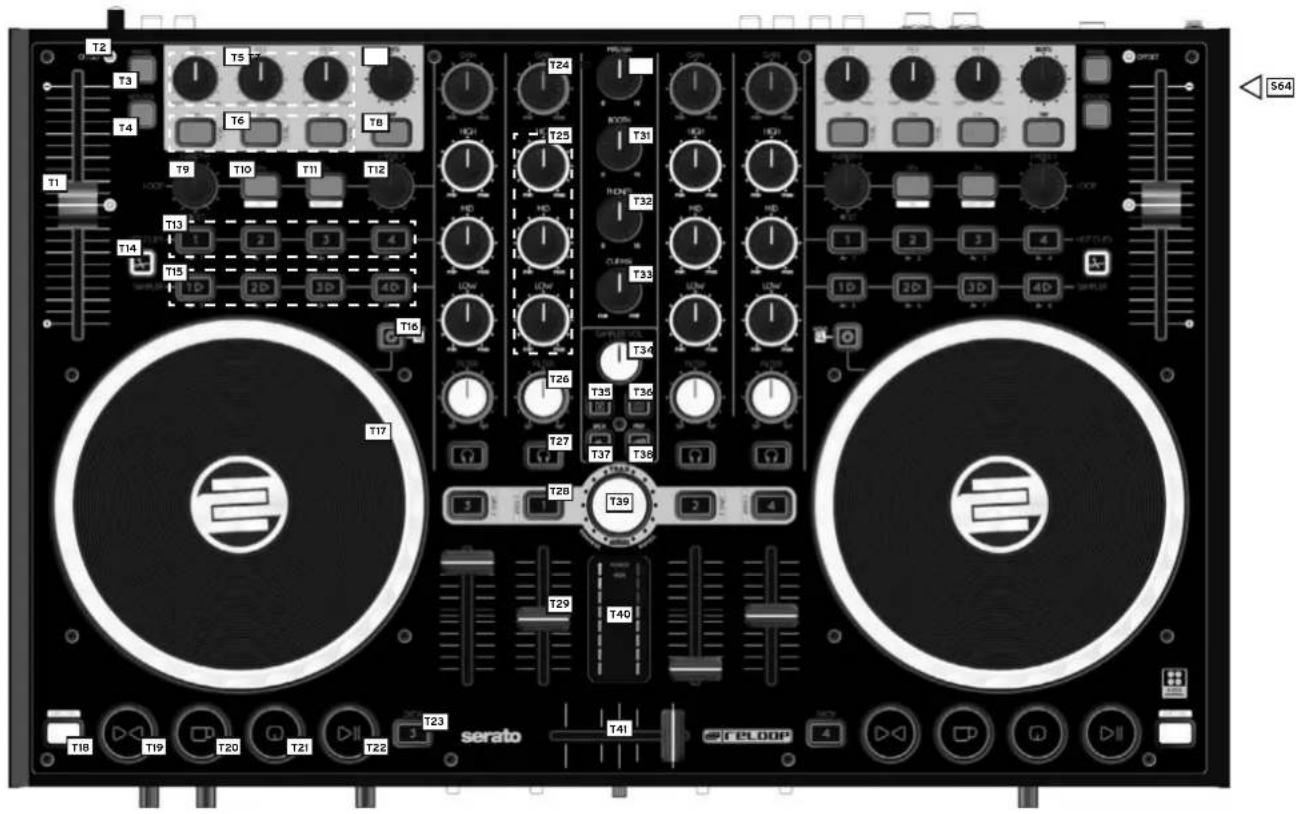
text_image
T12 T3 T4 T5 T6 T8 T9 T10 T11 T12 T13 T14 T15 10 2 3 4 2D 3D 4D T16 T17 T24 T25 T31 T32 T33 T34 T26 T35 T36 T27 T37 T38 T28 T39 T29 T40 serato T41 reloop 4 564
text_image
www.neisop.com NEVISOP Germany B42 B43 B44 B45 B46 ferminolmix4 FELLOP serato B49 B50 B51 B52 CE
text_image
termicimix4 F53 F54 F55 F56 F57 F58 F59 F60 F59 Celloop serato F61 F62 F63SURFACE
| NO DESIGNATION SHIFT DESIGNATION | |
| T1 Pitch Fader | |
| T2 Offset LED | |
| T3 Range | |
| T4 Keylock | |
| T5 Effect Parameter | |
| T6 FX On Buttons Effect Change Button | |
| T7 FX Tempo | |
| T8 Tap Button | |
| T9 Loop Length | |
| T10 Adjust Loop Beginning Loop-In Button | |
| T11 Adjust Loop Ending Loop-Out Button | |
| T12 Adjust Loop | |
| T13 Hot Cue Buttons Delete Hot Cue | |
| T14 Slice Button | |
| T15 Sample Bank | |
| T16 Jog Wheel Mode Buttons | |
| T17 Jog Wheel | |
| T18 Shift Button | |
| T19 Sync Button | |
| T20 Cup Button | |
| T21 Cue Button | |
SURFACE
| NO DESIGNATION SHIFT DESIGNATION | |
| T22 Play/Pause Button | |
| T23 Deck Select Switch | |
| T24 Gain Dial | |
| T25 EQ Dial | |
| T26 Filter Dial | |
| T27 Monitor CUE Button | |
| T28 Load Button | Fader Start Button |
| T29 Linefader | |
| T30 Master Volume | |
| T31 Booth Volume | |
| T32 Headphones Volume | |
| T33 CUE-Mix Fading | |
| T34 Sampler Volume Dial | |
| T35 Crates Button | |
| T36 View Button | |
| T37 Back Button | |
| T38 Preparation Button | |
| T39 Track Navigation | Folder Navigation |
| T40 VU Meter | |
| T41 Crossfader | |
REAR PANEL
| NO DESIGNATION | |
| B42 | Mains Cord Stress Release |
| B43 | Mains Connection (DC 6V/1,5A) |
| B44 | On/Off Button |
| B45 | USB Port |
| B46 | 6.3 mm Master Balanced Output |
| B47 RCA | Master Unbalanced Output |
| B48 | RCA Booth Unbalanced Output |
| B49 Shift Lock Switch | |
| B50 | Line/Phono Switch |
| B51 RCA | Input 1 |
| B52 | Grounding Screw |
FRONT PANEL
| NO DESIGNATION | |
| F53 6.3 mm Jack Microphone Connection | |
| F54 | Microphone Volume |
| F55 Microphone Equalizer | |
| F56 | Microphone Routing Switch |
| F57 Input 1 Routing Switch | |
| F58 Input 1 Volume | |
| F59 Crossfader Deck Assignment Switch | |
| F60 | Crossfader Curve |
| F61 Headphones Equalizer | |
| F62 3.5 mm Jack Headphones Connection | |
| F63 | 6.3 mm Jack Headphones Connection |
LATERAL SIDE
| NO DESIGNATION | |
| S64 | Kesington Lock |
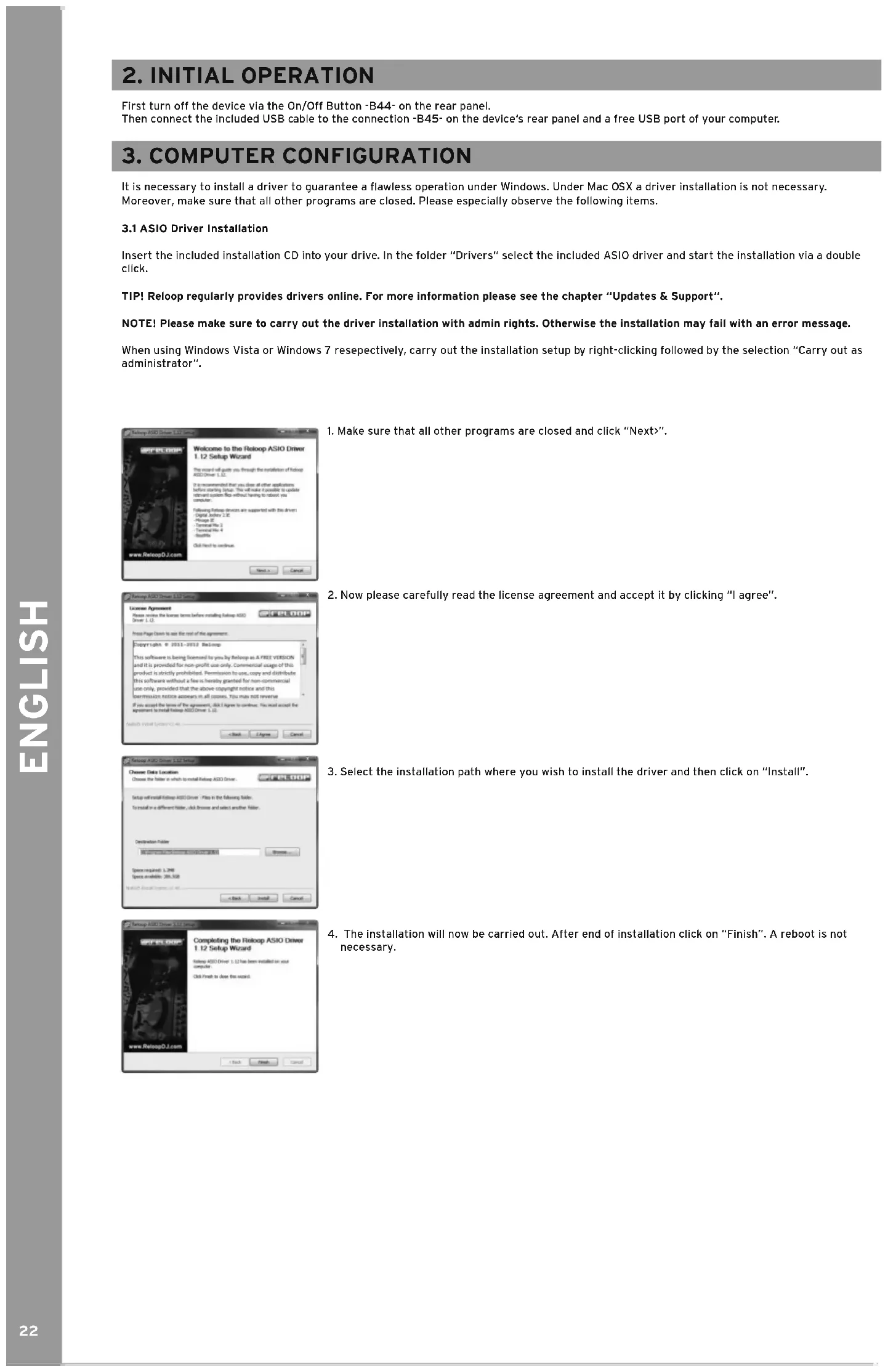
First turn off the device via the On/Off Button -B44- on the rear panel.
Then connect the included USB cable to the connection -B45- on the device's rear panel and a free USB port of your computer.
3. COMPUTER CONFIGURATION
It is necessary to install a driver to guarantee a flawless operation under Windows. Under Mac OSX a driver installation is not necessary. Moreover, make sure that all other programs are closed. Please especially observe the following items.
3.1 ASIO Driver Installation
Insert the Included Installation CD into your drive. In the folder "Drivers" select the Included ASIO driver and start the installation via a double click.
TIP! Reloop regularly provides drivers online. For more information please see the chapter "Updates & Support".
NOTE! Please make sure to carry out the driver installation with admin rights. Otherwise the installation may fail with an error message.
When using Windows Vista or Windows 7 resepectively, carry out the installation setup by right-clicking followed by the selection "Carry out as administrator".
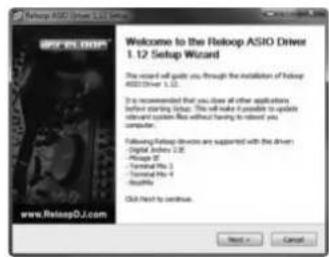
text_image
Roloop ASIO Driver 1.12 Setup Wizard Welcome to the Roloop ASIO Driver 1.12 Setup Wizard This cover will guide you through the installation of Roloop ASIO Driver 1.12. It is recommended that you close all other applications before starting setup. This will make available to update relevant version files without having to destroy your computer. Following Roloop devices are supported with the driver Digital Roloop 2.00 Roloop 30 Terminal No. 1 Terminal No. 4 Details Click next to continue. Next > Cancel- Make sure that all other programs are closed and click "Next>".
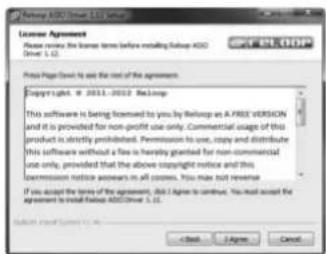
text_image
License Agreement Please notice the license terms before installing Skip0 4002 Drive: 1.12. Press Page Down to use the sort of the agreement. Copyright: © 2011-2023 Skipopen This software is being licensed to you by Skip0 as a FREE VERSION and it is provided for non-profit user only. Commercial usage of this product is strictly prohibited. Permission to use, copy and distribute this software without a file to hereby granted for non-commercial use only, provided that the above copyright notice and this permission notice appears in all cases. You may not reverse If you accept the terms of the agreement, you.I agree to continue. You must accept the agreement to install Skip0 Drive: 1.12. Submit Page Down to Use: < Back > < Agree Cancel- Now please carefully read the license agreement and accept it by clicking "I agree".
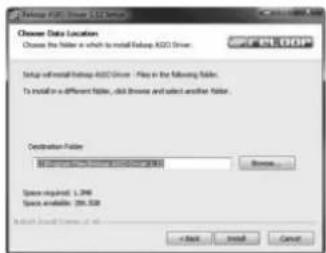
text_image
Choose Data Location Choose the folder in which to install Tabbox A320 Driver Setup will install Tabbox A320 Driver - Files in the following folder. To install in a different folder, click these and select another folder. Destination Folder Space required: L.296 Space available: 286.528 OK Install Cancel- Select the installation path where you wish to install the driver and then click on "Install".
text_image
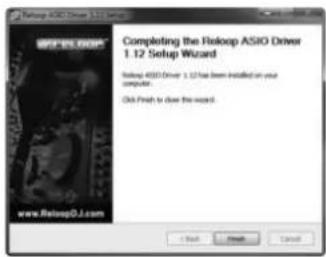
Rislop ASIO Driver 1.12 Setup Wizard Completing the Rislop ASIO Driver 1.12 Setup Wizard Rislop ASIO Driver 1.12 has been installed on your computer. Old Fresh to save this wizard.- The installation will now be carried out. After end of installation click on "Finish". A reboot is not necessary.
3.2 Serato DJ Intro Installation
3.2.1 Serato DJ Intro Installation / Windows
On the included CD you can find the directory "Serato DJ Intro". Open this directory and select the setup file that corresponds to your system. Start the installation with a double click.
NOTE! Please make sure to carry out the driver installation with admin rights. Otherwise the installation may fail with an error message.
When using Windows Vista or Windows 7 respectively, carry out the installation setup by right-clicking followed by the selection "Carry out as administrator".
text_image
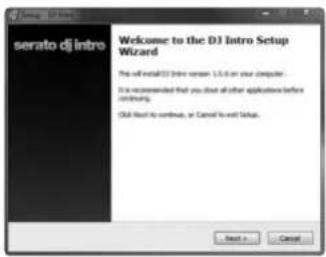
serato dj intro Welcome to the DJ Intro Setup Wizard Pre-off installed in this version 1.0.6 on your computer. I'm recommended that you chose all other applications before confirming. OK Next to continue, or Cancel to exit Setup.- Make sure that all other programs are closed and click "Next>".
text_image
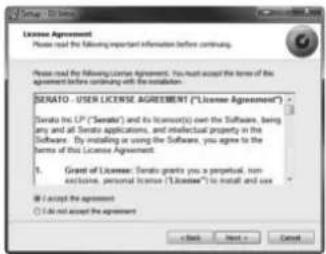
License Agreement Please read the following important information before continuing. Please read the following License Agreement, you must accept the terms of the agreement. You continue with the resolution. SENATO - USER LICENSE AGREEMENT ("License Agreement") Sensato is LP ("Sensato") and its license(s) own the Software, being any and all Senate applications, and intellectual property in the Software. By installing or using the Software, you agree to the terms of this License Agreement. 1. Grant of License: Sensato grants you a proposal, non exclusive, personal license ("License") to install and save 2. If I accept the agreement 3. Do not accept the agreement OK Next Cancel- Now please carefully read the license agreement and accept it by clicking "I accept the agreement" and then clicking "Next)".
text_image
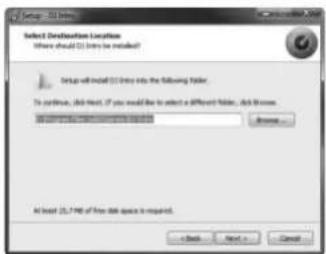
Setup - 32.7MB Select Destination Location Where should (1) into the installed? Setup will install (1) into the following folder. To continue, all then, if you would like to select a different folder... ask it more. Access: 25.7MB of free disk space is required.- Select the installation path where you wish to install the driver and then click on "Install".

text_image
Select Additional Tools which additional tools should be performed? Select the additional tools you would be linked to perform while installing UI items, from all files. Additional tools: ✓ Create a desktop tool- If you do not wish to have an icon on your desktop, simply remove the checkmark under "Create a desktop icon" and click on "Next".
text_image
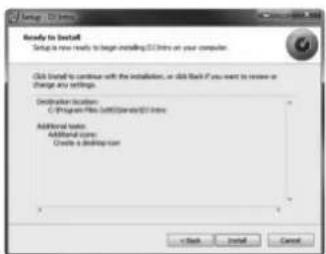
Ready to Install Setup is now ready to install Install into your computer. Click Install to continue with the installation, or add Back. If you want to review or change any settings. Destination location: C:\Program Files\SQL\Database\SQL\Users Additional notes: Additional core: Create a desktop.com < Back Install Cancel>- Now click "Install" to start the installation.
text_image
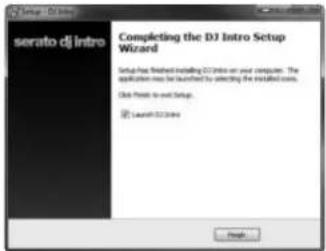
serato dj intro Completing the DJ Intro Setup Wizard Setup has finished installing DJ Intro on your computer. The application may be launched by selecting the installed costs. Click Print to exit Setup. Launch DJ Intro- After a successful installation you can start Serato DJ Intro by clicking "Finish".
3.2.2 Serato DJ Intro Installation / Mac OSX
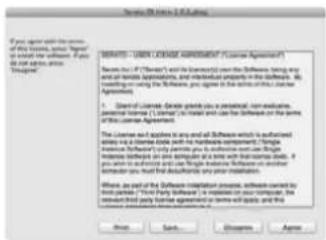
On the included installation CD you can find the directory "Serato DJ Intro". Open it and select the setup file that corresponds to your system. Now start the installation with a double click.
text_image
If you agree with the name of this business, some "##p#n" or insert your software. If you do not agree with you, you need to pay a license. NOTICE - LDER LICENSE AGREEMENT (License Agreement). Name (a): "If there's" and its commentary on the Software, taking any and/or related applications, and include property in the software. By installing on using the Software, you agree with the terms or rights of the License Agreement. 1. Client of License: Debite grants you a personal, non-executive, personal information [1], License is required and can be obtained from the terms of this License Agreement. The License has applied to any and all Software which is authorized solely by a license code with the hardware components. The License is not applicable to any other person who is authorized only. Single License should be one telephone and a time with this license code. If you wish to access to and use Single License Software on another computer, you must have that additional functions may be required. Where, are of the Software Implementation process, tools carried to first parties ("First Party") or installed on your computer, the client third party cannot change its own rights and rights. Apply Cancel Disagree Agree- Please carefully read the license agreement and accept it by clicking "I agree".
text_image
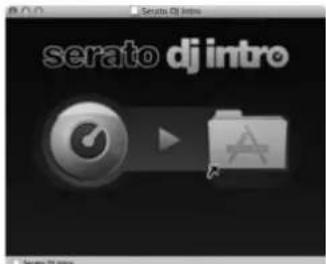
serato dj intro Serato DJ intro-
Now drag and drop the file "Serato DJ Intro" in your "Programs" folder.
-
You can now start Serato DJ Intro via your "Programs" folder.
3.3 Virtual DJ LE 4-Deck Reloop Edition Installation
3.3.1 Virtual DJ LE 4-Deck Reloop Edition Installation / Windows
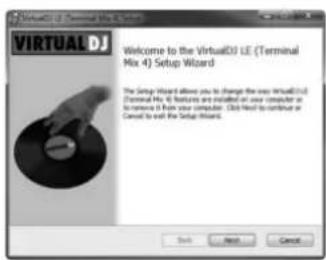
On the included installation CD you can find the directory "Virtual DJ LE (Terminal Mix 4)". Open it and select the setup file that corresponds to your system. Now start the installation with a double click.
NOTE! Please make sure to carry out the driver installation with admin rights. Otherwise the installation may fail with an error message.
When using Windows Vista or Windows 7 respectively, carry out the installation setup by right-clicking followed by the selection "Carry out as administrator".
text_image
VIRUALDJ Welcome to the VirtualDJ LE (Terminal Mix 4) Setup Wizard The Setup Wizard allows you to change the easy VirtualDJ LE (Terminal Mix 4) features are installed or used computer as to remove it from your computer. Click Next to continue or Cancel to exit the Setup Wizard. OK Next Cancel- Make sure that all other programs are closed and click "Next)".
text_image
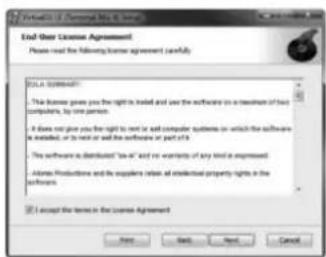
End-Over License Agreement Please read the following license agreement (canfully) TITLE SUMMARY: The license gives you the right to be solved and uses the software on a resolution of all computer, by one person. • It does not give you the right to be met or sell computer systems (or which the software is installed, or to not or will the software or part of it). • The software is distributed "Use all" and is warranty of any kind is expressed. • Assume Provisions and the experts believe all residential property rights in the software. I accept the terms in the License Agreement Next Back Next Cancel- Now please carefully read the license agreement and accept it by clicking "I accept the terms in the license agreement" and then clicking "Next".
text_image
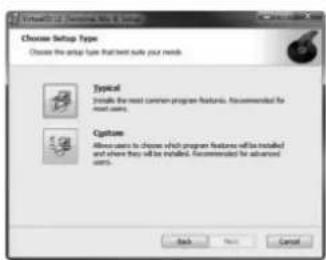
Choose Setup Type Choose the setup type that best suite your needs Typical Inside the most common program features. Recommended for most users. Capture Allows users to choose which program features will be installed and where they will be installed. Recommended for advanced users.- Now click "Typical".
text_image
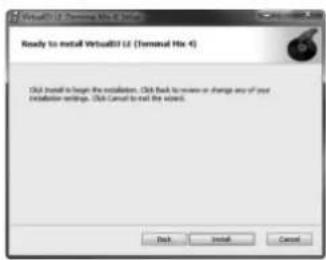
Ready to install Virtual3D Ltd (Terminal Hx 4) Click install to install the installation. Click back to review or change any of your installation settings. Click Cancel to call the version. OK Install Cancel-
Click "Install" to start the installation.
-
After a successful installation you can start VirtualDJ by clicking "Finish".
3.3.2 VirtualDJ LE 4-Deck Reloop Edition Installation / Mac OSX
On the included installation CD you can find the directory "VirtualDJ LE (Terminal Mix 4)". Open it and select the setup file that corresponds to your system. Now start the installation with a double click.
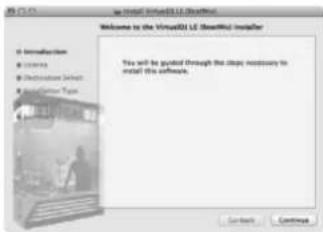
text_image
Welcome to the VirtualDS LE (SmartKit) Installer You will be guided through the steps necessary to install this software. Access Settings- You will now be lead through the installation. Click "Continue".
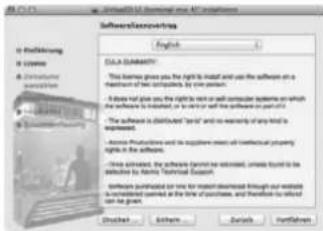
text_image
SoftwareAdministrative English D.C. DUSTODY This business gives you the right to install and use the software on a function in the software, which is not available. It has left way you can use the right to install computer systems on which the software is installed, or to enter it with the software on part of it. The software is distributed "start" and will availability of any kind is recommended. Access Purification and Support System must be hierarchical practical rights in the software. One available, the software (program) has been updated, unless found to be addressed. The software is designed to expand. Software purchased on one for most download through and available to understand their at the time of purchase, and therefore to offer the grant. Druckout... Options... Details... Helpkeepers...- Now please carefully read the license agreement and click "Continue".
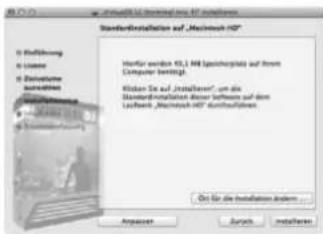
text_image
StandardInstallation auf „Microsoft HD” File Direction File Name File Type File Date File Address File Name File Type File Status File Path File Name File Address File Name File Path File Name File Path File Name File Path File Name File Path File Name File Path File Name File Path File Name File Path File Name File Path File Name File Path File Name File Path File Name File Path File Name File Path File Name File Path File Name File Path File Name File Path File Name File Path File Name File Path File Name: File Path: Microsoft HD Microsoft HD: 10.1.14 (Spechopriate auf ihrem Computer bereinigt) Microsoft HD: 10.1.14 (Spechopriate auf ihrem Computer bereinigt) Microsoft HD: 10.1.14 (Spechopriate auf ihrem Computer bereinigt) Microsoft HD: 10.1.14 (Spechopriate auf ihrem Computer bereinigt) Microsoft HD: 10.1.14 (Spechopriate auf ihrem Computer bereinigt) Microsoft HD: - Microsoft HD - Microsoft HD - Microsoft HD - Microsoft HD - Microsoft HD - Microsoft HD - Microsoft HD - Microsoft HD - Microsoft HD - Microsoft HD - Microsoft HD - Microsoft HD - Microsoft HD - Microsoft HD - Microsoft HD - Microsoft HD - Microsoft HD - Microsoft HD - Microsoft HD - Microsoft HD - Microsoft HD - Microsoft HD - Microsoft HD - Microsoft HD - Microsoft HD - Microsoft HD - Microsoft HD - Microsoft HD - Microsoft HD - Microsoft HD - Microsoft HD - Microsoft HD - Microsoft HD - Microsoft HD © On for the installation and... Anpasser Zurich installaten- Select a memory location for the installation and click "Install".
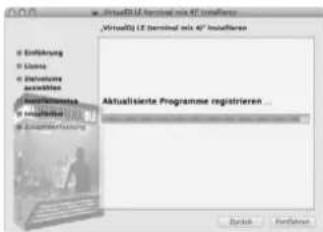
text_image
VirtualEU LE terminal incl 40" installieren VirtuAll2 LE terminal incl 40" installieren Aktualisierte Programme registrieren ... Bank Installungen- After a successful installation you can start VirtualDJ LE 4-Deck Reloop Edition.
3.4 Traktor Support
Reloop provides Traktor mappings (4-deck, 2-deck, 2 sample decks) which you can download from our forum. An instruction how to embed the mappings can also be found in our forum.
http://www.reloopdj.com/forum
4. OPERATION
4.1 Software Function Chart
After the Reloop Terminal Mix 4 has been properly connected and correctly configured in the DJ software it can now be used. Please note that there are several differences between VirtualDJ LE 4-Deck Reloop Edition and Serato DJ Intro. From the following chart you can see whether the functions are available in your selected DJ software.
| GERÄTEOBERSEITE | ||
| NO DESIGNATION SHIFT DESIGNATION -T18- | ||
| T1 Pitch Fader | Adjusts the current deck's pitch (see -T23-). (Intro: Y, Virtual DJ: Y) | |
| T2 Offset LED | If you switch the deck (see -T23-) and move the pitch fader, the value will be stored. The LED shows whether the pitch fader is at its initial value when setting back. (Intro: Y, VirtualDJ: Y) | |
| T3 Range | You can select between the following pitch fader ranges:VirtualDJ: 6%, 8%, 10%, 12%, 20%, 25%, 33%, 50%, 100%Intro: 8%, 16%, 50% | |
| T4 Keylock | (De)-activates keylock. (VirtualDJ: Y, Serato: Y) | |
| T5 Effect Parameter | Changes the selected effect's effect parameters in the respective slot. (Virtu-lDJ: Y, Serato: Y) | |
| T6 FX On Button | Activates the selected effect in the respective slot. (VirtualDJ: Y, Serato: Y) | Effect Switch ButtonBy pressing this button the effect in the respecti-ve slot can be changed. (VirtualDJ: Y, Serato: X) |
| T7 FX Tempo | Serato: Changes effect tempo of all effects.VirtualDJ: Carries out a beat jump forward/backward. | |
| T8 Tap Button | Searto: Determines the effect section's tempo.VirtualDJ: Determines the loaded track's tempo. | |
| T9 Loop Length | By turning the encoder the set loop's length will be varied. By pushing the encoder an automatic loop will be set with the selected loop length; it is not necessary to set the loop ending point.(VirtualDJ: Y, Serato: Y) | |
| T10 Adjust beginning of loop | Serato: Sets a loop-in point. If a loop is set, the loop-in point can be adjusted via the jog wheel when pressed again.VirtualDJ: Sets a loop-in point. If a loop is set, it can be shortened. | Loop-InManually sets the starting point of a loop. (Virtu-alDJ: Y, Serato: N) |
| T11 Adjust loop ending point | Serato: Sets a loop-out point. When pressed again, the loop-out point can be adjusted via the jog wheel.VirtualDJ: Sets a loop-out point and increases the loop when pressed again. | Loop-OutManually sets the ending point of a loop. Now the deck is in a loop mode. By pressing again you will exit loop mode. (VirtualDJ: Y, Serato: N) |
| T12 Moving a loop | By turning, the loop will be moved to the left or right side respectively.(VirtualDJ: Y, Serato: N) | |
| T13 Hot Cue Buttons | Herewith the 4 hot cues of a track can be accessed. If a hot cue is unasig-ned (no LED feedback) the hot cue will be assigned to the current track posi-tion by pressing the button -T23- (VirtualDJ: Y, Serato:Y) // By pressing the Slice Button -T14- in VirtualDJ the hot cues will be extended to hot cues 5-8. | Delete Hot CueIf you press a hot cue in shift mode, it will be deleted. (VirtualDJ: Y, Serato:Y) |
| T14 Slice Button | When activated, the hot cue and sample group will be extended to 5-8.(VirtualDJ: Y, Serato: N) | |
| T15 Sample Bank | Serato: Plays a loaded sample. By pressing again the sample will be replayed from the beginning.VirtualDJ: Plays a loaded sample. By pressing again the sample will be stopped. | Sample BankSerato: Stops the sample and jumps back to the beginning.VirtualDJ: Replays the sample from the begin-ning. |
| T16 Jog Wheel Mode Button | (De-)activates jog wheel scratch mode. By holding the button it is possible to browse the track with the jog wheel. If the LED is deactivated the jog wheel is in pitch bend mode. (VirtualDJ: Y, Serato: Y) | |
| T17 Jog Wheel | Various functions can be controlled herewith. Please refer to the Jog Wheel Mode Button -T16-. (VirtualDJ: Y, Serato: Y) | |
| T18 Shift Button | By pressing this button all control elements will receive another assignment. The current assignment can be seen on the right side of this chart.(VirtualDJ: Y, Serato: Y) | |
| T19 Sync ButtonThe current deck's tempo will be matched to the master deck. (VirtualDJ: Y, Serato: Y) | ||
| T20 CUP ButtonJumps to the last set cue-point and starts playback from this point.(VirtualDJ: Y, Serato: Y) | ||
| T21 Cue ButtonIf the deck is in play mode, the track jumps back to the last set cue point.By pressing again, playback starts as long as the button is being held. If thedeck is in pause mode, a new cue point will be set at the current point.(VirtualDJ: Y, Serato: Y) | ||
| T22 Play/Pause ButtonStarts and pauses track playback. (VirtualDJ: Y, Serato: Y) | ||
| T23 Deck Select SwitchWith this button you can select the controllable decks.(VirtualDJ: Y, Serato: N) | ||
| T24 Gain DialWith this dial the respective channel's gain can be adjusted.(VirtualDJ: Y, Serato: Y) | ||
| T25 EQ DialWith this dial highs/mids/lows can be adjusted. (VirtualDJ: Y, Serato: Y) | ||
| T26 Filter DialRegulates the channel filter. By turning the dial to the left, a low pass filterwill be activated; by turning the dial to the right, a hipass filter will be activa-ted. (VirtualDJ: Y, Serato: Y) | ||
| T27 CUE MonitorWith this button the selected deck can be monitored. (VirtualDJ: Y, Serato: Y) | ||
| T28 Load ButtonBy pressing this button, the selected track can be loaded to the repectivedeck. (VirtualDJ: Y, Serato: Y) | Fader Start ButtonWhen active, by drawing up the linefader -T29-the track will be started. By moving down thelinefader the track will jump back to the cuepoint. (VirtualDJ: Y, Serato: N) | |
| T29 LinefaderWith the linefader the channel volume can be adjusted. (VirtualDJ: Y, Serato:Y) | ||
| T30 Master VolumeWith this dial the master output volume can be adjusted. This is an analogdial which does not send a MIDI signal. (VirtualDJ: Y, Serato: Y) | ||
| T31 Booth VolumeWith this dial the booth output volume can be adjusted. This is an analog dialwhich does not send a MIDI signal. (VirtualDJ: Y, Serato: Y) | ||
| T32 Headphones VolumeWith this dial the headphones volume can be adjusted. This is an analog dialwhich does not send a MIDI signal. (VirtualDJ: Y, Serato: Y) | ||
| T33 CUE Mix FadingWith the Cue Mix Dial a pre-mix can be simulated in your headphones. Whenin the right position, the master signal is audible; in the left position the cuesignal is audible. (VirtualDJ: Y, Serato: Y) | ||
| T34 Sampler VolumeControls the sample volume. (VirtualDJ: Y, Serato: Y) | ||
| T35 Crates ButtonJumps back to folder navigation. By pressing again, a folder will be opened/closed. (VirtualDJ: Y, Serato: N) | ||
| T36 View ButtonChanges between browser, effects, samples, and record view. (VirtualDJ: Y,Serato: N) | ||
| T37 Back ButtonSerato: Jumps back to crates view.VirtualDJ: Changes between browser, effects, samples, record view. | ||
| T38 Preparation ButtonMaximizes playlist view. (VirtualDJ: Y, Serato: N) | ||
| T39 Track NavigationIf you are in folder navigation or playlist view, it is possible to browsethrough these by turning. | ||
| T40 VU MeterThe VU Meter shows the master out's output level. | ||
| T41 CrossfaderWith this fader you can fade between the decks. Also see -F59-. | ||
4.2 Routing Functions
Terminal Mix 4 disposes of different routing possibilities in order to include already existing equipment.
4.2.1 Microphone
A microphone can be connected via a 6.3 mm jack on the device's front panel -F53-. Besides the volume dial -F54- a routing switch -F56- is also integrated which controls the following routing options:
SW = The microphone signal is routed to the software.
MST = The microphone signal is directly routed to the device's master-out.
NOTE! In Serato DJ Intro and VirtualDJ LE Reloop Edition it is not possible to route the microphone signal to the software.
Moreover it is possible to manipulate the microphone signal via the included Equalizer -F55-.
4.2.2 External Sound Sources
At the device's side you have the possibility to connect an external sound source via RCA cable to the Terminal Mix 4 (-B51-) and integrate it in the controller. There is also the possibility to route the signal directly to the master output or to a software.
In order to route the signal directly to the master output please put the Input Routing Switch -F57- on the device's front side in the MST position. Now you can control the input level via the Volume Dial -F58-. Additionally to a line-in source you also have the possibility to connect a turntable. To do so please put the Line/Phono Switch -B50- in the "PH" position.
If you wish to route the signal to a software, put the Input Routing Switch -F57- in the "SW" position.
NOTE! In Serato DJ Intro and VirtualDJ LE Reloop Edition it is not possible to route the external source's signal to the software.
4.2.3 Outputs
On the rear panel of Terminal Mix 4 you can find three stereo outputs. Master 1 -B47- (RCA) as well as Master 2 -B46- (symmetrical 6.3 mm jack) can be adjusted via the Master Volume Encoder -T30-.
The booth output -B48- (RCA output) can be adjusted via the Booth Dial -T31-.
5. DEVICE SETTINGS AND TESTS
Several adjustments and tests can be carried out with Terminal Mix 4 without the help of a computer. In the following a few of these items are explained in detail.
5.1 Firmware Version Check
To see the current firmware version of the Terminal Mix 4 proceed as follows:
-
Make sure that Terminal Mix 4 is turned off (see position On/Off Switch -B44-).
-
Hold TRAX + CRATES + VIEW simultaneously and turn on the device.
Now different LED statutuses will be shown on the device; these are assembled in three different sections (X.YZ).
X SECTION Y SECTION Z SECTION
| Add all illuminated LEDs from the left Hot Cue -T13-, Sample -T15- & Jog Wheel Mode button -T16-. If nothing is displayed, this corresponds to a value of 0. | Add all illuminated LEDs from the right Hot Cue -T13-, Sample -T15- & Jog Wheel Mode button -T16-. If nothing is displayed, this corresponds to a value of 0. | Add all illuminated LEDs from the transport section -T19- -- -T23-. If nothing is displayed, please repeat steps 1 & 2. |
Example: In X section no LED is illuminated, in Y section 1 LED is illuminated and in Z section 3 LEDs are illuminated. This corresponds to the firmware version 0.13. By pressing the TRAX Encoder -T39- again the device will reboot.
5.2 LED Dimmer
You can adjust the LEDs' intensity. Simultaneously the functionality of all LEDs can be checked.
-
Make sure that Terminal Mix 4 is turned off (see position On/Off Switch -B44-).
-
Hold TRAX + BACK + PREP simultaneously and turn on the device.
By turning the TRAX Encoder -T39- you can now adjust the LED intensity. By pushing the TRAX Encoder -T39- again the value will be stored and the device will be rebooted.
5.3 Jog Sensitivity
Terminal Mix 4 offers the possibility to adjust the jog wheel sensitivity.
-
Make sure that Terminal Mix 4 is turned off (see position On/Off Switch -B44-).
-
Hold TRAX + BACK + CRATES simultaneously and turn on the device.
-
Turn deck A's MOVE Encoder -T12- to adjust the desired value of jog wheel A.
-
Turn deck B's MOVE Encoder -T12- to adjust the desired value of jog wheel B.
There is a total of 10 adjustment possibilities that are displayed by LED statuses in the Hot Cue and Sample section. By pressing the Trax Encoder again the value will be stored and the device will reboot.
Firmware Update / Windows, Mac OSX
It is possible to update the Terminal Mix 4 firmware. This way changes can be carried out later and new features can be added. The latest firmware can be found under: www.reloopdj.com/forum
5.4 Carrying Out The Firmware Update
- Make sure that Terminal Mix 4 is turned off (see position On/Off Switch -B44-) and all programs are closed.
- Hold TRAX + LOAD A + LOAD B (-T28-) simultaneously and turn on the device. The device is now in firmware update mode.
- Insert the included installation CD into your drive. In the folder "Firmware" select the included UsbUpgDataApp_v*.**.jar tool and start the program with a double-click.
- Now open the firmware file that corresponds to your device by clicking "Open file".
- Now carry out the firmware update by clicking the "Start" button.
The new firmware will now be transmitted. This procedure may take a few minutes. The device shows the current update status via the hot cue buttons. After a successful update the device will reboot.
5.5 MIDI Channel Assignment
CAUTION! By default the Terminal Mix 4 is configured for MIDI channels 1-4. Deck A is assigned to channel 1, deck B to channel 2, deck C to channel 3 and deck D to channel 4. Reloop's official mappings are laid out for the standard configuration. Usually an adjustment is not necessary.
However, if you wish to switch the decks to the MIDI channel combination 5-8, 9-12 or 13-16, please proceed as follows:
- Make sure that Terminal Mix 4 is turned on (see position On/Off Switch -B44-).
- Press the TRRAX Encoder -T39- for more than three seconds and keep it pressed.
- In the left Hot Cue section -T13- the current MIDI channel will be displayed. For the desired adjustment please see the chart below and press the corresponding hot cue button.
| MIDI CHANNEL COMBINATION HOT CUE-TASTE | |
| 1-4 1 | |
| 5-8 2 | |
| 9-12 3 | |
| 13-16 4 | |
- In order to assume the adjustment, release the TRAX Encoder -T39-. The adjustment is now stored.
6. APPENDIX
6.1 Minimum System Requirements
| PC MAC | |
| Windows® XP (latest Service Pack, 32-Bit), Windows Vista®/Windows®7 (latest Service Pack, 32/64-Bit)Intel® Pentium 4® 2.4 GHz or Intel® CoreTM Duo2 GB RAM | Mac OSX® starting from 10.5Intel® CoreTM Duo2 GB RAM |
6.2 MIDI Assignment Chart
| SHIFT + SHIFT + | |||||||||||||||||
| NO. | ITEMS | TYPE | DECK A | DECK B | DECK C | DECK D | SW NOTE | VR CC | SW NOTE | VR CC | LED NOTE | LED NOTE | |||||
| HEX | HEX HEX HEX | HEX | HEX | ||||||||||||||
| 1 | RANGE | SW/LED | CH 1 | CH 2 | CH3 | CH 4 | 1 | 1 | - | - | 71 | 47 | - | - | 1 | 1 | 71 |
| 2 | KEY LOCK | SW/LED | CH 1 | CH 2 | CH 3 | CH 4 | 2 | 2 | - | - | 72 | 48 | - | - | 2 | 2 | 72 |
| 3 | FX1 | VR | CH 1 | CH 2 | CH 1 | CH 2 | - | - | 3 | 3 | - | - | 73 | 49 | - | - | - |
| 4 | FX2 | VR | CH 1 | CH 2 | CH 1 | CH 2 | - | - | 4 | 4 | - | - | 74 | 4A | - | - | - |
| 5 | FX3 | VR | CH 1 | CH 2 | CH 1 | CH 2 | - | - | 5 | 5 | - | - | 75 | 4B | - | - | - |
| 6 | BEATS | SW/ENC | CH 1 | CH 2 | CH 1 | CH 2 | 6 | 6 | 6 | 6 | 76 | 4C | 76 | 4C | - | - | - |
| 7 | FX_SEL1 | SW/LED | CH 1 | CH 2 | CH 1 | CH 2 | 7 | 7 | - | - | 77 | 4D | - | - | 7 | 7 | 77 |
| 8 | FX_SEL2 | SW/LED | CH 1 | CH 2 | CH 1 | CH 2 | 8 | 8 | - | - | 78 | 4E | - | - | 8 | 8 | 78 |
| 9 | FX_SEL3 | SW/LED | CH 1 | CH 2 | CH 1 | CH 2 | 9 | 9 | - | - | 79 | 4F | - | - | 9 | 9 | 79 |
| 10 | TAP | SW/LED | CH 1 | CH 2 | CH 1 | CH 2 | 10 | A | - | - | 80 | 50 | - | - | 10 | A | 80 |
| 11 | LOOP LENGTH | SW/ENC | CH 1 | CH 2 | CH 3 | CH 4 | 11 | B | 11 | B | 81 | 51 | 81 | 51 | - | - | - |
| 12 | LOOP IN | SW/LED | CH 1 | CH 2 | CH 3 | CH 4 | 12 | C | - | - | 82 | 52 | - | - | 12 | C | 82 |
| 13 | LOOP OUT | SW/LED | CH 1 | CH 2 | CH 3 | CH 4 | 13 | D | - | - | 83 | 53 | - | - | 13 | D | 83 |
| 14 | LOOP MOVE | SW/ENC | CH 1 | CH 2 | CH 3 | CH 4 | 14 | E | 14 | E | 84 | 54 | 84 | 54 | - | - | - |
| 15 | DELETE | SW/LED | CH 1 | CH 2 | CH 3 | CH 4 | 15 | F | - | - | 85 | 55 | - | - | - | - | - |
| 16 | HOT CUE1(DELETE OFF) | SW/LED | CH 1 | CH 2 | CH 3 | CH 4 | 16 | 10 | - | - | 86 | 56 | - | - | 16 | 10 | 86 |
| 17 | HOT CUE2(DELETE OFF) | SW/LED | CH 1 | CH 2 | CH 3 | CH 4 | 17 | 11 | - | - | 87 | 57 | - | - | 17 | 11 | 87 |
| 18 | HOT CUE3(DELETE OFF) | SW/LED | CH 1 | CH 2 | CH 3 | CH 4 | 18 | 12 | - | - | 88 | 58 | - | - | 18 | 12 | 88 |
| 19 | HOT CUE4(DELETE OFF) | SW/LED | CH 1 | CH 2 | CH 3 | CH 4 | 19 | 13 | - | - | 89 | 59 | - | - | 19 | 13 | 89 |
| 20 | SAMPLE1(DELETE OFF) | SW/LED | CH 1 | CH 2 | CH 3 | CH 4 | 20 | 14 | - | - | 90 | 5A | - | - | 20 | 14 | 90 |
| 21 | SAMPLE2(DELETE OFF) | SW/LED | CH 1 | CH 2 | CH 3 | CH 4 | 21 | 15 | - | - | 91 | 5B | - | - | 21 | 15 | 91 |
| 22 | SAMPLE3(DELETE OFF) | SW/LED | CH 1 | CH 2 | CH 3 | CH 4 | 22 | 16 | - | - | 92 | 5C | - | - | 22 | 16 | 92 |
| 23 | SAMPLE4(DELETE OFF) | SW/LED | CH 1 | CH 2 | CH 3 | CH 4 | 23 | 17 | - | - | 93 | 5D | - | - | 23 | 17 | 93 |
| 24 | HOT CUE1(DELETE ON) | SW/LED | CH 1 | CH 2 | CH 3 | CH 4 | 24 | 18 | - | - | 94 | 5E | - | - | 24 | 18 | 94 |
| 25 | HOT CUE2(DELETE ON) | SW/LED | CH 1 | CH 2 | CH 3 | CH 4 | 25 | 19 | - | - | 95 | 5F | - | - | 25 | 19 | 95 |
| 26 | HOT CUE3(DELETE ON) | SW/LED | CH 1 | CH 2 | CH 3 | CH 4 | 26 | 1A | - | - | 96 | 60 | - | - | 26 | 1A | 96 |
| 27 | HOT CUE4(DELETE ON) | SW/LED | CH 1 | CH 2 | CH 3 | CH 4 | 27 | 1B | - | - | 97 | 61 | - | - | 27 | 1B | 97 |
| 28 | SAMPLE1(DELETE ON) | SW/LED | CH 1 | CH 2 | CH 3 | CH 4 | 28 | 1C | - | - | 98 | 62 | - | - | 28 | 1C | 98 |
| 29 | SAMPLE2(DELETE ON) | SW/LED | CH 1 | CH 2 | CH 3 | CH 4 | 29 | 1D | - | - | 99 | 63 | - | - | 29 | 1D | 99 |
| 30 | SAMPLE3(DELETE ON) | SW/LED | CH 1 | CH 2 | CH 3 | CH 4 | 30 | 1E | - | - | 100 | 64 | - | - | 30 | 1E | 100 |
| 31 | SAMPLE4(DELETE ON) | SW/LED | CH 1 | CH 2 | CH 3 | CH 4 | 31 | 1F | - | - | 101 | 65 | - | - | 31 | 1F | 101 |
| 32 | HOLD | SW/LED | CH 1 | CH 2 | CH 3 | CH 4 | 32 | 20 | - | - | 102 | 66 | - | - | - | - | - |
| 33 | SHIFT | SW/LED | CH 1 | CH 2 | CH 1 | CH 2 | 33 | 21 | - | - | - | - | - | - | - | - | - |
| 34 | SYNC | SW/LED | CH 1 | CH 2 | CH 1 | CH 2 | 34 | 22 | - | - | 104 | 68 | - | - | 34 | 22 | 104 |
| 35 | CUP | SW/LED | CH 1 | CH 2 | CH 3 | CH 4 | 35 | 23 | - | - | 105 | 69 | - | - | 35 | 23 | 105 |
| 36 | CUE | SW/LED | CH 1 | CH 2 | CH 3 | CH 4 | 36 | 24 | - | - | 106 | 6A | - | - | 36 | 24 | 106 |
| 37 | PLAY/PAUSE | SW/LED | CH 1 | CH 2 | CH 3 | CH 4 | 37 | 25 | - | - | 107 | 6B | - | - | 37 | 25 | 107 |
| 38 | DECK | SW/LED | CH 1 | CH 2 | CH 3 | CH 4 | 38 | 26 | - | - | - | - | - | - | - | - | - |
| 39 | JOG WHEEL(HOLD OFF) | SW/ENC | CH 1 | CH 2 | CH 3 | CH 4 | 39 | 27 | 39 | 27 | 109 | 6D | - | - | - | - | - |
| 40 | JOG WHEEL(HOLD On) | SW/ENC | CH 1 | CH 2 | CH 3 | CH 4 | 40 | 28 | 40 | 28 | 110 | 6E | - | - | - | - | - |
| 41 | JOG WHEEL(HOLD) | SW/ENC | CH 1 | CH 2 | CH 3 | CH 4 | 41 | 29 | 41 | 29 | 111 | 6F | - | - | - | - | - |
| 42 | PITCH BEND(middle) | VR | CH 1 | CH 2 | CH 3 | CH 4 | 42 | 2A | - | - | - | ||||||
| 43 | GAIN | VR | CH 1 | CH 2 | CH 3 | CH 4 | - | ||||||||||
| 44 | HIGH(minimum) | VR | CH 1 | CH 2 | CH 3 | CH 4 | 44 | 2C | 44 | 2C | 114 | 72 | 114 | 72 | |||
| 45 | MID(minimum) | VR | CH 1 | CH 2 | CH 3 | CH 4 | 45 | 2D | 45 | 2D | 115 | 73 | 115 | 73 | |||
| 46 | LOW(minimum) | VR | CH 1 | CH 2 | CH 3 | CH 4 | 46 | 2E | 46 | 2E | 116 | 74 | 116 | 74 | |||
| 47 | FILTER(middle) | VR | CH 1 | CH 2 | CH 3 | CH 4 | 47 | 2F | 47 | 2F | 117 | 75 | 117 | 75 | |||
| 48 | CH CUE | SW/LED | CH 1 | CH 2 | CH 3 | CH 4 | 48 | 30 | |||||||||
| 49 | CH FADER | VR | CH 1 | CH 2 | CH 3 | CH 4 | |||||||||||
| 50 | FADER START | SW/LED | CH 1 | CH 2 | CH 3 | CH 4 | 50 | 32 | |||||||||
| 51 | CUE MIX | VR | CH 1 | CH 1 | CH 1 | CH 1 | |||||||||||
| 52 | SAMPLER VOL | VR | CH 1 | CH 1 | CH 1 | CH 1 | |||||||||||
| 53 | CREATES | SW/LED | CH 1 | CH 1 | CH 1 | CH 1 | |||||||||||
| 54 | VIEW | SW/LED | CH 1 | CH 1 | CH 1 | CH 1 | |||||||||||
| 55 | BACK | SW/LED | CH 1 | CH 1 | CH 1 | CH 1 | |||||||||||
| 56 | PREP | SW/LED | CH 1 | CH 1 | CH 1 | CH 1 | |||||||||||
| 57 | TRAX | SW/ENC | CH 1 | CH 1 | CH 1 | CH 1 | |||||||||||
| 58 | CROSS FADER | VR | CH 1 | CH 1 | CH 1 | CH 1 | |||||||||||
| 59 | CF A A | SW | CH 1 | CH 1 | CH 1 | CH 1 | |||||||||||
| 60 | CF A THRU | SW | CH 1 | CH 1 | CH 1 | CH 1 | |||||||||||
| 61 | CF A B | SW | CH 1 | CH 1 | CH 1 | CH 1 | |||||||||||
| 62 | CF B A | SW | CH 1 | CH 1 | CH 1 | CH 1 | |||||||||||
| 63 | CF B THRU | SW | CH 1 | CH 1 | CH 1 | CH 1 | |||||||||||
| 64 | CF BB | SW | CH 1 | CH 1 | CH 1 | CH 1 | |||||||||||
| 65 | CF C A | SW | CH 1 | CH 1 | CH 1 | CH 1 | |||||||||||
| 66 | CF C THRU | SW | CH 1 | CH 1 | CH 1 | CH 1 | |||||||||||
| 67 | CF C B | SW | CH 1 | CH 1 | CH 1 | CH 1 | |||||||||||
| 68 | CF D A | SW | CH 1 | CH 1 | CH 1 | CH 1 | |||||||||||
| 69 | CF D THRU | SW | CH 1 | CH 1 | CH 1 | CH 1 | |||||||||||
| 70 | CF D B | SW | CH 1 | CH 1 | CH 1 | CH 1 | |||||||||||
6.3 Troubleshooting
If a problem should arise while using Reloop Terminal Mix 4 the following chart is the first drop-in center:
| SYMPTOMS POSSIBLE CAUSES CORRECTIVE MEASURES | ||
| The device does not receive any power when turning it on via the On/Off Button -B44-. | USB cable is not connected correctly. Check w | whether the USB cable is connected to a USB port of your computer and the USB port of Terminal Mix 4 -B45-. |
| The controller's LEDs are only weakly lit and the device does not react. | The power supply is not sufficient. Please install | all the ASIO driver again. To do so please also read the paragraph "ASIO Driver Installation" in the chapter "Computer configuration". |
| Not all outputs of the integrated audio interface can be selected in the DJ software. | The ASIO driver is not installed correctly. Bitte | installieren Sie den ASIO-Treiber erneut. Lesen Sie dazu bitte den Abschnitt „ASIO Treiber-Installation" des Kapitels „Computer-Konfiguration". |
| The audio interface's sound is distorted. | - The ASIO driver is not being used.- The performance settings do not correspond to the computer's capacity. | - Please make sure that the ASIO driver is installed and is also being used. To do so please read the paragraph "ASIO Driver Installation" in the chapter "Computer Configuration".- It is also possible that in the ASIO driver's settings the available computer capacity has to be re-configured. To do so open the Reloop ASIO settings and increase the "ASIO Buffer". |
| There is a problem that is not listed here. | Various causes. Visit the website www.reloopd | .com/forum to get support for your Reloop products. |
6.4 TECHNICAL SPECIFICATIONS
General Specifications:
Power supply: USB 5V 500mA / AC: 6V, 1.5A (optional)
Dimensions: 515 x 337 x 62.5 mm
Weight: 4.8 kg
| ITEM LIMIT CONDITION | ||
| OUTPUT LEVEL (OUTPUT VR MAXIMUM) | ||
| MASTER/BOOTH OUTPUT: +6dB +/-1.5dB TCD-782 TRK.2/1KHz 0dB | ||
| BALANCE OUTPUT: | +6dB +/-1.5dB | TCD-782 TRK.2/1KHz 0dB, 300Ω TO GND BALANCE |
| PHONES: -6dB +/-1.5dB TCD-782 TRK.16/1KHz -20dB | ||
| MASTER OUTPUT: +6dB +/-1.5dB MIC IN 1KHz, -36dB (INPUT SWITCHING=MST) | ||
| MASTER OUTPUT: +6dB +/-1.5dB LINE IN 1KHz, 0dB (INPUT SWITCHING=MST) | ||
| MASTER OUTPUT: +6dB +/-1.5dB PHONO IN 1KHz, -36dB (INPUT SWITCHING=MST) | ||
| CHANNEL BALANCE | ||
| ALL OUTPUT: | WITHIN 1dB | TCD-782 TRK.2/1KHz 0dB |
| L/R CHANNEL SEPARATION (*2): | ||
| MASTER/BOOTH OUTPUT: 80dB | TCD-782 TRK.9 & 11/1KHz 0dB | |
| THD+N(*1): | ||
| MASTER/BOOTH OUTPUT: 0.05% | TCD-782 TRK.2/1KHz 0dB | |
| PHONES: 0.3% | TCD-782 TRK.2/1KHz 0dB | |
| S/N RATIO(*2): | ||
| MASTER/BOOTH OUTPUT: 85dB | TCD-782 TRK.2 & 8/1KHz 0dB | |
| FREQUENCY RESPONSE(OUTPUT VR MAXIMUM): | ||
| USB PLAYBACK: | 17Hz-16KHz +/-1dB | TCD-781 TRK.1,4 & 16 |
| LINE INPUT: | 20Hz-20KHz +/-3dB | IN LEVEL -14dB (INPUT SWITCHING=MST) |
| PHONO INPUT: | 20Hz-20KHz +/-3dB | IN LEVEL -54dB (INPUT SWITCHING=MST) WITH RIAA |
| MIC INPUT: | 20Hz-20KHz +/-3.5dB | IN LEVEL -54dB (INPUT SWITCHING=MST) |
| TONE (OUTPUT VR MAXIMUM): | ||
| PHONES: | -14dB +/-2dB | TONE VR MAX TO MIN, (TCD-782 TRK. 17/10KHz -20dB) |
| MIC: | -14dB +/-2dB | TONE VR MAX TO MIN, MIC IN 10KHz, LEVEL -54dB (INPUT SWITCHING=MST) |
| PHONES MAX. OUTPUT: | MORE THAN +3dB | THD=1% (TCD-782 TRK.2/1KHz 0dB) |
| RECORD/PLAY SECTION | ||
| OUTPUT LEVEL (OUTPUT VR MAXIMUM): | ||
| LINE INPUT: | +6dB +/-1.5dB IN LEVEL 1KHz -14dB | |
| MIC INPUT: | +6dB +/-1.5dB IN LEVEL 1KHz -54dB | |
| L/R CHANNEL SEPARATION (*2): | ||
| MASTER/BOOTH OUTPUT: | 70dB | IN LEVEL 1KHz -14dB |
| S/N RATIO(*2): | ||
| MASTER/BOOTH OUTPUT: 80dB | IN LEVEL 1KHz -14dB | |
| MASTER/BOOTH OUTPUT: 58dB | MIC IN 1KHz -54dB | |
| THD+N(*1) (OUTPUT VR MAXIMUM): | ||
| MASTER/BOOTH OUTPUT: | 0.05% | LINE IN IKHz -14dB (INPUT LEVEL SET TO OUTPUT=0dB) |
| NOTES:*1: WITH 20KHz LOW PASS FILTER*2: WITH 20KHz LOW PASS FILTER, „IHF-A" WEIGHTED*3: ALL TEST CONDITION WITH EXTERNAL POWER SUPPLY UNIT | ||
Reloop Distribution
Global Distribution GmbH
Schuckertstrasse 28
48153 Münster / Germany
Fax: +49.251.6099368
Subject to technical alterations.
Illustrations similar to original product.
Misprints excepted.
text_image
Welcome to the Kosovo ASIO Driver 1.12 Setup Wizard The cover will guide you through the installation of Kosovo ASIO Driver 1.12. It is recommended that you close all other applications before starting Linux. The will make available to update relevant updates but without having to resort your computer. Following Kosovo devices are supported with the driver: Digital Kosovo 2.0K Bluetooth 10 Terminal No. 3 Terminal No. 4 80MHz Click next to continue.text_image
License Agreement Please notify the license terms before installing Reflop 400 Driver 1.12. Press Page Down to see the rest of the agreement. Copyright: W. 2011-2022 Reflop This software is being licensed to you by Reflop as A FREE VERSION and it is provided for non-profit use only. Commercial usage of this product is strictly prohibited. Permission to use, copy and distribute This software without a file to hereby granted for non-commercial use only, provided that the above copyright notice and this permission notice appears in all cases. You may not reverse If you accept the terms of the agreement, you should agree to continue. You must accept the agreement to install Reflop 400 Driver 1.12. Submit User Sign Up: Back Agree Canceltext_image
Choose Data Location Choose the folder in which to install Tabbox A320 Driver Setup will install Tabbox A320 Driver - Files in the following folder. To install in a different folder, click these and select another folder. Destination Folder Space required: L.296 Space available: 286.528 OK Install Canceltext_image
Reloop ASIO Driver 1.12 Setup Wizard Completing the Reloop ASIO Driver 1.12 Setup Wizard Reloop ASIO Driver 1.12 has been installed on your computer. Old Fresh to save the wizard.text_image
serato dj intro Welcome to the DJ Intro Setup Wizard Pre-off installed in this version 1.0.6 on your computer. I'm recommended that you chose all other applications before confirming. OK Next to continue, or Cancel to exit Setup.text_image
License Agreement Please read the following important information before continuing. Please read the following License Agreement, you must accept the terms of the agreement. You continue with the resolution. SENATO - USER LICENSE AGREEMENT ("License Agreement") Sensato is LP ("Sensato") and its license(s) own the Software, being any and all Senate applications, and intellectual property in the Software. By installing or using the Software, you agree to the terms of this License Agreement. 1. Grant of License: Sensato grants you a proposal, non exclusive, personal license ("License") to install and save 2. If I accept the agreement 3. Do not accept the agreement OK Next Canceltext_image
Setup - 32.7MB Select Destination Location Where should (1) into the installed? Setup will install (1) into the following folder. To continue, all then, if you would like to select a different folder... ask it more. Access: 25.7MB of free disk space is required.text_image
Select Additional Tools which additional tools should be performed? Select the additional tools you would be linked to perform while installing UI items, then add next. Additional tools: ✓ Create a desktop tooltext_image
Ready to Install Setup is now ready to install Install into an your computer. Click Install to continue with the installation, or add Back. If you want to review or change any settings. Destination location: C:\Program Files\SQL\System\SQL\Users Additional notes: Additional core: Create a desktop.com < Back Install Cancel>text_image
serato dj intro Completing the DJ Intro Setup Wizard Setup has finished installing DJ Intro on your computer. The application may be launched by selecting the installed costs. Click Print to exit Setup. Launch DJ Introtext_image
If you agree with the terms of this issue, some "Figure" is required by your software. If you do not agree, please "Figure". Copyright: 100% License Agreement / Software Agreement? Basis (http://www.rsc.org) is to be certified by the software, being any and all rights applicable, and include property in the software. The investing or using the Software, you agree to the above of this business. Agreement. 1. Method of License: Design grants you are personal, non-exlcative, personal information [ ] License is used and use for Software on the terms of this License Agreement. The License has applied to any and all Software which is authorized these via a hardware state with the hardware components. I change Software's license to use the software as a tool to support the system. If you are available, please request software to access and use the License to use first formulations any prior maintenance. Where, we do not use the Software ingestion process, software created to first policies? This Party follows it is related on your computer, the service third parties agreed to become well up and this License is used to help you understand the License's usage.text_image
VIRTUALDJ Welcome to the VirtualDJ LE (Terminal Mix 4) Setup Wizard The Setup Wizard allows you to change the way VirtualDJ LE (Terminal Mix 4) Features are installed in your computer at or below it from your computer. Click Next to confirm or Cancel to exit the Setup Wizard. OK Next Canceltext_image
End Our License Agreement Please read the following license agreement (must fully) TITLE SUMMARY: The license gives you the right to install and use the software as a resolution of how computer, by one person. • It does not give you the right to next or end computer systems (or which the software is installed, or to next or end the software in part of it). • The software is distributed "Use all" and no events of any kind is expressed. • Assume Provisions and the experts relate all other property rights in the software. I accept the terms in the License Agreement Next Back Next Canceltext_image
Choose Setup Type Choose the setup type that best suite your needs Typical Inside the most common program features. Recommended for most users. Capture Allows users to choose which program features will be installed and where they will be installed. Recommended for advanced users.text_image
Ready to install Virtual3D Ltd (Terminal Hix 4) Click install to log the installation. Click back to review or change any of your installation settings. Click Cancel to exit the video. Back Install Canceltext_image
Welcome to the VirtualDS LE (SmartKit) Installer You will be guided through the steps necessary to install this software. Access Settingstext_image
SoftwareAdministrative English D.C. DUSTODY This business gives you the right to install and use the software on a function, which is not used in any way to install or install any other software. It has been able to use the rights to sell computer systems on which the software is installed, or to enter it with the software on part of it. The software is distributed "start" and will availability of any kind to be accessed. Access: Software and the applicable system all intellectual property rights in the software. Active installed, the software cannot be installed, unless found to be address. The software is available for access to the Software purchased on site for import download through and write out is recommended at the time of purchase, and therefore we will be done. Discount Options Cancel RefreshGeneral Specifications:
Power supply: USB 5V 500mA / AC: 6V, 1.5A (alternative)
Dimensions: 515 x 337 x 62.5 mm
Weight: 4.8 kg
| ITEM LIMIT CONDITION | ||
| OUTPUT LEVEL (OUTPUT VR MAXIMUM) | ||
| MASTER/BOOTH OUTPUT: +6dB +/-1.5dB TCD-782 TRK.2/1KHz 0dB | ||
| BALANCE OUTPUT: +6dB +/-1.5dB TCD-782 TRK.2/1KHz 0dB, 300Ω TO GND BALANCE | ||
| PHONES: -6dB +/-1.5dB TCD-782 TRK.16/1KHz -20dB | ||
| MASTER OUTPUT: +6dB +/-1.5dB MIC IN 1KHz, -36dB (INPUT SWITCHING=MST) | ||
| MASTER OUTPUT: +6dB +/-1.5dB LINE IN 1KHz, 0dB (INPUT SWITCHING=MST) | ||
| MASTER OUTPUT: +6dB +/-1.5dB PHONO IN 1KHz, -36dB (INPUT SWITCHING=MST) | ||
| CHANNEL BALANCE | ||
| ALL OUTPUT: WITHIN 1dB | TCD-782 TRK.2/1KHz 0dB | |
| L/R CHANNEL SEPARATION (*2): | ||
| MASTER/BOOTH OUTPUT: | 80dB | TCD-782 TRK.9 & 11/1KHz 0dB |
| THD+N(*1): | ||
| MASTER/BOOTH OUTPUT: | 0.05% | TCD-782 TRK.2/1KHz 0dB |
| PHONES: 0.3% | TCD-782 TRK.2/1KHz 0dB | |
| S/N RATIO(*2): | ||
| MASTER/BOOTH OUTPUT: | 85dB | TCD-782 TRK.2 & 8/1KHz 0dB |
| FREQUENCY RESPONSE(OUTPUT VR MAXIMUM): | ||
| USB PLAYBACK: | 17Hz-16KHz +/-1dB | TCD-781 TRK.1,4 & 16 |
| LINE INPUT: | 20Hz-20KHz +/-3dB | IN LEVEL -14dB (INPUT SWITCHING=MST) |
| PHONO INPUT: | 20Hz-20KHz +/-3dB | IN LEVEL -54dB (INPUT SWITCHING=MST) WITH RIAA |
| MIC INPUT: | 20Hz-20KHz +/-3.5dB | IN LEVEL -54dB (INPUT SWITCHING=MST) |
| TONE (OUTPUT VR MAXIMUM): | ||
| PHONES: | -14dB +/-2dB | TONE VR MAX TO MIN, (TCD-782 TRK. 17/10KHz -20dB) |
| MIC: | -14dB +/-2dB | TONE VR MAX TO MIN, MIC IN 10KHz, LEVEL -54dB (INPUT SWITCHING=MST) |
| PHONES MAX. OUTPUT: | MORE THAN +3dB | THD=1% (TCD-782 TRK.2/1KHz 0dB) |
| RECORD/PLAY SECTION | ||
| OUTPUT LEVEL (OUTPUT VR MAXIMUM): | ||
| LINE INPUT: | +6dB +/-1.5dB IN LEVEL 1KHz -14dB | |
| MIC INPUT: | +6dB +/-1.5dB IN LEVEL 1KHz -54dB | |
| L/R CHANNEL SEPARATION (*2): | ||
| MASTER/BOOTH OUTPUT: | 70dB | IN LEVEL 1KHz -14dB |
| S/N RATIO(*2): | ||
| MASTER/BOOTH OUTPUT: | 80dB | IN LEVEL 1KHz -14dB |
| MASTER/BOOTH OUTPUT: | 58dB | MIC IN 1KHz -54dB |
| THD+N(*1) (OUTPUT VR MAXIMUM): | ||
| MASTER/BOOTH OUTPUT: | 0.05% | LINE IN 1KHz -14dB (INPUT LEVEL SET TO OUTPUT=0dB) |
| NOTES:*1: WITH 20KHz LOW PASS FILTER*2: WITH 20KHz LOW PASS FILTER, „IHF-A“ WEIGHTED*3: ALL TEST CONDITION WITH EXTERNAL POWER SUPPLY UNIT | ||
Reloop Distribution
Global Distribution GmbH
Schuckertstrasse 28
48153 Münster / Germany
Fax: +49.251.6099368
text_image
Welcome to the Kosovo ASIO Driver 1.12 Setup Wizard The cover will guide you through the installation of Kosovo ASIO Driver 1.12. It is recommended that you close all other applications before starting a setup. The will make available to update relevant updates but without having to resort your computer. Following Kosovo devices are supported with the driver: Digital Kosovo 2.0K Bluetooth 10 Terminal No. 3 Terminal No. 4 Bluetooth Click next to continue.text_image
License Agreement Please notify the license terms before installing Eclipse 400 Driver 1.1.2. Press Page Down to exit the rest of the agreement. Copyright: W. 2011-2022 Backup This software is being licensed to you by Eclipse as A FREE VERSION and it is provided for non-profit use only. Commercial usage of this product is strictly prohibited. Permission to use, copy and distribute This software without a file to hereby granted for non-commercial use only, provided that the above copyright notice and this permission notice appears in all cases. You may not reverse If you accept the terms of the agreement, you should agree to continue. You must accept the agreement to install Eclipse 400 Driver 1.1.2. Submit User System to Use: Back Agree Canceltext_image
Choose Data Location Choose the folder in which to install Tabbox A320 Driver Setup will install Tabbox A320 Driver - Files in the following folder. To install in a different folder, click these and select another folder. Destination Folder Space required: L.296 Space available: 286.538 OK Install Canceltext_image
Reloop ASIO Driver 1.12 Setup Wizard Completing the Reloop ASIO Driver 1.12 Setup Wizard Reloop ASIO Driver 1.12 has been installed on your computer. Old Fresh to save the wizard.text_image
serato dj intro Welcome to the DJ Intro Setup Wizard Pre-off installed in this version 1.0.6 on your computer. I'm recommended that you chose all other applications before confirming. OK Next to continue, or Cancel to exit Setup.text_image
License Agreement Please read the following important information before continuing. Please read the following License Agreement, you must accept the terms of the agreement. You continue with the resolution. SENATO - USER LICENSE AGREEMENT ("License Agreement") Sensato is LP ("Sensato") and its license(s) own the Software, being any and all Senate applications, and intellectual property in the Software. By installing or using the Software, you agree to the terms of this License Agreement. 1. Grant of License: Sensato grants you a proposal, non exclusive, personal license ("License") to install and save 2. If I accept the agreement 3. Do not accept the agreement OK Next Canceltext_image
Select Destination Location Where should (S) into be installed? Setup will install S1 into the following folder. To continue, all must. If you would like to select a different folder... ask it close. Access: 25.746 of free disk space is required.text_image
Select Additional Tools which additional tools should be performed? Select the additional tools you would be linked to perform while installing UI items, then add next. Additional tools: ✓ Create a desktop tooltext_image
Ready to Install Setup is now ready to install Install into your computer. Click Install to continue with the installation, or add Back. If you want to review or change any settings. Destination location: C:\Program Files\SQL\System\SQL\Users Additional notes: Additional core: Create a desktop.com < Back Install Cancel>text_image
serato dj intro Completing the DJ Intro Setup Wizard Setup has finished installing DJ Intro on your computer. The application may be launched by selecting the installed costs. Click Print to exit Setup. Launch DJ Introtext_image
If you agree with the terms of this license, some "license" is required for written. If you are not available, please call to "Theraple" NOTIONS: (1) CINEMA CINEMA AGREEMENT (License Agreement) Name (A): "CINEMA CINEMA AGREEMENT" (License Agreement) Source(s): http://www.cinEMA.com/ and its license by the Software, having any and all terms approximated, and related property in the software. By downloading or using the Software, you agree with the terms without the License Agreement. 1. Direct of License Degree granted you as personal, non-accessible, personal income (I Limited) to rental and use the Software on the terms of this License Agreement. The License has applied to any and all Software which is authorized solely by a license above the hardware component. I will be responsible for any other person who is sufficient to use Single Instance Database on an existing period for a time with this license itself. If you wish to access it and use Single Instance Database on another person who needs that the database supports your permission. Where, we do part of the Software Implementation process, tools carried into third parties ("Three Party Software") is installed on your computer, the software third party's license agreements will be kept and the Copyright. Send... Disagree... Agree...text_image
VIRUALDJ Welcome to the VirtualDJ LE (Terminal Mix 4) Setup Wizard The Setup Wizard allows you to change the easy VirtualDJ LE (Terminal Mix 4) Features are provided or used computer as to remove it from your computer. Click Next to continue or Cancel to exit the Setup Wizard. OK Next Canceltext_image
End-Over License Agreement Please read the following license agreement (canfully) TITLE SUMMARY: The license gives you the right to be solved and uses the software on a resolution of all computer, by one person. • It does not give you the right to be met or sell computer systems (or which the software is installed, or to not or will the software or part of it). • The software is distributed "Use all" and is warranty of any kind is expressed. • Assume Provisions and the experts obtain all confidential property rights in the software. I accept the terms in the License Agreement Next Back Next Canceltext_image
Choose Setup Type Choose the setup type that best suite your needs Typical Inside the most common program features. Recommended for most users. Capture Allows users to choose which program features will be installed and where they will be installed. Recommended for advanced users.- Haga clic en "Typical".
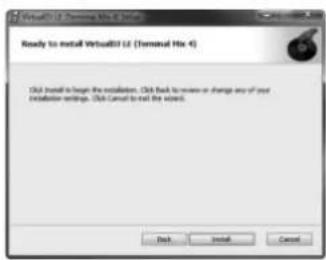
text_image
Ready to install Virtual3D Ltd (Terminal Hx 4) Click install to install the installation. Click back to review or change any of your installation settings. Click Cancel to call the version. OK Install Canceltext_image
Welcome to the VirtualDS LE (SmartKit) Installer You will be guided through the steps necessary to install this software. Access Settingstext_image
SoftwareAdministrative English D.C. DUSTODY This business gives you the right to install and use the software on a function in the software, which is not available. It has left way you can use the right to install computer systems on which the software is installed, or to enter it with the software on part of it. The software is distributed "start" and will availability of any kind is recommended. Access Purification and Support System must be hierarchical practical rights in the software. One available, the software (program) has been updated, unless found to be addressed. The software is designed to expand. Software purchased on one for most download through and available to understand their at the time of purchase, and therefore to offer the grant. Druckout... Options... Details... Helpkeepers...General Specifications:
Power supply: USB 5V 500mA / AC: 6V, 1.5A (opcional)
Dimensions: 515 x 337 x 62.5 mm
Weight: 4.8 kg
| ITEM LIMIT CONDITION | ||
| OUTPUT LEVEL (OUTPUT VR MAXIMUM) | ||
| MASTER/BOOTH OUTPUT: +6dB +/-1.5dB TCD-782 TRK.2/1KHz 0dB | ||
| BALANCE OUTPUT: | +6dB +/-1.5dB | TCD-782 TRK.2/1KHz 0dB, 300Ω TO GND BALANCE |
| PHONES: -6dB +/-1.5dB TCD-782 TRK.16/1KHz -20dB | ||
| MASTER OUTPUT: | +6dB +/-1.5dB | MIC IN 1KHz, -36dB (INPUT SWITCHING=MST) |
| MASTER OUTPUT: | +6dB +/-1.5dB LINE IN 1KHz, 0dB (INPUT SWITCHING=MST) | |
| MASTER OUTPUT: | +6dB +/-1.5dB | PHONO IN 1KHz, -36dB (INPUT SWITCHING=MST) |
| CHANNEL BALANCE | ||
| ALL OUTPUT: | WITHIN 1dB | TCD-782 TRK.2/1KHz 0dB |
| L/R CHANNEL SEPARATION (*2): | ||
| MASTER/BOOTH OUTPUT: | 80dB | TCD-782 TRK.9 & 11/1KHz 0dB |
| THD+N(*1): | ||
| MASTER/BOOTH OUTPUT: | 0.05% | TCD-782 TRK.2/1KHz 0dB |
| PHONES: | 0.3% | TCD-782 TRK.2/1KHz 0dB |
| S/N RATIO(*2): | ||
| MASTER/BOOTH OUTPUT: | 85dB | TCD-782 TRK.2 & 8/1KHz 0dB |
| FREQUENCY RESPONSE(OUTPUT VR MAXIMUM): | ||
| USB PLAYBACK: | 17Hz-16KHz +/-1dB | TCD-781 TRK.1,4 & 16 |
| LINE INPUT: | 20Hz-20KHz +/-3dB | IN LEVEL -14dB (INPUT SWITCHING=MST) |
| PHONO INPUT: | 20Hz-20KHz +/-3dB | IN LEVEL -54dB (INPUT SWITCHING=MST) WITH RIAA |
| MIC INPUT: | 20Hz-20KHz +/-3.5dB | IN LEVEL -54dB (INPUT SWITCHING=MST) |
| TONE (OUTPUT VR MAXIMUM): | ||
| PHONES: | -14dB +/-2dB | TONE VR MAX TO MIN, (TCD-782 TRK. 17/10KHz -20dB) |
| MIC: | -14dB +/-2dB | TONE VR MAX TO MIN, MIC IN 10KHz, LEVEL -54dB (INPUT SWITCHING=MST) |
| PHONES MAX. OUTPUT: | MORE THAN +3dB | THD=1% (TCD-782 TRK.2/1KHz 0dB) |
| RECORD/PLAY SECTION | ||
| OUTPUT LEVEL (OUTPUT VR MAXIMUM): | ||
| LINE INPUT: | +6dB +/-1.5dB IN LEVEL 1KHz -14dB | |
| MIC INPUT: | +6dB +/-1.5dB IN LEVEL 1KHz -54dB | |
| L/R CHANNEL SEPARATION (*2): | ||
| MASTER/BOOTH OUTPUT: | 70dB | IN LEVEL 1KHz -14dB |
| S/N RATIO(*2): | ||
| MASTER/BOOTH OUTPUT: | 80dB | IN LEVEL 1KHz -14dB |
| MASTER/BOOTH OUTPUT: | 58dB | MIC IN 1KHz -54dB |
| THD+N(*1) (OUTPUT VR MAXIMUM): | ||
| MASTER/BOOTH OUTPUT: | 0.05% | LINE IN 1KHz -14dB (INPUT LEVEL SET TO OUTPUT=0dB) |
| NOTES:*1: WITH 20KHz LOW PASS FILTER*2: WITH 20KHz LOW PASS FILTER, „IHF-A“ WEIGHTED*3: ALL TEST CONDITION WITH EXTERNAL POWER SUPPLY UNIT | ||
Reloop Distribution
Global Distribution GmbH
Schuckertstrasse 28