CANON Pixma TS5351A - Printer

Pixma TS5351A - Printer CANON - Free user manual and instructions

Find the device manual for free Pixma TS5351A CANON in PDF.

📄 76 pages English EN Download 💬 AI Question 10 questions ⚙️ Specs
Notice CANON Pixma TS5351A - page 3
Pick your language and provide your email: we'll send you a specifically translated version.
Product type Multifunction printer (print, copy, scan)
Brand Canon
Model Pixma TS5351A
Print technology Thermal inkjet (FINE)
Print colors Color and black
Maximum print resolution 4800 x 1200 dpi
Approximate print speed Up to 8 ipm (black), 4 ipm (color)
Supported paper sizes A4, Letter
Input trays Front cassette (plain paper) and rear tray (photo paper)
Front tray capacity Approximately 100 sheets of plain paper
Ink cartridges 2 FINE cartridges (black and color)
Connectivity Wi-Fi, USB (not mentioned but standard)
Display Monochrome LCD screen
Power supply 100-240 V AC, 50/60 Hz
Power consumption Approximately 11 W (printing)
Dimensions (W x D x H) Approximately 435 x 327 x 138 mm
Weight Approximately 5.2 kg
Software compatibility Windows, macOS, iOS, Android
Safety Watch your fingers when closing the cover
Maintenance Automatic head cleaning via Canon software
Spare parts FINE cartridges, power cord, installation CD-ROM
Box contents Printer, FINE cartridges, power cord, installation CD-ROM (Windows), setup manual, Safety and Important Information

Frequently Asked Questions - Pixma TS5351A CANON

How to install the ink cartridges in the printer?
Open the scanning unit cover, then open the ink cartridge lock cover. Remove the FINE cartridge from its packaging, remove the protective tape, then insert it into the cartridge holder. Push the cover firmly down until it clicks. Repeat for the other cartridge. Close the cover. The printer initializes the cartridges.
How to load plain paper in the cassette?
Remove the cassette from the printer, remove the cover. Slide the paper guides to fit A4 or Letter size. Load at least 2 sheets of plain paper with the print side down, against the front guide. Adjust the right guide. Replace the cover and reinsert the cassette. Then extend the paper output tray.
How to connect the printer to a computer?
Go to the ij.start.canon website from your computer. Select 'Setup', enter the model 'Pixma TS5351A', then click 'Go'. Download and run the installation file. Follow the on-screen instructions until the connection. Make sure the printer is on and Wi-Fi is enabled.
How to connect the printer to a smartphone?
Enable Wi-Fi on your smartphone and connect it to the wireless router. Install the Canon PRINT Inkjet/SELPHY app from the App Store or Google Play, or scan the QR code in the manual. Open the app and follow the instructions to add the printer.
How to copy a document?
Turn on the printer and load plain A4 or Letter paper. Open the scanner cover, place the document face down on the glass, aligning the corner with the mark. Close the cover. Press OK, select copy settings if needed, then press the Start button.
How to load photo paper?
Open the rear tray cover and extend the paper support. Open the rear feed slot cover. Slide the right paper guide to the far right. Load several sheets of photo paper with the print side up, then adjust the guide against the stack. Close the slot cover.
What to do if the printer does not turn on?
Check that the power cord is properly connected to the printer and to a working electrical outlet. Press the ON button. If nothing happens, try another outlet or reset the printer by unplugging the cord for 30 seconds, then plug it back in.
How to clean the print heads?
Cleaning the print heads is done via the Canon software or printer driver. On your computer, open the Canon utility and select 'Print head cleaning'. Follow the instructions. You can also start cleaning from the printer's control panel in the maintenance settings.
Where to find the QR code for video setup?
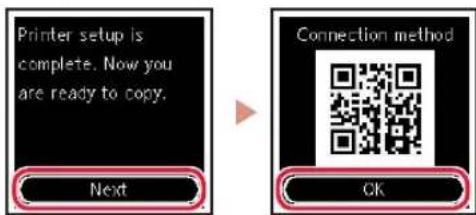
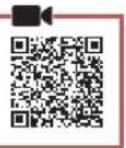
The QR code is displayed on the printer screen during initial setup, after language selection. Scan it with your smartphone to access a video tutorial of the setup procedure.
What paper types are compatible with the printer?
The printer accepts plain paper in A4 and Letter sizes, as well as photo paper (loadable in the rear tray). Use standard weight paper (64-105 g/m² for plain paper). Do not use thicker paper than the feed slot can accept.

User questions about Pixma TS5351A CANON

0 question about this device. Answer the ones you know or ask your own.

Ask a new question about this device

The email remains private: it is only used to notify you if someone responds to your question.

No questions yet. Be the first to ask one.

Download the instructions for your Printer in PDF format for free! Find your manual Pixma TS5351A - CANON and take your electronic device back in hand. On this page are published all the documents necessary for the use of your device. Pixma TS5351A by CANON.

USER MANUAL Pixma TS5351A CANON

Read Safety and Important Information (addendum) first.

Aiaaote npwta tncnnpopoeic yia tnvaqpaalekai onuavtke nnpopoeic (oumnaepwa).

Setting Up the Printer

1.Box Contents

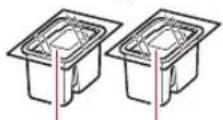
FINE cartidges

Power cord
CANON Pixma TS5351A - 1.Box Contents - 1

  • Setup CD-ROM for Windows

Color Black

Safety and Important Information

Getting Started (this manual)

2. Removing Packing Materials

CANON Pixma TS5351A - Removing Packing Materials - 1

1 Remove and dispose of any packing materials and orange tape.
2 Open the scanning unit / cover, remove and dispose of the orange tape and protective material inside.
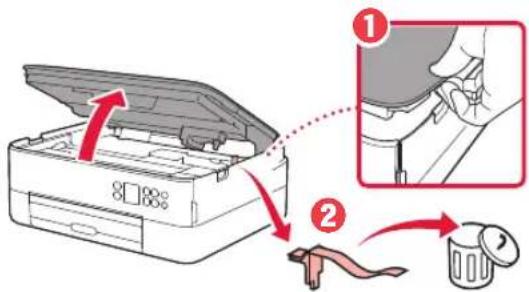
CANON Pixma TS5351A - Removing Packing Materials - 2

3 Close the scanning unit / cover.

  • Open the scanning unit / cover fully and then close it.
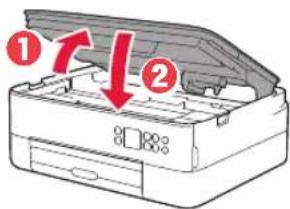
CANON Pixma TS5351A - Removing Packing Materials - 3
Caution

Watch your fingers.

3. Turning on the Printer
CANON Pixma TS5351A - Turning on the Printer - 1

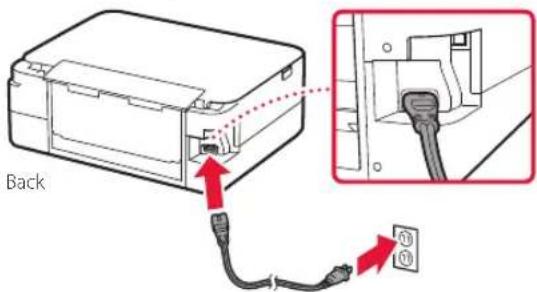
1 Connect the power cord.

CANON Pixma TS5351A - Turning on the Printer - 2
Important

At this time, do not connect any other cables.

2 Press the ON button.
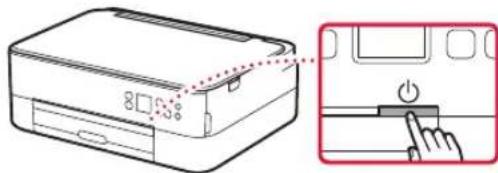
CANON Pixma TS5351A - Turning on the Printer - 3

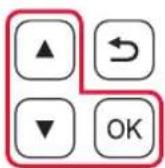
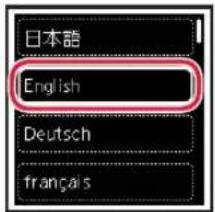
3 Use the , and OK buttons to select a language.
CANON Pixma TS5351A - Turning on the Printer - 4

CANON Pixma TS5351A - Turning on the Printer - 1

CANON Pixma TS5351A - Turning on the Printer - 2

4 Press the OK button.

CANON Pixma TS5351A - Turning on the Printer - 3
Important

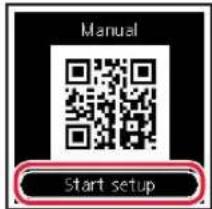
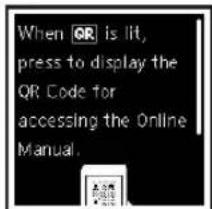
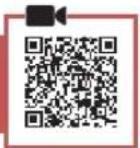
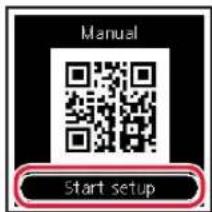
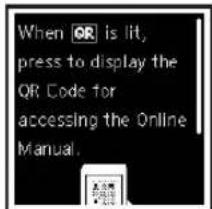
Scan the QR code for a video tutorial of the setup procedure.

Use the and buttons to check the on-screen content, and then press the OK button.
CANON Pixma TS5351A - Turning on the Printer - 4

Setting Up the Printer

4. Installing the FINE Cartridges
CANON Pixma TS5351A - Installing the FINE Cartridges - 1

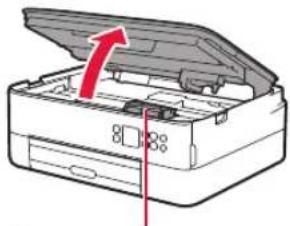
1 Open the scanning unit / cover.

CANON Pixma TS5351A - Open the scanning unit / cover. - 1

CANON Pixma TS5351A - Open the scanning unit / cover. - 2

Caution

Do not touch the FINE cartridge holder until it stops moving.

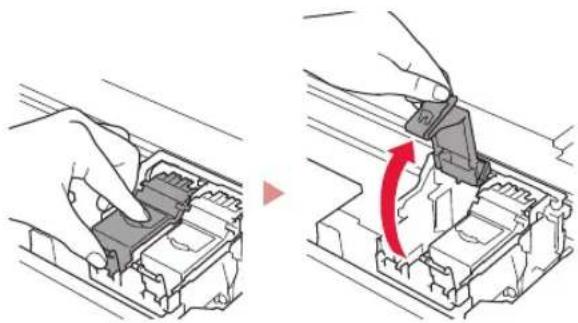
2 Pinch and open the ink cartridge locking cover on the left-hand side.
CANON Pixma TS5351A - Pinch and open the ink cartridge locking cover on the left-hand side. - 1

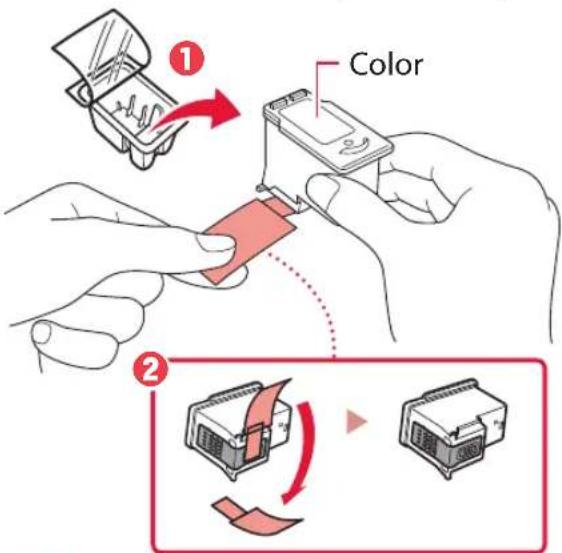
3 Remove the Color FINE cartridge from the container and remove the protective tape.
CANON Pixma TS5351A - Remove the Color FINE cartridge from the container and remove the protective tape. - 1

Important

  • Do not touch the ink on the protective tape. It could stain your hands or surrounding objects.
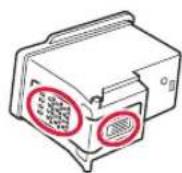
  • Do not touch the areas shown in the figure. Otherwise, the printer may not print correctly.
CANON Pixma TS5351A - Important - 1

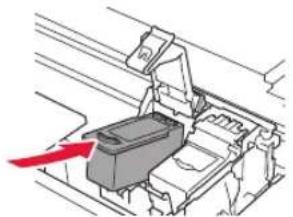
4 Set the Color FINE cartridge in the FINE cartridge holder.
CANON Pixma TS5351A - Set the Color FINE cartridge in the FINE cartridge holder. - 1

CANON Pixma TS5351A - Set the Color FINE cartridge in the FINE cartridge holder. - 2

Important

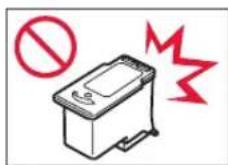
Do not bump the FINE cartridge.
Doing so may cause a malfunction.
CANON Pixma TS5351A - Set the Color FINE cartridge in the FINE cartridge holder. - 3

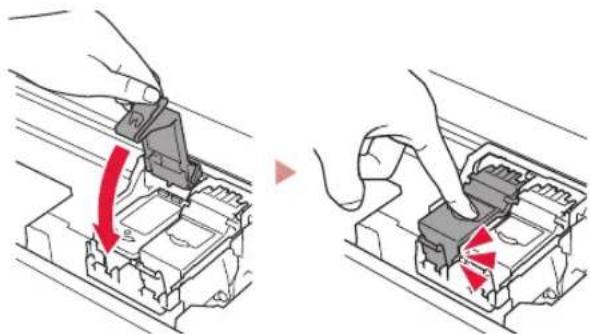
5 Push down the ink cartridge locking cover firmly until it snaps into place to close it completely.
CANON Pixma TS5351A - Push down the ink cartridge locking cover firmly until it snaps into place to close it completely. - 1

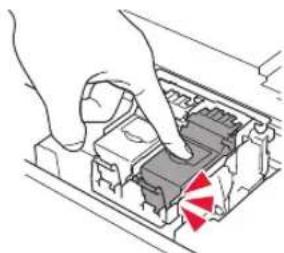
6 Repeat steps 2 to 5 and install the Black FINE cartridge as well, on the right-hand side.
CANON Pixma TS5351A - Repeat steps 2 to 5 and install the Black FINE cartridge as well, on the right-hand side. - 1

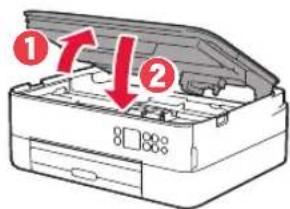
7 Close the scanning unit / cover.

The printer will start initializing.
CANON Pixma TS5351A - Close the scanning unit / cover. - 1

CANON Pixma TS5351A - Close the scanning unit / cover. - 2

Caution

Watch your fingers.

5. Loading Paper
CANON Pixma TS5351A - Loading Paper - 1

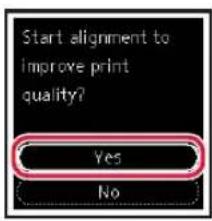
1 Press the OK button.

CANON Pixma TS5351A - Press the OK button. - 1

2 Remove the cassette from the printer and remove the cassette cover.
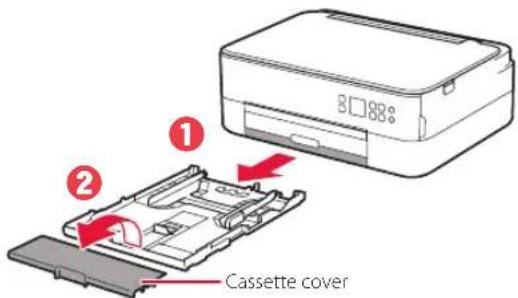
CANON Pixma TS5351A - Remove the cassette from the printer and remove the cassette cover. - 1

3 Slide apart the paper guides.

  • Slide the right paper guide to the right edge. Align the front paper guide with the Letter or A4 mark.
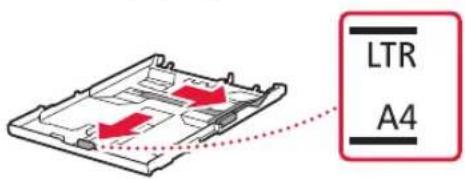
CANON Pixma TS5351A - Slide apart the paper guides. - 1

4 Load paper.

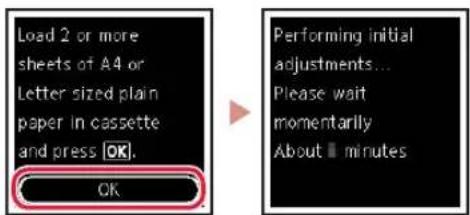
  • Load 2 or more sheets of Letter or A4 sized plain paper with the print side facing down.
  • Place the paper against the front paper guide, and align the right paper guide to the width of the paper.
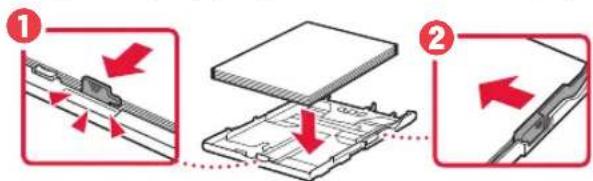
CANON Pixma TS5351A - Load paper. - 1

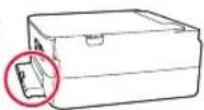
5 Attach the cassette cover and replace the cassette.
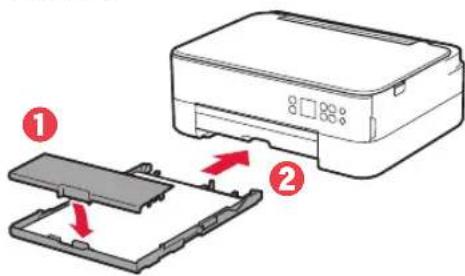
CANON Pixma TS5351A - Attach the cassette cover and replace the cassette. - 1

  • Look at it from the side to confirm it looks like the diagram.
CANON Pixma TS5351A - Attach the cassette cover and replace the cassette. - 2

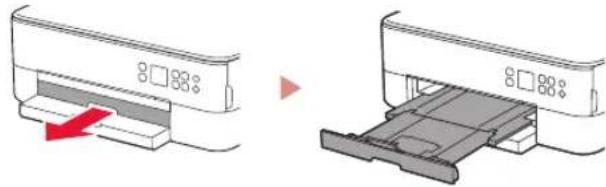
6 Pull out the paper output tray.

CANON Pixma TS5351A - Pull out the paper output tray. - 1

7 Press the OK button.

CANON Pixma TS5351A - Press the OK button. - 1

8 Press the OK button.

CANON Pixma TS5351A - Press the OK button. - 1

Important

Scan the QR code for a video tutorial of the setup procedure.

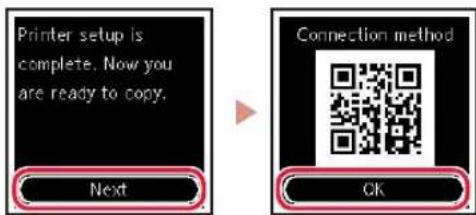
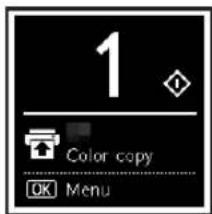
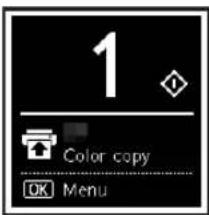
9 Check that the following screen appears.
CANON Pixma TS5351A - Check that the following screen appears. - 1

If you will use the printer without connecting any other devices, setup is now complete.

What device are you connecting?
CANON Pixma TS5351A - What device are you connecting? - 1

Computer

CANON Pixma TS5351A - What device are you connecting? - 2

Computer and smartphone

CANON Pixma TS5351A - What device are you connecting? - 3

6-a

Connecting to a Computer

If you are using multiple computers, perform these steps on each computer.
CANON Pixma TS5351A - Connecting to a Computer - 1

1 Access the Canon website from a computer.

https://ij.start.canon

CANON Pixma TS5351A - Connecting to a Computer - 2

2 Select Set Up.
3 Enter your printer's model name and click Go.
4 Click Start.
5 Click If you have already prepared your printer, go to Connect.

CANON Pixma TS5351A - Connecting to a Computer - 3

Note

The following steps are for Windows (except Windows 10 in S mode) and macOS users. For other operating systems, continue setup by following the on-screen instructions instead.

6 Click Download.
7 Run the downloaded file.
8 Click Start Setup.
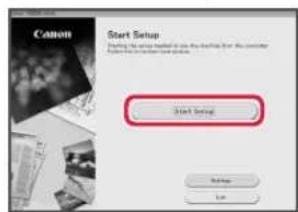
CANON Pixma TS5351A - Note - 1

9 Follow the on-screen instructions.

These operations may take some time.
To connect to a smartphone as well, see "6-b. Connecting to a Smartphone" on page 5.

Using the Setup CD-ROM for Windows

Double click EasySetup.exe in the CD-ROM, and then continue from step 3. If you do not have an internet connection, open the win folder in the CD-ROM and double click SETUP.exe. This will install the printer driver.

6-b

Connecting to a Smartphone

If you are using multiple smartphones, perform these steps on each smartphone.
CANON Pixma TS5351A - Connecting to a Smartphone - 1

Prepare the following before starting.

1 Enable the Wi-Fi setting on your smartphone.
2 Connect your smartphone to the wireless router (if you have a wireless router). Refer to your smartphone and wireless router manuals for more details.

1 Install the "Canon PRINT Inkjet/SELPHY" app on your smartphone.

  • Scan the QR code shown on the right to access the Canon website, and then download the app.

CANON Pixma TS5351A - Prepare the following before starting. - 1

2 Open the installed app.

CANON Pixma TS5351A - Prepare the following before starting. - 2

3 Follow the on-screen instructions in the app to add your printer.

Once you have added your printer, you can print from your smartphone.

To print photos, see "Loading Photo Paper" on page 6.

Loading Photo Paper

Photo paper can only be loaded in the rear tray.

1 Open the rear tray cover and extend the paper support.
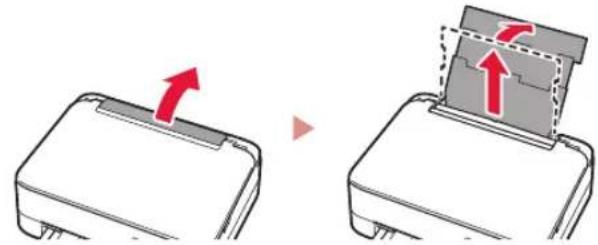
CANON Pixma TS5351A - Loading Photo Paper - 1

2 Open the feed slot cover and slide the right-hand side paper guide to the far right.
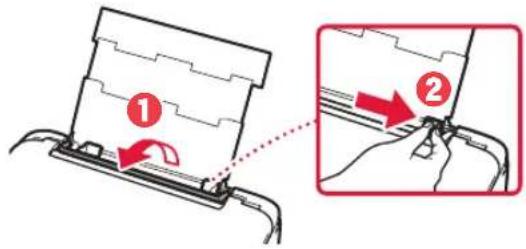
CANON Pixma TS5351A - Loading Photo Paper - 2

3 Load several sheets of photo paper with the print side facing up and slide the side paper guide against the edge of the paper stack.
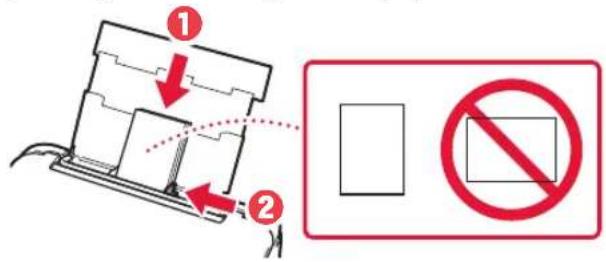
CANON Pixma TS5351A - Loading Photo Paper - 3

4 Close the feed slot cover.

  • Follow the on-screen instructions to set information for the loaded paper.
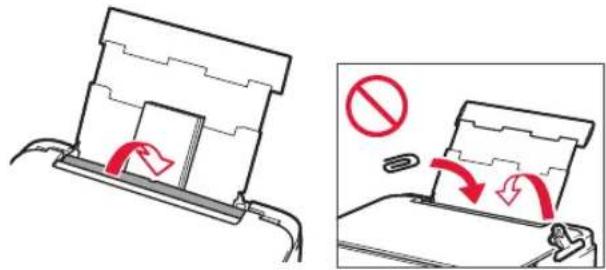
CANON Pixma TS5351A - Loading Photo Paper - 4

Copying

1 Turn on the printer.
2 Load Letter or A4 sized plain paper.
3 Open the document cover and place the document face down on the platen. Align the document with the alignment mark (
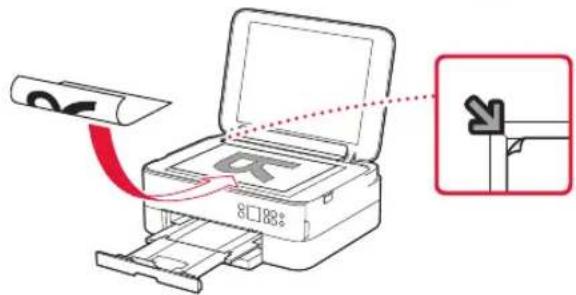
CANON Pixma TS5351A - Copying - 1

4 Close the document cover.
5 Press the OK button.
6 Select Copy settings, and then press the OK button.
7 Specify print settings using the , and OK buttons.
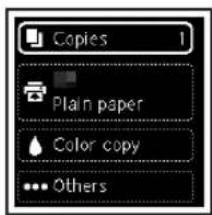
CANON Pixma TS5351A - Copying - 2

8 Press the Start button.

Configuration de l'imprimante

3 Deslize as guias do papel.

4 NaTHoTe To Koumu OK.
CANON Pixma TS5351A - Deslize as guias do papel. - 1

CANON Pixma TS5351A - Deslize as guias do papel. - 2

Σημαντικό

Zapwote Tov KWDIKO QR yia va deite eva bivteo e odnyie, oxetik a e thiaodikaoia puouionc.

5 Xpnoiopoioinote ta koupiia kai yia deite to nepiexóveo nou eupavietai otnv oovn kai, otn ouvexia, natote to koupi OK.
CANON Pixma TS5351A - Σημαντικό - 1

Pou EKUTWt

8 NaTnoTe to koupi OK.

CANON Pixma TS5351A - NaTnoTe to koupi OK. - 1

Eaavko

ZapwTeTovKwikoQRyiaVaSeiteEvabivteoueOdyiec OETIKaEtniiaiaiaipuoiic.

9 Bebaiwtheta otEmuavietai n akolouo oovn.
CANON Pixma TS5351A - Bebaiwtheta otEmuavietai n akolouo oovn. - 1

Av npoketai va xpnoionoioeTe Tov EKTunwnxwpic va ouvdeoeTe aalec ouokeuec, toe n puthetaion exi oloknpwEi.

Ttouokeuon okoeneuete va ouvdeoet;
CANON Pixma TS5351A - Ttouokeuon okoeneuete va ouvdeoet; - 1
YIIOAOYIOITc

CANON Pixma TS5351A - Ttouokeuon okoeneuete va ouvdeoet; - 2
YIIOLOVIOIOTNC KAI smartphone

CANON Pixma TS5351A - Ttouokeuon okoeneuete va ouvdeoet; - 3
Smartphone

6-a

Manual assistant
Powered by Anthropic
Waiting for your message
Product information

Brand : CANON

Model : Pixma TS5351A

Category : Printer