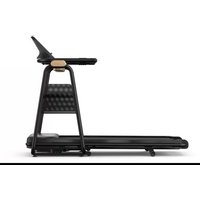
TT5.1 - Treadmills Horizon Fitness - Free user manual and instructions
Find the device manual for free TT5.1 Horizon Fitness in PDF.


| Product type | Treadmill |
| Brand | Horizon Fitness |
| Model | TT5.1 |
| Dimensions (L x W x H) | Approximately 190 x 85 x 140 cm |
| Weight | Approximately 85 kg |
| Power supply | 220-240 V ~ 50/60 Hz |
| Maximum speed | 20 km/h |
| Maximum incline | 15 % |
| Display | LCD with display of time, distance, speed, steps, calories, incline, heart rate |
| Training programs | Manual, 5000 Steps, Hills, Mountaineering, Weight Loss, Interval, HR Speed, Custom |
| Connectivity | Wi-Fi (optional), USB (1 A charging), ViewFit via xID account |
| Heart rate sensors | Hand grip heart rate sensors |
| Safety | Safety fall clip and safety key |
| Energy saving mode | Yes, can be activated in Engineering menu (standby after 15 minutes of inactivity) |
| Maintenance and cleaning | Clean the belt and deck with a damp cloth; periodic lubrication |
| Spare parts and repairability | Replacement parts available via Horizon Fitness customer service |
| General information | Made in China; manual available in multiple languages |
Frequently Asked Questions - TT5.1 Horizon Fitness
User questions about TT5.1 Horizon Fitness
0 question about this device. Answer the ones you know or ask your own.
Ask a new question about this device
Download the instructions for your Treadmills in PDF format for free! Find your manual TT5.1 - Horizon Fitness and take your electronic device back in hand. On this page are published all the documents necessary for the use of your device. TT5.1 by Horizon Fitness.
USER MANUAL TT5.1 Horizon Fitness
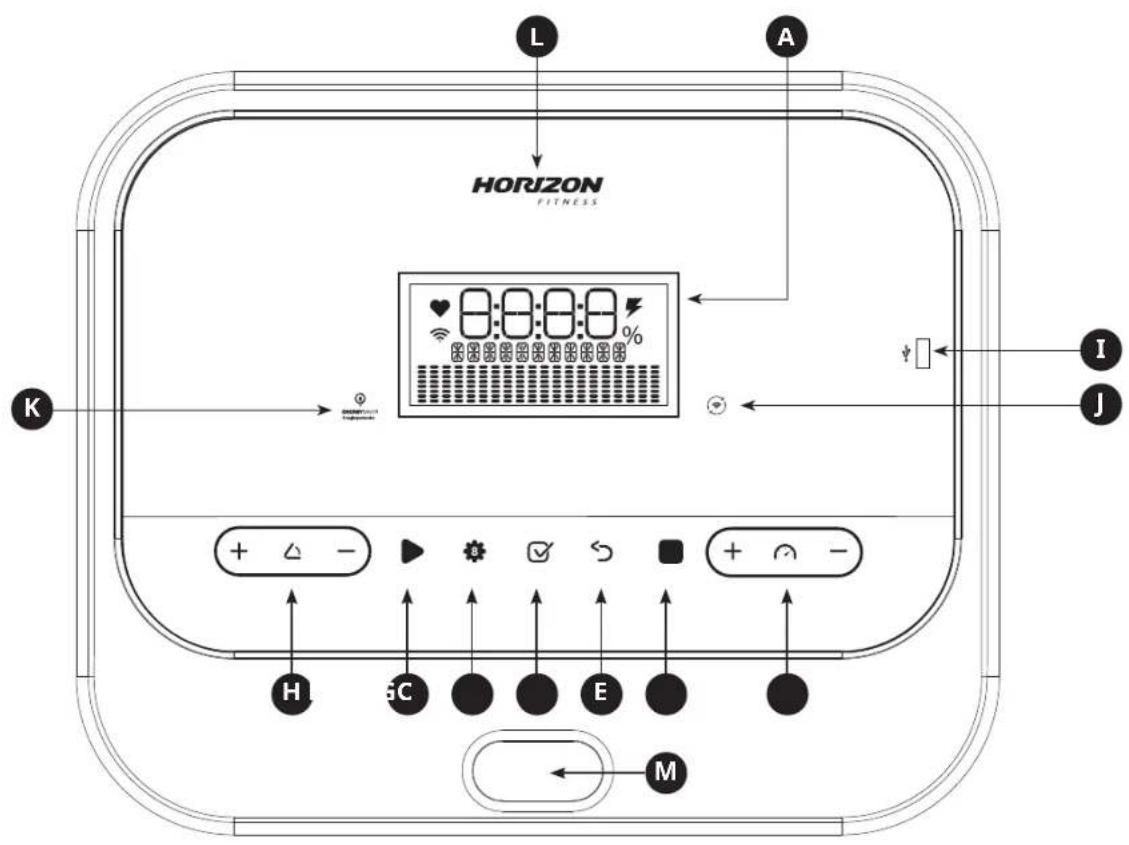
This section explains how to use your treadmill's console and programming.


text_image
L A HORIZON FITNESS I K + - + - H C E MNote: There is a thin protective sheet of clear plastic on the overlay of the console that should be removed before use.
A) LCD DISPLAY WINDOW: Time, distance, speed, steps, calories, incline and heart rate
B) START: Press to start workout
C) STOP: Press to stop workout. Hold to reset console
D) ENTER KEY: Press to confirm selection during programing setup. Or press to change the display during exercise.
E) BACK: Press to go back to last selection
F) PROGRAM KEYS: Press to select workout
G) SPEED ⊕⊖ KEYS: Press to adjust speed level
H) INCLINE ⊕⊖ KEYS: Press to adjust incline level
I) USB: Provide 1 AMP power charging
J) WIFI CONNECT (OPTIONAL): Press to reset or connect to your wireless connection. See page 8 for more info.
K) ENERGY SAVER: Indicates if machine is in energy save mode
L) HORIZON BRAND LED: Light on when the power be turned on
M) SAFETY KEY POSITION: Enable the treadmill when safety key is inserted


text_image
TT5.1 DISPLAY A 8:00:00 % E F G D C BDISPLAYS WINDOW
A) WORKOUT INFORMATION: Show time, speed, steps, calories, distance, incline and heart rate
B) MEASUREMENT OF WORKOUT INFORMATION: Show as KM, KM/H, CAL, etc.
C) INCLINE PERCENT: Shown incline range
D) CHARGING: Shown the icon when a device is charging
E) HEART RATE: When contact is made with both pulse grips, the heart rate icon is blinking
F) WI-FI: Indicates wireless connection is present and the strength (low, medium, high)
G) PROGRAM PROFILE: Represent the profile of the program being used


SET UP XID ACCOUNT FOR VIEWFIT CONNECTIVITY
Creating an xID account will allow you to save and share workout data online at viewfit.com
Up to four users can be saved on a machine. This process is the first step in connecting your equipment. It must be done from a computer, tablet, or mobile device that is connected to the internet.
1) Visit the web site: viewfit.com
2) Once at the web site, select the CONNECT YOUR EQUIPMENT option on the top menu bar.
3) The first step in connecting your equipment will to be creating your xID account. This will be your login to ViewFit.
4) Enter your phone number or another easy-to-remember 10-14 digit number. This will be your account number.
5) Fill in your profile information to finish the xID account set up process. You will be asked to provide an email address not associated with any other xID account. Check your email after the set-up process for a link to validate your account.
CONNECT WI-FI & SET TIMEZONE
Once you have created your xID account, you will be able to move on to activating the Wi-Fi on your equipment. Reminder, this requires you to use your computer, tablet, or mobile device that is connected to the internet.
6) Press and hold 📞 for 3-5 seconds, Then enter your time zone, press ENTER button you will see the message ACTIVATED on your screen.
7) On your computer or other device, go to your Wi-Fi settings. You should select the network with your model name. Doing this enables you to connect your equipment to your wireless network.
8) A new window will pop up with the list of wireless networks your equipment can see. Select your home Wi-Fi network and connect.
9) The remaining step is to reconnect your computer or other device back to your Wi-Fi network. Go to your settings again and connect as you normally would.
Congratulations! You are now connected and ready to get started.
GETTING STARTED
1) Check to make sure no objects are placed on the belt that will hinder the movement of the treadmill.
2) Plug in the power cord and turn the treadmill ON.
3) Stand on the side rails of the treadmill.
4) Attach the safety key clip to part of your clothing making sure that it is secure and will not become detached during operation. Insert the safety key into the safety keyhole in the console.
5) Select your xID account, User, Guest, or Edit a User using ⊕⊖ and press ENTER.
6) When you log in for the first time as User 1-4, you will be prompted to enter your xID information.
a) Enter your xID account number using ⊕⊖, press ENTER to confirm the number you selected. After the final input, press ENTER.
b) Enter your passcode using ⊕⊖, press ENTER to confirm the number you selected. After the final input, press ENTER.
c) If you key the incorrect number during entering your xID or passcode, press BACK to reenter your xID or passcode.
A) QUICK START
Simply press START to begin working out. Time will count up from 0:00.
The speed will default to 0.8 KM. Incline will default to 0%.
B) SELECT A PROGRAM
1) Select a PROGRAM using ⊕⊖ or ⚫ and press ENTER.
2) Set workout program information using and press ENTER after each selection.
3) Press START to begin workout.
NOTE: You can adjust the speed and incline levels during your workout.
When your workout is complete, your workout information will stay displayed on the console for 30 seconds and then is automatically saved to the user profile if xID Terms and Conditions were accepted.
TO CLEAR CURRENT SELECTION
To clear the current program selection or screen, press and hold STOP for 3 seconds.

PROGRAM INFORMATION

MANUAL: allows manual set up speed, incline, workout time, etc., all data will be accumulated from zero.
5000 STEPS: Promotes healthy activity with 2 step-based workouts calculated using average stride length.
ROOLING HILLS: Simulates running up and down hills to improve stamina.
MOUNTAIN CLIMB: A more intense version of HILL RUN that simulates a mountain ascent and descent, this helps to improve cardiovascular ability.
WEIGHT LOSS: Promotes weight loss by increasing and decreasing the speed and incline, while keeping you in your weight loss zone.
INTERVAL: Improves your strength, speed and endurance by increasing and decreasing the speed throughout your workout
HR SPPED: Program adjusts speed to bring to your target heart rate.
CUSTOM: Lets you create and reuse a perfect workout for you with specific speed, incline and time combination. The ultimate in personal programming. Time-based goal. Your custom workout will be saved automatically.
PROGRAM CHARTS
| Rolling Hills (10 Levels) Speed only | ||||||||||||
| Speed changes and segments repeat every 30 seconds. | ||||||||||||
| Segment | Warm Up | 1 | 2 | 3 | 4 | 5 | 6 | 7 | 8 | Cool | Down | |
| Time | 4:00 | Mins | 30 | sec | 30 | sec | 30 | sec | 30 | sec | 30 sec | sec 4:00 Mins |
| Level | 1 | 0.5 | 1.5 | 2 | 2 | 5 | 3 | 3.5 | 4 | 3.5 | 3 | 2.5 2.3 1.5 |
| Level | 2 | 0.5 | 1.9 | 2.5 | 3 | 3.5 | 4 | 4.5 | 4 | 4.5 | 3 | 2.6 1.8 |
| Level | 3 | 0.5 | 2.3 | 3 | 3 | 5 | 4 | 4.5 | 5 | 4.5 | 4 | 3.5 3 2 |
| Level | 4 | 1 | 2.6 | 3.5 | 4 | 4.5 | 5 | 5.5 | 5 | 4.5 | 4 | 3.4 2.3 |
| Level | 5 | 1 | 3.4 | 4.5 | 5 | 5.5 | 6 | 5.5 | 5 | 4.5 | 3.8 | 2.5 |
| Level | 6 | 1 | 3.4 | 4.5 | 5 | 5.5 | 6 | 6.5 | 6 | 5.5 | 5 | 4.1 2.8 |
| Level | 7 | 1 | 4.3 | 8 | 5 | 5 | 6 | 6.5 | 7 | 6.5 | 6 | 5.5 4.5 3 |
| Level | 8 | 1 | 4.4 | 1 | 5.5 | 6 | 6.5 | 7 | 7.5 | 7 | 6.5 | 6 4.9 3.3 |
| Level | 9 | 1 | 4.4 | 5 | 6 | 5 | 7 | 7.5 | 8 | 7.5 | 7 | 6.5 5.3 3.5 |
| Level | 10 | 1 | 4.4 | 9 | 6.5 | 7 | 7.5 | 8 | 8 | 5 | 8 | 7.5 7 5.6 3.8 |
| Mountain Climb (12 Levels) | ||||||||||||||
| Incline changes and segments repeat every 30 seconds. | ||||||||||||||
| Segment | Warm Up 1 2 | 3 | 4 | 5 6 7 | 8 9 10 | Cool Down | ||||||||
| Time 4:00 | Mins | 30 sec | 30 sec | 30 sec | 30 sec | 30 sec | 30 sec | 30 sec | 30 sec | 30 sec | 30 sec | 4:00 | Mins | |
| Level 1 | 0 0 1 | 1.5 | 2 | 2.5 | 3 | 3 | 2.5 | 2 | 1.5 | 1 | 0 | 0 | ||
| Level 2 | 0 0 | 1.5 | 2 | 2.5 | 3 | 3.5 | 3.5 | 3 | 2.5 | 2 | 1.5 | 0 | 0 | |
| Level 3 | 0 1 2 | 2.5 | 3 | 3.5 | 4 | 4 | 3.5 | 3 | 2.5 | 2 | 1 | 0 | ||
| Level 4 | 0 | 1.5 2.5 | 3 | 3.5 | 4 | 4.5 | 4.5 | 4 | 3.5 | 3 | 2.5 | 1.5 | 0 | |
| Level 5 | 0 | 1.5 | 3 | 3.5 | 4 | 4.5 | 5 | 5 | 4.5 | 4 | 3.5 | 3 | 1.5 | 0 |
| Level 6 | 0 | 1.5 3.5 | 4 | 4.5 | 5 | 5.5 | 5.5 | 5 | 4.5 | 4 | 3.5 | 1.5 | 0 | |
| Level 7 | 0 | 1.5 | 4 | 4.5 | 5 | 5.5 | 6 | 6 | 5.5 | 5 | 4.5 | 4 | 1.5 | 0 |
| Level 8 | 0 2 | 4.5 | 5 | 5.5 | 6 | 6.5 | 6.5 | 6 | 5.5 | 5 | 4.5 | 2 | 0 | |
| Level 9 | 0 2 5 | 5.5 | 6 | 6.5 | 7 | 7 | 6.5 | 6 | 5.5 | 5 | 2 | 0 | ||
| Level 10 | 0 2 | 5.5 | 6 | 6.5 | 7 | 7.5 | 7.5 | 7 | 6.5 | 6 | 5.5 | 2 | 0 | |
| Level 11 | 1 | 2 | 6 | 6.5 | 7 | 7.5 | 8 | 9 | 7.5 | 7 | 6.5 | 6 | 2 | 1 |
| Level 12 | 1 | 2 | 6.5 | 7 | 7.5 | 8 | 8.5 | 9.5 | 8 | 7.5 | 7 | 6.5 | 2 | 1 |

Weight Loss (10 Levels)
Speed and Incline changes, segments repeat every 30 seconds.
| Segment Warm Up 1 2 3 4 5 6 7 8 Cool Dpwn | |||||||||||||
| Time | 4:00 Mins | 30 sec | 30 sec | 30 sec | 30 sec | 30 sec | 30 sec | 30 sec | 30 sec | 4:00 Mins | |||
| Level 1 | Incline | 0 | 0.5 | 1.5 | 1.5 | 1 | 0.5 | 0.5 | 0.5 | 1 | 1.5 | 0.5 | 0 |
| Speed | 0.5 | 1.5 | 2 | 2.5 | 3 | 3.5 | 4 | 3.5 | 3 | 2.5 | 2.3 | 1.5 | |
| Level 2 | Incline | 0 | 0.5 | 1.5 | 1.5 | 1 | 0.5 | 1 | 0.5 | 1 | 1.5 | 0.5 | 0 |
| Speed | 0.5 | 1.9 | 2.5 | 3 | 3.5 | 4 | 4.5 | 4 | 3.5 | 3 | 2.6 | 1.8 | |
| Level 3 | Incline | 0.5 | 1 | 2 | 2 | 1.5 | 1 | 1 | 1 | 1.5 | 2 | 1 | 0.5 |
| Speed | 0.5 | 2.3 | 3 | 3.5 | 4 | 4.5 | 5 | 4.5 | 4 | 3.5 | 3 | 2 | |
| Level 4 | Incline | 0.5 | 1 | 2 | 2 | 1.5 | 1 | 1 | 1 | 1.5 | 2 | 1 | 0.5 |
| Speed | 1 | 2.6 | 3.5 | 4 | 4.5 | 5 | 5.5 | 5 | 4.5 | 4 | 3.4 | 2.3 | |
| Level 5 | Incline | 1 | 1.5 | 2.5 | 2.5 | 2 | 1.5 | 1.5 | 1.5 | 2 | 2.5 | 1.5 | 1 |
| Speed | 1 | 3 | 4 | 4.5 | 5 | 5.5 | 6 | 5.5 | 5 | 4.5 | 3.8 | 2.5 | |
| Level 6 | Incline | 1 | 1.5 | 2.5 | 2.5 | 2 | 1.5 | 1.5 | 1.5 | 2 | 2.5 | 1.5 | 1 |
| Speed | 1 | 3.4 | 4.5 | 5 | 5.5 | 6 | 6.5 | 6 | 5.5 | 5 | 4.1 | 2.8 | |
| Level 7 | Incline | 1.5 | 2 | 3 | 3 | 2.5 | 2 | 2 | 2 | 2.5 | 3 | 2 | 1.5 |
| Speed | 1.4 | 3.8 | 5 | 5.5 | 6 | 6.5 | 7 | 6.5 | 6 | 5.5 | 4.5 | 3 | |
| Level 8 | Incline | 1.5 | 2 | 3 | 3 | 2.5 | 2 | 2 | 2 | 2.5 | 3 | 2 | 1.5 |
| Speed | 1.4 | 4.1 | 5.5 | 6 | 6.5 | 7 | 7.5 | 7 | 6.5 | 6 | 4.9 | 3.3 | |
| Level 9 | Incline | 2 | 2.5 | 3.5 | 3.5 | 3 | 2.5 | 2.5 | 2.5 | 3 | 3.5 | 2.5 | 2 |
| Speed | 1.4 | 4.5 | 6 | 6.5 | 7 | 7.5 | 8 | 7.5 | 7 | 6.5 | 5.3 | 3.5 | |
| Level 10 | Incline | 2 | 2.5 | 3.5 | 3.5 | 3 | 2.5 | 2.5 | 2.5 | 3 | 3.5 | 2.5 | 2 |
| Speed | 1.4 | 4.9 | 6.5 | 7 | 7.5 | 8 | 8.5 | 8 | 7.5 | 7 | 5.6 | 3.8 | |
Intervals 2 (10 Levels)
Speed changes and segments repeat 60 seconds and 30 seconds.
| Segment Warm Up 1 2 Cool Down | ||||
| Time 4:00 Mins 60 sec 30 sec 4:00 Mins | ||||
| Level 1 1 1.5 | 2 4 1.5 1 | |||
| Level 2 1 1.5 | 2 4.5 1.5 1 | |||
| Level 3 1.3 1.9 | 2 2.5 5 1.9 1.3 | |||
| Level 4 1.3 1.9 | 2 2.5 5.5 1.9 1.3 | |||
| Level 5 1.5 2.3 | 3 6 2.3 1.5 | |||
| Level 6 1.5 2.3 | 3 6.5 2.3 1.5 | |||
| Level 7 1.8 2.6 | 3.5 7 2.6 1.8 | |||
| Level 8 1.8 2.6 | 3.5 7.5 2.6 1.8 | |||
| Level 9 2 3 4 | 3 3 2 | |||
| Level 10 2 3 4 | 8.5 3 2 | |||
ENERGY SAVER (STANDBY MODE)
This machine has a special feature called Energy Saver mode. This mode is NOT automatically activated. When Energy Saver mode is activated, the display will automatically enter standby mode (Energy Saver mode) after 15 minutes of inactivity. This feature saves energy by disabling most power to the machine until a key is pressed on the console. This feature can be turned on or off in the engineering menu.


TIME ZONE LIST
| CODE | TIME ZONE TIME | |
| 10 | Azores Standard Time (GMT-01:00) | Azores |
| 12 | Cape Verde Standard Time (GMT-01:00) | Cape Verde Islands |
| 43 | Mid-Atlantic Standard Time (GMT-02:00) | Mid-Atlantic |
| 27 | E. South America Standard Time | (GMT-03:00) Brasilia |
| 58 | SA Eastern Standard Time (GMT-03:00) | Buenos Aires, Georgetown |
| 35 | Greenland Standard Time (GMT-03:00) | Greenland |
| 51 | Newfoundland Standard Time | (GMT-03:30) Newfoundland and Labrador |
| 06 | Atlantic Standard Time (GMT-04:00) | Atlantic Time (Canada) |
| 60 | SA Western Standard Time (GMT-04:00) | Caracas, La Paz |
| 17 | Central Brazilian Standard Time | (GMT-04:00) Manaus |
| 54 | Pacific SA Standard Time (GMT-04:00) | Santiago |
| 59 | SA Pacific Standard Time (GMT-05:00) | Bogota, Lima, Quito |
| 28 | Eastern Standard Time (GMT-05:00) | Eastern Time (US and Canada) |
| 70 | US Eastern Standard Time (GMT-05:00) | Indiana (East) |
| 15 | Central America Standard Time | (GMT-06:00) Central America |
| 21 | Central Standard Time (GMT-06:00) | Central Time (US and Canada) |
| 22 | Central Standard Time (Mexico) | (GMT-06:00) Guadalajara, Mexico City, Monterrey |
| 11 | Canada Central Standard Time | (GMT-06:00) Saskatchewan |
| 71 | US Mountain Standard Time (GMT-07:00) | Arizona |
| 45 | Mountain Standard Time (Mexico) | (GMT-07:00) Chihuahua, La Paz, Mazatlan |
| 44 | Mountain Standard Time | (GMT-07:00) Mountain Time (US and Canada) |
| 55 | Pacific Standard Time | (GMT-08:00) Pacific Time (US and Canada); Tijuana |
| 02 | Alaskan Standard Time | (GMT-09:00) Alaska |
| 38 | Hawaiian Standard Time | (GMT-10:00) Hawaii |
| 61 | Samoa Standard Time (GMT-11:00) | Midway Island, Samoa |
| CODE | TIME ZONE TIME | |
| 36 | Greenwich Standard Time (GMT) | Casablanca, Monrovia |
| 34 | GMT Standard Time | (GMT) Greenwich Mean Time : Dublin, Edinburgh, Lisbon, London |
| 75 | W. Europe Standard Time | (GMT+01:00) Amsterdam, Berlin, Bern, Rome, Stockholm, Vienna |
| 18 | Central Europe Standard Time | (GMT+01:00) Belgrade, Bratislava, Budapest, Ljubljana, Prague |
| 56 | Romance Standard Time | (GMT+01:00) Brussels, Copenhagen, Madrid, Paris |
| 19 | Central European Standard Time | (GMT+01:00) Sarajevo, Skopje, Warsaw, Zagreb |
| 74 | W. Central Africa Standard Time | (GMT+01:00) West Central Africa |
| 37 | GTB Standard Time | (GMT+02:00) Athens, Bucharest, Istanbul |
| 29 | Egypt Standard Time | (GMT+02:00) Cairo |
| 64 | South Africa Standard Time (GMT+02:00) Harare, Pretoria | |
| 32 | FLE Standard Time | (GMT+02:00) Helsinki, Kiev, Riga, Sofia, Tallinn, Vilnius |
| 41 | Israel Standard Time | (GMT+02:00) Jerusalem |
| 26 | E. Europe Standard Time (GMT+02:00) Minsk | |
| 48 | Namibia Standard Time | (GMT+02:00) Windhoek |
| 05 | Arabic Standard Time | (GMT+03:00) Baghdad |
| 03 | Arab Standard Time | (GMT+03:00) Kuwait, Riyadh |
| 57 | Russian Standard Time | (GMT+03:00) Moscow, St. Petersburg, Volgograd |
| 24 | E. Africa Standard Time | (GMT+03:00) Nairobi |
| 40 | Iran Standard Time | (GMT+03:30) Tehran |
| 04 | Arabian Standard Time | (GMT+04:00) Abu Dhabi, Muscat |
| 09 | Azerbaijan Standard Time | (GMT+04:00) Baku |
| 33 | Georgian Standard Time | (GMT+04:00) Tblisi |
| 13 | Caucasus Standard Time | (GMT+04:00) Yerevan |
| 01 | Afghanistan Standard Time | (GMT+04:30) Kabul |
| 30 | Ekaterinburg Standard Time | (GMT+05:00) Ekaterinburg |
TIME ZONE LIST
| CODE | TIME ZONE TIME | |
| 76 | West Asia Standard Time (GMT+05:00) Islamabad, Karachi, Tashkent | |
| 39 | India Standard Time | (GMT+05:30) Chennai, Kolkata, Mumbai, New Delhi |
| 49 | Nepal Standard Time (GMT+05:45) Kathmandu | |
| 47 | N. Central Asia Standard Time | (GMT+06:00) Almaty, Novosibirsk |
| 16 | Central Asia Standard Time (GMT+06:00) Astana, Dhaka | |
| 65 | Sri Lanka Standard Time (GMT+06:00) Sri Jayawardenepura | |
| 46 | Myanmar Standard Time (GMT-06:30) Yangon (Rangoon) | |
| 62 | SE Asia Standard Time | (GMT+07:00) Bangkok, Hanoi, Jakarta |
| 53 | North Asia Standard Time (GMT-07:00) Krasnoyarsk | |
| 23 | China Standard Time | (GMT+08:00) Beijing, Chongqing, Hong Kong SAR, Urumqi |
| 52 | North Asia East Standard Time | (GMT+08:00) Irkutsk, Ulaanbaatar |
| 63 | Singapore Standard Time (GMT+08:00) Kuala Lumpur, Singapore | |
| 73 | W. Australia Standard Time (GMT+08:00) Perth | |
| 66 | Taipei Standard Time (GMT+08:00) Taipei | |
| 68 | Tokyo Standard Time (GMT+09:00) Osaka, Sapporo, Tokyo | |
| 42 | Korea Standard Time | (GMT+09:00) Seoul |
| 78 | Yakutsk Standard Time | (GMT+09:00) Yakutsk |
| 14 | Cen. Australia Standard Time | (GMT+09:30) Adelaide |
| 07 | AUS Central Standard Time | (GMT+09:30) Darwin |
| 25 | E. Australia Standard Time | (GMT+10:00) Brisbane |
| 08 | AUS Eastern Standard Time | (GMT+10:00) Canberra, Melbourne, Sydney |
| 77 | West Pacific Standard Time (GMT+10:00) Guam, Port Moresby | |
| 67 | Tasmania Standard Time (GMT+10:00) Hobart | |
| 72 | Vladivostok Standard Time | (GMT+10:00) Vladivostok |
| 20 | Central Pacific Standard Time | (GMT+11:00) Magadan, Solomon Islands, New Caledonia |
| CODE | TIME ZONE TIME | |
| 50 | New Zealand Standard Time | (GMT+12:00) Auckland, Wellington |
| 31 | Fiji Standard Time | (GMT+12:00) Fiji Islands, Kamchatka, Marshall Islands |
| 69 | Tonga Standard Time | (GMT+13:00) Nuku'alofa |

LAUFBANDBEDIENUNG
PROGRAMMINFORMATIONEN

flowchart
graph TD
    A["8:00:00"] --> B["Heart Symbol"]
    A --> C["Battery Icon"]
    A --> D["Dotted Square"]
    A --> E["E"]
    A --> F["F"]
    A --> G["G"]
    A --> H["A"]
    H --> I["WEERGAVE"]
WEERGAVEVENSTERS
PROGRAMMES DISPONIBLES

| 2017 | 2016 | |
| Cost of sales | 3,459 | 3,380 |
| Gross profit | 1,046 | 1,038 |
| Net profit | 1,046 | 1,038 |

natural_image
Blank white image with no visible content, text, or symbols.
natural_image
Blank white image with no visible content, text, or symbols.
natural_image
Blank white image with no visible content, text, or symbols.
natural_image
Blank white image with no visible content, text, or symbols.
natural_image
Blank white image with no visible content, text, or symbols.
natural_image
Blank white image with no visible content, text, or symbols.
natural_image
Completely blank white image with no visible content, text, or symbols.
natural_image
Blank white image with no visible content, text, or symbols.
natural_image
Blank white image with no visible content, text, or symbols.
natural_image
Blank white image with no visible content, text, or symbols.
natural_image
Blank white image with no visible content, text, or symbols

| 2017 | 2016 | |
| Cost of sales | 3,849 | 3,569 |
| Gross margin | 1.4% | 1.3% |

natural_image
Completely blank white image with no visible content, text, or symbols.
natural_image
Completely blank white image with no visible content, text, or symbols.
natural_image
Completely blank white image with no visible content, text, or symbols.
natural_image
Completely blank white image with no visible content, text, or symbols.
natural_image
Completely blank white image with no visible content, text, or symbols.
natural_image
Completely blank white image with no visible content, text, or symbols.
natural_image
Completely blank white image with no visible content, text, or symbols.
natural_image
Completely blank white image with no visible content, text, or symbols.
natural_image
Completely blank white image with no visible content, text, or symbols.
natural_image
Completely blank white image with no visible content, text, or symbols.
natural_image
Completely blank white image with no visible content, text, or symbols.
natural_image
Completely blank white image with no visible content, text, or symbols.© 2019 Johnson Health Tech
TT5.1 Operation Guide Rev. 1 A