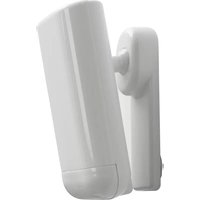
Motion 2 - Smart Home Shelly - Free user manual and instructions
Find the device manual for free Motion 2 Shelly in PDF.


| Product Type | Smart Wi-Fi motion sensor |
| Brand | Shelly |
| Model | Motion 2 |
| Dimensions (without bracket) | 89.3 x 41.4 x 22.9 mm |
| Dimensions (with bracket) | 89.3 x 41.4 x 47.9 mm |
| Power supply | Rechargeable Li-ion battery 3.7 V / 6500 mAh |
| Charging | USB Type-C (compliant USB-C adapter required) |
| Battery life | Up to 3 years in standby, 12-18 months in active detection |
| Detection technology | High sensitivity passive infrared sensor |
| Detection range | 9 meters |
| Integrated sensors | Motion, brightness, temperature, accelerometer |
| Connectivity | Wi-Fi 802.11 b/g/n, access point and client mode |
| Supported protocols | MQTT, CoAP, REST API, URL actions |
| Operating temperature | -10°C to 50°C |
| Mounting | Wall mount (indoor only) with swivel bracket |
| Maintenance | Clean with a dry cloth; protect from moisture and dirt |
| Safety | Indoor use only; do not repair yourself; keep out of reach of children |
| Box contents | Sensor, mounting bracket, USB-C cable, drilling template, documentation |
| Protection rating | Not waterproof (indoor only) |
| Processor | SiLabs |
| Flash memory | 6 MB |
| Warranty | 2 years (legal compliance) |
| Country of manufacture | Bulgaria (Allterco Robotics EOOD) |
Frequently Asked Questions - Motion 2 Shelly
User questions about Motion 2 Shelly
0 question about this device. Answer the ones you know or ask your own.
Ask a new question about this device
Download the instructions for your Smart Home in PDF format for free! Find your manual Motion 2 - Shelly and take your electronic device back in hand. On this page are published all the documents necessary for the use of your device. Motion 2 by Shelly.
USER MANUAL Motion 2 Shelly
natural_image
White wireless device with a handle and antenna, no visible text or symbolsWi-Fi Motion Sensor
Pictures....2
EN User and safety guide....3
Shelly Cloud Application....57
fig. 1
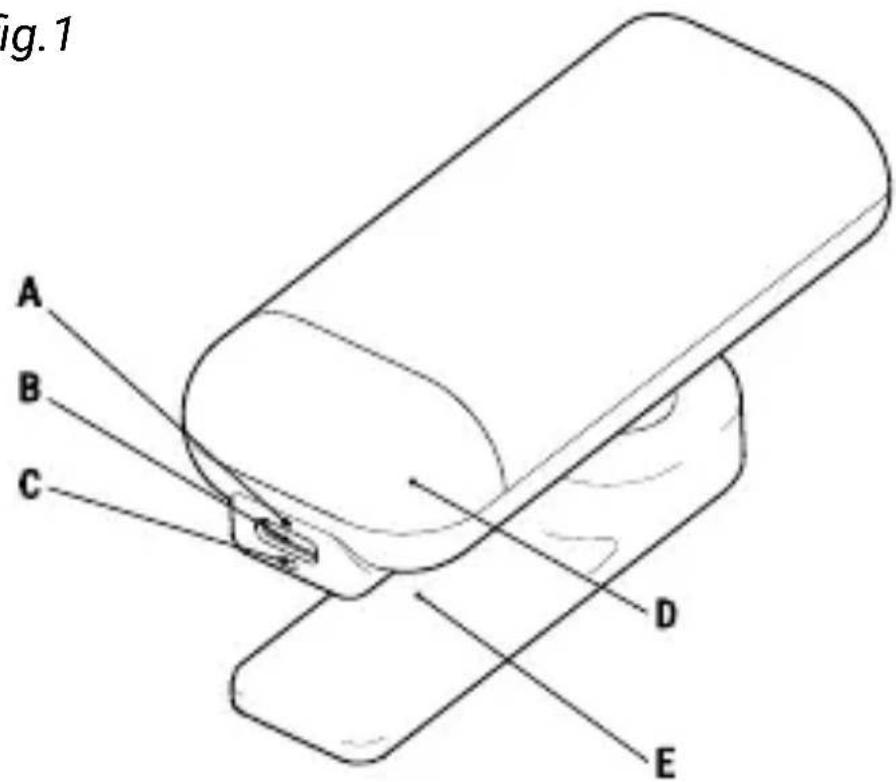
fig.2
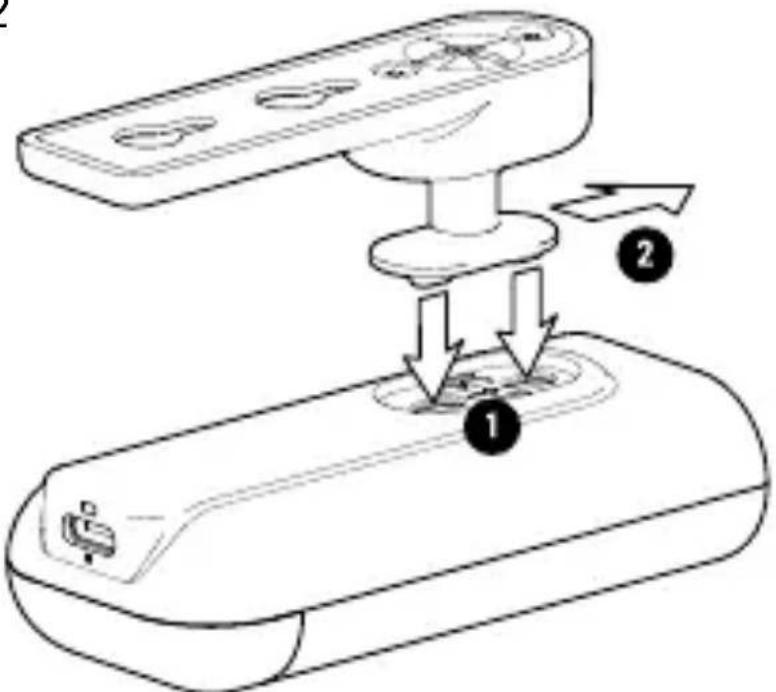
fig.3
READ BEFORE USE
This document contains important technical and safety information about the device, its safety use and installation.
CAUTION! Before beginning the installation, please read this guide and any other documents accompanying the device carefully and completely. Failure to follow the installation procedures could lead to malfunction, danger to your health and life, violation of the law or refusal of legal and/or commercial guarantee (if any). Allterco Robotics EOOD is not responsible for any loss or damage in case of incorrect installation or improper operation of this device due to failure of following the user and safety instructions in this guide.
PRODUCT INTRODUCTION
Shelly® is a line of innovative microprocessor-managed devices, which allow remote control of electric circuits through a mobile phone, tablet, PC, or home automation system. Shelly® devices can work standalone in a local Wi-Fi network or they can also be operated through cloud home automation services. Shelly Cloud is a service that can be accessed using either Android or iOS mobile application, or with any internet browser at https://home.shelly.cloud/. Shelly® devices can be accessed, controlled and monitored remotely from any place where the User has internet connectivity, as long as the devices are connected to a Wi-Fi
ENGLISH
router and the Internet. Shelly® devices have embedded Web Interface accessible at http://192.168.33.1 when connected directly to the device's access point, or at the device's IP address on the local Wi-Fi network. The embedded Web Interface can be used to monitor and control the device, as well as adjust its settings.
Shelly® devices can communicate directly with other Wi-Fi devices through HTTP protocol. An API is provided by Allterco Robotics EOOD. For more information, please visit: https://shelly-api-docs.shelly.cloud/#shelly-family-overview.
Shelly® devices are delivered with factory-installed firmware. If firmware updates are necessary to keep the devices in conformity, including security updates, Allterco Robotics EOOD will provide the updates free of charge through the device embedded Web Interface or Shelly Mobile Application, where the information about the current firmware version is available. The choice to install or not the Device firmware updates is User's sole responsibility. Allterco Robotics EOOD shall not be liable for any lack of conformity of the Device caused by failure of the User to install the provided updates in a timely manner.
Shelly Motion 2 (the Device) is a high-sensitivity, ultra-low power consumption Wi-Fi motion sensor, which also features light
ENGLISH
and temperature metering. The built-in light and temperature sensors provide additional opportunities for home or office automation. Shelly Motion 2 also has an integrated accelerometer for tamper protection and features vibration detection. The built-in 6500 mAh rechargeable Li-ion battery allows the Device to stay connected to the Internet in standby mode for up to 3 years, and in active transmission (approx. 6 hours/day motion detection) estimated between 12 and 18 months without recharging.
INSTALLATION INSTRUCTION
⚠️ CAUTION! Do not use the Device if it has been damaged.
⚠️ CAUTION! Do not attempt to service or repair the Device yourself.
1. Charging
Prior to using the Shelly Motion 2, please fully charge its battery by plugging the USB Type-C charging adapter cable to the Device charging port (fig.1 B).
⚠️ CAUTION! Use only charging adapters that comply with USB-C standard. Do not charge the Device if the charging adapter or the charging cable are damaged.
The red charging indicator (fig. 1 A) next to the charging port will be on while the Device is charging. The indicator will go off when the battery is fully charged.
IMPORTANT: The device heats up during charging, which prevents it from measuring the room temperature correctly.
2. Starting
Press briefly the Reset button (fig.1 C) using a pin to turn on the Device.
⚠️ CAUTION! Be careful not to insert the pin into the round hole of the charging indicator (fig. 1 A). The reset button has an oblong shape (fig.1 C).
The LED indicator behind the motion sensor lens (fig.1 D) will start flashing in red, green and blue sequentially for a while and then turn steady blue. The Device is now in AP (access point mode).
IMPORTANT: If the motion sensor detects movement while the Device is in AP mode the LED indication will briefly change to cyan.
IMPORTANT: If the Device has not been added into your Wi-Fi network in 3 minutes, it will switch off. Press briefly the Reset button to start it again. Pressing the Reset button while the Device is in AP mode will turn off the Device.
3. Inclusion to Shelly Cloud
If you choose to use the Device with the Shelly Cloud mobile application and Shelly Cloud service, instructions how to connect the Device to the Cloud and control it through the Shelly App can be found in the App Guide. Shelly Mobile Application and Shelly Cloud service are not conditions for the Device's proper functioning. This Device can be used stand-alone or with various other home automation services and applications.
ENGLISH
⚠️ CAUTION! Do not allow children to play with the buttons/switches connected to the Device. Keep the Devices for remote control of Shelly (mobile phones, tablets, PCs) away from children.
4. Manual connecting to a local Wi-Fi network
The Device can be managed and controlled through its embedded web interface too. Make sure Shelly Motion 2 is in AP mode.
Open the Device Web interface at http://192.168.33.1 when connected directly to the Device access point.
Click the Internet & Security button and then select WIFI MODE - CLIENT.
Check the Connect the Shelly device to an existing WiFi Network, enter the Wi-Fi network name and password, and click SAVE. Find your Device IP address in the Wi-Fi network. You can use a simple tool to find Shelly devices in the local network:
https://shelly.cloud/documents/device_finders/ShellyFinderWindows.zip (Windows) and https://shelly.cloud/documents/device_finders/ShellyFinderOSX.zip (Mac OSX).
IMPORTANT: Enabling the Client mode will disable the AP mode. In case you need the AP mode again, press and hold the Reset button for 5 seconds. Press and hold the Reset button for 10 seconds to factory reset the Device.
ENGLISH
5. Attaching the stand
Insert the two L-shaped protrusions of the stand (fig.1 E) swiveling arm into the Device body oblong openings and then slide the stand in a direction opposite the charging port as shown in fig. 2.
6. Wall mounting
Use the stencil printed at the end of this booklet to mark the wall where you want to mount the Device.
Use screws with a head diameter between 5 and 8 mm.
⚠️ CAUTION! The product is intended for indoor use only.
CAUTION! Protect the product from dirt and moisture.
⚠️ CAUTION! Do not use the product in a damp environment and avoid water splashing.
DETECTION DIAGRAM
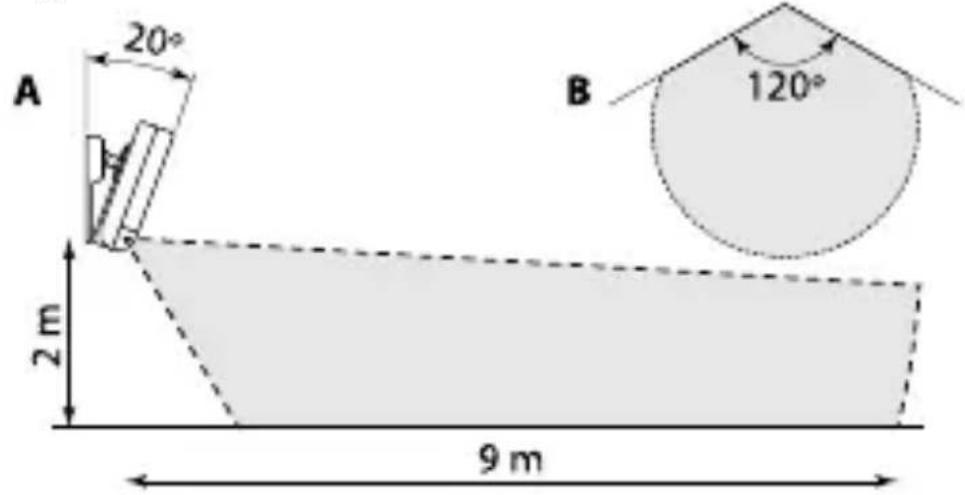
The detection area is shown on fig.3 A: Side view and B: top view (not to scale).
IMPORTANT! Shelly Motion cannot detect movement through transparent objects.
IMPORTANT! Direct sun light or close heating sources can trigger false motion detection.
LED INDICATION SIGNALS
Blue: AP mode
Blue brief flash: Settings changed
Blue flashing: Firmware update
Red brief flash: Motion detected and reported
ENGLISH
Red long flash: Error while performing firmware update.
Green brief flash: Unreported motion detection (the Device is not connected, or motion detection is disabled)
Red, green and blue flashing sequentially:
Tamper detection or Device started
Cyan brief flash: Motion detection while in AP mode.
IMPORTANT! LED indication can be disabled.
RESET BUTTON ACTIONS
Press briefly:
While turned off, starts the Device.
While in AP mode, turns off the device.
While in Client mode, exits energy saving mode for 3 minutes and send mDNS info.
Press for 5 sec: Sets the Device in AP mode.
Press for 10 sec: Factory resets the Device.
SPECIFICATIONS
- Dimensions (HxWxD):
89.3x41.4x22.9 mm (w/o stand) 89.3x41.4x47.9 mm (w/ stand)
• Working temperature: -10^ - 50^ - Mounting: Wall (indoor use only)
• Detection range: 9 m - Battery: Li-ion 3.7 V / 6500 mAh
- Charging: USB Type-C charging adapter
- Battery life: estimated 12 – 18 months (motion detection) up to 3 years (stand by)
• Radio protocol: Wi-Fi 802.11 b/g/n
• Max. RF output power: 20dBm
ENGLISH
• Frequency: 2412 - 2472 MHz (Max. 2495 MHz)
- Operational range: up to 30 m (depends on building construction and materials)
- MQTT: YES
- CoAP: YES
- REST API: YES
- URL Actions: 13 with 5 URLs each
- Schedules: 20
- CPU: SiLabs
- Flash: 6MB
DECLARATION OF CONFORMITY
Hereby, Allterco Robotics EOOD declares that the radio equipment type Shelly Motion 2 is in compliance with Directive 2014/53/EU, 2014/35/EU, 2014/30/EU, 2011/65/EU. The full text of the EU declaration of conformity is available at the following internet address: https://shelly.cloud/knowledge-base/devices/shelly-motion-2/
Manufacturer: Allterco Robotics EOOD
Address: Bulgaria, Sofia 1407, 103 Cherni vrah Blvd.
Tel.: +359 2 988 7435
E-mail: support@shelly.cloud
Web: https://www.shelly.cloud
Changes in the contact data are published by the Manufacturer at the official website:
https://www.shelly.cloud
All rights to trademark Shelly® and other intellectual rights associated with this Device belong to Allterco Robotics EOOD.
DEUTSCH
BITTE VOR GEBRAUCH DURCHLESEN
https://shelly.cloud/knowledge-base/devices/shelly-motion-2/
https://shelly.cloud/knowledge-base/devices/shelly-motion-2/
Fabricante: Allterco Robotics EOOD
Marque a opção "Connect the Shelly device to an existing WiFi Network", introduza
PORTUGUESE
DÉCLARATION DE CONFORMITÉ
https://shelly.cloud/knowledge-base/devices/shelly-motion-2/
Fabricant: Allterco Robotics EOOD
Adresse: Bulgarie, Sofia, 1407, 103 Cherni vrah Blvd.
Tél: +359 2 988 7435
Email: support@shelly.cloud
Web: https://www.shelly.cloud
https://shelly.cloud/motion2_app
www.shelly.cloud
EN - Drilling stencil
DE - Bohrschablone