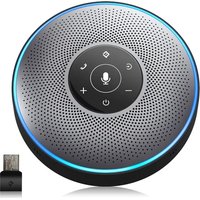
OfficeCore M2 - Phone eMeet - Free user manual and instructions
Find the device manual for free OfficeCore M2 eMeet in PDF.


| Product Type | Conference Phone |
| Brand | eMeet |
| Model | OfficeCore M2 |
| Dimensions | 125 x 125 x 35 mm (±5 mm) |
| Weight | Approximately 300 g (estimated) |
| Power | Rechargeable battery 3.6 V / 2600 mAh, charging via USB 5 V / 1 A |
| Battery Life | Up to 12 hours talk time; charging time 3 to 4 hours |
| Connectivity | Bluetooth V4.2 (range 20 m), USB, AUX, Daisy chain |
| Speaker | 3 W RMS, frequency response 20 Hz – 20 kHz, SNR > 80 dB |
| Microphone | Omnidirectional 360°, sensitivity -26 dBFS, response 100 Hz – 8 kHz |
| Noise Reduction | AI, can be toggled on/off |
| Main Functions | Calls, AI noise reduction, Bluetooth pairing, USB/AUX connection, Daisy chain, volume control, mute, LED indicators |
| Maintenance | Clean with a soft, dry cloth; do not use abrasive products |
| Safety | Use original cables; do not expose to moisture; Kensington lock available |
| Spare Parts and Repairability | USB, AUX, and Daisy chain cables not included; contact customer service at support@emeet.ai |
| General Information | Manual available in multiple languages; website: www.emeet.ai |
Frequently Asked Questions - OfficeCore M2 eMeet
User questions about OfficeCore M2 eMeet
0 question about this device. Answer the ones you know or ask your own.
Ask a new question about this device
Download the instructions for your Phone in PDF format for free! Find your manual OfficeCore M2 - eMeet and take your electronic device back in hand. On this page are published all the documents necessary for the use of your device. OfficeCore M2 by eMeet.
USER MANUAL OfficeCore M2 eMeet
OfficeCore M2 OfficeCore M220 Lite
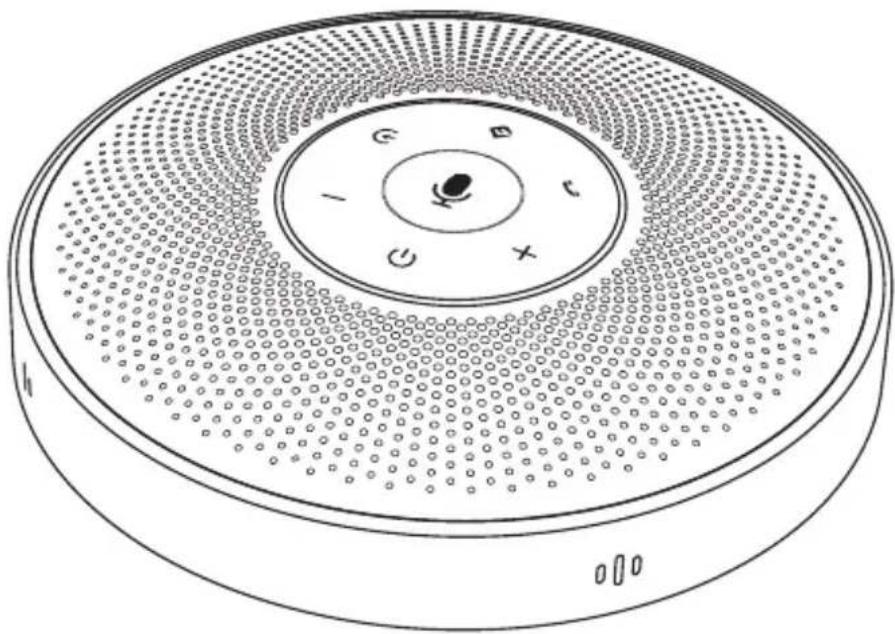
Wireless Speakerphone
無線八NSFl一電話丨智能会议宝
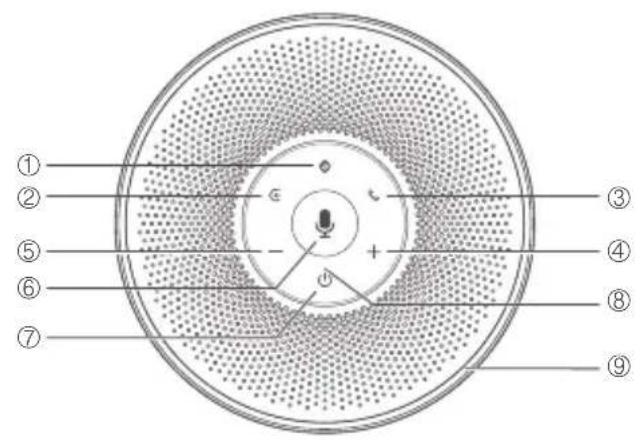
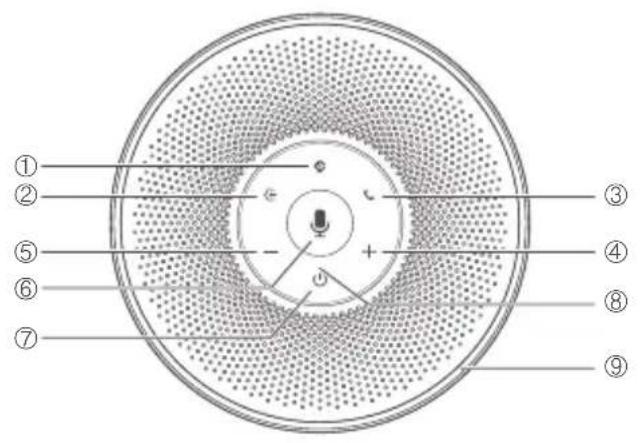
① Al noise reduction On/Off
② Bluetooth button
③ Answer/End Call
Volume up
⑤ Volume down
⑥ MicMute/Unmute
⑦ Power On/Off
⑧ LED Status Indicator
⑨ LED Ring-shaped
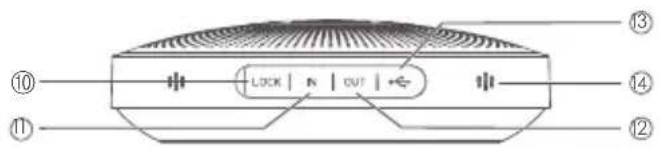
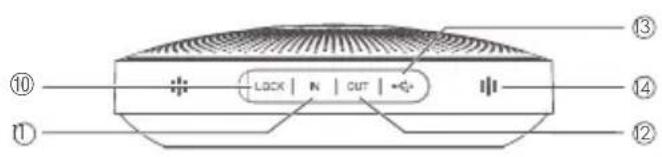
Lock port
AUX audio input port
② Audio output/Daisy chain port
USB port
④ Microphone
Button Controls
| Button Action | Status | |
| ○ | Press and hold | Power on/off |
| Press | Battery level | |
| + | Press | Volume up |
| - | Press | Volume down |
| ◎ | Press and hold 2 seconds | Enter Bluetooth pairing mode |
| ◇ | Press | AI noise reduction on/off |
| ← | Incoming call, press | Answer a call |
| Incoming call, press and hold for 2 seconds | Reject a call | |
| Call going, short/long press | End a call | |
| ♣ | Press | Mute/Unmute microphone |
LED Status Indicator
| WHAT Status | Light | |
| USB | USB connection (Power On) | Steady green |
| Charging in power-off state | Flashes Yellow-green | |
| Fully charged in power-off state | Steady Yellow-green | |
| Bluetooth | Bluetooth pairing | Flashes blue |
| Bluetooth connected | Steady blue | |
| AUX IN | Audio in connection | Steady white |
| Daisy chain | Daisy chain connection | Steady cyan |
LED Ring-shaped
| Status Light | |
| Battery level | Turns green |
| Battery low display | Flashes red |
| Mic Mute | Turns red |
| Volume level | Turns blue |
| Incoming call when Bluetooth is connected | Flashes blue |
| Skype for business incoming call when USB is connected | |
| Skype for Business Hold Mode | Turns cyan |
How to use
1. Power On/off
Press and hold the power button "for 2 seconds to power on or off.
2. Connection
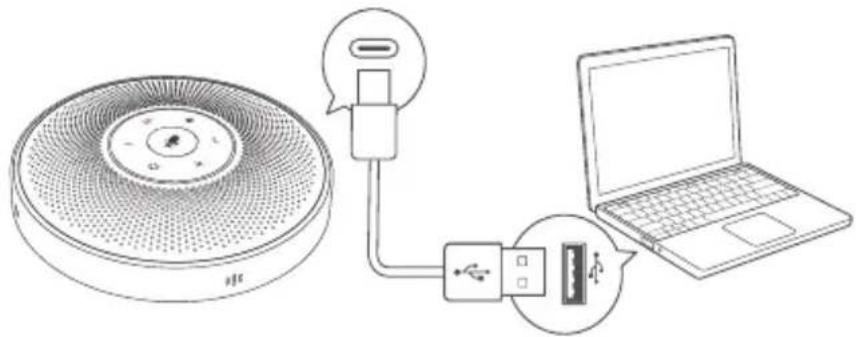
a) After connect the device to a PC via USB, start to use it.
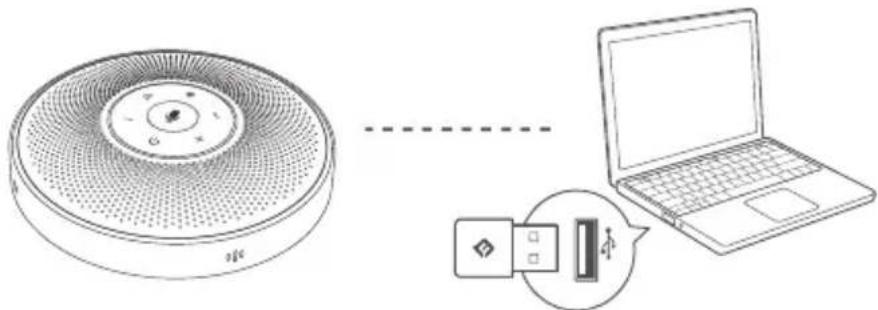
b) After connect it to the PC through eMeet Audio Adapter A200, start to use it.
c) After connect mobile devices such as PCs or mobile phones through Bluetooth pairing, start to use it.
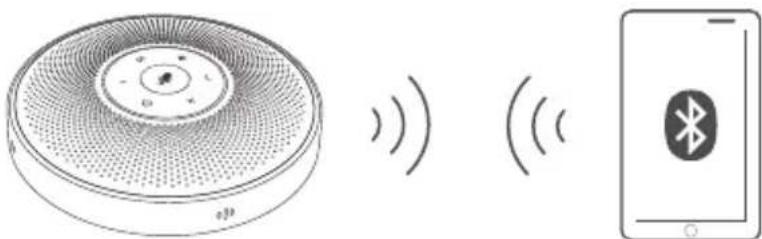
Note: When turning on the device, it will connect to the last computer/mobile phone via Bluetooth whilst it is active.
The names of Bluetooth in different products models are different:
| Prouct name Bluetooth name | |
| ① ☐ ☐ ☐ ☐ ☐ ☐ ☐ ☐ ☐ ☐ ☐ ☐ ☐ ☐ ☐ ☐ ☐ ☐ ☐ ☐ ☐ ☐ ☐ ☐ ☐ ☐ ☐ ☐ ☐ ☐ ☐ ☐ ☐ ☐ ☐ ☐ ☐ ☐ ☐ ☐ ☐ ☐ ☐ ☐ ☐ ☐ ☐ ☐ ☐ ☐ ☌ ☐ ☐ ☐ ☐ ☐ ☐ ☐ ☐ ☐ ☐ ☐ ☐ ☐ ☐ ☐ ☐ ☐ ☐ ☐ ☐ ☐ ☐ ☐ ☐ ☐ ☐ ☐ ☐ ☐ ☐ ☐ ☐ ☐ ☐ ☐ ☐ ☐ ☐ ☐ ☐ ☐ ☐ ☐ ☐ ☐ ☐ ☐ ☐ ☐ ☓ ☐ ☐ ☐ ☐ ☐ ☐ ☐ ☐ ☐ ☐ ☐ ☐ ☐ ☐ ☐ ☐ ☐ ☐ ☐ ☐ ☐ ☐ ☐ ☐ ☐ ☐ ☐ ☐ ☐ ☐ ☐ ☐ ☐ ☐ ☐ ☐ ☐ ☐ ☐ ☐ ☐ ☐ ☐ ☐ ☐ ☐ ☐ ☐ ☐ ☻ ☻ ☻ ☻ ☻ ☻ ☻ ☻ ☻ ☻ ☻ ☻ ☻ ☻ ☻ ☻ ☻ ☻ ☻ ☻ ☻ ☻ ☻ ☻ ☻ ☻ ☻ ☻ ☻ ☻ ☻ ☻ ☻ ☻ ☻ ☻ ☻ ☻ ☻ ☻ ☻ ☻ ☻ ☻ ☻ ☻ ☻ ☻ ☻ ☻ ☮ ☮ ☮ ☮ ☮ ☮ ☮ ☮ ☮ ☮ ☮ ☮ ☮ ☮ ☮ ☮ ☮ ☮ ☮ ☮ ☮ ☮ ☮ ☮ ☮ ☮ ☮ ☮ ☮ ☮ ☮ ☮ ☮ ☮ ☮ ☮ ☮ ☮ ☮ ☮ ☮ ☮ ☮ ☮ ☮ ☮ ☮ ☮ ☮ ☮ ☻ ☻ ☻ ☻ ☻ ☻ ☻ ☻ ☻ ☻ ☻ ☻ ☻ ☻ ☻ ☻ ☻ ☻ ☻ ☻ ☻ ☻ ☻ ☻ ☻ ☻ ☻ ☻ ☻ ☻ ☻ ☻ ☻ ☻ ☻ ☻ ☻ ☻ ☻ ☻ ☻ ☻ ☻ ☻ ☻ ☻ ☻ ☻ ☻ ☪ ☐ ☐ ☐ ☐ ☐ ☐ ☐ ☐ ☐ ☐ ☐ ☐ ☐ ☐ ☐ ☐ ☐ ☐ ☐ ☐ ☐ ☐ ☐ ☐ ☐ ☐ ☐ ☐ ☐ ☐ ☐ ☐ ☐ ☐ ☐ ☐ ☐ ☐ ☐ ☐ ☐ ☐ ☐ ☐ ☐ ☐ ☐ ☐ ☐ ☽ ☻ ☻ ☻ ☻ ☻ ☻ ☻ ☻ ☻ ☻ ☻ ☻ ☻ ☻ ☻ ☻ ☻ ☻ ☻ ☻ ☻ ☻ ☻ ☻ ☻ ☻ ☻ ☻ ☻ ☻ ☻ ☻ ☻ ☻ ☻ ☻ ☻ ☻ ☻ ☻ ☻ ☻ ☻ ☻ ☻ ☻ ☻ ☻ ☻ ☿ ☐ ☐ ☐ ☐ ☐ ☐ ☐ ☐ ☐ ☐ ☐ ☐ ☐ ☐ ☐ ☐ ☐ ☐ ☐ ☐ ☐ ☐ ☐ ☐ ☐ ☐ ☐ ☐ ☐ ☐ ☐ ☐ ☐ ☐ ☐ ☐ ☐ ☐ ☐ ☐ ☐ ☐ ☐ ☐ ☐ ☐ ☐ ☐ ☐ ☕ ☐ ☐ ☐ ☐ ☐ ☐ ☐ ☐ ☐ ☐ ☐ ☐ ☐ ☐ ☐ ☐ ☐ ☐ ☐ ☐ ☐ ☐ ☐ ☐ ☐ ☐ ☐ ☐ ☐ ☐ ☐ ☐ ☐ ☐ ☐ ☐ ☐ ☐ ☐ ☐ ☐ ☐ ☐ ☐ ☐ ☐ ☐ ☐ ☐ ☔ ☐ ☐ ☐ ☐ ☐ ☐ ☐ ☐ ☐ ☐ ☐ ☐ ☐ ☐ ☐ ☐ ☐ ☐ ☐ ☐ ☐ ☐ ☐ ☐ ☐ ☐ ☐ ☐ ☐ ☐ ☐ ☐ ☐ ☐ ☐ ☐ ☐ ☐ ☐ ☐ ☐ ☐ ☐ ☐ ☐ ☐ ☐ ☐ ☐ ☑ ☐ ☐ ☐ ☐ ☐ ☐ ☐ ☐ ☐ ☐ ☐ ☐ ☐ ☐ ☐ ☐ ☐ ☐ ☐ ☐ ☐ ☐ ☐ ☐ ☐ ☐ ☐ ☐ ☐ ☐ ☐ ☐ ☐ ☐ ☐ ☐ ☐ ☐ ☐ ☐ ☐ ☐ ☐ ☐ ☐ ☐ ☐ ☐ ☐ ☘ ☐ ☐ ☐ ☐ ☐ ☐ ☐ ☐ ☐ ☐ ☐ ☐ ☐ ☐ ☐ ☐ ☐ ☐ ☐ ☐ ☐ ☐ ☐ ☐ ☐ ☐ ☐ ☐ ☐ ☐ ☐ ☐ ☐ ☐ ☐ ☐ ☐ ☐ ☐ ☐ ☐ ☐ ☐ ☐ ☐ ☐ ☐ ☐ ☐ ☦ ☦ ☦ ☦ ☦ ☦ ☦ ☦ ☦ ☦ ☦ ☦ ☦ ☦ ☦ ☦ ☦ ☦ ☦ ☦ ☦ ☦ ☦ ☦ ☦ ☦ ☦ ☦ ☦ ☦ ☦ ☦ ☦ ☦ ☦ ☦ ☦ ☦ ☦ ☦ ☦ ☦ ☦ ☦ ☦ ☦ ☦ ☦ ☦ ☦ ☻ ☻ ☻ ☻ ☻ ☻ ☻ ☻ ☻ ☻ ☻ ☻ ☻ ☻ ☻ ☻ ☻ ☻ ☻ ☻ ☻ ☻ ☻ ☻ ☻ ☻ ☻ ☻ ☻ ☻ ☻ ☻ ☻ ☻ ☻ ☻ ☻ ☻ ☻ ☻ ☻ ☻ ☻ ☻ ☻ ☻ ☻ ☻ ☻ ☦ ☦ ☦ ☦ ☦ ☦ ☦ ☦ ☦ ☦ ☦ ☦ ☦ ☦ ☦ ☦ ☦ ☦ ☦ ☦ ☦ ☦ ☦ ☦ ☦ ☦ ☦ ☦ ☦ ☦ ☦ ☦ ☦ ☦ ☦ ☦ ☦ ☦ ☦ ☦ ☦ ☦ ☦ ☦ ☦ ☦ ☦ ☦ ☦ ☧ ☐ ☐ ☐ ☐ ☐ ☐ ☐ ☐ ☐ ☐ ☐ ☐ ☐ ☐ ☐ ☐ ☐ ☐ ☐ ☐ ☐ ☐ ☐ ☐ ☐ ☐ ☐ ☐ ☐ ☐ ☐ ☐ ☐ ☐ ☐ ☐ ☐ ☐ ☐ ☐ ☐ ☐ ☐ ☐ ☐ ☐ ☐ ☐ ☐ ☊ ☐ ☐ ☐ ☐ ☐ ☐ ☐ ☐ ☐ ☐ ☐ ☐ ☐ ☐ ☐ ☐ ☐ ☐ ☐ ☐ ☐ ☐ ☐ ☐ ☐ ☐ ☐ ☐ ☐ ☐ ☐ ☐ ☐ ☐ ☐ ☐ ☐ ☐ ☐ ☐ ☐ ☐ ☐ ☐ ☐ ☐ ☐ ☐ ☐ ☃ ☐ ☐ ☐ ☐ ☐ ☐ ☐ ☐ ☐ ☐ ☐ ☐ ☐ ☐ ☐ ☐ ☐ ☐ ☐ ☐ ☐ ☐ ☐ ☐ ☐ ☐ ☐ ☐ ☐ ☐ ☐ ☐ ☐ ☐ ☐ ☐ ☐ ☐ ☐ ☐ ☐ ☐ ☐ ☐ ☐ ☐ ☐ ☐ ☐ ☫ ☻ ☻ ☻ ☻ ☻ ☻ ☻ ☻ ☻ ☻ ☻ ☻ ☻ ☻ ☻ ☻ ☻ ☻ ☻ ☻ ☻ ☻ ☻ ☻ ☻ ☻ ☻ ☻ ☻ ☻ ☻ ☻ ☻ ☻ ☻ ☻ ☻ ☻ ☻ ☻ ☻ ☻ ☻ ☻ ☻ ☻ ☻ ☻ ☻ ☱☐☐☐☐☐☐☐☐☐☐☐☐☐☐☐☐☐☐☐☐☐☐☐☐☐☐☐☐☐☐☐☐☐☐☐☐☐☐☐☐☐☐☐☐☐☐☐☐☐☐☐☐☐☐☐☐☐☐☐☐☐☐☐☐☐☐☐☐☐☐☐☐☐☐☐☐☐☐☐☐☐☐☐☐☐☐☐☐☐☐☐☐☐☐☐☐☐☐☐☐ | |
3. AI Noise Reduction
Short press " AI Noise Reduction button to enable/disable Al noise function.
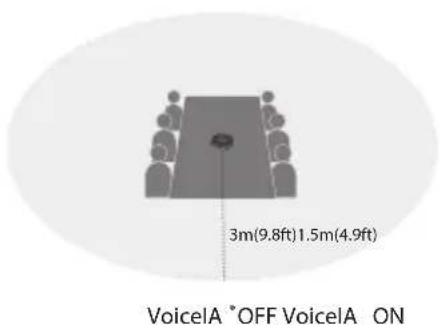
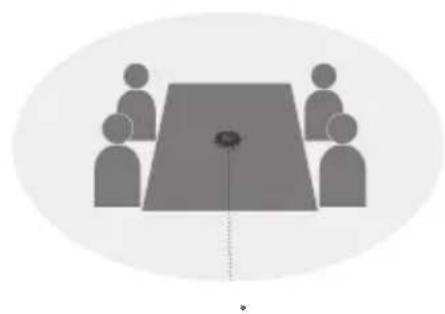
Turning on VoiceLA noise reduction can greatly reduce some noises in the meeting scene, such as from keyboard tapping, air conditioning noise, and general unwanted background noise
Note: After the noise reduction mode is enabled, in order to maintain good sound pickup effect, please make a call within a sound pickup range of 1.5 meters.
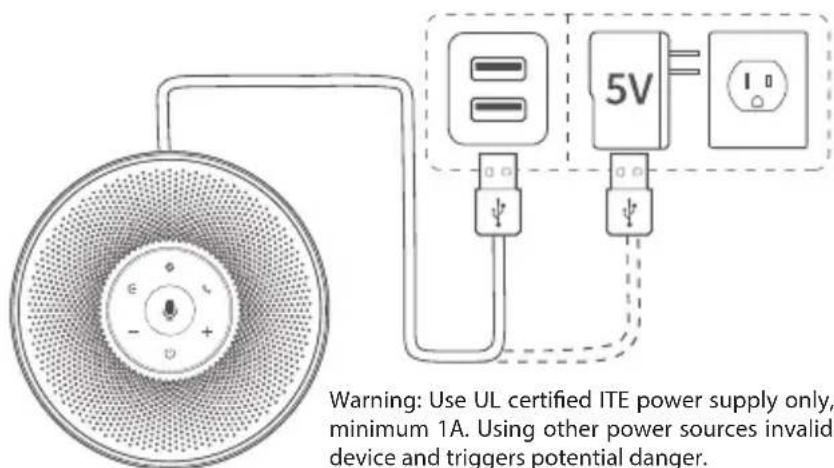
4. Charge
a) Via the computer
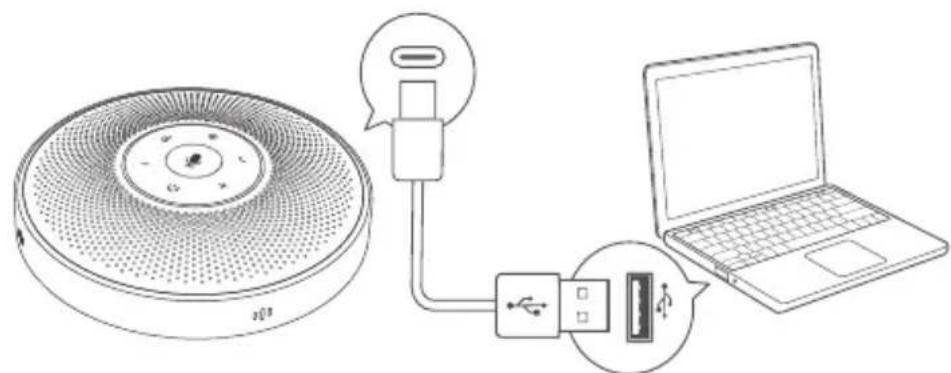
b) Through the adapter
5. Check Battery level
Short press " to check Battery level.
When the device reaches 5% battery level, the ring-shaped light will glow red, and a low battery prompt will be generated.
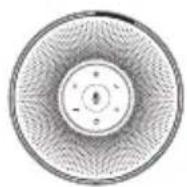
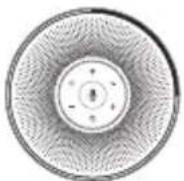
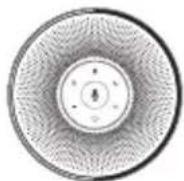
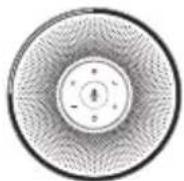
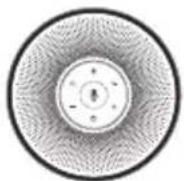
25% 5% 50% 75% 100%
6. Audio Output
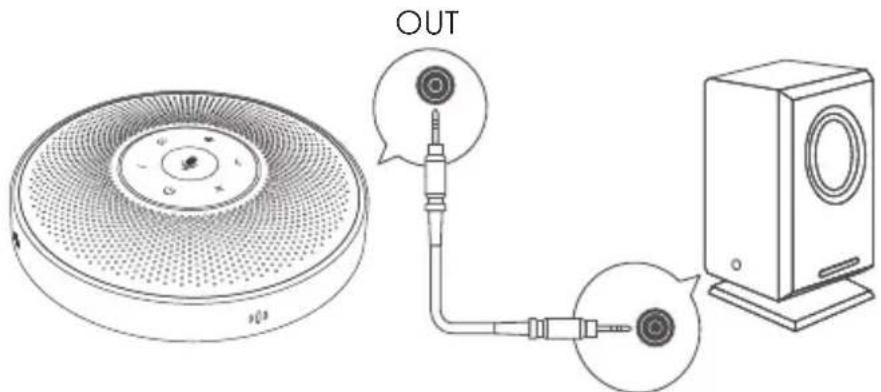
Use the AUX cable to connect the external speaker to the AUX OUT port of this device, and the audio will be played synchronously with this device through the external speaker.
7. Daisy chain function
The Daisy chain function requires the use of Daisy chain cable, which are inserted into the OUT port (Red terminal) of the two machines using Daisy chain cable to extend the distance of sound pickup and playback so as to get a larger meeting space.
Daisy-Chain before
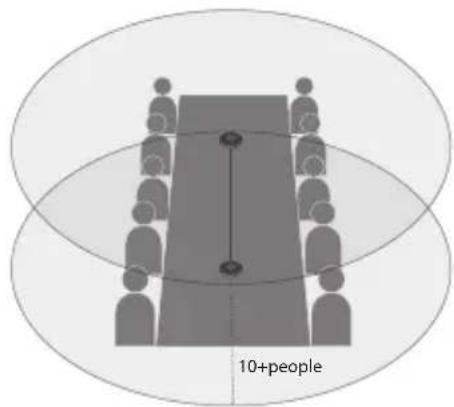
Daisy-Chain after
Note: Daisy-Chain cable is not provided with M2 product.
8. Audio Input
Use the AUX cable to connect the phone to the AUX IN ports of this device. This device will replace the speaker and microphone of the phone.
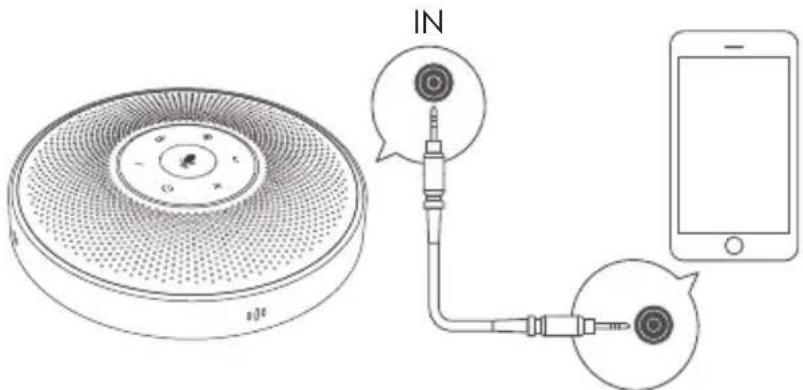
9. LOCK port Setting
Lock the product through the LOCK port to prevent theft.
Note: The LOCK port is of a Kensington computer type which requires the user to buy a lock otherwise.
Product information
| Speaker output rating | 3W RMS |
| Frequency response | 20Hz~20KHz(±3dB) |
| SNR | >80dB |
| Bluetooth version | V4.2 |
| Bluetooth distance | 20m |
| Microphone sensitivity | -26dBFS |
| Microphone frequency response | 100Hz~8KHz(±3dB) |
| Microphone directivity | 360 degree omnidirectional |
| Battery specification | 3.6V/2600mAh |
| Charge time | 3-4hours |
| Usage time | Talk time: 12 hours (Depending on the usage, the talk time varies) |
| Charge specification | 5V/1A |
| Size | 125x125x35mm(±5mm) |
Note: In case of any change in specifications, official website information shall prevail.
FAQ
| Problem or phenomenon | Possible Causes | Method |
| Startup failure | Low or no battery | Access the adapter to charge |
| Automatic shutdown soon after starting up | Low battery | Access the adapter to charge |
| No sound | turn off the volume | Adjust the device volume |
| USB failure | Error with using USB cable | Please use the original USB cable |
| AUX failure | Error with using AUX cable | Please use the original AUX cable |
| Daisy chain failure | Plug in the AUX audio input port; Error with using Daisy chain cable | Please plug the original Daisy chain cable into the audio output port/Daisy chain port |
| Device charge failure | Faulty charging device or full battery | Replace with a functional device |
Customer Service

support@emeet.ai

www.emeet.ai

US: + 1 8889595320 (EST 9:00am-5:00pm Mon-Fri)
木紋一覽
US: + 1 8889595320(EST 9:00am-5:00pm Mon-Fri)
Display pulsante
US: + 18889595320(EST 9:00am-5:00pm Mon-Fri)
US: + 1 8889595320(EST 9:00am-5:00pm Mon-Fri)
US: + 1 8889595320(EST 9:00am-5:00pm Mon-Fri)