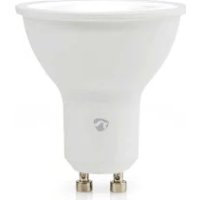
ZBLC10GU10 - Smart Home NEDIS - Free user manual and instructions
Find the device manual for free ZBLC10GU10 NEDIS in PDF.



| Product type | Zigbee smart bulb |
| Brand | Nedis |
| Model | ZBLC10GU10 |
| Base | GU10 |
| Connectivity | Zigbee 3.0 |
| App | Nedis SmartLife (iOS/Android) |
| Voice control | Amazon Alexa, Google Assistant |
| Features | Remote on/off, dimming, scheduling, custom scenes |
| Power supply | 220-240 V AC, 50 Hz |
| Rated power | 5 W (equivalent to 50 W halogen) |
| Lifespan | 15,000 hours |
| Protection rating | IP20 (indoor use) |
| Material | Plastic and glass |
| Dimensions | Diameter 50 mm, height 56 mm |
| Weight | 50 g |
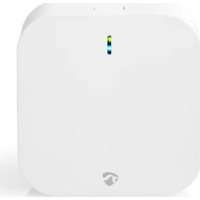
| Compatibility | Requires a Nedis SmartLife Zigbee gateway |
| Installation | Screw into a standard GU10 socket |
| Package contents | 1 smart bulb |
| Warranty | 2 years |
| Certifications | CE, RED |
| Maintenance | Wipe with a dry cloth, do not use chemicals |
| Safety | Cut power before replacement, do not immerse in water |
Frequently Asked Questions - ZBLC10GU10 NEDIS
User questions about ZBLC10GU10 NEDIS
0 question about this device. Answer the ones you know or ask your own.
Ask a new question about this device
Download the instructions for your Smart Home in PDF format for free! Find your manual ZBLC10GU10 - NEDIS and take your electronic device back in hand. On this page are published all the documents necessary for the use of your device. ZBLC10GU10 by NEDIS.
USER MANUAL ZBLC10GU10 NEDIS
Zigbee Smart Bulb full colour and warm to cool white
ZBLC10E14 | ZBLC10E27 | ZBLC10GU10
natural_image
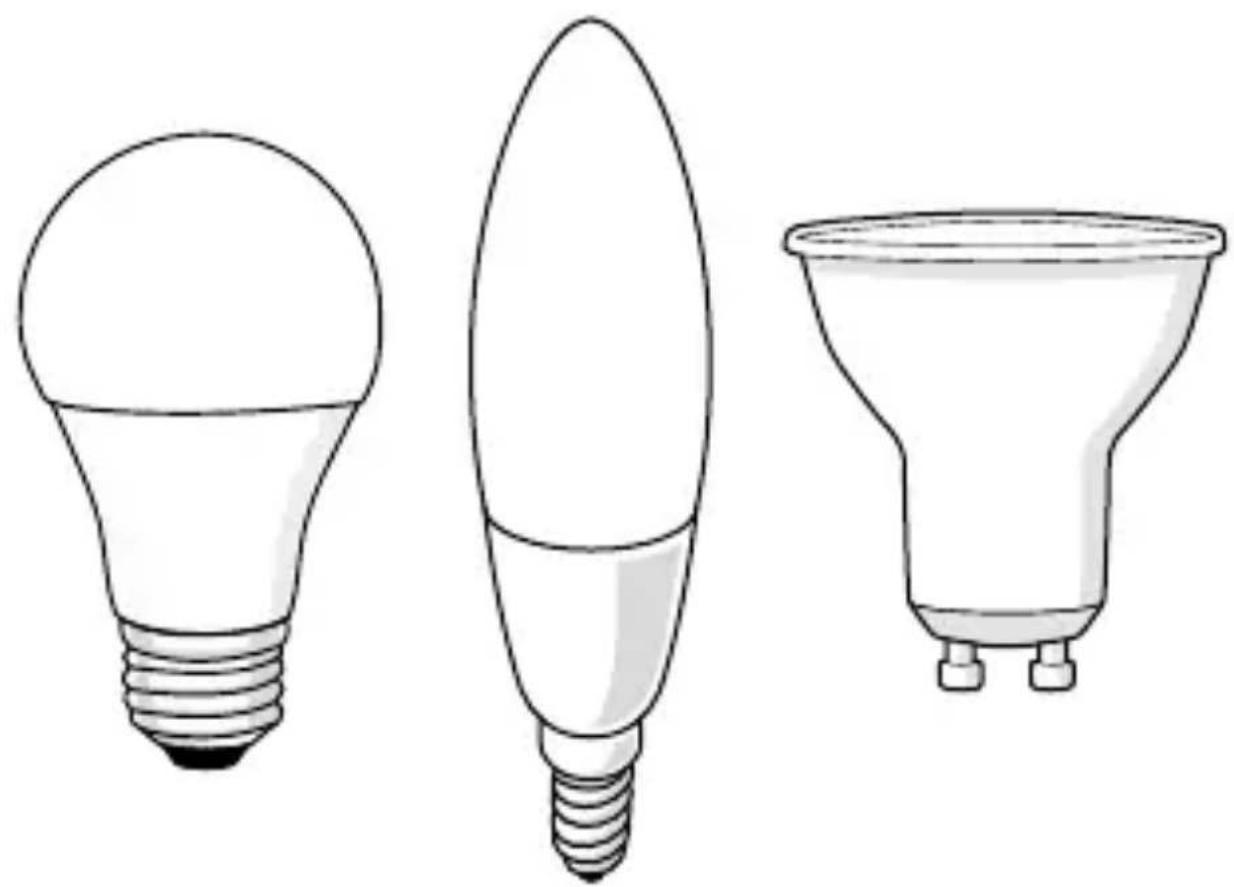
Line drawings of three different types of fluorescent bulbs: a bulb, a conical flask, and a bulb with three pins (no text or symbols)EN Quick start guide 7
DE Kurzanleitung 10
FR Guide de démarrage rapide 13
NL Snelstartgids 16
IT Guida rapida all'avvio 19
ES Guía de inicio rápido 23
PT Guia de iniciação rápida 26
SV Snabbstartsguide 29
FI Pika-aloitusopas 32
NO Hurtigguide 35
DA Vejledning til hurtig start 38
HU Gyors beüzemelési útmutató 41
PL Przewodnik Szybki start 44
EL Οδηγός γρήγορης εκκίνησης 47
SK Rýchly návod 51
cs Rychlý návod 54
RO Ghid rapid de inițiere 57
Specifications
| Product Zigbee Smart Bulb Zigbee Smart Bulb Zigbee Smart Spot | |||
| Article number ZBLC10E27 ZBLC10E14 ZBLC10GU10 | |||
| Max. brightness 806 lm 470 lm 345 lm | |||
| Light colour RGB + 2200 - 6500 K | |||
| Power supply 220 - 240 V ~ 50 / 60 Hz | |||
| Fitting type E27 E14 GU10 | |||
| Wattage 9 W 4.9 W 4.7 W | |||
| Current 53 mA 43 mA 40 mA | |||
| Wireless technology | Zigbee | ||
| Zigbee frequency range | 2405 - 2483 MHz | ||
| Zigbee transmission protocol | IEEE802.15.4 | ||
| Max radio transmit Power | 10 dBm | ||
A
text_image
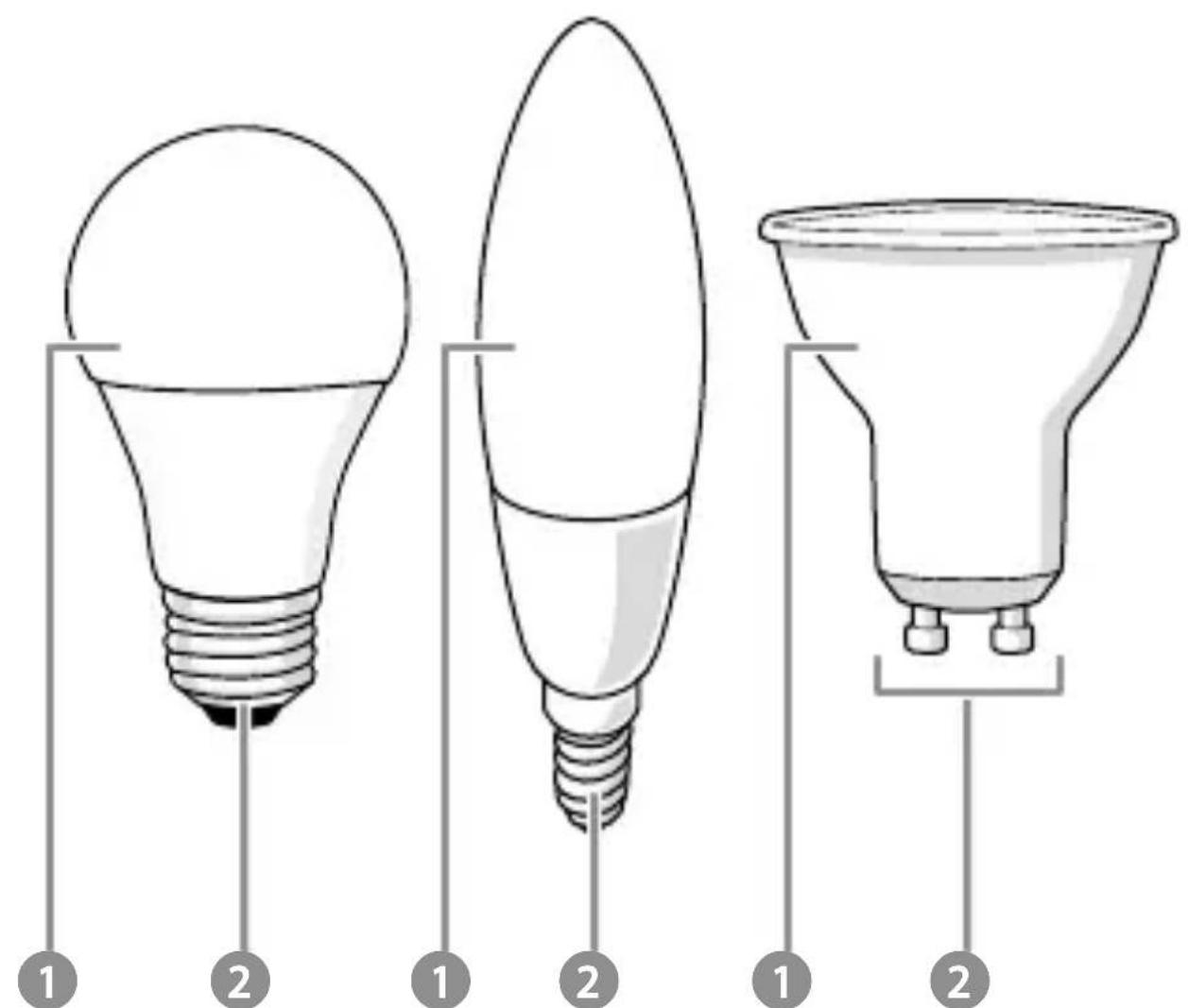
Diagram showing three types of light bulbs with numbered labels indicating their respective components.ZBLC10GU10ZBLC10E2:
B
text_image
Smart Gateway ( TYGW...Zigbee Smart Bulb
ZBLC10E14 | ZBLC10E27 | ZBLC10GU10
For more information see the extended manual online:
ned.is/zblc10e14 | ned.is/zblc10e27 | ned.is/zblc10gu10
Intended use
The Nedis ZBLC10E14 | ZBLC10E27 | ZBLC10GU10 is a bulb that allows you to wirelessly control the light.
The product is exclusively intended for lighting an indoor or outdoor environment.
The product is intended to be controlled exclusively via the Nedis SmartLife app.
You can connect the product wirelessly to the Nedis SmartLife app via the Zigbee gateway.
Any modification of the product may have consequences for safety, warranty and proper functioning.
Main parts (image A)

Bulb

Electric contact
Safety instructions
- Ensure you have fully read and understood the instructions in this document before you install or use the product. Keep the packaging and this document for future reference.
- Only use the product as described in this document.
-
Do not use the product if a part is damaged or defective. Replace a damaged or defective product immediately.
-
Do not drop the product and avoid bumping.
- This product may only be serviced by a qualified technician for maintenance to reduce the risk of electric shock.
- Do not expose the product to water or moisture.
Installation of the Nedis SmartLife app
- Download the Nedis SmartLife app for Android or iOS on your phone via Google Play or the Apple App Store.
- Open the Nedis SmartLife app on your phone.
- Create an account with your mobile phone number or your e-mail address and tap Continue.
- Enter the received verification code.
- Create a password and tap Done.
- Tap Add Home to create a SmartLife Home.
- Set your location, choose the rooms you want to connect with and tap Done.
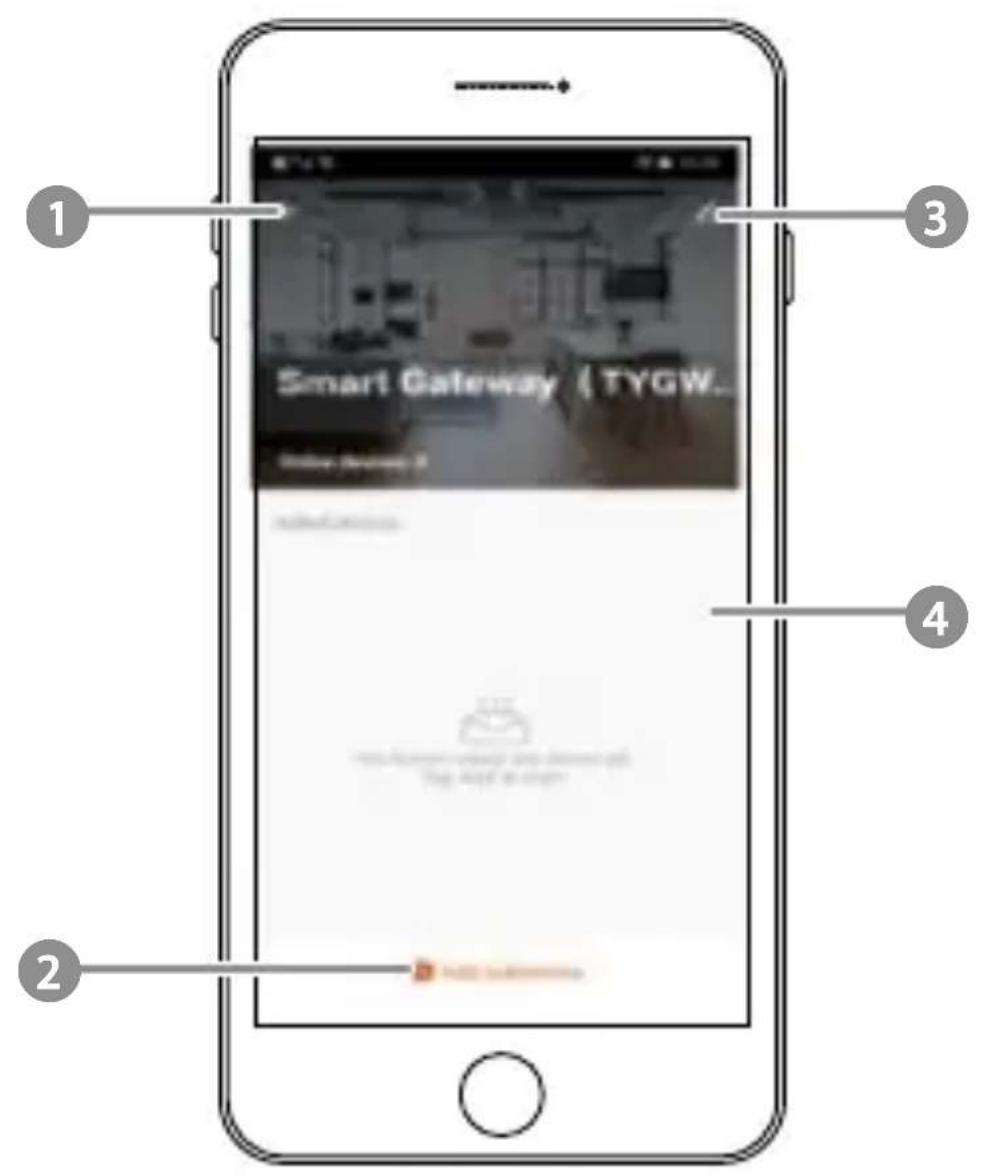
Connecting to the Zigbee gateway (image B)
1 Back 2 Add device
3 Settings 4 List of added devices
Make sure the Zigbee gateway is connected to the Nedis SmartLife app.
Make sure the bulb is within range of the gateway.
For information on how to connect the gateway to the app, consult the manual of the gateway.
- Open the Nedis Smartlife app on your phone.
- Select the Zigbee gateway to enter the gateway interface.
- Tap the Add device button B 2.
- Screw the bulb into the correct fitting.
-
Switch on the bulb using a wall switch.
-
Check if the bulb is blinking. If so, tap to confirm.
- If the bulb does not blink, turn the lamp off and on 3 times and check again previous step.
- Tap to confirm the bulb A 1 is blinking.
- The bulb appears in the app when the product is successfully connected to the gateway.
- Rename the bulb after it has been found and added.
Using the product
The product can be controlled from any distance using the Zigbee Gateway via the Nedis SmartLife app while connected to the same network.
The home menu of the Nedis SmartLife app (image B) shows a control tile for each connected lamp and/or group.
The product can be connected to Google Home or Amazon Alexa to enable speech control.
The product can be connected to IFTTT to enable external conditions to trigger the lamp.
Declaration of Conformity
We, Nedis B.V. declare as manufacturer that the product ZBLC10E14 | ZBLC10E27 | ZBLC10GU10 from our brand Nedis ^® , produced in China, has been tested according to all relevant CE standards and regulations and that all tests have been passed successfully. This includes, but is not limited to the RED 2014/53/EU regulation.
The complete Declaration of Conformity (and the safety datasheet if applicable) can be found and downloaded via:
nedis.com/zblc10e14#support
nedis.com/zblc10e27#support
nedis.com/zblc10gu10#support
Zigbee-Smart- Glühbirne
ZBLC10E14 | ZBLC10E27 | ZBLC10GU10
text_image
QR code image containing encoded data, no visible human-readable text
ned.is/zblc10e14
text_image
Creative Commons license icon showing a person recycling and a document with 'FR' and a trash bin symbol
text_image
QR code image containing encoded data, no visible human-readable text
ned.is/zblc10e27
text_image
QR code image containing encoded data, no visible human-readable text
ned.is/zblc10gu10
Nedis BV
De Tweeling 28, 5215 MC 's-Hertogenbosch
The Netherlands 11/22