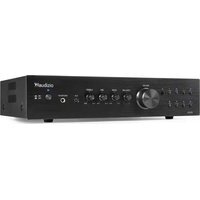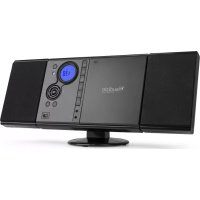
Reims - Hi-fi system Audizio - Free user manual and instructions
Find the device manual for free Reims Audizio in PDF.



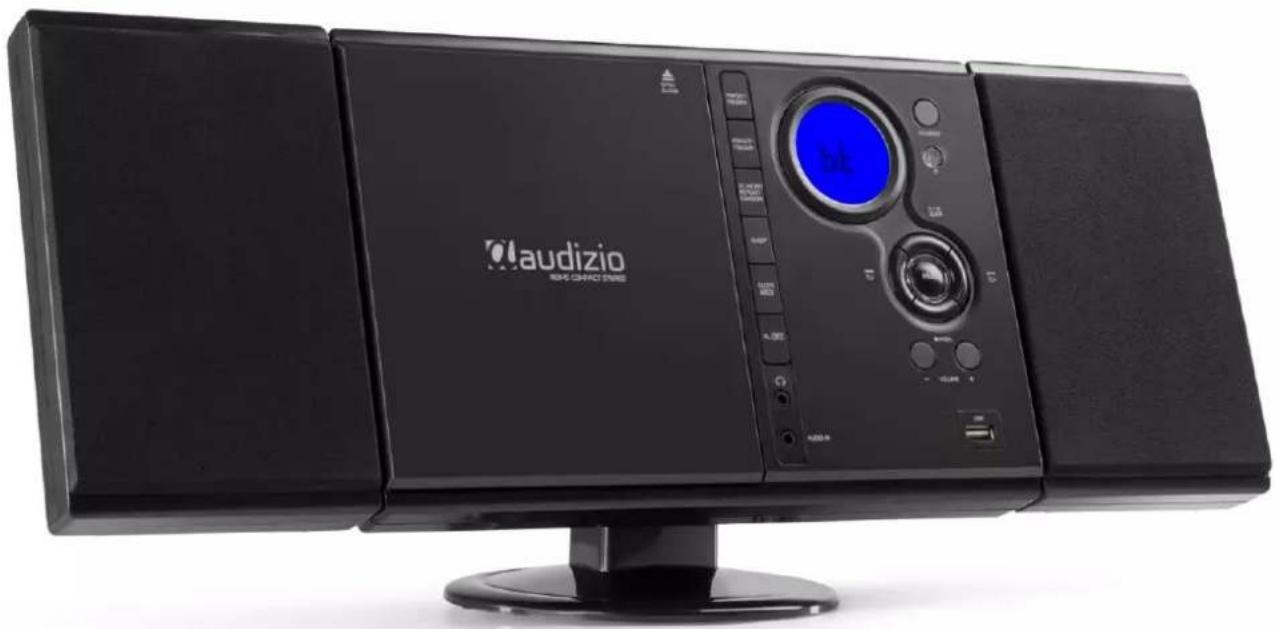
| Product type | Hi-fi system with CD player, FM radio, Bluetooth, USB and auxiliary input |
| Brand | Audizio |
| Model | Reims |
| Power supply | 220-240 V~, 50 Hz (power adapter included) |
| Backup batteries | 2 x R6 batteries (not included) for clock backup |
| Main functions | CD/CD-R/RW player (MP3/WMA), FM radio (20 presets), Bluetooth streaming, USB playback (MP3, up to 32 GB), AUX input (3.5 mm jack), headphone output (3.5 mm jack) |
| CD playback modes | Normal, repeat (1 track/all), random, program (32 CD tracks, 99 MP3), forward/backward search |
| FM radio | Auto scan, manual tuning, 20 station presets, stereo/mono mode |
| Bluetooth | Audio streaming, pairing with code 0000, typical range 10 m |
| Alarm | Wake up by CD, USB, FM radio or buzzer, volume adjustment, activation/deactivation |
| Sleep timer | Programmable automatic shutdown (10, 20, 30, 45, 60, 90, 120 min) |
| Controls | Front panel with physical buttons and infrared remote control |
| Display | LCD screen with mode, frequency, track, time indicators |
| Speakers | Detachable speakers mounted on the main unit (clip connection) |
| Safety | Overvoltage protection, fuse 10-16 A, do not open the casing, avoid moisture and heat sources |
| Maintenance and cleaning | Clean with a dry cloth, do not use chemicals |
| Operating temperature | 5 °C to 35 °C (indoor only) |
| Included accessories | Power adapter, remote control, user manual (not listed, but manual available) |
| Spare parts and repairability | Repairs by authorized technician only, use of original parts, warranty void if unauthorized opening |
Frequently Asked Questions - Reims Audizio
User questions about Reims Audizio
0 question about this device. Answer the ones you know or ask your own.
Ask a new question about this device
Download the instructions for your Hi-fi system in PDF format for free! Find your manual Reims - Audizio and take your electronic device back in hand. On this page are published all the documents necessary for the use of your device. Reims by Audizio.
USER MANUAL Reims Audizio
Ref. nr.: 102.313 & 102.315
natural_image
Black audio CD-ROM device with external front panel and control buttons (no visible text or symbols on body)INSTRUCTION MANUAL GEBRUIKSAANWIJZING BEDIENUNGSANLEITUNG MANUAL DE INSTRUCCIONES MANUEL D'INSTRUCTIONS
V1.2
INDEX
ENGLISH 4
UNPACKING INSTRUCTION....5
PRODUCT OVERVIEW 5
REMOTE CONTROL....5
GETTING STARTED....5
MUTING 6
FM RADIO OPERATION....6
PRESET RADIO STATIONS....6
CD DISC OPERATION 6
CD-R/RW OPERATION 6
REPEAT OR RANDOM PLAY 6
SKIP AND SEARCH....6
PROGRAM SETTING....7
BT OPERATION....7
USB OPERATION 7
AUX OPERATION....7
HEADPHONES 7
ALARM....7
SLEEP MODE....7
NEDERLANDS....8
UITPAKKEN 9
OVERZICHT 9
AFSTANDBEDIENING....9
AAN DE SLAG....9
MUTE 10
GEBRUIK FM RADIO 10
VOORINSTELLING RADIOSTATIONS....10
GEBRUIK VAN DE CD FUNCTIE....10
GEBRUIK VAN CD-R/RW 10
HERHALEN OF WILLEKEURIG AFSPELEN 10
OVERSLAAN EN ZOEKEN....10
PROGRAMMA-INSTELLING 11
GEBRUIK VAN BT 11
GEBRUIK VAN DE USB-INGANG 11
GEBRUIK VAN DE AUX-INGANG....11
HOOFDTELEFOON 11
ALARM/WEKKER 11
SLEEP MODE....11
DEUTSCH....12
AUSPACKEN 13
ÜBERBLICK....13
FERNBEDIENUNG....13
ERSTE SCHRITTE 13
MUTE 13
SALTAR Y BUSCAR....18
PROGRAMMATIONS....22
FONCTIONNEMENT BT 23
FONCTIONNEMENT USB....23
FONCTIONNEMENT AUX 23
CASQUES....23
ALARME 23
MODE VEILLE....23
TECHNICAL SPECIFICATION / TECHNISCHE SPECIFICATIE / TECHNISCHE DATEN / ESPECIFICACIONES TÉCNICAS /
SPÉCIFICATIONS TECHNIQUES....24
ENGLISH
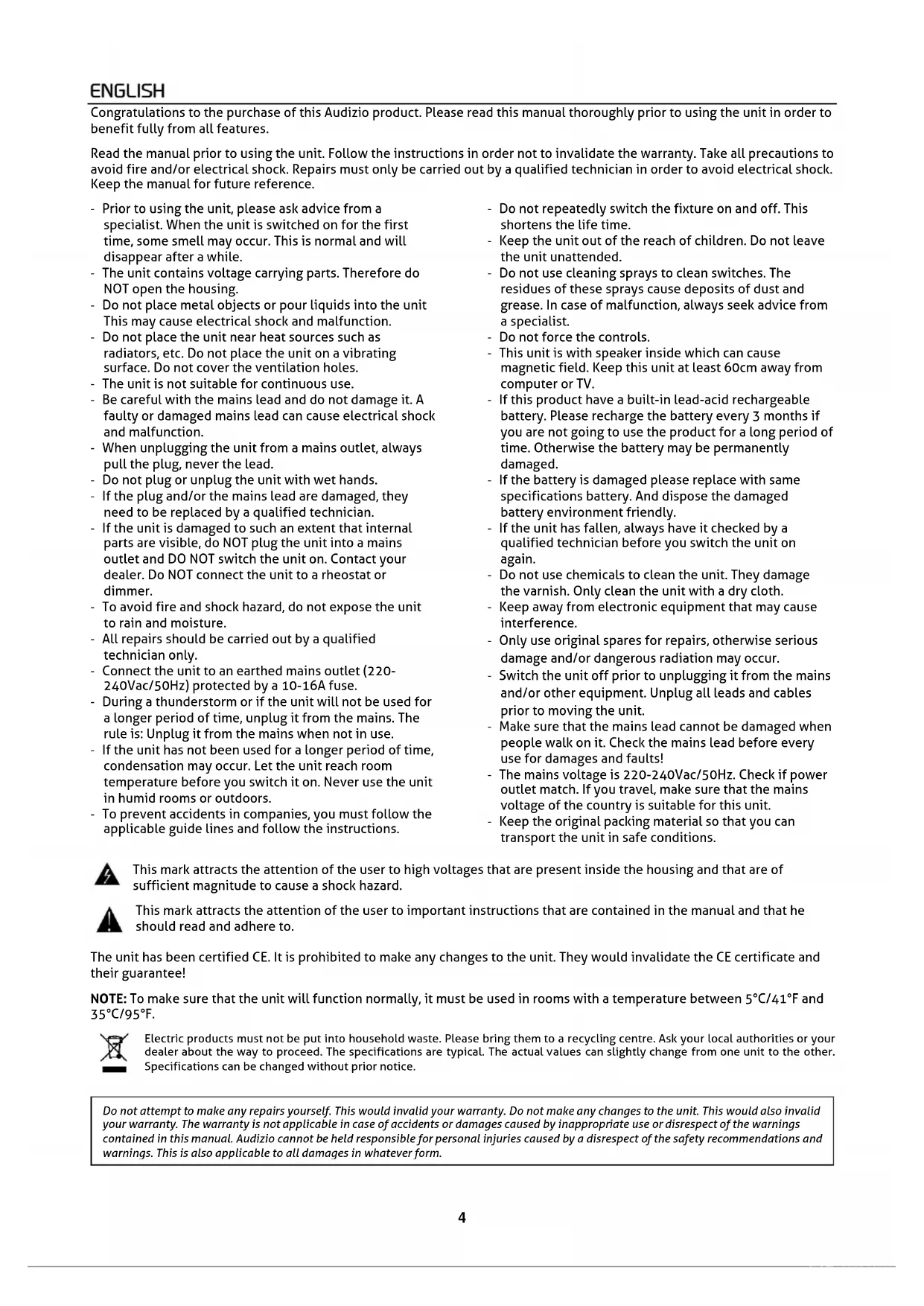
Congratulations to the purchase of this Audizio product. Please read this manual thoroughly prior to using the unit in order to benefit fully from all features.
Read the manual prior to using the unit. Follow the instructions in order not to invalidate the warranty. Take all precautions to avoid fire and/or electrical shock. Repairs must only be carried out by a qualified technician in order to avoid electrical shock. Keep the manual for future reference.
- Prior to using the unit, please ask advice from a specialist. When the unit is switched on for the first time, some smell may occur. This is normal and will disappear after a while.
- The unit contains voltage carrying parts. Therefore do NOT open the housing.
- Do not place metal objects or pour liquids into the unit This may cause electrical shock and malfunction.
- Do not place the unit near heat sources such as radiators, etc. Do not place the unit on a vibrating surface. Do not cover the ventilation holes.
- The unit is not suitable for continuous use.
- Be careful with the mains lead and do not damage it. A faulty or damaged mains lead can cause electrical shock and malfunction.
- When unplugging the unit from a mains outlet, always pull the plug, never the lead.
- Do not plug or unplug the unit with wet hands.
- If the plug and/or the mains lead are damaged, they need to be replaced by a qualified technician.
- If the unit is damaged to such an extent that internal parts are visible, do NOT plug the unit into a mains outlet and DO NOT switch the unit on. Contact your dealer. Do NOT connect the unit to a rheostat or dimmer.
- To avoid fire and shock hazard, do not expose the unit to rain and moisture.
- All repairs should be carried out by a qualified technician only.
- Connect the unit to an earthed mains outlet (220-240Vac/50Hz) protected by a 10-16A fuse.
- During a thunderstorm or if the unit will not be used for a longer period of time, unplug it from the mains. The rule is: Unplug it from the mains when not in use.
- If the unit has not been used for a longer period of time, condensation may occur. Let the unit reach room temperature before you switch it on. Never use the unit in humid rooms or outdoors.
-
To prevent accidents in companies, you must follow the applicable guide lines and follow the instructions.
-
Do not repeatedly switch the fixture on and off. This shortens the life time.
- Keep the unit out of the reach of children. Do not leave the unit unattended.
- Do not use cleaning sprays to clean switches. The residues of these sprays cause deposits of dust and grease. In case of malfunction, always seek advice from a specialist.
- Do not force the controls.
- This unit is with speaker inside which can cause magnetic field. Keep this unit at least 60cm away from computer or TV.
- If this product have a built-in lead-acid rechargeable battery. Please recharge the battery every 3 months if you are not going to use the product for a long period of time. Otherwise the battery may be permanently damaged.
- If the battery is damaged please replace with same specifications battery. And dispose the damaged battery environment friendly.
- If the unit has fallen, always have it checked by a qualified technician before you switch the unit on again.
- Do not use chemicals to clean the unit. They damage the varnish. Only clean the unit with a dry cloth.
- Keep away from electronic equipment that may cause interference.
- Only use original spares for repairs, otherwise serious damage and/or dangerous radiation may occur.
- Switch the unit off prior to unplugging it from the mains and/or other equipment. Unplug all leads and cables prior to moving the unit.
- Make sure that the mains lead cannot be damaged when people walk on it. Check the mains lead before every use for damages and faults!
- The mains voltage is 220-240Vac/50Hz. Check if power outlet match. If you travel, make sure that the mains voltage of the country is suitable for this unit.
- Keep the original packing material so that you can transport the unit in safe conditions.

This mark attracts the attention of the user to high voltages that are present inside the housing and that are of sufficient magnitude to cause a shock hazard.

This mark attracts the attention of the user to important instructions that are contained in the manual and that he should read and adhere to.
The unit has been certified CE. It is prohibited to make any changes to the unit. They would invalidate the CE certificate and their guarantee!
NOTE: To make sure that the unit will function normally, it must be used in rooms with a temperature between 5^ C/41°F and 35^ C/95°F.

Electric products must not be put into household waste. Please bring them to a recycling centre. Ask your local authorities or your dealer about the way to proceed. The specifications are typical. The actual values can slightly change from one unit to the other. Specifications can be changed without prior notice.
Do not attempt to make any repairs yourself. This would invalid your warranty. Do not make any changes to the unit. This would also invalid your warranty. The warranty is not applicable in case of accidents or damages caused by inappropriate use or disrespect of the warnings contained in this manual. Audizio cannot be held responsible for personal injuries caused by a disrespect of the safety recommendations and warnings. This is also applicable to all damages in whatever form.
UNPACKING INSTRUCTION
CAUTION! Immediately upon receiving the product, carefully unpack the carton, check the contents to ensure that all parts are present, and have been received in good condition. Notify the shipper immediately and retain packing material for inspection if any parts appear damage from shipping or the package itself shows signs of mishandling. Save the package and all packing materials. In the event that the product must be returned to the factory, it is important that the product be returned in the original factory box and packing.
If the device has been exposed to drastic temperature fluctuation (e.g. after transportation), do not switch it on immediately. The arising condensation water might damage your device. Leave the device switched off until it has reached room temperature.
PRODUCT OVERVIEW
- CD Tray Open/Close
- Preset + / Folder + Button
- Preset - / Folder - Button
- Repeat / Random / FM.ST / Mono Button
- Display
- Standby Button
- Remote Control Infrared Sensor
- Play / Pause / FM Scan Button
- Skip / Search Backward / Tuner - Button
- Mode Button
- Skip / Search Forward / Tuner + Button
- Volume + Button
- USB Entry
- Volume - Button
- CD Stop / Memory Button
- Headphone Jack 3,5mm
- AUX Audio Jack 3,5mm
- AL. Set Button
- Clock Set Button
- Sleep Button
- Speaker Output Left and Right
- 5V DC Input
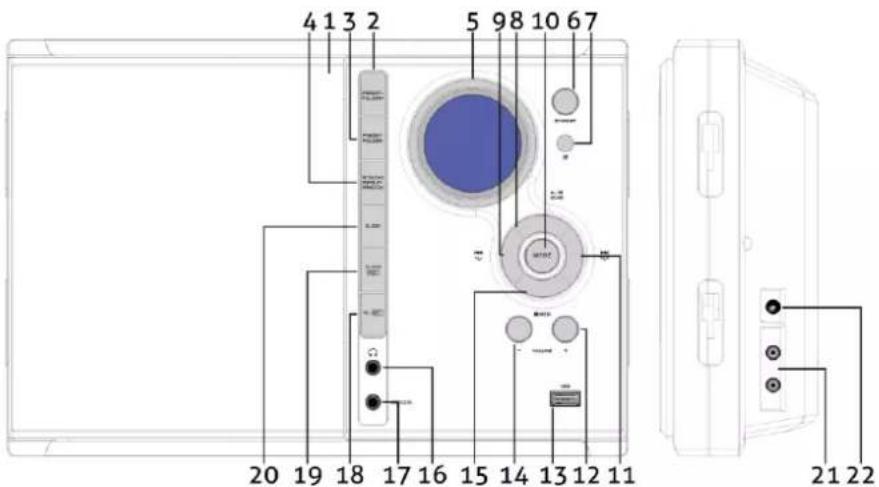
text_image
4 1 3 2 5 98 10 67 20 19 18 17 16 15 14 13 12 11 21 22REMOTE CONTROL
- Standby Button
- Play / Pause / Scan Button
- Stop / Memory Button
- Repeat / Random / Preset - Button
- Num Pad
- Mode Button
- Mute Button
- Skip / Search Forward / Tuning + Button
- Skip / Search Backward / Tuning - Button
- Volume Buttons
- Prog / Preset + Button
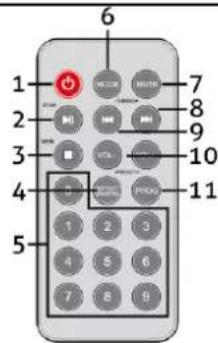
text_image
1 2 3 4 5 6 7 8 9 10 11 1 2 3 4 5 6 7 8 9GETTING STARTED
Before installing, please note: Make sure to unplug the power lead before making any connection!
- Connect the speakers by plugging in the speaker cables to their respective speaker connector (left speaker connected to left speaker connector, right speaker to right speaker connector).
- Mount the speakers to the main unit. Make sure to align the clips (on the speaker) and slots (on the main unit) and push the clips into the slots. Push the speaker in a downwards direction to secure the speaker to the main unit.
- Install batteries (2xAA, not supplied) to make use of the back-up option. This option allows for maintaining the clock time in the event of a power outage. The clock time will not be displayed, however the clock time will be remembered/maintained.
- Insert the supplied power adapter in the main device and wall socket to power the device. Do not attempt to power the device with another adapter or with different voltage than specified for this particular device. The device could be damaged and warranty will be voided.
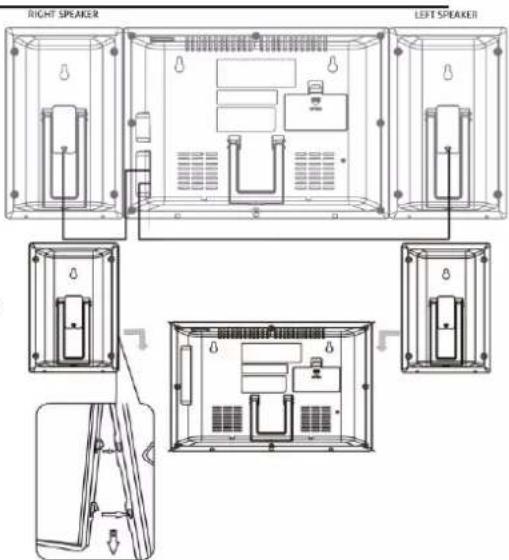
text_image
RIGHT SPEAKER LEFT SPEAKERMUTING
The device can be muted by pressing the [MUTE] button on the remote control. Press again to restore the volume.
FM RADIO OPERATION
- Press the [STANDBY] button on main unit or remote control to turn on the unit.
- Press the [MODE] button on main unit or remote control to select FM mode.
- To automatically tune to the next available radio station, press and hold the [◀◀] or [▶▶] button on main unit or remote control for 1-2 seconds until SCAN appears on the display, then release the button. The tuner will stop scanning when it receives the next broadcasting station of adequate signal strength.
- Press the volume control on main unit or remote control to adjust the volume to the desired level.
- To manually tune to a specific radio station, tap the [◀◀] or [▶▶] button on either main unit or remote control repeatedly. Use the manual tuning method to tune in weaker stations that are bypassed during automatic tuning.
FM & FM-stereo reception
When listening to the FM radio, press [ST./MONO] on the main unit to switch between stereo mode and mono mode. The FM stereo icon "ST" will appear on the display when in stereo mode. It is preferable to receive the program in mono when you are receiving a weak station.
For best possible reception:
The receiver has a build-in FM wire antenna exiting from the back of the cabinet. This wire should be totally unwrapped and fully extended for the best reception.
PRESET RADIO STATIONS
- Press the [STANDBY] button on main unit or remote control to turn on the unit.
- Press the [MODE] button on main unit or remote control to select FM radio mode.
- Tune to the desired radio station either "manually" or "automatically".
- Tap the [MEM.] button on the remote control, the next available preset memory number will flash on the LCD display. (Note:"P01" will blink in the display if you are programming preset for first time)
- Press the [PRESET+] or [PRESET-] button on remote control to select the preset number you want to assign the station to.
- Press the [MEM.] button on remote control to confirm the setting.
Repeat above steps 3 - 6 to preset up to 20 FM stations.
In radio mode, recall the pre-set channels/stations by pressing [PRESET+] or [PRESET-] on remote control.
CD DISC OPERATION
- Press the [STANDBY] button on the remote control or main unit to power the device.
- Press [MODE] on the main unit or remote control repeatedly to enter CD mode.
- Open the CD tray by pressing at the "OPEN/CLOSE" mark on the CD door, load a CD with the label side facing upward and close the CD tray.
- Playback will start from track 1 once the player has finished reading. The play indicator will appear on the LCD display.
- While playing, press the [PLAY/PAUSE] button to pause, the pause indicator will appear on the LCD display. Press the [PLAY/PAUSE] button again to resume playing.
- Adjust the volume using the [VOLUME] buttons.
CD-R/RW OPERATION
- Press [MODE] on the main unit or remote control, and load an MP3/WMA disc.
- Press [FOLDER+] or [FOLDER-] to select the desired playback folder.
- Select the desired file to be played by pressing the [SKIP FORWARD] or [SKIP BACKWARD] button.
- Press the [PLAY/PAUSE] button. Playback will start and file name will be displayed.
In case of playback while under folder mode, press [FOLDER+] or [FOLDER-] and the folder can be selected even though it is in playback/pause mode. It will continue playback/pause mode in the 1st track of the selected folder.
REPEAT OR RANDOM PLAY
Single track
When the [REPEAT] button is pressed once, the repeat indicator * 📄 * will appear and flash on the display. The current track will be played repeatedly.
All
When the [REPEAT] button is pressed twice, the repeat indicator * ○ * will appear on the display. The whole disc/folder will be played continuously.
Random play
Press [REPEAT] three times to enter random play mode. "RAND" will appear on the display.
Press [REPEAT] again to stop random play ("RAND" will no longer show on the display). The unit will now only play the intro part of every track. Press [REPEAT] again to return to regular playing.
SKIP AND SEARCH
During pause or play, press [SKIP FORWARD] or [SKIP BACKWARD] once to go to the next or previous track or return to the start of the current track. Hold [SKIP FORWARD] or [SKIP BACKWARD] to search/scan forwards or backwards within the current track.
PROGRAM SETTING
The user is allowed to program up to 32 tracks in CD mode, or 99 tracks in MP3 mode (in any desired order). Program mode is activated while in STOP mode.
- Press [PROG] on the remote to enter program mode.
- Press [◀◀] or [▶▶] to select the track you want to preset.
- Press [PROG] on the remote again to confirm the chosen track.
- Repeat step 2-3 to programme more tracks. Once completed, press [PLAY/PAUSE] to start the playback of the programmed tracks.
BT OPERATION
The unit has a BT streaming function. Pairing the unit with a BT device can be initiated by following below steps:
1. Press [STANDBY] on the remote control or main unit to turn on the power.
2. Press [MODE] on the remote control or main unit to turn on the BT mode.
3. In case the unit is not paired with any BT device already, "BT" will flash on the display.
4. Activate your BT device and select the search mode.
5. "Audizio Reims" will appear on your BT device list.
6. Select "Audizio" and enter "0000" as password (if necessary). A beep will be emitted to confirm a successful pairing.
7. To disconnect, press [MODE] to switch to another mode or cancel the BT function on your BT device.
USB OPERATION
There is a USB socket located at the front of the unit. When a USB device is inserted in the socket, press [MODE] repeatedly to select USB mode. The unit will automatically display the total number of tracks. All playback features are the same as if you were playing an MP3 CD.
The unit can only play .MP3 format files in USB operation. If the device is loaded with MP3's, but the display keeps showing "NO", the format of your USB device might not be compatible with the unit. The unit supports up to 32GB of memory.
AUX OPERATION
Plug a 3.5mm audio cable (not included) into your external player's line out and the other end into the audio in jack on main unit.
- Press [STANDBY] on the remote control or main unit to turn on the power.
- Press [MODE] on the remote control or main unit repeatedly to select "Audio In" mode.
- Play tracks on the connected device. If volume level of the connected device is too high, sound distortion may occur. Should this happen, lower the volume of the connected device. If volume level is too low, increase the volume of the connected device.
HEADPHONES
Inserting the plug of your headphones into the main unit's 3.5mm headphones jack will enable you to listen to the CD, radio or other music sources in private. When using headphones, the speakers will be automatically disconnected. Use the [VOLUME+] and [VOLUME-] buttons to adjust to the desired volume output level.
ALARM
Setting the alarm clock
This function allows the system to turn on automatically and wake you using a beeping alarm, buzzer, CD input, USB input or FM.
-
In standby mode, hold [AL.SET] on the main unit for three seconds. Alarm time 00:00 will appear on the display. Hour digits of the alarm clock are flashing.
-
Press [◀◀] or [▶▶] to set the hour and then press [AL.SET] again to confirm. Minute digits are now flashing.
-
Press [◀◀] or [▶▶] to set the minutes and press [AL.SET] again to confirm. Alarm wake up source will appear on the display.
-
Press [◀◀] or [▶▶] to select wake to CD, USB, Buzzer or FM radio. Press [AL.SET] to confirm, alarm volume level will be flashing. Note: alarm volume level setting is not available in beeping alarm setting.
-
Press [◀◀] or [▶▶] to preset the wake up alarm volume level. Press [AL.SET] to finish alarm setup.
Note: If "Wake to CD or USB" is selected but no CD or USB drive is inserted, the alarm will default to the beeping alarm automatically when the alarm wake time is reached.
For "Wake to Radio", the system will default to the last radio station listened to before switching off.
Activate/de-activate alarm function
To activate the alarm, press [AL.SET] once, the bell icon will be shown on the display. To cancel the alarm, press [AL.SET] again until the bell icon has disappeared.
SLEEP MODE
This function allows you to program the system to switch itself off after a set period of time. You can set your sleep time in power on mode.
-
To activate the sleep function, press [SLEEP] on the main unit. The display will show "Sleep Timer OFF, 120, 90, 60, 45, 30, 20, 10" in steps at every press. The sleep timer value will be flashing on the display.
-
When the display shows your desired sleep time, release the button. The sleep timer is now activated. The display will show "10" indicating "10 minutes" sleep time and so on. When the sleep time counts to zero, the unit will go off.
-
To cancel sleep mode, press [SLEEP] once again. The sleep function will turn off.
Input Connections : 3.5mm jack, USB
Output Connections : 3.5mm jack
Output Power : 40W
Impedance : 4 Ohm
Power Supply : 100-240VAC 50/60Hz (5V Adapter)
Dimensions : 490 x 180 x 70mm
Weight (per unit) : 1,40 kg
The specifications are typical. The actual values can slightly change from one unit to the other. Specifications can be changed without prior notice.
The products referred to in this manual conform to the European Community Directives to which they are subject:
European Union
Tronios B.V.,
7602KR Almelo, The Netherlands
2014/35/EU
2014/30/EU
2011/65/EC
2014/53/EU

United Kingdom
Tronios Ltd.,
130 Harley Street,
London W1G 7JU, United Kingdom
S.I. 2016:1101
S.I. 2016:1091
S.I. 2012:3032
S.I. 2017:1206

Specifications and design are subject to change without prior notice.
www.tronios.com
Copyright © 2022 by Tronios The Netherlands