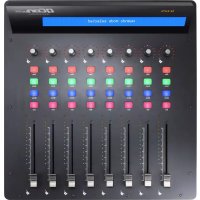
QCon EX G2 - Mixer icon - Free user manual and instructions
Find the device manual for free QCon EX G2 icon in PDF.


| Product Type | MIDI Control Surface / Mixer Controller |
| Model | iCON QCon EX G2 |
| Brand | iCON |
| Number of Motorized Faders | 8 |
| Display | LCD screen |
| Power Supply | 12V DC, 2.5A (external adapter) |
| Dimensions (W x D x H) | 457 x 203 x 456.6 mm (17.99 x 7.92 x 17.97 inches) |
| Weight | 5.015 kg (11 lb) |
| Connectivity | USB (MIDI), Power jack |
| Compatibility | Mackie Control, HUI protocols |
| Supported DAWs | Cubase, Logic Pro, Pro Tools, Ableton Live, Studio One, Reaper, Bitwig, Reason, Samplitude, Sonar, Audition |
| Firmware Upgrade | Yes, via USB with dedicated updater |
| Control Modes | MCP (Mackie Control Protocol) |
| Transport Controls | Play, Stop, Record, Rewind, Fast Forward, Loop |
| Channel Controls | Select, Mute, Solo, Rotary encoder per channel |
| Additional Controls | Master fader, Navigation buttons, Function keys (F1-F8) |
| Footswitch Support | Yes (1 or 2 footswitches) |
| Expansion | Supports chaining up to 3 units for 24 channels |
| Operating System | Windows, macOS |
| Included Accessories | Power adapter, USB cable, Quickstart guide |
Frequently Asked Questions - QCon EX G2 icon
User questions about QCon EX G2 icon
0 question about this device. Answer the ones you know or ask your own.
Ask a new question about this device
Download the instructions for your Mixer in PDF format for free! Find your manual QCon EX G2 - icon and take your electronic device back in hand. On this page are published all the documents necessary for the use of your device. QCon EX G2 by icon.
USER MANUAL QCon EX G2 icon
Démarrage (Connected with QconEX G2 (1 - 3units)).... 11
text_image
QR code image containing encoded data, no visible human-readable textnatural_image
Black Qconus audio workstation with multiple sliders and a blue LCD screen displaying 'QCONUS' (no readable text on main device)flowchart
graph TD
A["Press "<<" & " >> "to select your expansion unit. (1): Expansion unit 1"] --> B["Press "<<" & " >> "to select your expansion unit Unit 1 selected"]
B --> C["DAW select: Press "<<" & " >> " to select your DAW (1): Mackie Control"]
2 QconEX G2 (2)
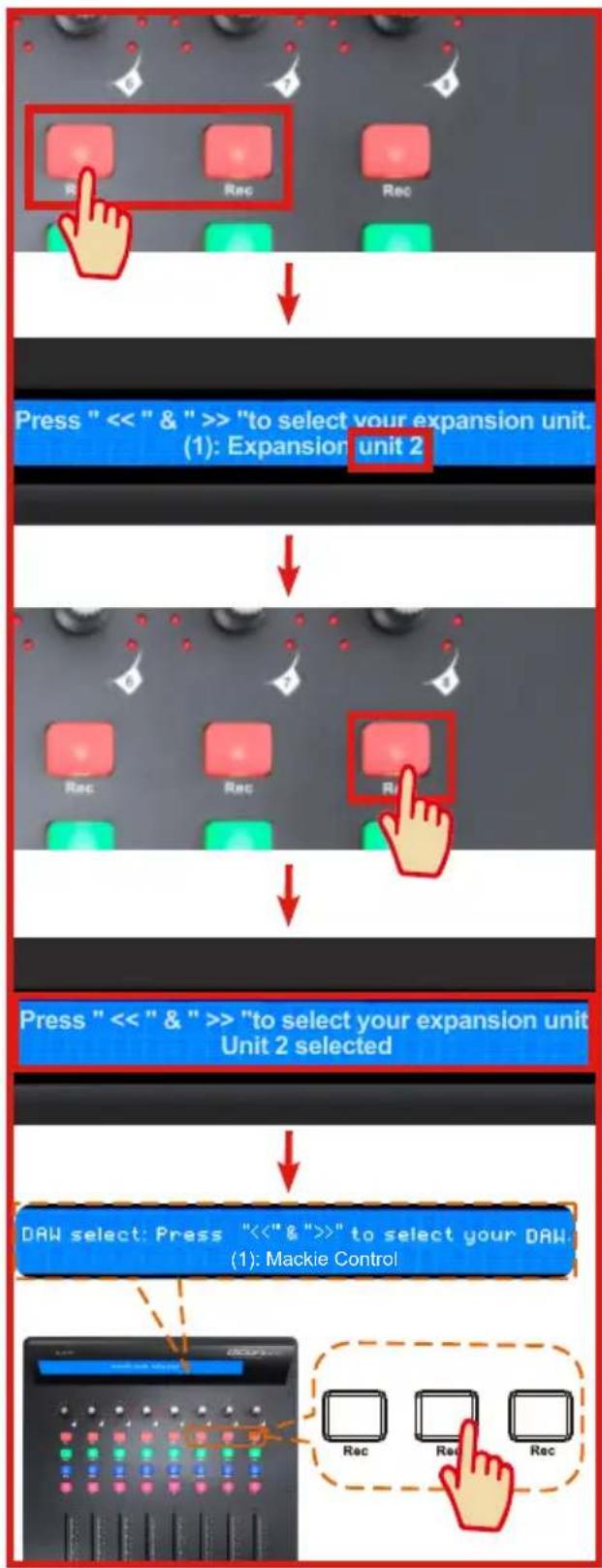
flowchart
graph TD
A["Press "<<" & " >> "to select your expansion unit. (1): Expansion unit 2"] --> B["Press "<<" & " >> "to select your expansion unit Unit 2 selected"]
B --> C["DAW select: Press "<<" & " >> " to select your DAW. (1): Mackie Control"]
3
QconEX G2 (3)
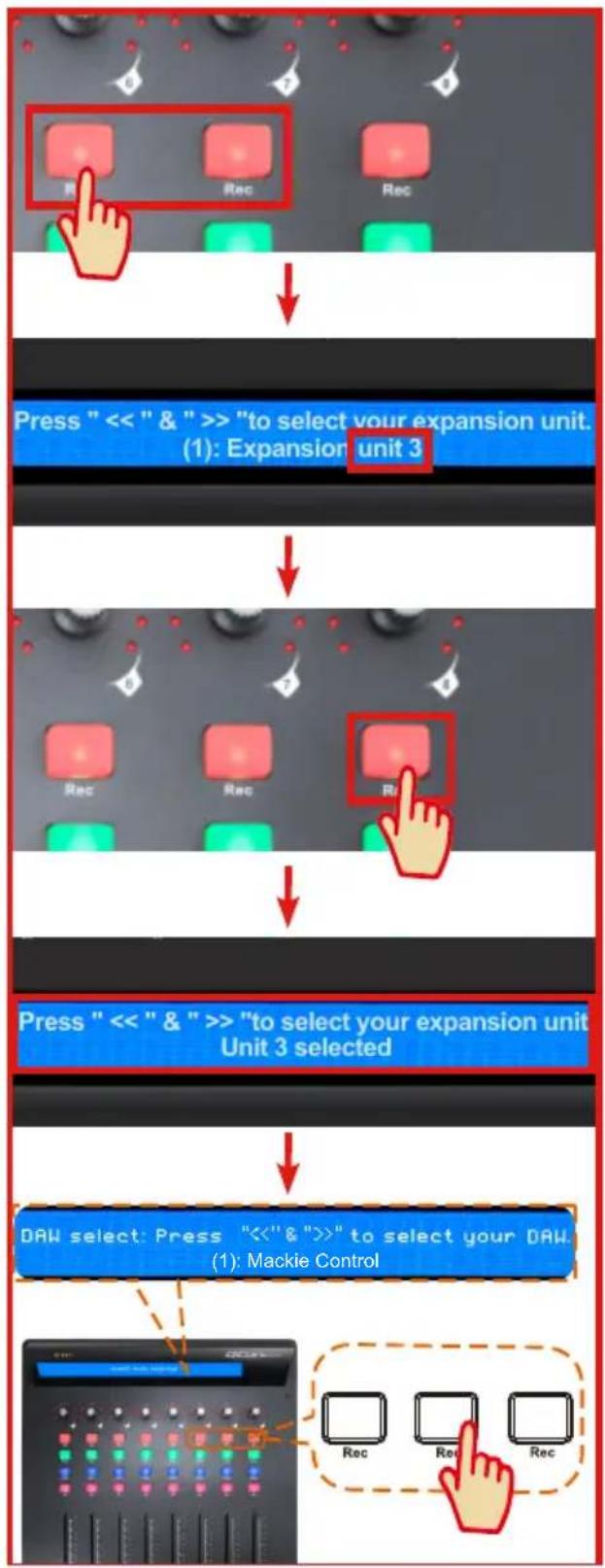
flowchart
graph TD
A["Press "<<" & " >>" to select your expansion unit. (1): Expansion unit 3"] --> B["Press "<<" & " >>" to select your expansion unit Unit 3 selected"]
B --> C["DAW select: Press "<<" & " >>" to select your DAW. (1): Mackie Control"]
4
QconPro G2
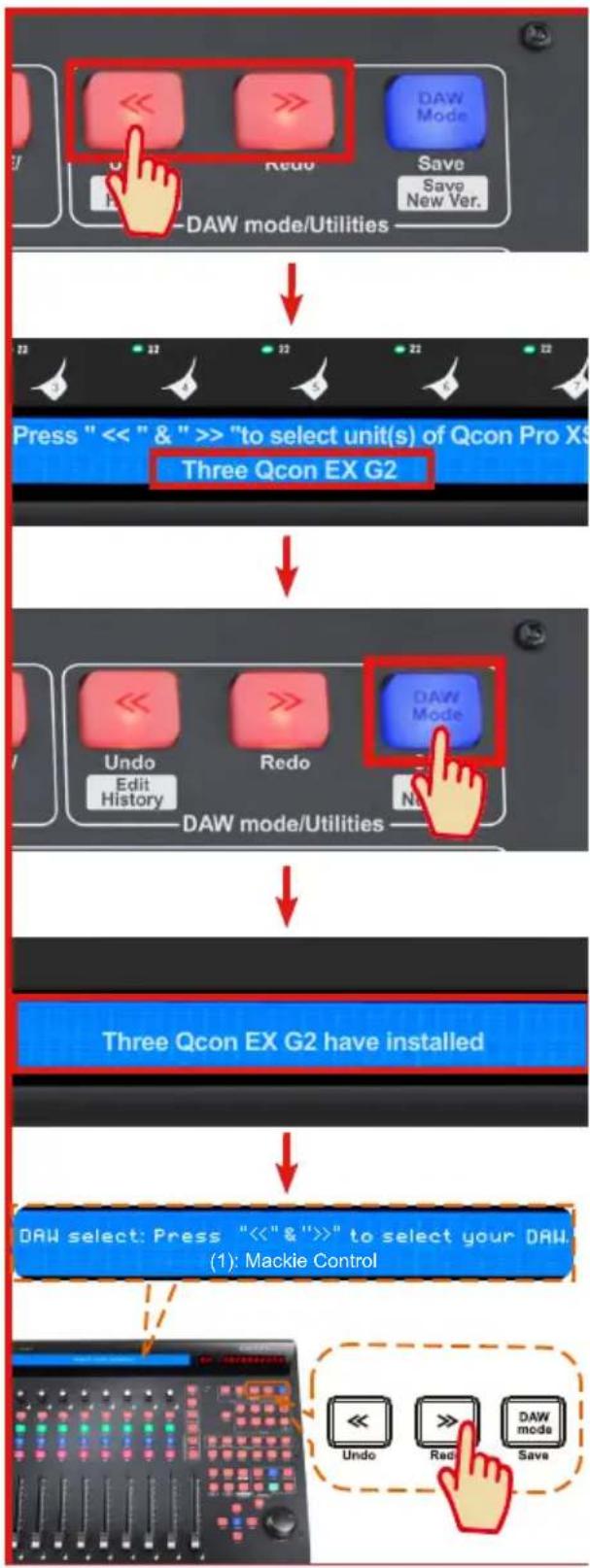
flowchart
graph TD
A["Press "<<" & " >> " to select unit(s) of Qcon Pro X5 Three Qcon EX G2"] --> B["Undo Edit History"]
B --> C["Redo"]
C --> D["DAW Mode"]
D --> E["Three Qcon EX G2 have installed"]
E --> F["DAW select: Press "<<" & " >> " to select your DAW (1): Mackie Control"]
For DAW's not on our setup demo list, please refer to your software user manual for hardware setup.)
Cubase
text_image
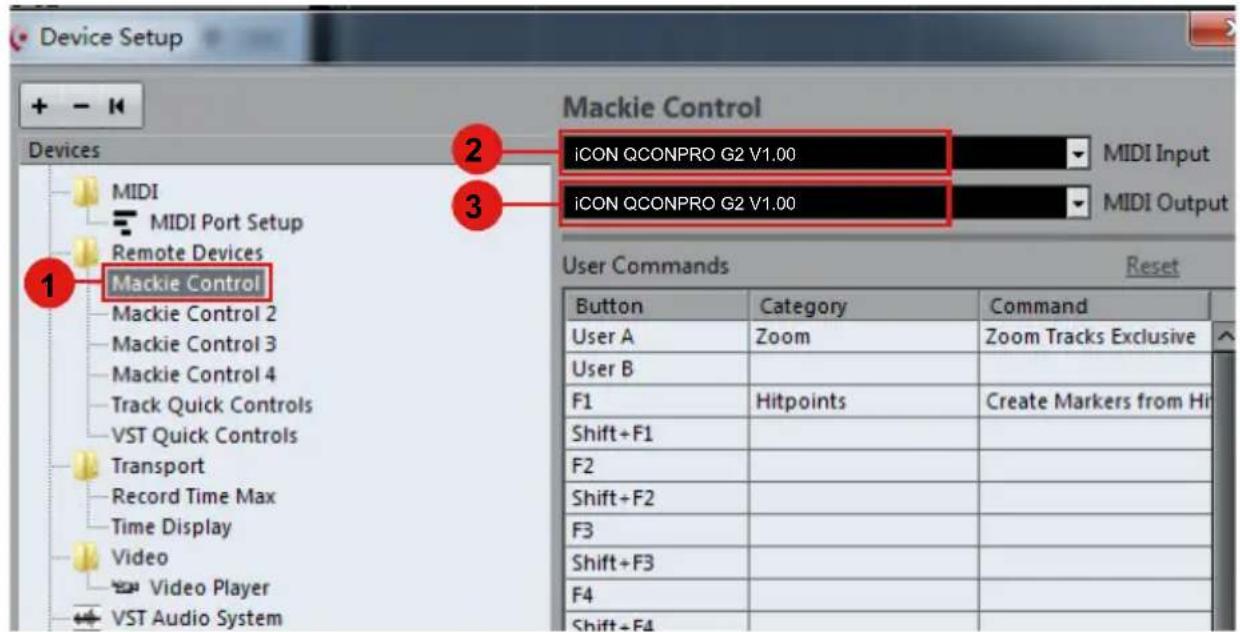
Device Setup Mackie Control MIDI MIDI Port Setup Remote Devices 1 Mackie Control Mackie Control 2 Mackie Control 3 Mackie Control 4 Track Quick Controls VST Quick Controls Transport Record Time Max Time Display Video Video Player VST Audio System 2 iCON QCONPRO G2 V1.00 MIDI Input 3 iCON QCONPRO G2 V1.00 MIDI Output User Commands Reset Button Category Command User A Zoom Zoom Tracks Exclusive User B F1 Hitpoints Create Markers from Hit Shift+F1 F2 Shift+F2 F3 Shift+F3 F4 Shift+F4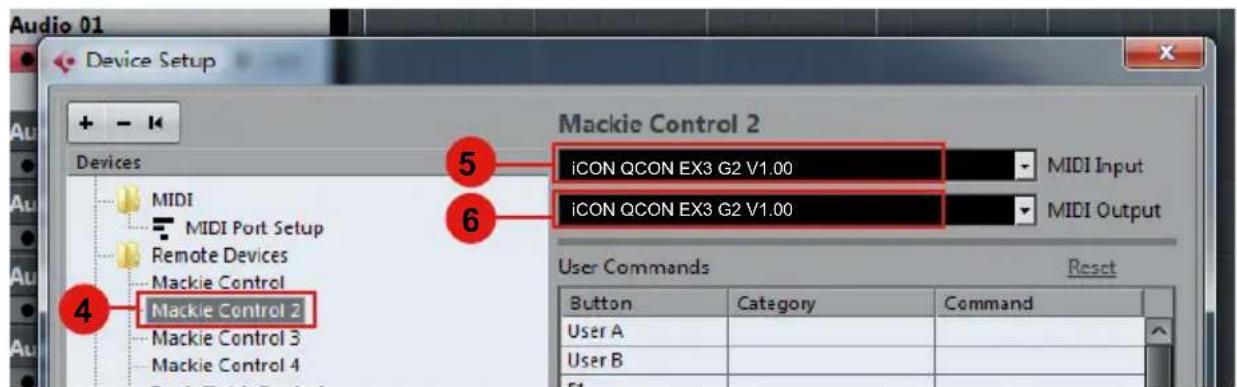
text_image
Audio 01 Device Setup + - Mackie Control 2 MIDI MIDI Port Setup Remote Devices Mackie Control Mackie Control 2 Mackie Control 3 Mackie Control 4 MACKIE Control 2 iCON QCON EX3 G2 V1.00 MIDI Input iCON QCON EX3 G2 V1.00 MIDI Output User Commands Reset Button Category Command User A User B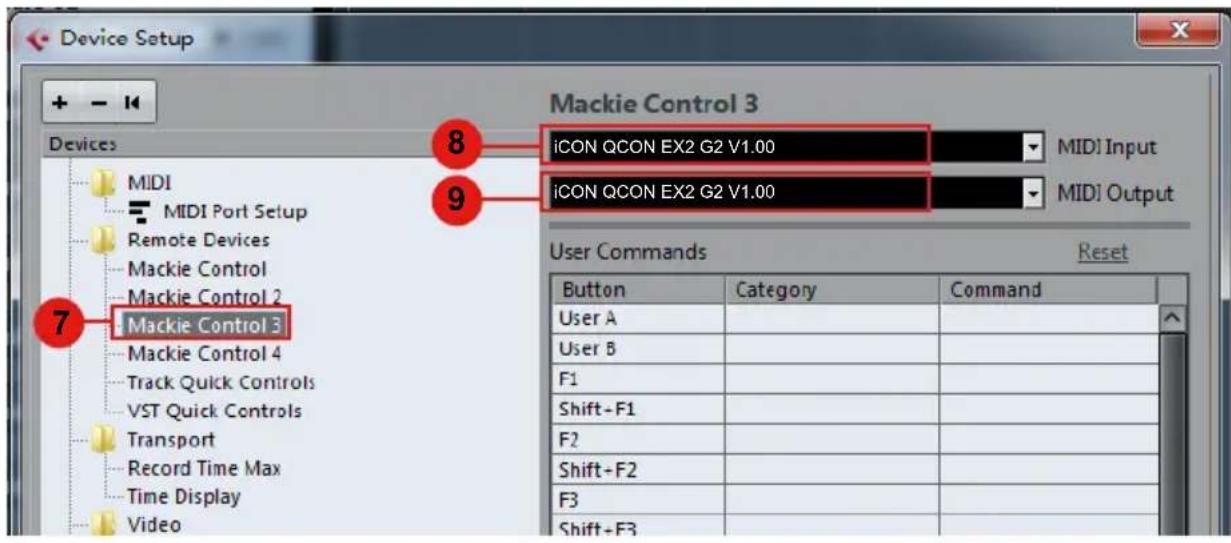
text_image
Device Setup Mackie Control 3 8 iCON QCON EX2 G2 V1.00 MIDI Input 9 iCON QCON EX2 G2 V1.00 MIDI Output Devices MIDI MIDI Port Setup Remote Devices Mackie Control Mackie Control 2 Mackie Control 3 User Commands Reset Button Category Command User A User B F1 Shift-F1 F2 Shift-F2 F3 Shift-F3 7 Record Time Max Time Display Video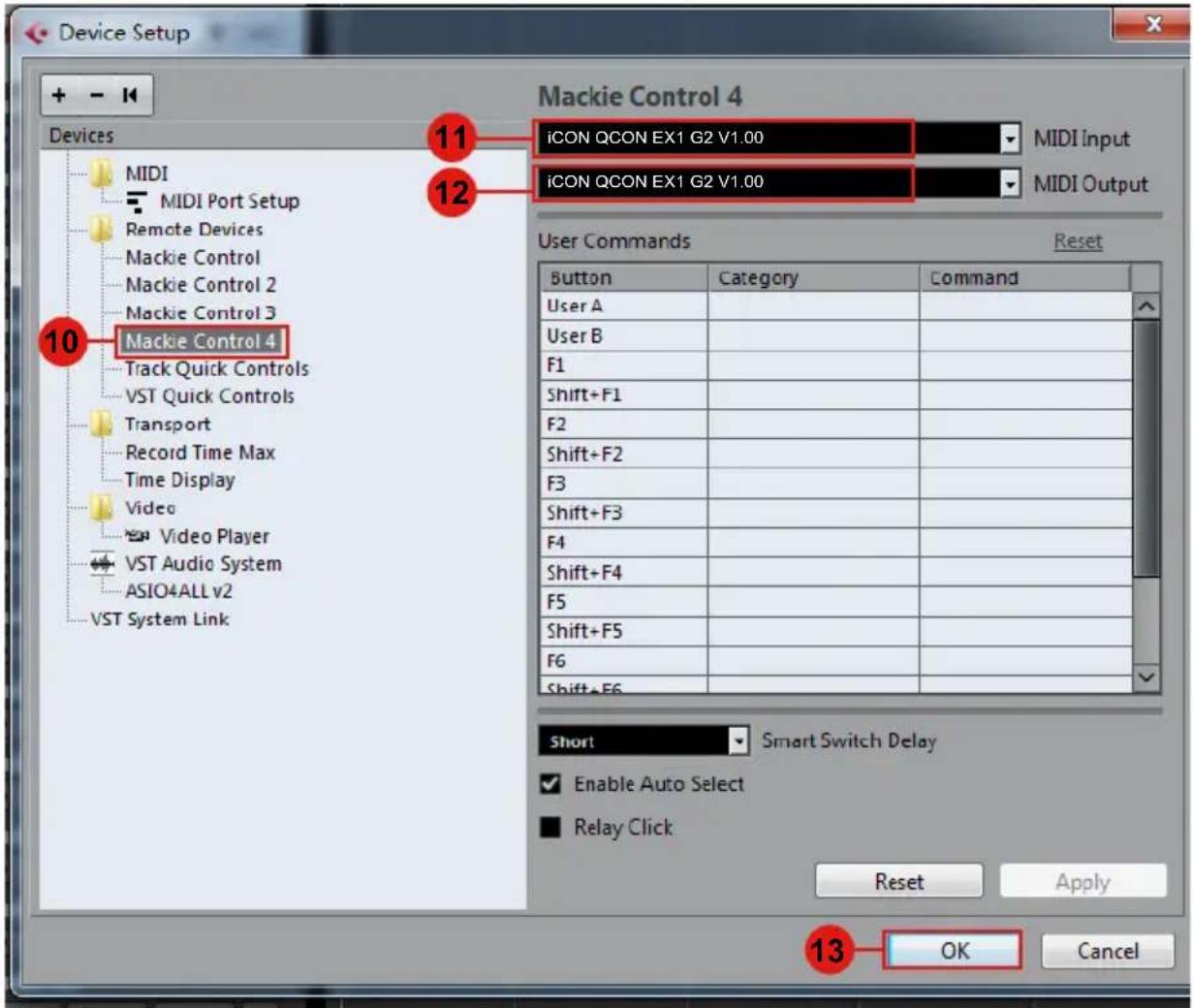
text_image
Device Setup Mackie Control 4 Devices MIDI MIDI Port Setup Remote Devices Mackie Control Mackie Control 2 Mackie Control 3 Mackie Control 4 Track Quick Controls VST Quick Controls Transport Record Time Max Time Display Video Video Player VST Audio System ASIO4ALL v2 VST System Link 11 12 icon QCON EX1 G2 V1.00 icon QCON EX1 G2 V1.00 MIDI Input MIDI Output User Commands Reset Button Category Command User A User B F1 Shift+F1 F2 Shift+F2 F3 Shift+F3 F4 Shift+F4 F5 Shift+F5 F6 Shift+F6 Short Smart Switch Delay Enable Auto Select Relay Click Reset Apply 13 OK CancelLogic Pro
text_image
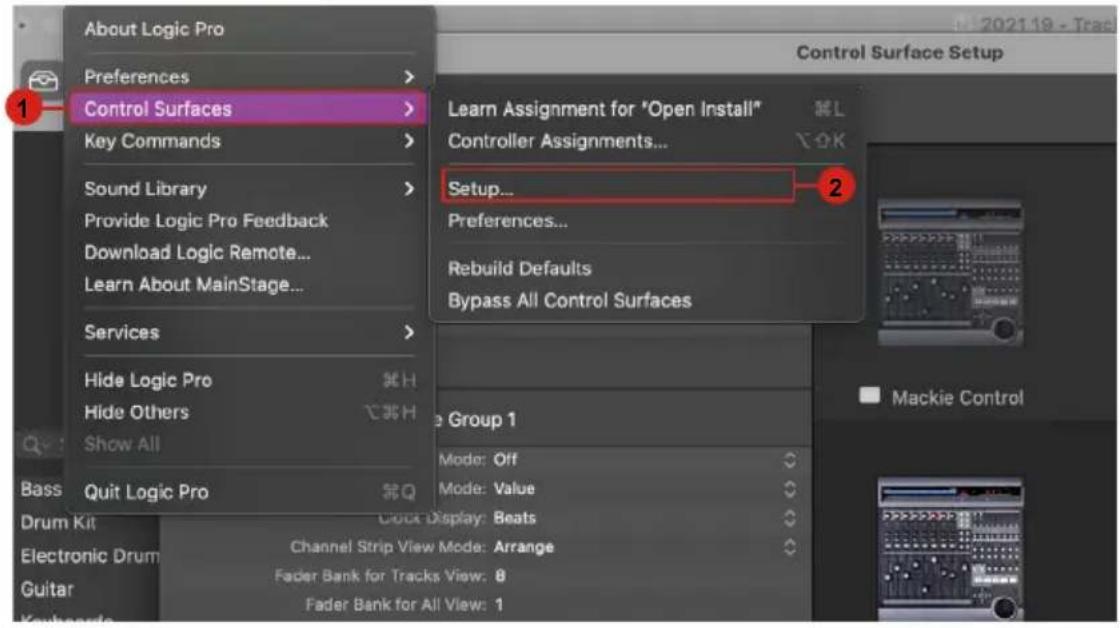
About Logic Pro Preferences > Control Surfaces > Key Commands > Sound Library > Provide Logic Pro Feedback Download Logic Remote... Learn About MainStage... Services > Hide Logic Pro Hide Others Show All Quit Logic Pro Check Display: Beats Channel Strip View Mode: Arrange Fader Bank for Tracks View: 8 Fader Bank for All View: 1 Learn Assignment for "Open Install" Controller Assignments... Setup... Preferences... Rebuild Defaults Bypass All Control Surfaces Mackie Control Control Surface Setup 1 2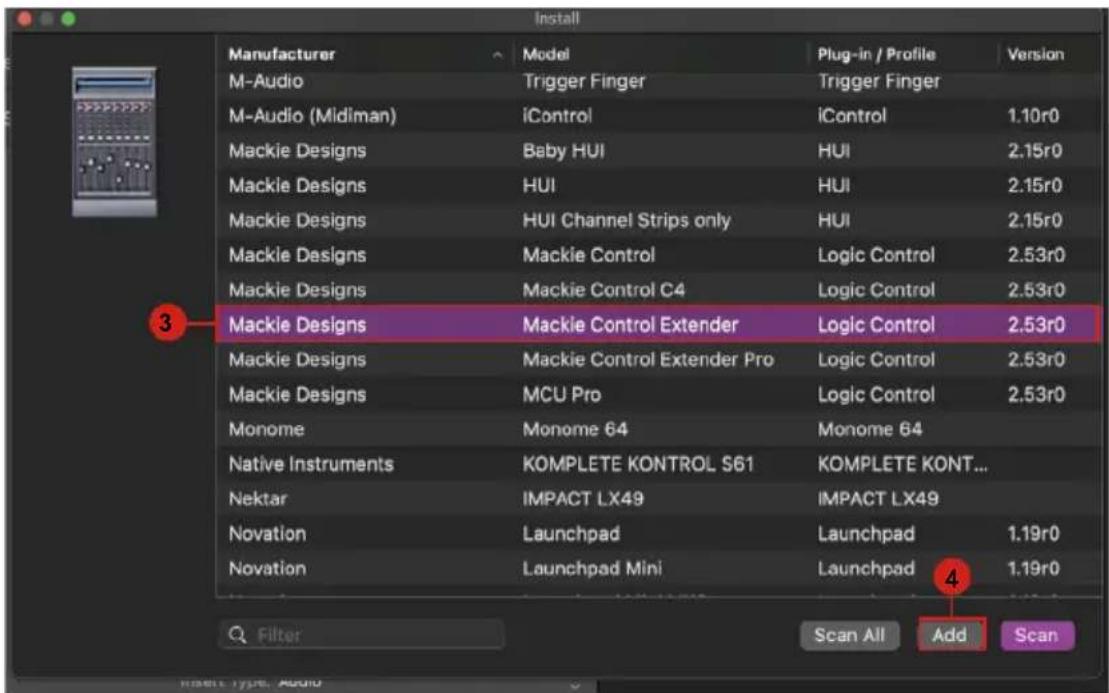
text_image
Install Manufacturer Model Plug-in / Profile Version M-Audio Trigger Finger Trigger Finger M-Audio (Midiman)*iControlHiControl 1.10r0 Mackie Designs Baby HUI HUI 2.15r0 Mackie Designs HUI HUI 2.15r0 Mackie Designs HUI Channel Strips only HUI 2.15r0 Mackie Designs Mackie ControlLiquid Control 2.53r0 Mackie Designs Mackie Control C4Liquid Control 2.53r0 Mackie Designs Mackie Control ExtenderLiquid Control 2.53r0 Mackie Designs Mackie Control Extender ProLiquid Control 2.53r0 Mackie Designs MCU ProLiquid Control 2.53r0 Monome Monome 64 Monome 64 Native Instruments KOMPLETE KONTROL S61 KOMPLETE KONT... Nektar IMPACT LX49 IMPACT LX49 Novation Launchpad Launchpad 1.19r0 Novation Launchpad Mini Launchpad 1.19r0 4. Filter Scan All Add Scan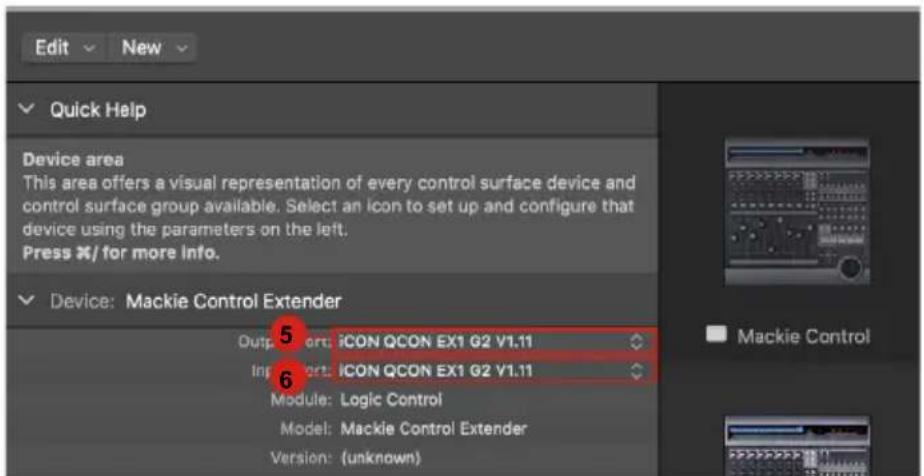
text_image
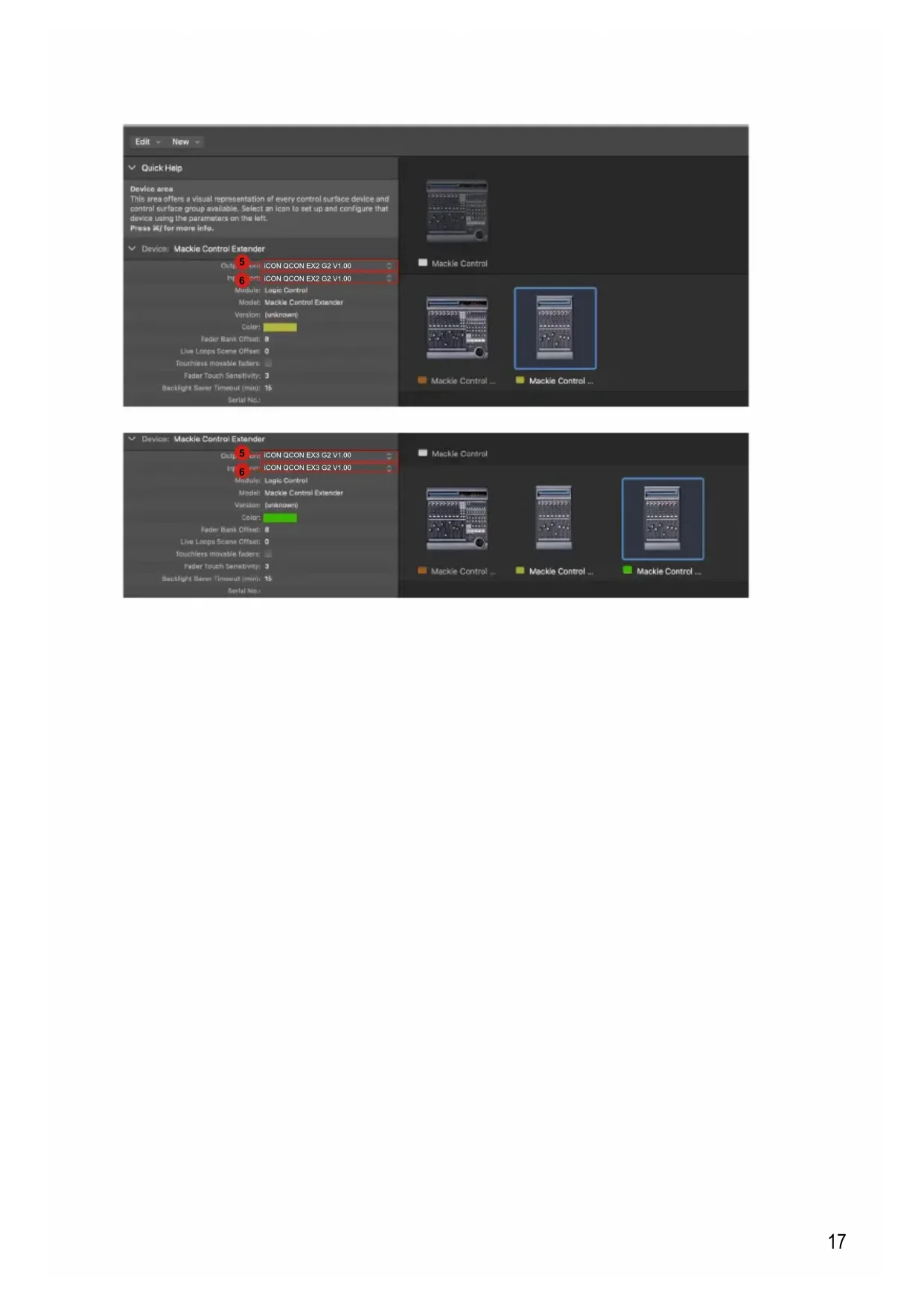
Edit New Quick Help Device area This area offers a visual representation of every control surface device and control surface group available. Select an icon to set up and configure that device using the parameters on the left. Press X/ for more info. Device: Mackie Control Extender 5 6 Output: ICON QCON EX1 G2 V1.11 Input: ICON QCON EX1 G2 V1.11 Module: Logic Control Model: Mackie Control Extender Version: (unknown)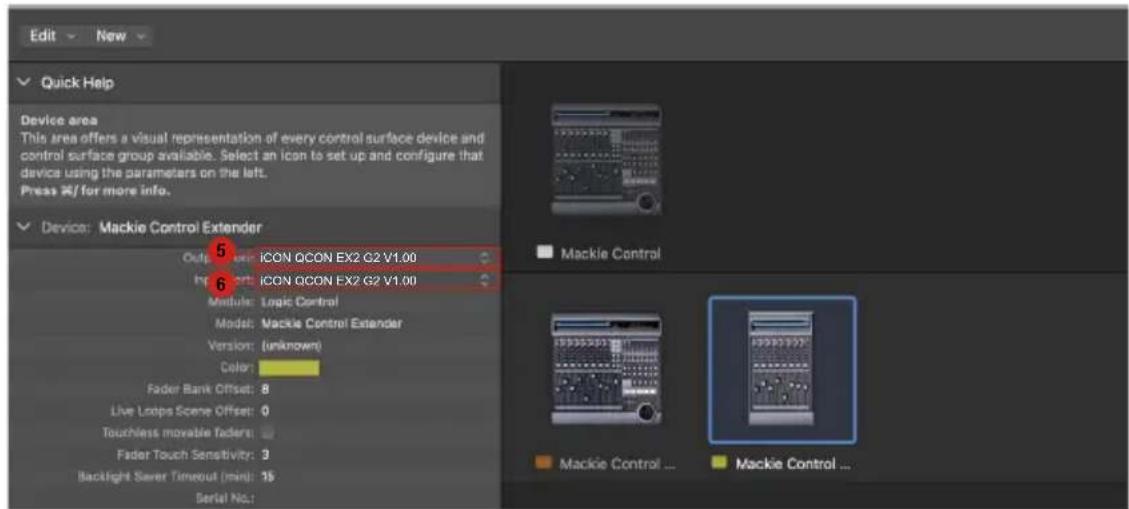
text_image
Edit New Quick Help Device area This area offers a visual representation of every control surface device and control surface group available. Select an icon to set up and configure that device using the parameters on the left. Press #/ for more info. Device: Mackie Control Extender 5 6 Output: ICON QCON EX2 G2 V1.00 Input: ICON QCON EX2 G2 V1.00 Module: Logic Control Model: Mackie Control Extender Version: (unknown) Color: Fader Bank Offset: 8 Live Loops Scene Offset: 0 Touchless movable Taders: Fader Touch Sensitivity: 3 Backlight Saver Timeout (min): 15 Serial No.: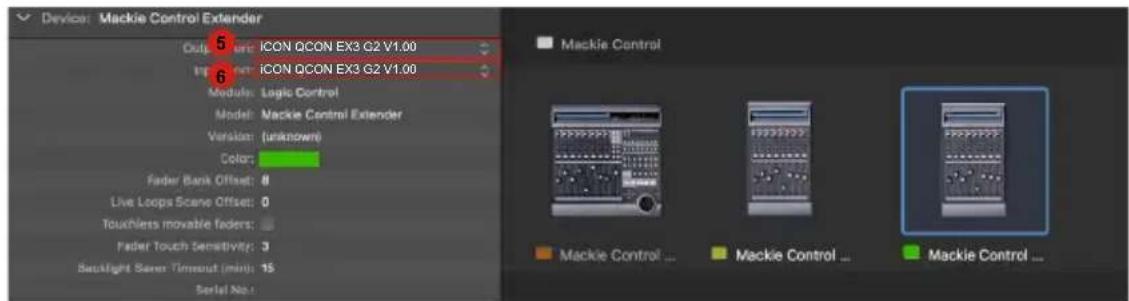
text_image
Device: Mackie Control Extender 5 ICON QCON EX3 G2 V1.00 6 ICON QCON EX3 G2 V1.00 Module: Logic Control Model: Mackie Control Extender Version: (unknown) Color: Fader Bank Offset: 8 Live Loops Scene Offset: 0 Touchless movable faders: Fader Touch Sensitivity: 3 Backlight Seren Timeout (min): 15 Serial No.: Mackie Control Mackie Control ... Mackie Control ...Pro Tools
text_image
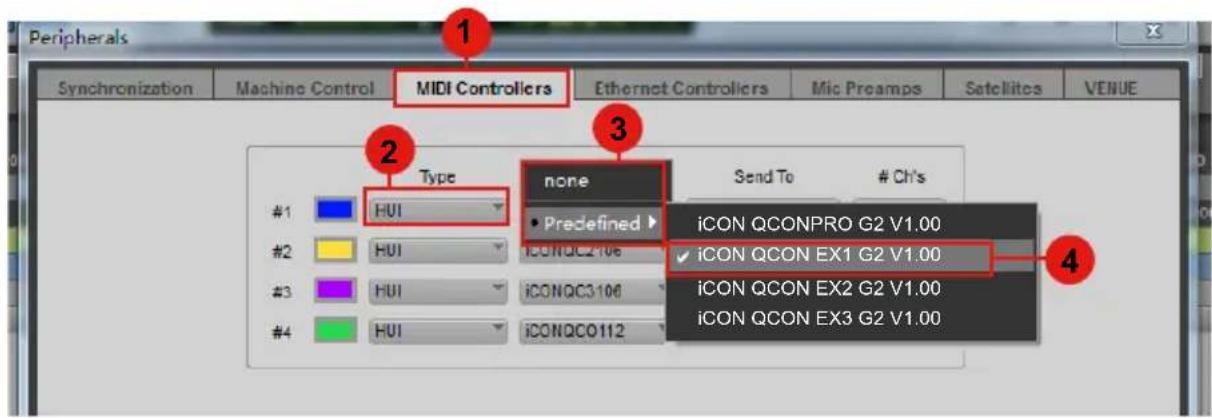
Peripherals Synchronization Machine Control MIDI Controllers Ethernet Controllers Mic Preamps Satellites VENUE 1 2 Type none Send To # Ch's #1 HUI Predefined iCON QCONPRO G2 V1.00 #2 HUI ICONQC2-106 iCONQCON EX1 G2 V1.00 #3 HUI ICONQC3-106 iCONQCON EX2 G2 V1.00 #4 HUI ICONQC0112 iCONQCON EX3 G2 V1.00 4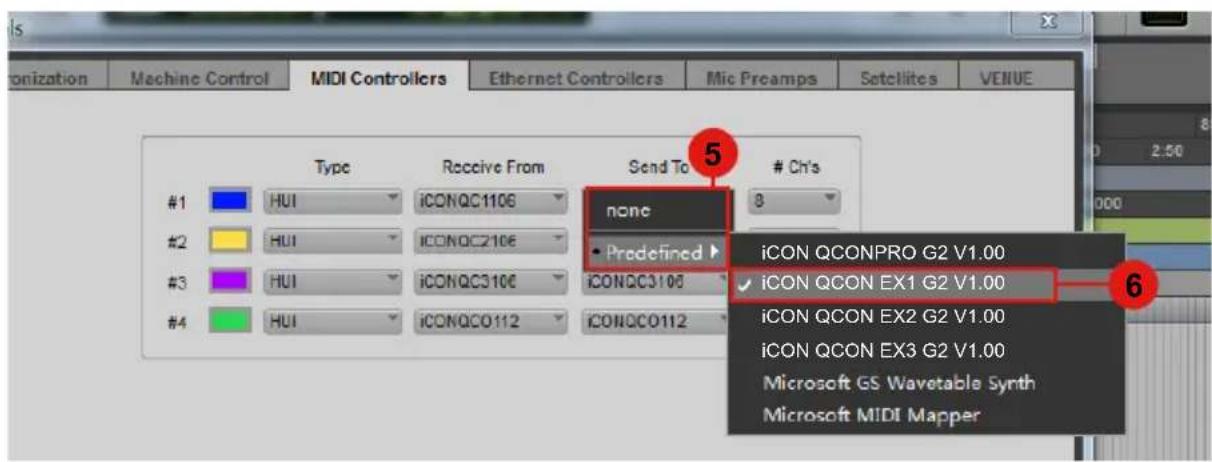
text_image
Organization Machine Control MIDI Controllers Ethernet Controllers Mic Preamps Satellites VENUE Type Receive From Send To # Ch's #1 HUI ICONQC1106 none 8 #2 HUI ICONQC210€ Predefined ▶ ICON QCON PRO G2 V1.00 #3 HUI ICONQC310€ ICONQC3100 ▼ ICON QCON EX1 G2 V1.00 #4 HUI ICONQC0112 ICONQC0112 ▼ ICON QCON EX2 G2 V1.00 iCON QCON EX3 G2 V1.00 Microsoft GS Wavetable Synth Microsoft MIDI Mapper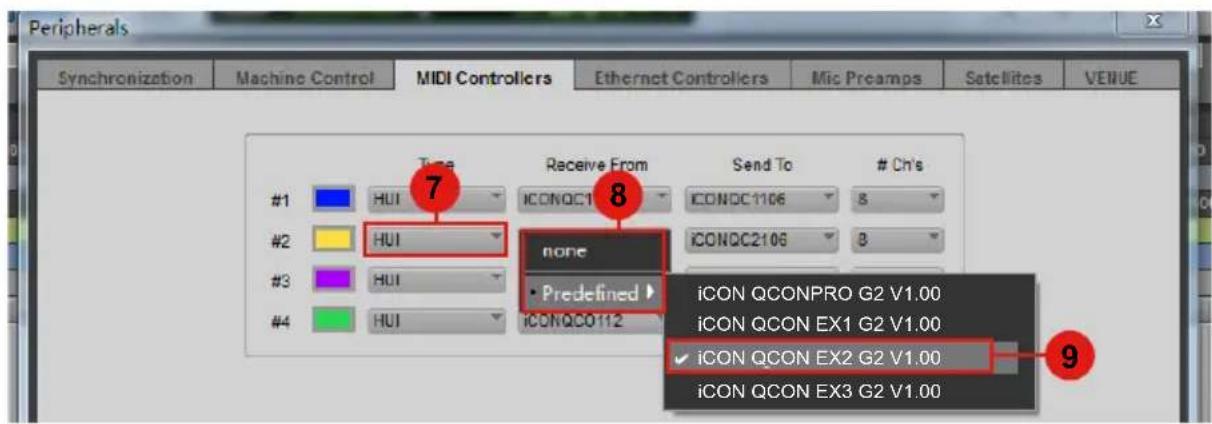
text_image
Peripherals Synchronization Machine Control MIDI Controllers Ethernet Controllers Mic Preamps Satellites VENUE Type Receive From Send To # Ch's #1 HUI ICONQC1 ICONQC1106 8 #2 HUI none ICONQC2106 8 #3 HUI • Predefined ▶ #4 HUI ICONQC0112 iCON QCONPRO G2 V1.00 iCON QCON EX1 G2 V1.00 ✓ iCON QCON EX2 G2 V1.00 iCON QCON EX3 G2 V1.00 9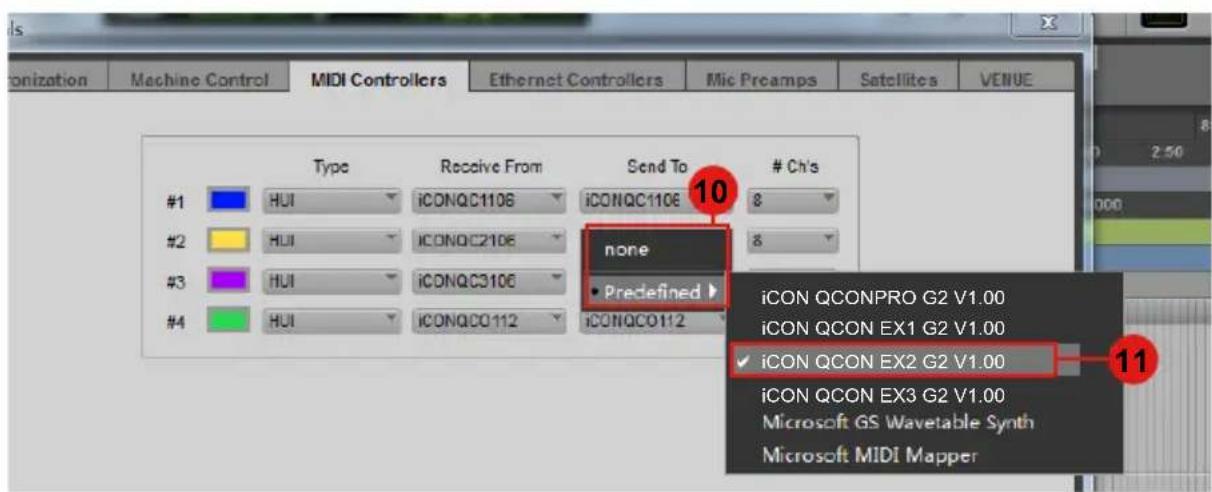
text_image
Organization Machine Control MIDI Controllers Ethernet Controllers Mic Preamps Satellites VENUE Type Receive From Send To # Ch's #1 HUI ICONQC1106 ICONQC1106 8 #2 HUI ICONQC2106 none 8 #3 HUI ICONQC3106 Predefined #4 HUI ICONQC0112 ICONQC0112 ICON QCONPRO G2 V1.00 ICON QCON EX1 G2 V1.00 ICON QCON EX2 G2 V1.00 ICON QCON EX3 G2 V1.00 Microsoft GS Wavetable Synth Microsoft MIDI Mapper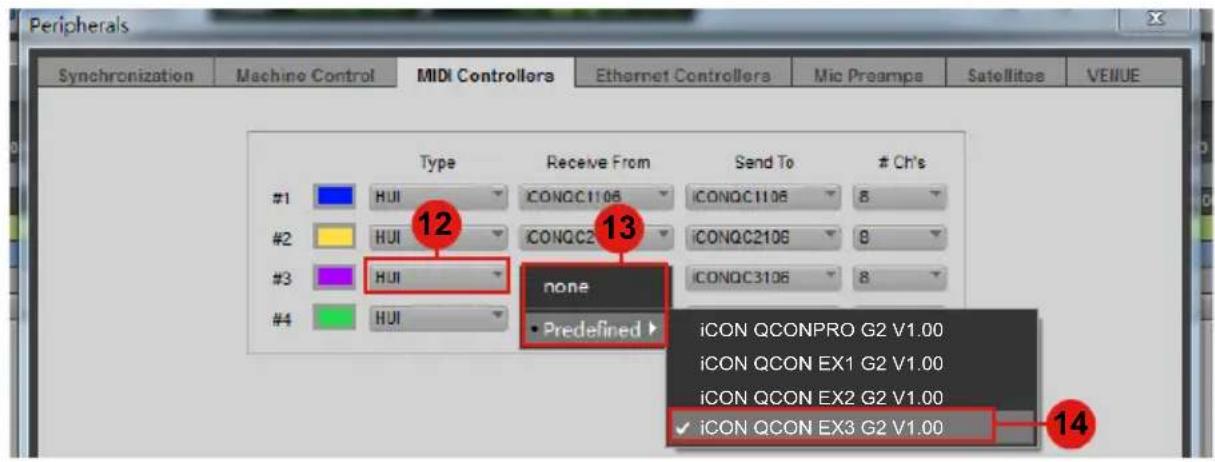
text_image
Peripherals Synchronization Machine Control MIDI Controllers Ethernet Controllers Mic Preamps Satellite VENUE Type Receive From Send To # Ch's #1 HUI ICONQC1106 ICONQC1106 8 #2 HUI ICONQC2 ICONQC2106 9 #3 HUI none ICONQC3106 8 #4 HUI Predefined iCON QCONPRO G2 V1.00 iCON QCON EX1 G2 V1.00 iCON QCON EX2 G2 V1.00 iCON QCON EX3 G2 V1.00 14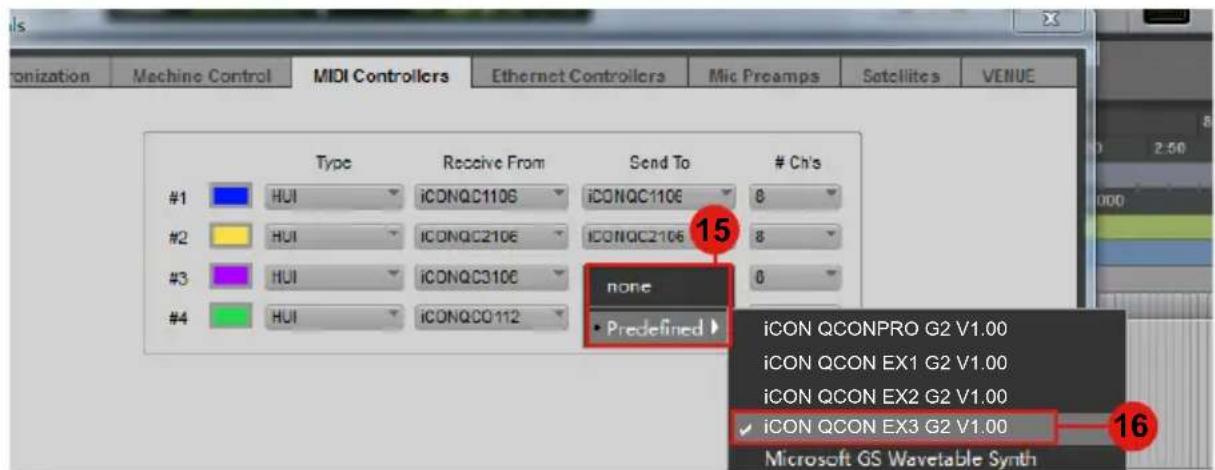
text_image
ronization Machine Control MIDI Controllers Ethernet Controllers Mic Preamps Satellites VENUE Type Receive From Send To # Ch's #1 HUI ICONQC1106 ICONQC1106 8 #2 HUI ICONQC2106 ICONQC2106 8 #3 HUI ICONQC3106 none 0 #4 HUI ICONQC0112 Predefined ICON QCONPRO G2 V1.00 ICON QCON EX1 G2 V1.00 ICON QCON EX2 G2 V1.00 ICON QCON EX3 G2 V1.00 Microsoft GS Wavetable Synth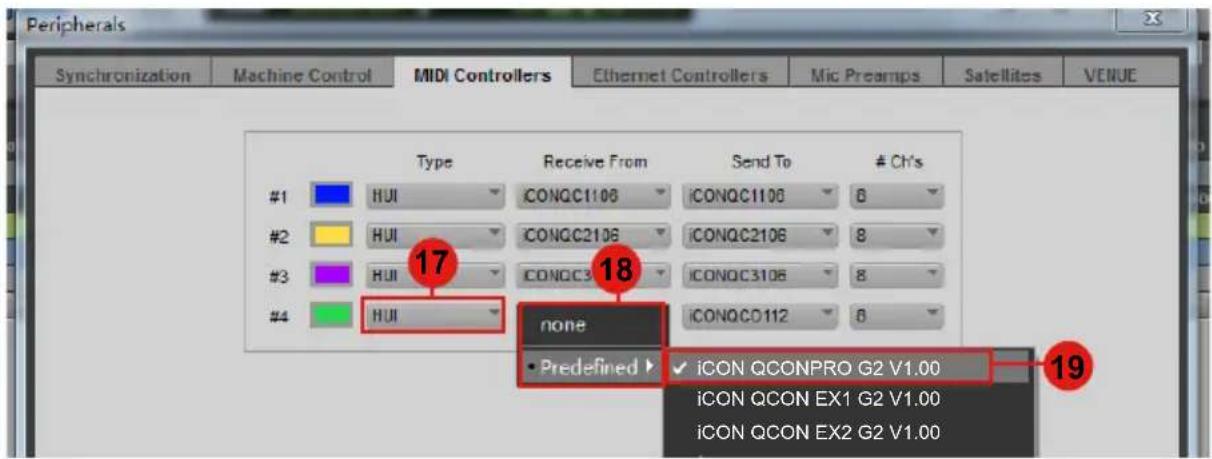
text_image
Peripherals Synchronization Machine Control MIDI Controllers Ethernet Controllers Mic Preamps Satellites VENUE Type Receive From Send To # Ch's #1 HUI ICONQC1106 ICONQC1106 6 #2 HUI ICONQC2106 ICONQC2106 8 #3 HUI ICONQC3 ICONQC3106 8 #4 HUI none ICONQCO112 6 • Predefined ▶ iCON QCONPRO G2 V1.00 iCON QCON EX1 G2 V1.00 iCON QCON EX2 G2 V1.00 17 18 19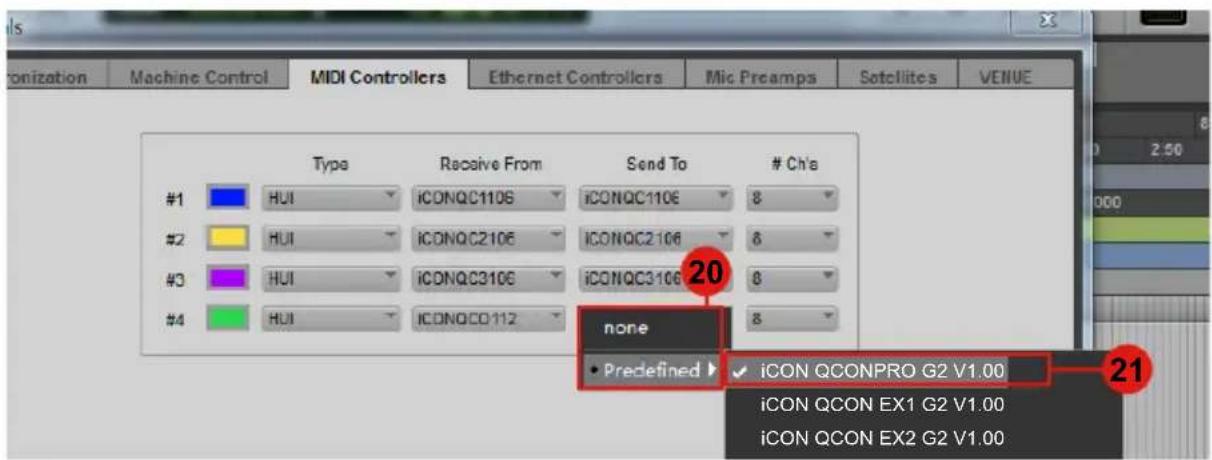
text_image
I/O nization Machine Control MIDI Controllers Ethernet Controllers Mic Preamps Sotellites VENUE Type Receive From Send To # Ch's #1 HUI ICONQC1106 ICONQC1106 8 #2 HUI ICONQC2106 ICONQC2106 8 #3 HUI ICONQC3106 ICONQC3106 8 #4 HUI ICONQCO112 none 8 • Predefined ▶ ICON QCONPRO G2 V1.00 21 ICON QCON EX1 G2 V1.00 ICON QCON EX2 G2 V1.00text_image
Press "<<" &">>"to select your expansion unit (1):Expansion unit 1 Rec Rec Rectext_image
About Logic Pro Preferences > Control Surfaces > Key Commands > Sound Library > Provide Logic Pro Feedback Download Logic Remote... Learn About MainStage... Services > Hide Logic Pro Hide Others Show All Quit Logic Pro Clock Display: Beats Channel Strip View Mode: Arrange Fader Bank for Tracks View: 8 Fader Bank for All View: 1 Learn Assignment for "Open Install" Controller Assignments... Setup... Preferences... Rebuild Defaults Bypass All Control Surfaces e Group 1 Mode: Off Mode: Value Mackie Control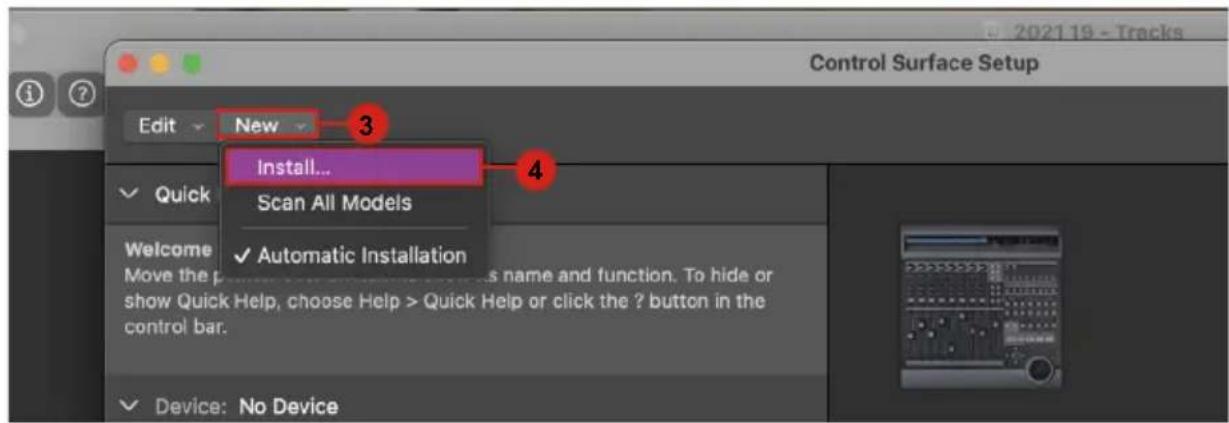
text_image
2021 19 - Tracks Control Surface Setup Edit New 3 Install... Scan All Models ✓ Quick Welcome Move the p ✓ Automatic Installation ✓ Device: No Device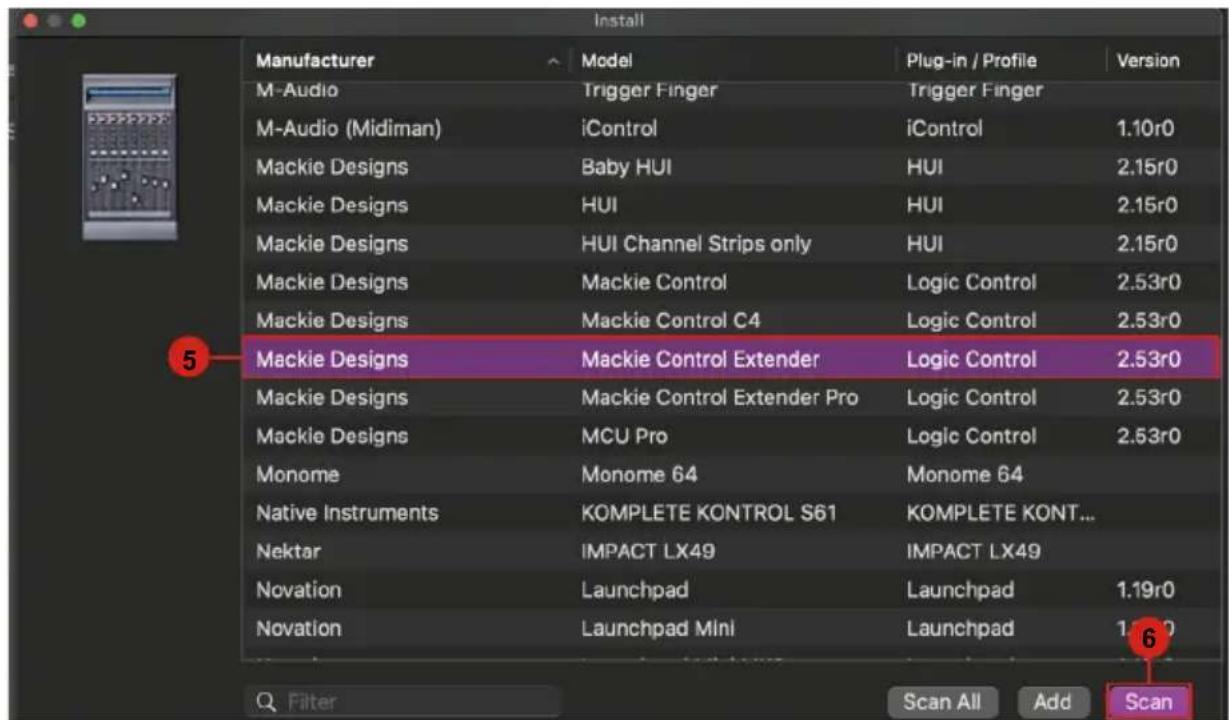
text_image
Install Manufacturer Model Plug-in / Profile Version M-Audio Trigger Finger Trigger Finger M-Audio (Midiman)HiControlHiControl 1.10r0 Mackie Designs Baby HUI HUI 2.15r0 Mackie Designs HUI HUI 2.15r0 Mackie Designs HUI Channel Strips only HUI 2.15r0 Mackie Designs Mackie ControlLiquid Control 2.53r0 Mackie Designs Mackie Control C4Liquid Control 2.53r0 Mackie Designs Mackie Control ExtenderLiquid Control 2.53r0 Mackie Designs Mackie Control Extender ProLiquid Control 2.53r0 Mackie Designs MCU ProLiquid Control 2.53r0 Monome Monome 64 Monome 64 Native Instruments KOMPLETE KONTROL S61 KOMPLETE KONT... Nektar IMPACT LX49 IMPACT LX49 Novation Launchpad Launchpad 1.19r0 Novation Launchpad Mini Launchpad 1.19r0 Scan All Add Scan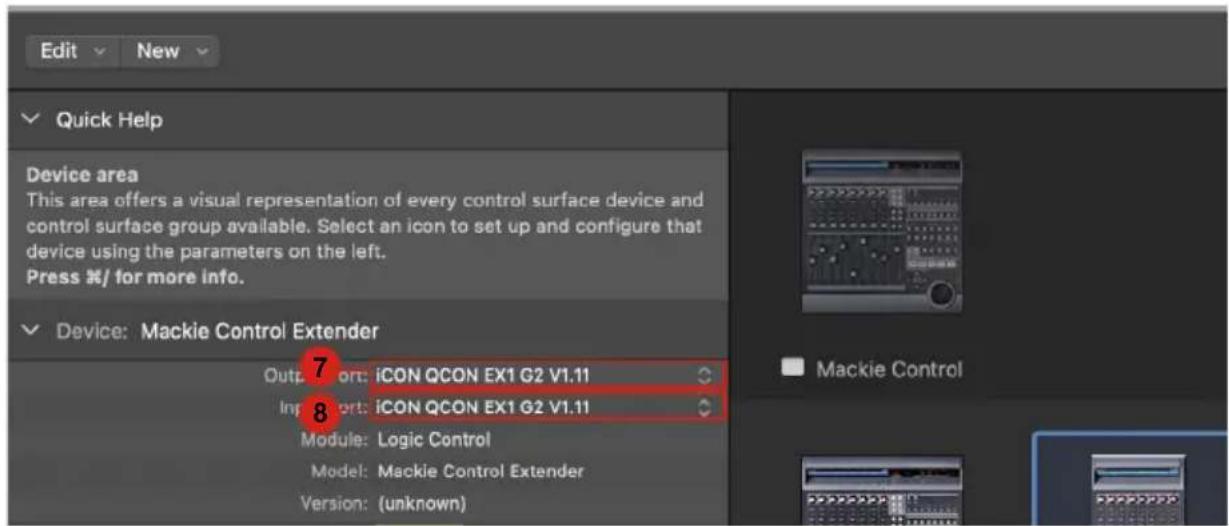
text_image
Edit New Quick Help Device area This area offers a visual representation of every control surface device and control surface group available. Select an icon to set up and configure that device using the parameters on the left. Press #/ for more info. Device: Mackie Control Extender 7 Output: ICON QCON EX1 G2 V1.11 8 Input: ICON QCON EX1 G2 V1.11 Module: Logic Control Model: Mackie Control Extender Version: (unknown)Samplitude
text_image
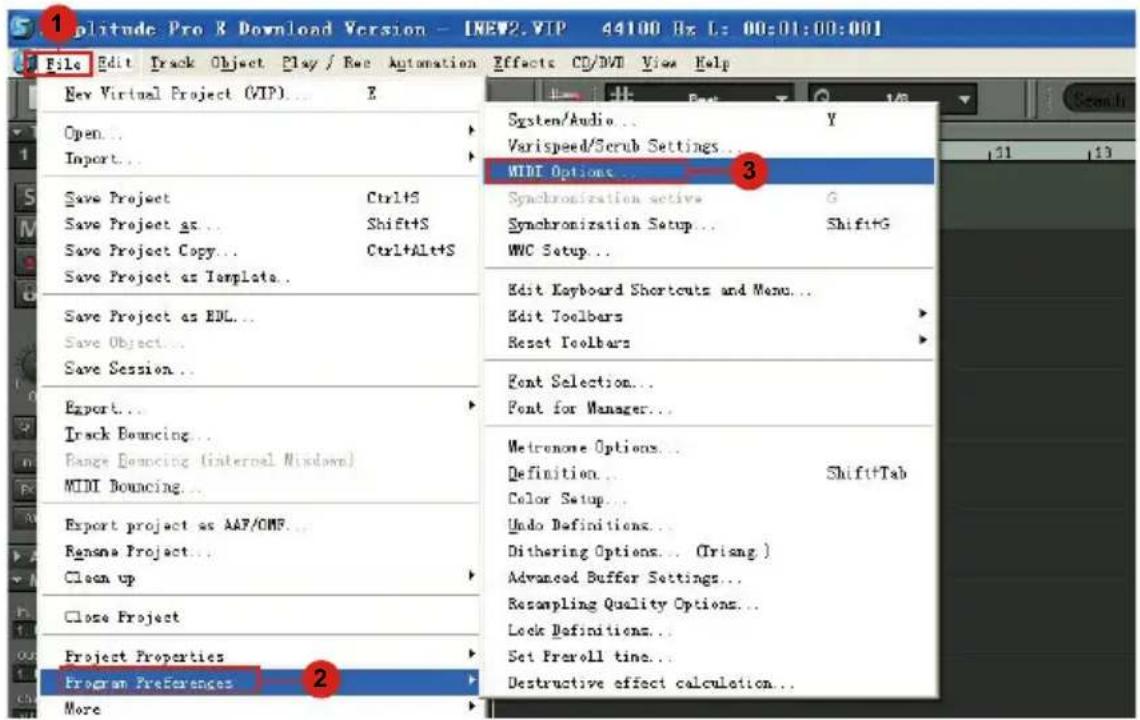
1 plitude Pro & Download Version - [NEW2.VIP 44100 Hz L: 00:01:00:001] File Edit Track Object Play / Rsc Automation Effects CD/DVD View Help New Virtual Project (VIP)... Open... Import... Save Project Ctrl+S Save Project as... Shift+S Save Project Copy... Ctrl+Alt+S Save Project as Template... Save Project as EDL... Save Object... Save Session... Export... Track Bouncing... Range Bouncing (internal Window) MIDI Bouncing... Export project as AAF/OMP... Rename Project... Clean up Close Project Project Properties Program Preferences More System/Audio... Varispeed/Scrub Settings... MIDI Options... Synchronization active G Synchronization Setup... Shift+G WMC Setup... Edit Keyboard Shortcuts and Menu... Edit Toolbars Reset Toolbars Font Selection... Font for Manager... Metronose Options... Definition... Shift+Tab Color Setup... Undo Definitions... Dithering Options... (Trisng ) Advanced Buffer Settings... Resampling Quality Options... Lock Definitions... Set Preroll time... Destructive effect calculation...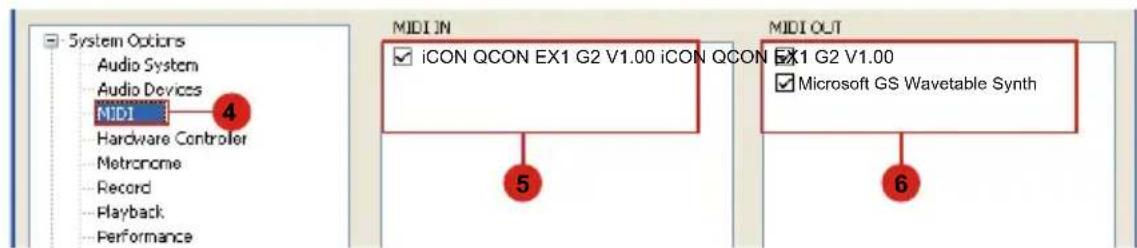
text_image
System Options Audio System Audio Devices MIDI Hardware Controller Metronome Record Playback Performance MIDI IN ICON QCON EX1 G2 V1.00 ICON QCON X1 G2 V1.00 Microsoft GS Wavetable Synth MIDI OUT 5 6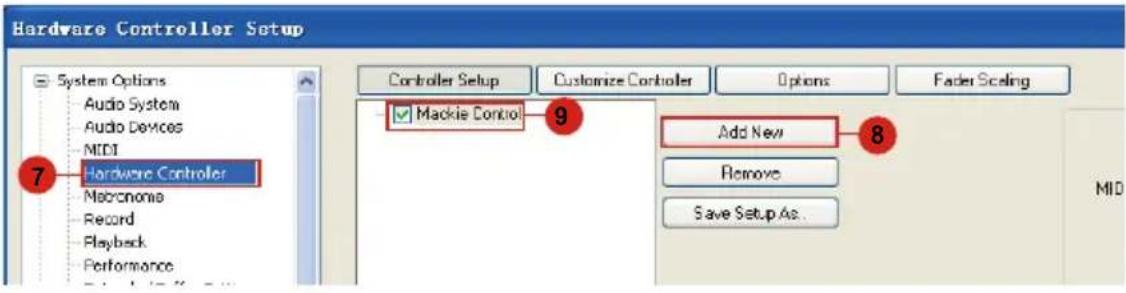
text_image
Hardware Controller Setup System Options Audio System Audio Devices MIDI Hardware Controller Macronoma Record Playback Performance Controller Setup Customize Controller Options Fader Scaling Mackie Control Add New Remove Save Setup As. 7 8 MID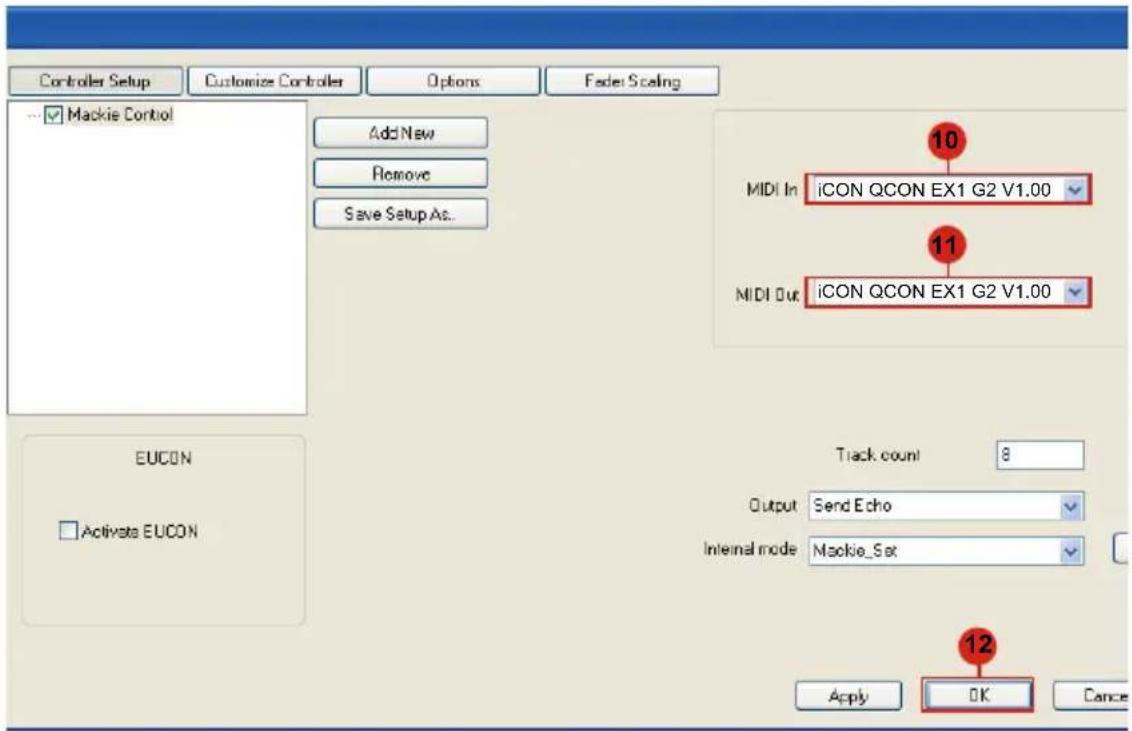
text_image
Controller Setup Customize Controller Options Feder Scaling Mackie Control Add New Remove Save Setup As... MIDI In iCON QCON EX1 G2 V1.00 10 11 MIDI Out iCON QCON EX1 G2 V1.00 Track count 8 Output Send Echo Internal mode Mackie_Sat 12 Apply OK Cancel EUCON Activate EUCONBitwig
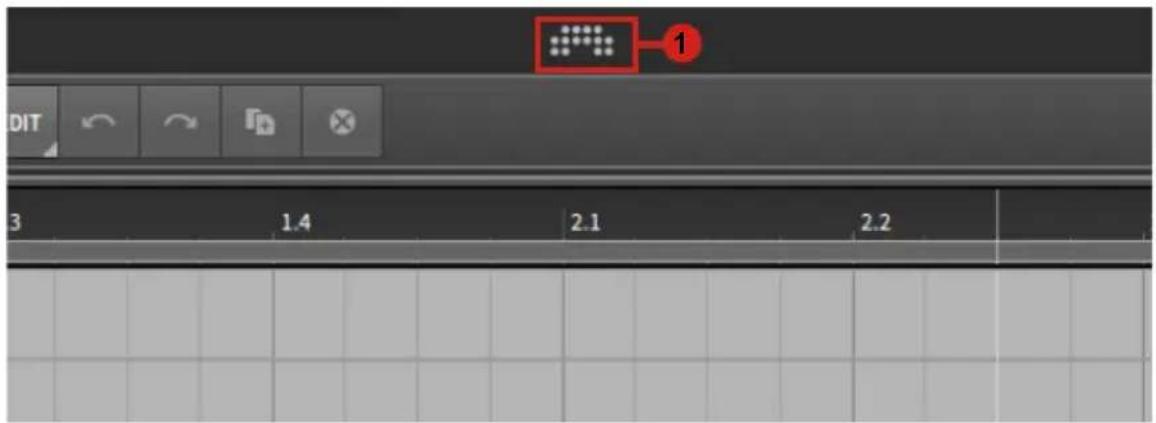
text_image
1 3 1.4 2.1 2.2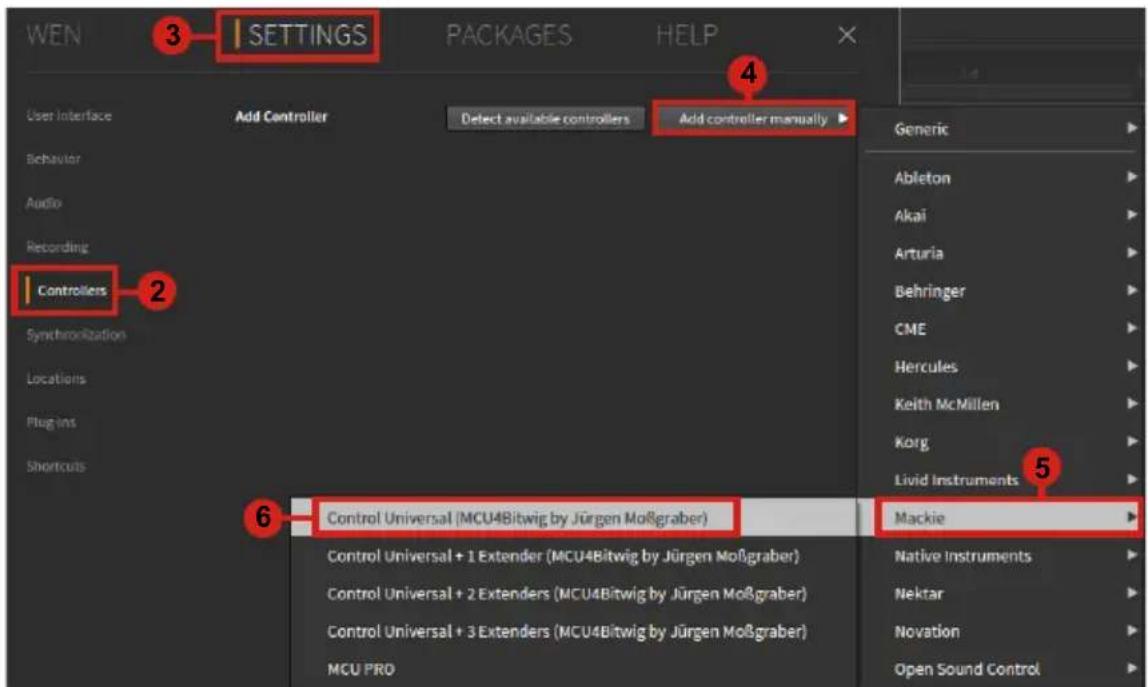
text_image
WEN 3 SETTINGS PACKAGES HELP User Interface Add Controller Detect available controllers Add controller manually 2 Controllers Synchrotronization Locations Plugins Shortcuts 6 Control Universal (MCU4Bitwig by Jürgen Moßgraber) Control Universal + 1 Extender (MCU4Bitwig by Jürgen Moßgraber) Control Universal + 2 Extenders (MCU4Bitwig by Jürgen Moßgraber) Control Universal + 3 Extenders (MCU4Bitwig by Jürgen Moßgraber) MCU PRO 4 Generic Ableton Akai Arturia Behringer CME Hercules Keith McMillen Korg Livid Instruments 5 Mackie Native Instruments Nektar Novation Open Sound Control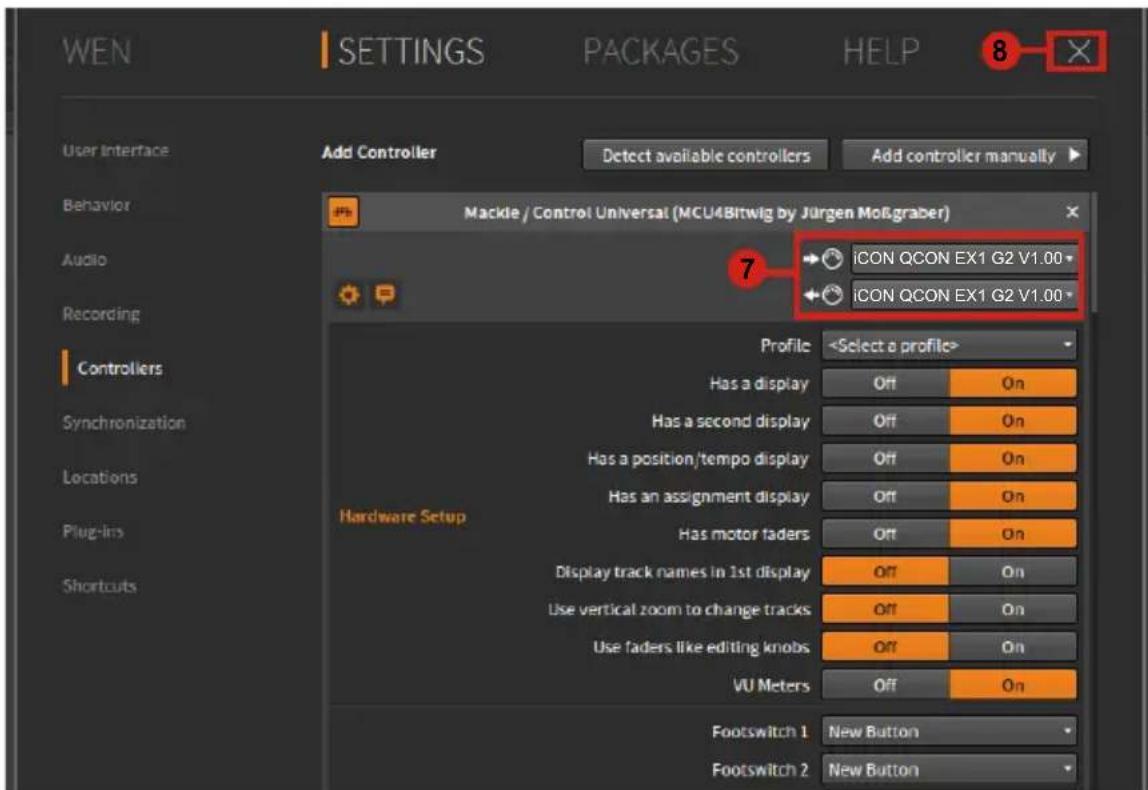
text_image
WEN SETTINGS PACKAGES HELP 8 Add Controller Detect available controllers Add controller manually Mackle / Control Universal (MCU4Bitwig by Jürgen Mößgraber) 7 ICON QCON EX1 G2 V1.00 ICON QCON EX1 G2 V1.00 Profile Has a display Has a second display Has a position/tempo display Has an assignment display Has motor faders Display track names in 1st display Use vertical zoom to change tracks Use faders like editing knobs VU Meters Footswitch 1 New Button Footswitch 2 New ButtonReason
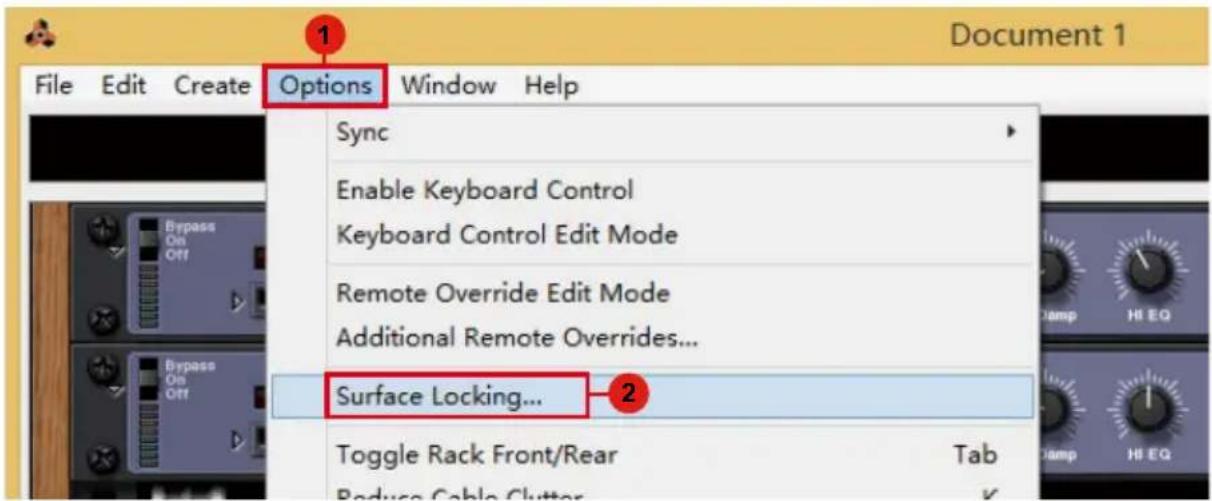
text_image
1 Options Window Help Sync Enable Keyboard Control Keyboard Control Edit Mode Remote Override Edit Mode Additional Remote Overrides... Surface Locking... Toggle Rack Front/Rear Tab Reduce Cable Clutter
text_image
Song Block Lock to devices Follow Master Keyboard Manual Rec M A Lanes Blocks 3 Open surface preferences... Transport Help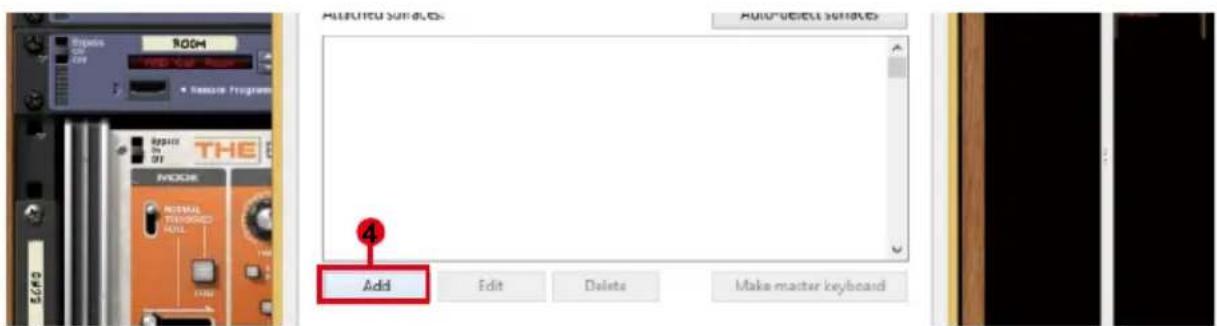
text_image
Audio/Video Audio Add Edit Delete Make master keyboard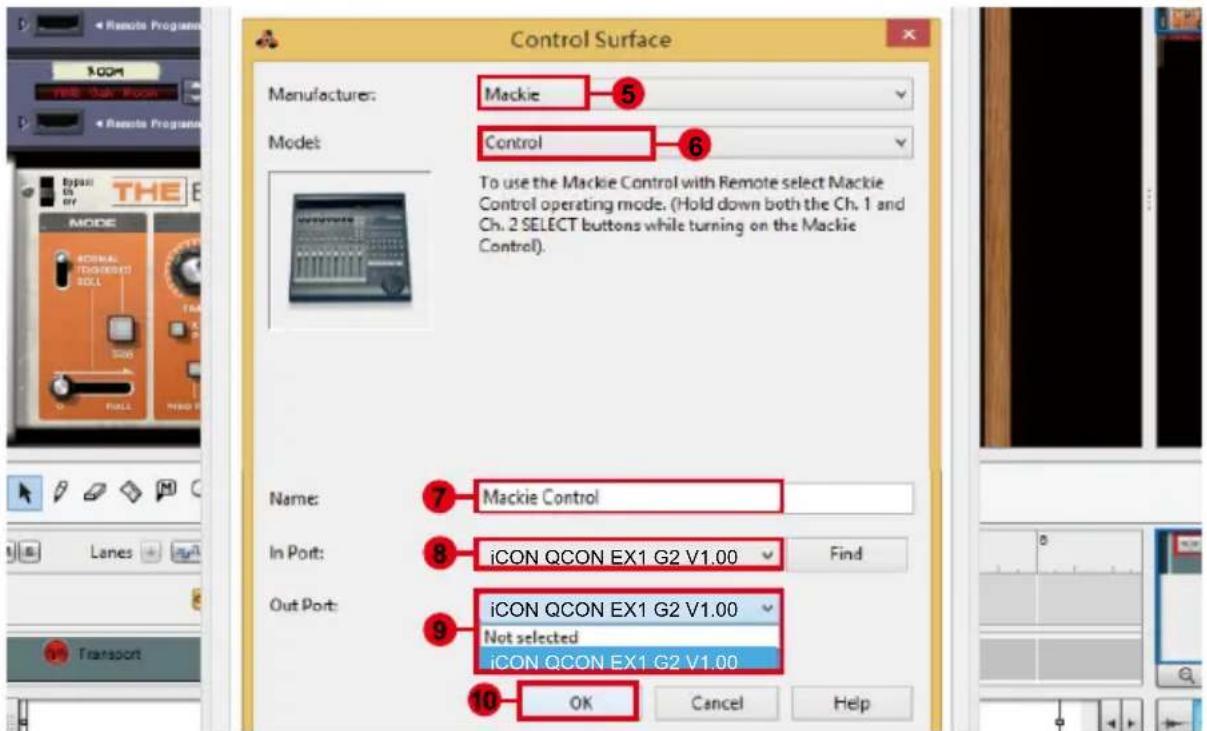
text_image
Control Surface Manufacturers: Mackie 5 Model: Control 6 To use the Mackie Control with Remote select Mackie Control operating mode. (Hold down both the Ch. 1 and Ch. 2 SELECT buttons while turning on the Mackie Control). Name: Mackie Control In Port: iCON QCON EX1 G2 V1.00 Find Out Port: iCON QCON EX1 G2 V1.00 Not selected iCON QCON EX1 G2 V1.00 10 OK Cancel HelpReaper
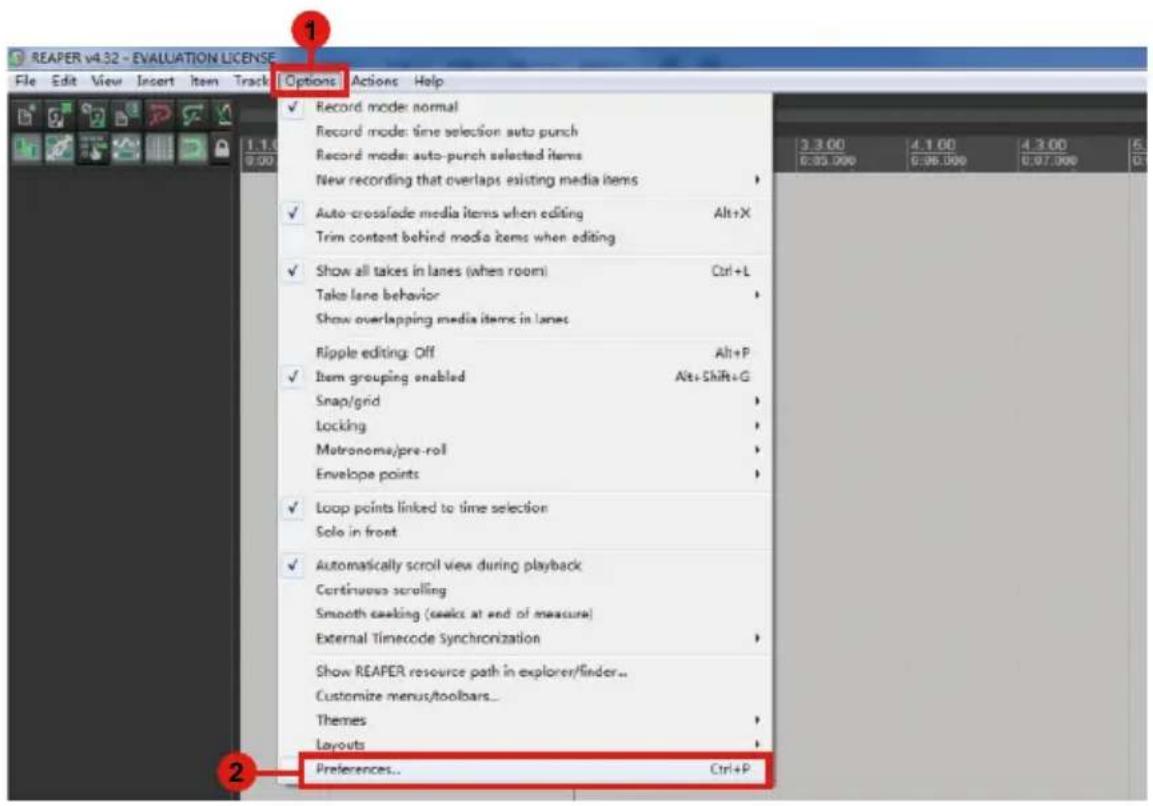
text_image
REAPER v4.32 - EVALUATION LICENSE File Edit View Insert Item Track Options Actions Help Record mode: normal Record mode: time selection auto punch Record mode: auto-punch selected items New recording that overlaps existing media items Auto-crossfade media items when editing Alt+X Trim content behind media items when editing Show all takes in lanes (when room) Ctrl+L Take lane behavior Show overlapping media items in lanes Ripple editing: Off Alt+P Item grouping enabled Alt+Shift+G Snap/grid Locking Matronoma/pre-roll Envelope points Loop points linked to time selection Solo in front Automatically scroll view during playback Continuous scrolling Smooth cooking (see at end of measure) External Timecode Synchronization Show REAPER resource path in explorer/finder.. Customize menus/toolbars.. Themes Layouts Preferences... Ctrl+P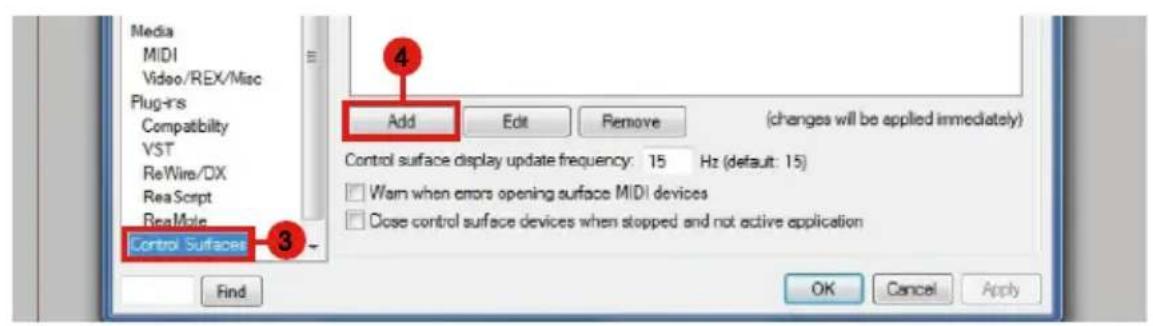
text_image
Media MIDI Video/REX/Misc Plug-rs Compatibility VST ReWire/DX ReaScript ReaMole Control Surfaces 3 Find Add Edit Remove (changes will be applied immediately) Control surface display update frequency: 15 Hz (default: 15) Warn when errors opening surface MIDI devices Close control surface devices when stopped and not active application OK Cancel Apply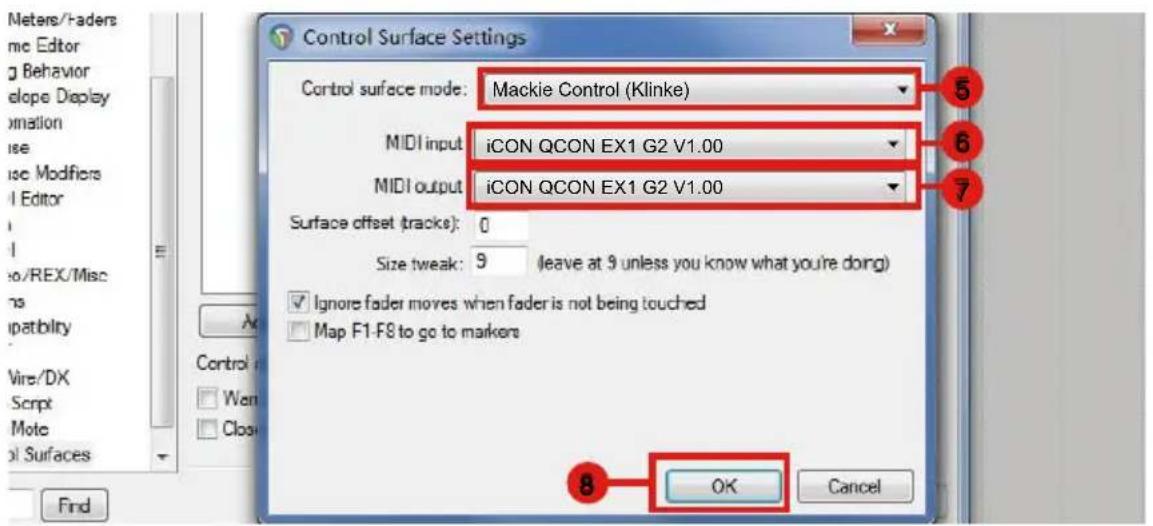
text_image
Meters/Faders me Editor g Behavior elope Display mation ise use Modifiers l Editor i o/REX/Misc compatibility Wire/DX Script Mote ol Surfaces Find Control surface Settings Control surface mode: Mackie Control (Klinke) MIDI input iCON QCON EX1 G2 V1.00 MIDI output iCON QCON EX1 G2 V1.00 Surface offset (tracks): 0 Size tweak: 9 (leave at 9 unless you know what you're doing) Ignore fader moves when fader is not being touched Map F1-F8 to go to markers OK CancelStudio One
text_image
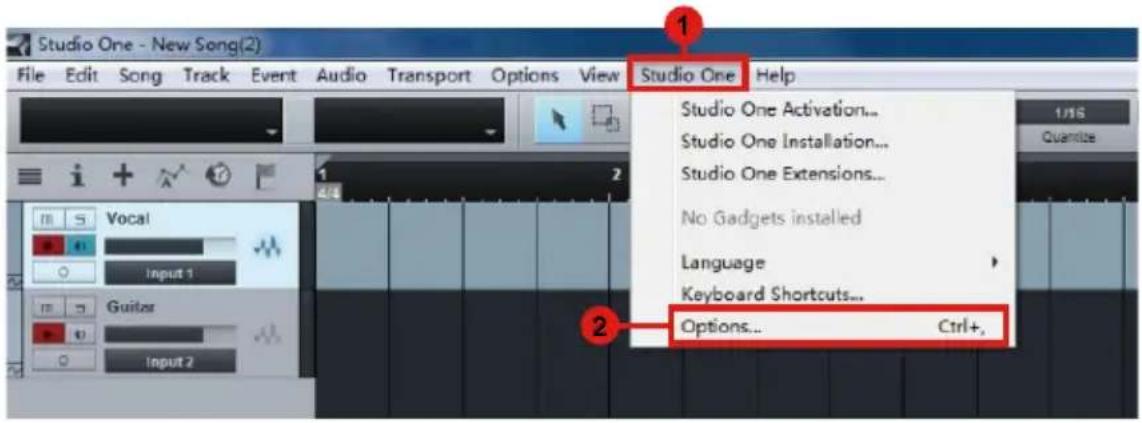
Studio One - New Song(2) File Edit Song Track Event Audio Transport Options View Studio One Help Studio One Activation... Studio One Installation... Studio One Extensions... No Gadgets installed Language Keyboard Shortcuts... Options... Ctrl+, 1/16 Quantize Vocal Input 1 Guitar Input 2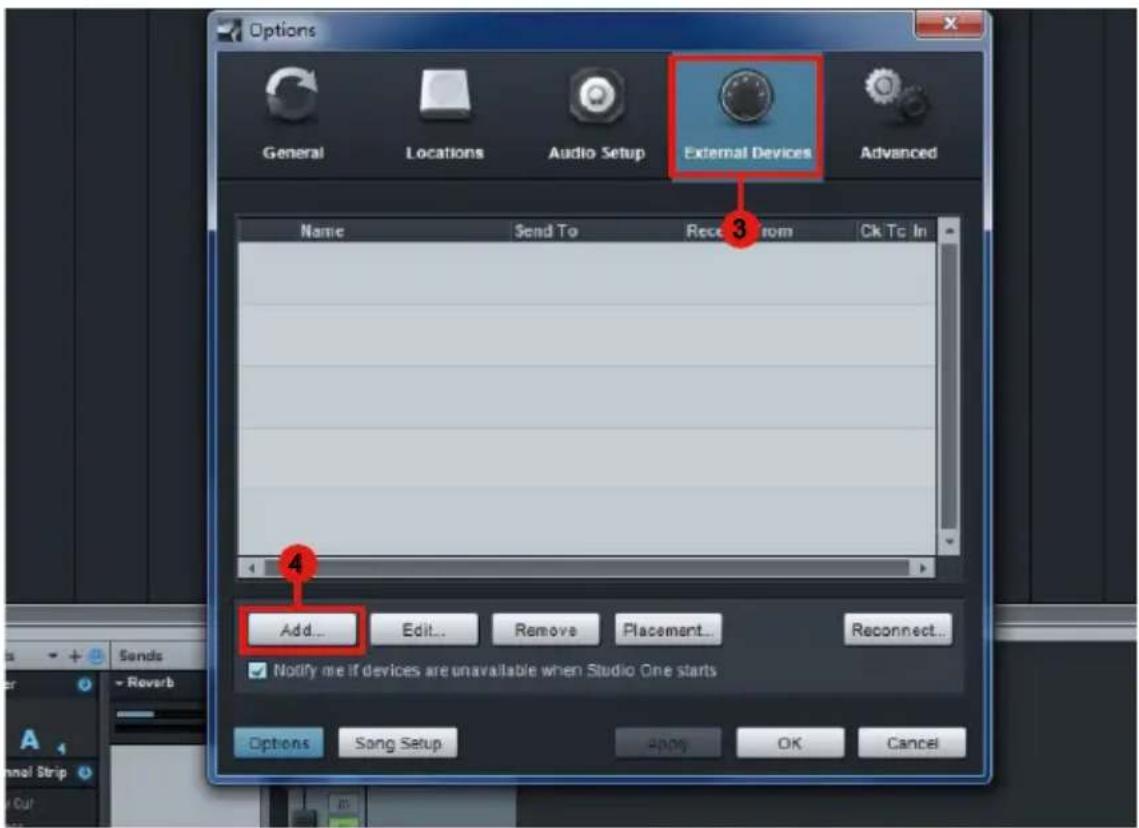
text_image
Options General Locations Audio Setup External Devices Advanced Name Send To Rece from Ck Tc In Add... Edit... Remove Placement... Reconnect... Notify me if devices are unavailable when Studio One starts Options Song Setup Apply OK Cancel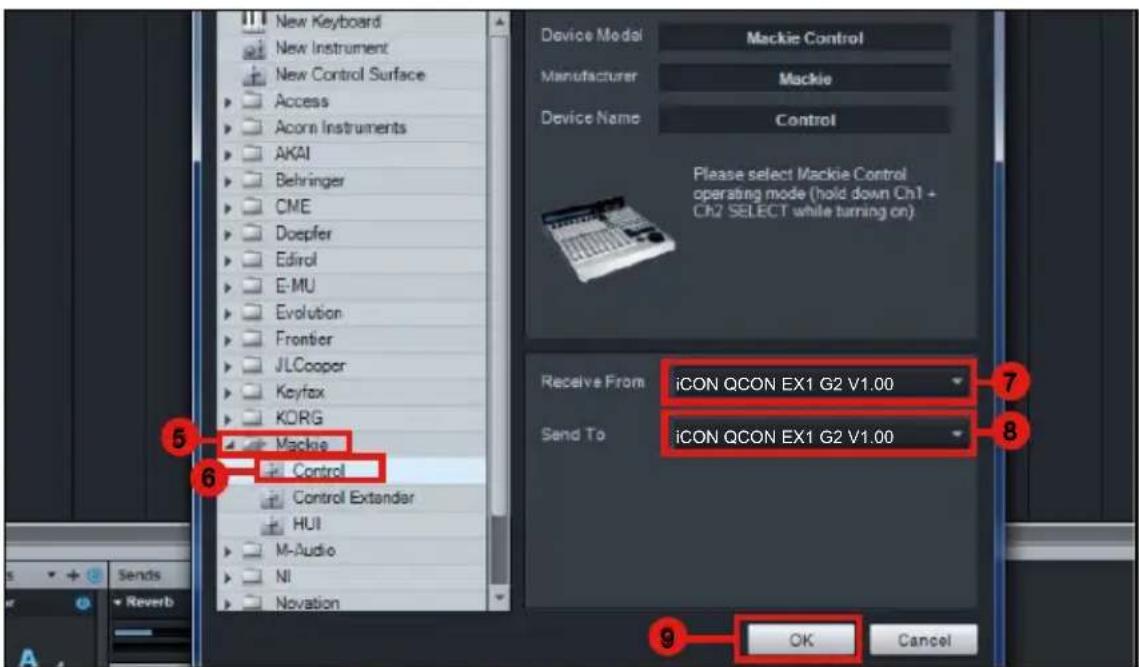
text_image
New Keyboard New Instrument New Control Surface Access Acorn Instruments AKAI Behringer CME Doepfer Edirol E-MU Evolution Frontier JLCooper Keyfax KORG Mackie Control Control Extendar HUI M-Audio NI Novation Device Model Mackie Control Manufacturer Mackie Device Name Control Please select Mackie Control operating mode (hold down Ch1 + CR2 SELECT while turning on) Receive From iCON QCON EX1 G2 V1.00 Send To iCON QCON EX1 G2 V1.00 OK CancelAbleton Live
text_image
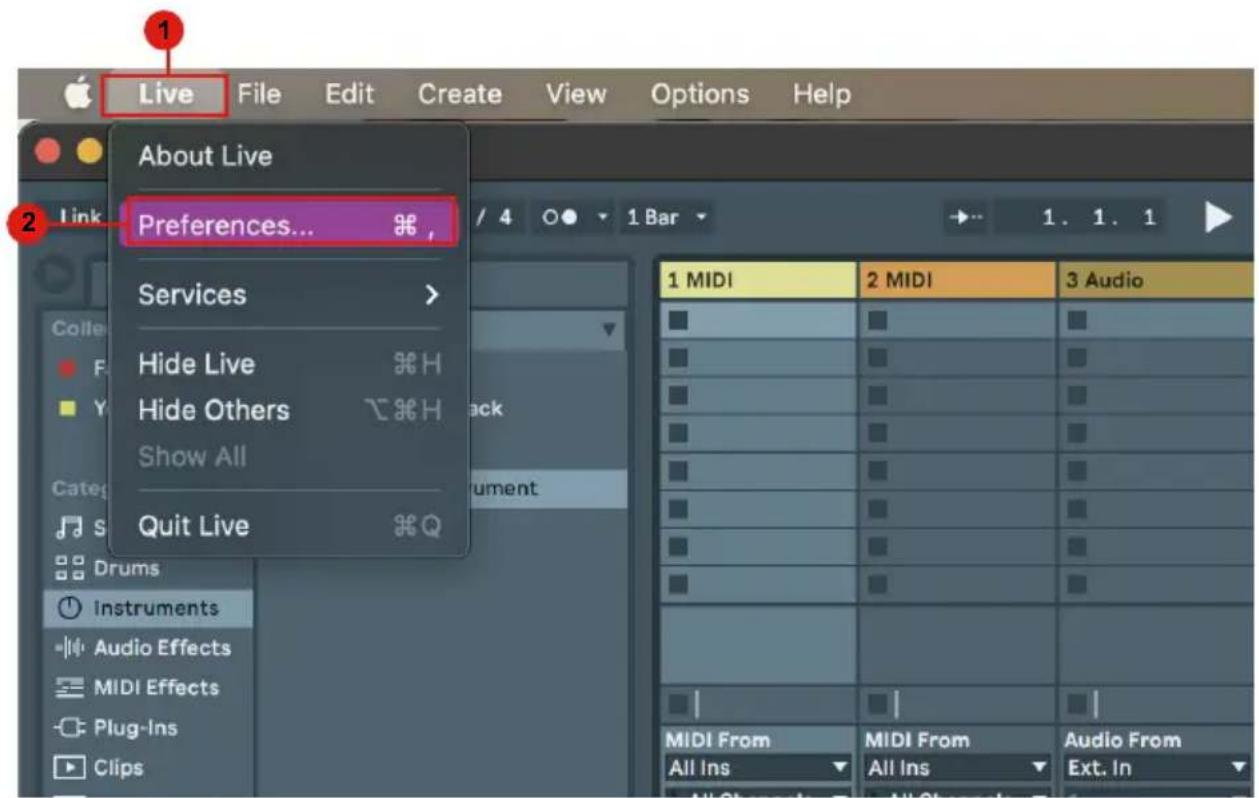
Live File Edit Create View Options Help About Live Preferences... Services Hide Live H Hide Others H Show All Quit Live Q 1 MIDI 2 MIDI 3 Audio Drums Instruments Audio Effects MIDI Effects Plug-Ins Clips MIDI From All Ins MIDI From All Ins Audio From Ext. In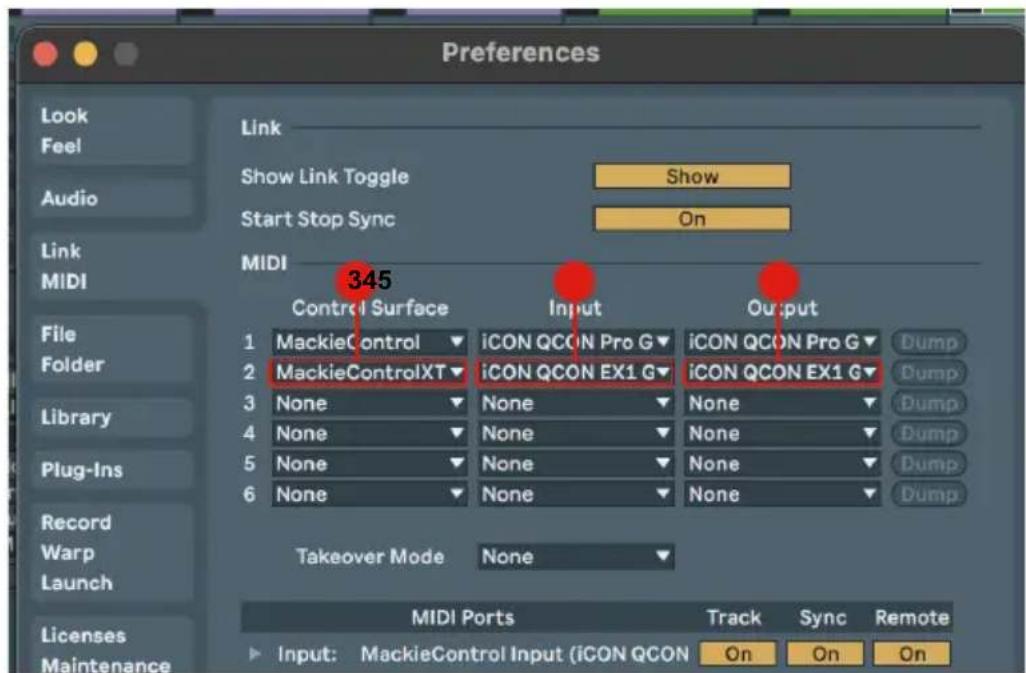
text_image
Preferences Look Feel Audio Link MIDI File Folder Library Plug-Ins Record Warp Launch Licenses Maintenance Link Show Link Toggle Show Start Stop Sync On MIDI 345 Control Surface Input Output 1 MackieControl iCON QCON Pro G iCON QCON Pro G Dump 2 MackieControlXT iCON QCON EX1 G iCON QCON EX1 G 3 None None None None 4 None None None None 5 None None None 6 None None Takeover Mode None MIDI Ports Track Sync Remote Input: MackieControl Input (iCON QCON On On OnPro Tools
text_image
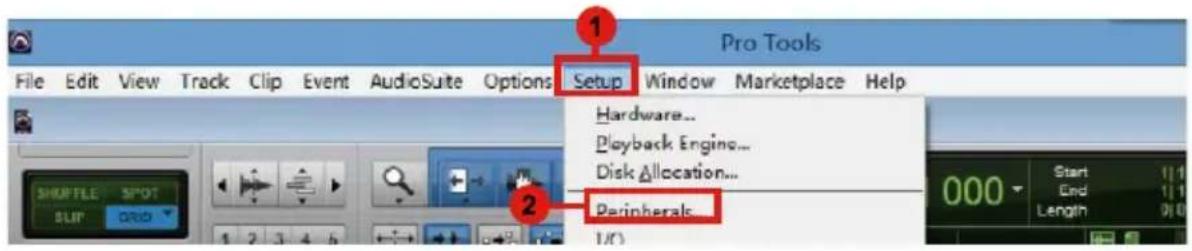
Pro Tools File Edit View Track Clip Event AudioSuite Options Setup Window Marketplace Help Hardware... Playback Engine... Disk Allocation... Peripherals...
text_image
Peripherals Synchronization Machine Control MIDI Controllers Ethernet Controllers McPreamps VENUE 4 Type Receive From Send To # Ch's #1 HUI none 8 #2 none Predefined ICON QCON EX1 G2 V1.00 #3 none none 6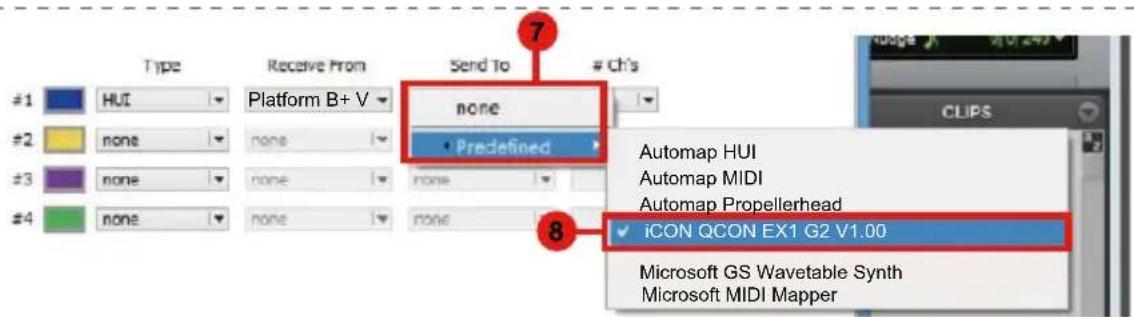
text_image
Type Receive From Send ToCh's
#1 HUI Platform B+ V none #2 none none none none none none none none #3 none none none none none none 8 Automap HUI Automap MIDI Automap Propellerhead ICON QCON EX1 G2 V1.00 Microsoft GS Wavetable Synth Microsoft MIDI Mapper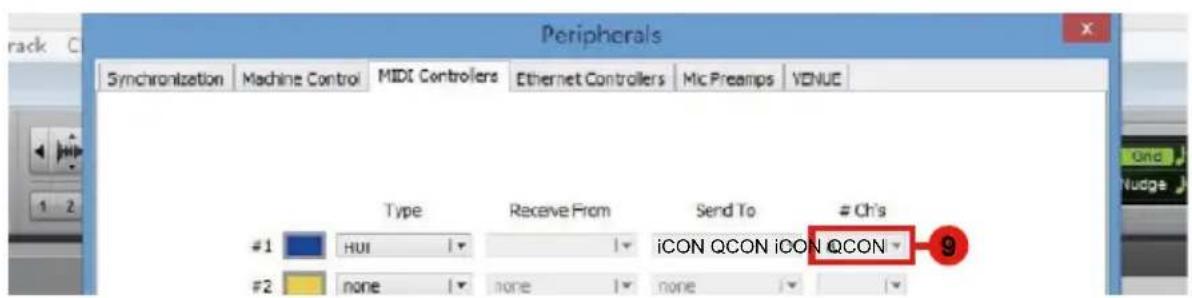
text_image
Peripherals Synchronization Machine Control MIDI Controllers Ethernet Controllers Mic Preamps VENUE Type Receive From Send To # Ch's #1 HUI iCON QCON iCON QCON #2 none none none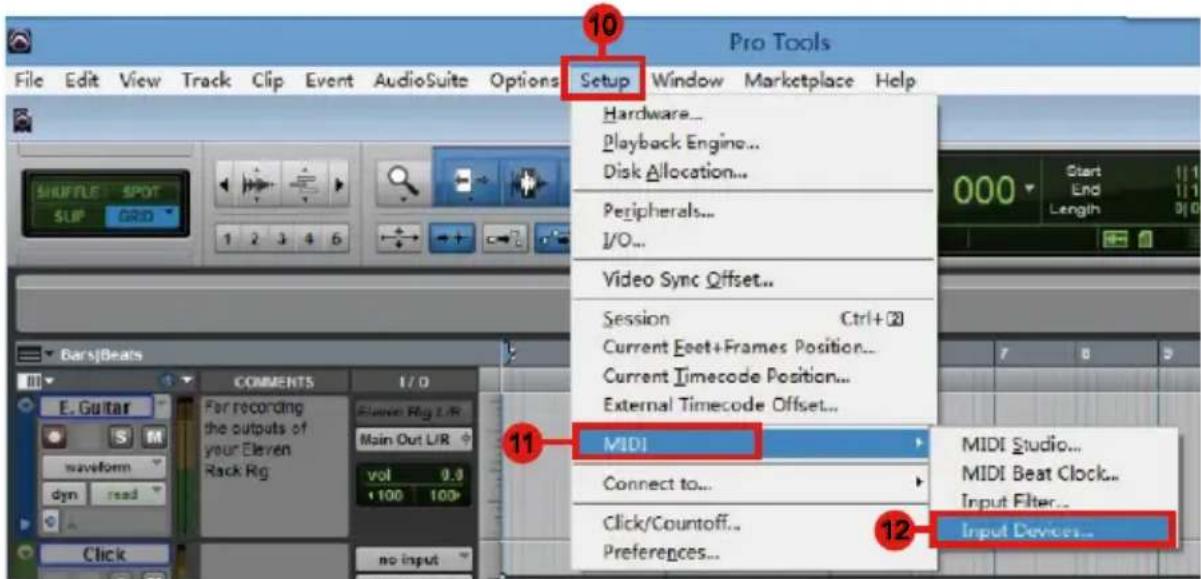
text_image
Pro Tools File Edit View Track Clip Event AudioSuite Options Setup Window Marketplace Help Hardware... Playback Engine... Disk Allocation... Peripherals... I/O... Video Sync Offset... Session Ctrl+2 Current Feet+Frames Position... Current Timecode Position... External Timecode Offset... MIDI Connect to... Click/Countoff... Preferences... 10 11 12 13 14 15 16 17 18 19 20 21 22 23 24 25 26 27 28 29 30 31 32 33 34 35 36 37 38 39 40 41 42 43 44 45 46 47 48 49 50 51 52 53 54 55 56 57 58 59 60 61 62 63 64 65 66 67 68 69 70 71 72 73 74 75 76 77 78 79 80 81 82 83 84 85 86 87 88 89 90 91 92 93 94 95 96 97 98 99 100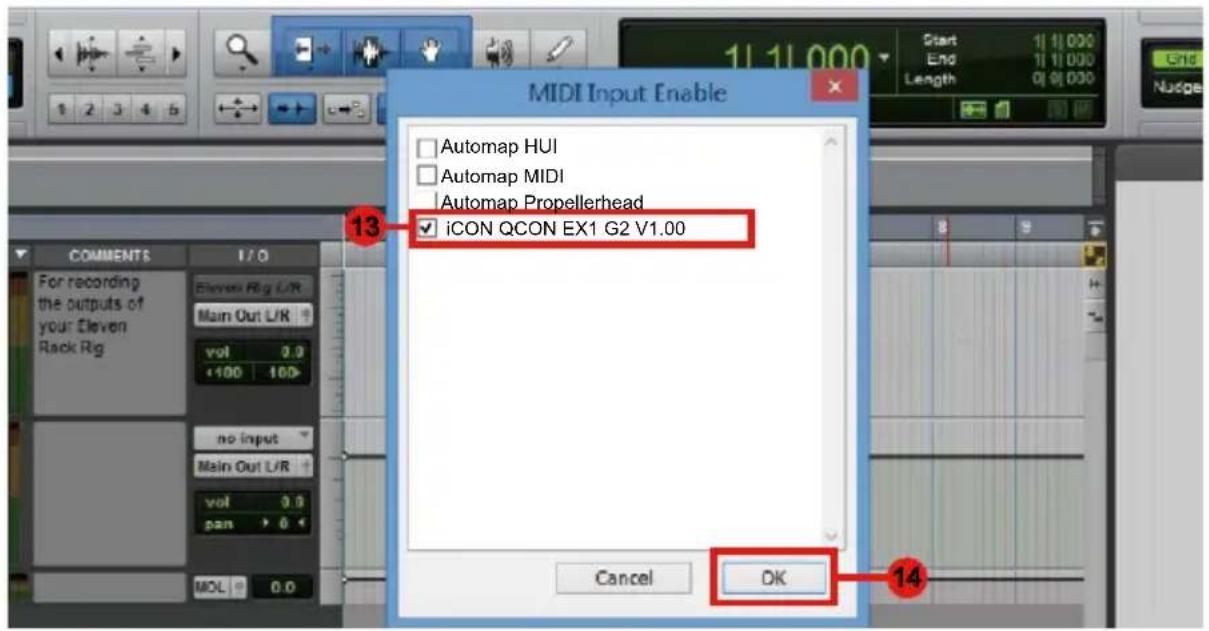
text_image
MIDI Input Enable Automap HUI Automap MIDI Automap Propellerhead ICON QCON EX1 G2 V1.00 13 Cancel OK 14Audition
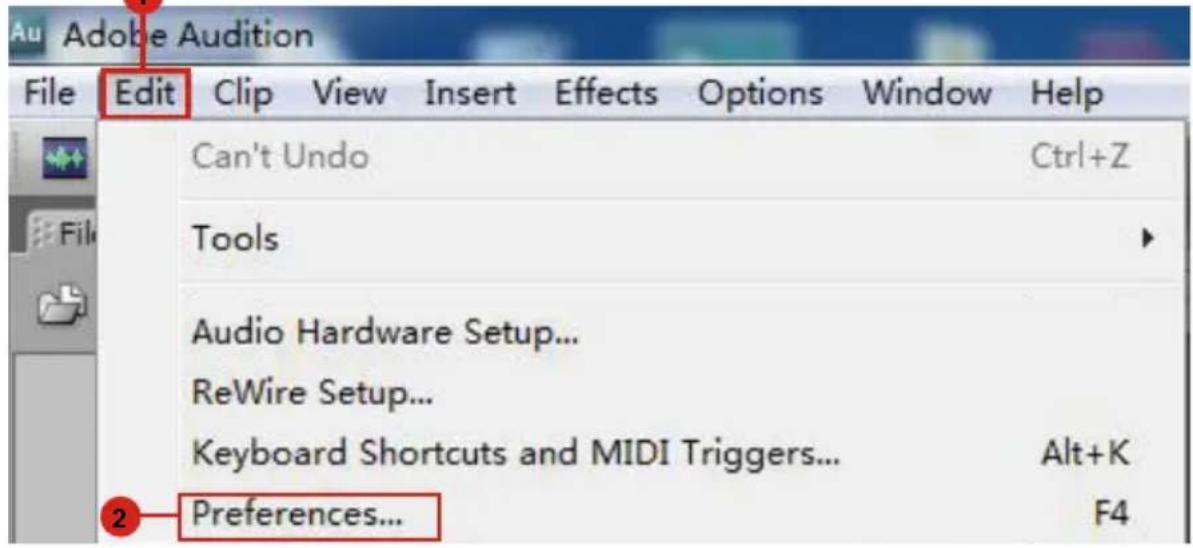
text_image
Au Adobe Audition File Edit Clip View Insert Effects Options Window Help Can't Undo Ctrl+Z Tools Audio Hardware Setup... ReWire Setup... Keyboard Shortcuts and MIDI Triggers... Alt+K Preferences... F4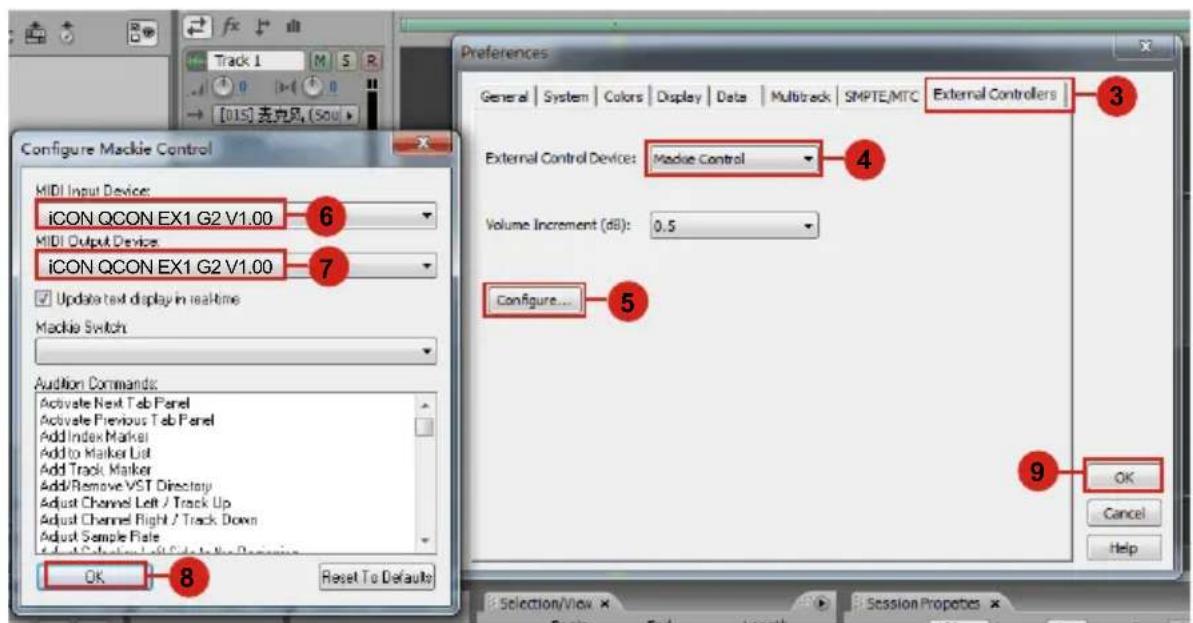
text_image
Track 1 [015] 毛克风 (Soul) Configure Mackie Control MIDI Input Device: iCON QCON EX1 G2 V1.00 MIDI Output Device: iCON QCON EX1 G2 V1.00 Update text display in realtime Mackie Switch Audition Commands: Activate Next Tab Panel Activate Previous Tab Panel Add Index Marker Add to Marker List Add Track Marker Add/Remove VST Directory Adjust Channel Left / Track Up Adjust Channel Right / Track Down Adjust Sample Rate OK Reset To Defaults Preferences General | System | Colors | Display | Data | Multitrack | SMPTE/MTC | External Controllers External Control Devices: Mackie Control Volume Increment (dB): 0.5 Configure... OK Cancel Help 3 4 5 9Sonar
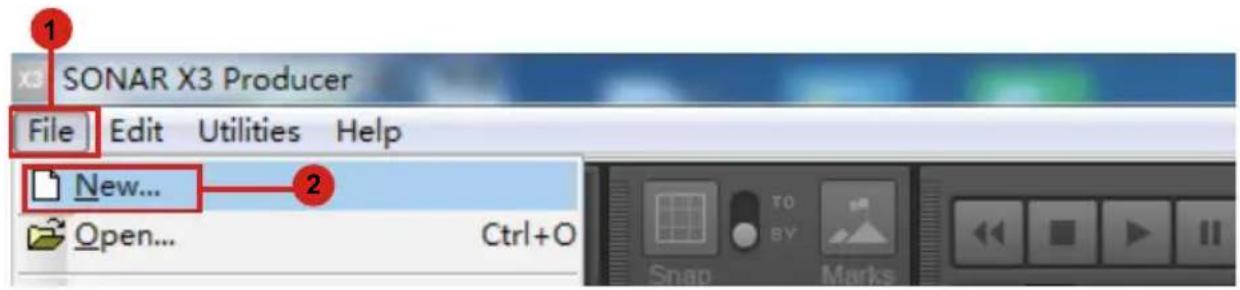
text_image
SONAR X3 Producer File Edit Utilities Help New... Open... Ctrl+O Snap Marks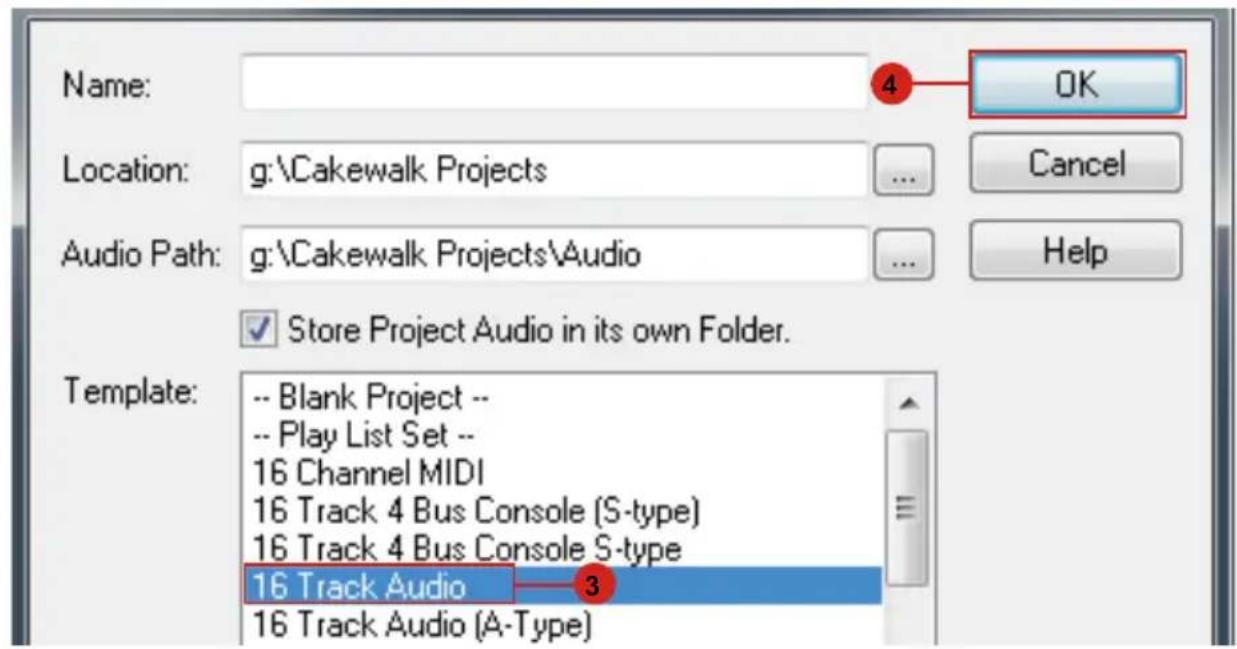
text_image
Name: 4 OK Location: g:\Cakewalk Projects ... Cancel Audio Path: g:\Cakewalk Projects\Audio ... Help ✓ Store Project Audio in its own Folder. Template: -- Blank Project -- -- Play List Set -- 16 Channel MIDI 16 Track 4 Bus Console (S-type) 16 Track 4 Bus Console S-type 16 Track Audio 3 16 Track Audio (A-Type)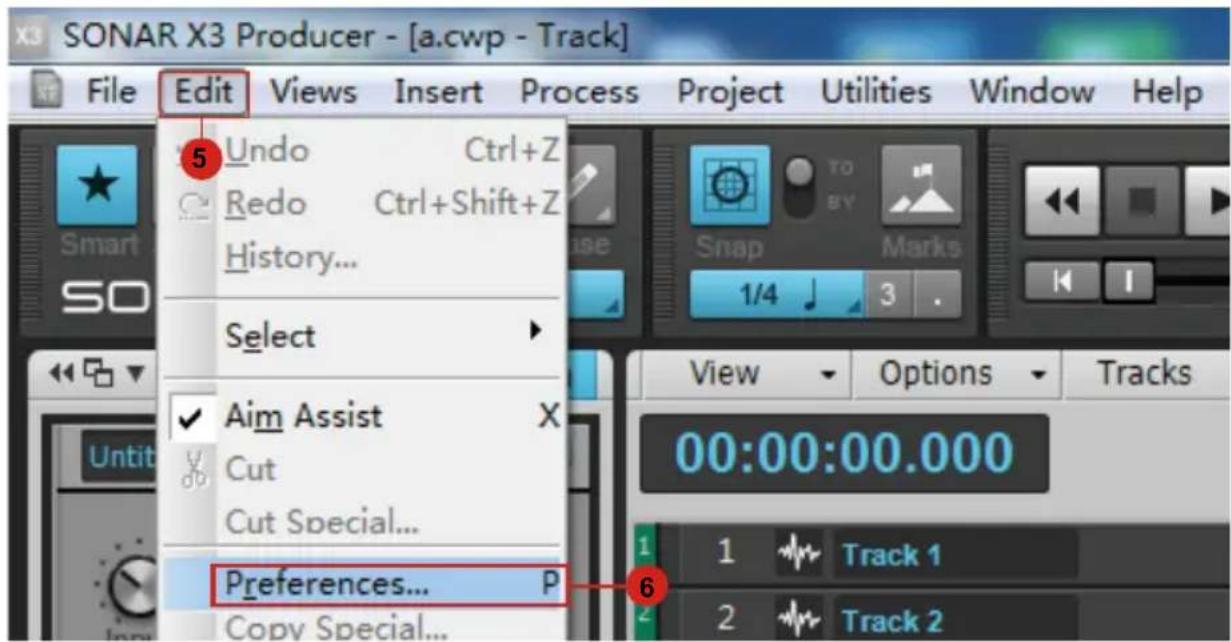
text_image
SONAR X3 Producer - [a.cwp - Track] File Edit Views Insert Process Project Utilities Window Help 5 Undo Ctrl+Z Redo Ctrl+Shift+Z History... Select ✓ Aim Assist X Cut Cut Special... Preferences... P Copy Special... View Options Tracks 00:00:00.000 1 Track 1 2 Track 2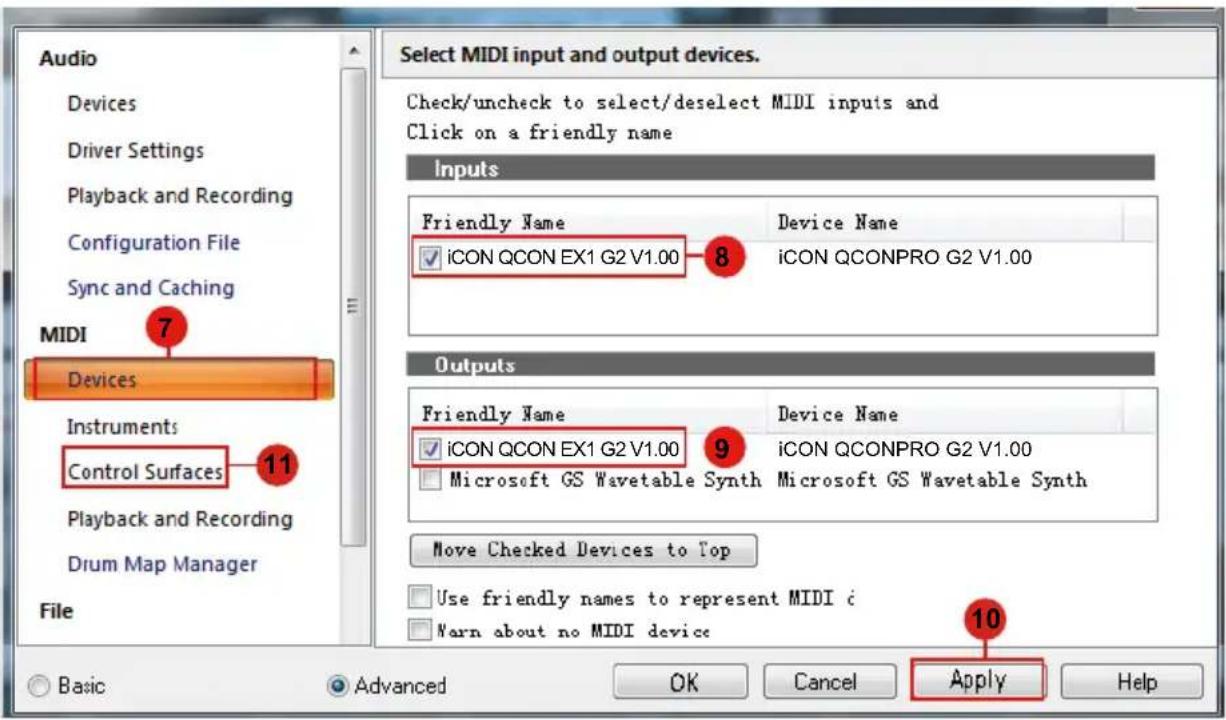
text_image
Audio Devices Driver Settings Playback and Recording Configuration File Sync and Caching MIDI 7 Devices Instruments Control Surfaces 11 Playback and Recording Drum Map Manager File Select MIDI input and output devices. Check/uncheck to select/deselect MIDI inputs and Click on a friendly name Inputs Friendly Name Device Name ICON QCON EX1 G2 V1.00 8 ICON QCONPRO G2 V1.00 Outputs Friendly Name Device Name ICON QCON EX1 G2 V1.00 9 ICON QCONPRO G2 V1.00 Microsoft GS Wavetable Synth Microsoft GS Wavetable Synth Move Checked Devices to Top Use friendly names to represent MIDI c Warn about no MIDI device 10 Apply Basic Advanced OK Cancel Help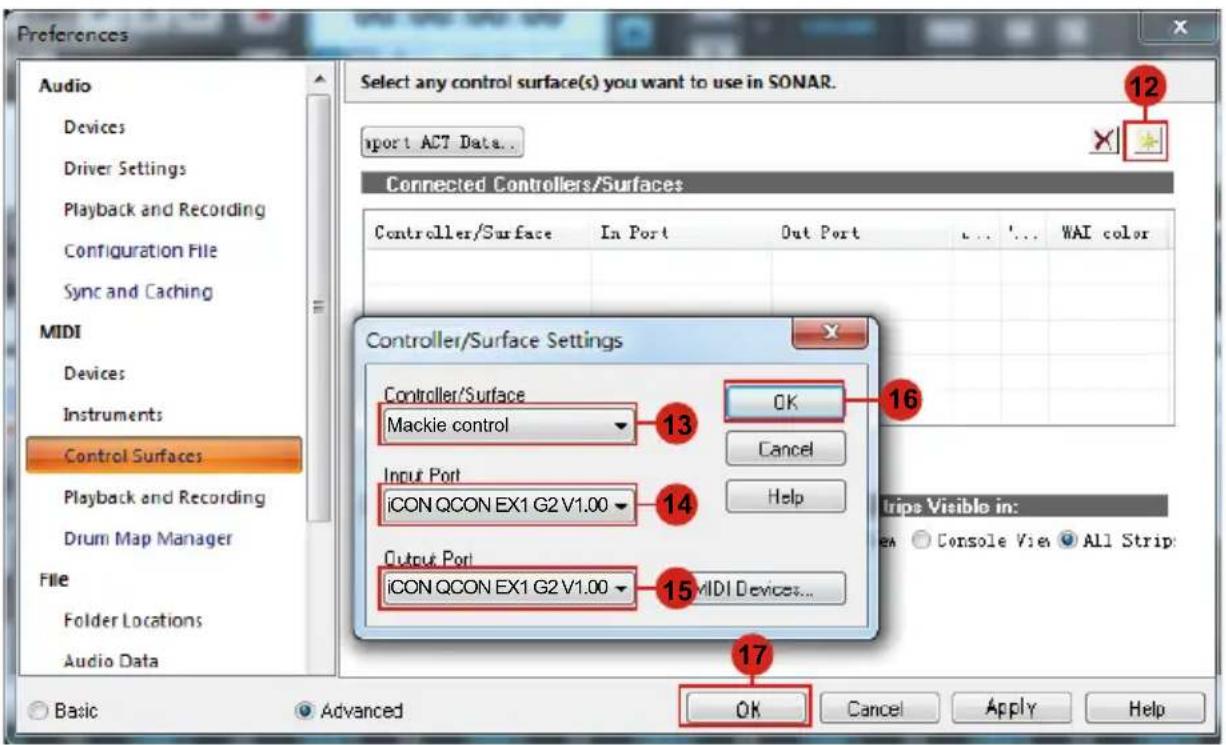
text_image
Preferences Audio Devices Driver Settings Playback and Recording Configuration File Sync and Caching MIDI Devices Instruments Control Surfaces Playback and Recording Drum Map Manager File Folder Locations Audio Data Select any control surface(s) you want to use in SONAR. Import ACT Data... Connected Controllers/Surfaces Controller/Surface In Port Out Port ... '... WAI color Controller/Surface Settings Controller/Surface 13 OK 16 Mackie control Cancel Input Port 14 Help iCON QCON EX1 G2 V1.00 Output Port 15 MIDI Devices... iCON QCON EX1 G2 V1.00 Advanced OK Cancel Apply Help Basic Advanced Apply Helptext_image
Qcon EX G2 Serial Number: J6EDH Unregister this device iMap for MacOS Download The Latest iMap for Windows Download The Latest iMap for MacOS (FOR OLD OVERLAYS ONLY) Download The Latest iMap for Windows (FOR OLD OVERLAYS ONLY) Download The Latest Quickstart Guide DownloadDessin 1
text_image
QconProG2 QconExG2 V1.04 Installation Welcome to the QconProG2 QconExG2 Setup Wizard This wizard will guide you through the installation of QconProG2 QconExG2. It is recommended that you close all other applications before starting Setup. This will make it possible to update relevant system files without having to reboot your computer. Click Next to continue. Next > CancelDessin 3
text_image
QconProG2 QconExG2 V1.04 Installation Choose Install Location Choose the folder in which to install QconProG2 QconExG2. Setup will install QconProG2 QconExG2 in the following folder. To install in a different folder, click browse and select another folder. Click Next to continue. At least 16.73 Mb of free disk space is required. Destination folder C:\Program Files\CON Globe\QconProG2 QconExG2 Browse... Copyright©Qcon Global < Back Next > CancelDessin 4
text_image
QconProG2 QconExG2 V1.04 Installation Select shortcuts Choose a Start Menu Folder for the QconProG2 QconExG2 shortcuts. Select the Start Menu folder in which you would like to create the program's shortcuts. You can also enter a name to create a new folder. ICON Global(QconProG2 QconExG2) Do not create shortcuts Copyright (C:\ICON Global < Back Next > CancelDessin 5
text_image
QconProG2 QconExG2 V1.04 Installation Select shortcuts Select additional shortcuts. Select any additional shortcuts for QconProG2 QconExG2 that you would like created by the installation: ✓ Create a Desktop icon Copyright ©/© ICON: Excel < Back Next > CancelDessin 6
text_image
QconPreG2 QconExG2 V1.04 Installation Ready to Install Setup is now ready to begin installing QconProG2 QconExG2 on your computer. Click Install to continue with the installation, or click Back if you want to review or change any settings. Destination folder: C:\Program Files\ICON Globe\QconProG2 QconExG2 Start Menu Folder: ICON Globe\QconProG2 QconExG2\ Additional shortcuts: Create a Desktop icon Copyright (C) ICON Global < Back Install CancelDessin 7
text_image
QconProG2 QconExG2 V1.04 Installation Completing the QconProG2 QconExG2 Setup Wizard QconProG2 QconExG2 has been installed on your computer. Click Finish to close this wizard. Finish CancelDessin 8
text_image
Firmware Upgrade 6] User Defined A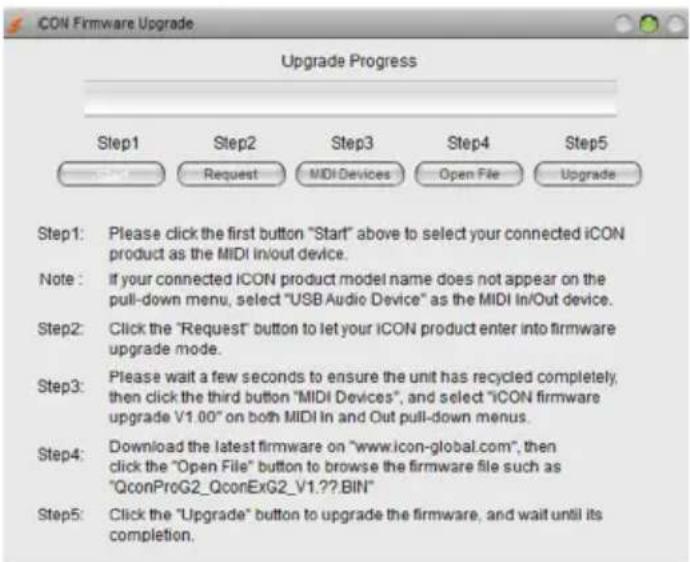
text_image
CON Firmware Upgrade Upgrade Progress Step1 Step2 Step3 Step4 Step5 Request MIDI Devices Open File Upgrade Step1: Please click the first button "Start" above to select your connected iCON product as the MIDI in/out device. Note: If your connected ICON product model name does not appear on the pull-down menu, select "USB Audio Device" as the MIDI In/Out device. Step2: Click the "Request" button to let your ICON product enter into firmware upgrade mode. Step3: Please wait a few seconds to ensure the unit has recycled completely, then click the third button "MIDI Devices", and select "ICON firmware upgrade V1.00" on both MIDI In and Out pull-down menus. Step4: Download the latest firmware on "www.icon-global.com", then click the "Open File" button to browse the firmware file such as "QconProG2_QconExG2_V1.??BIN" Step5: Click the "Upgrade" button to upgrade the firmware, and wait until its completion.QconPro G2 functional firmware upload procedure
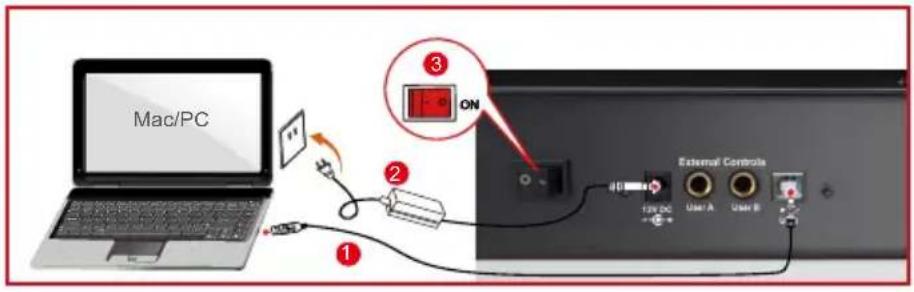
text_image
Mac/PC ① ② ③ ON External Controls 120 DC 320 A 320 B 320 A 320 B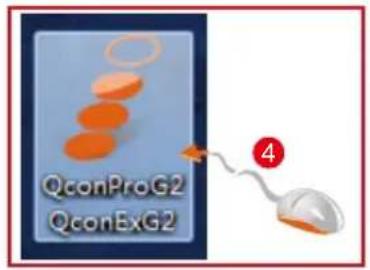
text_image
QconProG2 QconExG2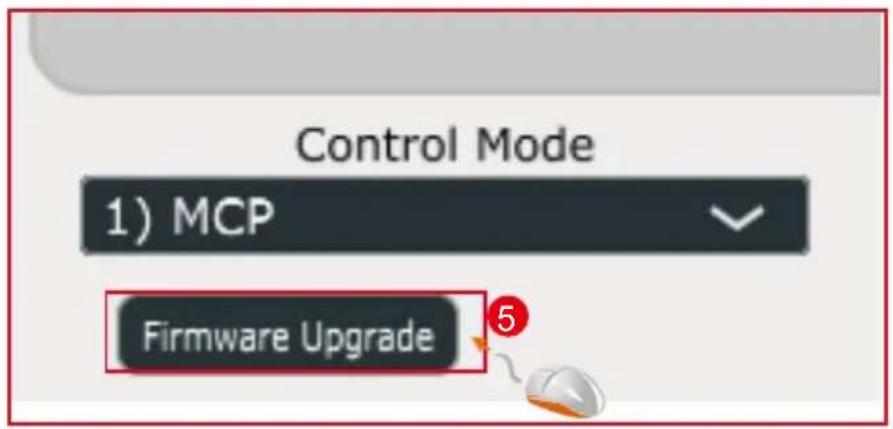
text_image
Control Mode 1) MCP Firmware Upgrade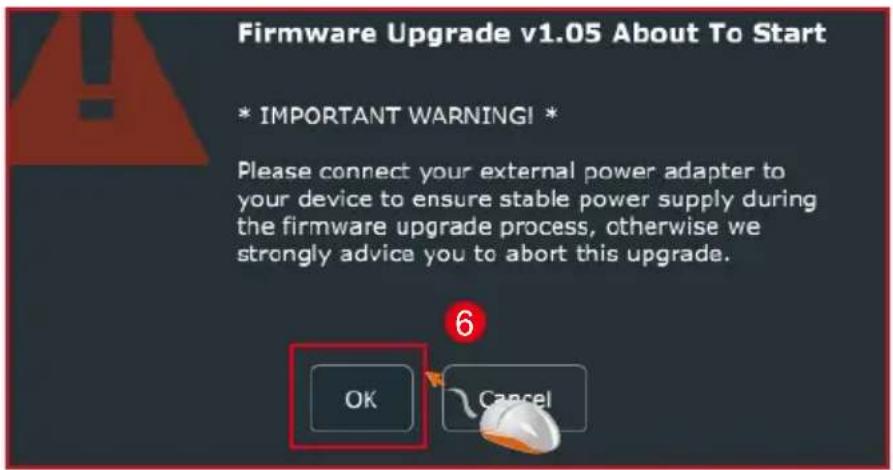
text_image
Firmware Upgrade v1.05 About To Start * IMPORTANT WARNING! Please connect your external power adapter to your device to ensure stable power supply during the firmware upgrade process, otherwise we strongly advice you to abort this upgrade. OK Cancel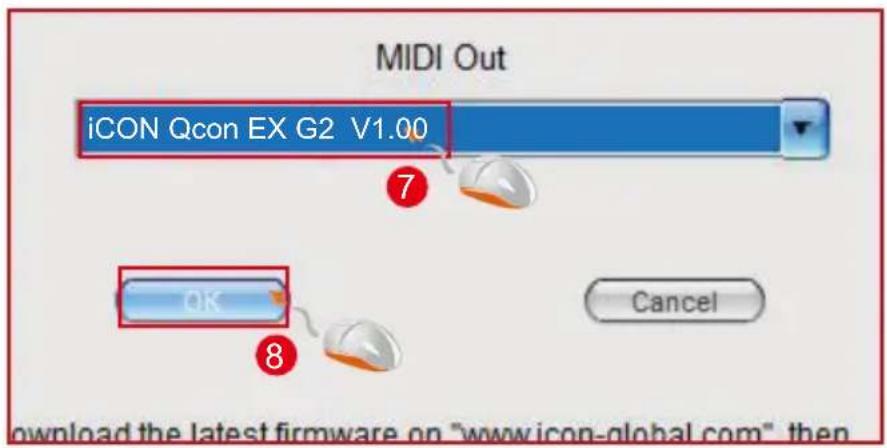
text_image
MIDI Out iCON Qcon EX G2 V1.00 7 OK 8 Cancel download the latest firmware on "www.icon-global.com" then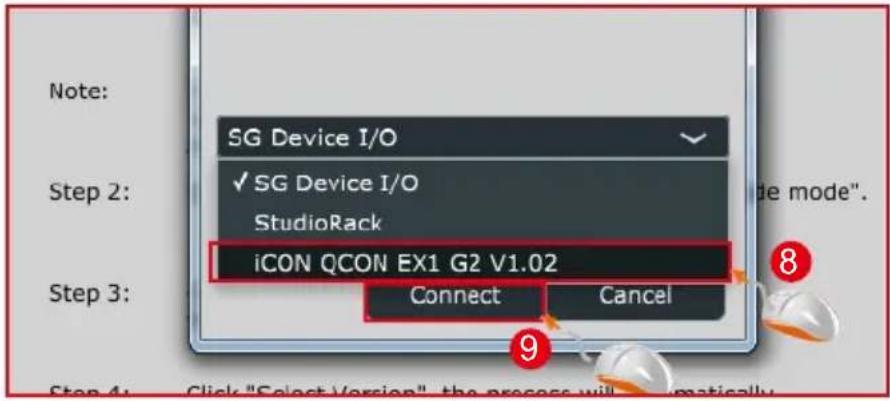
text_image
Note: SG Device I/O ✓ SG Device I/O StudioRack iCON QCON EX1 G2 V1.02 Step 2: Step 3: Connect Cancel 8 9 Step 4: Click "Select Version" the process will automatically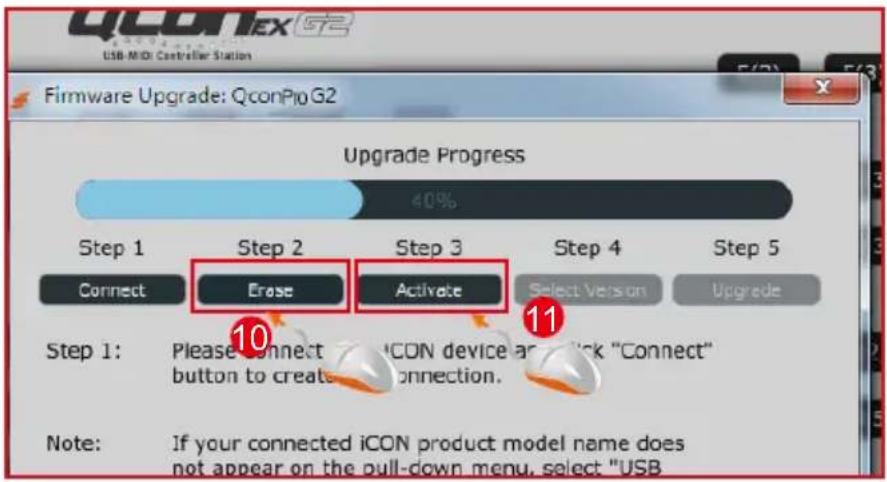
text_image
Firmware Upgrade: QconProG2 Upgrade Progress 40% Step 1 Step 2 Step 3 Step 4 Step 5 Connect Erase Activate Select Version Upgrade Step 1: Please connect iCON device and click "Connect" button to create connection. Note: If your connected iCON product model name does not appear on the pull-down menu, select "USB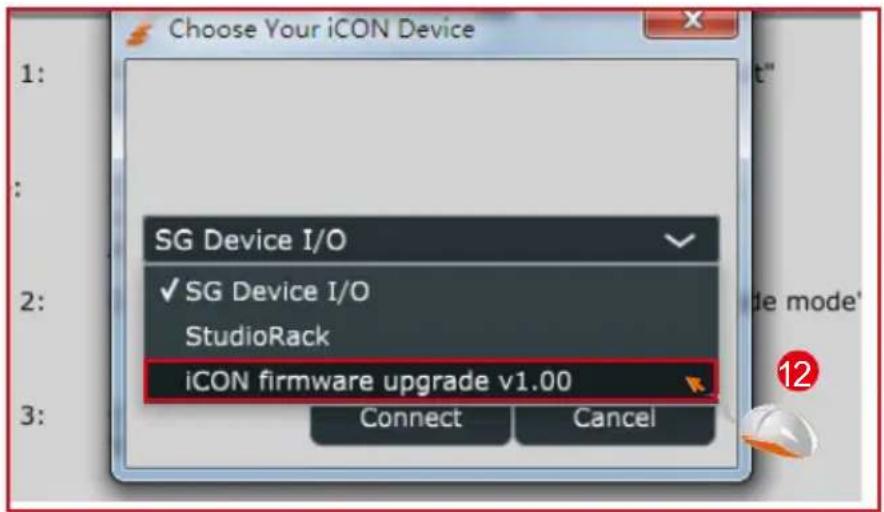
text_image
Choose Your iCON Device SG Device I/O ✓ SG Device I/O StudioRack iCON firmware upgrade v1.00 Connect Cancel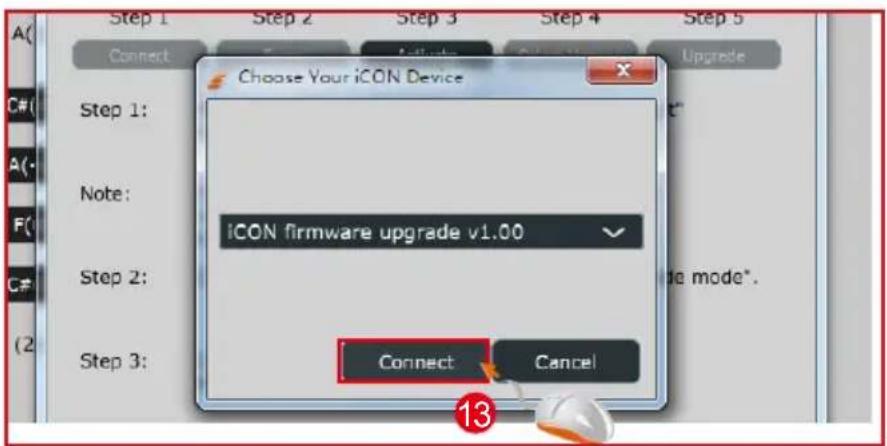
text_image
Step 1 Step 2 Step 3 Step 4 Step 5 Connect Choose Your iCON Device Step 1: Note: ICON firmware upgrade v1.00 Step 2: Step 3: Connect Cancel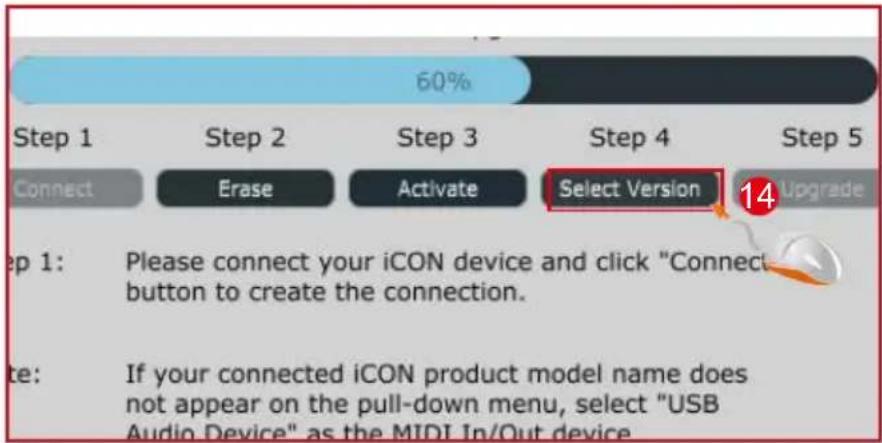
text_image
60% Step 1 Step 2 Step 3 Step 4 Step 5 Connect Erase Activate Select Version 14 Upgrade Step 1: Please connect your iCON device and click "Connect button to create the connection. ite: If your connected iCON product model name does not appear on the pull-down menu, select "USB Audio Device" as the MIDI In/Out device.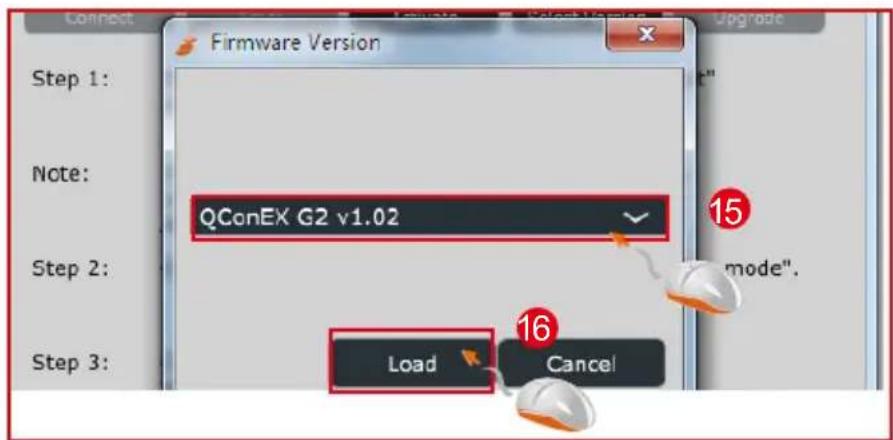
text_image
Connect Firmware Version Step 1: Note: QConEX G2 v1.02 Step 2: Step 3: Load Cancel 15 mode".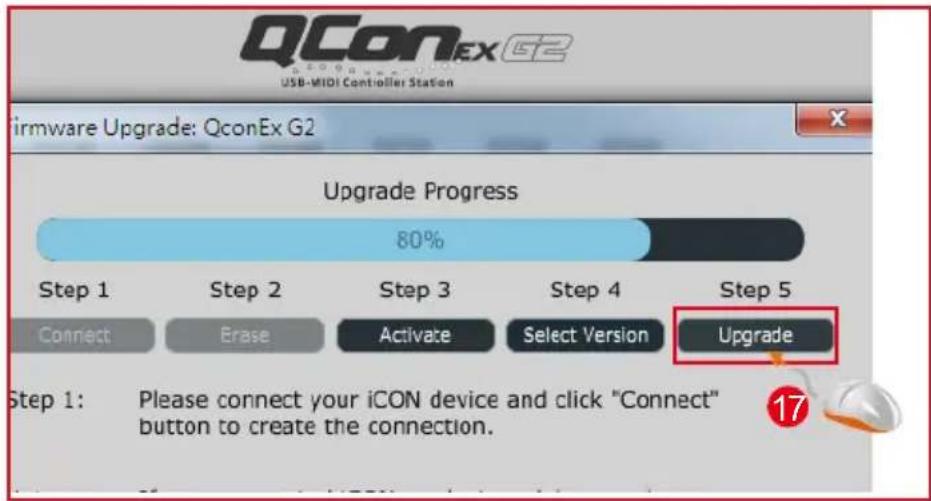
text_image
QConEx G2 USB-MIDI Controller Station Firmware Upgrade: QconEx G2 Upgrade Progress 80% Step 1 Step 2 Step 3 Step 4 Step 5 Connect Erase Activate Select Version Upgrade Step 1: Please connect your iCON device and click "Connect" button to create the connection.Alimentation: 12V/2.5A DC
Poids: 5.015kg (11lb)
Dimensions
457(L) x 203(W) x 456.6(H)mm
17.99"(L) x 7.92"(W) x 17.97"(H)
Unit F, 15/F., Fu Cheung Centre,
No. 5-7 Wong Chuk Yueng Street, Fotan,
Sha Tin, N.T., Hong Kong.
Mixware, LLC – U.S. Distributor
11070 Fleetwood Street – Unit F.
Sun Valley, CA 91352; USA
Tel.: (818) 578 4030
Contact: www.mixware.net/help
- For additional update information please visit our website at: www.iconproaudio.com

text_image
ICON Pro AudioSupport

support.iconproaudio.com
Dashboard

iconproaudio.com/dashboard/