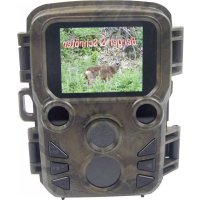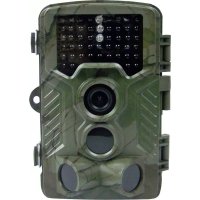
31646 - Video camera Berger & Schröter - Free user manual and instructions
Find the device manual for free 31646 Berger & Schröter in PDF.



| Product type | Game surveillance video camera |
| Brand | Berger & Schröter |
| Model | 31646 |
| Power supply | 4 AA 1.5 V LR6 batteries (up to 8 batteries with lower compartment) or 6 V / 680 mA mains adapter (not included) |
| Memory card type | Micro SD / SDHC / TF up to 32 GB |
| Photo resolution | 1 MP, 3 MP, 5 MP (preset), 8 MP, 12 MP |
| Video resolution | 320 × 240, 640 × 480, 720 × 480, 1280 × 720, 1920 × 1080 |
| Video length | 3 to 60 seconds or 1 to 10 minutes |
| Recording interval | 5 to 60 seconds or 1 to 60 minutes between triggers |
| Motion sensor | Main and side PIR, adjustable sensitivity (High, Medium, Low) |
| Night vision | Infrared black LEDs |
| Audio recording | Yes, can be enabled/disabled |
| Shooting mode | Photo, Video, Photo + Video, Burst (2 or 3 photos) |
| Display | Built-in screen for viewing and settings |
| TV output | Yes, via supplied TV cable |
| Password protection | 4-digit PIN code |
| Available languages | English, German, French, Italian, Dutch, Spanish, Portuguese |
| Care and cleaning | Clean with a dry soft cloth. Avoid moisture and extreme temperatures. |
| Security | Memory card lock (LOCK), PIN password, strap closures with safety clip |
Frequently Asked Questions - 31646 Berger & Schröter
User questions about 31646 Berger & Schröter
0 question about this device. Answer the ones you know or ask your own.
Ask a new question about this device
Download the instructions for your Video camera in PDF format for free! Find your manual 31646 - Berger & Schröter and take your electronic device back in hand. On this page are published all the documents necessary for the use of your device. 31646 by Berger & Schröter.
USER MANUAL 31646 Berger & Schröter
natural_image
Close-up of a beige electronic device with control panel and ports, showing internal components and mounting base (no visible text or symbols)EIN/Test/AUS Schalter:
- Aus (OFF)
- EIN (ON),
- TEST (Test),
natural_image
Two black plastic enclosure units: one open with a digital display showing 'ROI', the other closed with buttons labeled 'MENU', 'SHOT', and 'REPLAY' (no readable text beyond labels)Energieversorgung
natural_image
Two black electronic device cases: one with a display and control panel, the other with internal modules (no visible text or symbols)(GB) Operating Instructions
Berger+Schröter Wild Game Camera 31646
Introduction
The manual is a component of this product. It contains important information regarding safety, use and disposal. Before you use the product, make sure you have read and understood all of the operating and safety instructions. Use this product only as described and only in the areas described.
This documentation is protected by copyright. Duplication or reproduction, even in extracts, and the reproduction of images (including in a modified state) is permitted only with written approval from the manufacturer.
Intended Use
This device is intended solely for capturing digital photographs and videos of wild animals. The manufacturer assumes no liability for damage caused by non-observation of these regulations, improper use, or repairs not carried out by an expert.
text_image
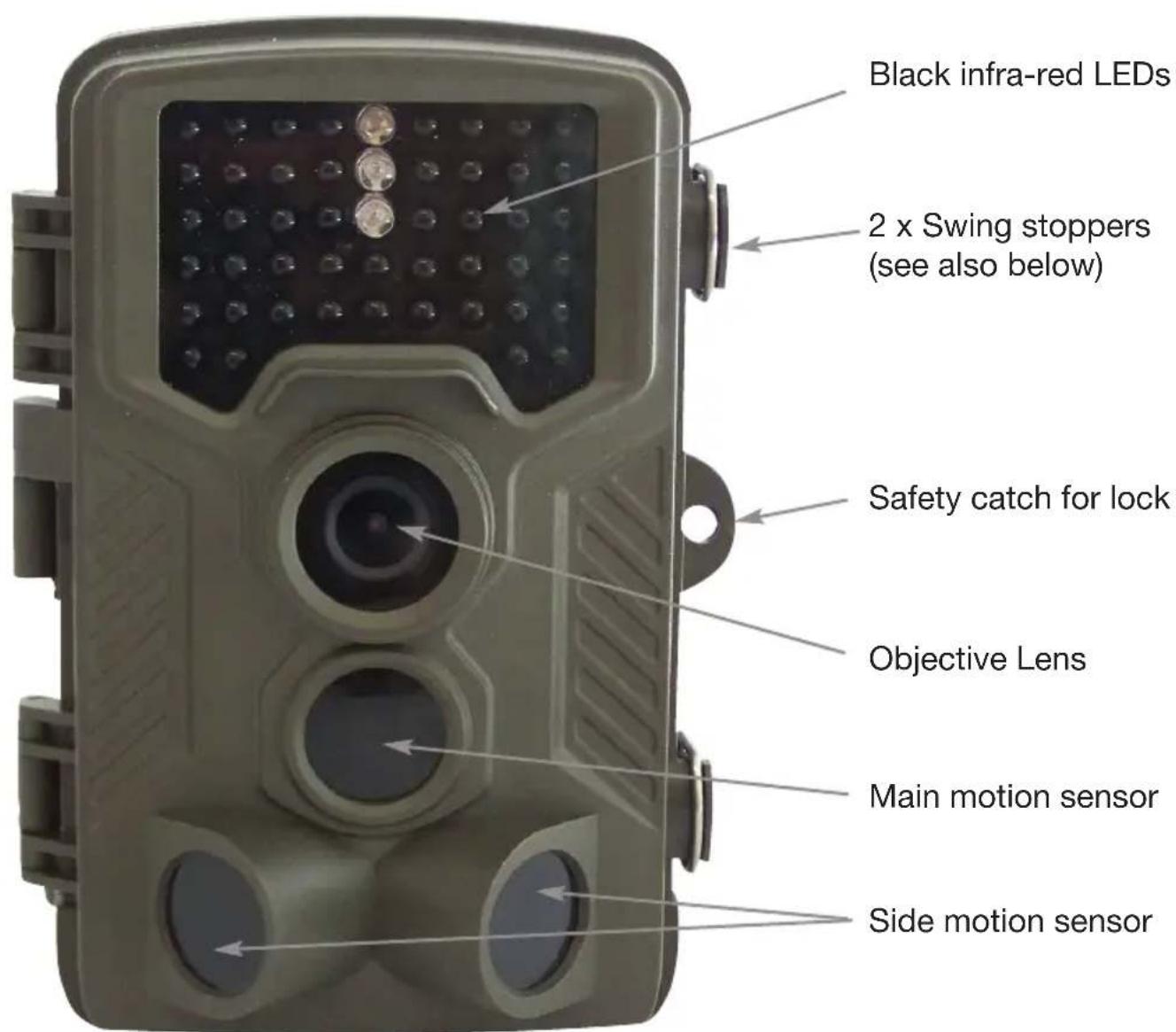
Black infra-red LEDs 2 x Swing stoppers (see also below) Safety catch for lock Objective Lens Main motion sensor Side motion sensorControls
text_image
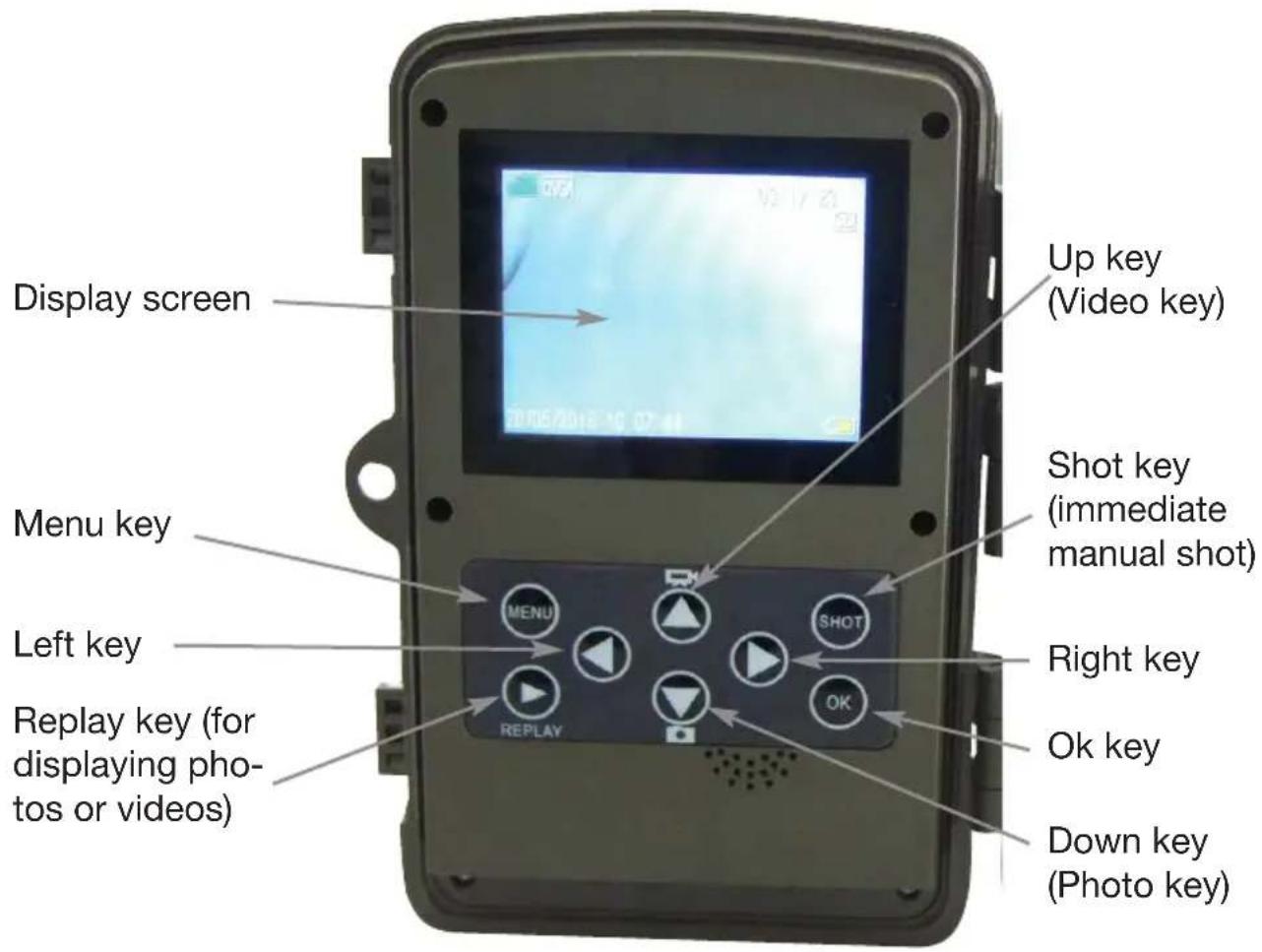
Display screen Up key (Video key) Menu key Shot key (immediate manual shot) Left key Right key Replay key (for displaying photos or videos) OK key Down key (Photo key)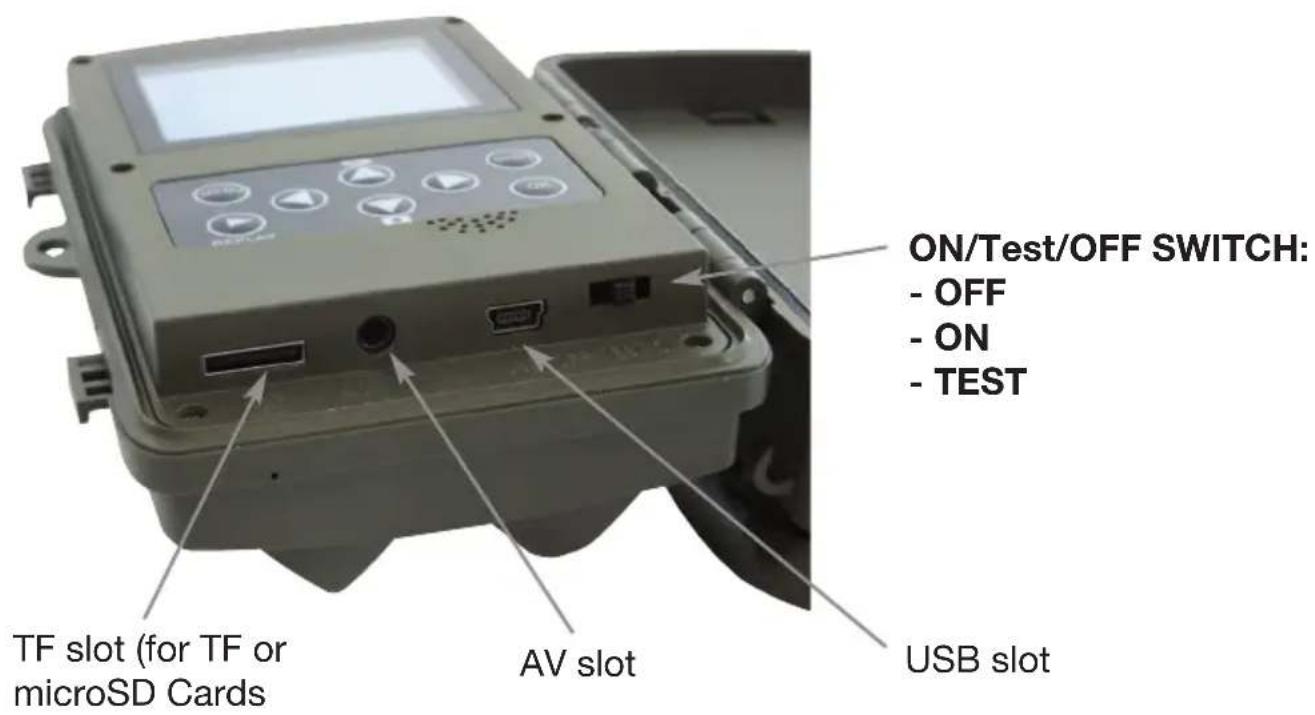
text_image
ON/Test/OFF SWITCH: - OFF - ON - TEST TF slot (for TF or microSD Cards AV slot USB slot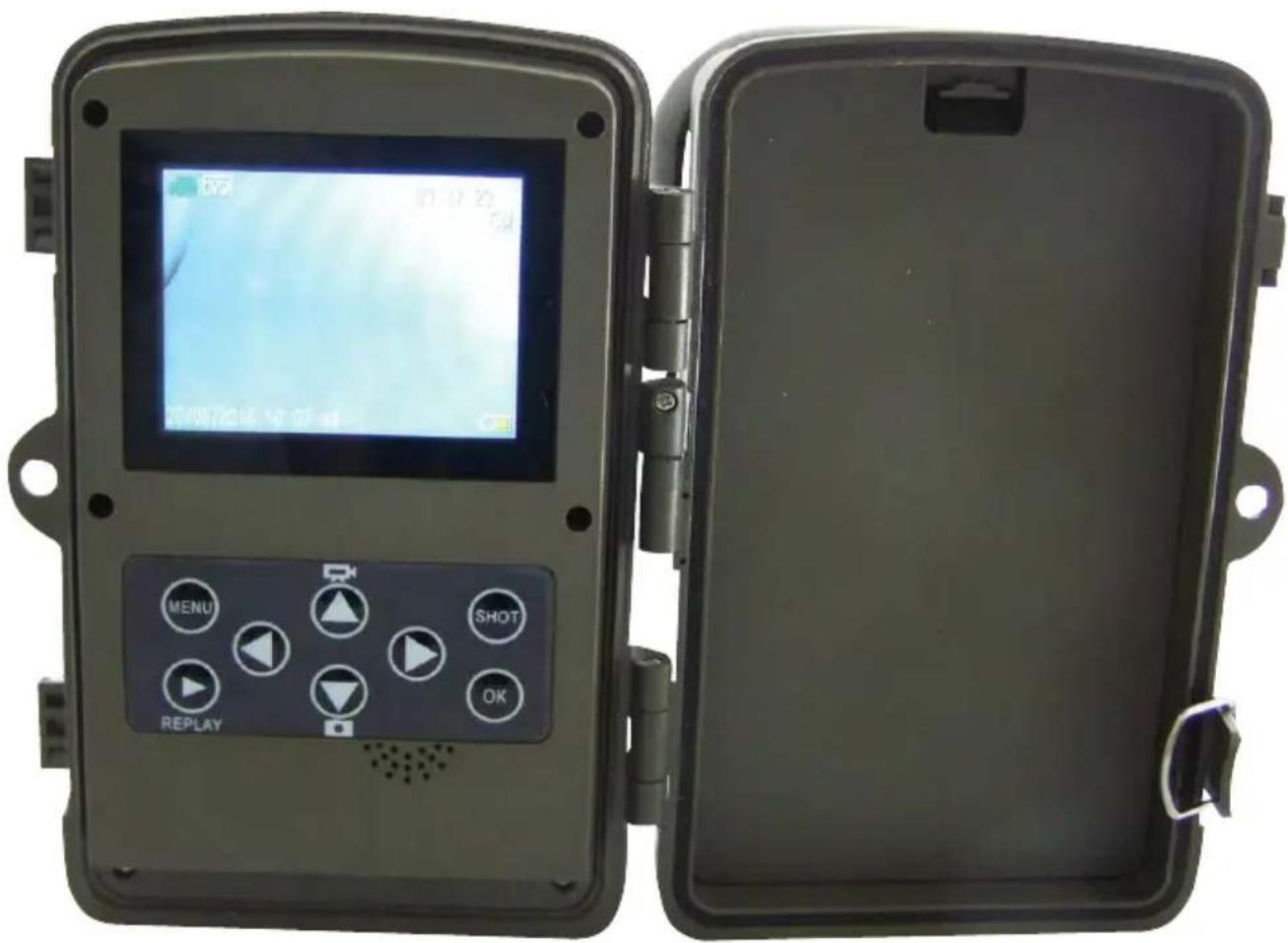
natural_image
Two black plastic enclosure units: one open with a digital display and control buttons, the other closed with a button labeled 'OK' (no visible text or symbols on main components)Energy Supply
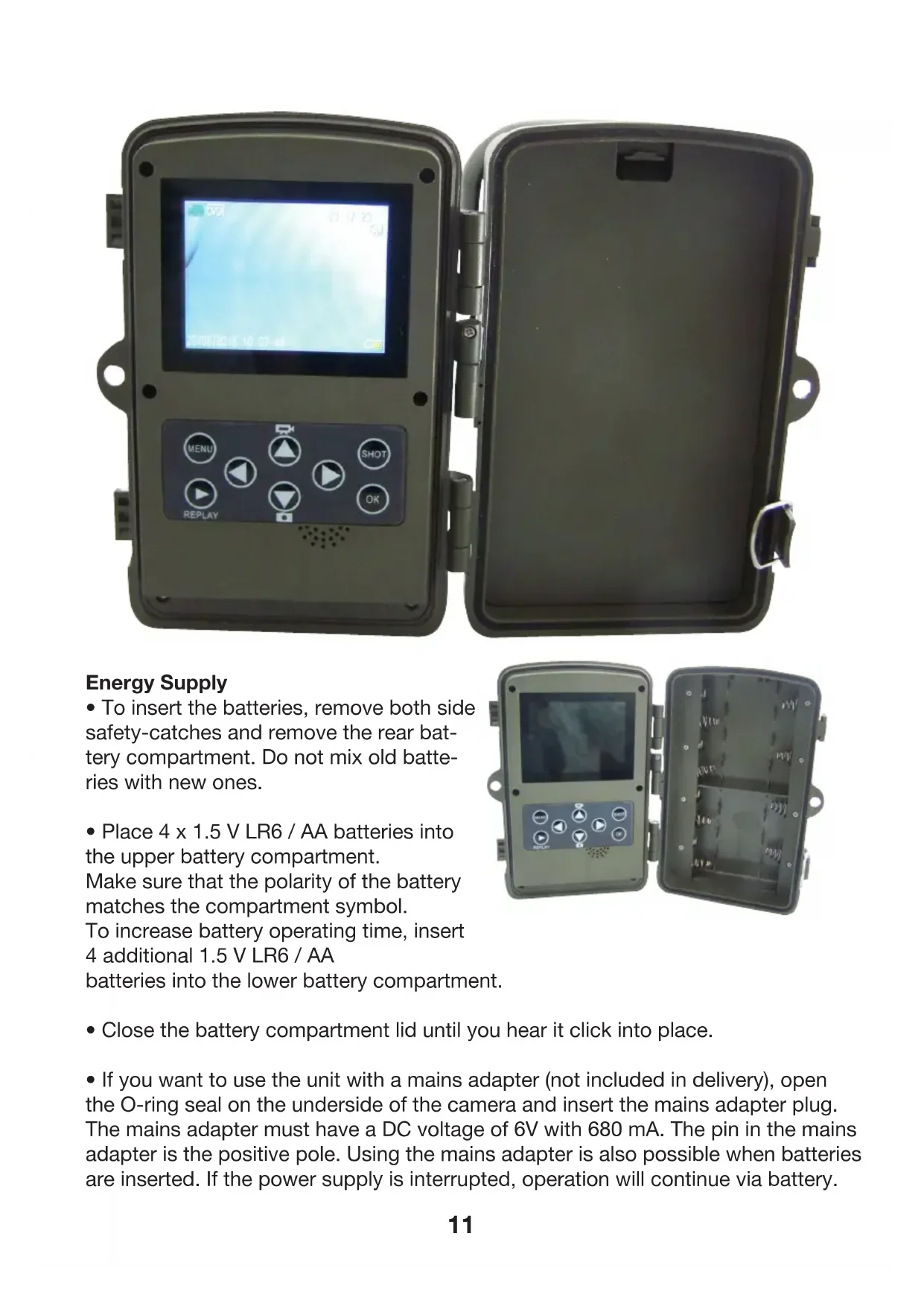
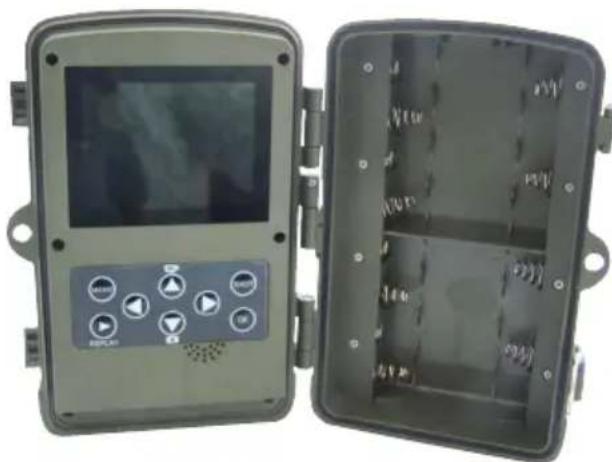
- To insert the batteries, remove both side safety-catches and remove the rear battery compartment. Do not mix old batteries with new ones.
- Place 4 × 1.5 ~V LR6 / AA batteries into the upper battery compartment.
Make sure that the polarity of the battery matches the compartment symbol.
To increase battery operating time, insert 4 additional 1.5 V LR6 / AA
batteries into the lower battery compartment.
natural_image
Two black industrial control boxes with digital displays and control buttons, one open and one closed (no visible text or symbols)- Close the battery compartment lid until you hear it click into place.
- If you want to use the unit with a mains adapter (not included in delivery), open the O-ring seal on the underside of the camera and insert the mains adapter plug. The mains adapter must have a DC voltage of 6V with 680 mA. The pin in the mains adapter is the positive pole. Using the mains adapter is also possible when batteries are inserted. If the power supply is interrupted, operation will continue via battery.
Video connection to TV
- The camera can transmit a video signal to an external monitor or to the video input of a TV. Please refer to the monitor's instruction manual.
- Connect any suitable monitor to the TV-Out plug with the enclosed TV cable.
Inserting Memory Cards
- The unit supports both micro SD and SDHC memory cards as well as TF cards with a capacity of up to 32 GB.
- Push in the memory card as shown in the diagram on the card slot. Never force a card into the slot.
- When transporting memory cards, always wait until the card is at the temperature of its surroundings before using it. Temperature changes and humidity can cause condensation which can lead to short-circuits.
- To remove an SD / SDHC memory card from the slot, lightly press the raised edge of the card until it springs out, and then remove it completely.
- SD / SDHC memory cards have a locking system that is designed to prevent unintentional erasing of data. Select the “LOCK” position on the side of the card. However, the camera cannot save images to the card if it is set to this position.
Operational Use
Switching the camera on is done by setting the "Off Test On" switch to the "Test" position. Settings and pro-gramming are now available.
- Press the switch down to change from Video to Photo mode. Warning! The camera will automatically switch back into Video mode as soon as you switch back to "Test". Settings will be displayed on the screen on the upper left!
- Press the "Up" key to switch back from Photo mode to Video mode.
- Press the MENU key to open the Settings menu.
- Confirm with "OK" otherwise your changes will not be stored!
- Press the Up / Down key to select the desired menu point and then activate with the OK key. If you change settings you must always confirm your changes with "OK".
- Use the MENU key by repeatedly pressing it to return to the previous menu page.
Mode
To select whether photos or videos should be recorded, select "Photo" or "Video", or use the Up / Down selector function on the menu. Target selection will be displayed on the upper left screen. Warning! The camera will automatically switch to "Video" mode as soon as the "Test" key is activated. Pay attention to the information displayed on the upper left screen! In the "Photo + Video" mode, the camera will first take a photo and then begin to record video.
Language
You have the option of selecting one of the following languages: English, German, French, Italian, Dutch, Spanish or Portuguese.
Formatting the Memory Card
Formatting the memory card will permanently delete all data on the card. Before you insert a new memory card into the camera or a card which has been used in another device, you should first format it. Select "Yes" with the OK key, and confirm the following message with OK. The formatting process will begin. While the card is being formatted it will display the message "Please wait".
Taking a Photo
Select an image size: 1 MP, 3 MP, 5 MP (pre-selected), 8 MP or 12 MP. The higher the resolution, the more detailed the image will be. However, the number of high-resolution images that can be stored on the card will be less.
Recording a Video
Select a screen resolution: 1920 x 1080, 1280 x 720, 720 x 480, 640 x 480 or 320 x 240. The same rule applies here: The higher the resolution, the more quickly the memory card will become full.
Time Date
You can set the date format (YYYY / MM / DD, DD / MM / YYYY or MM / DD / YYYY), the time format (12/24 hour) and the time and date. Use the Up / Down keys to change values and the Right / Left key to select between different categories. Confirm using the OK key.
Serial recording
Select the number of photos that should be taken consecutively when the camera is in „Photo“ mode. In addition to the Single-Shot mode (1 photo), you can select between "2 photos in series" or "3 photos in series".
Video length
Use the Up / Down keys to select the length of a video recording (between 3-60 seconds or 1-10 minutes). The operating time is lessened the longer the recording goes on.
Shooting range
Use the On / Off keys to select the interval at which the camera should take a photo after it has just taken one. This feature prevents too many images being taken of the same event. You can select between 5-60 seconds or 1-60 minutes.
Motion sensor sensitivity.
The sensitivity of the main movement sensor is set here. For indoor areas and surroundings with few incidents, select "High". Select "Medium" for outdoor areas in which there is a normal amount of movement. Select "Low" for areas with a high amount of movement. The temperature can influence the sensitivity. The "High" setting is ideally suited to warm temperatures, while "Low" should be selected for colder areas.
Photo stamp
This is where you can select whether your photos are stamped with the date and time, just the date, or with no stamp at all.
Target recording time
Select "On" if you would like the camera be active during a certain period of time. Your settings will be stored and activated every day. The camera will not function outside of this active phase. Selecting "Off" will put the camera into permanent 24 hour active mode.
Password protection
Select "On" if you would like to use a Pin Code for added security. You can select a 4-figure Pin Code in the screen menu. Once set, this code must be entered every time the camera is switched on in the SET mode! If you forget the Pin Code, you can no longer use the camera!
Setting up the Camera
In "Test" mode you can test out the optimum recording angle and choose the area in which the motion sensors will operate.
Set the "Off" slider to "Test", shut the camera and lock it using the locking catch and place the camera in the desired position. If you move towards the camera from the side, the PIRs will sense your motion and a blue LED will light up. Move toward the centre and the central PIRs will detect your motion, which will then be indicated with a green LED. Use these parameters to adjust the precise placement of the camera.
Sound recording
Select this function using the “On” key. You can now record audio to accompany your video recording.
Return settings to default position
If you select this Menu function and confirm by pressing “Yes”, you will delete all of your camera settings, including the Pin Code, returning the unit to factory default mode.
Activating the camera for use
Once you have selected your settings and have placed the camera in the desired position, switch the slider to "On".
The red LED on the front of the camera will flash for a few seconds, indicating that the camera is ready for use.
Night-time recording
Infra-red LEDs on the front of the unit will provide the necessary illumination for night-time recording and images.
Playing back recordings on the monitor screen
Set the slider switch to the "Test" position and press the "Replay" key. The latest image will be displayed. The total number of images will be displayed on the upper right on the display. Using the "Up" and "Down" keys you can scroll through the images. Using the "Shot" key you can zoom into the image you are viewing, and with the "OK" key you can zoom out. You can use the indicator arrow to determine the zoom area. Using the "Menu" key you can delete all selections, delete all images, activate a slide-show or activate write-protection.
When the currently selected recording is a video, (this will be indicated in the upper left of the display), press the "OK" key to play the video. Press the "OK" key once more to stop the video. Pressing the "Menu" key will return the video to its start position.
(F) Mode d'emploi
natural_image
Close-up of a beige handheld electronic device with control panel and ports, showing internal components and mounting base (no readable text or symbols)natural_image
Two black rectangular enclosures: one with a digital display showing 'OK', the other with a closed panel displaying 'MENU' and 'SHOT' buttons (no readable text or symbols beyond control buttons)natural_image
Two black electronic device cases: one with a display and control panel, the other with internal compartments (no visible text or symbols)Sortie vidéo TV
natural_image
Close-up of a beige electronic device with control panel and ports, showing internal components and mounting base (no readable text or symbols)AAN/test/UIT-schakelaar
- Uit (OFF)
- AAN (ON)
- TEST (Test)