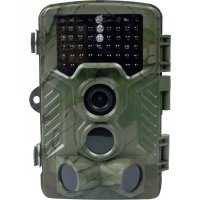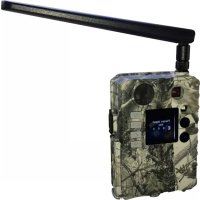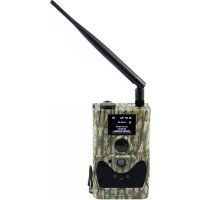
SG880MK8mHD - Video camera Berger & Schröter - Free user manual and instructions
Find the device manual for free SG880MK8mHD Berger & Schröter in PDF.



| Product type | Digital infrared surveillance camera with MMS function |
| Brand | Berger & Schröter |
| Model | SG880MK8mHD |
| Dimensions | 140 x 87 x 55 mm |
| Weight | 300 g (without batteries) |
| Power supply | 4 or 8 AA 1.5 V batteries (alkaline or rechargeable) |
| Display | 1.5 inch LCD |
| Image sensor | 5 megapixel CMOS (8 MP interpolated) |
| Photo resolution | 8 MP (3264×2448) or 5 MP (2560×1920) |
| Video resolution | 1280×720 (HD) or 640×480 |
| Storage | SD card up to 32 GB |
| Night vision | Invisible 940 nm infrared LEDs |
| Motion detection | Multi-zone PIR sensor, adjustable sensitivity |
| PIR sensor range | Up to 22 m (73 ft) |
| Viewing angle | 60° |
| Connectivity | USB, TV output, quad-band GSM/GPRS |
| Image transmission | MMS, SMS, email via GPRS |
| Audio recording | Yes, built-in |
| Laser indicator | Yes, for framing |
| Remote control | Infrared, max distance 9 m |
| Operating temperature | -20°C to +60°C |
| Humidity | 5% to 90% |
| Standby consumption | < 0.25 mA |
| Battery life | > 500 MMS with 8 AA batteries |
| Box contents | Camera, remote control, USB cable, strap, user manual, antenna |
| Maintenance and cleaning | Clean with a soft, dry cloth. Avoid solvents. |
| Spare parts and repairability | Spare parts available on request. Repair by a qualified technician. |
Frequently Asked Questions - SG880MK8mHD Berger & Schröter
User questions about SG880MK8mHD Berger & Schröter
0 question about this device. Answer the ones you know or ask your own.
Ask a new question about this device
Download the instructions for your Video camera in PDF format for free! Find your manual SG880MK8mHD - Berger & Schröter and take your electronic device back in hand. On this page are published all the documents necessary for the use of your device. SG880MK8mHD by Berger & Schröter.
USER MANUAL SG880MK8mHD Berger & Schröter
natural_image
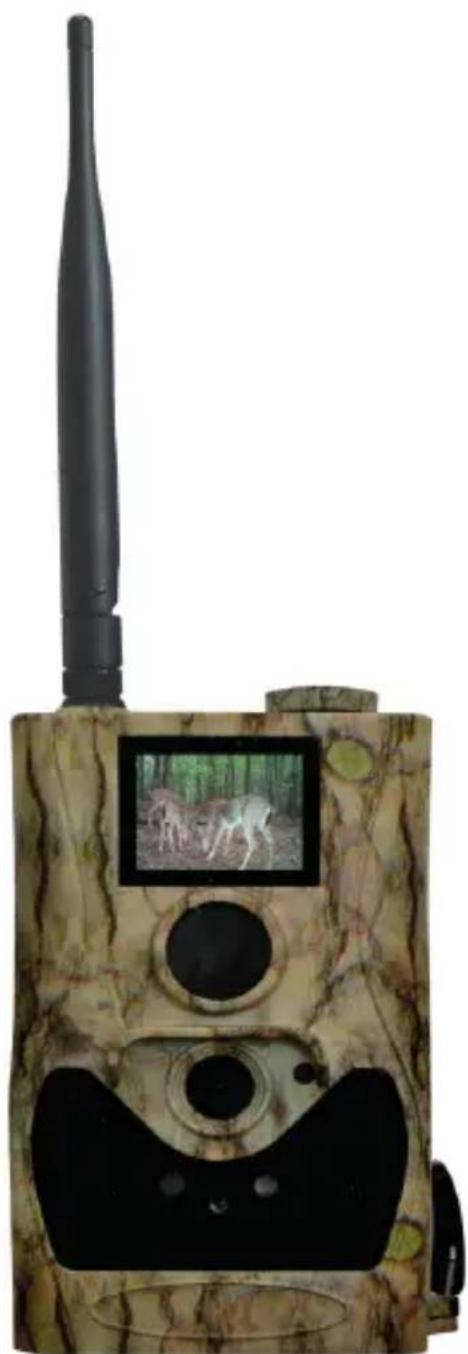
Camouflaged surveillance camera with mounted antenna and display screen showing two dogs in a forest setting (no text or symbols visible)Inhaltsverzeichnis
1 Anleitung 3
natural_image
Line drawing of a walkie-talkie device with no visible text or symbolstext_image
BMC CONFIG Products Please select a product: 3G8608-8MDD Remember My Choice OK (Y) Exit (N)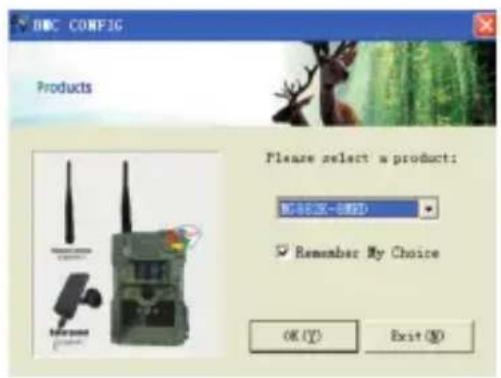
text_image
DOC CONFIG Products Please select a product: Microsoft-8000 Remember My Choice OK (Y) Exit (N)User's Manual Infrared Mobile Digital Scouting Camera SG880MK-8mHD Item No. 31484
natural_image
Camouflaged surveillance camera with mounted antenna and display screen showing two dogs in a forest setting (no text or symbols visible)Inhaltsverzeichnis
1 Instruction 23
1.1 General Description 23
1.2 Camera Body Interfaces 23
1.3 Remote Control 24
1.3.1 Navigating 25
1.3.2 Characters 25
1.4 Shooting Information Display 25-26
1.5 MMS/GPRS function 26
2 Cautions 27
3 Quick Start Guide 27
3.1 Power Supply 27
3.2 Insert the SD card and the SIM card 28
3.3 Do the Camera Settings 28
3.4 Enter into the TEST Mode 28
3.4.1 Custom Settings 29
3.4.2 Manual Capturing 29
3.4.3 Send MMS 29
3.5 Power on and Enter into the ON Mode 29
3.6 SMS Control 29
3.7 SMS Command List 30
3.8 Power Off 31
4 Advanced Operations 31
4.1 Settings Menu 31-35
4.2 Default Setting 36
4.3 Playback 37
4.3.1 View Photo 37
4.3.2 Delete Photo or Video 37
4.4 Laser Pointer 37
4.5 File Numbering 37
Appendix I: PIR Detection Zone 38-39
Appendix II: Technical Specifications 40
Appendix III: Parts List 40
1 Instruction
1.1 General Description
This camera, a digital scouting camera with black IR and MMS function, is a digital infrared surveillance camera, triggered by any movement of humans or animals monitored by a high sensitive Passive Infrared (PIR) motion sensor, and then automatically captures high quality pictures (up to 8M pixels) or records video clips (720P HD) according to default settings or preset customer settings. It will then send the pictures instantly to your mobile device or e-mail via GSM/GPRS network. You’ll be alerted just when the camera is triggered or per custom settings.
It takes color pictures or videos under sufficient daylight. While at night, the built-in 940nm IR LEDs take clear pictures or videos (monochrome). It’s invisible to game. And this model has a new design of PIR and this new PIR is patented.
There is a 1.5" color LCD display screen on the camera and a sound recorder embedded in the camera. A laser pointer is used to help target the photo area of the camera. It supports MMS/SMS/E-mail via GSM/GPRS Network.
It is resistant against water and snow. The camera can also be used as a portable digital camera.
1.2 Camera Body Interfaces
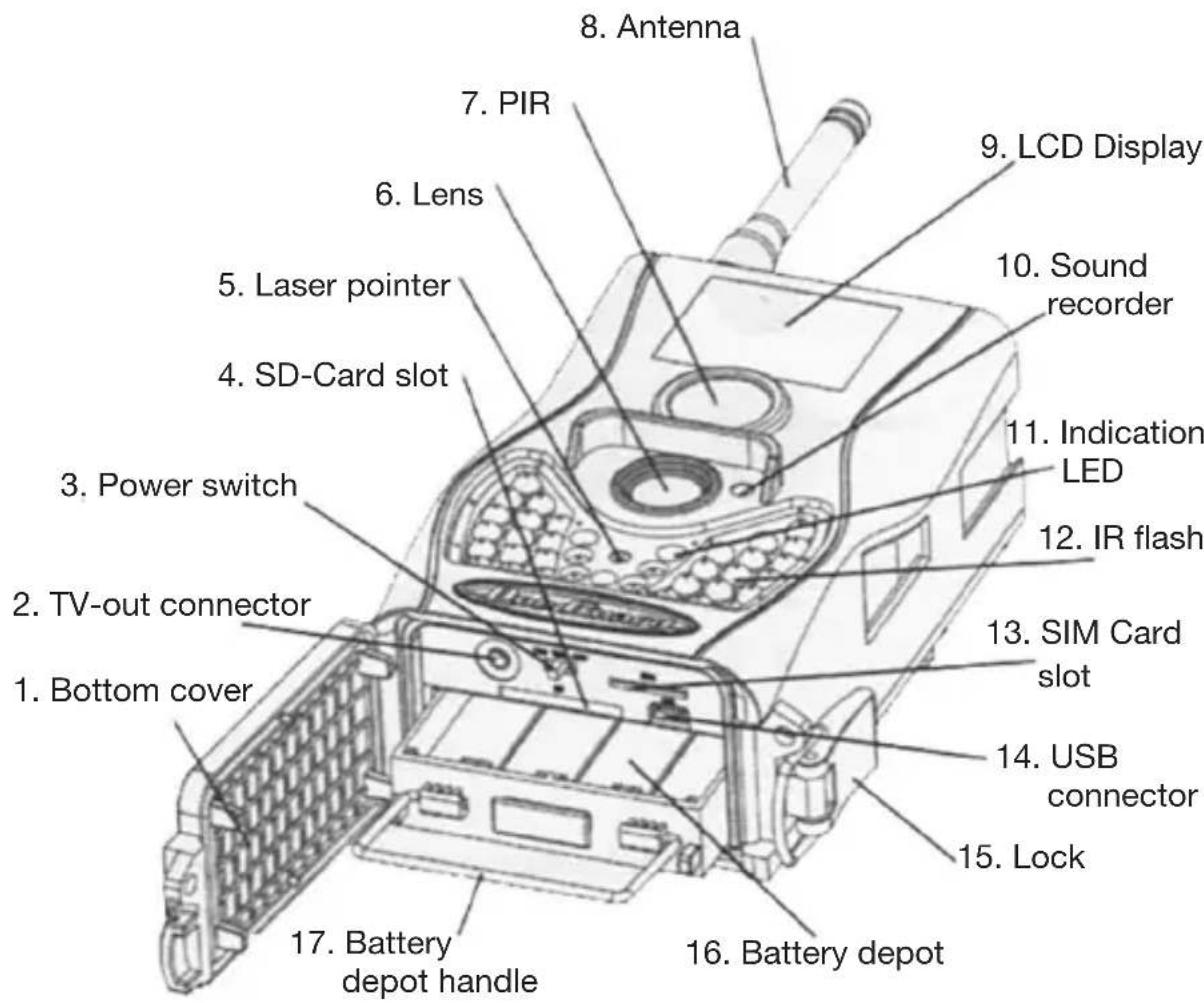
The camera has the following I/O interfaces: USB connector, SD card Slot, TV output and external DC power connector.
Take a few moments to familiarize yourself with the camera controls and displays. It is helpful to bookmark this section and refer to it when reading through the rest of the manual.
text_image
8. Antenna 7. PIR 6. Lens 5. Laser pointer 4. SD-Card slot 3. Power switch 2. TV-out connector 1. Bottom cover 17. Battery depot handle 16. Battery depot 15. Lock 14. USB connector 13. SIM Card slot 12. IR flash 11. Indication LED 10. Sound recorder 9. LCD DisplayFig. 1 Diagram of camera functional indicators
1.3 Remote Control
The remote control is the input device for the camera and is primarily used for customer settings and password input. This is an infrared type wireless remote control. The maximum remote distance is 30 feet.
Fig. 2 Remote control

text_image
Menu Cancel OK i aq 2 abc 3 def 4 ghi 5 jkl 6 mno 7 pqrs 8 tuv 9 wxyz * 0 # Boly Guard®Note:
The remote will not work properly without the antenna attached.
When power on the camera, allow approximately 10-20 seconds for the camera to acquire a signal. The remote will not function properly until the camera has acquired a signal. You can determine that the camera has acquired a signal by locating the signal icon on the LCD screen.
natural_image
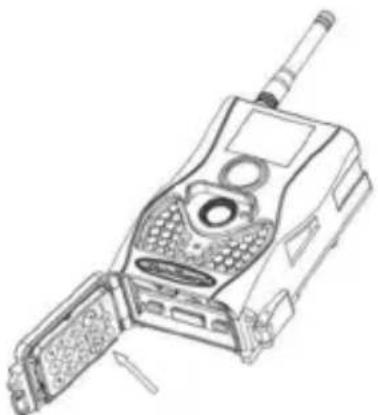
Line drawing of a mobile phone device with visible ports and antenna (no text or symbols)Abb. 3 Place the remote control in the camera
1.3.1 Navigating
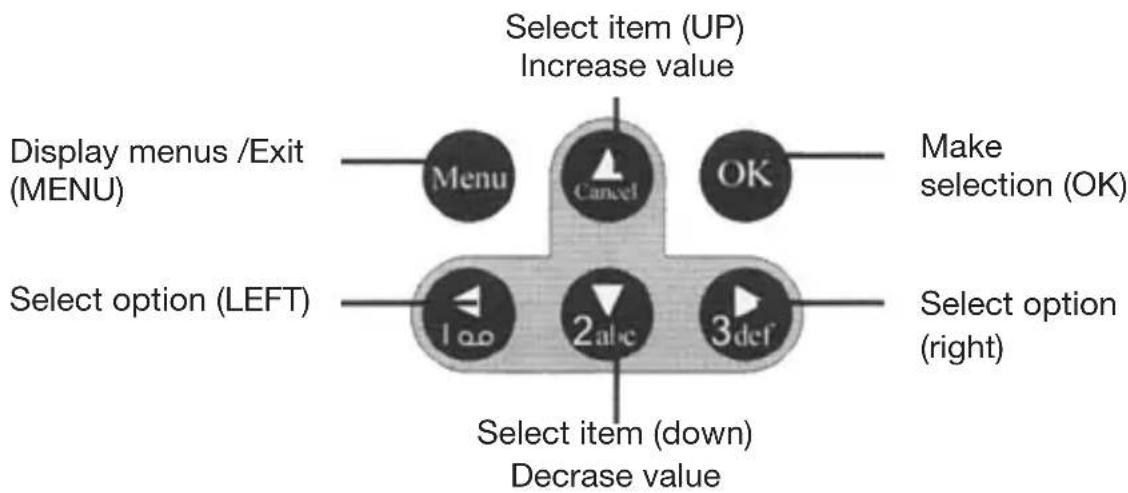
Press UP or DOWN to select or highlight the menu item. Press LEFT or RIGHT to select the option of each item and press OK to make a selection.
text_image
Select item (UP) Increase value Display menus /Exit (MENU) Menu Cancel OK Make selection (OK) Select option (LEFT) 1 a0 2 a1c 3 def Select option (right) Select item (down) Decrease value1.3.2 Characters
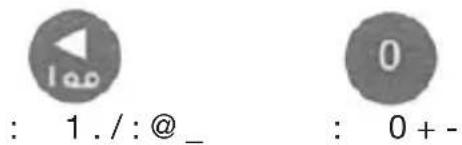
When entering digits, letters or punctuations into an input column, there are some useful characters that can be used by pressing the button continuously:
text_image
: 1. /: @ _ : 0 + -Press the punctuation “*” for laser pointer.
1.4 Shooting Information Display
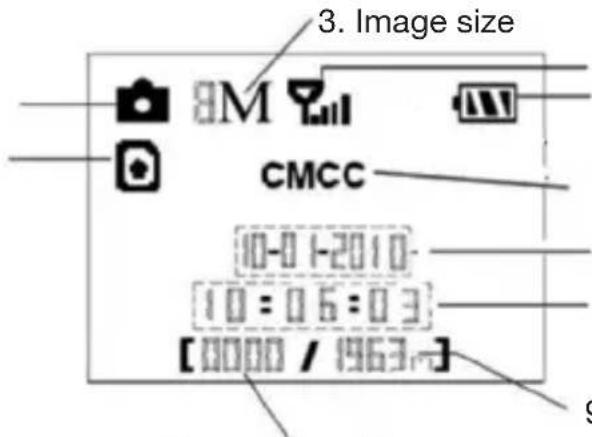
When the camera is turned on (the power switch is slid to ON or TEST position), the current settings will be displayed on screen.
- Camera mode
- SIM card
text_image
3. Image size 8M CMCC 10-0 1-2010 10:06:03 [0000 / 1963-]-
Number of images
-
Signal strength
- Batterylevel
- Tlecom provide
- Date (M;D;Y)
- Time /H;M;S)
. Available space
Fig.4 Shooting information display
1.5 MMS/GPRS function
This camera can send pictures instantly to your mobile device via GSM/GPRS network. You'll be alerted just when a picture or video has been taken. The camera sends MMS message through GPRS network, so before using this function, you need to open GPRS service from your service provider. It supports four bands : 850MHz, 900MHz, 1800MHz and 1900MHz.
SIM card Icon : There are two SIM card icons which stand for different installation situations. 📄 means the SIM card is inserted and it works well. 📌 means the MMS function can’t work correctly because of loss of signal or other communication issues.
There are 4 submenu settings within the MMS/GPRS function. They are Send Mode, MMS Set, GPRS Set and Send to. Send Mode means to choose a way to send MMS (refer to 4.1 table). MMS Set and GPRS Set means to have the right MMS and GPRS setting parameters according to your network. Send to means to input the phone number or email address which you want to send to. All 4 submenus must be correctly set up.
2 Cautions
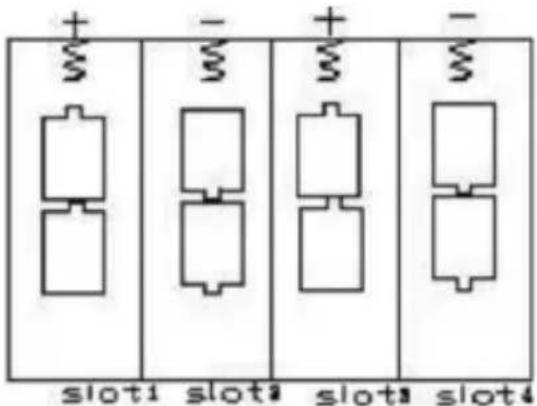
- Please install batteries according to shown polarity.
- Please unlock the write-protect before inserting the SD card.
- Please insert the SD card when the power switch is in the OFF position before testing the camera. The camera has no internal memory for saving images or videos. If no SD card is inserted, the camera will shut down automatically after a continuous indication sound.
- Please do not insert or take out the SD card when the power switch is in the ON position.
- It is recommended to format the SD card by the camera when used for the first time.
- The camera will be in USB mode when connected to a USB port of a computer. In this case, the SD card function is as a removable disk.
- In the TEST mode, the camera will shut down automatically after 3 minutes if no operation is done. Please turn on the power again if you want to continue to work with the remote.
- Please ensure there is sufficient power when having a firmware upgrade, otherwise the upgrade process could be interrupted and the camera may stop functioning properly
3 Quick Start Guide
3.1 Power Supply
To supply power for the camera, four or eight size AA batteries are needed. The following batteries with 1.5V output can be used:
- High-density and high-performance alkaline batteries (Recommended)
- Rechargeable alkaline batteries
- Rechargeable NiMH batteries
There are four battery slots. Slot 1 and 2 form one group and is marked “1” while slot 3 and 4 form the other group and is marked “2”. Only one “group” of batteries is needed to supply power to the camera, but both can be used and is recommended.
When in a low-battery state, the camera will be automatically shut down after two indication sounds. Please change the batteries at this time. If you have set the MMS function, it will send you a MMS/SMS or Email to indicate the low battery situation.
text_image
+ - + - + - slot1 slot2 slot3 slot4Fig.5 Battery install

Dear Customer! Please note! Depending on battery regulations you are required to used or defective batteries and accumulators, at no cost to you, return it to us

Every consumer is legally obliged to dispose of WEEE separately from the household waste and to dispose of at a collection site of his community / City District for example. Electric appliances are marked with the crossed out dustbin, accepted there for free.
Caution: Risk of explosion if battery is replaced by an incorrect type. Also dispose of used batteries according to the instructions.
3.2 Insert the SD card and the SIM card
Open the bottom cover. Insert SD card and SIM card into the card slot. Please note that the SD card is on the “write” (not locked) position otherwise the camera will not function correctly.
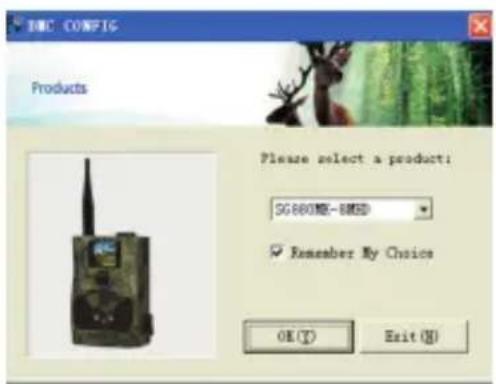
3.3 Do the Camera Settings
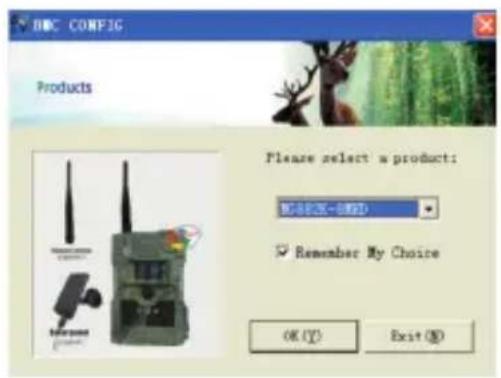
Down load the camera set up software (BMC config.zip) from our web site. The specified website is written in the last page of the manual.
text_image
NBC CONFIG Products Please select a product: 5G8608E-8MID Remember My Choice OK (Y) Exit (N)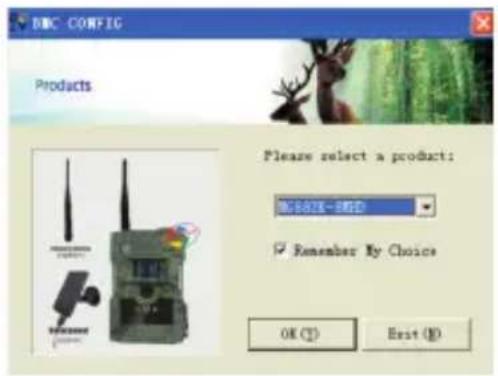
text_image
DNC CONFIG Products Please select a product: NEW 2017-2020 Remember My Choice OK (T) Exit (N)3.4 Enter into the TEST Mode
Slide the power switch to the TEST position and enter into the TEST mode. There are some functions in TEST mode: Custom settings, manual capture, preview or send MMS manually. The remote control is needed in this mode.
3.4.1 Custom Settings
Press MENU on the remote control to enter into the menu setting. The camera can be adjusted to manually customize the camera settings which display on the LCD screen on the camera. The detailed operations will be described in the “Advanced Operations” chapter.
3.4.2 Manual Capturing
You can press RIGHT to manually capture photos or record a video and again RIGHT to stop a video.
3.4.3 Send MMS
When the Send Mode is set as “Manual”, you can send the selected photo to the preset address in TEST mode. "Daily Report" and "Instant" mode are used in the ON mode.
Please note that the images can only be sent and video cannot be sent. If the SIM card is not inserted, the image cannot be sent as well.
3.5 Power on and Enter into the ON Mode
Slide the power switch to the ON position to power on the camera and enter into the ON mode. Before entering into the ON mode, you can adjust the camera towards the target monitoring area by laser pointer.
After switching on the camera, the motion indication LED (red) light will blink for about 10s. The 10s is a buffering time before automatically capturing photos or videos, e.g. for closing and locking the bottom cover, fixing the camera on a tree and walking away.
The camera has the sound recording function, so the sound will be embedded in the video clip while capturing a video.
3.6 SMS Control
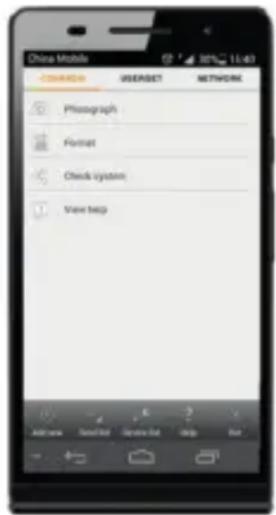
When the camera is in ON mode, you can send text message “#T#” to your camera’s SIM card number to get an on spot image or use our Android application tools.
Down load the Android control software (BGTools.zip) from our website. The specified website is written in the last page of the manual.
text_image
China Mobile C:\WINDOWS\USERSET\NETWORK Photograph Format Check system View help3.7 SMS Command List
Below is a SMS command list for example.
No Function SMS Command
| 1 Set Supper User #sg880#4321#Tel. no. administrator# |
| #mg882#4321#13800138000# |
| 2 Set MMS-Parameters #m#http://mmsc.cingular.com#66.209.11.32# |
| 8080#wap.cingular#account#password# |
| (The example parameters are for the carrier of AT&T) |
| 3 Set GPRS-Parameters #s#bmctest123@163.com#bmc123#25#cmnet#smtp.163.com#account#password# |
| 4 Set Normal #n#13800138001#13800138002#13800138003#Users Phone |
| 5 Set Receive #r#bmc1@sina.com#bmc2@sina.com# | |
| Email Address | bmc3@bmc3@sina.com# |
| 6 Get On Spot Photo | #t# (Send MMS to phone) |
| #t#e# (Send picture to Email by GPRS) |
| 7 Check Camera Settings | #L# |
| 8 Edit Work Parameters #e#cp#s5#fh#b1#v60#t#l10m#pn#i5s# |
| Hon08:30-20:30 (cp: camera mode, s5:photo size fh: video size, b1:photoburst, V60: video-length, t: set clock, l10m: time lapse, pn: PIR trigger, i5s: PIR-intervall, mp: send to, Hon: (work hour) |
| 9 Format TF-Kart | #F# | |
| 10 | Set Administrator's Password | #P#0000# |
| 11 | Help | #H# |
3.8 Power Off
Slide the power switch to the OFF position to power off the camera. Please note that even in the OFF mode, the camera still consumes a small amount of battery power. Therefore, please remove the batteries if the camera is not in use for a length of time.
4 Advanced Operations
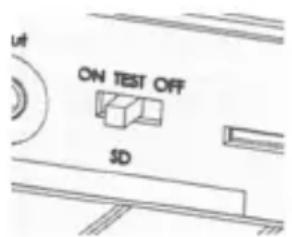
From the basic operations of the camera previewed in the previous chapter, we know that the camera has three basic operation modes:
text_image
UT ON TEST OFF SD- OFF mode: Power switch is in the OFF position.
- ON mode: Power switch is in the ON position.
- TEST mode: Power switch is in the TEST position.
In the above three modes, the OFF mode is the specified safe mode when replacing the SD card or batteries and transporting the camera.
This chapter explains the advanced operations for customizing the camera settings. The settings can only be customized in TEST mode and the wireless remote is needed.
4.1 Settings Menu
To view the camera settings menu, press MENU in the TEST mode (called settings menu in this chapter). The settings menu will be shown on the LCD of camera.
Setting Items Description
| Language You can choose language you need. It supports four language: English, Finnish, German, Swedish |
| Camera Mode Choose capturing images or recording videos. |
| Set Clock Set camera date and time. You can change the date and time of the device by setting this parameter when necessary, e.g., after every battery change. The date format is month/day/year, the time format is hour: minute: second. The valid value for year is between 2009 and 2050. |
| Photo Size Choose the image size, e.g. 8 mega pixels or 5 mega pixels. |
| Photo Burst Choose the continuous shooting numbers after each triggering. |
| Video Size Choose the video size: 1280x720 or 640x480. |
| Video Length Choose duration of recording video. This parameter is effective and can be adjusted only when the device in the video mode under ON mode. Its value extends from 1 to 60 seconds with a step of one second. The default value is 10 seconds. Press LEFT and RIGHT to decrease or increase the value by 1 second. |
| Time Lapse Time lapse means the camera can capture images or videos at a preset time interval regardless of whether motions are detected. The default parameter is Off, which means the timer function is disabled. Changing this parameter to a non-zero value turns on the Time Lapse mode, and camera will take photos at given time interval.Please note that if the PIR Trigger is set to Off, then the Time Lapse can't be set to Off.PIR Trigger Choose sensitivity of the PIR sensor. This parameter defines the sensitivity of the PIR. There are four sensitivity parameters: High, Normal, Low and Off. The default value is “Normal”. The higher degree indicates that the Camera is more easily to be triggered by motion, taking more pictures or recording more videos. It is recommended to use high sensitivity degree in room or environment with little interference, and to use lower sensitivity for outdoor or environment with lots of interference like hot wind, smoke, near window etc. Furthermore, the sensitivity of the PIR is strongly related to the temperature. Higher temperature leads to lower sensitivity. Therefore it is suggested to set a higher sensitivity for high temperature environment. |
| PIR-Interval This parameter indicates how long the PIR (Passive Infrared motion sensor) will be disabled after each triggering in ON mode. During this time the PIR of the device will not react to the motion of human (or animals). The minimum interval is 0 second, it means the PIR works all the time. The maximum interval is 1 hour. It means the PIR will be disabled for 1 hour after each triggering. Press LEFT or RIGHT to decrease or increase the value. |
| Work Hour Choose a time period of a day to let the camera work. The camera will awake at the setting time duration in a day. In the rest of the time the camera is sleeping. Set Work Hour as off means the camera works all day. |
MMS Set The camera sends MMS message through GPRS network, so before using this function, you need to open GPRS service from your service provider. You should set the right MMS setting parameters. The settings of MMS: URL, APN, IP and Port. Please contact the network service provider if you are not familiar with the settings.
GPRS Set The camera sends image through GPRS network with SMTP protocol to an Email address. Use this way the communication cost will be much cheaper in many countries. You should set the right GPRS setting parameters. The settings of GPRS: Email server port, APN and so on, please contact the network service provider if you are not familiar with the settings.
Sende Mode There are 3 sending modes: “Manual” works in TEST mode, “Daily report” and “Instant” work in ON mode.
1) "Manual":
Choose“Manual” in Test mode. Please ensure a SIM card is inserted properly; Please note, only photos can be sent in TEST mode .Video information can’t be sent in TEST mode.
2) "Daily Report":
Daily Report works only in the ON mode, which means that the camera will report the summarized information at the preset time (if the preset time is, eg.20:00PM) on how many pictures it had taken per day. So, you will get a summarized text message with the last picture taken until 20:00PM.
If it is on Photo mode, the camera will send a MMS at the preset time. The MMS will show you the latest photo and the total qty of the pictures get taken. If it is on Video mode, the camera will send a SMS at the preset time. The SMS will show you how many video clips the camera has taken within 24 hours.
3) "Instant":
Instant, just works in ON mode, which means the camera will send a MMS instantly after it captures a
| photo. You can choose the number of how many pictures you want it to send out per day.If it is on Photo mode and you chose the Instant MMS mode, and set the MAX number is 10, the camera will send 10 MMS within 24 hours .And then it continues to capture photos and save them on the SD card. After 24 hours, the camera will send MMS again when it captures photos. If it is on Video mode, the Camera will send only SMS instead of MMS.4) “OFF”: To disable MMS function. | |
| Send To Choose send the image to your Phone or to Email.1> Phone[MMS]: Send the image to cell phone via WAP.2> Email[MMS]:Send the image to Email address via WAP.3> Email[GPRS]:Send the image to Email address via SMTP. Use this way the communication cost will be much cheaper in many countries. | |
| SMS Control SMS Control can enable two way communication function. It means if you choose SMS Control as ON, this camera can receive and respond to your SMS command. Also you can retrieve live pictures any time. But the power consumption will be a little bigger than normal hunting status. | |
| Version This parameter shows the information about Firmware and IMEI of this camera. | |
| Format SD All images and videos in the SD card will be deleted, so make sure that you have made a backup of important data. | |
| Default Set Restore all customer settings to default values. | |
4.2 Default Setting
Defaults settings are listed below:
| Setting Items Default Options | Submenu | ||
| Language English | Suomi | DeutschSvenska | |
| Camera Mode Photo Video | |||
| Set Clock Enter Adjust Clock | |||
| Photo Size 8MP 5MP | |||
| Photo Burst 1 Photo 2/3 Photos | |||
| Video Size 1280x720 640x480 | |||
| Video Length 10 sec 5-60 sec | |||
| Time Lapse | Off 5-55Min | 1-8Hour | |
| PIR Trigger | Normal | High, Low ,Off | |
| PIR Interval 5 Sec | 0-55 Sec, | 1-60 Min | |
| Work Hour | Off | On | 00:00-23:59 |
| MMS Set | Enter | URL, APN, IP, Port | |
| GPRS Set Enter | Server, | Port,APN | |
| Send Mode | Manual | Daily Report,Instant, Off | |
| Send to | Phone[MMS] | E-Mail[MMS],E-Mail[GPRS] | |
| SMS Control | Off | On | |
| Version | Enter | Firmware IMEI | |
| Format SD | Enter | Yes, No | |
| Default Set | Save | ||
4.3 Playback
In playback mode, images or videos can be viewed and deleted. An image can also be manually sent by MMS or GPRS. It can only be done in TEST mode.
The images can be viewed on the LCD screen on camera. The videos can only be viewed on your computer. For simplicity, operations with PC won't be introduced here.
4.3.1 View Photo
Press OK of the remote to view the latest picture in TEST mode, UP or DOWN to view the previous and the next one. And OK to return to info display. Note that video can not be displayed on the screen.
4.3.2 Delete Photo or Video
View the image (or video) which to be deleted, select the one you want to delete. Press DELETE and LEFT or RIGHT to select all, then OK to delete.
4.4 Laser-Pointer
The laser light pointer beam can be turned on as an additional function for pointing to an object or a certain region of interested (ROI) by pres-
NOTE:
Please note that the laser could be harmful to the eyes if pointed at another person.
4.5 File Numbering
Images and videos are saved in the pre-named folder. File numbering continues by adding one to the last number for each new image or video. Saving names are IMAG0001.JPG or IMAG0001.AVI. Through the suffix you can distinguish whether the file is an image (with suffix .jpg) or a video (with suffix .avi).
Appendix I: PIR Detection Zone
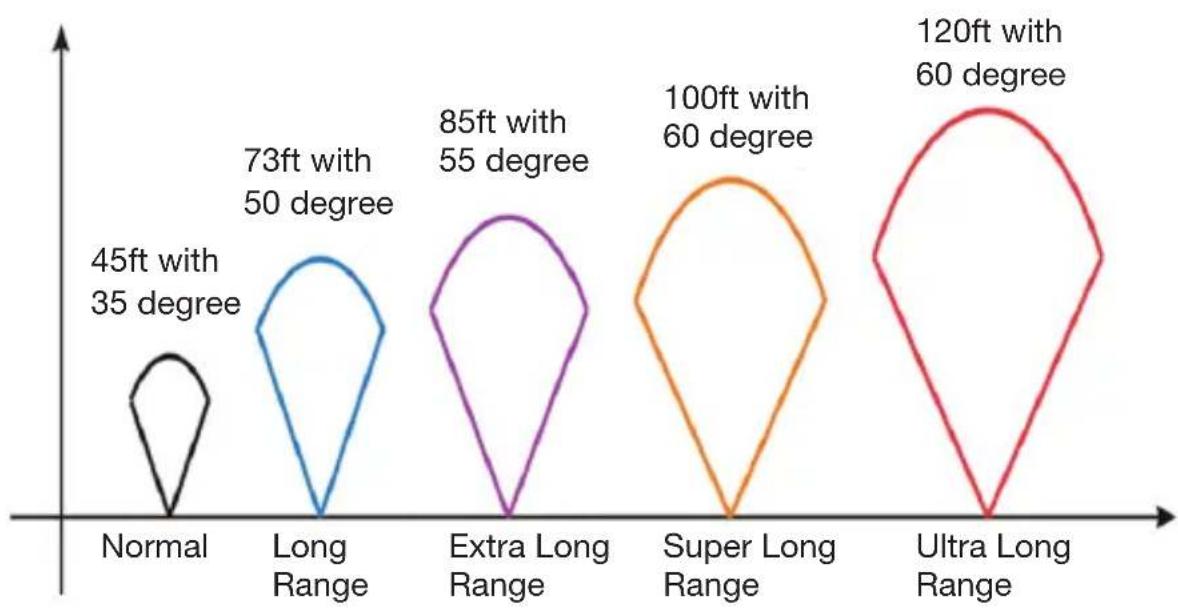
Figure 6 shows Bolymedia's 4 kinds of detection range at different detection angles.
radar
| Category | Value | | ----------------- | ----- | | Normal | 45ft | | Long Range | 73ft | | Extra Long Range | 85ft | | Super Long Range | 100ft | | Ultra Long Range | 120ft |Fig.6 Different detection range
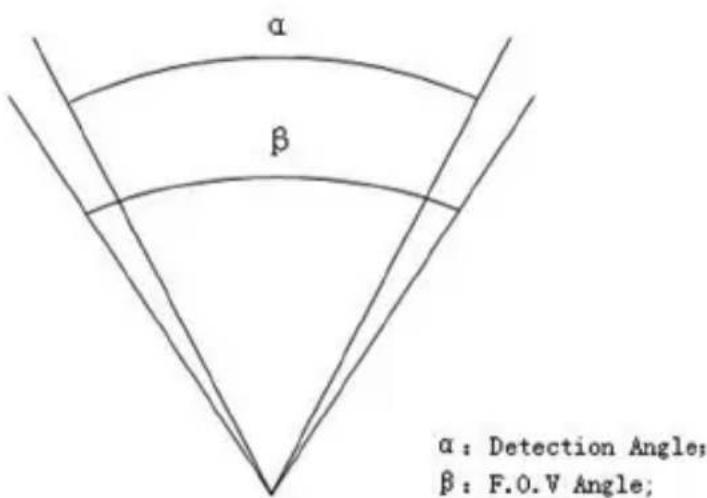
The PIR detection angle (☐) is just smaller than the field of view (FOV) angle (☐). The advantage of this design is to reduce empty picture rate and capture most, if not all, motions.
text_image
α β α : Detection Angle; β : F.O.V Angle;Fig.7 Detection angle VS F.O.V angle
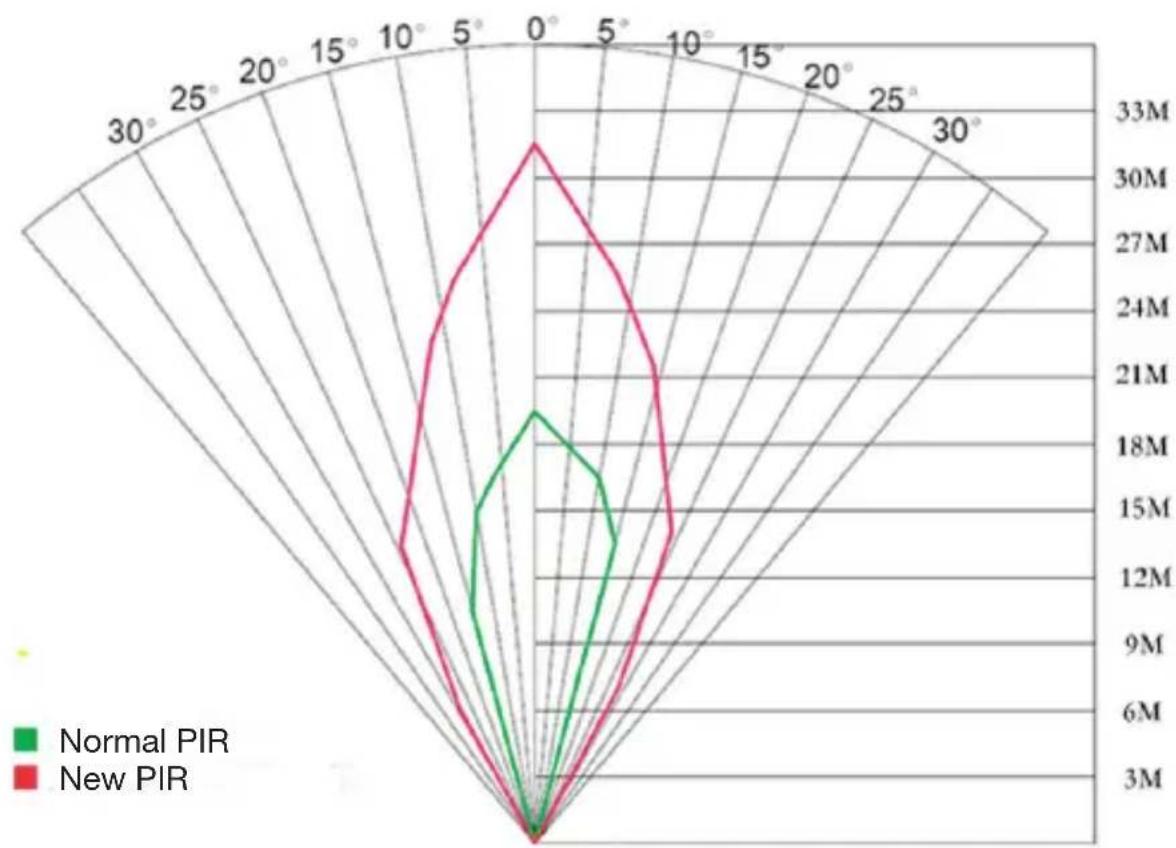
This camera has a new design of PIR. The new PIR's detection range of SG880M-8mHD can reach to 73ft, while MG882K-8mHD with 85ft in good environments. Figure 8 shows the compared detection zone between normal PIR and the new patented PIR.
radar
| Angle | Normal PIR | New PIR | |-------|------------|---------| | 0° | 18M | 33M | | 5° | 12M | 27M | | 10° | 8M | 24M | | 15° | 6M | 21M | | 20° | 4M | 18M | | 25° | 2M | 15M | | 30° | 0 | 12M | | 35° | 0 | 9M | | 40° | 0 | 6M | | 45° | 0 | 3M |Fig.8 PIR Detection Range
Appendix II: Technical Specifications
| Image Sensor 5MP Color CMOS,8MP Interpolation | |
| Lens F/NO=2.2FOV (Field of View)=60° | |
| PIR detection range SG880MK-8mHD: 73ftMG882K-8mHD: 85ft | |
| Display Screen 1.5” LCD | |
| Memory Card From 8 MB to 32 GB | |
| Picture Resolution 8MP = 3264 ×24485MP = 2560×1920 | |
| Video Resolution 1280x720 oder 640×480 | |
| PIR-Sensor Multi Zone | |
| PIR Sensitivity Adjustable (High/Normal/Low) | |
| Trigger Time 1s | |
| Weight 0.30 kg | |
| Operation/Storage Tem. -20 - +60°C / -30 - +70°C | |
| Interval 1s – 60 min. | |
| Photo Burst | 1–3 |
| Video Length | 1–60s |
| Power Supply 8×AA or 4×AA | |
| Stand by Current | < 0.25 mA (<6mAh/Day) |
| Power Consumption | >500 MMS(use 8*AA batteries) |
| Low Battery Alert | LED Indicator |
| Sound Recording | Available |
| Mounting | Rope/Belt/Python lock |
| Dimensions | 140 x87 x55 mm |
| Operation Humidity | 5% - 90% |
| Security Authentication | FCC, CE, RoHS |
*without battery
Appendix III: Parts List
| Digital Camera | 1 |
| Wireless Remote | 1 |
| USB Cable | 1 |
| Belt | 1 |
| User Manual | 1 |
| Enhanced Antenna | 1 |
| Warranty Card | 1 |
Website-Information:
Down load the APP software from here:
http://www.bolymedia.com/productv/?12-1.html
Mode d'emploi
natural_image
Camouflaged surveillance camera with camouflage pattern and mounted antenna, displayed in a forest setting (no visible text or symbols)Sommaire
1 Introduction 43
natural_image
Line drawing of a walkie-talkie device with labeled parts (no text or symbols on the device itself)text_image
NBC CONFIG Products Please select a product: 3G860版-8版ID ✓ Remember My Choice OK (Y) Exit (N)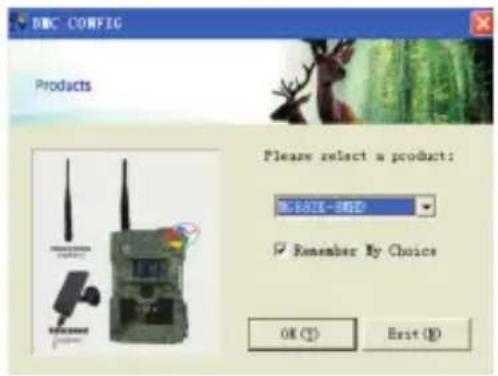
text_image
DNC CONFIG Products Please select a product: NEW 807E-9000 Remember My Choice OK (T) Exit (N)text_image
China Mobile GOVERNMENT USERSET NETWORK Photograph Format Click system View helpnatural_image
Camouflaged surveillance camera with mounted antenna and display screen showing two dogs in a forest setting (no text or symbols visible)Inhaltsverzeichnis
1 Instructies 63
natural_image
Line drawing of a walkie-talkie device (no text or symbols on the device itself)text_image
NBC CONFIG Products Please select a product: 3G860版-8版 Remember My Choice OK (Y) Exit (N)