XGM24V7 - Monitor KeepOut - Free user manual and instructions
Find the device manual for free XGM24V7 KeepOut in PDF.



| Product Type | Gaming Monitor |
| Brand | KeepOut |
| Model | XGM24V7 |
| Screen Size | 23.8 inches |
| Response Time | 4 ms |
| Blue Light Reduction | Yes |
| Anti-flicker | Yes |
| Built-in Speakers | Yes (2 rear speakers) |
| Video Inputs | HDMI, VGA |
| Audio Input | 3.5mm Jack (for VGA) |
| Power Supply | External adapter 12V/2.5A (100-240VAC) |
| Maximum Consumption | 30 W |
| Image Functions | Brightness, contrast, ECO (Standard, Game, Cinema, Internet), DCR, HDR, color modes, Low Blue Light |
| FreeSync | Yes (switchable) |
| OSD Menu | Yes (languages, position, transparency) |
| Package Contents | Monitor, stand and screws, power adapter, HDMI cable, user guide |
| Maintenance | Unplug before cleaning, soft cloth, avoid water |
| Safety | Do not disassemble, do not use above 2000m, grounded outlet |
| Repairability | Contact authorized technical service |
| Recycling | WEEE - mandatory separate collection |
Frequently Asked Questions - XGM24V7 KeepOut
User questions about XGM24V7 KeepOut
0 question about this device. Answer the ones you know or ask your own.
Ask a new question about this device
Download the instructions for your Monitor in PDF format for free! Find your manual XGM24V7 - KeepOut and take your electronic device back in hand. On this page are published all the documents necessary for the use of your device. XGM24V7 by KeepOut.
USER MANUAL XGM24V7 KeepOut
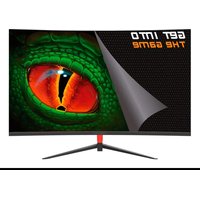
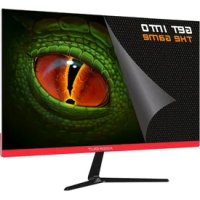
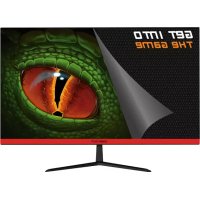
The XGM24V7 is a 23.8" Gaming monitor, which offers you an unprecedented combination of experience for your enjoyment of your best games, comfort for your eyes and great image sharpness.
Its screen is optimized to reduce the emission of blue light waves and minimize flickering, it will protect your eyes so you can spend more time playing your games in front of the screen. Do not miss detail.
Your Games will come alive and offer more realistic images. If your thing is high-level gaming with a response time of 4ms you will play more fluently. It includes rear speakers.
Packaging Content
- XGM24V7
- User's Guide
- Base and screws
- 12V/2.5A power adapter
- HDMI cable
Note: Make sure your packaging contains the items described above. If you find that any item is missing or damaged, please contact your dealer.
Security and Maintenance
Always place this device on a stable surface. Otherwise, it could fall and be damaged.
Do not use this product in places with an altitude above 2000m, take into account the operating voltage indicated on the back of the monitor.
Do not connect the power cord to an electrical outlet with wet hands.
Otherwise, an electric shock may occur.
Make sure the household electrical outlet is grounded because poor contact can cause a fire.
Always use the supplied power adapter.
Do not use another compatible or damaged one. Otherwise, an electric shock or fire may occur.
When cleaning the device, be sure to disconnect the power cord, use a soft cloth instead of industrial chemicals to clean the device, be sure not to let water into the device.
Do not disassemble this device without permission.
In case of failure, be sure to contact a technical service person to solve it.
Unauthorized disassembly of this device may cause an electric shock or fire. In case of smell or unusual noise in this device, be sure to disconnect the power cord and contact the authorized technical service.
When this device is inactive for a long time, be sure to turn it off. Otherwise, an electric shock or fire may occur.
Inputs, Outputs and Connections
HDMI input
If your PC has HDMI video output, connect the supplied HDMI cable between the HDMI input of the monitor and the HDMI output of the PC.
VGA input
If your PC has VGA video output, purchase a VGA cable and connect it between the VGA input of the monitor and the VGA output of the PC.
Audio Jack 3.5mm input
If you want to play the music through the monitor's internal speakers while the PC is connected to the monitor via VGA cable, connect a 3.5mm Jack cable between the 3.5mm Jack audio input of the monitor and the PC's audio output. Note: Input available only if monitor and PC are connected via VGA cable)
DC input
Connect the supplied power cable to the DC input of the Monitor and connect the adapter to a household electrical outlet. Power adapter: 12VDC/2.5A
Button functions
On / Off button: If you want to turn on the monitor press the on / off button, if you want to turn off the monitor press it again.
M button: OSD menu is displayed on the screen. Once inside, it also has the function of accepting or accessing the interior functions.
Button E: Exit the current menu or exit the OSD menu.
Up / Down direction buttons: The up and down direction button allows you to move between the different menus and modify values. If you are not in the OSD Menu, below allows you to enable / disable (HDR) High dynamic range, above allows you to modify the contrast of the monitor.
Technical Specifications external power adapter
| Name or brand | KEEP-OUT GAMING |
| Commercial registration number | B-91202499 |
| Manufacturer's address | C/Tecnología, 5, 41120, Gelves, Seville, Spain |
| Model ID | DC-865-1202500V |
| Description Model identifier | AC/DC adapter for XGM24V7 |
| Input voltage | 100-240VAC |
| Input AC frequency | 50/60Hz |
| Output voltage | 12VDC |
| Output Current max | 2.5A |
| Output power max | 30W |
| Average active efficiency | 87.87% |
| Low-load efficiency (10%) | 86.46% |
| Consumption without load | 0,07W |
The monitor OSD menu provides various settings for the monitor, such as colour, brightness and contrast, etc.
| Main Menu | Icon | Submenu | Sub-submenu | Description |
| LUMINANCE |  | BRIGHTNESS Adjust brightness | ||
| CONTRAST Adjust contrast | ||||
| ECO MODE | Standard | Adjust lighting adapted to normal use | ||
| Game Adjust lighting adapted to use in games | ||||
| Movie Adjust lighting adapted to Movie | ||||
| Internet Adjust lighting adapted for internet | ||||
| DCR | On Enable DCR | |||
| Off Disable DCR | ||||
| HDR | On Enable HDR | |||
| Off Disable HDR | ||||
| IMAGE |  | H POSITION | Adjust image position horizontally | |
| V POSITION | Adjust image position vertically | |||
| CLOCK | Adjust the clock rate | |||
| FHASE | Adjust the phase on the image | |||
| IMAGE RATIO | Wide | Adjust the wide in the image | ||
| 4:3 | Automatically adjusts the image ratio to 4:3 | |||
| COLOR |  | COLOR TEMP | Normal | Adjust the color in standards tones |
| Warm | Adjust the color in warm tones | |||
| Cool | Adjust color in cool tones | |||
| User | Enable custom color adjustment | |||
| RED | Adjust red values | |||
| BLUE | Adjust blue values | |||
| GREEN | Adjust green values | |||
| LOW BLUE FILTER | On | Enable Low blue filter | ||
| Off | Disable Low blue filter | |||
| OSD |  | LANGUAGE | Select the language displayed in the OSD menu | |
| POSITION H | Adjust OSD menu position horizontally | |||
| POSITION V | Adjust OSD menu position vertically | |||
| TIMEOUT | Adjust the OSD menu time | |||
| TRANSPARENCE | Adjust OSD menu transparency | |||
| RESET |  | AUTO CONFIG | Auto-adjust the image values | |
| AUTO COLOR | Auto-adjust the image color values | |||
| RESET | Restore to default settings | |||
| EXTRA |  | INPUT | Hdmi | Select HDMI input |
| Dp | Select the DisplayPort input | |||
| MUTE | On Enable sound | |||
| Off Disable sound | ||||
| VOLUME | Adjust the volume of the speakers | |||
Technical support
For more information about the installation and configuration of this product, please visit our website at www.keepoutgaming.com or send an email to support@keep-out.eu.
AEE REI-RAEE 5548. In this manual, the crossed-out bin symbol indicates that the product is subject to a European directive, 2002/96/EC, electrical or electronic products, batteries, and accumulators and other accessories necessarily must be subject to selective collection.
At the end of the device's useful life, make use of the recycling containers. This gesture will help reduce health risks and preserve the environment.
Town halls and distributors will provide you with the essential details regarding the recycling of your old device. If this device has an internal battery, it must be removed and deposited separately for proper management.
Please recycle, the packaging of this product is recyclable. The product box is made of cardboard and must be recycled in the blue container or destined for cardboard and the internal protections and bags are made of plastic and must be recycled in the yellow container or destined for plastic. We can help to conserve the planet.
RECYCLAGE
Keep Out is a registered brand of Approx Iberia. S.L. C/Tecnologia 5, PO Box 15, 41120 Gelves, Sevilla [Spain]. Keep Out is not associated to any manufacturer. All brands and registered trademarks are the property of their respective owners and are used for descriptive purposes only. Made in China.
support@keep-out.eu.
The content of this guide is subject to typographical errors.