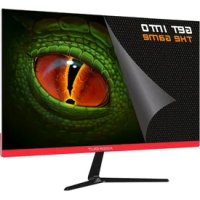
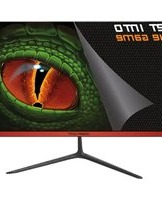
XGM27V2 - Monitor KeepOut - Free user manual and instructions
Find the device manual for free XGM27V2 KeepOut in PDF.



| Product type | Gaming Monitor |
| Brand | KeepOut |
| Model | XGM27V2 |
| Screen size | 27 inches |
| Display technology | LCD LED |
| Response time | 4 ms |
| Image formats | 16:9 and 4:3 adjustable |
| Video inputs | VGA, HDMI |
| Power supply | AC power adapter |
| Main functions | Blue light reduction, anti-flicker, control joystick, OSD menu |
| Package contents | Monitor, quick installation guide, power adapter, HDMI cable |
| Recommended use | Gaming and daily use |
| Installation | Stable surface, altitude below 2000 m |
| Cleaning | Soft cloth, unplug before |
| Safety | Do not disassemble, use supplied power cord, grounded outlet |
| Repairability | Contact a certified technician |
| Recycling | Compliant with WEEE, dispose at recycling center |
| General information | Manual downloadable at notice-facile.com |
Frequently Asked Questions - XGM27V2 KeepOut
User questions about XGM27V2 KeepOut
0 question about this device. Answer the ones you know or ask your own.
Ask a new question about this device
Download the instructions for your Monitor in PDF format for free! Find your manual XGM27V2 - KeepOut and take your electronic device back in hand. On this page are published all the documents necessary for the use of your device. XGM27V2 by KeepOut.
USER MANUAL XGM27V2 KeepOut
Thank you for choosing the best Gaming XGM27V2 monitor from Keep Out.
Product description
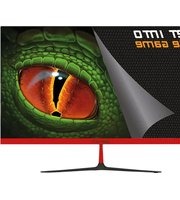
The Gaming XGM27V2 monitor offers you a combination of unprecedented experience to enjoy your best games, comfort for your eyes and great sharpness of images.
Its screen is optimized to reduce the emission of blue light waves and minimize flicker, it will protect your eyes so you can spend more time playing your games in front of the screen. Do not miss a detail.
Your Games will come alive and offer more realistic images. If yours is high level gaming with a response time of 4ms you will play with greater fluency.
Discover a product that will take you to the limit !!!
Packing content
XGM27V2
- Quick installation guide in multiple languages
Power adapter
HDMI Cable

Note:
Make sure your packaging contains the items described above. If you find that any item is missing or damaed, please contact your dealer.
Security
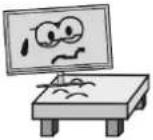 | 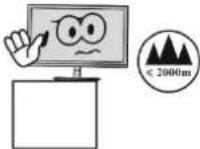 | 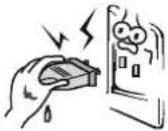 | 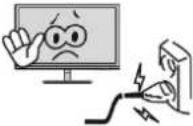 |
| Always place this device on a stable surface. Otherwise, it could fall and be damaged. | Do not use this product in places with altitude higher than 2000m, note the voltage indicated on the back of the monitor. | Do not connect the power cord to a power outlet with wet hands Otherwise, an electric shock may occur. Make sure that the household mains socket is grounded because poor contact can cause a fire. | Always use the supplied power cord. Do not use another compatible or damaged one. Otherwise, an electric shock or fire may occur. |
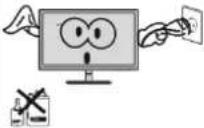 | 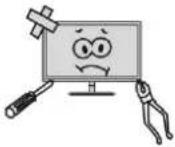 | 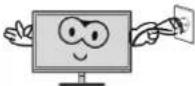 | 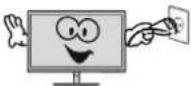 |
| When cleaning the device, be sure to disconnect the power cord, use a soft cloth instead of industrial chemicals to clean the device, make sure not to let water into the device. | Do not disassemble this device without permission. In case of failure, be sure to contact a service person to solve it. Unauthorized disassembly of this device may result in electric shock or fire. | In case of unusual smell or noise in this device, be sure to disconnect the power cord and contact the authorized technical service. | When this device is idle for a long time, be sure to turn it off. Otherwise, an electric shock or fire may occur. |
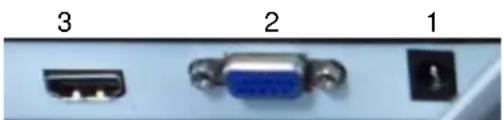
Connect the Monitor to the PC
natural_image
Close-up of three electronic connectors (VGA, VISA, and CD) on a device surface, no text or symbols visible.1. DC Input
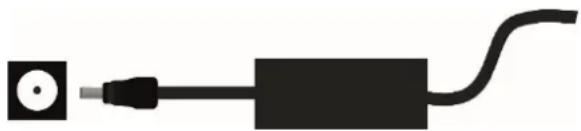
Connect the supplied power cord to the DC jack on the Monitor and an electrical outlet in the home.
natural_image
Simple diagram of a device with a circular input and connected to a black rectangular block, ending with a curved cable (no text or symbols)2. VGA Input
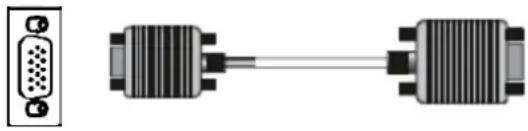
If your PC has a VGA video output, purchase a VGA cable and connect it between the VGA input of the monitor and the VGA output of the PC.
natural_image
Diagram showing two connected electrical connectors with a D-sub connector (no text or symbols)3. HDMI Input
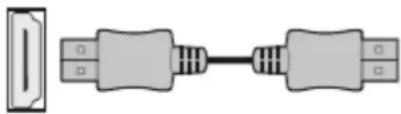
If your PC has HDMI video output, use the supplied HDMI cable to connect it between the HDMI input of the monitor and the HDMI output of the PC.
natural_image
Pure electrical connector diagram showing two connected components with no text or symbolsJoystick functions
Turn on / off: If you want to turn on the monitor press the joystick once, if you want to turn off the monitor press again.
NOTE: To access the monitor options you must have a source connected to one of your inputs.
Move the joystick up and release to change the screen format between 16:9 and 4:3.
Move the joystick downwards to access the quick screen display settings, and move it to the desired location, passing through the different options will change the settings automatically.
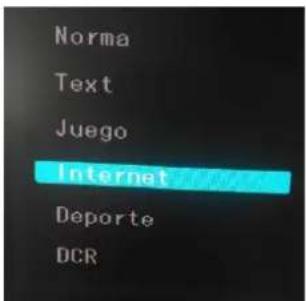
Move the joystick to the left to return or exit the menu.
Move the joystick to the right to access the advanced configuration menu.
Advanced configuration menu
To access, move the joystick to the right and the advanced configuration menu will appear.
PICTURE / IMAGE
Allows you to adjust Brightness and contrast
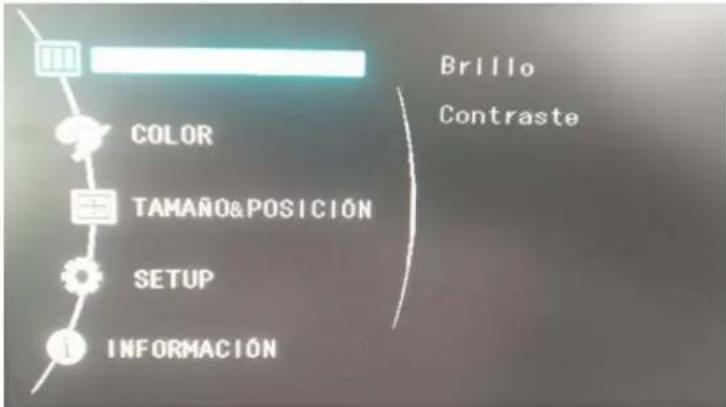
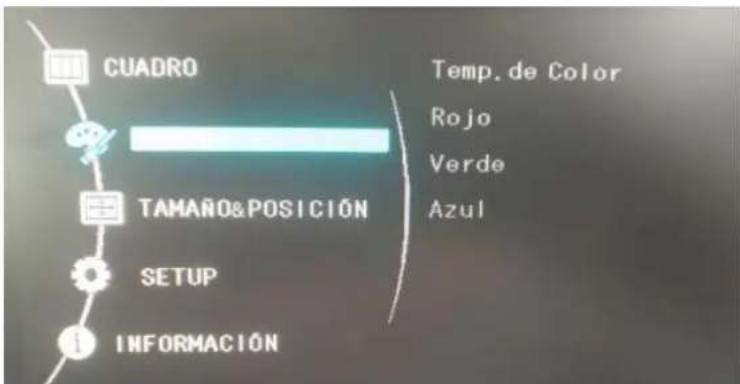
It allows to adjust the color temperature. It has three predefined scales and one to be modified as the user wishes.
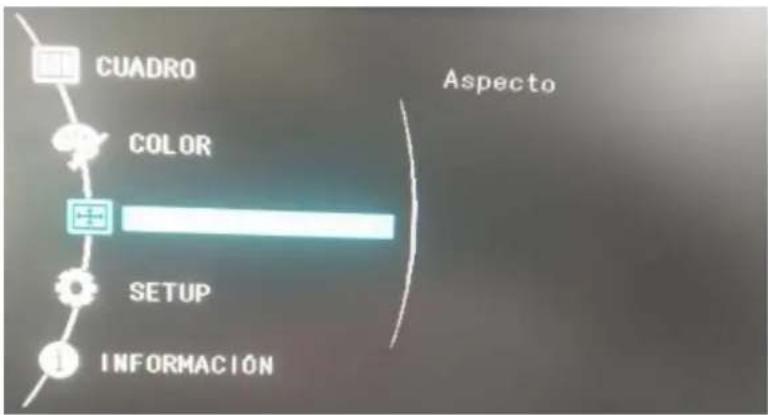
Allows you to adjust the Aspect of the screen in 16: 9 or 4: 3 format
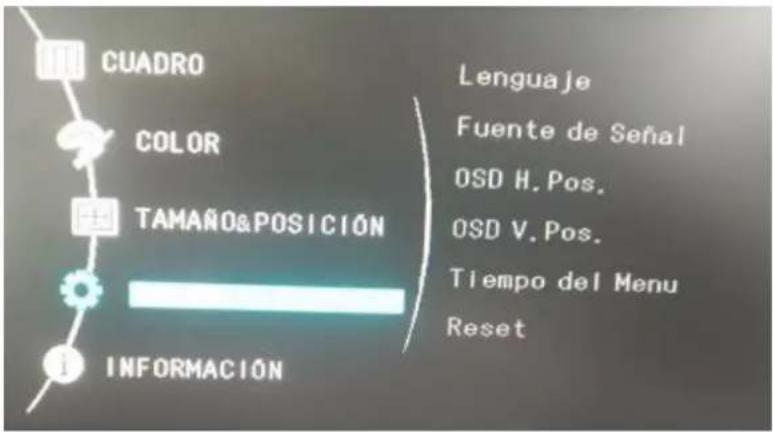
It allows you to adjust the menu language, select the input source, adjust the menu position vertically or horizontally, menu time and restore to the factory settings.
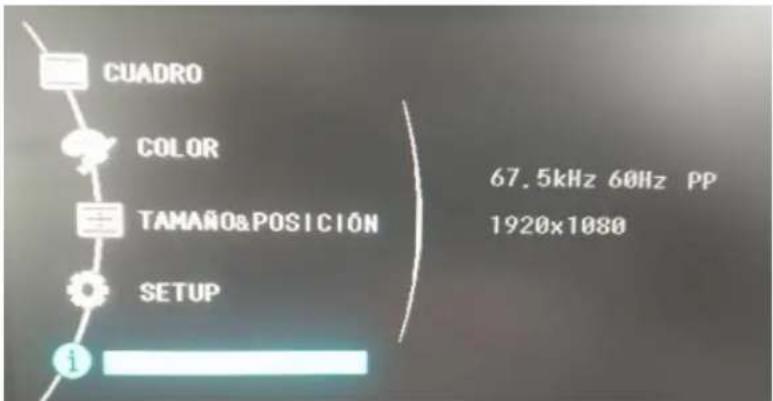
Displays the frequency and resolution information in real time.
Please more information about the installation and configuration of this product go to our website www.keepoutgaming.com or write an email to the following address: support@keep-out.eu
Einführung
natural_image
Close-up of a computer port panel showing three labeled connectors (no text or symbols beyond labels)1. DC-Eingang
natural_image
Simple diagram of a device with a square input and connected to a black rectangular block with a curved line (no text or symbols)2. VGA-Eingang
natural_image
Diagram showing two connected VGA connectors with a cable, no text or symbols present3. HDMI-Eingang
natural_image
Pure electrical circuit lines without any symbolsnatural_image
Close-up of a computer port connector showing three ports (no text or symbols visible)1. Entrada DC
natural_image
Simple diagram of a device with a square input, connected via a cable to a black rectangular component and a curved line (no text or symbols)2. Entrada VGA
natural_image
Diagram showing two connected VGA connectors with a cable, no text or symbols present3. Entrada HDMI.
natural_image
Diagram of two USB connectors connected by a cable, showing pin layout (no text or symbols)Funciones Joystick
natural_image
Close-up of three electronic connectors (VGA, VISA, and CD) on a device surface, no text or symbols visible.1. Entrée DC
natural_image
Simple diagram of a device with a square input and connected to a black rectangular component with a curved line (no text or symbols)2. Entrée VGA
natural_image
Diagram showing two connected VGA connectors with a separate view of the left (no text or symbols)3. Entrée HDMI.
natural_image
Pure electrical connector diagram showing two USB connectors connected by a resistor (no text or symbols)Fonctions joystick
AEE REI-RAEE 5548 In this manual, the container (bin) symbol indicates that the product is subject to the European directive 2002/96 / EC, electrical and electronic products, batteries, and batteries and other accessories must necessarily be subject to a selective collection.
At the end of the life of the device, make use of the recycling bins. This gesture Will help reduce the health risks and preserve the environment.
Municipalities and distributors, Will provide essential details on recycling your old device. If this device carries an internal battery, it must be removed and deposited separately for proper management.
Recyclage
natural_image
Symbol of a trash bin with no visible text or numbers, including a crossed-out box and a solid rectangle below (no text or labels)Keep Out is a registered brand of Approx Iberia, S.L. C/Tecnología 5, PO Box 15, 41120 Gelves, Sevilla (Spain). Keep Out is not associated to any manufacturer. All brands and registered trademarks are the property of their respective owners and are used for descriptive purposes only. Made in China.
support@keep-out.eu.



- Product description
- Packing content
- Note:
- Security
- Connect the Monitor to the PC
- DC Input
- VGA Input
- HDMI Input
- Joystick functions
- Advanced configuration menu
- PICTURE / IMAGE
- Einführung
- DC-Eingang
- VGA-Eingang
- HDMI-Eingang
- Entrada DC
- Entrada VGA
- Entrada HDMI.
- Funciones Joystick
- Entrée DC
- Entrée VGA
- Entrée HDMI.
- Fonctions joystick
- Recyclage
Brand : KeepOut
Model : XGM27V2
Category : Monitor