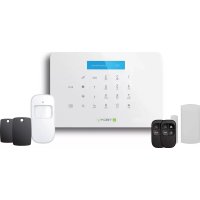
IALARMKIT001 - Alarm system Techly - Free user manual and instructions
Find the device manual for free IALARMKIT001 Techly in PDF.



| Product type | Alarm system with GSM control panel |
| Brand | Techly |
| Model | IALARMKIT001 |
| Control panel power supply | AC input 110-240 V / 50-60 Hz, DC output 12 V / 800 mA |
| Backup batteries | 2 × lithium 3.7 V / 800 mAh (BL-5B), 8 h standby autonomy |
| GSM frequencies | 850 / 900 / 1800 / 1900 MHz |
| Sensor radio frequency | 433.92 MHz (±75 kHz) |
| Transmission distance | 80 m open field |
| Power consumption | Standby: 80 mA, Alarm: 300 mA |
| Built-in siren | 95 dB |
| Panel material | ABS plastic |
| Panel dimensions | 188 × 125 × 25 mm |
| Operating temperature | -10 °C to +55 °C |
| Operating humidity | ≤ 80% (non-condensing) |
| Max number of remote controls | 10 |
| Max number of wireless sensors | 99 |
| Max number of RFID tags | 50 |
| Storable phone numbers | 5 for emergency calls, 5 for emergency SMS |
| Main functions | Activation/deactivation by remote control, SMS, call or mobile app; remote audio monitoring; indoor siren 95 dB; memory of last 150 events |
| Box contents | Control panel, motion detector, door/window contact, 2 remote controls, 2 RFID tags, power adapter, instruction manual |
| Maintenance | Regularly check operation; clean sensors with a soft cloth; replace accessory batteries if necessary |
| Safety | Do not expose to moisture, excessive heat or electromagnetic fields; use by qualified staff for opening |
| Repairability | Spare parts available from manufacturer; replaceable battery (BL-5B) |
Frequently Asked Questions - IALARMKIT001 Techly
User questions about IALARMKIT001 Techly
0 question about this device. Answer the ones you know or ask your own.
Ask a new question about this device
Download the instructions for your Alarm system in PDF format for free! Find your manual IALARMKIT001 - Techly and take your electronic device back in hand. On this page are published all the documents necessary for the use of your device. IALARMKIT001 by Techly.
USER MANUAL IALARMKIT001 Techly
SMS/GSM Alarm Wireless Starter kit

WIRELESS

GSM/APP

UP TO 159 ACCESSORIES
www.techly.com
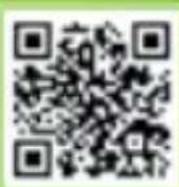
Features
- GSM transmitter
Supports up to 10 remote controls, 99 wireless accessories and 50 RFID tags - Can store up to 5 phone numbers, 5 SMS numbers
- Arm / disarm the system by SMS, phone call, or App (on iOS or Android)
- Can be disarmed by RFID tag
- Call function from the panel
- SMS alerts for power failure, power recovery and low battery
- Audio surveillance of the site from distance
- 2 × 800 mAh lithium batteries included (8h battery life in standby mode)
Specifications
Product name
I-ALARM-KIT001
SKU
I-ALARM-KIT001
Control panel power supply
Input: AC 110-240V / 50-60 Hz
Output: DC 12V / 800 MA
GSM working frequency
850/900/1800/1900mHz
Radio-frequency
433.92MHz (±75KHz)
Transmission distance
80m in open space
Standby current
80ma
Alarm current
300mA
Backup batteries
Lithium Batteries: 3.7V / 800 mAh x 2
(BL-5B)
(8h battery life in standby mode)
Internal siren
95dB
Housing material
ABS plastic
Operating conditions
Temperature: -10^ 55^
Humidity: ≤ 80% (non-condensing)
Control panel dimensions (L x W x H)
188 × 125 × 25 mm
Box content
Control Panel x1
Motion Detector x1
Door / Window Contact x1
Remote Controls x2
RFID Tags x2
AC Adaptor x1
User manual x1
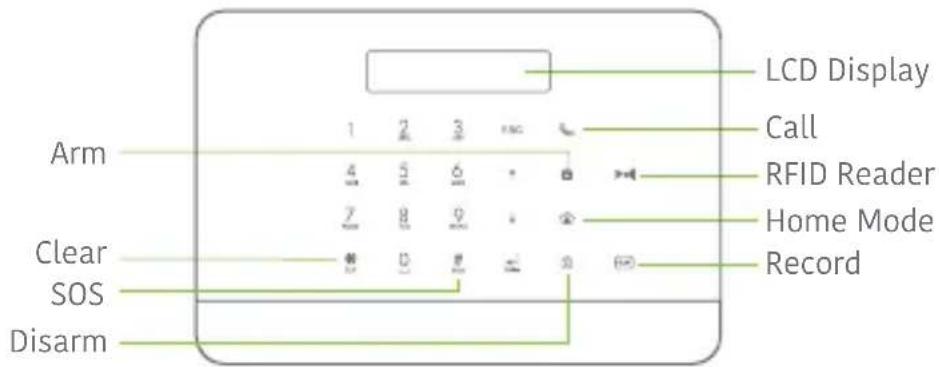
Control Panel Layout (Front)
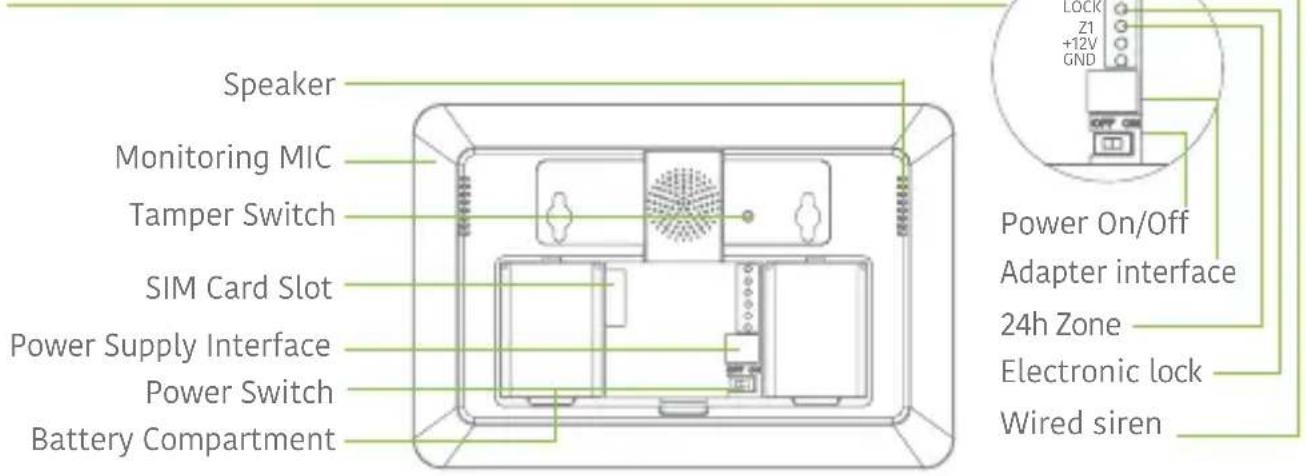
Control Panel Layout (Back)
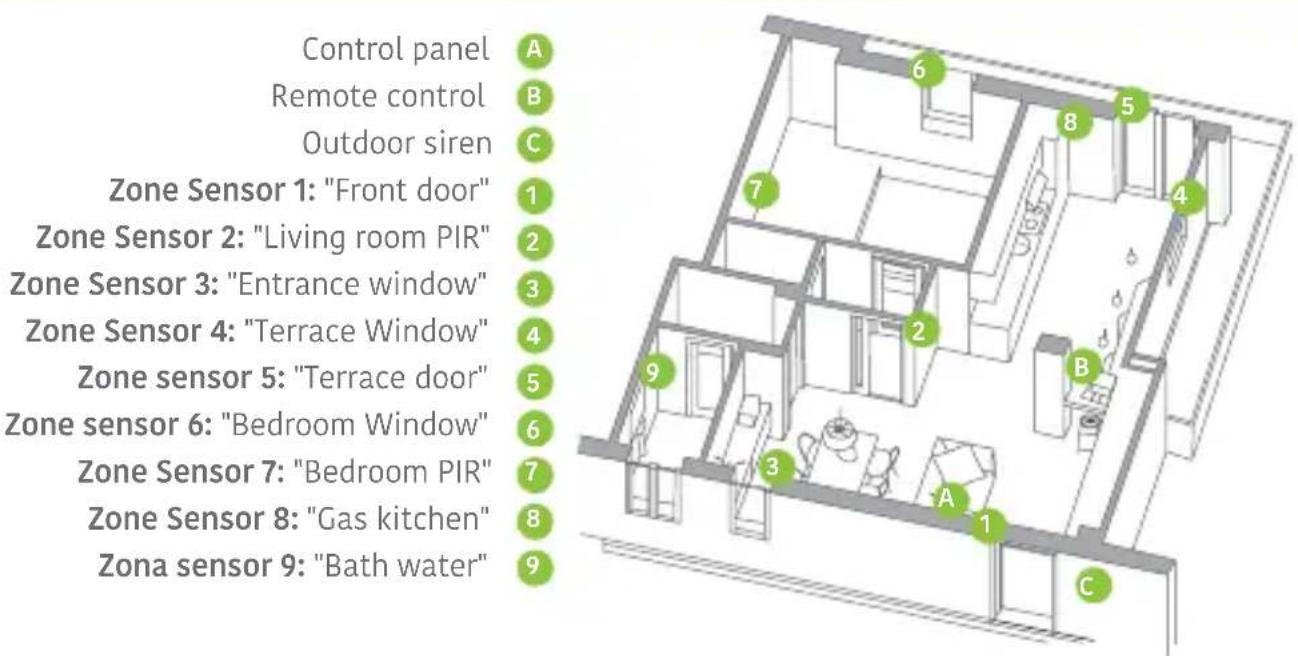
Plans and position the alarm system
Quick Start-up Guide
Connect your System
Using the GSM transmitter (SIM card)
Open the battery compartment at the back of the control panel and insert a SIM card in the control panel.
Important
Before using the Alarm System in GSM mode, you need to purchase a SIM card that works on the GSM network with 850 / 900 / 1800 / 1900 MHz frequency. We recommend you to subscribe to a plan with unlimited texts and one hour of voice. For more information, please contact your local reseller.
Important
Make sure the SIM card does not require any PIN code. For more information, please contact your local reseller.
Turning your System on
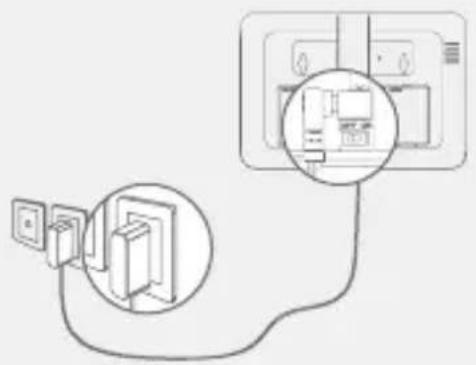
- Plug the AC adaptor to an AC socket.
- Plug the output connector of the AC adaptor into the adaptor interface in the battery compartment at the back of the control panel.
- Turn the power switch to "ON" (in the battery compartment at the back of the control panel).
Mount the Control Panel
Before mounting the control panel on the wall, make sure the reception of the GSM signal is sufficient.
Fix the wall-mounting bracket on the wall with screws. Wedge the panel on the bracket, make sure they fit well.
Basic Operations
Arm the System
Press the Arm button "O on the control panel. The control panel beeps once: the system is armed. The LCD display indicates "Armed" and the Arm icon on the control panel is lit.
Note
If the Entry / Exit Delay is activated, all zones except the 24h zone will be armed after the delay set (refer to the instructions on page 10 of this manual "Entry / Exit Delay").
Disarm the System
Type your user code and press the Disarm button "O" on the control panel. The control panel beeps twice: the system is disarmed.
Home Mode
Press the Home button "on the control panel. The control panel beeps once: the system is armed in Home Mode.
All the sensors assigned to the Normal zone are armed. The sensors assigned to the Home zone are disarmed.
Emergency Mode
Hold the “# _sOS ” button for 3 seconds. The alarm is triggered immediately and the siren rings out. At the same time, the control panel dials the stored phone numbers.
Speed Dial
Press the Call button "on the control panel for 3 seconds: the panel auto-dials the first stored phone number. Press the Call button "to end the call.
Hands-free Phone Call from the Panel
Through GSM
Press the Call button "on the control panel, type the phone number you wish to call and press the Call button " again.
Record / Play a Voice Memo
Long press the Record Voice Memo button to record a 10-second voice message. The Play Voice Memo Button blinks when a message has been recorded. Push the center of the RFID reader in the control panel to listen to the voice memo. The LED indicator turns off when the voice memo is being played. Touch it again to replay the memo.
Hard Reset
Turn the control panel on. Press the tamper switch at the back of the control panel 5 times wirthin 5 seconds after having turned it on.
Settings will be restored to default values. Stored phone numbers and connected accessories will be cleared.
Setup from the control panel
The Alarm System must be set up before using for the first time. During the setup of the system, the control panel can be powered either by the AC power adapter or by the backup batteries.
Default codes
- Admin code (necessary to set up your system): 123456
-User code (necessary to disarm your system or stop the alarm):1234 - Duress code: 1111 (enables you to trigger a duress alarm)
- Open door code: 8888 (enables you to open an electronic door lock plugged to your control panel)
All access codes can be changed. We recommend you to change these codes before using your system for the first time.
The control panel of your alarm system features an LCD display that enables you to navigate through the menu of the control panel and set up your alarm system.
To enter the setting menu, type [your admin code + Enter] on the control panel.
In the table on the next page, each column represents a menu or a sub menu. Each menu or submenu will be displayed on one of the two lines of the LCD display. On the LCD display, the current menu, submenu, or setting is shown on the line at the bottom, while the previous menu or submenu is shown on the line at the top.
Navigate and select the setting you wish to modify with the keys “↑” or “↓”, and enter each menu or sub menu by pressing “Enter”.
How to use the keyboard
“ = delete
" move forward
" = move backward
"Enter" = select / confirm
"Esc" = back / previous step in the menu / cancel
The tables on the next pages summarize all the settings that can be accessed and modified on the control panel.
Main Menu Sub Menu 1 Sub Menu 2 Sub Menu 3
| Phone numbers | Phone [1~5] is: | - | |
| SMS Num [1~5] Is: | |||
| Accessories | Remote & Keypad | Add a new 01/10 | 30 |
| Delete All 1=YES | 0=NO | ||
| Delete a Remote Input 01-10: | |||
| Accessories | RFID Tag | Add a new 01/50 | 30 |
| Delete all 1=YES | 0=NO | ||
| Delete a Tag Input 01-50: | |||
| Accessories | Wireless Sensors | Add a new | Home Zone Delay Zone Normal Zine 24-H Zone |
| Delete all? 1=YES | 0=NO | ||
| Delete a Sensor Input 01-99: | |||
| Accessories | Test Mode | - | |
Select the phone or SMS number you want to edit, type in the phone number and confirm with the key "Enter". Use the key "*" to clear.
5 phone numbers and 5 SMS numbers can be stored in the control panel.
The LCD screen displays "01/10" (at the left), which indicates the number of the remote control you are about to connect (01 is the current remote control, 10 is the total number of remote controls you can connect), and "30" (at the right), which indicates the time remaining to connect the remote control. Press any key on the keypad or remote control, you hear one beep: the connection is successful.
Once the remote control has been added, the countdown starts over from 30 so that you can register another remote control in control panel (up to 10 remote control can be registered in the control panel). Press Esc to exit.
Enter the number of the Remote Control you wish to delete and press "Enter".
The LCD screen displays "01/50" (at the left), which indicates the number of the RFID tag you are about to connect (01 is the current RFID tag, 50 is the total number of tags you can connect), and "30" (at the right), which indicates the time remaining to connect the RFID tag. Swipe the RFID tag in front of the RFID reader, you hear one beep: the connection is successful.
Once the RFID tag has been added, the countdown starts over from 30 so that you can register another RFID tag in control panel (up to 50 tags can be registered in the control panel). Press Esc to exit.
Enter the number of the RFID tag you wish to delete and press "Enter".
Select the sensor type you wish your sensor to be assigned to (Normal Sensor, 24 Hour Sensor, Delay Sensor, or Home Sensor), press "Enter" to confirm. For more information on zone setup, please refer to page 14 of this manual.
The LCD screen displays "01/99" (at the left), which indicates the number of the sensor you are about to connect (01 is the current sensor, 99 is the total number of sensors you can connect), and "30" (at the right), which indicates the time remaining to connect the sensor. Trigger the sensor, you hear one beep: the connection is successful.
Once the sensor has been added, the countdown starts over from 30 so that you can register another sensor in control panel (up to 99 sensors can be registered in the control panel). In such case, the sensor will be added to the same zone. Press Esc to exit.
Enter the number of the sensor you wish to delete and press "Enter".
Trigger the sensors you have previously connected to the control panel. You hear 1 beep, the LCD screen displays the signals that have been respectively sent by each sensor triggered. Make sure all the sensors you have triggered are mentioned on the LCD screen. Press "Esc" to exit the test mode.
This mode enables you to test if the sensors have been connected successfully to the control panel.
| Main Menu | Sub Menu 1 | Sub Menu 2 | Sub Menu 3 |
| System Setting | Date and Time | YYYY-MM-DD TIME | |
| System Setting | Date Format | ||
| System Setting | Entry Exit Delay | Entry Delay 000-300 | |
| Exit Delay 000-300 | |||
| System Setting | Auto Arm / Disarm | Auto Arm Time <00:00> | |
| Auto Disarm Time <00:00> | |||
| ON or OFF? | |||
| System Setting | Control by Phone | ON or OFF? - | |
| System Setting | GSM Fail Alarm | ON or OFF? | |
| System Setting | Keypad tones | ON or OFF? - | |
| System Setting | Access code | Admin Code 123456 | |
| User Code | 1234 | ||
| Duress Code | 1111 | ||
| Open Door Code | 8888 | ||
| (e.g. 2014-06-20 14H30) | |||
| This function can be used if you do not want to bring a remote control or RFID tag with you. When the system is armed, you hear one beep every second to remind you to leave. The beep rhythm speeds up during the last 10 seconds. If an intruder is detected, the alarm will be delayed accordingly. Time is calculated in seconds. The Entry and Exit Delay can be set from 0 to 300 seconds. | The entry and exit delays only work for sensors connected as Delay Zone accessories (see "Wireless" on page 8). The Entry Delay gives you time to disarm the system on the control panel without triggering an alarm. The Exit Delay gives you time to arm the system on the control panel and leave your home without triggering an alarm. | ||
| You can set up the system to arm and disarm automatically at a defined time every day. | Setting Auto Arm and Auto Disarm to the exact same time will deactivate the function. | ||
| You can activate or deactivate the control of your system by phone call. Activating the control by phone call enables you to arm and disarm the system and monitor your home by phone call. | See instructions on page 14 for more information on the control of the system by phone call. | ||
| Activate or deactivate the sound when typing on the keyboard of the control panel. | |||
| Your admin code enables you to enter the setup menu. Default admin code: 123456 | It is recommended to change all codes before using your system for the first time and to keep your codes secret | ||
| Your user code enables you to disarm the system on the control panel. The user code is the access code requested when you call the control panel. Default user code: 1234 | |||
| In case of emergency, when you are requested to disarm the system by force, it is recommended to disarm your system with your Duress Code. The panel will silently dial the stored phone numbers. Default duress code: 1111 | |||
| You can open electronic doors using this code. The door must be wired to the [LOCK] interface on the back of the control panel. | |||
| Main Menu | Sub Menu 1 | Sub Menu 2 | Sub Menu 3 |
| System Settings | Ring Times | <1-9>: 5 - | |
| System Settings | Siren Alert Time | <1-9Min>: 3 | |
| System Settings | Backlight Time | <0-120s>: 30 - | |
| System Settings | Siren Setup | Wired Siren | Siren Switch ON/OFF |
| Arm/Disarm Tone ON/OFF | |||
| Built-in Siren | Siren Switch ON/OFF | ||
| Arm/Disarm Tone ON/OFF | |||
| Wireless Siren | Siren Switch ON/OFF | ||
| Arm/Disarm Tone ON/OFF | |||
| System Settings | User ID Disarm Upload | On / Off - On / Off - | |
| System Settings | Call Recycle | <1-9>: 3 | |
| System Settings | Language | - | - |
| System Settings | Reset | 1=YES 0=NO - | |
| System Settings | About | About Jun 4 2014 - | |
| History | - | - | - |
| Enter the value (from 1 to 9) and confirm with "Enter". This function enables you to determine the number of times the control panel will ring before taking your call (for control by phone call). | ||
| Enter the value (from 1 to 9) and confirm with "Enter". This function enables you to determine for how long the siren rings out in case of alarm. | ||
| Enter the value (from 0 to 120) and confirm with "Enter". Default setting is 30 seconds. | ||
| Enable / Disable the siren. Default setting: On | Wired siren refers to a siren connected to the control panel by wire. | |
| Arm / Disarm silently. Default setting: On | ||
| Enable / Disable the siren. Default setting: On | Built-in siren refers to the siren featured in the control panel. | |
| Arm / Disarm silently. Default setting: On | ||
| Enable / Disable the siren. Default setting: On | Wireless siren refers to a siren connected to the control panel by radio-frequency. | |
| Arm / Disarm silently. Default setting: On | ||
| When Disarm Upload is on, the system will upload the history of arm/disarm events to the to the CMS. | ||
| When the alarm is triggered, the control panel dials the numbers you have stored. If you do not disarm the system, the control panel will call you again (up to 9 times). The "Call Recycle" function enables you to define the number of times the control panel attempts to call you. Default setting: 3 times. | ||
| Select the language you wish to choose and confirm with "Enter". | Languages available may vary depending on the version of your product. | |
| All system settings will be restored to default setting. Stored phone numbers and connected accessories will be cleared. | ||
| Choose the event log you need to track, press "Enter". | The control panel keeps in record the latest 150 event logs. | |
Zone setup of accessories
Every detector can be assigned to 4 different categories of zones: Home Zone, Delay Zone, Normal Zone and 24-H Zone. To assign a detector to a zone, follow the instructions on page 8 of this manual (the zone will be assigned at the time of connection of the accessory).
Normal zone
When the system is armed, if a sensor is triggered, the siren rings out. When the system is disarmed, sensors do not trigger an alarm.
24h zone
Regardless the system is armed or disarmed, sensors assigned to the 24h zone can trigger an alarm. It is recommended to assign smoke detectors, gas detectors and outdoor beam sensors to the 24-H zone.
Delay zone
If you want to set up the entry and exit delay functions, corresponding sensors must be assigned to the Delay zone. Once the delay time has been set up, the sensors will not trigger the alarm during the delay set. Refer to the instructions "Entry and Exit Delay" on page 10 of this manual. It is recommended to assign the Door / Window Contact to the Delay zone.
Home zone
When the system is armed in Home Mode, the sensors assigned to the Home zone do not trigger an alarm. It is recommend to assign motionDoctors to the Home zone so that you can have your system armed in Home Mode when you are home and move inside your home without triggering any alarm.
Control by phone call
This feature is available only after having enabled it from the control panel, as explained on page 10 of this manual.
Method 1
When an alarm has been triggered, the control panel dials the stored phone numbers. When you pick up the phone, follow the voice instructions to control the panel from distance (refer to the instructions in the table below).
Method 2
- Dial the telephone number of your control panel (either the number of the SIM card in your control panel or the number of the landline to which your panel is connected). After getting through, the voice instructions will guide you to enter your access code.
- Enter your user code, followed by “#”.
- A voice gives you the options you can select.
- Select the operations to control the panel (see instructions in the table below).
Note
The call will end automatically if you do not send any command within 30 seconds.
Table of commands for control by phone call
Command Function
Press "1" Arms the system
Press“0”
- Disarms the system and turns the siren off
- Stops monitoring without hanging up
- Stops the phone call function without hanging up
Press "3" Phone call with control panel
Press“*”
- Starts audio monitoring mode (not limited in time)
- Stops the built-in siren and the wireless siren (if connected to the control panel)
Press "6" Turns all sirens off
Press "9"
Turns the built-in siren on (whether the siren ringing settings is ON or OFF)
Turns the wireless siren on (if connected to the control panel)
Press“#”
- Turns all sirens off
- Exits control by phone call
- Stops call recycles
Note
In GSM mode, the audio monitoring is not limited in time.
Setup by SMS
IMPORTANT: BEFORE USING FOR THE FIRST TIME
Insert a SIM card in the control panel before starting SMS operations. Make sure the SIM card does not require any PIN code.
SAVE A SMS NUMBER IN THE CONTROL PANEL (using the control panel). Only stored numbers can control and configure the system. (Refer to the instructions page 8)
Each SMS operation defined in this user manual will be illustrated as follows:
You send:

The first green speech bubble is the SMS command sent by the user.
The first grey speech bubble is the reply sent by the control panel.
The control panel replies:
Control panel's reply
The speech bubbles that follow are the dialogue between the user and the control panel (SMS sent by the user are in green SMS sent by the control panel are in grey).
The system is in English by default. To change the system language, refer to the instructions on page 22 of this manual.
Important
When replying to the control panel by SMS, make sure no space follows punctuation marks like "." or ".". For examples, to store SMS numbers, your SMS must be formatted as follows:
SMS numbers:
1.067890033
2.067890022
3.067890011
4.067890000
5.
SMS number
1.6789003
2.0678909
No space after "1."
Disarm the System
Send:
0
System disarmed.
Arm the System
Send:
1
System armed.
Home Mode
Send:
2
System in home mode.
Setting Enquiry
Send:
00
System:Disarmed
AC power:on
Note
The values indicated hereinabove will change after having set up the system.
Store Phone Numbers
Send:
5
Phone numbers:
- 5.
Copy, paste, then edit (case sensitive):
Phone numbers:
1.067890033
2.067890022
3.067890011
4.067890000
5.
Ok
Store Phone Numbers for SMS Notifications
Send:
6
SMS numbers:
- 5.
Copy, paste, then edit (case sensitive):
SMS numbers:
1.067890033
2.067890022
3.067890011
4.067890000
5.
0k
Note
The first SMS number will receive SMS notifications when the system is disarmed by RFID tag. To start receiving these notifications, you must rename the RFID tags. Up to 4 RFID tags can be renamed. Other tags will be attributed a number based on the order of registration to the control panel. Refer to the instructions on page 8 to learn how to register an RFID tag in the control panel.
Rename Zones
Send "91~99". For example for zone 1, send:
91
Zones names:
1.
Copy, paste, then edit (case sensitive):
Zones names:
Zones 1 to 9 can be renamed. The name of the zone cannot consist of more than 30 Latin characters. Zones 10 to 99 cannot be renamed.
SMS Alert for Accessory Low Battery
(available for two-way accessories such as Motion Detectors)
For accessories assigned to zones that have been renamed, an SMS will be sent under the format "Zone name + low battery".
Bedroom PIR low battery
For accessories assigned to zones that have not been renamed, an SMS will be sent under the format "Zone number + low battery".
Zone 10 low battery.
SMS Alert for Accessory Tamper Alarm
(available for two-way accessories such as Motion Detectors)
For accessories assigned to zones that have been renamed, an SMS will be sent under the format "Zone name + tamper alarm".
Bedroom PIR tamper alarm.
For accessories assigned to zones that have not been renamed, an SMS will be sent under the format "Zone number + tamper alarm".
Zone 10 tamper alarm.
Rename RFID Tag
Entry and Exit Delay Time
Send:
10
Rename RFID tag names:
- 4.
Copy, paste, then edit (case sensitive):
Rename RFID tag names:
- Tom
- Nurse
- Nancy
- David
Ok
Note
The first SMS number will receive SMS notifications when the system is disarmed by RFID tag. To start receiving these notifications, you must rename the RFID tags. Up to 4 RFID tags can be renamed. Other tags will be attributed a number based on the order of registration to the control panel. Refer to the instructions on page 8 to learn how to register an RFID tag in the control panel.
Send:
11
Entry delay time(0-300sec):0
Exit delay time(0-300sec):0
Copy, paste, then edit (case sensitive):
Entry delay time(0-300sec):10
Exit delay time(0-300sec):20
Ok
Note
This function can be used if you do not want to bring a remote control or a RFID tag with you.
When you arm the system, the system will be armed after the delay set. When you disarm the system, the system will be disarmed after the delay set.
When arming the system, you hear one beep every second to remind you to leave. The beep rhythm speeds up during the last 10 seconds. If an intruder is detected, the alarm will be delayed accordingly.
Siren Volume and Ringing Time
Disarm Password
Send:
12
Siren volume(0=Mute,1=High):1
Siren ringing time(1-9min):3
Copy, paste, then edit (case sensitive):
Siren volume(0=Mute,1=High):0
Siren ringing time(1-9min):5
Ok
Send:
13
Disarm password (4 digits):
1234
Copy, paste, then edit
(case sensitive):
Disarm password (4 digits):
4321
Ok
Change System Language
Send the code corresponding to the language you want to set. For example, for English, send "0001".
0001
Ok
Refer to the table below for the full list of languages:
0001 English
0002 French
0003 German
0004 Italian
Languages available may vary depending on the version of your product.
Restore System to Factory Settings by SMS
Send:
0000
Ok
The settings will be restored to default values. Stored phone numbers and connected accessories will not be deleted.
Note
Only stored numbers can send the SMS to restore factory settings.
Accessories
Wireless Remote Control
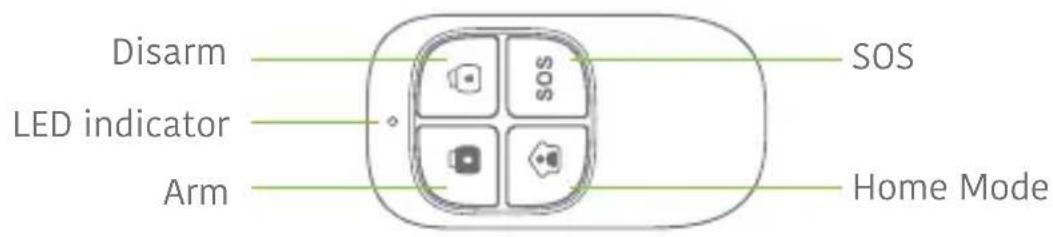
Arm the system
Press the Arm button "to arm the alarm system. The LED indicator lights up (the control panel beeps once). The system is armed.
If an intruder is detected, the siren rings out. (The siren turns off after 5 minutes as per default settings.) In the meantime, the system dials the stored phone numbers automatically.
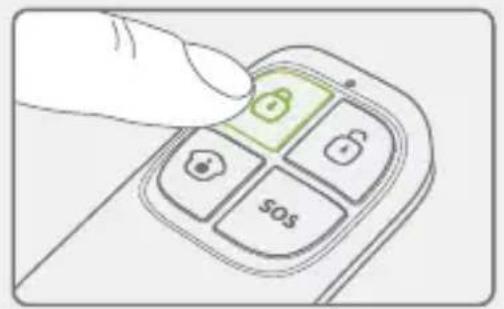
Disarm the system
Press the Disarm button "to disarm the alarm system. The LED indicator turns off (the control panel beeps twice). The system is disarmed.
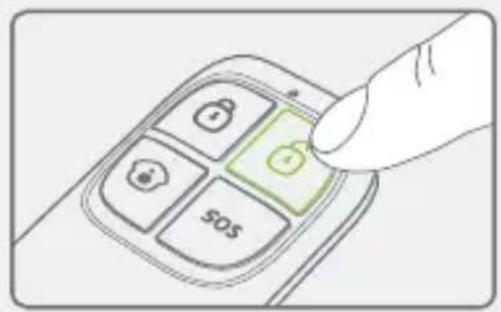
Home Mode
Press the Home Mode button "on the remote control. The system state LED is on. All the sensors in regular zones are armed except those in the Home Mode zone. The sensors in the Home Mode zone are disarmed so that users can move inside their home.
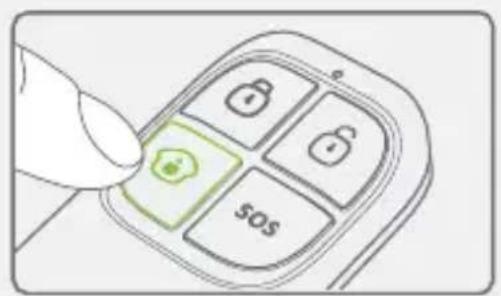
Mute Mode
Press the Home Mode button " 品 and then the Arm "or Disarm " button immediately after. Doing so, the control panel does not beep when you arm or disarm your system.
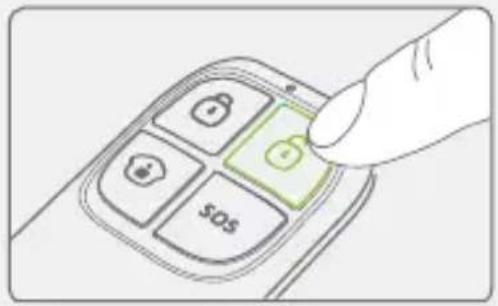
Emergency Mode
Regardless the status of the system, the alarm is triggered when the SOS button "SOS" is pressed on the remote control.
At the same time, the control panel sends a notification by SMS ("RC-01 SOS", 01 being the remote control's number) and dials the pre-stored phone numbers.
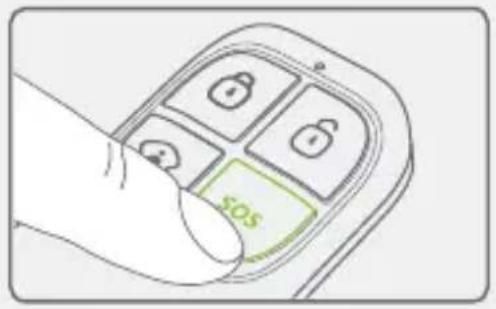
Register in the control panel
Refer to the instructions in the table on page 8 of this manual "Remote & Keypad".
Specifications
Power supply
DC 3V (CR2025 button battery x1)
Static current
≤10 uA
Operating current
≤7 mA
Transmission distance
≤ 80 m (in open area)
Radio-frequency:
433MHz (± 75kHz)
Housing material
ABS plastic
Operating conditions
Temperature: -10^ +55^
Relative Humidity: ≤80%
(non-condensing)
Dimensions
57 × 31 × 11 mm
Design
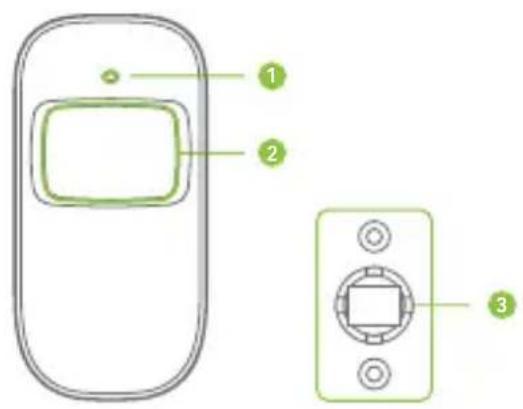
- LED indicator
- Detection window
- Bracket
LED indications
Blinks continuously: self-testing
Blinks once: an intruder is detected
Blinks twice: self-testing is complete; entering working mode.
Blinks once every 3 seconds: under-voltage indication, the batteries must be replaced. (You will be informed by SMS when the batteries are low if the motion detector is registered in the control panel.)
PCB Layout
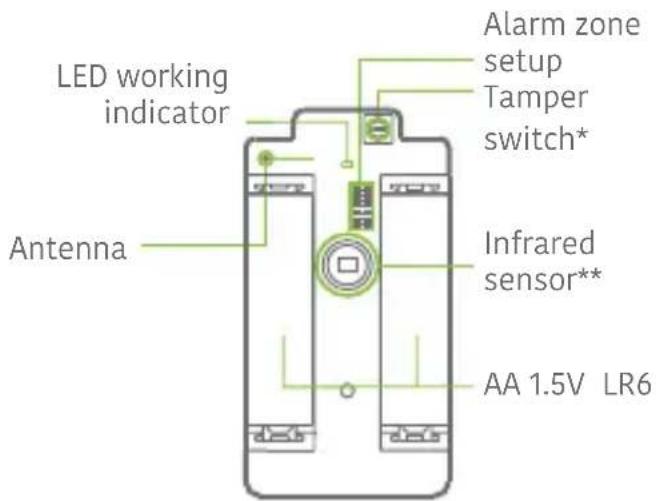
*Tamper switch
When the alarm system is armed, the tamper switch will trigger the alarm if the case is opened.
\*\*Infrared sensor
Detects the infrared rays released by human body motion. Do not touch the surface. Keep the surface clean.
Usage
Open the case and remove the battery activation strip. Self-testing will start for 30 seconds.
When the sensor is in operation, if it is triggered more than twice within 3 minutes, it will switch to standby mode to save power. If no movement is detected within the next 3 minutes, the sensor goes back to working mode.
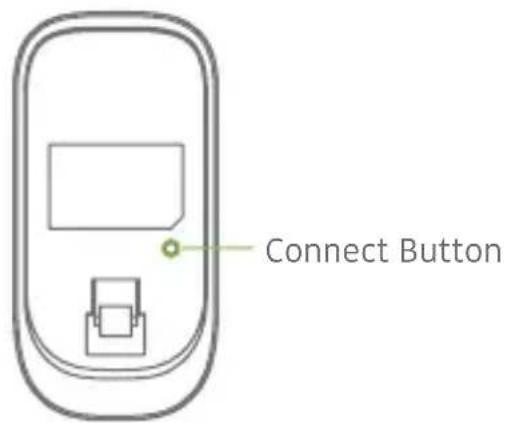
Register in the control panel
Navigate through the menu of the control panel and reach "ADD A NEW" (Wireless Sensor). Press the Connect button at the back of the motion sensor or trigger the sensor (by moving in front of it) to register the detector in the control panel.
Installation
Avoid mounting the detector close to windows, air conditioner, heater, refrigerator, oven, sunshine and places where the temperature changes fast or where the air stream flows frequently.
If two detectors are installed in the same detection scope, adjust the location to avoid interferences and false alarms.
Fix the bracket on the wall with screws and attach the detector to the bracket. Adjust the bracket to change the detection distance and angle. It is recommended to mount the detector 2.2m from the ground.
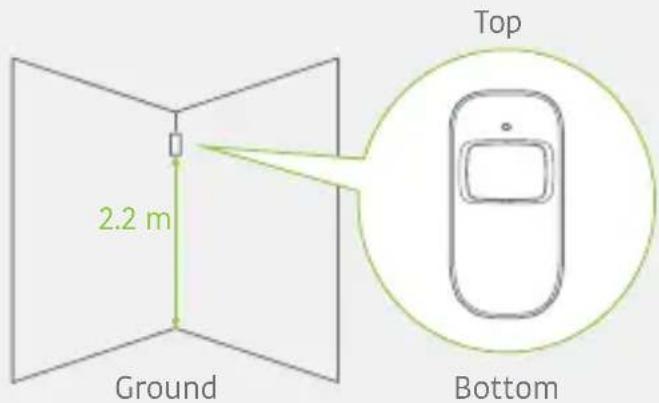
The detector is more sensitive to cross movements than vertical movements.
Testing
A. After the installation, turn the detector on. After one minute of self-testing, press the test button, walk in the scope of detection and watch the LED indicator to make sure the detector is working.
B. The LED indicator blinks once when body movement is detected.
C. Adjust the detector angle to achieve the best detection performance.
Specifications
Power supply
DC 3V (AA 1.5V LR6 Batteries x 2)
Static current
≤ 30uA
Alarm current
≤ 15 mA
Detection scope
8m/110°
Transmission distance
≤ 80m (in open area)
Radio-frequency
433 MHz (±75 KHz)
Housing material
ABS plastic
Operating conditions
Temperature: -10^ 55^
Relative humidity: ≤ 80% (non
condensing)
Detector dimensions (L x W x H)
107 × 53 × 32 mm
Bracket dimensions (L x W x H)
52× 30× 26.5mm
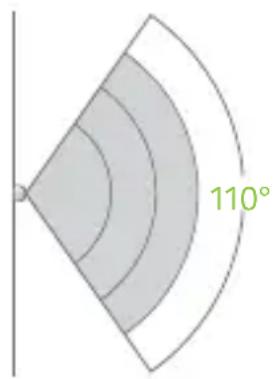
Detection Scope
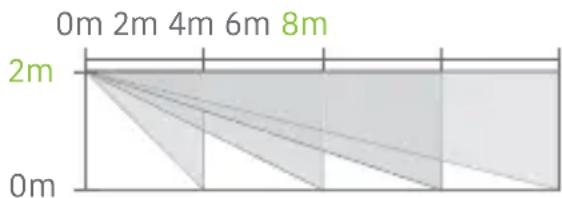
Top view
Side view
Features
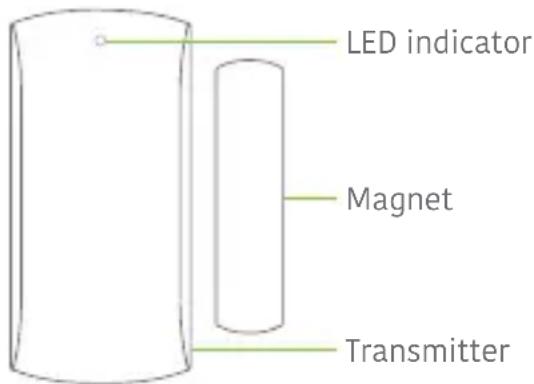
This Door / Window Contact can be installed on doors, windows, and any other objects that open and close. The sensor sends a signal to the control panel when the magnet is separated from the transmitter.
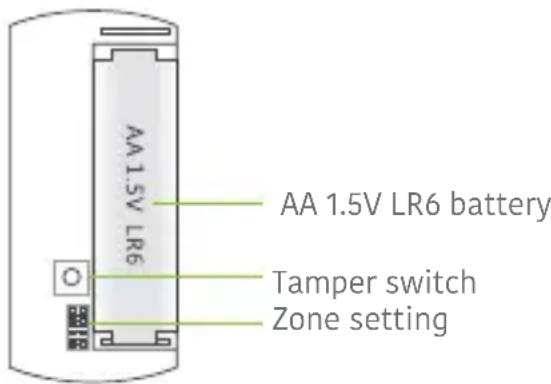
Thanks to the tamper switch, any attempt to remove the cover of the Door / Window Contact will trigger the alarm.
Design
PCB Layout
LED indications
Blinks once: the door or window is open and the transmitter sends a signal to the control panel.
Installation
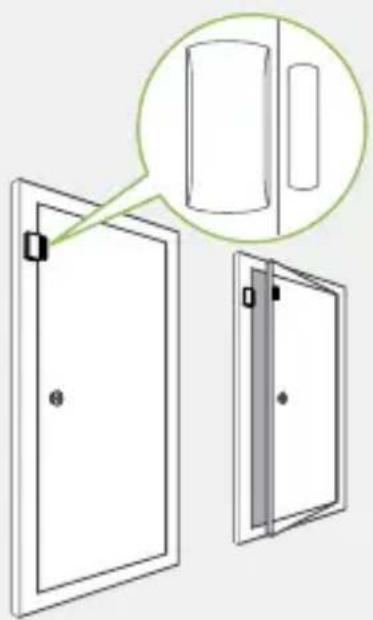
- Open the case and remove the battery activation strip.
- Mount the sensor on the door and the magnet on the door frame.
- Make sure the magnet is placed above the transmitter.
Mount the magnet max. 1 cm away from the transmitter and secure the transmitter and magnet with double-sided tape or screws. - Avoid mounting the sensor in areas with a large amount of metal or electrical wiring such as a furnace or utility room.
Specifications
Power supply
DC 1.5V (AA 1.5V LR6 battery x 1)
Static current
≤ 30~uA
Alarm current
≤ 40mA
Transmitting distance
≤ 80m (in open area)
Radio-frequency
433MHz (± 75kHz)
Housing material
ABS plastic
Operating conditions
Temperature: -10^ 55^
Relative humidity: ≤ 80% (non-condensing)
Transmitter dimensions (LxWxH)
71 × 35 × 17.5 mm
Magnet dimensions (LxWxH)
51 × 12 × 13.5 mm
Features
The RFID tag enables you to disarm your system or unlock electronic door locks.
Register in the control panel
Refer to the instructions in the table page 8 of this manual ("RFID TAG").
Specifications
Dimensions
45 × 30 × 7 mm
Troubleshooting and maintenance
FAQ
Issue Cause of malfunction Solution
| No response following interaction with the control panel | The control panel is switched off | Open the battery compartment and turn the power on |
| Electricity grid failure Contact your electricity provider | ||
| Backup batteries are empty | Plug the AC adapter to an AC socket | |
| Accessories cannot connect to the control panel | The control panel is not in Connection mode | Make sure the control panel is in Connection mode |
| Accessories have not been triggered for connection | Make sure the accessory is triggered so to send a signal to the control panel | |
| When attempting the connection, the control panel beeps twice | The accessory has already been connected | |
| Make sure you do not trigger any other accessory when connecting one accessory to the control panel (e.g. do not stay in the detection scope of a motion detector if it is not the one you want to connect) | ||
| No response from the control panel following commands from the remote control | The remote control has not been connected to the control panel | Follow the instructions in this manual to connect the remote control to the panel |
| Remote control is too far from the control panel | Transmission distance of the remote control: 80 m (in open area) | |
| A signal repeater can be installed to increase the transmission distance | ||
| RFID tag fails to disarm the system | RFID tag has not been connected to the control panel | Follow the instructions in this manual to connect the RFID tag to the control panel |
| Impossible to access settings from the control panel | You are not in the setup menu of the LCD display | Enter your admin code followed by “Enter” to enter the setup menu |
Precautions
For a safer use of the product and to optimize the lifespan of the product, we recommend you to follow the precautions below:
- The wireless accessories must be connected to the control panel.
- Low power voltage may affect transmission distance.
- Do not press the SOS key on the remote control if it is unnecessary to avoid disturbing neighborhood.
- Check the system regularly to make sure the system works properly.
- The control panel is neither waterproof nor moisture-proof, install it in a shady, cool and dry place.
- The case of the control panel is made of ABS plastic. Keep away from bright light for a longer lifespan.
- The control panel is not explosion-proof. Keep away from fire and flames.
- Install the control panel away from objects such as heater, air conditioner, microwave oven etc. that generate heat or electromagnetic fields.
- Dispose of the batteries according to local regulations.
- Dismantling of this product must be done by professional personnel only.

In compliance with EU Directive WEEE this product is marked with this symbol. It means that used electrical and electronic products should not be mixed with general household waste. There is a separate collections system for these products in compliance with WEEE directive, otherwise contaminative and hazardous substances can pollute the environment.

With the CE sign, Techly® ensures that the product is conformed to the basic European standards and directives.
Caratteristiche
Frequenza operative GSM
850/900/1800/1900mHz
Operative GSM Frequenz
850/900/1800/1900 mHz
"Enter" = selectionner/confirmer
Alimentation AC: Active
Note
Matériau compartment
Plastique ABS
Matériau compartment
Plastique ABS
Matériau compartment
Plastique ABS
TECHLY creates innovative products that connect people, power businesses, and improve the way we live.
Easy to use. Powerful. Smart.
TECHLY is committed to providing customers with high quality products that are in compliance with regulatory laws, standards and requirements. Products are accordingly marked and in compliance with European Union Directives (CE Mark) standards, Federal Communication Commission (FCC), Restriction of Hazardous Substances (RoHS) and others countries marking's requirements.
www.techly.com

- SMS/GSM Alarm Wireless Starter kit
- Features
- Specifications
- Box content
- Control Panel Layout (Front)
- Control Panel Layout (Back)
- Plans and position the alarm system
- Quick Start-up Guide
- Connect your System
- Using the GSM transmitter (SIM card)
- Important
- Turning your System on
- Mount the Control Panel
- Basic Operations
- Arm the System
- Note
- Disarm the System
- Home Mode
- Emergency Mode
- Speed Dial
- Hands-free Phone Call from the Panel
- Through GSM
- Record / Play a Voice Memo
- Hard Reset
- Setup from the control panel
- Default codes
- All access codes can be changed. We recommend you to change these codes before using your system for the first time.
- How to use the keyboard
- Zone setup of accessories
- Normal zone
- 24h zone
- Delay zone
- Home zone
- Control by phone call
- Method 1
- Method 2
- Table of commands for control by phone call
- Command Function
- Setup by SMS
- IMPORTANT: BEFORE USING FOR THE FIRST TIME
- Setting Enquiry
- Store Phone Numbers
- Send:
- Phone numbers:
- Store Phone Numbers for SMS Notifications
- SMS numbers:
- Rename Zones
- SMS Alert for Accessory Low Battery
- SMS Alert for Accessory Tamper Alarm
- Rename RFID Tag
- Entry and Exit Delay Time
- Siren Volume and Ringing Time
- Disarm Password
- Change System Language
- Restore System to Factory Settings by SMS
- Accessories
- Wireless Remote Control
- Mute Mode
- Register in the control panel
- Design
- LED indications
- PCB Layout
- *Tamper switch
- \*\*Infrared sensor
- Usage
- Installation
- Testing
- Troubleshooting and maintenance
- FAQ
- Precautions
- Caratteristiche
Brand : Techly
Model : IALARMKIT001
Category : Alarm system