RWD41T - Doorbells HONEYWELL - Free user manual and instructions
Find the device manual for free RWD41T HONEYWELL in PDF.


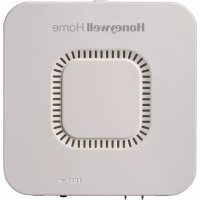
| Product type | Water and freeze leak detector |
| Brand | Honeywell (Resideo) |
| Model | RWD41T |
| Dimensions (approx.) | 8 x 8 x 3 cm |
| Weight (approx.) | 150 g (with batteries) |
| Power supply | 3 AA batteries (included) |
| Connectivity | Bluetooth, WiFi 2.4 GHz |
| App | Resideo (iOS & Android) |
| Water detection | Via built-in or optional detection cable (accessory) |
| Freeze detection | Via built-in temperature sensor |
| Alarm | Audible and visual (flashing red LED) |
| Status LED | Blue (Bluetooth), Green (WiFi), Red (alert) |
| Mute | Via app or removing batteries/cable |
| Mounting | On floor or wall (screw included) |
| Reset | Reset button (paperclip): 5s reset WiFi/Bluetooth, 15s factory |
| Maintenance | Wipe the housing and detection cable after alert |
| Operating temperature | 0°C to 50°C (estimated) |
| Operating humidity | 10% to 90% RH (estimated) |
| Compliance | FCC Part 15, IC RSS-210 |
| Warranty | Consult manufacturer (Resideo) |
| Country of manufacture | United States |
Frequently Asked Questions - RWD41T HONEYWELL
User questions about RWD41T HONEYWELL
0 question about this device. Answer the ones you know or ask your own.
Ask a new question about this device
Download the instructions for your Doorbells in PDF format for free! Find your manual RWD41T - HONEYWELL and take your electronic device back in hand. On this page are published all the documents necessary for the use of your device. RWD41T by HONEYWELL.
USER MANUAL RWD41T HONEYWELL
natural_image
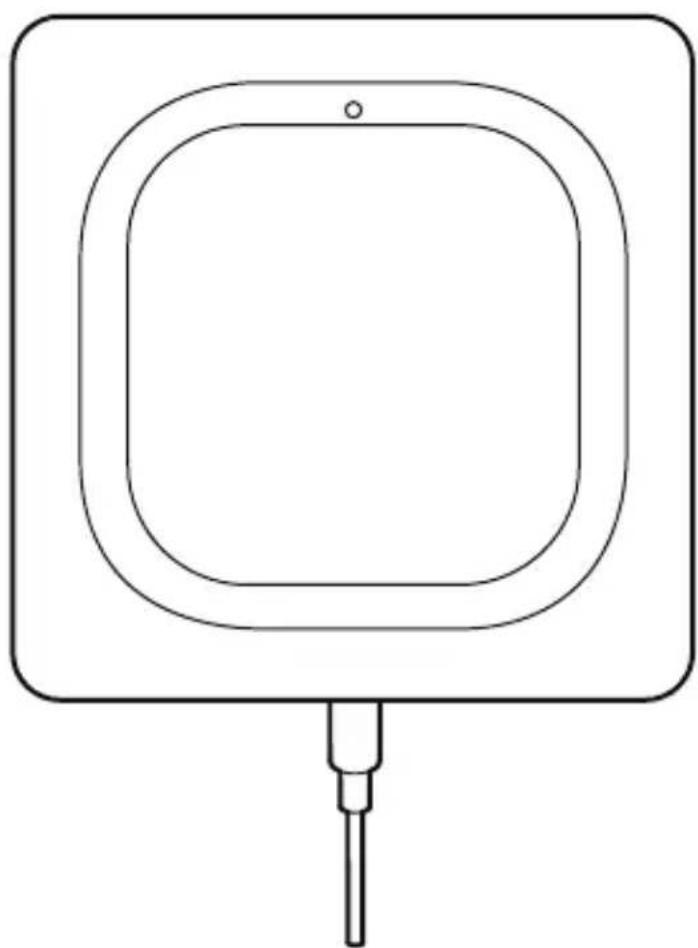
Simple line drawing of a square object with a small protrusion and a small hole, no text or symbols present.WIFI® WATER LEAK AND FREEZE DETECTOR
CHW3610W, CHWES4, RCHW3610WF, RCHWES4
Installation Guide
Read and save these instructions
Need help?
• Web: www.resideo.com
• Phone: 1-800-468-1502
1 Download the Resideo app
Search for Resideo in the App Store or Google Play.
After downloading, launch the app, register (if necessary), go to Menu, and then go to Add New Device.


2 Install batteries
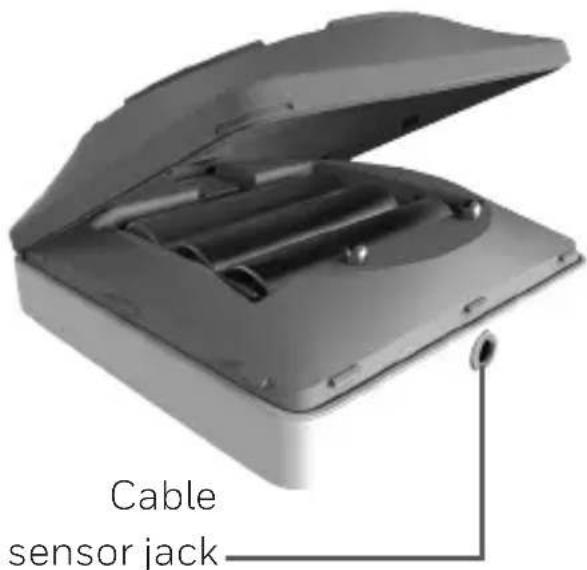
The detector is powered by 3 AA batteries (included). Open the battery cover on the detector and install the batteries.
When replacing the cover, press firmly around the edges to ensure a snug fit.
Note: The cable sensor jack is NOT for plugging in a power adaptor. Doing so could damage the detector.
3 Connect
Pair and name your detector
1 Under Add New Device, select Water Leak and Freeze Detector.
Note: Make sure Bluetooth is enabled on your mobile device and that the detector's LED is blinking blue. If it is not, see the Reset section.
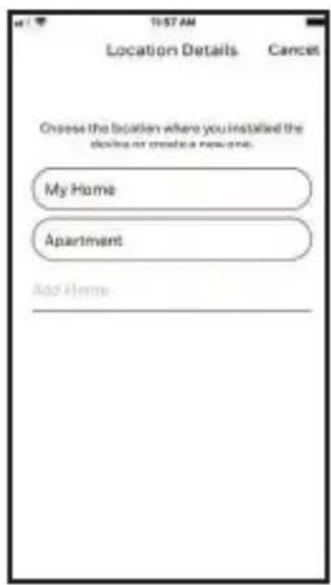
2 Provide a location for your detector. Press NEXT.
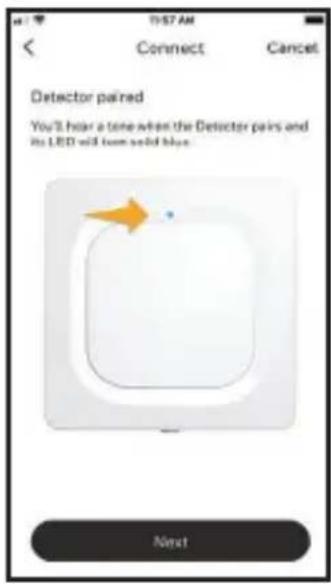
3 The detector will now pair with the app.
Note: If you have more than one detector, you will need to connect each detector individually.
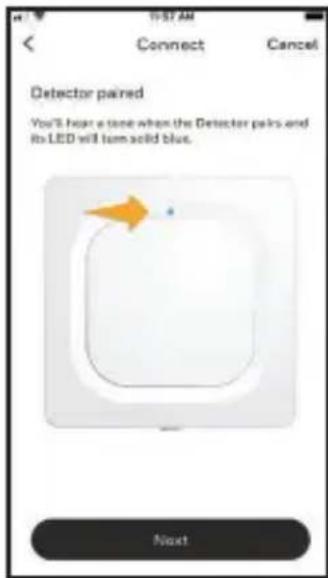
4 An audible alert will sound and your detector's LED will turn solid blue to indicate your detector is paired. Press NEXT.
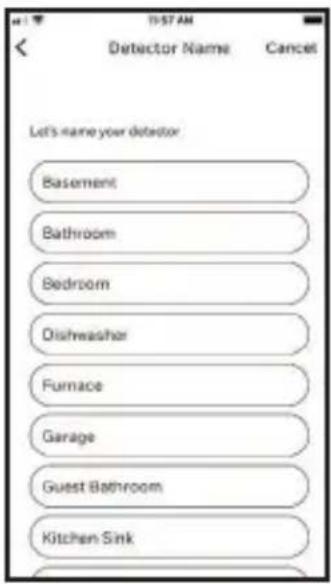
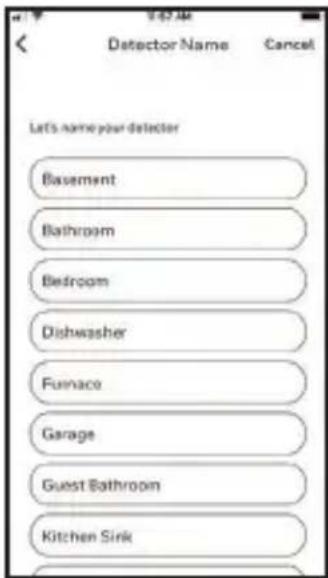
5 Create a custom name for the detector or select one from the list. Press NEXT.
Connect to WiFi
1 Choose your network from the list. Press NEXT.
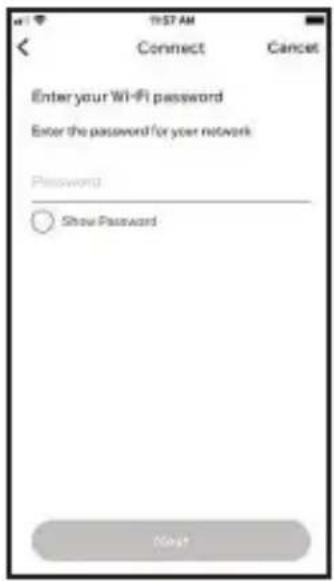
2 Enter your WiFi password, if necessary. Press NEXT.
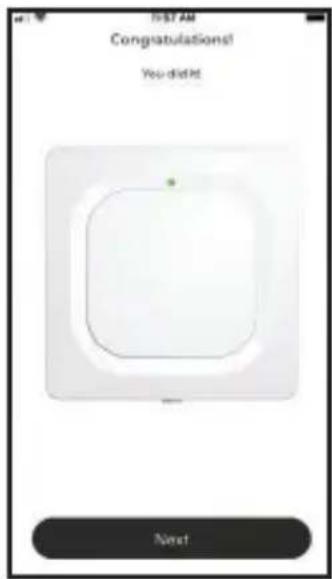
3 When connected to WiFi, the LED will turn solid green for 5 minutes, then turn off to preserve battery life.
Note: If you remove and replace the detector's batteries, it will reconnect to your WiFi network automatically.
4 Configure
Continue to follow instructions in the app to configure your detector.
Select the alert levels you want for high and low humidity and temperature warnings, or keep the preset levels. Identify the people you want notified in case of an alarm. These settings can be updated at any time using the app.
5 Placement
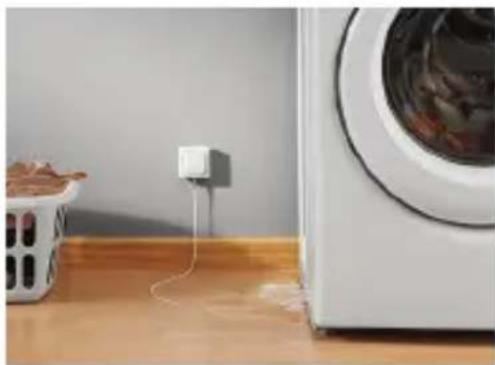
Place the bottom of your detector flat on the floor or a surface. For wall mounting, use the included screw and hang the detector on the bottom cover's mounting keyhole.
Optional cable sensor
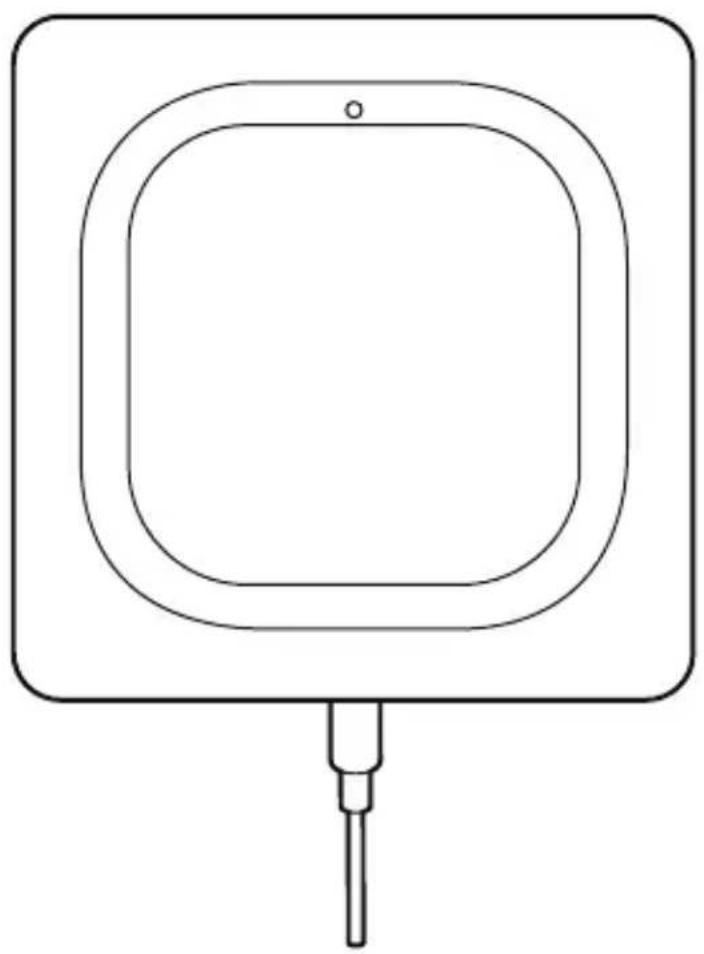
To install the optional cable sensor, remove the sensor jack plug and insert the cable sensor. Insert the sensor jack plug at the end the cable sensor.
Accessory cable sensors (sold separately) can be connected to extend the cable and increase water sensing area.
The entire length of cable is an extended sensor. You can hang the detector from the wall or place both the detector and cable sensor on the floor.
Note: The cable sensor jack is NOT for plugging in a power adaptor. Doing so could damage the detector.

Common uses
natural_image
Interior scene showing a washing machine connected to a power outlet, with a trash bin nearby (no visible text or symbols)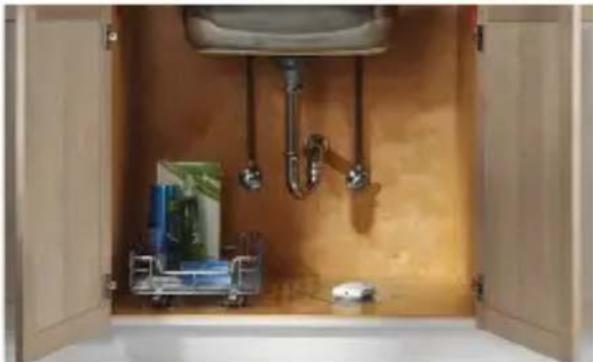
natural_image
Interior view of a kitchen sink with open doors, showing plumbing pipes and fixtures (no text or symbols visible)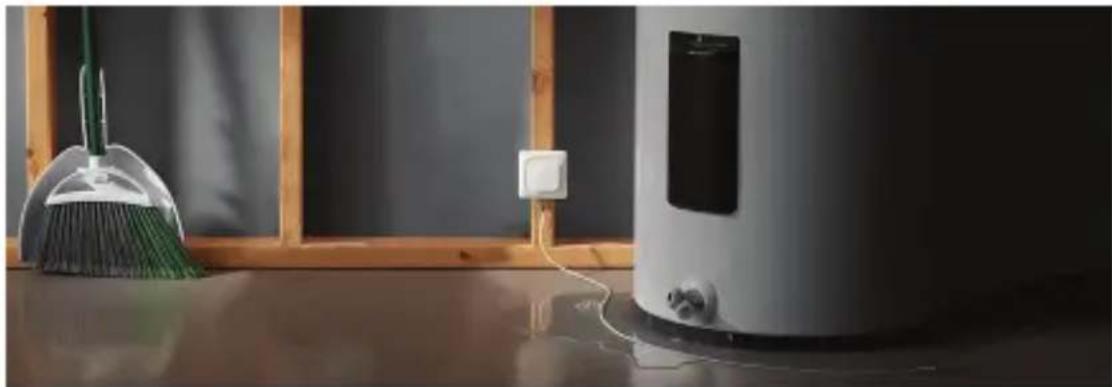
natural_image
Interior scene with a broom, a clean water heater, and a wall-mounted device (no visible text or symbols)Operation
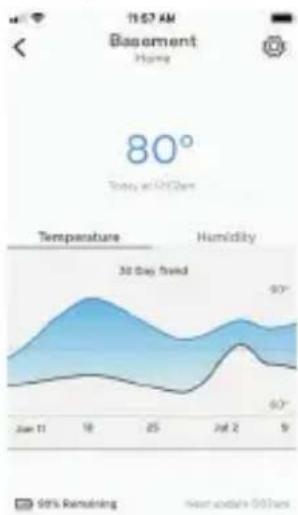
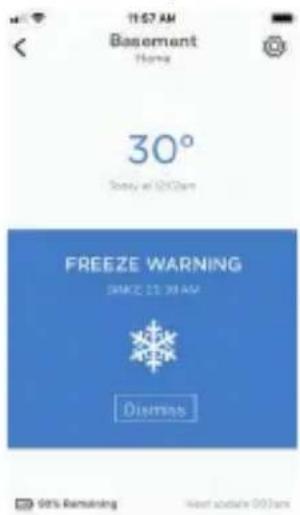
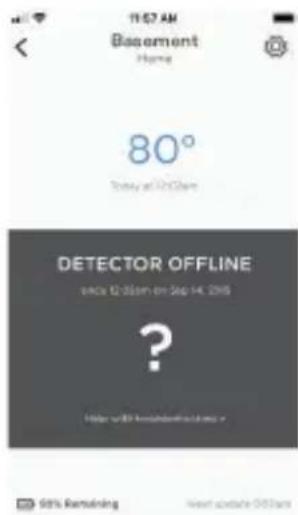
Resideo app experience
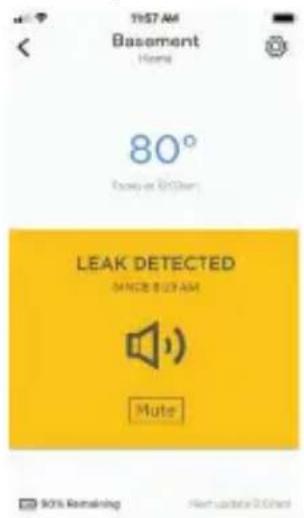
Below are a few examples of the Resideo app screens you will see as you use the Water Leak and Freeze Detector.
Leak detected by device
30 day rolling
temperature trends
Low temperature
detected by device
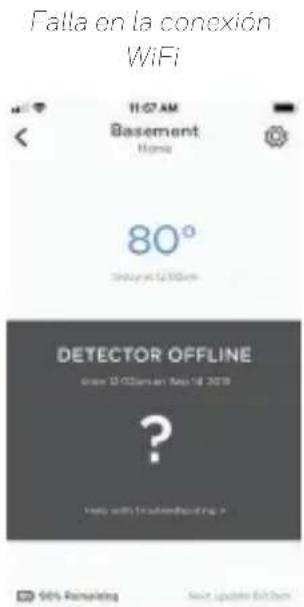
WiFi connection failure
Reset
Use one end of a paperclip to press and hold into the reset hole for 5 seconds to reset WiFi, detector settings, and to re-start Bluetooth pairing. The LED will blink blue.
Press and hold the paperclip into the reset hole for 15 seconds to restore factory defaults. The LED will blink blue.
Status LED
The detector has an LED that gives device status.
LED Detector state
During installation
Blinking Blue Powering up and connecting to Bluetooth.
Solid Blue Paired with Bluetooth.
Blinking Green Connecting to WiFi network.
Solid Green Has power, WiFi connection, and is operating normally.
Note: LED turns off after 5 minutes to preserve battery life.
Solid Red Failed to connect to WiFi.
During operation
Blinking Red Detected a leak.
In case of an alert
To preserve battery life, it can take up to 1 minute for the detector to sense a leak.
You can mute the detector by pressing the Mute button in the app or removing the batteries or cable sensor from the detector. The mute command may take up to 1 minute to reach the detector.
After you've addressed the cause of the alert, wipe dry the detector and cable sensor and put them back in place. Replace batteries if they were removed.
FCC Regulations
§ 15.19 (a)(3)
This device complies with part 15 of the FCC Rules. Operation is subject to the following two conditions: (1) This device may not cause harmful interference, and (2) this device must accept any interference received, including interference that may cause undesired operation.
§ 15.21
Changes or modifications not expressly approved by the party responsible for compliance could void the user's authority to operate the equipment.
FCC Radiation Exposure Statement:
This equipment complies with FCC radiation exposure limits set forth for an uncontrolled environment. This equipment should be installed and operated with minimum distance 20cm between the radiator & your body.
IC Regulations
This device contains licence-exempt transmitter(s)/receiver(s) that comply with Innovation, Science and Economic Development Canada's licence-exempt RSS(s). Operation is subject to the following two conditions:
(1) This device may not cause interference, and
(2) This device must accept any interference, including interference that may cause undesired operation of the device.
IC Radiation Exposure Statement:
This equipment complies with IC RSS-102 radiation exposure limits set forth for an uncontrolled environment.
This equipment should be installed and operated with minimum distance 20cm between the radiator & your body.
The operation of this equipment is subject to the following two conditions: (1) this equipment or device may not cause harmful interference, and (2) this equipment or device must accept any interference, including interference that may cause undesired operation.

resideo
www.resideo.com
Resideo Technologies, Inc.
1985 Douglas Drive North, Golden Valley, MN 55422
1-800-468-1502
33-00381EFS-02 M.S. Rev. 07-22 | Printed in United States
© 2022 Resideo Technologies, Inc. All rights reserved.
This product is manufactured by Resideo Technologies, Inc. and its affiliates.
33-00381EFS-02
resideo
natural_image
Simple line drawing of a square object with a small protrusion and a small hole, no text or symbols present.DÉTECTEUR DE GEL ET DE FUITES D'EAU WIFI®
CHW3610W, CHWES4, RCHW3610WF, RCHWES4
Guide de démarrage

natural_image
Open metallic toolbox with internal compartments and a small hole, no visible text or symbols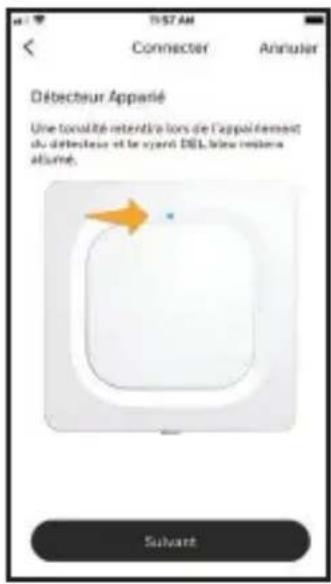
natural_image
White medical device with attached cable and connector, isolated on white background (no text or symbols)natural_image
Interior scene showing a washing machine connected to a power outlet, with a trash bin nearby (no visible text or symbols)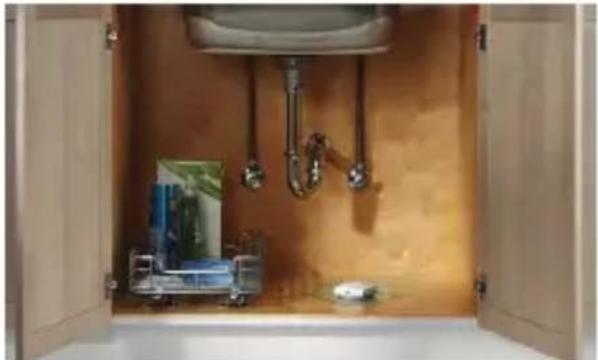
natural_image
Interior view of a bathroom with open doors, showing a sink with faucet and fixtures (no text or symbols visible)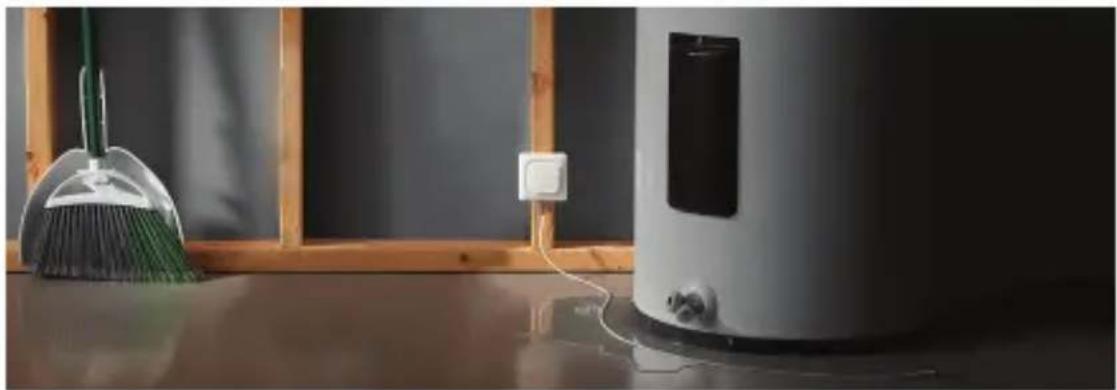
natural_image
Interior scene with a broom and a smart water heater on a reflective surface, no visible text or symbols.Resideo Technologies, Inc.
1985 Douglas Drive North, Golden Valley, MN 55422
1-800-468-1502
© 2022 Resideo Technologies, Inc. All rights reserved.
This product is manufactured by Resideo Technologies, Inc. and its affiliates.
33-00381EFS-02
resideo
natural_image
Simple line drawing of a square object with a small protrusion and a small hole at the bottom (no text or symbols)natural_image
Open metallic toolbox with internal compartments and a small hole, shown in isometric view (no text or symbols visible)Conector del cable sensor
3 Conecte
Conecte e identifique su detector
Conecte a WiFi
4 Configure
5 Colocación
natural_image
Interior scene with a washing machine connected to a power outlet and a trash bin on a wooden table (no visible text or symbols)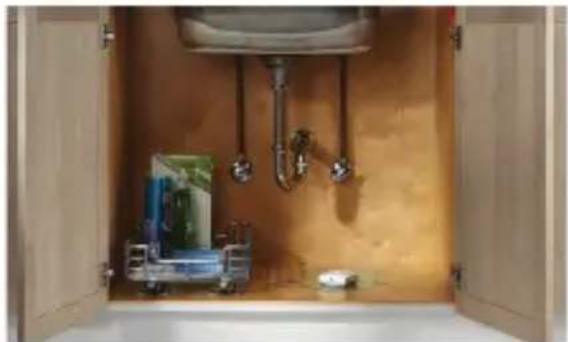
natural_image
Interior view of a bathroom with open doors, showing a sink, pipe, fixtures, and a small appliance (no text or symbols visible)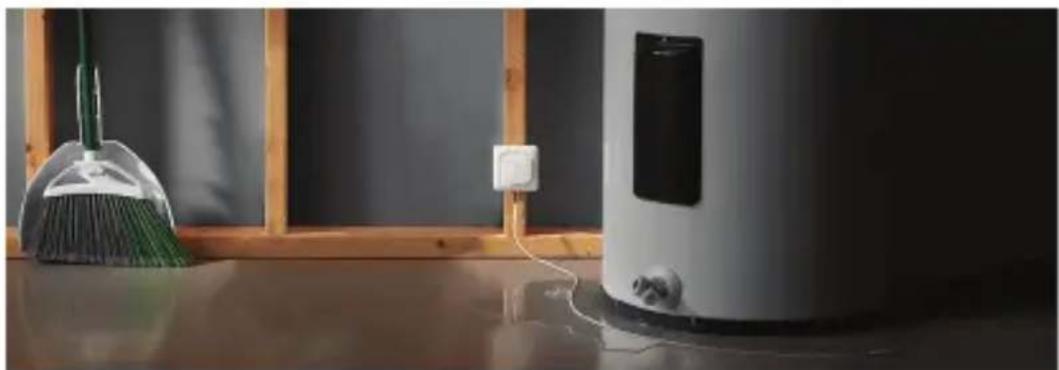
natural_image
Interior scene with a broom and a water dispenser on a reflective surface, no visible text or symbolsFuncionamiento
Reinicio
Resideo Technologies, Inc.
1985 Douglas Drive North, Golden Valley, MN 55422
1-800-468-1502
33-00381EFS-02 M.S. Rev. 07-22 | Impreso en Estados Unidos
© 2022 Resideo Technologies, Inc. All rights reserved.
This product is manufactured by Resideo Technologies, Inc. and its affiliates.
33-00381EFS-02