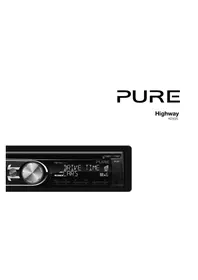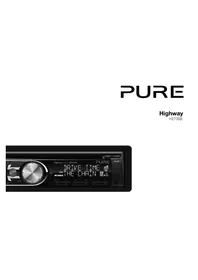
Highway H270SB - Mp3 player PURE - Free user manual and instructions
Find the device manual for free Highway H270SB PURE in PDF.


| Product type | MP3 car stereo with DAB+, FM, MW tuner, CD player, USB port, Bluetooth and auxiliary input |
| Brand | Pure |
| Model | Highway H270SB |
| Dimensions (W x H x D) | 178 x 50 x 166 mm |
| Weight | 1.7 kg |
| Power supply | 12 V DC (11-16 V), negative ground |
| Fuse | 15 A |
| Max output power | 55 W x 4 channels |
| Speaker impedance | 4-8 ohms |
| Radio functions | DAB band III and L, FM stereo, MW (AM) |
| Supported audio formats | Audio CD, MP3, WMA (on CD or USB drive) |
| Bluetooth | Hands-free (HFP) and audio streaming (A2DP) |
| Connectivity | USB port, 3.5 mm auxiliary input, front/rear preamp outputs, DAB antenna (SMB), FM/MW antenna |
| Detachable faceplate | Yes, for security |
| Equalizer | Presets (Pop, Rock, Classic, Jazz) + customizable 8-band parametric |
| Display | Backlit LCD screen with customizable colors |
| Maintenance | Clean the faceplate with a soft cloth; use a cleaning cloth for CDs (from center outward) |
| Safety | Disconnect the battery negative terminal before installation; do not disassemble the unit (laser); use only fuses of the same rating |
| Serviceability | Reset button (RESET) accessible after removing the faceplate; 3-year warranty |
| General information | Manual available in multiple languages; firmware updates at support.pure.com |
Frequently Asked Questions - Highway H270SB PURE
User questions about Highway H270SB PURE
0 question about this device. Answer the ones you know or ask your own.
Ask a new question about this device
Download the instructions for your Mp3 player in PDF format for free! Find your manual Highway H270SB - PURE and take your electronic device back in hand. On this page are published all the documents necessary for the use of your device. Highway H270SB by PURE.
USER MANUAL Highway H270SB PURE
Pure Warranty Statement for Australia
This statement replaces any reference to warranty which may be contained elsewhere within this manual.
What do you need to do now?
Option 1: You can register your purchase on-line at https://www.pure.com/au/register/register.asp
Option 2: Or you can do nothing other than keep your proof of purchase as evidence of your purchase date. This proof of purchase would need to be presented if warranty service was ever required.
If you have any questions about your warranty you can call us toll free 1800 988 268.
What's covered by this warranty?
- Pure agrees to refund, repair or replace, at your election, without charge to you, any part found to be defective during the warranty period.
- If equipment has been used according to its accompanying instruction manual and is used in a domestic situation, a three year warranty period applies.
How do you make your claim?
Call 1800 988 268 for instructions on how to return your Pure product for warranty service or go to http://support.pure.com/au/ and complete the contact us form.
What's NOT covered by this warranty?
Under this express warranty Pure will not be liable for loss or damage of any kind whatsoever, whether direct, indirect, incidental, consequential or otherwise.
- Replacement of parts due to normal wear and tear
- Products with serial number defacement, modification or removal
• Water damage or corrosion caused by dampness - Any damage or deterioration due to shipment
- Any product which has been subjected to misuse, abuse or accident
Australian consumers — The benefits to the consumer given by this express warranty are in addition to other rights and remedies of the consumer under a law in relation to the goods or services to which this warranty relates. Our goods come with guarantees that cannot be excluded under the Australian Consumer Law, You are entitled to a replacement or refund for a major failure and for compensation for any other reasonably foreseeable loss or damage. You are also entitled to have the goods repaired or replaced if the goods fail to be of acceptable quality and the failure does not amount to a major failure.
Pure is distributed and supported in Australia by PIONEER ELECTRONICS AUSTRALIA PTY LTD, 5 ARCO LANE, HEATHERTON, VICTORIA, 3202.
Highway
H270SB
Thank you for choosing Highway H270SB. This manual will get you up and running in no time, and explains how to make the most of your Highway H270SB. We're constantly improving and adding new features to our products. To take advantage of any enhancements made since your product was shipped, please visit support.pure.com where you can check for any updated versions of software and download the latest version of this user guide in PDF format.
Safety information
Please read through these operating instructions so you will know how to operate Highway properly. After you have finished reading the instructions, keep this manual in a safe place for future reference.
Precautions
- Use only in a 12-volt DC negative-ground electrical system.
- Disconnect the vehicle's negative battery terminal while mounting and connecting the unit.
- When replacing the fuse, be sure to use one with an identical amperage rating.
- Using a fuse with a higher amperage rating may cause serious damage to the unit.
- DO NOT attempt to disassemble the unit. Laser beams from the optical pickup are dangerous to the eyes.
- Make sure that no pins or other objects get inside the unit as this may cause malfunctions, or create safety hazards such as electric shocks or laser beam exposure.
- If you have parked the car for a long time in hot or cold weather, wait until the temperature in the car becomes normal before operating Highway.
- Keep the volume at a level where you can still hear outside warning sounds (horns sirens, etc.).
- Stop the car before performing any complex operations.
CD notes
- Playing a defective or dusty CD can cause dropouts in sound.
- Handle the CD by holding its inner and outer edges.
- Do not touch the surface of the unlabelled side of the CD.
- Do not attach any seal, label or data protection sheet to either side of a CD.
- Do not expose a CD to direct sunlight or excessive heat.
- Wipe a dirty CD from the centre outwards with a cleaning cloth.
- Never use solvents such as benzine or alcohol.
- Highway can not play 3-inch (8cm) CDs. Never attempt to insert a 3-inch CD with an adapter or other irregularly shaped CD. Highway may not be able to eject it, resulting in a malfunction.
- In addition to ordinary CDs, Highway can also play back CD-R/CD-RW/MP3/UDF discs.
Caution
Please power off Highway and return it to the after-sales service centre or dealer /distributor that you purchased Highway from if one of the following symptoms occurs:
(1) Water or other obstacle enters Highway;
(2) Smoke;
(3) Highway emits a burning smell.
Warranty information
Imagination Technologies Limited warrants to the end user that this product will be free from defects in materials and workmanship in the course of normal use for a period of three years from the date of purchase. This guarantee covers breakdowns due to manufacturing or design faults; it does not apply in cases such as accidental damage, however caused, wear and tear, negligence, adjustment, modification or repair not authorised by us.
Please visit www.pure.com/register to register your product with us. Should you have a problem with your unit please contact your supplier or contact Pure Support at the address shown on the rear of this manual. If you need to return your product please use the original packaging and include all parts and accessories. We reserve the right to refuse incomplete or badly packaged returns.
Note: To register Highway you will need Highway's serial number, which can be found on the back of the detachable front panel.
Disclaimer
Imagination Technologies Limited makes no representation or warranties with respect to the content of this document and specifically disclaims any implied warranties of merchantability or fitness for any particular purpose. Further, Imagination Technologies Limited reserves the right to revise this publication and to make changes in it from time to time without obligation of Imagination Technologies Limited to notify any person or organization of such revisions or changes.
Copyright
Copyright 2014 by Imagination Technologies Limited. All rights reserved. No part of this publication may be copied or distributed, transmitted, transcribed, stored in a retrieval system, or translated into any human or computer language, in any form or by any means, electronic, mechanical, magnetic, manual or otherwise, or disclosed to third parties without the express written permission of Imagination Technologies Limited. Version 4 July 2014.
Trademarks
Highway H270SB, Pure, the Pure logo, Imagination Technologies, and the Imagination Technologies logo are trademarks or registered trademarks of Imagination Technologies Limited, iPod and iPhone are trademarks of Apple Inc., registered in the U.S. and other countries.
"Made for iPod," and "Made for iPhone" mean that an electronic accessory has been designed to connect specifically to iPod, or iPhone, respectively, and has been certified by the developer to meet Apple performance standards.
Apple is not responsible for the operation of this device or its compliance with safety and regulatory standards. Please note that the use of this accessory with iPod or iPhone may affect wireless performance.
iPhone and iPod are trademarks of Apple Inc., registered in the U.S. and other countries.
Contents
4 Getting started
4 Front panel controls
5 Using your Highway
5 Removing and fitting the detachable front panel
5 Listening to digital radio
6 Listening to FM or MW radio
6 Service following
7 Listening to a CD or USB drive
10 Listening to iPod or iPhone content
12 Using Bluetooth
14 Setup options
14 Options available in digital radio
14 Options available in FM radio
16 General options
17 Adjusting audio settings
18 Appendix
18 Electrical connections
19 Installation guide
20 Carrying out a factory reset
21 Removing the Highway head unit
22 Troubleshooting
23 Specifications
Getting started
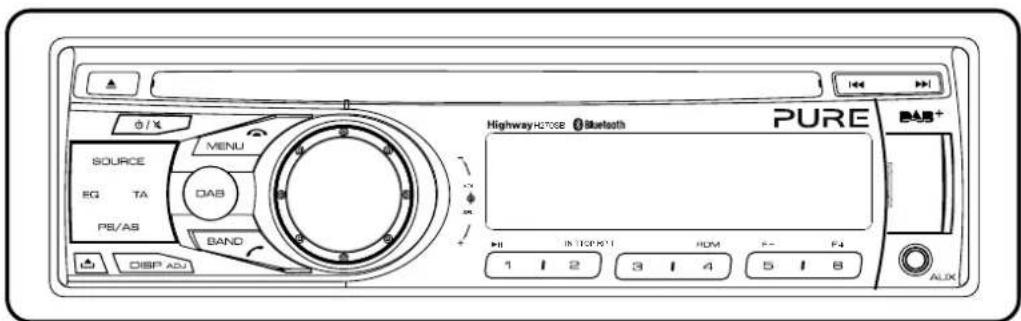
Front panel controls
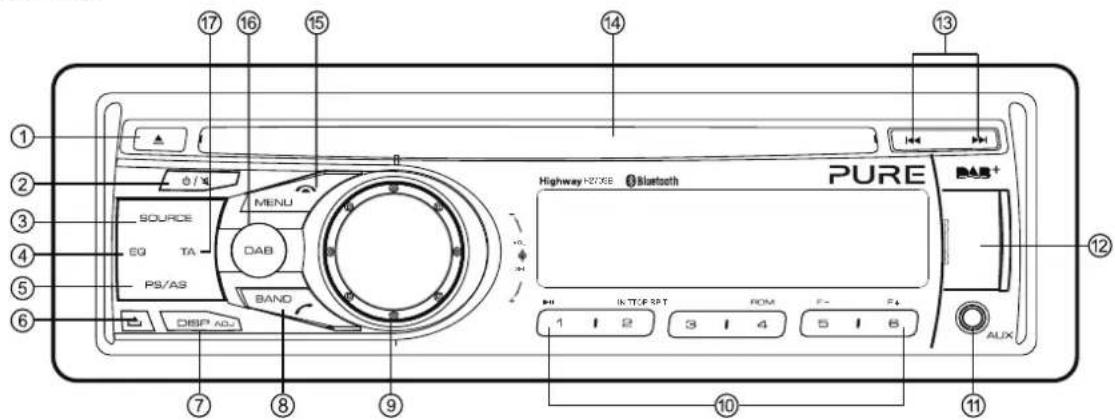
- Press to eject a CD
2.Power/Mute
-
Toggle the audio source
-
Sound effect setting
-
TUNER mode (FM or MW only):
- Preset scan
- Auto store (long press)
DAB mode - Autotune
-
Unlock the front panel.
-
Displayswitch
Adjust system setup (long press)
8.Bandswitch:
- TUNER mode - FM1 > FM2 > FM3 > MW
-
Adjust volume level / Confirm (press)
-
Button 1: Play / Pause / Top play (long press) (see page 7) / Preset station 1
Button 2: Scan play / Preset station 2
Button 3: Repeat play / Preset station 3
Button 4: Random play / Preset station 4
Button 5: Previous folder / Preset station 5 / MP3 and WMA tracks -10 down (long press)
Button 6: Next folder / Preset station 6 / MP3 and WMA tracks +10 up (long press)
11.Aux-insocket
-
USB connector (open cover)
-
CD mode – Previous / next track TUNER mode – Manual tune (short press) Seek + / - (long press)
DAB mode – Previous / next station
Bluetooth mode - Previous / next track
14.CDslot
- TUNER mode - PTY select
CD mode - No function
DAB mode - No function
BLUETOOTH mode - Terminate call
AUX mode - No function
iPod mode - iPod menu
CD/USB MP3 and WMA mode - Folder search
16.DABbutton - Press to toggle between digital radio and previously used audio source
- Traffic announcement
Using your Highway
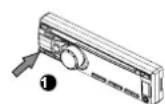
Removing and fitting the detachable front panel
To help improve security, Highway has a detachable front panel so you can take it with you whenever you leave your car.
Note: To prevent damage, place the front panel in the protective case whenever you remove the front panel from the head unit.
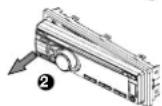
Removing the detachable panel
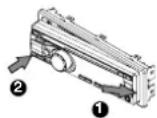
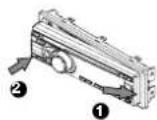
- Press the button.
- Hold the loose part of the panel and remove from the head unit.
Fitting the detachable panel
- Line up the groove on the right side of the face panel with the slot on the unit.
- Press down the left side of the face plate until it clicks into the panel slot.
Listening to digital radio
Selecting digital radio as playing source
Press DAB once, or Source repeatedly until 'DAB' is displayed on the screen.
Changing digital stations
Press the ◀◀ or ▶▶ buttons to scroll through the list of stations and press the VOLUME dial to select.
Choosing a digital radio band
Highway includes a BAND button that you can press to change the stations that are allocated to the six preset buttons. There are three bands available for digital radio, allowing you to store up to 18 digital radio presets. Press BAND to select band D1, D2 or D3.
Storing and selecting presets
Manually storing a preset
Tune into the digital radio station you want to store. Press and hold one of the numbered preset buttons (1-6) to store it in the memory.
Recalling a preset
To tune to a preset, press the corresponding preset button (1 to 6).
Carrying out an autotune
The autotune function scans all digital radio frequencies and automatically updates the station list by adding any stations found and removing any stations that are no longer available. To carry out an autotune, press the PS/AS button.
Changing the information shown on screen
In digital radio mode, Highway displays two rows of text. The first row always displays the name of the radio station.
You can toggle the information that is displayed on the second row by pressing the DISP button.
Highway can display the current time, scrolling text, programme type (PTY) information, multiplex (MUX), band information and frequency.
Listening to FM or MW radio
Press SOURCE repeatedly until 'TUNER' is displayed on the screen.
Changing FM or MW stations
Manual tuning
Press the ◀◀ or ▶▶ buttons to tune in to a higher or lower station.
Seek tuning
Press and hold the 🏠 or buttons to seek to the next or previous radio station that has a strong signal.
Note: To stop seek tuning, repeat the steps above or press any other button that has a radio function.
Choosing an FM or MW radio band
Highway includes a BAND button that you can press to change the stations that are allocated to the six preset buttons. In FM there are three bands available, allowing you to store up to 18 FM presets. In MW there is only one band available, allowing you to store up to 6 presets. Press BAND to select either FM1, FM2, FM3 or MW.
Storing and selecting presets
Manually storing a preset
Tune into the FM or MW radio station that you want to store. Press and hold one of the numbered preset buttons (1-6) to store it in the memory.
Recalling a preset
To tune to a preset, press the corresponding preset button (1 to 6).
*Service following is only supported by some broadcasters.
Auto storing presets
You can use the auto store function to automatically populate your presets with radio stations that are detected by Highway.
Press and hold the PS/AS button to start automatic station search.
To stop auto store, press any button that has a radio function.
Notes: If you start the auto store function in an FM band, the auto store function will automatically populate the presets in all the FM bands (FM1, FM2 and FM3). If you start the auto store function in the MW band, the auto store function will automatically populate the presets in the MW band.
Preset scan
You can use the preset scan function to listen to ten seconds of audio from each of the radio stations stored in your presets.
- Press the PS/AS button to begin the preset scan.
- Press the PS/AS button again when you hear a station that you want to listen to.
Note: Pressing the PS/AS button for more than one second will start the auto store function, which will overwrite all your presets.
Changing the information shown on screen
In FM mode, Highway displays two rows of text. The first row will display RDS information if it is available. If there is no RDS information, the band and frequency will display.
You can toggle the information that is displayed on the second row by pressing the DISP button. Highway can display the current time, scrolling text (if available), programme type (PTY) information, and band and frequency.
Service following
If you are listening to a digital radio station and you lose the digital radio reception, Highway's service following feature will always attempt to automatically tune in to the same radio station with a better reception or a similar digital radio station. If the same or a similar digital station cannot be found, Highway will attempt to find the same station in FM mode*.
Note: If Highway has used service following to retune a digital radio station to the same FM station, Highway's screen will display 'FM' after the radio station's name.
Note: Digital to FM service following will not work if TA standby mode is enabled. See page 14 for more information.
Listening to a CD or USB drive
Highway can play audio CDs and MP3 and WMA files that are stored on a CD or USB drive.
Note: Highway cannot play AAC files stored on a CD or USB drive.
Loading a CD
Insert a CD into the centre of the CD slot with the label facing upwards. The CD will play automatically after it has been loaded.
Notes:
- Never insert foreign objects into the CD slot.
- If the CD is not inserted easily, there may be another CD in the mechanism or the unit may require a service.
- Some CD-R/CD-RW discs may not be usable.
- In addition to ordinary CDs Highway can also play back CD-R and CD-RW discs.
Ejecting a CD
Press the ▲button to eject a CD.
Notes:
- Forcing a CD into the unit can damage the CD.
- If a CD (12 cm) is left ejected for 15 seconds, the CD is automatically reloaded.
Listening to a CD that is already loaded in Highway
Press the SOURCE button to select CD/MP3 mode.
When Highway enters CD/MP3 mode, the CD will play automatically.
Inserting a USB drive
Insert a USB device into the USB connector.
When connecting a USB device, the unit will read the files automatically.
Removing a USB drive
Before removing a USB drive, select another source or turn off the power to avoid damaging the USB device.
For more information on listening to MP3 or WMA files see the following section.
Playback controls for an audio CD and MP3/WMA tracks saved to a CD or USB drive
Fast-forward
Press and hold the ▶button.
Rewind
Press and hold the ◀ button.
* For MP3/WMA discs, there may be a slight delay when searching and skipping between tracks.
Pausing playback
Press the 1 button to pause playback. Whilst playback is paused, 'PAUSE' will appear on the display.
To resume playback, press the 1 button again.
Skipping to the next track
Press the ▶ button to skip to the beginning of the next track.
If you are listening to an MP3/WMA file, press and hold the 6 button (1 sec.) to move ahead 10 tracks.
Playing the previous track
Press the button within the first 10 seconds of the track to go to the previous track.
Playing the beginning of a track
Press the button after the first 10 seconds of the track to go to the start of the track.
For MP3/WMA files, press and hold the 5 button (1 sec.) to move back 10 tracks.
Listening to the first track on a CD or USB drive
Highway features a function called Top that allows you to listen to the first track on the CD that is currently playing. To listen to the first track on the CD that is currently playing, press and hold the Top (1) button (1 sec.).
Note: If you are listening to an MP3/WMA file, pressing the 1 button will play the first track on the CD or USB drive.
Intro function
If listening to an audio CD, you can use the intro function to play the first 10 seconds of the next track and the rest of the tracks on the CD in sequential order. If listening to an MP3 or WMA file, this function allows you to play the first 10 seconds of all the MP3 or WMA tracks on a CD or USB drive.
To use the intro function, press the 2 button during playback. The 'SCN' icon will display on the screen when the intro function is enabled.
To turn the intro function off, press the 2 button.
Repeat play function
If listening to an audio CD, you can use the repeat play function to play the current track repeatedly.
Press the 3 button to toggle the repeat function on 'RPT ON' and off 'RPT OFF'.
If you are listening to an MP3/WMA file, press the 3 button to choose one of the following repeat options:
TRK RPT: Repeats the current track.
FOLD RPT: Repeats all the tracks in the current folder.
RPT OFF: No tracks repeated.
Random play function
If listening to an audio CD, you can use the random play function to play all the tracks on the CD in a random order.
If listening to an MP3 or WMA file, you can use the random play function to play all the MP3 or WMA files on the CD or USB drive in a random order.
Press the 4 button to toggle the random play function on 'RDM ON' and off 'RDM OFF'.
Displaying title data
Highway can display the title data for MP3 and WMA files.
If the CYCLE setting is OFF (see page 16), you can press the DISP button to change the title data displayed on the screen. Highway can display the following data about the MP3 or WMA file:
File name > Folder name > Track Title > Album > Artist > File ...
Notes:
- If the MP3/WMA file has no ID3 tag, 'NO TITLE' will appear on the display.
Selecting a folder
You can select the folder that contains the MP3/WMA files you want to listen to. Highway will start to play all the tracks stored in the folder, starting from the first track.
To move to the next folder, press the 6 button.
To move to the previous folder, press the 5 button.
Press the K-or button to change tracks within a folder.
Using the search function
Highway can search for MP3 or WMA files stored on a CD or USB drive.
- Press the MENU / button to see the FOLD SCH option.
- Press the VOLUME dial to enter the folder list search.
- Turn the VOLUME dial to select the folder that you want to search in.
- Press the VOLUME dial to see the file list on the display.
- Turn the VOLUME dial to choose a track and press to play.
Notes about listening to WMA/MP3 files Disabling DRM (Digital Rights Management)
Highway will not play any WMA files if they are DRM (Digital Rights Management) enabled. If you want to play a WMA file on Highway, you will need to disable DRM.
If using Windows Media Player 9/10/11, click on Tools > Options > Copy Music tab. Under Copy settings, un-check the Copy protect music. checkbox, then reconstruct the files.
Personally constructed WMA files are used at your own responsibility.
File extensions:
-
Always add a file extension '.MP3', '.WMA' to an MP3, WMA file by using single byte letters. If you add a file extension other than specified or forget to add the file extension, the file cannot be played.
-
Files without MP3/WMA data will not play. The files will play with no audio if you attempt to play files without the MP3/WMA data.
* When VBR files are played, the play time display may differ depending on the play location.
* When MP3/WMA files are played, very little or no sound will play between tunes.
Logical format (File system):
- When writing MP3/WMA files to a CD-R disc or CD-RW disc, please select either 'ISO9660 level 1, 2 or Joliet' or Apple ISO as the writing software format. Normal playback might not be possible if the disc is recorded in any other format.
- The folder name and file name can be displayed as the title during MP3/WMA playback. However, the title must be within 30 single byte alphabetical letters and numerals (including an extension).
- Do not name a folder with the same name as a file within that folder.
Folder structure:
You cannot play a CD that contains folders with more than eight hierarchical levels.
Number of files or folders:
- Up to 999 files can be recognised per folder. Up to 3000 files can be played.
- Tracks are played in the order that they were recorded onto a CD. (Tracks may not always be played in the order displayed on a computer.)
- Some noise may occur depending on the type of encoder software used while recording.
Listening to iPod or iPhone content
Connecting an iPod and iPhone
Connect an iPod or iPhone* to the USB connector. After connecting an iPod/iPhone, you will be able to control all playback functions and view all the information about the track's stored on your iPod/ iPhone using Highway's controls.
Listening to audio from an iPod or iPhone
You can listen to audio from any music or videos stored on your iPod. To listen to audio from your iPod:
- PresstheMENU / button.
- Turn and press the VOLUME dial to select 'MUSIC' or 'VIDEO'.
- If you selected 'MUSIC', turn and press the VOLUME dial to select either 'PLAY LISTS', 'ARTISTS', 'ALBUMS', 'SONGS', 'GENRES' or 'COMPOSERS'.
If you selected 'VIDEO', turn and press the VOLUME dial to select either 'MOVIES', 'MUSIC VIDEOS', 'TV SHOWS', 'VIDEO PODCASTS', or 'RENTALS'.
Note: When you play a video file, Highway can only play the audio from the video and not display any image content.
- Turn and press the VOLUME dial to select the item that you want to listen to.
Note: The items listed in VIDEO MENU vary depending on what model of iPod you have connected and the language used.
Searching for content on your iPod/iPhone
Highway lets you search for content using alphabetical letters. To search for content:
- Press the MENU / 📋 button to select the iPod menu mode.
- Turn the VOLUME dial to specify whether you want to search for 'MUSIC' or 'VIDEO' content.
- If you selected 'MUSIC', turn the VOLUME dial to select either 'PLAY LISTS', 'ARTISTS', 'ALBUMS', 'SONGS', 'GENRES' or 'COMPOSERS'. If you selected 'VIDEO', turn the VOLUME dial to select either 'MOVIES', 'MUSIC VIDEOS', 'TV SHOWS', 'VIDEO PODCASTS', or 'RENTALS'.
- Press the VOLUME dial to display all the contents that match the selected category.
- Press and hold the DISP button (1 sec).
- Turn the VOLUME dial to specify a letter to search for.
- Press the DISP button again to start searching.
- Press the VOLUME dial to confirm.
Repeat play function
You can use the repeat play function to play the track currently being played on your iPod repeatedly.
Press the 3 button to specify one of the following repeat options:
RPT ONE: Repeats the current track.
RPT ALL: Repeats all the tracks in the current folder.
Random play (Shuffle) function
Album Shuffle
To play all the albums stored on your iPod or iPhone in a random order, press the 4 button until 'RDM ALBUM' is displayed on the screen.
Song Shuffle
To play the tracks in the folder you are currently listening to on your iPod or iPhone in a random order, press the 4 button until 'RDM SONG' is displayed on the screen.
Disabling the Shuffle function
To disable the shuffle function, press the 4 button until 'RDM OFF' is displayed on the screen.
Using your iPod/iPhone to select tracks on your Highway
Highway allows you to use your iPod/iPhone to select the tracks that are playing on Highway. This function is known as simple control (S-CTRL).
This setting is disabled by default.
To enable your iPod/iPhone to select tracks on Highway:
- Press and hold the DISP button to enter system setup.
- Press ▶ or ▶ button to scroll to 'S-CTRL'.
- Turn and press the VOLUME dial to turn S-CTRL 'ON' or 'OFF'. Select 'ON' to enable your iPod to control Highway's iPod/iPhone functions. Select 'OFF' to disable the S-CTRL function.
Notes:
- Be patient when selecting tracks on Highway with your iPod/iPhone as there may be a slight delay.
- Do not try to select tracks on Highway using your iPod and the controls on the head unit at the same time.
- Some iPod models do not support the S-CTRL function. Consult your nearest dealer or the Pure website to confirm which models do not support S-CTRL.
Using Bluetooth
Highway's Bluetooth feature allows you to use Highway's microphone and your car's built in audio system to make handsfree phone calls. Once connected, you can also use Highway's display to view information about incoming, outgoing and missed phone calls.
If your mobile phone is capable of storing audio files, you can also use Bluetooth to stream any music stored on your phone to Highway.
Notes:
- Do not install Highway's microphone in noisy areas within your vehicle, such as near the air vents.
- Do not place your Bluetooth handsfree device in places where it can be exposed to direct sunlight as high temperatures may affect Highway's performance.
• Highway may not be compatible with some mobile phones and Bluetooth audio players. - Audio playback will be set to the same volume level set during a telephone call.
Pairing your mobile phone with Highway
Before you can use Highway's Bluetooth function, you will need to pair your mobile phone with Highway.
- Turn on your mobile phone's Bluetooth function.
- Enter your mobile phone's Bluetooth setup menu.
- Search for new Bluetooth devices.
- Select Pure Highway from the pairing list on the mobile phone.
After pairing successfully, the BT and HFP icons will light up on Highway.
The A2DP icon will light up to indicate that music can be streamed from your Bluetooth device to Highway.
Auto connection
- Highway can pair and store a maximum of five mobile phones.
Auto connection will be enabled once you have paired your mobile phone with Highway. - Your mobile phone will need to be switched on to use the auto connection function.
- The auto connection function will only work with the last mobile phone that you connected to. If you want to connect another mobile phone, you will need to connect manually.
Using the handsfree telephone function
Accessing the Bluetooth menu
Toggle the SOURCE button to switch the source to 'BLUETOOTH'.
Press the MENU / 📋 button to select a way to make outgoing call.
Dialling a number
- PresstheMENU / button.
- Turn and press the VOLUME dial on the front panel to select 'DIAL NUMBER'.
- Turn and press the VOLUME dial to select the first number of the phone number that you want to dial. Repeat until you have entered the whole phone number.
- Press the BAND / button to dial the phone number.
When you have finished your phone call, press the MENU / 📞 button to hang up.
Answering a call
Press the BAND / √ button to answer an incoming call. To reject an incoming call press the MENU / √ button.
Ending a call
When you have finished your phone call, press the MENU / 📞 button to hang up.
Viewing your call history
You can view your recent call history on Highway to retrieve information about calls that you recently Dialled, Missed, or Received.
To view your call history:
- PresstheMENU / button:
- Turn and press the VOLUME dial on the front panel to select 'DIALLED CALL', 'MISSED CALL' or 'RECEIVED CALL'.
- Press the VOLUME dial to view the selected call history contacts.
- Turn the VOLUME dial to scroll through the list of contacts and press when you see the contact name or phone number that you want to call.
Switching between handsfree and normal mobile phone operation
You can switch between handsfree and normal mobile phone operation by pressing the
BAND / button during a phone call.
Audio Streaming Operations
What is Bluetooth audio streaming?
Using Bluetooth allows you to stream music from an external audio player/phone to Highway wirelessly and listen to the tracks through your car's speakers.
CAUTION
Please avoid operating your connected mobile phone while streaming audio.
Audio streaming may or may not resume after it is interrupted by a telephone call -- this is dependent on the mobile phone.
If the audio streaming source is disconnected, Highway's display will show a 'BLUETOOTH DISCONNECT' message.
Note:
Be sure to read the chapter 'Pairing your mobile phone with Highway' on the previous page before proceeding.
Playing or pausing a track
Press the 1 button to pause audio playback. To resume audio playback, press the 1 button again.
Selecting a track
Skipping to the next track
Pressthe button to skip to the beginning of the next track.
Playing the beginning of a track
Pressthe button to play the beginning of the current track.
Note:
The order that tracks are played in will vary between different Bluetooth audio players. When the button is pressed, some A2DP devices will restart the current track depending on the track duration.
During music streaming playback 'HFP' or 'A2DP' will be shown on the display.
If 'BLUETOOTH DISCONNECT' is shown on the display, your Bluetooth audio player may not have synchronized the play/pause function with Highway. Please make sure that both your Bluetooth device and Highway have the same play/pause status when streaming music to Highway from a connected Bluetooth audio player.
Setup options
Options available in digital radio Digital radio antenna setting
You can specify the type of digital radio antenna you are connecting to Highway. The available options are 'ACTIVE' and 'PASSIVE'. See page 19 for more information.
L-band settings
You can specify whether or not Highway tunes in to radio stations that broadcast on L-band.
To enable or disable the L-band setting:
- Press and hold the DISP button on the front panel until 'CLOCK' is displayed on the screen.
- Pressthe or buttons to scroll to 'DAB LBND'.
- Turn and press the VOLUME dial to toggle the L-band function 'ON' or 'OFF'.
Options available in FM radio Local seeking
You can use the local seeking function so that Highway only tunes into radio stations with a strong signal.
To enable or disable the local seeking function:
- Press and hold the DISP button on the front panel until 'CLOCK' is displayed on the screen.
- Use the button to scroll to 'DX/LO'.
- Turn and press the VOLUME dial to select either 'LOCAL' (enable) or 'DX' (disable).
Note: The number of radio stations that can be received will decrease when local seeking function is enabled.
Radio Data System
Highway has a built-in Radio Data System (RDS) decoder system that supports broadcast stations transmitting RDS data.
RDS settings
AF function
If you are listening to an FM radio station and the signal starts to weaken, the AF function will try to search and automatically retune Highway to the same radio station on an alternative frequency. This setting is ON by default.
- Press and hold the DISP button on the front panel until 'CLOCK' is displayed on the screen.
- Press the ◀ or buttons to scroll to 'AF'.
3.TumtheVOLUME dial to select 'ON' or 'OFF'. When the AF function is enabled, the AF indicator will appear on the display.
Note: Digital to FM service following will not work when the AF function is disabled.
REG (Regional programme) function
When the REG function is ON, Highway will automatically tune into the station with the strongest signal within the specified region using the AF control. If this function is OFF and the regional area changes as you drive, Highway will tune into a station within the current region. This setting is ON by default.
Notes:
- This function is disabled when Highway is tuned into a national station, such as BBC R2.
-
The REG function ON/OFF setting only applies when the AF function is ON.
-
Press and hold the DISP button on the front panel until 'CLOCK' is displayed on the screen.
-
Pressthe or buttons to scroll to 'REG'.
- TurntheVOLUME dial to select ON or OFF.
Manually tuning to a regional station in the same network
You can manually tune to a regional station in the same network when the AF function is ON and the REG function is OFF.
Note: This function can be used when a regional broadcast of the same network is received.
TA (Traffic Announcement)
In TA standby mode ('TA' icon is lit on the display), Highway will wait for a TA signal from any available FM station that is in range. When Highway receives a TA or EON traffic signal, Highway will automatically tune into the FM station it has found with a traffic announcement. When the traffic announcement has finished, Highway will automatically tune back to the last FM station you were listening to.
To cancel an active traffic announcement, press the TA button.
Setting the TA standby mode
Note: If TA standby mode is on, digital to FM service following will not work.
Press the TA button to toggle the 'TA' icon on and off. When the 'TA' icon is lit in the display, Highway will remain in TA standby mode until a traffic announcement is broadcast. When a traffic announcement broadcast starts, Highway will display 'TRAF INF' if the traffic announcement is being broadcast from the radio station that you are currently listening to. If Highway tunes in to a traffic announcement from another radio network, 'EON INF' will appear on the display.
PTY (Programme Type)
You can use the PTY (Programme Type) function to search for radio broadcasts that match a certain genre. In Europe there are thirty one predefined programme type genres.
* Some countries do not currently broadcast PTY information.
* In the TA standby mode, a TP station has priority over a PTY broadcast station.
To use the PTY function to search for a particular type of radio broadcast:
- Pressthe MENU / button.
- Turn and press the VOLUME dial on the front panel to select the genre of the PTY broadcast that you want to search for.
Highway will start to search for a matching radio broadcast and tune into the first radio station that matches the specified PTY type.
Repeat the above steps to search for another station that matches the specified PTY type.
General options
In any mode, press and hold the DISP button to enter the system setup menu. Press the ◀◀ or ▶▶ buttons to scroll through the options, and turn the VOLUME dial to adjust a setting.
CLOCK
-
PresstheVOLUME dial.
-
The hour will flash on and off. Turn and press the VOLUME dial to set the hour. Repeat to set the minutes.
LANGUAGE
You can select the language that your Highway uses for menus and options.
- PresstheVOLUME dial.
- Turn and press the VOLUME dial to select a menu language from 'English', 'French', 'German' or 'Italian'.
AUX SENS (AUX mode)
Turn and press the VOLUME dial to increase or decrease the audio boost level for the AUX input. The available options are LOW, MID or HIGH.
AUTO CON: ON/OFF
(Bluetooth mode only)
Enabling this option automatically connects the mobile phone that you last connected.
Turn and press the VOLUME dial to switch the Auto Con feature 'ON' or 'OFF'.
COLOUR
Turn the VOLUME dial to choose a backlight colour.
SCN: The backlight continually cycles through all available colours.
COLOUR 01\~12: Select a preset colour.
USER1\~3: Create your own colour. Press the dial to enter colour setting mode and press the ◀◀ ▶buttons to select the RED, GREEN and BLUE (RGB) values of your desired colour. Turn and press the VOLUME dial to select a colour.
Press and hold the VOLUME dial to add the custom colour to the radio memory.
CYCLE: ON/OFF
This function is used to control how Highway displays the track name, folder name, title, album, and artist in CD/MP3, USB and iPod mode:
ON: Select this option to specify that the display will automatically alternate between the TRACK, FOLDER, TITLE, ALBUM and ARTIST.
Note: In iPod mode, the cycle option only alternates the display between TITLE, ALBUM and ARTIST.
OFF: Select this option to stop the display from automatically alternating between the TRACK, FOLDER, FILE, ALBUM, TITLE, and ARTIST. To change the information that is currently displaying on the screen (Highway displays the Track name by default, except for iPod mode), press the DISP button.
REAR / S-W
If you are using Highway with an external amplifier, you can use this setting to specify if you are connecting the Rear line-outs to an external amplifier connected to full range speakers (REAR) or a Sub Woofer (S-WOOFER). See the diagram on page 18 for more information.
Turn and press the VOLUME dial to select either REAR or S-WOOFER.
REAR: Select this option to provide an external amplifier with a full range signal from the rear left and right line-outs.
S-WOOFER: Select this option to allow adjustments to be made to a dedicated subwoofer amplifier from the EQ menu without affecting the signal from the front line-outs, or sound from the built-in amplifier.
DIMMER: ON/OFF
Turn and press the VOLUME dial to toggle the DIMMER setting 'ON' or 'OFF'.
ON: The display brightness is dimmed.
OFF: Disables the dimmer setting so that the LCD brightness is set to the maximum level.
BEEP: ON/OFF
Turn and press the VOLUME dial to toggle the beep sound that is made when pressing a button 'ON' or 'OFF'.
12/24H
Turn and press the VOLUME dial to change the time format to either '12HOURS' or '24HOURS'.
CT: ON/OFF
Turn and press the VOLUME dial to toggle automatic time updates from the digital or FM radio signal 'ON' or 'OFF'.
Adjusting audio settings
Press the EQ button to enter equalizer setting mode. When you initially press EQ, the current EQ setting is displayed. Turn the dial to change the DSP EQ in the following order:
OFF > POP > ROCK > CLASSIC > JAZZ > CUSTOM
Creating a custom EQ setting
- Press the EQ button.
- Turn and press the VOLUME dial to select 'CUSTOM'.
-
Press the ▶ or ▶ button to select the EQ value that you want to change. The available options are: BASS-G > BASS-F >BASS-Q > MID-G > MID-F >MID-Q >TREBLE-G > TREBLE-F.
-
Turn the VOLUME dial to adjust the value.
-
Pressthe or button to move to another custom EQ setting or press the VOLUME dial if you have finished.
Audio control settings
- Press the EQ button.
- Press the button to select the audio control setting that you want to adjust. The available options are BALANCE > FADER > LOUD > SUBW FRE > SUBW VOL.
- Turn and press the VOLUME dial to adjust the value. The available values are for each option are shown below:
BALANCE: LEFT 1-7 > CENTRE > RIGHT 1-7
FADER:FRONT 1-7 > CENTRE > REAR 1-7
LOUD: ON/OFF
SUBWFRE:THROUGH > 80 > 120 > 160
SUBWVOL: (-6) - (+6)
Appendix
Electrical connections
Wiring Diagram
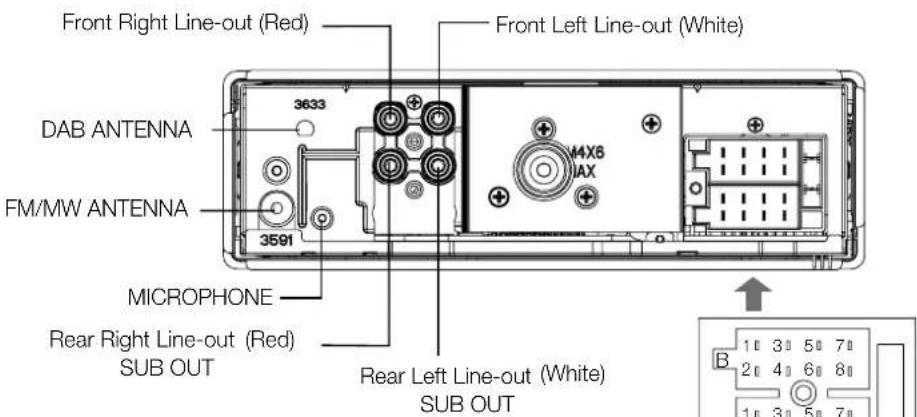
| A Compartment | B Compartment | ||
| No. | Pin Definition | No. | Pin Definition |
| A1 | NC | B1 | Rear Right(+) |
| A2 | Telemute | B2 | Rear Right(-) |
| A3 | NC | B3 | Front Right(+) |
| A4 | Battery + | B4 | Front Right(-) |
| A5 | AMP Remote | B5 | Front Left(+) |
| A6 | NC | B6 | Front Left(-) |
| A7 | ACC+ | B7 | Rear Left(+) |
| A8 | Ground | B8 | Rear Left(-) |
Installation guide
Installation notes
Preparing to install Highway
Highway can be installed in any dashboard that has an opening matching the dimensions shown in the diagram below. The dashboard needs to be 4.75mm - 5.56mm thick in order to be able to support Highway.
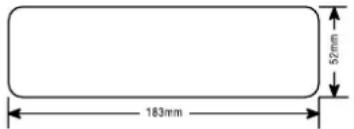
Note: Always insert the mounting sleeve into the dashboard before fitting the head unit.
Installing a digital radio antenna
Highway is designed to work with an active digital radio antenna. Before installing the Highway head unit ensure that you have installed an appropriate digital radio antenna in your vehicle. Refer to your digital radio antenna installation guide for more information.
Digital radio antenna setting
Highway features an SMB type digital radio antenna connector and should be used with an automotive antenna appropriate for your vehicle and geographical area (e.g. band 3 for UK use).
An antenna is not supplied with the product in order to allow an appropriate antenna to be used for your specific vehicle needs.
Antenna power for Active Antennas:
As many automotive antennas have an amplifier either built-in, or in-line with the cable connected to the car stereo, this product provides power at 12 volts along the centre of the digital antenna connector (centre pin of SMB connector). Most active automotive digital radio antennas work on 12 volts. However, some may be designed to operate at other voltages, e.g. 5 volts. The antenna power output from the product is set to 'Active', i.e. 12 volts ON, from production (shown as 'DAB ANT ACTIVE' in the system menu). If your chosen antenna does not have an amplifier (i.e. it is 'PASSIVE'), please set the antenna power to 'PASSIVE' using the following steps before connecting the antenna to Highway:
- Press and hold the DISP button until 'CLOCK' appears on the top line of the display. This shows that you have entered the system menu.
- Press the button repeatedly until 'DAB ANT' appears on the top line of the display.
- Turn the VOLUME dial until 'PASSIVE' appears on the second line of the display.
- Press the DISP button once to confirm the new antenna setting and return to the previous screen.
If your chosen antenna operates at a different voltage to the 12 volts supplied by Highway, then an in-line voltage regulator must be used to correct the voltage to the level required by the antenna BEFORE connecting the antenna to Highway. The antenna power should then be set to 'ACTIVE' using the previous steps (Highway is set to 'ACTIVE' from the factory).
Under no circumstances should a separate power supply at either 12 volts, or any other voltage, be provided in-line with the antenna connection with the antenna power set to either 'ACTIVE', or 'PASSIVE' as this will present power to the product through the centre of the antenna cable and will cause damage to the product not covered by the warranty.
WARNING - Connecting an active antenna that is not designed to operate at 12 volts to the SMB Digital Radio Antenna Connector on Highway may cause damage to the antenna or Highway, which is not covered by the warranty.
Installing the microphone
You will need to install the included microphone to make handsfree phone calls using Highway and your mobile phone.
Note: Do not install Highway's microphone in noisy areas within your vehicle, such as near air vents.
- Loosen any trim panels.
- Use the supplied clip to attach the microphone to the sun visor above the driving position (A).
- Route the cable behind the trim panels (B) and leave the microphone connector hanging out of the dashboard (C), ready for connecting to the head unit.
- Secure the cable using the supplied self-adhesive clip.
- Return all the trim panels to their original positions.
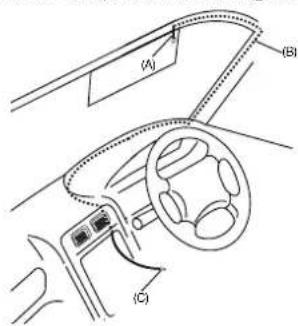
CAUTION: Do not route the microphone or any other cables across airbags as they may not operate as intended in the event of a collision. Cables should be secured away from airbag deployment zones. Take extra care when working around airbags.
Installing the Highway head unit
- Insert the mounting sleeve into the dashboard. Fix it firmly in place by folding down the metal tabs.
- Connect the audio, microphone, FM/MW antenna and electrical cables to the back of Highway (see page 18).
- Install the detachable panel (see opposite) and test Highway to check that all audio functions are working properly.
- Connect the digital antenna cable.
Note: See page 19 before connecting the digital antenna cable.
- Remove the two protective screws on the top of Highway so that the CD function works and slide Highway into the mounting sleeve and push to secure in place.
- Attach the outer trim frame.
If you are not sure how to install this unit correctly, contact a qualified technician.
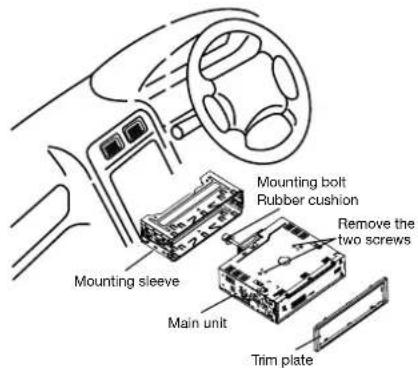
Installing the detachable panel
- Line up the groove on the right side of the face panel with the slot on the unit.
- Press down the left side of the face plate until it clicks into the panel slot.
Carrying out a factory reset
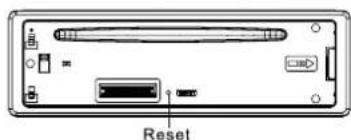
- Remove the detachable panel as described on page 5.
- Press the RESET button with a pointed object to reset Highway to factory settings.
- Replace the detachable panel as described on page 5.
Note: Pressing the RESET button will erase the clock setting and stored stations.
Removing the Highway head unit
- Power off Highway.
- Remove the detachable panel as described on page 5.
- Remove the outer trim frame.
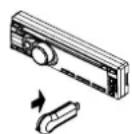
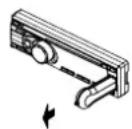
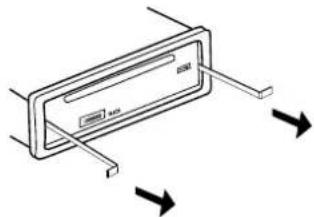
- Insert the L-key removal tools into the slots on the front of Highway until they lock (as shown in the diagram below).
- Pull out Highway and disconnect all cables.
natural_image
Diagram of a rectangular device with arrows indicating direction, no text or symbols presentTroubleshooting
The following checklist can help you solve any problems that you might encounter when using Highway. Before checking this list, check the connections and follow all the instructions in this user guide. Do not use Highway if you see smoke or if there is a burning smell as this can cause a fire or electric shock. If this occurs stop using Highway immediately and contact your reseller.
| Problem Possible cause Solution | ||
| General | ||
| Highway will not switch on. Car ignition is not on. Cable is not properly connected. Fuse has blown. | Turn your car key in the ignition.Check the cable connection.Replace the fuse with a new fuse of the same rating. | |
| No sound Volume is set to the minimum level or the mute function is on. | Check the volume or switch the mute function off. | |
| Highway's screen does not work normally. | Highway is unstable. Press the RESET button. | |
| CD mode | ||
| Highway will not play CDs. The CD is inserted incorrectly.The CD is dirty or damaged. | CD must be inserted with the label side facing up. Clean the CD and check for damage. Try another CD. | |
| Sound skips due to vibration. Mounting angle is over 30°.Mounting is unstable. | Adjust mounting angle to less than 30°.Mount the unit securely with the supplied parts. | |
| TUNER mode | ||
| Unable to receive stations. The antenna is not connected properly. Connect the antenna properly. | ||
| Poor quality reception of radio station. | The antenna is not fully extended or it is broken. | Fully extend the antenna and if broken, replace it with a new one. |
| Preset stations are lost. | The battery cable is not properly connected. | Connect the permanent live on the unit to the permanent live on the vehicle. |
| USB mode | ||
| The USB device cannot be read. | The USB device may not be suitably formatted. | Check that the file system is in FAT or FAT32 format. Due to different formats, some models of storage devices or MP3 players may not be compatible. |
Specifications
| General | |
| Power supply: 12V DC (11V-16V) | |
| Test voltage: 14.4V, negative ground | |
| Maximum power output: 55W x4 channels | |
| Continuous power output: | 20W x4 channels (4Ω10% T.H.D.) |
| Suitable speaker impedance: 4-8 ohm | |
| Pre-Amp output voltage: | 2.0V (CD play mode: 1KHz, 0 dB, 10 KΩload) |
| Fuse: 15A | |
| Dimensions(WxHxD): 178x50x166mm | |
| Weight: 1.7kg | |
| Aux-in: ≥300mV | |
| Components | |
| Mounting sleeve: 1 | |
| Machine screws M5x6mm: 4 | |
| Mounting bolt (50mm): 1 | |
| L-key removal tool: 2 | |
| Trim plate: 1 | |
| Microphone: | 1 |
| Self-adhesive cable clip | 1 |
| Sun visor clip | 1 |
| Rubber cushion: | 1 |
| Operating instructions: 1 | |
| Digital (DAB) Radio | |||
| Frequency range: | DAB Band III:174.928MHz ~ 239.200MHzDAB Band L:1452.960MHz ~ 1490.624MHz | ||
| Usable sensitivity (RF=-72 dBM): | -95dBM | ||
| Frequency response: 20hz 20khz | |||
| Stereo separation: | ≥50db | ||
| Signal/noise ratio: | ≥60db | ||
| Item Min Max | |||
| Far off selectivity: | 42dB | 60dB | |
| Adjacent channel rejection: | 35dB | 40dB | |
| FM Stereo Radio | |
| Frequency range: | 87.5-108.0MHz (Europe) |
| Usable sensitivity: | 8 dBμ |
| Quieting sensitivity (S/N=50dB): | 12 dBμ |
| Frequency response: 30Hz-15kHz | |
| Stereo separation: | 30dB (1kHz) |
| Image response ratio: | 50dB |
| IF response ratio: | 70dB |
| Signal/noise ratio: | 55dB |
| AM(MW) Radio | |
| Frequency range: | 522-1620 KHz |
| Usable sensitivity (S/N=20dB): | 30 dBμ |
| CD Player | |
| System: | Disc digital audio system |
| Frequency response: 20Hz-20kHz | |
| Signal/nolso ratio: | >60 dB |
| Total harmonic distortion: | Less than 0.20% (1kHz) |
| Wow and flutter: | Below measurable limits |
| Channel separation: | >55 dB |
| MP3/WMA | ||
| Media format: | MP3 WMA | |
| Sampling rate: | 8 kHz-48 kHz | N/A |
| Bit rate: | 32 kbps-320 kbps / VBR | 32 kbps-196 kbps |
| File name, file folder and metadata character limit: | 30 characters (including extension) | 30 characters (including extension) |
Note: Specifications and the design are subject to change without notice due to improvements in technology.
Highway
H270SB
natural_image
Diagram of a rectangular device with arrows indicating direction, no text or symbols presentnatural_image
Diagram of a device with arrows indicating direction, no text or symbols presentDépannage
natural_image
Diagram of a device with arrows indicating direction, no text or symbols present14 Alternativer for oppsett
Alternativer for oppsett
TA (Traffic Announcement)
natural_image
Diagram of a rectangular device with arrows indicating direction, no text or symbols presentProblemløsning
Opmerkingen over cd's
Wat is Bluetooth-audiostreaming?
CYCLE (cyclus): ON/OFF
natural_image
Interior view of a car showing steering wheel, dashboard, and steering wheel (no text or symbols)natural_image
Diagram of a rectangular device with directional arrows indicating movement or force (no text or symbols)Problemen oplossen
Pure UK Headquarters
Imagination Technologies Limited
Home Park Estate
Kings Langley
Herts, WD4 8LZ
United Kingdom
www.pure.com
http://support.pure.com
Pure
Pure Australasia Pty Limited
PO Box 5049
Wonga Park
Victoria 3115
Australia
sales.au@pure.com
http://support.pure.com/au
PURE
www.pure.com
connect.pure.com
www.facebook.com/pure
C€2200
105TQ