Highway 600P - Mp3 player PURE - Free user manual and instructions
Find the device manual for free Highway 600P PURE in PDF.


User questions about Highway 600P PURE
0 question about this device. Answer the ones you know or ask your own.
Ask a new question about this device
Download the instructions for your Mp3 player in PDF format for free! Find your manual Highway 600P - PURE and take your electronic device back in hand. On this page are published all the documents necessary for the use of your device. Highway 600P by PURE.
USER MANUAL Highway 600P PURE
PURE
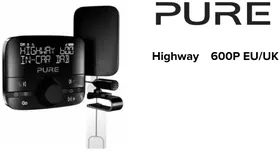
Highway 600P EU/UK
Introduction
Thank you for choosing the Highway 600P EU/UK. This user manual will and running in no time.
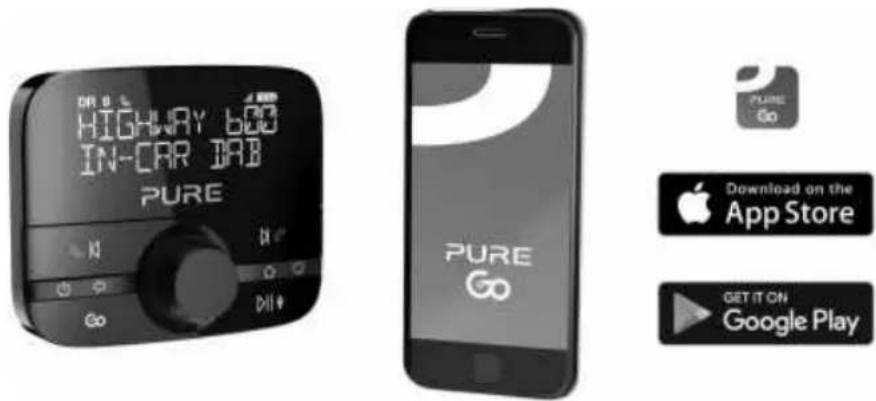
To get the most out of your Highway, download the Pure Go app on a device. Read more about the Pure Go app on page 16.
Safety
Before you use your Highway, read the following safety instructions.
- Follow the operating instructions provided and take note of any warnings.
- If you do not follow the operating instructions provided, it may compromise the safety of your product and this may invalidate the warranty.
- Only use the supplied 12V power a dapter with your product.
- Do not install your product in a way that may interfere with the safe operation of the vehicle, or affect the deployment of air bags or other safety items. Do not install cables and wires near the steering wheel.
- Do not place your product on or near sources of your vehicle's heat or ventilation.
- Do not use your product in a way that may cause careless driving or improper control of your vehicle.
- Keep your product dry and only clean with a dry cloth.
- Do not expose your product to naked flames.
- Use batteries of the type listed in this user manual, and fit batteries correctly. Dispose of batteries in an environmentally friendly manner. Do not expose batteries to excessive heat or naked flames.
- Keep batteries away from children. If the battery compartment does not close securely, do not use the product and keep it away from children. If you think someone has swallowed a battery or placed a battery inside their body, seek medi cal a tenti on immediately.
- Do not use your product in extremely hot or cold temperature.
- If you need to connect your product to the rear of your vehicle's head unit, remove any power before you start to install your product. When you have safely installed your product, you can reconnect the power. See your vehicle's owner's manual for more information.
- Do not use the product if it is damaged.
- Product repairs should only be carried out by authorised personnel.
Symbols on the product and in the user manual
Potentially serious risk to your personal safety. To avoid possible injury or death, obey all safety notices with this symbol.
Caution. Read the user manual before use.
12V DC 12V DC power supply.
1A USB socket rated a t 1a mp maximum.
Where to switch on or off the product, or put it in standby.
Contents
Introduction 1
Safety 2
Contents 3
Overview 4
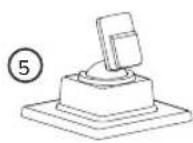
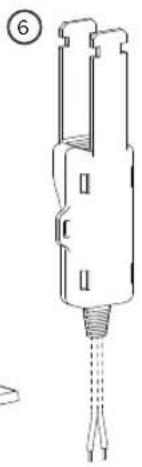
What's in the box 4
Controls 5
Display icons 6
Getting started 7
Installing your Highway 7
Where to install your Highway 8
Connecting the microphone to the antenna 9
Positioning the antenna
Positioning the microphone
Connecting the antenna
Installing the wireless controller
About the 12V Professionally Installed Power Adapter (PIPA) 13
Switching your Highway on for the first time 14
Switching your Highway on and off
Digital radio
Listening to digital radio
Presets
Bluetooth
About the Pure Go app 16
Pairing your Highway with a mobile device 16
Listening to audio stored on your mobile device 17
Listening to audio from a music streaming service 17
Making and receiving calls on your Highway
Using your mobile device's personal assistant 18
Settings
Changing between auxiliary connection and FM transmission 19
Setting your Highway to enter standby automatically 19
Radio settings 19
9 Display settings 20
10 Updating the software 21
11 Troubleshooting 22
12
14
15
15
15
Overview
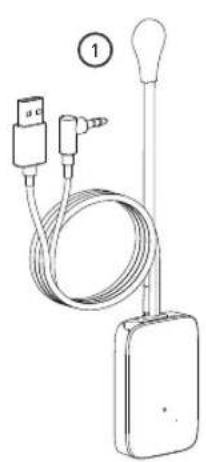
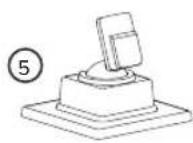
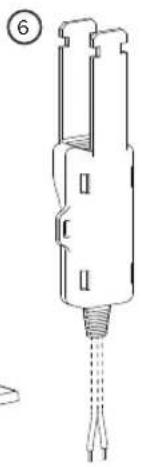
What's in the box
natural_image
Line drawing of a medical or laboratory device with two connectors and a bulb, no text or symbols present.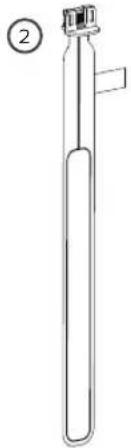
natural_image
Simple line drawing of a test tube with a clamp and label (no text or symbols on the object itself)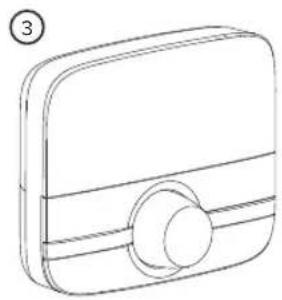
natural_image
Line drawing of a rectangular device with a circular button and a numbered label (3) in the top-left corner.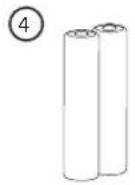
natural_image
Line drawing of a mechanical component with a threaded end and internal slots (no text or symbols)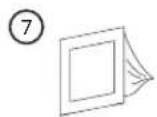
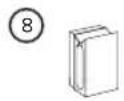
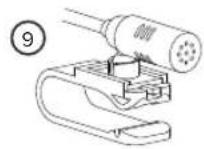
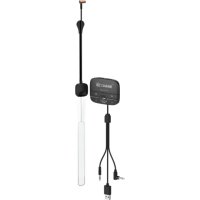
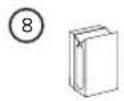
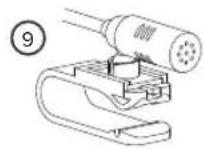
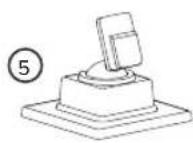
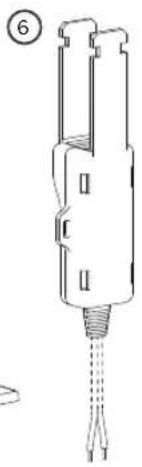
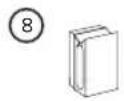
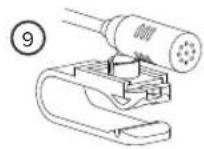
1 Antenna, with magnetic grounding tail attached 6 12V Professionally Installed Power Adapter (PIPA)
2 DAB film aerial 7 Cleaning cloth
3 Wireless controller 8 Self-adhesive cable clips
4 Two AAA batteries 9 Microphone
5 Wireless controller bracket
Restrictions for use: Do not use the product with items other than those included in the box. Configure, install and use the product according to this user manual.
Controls
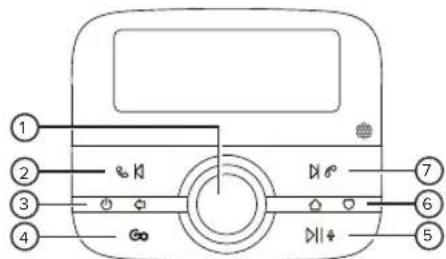
EN
1 Select Turn to browse radio stations, songs and menu options. Press to select.
2 Previous / Call Press to skip to the previous song or preset, or answer an incoming call.
3 Power / Back Press to switch your Highway on. Press and hold to put your Highway in standby. Press to go back to the previous screen or cancel an action.
4 Go Press to stream audio from your music streaming service. Press and hold to identify the current song on the radio and add it to your supported streaming service.
To use the Go button, install the Pure Go app on a mobile device and connect it to your Highway
5 Play / Personal Press to play or pause songs over Bluetooth, or mute the radio. Press and hold to use the personal assistant on your mobile assistant device.
6 Home / Presets Press to open the main menu. Press and hold to view your presets.
7 Next / End call Press to skip to the next song or preset, or reject an incoming call.
Display icons
The icons below appear on the screen of the wireless controller.
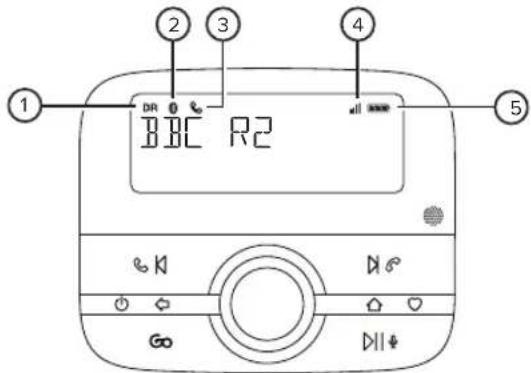
1 Digital radio mode
4 Signal strength of connected mobile device
2 Bluetooth mode
5 Battery level of connected mobile device
3 In a call
Getting started
Installing your Highway
Before you can start using your Highway, you need to do the following:
- Connect the microphone to the antenna.
- Position the antenna in your vehicle.
- Position the microphone in your vehicle.
- Connect the antenna to your vehicle's audio system, either with an auxiliary cable or by FM radio.
- Install the wireless controller.
- Switch your Highway on for the first time.
To watch a video showing how to install your Highway, search for 'Highway installation' on YouTube.
Vehicle requirements
- Fitted audio system with auxiliary (3.5mm) port or FM receiver.
- Standard 12V negative earth power supply. Your Highway is not suitable for use with a 24V power supply.
Getting the best DAB signal
As with FM radio, DAB signal coverage changes depending on your location. As you use the Highway in your vehicle, you may travel through areas where DAB signal coverage is poor.
To help get the best DAB signal when coverage is poor or there is a weak signal:
- Follow the installation instructions carefully.
- Ensure the magnetic grounding tail is attached to the antenna.
- Use the supplied 12V power adapter, as other third-party adapters can cause interference.
- Switch off other devices in your vehicle that aren't in use. Devices such as satellite navigation systems and dashboard cameras can cause interference.
Where to install your Highway

It's important to install your Highway in a safe location in your vehicle. Do not fit any components in locations that may interfere with safe operation of the vehicle, or affect the deployment of air bags or other safety products. Keep cables and wires away from the steering wheel.
Where to install the antenna
We recommend you install the antenna for your Highway in the top corner of the windscreen, on the passenger's side of your vehicle.
Install the antenna so that it is not within the swept area of the windscreen. Make sure the antenna and wireless controller do not obstruct the view of the driver.
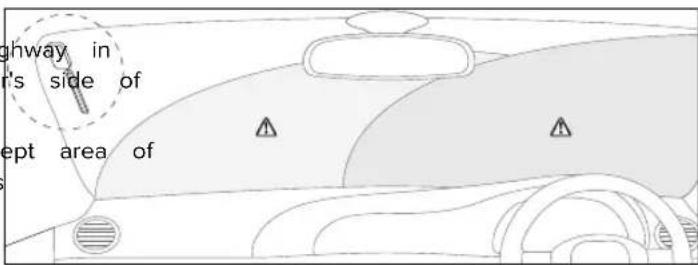
If you have a heated windscreen in your vehicle, or the windscreen contains metallic UV filters, it can cause interference for the DAB signal. Install the antenna on a part of the windscreen that does not contain heating elements or UV filters.
For more information on where to safely and legally install your Highway in your vehicle, contact your local transport office. To find local fitters that can install your Highway professionally, visit pure.com/store-locator.
Connecting the microphone
natural_image
Pure mechanical diagram showing a cable being inserted into a bracket with a connector (no text or symbols)Positioning the antenna
natural_image
Illustration of hands adjusting a car's seatbelt, showing hand positioning and a downward arrow (no text or symbols)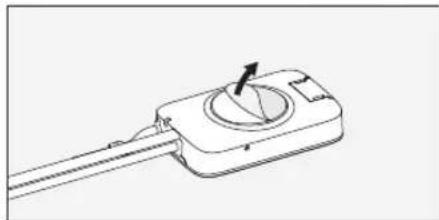
natural_image
Technical line drawing of a mechanical component with a circular dial and arrow indicator (no text or symbols)to the antenna
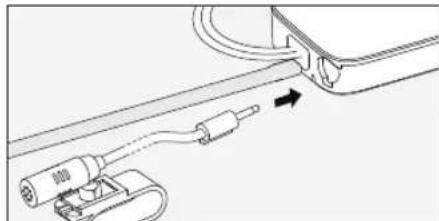
- Insert the microphone connector into the socket at the top of the clicks into place.
Note: Push the microphone cable in firmly, to ensure it's fully inserted.
-
To keep the microphone cable out of the way while you position the temporarily clip the microphone so that it's near the driver's position. For the microphone to the driver's sun visor.
-
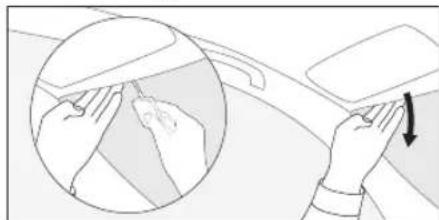
Choose a position for the antenna, so that it's as high as possible on and at least 4cm from the side of the screen.
⚠ Make sure the antenna does not obstruct the view of the driver.
-
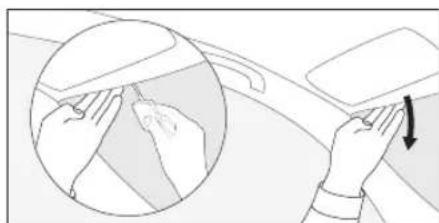
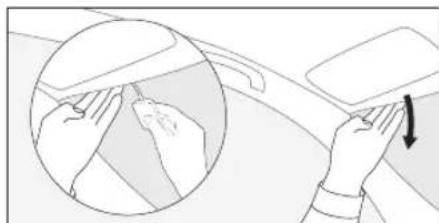
Gently pull down the front of the roof liner in your vehicle, until ther
-
Push the magnetic grounding tail through the gap, with the silver-coloured facing upwards. Make sure the magnet touches your vehicle's metal bod
-
Clean the chosen area of the windscreen with a cleaning cloth and w
-
Unpeel the backing from the antenna and stick the antenna onto your
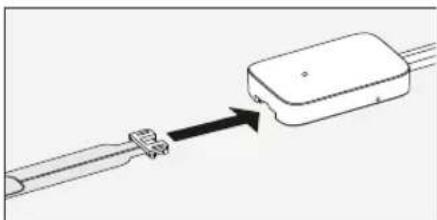
natural_image
Diagram of a connector being inserted into a device (no text or symbols present)-
Insert the DAB film aerial into the slot in the antenna.
-
Gently unpeel the backing from the DAB film aerial and stick the aerial windscreen. Take care not to fold or twist the aerial.
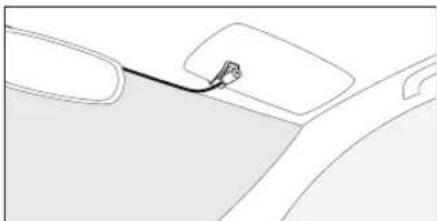
Positioning the microphone
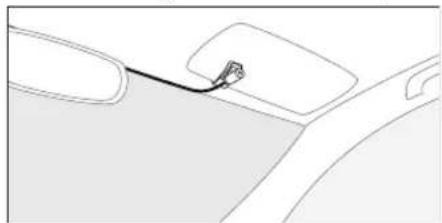
natural_image
Line drawing of a car interior showing a cable inserted into the windshield (no text or symbols)-
If possible, tuck the cable into the roof lining, keeping the microphone r driver's position. Alternatively, use self-adhesive clips to fix the microphone along the top of your windscreen.
-
Clip the microphone to a suitable location, such as the roof lining or the visor.
Connecting the antenna
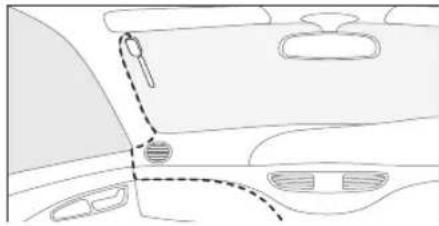
natural_image
Diagram of a car interior showing dashboard, steering wheel, and dashboard (no text or labels)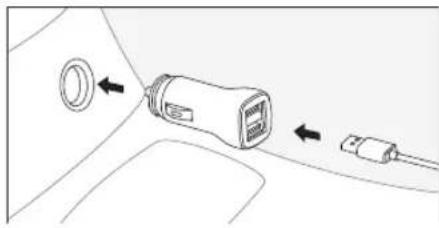
natural_image
Diagram of a car interior showing a connector with a circular component and two connected pluglets (no text or symbols)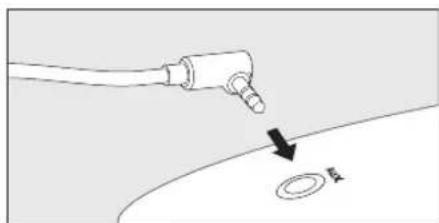
natural_image
Diagram showing a medical or laboratory procedure with a probe inserted into a circular component, no text or symbols present-
Place the antenna cable so that it follows a path to your vehicle's
-
If possible, tuck the cable behind the trim down the side of your wir Alternatively, secure the cable to your windscreen and dashboard with s clips.
-
Gently pull the auxiliary cable from the USB power cable to separate th
-
You can connect the antenna to your vehicle's power supply with the 12V power adapter, or with the PIPA for professional installations.
- If you're using the self-fit 12V power adapter, insert the USB power the power adapter, then insert the power adapter into your vehicle's socket.
- For professional installations using the PIPA, see page 13.
- If you're connecting your Highway with an auxiliary cable, insert the call vehicle's auxiliary socket. If you're connecting your Highway by FM radio store the auxiliary cable so it's out of the way.
We recommend you connect your Highway with an auxiliary cable to audio quality.

Installing the wireless controller
natural_image
Two technical diagrams showing internal components with arrows indicating movement, no text or symbols present.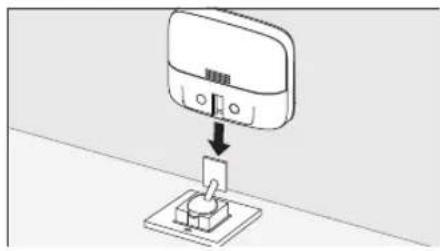
natural_image
Diagram showing a device with a plug inserted into a socket, connected to a wall-mounted panel (no text or symbols present)-
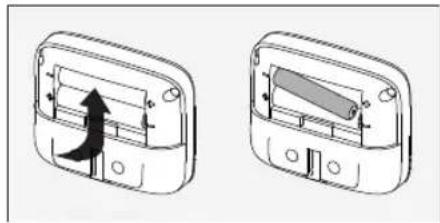
Slide the back cover off of the wireless controller and insert the batterie replace the cover.
-
Choose an area on your vehicle's dashboard where you want to install t controller. Clean the surface with a cleaning cloth and wait for it to dry ⚠ Make sure the wireless controller does not obstruct the view of the
-
Peel off the backing from the wireless controller bracket and gently stick dashboard. Gently press the bracket to ensure it's attached securely.
-
Slide the wireless controller onto the bracket, until it clicks into place.
About the 12V Professionally Installed Power Adapter (PIPA)

You can use the supplied PIPA for a professional installation of Highway in your vehicle. The PIPA connects directly to your vehicle's 12V switched wiring loom. When you use the PIPA, you don't need to use the self-fit 12V power adapter.
Note: Your Highway is not suitable for use with a 24V power supply.
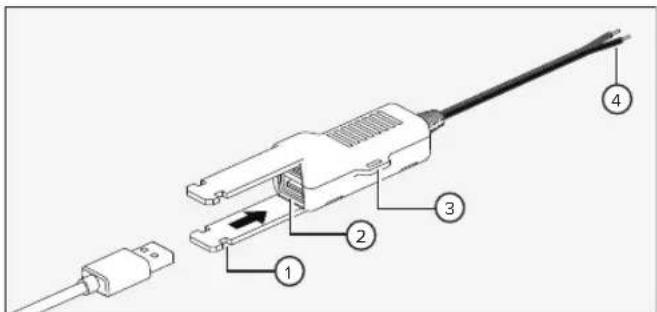
1 Tie-wrap locations to secure the USB connectors
2 Dual 5V/1A USB port
3 Tie-wrap location to secure the PIPA
4 Power and earth connectors for your vehicle's 12V switched supply
Switching your Highway on for the first time
After you've installed your Highway, switch it on to finish setting it up.
- Turn on your vehicle's ignition to make sure the antenna is switched on. After a few seconds, the wireless controller automatically connects to the antenna. If not, see page 22.
- Turn the Select dial to change the display language, then press the Select dial to choose it.
- Turn and press the Select dial to choose how to connect your Highway to your vehicle.
- If you've connected your Highway with an auxiliary cable, choose 'LINE OUT'.
- If you're connecting your Highway by FM radio, choose 'FM TRANSMIT' and then choose an FM frequency. Ensure a radio station isn't using the frequency you choose.
① Tune your vehicle's audio system to the same FM frequency as your Highway. To easily find the future, save it as a preset on your vehicle's audio system.
After you've chosen how to connect your Highway, it starts tuning to digital radio stations. When the autotune is complete, you can start listening to digital radio.
Switching your Highway on and off
• To switch on your Highway press .
• To put your Highway in standby and use less power, press and hold.
Note: By default, the antenna automatically enters standby after 4 hours, and the screen on the wireless controller dims after
15 seconds. Read more about the display brightness on page 21.
Digital radio
Listening to digital radio
- Press
- Press the Select dial to choose 'DIG. RADIO'.
- To change to another radio station, turn and press the Select dial.
Presets
You can save up to 20 of your favourite digital radio stations in the presets list.
Storing a radio station as a preset
- When listening to a radio station, press and hold.
- Turn the Select dial to choose a preset number. You can overwrite previous radio stations.
- Press and hold to save the current radio station to the preset number.
Listening to a preset
- When listening to digital radio, press and hold.
- Turn and press the Select dial to choose the preset you want to listen to.
To skip to the previous or next preset, press or .
Bluetooth
About the Pure Go app
To get the most out of your Highway, download the Pure Go app on your mobile device. The Pure Go app provides the following features:
Play. Access all of your songs and playlists on your music streaming service. If you use Spotify, a premium subscription is required.
Identify. If you hear a song you like on a radio station, press and hold Go to identify the song using the microphone on your mobile device. The song is then added to a Pure Go playlist on your music streaming service
Update. The Pure Go app notifies you when a new software update is available and allows you to update your Highway. Read more about updating the software on page 21.
To pair your Highway with the Pure Go app, install the app on your mobile device and then follow the setup instructions in the app.
Pairing your Highway with a mobile device
You can use Bluetooth to wirelessly connect to a mobile device. You can then stream music from your mobile device and make hands-free calls.
- Switch on Bluetooth on your mobile device.
- Press △ on the wireless controller for your Highway.
- Turn and press the Select dial to choose 'SETTINGS' > 'BLUETOOTH' > 'PAIR' > 'BT MUSIC'.
- On your mobile device, choose your Highway from the list of Bluetooth devices and connect to it. After you've paired a mobile device with your Highway, your Highway automatically connects to it when it's nearby.
To forget a paired mobile device on your Highway, press △. Then choose 'SETTINGS' > 'BLUETOOTH' > 'FORGET'. To forget a paired Pure Go app, remove Pure Go from the list of paired devices on your mobile device.
Listening to audio stored on your mobile device
EN
If you connect your Highway to a mobile device using Bluetooth, you can play music that is stored on
-
Press
-
Turn and press the Select dial to choose 'BT MUSIC'.
- Turn and press the Select dial to choose a song to play.
- To skip to the previous or next song, press or . To play and pause the current song, press .
Note: If you see 'BROWSE NOT AVAILABLE', your mobile device or the current app does not support browsing.
If you see '+', the item is a folder that contains audio files. Press the Select dial to open the folde
Listening to audio from a music streaming service
If you use the Pure Go app to connect to your Highway, you can listen to audio from a music streaming
- Press Go
- Turn and press the Select dial to choose an artist, playlist, album or song.
- To play and pause the current song, press . To skip to the previous for next song, press or .
Making and receiving calls on your Highway
You can make hands-free calls on your Highway, using Bluetooth to connect to your mobile device. If the volume or microphone aren't working, see page 23.
Calling a contact
- Press
- Turn and press the Select dial to choose 'PHONEBOOK' > 'CONTACTS'.
- Turn the Select dial to find a contact in your contacts list.
- To call the contact, press the Select dial.
- To end the call, press .
To view your call history on your Highway, press △. Then choose 'PHONEBOOK' and view your dialled, received or missed calls.
Answering or rejecting a call
• To answer an incoming call press . To end the call, press .
• To reject an incoming call, press .
Using your mobile device's personal assistant
If you connect your Highway to a mobile device using Bluetooth, you can use it to access your device's personal assistant.
- Press and hold.
- When prompted, ask a question to your mobile device's personal assistant.
To cancel your mobile device's personal assistant, press or .
Settings
Changing between auxiliary connection and FM transmission
You can choose how your Highway is connected to your vehicle's audio system.
- Press
- Turn and press the Select dial to choose 'SETTINGS' > 'AUDIO OUT'.
-
Turn and press the Select dial to choose how to connect your Highway to your vehicle.
-
If you've connected your Highway with an auxiliary cable, choose 'LINE OUT'. Then turn and press the Select dial to choose a gain setting of 'LOW' or 'NORMAL'. If the audio sounds distorted, choose 'LOW'.
- If you're connecting your Highway over FM radio, choose 'FM TRANSMIT' and then choose an FM frequency. Ensure a radio station isn't using the frequency you choose.
Setting your Highway to enter standby automatically
By default, your Highway enters standby after 4 hours, but you can change the delay.
- Press
- Turn and press the Select dial to choose 'SETTINGS' > 'AUTO STANDBY'.
- Turn and press the Select dial to choose a delay between 1 and 8 hours.
Radio settings
Performing an autotune
If you can't find any digital radio stations, try retuning your Highway.
- To perform an autotune, press and hold the Select dial when you are in digital radio mode.
Listening to alternative stations when the signal is weak
If the current radio station has a weak signal, your Highway automatically tries to find a stronger signal. If your Highway can't find a stronger signal for the current radio station, it can automatically tune to a similar radio station when supported by the broadcaster.
- Press
- Turn and press the Select dial to choose 'SETTINGS' > 'DIG. RADIO' > 'ALT STATION'.
- Turn and press the Select dial to choose 'ON' or 'OFF'.
Switching traffic announcements on and off
You can set your Highway to automatically play traffic announcements when you are listening to digital radio. When your Highway plays traffic announcements, it displays 'TRAFFIC'.
- Press
- Turn and press the Select dial to choose 'SETTINGS' > 'DIG.RADIO' > 'TRAFFIC MSG'.
- Turn and press the Select dial to choose 'ON' or 'OFF'.
To cancel a traffic announcement when it plays, press.
Display settings
Changing the language
- Press
- Turn and press the Select dial to choose 'SETTINGS' > 'DISPLAY' > 'LANGUAGE'.
- Turn and press the Select dial to choose a language.
Changing the information displayed on the screen
Your Highway can display the name of the radio station you are listening to, or the quality and signal strength of the station.
- Press
- Turn and press the Select dial to choose 'SETTINGS' > 'DISPLAY' > 'INFO'.
- Turn and press the Select dial to choose a setting.
• To display the names of radio stations, choose 'STATION'.
• To display the quality and signal strength of radio stations, choose 'QUALITY'.
Changing the screen brightness
A light sensor on the wireless controller automatically sets the screen brightness, but you can manually change
- Press
- Turn and press the Select dial to choose 'SETTINGS' > 'DISPLAY' > 'BRIGHTNESS' > 'MANUAL'.
- Turn and press the Select dial to choose a brightness level.
By default, the screen on the wireless controller automatically dims after 15 seconds. To change the length of time before the screen dims, choose 'SETTINGS' > 'DISPLAY' > 'TIMEOUT'.
Updating the software
We may provide software updates to improve your Highway. If you have the Pure Go app, it notifies you when a software update is available. You can then use the Pure Go app to update the software on your Highway.
Note: Features of the Pure Go app may vary depending on the mobile device and app version.
To find out about other ways you can update your Highway, visit pure.com/highway-update.
Troubleshooting
| Problem Possible cause | Solution | |
| The wireless controller displays 'ANTENNA CONNECTING' or 'CHECK POWER TO ANTENNA'. | The antenna isn't connected to the supply, or the controller isn't paired with the antenna. | Remove the power adapter from the 12V socket, then insert anternectly has power, the antenna's status light lights up for the controller connects to the antenna within 30 seconds.Note:If you can't access the power adapter, perform a power reset*.If this doesn't solve the problem, pair the controller with the anter1. Use a paperclip to press the reset button on the antenna. T light on the antenna flashes slowly.2. Place the controller within 50cm of the antenna, then K,N and PII together.If the controller does not connect to the antenna within 30 seconds steps 1 and 2. |
| The status light on the antenna is constantly lit. | Your Highway is in update mode. | If you are updating the software, finish the update. If not, adapter from the 12V socket, then insert it. If the antenna status light on the antenna lights up for 5 seconds and the cont connects to the antenna within 30 seconds.Note:If you can't access the power adapter, perform a power reset*. |
| The status light on the antenna is flashing. | The controller has lost connection with antenna. | With pair the controller with the antenna:1. Use a paperclip to press the reset button on the antenna. T light on the antenna flashes slowly.2. Place the controller within 50cm of the antenna, then K,N and PII together.If the controller does not connect to the antenna within 30 seconds steps 1 and 2. |
| I can't hear any sound. | Your Highway is not connected to vehicle. | Ensure the auxiliary cable is firmly connected to your vehicle system, or ensure you are tuned to the correct FM frequen |
| Your vehicle's audio system is not correct input source. | Change the input source on your vehicle's audio system to auxiliary input. | |
| In Bluetooth mode, your Highway is connected to your mobile device. | Switch on Bluetooth on your mobile device. If required, pair with your mobile device again. Read more on page 16. | |
| The volume is too low on your connected mobile device. | Write up the volume on your vehicle and on the connected | |
| Sound is distorted when Highway is connected with an auxiliary cable. | They gain setting isn't correct. Set the gain setting to 'LOW' or change to FM transmission. Read m page 19. | |
| When I make hands-free calls, the other person hear me. | The microphone is not fully connected. Use the instructions on page 9 to ensure the microphone is can't The microphone is too far away from you. Move the microphone as close to you as possible. | |
| My Highway keeps losing digital radio signal. | You are travelling through areas with DAB signal. | Checkak DAB coverage in your area. |
| Your Highway is not installed correctly. Check the Installation Instructions on page 7. | ||
| Something is causing interference. | Switch off satellite navigation systems, dashboard cameras or other devices to see if the signal improves.Use the supplied 12V power adapter, as other adapters can c interference. | |
| My Highway keeps switch off by itself. | Auto standby mode is switched on. | If this is happening too often, change the auto standby setting. on page 19. |
| I can't connect my Highway to a compatible mobile device. | Bluetooth is switched off on your mobile device. | Check that your mobile device is Bluetooth compatible and Bluetooth is switched on. |
| Another Bluetooth device is connected to your Highway. | Switch off Bluetooth on the other device. | |
| Your Highway isn't paired correctly with your mobile device. | Pair your Highway with your mobile device again. Read more on page 16. | |
| The wireless controller is unresponsive or the screen is blank. | The batteries in the controller are dead. Replace | the batteries in the controller. |
| The software has stopped working. Remove and | then reinsert the batteries in the controller. | |
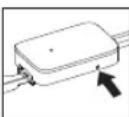
* To perform a power reset, use a paperclip to press and hold the reset button on the antenna for 10 seconds. Alternatively, if your Highway is installed with the PIPA, switch your vehicle's ignition off and then back on again.
i If you need more help, visit support.pure.com.
Correct disposal of this product
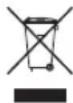
This marking indicates that this product should not be disposed with other household waste throughout the EU. To prevent possible harm to the environment or human health from uncontrolled waste disposal, recycle it responsibly to promote the sustainable reuse of material resources. To return your used device, please use the return and collection system or contact the retailer where the product was purchased. They can take this product for environmental safe recycling.
EN
Copyright
Copyright 2017 by Pure International Limited. All rights reserved. No part of this publication may be copied or distributed, transmitted, transcribed, stored in a retrieval system, or translated into any human or computer language, in any form or by any means, electronic, mechanical, magnetic, manual or otherwise, or disclosed to third parties without the express written permission of Pure International Limited. For warranty and disclaimer information, visit pure.com.
Trademarks
Highway, Pure and the Pure logo are trademarks or registered trademarks of Pure International Limited. All other product names are trademarks of their respective companies. Version 1 February 2016.
Approvals
CE marked. Hereby, Pure declares that this Band II LPD device is in compliance with the essential requirements and other provisions of the R&TTE Directive 1999/5/EC or RED 2014/53/EU from 12th June 2017. Compliant with UNECE Regulation 10 (E-Mark) and RF exposure requirements EN 62479: 2010. You can view the Declaration of Conformity at http://www.pure.com/about/rtte-doc.
Specifications
For the full list of technical specifications, visit pure.com.
• Operational temperature: -20^ to +60^
- Storage temperature: -40^ to +85^
Bluetooth
• Frequency range: 2402 to 2480 MHz
• Maximum power: 4.40 dBm (EIRP)
FM Transmitter
- Frequency range: 87.60 to 107.90 MHz
• Maximum power: 51.20 dBuV/m at 3 m
Software versions
- Controller: v1.3
- Antenna unit: v1.1
Compliant operation
This equipment complies with the radio spectrum requirement throughout the EU.
Restrictions of use
None when configured correctly. See page 4.
Einführung
natural_image
Line drawing of a medical or laboratory device with two connectors and a bulb, no text or symbols present.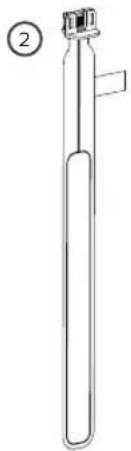
natural_image
Line drawing of a test tube with a clamp and label (no text or symbols on the object itself)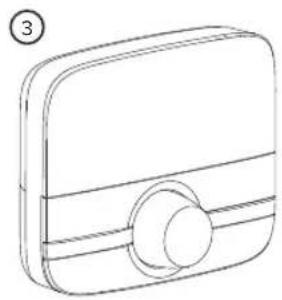
natural_image
Line drawing of a rectangular device with a circular button and a numbered label (3) in the top-left corner.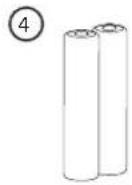
natural_image
Line drawing of a mechanical component with a threaded end and internal slots (no text or symbols)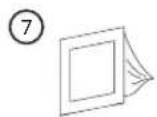
natural_image
Pure mechanical diagram showing a cable or connector assembly with no text, numbers, or symbolsnatural_image
Illustration of hands adjusting a car's seatbelt, showing hand positioning and a magnified inset (no text or symbols)natural_image
Technical line drawing of a mechanical component with a circular dial and directional arrow (no text or symbols)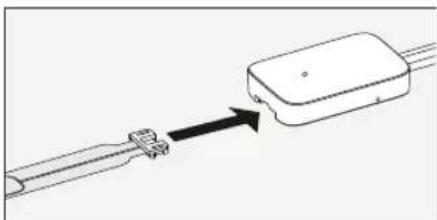
natural_image
Diagram of a connector being inserted into a device (no text or symbols present)natural_image
Line drawing of a car interior showing a cable inserted into the windshield (no text or symbols)natural_image
Diagram of a car interior showing dashboard, rear seats, and dashboard with dashed lines indicating navigation paths (no text or labels)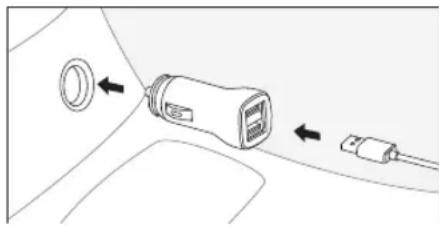
natural_image
Diagram showing a device with a circular component and two connected cables (no text or symbols)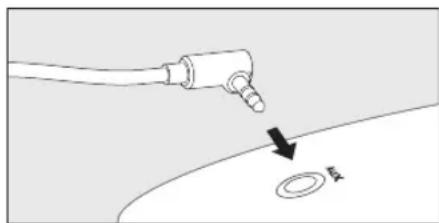
natural_image
Diagram showing a medical or laboratory procedure with a tool and a labeled circular component (no text or symbols present)natural_image
Two views of a device showing internal components with arrows indicating movement (no text or symbols)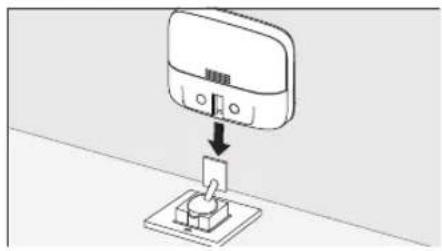
natural_image
Diagram showing a device with a switch inserted into a socket, connected to a wall-mounted panel (no text or symbols present)natural_image
Line drawing of a medical or laboratory device with two connectors and a bulb, no text or symbols present.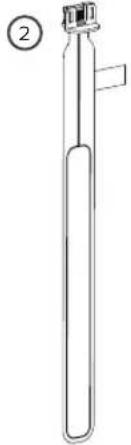
natural_image
Line drawing of a test tube with a clamp and label (no text or symbols on the object itself)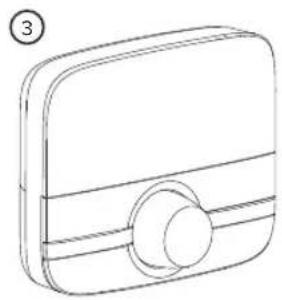
natural_image
Line drawing of a rectangular device with a circular button and a numbered label (3) in the top-left corner.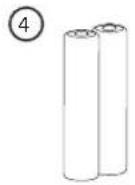
natural_image
Line drawing of a mechanical component with a threaded end and internal slots (no text or symbols)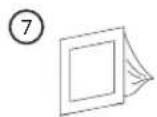
natural_image
Technical line drawing of a mechanical assembly with a connector and cable (no text or symbols)natural_image
Illustration of hands cleaning a car's seat area with a magnified inset showing hand positioning (no text or symbols)natural_image
Technical line drawing of a mechanical component with a circular dial and directional arrow (no text or symbols)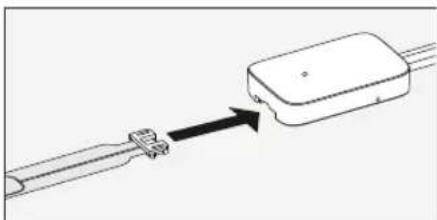
natural_image
Diagram of a connector being inserted into a device (no text or symbols present)natural_image
Line drawing of a car interior with a cable inserted into the windshield (no text or symbols)natural_image
Diagram of a car interior showing dashboard, rear seats, and side-mounted sensors (no text or labels)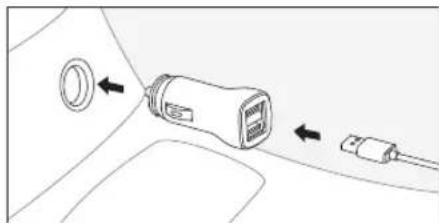
natural_image
Diagram showing a connector with a circular component and two connected pins (no text or symbols)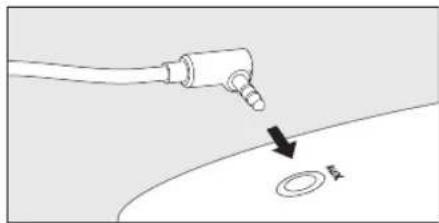
natural_image
Diagram showing a hand holding a tool with an arrow pointing to a circular component labeled 'A' (no text or symbols beyond the label)natural_image
Two technical diagrams showing internal components with arrows indicating movement, no text or symbols present.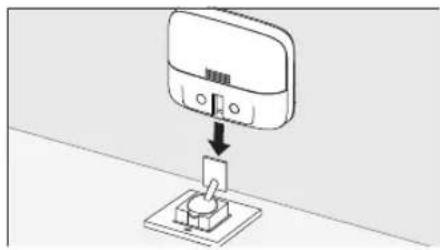
natural_image
Technical line drawing of a mechanical assembly with a connector and cable (no text or symbols)natural_image
Illustration of hands cleaning a car's seat area with a magnified inset showing the detail (no text or symbols)natural_image
Line drawing of a mechanical component with a circular dial and arrow indicator (no text or symbols)natural_image
Diagram showing a connector being inserted into a device (no text or symbols present)natural_image
Line drawing of a car interior with a cable inserted into the windshield (no text or symbols)natural_image
Diagram of a car interior showing dashboard, rear seats, and dashboard with dashed lines indicating alignment or movement (no text or symbols)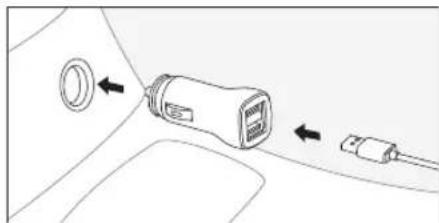
natural_image
Diagram showing a connector with a circular component and two connected pins (no text or symbols)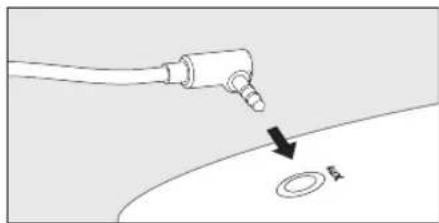
natural_image
Diagram showing a medical or laboratory procedure with a tool and a labeled circular component (no text or symbols present)natural_image
Two views of a device showing internal components with arrows indicating direction (no text or symbols)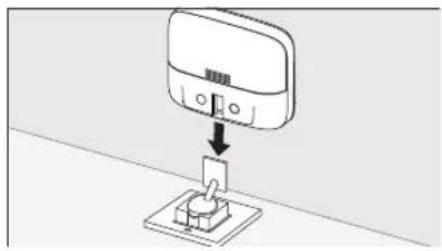
natural_image
Diagram showing a device with a switch inserted into a socket (no text or symbols present)12 V DC strømforsyning.
Installere Highway 7
natural_image
Technical line drawing of a mechanical assembly with a connector and cable (no text or symbols)Plassere antennen
natural_image
Illustration of hands adjusting a car's seatbelt, showing hand positioning and a downward arrow (no text or symbols)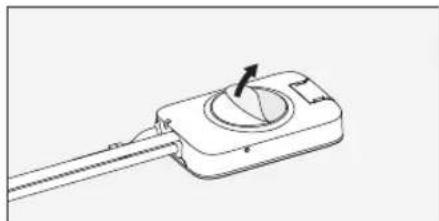
natural_image
Simple line drawing of a mechanical component with a circular dial and arrow indicator (no text or symbols)natural_image
Diagram showing a connector being inserted into a device (no text or symbols present)Plassere mikrofonen
natural_image
Line drawing of a car interior showing a cable inserted into the windshield (no text or symbols)natural_image
Diagram of a car interior showing dashboard, rear seats, and dashboard with dashed lines indicating alignment or movement (no text or symbols)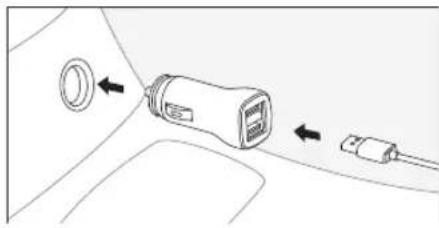
natural_image
Diagram of a device with a circular component and two connected ports, no text or symbols present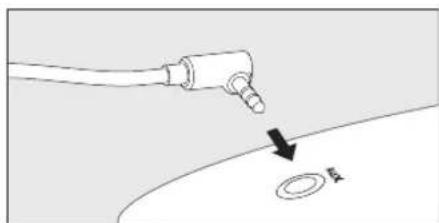
natural_image
Diagram showing a medical or laboratory procedure with a tool and a labeled circular component (no text or symbols present)natural_image
Two technical diagrams showing internal components with arrows indicating movement, no text or symbols present.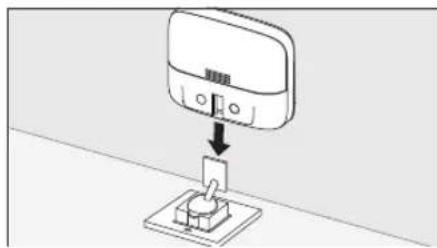
natural_image
Diagram showing a switch mounted on a base with a wall-mounted device (no text or symbols visible)natural_image
Technical line drawing of a mechanical assembly with a connector and cable (no text or symbols)De antenne installeren
natural_image
Illustration of hands cleaning a car's seatbelt, showing hand positioning and a downward arrow (no text or symbols)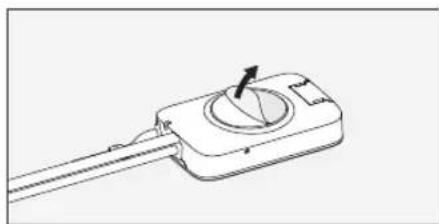
natural_image
Technical line drawing of a mechanical component with a circular dial and directional arrow (no text or symbols)op de antenne
natural_image
Diagram of a connector being inserted into a device (no text or symbols present)natural_image
Line drawing of a car interior with a cable inserted into the windshield (no text or symbols)natural_image
Diagram of a car interior showing dashboard, rear seats, and side-mounted sensors (no text or labels)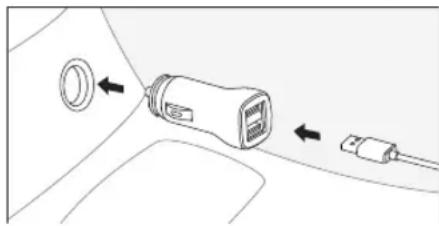
natural_image
Diagram showing a connector with a circular component and two connected pluglets (no text or symbols)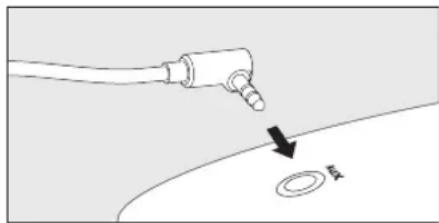
natural_image
Diagram showing a medical or laboratory procedure with a tool and a labeled circular component (no text or symbols present)natural_image
Two technical diagrams showing internal components with arrows indicating movement, no text or symbols present.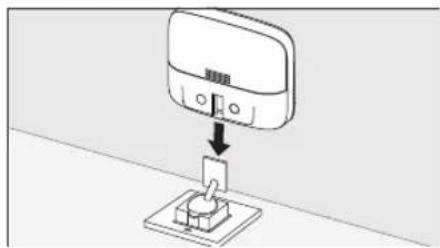
natural_image
Diagram showing a switch connected to a wall-mounted device (no text or symbols present)Pure International Limited
Concept House
Home Park Road
Kings Langley
WD4 8UD
United Kingdom