DTC 460 - Camera MINOX - Free user manual and instructions
Find the device manual for free DTC 460 MINOX in PDF.



| Product type | Trail camera with removable front cover, invisible IR flash |
| Model | Minox DTC 460 |
| Weight (without batteries) | Approx. 415 g |
| Power supply | 8 AA 1.5 V batteries (alkaline, lithium, or NiMH), 2 removable battery holders |
| Max photo resolution | Up to 12 MP |
| Video resolution | 1920x1080 (30 fps), 1280x720 (30 fps), 848x480 (30 fps), 640x480 VGA (30 fps) |
| IR flash range | Up to 15 m, adjustable (low/medium/high) |
| Trigger speed | 0.7 second |
| Number of photos per trigger | 1, 2, or 3 (adjustable) |
| Max video duration | 60 seconds (adjustable 10 to 60 s) |
| External memory | SD/SDHC card up to 32 GB |
| Display | 2.4-inch color TFT screen |
| Protection | IP54 rating (dust and splash water protected) |
| Standby battery life | Up to 6 months (with 8 AA 1.5 V batteries) |
| Operating temperature | Not specified, but suitable for outdoor use |
| Connectivity | Mini-USB port, 1/4" tripod thread |
| Time stamp | Date/time/temperature/moon phase (on/off) |
| Password protection | 4-digit code (backup password "OPEN") |
| Package contents | Camera with front cover, 2 mounting straps, wall mount, USB cable, quick guide, safety instructions |
Frequently Asked Questions - DTC 460 MINOX
User questions about DTC 460 MINOX
0 question about this device. Answer the ones you know or ask your own.
Ask a new question about this device
Download the instructions for your Camera in PDF format for free! Find your manual DTC 460 - MINOX and take your electronic device back in hand. On this page are published all the documents necessary for the use of your device. DTC 460 by MINOX.
USER MANUAL DTC 460 MINOX
natural_image
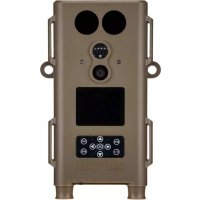
Front view of a beige military-style device with multiple circular ports and a central display (no visible text or symbols)MINOX
BEDIENUNGSANLEITUNG | INSTRUCTION MANUAL | MODE D'EMPLOI MANUAL DE INSTRUCCIONES | ISTRUZIONE D'USO
MINOX DTC 460
WILDKAMERA | WILDLIFE CAMERA | CAMÉRA DE SURVEILLANCE CÁMARA DE CAZA | FOTOTRAPPOLA
EINLEITUNG
text_image
Diagram of a military vehicle with numbered components and a textured camouflage background, likely for identification or categorization.ANSICHT UND BEDIENELEMENTE
Congratulations on the purchase of your MINOX DTC 460. These instructions are to help you take advantage of the full range of performance that your MINOX DTC 460 wildlife camera has to offer.
Note: We have done our best to produce a complete and accurate manual. However, we cannot ensure that there are no errors or omissions during the printing process. We cannot take responsibility for any damages caused by unauthorized attempts to upgrade software or for any data corruption while the product is being repaired. Please Back Up Your Files! We cannot be held liable for the loss of data caused by damaged products or damage due to unreadable memory cards or drives.
Note: The actual contents may vary from this list. The scope of delivery is subject to change without prior notice.
Note: Please format the SD memory card before use. Files on the card from other devices may affect the functionality of the camera. Further information about accessories for the DTC 460 can be found on the MINOX website: https://www.minox.com/en/accessories/
CONTENTS
Get to know your MINOX DTC 460 21
Elements and controls 21
Preparing the camera for use....22
- Explanation of the controls....22
- Inserting the batteries 22
- Checking the battery level 22
- Inserting the memory card....23
- Language setting....23
- Mounting the camera....24
SETUP mode 74
Operating the camera....26
Image playback....27
Connecting the camera to a computer....78
Further information 28
- Storage 28
- Disposal 28
- Legal information 29
- Declaration of conformity....29
- MPEG-4 Visual Patent Portfolio License....30
- Warranty terms....30
- Technical data 33
GET TO KNOW YOUR MINOX DTC 460
■ Daylight images in color, night images in black & white
■ Fast trigger release (0.7 sec.)
■ Invisible IR flash with 15 m range
■ Low power consumption
(Standby up to 6 months)
SD memory card up to 32 GB
■ Bar magazines for quick battery changes
Password protection
Easy mounting
■ Splash-proof according to IP 54 specifications
text_image
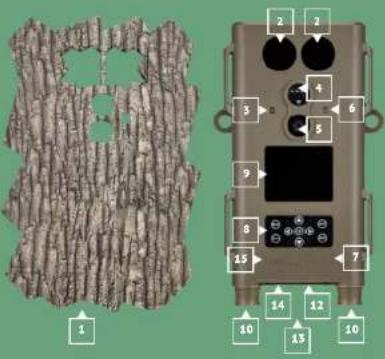
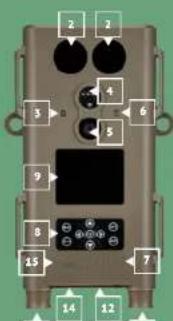
Diagram of a camouflage vehicle with numbered components and a textured background, likely for safety or camouflage design.ELEMENTS AND CONTROLS
1 | Front panel
2 | IR LEDs for night images
3 | Twilight sensor
4 | Motion sensor
5 | Objective lens
6 | Red LED
7 | Microphone
8 | Control buttons
9 | Display
10 | Battery compartments
11 | ¼" tripod socket (back of camera)
12 | Main switch (ON, SETUP, OFF)
13 | Mini-USB port
14 | SD memory card slot
15 | Speaker
INCLUDED IN DELIVERY
■ MINOX DTC 460 wildlife camera
Front panel
■ Two mounting straps
USB cable
Wall mount
Quickstart guide
■ Safety Instructions
PREPARING THE CAMERA FOR USE
Explanation of the controls
To prepare your camera before use, proceed as follows:
Place the DTC 460 in front of you.
The camera consists of a camera module and a front panel to disguise the camera in the wilderness. An assortment of front panels is available as accessories to best match the surroundings in which the camera will be used. To access the control panel of the camera, the front panel must first be removed. Once the camera has been mounted, the necessary settings have been made and the batteries have been inserted, the panel can be placed onto the front of the camera and gently pressed until it clicks into place. To remove the panel, gently pull away from the camera module.
■ Remove the front panel
You will now see the control buttons on the front of the
module
The main switch for the three main functions can be found on the underside, on the right under a rubber covering:
-
Function "OFF": Main switch to the left
-
Function "SETUP"; Main switch in the middle
-
Function "ON": Main switch to the debt
On the bottom of the camera, next to the main switch, you can also find the SD card slot, as well as the USB cable port to connect the camera to a computer.
22 2322 23
Likewise, you will find on the bottom right and left sides of the camera the battery magazines for 4x 1.5 Volt AA batteries. These can be pulled down to remove them from the camera. When inserting the bar magazines again, please make sure that you hear an audible click when pressing the magazines into place. On the front of the camera module, you will find the 2.4" LCD display,
Inserting the batteries
Your DTC 460 camera is equipped with 2 battery magazines which can hold 4 AA batteries each. You can use alkaline, lithium-ion (Li-Ion) or nickel metal hydride (NiMH) AA batteries. The battery magazines can be removed by carefully pulling them downwards. Insert 4x 1.5 Volt AA batteries into each magazine as indicated. Please make sure that the batteries are inserted to match the +/- poles.
eChecking the battery level
Switch your DTC 460 to the "SETUP" mode (main switch in the middle). At the bottom of the display, you can see the battery status symbol.
Note: We recommend using high efficiency batteries for optimum performance. You can prolong battery life if you create shorter video sequences.
Memory card
To record images or videos, you will need an SD/SDHC memory card. Your DTC 460 camera supports memory cards up to 32 GB.
Inserting the memory card
Remove the front panel. Release the rubber covering on the underside of the camera module. Insert the memory card into the slot. Make sure that the gold-colored contacts are at the top and facing away from you when inserting the card. Ensure that the SD card is not write-protected (card slider is not in the "Lock" mode). Switch your DTC 460 to "SETUP" (main switch in the middle). When applicable, you will see in the display if a card has not been inserted, not inserted correctly or if it is not compatible to the camera. In this case, please insert a compatible SD card - only then can you continue with the settings for your camera.
Note: If the SD card was used to store data in other devices, reformat the SD card on a PC. By reformatting the card, all previous data will be deleted to ensure error-free operation. If the SD card has only been used in the DTC 460, formatting can be done with the camera as well (see instructions for Playback). It is recommended to take some test photos to make sure that the SD card is functioning properly.
Language setting
The default language of your DTC 460 wildlife camera is in German. To change the language, please follow these steps:
- Move the main switch to "SETUP".
- You will now be in the manual photo release mode.
-
Push the MENU button to enter the main menu of the camera.
-
Push the "down" arrow button until you reach "Sprache".
- Push the OK button.
- Using the "up" and "down" buttons, choose your language.
- Push the OK button.
- The camera will now go back to the main menu. Your camera
is now set to the language of choice.
Mounting the camera
Mounting strap: on the sides of the camera housing, you can find mounting brackets which can be used to mount the camera on a tree or post. Pull the straps (included in the delivery) through the brackets and around the tree or post and tighten them using the fastening clips.
Tripod: The 14 socket at the back of the camera can be used to mount the camera on a tripod or the wall mounting bracket included in the scope of delivery.
Wall mount: The DTC 460 can be mounted on a wall or ceiling with the wall mount (included in the scope of delivery). Please make sure that the fastening screws are tight before attaching the camera.
SETUP MODE
Set your DTC 460 camera to "SETUP" mode (main switch to middle). The camera will automatically be set to "Manual operation" mode (in this mode, you can record test photos and videos). Press the menu button to access the main menu of the camera. Here you can select various basic settings for camera operation. The factory default settings are shown in bold lettering in the following. You can simply ignore each menu item where you wish to retain the factory default setting.
- Mode: Photo, Video, Photo+Video, record photos and videos at fixed intervals. First select whether you want the camera to record photos or videos. In "Photo+Video" mode, the camera will first record a preselected number of photos and then a video. If you select the option for recording photos or videos at specific intervals, the movement sensor will be automatically deactivated.
- Photo quality: Here you can select various photo resolution options. We recommend using the default setting of 5M. Using a higher resolution provides photos in better quality, but the files will require more memory.
-
Video quality: Here you can select your desired video size. The default setting is at 1080 P (FHD). If you select a lower resolution, the details of the video will be less sharp, but less space will be required on the memory card.
-
Number of photos: 1, 2 or 3 photos. Select the number of photos to be recorded when the camera is triggered. See also "Interval setting".
- Video duration: 10-59 seconds 1 minute. Select the duration of the video to be recorded when the camera is automatically triggered. The default setting is 10 seconds.
- Dormancy period: Choose a period of time, where the camera should remain dormant after recording an image. This can avoid unnecessary camera activity, especially in the case where an animal remains in front of the camera for a longer period of time. Dormancy periods can be set between 5 seconds and 60 minutes. The default setting is 1 minute.
- Time lapse: If you have selected the time lapse option for the recording of photos or videos as described in section a, you can define the lapse of time between images to be recorded here. You can select a time duration in the range 5 seconds to 24 hours.
We recommend 1/15 second to record high resolution images at night; however, there can be motion blurring at this setting. 1/20 second provides for moderate resolution images at night and less motion blurring. 1/30 second provides less resolution at night but also the lowest level of motion blurring in daylight. Please select the setting that is most appropriate for your intended use.
Time stamp: On/Off. Select "On" if you wish the date, time, temperature and phase of the moon to be shown in your recorded images - otherwise select "Off".
8. Shutter speeds;
- Timer setting: On/Off. If you want the camera to be operational only during a certain period during each day, you can select the appropriate time here. Set to "On" to select the timer start and end time. Outside your selected time period, the camera will not record photos or videos.
- Password: On/Off. Select "On" if you wish to enter a four-character password to prevent unauthorized use of your camera. Please note that you will then have to enter your password each time you switch on the camera. Important: If you forget your password, you can reactivate the camera using the password "OPEN".
- Serial number: Here you can enter a four-character serial number or name that will be shown in your images. If you are using several cameras simultaneously, you will then be able to see which of your cameras has recorded a particular image.
- Flash: Auto/High/Low. Set here the required intensity of the LED flash.
- Audio recording: On/Off. Select here whether you wish audio sounds to be also recording during video mode.
- Automatic switch-off in "SETUP" mode: 3 minutes, 5 minutes, 10 minutes, Off. Select the time period after which the camera is to be automatically deactivated while in "SETUP" mode.
- Illumination duration: 1 minute, 3 minutes, 5 minutes, Off. The LCD monitor will be automatically deactivated after the selected time.
-
Date/time settings: Set the date and time here.
-
Reformat the memory card: Yes, No. If you select "Yes" and then press the "OK" button to confirm, all the data on the memory card will be deleted. This is a useful option if you are using memory cards that have also already been used in other devices.
- Language: Select the language here for your camera settings.
- Factory default settings: Yes, No. Select "Yes" to reset the camera to the original factory default settings (these are shown here in bold lettering).
- System: There are two options under this menu item. Select "FW update" to download new firmware updates to your camera. Confirm your wish to do this by pressing the "OK" button. Select "FW version" to see which firmware version you are using in your camera. In "Playback" mode, you will have the option to delete selected photos or videos from the memory card.
Switch your DTC 460 to "ON" mode (main switch to the right). In this mode, your DTC 460 will automatically use the most previous settings made while in the Settings Mode.
Note: The red activation LED will blink several seconds before the camera enters operational mode. When the LED stops blinking, the camera is ready to record images and videos in accordance with your settings.
Night mode
For night shots, the necessary lighting is provided by the infrared LEDs on the front of the camera. The maximum recording distance in the dark is about 15 meters. Due to the nature of the Infrared lighting, night-shots are in black and white.
Aligning the camera
The wide angle of the camera lens makes aligning your camera quite simple: a rough eye alignment is enough at first. Then pay particular attention to the vertical tilt, i.e. the correct inclination of the camera. This is especially important when the camera is not mounted on straight, vertical posts or surfaces. Once you have found a good position, switch the camera to SETUP mode. Move from one side to the other in front of the camera. The red LED should flash to show that you have been detected by the motion sensor. This should help you decide roughly where to direct the camera lens. Such a general orientation is usually sufficient.
Note: The colored LEDs light up only when. In TEST mode, When the main switch has been moved to ON, the LEDs do not light up anymore. If you wish to fine-tune the alignment of your camera, set the camera to ON mode and enter the camera's field of view from different directions. Go to TEST mode and push the REPLAY button to view your results. If necessary, you can correct the alignment and repeat the procedure. If the alignment of the camera is to your satisfaction, the camera can be switched to ON.
Note: To avoid undesired images or videos, do not set the camera up in sunny areas. Make sure that branches do not move in front of the camera. The MINOX DTC 460 is dustproof and splashproof and fulfils the IP 54 protection classification. It is suitable for outdoor use in all weather conditions.
IMAGE PLAYBACK
Once your camera has recorded images, you can view these using the "Playback" option. You will first need to set the camera to "SETUP" mode. Now press the "Replay" button and you'll be able to view the photos and videos that your camera has recorded. You can browse through these using the arrow buttons. Press the "OK" button to start and stop playback of videos.
Press the "Menu" button during "Playback" mode if you wish to delete selected photos or videos. You also have the option of deleting all recorded photos and videos at once. For safeguarding purposes, it will be necessary for you to select these options again before they become effective. Press the "Replay" button to stop playback. Connecting the camera to a computer
Your MINOX DTC 460 saves your photos and videos to a folder named "DCIM/100Media" on your SD card. Photos have the file ending ".jpg" and videos ".avi". There are two possibilities to transfer the files to your PC: either you remove the SD card and insert it into a card reader or you connect the DTC 460 to your PC with the USB cable included in the scope of delivery.
Transferring your files via USB cable
Always ensure that the camera is switched off before connecting it to a computer. Connect your camera to the computer using the USB cable (included in delivery) via the USB port. Switch the camera to TEST mode (main switch in the middle). The camera will now be recognized as a removable storage device. Your photos and videos can now be copied to a folder on your PC.
Transferring your files via SD card
Always ensure that the camera is switched off before the SD card is removed from the camera, otherwise the files on your memory card could be damaged. Remove the memory card from the slot and insert it into the card reader connected to your computer. Some computers also have an internal slot for SD cards - in this case, insert the SD card directly into the slot on your computer. Your photos and videos can now be copied to a folder on your PC.
Connection to the TV
To connect your camera to a TV, set the MINOX DTC 460 to SETUP mode and then connect the USB cable to the camera. Connect the other end of the cable to the TV. Then select the appropriate video input source on the TV set for the USB input you are using.
FURTHER INFORMATION
Storage
If you will not be using your MINOX DTC 460 for an extended period of time, remove the batteries and store the camera in a cool and dry place.
Disposal
The packaging should be disposed of in a clean and environmentally safe manner. Batteries must not be disposed of in the household waste. The consumer is legally obliged to return dead batteries at designated collection points or at the retailer where the batteries were purchased.
Correct disposal of this product
This symbol indicates that within the EU, electronic devices are not allowed to be disposed of in the household waste. Please use the designated collection points for the recycling of electrical and electronic equipment in your community, or
ask your dealer where your device can be properly disposed of. This prevents possible harmful effects on the environment and health through improper disposal. Further information can be obtained from municipal services near you.
Legal information
The use of the MINOX DTC 450 is subject to a wide range of legal regulations which can vary from country to country, especially for recording images in public spaces. Please observe the national legislation for the protection of personal rights. It is especially important not to make photos or videos of persons in public places. The use of the MINOX DTC 460 in forests and fields can be subject to other regulations. For example, the use of wildlife cameras in Germany is regulated by the National Hunting Legislation. Please also note the applicable legislation in your particular country and/or district.
Declaration of conformity
The manufacturer hereby declares that this CE marking has been affixed to this device in accordance with the essential requirements and other relevant provisions of the following
European Directives:
- 2011/65/EG RoHs Directive
- 2014/30/EN EMV Directive
MPEG-4 VISUAL PATENT PORTFOLIO LICENSE
This MINOX DTC 460 is licensed under the MPEG-4 Visual Patent Portfolio License for personal and non-commercial purpose:
- encode video files in compliance with the MPEG-4 standard and/or,
- decode MPEG-4 video files that was encoded by a consumer engaged in a personal and non-commercial activity and / or was obtained from a video provider licensed to provide MPEG-4 video.
For other purposes, no license is granted or implied for the MPEG-4 standard. Further information can be obtained from MPEG LA, LLC on www.mpegla.com
Warranty terms
With the purchase of this MINOX DTC 460 you have acquired a product which has been manufactured and tested according to very high quality standards. The statutory warranty of 2 years provided for this product commences on the date of purcha-
se from an authorized dealer and is subject to the following conditions:
-
During the warranty period, complaints based on faulty Germany manufacture will be compensated free of charge either by repair, replacement of defective parts or replacement by an identical flawless product at our own discretion. Any further claims of any kind whatsoever, and irrespective of the legal basis in connection with this warranty, are excluded. Tel.: +49 (0) 7562 / 98 135 0 info@iminox.com MINOX GmbH Service & Support
Germany Tel.: +49 (0) 7562 / 98 135 0 info@minox.com
MINOX GmbH Service & Support -
Claims under warranty are null and void if the defect has been caused by improper handling (which also includes the use of accessories made by other companies), if the product is serviced by unauthorized persons or workshops, or if the serial number has been obliterated. Wilhelm-Loh-Straße 1 D-35578 Wetzlar Germany Tel: +49 (0) 7562 / 98 135 01
-
Warranty claims can only be made by submission of an elec- service@minox.com tronically printed sales slip from an authorized dealer.
-
When submitting claims under warranty, please return the www.minox.com MINOX camera together with the electronically printed sales slip, and a description of the complaint to the MINOX GmbH Customer Service as an international MINOX company.
-
Tourists may, if required, make use of the MINOX agency in the country in which they are traveling. In accordance with the MINOX GmbH warranty terms, the electronically printed sales slip must nevertheless be presented.
| MODEL DTC 460 | |
| Category Trail camera with removable Front panel | |
| Control via app No | |
| GPS locating No | |
| Invisible IR flash with range Up to 15 m | |
| Trigger release 0.7 sec. | |
| Photo resolution Up to max. 12 MP | |
| External memory SD/SDHC card up to 32 GB | |
| Display 2.4" TFT color display | |
| Powerful IR flash Up to 15 m range, Low Glow 850nm, adjustable: 0.5, 2, 4, 8, 12 MP | |
| Photo burst per trigger release 1-3 (adjustable) | |
| Video resolution | 1920x1080 (30fps) / 1280x720 (30fps) / 848x480 (30fps) / 640x480 VGA (30 fps) |
| Video length | 10 - 60 sec. (adjustable) |
| File formats | JPG / AVI |
| Time stamp | Date / time / temperature / and moon phase |
| Images by day | Color |
| Images by night | Black/white |
| User-friendly interface | 10-button controls |
| Exposure | Auto |
30 3130 31
| MODELL | DTC 460 |
| Password protection | 4-digit combination |
| Real-time display viewing | Photo / video playback |
| Standby time | Up to 6 months (8x 1.5V AA batteries) in 2 separate removable bar magazines |
| Microphone Integrated | |
| Ports | USB |
| Power supply | 8x 1.5V AA alkaline, lithium, NiMH batteries2 exchangeable battery magazines |
| External power supply | No |
| Tripod mount | Yes |
| Splashproof Yes | |
| Included in delivery | Trail camera MINOX DTC 460 with standard front panel, mounting strap, wall mount, USB cable, Quickstart guide, safety instructions |
| Weight (without batteries) | Approx. 415 g |
| Order no. | 80406281 |
INTRODUCTION
https://www.minox.com/en/accessories/
CONTENTS
text_image
Diagram of a video camera module with numbered components and a textured camouflage backgroundAPERÇU ET ÉLÉMENTS DE COMMANDE
- Directive ROHS 2011/65/CE - Directive CEM 2014/30/UE
LICENCE MPEG-4 VISUAL PATENT PORTFOLIO
https://www.minox.com/en/accessories/
ÍNDICE
Conoce tu câmara de caza MINOX DTC 460....52
Vista y controles 53
natural_image
Abstract textured pattern with no discernible text, symbols, or structured elements1
text_image
2 2 3 4 5 6 7 8 9 10 11 12 13 1410 13 10
VISTA Y CONTROLES
natural_image
Close-up of a textured, organic surface with no visible text or symbols1
text_image
2 2 3 4 5 6 7 8 9 10 11 12 13 14 1513 10
VISTA E COMANDI
We reserve the right to make changes in construction and design.
The MINOX brand is a registered trademark of MINOX GmbH.
