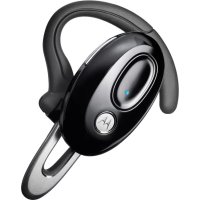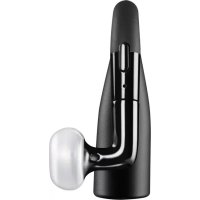
Elite Flip - Earplug ZEBRA - Free user manual and instructions
Find the device manual for free Elite Flip ZEBRA in PDF.



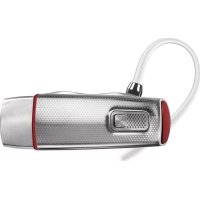
| Product type | Bluetooth Headset |
| Brand | ZEBRA (licensed by Motorola) |
| Model | Elite Flip |
| Weight | Approximately 12 g (estimated) |
| Power supply | Built-in rechargeable lithium-ion battery |
| Talk time | Up to 6 hours (estimated) |
| Standby time | Up to 10 days (estimated) |
| Charging time | Approximately 2 hours |
| Connectivity | Bluetooth 3.0 + EDR, NFC (near field communication) |
| Bluetooth range | Up to 10 meters |
| Key features | EasyPair pairing, voice commands (English), caller ID, multipoint (2 devices), wideband audio (WBA), CristalTalk noise reduction |
| Buttons and controls | Call button, smart button, volume buttons, arm switch on/off |
| Included earphone types | Ear hook (pre-installed), ear hook in-ear, gel cushion |
| Maintenance and cleaning | Clean with a soft, dry cloth. Do not use alcohol or solvents. |
| Safety | Do not expose to moisture, extreme temperatures, dust. Keep out of reach of children. |
| Spare parts and repairability | Battery not user-replaceable. Accessories available (hooks, cushions) on Motorola website. |
| General information | Manual available in PDF. One-year limited warranty. Compliant with FCC and CE standards. |
Frequently Asked Questions - Elite Flip ZEBRA
User questions about Elite Flip ZEBRA
0 question about this device. Answer the ones you know or ask your own.
Ask a new question about this device
Download the instructions for your Earplug in PDF format for free! Find your manual Elite Flip - ZEBRA and take your electronic device back in hand. On this page are published all the documents necessary for the use of your device. Elite Flip by ZEBRA.
USER MANUAL Elite Flip ZEBRA
here's what you can do
Now hear even better! Get clear calls and rich sound with your MOTOROLA ELITE FLIP. The ultimate audio experience in HD Audio Plus sound combines Wideband audio and CrystalTalk dual-mic noise cancellation technologies.
Go ahead, check it out:
AT A GLANCE 2
CHARGE IT.... 3
CONNECT & GO.... 4
BASICS....6
ADVANCED 10
WANT MORE?......15
SAFETY, REGULATORY & LEGAL....17
Caution: Please read the important safety, regulatory and legal information at the back of this guide.
MORE INFORMATION
On the web: www.motorola.com/support
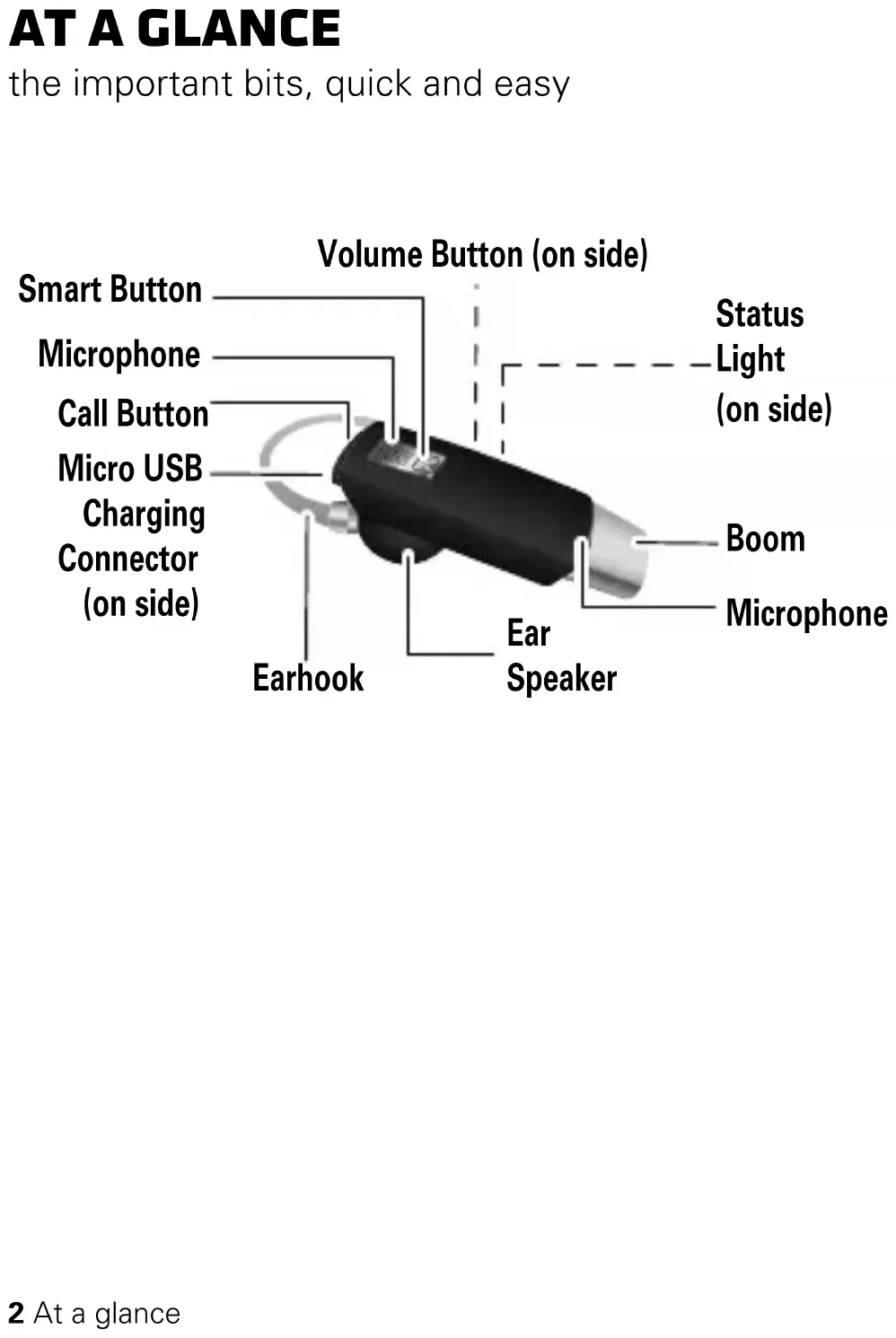
AT A GLANCE
the important bits, quick and easy

text_image
Volume Button (on side) Smart Button Microphone Call Button Micro USB Charging Connector (on side) Earhook Ear Speaker Status Light (on side) Boom MicrophoneCHARGE IT
let's get you up and running
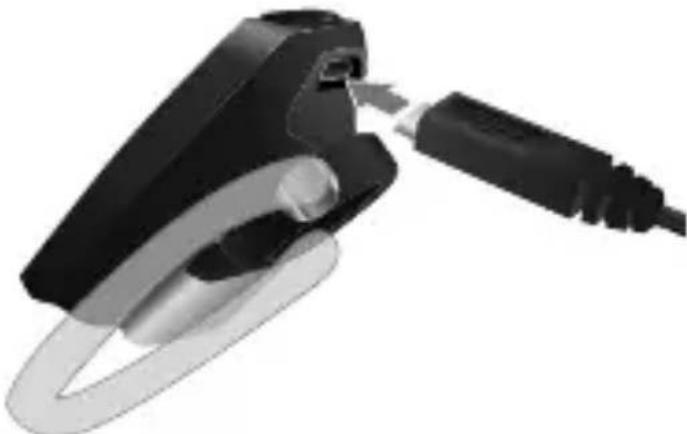
Status Light
Red/Yellow = charging
Green = fully charged
natural_image
Close-up of a black and silver electrical connector with a cable inserted (no text or symbols visible)While your headset is charging, you won't be able to use it.
Note: Your battery is designed to last the life of your product. It should only be removed by a recycling facility. Any attempt to remove or replace your battery will damage your headset.
CONNECT & GO
let's get you connected
There are two methods to pair your headset and phone—EasyPair and NFC (Near Field Communication).
When your headset successfully pairs with your phone, you hear “pairing complete”. When connected, you hear “phone 1 connected” and the indicator light rapidly flashes blue and purple.
EASYP AIR METHOD
1 Turn off any Bluetooth devices previously paired with your headset.
2 Turn on the Bluetooth feature on your phone.
3 Put the headset on your ear (see "COMFORT" on page 7 for help) and turn on (see "TURN ON & OFF" on page 6 for help).
The indicator light becomes steadily lit in blue and you hear “Welcome to the Motorola Elite Flip. Ready to pair”.
4 Follow the voice prompts to connect your phone to your headset.
Note: If prompted for the passkey, enter 0000.
4 Connect & go
NFC METHOD
Using NFC (Near Field Communication), pairing is as simple as bringing the headset and phone close to each other.
Note: If your phone does not support NFC, use the "EASYPAIR METHOD" on page 4.
To pair and connect your headset with your phone, ensure your phone's display is on and touch the top of the headset to your phone's NFC tag location. Hold the headset to the phone until NFC pairing completes.

natural_image
Line drawing of a mobile phone with a USB flash unit attached (no text or symbols)- If your headset is off (boom closed), your headset turns on, pairs, and then turns off.
- If your headset is on (boom open), it pairs and connects with your phone.
Note: NFC tag locations vary by phone, see your phone's user guide.
BASICS
standard features, advanced quality
TURN ON & OFF
To turn your headset on or off, flip the boom to the open or closed (folded) position.
Note: Voice commands are in English only.
CALLS
Note: Some features and phone/network dependent.
| To... | |
| answer a call Say “answer” after prompt or press the Call button. | |
| reject a call Say “ignore” after prompt or press and hold a Volume button until you hear a tone. | |
| make a voice dial call | Press the Call button and you hear a tone. |
| redial last call Press and hold the Call button until you hear a tone. | |
| mute or unmute a call | Press the Smart button and you hear “mute on” or “mute off”. |
| end a call Press the Call button. | |
6 Basics
| To... | |
| answer second incoming call | Press the Call button. |
| reject second incoming call | Press and hold a Volume button until you hear a tone. |
Note: Using a mobile device or accessory while driving may cause distraction and may be illegal. Always obey the laws and drive safely.
Tip: When connected to two phones, follow the voice prompts to perform functions, such as voice dial and redial on the desired phone.
COMFORT
You can choose the most comfortable fit with the on-ear hook, in-ear hook, or ear gels with no hook.
Note: Your headsets comes with the on-ear hook installed on the earpiece.
IN-EAR/ON-EAR HOOK
1 Rotate and turn your ear hook for left or right use.

natural_image
Two black USB flash drives with gray plastic handles and metallic buttons, shown side by side (no text or symbols visible)2 Fit the proper ear hook onto your earpiece.

text_image
In-Ear Hook On-Ear Hook3 Flex the hook and loop it over your ear, and point the headset microphone towards your mouth.
8 Basics
EAR GEL
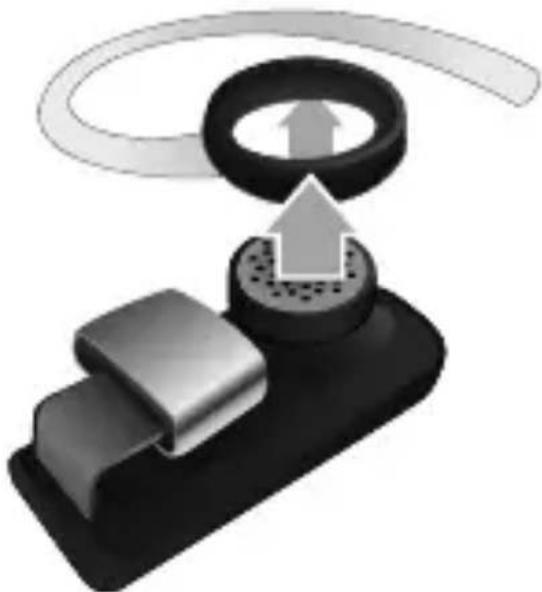
1 Remove on-ear hook from headset:
natural_image
Diagram of a mechanical component with a ring and upward arrow, no text or symbols present2 Choose a looped ear gel and fit it on the earpiece. Place it on your ear by placing the loop in the bend of your ear:

natural_image
Line drawing of a human ear with a shaded rectangular device inside, no text or symbols presentADVANCED
more clever stuff
SECOND DEVICE
Using two phones? Or maybe a tablet and a phone? Pair with two devices.
- Before pairing the second device, turn off the Bluetooth feature of the previously paired device. Now pair your second device as normal, see "CONNECT & GO" on page 4.
- Once paired, to connect to both devices simply turn them on. You'll hear "
connected" as each device connects with your headset. - To use headset features, such as voice dial, redial, and end call, with the desired device, just use the feature as normal and follow the voice prompts.
- To use the NFC method to pair, see “NFC METHOD” on page 5.
COOL FEATURES
Note: These features don't work for second incoming calls.
VOICE COMMANDS
Use your voice to answer or ignore an incoming call:
- say “answer” after prompt to answer the call
- say "ignore" after prompt to ignore a call
Note: Voice commands are in English only.
CALLER ID
If your phone knows your caller's number, then you hear "call from
Note: Some features are phone/network dependent.
TALK TIME
check your chat time
Press and hold both Volume buttons while not on a call.
| If light shows... the battery has... |
| red less than 20% charge. |
| yellow between 20% – 80% charge |
| green more than 80% charge |
To save battery power, turn off the headset when you don't use it for an extended time.
STATUS LIGHT
know your headset
| if light shows... your headset is... |
| three blue flashes powering on/off |
| steady blue pairing/connect mode |
| rapid blue/purple connection successful flashes |
| quick blue flash incoming/outgoing call on phone 1 |
12 Advanced
| if light shows... your headset is... |
| quick purple flash incoming/outgoing call on phone 2 |
| slow blue pulse connected (on a call) |
| slow blue flash standby (connected to one phone) |
| slow green flash standby (connected to two phones) |
| slow red flash idle (not connected to a phone) |
| slow purple pulse connected call muted |
| steady red attempting to connect |
| quick red flash low battery |
| steady purple in settings mode |
Note: After one minute on a call or 20 minutes of inactivity, the light stops flashing to conserve power, but the headset remains on. Closing the boom will also save battery life.
SETTINGS
make some changes
Press and hold the Call button while turning on the headset to turn these features on/off:
- Language selection
- Reset to factory default
Caution: This action erases all pairing information stored in your headset.
- Caller ID
- Voice prompts
- Multipoint (two phone) connections
- NFC on/off
• WBA (Wide-band Audio) on/off
Follow the voice prompts to make changes to the these settings.
WANT MORE?
we've here to help
TROUBLESHOOTING
A few frequently asked questions—with answers, of course. Find more at www.motorola.com/support
My headset will not enter pairing mode.
Make sure that any devices previously paired with the headset are turned off. If the indicator light is flashing in blue, first turn off the other device, then turn the headset off and on. The indicator light becomes steadily lit in blue and you hear “ready to pair”.
My phone doesn't find my headset when searching.
Make sure the indicator light on your headset is steadily lit in blue when your phone is searching for devices. If not, press and hold the Call button and select “Reset to Factory Condition” in Settings. You then hear “Welcome to the Motorola Elite Flip. Ready to pair.” and see the indicator light steadily lit in blue.
My headset will not pair with my phone.
If the indicator light is not steadily lit in blue when your phone is searching for your headset, you can reset the headset by pressing and holding the Call button and selecting “Reset to Factory Condition” in Settings. You then hear “Welcome to the Motorola Elite Flip. Ready to
pair." and the indicator light is steadily lit in blue. Then follow pair & connect instructions on page 10.
My headset connected before, but now it's not working.
Make sure your phone is on and the Bluetooth® feature is turned on in your phone. If the Bluetooth feature was turned off or was turned on only temporarily, you may need to restart the Bluetooth feature and pair your phone and headset again. See “SECOND DEVICE” on page 10.
CONNECT WITH MOTOROLA
Get what you need:
- Answers: User guides, online help and more at www.motorola.com/support
- Bluetooth: If you have questions or need assistance, contact us at 1-877-MOTOBLU, or visit www.motorola.com/bluetoothsupport or www.motorola.com/bluetoothconnect
- Accessories: Find more accessories at www.motorola.com/products.
• Social: The latest news, tips & tricks, videos and so much more—join us on:

YouTube™ www.youtube.com/motorola

Facebook™ www.facebook.com/motorola

Twitter www.twitter.com/motomobile
16 Want more?
Battery Use & Safety
DON'Ts
- Don't let the product come in contact with liquids.* Liquids can get into the product's circuits, leading to corrosion.
- Don't place your product near a heat source.* High temperatures can cause the battery to swell, leak, or malfunction.
- Don't dry a wet or damp product with an appliance or heat source , such as a hair dryer or microwave oven.
DOs
- Do avoid leaving your product in your car in high temperatures.*
- Do avoid dropping the product.* Dropping your product, especially on a hard surface, can potentially cause damage.*
- Do contact your retailer or Motorola if your product has been damaged by dropping, liquids or high temperatures.
Warning: Never dispose of battery powered products in a fire because they may explode.
Battery Charging
Notes for charging your product's battery:
- During charging, keep your battery and charger near room temperature for efficient battery charging.
- New batteries are not fully charged.
- New batteries or batteries stored for a long time may take more time to charge.
- Motorola batteries and charging systems have circuitry that protects the battery from damage from overcharging.
Third Party Accessories
Use of third party accessories, including but not limited to batteries, chargers, headsets, covers, cases, screen protectors and memory cards, may impact your product's performance. In some circumstances, third party accessories can be dangerous and may void your product warranty. For a list of Motorola accessories, visit www.motorola.com/products
Driving Precautions
Responsible and safe driving is your primary responsibility when behind the wheel of a vehicle. Using a mobile device or accessory for a call or other application while driving may cause distraction. Using a mobile device or accessory may be prohibited or restricted in certain areas, always obey the laws and regulations on the use of these products.
While driving, NEVER:
- Type or read texts.
- Enter or review written data.
- Surf the web.
- Input navigation information.
- Perform any other functions that divert your attention from driving.
While driving, ALWAYS:
- Keep your eyes on the road.
- Use a handsfree device if available or required by law in your area.
- Enter destination information into a navigation device before driving.
- Use voice activated features (such as voice dial) and speaking features (such as audible directions), if available.
- Obey all local laws and regulations for the use of mobile devices and accessories in the vehicle.
• End your call or other task if you cannot concentrate on driving.
Responsible driving practices can be found at www.motorola.com/callsmart (in English only).
Caution About High Volume Usage
Warning: Exposure to loud noise from any source for extended periods of time may affect your hearing. The louder the volume sound level, the less time is required before your hearing could be affected. To protect your hearing:
- Limit the amount of time you use headsets or headphones at high volume.
- Avoid turning up the volume to block out noisy surroundings.
- Turn the volume down if you can't hear people speaking near you.
If you experience hearing discomfort, including the sensation of pressure or fullness in your ears, ringing in your ears, or muffled speech, you should stop listening to the device through your headset or headphones and have your hearing checked.
For more information about hearing, see our website at
direct.motorola.com/hellomoto/nss/AcousticSafety.asp(in English only).
Children
Keep your product and its accessories away from small children. These products are not toys and may be hazardous to small children. For example:
- A choking hazard may exist for small, detachable parts.
- Improper use could result in loud sounds, possibly causing hearing injury.
- Improperly handled batteries could overheat and cause a burn.
Symbol Key
Your battery, charger, or accessory product may contain symbols, defined as follows:
| Symbol Definition | |
 | Important safety information follows. |
 | Do not dispose of your product or battery in a fire. |
 | Your product or battery may require recycling in accordance with local laws. Contact your local regulatory authorities for more information. |
 | |
 | Do not dispose of your product or battery with your household waste. See “Recycling” for more information. |
 | Do not use tools. |
 | For indoor use only. |
Symbol Definition

Near Field Communication mark.
European Union Directives Conformance Statement
The following CE compliance information is applicable to Motorola products that carry one of the following CE marks:

Hereby, Motorola declares that this product is in compliance with:
- The essential requirements and other relevant provisions of Directive 1999/5/EC
• All other relevant EU Directives
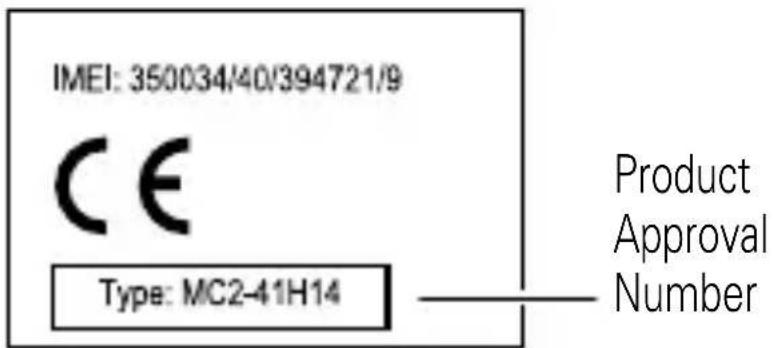
text_image
IMEI: 350034/40/394721/9 CE Type: MC2-41H14 Product Approval NumberThe above gives an example of a typical Product Approval Number.
You can view your product's Declaration of Conformity (DoC) to Directive 1999/5/EC (to R&TTE Directive) at www.motorola.com/rtte. To find your DoC, enter the Product Approval Number from your product's label in the "Search" bar on the website.
FCC Notice to Users
The following statement applies to all products that bear the FCC logo on the product label.
This equipment has been tested and found to comply with the limits for a Class B digital device, pursuant to part 15 of the FCC Rules. See 47 CFR Sec. 15.105(b). These limits are
designed to provide reasonable protection against harmful interference in a residential installation. This equipment generates, uses and can radiate radio frequency energy and, if not installed and used in accordance with the instructions, may cause harmful interference to radio communications. However, there is no guarantee that interference will not occur in a particular installation. If this equipment does cause harmful interference to radio or television reception, which can be determined by turning the equipment off and on, the user is encouraged to try to correct the interference by one or more of the following measures:
• Reorient or relocate the receiving antenna.
- Increase the separation between the equipment and the receiver.
- Connect the equipment to an outlet on a circuit different from that to which the receiver is connected.
- Consult the dealer or an experienced radio/TV technician for help.
This device complies with part 15 of the FCC Rules. Operation is subject to the following two conditions: (1) This device may not cause harmful interference, and (2) this device must accept any interference received, including interference that may cause undesired operation. See 47 CFR Sec. 15.19(a)(3).
Motorola has not approved any changes or modifications to this device by the user. Any changes or modifications could void the user's authority to operate the equipment. See 47 CFR Sec. 15.21.
For products that support W-Fi 802.11a (as defined in the product specifications available at www.motorola.com), the following information applies. This equipment has the capability to operate Wi-Fi in the 5 GHz Unlicensed National Information Infrastructure (U-NII) band. Because this band is shared with MSS (Mobile Satellite Service), the FCC has restricted such devices to indoor use only (see 47 CFR 15.407(e)). Since wireless hot spots operating in this band have the same restriction, outdoor services are not offered. Nevertheless, please do not operate this device in Wi-Fi mode when outdoors.
Industry Canada Notice to Users
Operation is subject to the following two conditions: (1) This device may not cause interference and (2) This device must accept any interference, including interference that may cause undesired operation of the device. See RSS-GEN 7.1.5. This Class B digital apparatus complies with Canadian ICES-003.
Use & Care
To care for your Motorola product, please keep it away from:
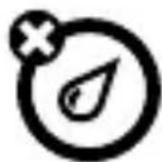
liquids of any kind
Don't expose your product to water, rain, extreme humidity, sweat, or other moisture. If it does get wet, don't try to accelerate drying with the use of an oven or dryer, as this may damage the product.

extreme heat or cold
Avoid temperatures below -10°C (14°F) or above 60°C (140°F). For battery powered accessories, do not recharge your accessory in temperatures below 0°C (32°F) or above 45°C (113°F).
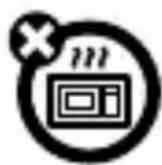
microwaves
Don't try to dry your product in a microwave oven.
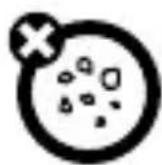
dust and dirt
Don't expose your product to dust, dirt, sand, food, or other inappropriate materials.
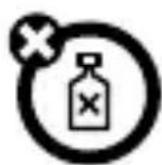
cleaning solutions
To clean your product, use only a dry soft cloth. Don't use alcohol or other cleaning solutions.
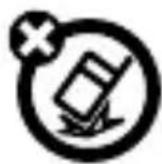
shock and vibration
Don't drop your product.
Recycling
Products & Accessories
Please do not dispose of products or electrical accessories (such as chargers, headsets, or batteries) with your household waste, or in a fire. These items should be disposed of in accordance with the national collection and recycling schemes operated by your local or regional authority. Alternatively, you may

return unwanted products and electrical accessories to any Motorola Approved Service Center in your region. Details of Motorola approved national recycling schemes, and further information on Motorola recycling activities can be found at: www.motorola.com/recycling
Packaging & Product Guides
Product packaging and product guides should only be disposed of in accordance with national collection and recycling requirements. Please contact your regional authorities for more details.
Software Copyright Notice
Motorola products may include copyrighted Motorola and third-party software stored in semiconductor memories or other media. Laws in the United States and other countries preserve for Motorola and third-party software providers certain exclusive rights for copyrighted software, such as the exclusive rights to distribute or reproduce the copyrighted software. Accordingly, any copyrighted software contained in Motorola products may not be modified, reverse-engineered, distributed, or reproduced in any manner to the extent allowed by law. Furthermore, the purchase of Motorola products shall not be deemed to grant either directly or by implication, estoppel, or otherwise, any license under the copyrights, patents, or patent applications of Motorola or any third-party software provider, except for the normal, non-exclusive, royalty-free license to use that arises by operation of law in the sale of a product.
Export Law Assurances
This product is controlled under the export regulations of the United States of America and Canada. The Governments of the United States of America and Canada may restrict the exportation or re-exportation of this product to certain destinations. For further information contact the U.S. Department of Commerce or the Canadian Department of Foreign Affairs and International Trade.
Product Registration
Online Product Registration:
www.motorola.com/us/productregistration
Product registration is an important step toward enjoying your new Motorola product. Registering permits us to contact you for product or software updates and allows you to
subscribe to updates on new products or special promotions. Registration is not required for warranty coverage.
Please retain your original dated sales receipt for your records. For warranty service of your Motorola Personal Communications Product you will need to provide a copy of your dated sales receipt to confirm warranty status.
Thank you for choosing a Motorola product.
Motorola Limited Warranty for the United States and Canada
What Does this Warranty Cover?
Subject to the exclusions contained below, Motorola Mobility, Inc. warrants its mobile telephones ("Products"), Motorola-branded or certified accessories sold for use with these Products ("Accessories"), and Motorola software contained on CD-ROMs or other tangible media and sold for use with these Products ("Software") to be free from defects in materials and workmanship under normal consumer usage for the period(s) outlined below. This limited warranty is a consumer's exclusive remedy, and applies as follows to new Motorola Products, Accessories, and Software purchased by consumers in the United States or Canada, which are accompanied by this written warranty:
Products and Accessories
| Products Covered Length of Coverage | |
| Products and Accessories as defined above, unless otherwise provided for below. | One (1) year from the date of purchase by the first consumer purchaser of the product unless otherwise provided for below. |
| Decorative Accessories and Cases. Decorative covers, bezels, PhoneWrap^TM covers and cases. | Limited lifetime warrantyfor the lifetime of ownership by the first consumer purchaser of the product. |
| Monaural Headsets. Ear buds and boom headsets that transmit mono sound through a wired connection. | Limited lifetime warrantyfor the lifetime of ownership by the first consumer purchaser of the product. |
| Products and Accessories that are Repaired or Replaced. | The balance of the original warranty or for ninety (90) days from the date returned to the consumer, whichever is longer. |
Exclusions (Products and Accessories)
Normal Wear and Tear Periodic maintenance, repair and replacement of parts due to normal wear and tear are excluded from coverage.
Batteries. Only batteries whose fully charged capacity falls below 80% of their rated capacity and batteries that leak are covered by this limited warranty.
Abuse & Misuse. Defects or damage that result from: (a) improper operation, storage, misuse or abuse, accident or neglect, such as physical damage (cracks, scratches, etc.) to the surface of the product resulting from misuse; (b) contact with liquid, water, rain, extreme humidity or heavy perspiration, sand, dirt or the like, extreme heat, or food; (c) use of the Products or Accessories for commercial purposes or subjecting the Product or Accessory to abnormal usage or conditions; or (d) other acts which are not the fault of Motorola, are excluded from coverage.
Use of Non-Motorola Products and Accessories. Defects or damage that result from the use of non-Motorola branded or certified Products, Accessories, Software or other peripheral equipment are excluded from coverage.
Unauthorized Service or Modification. Defects or damages resulting from service, testing, adjustment, installation, maintenance, alteration, or modification in any way by someone other than Motorola, or its authorized service centers, are excluded from coverage.
Altered Products. Products or Accessories with (a) serial numbers or date tags that have been removed, altered or obliterated; (b) broken seals or that show evidence of tampering; (c) mismatched board serial numbers; or (d) nonconforming or non-Motorola housings, or parts, are excluded from coverage.
Communication Services. Defects, damages, or the failure of Products, Accessories or Software due to any communication service or signal you may subscribe to or use with the Products Accessories or Software is excluded from coverage.
Software
| Products Covered Length of Coverage | |
| Software. Applies only to physical defects in the media that embodies the copy of the software (e.g. CD-ROM, or floppy disk). | Ninety (90) days from the date of purchase. |
Exclusions (Software)
Software Embodied in Physical Media. No warranty is made that the software will meet your requirements or will work in combination with any hardware or software applications provided by third parties, that the operation of the software products will be uninterrupted or error free, or that all defects in the software products will be corrected.
Software NOT Embodied in Physical Media. Software that is not embodied in physical media (e.g. software that is downloaded from the Internet), is provided “as is” and without warranty.
Who is Covered?
This warranty extends only to the first consumer purchaser, and is not transferable.
What Will Motorola Do?
Motorola, at its option, will at no charge repair, replace or refund the purchase price of any Products, Accessories or Software that does not conform to this warranty. We may use functionally equivalent reconditioned/refurbished/pre-owned or new Products, Accessories or parts. No data, software or applications added to your Product, Accessory or Software, including but not limited to personal contacts, games and ringer tones, will be reinstalled. To avoid losing such data, software, and applications, please create a back up prior to requesting service.
How to Obtain Warranty Service or Other Information
| USA | 1-800-331-6456 |
| Canada | 1-800-461-4575 |
| TTY | 1-888-390-6456 |
You will receive instructions on how to ship the Products, Accessories or Software, at your expense, to a Motorola Authorized Repair Center. To obtain service, you must include: (a) a copy of your receipt, bill of sale or other comparable proof of purchase; (b) a written description of the problem; (c) the name of your service provider, if applicable; (d) the name and location of the installation facility (if applicable) and, most importantly; (e) your address and telephone number.
What Other Limitations are There?
ANY IMPLIED WARRANTIES, INCLUDING WITHOUT LIMITATION THE IMPLIED WARRANTIES OF MERCHANTABILITY AND FITNESS FOR A PARTICULAR PURPOSE, SHALL BE LIMITED TO THE DURATION OF THIS LIMITED WARRANTY, OTHERWISE THE REPAIR, REPLACEMENT, OR REFUND AS PROVIDED UNDER THIS EXPRESS LIMITED WARRANTY IS THE EXCLUSIVE REMEDY OF THE CONSUMER, AND IS PROVIDED IN LIEU OF ALL OTHER WARRANTIES, EXPRESS OR IMPLIED. IN NO EVENT SHALL MOTOROLA BE LIABLE, WHETHER IN CONTRACT OR TORT (INCLUDING NEGLIGENCE) FOR DAMAGES IN EXCESS OF THE PURCHASE PRICE OF THE PRODUCT, ACCESSORY OR SOFTWARE, OR FOR ANY INDIRECT, INCIDENTAL, SPECIAL OR CONSEQUENTIAL DAMAGES OF ANY KIND, OR LOSS OF REVENUE OR PROFITS, LOSS OF BUSINESS, LOSS OF INFORMATION OR DATA, SOFTWARE OR APPLICATIONS OR OTHER FINANCIAL LOSS ARISING OUT OF OR IN CONNECTION WITH THE ABILITY OR INABILITY TO USE THE PRODUCTS, ACCESSORIES OR SOFTWARE TO THE FULL EXTENT THESE DAMAGES MAY BE DISCLAIMED BY LAW.
Some states and jurisdictions do not allow the limitation or exclusion of incidental or consequential damages, or limitation on the length of an implied warranty, so the above limitations or exclusions may not apply to you. This warranty gives you specific legal rights, and you may also have other rights that vary from state to state or from one jurisdiction to another.
Copyright & Trademarks
Motorola Mobility, Inc. Consumer Advocacy Office 600 N US Hwy 45 Libertyville, IL 60048 www.motorola.com
Note: Do not ship your product to the above address. If you need to return your product for repairs, replacement, or warranty service, please contact the Motorola Customer Support Center at:
1-800-331-6456 (United States) 1-888-390-6456 (TTY/TDD United States for hearing impaired) 1-800-461-4575 (Canada)
Certain features, services and applications are network dependent and may not be available in all areas; additional terms, conditions and/or charges may apply. Contact your service provider for details.
All features, functionality, and other product specifications, as well as the information contained in this guide, are based upon the latest available information and believed to be accurate at the time of printing. Motorola reserves the right to change or modify any information or specifications without notice or obligation.
Note: The images in this guide are examples only. MOTOROLA and the Stylized M Logo are trademarks or registered trademarks of Motorola Trademark Holdings, LLC. The “N-Mark” logo is a trademark or registered trademark of NFC Forum, Inc. All other product or service names are the property of their respective owners.
© 2011 Motorola Mobility, Inc. All rights reserved.
Caution: Motorola does not take responsibility for changes/modification to the transceiver.
Product ID: MOTOROLA ELITE FLIP (Model HZ720)
Manual Number: 68014940001-A
ELITE FLIP DE
MOTOROLA
CONÓZCALO
natural_image
Close-up of a black and silver handheld device with a coiled cable (no visible text or symbols)natural_image
Line drawing of a mobile phone with a USB flash unit attached (no text or symbols)natural_image
Two black USB flash drives with metallic clips and indicator lights, shown side by side (no text or symbols visible)natural_image
Diagram of a mechanical component with a ring and upward arrow, no text or symbols presentnatural_image
Line drawing of a human ear with a shaded rectangular device inside, no text or symbols presentAVANZADO
www.motorola.com/us/productregistration
Motorola Mobility, Inc. Consumer Advocacy Office 600 N US Hwy 45 Libertyville, IL 60048 www.motorola.com
natural_image
Close-up of a black and silver electrical plug with a cable inserted, no visible text or symbolsnatural_image
Line drawing of a mobile phone with a USB flash unit attached (no text or symbols)natural_image
Two black USB flash drives with gray plastic handles, shown side by side (no text or symbols visible)natural_image
Diagram of a mechanical component with a ring and upward arrow, no text or symbols presentnatural_image
Line drawing of a human ear with a shaded rectangular device inside, no text or symbols presentFONCTIONS AVANCÉES
FONCTIONS INTÉRESSANTES
www.motorola.com/us/productregistration
Motorola Mobility, Inc.
Consumer Advocacy Office
600 N US Hwy 45
Libertyville, IL 60048
www.motorola.com
natural_image
Abstract black-and-white logo resembling a stylized letter 'M' within a circle (no text or symbols)