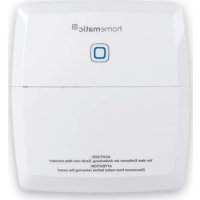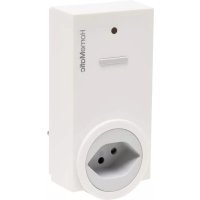
HMESPMSw1PIDNR5 - Smart Home Homematic IP - Free user manual and instructions
Find the device manual for free HMESPMSw1PIDNR5 Homematic IP in PDF.



| Product Type | 1-channel wireless switch actuator with power measurement |
| Brand | Homematic IP |
| Model | HM-ES-PMSw1-PI-DN-R5 |
| Category | Smart Home |
| Supply Voltage | 230 V / 50 Hz |
| Max. Current Consumption | 10 A |
| Standby Power Consumption | < 0.6 W |
| Max. Switching Power | 2300 W (ohmic load) |
| Load Type | Ohmic load |
| Main Functions | On/off switching, measurement of voltage, current, power, frequency and energy consumption |
| Protection Type | IP20 |
| Ambient Temperature | -10 to +35 °C |
| Radio Frequency | 868.3 MHz |
| Radio range in free field | 300 m |
| Dimensions (W x H x D) | 59 x 122 x 40 mm (without plug) |
| Weight | 167 g |
| Maintenance and Cleaning | Clean with a soft, dry cloth; do not use solvents |
| Safety | Do not open; indoor use only; do not connect to power strips |
| Spare Parts and Repairability | Repairs by a specialist; contact customer service in case of malfunction |
| General Information | HomeMatic system; bidirectional radio protocol BidCoS |
Frequently Asked Questions - HMESPMSw1PIDNR5 Homematic IP
User questions about HMESPMSw1PIDNR5 Homematic IP
0 question about this device. Answer the ones you know or ask your own.
Ask a new question about this device
Download the instructions for your Smart Home in PDF format for free! Find your manual HMESPMSw1PIDNR5 - Homematic IP and take your electronic device back in hand. On this page are published all the documents necessary for the use of your device. HMESPMSw1PIDNR5 by Homematic IP.
USER MANUAL HMESPMSw1PIDNR5 Homematic IP
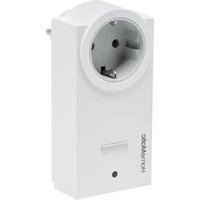
Wireless Switch Actuator 1-channel with power metering, plug adapter type J
HM-ES-PMSw1-PI-DN-R5
Lieferumfang
Anzahl Artikel
Printed in Hong Kong
natural_image
Technical line drawing of a door handle assembly with internal components and a tool (no text or symbols)1x HomeMatic Wireless Switch Actuator 1-channel with power metering, plug adapter type J
1x Operating manual
1st English edition 10/2014
Documentation © 2014 eQ-3 AG, Germany
All rights reserved. Translation from the original version in German.
This manual may not be reproduced in any format, either in whole or in part, nor may it be duplicated or edited by electronic, mechanical or chemical means, without the written consent of the publisher.
Typographical and printing errors cannot be excluded. However, the information contained in this manual is reviewed on a regular basis and any necessary corrections will be implemented in the next edition. We accept no liability for technical or typographical errors or the consequences thereof.
All trademarks and industrial property rights are acknowledged.
Printed in Hong Kong
Changes may be made without prior notice as a result of technical advances.
141186/V 1.1
Table of contents
1 Information about this manual 24
2 Hazard information.... 24
3 Function and device overview ..... 27
4 General information about the HomeMatic system ..... 28
5 Start-up. 29
5.1 Simple operating functions on the device.....29
5.2 Teaching-in....29
5.2.1 Teaching-in directly in to HomeMatic devices .....30
5.2.2 Teaching-in to a HomeMatic Central Control Unit .....31
6 Conditional switching .....34
7 Restore factory settings .....35
8 Error codes and device LED feedback.....36
8.1 Flash codes 36
8.2 Duty cycle....37
9 Behaviour after power recovery ..... 38
10 Maintenance and cleaning 38
11 General information about radio operation....39
12 Technical specifications ....40
1 Information about this manual
Please read this manual carefully before beginning operation with your HomeMatic components. Keep the manual so you can refer to it at a later date if you need to. If you hand over the device to other persons for use, please hand over the operating manual as well.
Symbols used:

Attention! This indicates a hazard.

Note. This section contains important additional information.
Note. This section contains additional important information about using the device in connection with the HomeMatic Central Control Unit.
2 Hazard information

We do not assume any liability for damage to property or personal injury caused by improper use or the failure to observe the hazard information. In such cases any claim under warranty is extinguished! For consequential damages, we assume no liability!

Do not open the device. It does not contain any parts that can be maintained by the user. There is a risk of electric shock if the device is opened. In the event of an error, have the device checked by an expert.

Do not use the device if there are signs of damage to the housing, control elements or connecting sockets, for example, or if it demonstrates a malfunction. If you have any doubts, have the device checked by an expert or by our service department.

For safety and licensing reasons (CE), unauthorized change and/or modification of the product is not permitted.

The device may only be operated indoors and must be protected from the effects of moisture, vibrations, solar or other methods of heat radiation, cold and mechanical loads.

The device is not a toy; do not allow children to play with it. Do not leave packaging material lying around, plastic films/bags, pieces of polystyrene etc., can be dangerous in the hands of a child.

Please take the technical data (in particular the maximum permissible switching capacity of the relay and the type of load to be connected) into account before connecting a load! All load data relates to resistive loads! Do not exceed the capacity specified for the device. Exceeding this capacity could lead to the destruction of the device, to a fire or to an electrical accident.

The device may only be connected to an easily accessible power socket outlet. In case of danger, disconnect the device from the power socket outlet.

Only use the HomeMatic Switch Actuator with properly installed wall outlets with earth contacts and not with multiple socket outlets or extension cables.

Do not connect devices into the HomeMatic Switch Actuator which could cause fire or other types of damage in unattended operation (e.g. irons).

Remove the plug of the connected device from the HomeMatic Switch Actuator, whenever you make changes or modifications to the device (e.g. replacing light bulbs).

Always lay cables in such a way that they do not become a risk to people and domestic animals.

The device has not been designed to support safety disconnection. The load is not isolated from the mains.

Before cleaning the device, unplug it from the socket outlet. Use a dry linen cloth to clean the device. If the device is particularly dirty, you can slightly dampen the cloth to clean it. Do not use any detergents containing solvents for cleaning purposes. Make sure that no moisture will ingress into the housing.

Using the device for any purpose other than that described in this operating manual does not fall within the scope of intended use and shall invalidate any warranty or liability. This also applies to any conversion or modification work. The device is intended for private use only.

Do not connect multiple plug adapters into one another.

Devices with electronic power supply units (e.g. TV or high voltage LED light sources) are no ohmic loads. They can generate inrush currents with more than 100 A. Switching such kind of loads may lead to premature wear of the actuator.

The device may only be operated whitin residential buildings.
3 Function and device overview
With the HomeMatic Wireless Switch Actuator 1-channel with power metering, plug adapter you can switch on and off connected consumers (e.g. dryers) or other taught-in HomeMatic devices (e.g. dimming actuators) and measure the energy consumption of connected loads (up to 2300 Watt (10 A)).
The HomeMatic Wireless Switch Actuator with power metering combines two functionalities in one device:
- Switching connected loads
- Measuring voltage, current consumption, active power, frequency and energy consumption
Connected loads can be switched on and off via the switching channel. In addition, taught-in HomeMatic devices and connected loads can be switched on and off via the sensor channel.
Via the measuring channel, measured data such as voltage, current consumption, active power, frequency and energy consumption can be send to the HomeMatic Central Control Unit. Within the Home-Matic system, the measured values can be transmitted cyclically to the HomeMatic Central Control Unit and displayed graphically via the CCU2 user interface WebUI. Measuring data will not be stored in the device.

All functions of the device can be configured with a CCU2 via the HomeMatic user interface WebUI. The device can also be integrated into the HomeMatic system and configured via the HomeMatic Configuration Adapter.
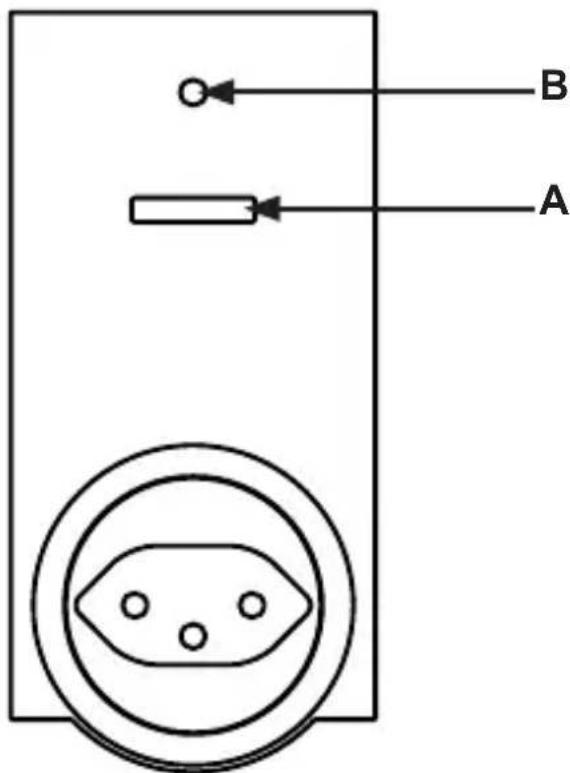
text_image
B A(A) - Channel button
(B) - Device LED
4 General information about the HomeMatic system
This device is part of the HomeMatic home control system and works with the bidirectional BidCoS ^® wireless protocol.
All devices are delivered in a standard configuration. The functionality of the device can also be configured with a programming device and software. The additional functions that can be made available in this way and the supplementary functions provided by the HomeMatic system when it is combined with other components are described in the HomeMatic WebUI Manual.
All current technical documents and updates are provided in the download area at www.homematic.com.
5 Start-up
5.1 Simple operating functions on the device
- Insert the wireless switch actuator with power metering into a socket.
The device is immediately ready for operation and can be taught-in to a HomeMatic CCU (or to other HomeMatic devices).
Via the channel button (A), connected loads can be controlled (switch on and off) with a short button press.
Before being able to use and configure your device in the HomeMat- ic system to control connected loads, the switch actuator has to be taught-in first (see sec. „5.2 Teaching-in“ on page 29).
5.2 Teaching-in

Please read this entire section before starting the teach-in procedure.
To integrate the switch actuator with power metering into your HomeMatic system and enable it to communicate with other HomeMatic devices (e.g. HomeMatic Remote Control), you must teach it in first. You can teach-in the switch actuator with power metering directly to other HomeMatic devices or to the HomeMatic Central Control Unit

Direct device connections between the switch actuator and other HomeMatic devices can be made only with the switching channel (see sec. „5.2.1 Teaching-in directly in to HomeMatic devices“ on page 30). Connections with the measuring channel must be made via the CCU or the configuration adapter („5.2.2 Teaching-in to a HomeMatic Central Control Unit“ on page 31).
5.2.1 Teaching-in directly in to HomeMatic devices
If you want to teach-in the switch actuator to one or more HomeMatic devices, the teach-in mode of both devices has to be activated first. To do this, proceed as follows:

During teach-in, please make sure you maintain a distance of at least 50 cm between the devices.
Activate the teach-in mode of your switch actuator with power metering.
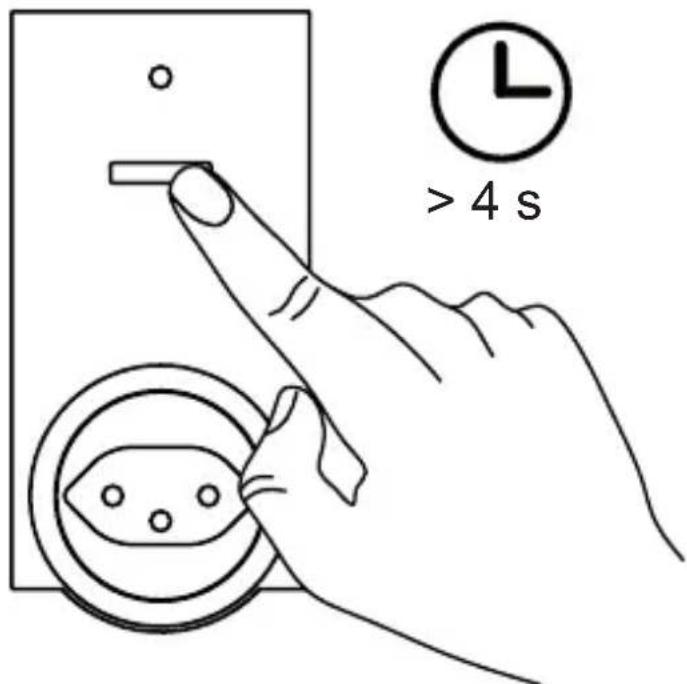
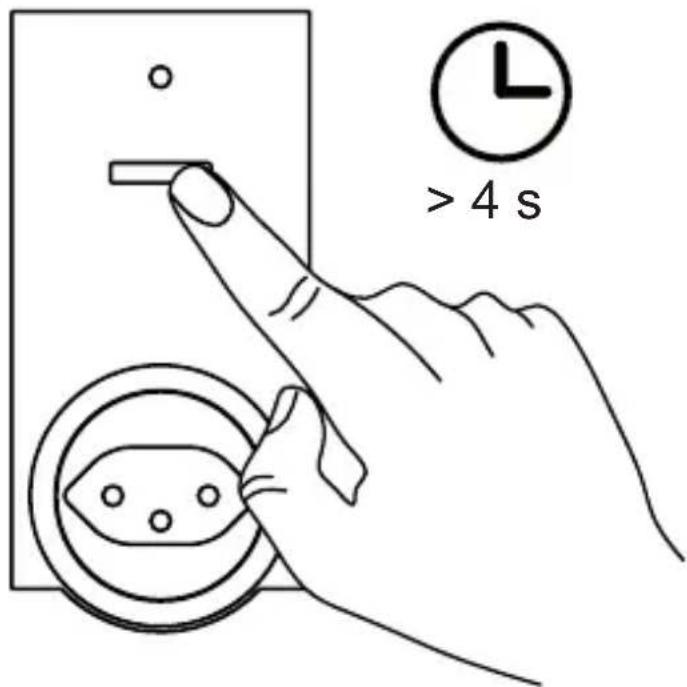
- Therefore, press and hold the channel button (A) for at least 4 seconds. The device LED (B) will slowly flash orange to indicate that teach-in mode is active. The teach-in time is 20 seconds.
text_image
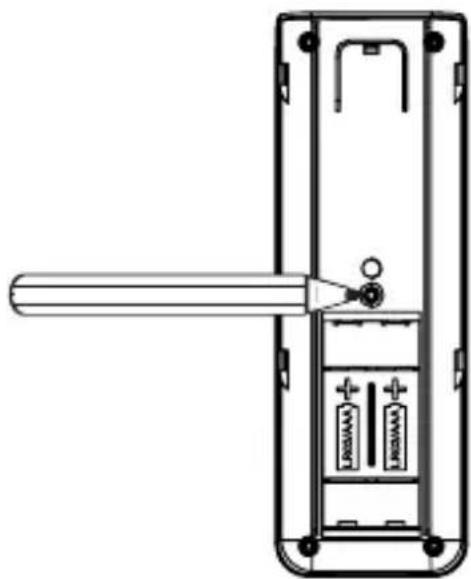
> 4 s- Now put the device you wish to teach-in to the switch actuator (e.g. HomeMatic Remote Control, see the following fig.) into teach-in mode. Remove the battery compartment cover and press the teach-in button briefly using a pointed object.
natural_image
Diagram of a door handle with battery and indicator lights, showing internal components (no text or symbols)If teaching-in was successful, the device LED (B) of the switch actuator will flash green for one second. If teaching-in failed, the device LED will light up green for two seconds. In this case, please try again.
After successfully teaching-in the device you can switch on and off connected loads e.g. with the HomeMatic Remote Control

If no teach-in operations are carried out, teach-in mode is exited automatically after 20 seconds. If other devices are also in teach-in mode, they will be taught-in.
5.2.2 Teaching-in to a HomeMatic Central Control Unit
Your device can be conveniently
• controlled and configured,
- connected directly to other devices or
• used in Central Control Unit programs
by using the HomeMatic software "WebUI". Therefore, your switch actuator has to be taught-in to the HomeMatic Central Control Unit first. New devices are taught-in to the Central Control Unit via the Home-Matic „WebUI“.

As soon as a device has been taught-in to a Central Control Unit, it can only be connected to other components via this unit.
Each device can only be taught-in to one Central Control Unit.

During teach-in, please make sure you maintain a distance of at least 50 cm between the HomeMatic devices and the Central Control Unit.
To teach-in your device to the Central Control Unit, proceed as follows:
- Open the "WebUI" user interface in your browser. Click the "Teach-in devices" button on the right-hand side of the screen.
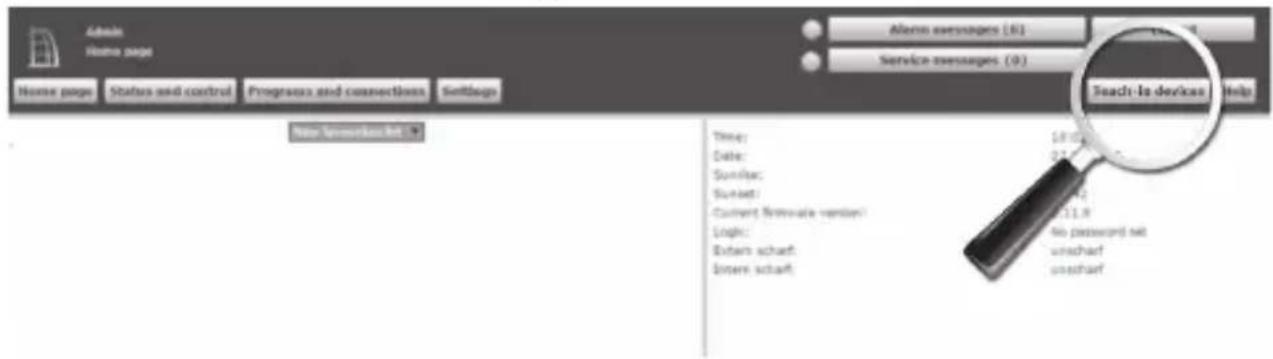
text_image
Adobe Home page Home page Status and control Progress and connections Settings Search In devices Help Time: 18:00 Date: 27:00 Sunrise: Sunset: Current Remote version: 11.9 Logic: Return chart: unchart Return chart: unchart- To activate teach-in mode, click "Start teach-in mode" in the next window.
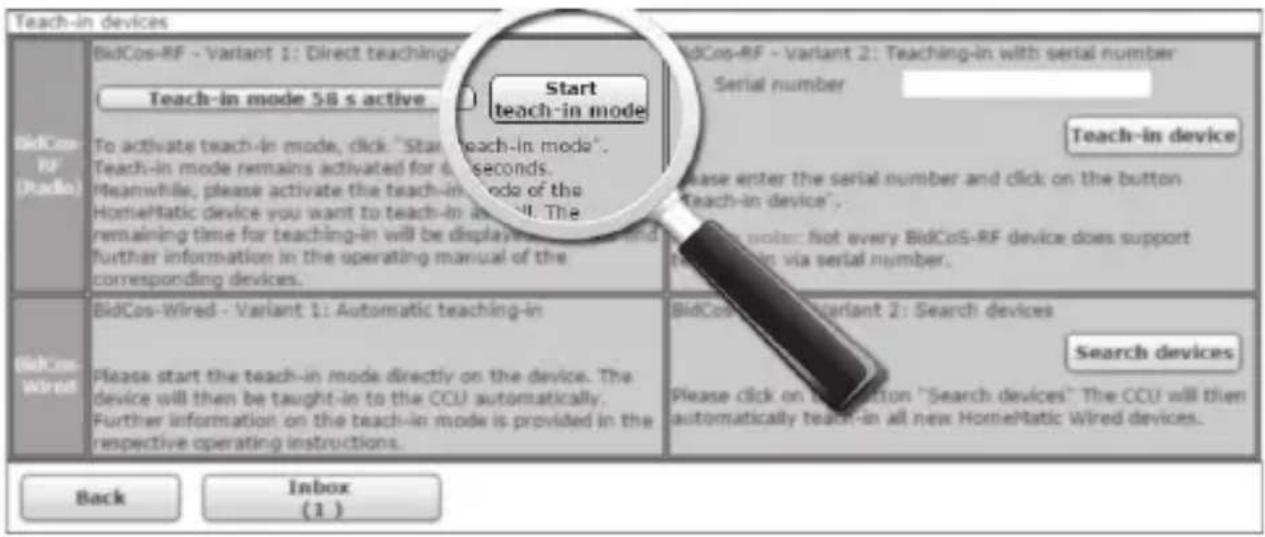
text_image
Teach-in devices BidCos-RF - Variant 1: Direct teaching-in mode. Start Teach-in mode To activate teach-in mode, click "Start teach-in mode". Teach-in mode remains activated for 6 seconds. Meanwhile, please activate the teach-in mode of the HomeStatic device you want to teach-in as well. The remaining time for teaching-in will be displayed in the next session. Further information in the operating manual of the corresponding devices. BidCos-Wired - Variant 1: Automatic teaching-in Please start the teach-in mode directly on the device. The device will then be taught-in to the CCU automatically. Further information on the teach-in mode is provided in the respective operating instructions. BidCos-RF - Variant 2: Teaching-in with serial number Serial number Teach-in device Please enter the serial number and click on the button "Teach-in device". BidCos-S-RF device does support to access via serial number. BidCos-Wired - Variant 2: Search devices Search devices Please click on the button "Search devices" The CCU will then automatically teach-in all new HomeStatic Wired devices. Back Inbox (1)- Teach-in mode remains activated for 60 seconds. An information box shows how much teach-in time remains.
- Meanwhile, activate the teach-in mode of the switch actuator to teach-in as well. Therefore, press and hold the channel button (A) for at least 4 seconds. The device LED (B) will slowly flash orange to indicate that teach-in mode is active.
text_image
> 4 s- After a short time, the newly taught-in device will appear in the in-box of your software interface. The button „Inbox (x new devices)“ indicates how many new devices have been taught-in successfully.
- If required, you can teach-in additional devices by repeating the steps described above for each device.
- Now configure the newly taught-in devices in the inbox as described in section „Neu angelernte Geräte konfigurieren“.
Configuring newly taught-in devices
Once you have taught-in your device to the HomeMatic Central Control Unit, it is moved to the inbox. Here, you must configure the device and its associated channels in order to make them available for operating and configuration tasks. Give the device a name and assign the device/channels to a room. You can also make individual parameter settings.
Now you can use the „WebUI“ user interface to control your device, configure it, connect it directly to other devices, or use it in central control unit programs to display the data measured. Please refer to the HomeMatic WebUI Manual for more details (you can find this in the „Downloads“ area of the website www.homematic.com).
6 Conditional switching
With the function “Conditional switching”, connected consumers or other HomeMatic devices can be switched depending on a defined condition.
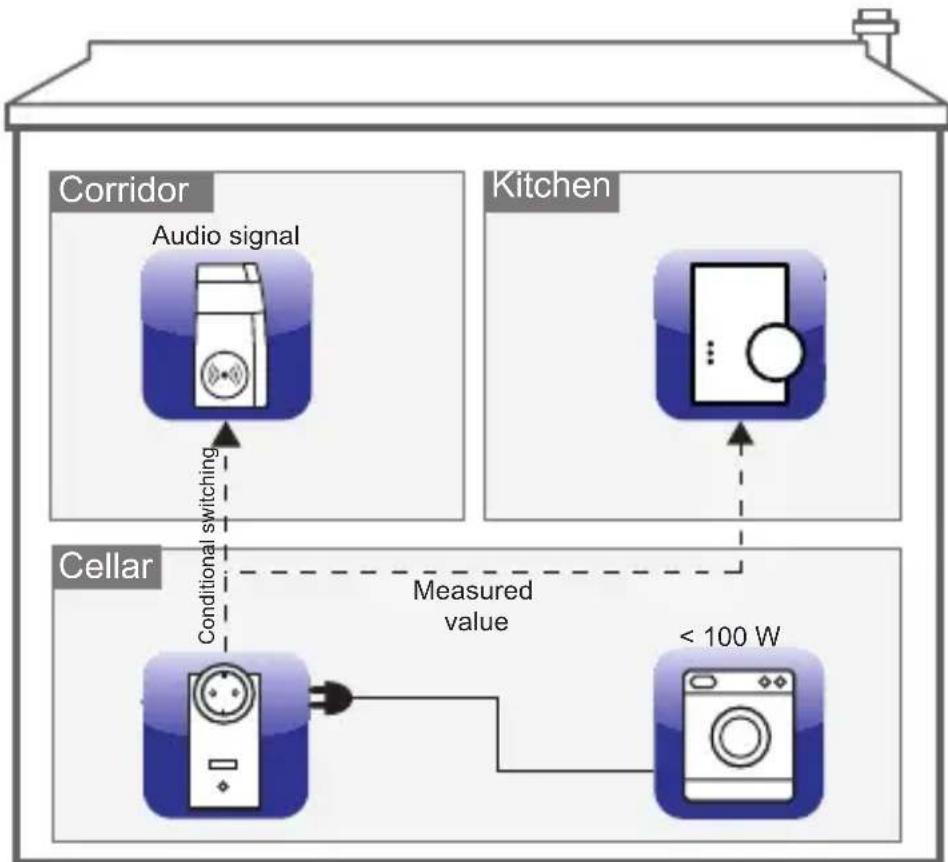
Example: You have connected your dryer in the cellar with the switching actuator and want to receive an audio signal that will let you know when the dryer is finished. Therefore, you can connect the switch actuator with power metering to a HomeMatic Wireless MP3 Chime via the CCU:
As soon as the dryer will consume e.g. less than 100 W it is supposed to be switched off. An audio signal shall sound via the MP3 wireless chime at the same time. If value falls below the set power threshold (e.g. 100 W) the switch actuator with power metering sends a conditional switching command to the Wireless MP3 Chime and the measured values of the dryer to the Central Control Unit. The chime will play the desired signal and you will know that your dryer has finished running.
flowchart
graph TD
    A["Corridor"] -->|Audio signal| B["Cellar"]
    C["Kitchen"] -->|Measured value| D["Cellar"]
    B -->|Conditional switching| A
    D -->|Measured value| C
    style A fill:#99ccff,stroke:#333
    style C fill:#99ccff,stroke:#333
    style B fill:#99ccff,stroke:#333
    style D fill:#99ccff,stroke:#333
7 Restore factory settings
The factory settings of the switch actuator with power metering can be restored manually. If you do this, you will lose all your settings.

Before restoring the factory settings, please delete the device from the user interface WebUI first.
To do this, proceed as follows:
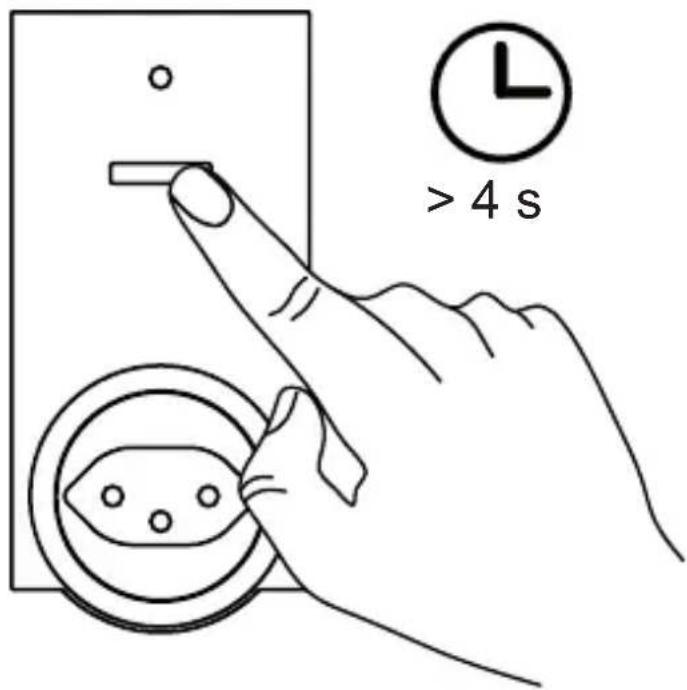
- Press and hold down the channel button (A) for at least four seconds until the device LED (B) will slowly start flashing orange.
- Release the button again.
text_image
> 4 s- Press and hold down the channel button (A) again for at least 4 seconds until the device LED (B) will quickly start flashing red.
- Release the button again.
• The device LED stops flashing. - The factory settings of the device are now restored.
8 Error codes and device LED feedback
8.1 Flash codes
| Flashing sequence Meaning Solution | ||
| Slow orange flashing T | Teach-in mode ac- tive | Put the device you want to teach-in into teach-in mode. |
| Fast orange flashing D | Data exchange with teach-in partner | Wait for confirmation of the device LED. |
| 1 s lighting up green T | Teach-in procedure successful | You can continue with operation. |
| 2 s lighting up green T | each-in procedure failed | Please try again. |
| Slow orange flashing | Stage before reset-ting to factory set-tings | Device is waiting for channel button to be pressed and held in order to carry out a re-set, or for a short but-ton press to cancel the process. |
| Fast red flashing | The factory settings of the device will be restored. | / |
| Short red, green and orange flashing | LED test display af-ter power recovery | Wait until device LED switches off |
| 1 x long, 1 x short red flashing | Duty cycle reached | s. sec. „8.2 Duty cycle“ on page 37 |
| 1 x long, 2 x short red flashing | Device defective Please contact your retailer. | |
8.2 Duty cycle
The duty cycle is a legally regulated limit of the transmission time of devices in the 868 MHz range. The aim of this regulation is to safeguard the operation of all devices working in the 868 MHz range.
In the 868 MHz frequency range we use, the maximum transmission time of any device is 1% of an hour (i.e. 36 seconds in an hour). Devices must cease transmission when they reach the 1% limit until this time restriction comes to an end. HomeMatic devices are designed and produced with 100% conformity to this regulation.
During normal operation, the duty cycle is not usually reached. However, repeated and wireless-intensive teach-in processes mean that it may be reached in isolated instances during start-up or initial installation of a system. If the duty cycle is exceeded, this is indicated by one long and one short red flash of the device LED, and may manifest itself in the device temporarily working incorrectly. The device starts working correctly again after a short period (max. 1 hour).
9 Behaviour after power recovery
After the device has been inserted to a socket or after power recovery the switch actuator performs a self-test/restart (approx. 2 seconds). The device LED flashes red, green and orange briefly (LED test display). The device LED will flash if an error is detected during this check (see sec. „8.1 Flash codes“ auf Seite 36). This is repeated continuously and the device does not perform its function.
If the test is completed without errors, the switch actuator transmits a wireless telegram containing its status information. To prevent all Home-Matic actuators from transmitting at the same time when power is recovered (after a mains power failure or a disconnection, for example), there is a random delay before the switch actuator transmits. During this time, the device LED slowly flashes orange. If the delay is very short, this flashing may be almost imperceptible.
10 Maintenance and cleaning
The product does not require any maintenance. Enlist the help of an expert to carry out any repairs. Clean the product using a soft, lint-free cloth that is clean and dry. You may dampen the cloth a little with luke-warm water in order to remove more stubborn marks. Do not use any detergents containing solvents, as they could corrode the plastic housing and label.
11 General information about radio operation
Radio transmission is performed on a non-exclusive transmission path, which means that there is a possibility of interference occurring. Interference can also be caused by switching operations, electrical motors or defective electrical devices.

The range of transmission within buildings can differ greatly from that available in the open air. Besides the transmitting power and the reception characteristics of the receiver, environmental factors such as humidity in the vicinity have an important role to play, as do on-site structural/screening conditions.

If “secure transmission” (AES) is activated for the switch actuator with power metering, this implies:
- increased volume of communication traffic
- actuator groups are unable to execute commands simultaneously. Please refer to the HomeMatic WebUI Manual at www.homematic.com for further information on secured operation.
eQ-3 AG hereby declares that this device complies with the essential requirements and other relevant regulations of Directive 1999/5/EC. You can find the full declaration of conformity at www.homematic.com.
12 Technical specifications
Device short description: HM-ES-PMSw1-PI-DN-R5
Supply voltage: 230 V/50 Hz
Current consumption: 10 A max.
Power consumption in standby: < 0.6 W
Degree of protection: IP20
Ambient temperature: -10 to +35 °C
Degree of pollution: 2
Measurement category: CAT II
Radio frequency: 868.3 MHz
Receiver category: SRD category 2
Typ. open area RF range: 300 m
Duty cycle: < 1 % per h
Max. switching capacity: 2300 W
Load type: ohmic load
Life expectancy relay/
switching cycle: 40000 (10 A, ohmic load)
Relay: Shutter contact, 1-pole, μ contact
Switch type: independently mounted switch
Operating mode: S1
Withstand voltage: 2500 V
Protection class:
Method of operation: Type 1 B
Dimensions (W x H x D): 59 x 122 x 40 mm (not incl. mains plug)
Weight: 167 g
| Measuring range Resolution Accuracy | ||
| Power 0 to 230 | 0 W 0.01 W 1 % | |
| Current 0 to 10 | A 1 mA 1 % | |
| Voltage 200 to | 255 V 0.1 V 0.5 % | |
| Frequency 48. | 72 to 51.27 Hz 0.01 Hz 0.1 % | |
*Frequency range: 2 Hz to 2 kHz
Subject to technical changes.

Instructions for disposal
Do not dispose of the device with regular domestic waste. Electronic equipment must be disposed of at local collection points for waste electronic equipment in compliance with the Waste Electrical and Electronic Equipment Directive

Information about conformity
The CE Marking is simply an official symbol relating to the free movement of a product; it does not warrant a product's characteristics.

For technical support, please contact your retailer.