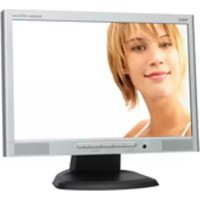
AccuSync LCD193WM - Monitor NEC - Free user manual and instructions
Find the device manual for free AccuSync LCD193WM NEC in PDF.



| Product Type | LCD Monitor |
| Brand | NEC |
| Model | AccuSync LCD193WM |
| Category | Monitor |
| Screen Diagonal | 19 inches |
| Optimal Resolution | 1440 x 900 |
| Aspect Ratio | 16:10 |
| Dimensions (without stand) | Approx. 408 x 332 x 153 mm (estimated) |
| Net Weight | 4.3 kg (max. with stand) |
| Panel Type | LCD |
| Video Connectivity | 1x VGA (D-Sub 15-pin) |
| Audio Connectivity | 3.5 mm audio input, headphone output |
| Built-in Speakers | Yes |
| Power Supply | 100-240 V AC, 50/60 Hz |
| Power Consumption | Approx. 20 W (estimated) |
| Main Features | OSD adjustment, tilt, VESA compatibility, auto-adjustment, OSD lock |
| OSD Settings | Brightness, contrast, position, width, fine, color, languages, off timer |
| Safety Standards | CE, EN60950-1, EN55022, EN61000, EN55024 |
| Included Accessories | User manual, audio cable, video cable, power cord, CD-ROM, stand base, cable holder |
| Wall Mount Compatible | VESA 100 x 100 mm (M4 screws, max. depth 10 mm) |
| Tilt Angle | Manually adjustable |
| Maintenance | Clean with a soft, dry cloth; avoid solvents |
| Repairability | Spare parts available from manufacturer; repair by qualified personnel |
Frequently Asked Questions - AccuSync LCD193WM NEC
User questions about AccuSync LCD193WM NEC
0 question about this device. Answer the ones you know or ask your own.
Ask a new question about this device
Download the instructions for your Monitor in PDF format for free! Find your manual AccuSync LCD193WM - NEC and take your electronic device back in hand. On this page are published all the documents necessary for the use of your device. AccuSync LCD193WM by NEC.
USER MANUAL AccuSync LCD193WM NEC
www.tcodevelopment.com
Congratulations!
The display you have just purchased carries the TCO'03 Displays label. This means that your display is designed, manufactured and tested according to some of the strictest quality and environmental requirements in the world. This makes for a high performance product, designed with the user in focus that also minimizes the impact on our natural environment.
Some of the features of the TCO'03 Display requirements:
Ergonomics
- Good visual ergonomics and image quality in order to improve the working environment for the user and to reduce sight and strain problems. Important parameters are luminance, contrast, resolution, reflectance, colour rendition and image stability.
Energy
- Energy-saving mode after a certain time - beneficial both for the user and the environment
- Electrical safety
Emissions
Electromagnetic fields
- Noise emissions
Ecology
- The product must be prepared for recycling and the manufacturer must have a certified environmental management system such as EMAS or ISO 14 001
-
Restrictions on:
-
chlorinated and brominated flame retardants and polymers
- heavy metals such as cadmium, mercury and lead.
The requirements included in this label have been developed by TCO Development in co-operation with scientists, experts, users as well as manufacturers all over the world. Since the end of the 1980s TCO has been involved in influencing the development of IT equipment in a more user-friendly direction. Our labelling system started with displays in 1992 and is now requested by users and IT-manufacturers all over the world.
For more information, please visit
www.tcodevelopment.com
Manufacturer's Recycling and Energy Information
NEC DISPLAY SOLUTIONS is strongly committed to environmental protection and sees recycling as one of the company's top priorities in trying to minimize the burden placed on the environment. We are engaged in developing environmentally-friendly products, and always strive to help define and comply with the latest independent standards from agencies such as ISO (International Organisation for Standardization) and TCO (Swedish Trades Union).
Disposing of your old NEC product
The aim of recycling is to gain an environmental benefit by means of re-use, upgrading, reconditioning or reclamation of material. Dedicated recycling sites ensure that environmentally harmful components are properly handled and securely disposed. To ensure the best recycling of our products, NEC DISPLAY SOLUTIONS offers a variety of recycling procedures and gives advice on how to handle the product in an environmentally sensitive way, once it has reached the end of its life.
All required information concerning the disposal of the product and country-specific information on recycling facilities can be found on our following websites:
http://www.nec-display-solutions.com/greencompany/ (in Europe),
http://www.nec-display.com (in Japan) or
http://www.necdisplay.com (in USA).
Energy Saving
This monitor features an advanced energy saving capability. When a VESA Display Power Management Signalling (DPMS) Standard signal is sent to the monitor, the Energy Saving mode is activated. The monitor enters a single Energy Saving mode.
| Mode Power | consumption LED colour | |
| Normal Operation | Approx. 39W (LCD193WM), Approx. 49W (LCD203WM), Approx. 55W (LCD223WM) Green | |
| Energy Saving Mode | Less than 2W Amber | |
| Off Mode Less | than 1W Unlit | |
WEEE Mark (European Directive 2002/96/EC)


Within the European Union
EU-wide legislation, as implemented in each Member State, requires that waste electrical and electronic products carrying the mark (left) must be disposed of separately from normal household waste. This includes monitors and electrical accessories, such as signal cables or power cords. When you need to dispose of your NEC display products, please follow the guidance of your local authority, or ask the shop where you purchased the product, or if applicable, follow any agreements made between yourself and NEC.
The mark on electrical and electronic products only applies to the current European Union Member States.
Outside the European Union
If you wish to dispose of used electrical and electronic products outside the European Union, please contact your local authority so as to comply with the correct disposal method.
Chinese RoHS-information relevant for Chinese market
TO PREVENT FIRE OR SHOCK HAZARDS, DO NOT EXPOSE THIS UNIT TO RAIN OR MOISTURE. ALSO, DO NOT USE THIS UNIT'S POLARIZED PLUG WITH AN EXTENSION CORD RECEPTACLE OR OTHER OUTLETS UNLESS THE PRONGS CAN BE FULLY INSERTED REFRAIN FROM OPENING THE CABINET AS THERE ARE HIGH VOLTAGE COMPONENTS INSIDE. REFER SERVICING TO QUALIFIED SERVICE PERSONNEL.

CAUTION
RISK OF ELECTRIC SHOCK·DO NOT OPEN

CAUTION: TO REDUCE THE RISK OF ELECTRIC SHOCK, DO NOT REMOVE COVER (OR BACK). NO USER SERVICEABLE PARTS INSIDE. REFER SERVICING TO QUALIFIED SERVICE PERSONNEL.

This symbol warns user that uninsulated voltage within the unit may have sufficient magnitude to cause electric shock. Therefore, it is dangerous to make any kind of contact with any part inside this unit.

This symbol alerts the user that important literature concerning the operation and maintenance of this unit has been included. Therefore, it should be read carefully in order to avoid any problems.
Declaration of the Manufacturer
We hereby certify that the colour monitor AccuSync LCD193WM (L196H5)/AccuSync LCD203WM (L206H6)/AccuSync LCD223WM (L226H7) are in compliance with
Council Directive 73/23/EEC:
EN 60950-
Council Directive 89/336/EEC: EN 55022
-EN61000-3-2
-EN61000-3-3
-EN55024
and marked with

NEC Display Solutions, Ltd.
4-13-23, Shibaura,
Minato-Ku
Tokyo 108-0023, Japan
Contents
Users Manual

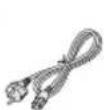
Power Cord
Cable Holder

Audio
Cable

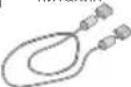
Video Signal
Cable
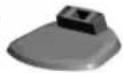
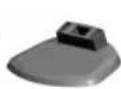
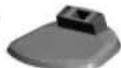
Base
Stand
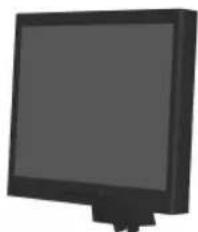
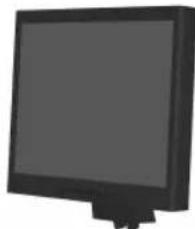
AccuSync LCD monitor (base stand not connected)
Your new NEC AccuSync LCD monitor box* should contain the following:
- AccuSync LCD monitor with tilt base
Audio Cable - Power Cord
V ideo Signal Cable
Use r'sManual
CD-ROM - Base Stand
Cable Holder - Remember to save your original box and packing material to transport or ship the monitor.
Quick Start
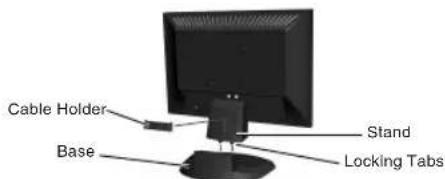
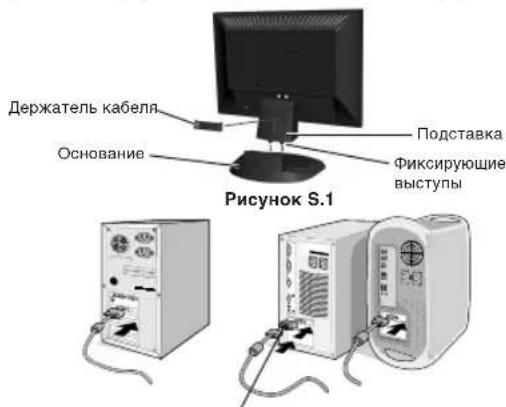
Figure S.1
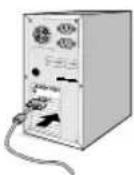
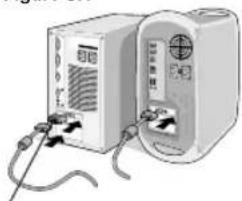
Figure A.1 FigureA2 Cable
Adapter (not included)
Figure B.1
To attach the Base to the LCD Stand:
- Attach the Base to the Stand. The locking tabs on the Stand should fit into the hole on the centre back of the Base (Figure S.1).
To attach the Cable Holder: - Insert the tabs of Cable Holder into the hole of Stand and slide the Cable Holder downward into place (Figure S.1).
NOTE: Please confirm that the tabs are completely secure.
To attach the AccuSync LCD monitor to your system, follow these instructions:
- Turn off the power to your computer.
- For the PC with Analog output: Connect the 15-pin mini D-SUB signal cable to the connector of the display card in your system (Figure A.1). Tighten all screws.
For the Mac: Connect the MultiSync Macintosh cable adapter (not included) to the computer. Attach the 15-pin mini D-SUB signal cable to the MultiSync Macintosh cable adapter (Figure A.2). Tighten all screws.
NOTE: Some Macintosh systems do not require a Macintosh cable adapter.
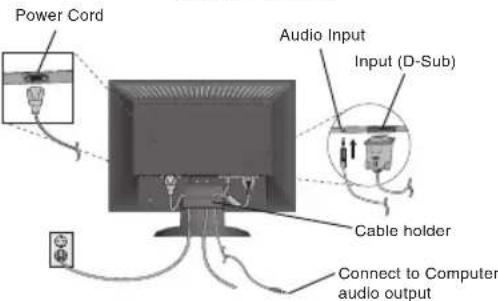
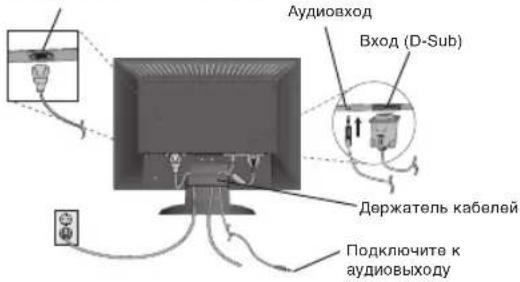
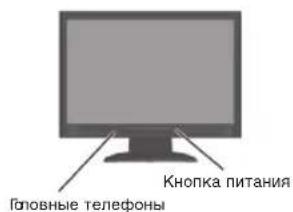
3. Connect the 15-pin mini D-SUB of the video signal cable and Audio Cable to the appropriate connector on the back of the monitor (Figure B.1). Connect the Headphone (not included) to the appropriate connector at the front of the monitor (Figure C.1).
4. Connect one end of the power cord to the monitor and the other end to the power outlet. Place the Video Signal Cable and power cord to the Cable holder (Figure B.1).
NOTE: Adjust position of cable that place under the Cable holder to avoid damage for cable or monitor.
NOTE: Please refer to Caution section of this manual for proper selection of power cord.
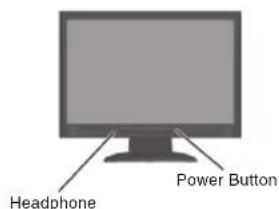
Figure C.1

Figure TS.1
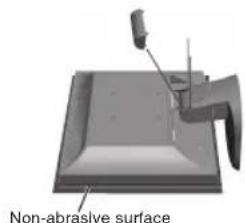
Figure R.1
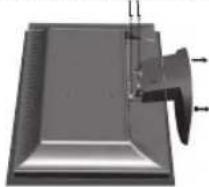
3 screws (LCD193WM) - 4 screws (LCD203WM/LCD223WM)
Figure R.2
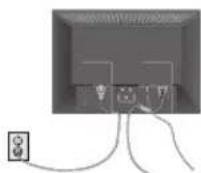
Figure R.3
Specifications
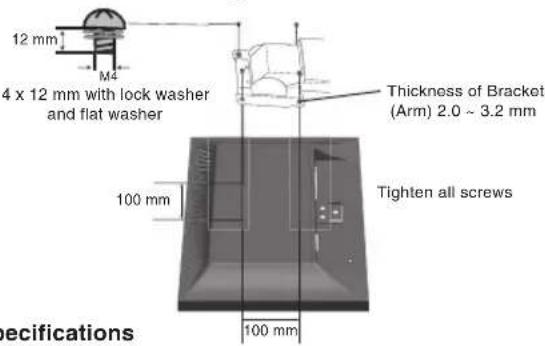
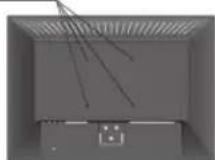
4-SCREWS (M4
(MAX depth: 10 mm)
If use other
screw,check
depth of hole.
Weight of LCD assembly: 4.3 kg - LCD193WM (MAX)
4.9 kg - LCD203WM (MAX)
5.3 kg - LCD223WM (MAX)
-
Turn on the monitor with the front power button and the computer (Figure C.1).
-
No-touch Auto Adjust automatically adjusts the monitor to optimal settings upon initial setup for most timings.
For further adjustments, use the following OSD controls:
- Auto Adjust Contrast
- Auto Adjust
Refer to the Controls section of this User's Manual for a full description of these OSD controls.
NOTE: If you have any problem, please refer to the Troubleshooting section of this User's Manual.
Tilt
Grasp both sides of the monitor screen with your hands and adjust the tilt as desired (Figure TS.1).
Remove Monitor Stand for Mounting
To prepare the monitor for alternative mounting purposes:
- Disconnect all cables.
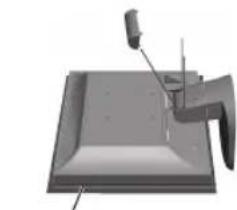
- Remove the hinge cover (Figure R.1).
- Place monitor face down on a non-abrasive surface (Figure R.1).
- Remove the 3 screws (LCD193WM) or the 4 screws (LCD203WM/ LCD223WM) connecting the monitor to the stand and remove the stand as indicated (Figure R.2).
The monitor is now ready for mounting in an alternative manner.
-
Connect the AC cord and signal cable to the back of the monitor (Figure R.3).
-
Reverse this process to re-attach stand.
NOTE: Use only VESA-compatible alternative mounting method.
NOTE: Handle with care when removing monitor stand.
Removing the Base
NOTE: Always remove the Base when shipping the LCD.
- Place monitor face down on a non
abrasive surface (Figure R.1) - While using your fingers, press the locking tabs to unlock the Base.
- Pull out the unlocked Base.
Connecting a Flexible Arm
This LCD monitor is designed for use with a flexible arm.
Please use the attached screws (4pcs) as shown in the picture when installing. To meet the safety requirements, the monitor must be mounted to an arm which guarantees the necessary stability under consideration of the weight of the monitor.
The LCD monitor shall only be used with an approved arm (e.g. GS mark).
Controls
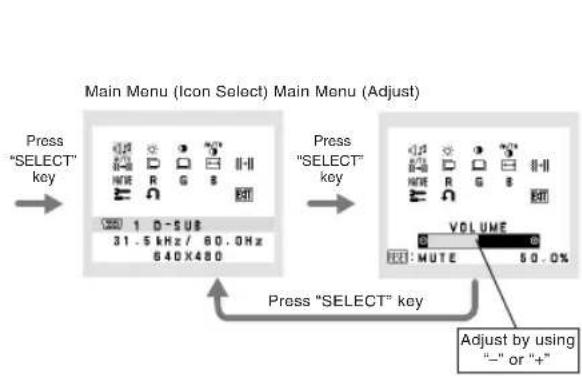
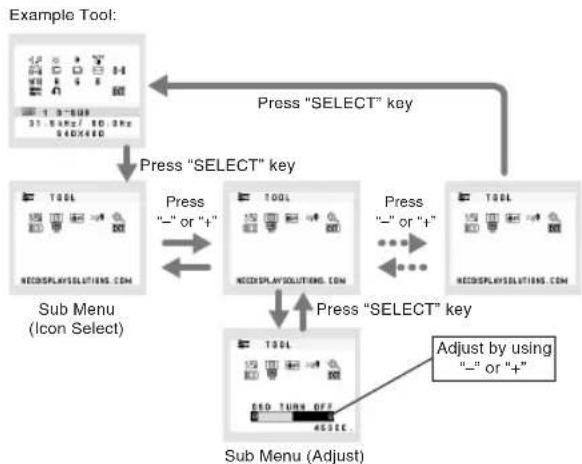
OSD (On-Screen Display) control buttons on the front of the monitor function as follows:
- Basic function at pressing each key
| Button | SELECT | - | + | AUTO/RESET |
| At No OSD showing | Showing OSD. Shortcut to Bright adjust window. | Shortcut to Volume adjust window. | "Auto adjust" operate. | |
| At OSD showing (Icon selection stage) | Go to Adjustment stage. Cursor goes to left. Cursor goes to right. | |||
| At OSD showing (Adjustment stage) | Go to Icon selection stage. Adjust value decrease or Cursor for adjust goes to left. | Adjust value increase or Cursor for adjust goes to right. | Reset operation. Mute off/on switch on Volume adjustment window. | |
2. OSD structure

AUDIO
Controls the volume of the speakers or headphones. To mute the speaker output, press the "AUTO/RESET" button.
BRIGHTNESS
Adjusts the overall image and background screen brightness.
CONTRAST
Adjusts the image brightness in relation to the background.
AUTO AUTO CONTRAST
Adjusts the image displayed for non-standard video inputs.
AUTO AUTOADJUST
Automatically adjusts the Image Position, the H. Size and Fine setting.
LEFT/RIGHT
Controls Horizontal Image Position within the display area of the LCD.
DOWN/UP
Controls Vertical Image Position within the display area of the LCD.
H.SIZE
Adjusts the horizontal size by increasing or decreasing this setting.
FINE
Improves focus, clarity and image stability by increasing or decreasing this setting.
NATIc COLOUR CONTROL SYSTEMS
Five colour presets (9300/7500/sRGB/USER/NATIVE) select the desired colour setting.
COLOUR RED
Increase or decreases Red. The change will appear on the screen.
G COLOUR GREEN
Increase or decreases Green. The change will appear on screen.
B COLOUR BLUE
Increase or decreases Blue. The change will appear on screen.
TOOL
Selecting TOOL allows you to get into the sub menu.
FACTORY PRESET
Selecting Factory Preset allows you to reset all OSD control settings back to the factory settings. The RESET button will need to be held down for several seconds to tage effect. Individual settings can be reset by highlighting the control to be reset and pressing the RESET button.
EXT EXIT
Selecting EXIT allows you exit OSD menu/ sub menu.
LANGUAGE
OSD control menus are available in nine languages.
图 OSDTURNOFF
The OSD control menu will stay on as long as it is in use. In the OSD Turn OFF submenu, you can select how long the monitor waits after the last touch of a button to shut off the OSD control menu. The preset choices are 10 - 120 seconds by 5 seconds step.
OSD LOCK OUT
This control completely locks out access to all OSD control functions without Brightness and Contrast. When attempting to activate OSD controls while in the Lock Out mode, a screen will appear indicating the OSD are locked out. To activate the OSD Lock Out function, press "AUTO/RESET", then "+" key and hold down simultaneously. To de-activate the OSD Lock Out, press "AUTO/RESET", then "+" key and hold down simultaneously.
xuRESOLUTION NOTIFIER
If ON is selected, a message will appear on the screen after 45 seconds, notifying you that the resolution is not at optimal resolution.
EXPANSION
Selects the zoom mode.
FULL: The image is expanded to 1440 x 900 (LCD193WM) or 1680 x 1050 (LCD203WM/LCD223WM), regardless of the resolution.
ASPECT: The image is expanded without changing the aspect ratio.
DDC DDC/CI
Turns ON or OFF the two way communication and control of the monitor.
MONITOR INFO
Indicates the model and serial numbers of your monitor.
OSD Warning
OSD Warning menus disappear with SELECT button.
NO SIGNAL: This function gives a warning when there is no signal present. After power is turned on or when there is a change of input signal or video is inactive, the No Signal window will appear.
RESOLUTION NOTIFIER: This function gives a warning of use with optimized resolution. After power is turned on or when there is a change of input signal or the video signal doesn't have proper resolution, the Resolution Notifier window will open. This function can be disabled in the TOOL menu.
OUT OF RANGE: This function gives a recommendation of the optimized resolution and refresh rate. After the power is turned on or there is a change of input signal or the video signal doesn't have proper timing, the Out Of Range menu will appear.

WARNING

SETZEN SIE DAS GERAT WEDER REGEN NOCH FEUCHTIGKEIT AUS, DA ES ANDERNFALLS ZU FEUER ODER STROMSchLagen KOMMEN KANN. VERWENDEN DEN SIE NETZSTECKER DIEGS ERGAE KINESEALLS MIT EINEM VELRANGERSKABEL ODER EINER STECKDOSENLEISTE, WENN DIE STECKERSTIFTE NICTVOLLSTANDIG EINGEFUHRT WERDEN KONNEN.
OFFEN SIE DAS GEAUHE NICTHT, DA SICH IM INNEREN COMPOONENTEN BEFINDEN, DIE UTERHER CHOSC PANNUNG STEHEN. LASSEN SIE WARTUNGARBEITEEN VON QUALIFIZIERENT WARTUNGSTECHNIKERN DURCHFHRYN.

VORSICHT
NEC Display Solutions, Ltd. 4-13-23, Shibaura,
Minato-Ku
Tokyo 108-0023, Japan
StandfuB AccuSync LCD-M
NEC Display Solutions, Ltd.
4-13-23. Shibaura.
Minato-Ku
Tokyo 108-0023, Japon
Contenido
Manual del usuario
NEC Display Solutions, Ltd.
4-13-23. Shibaura.
Minato-Ku
Tokyo 108-0023, Japan
Sommaire
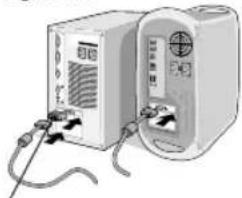
Figure A.1 Figure A.2
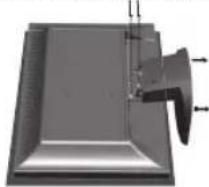
3 vis (LCD193WM)- 4 vis (LCD203WM/LCD223WM)
Figure R.2
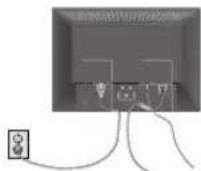
Figure R.3
NEC Display Solutions, Ltd. 4-13-23, Shibaura, Minato-Ku Tokyo 108-0023, Giappone
Contenuo
Manuale Utente
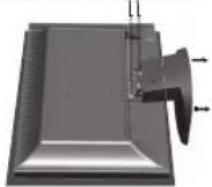
3 viti (LCD193WM)- 4viti (LCD203WM/LCD223WM)
Figura R.2
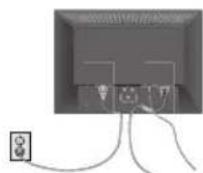
Figura R.3
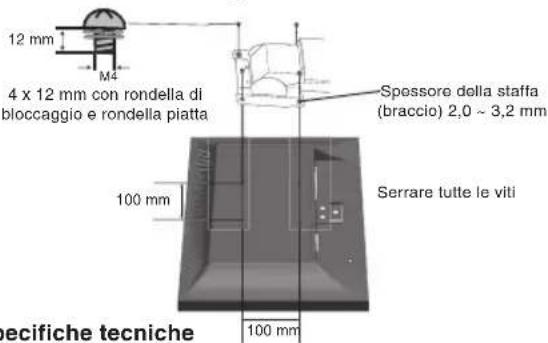
Specifiche tecniche
4 VIT1 (M4)
IDPKACATbCHK KAKUM-DMOO DETAURIM BHVTDM YCTPOOKCTBA
TOT 3HAK PDEVDPEXNCT NIOB308ATEENO TOM HTO MNEETCR
BAXH3DPOKNGHTAUMDDKCDIVATAUMIAO60VXAPAAHNO
2050VCTOOTGTAPOTANUCCOUPUPLUMTOUL
PPOHHTaTH,HTO6bH36EgKaTHo3MOxHHIXIPOOBEM
3aBHeHne H3ROTOBNTeJIa
Mn HACTOIMN NOITBEPXDAEM, YTO UEBTHOH MOHHTOP AccuSync LCD193WM (L196H5)/AccuSync LCD203WM (L206H6)/AccuSync LCD223WM (L226H7) COOTBETCTBYOT
DnpeKtNbBe CoBeta 73/23/EEC:
EN60950-1
DnpeKtNbBe Cobeta 89/336/EEC:
-EN55022
EN61000-3-2
-EN61000-3-3
-EN55024

AR46
H CODEPKNOT OTMeTKY

NEC Display Solutions, Ltd.
4-13-23, Shibaura,
Minato-Ku
Tokyo 108-0023, Japan
Copepkmoe
PykoBOOCTBO

NOHB3OBATEN
Kabenb
aynocnHaBndeocnHa
Kabelb
NNTAHNA
Kabenb
eocnHa

CD-ROM

Depkataenb
ka6e
Noctabka
OCHOBAHNA
MonHot AccuSync LCD
(NoCTaBkaOCHOBAHHe
NoDcOeDnHeHa)
B ynaKOBouHn Kopo6ke* HOBoro MOHTopa NEC AccuSync LCD DonJHo 6bIb cneJyouee:
- MoHtOp AccuSync LCD c wapHnphoonopoi
Ka6eIb aydnocnHana
KabenntaHn
Kabel BndeocnHa
PykoBOcTBoNb3OBaTeNa - DACK CD-BOM
- Π ΑCTaBka OCHOBaHnA
-Дерхателкабеня - O6raTeIbHo COxpaHnte Kopo6ky uynakOBouHyb mATEpHaI dIa
TpaHCnOPTNPOBKN HNN NpepeBO3KN MOHHTOPA.
Kpatkoe pyKOBOdTBO no Haay pa60TbI
Pcyhok A.1 Pcyhok
Macintosh (w.p. 6042)
1.2KOMPROT
Kabel nHaHn
AydnoBxoD
Pucyok B.1
PnKnHouHTeK
aydnoBbIXOy
KOMnbIOTepa
YTO6bI NOCDOeHNHTb OCHOBAHNE K NOCTABKe KKJ:
1.3aKpENHToNDCTABKY HA OCHOBAHN.3aUeKNHa NOCDTABKe DOnHHB BOITN B COOTBCTBYOoo OTBepCTHe NO CEHTpy OCHOBAHN (PucyHok S.1).
YTO6bI yCTaHOBnTB DePjXaTeNb Ka6eNr:
1.BCTaBtBe 3aueKn DepKaTeN B COOTBCTCYOooe OTBepctHe Ha NOCTABKe N, CDBHBy DepKaTeNb BHM, YCTAHOBITE ERO HA MecTO (PcynHOK S.1).IPMNHEAHNE.Y6eINTEcb, YTO 3aueKn HAdExHO dmKcnpyoT depKaTeNb.
YTO6bI NOJKNIOHTB KKD MOHNTOP AccuSync LCD K CnCTeMe,
BbINOHNHe CNeDyIOUne INHCTpyKUNn:
1.OTKIOUHTe NITaHne KOMNbIOTepa.
2.ДЯнПКаанorOBbIM bixOdom:ПОдоeMHITe15-WtbypKOBbM MHN-pa3bEm D-SUB Ka6eIaBNeOcHnHa K pa3bemy nTaTbI
BDAOeAaTepa B KOMNbotepe (PcyHOK A.1).3aTnHtne BCE BNHTbl.
DnMa: PndcoeMHnTe aanTep Ka6enIaMlTusiSync Macintosh (He BXoNT B KOMNKeT) K KombToepy.PnKIOuHte Ka6enb BuDEocrhana c15-WtbpKOBBM MmHpa3bEOM D-SUB k aanTppe Ka6enIa
MultiSync Macintosh (PcyHOK A.2).3aTnHtne BCE BNHTbl.
PIMMEAHNE. HeKToBx KOMbIeTepo Macintosh aanTep Ka6aMacintosh He Tpe6yETc.
- POKIOHHe 15-ITbIPbKObB MmHnpa3bEm D-SUB BnDeokabena n ayDIOKAbeN K COOTBECTBYOuIM pa3bEmaH Ha zADHn PAHEN MOHTopa (Pcyhok B.1). POKIOHHe HayUHKn (HE BXoT B KOIMNEKT) K COOTBETCYIooemy pa3bEmy HA nepeHn PAHEN MOHTopa (Pcyhok C.1)
4.ПОДКЛЮНЕ OДМ.KOHOU.Ka6eJI NITAHNY K MOHNTOPY, a DpyroYI - K pO3EKe TNeKTpONIHANu.NOMeCTNte Ka6eJI BnDEoCINHANA n Ka6eJI NITAHNY B DEpXeTbEL (PmCyHOK B.1).
PIMMEUHNE. Otperynuyuye nonoXeHne Ka6eN noD depKxatelem Ka6eNe, YTObI npedTbpATNb NOBpexdHe Na6eN INMOHOTOpA.
PIMMEUHNE.PekomeHaUMNo npabunbHOmy Bbl6OpkyaBnIHTAHmC.Bpa3dene"BHHMaHne"HactOnuero pyKOBoCTBa.
Pycckn-1
Pucyok C.1

PcyHOK TS.1
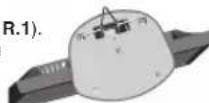
He6aP3aBnHbN aOBepXHOCTb PmcyHok R.1
"OprabI ynpaBHeHn" 3TOrO pyKOBOCTBa NJIb3OBATEJRA.
IPMUEAHHE.B cnyae kakoi-ni6o HenoiaKn 6opatntecb Ka3dny YcTpaHHeNcnpaBHOcte TTO pyKOBODCTBA NOh3bOATEn.
Haklloh
YcTaHOBHTpe6yEmbHaKIOH3KpaHaMOHToPa,epKaero pykAmC0eHXCTOpOH(PucyHOKTS.1).
OTcoeHHeHne NOCTaBKn MOHITopa nepeyctaHOBkoI
TTO6bI NOIROTOBtMOHITOP K yCTAHOBKE B pyrom NoNOKeHH
1.OTcoeHNHe Bce Ka6en.
- CHIMMTE KpbIUKy wapHnpa (PncyHOK R.1).
3.ПОLOXКITE MOHITOP экранOM BИЗ HA Hea6pa3INBHyO NOBepxHOCTb(PucyHOK R.1). - OTBePHTE 3 BnHTa (LCD193WM) mIu 4 BnHTa (LCD203WM/ LCD223WM), C nOmoBIO KOTOPbX MOHITOP KpENITcK NOCTABKe, IN CHIMNTE NOCTABKy, KAK NOKa3AHO Ha PmCyHke (PncyHok R.2).
Tenepb MOHOTOP rotOB K yctaHOBKe dpyrM cnocobm
5.ПлобсенинATEКавелNBITANHЯЕРЕмEHOROTOKAиКавелcURHATAкЗдун�анЕнELMOHOTOPA(PucyhoK R.3).
6. Nobtopnte npouecB o6paTHOM nopAKe, YTO6bI CHOBa NOCDoeDHHb NOCTabKy.
PIMMEAHNE. pyrtnecnoB3yEmble MeTObI yCTaHOBKn DOJIKHbYIOBNETBOpATb Tpe6oBaHnM VESA.
PIMMEAHNE. Co6nOdaIte oCtOpoxHOCTb npi CHATNI NOCTaBKN MOHITOPA.
CHATNE OCHOBAHNA
PIMMEUAHNE. Ipn TpaHcnpTPOBKe MOHITOPa KKID BCERda CHMMAIte OCHOBAHNE.
1.Noonoxte MOHITOP 3KpaHOM BnH3 Ha Heabpa3mBHyIO NOBepxHOCTb (PcyHOK R.1).
2.ПальцаминхмITEHA3aueKIN,YTO6blOCBO6OoNTbOCHOBAHNE.
3. OToeMHHTe OCHOBAHne.
PoeHHeHne POBnKHO KPOHTeHa
3TOTKKMOHITOPnpedHa3HaueHdIINcnoIb3OBAHnC NOBHXHBKPOHHTeHOM.
PnycTahOBke hcnonb3yTe npnlaraeMbe BNHTb (4 wT.), kAk nOKa3aHO h paCynHc. B enzai coBnOHeN npabn b6eONaCHocTN MOHITOP cneDyET yCTAHABINBaTb H kPOHtWeH, oBeCEHBAKUeM Heo6xOHNMyO yTOHmBOCTb C yETOp BECA MOHTOPa.
KKMOHHTOP CNEyET NCONBJ30BAbT ToJIbKO C PpeHa3HaueHHbIM DnA Hero KPOHHTeHOM (HanpIMep, MapKn GS).
OprAhbyynpaBneHn
KhONKn ynpabHeHHa 3kpaHbIM MeHIO Ha nepeHne NaHEn MOHITopa BbINOnHApOT CJeDyOuune FyHKn:
1.OCHOBHAn FyHKnI np HaxaTHK KxdoK KHONK
POnMeHIO(Adjust)(HacTpoKa)
AUDIO (3BYK)
PeynpOBKa ypOBHr rpoMKoCTn 3Byka DnHaAMNKOB n HayuHkOB.
IraOTKIOHHeHRA 3Byka B DnHaAMKax HAKMITE KHOKNy AUTO/RESET.
BRIGHTNESS (RPKOCTb)
HactpoKa 06eepKoCTn 3o6paKeHHN n fOHa 3KpaHa.
CONTRAST (KOHTPACTHOCTb)
HaCtpoKa npKoCTn 306paXeHn no OTHoWeHnK pOHy.
AUTO AUTO CONTRAST (ABTOKOHTPACTHOCTb)
Koppekunna 3n06paekhenra, COOTBETCTByoHcero HecTaHApTbHM BXODHBIM BNDEOCHRHaJAM.
AUTO AUTO ADJUST (ABTOHACTPOJKA)
AROMaTnueckn HAcTpnoKa npamaTePoB nONoKeHn, roPn3oHTaIbHO rpo3mepu nHTKocTN.
C NOMOUII 3aDHHbXnHITp CBETOB (9300/7500/sRGB/USER/NATIVE) MOKHO Bb6paTb HxKyHOtPOnkyCBETA.
COLOUR RED (KPACHbIN)
YBENHENHEI INM YMBHSEHNE KPACHORI BETA.N3MEHENHE 6yETOTOBPAXATCBNAHKPANE.
G COLOUR GREEN (3EJIeHbI)
YBENHHEH NIN YMEHBSEHNE 3EHNHO 8BETA. 3MENHEH6yET OTO6PAKATcba HA 3KpAne.
B COLOUR BLUE (CNHNI)
YBENHHe Hnn yMeHbHHe NcHrO cBaTa. 3MeHHe He 6yTeT OTo6paKaTbCn Ha 3KpAHe.
TOOL (MHCTPYMEHTbl)
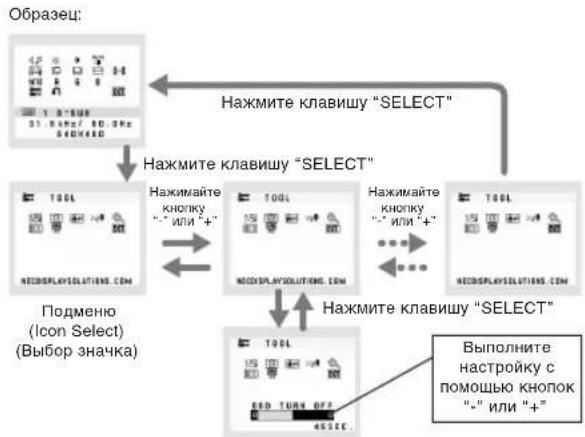
PnBb6ope TOOL (HCHTPYMEHTbl) MOXHO BOITN B NOMeHIO.
FACTORY PRESET (3ABODCKNE HACTPOIKN)
Bb6op npaMetpa 3abOcknx HAcTpoek No3BonRET BbNOHNHb C6poc BceX npaAMetPO OSD 3nAChEny, yCTAOHBENHbIX Ha 3AbOE. DnI 3TOrEOxOxIMNo B TeeyHe HeCKoNkXcKyHd UdepKXBt HaxATOn KhoNky RESET (C6Poc).OTeNbHbE HAcTPOKNMOKHO C6pocHTB, BbDEINb INx N HxAB KhoNky RESET.
EXIT (BblXO)
PnBb6pe KhoNk EXIT (BblXOD) MoXHO 3aKpbTb MeHIOOSD/ noDMHeIO.
LANGUAGE (R3blK)
MeHIO npaMeTPOB OSD nepebeDeHbHa DeBrtb3bIKOB.
OSD TURN OFF (OTKJIIOUHEHME MEHIO OSD)
MeHIO napameTPOB OSD 6ydet octabatcna Ha 3kahe, noka OHO mCNObIyETc. B noDMHeIO OSD Turn Off (OtKnOHeHne 3KPAHORIO HnIKATOPa) MOHO Bb6Pata BPMAO XOJDAHNA MOHTOPa NOCE NOCEHrO HAKATN KONIKI DO 3AkpbTIN MEOI napameTPOB OSD.PpeBaPntBHe 3aHaHHBe 3HAeHHN:10-120 cekHyD C warrO B 5 cekHyD.
OSD LOCK OUT (BJOKIPOBKA MEHIO OSD)
C nomoubno 3toro napametpa moxho noonnoctb 3abnokpoBaTb ODCyTN K0 BCEM yhknunnapametpobosd, kPOMe Brinness (HpKocmb) N Contrast (KoHTpactHOCTb). Pnp nonblteke AKBn3aun npamapetpoosbOSD b pexmme6bnokpOBKn NOBHTTCOooBHeHye, yka3bibaHOue, yTO MeHO OSD 3abNOkPOBAHbI. YTObI BKIOuHTb fyHKUHO 6bnOKPOBKn MeHO OSD, HAXMITE KONKY "AUTO/ RESET", 3aTe + " uJepKNaBte oBe KHONK HAKaTbIM. TTObI OKNHObTFyHKUHO 6bnOKPOBKn MEHO OSD, HAXMITE KONKY "AUTO/ RESET", 3aTe + " uJepKNaBte oBe KHONK HAKaTbIM
RESOLUTION NOTIFIER (NOKA3ATEJIb PA3PEUHEHNR)
Ecnn Bb6pAno 3HaBHeNE ON (BKJI), Ype3 45 cekyHn Ha 3KpaHe NOBnHTcR COO6HeNE O TOM, YTO npaMeTp pa3peEweHN OTNnAeTcOT ONTHMaJbHoro paapeEweHN.
EXPANSION (YBEJIINUHEHNE)
Bb6op pexma ybenHeHn 1306paKeHH.
FULL (IOINH): N3o6paKeHHy BEnHnBaETc DO pa3MePA
1440 x 900 (LCD193WM) nnn 1680 x 1050 (LCD203WM/
LCD223WM). BHE 3aBACIMOCTH OT pa3peHHeHH.
ASPECT (OFOMAT): N3o6paKeHHeY bEnHnBaETc 6e3
n3MeHHn nponpoun.
DDC/
BKNIOHHe HIN OTKIOUeHHe DByXCTOpOHrO ynpaBHeHMRMOHTOPOM.
MONITOR INFO (MHΦOPMALNIA O MOHITOPE)
HOpMaIOHOHomePOMeIOIINCEpHOMHOmePOHITOPa.
PpeynpekdeHne OSD
MeHIO npEynpeXeHNr OSD nCye3aIOT npn HaxkTm KhoKIN SELECT.
NO SIGNAL (HET CINHANA): 3a pyHKmBbdaet npDynpKJENHE m npOCTCBMn CINHana. OKHO No Signal (Het CINHana) NOBnTcER pN BKNIOeHM nITAHN, INMeHN HXBDHO CINHANA IN HEAKTNBHOM BIDEO30bpKHeHH.
RESOLUTION NOTIFIER (NOKA3ATEJIb PA3PEUHEHRA): 3Ta
Функиь ВдДает рпсдгпжддене O HeO6xOДIMOCN NcIOLb3OBAHn OITTNIMHsOBAHORo paPseWEHn.OKH Resolution Notifier (TOKa3aTeB papeWEHn) NOBnBaTcR pN BKJIIOHEHN NITAHN, INMHeEHn BXOJDHO CmHnA, HENPAHbHbOM papeWEHn BBeEOCHnA.3TyФункИ MOKHO OKNIOHHTB MHeHIO TOOL (MHCTPYMEHTbl).
OUT OF RANGE (BHE DONYCTMIMO O DNANA3OHA): 3Ta
ФИКИЙВБДАЕТPEKOMEHDAZIMNOINOCNIOBSTAHINOONTHMINDPOBOHANHOI RAPDESEWHEJI NACHCTOTBI PEREGHOPAJIIN
OKHO Out Of Range (BHe donyctmoro dana30Ha)
NOBJIETCRA PnB BKJIOH CHEN NITAHAN, IM3MEHNH BXO.HORO CINHANA, HENPABINBJCHM CXHNOHPAUNA BINDEOCINHANA.
Pycckn-3






NEC
- Congratulations!
- Ergonomics
- Energy
- Emissions
- Ecology
- Manufacturer's Recycling and Energy Information
- Disposing of your old NEC product
- Energy Saving
- WEEE Mark (European Directive 2002/96/EC)
- Within the European Union
- Outside the European Union
- Chinese RoHS-information relevant for Chinese market
- CAUTION
- Declaration of the Manufacturer
- Contents
- Quick Start
- Specifications
- Tilt
- Remove Monitor Stand for Mounting
- Removing the Base
- Connecting a Flexible Arm
- Controls
- OSD structure
- AUDIO
- BRIGHTNESS
- CONTRAST
- AUTO AUTO CONTRAST
- AUTO AUTOADJUST
- LEFT/RIGHT
- DOWN/UP
- H.SIZE
- FINE
- NATIc COLOUR CONTROL SYSTEMS
- COLOUR RED
- G COLOUR GREEN
- B COLOUR BLUE
- TOOL
- FACTORY PRESET
- EXT EXIT
- LANGUAGE
- 图 OSDTURNOFF
- OSD LOCK OUT
- xuRESOLUTION NOTIFIER
- EXPANSION
- DDC DDC/CI
- MONITOR INFO
- OSD Warning
- WARNING
- VORSICHT
- Contenido
- Sommaire
- Contenuo
- Specifiche tecniche
- 3aBHeHne H3ROTOBNTeJIa
- Copepkmoe
- Kpatkoe pyKOBOdTBO no Haay pa60TbI
- Haklloh
- OTcoeHHeHne NOCTaBKn MOHITopa nepeyctaHOBkoI
- CHATNE OCHOBAHNA
- PoeHHeHne POBnKHO KPOHTeHa
- OprAhbyynpaBneHn
- AUDIO (3BYK)
- BRIGHTNESS (RPKOCTb)
- CONTRAST (KOHTPACTHOCTb)
- AUTO AUTO CONTRAST (ABTOKOHTPACTHOCTb)
- AUTO AUTO ADJUST (ABTOHACTPOJKA)
- COLOUR RED (KPACHbIN)
- G COLOUR GREEN (3EJIeHbI)
- B COLOUR BLUE (CNHNI)
- TOOL (MHCTPYMEHTbl)
- FACTORY PRESET (3ABODCKNE HACTPOIKN)
- EXIT (BblXO)
- LANGUAGE (R3blK)
- OSD TURN OFF (OTKJIIOUHEHME MEHIO OSD)
- OSD LOCK OUT (BJOKIPOBKA MEHIO OSD)
- RESOLUTION NOTIFIER (NOKA3ATEJIb PA3PEUHEHNR)
- EXPANSION (YBEJIINUHEHNE)
- DDC/
- MONITOR INFO (MHΦOPMALNIA O MOHITOPE)
- PpeynpekdeHne OSD
- NEC
Brand : NEC
Model : AccuSync LCD193WM
Category : Monitor