 ManualGo.com
TH8320R1003U - Thermostat HONEYWELL - Free user manual and instructions
Find the device manual for free TH8320R1003U HONEYWELL in PDF.



Download the instructions for your Thermostat in PDF format for free! Find your manual TH8320R1003U - HONEYWELL and take your electronic device back in hand. On this page are published all the documents necessary for the use of your device. TH8320R1003U by HONEYWELL.
USER MANUAL TH8320R1003U HONEYWELL
User Guide TMWith your new thermostat, you can:
- Connect to the internet to monitor and control your heating/cooling system and receive alerts by email (requires optional RedLINK Internet Gateway)
- View outdoor temperature and humidity (requires optional Wireless Outdoor Sensor)
- Control humidification, dehumidifcation or ventilation (TH8321 model) Your new thermostat also provides:
- Adaptive Intelligent Recovery—over time, the VisionPRO thermostat “learns” how long it takes your system to reach the temperature you want. It turns on the heating or cooling system earlier to make sure you’re comfortable at the time you expect.
- Dealer information on the screen—making it easy for you to contact your dealer for service.
- Vacation and holiday scheduling—allowing you to program a setback temperature to save energy while you are away.
- Keypad lockout to prevent unauthorized changes.
- Equipment status—provides on/off status of all equipment controlled by the thermostat.
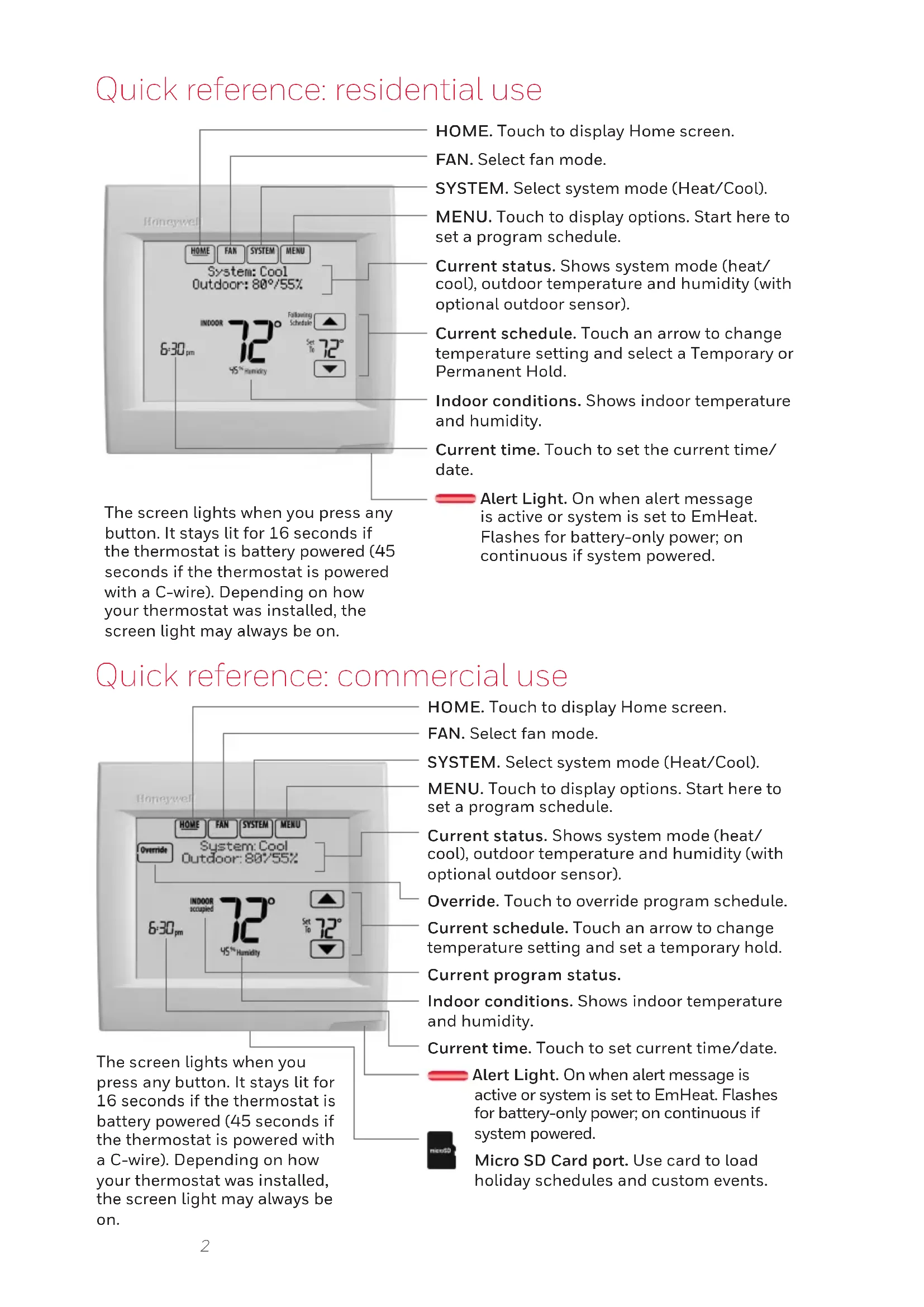
- Preferences—allowing you to customize the thermostat to your desired settings. Welcome Congratulations on your purchase of a Honeywell touch screen programmable thermostat. When used with the optional RedLINK Internet Gateway, you can remotely monitor and control the heating and cooling system in your home or business—you can stay connected to your comfort system wherever you go. Honeywell’s Total Connect Comfort is the perfect solution if you travel frequently, own a vacation home, a business or manage an investment property or if you are simply looking for peace of mind. Features of your VisionPRO thermostat69-2761EFS—03 1 Programming and Operation Quick reference ....................................................2 Setting the time/date .........................................3 Setting the fan ......................................................3 Setting system mode .........................................4 Preset energy-saving schedules ...................4 Adjusting program schedules ........................5 Schedule overrides ..............................................6 Menu Options Viewing equipment status ...............................7 Setting vacation, holiday, and events .......... 7 Setting holiday/event schedules: commercial use ....................................................8 Setting humidification and dehumidification ...............................................11 Setting ventilation ............................................ 12 Setting preferences ..........................................13 Cleaning the thermostat screen ................. 14 Security settings ...............................................14 Viewing dealer information ..........................15 Advanced features ............................................15 Appendices Installer options ................................................16 Replacing batteries .......................................... 16 Temperature and humidity display ...........18 Optional accessories .......................................19 Troubleshooting ................................................20 Regulatory information .................................. 21 Table of contents69-2761EFS—03 2 Quick reference: residential use Quick reference: commercial use HOME. Touch to display Home screen. FAN. Select fan mode. SYSTEM. Select system mode (Heat/Cool). MENU. Touch to display options. Start here to set a program schedule. Current status. Shows system mode (heat/ cool), outdoor temperature and humidity (with optional outdoor sensor). Current schedule. Touch an arrow to change temperature setting and select a Temporary or Permanent Hold. Indoor conditions. Shows indoor temperature and humidity. Current time. Touch to set the current time/ date. Alert Light. On when alert message is active or system is set to EmHeat. Flashes for battery-only power; on continuous if system powered. The screen lights when you press any button. It stays lit for 16 seconds if the thermostat is battery powered (45 seconds if the thermostat is powered with a C-wire). Depending on how your thermostat was installed, the screen light may always be on. HOME. Touch to display Home screen. FAN. Select fan mode. SYSTEM. Select system mode (Heat/Cool). MENU. Touch to display options. Start here to set a program schedule. Current status. Shows system mode (heat/ cool), outdoor temperature and humidity (with optional outdoor sensor). Override. Touch to override program schedule. Current schedule. Touch an arrow to change temperature setting and set a temporary hold. Current program status. Indoor conditions. Shows indoor temperature and humidity. Current time. Touch to set current time/date. Alert Light. On when alert message is active or system is set to EmHeat. Flashes for battery-only power; on continuous if system powered. Micro SD Card port. Use card to load holiday schedules and custom events. The screen lights when you press any button. It stays lit for 16 seconds if the thermostat is battery powered (45 seconds if the thermostat is powered with a C-wire). Depending on how your thermostat was installed, the screen light may always be on.3 69-2761EFS—03 1 Touch the current time. The screen displays Select Option. 2 Touch Time or Date, then touch Select. 3 Touch s or t until the proper time/ date is displayed. 4 Touch Done to save or Cancel to ignore changes. 5 Touch Home to redisplay the Home screen. NOTE: The date is not shown on the home screen; however, it should be set to allow the thermostat to adjust time automatically for daylight saving time and for other features such as vacation hold. MCR34092 MCR34155 Select Option Time Date MCR34094 Please Set Time :30 PM Setting the fan Setting the time/date 1 Touch FAN to display fan settings. 2 Touch On, Auto, Circ, or Follow Schedule. 3 Touch Done to save and exit. On: Fan is always on. Auto: Fan runs only when the heating or cooling system is on. Circ: Fan runs randomly about 35% of the time (residential use only). Follow Schedule: Fan controlled by program (see pages
NOTE: In commercial use, touch Auto or On to temporarily override the programmed fan schedule. MCR34096 MCR34097 On Auto Circ69-2761EFS—03 4 Setting system mode 1 Touch SYSTEM to display system settings. 2 Touch desired option: Heat: Controls only the heating system. Cool: Controls only the cooling system. Off: Heating/cooling systems are off. Auto: Selects heating or cooling depending on the indoor temperature. Em Heat (heat pumps with aux. heat): Controls auxiliary/emergency heat. Compressor is locked out. 3 Touch Done to save and exit. NOTE: The Auto and Em Heat system settings may not appear, depending on how your thermostat was installed. MCR34099 Heat Cool Auto Off MCR34098 Preset energy-saving schedules This thermostat uses default Energy Saver settings that can reduce your heating/cooling expenses. To customize settings, see next page. Wake 6:00 am 70° 78° 70° 78° Leave 8:00 am 62° 85° 62° 85° Return 6:00 pm 70° 78° 70° 78° Sleep 10:00 pm 62° 82° 62° 82° Cool (Mon-Fri)Start time Heat (Mon-Fri)Period Heat (Sat-Sun) Cool (Sat-Sun) Residential Use Occupied 1 8:00 am 70° 75° On Unoccupied 1 10:00 pm 55° 85° Auto Occupied 2* 12:00 am 70° 75° On Unoccupied 2* 12:00 am 55° 85° Auto CoolStart time HeatPeriod Fan Commercial Use
- Period 2 is cancelled by default. If you activate it, the values shown above are default settings.5 69-2761EFS—03 Adjusting program schedules 1 Touch MENU. 2 Select Edit Schedule to display Use Scheduling Assistant?
- Touch Yes to create a schedule by answering simple questions.
- Touch No to manually create a program schedule. See below. NOTE: To reduce costs, use the pre-set Energy Saver settings described on page 4. MCR34100 MCR34101 Edit Schedule View Schedule MCR34102 Use Scheduling Assistant? 3 Select the days to schedule, touch Next. 4 Touch s or t to set your Wake time for selected day(s). 5 Touch s or t to set Heat and Cool temperatures for the Wake period. 6 Touch other time periods (Leave, Return, Sleep) to set time and temperatures for each. 7 Touch Done to save and exit (Touch Cancel to exit without saving changes). NOTE: Touch Cancel Period to eliminate any unwanted time period. NOTE: Touch Fan Setting to customize fan settings for any time period. MCR34151 Select the days to schedule MCR34152 Set Wake time & temperature69-2761EFS—03 6 Overriding schedules: residential use Overriding schedules: commercial use 1 Touch s or t to adjust the temperature (right side of screen) and the Hold Until time (left side). The schedule will resume when the Hold Until time expires. 2 Select Permanent Hold to keep the same temperature until you change it or resume the program schedule. Touch Cancel Hold at any time to resume the program schedule. MCR34103 Temporary Hold Permanent Hold Touch s or t to adjust the temperature. It will be maintained until the hold time you set.
- To change the hold time, touch the Hold Until arrow buttons. This time can be adjusted up to the maximum time set by the installer.
- Touch Override to use a pre- set occupied temperature if a person uses the room during an unoccupied period. The new temperature will be maintained for 1 hour and can be adjusted up to the maximum time set by the installer. The programmed schedule will resume when the override timer expires. Touch Cancel Hold at any time to resume the program schedule. MCR34169
MCR341067 69-2761EFS—03
Viewing equipment status Setting vacation hold: residential use 1 Touch MENU. 2 Select Equipment Status. 3 Touch s or t to view the status of all the equipment your thermostat is controlling. Depending on how your thermostat was installed, the Equipment Status screen can report data about the following systems:
- Thermostat information. MCR34100 MCR34108 Equipment Status Date/Time MCR34109 Heat Stage 1: Off Cool Stage 1: On This feature helps you save energy while you are away, and restores comfortable settings just before you return home. 1 Touch MENU. 2 Select Vacation Mode. 3 Touch s or t to select the date you leave, then touch Next for further scheduling details, including times of day, temperature settings, return date, and return settings. 4 Review your selections on the last display, and touch Done to save your settings. Touch Cancel to ignore the changes. MCR34100 MCR34110 Vacation Mode Equipment Status MCR34111 Date You Leave Jul 17, 2012 MCR34112 Jul 25 - Jul 26 Heat: 72 Cool: 7869-2761EFS—03 8 This feature helps you conserve energy when the workplace is unoccupied for special events and holidays. 1 Touch MENU. 2 Select Holiday Schedule. 3 Select the item you want to schedule and touch Next for further scheduling details.
- Custom Events lets you set up other days for special schedules.
- US and Canadian Holiday options let you select from a list of holidays commonly observed in each country. 4 Make selections as prompted on each screen. For more information, see the next page. 5 Touch Done to save your settings. MCR34113 Holiday Schedule Holiday Mode MCR34114 Custom Events US Holidays MCR34100 This feature lets you customize temperature settings to be maintained during a specific event. You can set up an event for a specific date or day in a month. The thermostat resumes normal scheduling after the event. 1 Select Custom Events from the Holiday Schedule menu. 2 Select Create New Event. 3 Select Specific Date or Month/Weekday.
- For Specific Date, you are prompted to select the event’s start date, settings, end date, and frequency.
- For Month/Weekday, you are prompted to select the month, day of the week, week of the month, settings, length of event, and frequency for the event. 4 Review the settings and touch Done to save them. Touch Cancel to ignore the changes. MCR34114 Custom Events US Holidays MCR34117 Select Occurence Specific Date MCR34118 Schedule adjusted to 62 in heating MCR34116 Create New Event Setting holiday/event schedules: commercial use Setting custom events: commercial use9 69-2761EFS—03 This feature lets you customize temperature settings to be maintained on specified national holidays. The thermostat resumes normal scheduling between selected holidays. 1 Select US Holidays or Canadian Holidays from the Holiday Schedule menu. 2 Select Add/Edit Holidays. A list of national holidays is displayed. 3 Touch the check box next to each holiday for which you want to maintain specific settings, (Touch s or t to scroll through the holiday list.) then touch Next. Set the holiday schedule for Occupied or Unoccupied temperatures, depending whether the building will be in use. 4 Touch s or t to select the Heat and Cool temperatures. 5 Review the settings and touch Done to save them. Touch Cancel to ignore changes. MCR34119 Add / Edit Holidays MCR34120 Select US holidays New Year’s Day MCR34121 Temperature During Holiday Setting holiday override: commercial use Setting holiday schedule: commercial use This feature lets you customize temperature settings to be maintained from now until a specified date. The thermostat resumes normal scheduling on the date you select. 1 Touch MENU. 2 Select Holiday Mode to display Temperature While Away. 3 Touch s or t to select the Heat and Cool temperatures, then touch Next to select return date. 4 Review the settings and touch Done to save them. Touch Cancel to ignore the changes. NOTE: The cool temperature can only be set higher than the unoccupied program setting and the heat temperature can only be set lower than the unoccupied program setting. MCR34122 Holiday Mode Equipment Status MCR34123 Temperature While Away
MCR3410069-2761EFS—03 10
Initiating occupancy mode: commercial use This feature keeps temperature at an energy-saving level until you touch Press HERE to Start Occupancy. When you arrive, touch the message to maintain a comfortable temperature while the room is occupied. Touch the s or t buttons to set the temperature or the Hold Until time. The temperature is maintained until the time you set. Temperature returns to an energy- saving level after the timer expires, or the “Occupied” period ends. NOTE: This feature is available only when programmed by the installer. M34127 Press HERE to Start Occupancy Remote setback (commercial use) During Occupied program periods, an occupancy sensor directs the thermostat to go to REMOTE SETBACK settings when the room is empty. If someone is in the room, it uses the Occupied program period settings. The thermostat ignores the occupancy sensor during Unoccupied program periods. If the thermostat is set up to be non-programmable, the sensor directs the thermostat to go to REMOTE SETBACK settings when the room is empty. If someone is in the room, then it follows the settings set by the user. Depending on how your thermostat was installed, it may delay for up to 30 minutes before switching to REMOTE SETBACK settings. This delay allows the room to stay comfortable if the room is unoccupied for only a short time.11 69-2761EFS—03 Adjusting humidification settings 1 Touch MENU and select Humidification. 2 Select Auto. 3 Touch s or t to select humidity level. 4 Touch Done to save your settings. Touch Cancel to ignore changes. 5 If frost or condensation appears on the windows, touch MENU, then select Window Protection. (Use a lower number to prevent frost or condensation. Use a higher number if indoor air is too dry.) NOTE: Window Protection is available only if an outdoor air sensor is installed. NOTE: The thermostat controls humidification and dehumidification as needed to maintain the desired humidity level. Depending on how your thermostat was installed, the thermostat may maintain a 15% separation between humidification and dehumidification settings. MCR34128 Humidification Window Protection MCR34129 Humidification Off Auto MCR34100 Adjusting dehumidification settings: residential use This feature can control a dehumidifier or use your air conditioner to reduce humidity. 1 Touch MENU and select Dehumidification. 2 Select Auto. 3 Touch s or t to select humidity level. 4 Touch Done to save your settings. Touch Cancel to ignore changes. NOTE: If your air conditioner is used to control humidity, the temperature may drop up to 3° F below your temperature setting until humidity reaches the desired level. MCR34130 Dehumidification Equipment Status MCR34131 Dehumidification Off Auto
MCR3410069-2761EFS—03 12
Adjusting dehumidification settings: commercial use This feature can control a dehumidifier or use your air conditioner to reduce humidity. 1 Touch MENU and select Dehumidification. 2 Select Auto. 3 Touch s or t to select humidity level. 4 Touch Done to save your settings. Touch Cancel to ignore changes. If your air conditioner is used to control humidity, the thermostat may use the following methods to maintain humidity:
- Cool from 1° to 5° F lower than your temperature setting.
- Run cooling for the minimum “on” time to reduce humidity.
- Run cooling and heating at the same time to reduce humidity without lowering the temperature. MCR34130 Dehumidification Equipment Status MCR34131 Dehumidification Off Auto MCR34100 1 Touch MENU, and select Ventilation. 2 Select Mode, Temporary Boost, or Lockout, then select appropriate options. (For options, see next page.) 3 Touch Done to save your settings. Touch Cancel to ignore changes. MCR34132 Ventilation Equipment Status MCR34133 Mode Temporary Boost MCR34134 MCR34100 Adjusting ventilation settings13 69-2761EFS—03 Mode: Auto: Ventilation runs as programmed by the installer. Off: Ventilation remains off unless turned on using the timer. On: Ventilation is always on. Temporary Boost: Touch s or t to select how long to run ventilation temporarily. To turn it off, set it to zero. Lockout: Touch s or t to select Yes or No, then touch Next. Select Yes to prevent ventilation from running during the Sleep or Unoccupied (commercial) program periods or when outdoor conditions exceed values set by the installer. MCR34135 Ventilation Mode Off Auto On MCR34136 Run Ventilation For 60 minutes MCR34137 Lockout in Sleep Period: No Setting preferences Ventilation options Preference menu options let you select how the thermostat displays information or responds to certain situations. 1 Touch MENU and select Preferences. 2 Select an option and follow prompts:
- Reminders to change filters
Cleaning the thermostat screen When you select the Clean Screen option, the screen is locked so you don’t accidentally change settings while you clean. 1 Touch MENU. 2 Select Clean Screen. A prompt asks if you want to clean the screen for 30 seconds. 3 Touch Yes. A countdown timer displays elapsed time until the screen is reactivated. NOTE: Do NOT spray any liquid directly on the thermostat. Spray liquids onto cloth, then use the damp cloth to clean the screen. Use water or household glass cleaner. Avoid abrasive cleansers. MCR34140 Clean Screen Security Settings MCR34141 Clean screen for 30 seconds? MCR34100 Adjusting security settings You can adjust security options to prevent unauthorized changes to system settings. 1 Touch MENU and select Security Settings. 2 Select an option and follow prompts: Unlocked: Full access allowed. Partially locked: Only temperature can be changed. Fully locked: No access allowed. NOTE: If you choose to use a password for additional security, write it here for reference: MCR34142 Security Settings Dealer Information MCR34143 Change Lock Mode Create Password M34197 Lock ModeUnlocked
MCR3410015 69-2761EFS—03
Viewing dealer information Check dealer information if you need to contact your installer for maintenance, repairs, or upgrades. 1 Touch MENU. 2 Select Dealer Information. 3 Scroll through the displayed information. 4 Touch Done to return to the menu. MCR34162
555-555-5555 MCR34022 Dealer Information Installer Options MCR34100 Advanced features Adaptive Intelligent Recovery (residential use only)—Over time, the VisionPRO
thermostat “learns” how long it takes your system to reach the temperature you want. It turns on the heating or cooling system earlier to make sure you’re comfortable at the time you expect. The thermostat displays “In Recovery” when it turns the system on early. Dehumidification Away Mode—Your system can be set to control indoor climate while your home is vacant during the humid season. Before you leave, touch MENU, then select Dehum Away Mode. Temperature and humidity will be kept at levels that protect your home and possessions. When you return, touch Cancel to resume normal operation. Compressor Protection—The thermostat keeps the compressor off for a few minutes before restarting, to prevent equipment damage. During this “off” time, the message “Wait” is displayed on screen. Pre-occupancy Purge (commercial use only)—This feature turns on the fan 1 to 3 hours before each “occupied” time period, to provide a comfortable work environment when you arrive.69-2761EFS—03 16 Installer options Replacing thermostat batteries Installer options require a password and should only be changed by a qualified technician. To prevent unintended changes or damage to your equipment, do not change these options yourself. MCR33976 Installer Options MCR33977 Enter password
MCR34100 MCR34144 Replace Batteries Press HERE for info Install fresh batteries when the REPLACE BATTERIES warning begins flashing. The warning flashes about 60 days before batteries are depleted. Even if the warning does not appear, it is recommended to replace batteries once a year, or before leaving home for more than a month. Press the release button on top of the thermostat to remove it from the wall plate. Install 4 fresh AA alkaline batteries. Button Thermostat Wallplate Thermostat (back view)
M3407117 69-2761EFS—03
Replacing outdoor sensor batteries Replace batteries in your outdoor sensor when a warning appears on the thermostat screen, about 60 days before batteries are depleted. To replace the batteries: 1 Remove the sensor from the bracket. 2 Detach cover. 3 Install 2 fresh AA lithium batteries. 4 Replace cover and set sensor back into bracket. The outdoor sensor will restore communication with the thermostat a few seconds after new batteries are installed. M32988A MCR32937A MCR34145 Outdoor Sensor has low batteries Replacing indoor sensor batteries Replace batteries in your indoor sensor when a warning appears on the thermostat screen, about 60 days before batteries are depleted. When the sensor status light begins flashing red, battery power is critically low and will be depleted within 2–3 weeks. During normal operation, the status light remains off. To replace the batteries: 1 Remove the sensor from wallplate. 2 Install 2 fresh AAA alkaline batteries. If the status light flashes green, batteries are good; if it flashes red, you must use fresh batteries. 3 Attach sensor to wallplate. The sensor will restore communication with the thermostat a few seconds after new batteries are installed. MCR34146 Indoor Sensor has low batteries MCR32933
M32990A69-2761EFS—03 18
Using the temperature display In some circumstances, the temperature displayed on the Home screen may not match the temperature near the thermostat. If your system is set up to use remote indoor sensors, it may be reading a sensor in another location. Temperature reading depends on location of sensor MCR33985 MCR34163 Using the humidity display In some circumstances, the humidity displayed on the Home screen may not match humidity near the thermostat. Some systems are set up to use two sensors, one to control humidification, the other for dehumidification. These sensors are often installed in different locations. Depending on how your thermostat was installed, the thermostat Home screen will display humidity readings from only one sensor. Humidity reading depends on location of sensor.19 69-2761EFS—03 Optional accessories Portable Comfort Control If you have only one thermostat, you move this remote control from room to room (like a portable thermostat), to make sure the temperature is comfortable in the room you’re using. If you have multiple thermostats, you can view and adjust the temperature in each room from your armchair. Wireless Outdoor Sensor With a wireless outdoor sensor, your VisionPRO
thermostat can display outside temperature and humidity. This information can also be displayed on your handheld Portable Comfort Control. Wireless Indoor Sensor If an indoor sensor is installed, your VisionPRO thermostat will respond to temperature and humidity readings at the sensor location—providing comfort where the sensor is located. With multiple sensors, the thermostat can average temperature readings from each, to optimize comfort throughout your home. RedLINK™ Internet Gateway The Honeywell RedLINK Internet Gateway gives you remote access to your VisionPRO
thermostat from the web, smart phone or tablet. You can view or adjust indoor temperature, system mode and other settings. The Gateway can also send alerts to as many as 6 email addresses to notify you if a problem occurs. Wireless Entry/Exit Remote This device mounts beside your door for one-touch control. Press AWAY to control to an energy saving temperature when you leave home. Press HOME to control to a comfortable temperature when you return. To change pre-set temperatures, go to MENU > Entry/Exit Remote. Wireless Vent and Filter Boost Remote This device mounts anywhere in your home (typically bathroom or kitchen) for convenient, on-demand ventilation. For increased ventilation, select 20, 40, or 60 minutes.69-2761EFS—03 20 Troubleshooting If you have difficulty with your thermostat, try these suggestions. Most problems can be corrected quickly and easily. Screen is blank • Check circuit breaker and reset if necessary.
- Make sure power switch at heating and cooling system is on.
- Make sure furnace door is closed securely.
- If thermostat is battery powered, make sure fresh AA alkaline batteries are installed correctly (see page 16). Screen is difficult to read
- Change screen brightness using Preferences menu (see page 13). Red light is on • If thermostat is in Emergency Heat mode, the red light is normal. It shows that the thermostat is in Emergency Heat mode.
- If thermostat is not in Emergency Heat mode, an alert is active. Check message on the thermostat screen. Heating or cooling system does not respond
- Touch SYSTEM to set system to Heat. Make sure the temperature is set higher than the Inside temperature.
- Touch SYSTEM to set system to Cool. Make sure the temperature is set lower than the Inside temperature.
- Check circuit breaker and reset if necessary.
- Make sure power switch at heating & cooling system is on.
- Make sure furnace door is closed securely.
- If “Wait” is displayed, the compressor protection timer is on. Wait 5 minutes for the system to restart safely, without damaging the compressor. Up to 5-year limited warranty Honeywell warrants this product, excluding battery, to be free from defects in the workmanship or materials, under normal use and service, for a period of three (3) years from the date of purchase by the consumer. If at any time during the warranty period the product is determined to be defective or malfunctions, Honeywell shall repair or replace it (at Honeywell’s option). If the product is defective, (i) return it, with a bill of sale or other dated proof of purchase, to the place from which you purchased it; or (ii) call Honeywell Customer Care at 18004681502. Customer Care will make the determination whether the product should be returned to the following address: Honeywell Return Goods, Dock 4 MN103860, 1885 Douglas Dr. N., Golden Valley, MN 55422, or whether a replacement product can be sent to you. This warranty does not cover removal or reinstallation costs. This warranty shall not apply if it is shown by Honeywell that the defect or malfunction was caused by damage which occurred while the product was in the possession of a consumer. Honeywell’s sole responsibility shall be to repair or replace the product within the terms stated above. HONEYWELL SHALL NOT BE LIABLE FOR ANY LOSS OR DAMAGE OF ANY KIND, INCLUDING ANY INCIDENTAL OR CONSEQUENTIAL DAMAGES RESULTING, DIRECTLY OR INDIRECTLY, FROM ANY BREACH OF ANY WARRANTY, EXPRESS OR IMPLIED, OR ANY OTHER FAILURE OF THIS PRODUCT. Some states do not allow the exclusion or limitation of incidental or consequential damages, so this limitation may not apply to you. THIS WARRANTY IS THE ONLY EXPRESS WARRANTY HONEYWELL MAKES ON THIS PRODUCT. THE DURATION OF ANY IMPLIED WARRANTIES, INCLUDING THE WARRANTIES OF MERCHANTABILITY AND FITNESS FOR A PARTICULAR PURPOSE, IS HEREBY LIMITED TO THE THREEYEAR DURATION OF THIS WARRANTY. Some states do not allow limitations on how long an implied warranty lasts, so the above limitation may not apply to you. This warranty gives you specific legal rights, and you may have other rights which vary from state to state. If you have any questions concerning this warranty, please write Honeywell Customer Care, 1985 Douglas Dr, Golden Valley, MN 55422 or call 18004681502. When the product is registered on-line at www.warranty. Honeywell.com, the standard manufacture coverage stated above extends to a period of (5) years.21 69-2761EFS—03 Regulatory information FCC Compliance Statement (Part 15.19) (USA only) This device complies with Part 15 of the FCC Rules. Operation is subject to the following two conditions: 1 This device may not cause harmful interference, and 2 This device must accept any interference received, including interference that may cause undesired operation. FCC Warning (Part 15.21) (USA only) Changes or modifications not expressly approved by the party responsible for compliance could void the user’s authority to operate the equipment. FCC Interference Statement (Part 15.105 (b)) (USA only) This equipment has been tested and found to comply with the limits for a Class B digital device, pursuant to Part 15 of the FCC Rules. These limits are designed to provide reasonable protection against harmful interference in a residential installation. This equipment generates uses and can radiate radio frequency energy and, if not installed and used in accordance with the instructions, may cause harmful interference to radio communications. However, there is no guarantee that interference will not occur in a particular installation. If this equipment does cause harmful interference to radio or television reception, which can be determined by turning the equipment off and on, the user is encouraged to try to correct the interference by one of the following measures:
- Reorient or relocate the receiving antenna.
- Increase the separation between the equipment and receiver.
- Connect the equipment into an outlet on a circuit different from that to which the receiver is connected.
- Consult the dealer or an experienced radio/TV technician for help. Equipment interface module, thermostats and outdoor sensor To comply with FCC and Industry Canada RF exposure limits for general population/ uncontrolled exposure, the antenna(s) used for these transmitters must be installed to provide a separation distance of at least 20 cm from all persons and must not be co-located or operating in conjunction with any other antenna. Portable Comfort Control This portable transmitter with its antenna complies with FCC and Industry Canada RF exposure limits for general population/ uncontrolled exposure. This device must not be co-located or operating in conjunction with any other antenna or transmitter.
Section 7.1.2 of RSS-GEN
Under Industry Canada regulations, this radio transmitter may only operate using an antenna of type and maximum (or lesser) gain approved for the transmitter by Industry Canada. To reduce potential radio interference to other users, the antenna type and its gain should be so chosen that the equivalent isotropically radiated power (e.i.r.p.) is not more than that necessary for successful communication.
Section 7.1.3 of RSS-GEN
Operation is subject to the following two conditions: 1 This device may not cause interference, and 2 This device must accept any interference, including interference that may cause undesired operation of the device.Automation and Control Systems Honeywell International Inc. 1985 Douglas Drive North Golden Valley, MN 55422 http://yourhome.honeywell.com ® U.S. Registered Trademark. © 2016 Honeywell International Inc. 692761EFS05 M.S. Rev. 0716 Printed in U.S.A. Need Help? For assistance please visit http://yourhome.honeywell.com, or call toll-free: 1-800-468-1502 (residential installation) • 1-888-245-1051 (commercial installation)
This thermostat contains a Lithium battery which may contain Perchlorate material. Perchlorate Material—special handling may apply. See www.dtsc.ca.gov/hazardouswaste/perchlorate