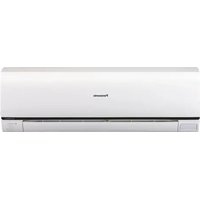
CSZ35XKEW - Air-conditioner PANASONIC - Free user manual and instructions
Find the device manual for free CSZ35XKEW PANASONIC in PDF.


User questions about CSZ35XKEW PANASONIC
0 question about this device. Answer the ones you know or ask your own.
Ask a new question about this device
Download the instructions for your Air-conditioner in PDF format for free! Find your manual CSZ35XKEW - PANASONIC and take your electronic device back in hand. On this page are published all the documents necessary for the use of your device. CSZ35XKEW by PANASONIC.
USER MANUAL CSZ35XKEW PANASONIC
natural_image
Simple line drawing of a rectangular object with rounded corners and a horizontal base (no text or symbols)
Setup Instructions 2-23 Wireless LAN Module (built-in)
Please read these operating instructions thoroughly and keep them for future reference.
Built-in Network Adaptor that allows you to control your air conditioning unit operation from anywhere.
Thank you for purchasing this Panasonic product.
Table of Contents
Safety Precautions 2-3
System Overview 4
How to Use 5-18
Network Adaptor & App FAQs 19-21
Troubleshooting 22
Information 22-23
Copyright 90-94
Safety Precautions
Before attempting to control / operate this air-conditioner product via wireless communication from a remote location, make sure to check the installation of the appliance and its surrounding area, and, be wary of any person(s) within the vicinity.
To prevent personal injury, injury to others or property damage, please comply with the following:
Incorrect operation due to failure to follow instructions below may cause harm or damage, the seriousness of which is classified as below:

WARNING
This sign warns of death or serious injury.

CAUTION
This sign warns of injury or damage to property.
The instructions to be followed are classified by the following symbols:

This symbol denotes an action that is PROHIBITED.

This symbol denotes an action that is COMPULSORY.

WARNING
Network Adaptor (activated)

Do not use the indoor unit near to any medical equipment or automatic control equipment (automatic door, wire alarms, etc.).
(Radio wave from indoor unit may interfere with the equipment and may cause incident due to malfunction)

Keep at least 15 cm away from the indoor unit if you have a cardiac pacemaker.
(Radio wave from indoor unit may interfere with the operation of pacemaker)

CAUTION
Network Adaptor (activated)

Check the following requirements in advanced (At home):
- Insert the power supply thoroughly. Ensure no dust builds up on the power supply. (This can cause fi re due to ignition in the power supply's of poor contact)
- Check the status of timer activation set by other persons. (Unexpected run-stop operation may cause harm to human body, pets, and plants)
- There should be no abnormality in the air conditioner such as change of airflow. Ensure no object(s) which may be displaced easily due to the airflow blowing directly at it. The fallen or moved object(s) might lead to danger such as fi re, injury etc.
- At all times, use the in-house remote control when there is a possibility of person(s) (such as infant, children, disabled person(s), elderly or sickly person(s)) who are incapable of controlling the temperature themselves and rely on the pre-set configuration of the air-conditioner. The rise and drop in the temperature due to remote operation might cause the occupant(s) to experience discomfort and/or disrupt their daily routine.
Plant(s) and animal(s) are likely to be affected by sudden temperature adjustments.

Check the following requirements before operating the air conditioner from a remote location:
- Do inform the person(s) in the vicinity of the area being air-conditioned that you will remotely control the air conditioner operation and settings. This is to avoid any possibility of serious effects on person(s) either due to being taken by surprise or due to sudden changes in temperature (from comfort to cold or vice versa). (This may cause harm to human body due to sudden changes of outside temperature and room temperature. Temperature adjustment can be operated by remote control) - If the main display of the Panasonic Comfort Cloud app does not reflect the status of the operation, please use the in-house remote control to operate the air-conditioner.
- As the app uses network communication, there may be times when remote operation is not possible due to communication and/or network failures (such as Panasonic Cloud server downtime, telecom providers' server downtime, WIFI connectivity etc.). In the event of such failure(s), please use the in-house remote control to operate the air-conditioner.
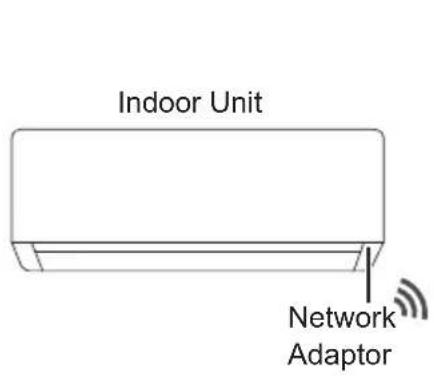
text_image
Indoor Unit Network Adaptor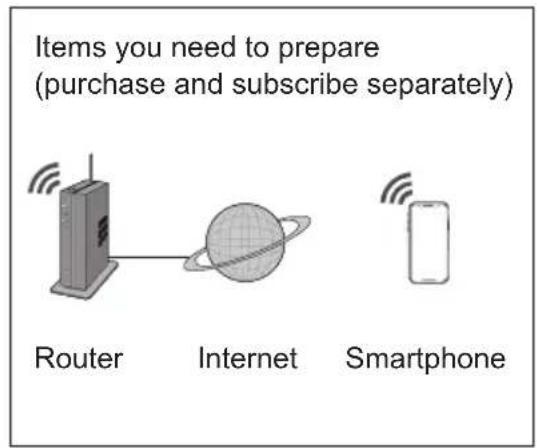
text_image
Items you need to prepare (purchase and subscribe separately) Router Internet Smartphone
text_image
Download from app store Panasonic Panasonic Comfort Cloud app (free)- This feature requires the app to work with a smartphone with Android 5.0 and above, or with iOS 9 and above.
However, there is no guarantee that the app will work well with all versions. - The Network Adaptor is designed specifically as a terminal for "Panasonic Comfort Cloud" app.
- The Wireless LAN network coverage must reach the indoor unit installation location.
Specification
| Network Adaptor Wireless LAN Module (built-in) | |
| Model DNSK-P11 | |
| Input Voltage DC 5V (From Air Conditioner Indoor Unit) | |
| Current Consumption Tx/Rx max. 290/100 mA | |
| Wireless LAN standard IEEE 802.11 b/g/n | |
| Frequency range 2.4 GHz band | |
| Encryption WPA2-PSK (TKIP/AES) |
Precaution
- Do NOT disassemble or alter this Network Adaptor in any way.
- Do NOT remove this Network Adaptor from the indoor unit during operation.
- Data transmitted and received over radio waves may be intercepted and monitored.
Maximum radio-frequency power transmitted in the frequency bands
| Type of wireless Frequency band Max. EIRP (dBm) | |
| WLAN 2412 - 2472 MHz 20 dBm |
Usage precaution
- Before using the product, be sure to read all the precautions in this manual. The Company is not liable for any defects and damages incurred by the use of this product that occur through incorrect use by yourself or a third party, unless legal liability is recognized in regard to failures.
Security measure
- Wireless LAN uses radio waves to exchange information. Therefore, there is a risk of unauthorized access.
- Initialize the app settings on the product prior to disposal or transferring to a third party.
Before setting the network connection
- Confirm the wireless router is connected to the network correctly.
- Confi rm the Wireless LAN of the smartphone is activated.
- Confirm your smartphone and this product are connected to the same wireless router.
App Installation
For Android user (Android 5.0 and above)
- Open ▶ GETT ON GooglePlay
- Search for "Panasonic Comfort Cloud" app.
- Download and install.
For iOS user (iOS 9 and above)
- Open Download on the App Store
- Search for "Panasonic Comfort Cloud" app.
- Download and install.
Note
- The app user interface may change without notice when there is a version upgrade.
- There is no charge to use this app. However, other charges may be incurred for network connection and operation.
Starting "Panasonic Comfort Cloud"
Create New Panasonic ID
Use "Panasonic Comfort Cloud" app as an option to control this product.
text_image
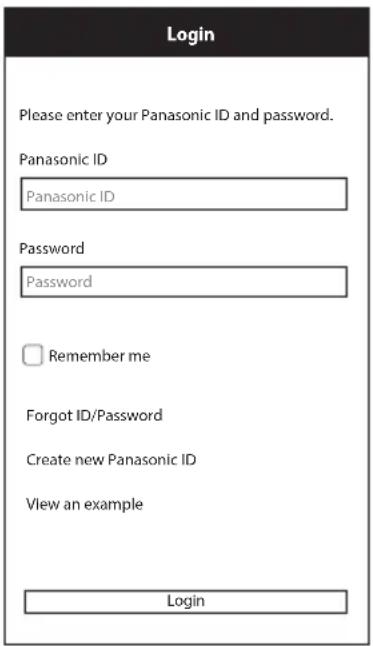
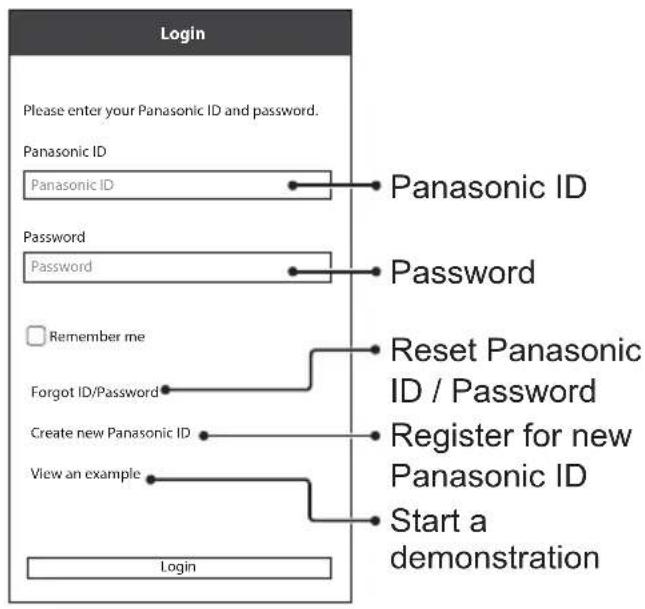
Login Please enter your Panasonic ID and password. Panasonic ID Panasonic ID Password Password Remember me Forgot ID/Password Create new Panasonic ID View an example Login- For new user, select "Create new Panasonic ID" to register.
- For registered user, log in using your Panasonic ID and password.
App Setting
Add new air conditioner
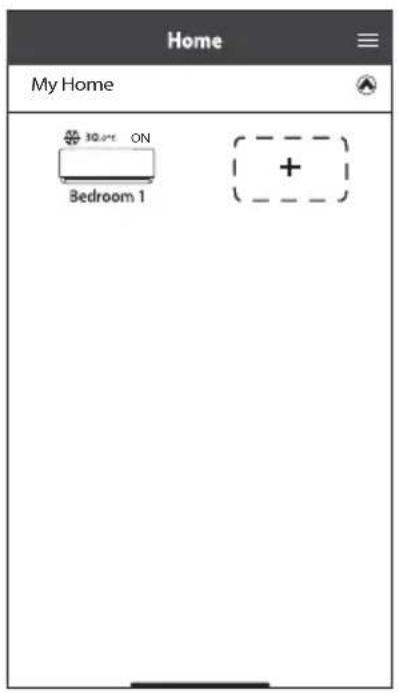
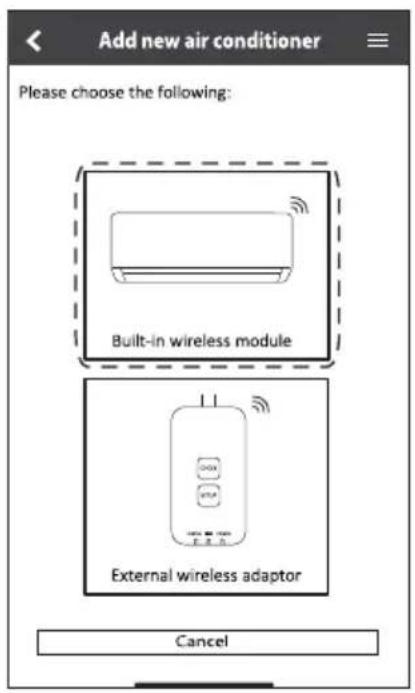
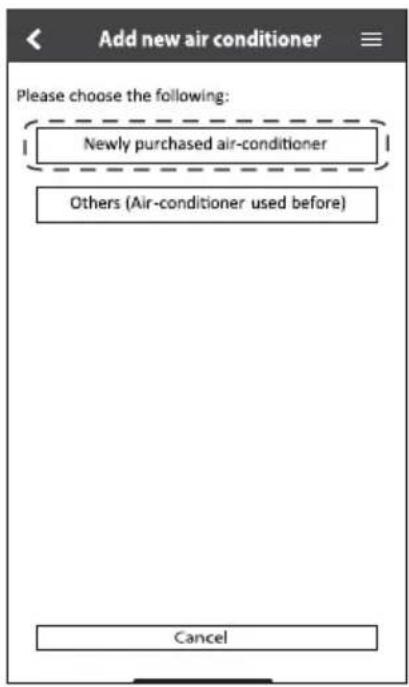
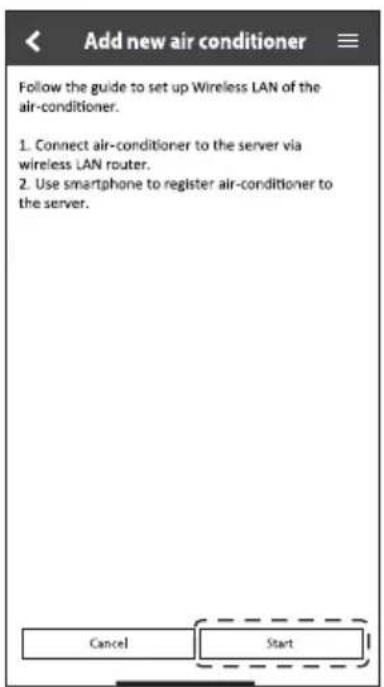
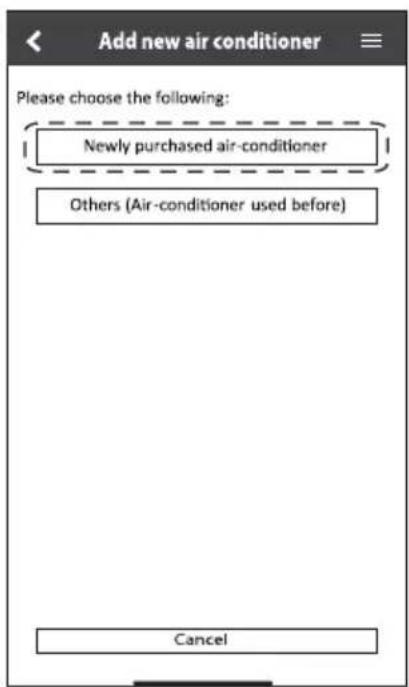
- Before using the "Panasonic Comfort Cloud" app, you need to register this product.
①
text_image
Home My Home 30.0" ON Bedroom 1 +②

text_image
Add new device Which appliances do you want to add? Air conditioner Air to water heat pump Commercial air conditioner Cancel③
text_image
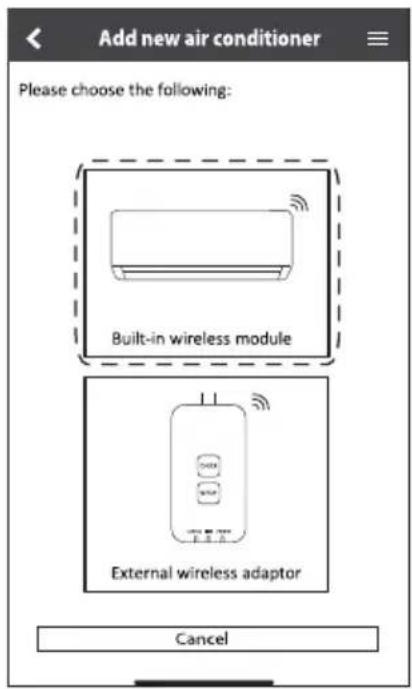
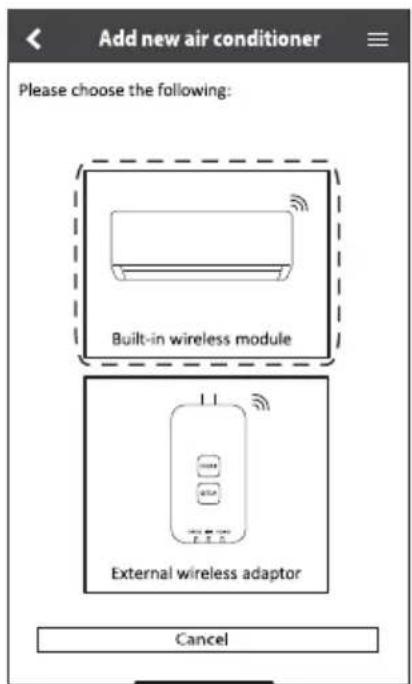
Add new air conditioner Please choose the following: Built-in wireless module External wireless adaptor Cancel④

text_image
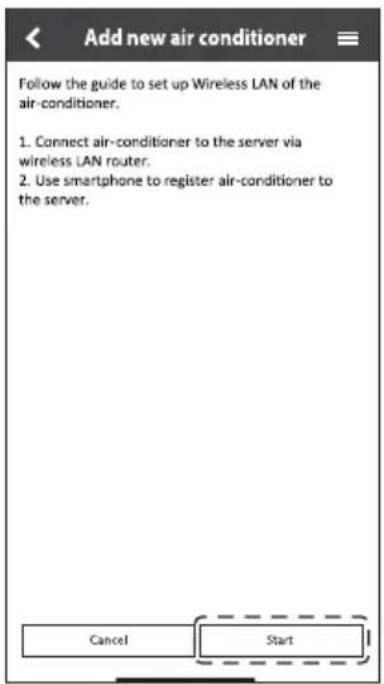
Add new air conditioner Follow the guide to set up Wireless LAN of the air-conditioner. 1. Connect air-conditioner to the server via wireless LAN router. 2. Use smartphone to register air-conditioner to the server. Cancel Start⑤
text_image
Add new air conditioner Please choose the following: Newly purchased air-conditioner Others (Air-conditioner used before) CancelSetting connection network
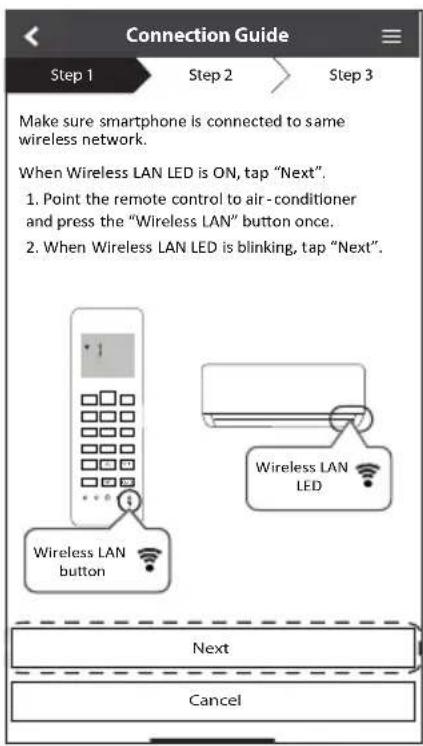
① Check that the Wireless LAN LED is ON. Point the remote control to the air conditioner and press the Wireless LAN 📋 button until the Wireless LAN LED starts blinking.
text_image
Connection Guide Step 1 Step 2 Step 3 Make sure smartphone is connected to same wireless network. When Wireless LAN LED is ON, tap "Next". 1. Point the remote control to air-conditioner and press the "Wireless LAN" button once. 2. When Wireless LAN LED is blinking, tap "Next". Wireless LAN button Wireless LAN LED Next Cancel| Fast blink | The unit is establishing the connection. |
| Slow blink | The unit is not securing the connection. |
| No blink(stays on) | The unit has established the connection. |
- It can establish the connection to the unit even if the unit is turned OFF.
Note
- If the Wireless LAN LED blinks continuously and you do not want to use the app, press the Wireless LAN 📋 button to turn it off.
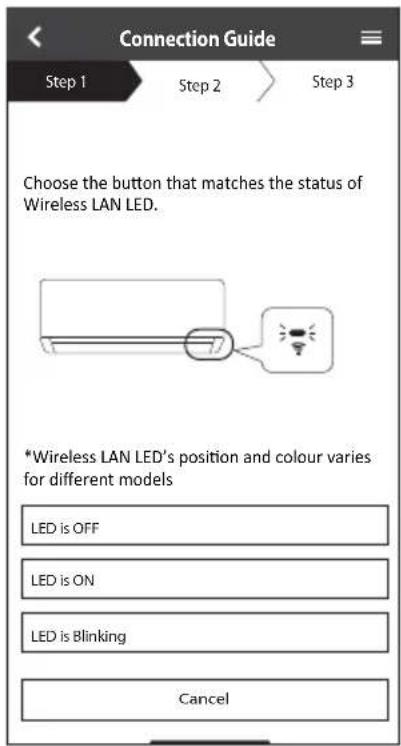
② Select the status of the Wireless LAN LED.
text_image
Connection Guide Step 1 Step 2 Step 3 Choose the button that matches the status of Wireless LAN LED. *Wireless LAN LED's position and colour varies for different models LED is OFF LED is ON LED is Blinking Cancel③ Select the preferred connection setup mode.
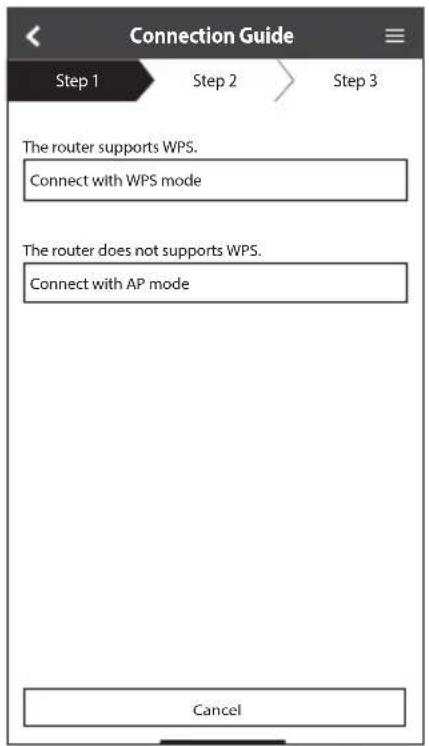
text_image
Connection Guide Step 1 Step 2 Step 3 The router supports WPS. Connect with WPS mode The router does not supports WPS. Connect with AP mode CancelConnection network using WPS mode (method 1)
① Press the WPS button on the router that will be connected to the air conditioner.
- Check that the Wireless LAN LED is ON. If the Wireless LAN LED is OFF, press the Wireless LAN 📋 button to turn it on, and enable Wireless LAN connection.
② Check that the Wireless LAN LED is ON. Press the Wireless LAN 📤 button for 5 seconds until "1" appears on the remote control. Point the remote control to the air conditioner and press SET.
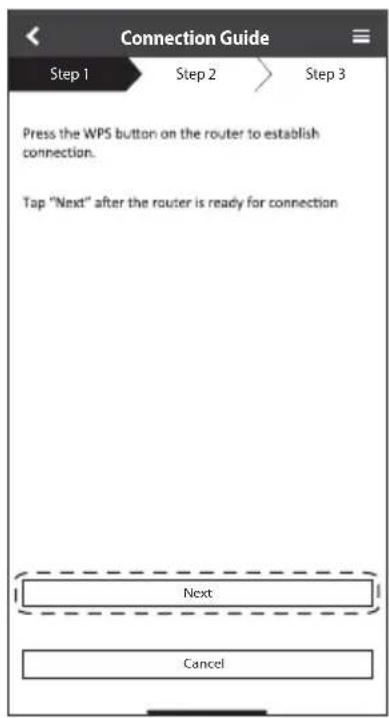
text_image
Connection Guide Step 1 Step 2 Step 3 Press the WPS button on the router to establish connection. Tap "Next" after the router is ready for connection Next Cancel③ When the air conditioner is successfully connected to the router, the Wireless LAN LED stops blinking and turns ON.
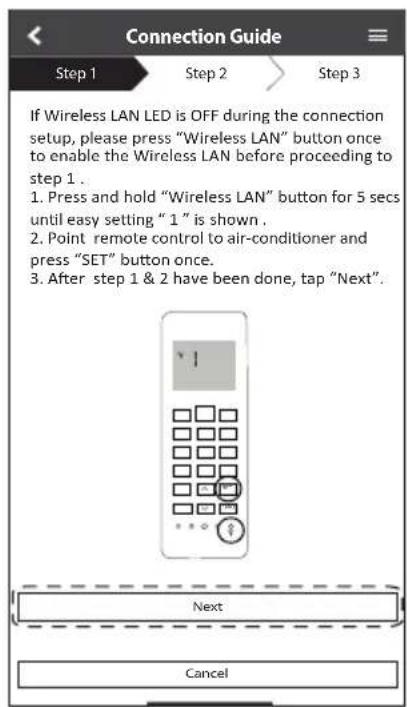
text_image
Connection Guide Step 1 Step 2 Step 3 If Wireless LAN LED is OFF during the connection setup, please press "Wireless LAN" button once to enable the Wireless LAN before proceeding to step 1. 1. Press and hold "Wireless LAN" button for 5 secs until easy setting "1" is shown. 2. Point remote control to air-conditioner and press "SET" button once. 3. After step 1 & 2 have been done, tap "Next". Next Cancel④ If the Wireless LAN LED keeps blinking, check the wireless router connection.
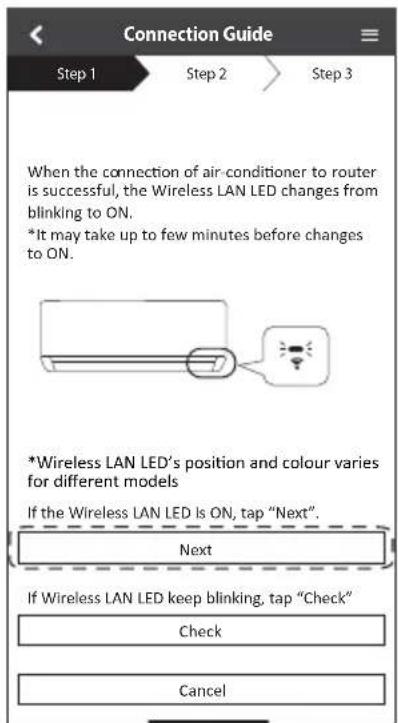
text_image
Connection Guide Step 1 Step 2 Step 3 When the connection of air conditioner to router is successful, the Wireless LAN LED changes from blinking to ON. *It may take up to few minutes before changes to ON. *Wireless LAN LED's position and colour varies for different models If the Wireless LAN LED is ON, tap "Next". Next If Wireless LAN LED keep blinking, tap "Check" Check Cancel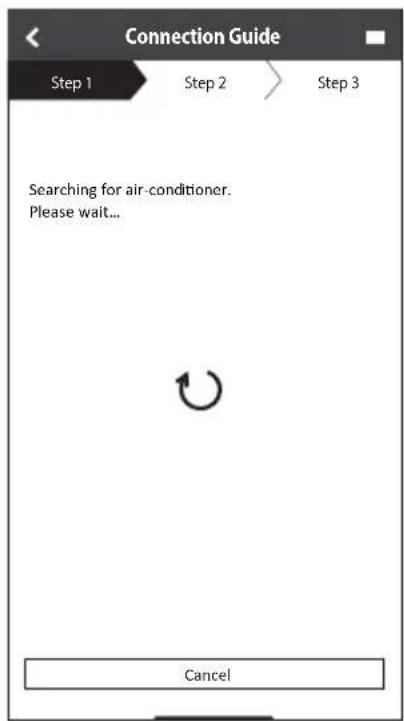
text_image
Connection Guide Step 1 Step 2 Step 3 Searching for air-conditioner. Please wait... CancelConnection network using AP mode (method 2)
(For Android 5.0 and above & iOS 11 and above only)
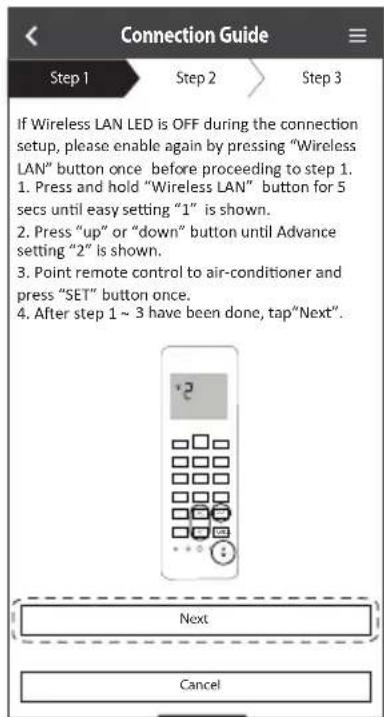
① Check that the Wireless LAN LED is ON. Press the Wireless LAN 📋 button for 5 seconds until “1” appears on the remote control.
Press until "2" appears. Point the remote control to the air conditioner and press Join to connect to the "Panasonic-CS-wirelessAP" network.
text_image
Connection Guide Step 1 Step 2 Step 3 If Wireless LAN LED is OFF during the connection setup, please enable again by pressing "Wireless LAN" button once before proceeding to step 1. 1. Press and hold "Wireless LAN" button for 5 secs until easy setting "1" is shown. 2. Press "up" or "down" button until Advance setting "2" is shown. 3. Point remote control to air-conditioner and press "SET" button once. 4. After step 1 ~ 3 have been done, tap"Next". Next Cancel
text_image
Connection Guide Step 1 > Step2 > Step 3 If Wireless LAN IT is OFF to ring the connect on setup, please add the again by pressing "Wireless LAN" button once before proceeding to Step 1 1 press all hold "Wireless LAN" how it fails secs until easy setting "T" is allowed. Allow "Comfort Cloud" to access your location? Enable location information when connecting in AP mode due to the restriction of OS. Enable the location information function of both the smartphone and app. Allow While Using App Allow Once Don't Allow Next Cancel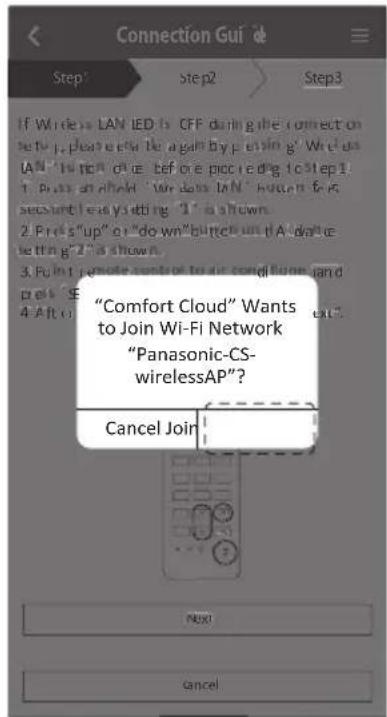
text_image
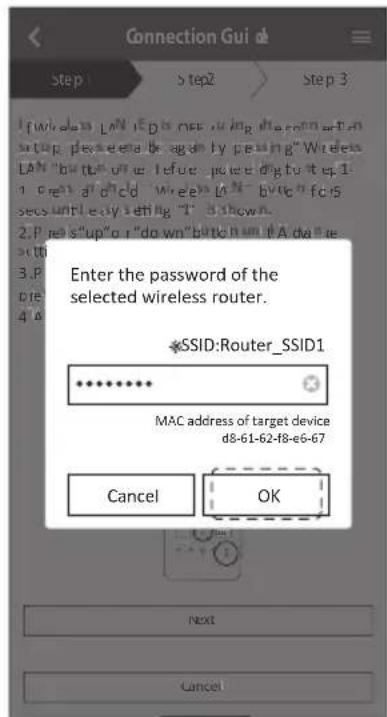
Connection Guide Step1 Step2 Step3 IF Wireless LAN IED is OFF during the connection on to buy, please check for again by paying Wi-Fi. Wireless LAN IED is before being checked to step 1. 1. Push an offer "Wireless LAN" button for security and setting "1" is shown. 2. Pr el's "up" or "do wn" button until A data letting g2 is shown. 3. Pin in 1 remote control for air condition, hand preis SE ext? 4. After "Comfort Cloud" Wants to Join Wi-Fi Network "Panasonic-CS- wirelessAP"? Cancel Join Next cancel② Enter the password of the selected wireless router and continue.
text_image
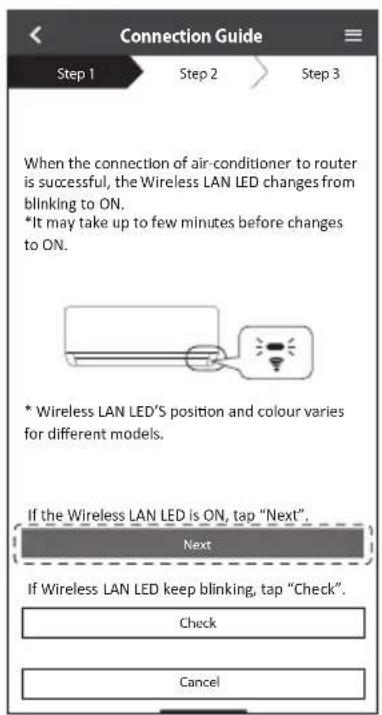
Enter the password of the selected wireless router. *SSID:Router_SSID1 ********** MAC address of target device d8-61-62-f8-e6-67 Cancel OK Next Cancel③ When the air conditioner is connected to the router successfully, the Wireless LAN LED stops blinking and turns ON. When the Wireless LAN LED is ON, connect your smartphone to the wireless router to continue the setup.
- If the Wireless LAN LED keeps blinking, check the wireless router connection.
text_image
Connection Guide Step 1 Step 2 Step 3 When the connection of air-conditioner to router is successful, the Wireless LAN LED changes from blinking to ON. *It may take up to few minutes before changes to ON. * Wireless LAN LED'S position and colour varies for different models. If the Wireless LAN LED is ON, tap "Next". Next If Wireless LAN LED keep blinking, tap "Check". Check Cancel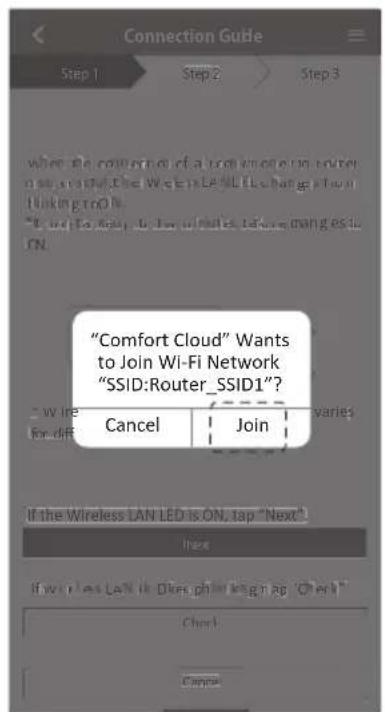
text_image
"Comfort Cloud" Wants to Join Wi-Fi Network "SSID:Router_SSID1"? Cancel Join If the Wireless LAN LED is ON, tap "Next" Here If we're as LAN is Dikes.ph = ksgn1ap "Open" Check Cancel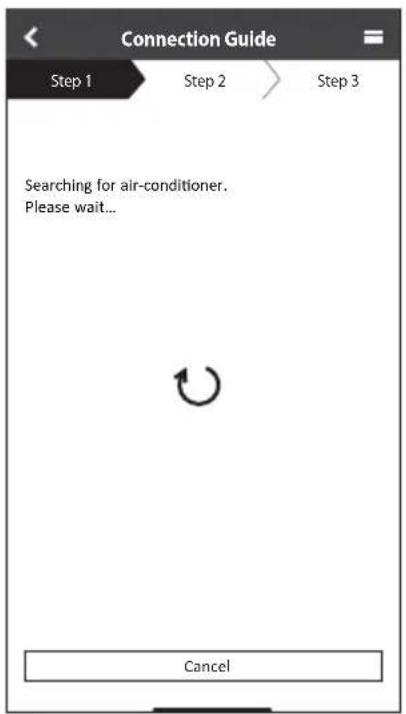
text_image
Connection Guide Step 1 Step 2 Step 3 Searching for air-conditioner. Please wait... CancelSelect the air-conditioner and set the password
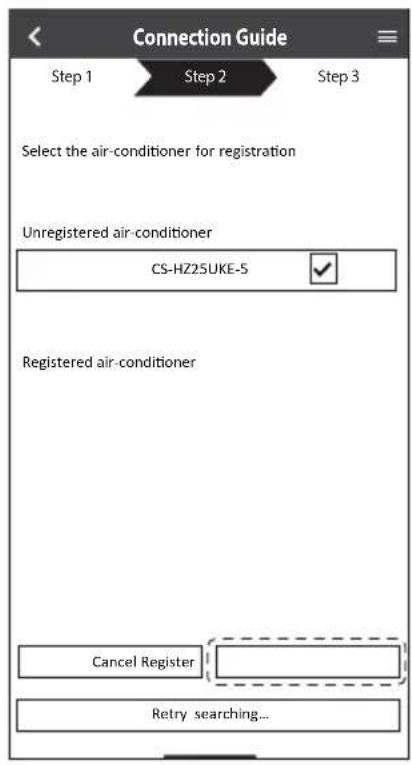
① Select the model to register your air-conditioner.
text_image
Connection Guide Step 1 Step 2 Step 3 Select the air-conditioner for registration Unregistered air-conditioner CS-HZ25UKE-5 ✓ Registered air-conditioner Cancel Register Retry searching...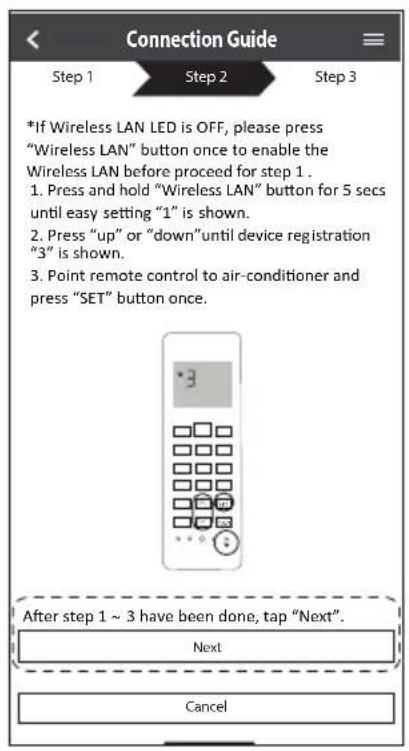
text_image
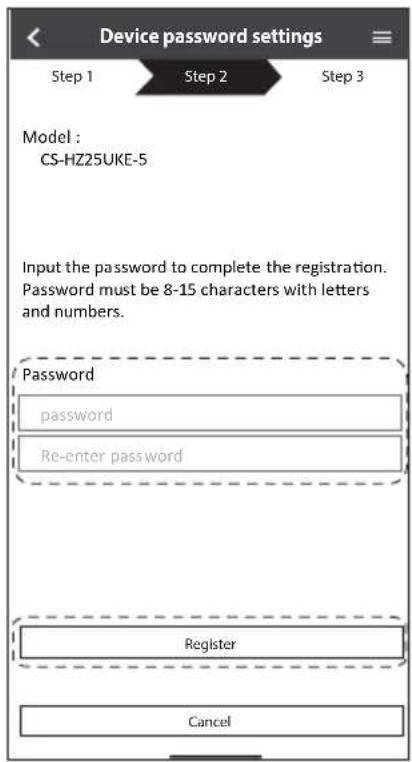
Connection Guide Step 1 Step 2 Step 3 *If Wireless LAN LED is OFF, please press "Wireless LAN" button once to enable the Wireless LAN before proceed for step 1. 1. Press and hold "Wireless LAN" button for 5 secs until easy setting "1" is shown. 2. Press "up" or "down" until device registration "3" is shown. 3. Point remote control to air-conditioner and press "SET" button once. After step 1 ~ 3 have been done, tap "Next". Next Cancel② Set a password to complete the registration. The password must be 8-15 characters with letters and numbers.
Note
- Keep the password for future use. You can use the same password when you register other Panasonic devices.
text_image
Device password settings Step 1 Step 2 Step 3 Model : CS-HZ25UKE-5 Input the password to complete the registration. Password must be 8-15 characters with letters and numbers. Password password Re-enter password Register CancelRegistration completed
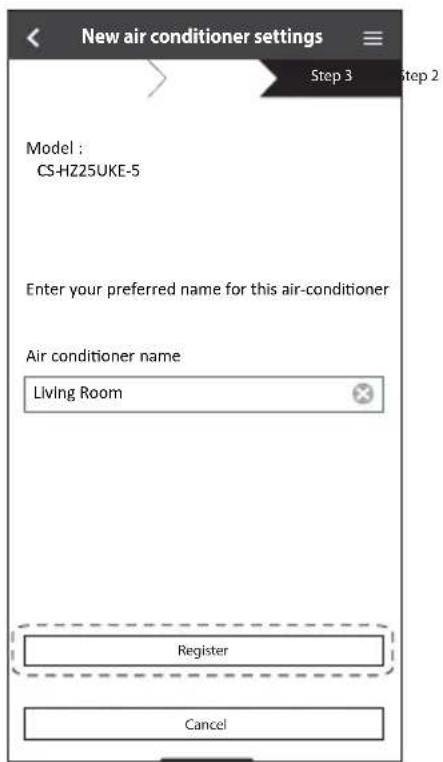
① After registration and connection is established between the app and your air conditioner, set the preferred name to identify your air conditioner easily.
- After registering your preferred name for your air conditioner, you can use the "Panasonic Comfort Cloud" app functions.
② Beside operation control, this application can monitor the estimated energy consumption and do comparison for different time frame by referring to the statistic's graph.
text_image
New air conditioner settings Step 3 Model : CS-HZ25UKE-5 Enter your preferred name for this air-conditioner Air conditioner name Living Room Register Cancel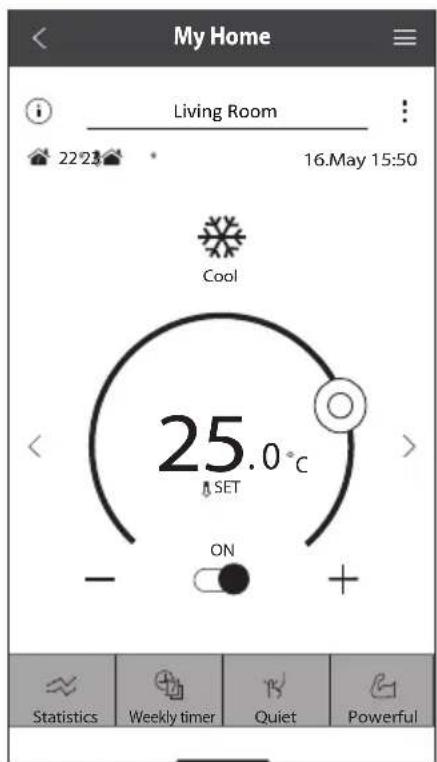
text_image
My Home Living Room 22:23 16.May 15:50 Cool 25.0°C SET ON + Statistics Weekly timer Quiet PowerfulNote
- Check the app's connectivity status before and during operation. If the status is not reflected, use the remote control to operate your air conditioner.
Launch the App
① Log in to the "Panasonic Comfort Cloud" app.
flowchart
graph TD
    A["Login"] --> B["Please enter your Panasonic ID and password."]
    B --> C["Panasonic ID"]
    C --> D["Password"]
    D --> E["Password"]
    E --> F["Remember me"]
    F --> G["Forgot ID/Password"]
    G --> H["Create new Panasonic ID"]
    H --> I["View an example"]
    I --> J["Login"]
    C --> K["Panasonic ID"]
    D --> L["Password"]
    L --> M["Reset Panasonic ID / Password"]
    M --> N["Register for new Panasonic ID"]
    N --> O["Start a demonstration"]
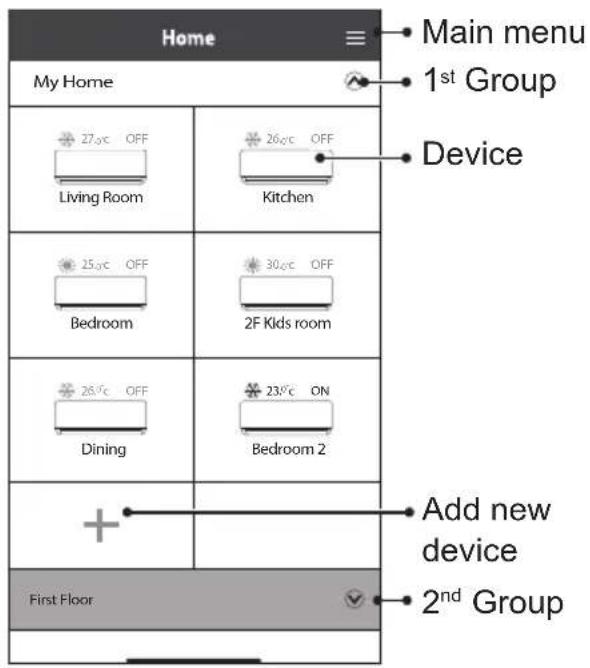
② Select your air conditioner to control.
text_image
Home My Home Main menu 1st Group Device 27.0c OFF Living Room 26.0c OFF Kitchen 25.0c OFF Bedroom 30.0c OFF 2F Kids room 28.0c OFF Dining 23.0c ON Bedroom 2 + Add new device 2nd Group First FloorMain Device Screen - Operation Setting
text_image
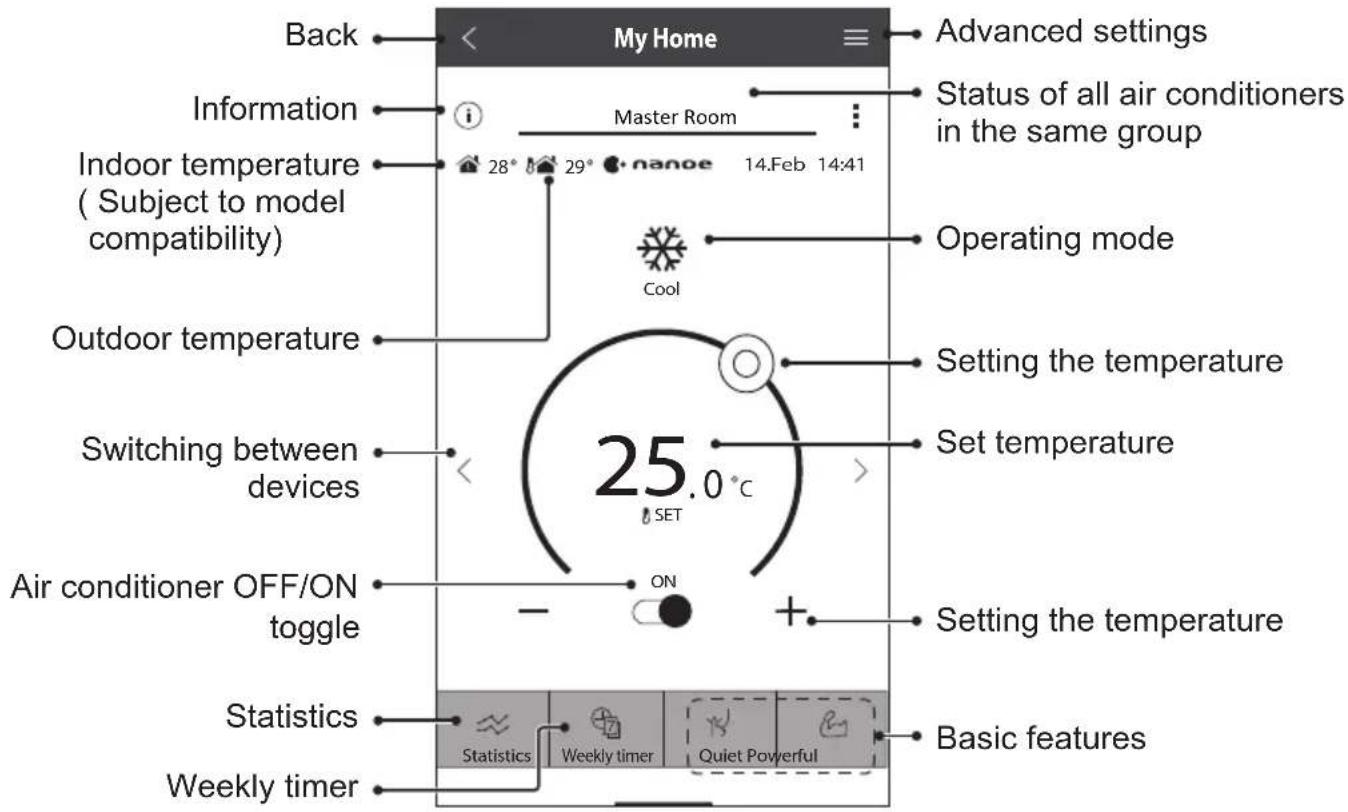
Back My Home Advanced settings Information Master Room Status of all air conditioners in the same group Indoor temperature ( Subject to model compatibility) 28° 29° nanoe 14.Feb 14:41 Cool Operating mode Outdoor temperature Setting the temperature Switching between devices Set temperature Air conditioner OFF/ON toggle ON Setting the temperature Statistics Weekly timer Basic featuresInformation
flowchart
graph TD
    A["User approval"] --> B["User's control right"]
    B --> C["Air conditioner's error messages"]
    C --> D["User's notification"]
    D --> E["User's notification right"]
    E --> F["User's notification right"]
    F --> G["User's notification right"]
    G --> H["User's notification right"]
    H --> I["User's notification right"]
    I --> J["User's notification right"]
    J --> K["User's notification right"]
    K --> L["User's notification right"]
    L --> M["User's notification right"]
    M --> N["User's notification right"]
    N --> O["User's notification right"]
    O --> P["User's notification right"]
    P --> Q["User's notification right"]
    Q --> R["User's notification right"]
    R --> S["User's notification right"]
    S --> T["User's notification right"]
    T --> U["User's notification right"]
    U --> V["User's notification right"]
    V --> W["User's notification right"]
    W --> X["User's notification right"]
    X --> Y["User's notification right"]
    Y --> Z["User's notification right"]
    Z --> AA["User's notification right"]
    AA --> AB["User's notification right"]
    AB --> AC["User's notification right"]
    AC --> AD["User's notification right"]
    AD --> AE["User's notification right"]
    AE --> AF["User's notification right"]
    AF --> AG["User's notification right"]
    AG --> AH["User's notification right"]
    AH --> AI["User's notification right"]
    AI --> AJ["User's notification right"]
    AJ --> AK["User's notification right"]
    AK --> AL["User's notification right"]
    AL --> AM["User's notification right"]
    AM --> AN["User's notification right"]
    AN --> AO["User's notification right"]
    AO --> AP["User's notification right"]
    AP --> AQ["User's notification right"]
    AQ --> AR["User's notification right"]
    AR --> AS["User's notification right"]
    AS --> AT["User's notification right"]
    AT --> AU["User's notification right"]
    AU --> AV["User's notification right"]
    AV --> AW["User's notification right"]
    AW --> AX["User's notification right"]
    AX --> AY["User's notification right"]
Air Conditioner Status
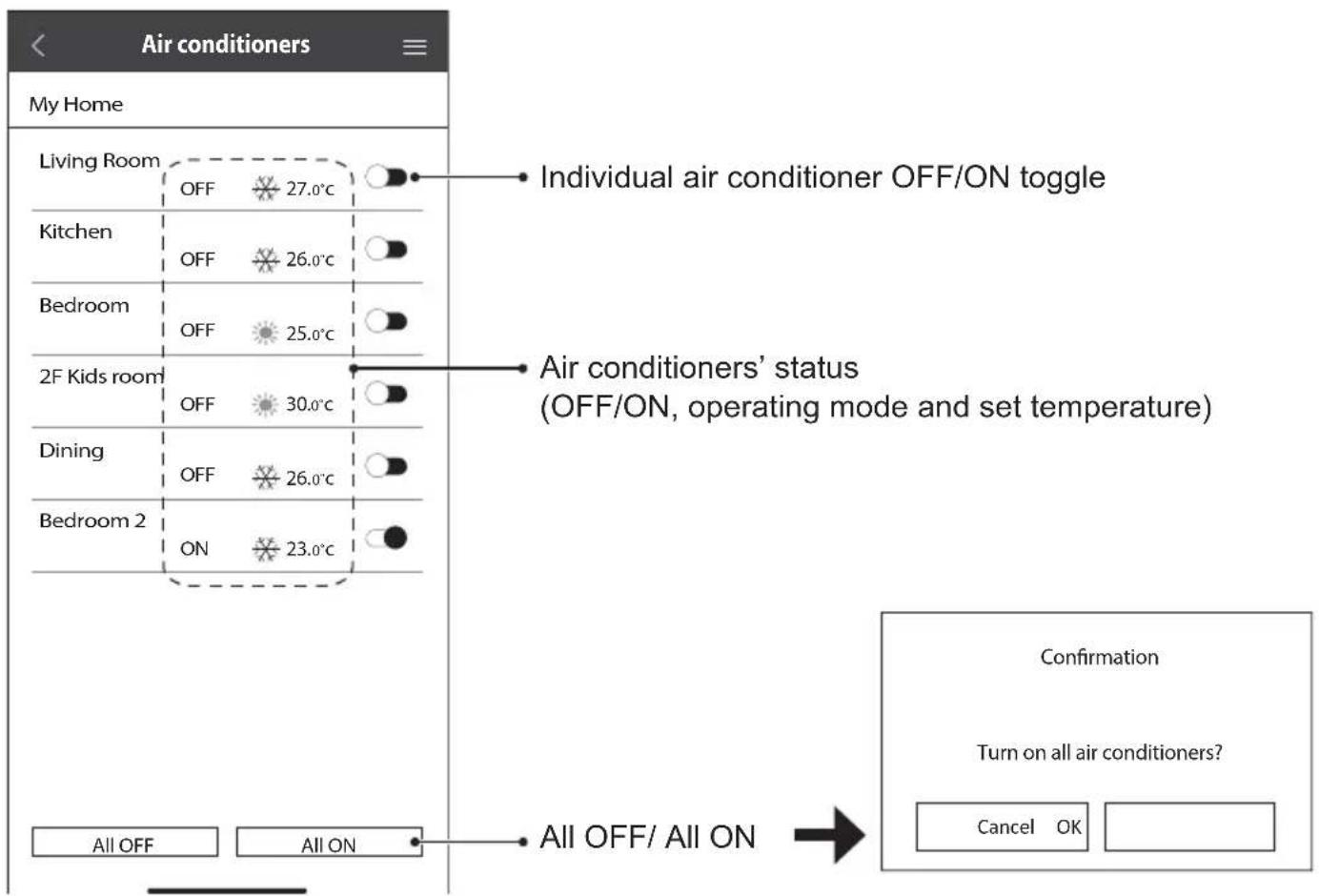
text_image
Air conditioners My Home Living Room OFF 27.0°C Kitchen OFF 26.0°C Bedroom OFF 25.0°C 2F Kids room OFF 30.0°C Dining OFF 26.0°C Bedroom 2 ON 23.0°C Individual air conditioner OFF/ON toggle Air conditioners' status (OFF/ON, operating mode and set temperature) All OFF All ON All OFF/ All ON Confirmation Turn on all air conditioners? Cancel OKAdvanced settings
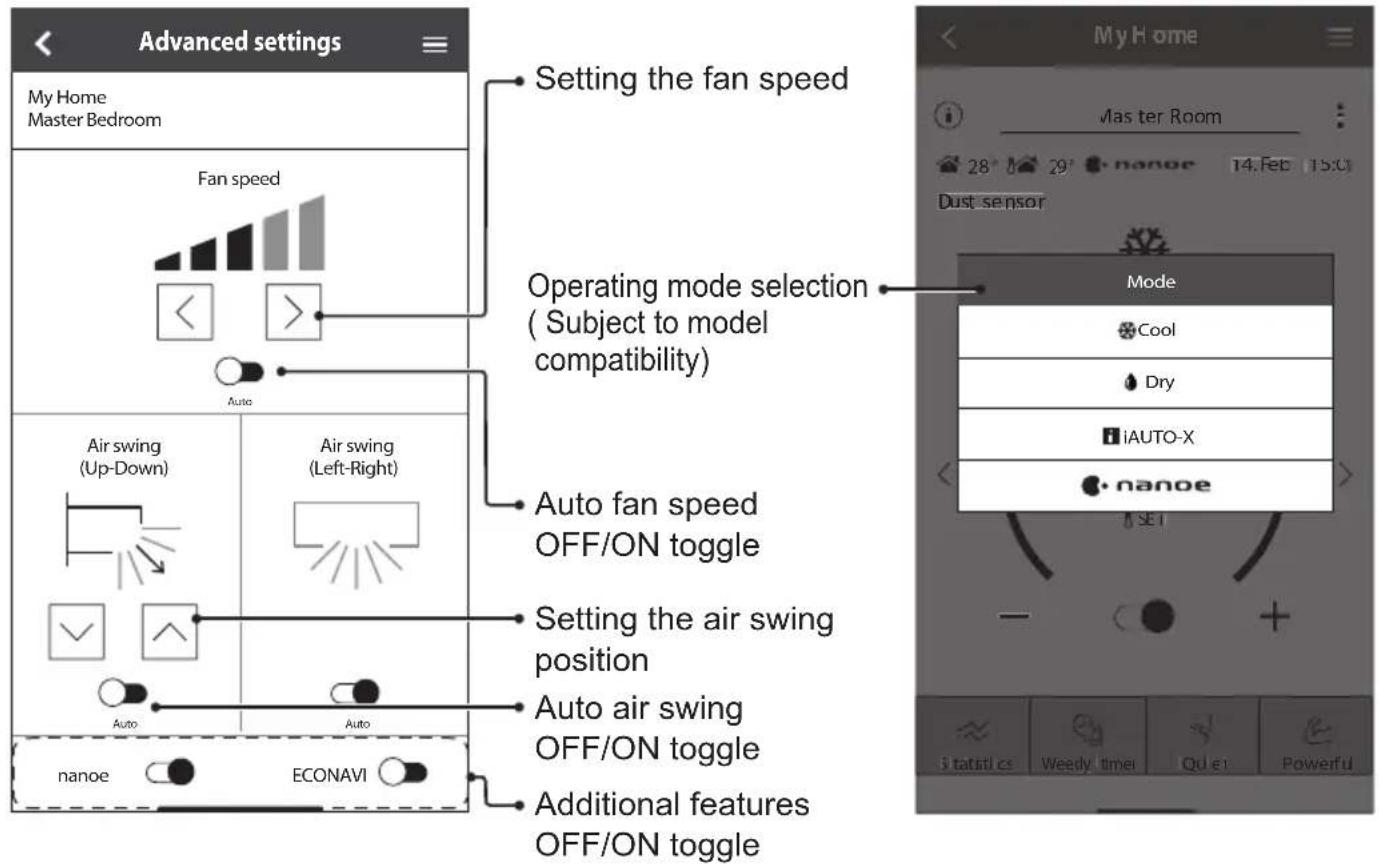
text_image
Advanced settings My Home Master Bedroom Fan speed Setting the fan speed Operating mode selection ( Subject to model compatibility ) Air swing (Up-Down) Air swing (Left-Right) Auto fan speed OFF/ON toggle Setting the air swing position Auto air swing OFF/ON toggle nanoe ECONAVI Additional features OFF/ON toggle My Home Master Room 28° 29° nanoe 14 Feb 15:01 Dust sensor Mode Cool Dry iAUTO-X nanoe SetOperating mode
Statistics
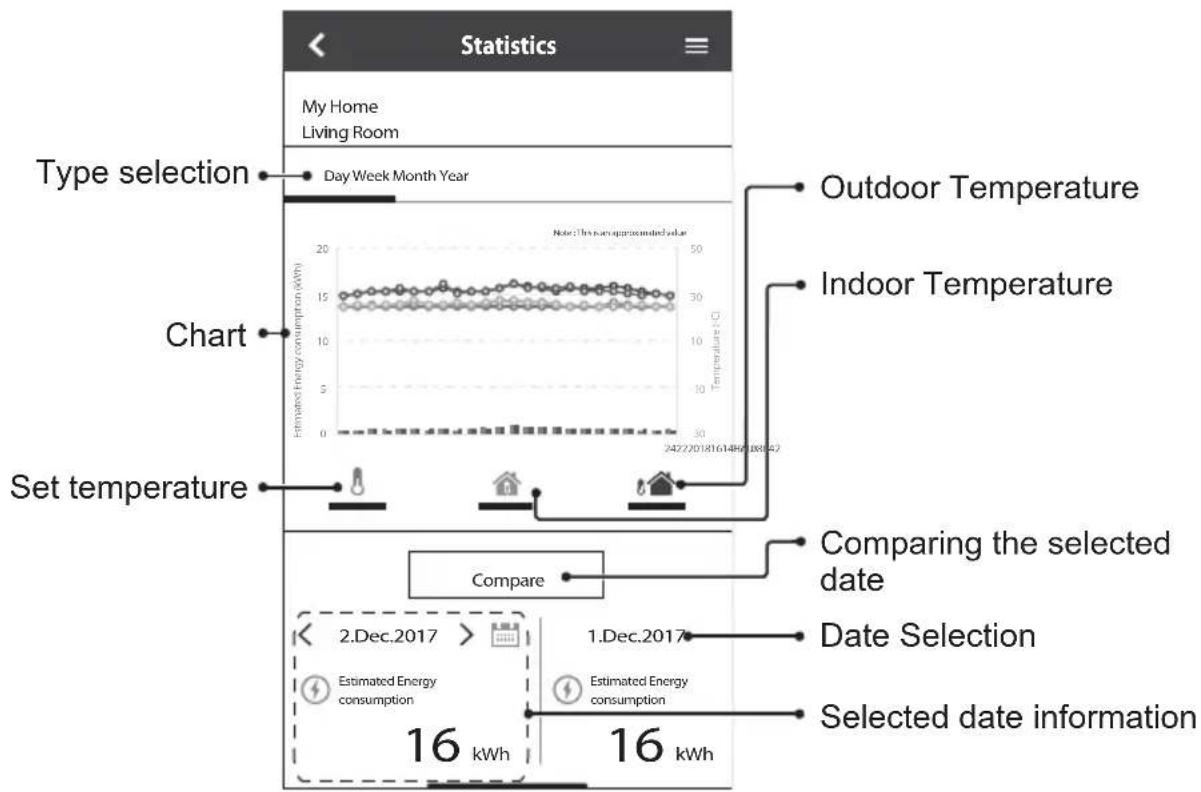
text_image
Statistics My Home Living Room Type selection Day Week Month Year Chart Set temperature Outdoor Temperature Indoor Temperature Comparing the selected date Date Selection 1.Dec.2017 Estimated Energy consumption 16 kWh 16 kWh Selected date informationNote
• Estimated energy consumption may not be supported by certain models.
- For Multi-split AC system: energy consumption value displayed is for whole system.
Weekly Timer
① Tap "Weekly timer" to set the timer schedule.
② Tap.
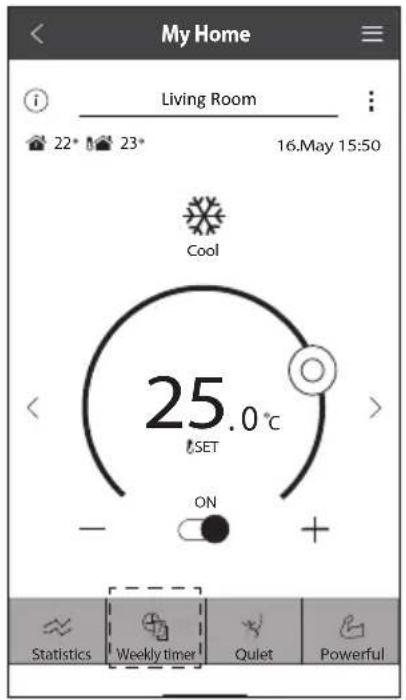
text_image
My Home Living Room 22° 23° 16.May 15:50 Cool 25.0°C SET ON Statistics Weekly timer Quiet Powerful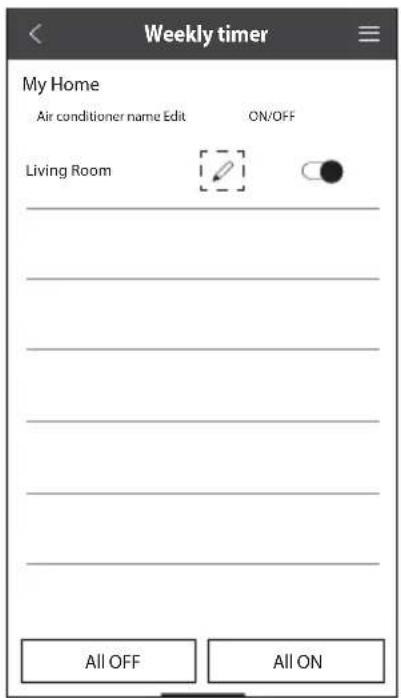
text_image
Weekly timer My Home Air conditioner name Edit ON/OFF Living Room All OFF All ON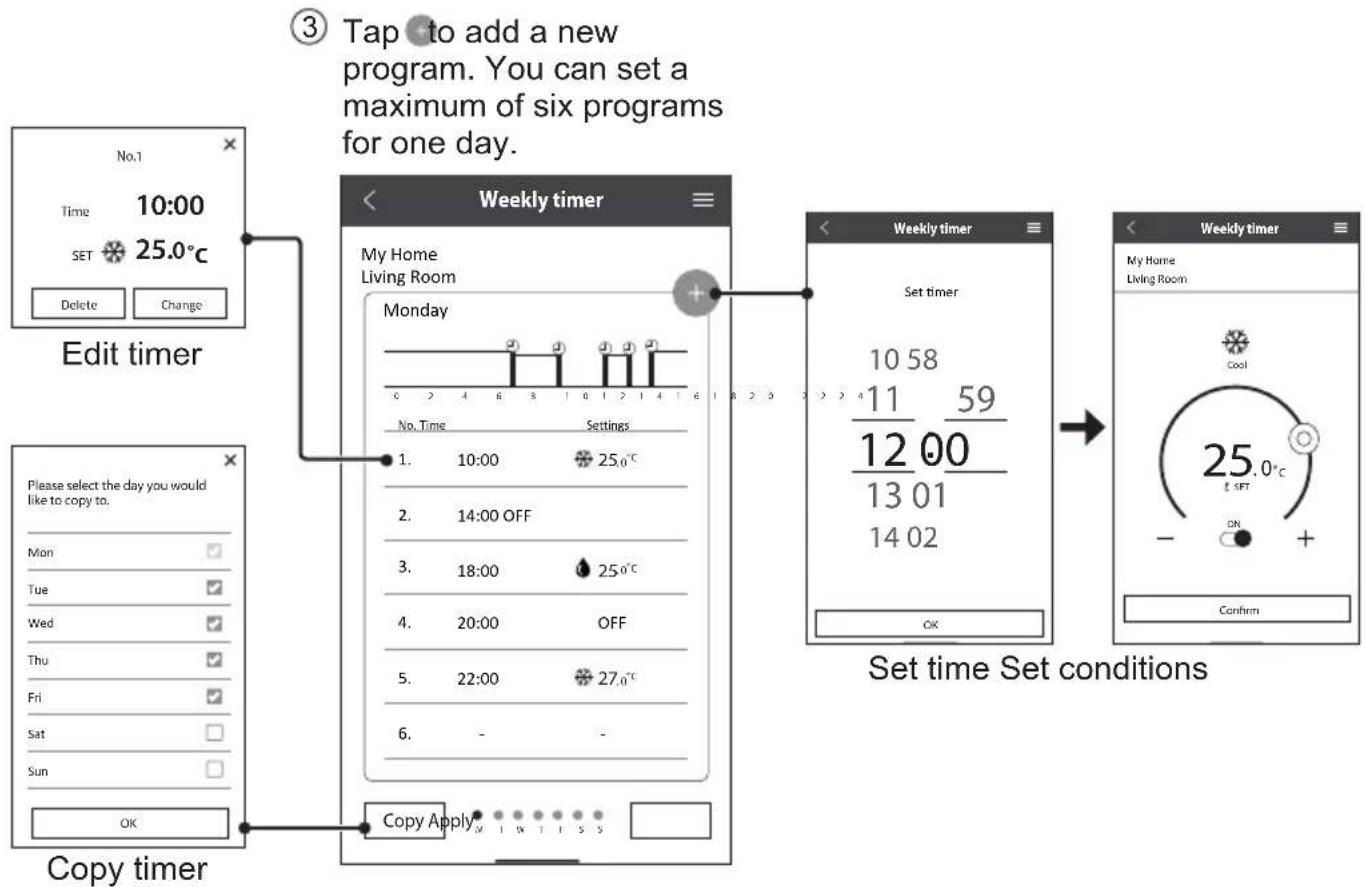
flowchart
graph TD
    A["Edit timer"] --> B["Take 3 Tap to add a new program. You can set a maximum of six programs for one day."]
    B --> C["Weekly timer"]
    C --> D["Set time Set conditions"]
    D --> E["Copy Apply"]
Main Menu
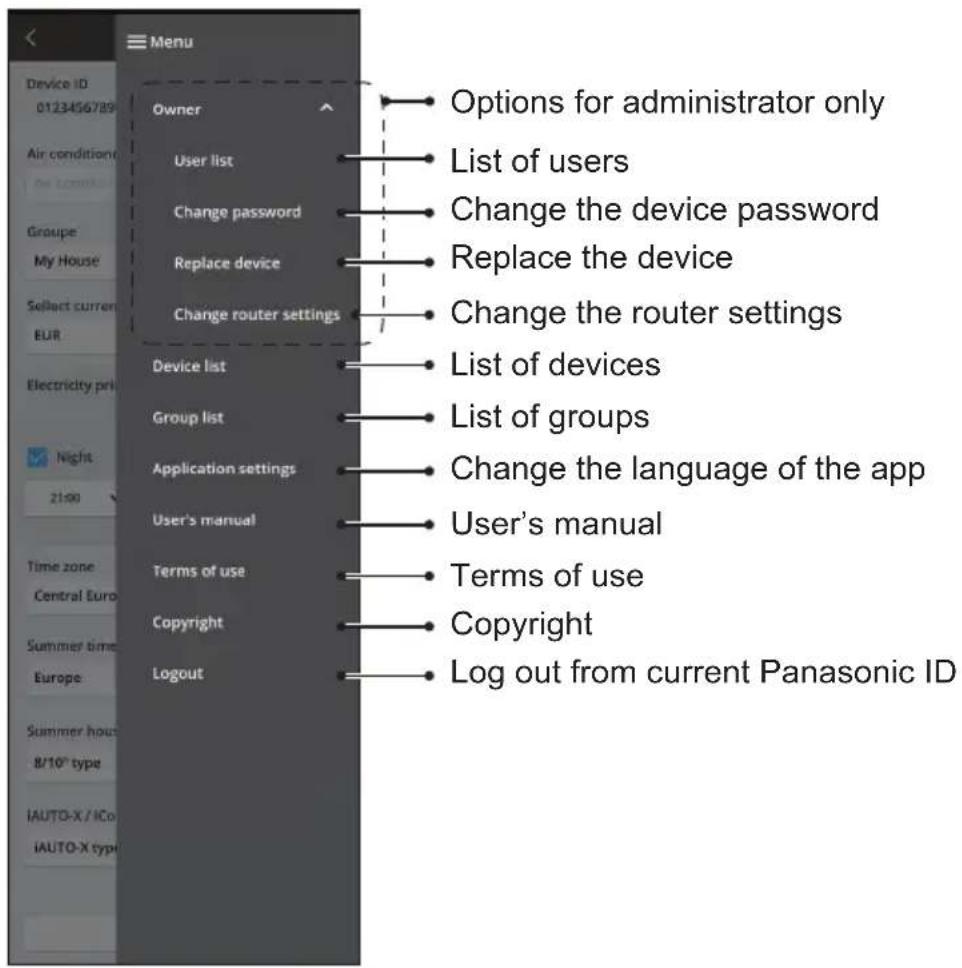
The main menu allows user to edit the device settings and provides important information.
text_image
Menu Device ID 0123456789 Air condition Groupe My House Select current EUR Electricity pin Night 21:00 Time zone Central Euro Summer time Europe Summer hour 8/10" type IAUTO-X / ICo IAUTO-X type Owner User list Change password Replace device Change router settings Device list Group list Application settings User's manual Terms of use Copyright Logout Options for administrator only List of users Change the device password Replace the device Change the router settings List of devices List of groups Change the language of the app User's manual Terms of use Copyright Log out from current Panasonic IDUser List Change the Device Password
text_image
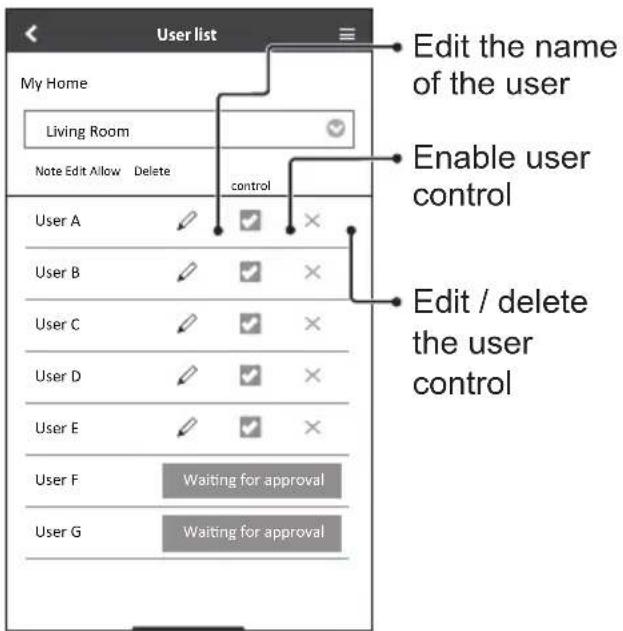
User list My Home Living Room Note Edit Allow Delete control Edit the name of the user Enable user control Edit / delete the user control User A User B User C User D User E User F Waiting for approval User G Waiting for approval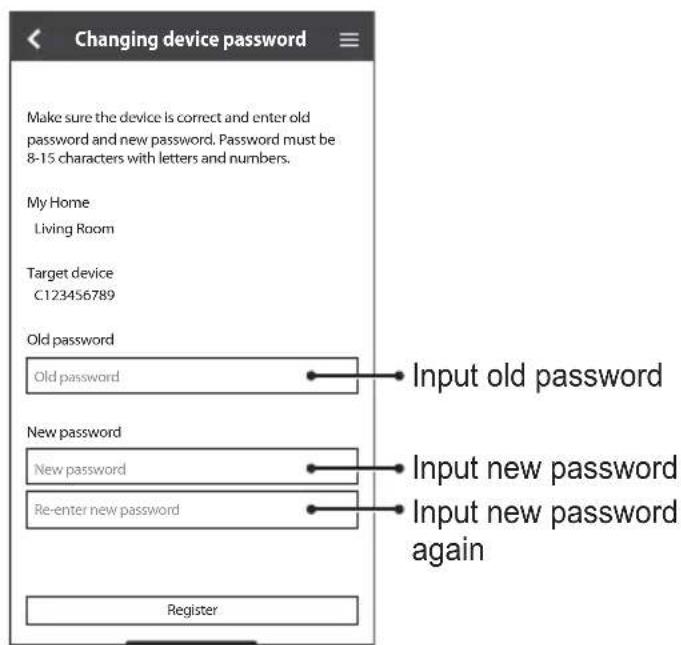
text_image
Changing device password Make sure the device is correct and enter old password and new password. Password must be 8-15 characters with letters and numbers. My Home Living Room Target device C123456789 Old password Old password New password New password Re-enter new password Register Input old password Input new password Input new password againReplace the Device
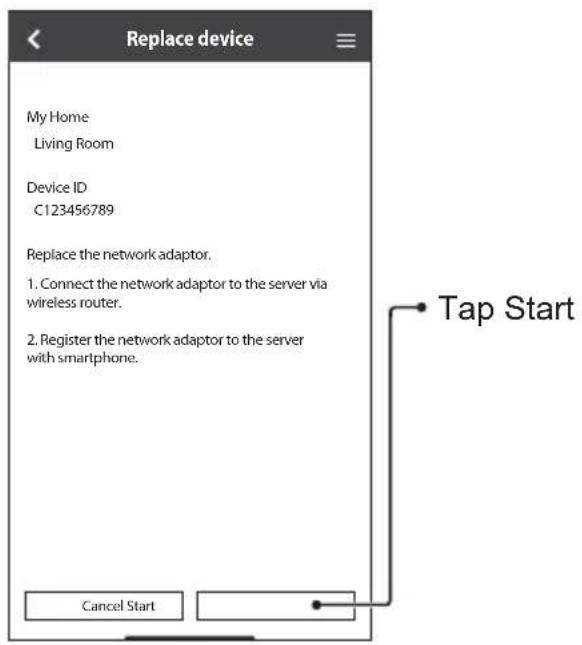
① Select "Replace device" from the menu.
text_image
Replace device My Home Living Room Device ID C123456789 Replace the network adaptor. 1. Connect the network adaptor to the server via wireless router. 2. Register the network adaptor to the server with smartphone. Cancel Start Tap StartChange the Router Settings
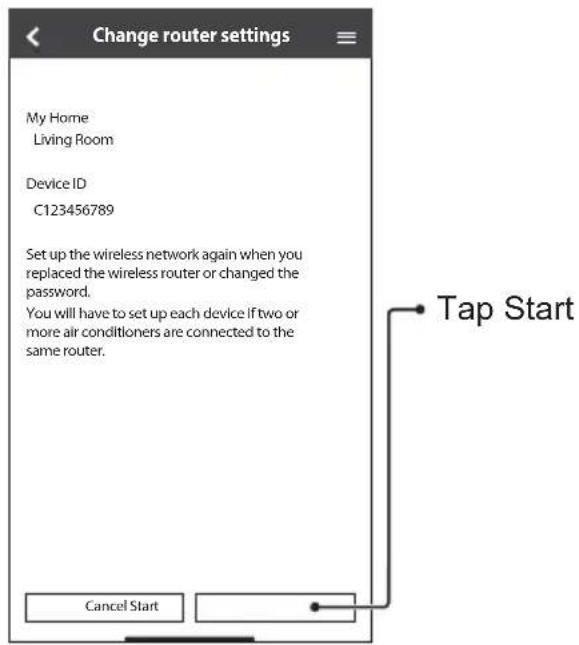
② Select "Change router settings" from the menu.
text_image
Change router settings My Home Living Room Device ID C123456789 Set up the wireless network again when you replaced the wireless router or changed the password. You will have to set up each device if two or more air conditioners are connected to the same router. Tap Start Cancel StartDevice List
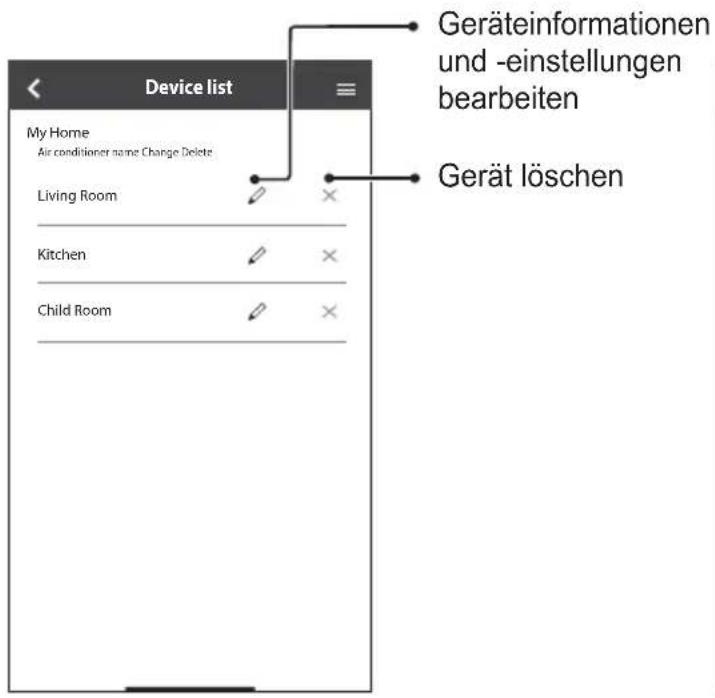
text_image
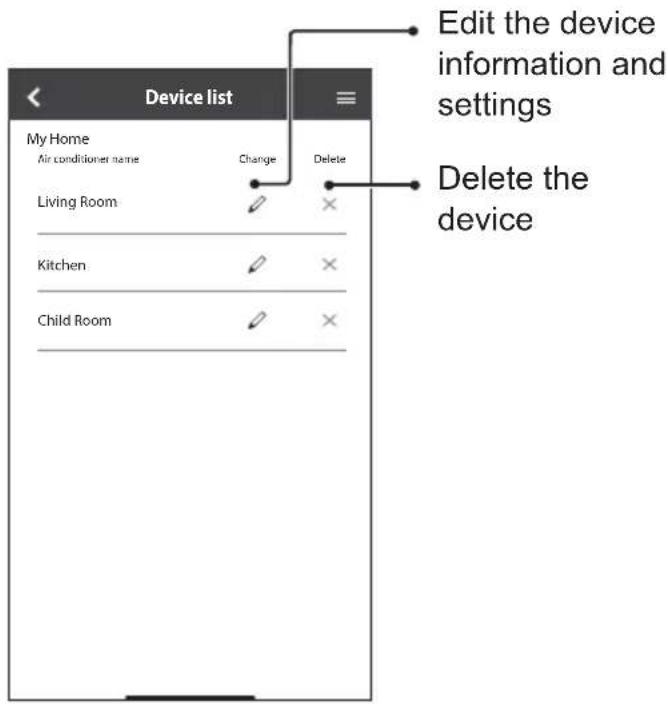
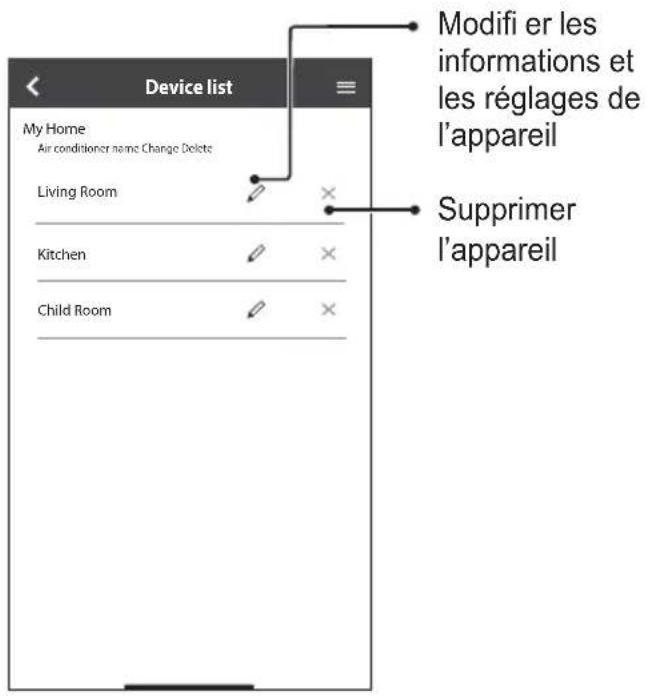
Edit the device information and settings Delete the device Device list My Home Air conditioner name Change Delete Living Room Kitchen Child RoomGroup List
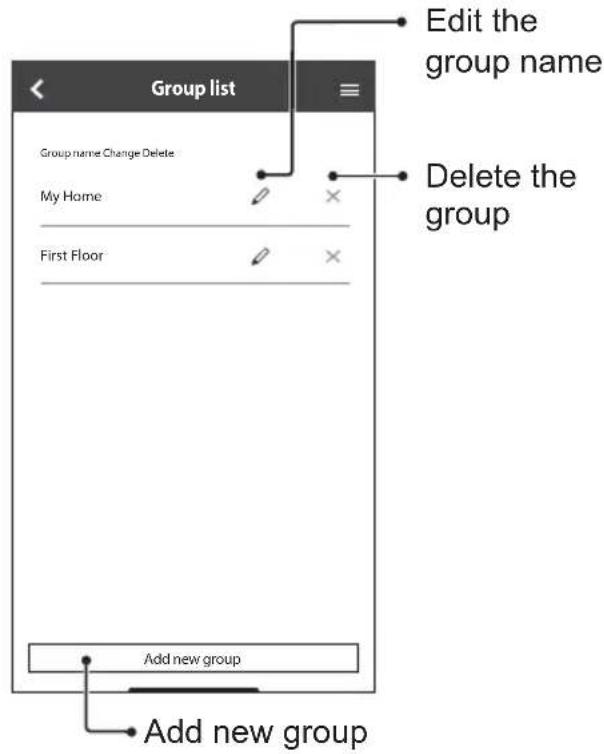
text_image
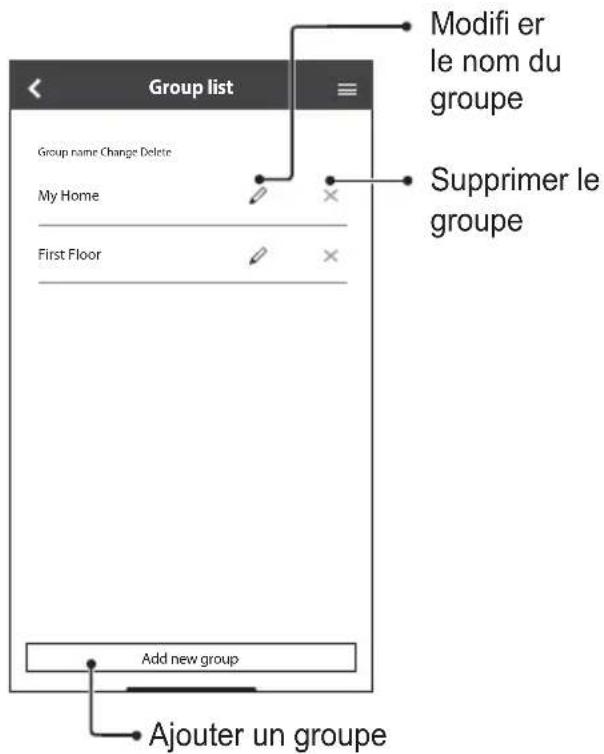
Edit the group name Group list Group name Change Delete My Home First Floor Delete the group Add new group Add new groupNetwork Adaptor & App FAQs
Before calling your local service agent, please review this list. It may save you some time.
Initial setting
| Symptom Solution | |
| “Panasonic Comfort Cloud” app cannot be installed in smartphone. | Check if the smartphone version is compatible (Android 5.0 and above, or iOS9 and above).There is no guarantee that the app will work well with all versions. |
| Register additional air conditioner to “Panasonic Comfort Cloud” app. | Follow the steps for the initial air conditioner setup. We recommend that you name each registered air conditioner so that it is easy to differentiate them. |
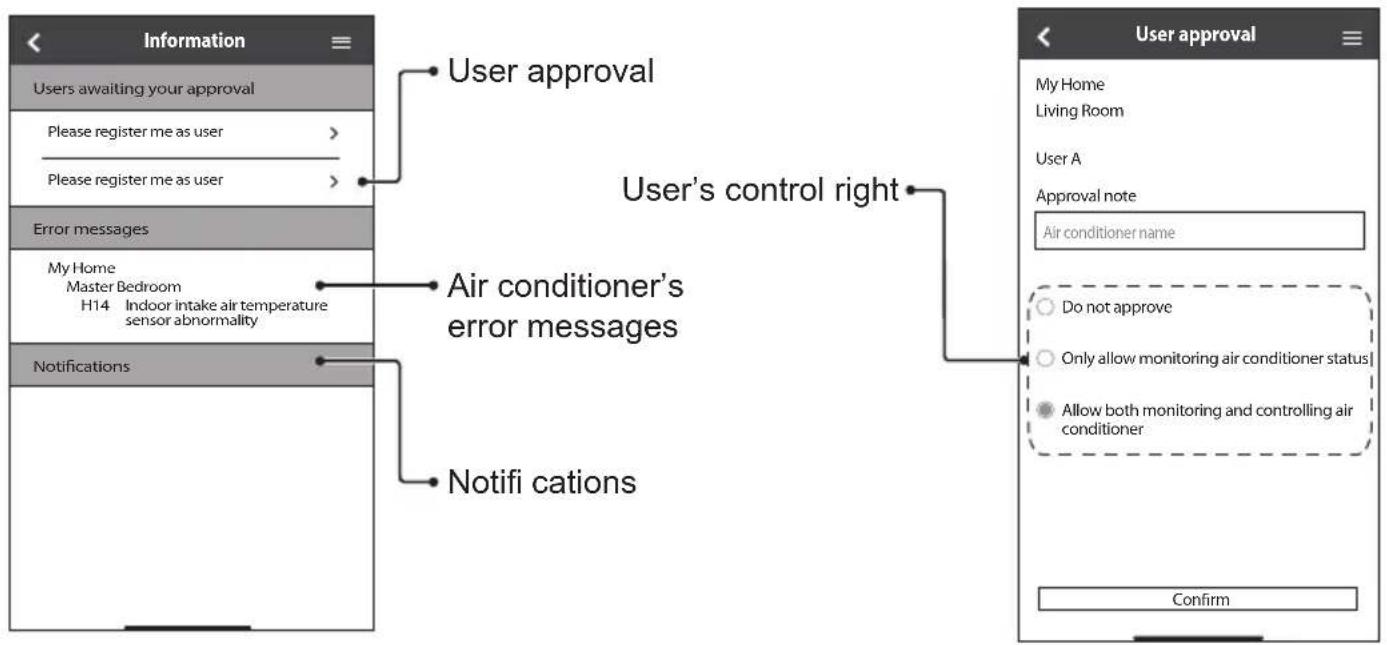
| Register additional user to control the Network Adaptor. | Download the “Panasonic Comfort Cloud” app and create a new Panasonic ID. Follow the initial setting.When the air conditioner is registered, input the password set by the first user (owner).The owner needs to approve to complete the registration.For approval, the owner needs to select ≡Menu, then select “Owner”.After that, select “User List” to approve the additional user. |
Connection
| Symptom Solution | |
| Air conditioner and wireless router cannot be connected. | Check that the router's LAN signal reaches the unit, the SSID is not hidden, the MAC address setup is enabled for the unit, and the router's dual band signal is enabled for 2.4 GHz connection.Before setup, ensure that your smartphone is connected to a 2.4 GHz network.Some MESH network router is automatically assigned to 5G signal. In such case, add a dedicated 2.4 GHz router to the existing network. |
| Unable to connect to Cloud server. | Business network that requires a server login are not supported.The IP address of PCPF and AFUS may be fi itered or could have been blocked.Set up a separate Wireless LAN network for IoT products.For router setting, use port: 443; URL: Idcws.pcpf.panasonic.com |
| Wireless signal is disconnected or interrupted. | Your network connection may not be stable. Check the signal strength using these steps:Stop the air conditioner operation, then press the Wireless LAN 📋 button for 5 seconds until “1” appears on the remote control.Press ∧ until “4” appears.Press SET and the operation stops.After 5 seconds, the Wireless LAN LED on the indoor unit will show the signal strength.Strong: Blink 3 times, followed by an intervalModerate: Blink 2 times, followed by an intervalWeak: Blink once, followed by an intervalNo signal: OFFThe network connection will automatically stop after 10 minutes. Press the Wireless LAN 🔒 button to stop immediately. |
| Suspicious or unauthorized access to the unit. | Reset the air conditioner to manufacturing default condition. For details, refer “Others - To transfer or dispose the air conditioner.” in this chapter.Then, set up the network connection again. |
"Panasonic Comfort Cloud" app
| Symptom Solution | ||||
| Unable to retrieve user ID | Due to the privacy data protection act, the “Panasonic Comfort Cloud” administrator cannot retrieve your Panasonic ID. Create a new Panasonic ID. | |||
| Unable to receive the email link for password rest after selecting “Forgot ID/password” | Your email address may have been input incorrectly. Select “Forgot ID/Password” again. | |||
| Logged off even though “Remember me” is selected. | User disagreed with the privacy notice.Due to the privacy data protection act, you will be logged off automatically if you do not access the “Panasonic Comfort Cloud” app for 15 day continuously.The “Panasonic Comfort Cloud” app was closed in your mobile phone. Reopen the “Panasonic Comfort Cloud” app without network connection.The “Panasonic Comfort Cloud” server is being maintained or updated.Your Panasonic ID was used to log in on another smartphone. You can only log in one Panasonic ID on one smartphone.The “Panasonic Comfort Cloud” storage data / cache was cleared.Log in to “Panasonic Comfort Cloud” app again. | |||
| The indoor temperature icon is not displayed. | The indoor temperature icon is only applicable for models with the latest design. | |||
| Some product features such as HEAT, iAUTO-X, Air swing (Left-Right) and Powerful are unavailable. | The product features will appear according to each country’s default setting. Select the correct country during User ID registration.The app administrator can enable the product features for each air conditioner in the group as follow: | |||
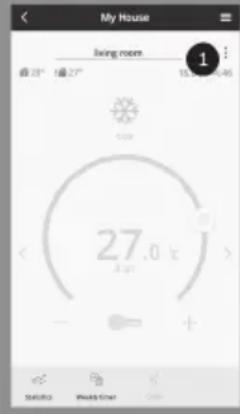 | 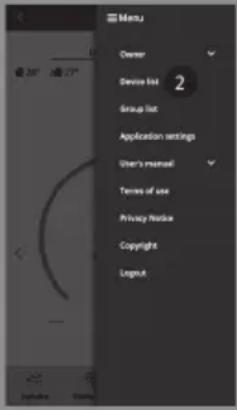 | 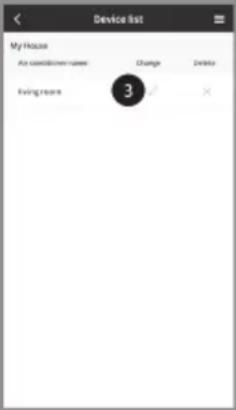 | 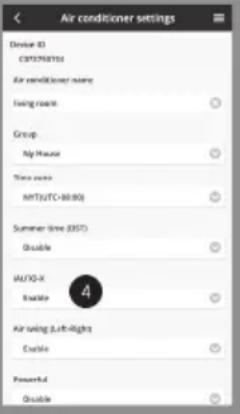 | |
| Symptom Solution | |
| The Weekly Timer does not function. | Check if you turned on the Weekly Timer at the “Panasonic Comfort Cloud” app as follow:HomeAir conditioner name Edit ON/OFFLiving Room [IMAGE]Check if there is any conflict between the Weekly Timer and the remote control Timer.The app server and the remote control time may be different. The timer will activate based on the earlier time.Check if the time zone has been set correctly as follow: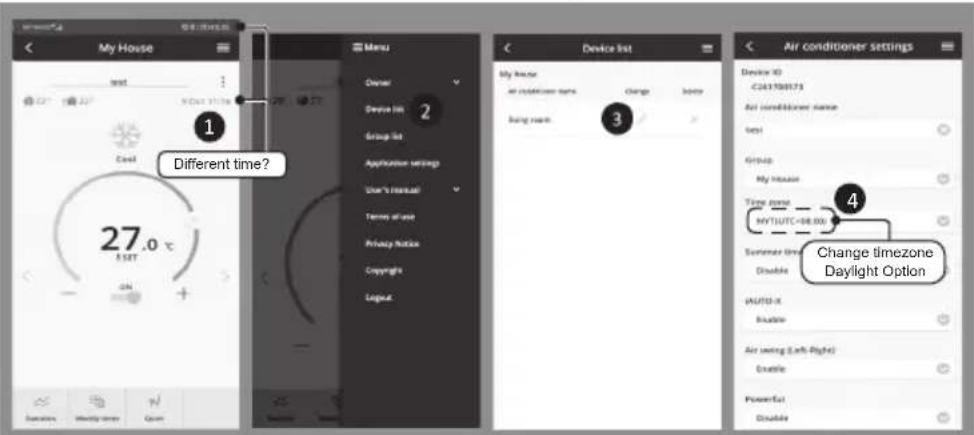 |
Others
| Symptom Solution | |
| Replacement of router. | Select ≡Menu from the “Panasonic Comfort Cloud” app. Select “Owner”, then select “Change router settings”. |
| Change of smartphone’s model. | Check if the smartphone version is compatible (Android 5.0 and above, or iOS9 and above). Install the “Panasonic Comfort Cloud” app and log in using your Panasonic login ID and password. Follow the steps for the initial connection setup. |
| Change of control board of the indoor unit. | Change the control board. Then, select ≡Menu from the “Panasonic Comfort Cloud” app. Select “Owner”, then select “Replace device”. Note that the authorised service dealer shall perform this. |
| Change of Network Adaptor/Wireless LAN module of indoor unit. | Change the Network Adaptor/Wireless LAN module. Then, select ≡Menu from the “Panasonic Comfort Cloud” app. Select “Owner”, then select “Change router settings”. Note that the authorised service dealer shall perform this. |
| To transfer or dispose the air conditioner. | Reset the air conditioner to manufacturing default condition.• Check that the Wireless LAN LED on the indoor unit is ON/blinking, then press the Wireless LAN 📋 button for 5 seconds until “1” appears on the remote control.• Press ∧ until “5” appears.• Press SET for 3 seconds and the operation stops.• The Wireless LAN LED is OFF and the factory reset is completed.To unregister the air conditioner from the “Panasonic Comfort Cloud” app, select ≡Menu , then select “Device list” to delete the unit. |
The following symptoms do not indicate malfunction.
| Symptom Cause | |
| Wireless LAN LED is ON when the unit is OFF. | The unit's wireless LAN connection with the router has been activated. |
| Wireless LAN LED blinks continuously. • The unit's wireless LAN connection with the router is not established. Recheck your connection.If you do not want to use the app, press Wireless LAN button to turn it off. | |
Information

Declaration of Conformity (DOC)
Hereby, “Panasonic Corporation” declares that this product is in compliance with the essential requirements and other relevant provisions of Directive 2014/53/EU
The full text of the EU declaration of conformity is available at the following internet address:
http://www.ptc.panasonic.eu/
Authorized Representative: Panasonic Testing Centre, Panasonic Marketing Europe GmbH, Winsbergring 15, 22525 Hamburg, Germany
Norway: There are usage restrictions within a radius of 20 km from the centre of Ny-Alesund on Svalbard.
For latest software licensing and copyright information of this product, kindly refer to the latest user manual from our website :
https://accsmart.panasonic.com/Manual/Built-In/en/manual_en.pdf
Firmware Update Function
This product has functionality for connecting to the Panasonic firmware update server over the Internet to automatically update the device firmware to the latest version.
To update the firmware, the device will do check, once per day, whether its firmware is the latest version after power up. And if an update is required, the update is applied and the device restarts automatically. Operations are not possible while the device is being restarted (which takes about 1-5 minutes).
Software License Information
This product incorporates the following software:
(1) The software developed independently by or for Panasonic Corporation,
(2) The software owned by third party and licensed to Panasonic Corporation,
(3) The open source software under the BSD licence and/or equivalent licenses.
The software categorized as of (3) is distributed in the hope that it will be useful, but WITHOUT ANY WARRANTY, without even the implied warranty of MERCHANTABILITY or FITNESS FOR A PARTICULAR PURPOSE.
The following license terms shall be applied to Open-Sourced Components.
- Supplicant license
Copyright (C) 2003-2016, Jouni Malinen j@w1.fi and contributors.
All rights reserved.
This software may be distributed, used, and modified under the terms of BSD license:
Redistribution and use in source and binary forms, with or without modification, are permitted provided that the following conditions are met:
- Redistributions of source code must retain the above copyright notice, this list of conditions and the following disclaimer.
- Redistributions in binary form must reproduce the above copyright notice, this list of conditions and the following disclaimer in the documentation and/or other materials provided with the distribution.
- Neither the name(s) of the above-listed copyright holder(s) nor the names of its contributors may be used to endorse or promote products derived from this software without specific prior written permission.
THIS SOFTWARE IS PROVIDED BY THE COPYRIGHT HOLDERS AND CONTRIBUTORS AS IS AND ANY EXPRESS OR IMPLIED WARRANTIES, INCLUDING, BUT NOT LIMITED TO, THE IMPLIED WARRANTIES OF MERCHANTABILITY AND FITNESS FOR A PARTICULAR PURPOSE ARE DISCLAIMED. IN NO EVENT SHALL THE COPYRIGHT OWNER OR CONTRIBUTORS BE LIABLE FOR ANY DIRECT, INDIRECT, INCIDENTAL, SPECIAL, EXEMPLARY, OR CONSEQUENTIAL DAMAGES (INCLUDING, BUT NOT LIMITED TO, PROCUREMENT OF SUBSTITUTE GOODS OR SERVICES; LOSS OF USE, DATA, OR PROFITS; OR BUSINESS INTERRUPTION) HOWEVER CAUSED AND ON ANY THEORY OF LIABILITY, WHETHER IN CONTRACT, STRICT LIABILITY, OR TORT (INCLUDING NEGLIGENCE OR OTHERWISE) ARISING IN ANY WAY OUT OF THE USE OF THIS SOFTWARE, EVEN IF ADVISED OF THE POSSIBILITY OF SUCH DAMAGE.
text_image
Add new device Which appliances do you want to add? Air conditioner Air to water heat pump Commercial air conditioner Cancel③
text_image
Add new air conditioner Please choose the following: Built-in wireless module External wireless adaptor Cancel④
text_image
Add new air conditioner Follow the guide to set up Wireless LAN of the air-conditioner. 1. Connect air-conditioner to the server via wireless LAN router. 2. Use smartphone to register air-conditioner to the server. Cancel Start⑤

text_image
Add new air conditioner Please choose the following: Newly purchased air-conditioner Others (Air-conditioner used before) Canceltext_image
Connection Guide Step 2 > Step 3 Make sure smartphone is connected to same wireless network. When Wireless LAN LED is ON, tap "Next". 1. Point the remote control to air - conditioner and press the "Wireless LAN" button once. 2. When Wireless LAN LED is blinking, tap "Next". Wireless LAN button Wireless LAN LED Next Canceltext_image
Connection Guide Step 1 Step 2 Step 3 Choose the button that matches the status of Wireless LAN LED. *Wireless LAN LED's position and colour varies for different models LED is OFF LED is ON LED is Blinking Canceltext_image
Connection Guide Step 1 Step 2 Step 3 The router supports WPS. Connect with WPS mode The router does not supports WPS. Connect with AP mode Canceltext_image
Connection Guide Step 1 Step 2 Step 3 Press the WPS button on the router to establish connection. Tap "Next" after the router is ready for connection Next Canceltext_image
Connection Guide Step 1 Step 2 Step 3 When the connection of air-conditioner to router is successful, the Wireless LAN LED changes from blinking to ON. *It may take up to few minutes before changes to ON. *Wireless LAN LED's position and colour varies for different models If the Wireless LAN LED is ON, tap "Next". Next If Wireless LAN LED keep blinking, tap "Check" Check Cancel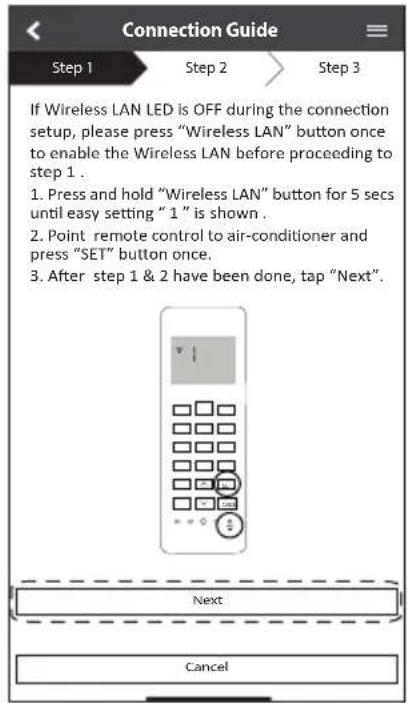
text_image
Connection Guide Step 1 Step 2 Step 3 If Wireless LAN LED is OFF during the connection setup, please press "Wireless LAN" button once to enable the Wireless LAN before proceeding to step 1 . 1. Press and hold "Wireless LAN" button for 5 secs until easy setting "1" is shown . 2. Point remote control to air-conditioner and press "SET" button once. 3. After step 1 & 2 have been done, tap "Next". Next Canceltext_image
Connection Guide Step 1 Step 2 Step 3 Searching for air-conditioner. Please wait... Canceltext_image
Connection Guide Step 1 Step 2 Step 3 If Wireless LAN LED is OFF during the connection setup, please enable again by pressing "Wireless LAN" button once before proceeding to step 1. 1. Press and hold "Wireless LAN" button for 5 secs until easy setting "1" is shown. 2. Press "up" or "down" button until Advance setting "2" is shown. 3. Point remote control to air-conditioner and press "SET" button once. 4. After step 1 ~ 3 have been done, tap"Next". Next Cancel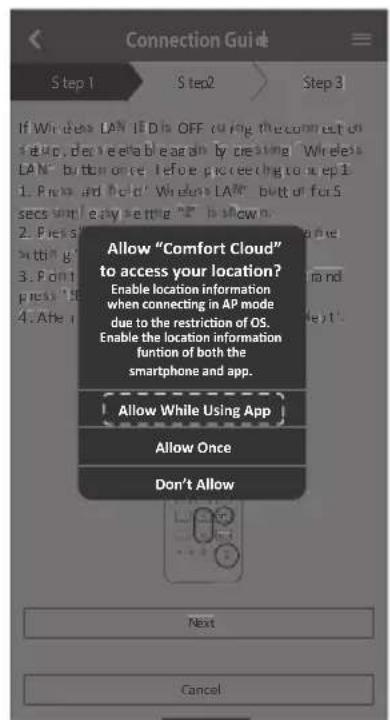
text_image
Allow "Comfort Cloud" to access your location? Enable location information when connecting in AP mode due to the restriction of OS. Enable the location information function of both the smartphone and app. Allow While Using App Allow Once Don't Allow Next Cancel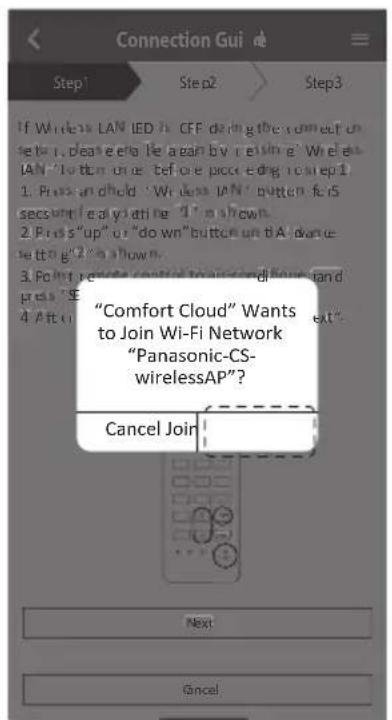
text_image
"Comfort Cloud" Wants to Join Wi-Fi Network "Panasonic-CS- wirelessAP"? Cancel Jointext_image
Enter the password of the selected wireless router. *SSID:Router_SSID1 ********** MAC address of target device d8-61-62-f8-e6-67 Cancel OK Next Canceltext_image
Connection Guide Step 1 Step 2 Step 3 When the connection of air-conditioner to router is successful, the Wireless LAN LED changes from blinking to ON. *It may take up to few minutes before changes to ON. * Wireless LAN LED'S position and colour varies for different models. If the Wireless LAN LED is ON, tap "Next". Next If Wireless LAN LED keep blinking, tap "Check". Check Cancel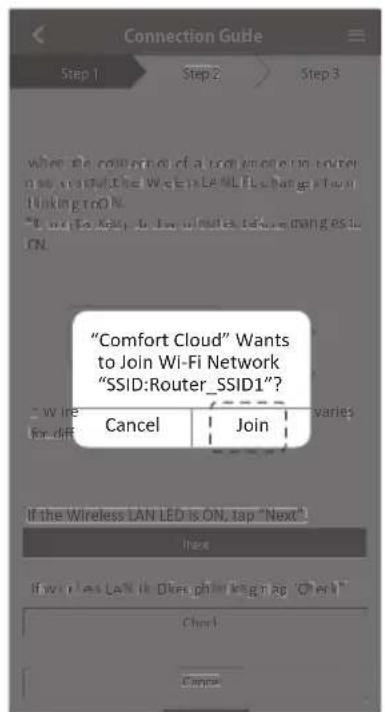
text_image
"Comfort Cloud" Wants to Join Wi-Fi Network "SSID:Router_SSID1"? Cancel Join If the Wireless LAN LED is ON, tap "Next" Here If w/ r l as Lat % i Dlres.phm kng h ap "Oer l" Check Cancel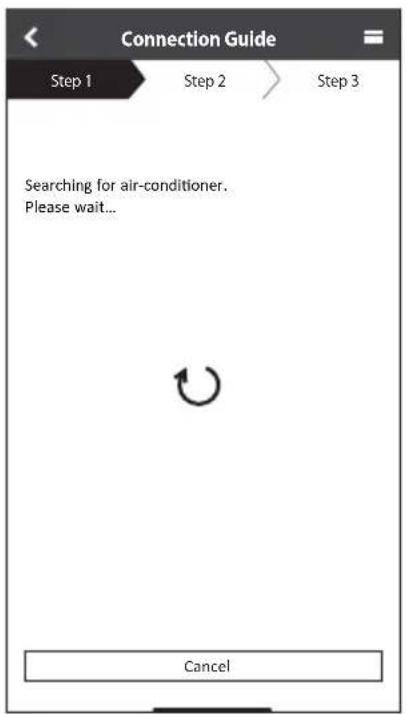
text_image
Connection Guide Step 1 Step 2 Step 3 Searching for air-conditioner. Please wait... Canceltext_image
Connection Guide Step 1 Step 2 Step 3 Select the air-conditioner for registration Unregistered air-conditioner CS-HZ25UKE-5 ✓ Registered air-conditioner Cancel Register Retry searching...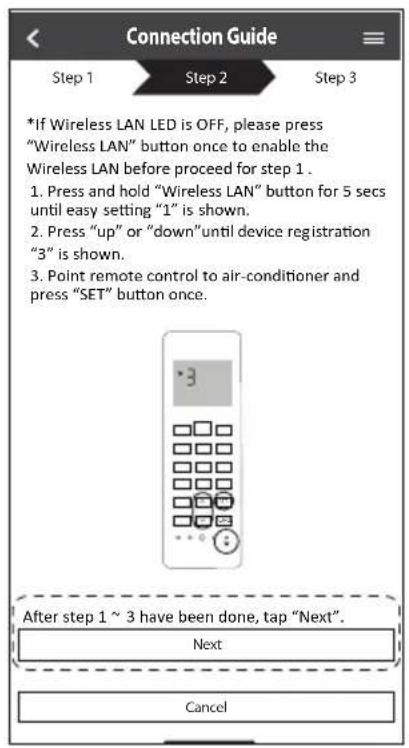
text_image
Connection Guide Step 1 Step 2 Step 3 *If Wireless LAN LED is OFF, please press "Wireless LAN" button once to enable the Wireless LAN before proceed for step 1. 1. Press and hold "Wireless LAN" button for 5 secs until easy setting "1" is shown. 2. Press "up" or "down" until device registration "3" is shown. 3. Point remote control to air-conditioner and press "SET" button once. After step 1 ~ 3 have been done, tap "Next". Next Canceltext_image
Device password settings Step 1 Step 2 Step 3 Model : CS-HZ25UKE-5 Input the password to complete the registration. Password must be 8-15 characters with letters and numbers. Password password Re-enter password Register Canceltext_image
New air conditioner settings Step 3 Model : CS-HZ25UKE-5 Enter your preferred name for this air-conditioner Air conditioner name Living Room Register Cancel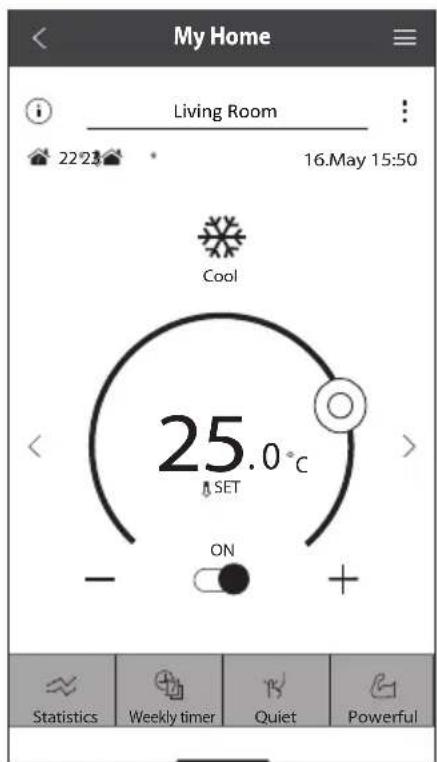
text_image
My Home Living Room 22:23 16.May 15:50 Cool 25.0°C SET ON + Statistics Weekly timer Quiet PowerfulRemarque
text_image
Information Users awaiting your approval Please register me as user > Please register me as user > Error messages My Home Master Bedroom H14 Indoor intake air temperature sensor abnormality Notifications Approbation de l'utilisateur Droit de contrôle de l'utilisateur Messages d'erreur du climatiseur Notifi cations User approval My Home Living Room User A Approval note Air conditioner name Do not approve Only allow monitoring air conditioner status Allow both monitoring and controlling air conditioner Confirmtext_image
My Home Living Room 22° 23° 16.May 15:50 Cool 25.0°C SET ON Statistics Weeklytimer Quiet Powerful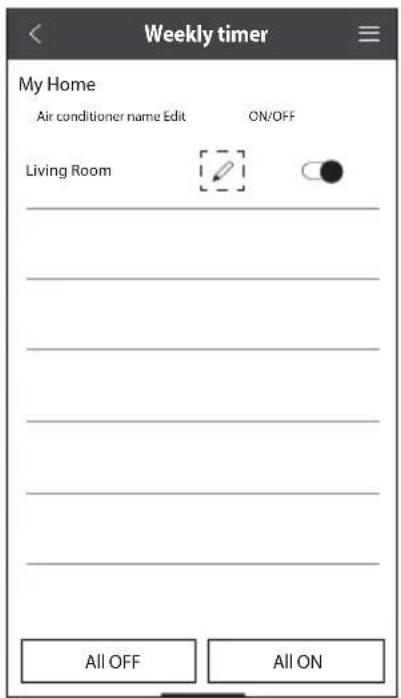
text_image
Weekly timer My Home Air conditioner name Edit ON/OFF Living Room All OFF All ON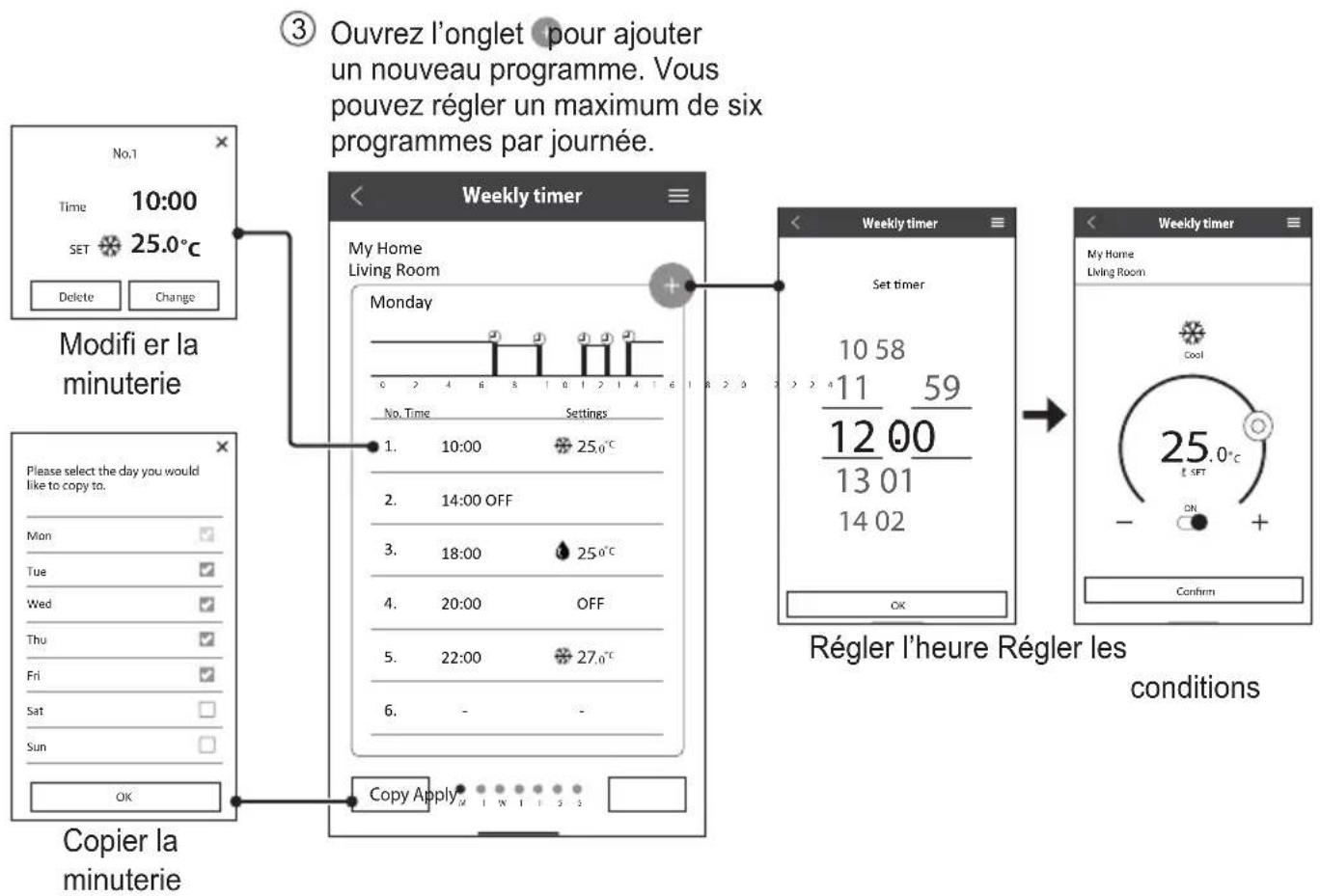
flowchart
graph TD
    A["Modifi er la minuterie"] --> B["Copy Apply"]
    B --> C["Weekly timer"]
    C --> D["Set timer"]
    D --> E["Weekly timer"]
    E --> F["Régler l'heure Régler les conditions"]
Menu principal
text_image
Changing device password Make sure the device is correct and enter old password and new password. Password must be 8-15 characters with letters and numbers. My Home Living Room Target device C123456789 Old password Old password New password New password Re-enter new password Register Entrer l'ancien mot de passe Entrer le nouveau mot de passe Entrer le nouveau mot de passe à nouveautext_image
Replace device My Home Living Room Device ID C123456789 Replace the network adaptor. 1. Connect the network adaptor to the server via wireless router. 2. Register the network adaptor to the server with smartphone. Toucher Démarrer Cancel Starttext_image
Change router settings My Home Living Room Device ID C123456789 Set up the wireless network again when you replaced the wireless router or changed the password. You will have to set up each device if two or more air conditioners are connected to the same router. Toucher Démarrer Cancel StartListe des appareils
text_image
Device list My Home Air conditioner name Change Delete Living Room Kitchen Child Room Modifi er les informations et les réglages de l'appareil Supprimer l'appareilListe des groupes
text_image
Add new device Which appliances do you want to add? Air conditioner Air to water heat pump Commercial air conditioner Cancel③
text_image
Add new air conditioner Please choose the following: Built-in wireless module External wireless adaptor Cancel4
text_image
Add new air conditioner Follow the guide to set up Wireless LAN of the air-conditioner. 1. Connect air-conditioner to the server via wireless LAN router. 2. Use smartphone to register air-conditioner to the server. Cancel Start⑤
text_image
Add new air conditioner Please choose the following: Newly purchased air-conditioner Others (Air-conditioner used before) Canceltext_image
Connection Guide Step 2 Step 3 Make sure smartphone is connected to same wireless network. When Wireless LAN LED is ON, tap "Next". 1. Point the remote control to air-conditioner and press the "Wireless LAN" button once. 2. When Wireless LAN LED is blinking, tap "Next". Wireless LAN button Wireless LAN LED Next Canceltext_image
Connection Guide Step 1 Step 2 Step 3 Choose the button that matches the status of Wireless LAN LED. *Wireless LAN LED's position and colour varies for different models LED is OFF LED is ON LED is Blinking Canceltext_image
Connection Guide Step 1 Step 2 Step 3 The router supports WPS. Connect with WPS mode The router does not supports WPS. Connect with AP mode Canceltext_image
Connection Guide Step 1 Step 2 Step 3 Press the WPS button on the router to establish connection. Tap "Next" after the router is ready for connection Next Canceltext_image
Connection Guide Step 1 Step 2 Step 3 When the connection of air-conditioner to router is successful, the Wireless LAN LED changes from blinking to ON. *It may take up to few minutes before changes to ON. *Wireless LAN LED's position and colour varies for different models If the Wireless LAN LED is ON, tap "Next". Next If Wireless LAN LED keep blinking, tap "Check" Check Canceltext_image
Connection Guide Step 1 Step 2 Step 3 If Wireless LAN LED is OFF during the connection setup, please press "Wireless LAN" button once to enable the Wireless LAN before proceeding to step 1 . 1. Press and hold "Wireless LAN" button for 5 secs until easy setting "1" is shown . 2. Point remote control to air-conditioner and press "SET" button once. 3. After step 1 & 2 have been done, tap "Next". Next Canceltext_image
Connection Guide Step 1 Step 2 Step 3 Searching for air conditioner. Please wait... Canceltext_image
Connection Guide Step 1 Step 2 Step 3 If Wireless LAN LED is OFF during the connection setup, please enable again by pressing "Wireless LAN" button once before proceeding to step 1. 1. Press and hold "Wireless LAN" button for 5 secs until easy setting "1" is shown. 2. Press "up" or "down" button until Advance setting "2" is shown. 3. Point remote control to air-conditioner and press "SET" button once. 4. After step 1 ~ 3 have been done, tap"Next". Next Cancel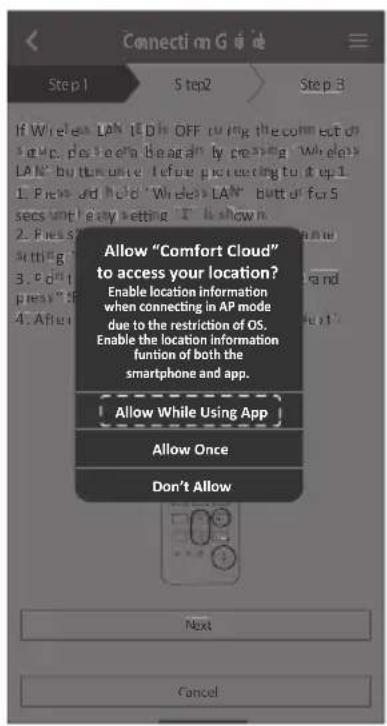
text_image
Allow "Comfort Cloud" to access your location? Enable location information when connecting in AP mode due to the restriction of OS. Enable the location information function of both the smartphone and app. Allow While Using App Allow Once Don't Allow Next Cancel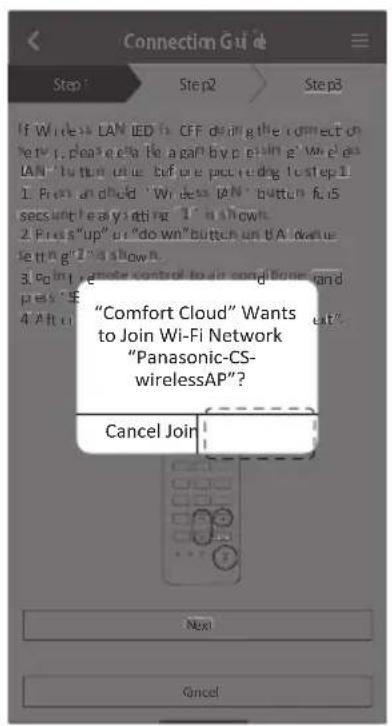
text_image
"Comfort Cloud" Wants to Join Wi-Fi Network "Panasonic-CS-wirelessAP"? Cancel Jointext_image
Enter the password of the selected wireless router. *SSID:Router_SSID1 ********** MAC address of target device d8-61-62-18-c5-67 Cancel OK Next Canceltext_image
Connection Guide Step 1 Step 2 Step 3 When the connection of air-conditioner to router is successful, the Wireless LAN LED changes from blinking to ON. *It may take up to few minutes before changes to ON. * Wireless LAN LED'S position and colour varies for different models. If the Wireless LAN LED is ON, tap "Next". Next If Wireless LAN LED keep blinking, tap "Check". Check Cancel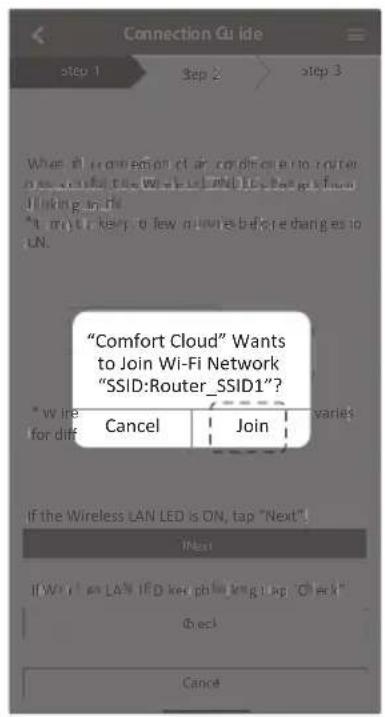
text_image
"Comfort Cloud" Wants to Join Wi-Fi Network "SSID:Router_SSID1"? * we need for diff Cancel Join varies If the Wireless LAN LED is ON, tap "Next" Next If Wi-Fi as LAN IFD key phone kng 1ap "Check" Check Cancel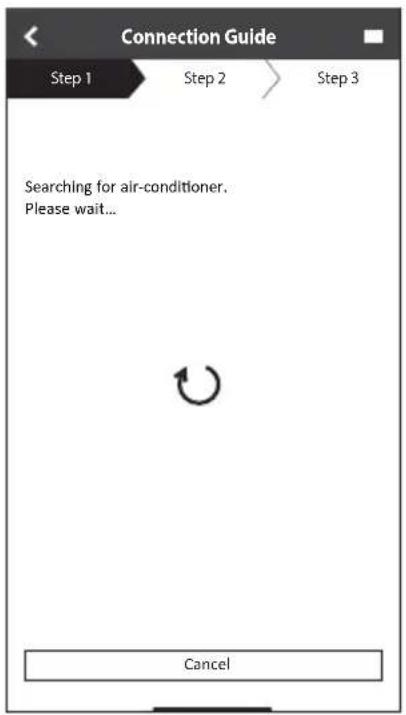
text_image
Connection Guide Step 1 Step 2 Step 3 Searching for air-conditioner. Please wait... Canceltext_image
Connection Guide Step 1 Step 2 Step 3 Select the air-conditioner for registration Unregistered air-conditioner CS-HZ25UKE-5 Registered air-conditioner Cancel Register Retry searching...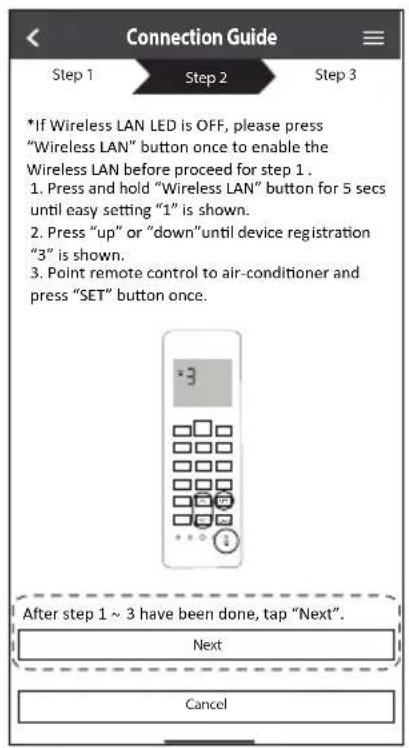
text_image
Connection Guide Step 1 Step 2 Step 3 *If Wireless LAN LED is OFF, please press "Wireless LAN" button once to enable the Wireless LAN before proceed for step 1. 1. Press and hold "Wireless LAN" button for 5 secs until easy setting "1" is shown. 2. Press "up" or "down" until device registration "3" is shown. 3. Point remote control to air-conditioner and press "SET" button once. After step 1 ~ 3 have been done, tap "Next". Next Canceltext_image
Device password settings Step 1 Step 2 Step 3 Model : CS-HZ25UKE-5 Input the password to complete the registration. Password must be 8-15 characters with letters and numbers. Password password Re-enter password Register CancelRegistro completo
text_image
New air conditioner settings Step 3 Model : CS-HZ25UKE-5 Enter your preferred name for this air-conditioner Air conditioner name Living Room Register Cancel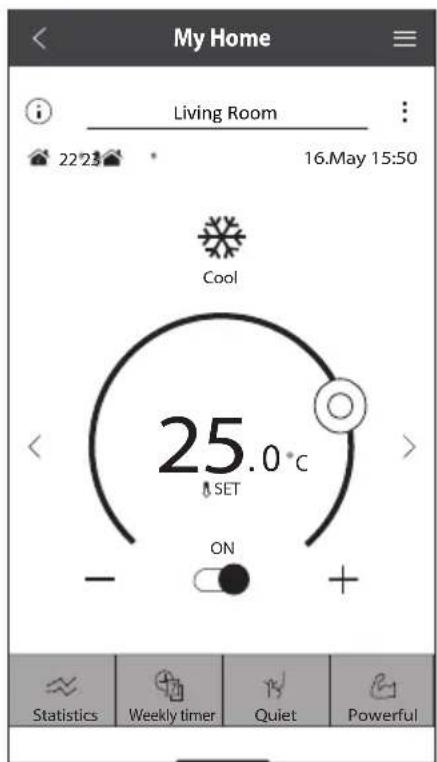
text_image
My Home Living Room 22°23 16.May 15:50 Cool 25.0°C SET ON + Statistics Weekly timer Quiet PowerfulNota
text_image
My Home Living Room 22:23 16.May 15:50 Cool 25.0°C SET ON Statistics Weekly timer Quiet Powerful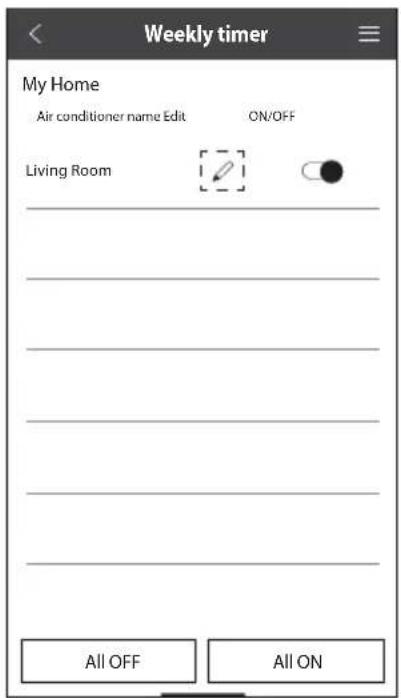
text_image
Weekly timer My Home Air conditioner name Edit ON/OFF Living Room All OFF All ON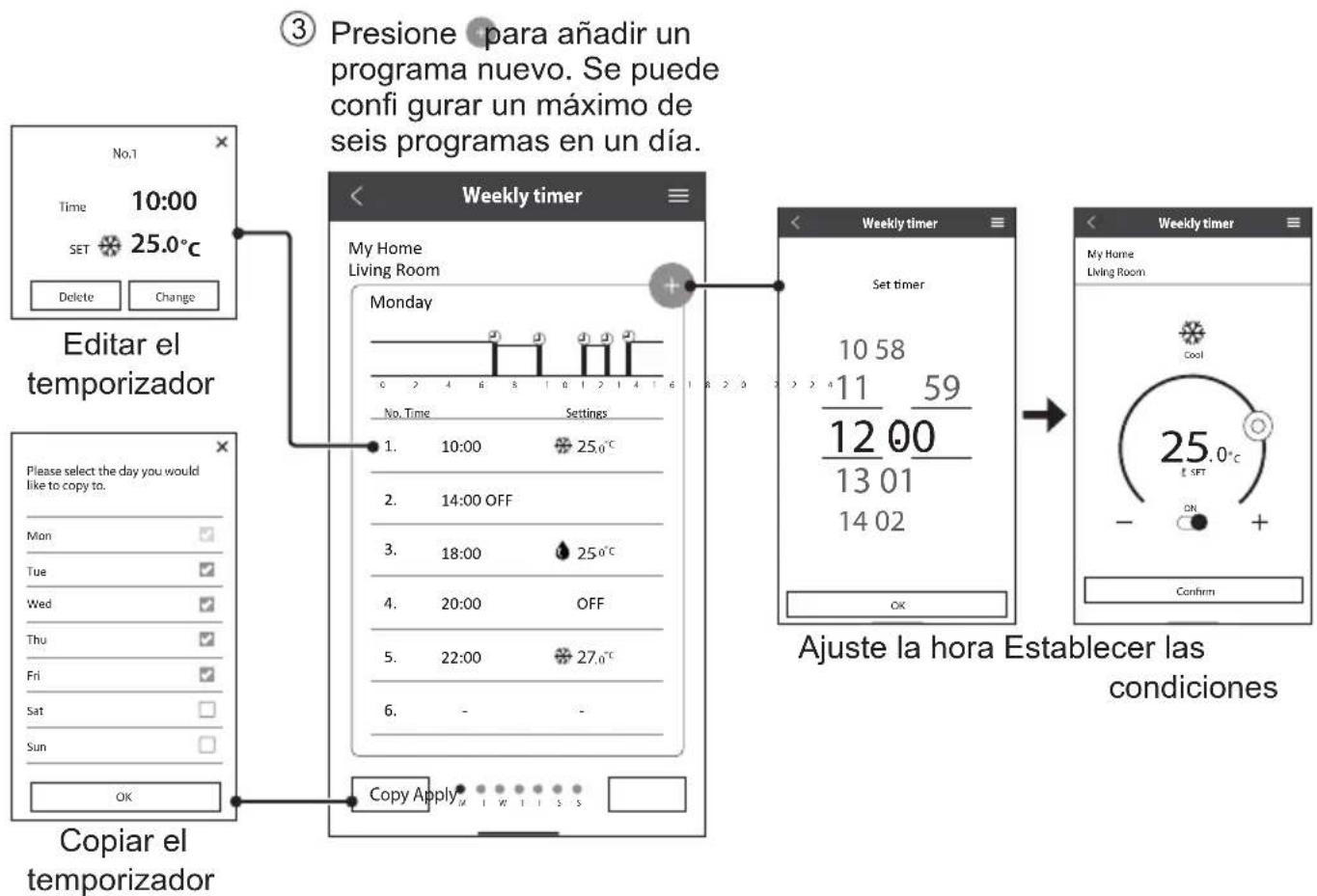
text_image
Replace device My Home Living Room Device ID C123456789 Replace the network adaptor. 1. Connect the network adaptor to the server via wireless router. 2. Register the network adaptor to the server with smartphone. Cancel Start Presionar Iniciartext_image
Change router settings My Home Living Room Device ID C123456789 Set up the wireless network again when you replaced the wireless router or changed the password. You will have to set up each device if two or more air conditioners are connected to the same router. Cancel Start Presionar Iniciarnatural_image
Diagram showing a wireless network connection between a tower, a sphere with orbiting rings, and a smartphone (no text or symbols)Router
Internet Smartphone
text_image
Add new device Which appliances do you want to add? Air conditioner Air to water heat pump Commercial air conditioner Cancel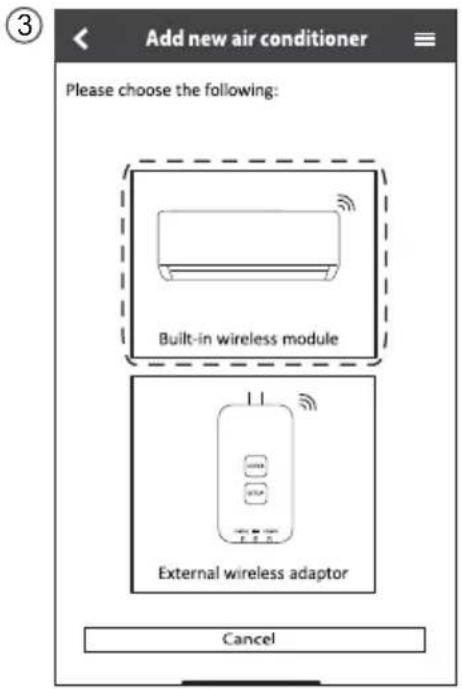
text_image
Add new air conditioner Please choose the following: Built-in wireless module External wireless adaptor Cancel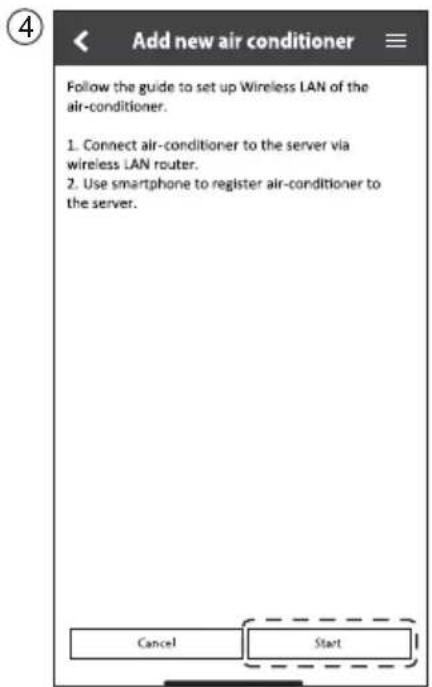
text_image
Add new air conditioner Follow the guide to set up Wireless LAN of the air-conditioner. 1. Connect air-conditioner to the server via wireless LAN router. 2. Use smartphone to register air-conditioner to the server. Cancel Start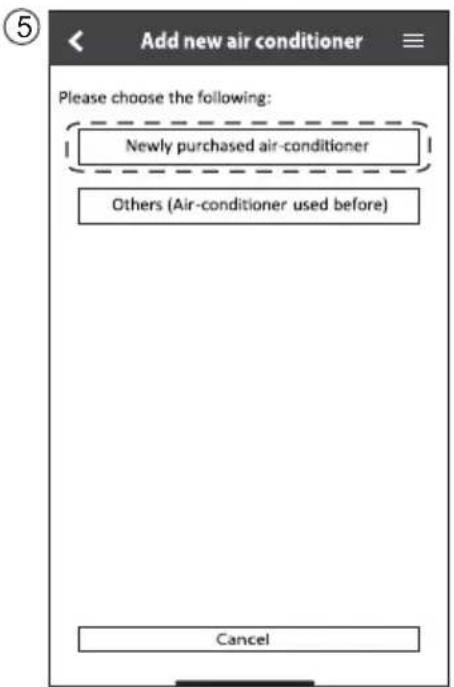
text_image
Add new air conditioner Please choose the following: Newly purchased air-conditioner Others (Air-conditioner used before) Canceltext_image
Connection Guide Step 2 Step 3 Make sure smartphone is connected to same wireless network. When Wireless LAN LED is ON, tap "Next". 1. Point the remote control to air-conditioner and press the "Wireless LAN" button once. 2. When Wireless LAN LED is blinking, tap "Next". Wireless LAN button Wireless LAN LED Next Canceltext_image
Connection Guide Step 1 Step 2 Step 3 Choose the button that matches the status of Wireless LAN LED. *Wireless LAN LED's position and colour varies for different models LED is OFF LED is ON LED is Blinking Canceltext_image
Connection Guide Step 1 Step 2 Step 3 The router supports WPS. Connect with WPS mode The router does not supports WPS. Connect with AP mode Canceltext_image
Connection Guide Step 1 Step 2 Step 3 Press the WPS button on the router to establish connection. Tap "Next" after the router is ready for connection Next Canceltext_image
Connection Guide Step 1 Step 2 Step 3 When the connection of air-conditioner to router is successful, the Wireless LAN LED changes from blinking to ON. *It may take up to few minutes before changes to ON. *Wireless LAN LED's position and colour varies for different models If the Wireless LAN LED is ON, tap "Next". Next If Wireless LAN LED keep blinking, tap "Check" Check Canceltext_image
Connection Guide Step 1 Step 2 Step 3 If Wireless LAN LED is OFF during the connection setup, please press "Wireless LAN" button once to enable the Wireless LAN before proceeding to step 1. 1. Press and hold "Wireless LAN" button for 5 secs until easy setting "1" is shown. 2. Point remote control to air-conditioner and press "SET" button once. 3. After step 1 & 2 have been done, tap "Next". Next Canceltext_image
Connection Guide Step 1 Step 2 Step 3 Searching for air-conditioner. Please wait... Canceltext_image
Connection Guide Step 1 Step 2 Step 3 If Wireless LAN LED is OFF during the connection setup, please enable again by pressing "Wireless LAN" button once before proceeding to step 1. 1. Press and hold "Wireless LAN" button for 5 secs until easy setting "1" is shown. 2. Press "up" or "down" button until Advance setting "2" is shown. 3. Point remote control to air-conditioner and press "SET" button once. 4. After step 1 ~ 3 have been done, tap"Next". Next Cancel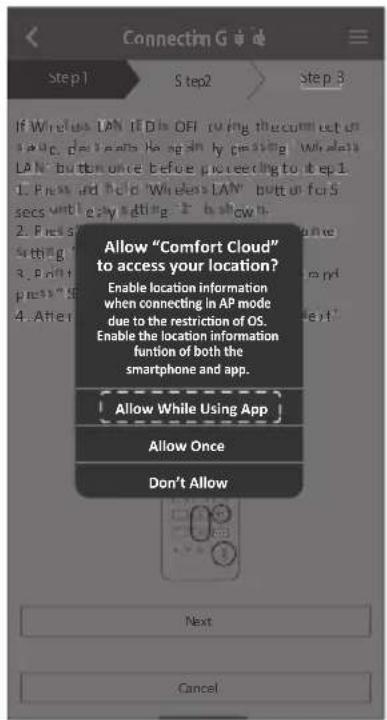
text_image
Step 1 Step2 Step 3 If Wireless LAN LED is OFF, using the correct on step, please be again by pressing Wireless LAN button once before proceeding to step 1. 1. Press and hold Wireless LAN button for 5 secs until every setting it is allowed. 2. Press setting setting 4. Print press" SP 4. After Allow "Comfort Cloud" to access your location? Enable location information when connecting in AP mode due to the restriction of OS. Enable the location information function of both the smartphone and app. Allow While Using App Allow Once Don't Allow Next Cancel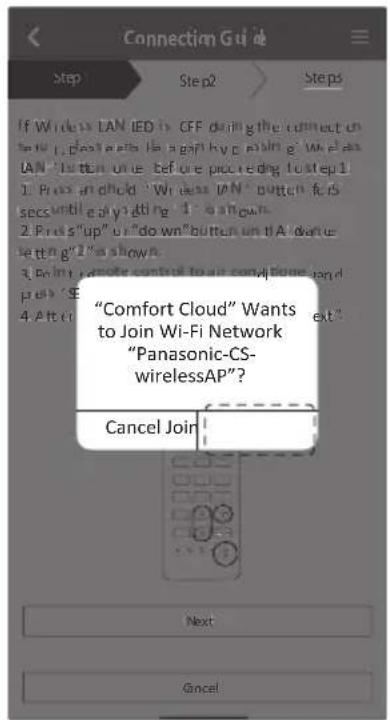
text_image
"Comfort Cloud" Wants to Join Wi-Fi Network "Panasonic-CS-wirelessAP"? Cancel Jointext_image
Enter the password of the selected wireless router. *SSID:Router_SSID1 ************ MAC address of target device d8-61-62-f8-e6-67 Cancel OK Next Canceltext_image
Connection Guide Step 1 Step 2 Step 3 When the connection of air-conditioner to router is successful, the Wireless LAN LED changes from blinking to ON. *It may take up to few minutes before changes to ON. * Wireless LAN LED'S position and colour varies for different models. If the Wireless LAN LED is ON, tap "Next". Next If Wireless LAN LED keep blinking, tap "Check". Check Cancel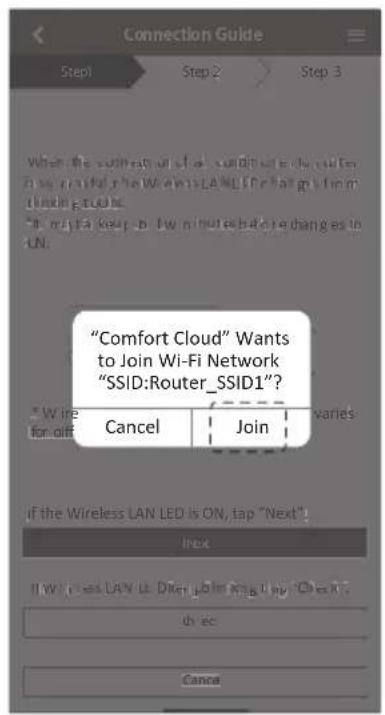
text_image
"Comfort Cloud" Wants to Join Wi-Fi Network "SSID:Router_SSID1"? * Wire for off Cancel Join varies if the Wireless LAN LED is ON, tap "Next" Index If Wi-Fi is LAN U. DRef, join Web http://OpenXT. do sec Cancel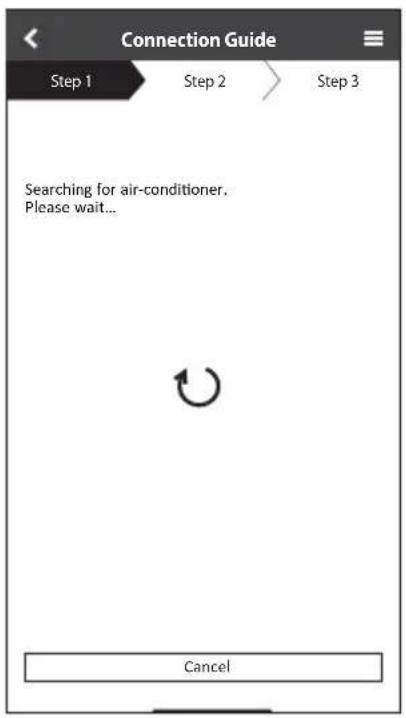
text_image
Connection Guide Step 1 Step 2 Step 3 Searching for air-conditioner. Please wait... Canceltext_image
Connection Guide Step 1 Step 2 Step 3 Select the air-conditioner for registration Unregistered air-conditioner CS-HZ25UKE-5 Registered air-conditioner Cancel Register Retry searching...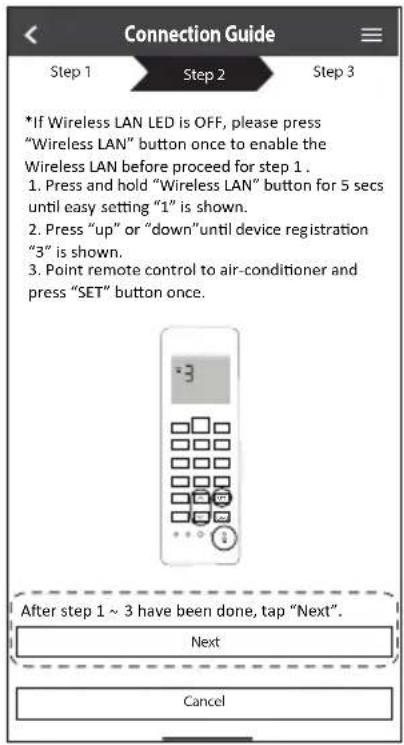
text_image
Connection Guide Step 1 Step 2 Step 3 *If Wireless LAN LED is OFF, please press "Wireless LAN" button once to enable the Wireless LAN before proceed for step 1. 1. Press and hold "Wireless LAN" button for 5 secs until easy setting "1" is shown. 2. Press "up" or "down" until device registration "3" is shown. 3. Point remote control to air-conditioner and press "SET" button once. After step 1 ~ 3 have been done, tap "Next". Next Canceltext_image
Device password settings Step 1 Step 2 Step 3 Model : CS-HZ25UKE-5 Input the password to complete the registration. Password must be 8-15 characters with letters and numbers. Password password Re-enter password Register Canceltext_image
New air conditioner settings Step 3 Model : CS-HZ25UKE-5 Enter your preferred name for this air-conditioner Air conditioner name Living Room Register Cancel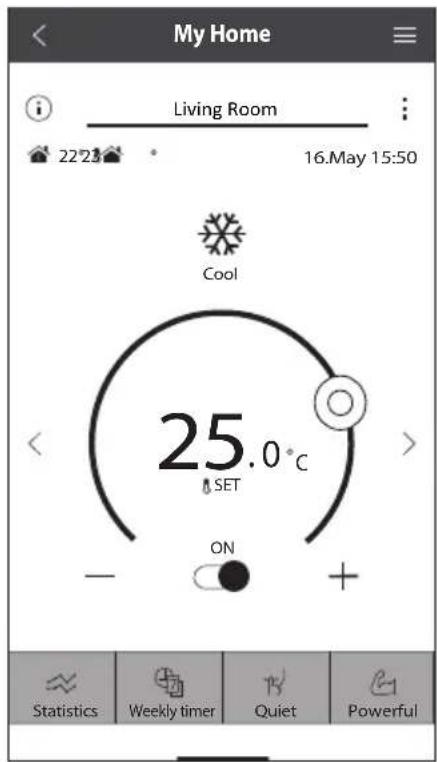
text_image
My Home Living Room 22°23 16.May 15:50 Cool 25.0°C SET ON + Statistics Weekly timer Quiet PowerfulHinweis
text_image
My Home Living Room 22:23 16.May 15:50 Cool 25.0°C SET ON Statistics Weekly timer Quiet Powerful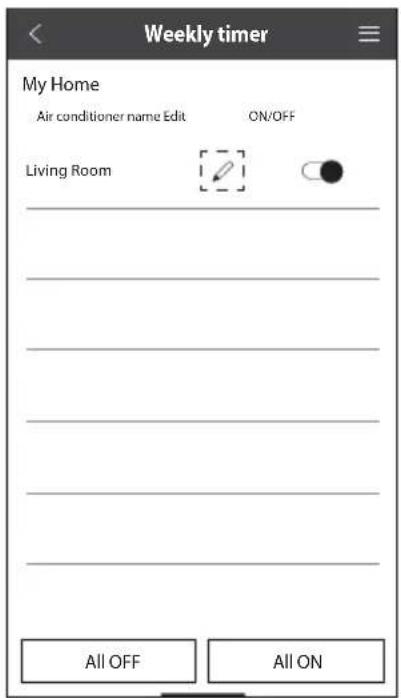
text_image
Weekly timer My Home Air conditioner name Edit ON/OFF Living Room All OFF All ONtext_image
Changing device password Make sure the device is correct and enter old password and new password. Password must be 8-15 characters with letters and numbers. My Home Living Room Target device C123456789 Old password Old password New password New password Re-enter new password Register Altes Passwort eingeben Neues Passwort eingeben Neues Passwort erneut eingebenErsetzen des Geräts
text_image
Change router settings My Home Living Room Device ID C123456789 Set up the wireless network again when you replaced the wireless router or changed the password. You will have to set up each device if two or more air conditioners are connected to the same router. Tippen Sie auf Start Cancel StartGeräteliste
Air conditioner name Edit ON/OFF
Living Room
• The App Store is a service mark of Apple Inc.
- iPhone is a trademark of Apple Inc. registered in the United States and other countries. The iPhone trademarks is used under license of iPhone Co., Ltd.
- Android and Google Play are trademarks or registered trademarks of Google LLC.
- Other names, company names, product names, etc described in this manual are trademarks or registered trademarks of each company. In the text, some™ and ® marks are not listed.
About Software
This product incorporates the following software:
1) The software developed independently by or for Panasonic Corporation,
2) The software owned by third party and licensed to Panasonic Corporation,
3) The software licensed under the GNU GENERAL PUBLIC LICENSE Version 2.0 (GPL V2.0),
4) Open sourced software other than the software licensed under the GPL V2.0.
The software categorized as (3) and (4) are distributed in the hope that it will be useful, but without any warranty, without even the implied warranty of [merchantability] or [fi tness for a particular purpose]. Please refer to the detailed terms and conditions thereof shown in the "Software License" menu on this product.
At least three (3) years from delivery of this product, Panasonic will give to any third party who contacts us at the contact information provided below, for a charge no more than our cost of physically performing source code distribution, a complete machine-readable copy of the corresponding source code covered under GPL V2.0 or the other licenses with the obligation to do so, as well as the respective copyright notice thereof.
Contact information:
oss-cd-request@gg.jp.panasonic.com
The source code and the copyright notice are also available for free in our website below.
https://panasonic.net/cns/oss/ap/
lwIP
lwIP is licenced under the BSD licence: Copyright (c) 2001-2004 Swedish Institute of Computer Science. All rights reserved.
Copyright (c) 2001-2003 Swedish Institute of Computer Science. All rights reserved.
Copyright (c) 2002 CITEL Technologies Ltd. All rights reserved. Copyright (c) 2007 Dominik Spies kontakt@dspies.de All rights reserved.
Copyright (c) 2002-2003, Adam Dunkels. All rights reserved.
Copyright (c) 2001-2003 Swedish Institute of Computer Science.
Copyright (c) 2003-2004 Leon Woestenberg leon.woestenberg@axon.tv
Copyright (c) 2003-2004 Axon Digital Design B.V., The Netherlands. All rights reserved.
Copyright (c) 2001-2004 Leon Woestenberg leon.woestenberg@gmx.net
Copyright (c) 2001-2004 Axon Digital Design B.V., The Netherlands. All rights reserved.
MINIX3
Copyright (c) 2016 The MINIX 3 Project.
All rights reserved.
Redistribution and use in source and binary forms, with or without modification, are permitted provided that the following conditions are met:
- Redistributions of source code must retain the above copyright notice, this list of conditions and the following disclaimer.
- Redistributions in binary form must reproduce the above copyright notice, this list of conditions and the following disclaimer in the documentation and/or other materials provided with the distribution.
- The name of the author may not be used to endorse or promote products derived from this software without specific prior written permission.
THIS SOFTWARE IS PROVIDED BY THE AUTHOR "AS IS" AND ANY EXPRESS OR IMPLIED WARRANTIES, INCLUDING, BUT NOT LIMITED TO, THE IMPLIED WARRANTIES OF MERCHANTABILITY AND FITNESS FOR A PARTICULAR PURPOSE ARE DISCLAIMED. IN NO EVENT SHALL THE AUTHOR BE LIABLE FOR ANY DIRECT, INDIRECT, INCIDENTAL, SPECIAL, EXEMPLARY, OR CONSEQUENTIAL DAMAGES (INCLUDING, BUT NOT LIMITED TO, PROCUREMENT OF SUBSTITUTE GOODS OR SERVICES; LOSS OF USE, DATA, OR PROFITS; OR BUSINESS INTERRUPTION) HOWEVER CAUSED AND ON ANY THEORY OF LIABILITY, WHETHER IN CONTRACT, STRICT LIABILITY, OR TORT (INCLUDING NEGLIGENCE OR OTHERWISE) ARISING IN ANY WAY OUT OF THE USE OF THIS SOFTWARE, EVEN IF ADVISED OF THE POSSIBILITY OF SUCH DAMAGE.
mbedTLS
Copyright (C) 2006-2015, ARM Limited, All Rights Reserved Copyright (C) 2006-2016, ARM Limited, All Rights Reserved Apache License
Version 2.0, January 2004
http://www.apache.org/licenses/
TERMS AND CONDITIONS FOR USE, REPRODUCTION, AND DISTRIBUTION
1. Definitions.
“License” shall mean the terms and conditions for use, reproduction, and distribution as defined by Sections 1 through 9 of this document. “Licensor” shall mean the copyright owner or entity authorized by the copyright owner that is granting the License.
"Legal Entity" shall mean the union of the acting entity and all other entities that control, are controlled by, or are under common control with that entity. For the purposes of this definition, "control" means (i) the power, direct or indirect, to cause the direction or management of such entity, whether by contract or otherwise, or (ii) ownership of fifty percent (50%) or more of the outstanding shares, or (iii) beneficial ownership of such entity.
"You" (or "Your") shall mean an individual or Legal Entity exercising permissions granted by this License.
"Source" form shall mean the preferred form for making modifications, including but not limited to software source code, documentation source, and configuration files.
"Object" form shall mean any form resulting from mechanical transformation or translation of a Source form, including but not limited to compiled object code, generated documentation, and conversions to other media types.
"Work" shall mean the work of authorship, whether in Source or Object form, made available under the License, as indicated by a copyright notice that is included in or attached to the work.
"Derivative Works" shall mean any work, whether in Source or Object form, that is based on (or derived from) the Work and for which the editorial revisions, annotations, elaborations, or other modifications represent, as a whole, an original work of authorship. For the purposes of this License, Derivative Works shall not include works that remain separable from, or merely link (or bind by name) to the interfaces of, the Work and Derivative Works thereof.
“Contribution” shall mean any work of authorship, including the original version of the Work and any modifications or additions to that Work or Derivative Works thereof, that is intentionally submitted to Licensor for inclusion in the Work by the copyright owner or by an individual or Legal Entity authorized to submit on behalf of the copyright owner. For the purposes of this definition, “submitted” means any form of electronic, verbal, or written communication sent to the Licensor or its representatives, including but not limited to communication on electronic mailing lists, source code control systems, and issue tracking systems that are managed by, or on behalf of, the Licensor for the purpose of discussing and improving the Work, but excluding
communication that is conspicuously marked or otherwise designated in writing by the copyright owner as "Not a Contribution."
“Contributor” shall mean Licensor and any individual or Legal Entity on behalf of whom a Contribution has been received by Licensor and subsequently incorporated within the Work.
-
Grant of Copyright License. Subject to the terms and conditions of this License, each Contributor hereby grants to You a perpetual, worldwide, non-exclusive, no-charge, royalty-free, irrevocable copyright license to reproduce, prepare Derivative Works of, publicly display, publicly perform, sublicense, and distribute the Work and such Derivative Works in Source or Object form.
-
Grant of Patent License. Subject to the terms and conditions of this License, each Contributor hereby grants to You a perpetual, worldwide, non-exclusive, no-charge, royaltyfree, irrevocable (except as stated in this section) patent license to make, have made, use, offer to sell, sell, import, and otherwise transfer the Work, where such license applies only to those patent claims licensable by such Contributor that are necessarily infringed by their Contribution(s) alone or by combination of their Contribution(s) with the Work to which such Contribution(s) was submitted.
If You institute patent litigation against any entity (including a cross-claim or counterclaim in a lawsuit) alleging that the Work or a Contribution incorporated within the Work constitutes direct or contributory patent infringement, then any patent licenses granted to You under this License for that Work shall terminate as of the date such litigation is filed.
- Redistribution. You may reproduce and distribute copies of the Work or Derivative Works thereof in any medium, with or without modifications, and in Source or Object form, provided that You meet the following conditions:
(a) You must give any other recipients of the Work or Derivative Works a copy of this License; and
(b) You must cause any modified files to carry prominent notices stating that You changed the files; and
(c) You must retain, in the Source form of any Derivative Works that You distribute, all copyright, patent, trademark, and attribution notices from the Source form of the Work, excluding those notices that do not pertain to any part of the Derivative Works; and
(d) If the Work includes a "NOTICE" text file as part of its distribution, then any Derivative Works that You distribute must include a readable copy of the attribution notices contained within such NOTICE file, excluding those notices that do not pertain to any part of the Derivative Works, in at least one of the following places: within a NOTICE text file distributed as part of the Derivative Works; within the Source form or documentation, if provided along with the Derivative Works; or, within a display generated by the Derivative Works, if and wherever such third-party notices normally appear. The contents of the NOTICE file are for informational purposes only and do not modify the License. You may add Your own attribution notices within Derivative Works that You distribute, alongside or as an addendum to the NOTICE text from the Work, provided that such additional attribution notices cannot be construed as modifying the License.
You may add Your own copyright statement to Your modifications and may provide additional or different license terms and conditions for use, reproduction, or distribution of Your modifications, or for any such Derivative Works as a whole, provided Your use, reproduction, and distribution of the Work otherwise complies with the conditions stated in this License.
- Submission of Contributions. Unless You explicitly state otherwise, any Contribution intentionally submitted for inclusion in the Work by You to the Licensor shall be under the terms and conditions of this License, without any additional terms or conditions.
Notwithstanding the above, nothing herein shall supersede or modify the terms of any separate license agreement you may have executed with Licensor regarding such Contributions.
- Trademarks. This License does not grant permission to use the trade names, trademarks, service marks, or product names of the Licensor, except as required for reasonable and customary use in describing the origin of the Work and reproducing the content of the NOTICE file.
- Disclaimer of Warranty. Unless required by applicable law or agreed to in writing, Licensor provides the Work (and each Contributor provides its Contributions) on an "AS IS" BASIS, WITHOUT WARRANTIES OR CONDITIONS OF ANY KIND, either express or implied, including, without limitation, any warranties or conditions of TITLE, NON-INFRINGEMENT, MERCHANTABILITY, or FITNESS FOR A PARTICULAR PURPOSE. You are solely responsible for determining the appropriateness of using or redistributing the Work and assume any risks associated with Your exercise of permissions under this License.
- Limitation of Liability. In no event and under no legal theory, whether in tort (including negligence), contract, or otherwise, unless required by applicable law (such as deliberate and grossly negligent acts) or agreed to in writing, shall any Contributor be liable to You for damages, including any direct, indirect, special, incidental, or consequential damages of any character arising as a result of this License or out of the use or inability to use the Work (including but not limited to damages for loss of goodwill, work stoppage, computer failure or malfunction, or any and all other commercial damages or losses), even if such Contributor has been advised of the possibility of such damages.
- Accepting Warranty or Additional Liability. While redistributing the Work or Derivative Works thereof, You may choose to offer, and charge a fee for, acceptance of support, warranty, indemnity, or other liability obligations and or rights consistent with this License. However, in accepting such obligations, You may act only on Your own behalf and/ on Your sole responsibility, not on behalf of any other Contributor, and only if You agree to indemnify, defend, and hold each Contributor harmless for any liability incurred by, or claims asserted against, such Contributor by reason of your accepting any such warranty or additional liability.
END OF TERMS AND CONDITIONS
APPENDIX: How to apply the Apache License to your work.
To apply the Apache License to your work, attach the following boilerplate notice, with the fields enclosed by brackets "[]" replaced with your own identifying information. (Don't include the brackets!) The text should be enclosed in the appropriate comment syntax for the file format. We also recommend that a file or class name and description of purpose be included on the same "printed page" as the copyright notice for easier identification within third-party archives.
Copyright [yyyy] [name of copyright owner]
Licensed under the Apache License, Version 2.0 (the "License"); you may not use this file except in compliance with the License.
You may obtain a copy of the License at http://www.apache.org/licenses/LICENSE-2.0
Unless required by applicable law or agreed to in writing, software distributed under the License is distributed on an "AS IS" BASIS, WITHOUT WARRANTIES OR CONDITIONS OF ANY KIND, either express or implied.
See the License for the specific language governing permissions and limitations under the License.
Copyright (c) 2003-2016, Jouni Malinen
<j@w1.fi > and contributors All Rights Reserved.
This program is licensed under the BSD license (the one with advertisement clause removed).
If you are submitting changes to the project, please see CONTRIBUTIONS file for more instructions.
License
This software may be distributed, used, and modified under the terms of BSD license:
Redistribution and use in source and binary forms, with or without modification, are permitted provided that the following conditions are met:
- Redistributions of source code must retain the above copyright notice, this list of conditions and the following disclaimer.
- Redistributions in binary form must reproduce the above copyright notice, this list of conditions and the following disclaimer in the documentation and/or other materials provided with the distribution.
- Neither the name(s) of the above-listed copyright holder(s) nor the names of its contributors may be used to endorse or promote products derived from this software without specific prior written permission. THIS SOFTWARE IS PROVIDED BY THE COPYRIGHT HOLDERS AND CONTRIBUTORS "AS IS" AND ANY EXPRESS OR IMPLIED WARRANTIES, INCLUDING, BUT NOT LIMITED TO, THE IMPLIED WARRANTIES OF MERCHANTABILITY AND FITNESS FOR A PARTICULAR PURPOSE ARE DISCLAIMED. IN NO EVENT SHALL THE COPYRIGHT OWNER OR CONTRIBUTORS BE LIABLE FOR ANY DIRECT, INDIRECT, INCIDENTAL, SPECIAL, EXEMPLARY, OR CONSEQUENTIAL DAMAGES (INCLUDING, BUT NOT LIMITED TO, PROCUREMENT OF SUBSTITUTE GOODS OR SERVICES; LOSS OF USE, DATA, OR PROFITS; OR BUSINESS INTERRUPTION) HOWEVER CAUSED AND ON ANY THEORY OF LIABILITY, WHETHER IN CONTRACT, STRICT LIABILITY, OR TORT (INCLUDING NEGLIGENCE OR OTHERWISE) ARISING IN ANY WAY OUT OF THE USE OF THIS SOFTWARE, EVEN IF ADVISED OF THE POSSIBILITY OF SUCH DAMAGE.
Free RTOS
The FreeRTOS source code is licensed by a *modifi ed* GNU General Public License (GPL). The modification is provided in the form of an exception.
NOTE: The modification to the GPL is included to allow you to distribute a combined work that includes FreeRTOS without being obliged to provide the source code for proprietary components outside of the FreeRTOS kernel.
The FreeRTOS GPL Exception Text:
Any FreeRTOS source code, whether modified or in it's original release form, or whether in whole or in part, can only be distributed by you under the terms of the GNU General Public License plus this exception. An independent module is a module which is not derived from or based on FreeRTOS.
Clause 1:
Linking FreeRTOS statically or dynamically with other modules is making a combined work based on FreeRTOS. Thus, the terms and conditions of the GNU General Public License cover the whole combination.
As a special exception, the copyright holder of FreeRTOS gives you permission to link FreeRTOS with independent modules that communicate with FreeRTOS solely through the FreeRTOS API interface, regardless of the license terms of these independent modules, and to copy and distribute the resulting combined work under terms of your choice, provided that
- Every copy of the combined work is accompanied by a written statement that details to the recipient the version of FreeRTOS used and an offer by yourself to provide the FreeRTOS source code (including any modifications you may have made) should the recipient request it.
- The combined work is not itself an RTOS, scheduler, kernel or related product.
- The independent modules add significant and primary functionality to FreeRTOS and do not merely extend the existing functionality already present in FreeRTOS.
Clause 2:
FreeRTOS may not be used for any competitive or comparative purpose, including the publication of any form of run time or compile time metric, without the express permission of Real Time Engineers Ltd. (this is the norm within the industry and is intended to ensure information accuracy).
The standard GPL exception text:
GNU GENERAL PUBLIC LICENSE
Version 2, June 1991
Copyright (C) 1989, 1991 Free Software Foundation, Inc. 59 Temple Place, Suite 330, Boston, MA 02111-1307 USA
Everyone is permitted to copy and distribute verbatim copies of this license document, but changing it is not allowed.
Preamble
The licenses for most software are designed to take away your freedom to share and change it. By contrast, the GNU General Public License is intended to guarantee your freedom to share and change free software--to make sure the software is free for all its users. This General Public License applies to most of the Free Software Foundation's software and to any other program whose authors commit to using it. (Some other Free Software Foundation software is covered by the GNU Library General Public License instead.) You can apply it to your programs, too.
When we speak of free software, we are referring to freedom, not price. Our General Public Licenses are designed to make sure that you have the freedom to distribute copies of free software (and charge for this service if you wish), that you receive source code or can get it if you want it, that you can change the software or use pieces of it in new free programs; and that you know you can do these things.
To protect your rights, we need to make restrictions that forbid anyone to deny you these rights or to ask you to surrender the rights. These restrictions translate to certain responsibilities for you if you distribute copies of the software, or if you modify it.
For example, if you distribute copies of such a program, whether gratis or for a fee, you must give the recipients all the rights that you have. You must make sure that they, too, receive or can get the source code. And you must show them these terms so they know their rights.
We protect your rights with two steps: (1) copyright the software, and (2) offer you this license which gives you legal permission to copy, distribute and/or modify the software.
Also, for each author's protection and ours, we want to make certain that everyone understands that there is no warranty for this free software. If the software is modified by someone else and passed on, we want its recipients to know that what they have is not the original, so that any problems introduced by others will not reflect on the original authors' reputations.
Finally, any free program is threatened constantly by software patents. We wish to avoid the danger that redistributors of a free program will individually obtain patent licenses, in effect making the program proprietary. To prevent this, we have made it clear that any patent must be licensed for everyone's free use or not licensed at all.
The precise terms and conditions for copying, distribution and modification follow.
GNU GENERAL PUBLIC LICENSE TERMS AND CONDITIONS FOR COPYING, DISTRIBUTION AND MODIFICATION
- This License applies to any program or other work which contains a notice placed by the copyright holder saying it may be distributed under the terms of this General Public License. The “Program”, below, refers to any such program or work, and a “work based on the Program” means either the Program or any derivative work under copyright law: that is to say, a work containing the Program or a portion
of it, either verbatim or with modifications and/or translated into another language. (Hereinafter, translation is included without limitation in the term "modifi cation".) Each licensee is addressed as "you".
Activities other than copying, distribution and modification are not covered by this License; they are outside its scope. The act of running the Program is not restricted, and the output from the Program is covered only if its contents constitute a work based on the Program (independent of having been made by running the Program). Whether that is true depends on what the Program does.
- You may copy and distribute verbatim copies of the Program's source code as you receive it, in any medium, provided that you conspicuously and appropriately publish on each copy an appropriate copyright notice and disclaimer of warranty; keep intact all the notices that refer to this License and to the absence of any warranty; and give any other recipients of the Program a copy of this License along with the Program.
You may charge a fee for the physical act of transferring a copy, and you may at your option offer warranty protection in exchange for a fee.
- You may modify your copy or copies of the Program or any portion of it, thus forming a work based on the Program, and copy and distribute such modifications or work under the terms of Section 1 above, provided that you also meet all of these conditions:
a) You must cause the modified files to carry prominent notices stating that you changed the files and the date of any change.
b) You must cause any work that you distribute or publish, that in whole or in part contains or is derived from the Program or any part thereof, to be licensed as a whole at no charge to all third parties under the terms of this License.
c) If the modified program normally reads commands interactively when run, you must cause it, when started running for such interactive use in the most ordinary way, to print or display an announcement including an appropriate copyright notice and a notice that there is no warranty (or else, saying that you provide a warranty) and that users may redistribute the program under these conditions, and telling the user how to view a copy of this License. (Exception: if the Program itself is interactive but does not normally print such an announcement, your work based on the Program is not required to print an announcement.)
These requirements apply to the modified work as a whole. If identifiable sections of that work are not derived from the Program, and can be reasonably considered independent and separate works in themselves, then this License, and its terms, do not apply to those sections when you distribute them as separate works. But when you distribute the same sections as part of a whole which is a work based on the Program the distribution of the whole must be on the terms of this License, whose permissions for other licensees extend to the entire whole, and thus to each and every part regardless of who wrote it.
Thus, it is not the intent of this section to claim rights or contest your rights to work written entirely by you; rather, the intent is to exercise the right to control the distribution of derivative or collective works based on the Program.
In addition, mere aggregation of another work not based on the Program with the Program (or with a work based on the Program) on a volume of a storage or distribution medium does not bring the other work under the scope of this License.
- You may copy and distribute the Program (or a work based on it, under Section 2) in object code or executable form under the terms of Sections 1 and 2 above provided that you also do one of the following:
a) Accompany it with the complete corresponding machine-readable source code, which must be distributed under the terms of Sections 1 and 2 above on a medium customarily used for software interchange; or,
b) Accompany it with a written offer, valid for at least three years,
to give any third party, for a charge no more than your cost of physically performing source distribution, a complete machine-readable copy of the corresponding source code, to be distributed under the terms of Sections 1 and 2 above on a medium customarily used for software interchange; or,
c) Accompany it with the information you received as to the offer to distribute corresponding source code. (This alternative is allowed only for noncommercial distribution and only if you received the program in object code or executable form with such an offer, in accord with Subsection b above.)
The source code for a work means the preferred form of the work for making modifications to it. For an executable work, complete source code means all the source code for all modules it contains, plus any associated interface definition files, plus the scripts used to control compilation and installation of the executable. However, as a special exception, the source code distributed need not include anything that is normally distributed (in either source or binary form) with the major components (compiler, kernel, and so on) of the operating system on which the executable runs, unless that component itself accompanies the executable.
If distribution of executable or object code is made by offering access to copy from a designated place, then offering equivalent access to copy the source code from the same place counts as distribution of the source code, even though third parties are not compelled to copy the source along with the object code.
-
You may not copy, modify, sublicense, or distribute the Program except as expressly provided under this License. Any attempt otherwise to copy, modify, sublicense or distribute the Program is void, and will automatically terminate your rights under this License. However, parties who have received copies, or rights, from you under this License will not have their licenses terminated so long as such parties remain in full compliance.
-
You are not required to accept this License, since you have not signed it. However, nothing else grants you permission to modify or distribute the Program or its derivative works. These actions are prohibited by law if you do not accept this License. Therefore, by modifying or distributing the Program (or any work based on the Program), you indicate your acceptance of this License to do so, and all its terms and conditions for copying, distributing or modifying the Program or works based on it.
-
Each time you redistribute the Program (or any work based on the Program), the recipient automatically receives a license from the original licensor to copy, distribute or modify the Program subject to these terms and conditions. You may not impose any further restrictions on the recipients' exercise of the rights granted herein. You are not responsible for enforcing compliance by third parties to this License.
-
If, as a consequence of a court judgment or allegation of patent infringement or for any other reason (not limited to patent issues), conditions are imposed on you (whether by court order, agreement or otherwise) that contradict the conditions of this License, they do not excuse you from the conditions of this License. If you cannot distribute so as to satisfy simultaneously your obligations under this License and any other pertinent obligations, then as a consequence you may not distribute the Program at all. For example, if a patent license would not permit royalty-free redistribution of the Program by all those who receive copies directly or indirectly through you, then the only way you could satisfy both it and this License would be to refrain entirely from distribution of the Program.
If any portion of this section is held invalid or unenforceable under any particular circumstance, the balance of the section is intended to apply and the section as a whole is intended to apply in other circumstances. It is not the purpose of this section to induce you to infringe any patents or other property right claims or to contest validity of any such claims; this section has the sole purpose of protecting the integrity of the free
software distribution system, which is implemented by public license practices. Many people have made generous contributions to the wide range of software distributed through that system in reliance on consistent application of that system; it is up to the author/donor to decide if he or she is willing to distribute software through any other system and a licensee cannot impose that choice.
This section is intended to make thoroughly clear what is believed to be a consequence of the rest of this License.
- If the distribution and/or use of the Program is restricted in certain countries either by patents or by copyrighted interfaces, the original copyright holder who places the Program under this License may add an explicit geographical distribution limitation excluding those countries, so that distribution is permitted only in or among countries not thus excluded. In such case, this License incorporates the limitation as if written in the body of this License.
- The Free Software Foundation may publish revised and/or new versions of the General Public License from time to time. Such new versions will be similar in spirit to the present version, but may differ in detail to address new problems or concerns.
Each version is given a distinguishing version number. If the Program specifies a version number of this License which applies to it and “any later version”, you have the option of following the terms and conditions either of that version or of any later version published by the Free Software Foundation. If the Program does not specify a version number of this License, you may choose any version ever published by the Free Software Foundation.
-
If you wish to incorporate parts of the Program into other free programs whose distribution conditions are different, write to the author to ask for permission. For software which is copyrighted by the Free Software Foundation, write to the Free Software Foundation; we sometimes make exceptions for this. Our decision will be guided by the two goals of preserving the free status of all derivatives of our free software and of promoting the sharing and reuse of software generally. NO WARRANTY
-
BECAUSE THE PROGRAM IS LICENSED FREE OF CHARGE, THERE IS NO WARRANTY FOR THE PROGRAM, TO THE EXTENT PERMITTED BY APPLICABLE LAW. EXCEPT WHEN OTHERWISE STATED IN WRITING THE COPYRIGHT HOLDERS AND/OR OTHER PARTIES PROVIDE THE PROGRAM "AS IS" WITHOUT WARRANTY OF ANY KIND, EITHER EXPRESSED OR IMPLIED, INCLUDING, BUT NOT LIMITED TO, THE IMPLIED WARRANTIES OF MERCHANTABILITY AND FITNESS FOR A PARTICULAR PURPOSE. THE ENTIRE RISK AS TO THE QUALITY AND PERFORMANCE OF THE PROGRAM IS WITH YOU. SHOULD THE PROGRAM PROVE DEFECTIVE, YOU ASSUME THE COST OF ALL NECESSARY SERVICING, REPAIR OR CORRECTION.
- IN NO EVENT UNLESS REQUIRED BY APPLICABLE LAW OR AGREED TO IN WRITING WILL ANY COPYRIGHT HOLDER, OR ANY OTHER PARTY WHO MAY MODIFY AND/OR REDISTRIBUTE THE PROGRAM AS PERMITTED ABOVE, BE LIABLE TO YOU FOR DAMAGES, INCLUDING ANY GENERAL, SPECIAL, INCIDENTAL OR CONSEQUENTIAL DAMAGES ARISING OUT OF THE USE OR INABILITY TO USE THE PROGRAM (INCLUDING BUT NOT LIMITED TO LOSS OF DATA OR DATA BEING RENDERED INACCURATE OR LOSSES SUSTAINED BY YOU OR THIRD PARTIES OR A FAILURE OF THE PROGRAM TO OPERATE WITH ANY OTHER PROGRAMS), EVEN IF SUCH HOLDER OR OTHER PARTY HAS BEEN ADVISED OF THE POSSIBILITY OF SUCH DAMAGES.
END OF TERMS AND CONDITIONS
How to Apply These Terms to Your New Programs
If you develop a new program, and you want it to be of the greatest possible use to the public, the best way to achieve this is to make it free software which everyone can redistribute and change under these terms.
To do so, attach the following notices to the program. It is safest to attach them to the start of each source file to most effectively convey the exclusion of warranty; and each file should have at least the "copyright" line and a pointer to where the full notice is found.
Copyright (C)
This program is free software; you can redistribute it and/or modify it under the terms of the GNU General Public License** as published by the Free Software Foundation; either version 2 of the License, or (at your option) any later version.
This program is distributed in the hope that it will be useful, but WITHOUT ANY WARRANTY; without even the implied warranty of MERCHANTABILITY or FITNESS FOR A PARTICULAR PURPOSE. See the GNU General Public License for more details.
You should have received a copy of the GNU General Public License along with this program; if not, write to the Free Software Foundation, Inc., 59 Temple Place, Suite 330, Boston, MA 02111-1307 USA
Also add information on how to contact you by electronic and paper mail. If the program is interactive, make it output a short notice like this when it starts in an interactive mode:
Gnomovision version 69, Copyright (C) year name of author Gnomovision comes with ABSOLUTELY NO WARRANTY; for details type 'show w'.
This is free software, and you are welcome to redistribute it under certain conditions; type 'show c' for details.
The hypothetical commands `show w' and `show c' should show the appropriate parts of the General Public License. Of course, the commands you use may be called something other than `show w' and `show c'; they could even be mouseclicks or menu items--whatever suits your program.
You should also get your employer (if you work as a programmer) or your school, if any, to sign a “copyright disclaimer” for the program, if necessary. Here is a sample; alter the names:
Yoyodyne, Inc., hereby disclaims all copyright interest in the program 'Gnomovision' (which makes passes at compilers) written by James Hacker.
Ty Coon, President of Vice
This General Public License does not permit incorporating your program into proprietary programs. If your program is a subroutine library, you may consider it more useful to permit linking proprietary applications with the library. If this is what you want to do, use the GNU Library General Public License instead of this License.
Manufactured by: Panasonic Corporation
1006 Kadoma, Kadoma City, Osaka, Japan
Importer for Europe: Panasonic Marketing Europe GmbH
Panasonic Testing Centre
Winsbergring 15, 22525 Hamburg, Germany
Website: http://www.panasonic.com
© Panasonic Corporation 2020
Printed in Malaysia

Authorised representative in EU
Panasonic Testing Centre
Panasonic Marketing Europe GmbH
Winsbergring 15, 22525 Hamburg, Germany