WT600 - Projector NEC - Free user manual and instructions
Find the device manual for free WT600 NEC in PDF.

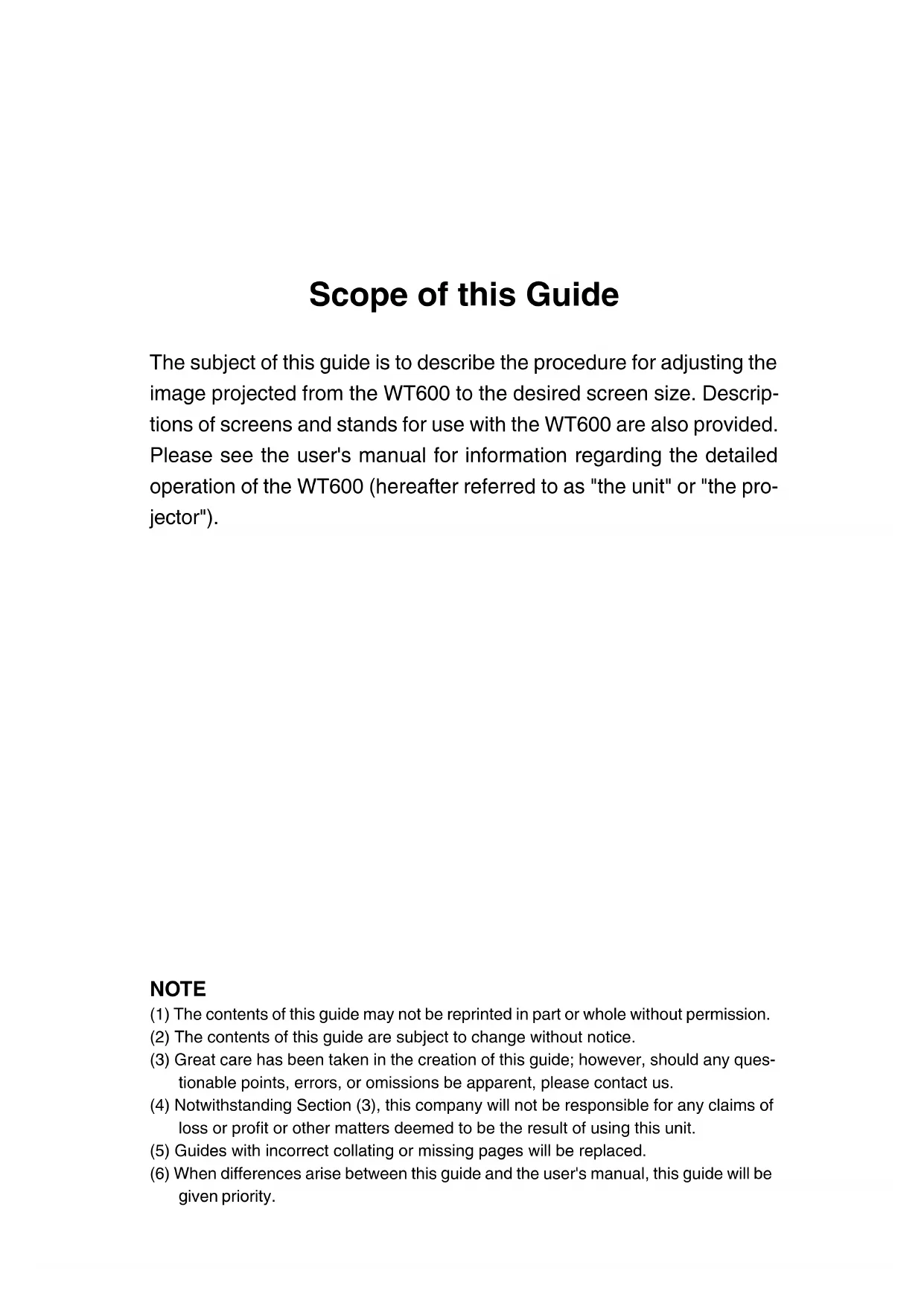


| Projector type | DLP projector (retro-projection mirror) |
| Brand and model | NEC WT600 |
| Weight | Approx. 5.9 kg |
| Power supply | 100-240 V AC, 50/60 Hz (via supplied power cable) |
| Compatible screen size | 40 to 100 inches (4:3) |
| Projection distance | Approx. 64 mm (40") to 659 mm (100") (according to table) |
| Keystone correction | Via foot adjustment and screen position (manual adjustment) |
| Pincushion/barrel distortion correction | Built-in "Pincushion" (3D Reform) function |
| Optical focus | By FOCUS buttons (simultaneous action on keystone distortion) |
| Adjustable feet | 4 feet, height adjustable up to 30 mm |
| Video inputs | RGB (15-pin), DVI-D (digital), S-Video, Composite |
| Remote control | With POWER ON/OFF, RGB, AUTO ADJ., 3D REFORM buttons, etc. (range 7 m) |
| Lamp life | Approx. 2100 h in normal mode, up to 3100 h in Eco mode |
| Mirror cleaning | Use supplied cloth (avoid fingerprints) |
| Safety | Mirror cover lock; lamp cover; main power switch |
| Additional functions | Digital zoom, default setting, panel key lock |
| Operating temperature | Avoid overheating; do not block ventilation |
Frequently Asked Questions - WT600 NEC
User questions about WT600 NEC
0 question about this device. Answer the ones you know or ask your own.
Ask a new question about this device
Download the instructions for your Projector in PDF format for free! Find your manual WT600 - NEC and take your electronic device back in hand. On this page are published all the documents necessary for the use of your device. WT600 by NEC.
USER MANUAL WT600 NEC
WT600 INSTALLATIONSGUIDE
WT600 SETUP GUIDE
Contents
Screens Suited for the WT600 E-2
Stands Suited for the WT600 E-2
Ambient environmental condition E-3
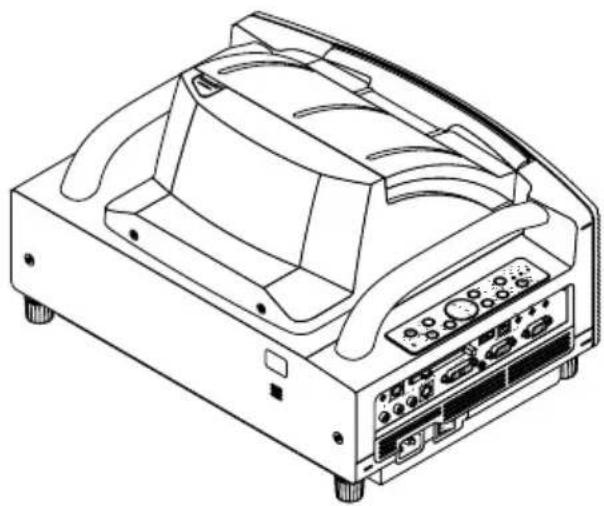
Part Names of the Projector E-3
1. Setting Up the Screen and Projector E-4
2. Connections E-5
3. Opening the Mirror E-5
4. Switching on the Power E-6
5. Selecting Signals E-6
6. Adjusting the Position and Size of the Projected Image (Focus Adjustments) E-7
7. Adjusting Pincushion or Barrel Distortion (Pincushion) E-11
8. Troubleshooting E-13
Scope of this Guide
The subject of this guide is to describe the procedure for adjusting the image projected from the WT600 to the desired screen size. Descriptions of screens and stands for use with the WT600 are also provided. Please see the user's manual for information regarding the detailed operation of the WT600 (hereafter referred to as "the unit" or "the projector").
NOTE
(1) The contents of this guide may not be reprinted in part or whole without permission.
(2) The contents of this guide are subject to change without notice.
(3) Great care has been taken in the creation of this guide; however, should any questionable points, errors, or omissions be apparent, please contact us.
(4) Notwithstanding Section (3), this company will not be responsible for any claims of loss or profit or other matters deemed to be the result of using this unit.
(5) Guides with incorrect collating or missing pages will be replaced.
(6) When differences arise between this guide and the user's manual, this guide will be given priority.

WARNING
- Do not set up the projector, the screen or stand in a place that is not level or in an unstable location. Doing so may result in the screen falling over or the projector falling which may result in injury.
- When setting up the projector on the stand, first secure the top plate in a level condition. When the top plate is set at an angle, the projector may fall resulting in injury.
- Use a stand that can fully support the weight of the projector (which for this unit is approximately 13lbs / 5.9kg ). Failing to do so may result in the projector falling and causing injury.
Screens Suited for the WT600
- The unit can accommodate screen sizes from 40^ (81.3 cm/32.0" W × 61.0 cm/24.0" H) to 100 inch (203.2 cm/80.0" W × 152.4 cm/60.0" H).
- Use a panel or tension type screen that has a flat surface. Do not use roll type screens and other screens that bend or form a wavy surface easily. Doing so will result in increased distortion of the projected image.
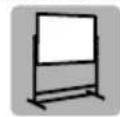
Recommended
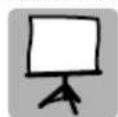
Not recommended
View the screen directly from the side so that it is perfectly vertical. A slanted screen will result in increased keystone distortion.
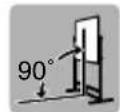
Recommended
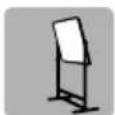
Not recommended
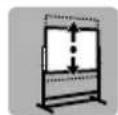
- In using this unit, increasing the screen size will move the projection position upward. To accommodate this, please use a screen that has higher and lower positioning adjustment. See Page 4 for information about the positioning relationships between the screen and this unit.
Recommended
- High gain type screens are not optimal for use with this unit. The lower the screen gain (i.e., screen gain on the order of 1), the better the appearance of the projected image. For more information about screen gain, consult catalogs from screen makers.
Not recommended
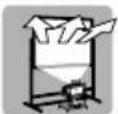
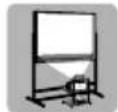
- Screen frames or pen shelves that protrude from the front of the screen surface may block some of the light from the projector.
Not recommended
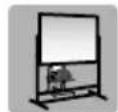
- Due to the projection angle of the unit, many standard rear projection screens may produce uneven brightness, hot spotting or not produce maximum brightness to the viewer. For more details utilizing rear projection screens and their applications with this projector, please contact your NEC dealer.
Not optimal
- Controlled ambient light environments will allow for an image of higher contrast and depth to be displayed.
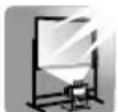
Not recommended
- Screens with a soiled, scratched, or discolored area will not produce a clean image. Care should be used in the handling of the screen.
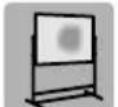
Not recommended
Stands Suited for the WT600
- In using this unit, increasing the screen size will move the projection position upward. To accommodate this, please use a stand that has a height positioning adjustment. See Page E-4 for information about the positioning relationships between the screen and this unit.
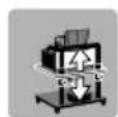
Recommended
- Use a stand that will allow this unit to be set up in a level condition. Turn the foot of this unit and adjust so that the unit is level.
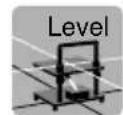
Recommended
Ambient environmental condition
- Do not place the screen near vents.
Air blow hits the screen, causing the projected image to ripple.
- Do not illuminate the projector with strong light source such as halogen lamp.
Doing so can cause the object detection sensor to malfunction, resulting in the projector not turning on.
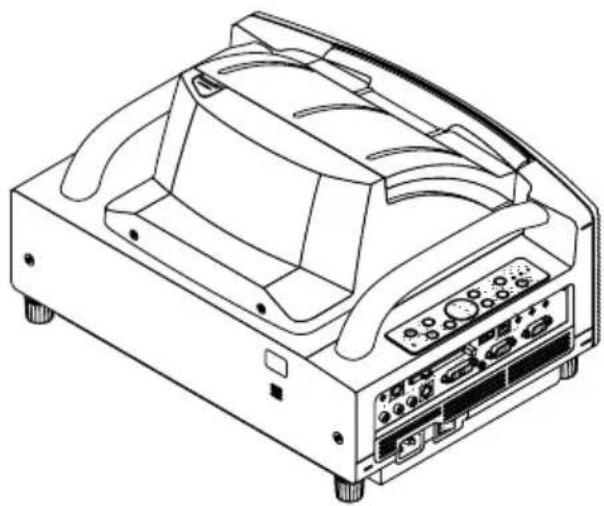
Part Names of the Projector
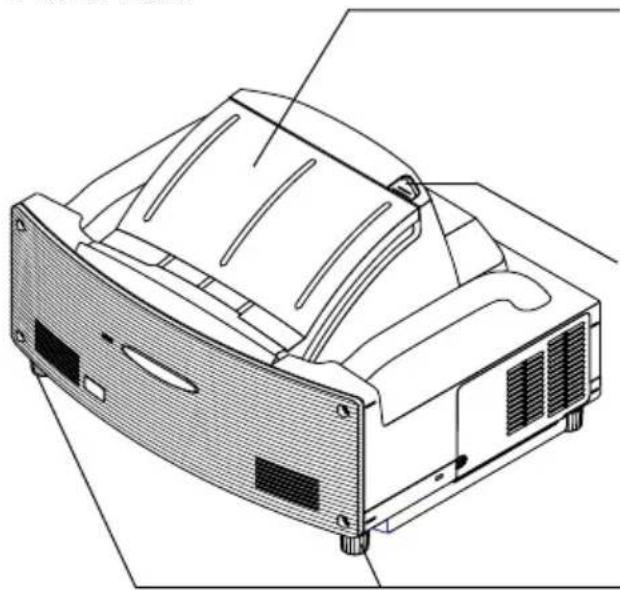
Front view
Mirror cover
Open the mirror cover first before projecting an image. See page E-5.
Avoid opening or closing the mirror cover quickly and roughly.
Mirror cover lock switch
Slide this lock switch to the unlock position first before opening the mirror cover.
After closing the mirror cover, slide the lock switch to the lock position.
Foot (four feet on bottom)
Adjust the height by rotating each foot to keep the projector in a horizontal position. Each foot can be extended up to 1.2''(30mm)
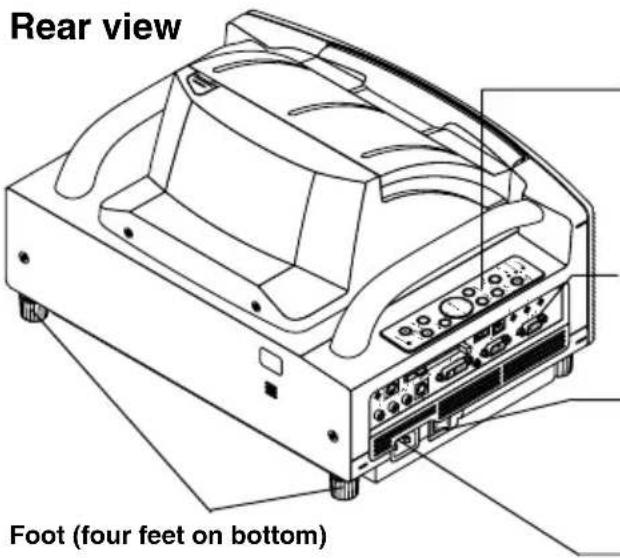
Rear view
Cabinet controls
The controls on the projector cabinet allows for power on/off, source selection and other button operations. See page E-6.
Terminal panel
Connect the RGB signal cable and other cables here. See page E-5.
Main power switch
To turn on the main power to the projector, press the Main Power switch to the ON position (I). The projector is in the Idle or standby mode and becomes ready to use. See page E-6.
AC IN input
Connect the supplied power cable here. See page E-5.
NOTE : For more information on part names of the projector,see page 1-2 of the user's manual.
1. Setting Up the Screen and Projector
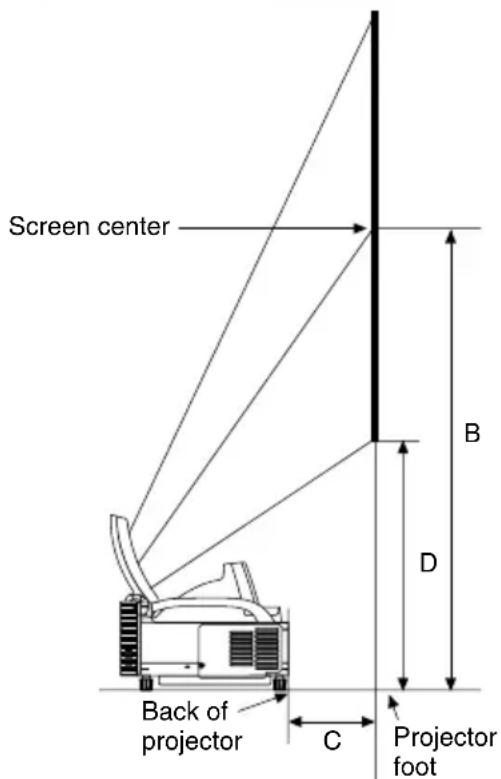
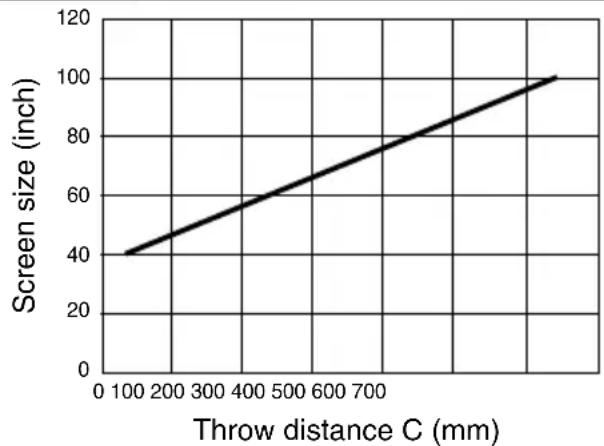
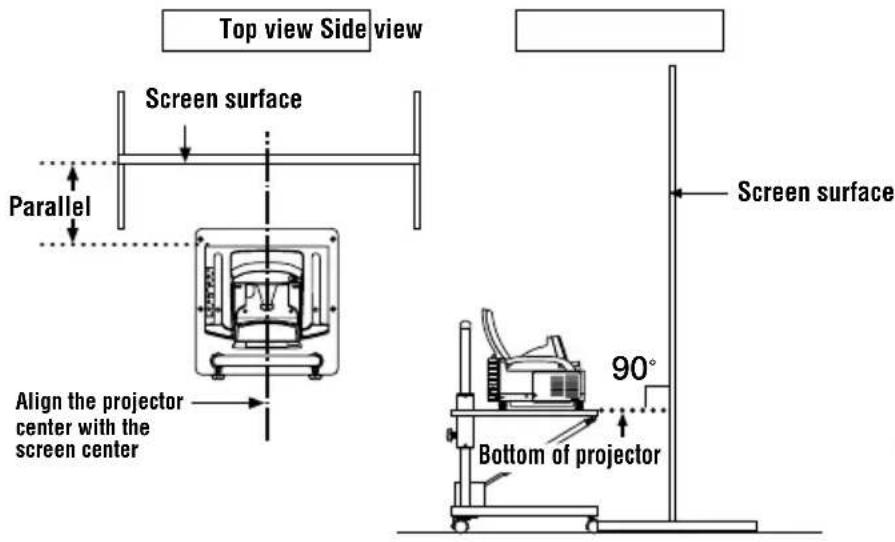
- Refer to "Throw Distance (C)" in the diagram and use a distance between the screen and projector that corresponds to the screen size.
As an example, when projecting to a 60^ screen, set the projector with a separation of approximately 10.4^ / 26.3 cm from the screen.
- Refer to "Height (D)" below and adjust the screen height, or adjust the height of the projector stand.
As an example, when projecting to a 60^ screen, adjust the height from the bottom surface of the projector to the lower edge of the screen to approximately 19.0^ / 48.2cm .
| Screen size (inch) | Height (B) | Throw distance (C) | Height (D) | |||
| mm inch | mm inch | mm inch | ||||
| 40 | 659 | 25.9 | 64 | 2.5 | 354 | 13.9 |
| 45 | 729 | 28.7 | 114 | 4.5 | 386 | 15.2 |
| 50 | 799 | 31.5 | 164 | 6.4 | 418 | 16.5 |
| 55 | 869 | 34.2 | 214 | 8.4 | 450 | 17.7 |
| 60 | 939 | 37.0 | 263 | 10.4 | 482 | 19.0 |
| 65 | 1010 | 39.7 | 313 | 12.3 | 514 | 20.2 |
| 67 | 1037 | 40.8 | 332 | 13.1 | 526 | 20.7 |
| 70 | 1080 | 42.5 | 362 | 14.3 | 546 | 21.5 |
| 72 | 1107 | 43.6 | 381 | 15.0 | 558 | 22.0 |
| 75 | 1149 | 45.2 | 412 | 16.2 | 577 | 22.7 |
| 78 | 1191 | 46.9 | 441 | 17.4 | 596 | 23.5 |
| 80 | 1219 | 48.0 | 461 | 18.1 | 609 | 24.0 |
| 84 | 1275 | 50.2 | 500 | 19.7 | 635 | 25.0 |
| 85 | 1289 | 50.7 | 510 | 20.1 | 641 | 25.2 |
| 90 | 1359 | 53.5 | 559 | 22.0 | 673 | 26.5 |
| 95 | 1428 | 56.2 | 609 | 24.0 | 704 | 27.7 |
| 96 | 1443 | 56.8 | 619 | 24.4 | 711 | 28.0 |
| 100 | 1499 | 59.0 | 659 | 25.9 | 737 | 29.0 |
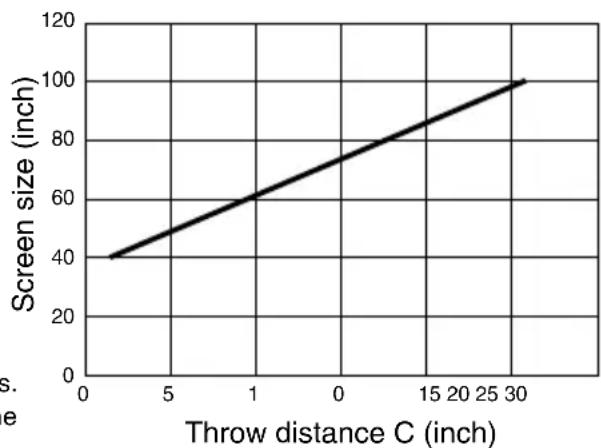
NOTE
- There is a tolerance of +5% because of design values.
- The projection distance and the lower edge of the screen are calculated using a 4:3 aspect ratio.
2. Connections
1. Connect the supplied 15pin-15pin signal cable.
For older Macintosh computers, use a commercially available pin adapter to connect to your Macintosh's video port.
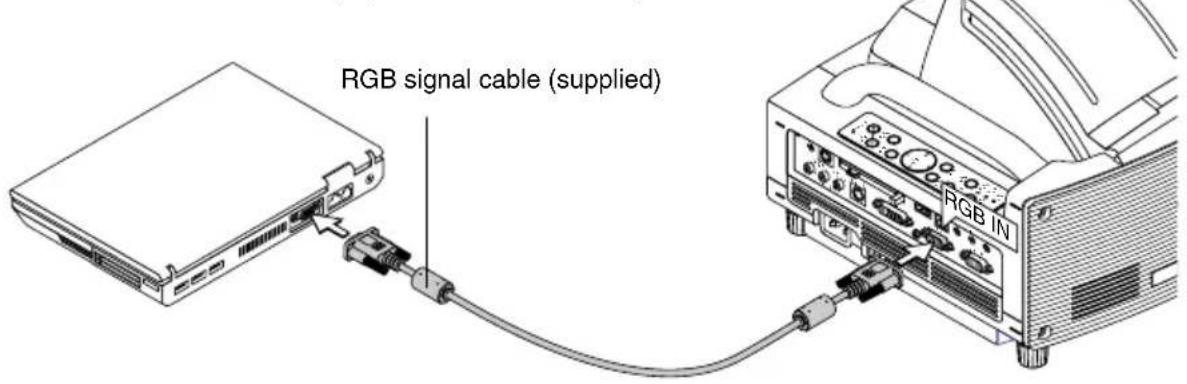
NOTE : Power down all equipment before making connections.
2. Connect the supplied power cable.
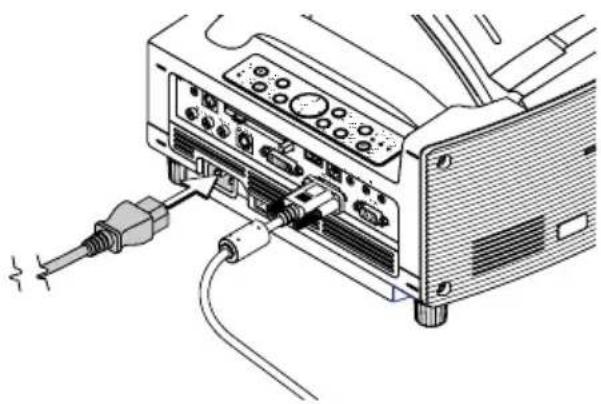
3. Opening the mirror
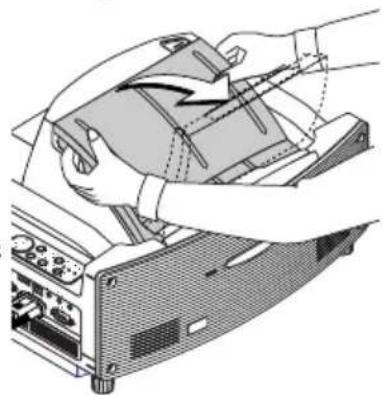
- Slide the mirror cover lock switch to the unlock position.
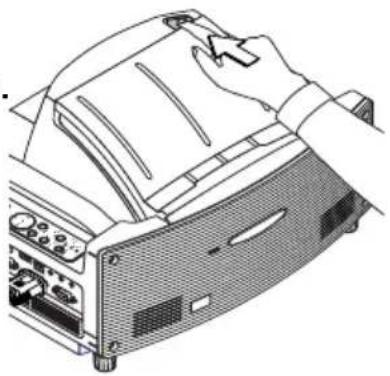
2. Slowly open the mirror cover holding both ends.
NOTE:
- Do not release your hold of the mirror cover until fully open.
- Do not apply excessively strong pressure against the mirror cover or mirror surface while opening it.
- K eep finger prints off the mirror surface. Leaving finger prints in the mirror surface might cause an unwanted shadow and poor picture quality.
If the mirror surface is soiled with finger prints, wipe them off with the supplied cleaning cloth. See page 7-2 of the user's manual.
4. Switching on the Power
1. Turn on the main power switch.
To turn on the main power to the projector, press the Main Power switch to the ON position (1).
NOTE: Before you turn on your projector, ensure that the computer is turned on.
The POWER indicator will light orange (In the Idle mode the STATUS indicator will light green as well). The projector is in the Idle or Standby mode.
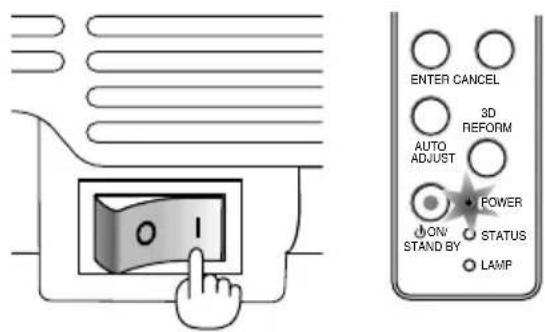
Projector's left side Cabinet controls
Cabinet controls Remote control
2. Turn on the projector.
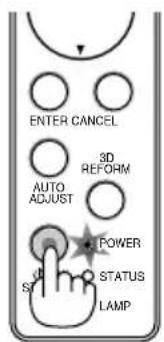
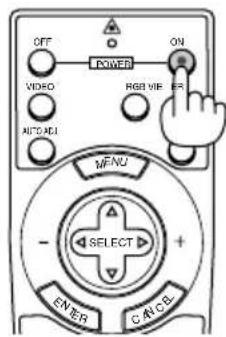
To turn on the power to the projector, press and hold the ON/STAND BY button on the projector cabinet or the POWER ON button on the remote control for a minimum of 2 seconds.
NOTE: Toturn off the projector, press and hold the ON/STAND BY button or the POWER OFF button for a minimum of 2 seconds.
Note on Startup screen (Menu Language Select screen)
When you first turn on the projector, you will get the Startup screen. This screen gives you the opportunity to select one of the seven menu languages: English, German, French, Italian, Spanish, Swedish and Japanese. (See page 3-1 of the user's manual)
5. Selecting Signals
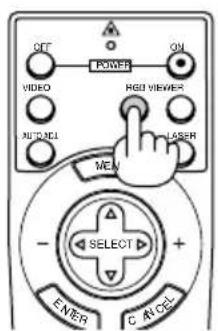
Press and hold the SOURCE button for a minimum of 1 second, the projector will search for the next available input source. When using the remote control, press the RGB button for the RGB source.
NOTE:
- When projecting the image from a personal computer and the image edge is cut off or the projection is poor, press the AUTO ADJUST button (which is labeled AUTO ADJ. on the remote control) and the projector will perform the adjustment automatically.
- When the image from the personal computer is not projected, see "Common Problems & Solutions" on page E-14.
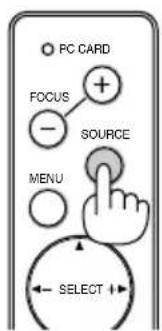
Cabinet controls Remote control
6. Adjusting the Position and Size of the Projected Image (Focus Adjustments)
- After turning on the power, projected images may flicker for 3 to 5 minutes until the lamp lighting is stabilized.
Also after turning on the projector, the picture position may be slightly changed.
Wait 10 minutes until the light status and projected images become stable.
-
If the screen is tilted vertically or horizontally, keystone distortion becomes large. Proceed the following steps to correctly set up the projector and the screen.
-
Check whether the screen is set up to be vertical by viewing it from the side.
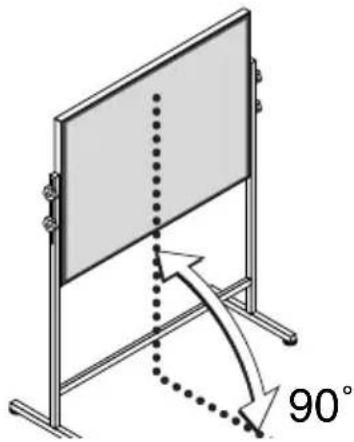
- Check that the projector is level and that it is set to be parallel with the screen.
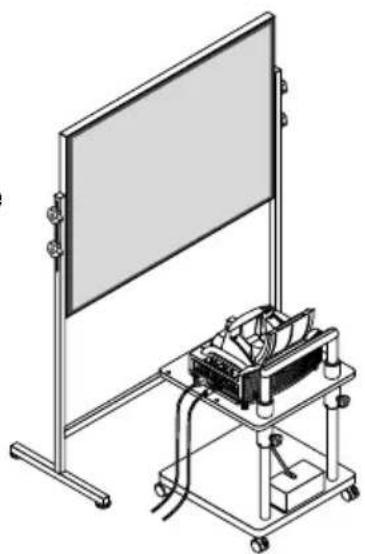
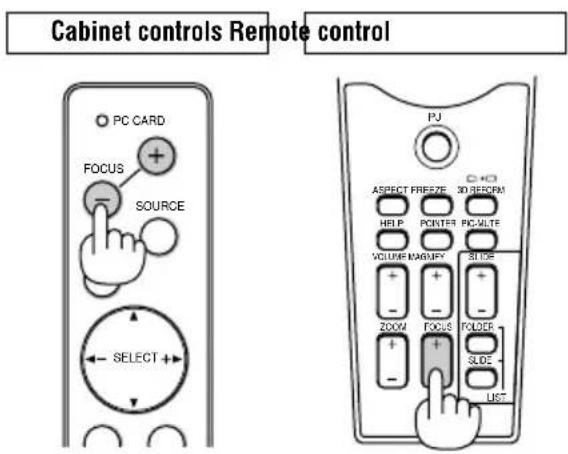
- Press the FOCUS buttons and align the focus of the projected image.
A press of the FOCUS buttons results in focus being taken simultaneously with the adjustment of vertical keystone distortion. See page E-9.
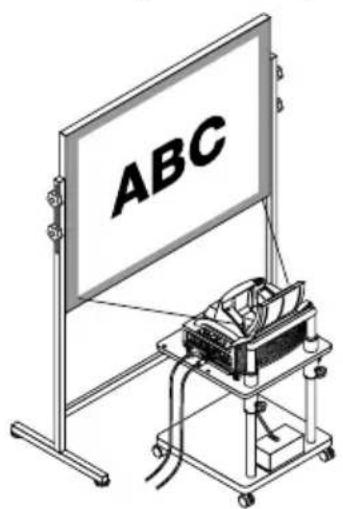
- Move the projector away from or closer to the screen and position it so that the left and right sides of the projected image are aligned with the width of the screen.
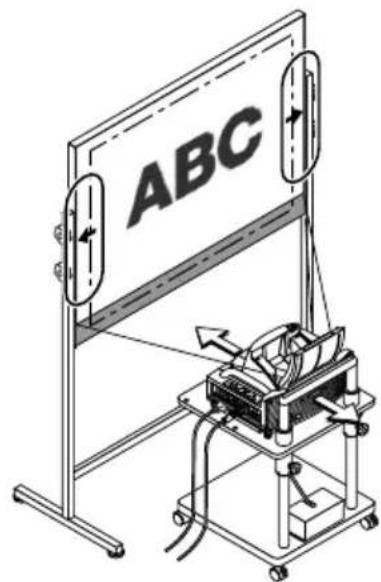
- Adjust the height of the screen and the height of the stand and align the lower edge of the projected image with the lower edge of the screen.
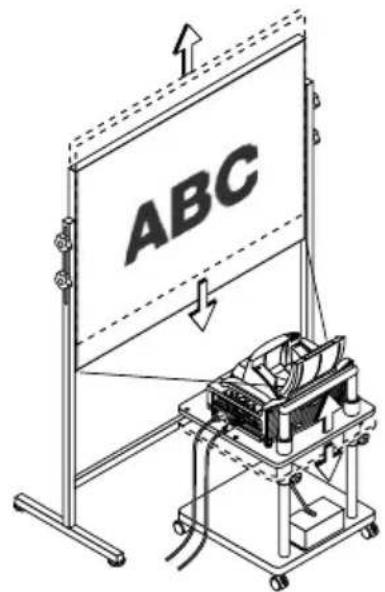
-
Press the FOCUS buttons and align the focus of the projected image again.
-
Repeat step 4 to 6 if the display image is not aligned with the screen.
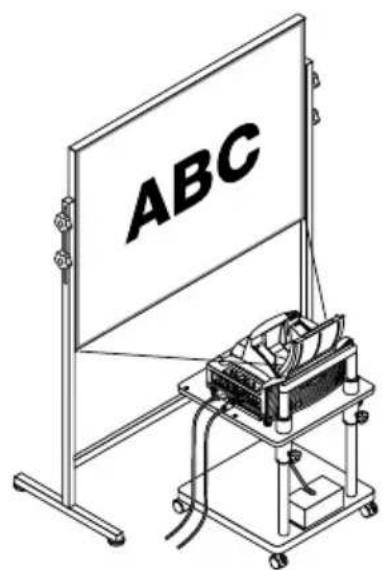
NOTE:
- In terms of the optical characteristics of this projector, in addition to keystone distortion (page E-11), there may be occurrences of slight pincushion type or barrel type distortion. To adjust the projected image with the screen, first perform Steps 1 to 6 pages E-7 to E-9 (Adjustment of the projection distance Height adjustment of the projected image Focus adjustment), then align the 4 corners of the projected image with the 4 corners of the screen. Following this, if the pincushion type or the barrel type distortion is conspicuous please perform "7. Adjusting Pincushion or Barrel Distortion (Pincushion)" on the next page
- If the keystone distortion is not improved after pressing the FOCUS buttons and adjusting the focus, or the aspect ratio does not agree, check the screen or projector are not on a tilt
[Symptom1]
In the case of keystone distortion (as illustrated), either the screen is directed slightly upward or the projector is directed slightly upward.
[Action]
Tilt the top end of the screen to the front or rotate the front feet of the projector to correct keystone distortion.
![NEC WT600 - [Action] - 1](/content/2026/04/606845/images/e3f1ea0a24a419c034661603760f43bb8342c1e079b0df1d5941b09e738f97a2.jpg)
![NEC WT600 - [Action] - 2](/content/2026/04/606845/images/5b198df5cdd25425b472b1d98a6cb9fd93e8523c4b8abac8bba7040bda93387f.jpg)
Continued on the next page.
[Symptom2]
In the case of keystone distortion (as illustrated), either the screen is directed slightly downward or the projector is directed slightly downward.
[Action]
Tilt the bottom end of the screen to the front or rotate the rear feet (screen side) of the projector to correct keystone distortion.
![NEC WT600 - [Action] - 3](/content/2026/04/606845/images/611c47b744882a298bf690ca49e2ab82b714bf47ee927b44242d9901d849f7a5.jpg)
ABC
[Symptom 3]
As illustrated in the diagram to the bottom right, when the left edge of the image is widened vertically, either the projector is not placed straight in front of the screen or the projector is directed slightly to the left.
Conversely, when the right edge of the image is widened vertically, either the projector is not placed straight in front of the screen or the projector is directed slightly to the right.
![NEC WT600 - [Action] - 4](/content/2026/04/606845/images/d479a12373ff27612f2ad3edf7a8325e6a1a02b19ed3a1df00d20a87230ecac3.jpg)
[Action]
Place the projector straight in front of the screen.
Make sure that the screen and the projector are parallel to each other.
7. Adjusting Pincushion or Barrel Distortion (Pincushion)
If pincushion or barrel distortion become conspicuous, adjust with [Pincushion].
Reference
- Pincushion or barrel distortion in this projector
The amount of pincushion and barrel distortion in this projector is 2% or less (TV distortion) in each of the horizontal and vertical directions (for screen sizes of 40 inches to 100 inches). As an example, the amount of distortion with a screen size of 60 inches ( 121.9~cm / 48.0'' W x 91.4~cm / 36.0'' H) is within approximately 12~mm / 0.47'' in the horizontal direction and within approximately 9~mm / 0.35'' in the vertical direction. When this projector is used with a 60-inch screen size, the amount of pincushion and barrel distortion become a minimum.
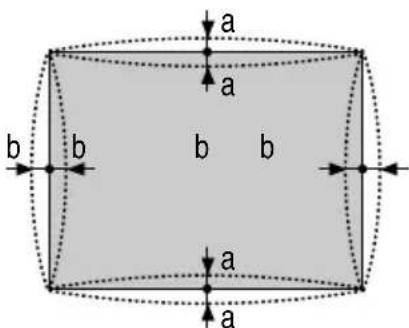
a: 1% or less of the screen height (2% or less as TV distortion)
b: 1% or less of the screen width (2% or less as TV distortion)
When the amount of pincushion or barrel distortion exceeds 2% (TV distortion), please check whether the projector and screen setup conditions are suitable.
1 Press the 3D REFORM button of the projector or the remote control.
The [Pincushion] screen will appear.
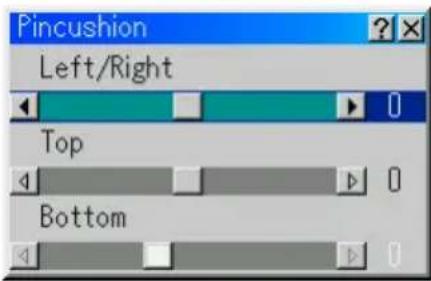
- Press the SELECT button and align the cursor with [Left/Right], then press the SELECT button to allow adjustment of the left and right protrusions and indentations of the projected image.
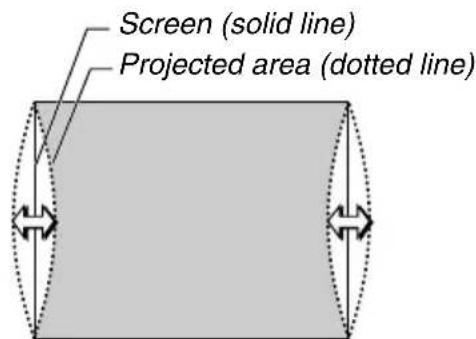
- Press the SELECT button and align the cursor with [Top], then press the SELECT button to allow adjustment of the protrusions and indentations of the upper edge of the projected image.
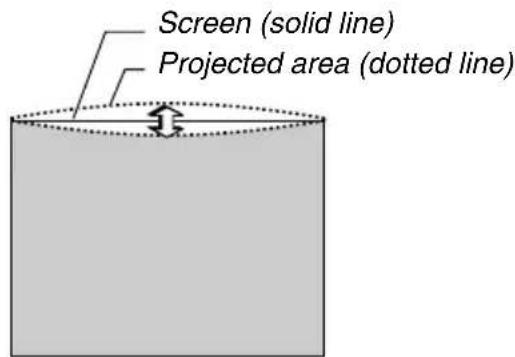
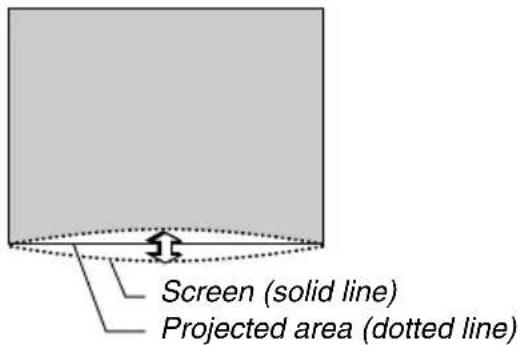
- Press the SELECT button and align the cursor with [Bottom], then press the SELECT button to allow adjustment of the protrusions and indentations of the lower edge of the projected image.
- Press the ENTER button when [Pincushion] is completed.
Return to the menu.
- Press the CANCEL button a few times to make the menu disappear.
NOTE:
- In the [Pincushion] screen, when the [Top] adjustment value is "0", adjustment of [Bottom] will not be possible*.
Also note that when the adjustment value of the [Top] is a small value (on the order of +5 ), there will be almost no change of the image even when the [Bottom] is adjusted. - In the [Pincushion] screen, when the [Bottom] adjustment value is less than "0", a small portion can be lost at the bottom area of the image. To display the lost portion, use the [Digital Zoom] function to reduce the size of the projected image*.
- When [Cornerstone] or [Keystone] has already been adjusted, selection of [Pincushion] will not be possible. To display [Pincushion], return the adjustment values of [Cornerstone] or [Keystone] to the factory shipping conditions.
- Each note for [Top] and [Bottom] is reversed when the [Ceiling Rear] or [Ceiling Front] is selected in [Orientation].
Reference
The [Pincushion] screen can also be displayed from the advanced menu by going to [Projector Options] [3D Reform].
8. Troubleshooting
This section helps you resolve problems you may encounter while setting up or using the projector.
Power Indicator
| Indicator Condition | Projector Condition | Note | ||
| Off | The main power is off | - | ||
| Blinking light | Green blinking | 0.5 sec ON, 0.5 sec OFF | The projector is getting ready to turn on. | Wait for a moment. |
| 2.5 sec ON, 0.5 sec OFF | The projector is in Sleep mode. | - | ||
| Orange blinking | 0.5 sec ON, 0.5 sec OFF | The projector is cooling down. | Wait for a moment. | |
| Steady light | Green | The projector is turned on. | - | |
| Orange | The projector is in Idle or Standby. | - | ||
Status Indicator
| Indicator Condition | Projector Condition | Note | ||
| Off Normal | - | |||
| Blinking light | Red blinking | 1 cycle (0.5 sec ON, 2.5 sec OFF) | Lamp cover error | Replace the lamp cover correctly. |
| Mirror cover error | Make sure the mirror cover is open. Projector cannot be turned on with the mirror cover closed. | |||
| 2 cycle (0.5 sec ON, 0.5 sec OFF) | Temperature error | The projector is overheated. Move the projector to a cooler location. | ||
| Temperature error due to dust | Remove dust in the light path. | |||
| 3 cycle (0.5 sec ON, 0.5 sec OFF) | Power error | Power unit will not work correctly. | ||
| 4 cycle (0.5 sec ON, 0.5 sec OFF) | Fan error | Fans will not work correctly. | ||
| 6 cycle (0.5 sec ON, 0.5 sec OFF) | Lamp error | Lamp fails to light. Wait a full minute and then turn on again. | ||
| Green blinking | Re-firing the lamp | The projector is re-firing. | ||
| Steady light | Orange | Control key locked | You have pressed control panel key when Control Key Lock is enabled. | |
| Red | A hand or an object blocks the light path. | Remove it from the light path. | ||
| Green | Idle condition | - | ||
Lamp Indicator
| Indicator Condition | Projector Condition Note | ||
| Off Normal | - | ||
| Blinking light | Red | Lamp has reached its end of life. Lamp replacement message will be displayed. | Replace the lamp. |
| Steady light | Red | Lamp has been used beyond its limit. The projector will not turn on until the lamp is replaced. | Replace the lamp. |
| Green | Lamp mode is set to Eco mode | - | |
The numbers in the table refer to pages in the user's manual.
Common Problems & Solutions
| Problem | Check These Items |
| Does not turn on | ·Check that the power cable is plugged in and that the power button on the projector cabinet or the remote control is on. See pages 2-7 and 3-1. ·Ensure that the lamp cover is installed correctly. See page 7-1. ·Check to see if the projector has overheated or the lamp usage exceeds 2100 hours (up to 3100 hours : Eco mode). If there is insufficient ventilation around the projector or if the room where you're presenting is particularly warm, move the projector to a cooler location. ·Check to see if the Control Panel Key Lock function is enabled. If this function is enabled, cancel it by pressing and holding the CANCEL button on the cabinet for a minimum of 10 seconds or using the menu. See page 6-17. |
| No picture | ·Use the menus or SOURCE button to select your source (RGB, DVI (DIGITAL), DVI (ANA-LOG), Video, S-Video, Viewer or LAN). See page 3-2 or 6-6. ·Ensure your cables are connected properly. ·Use menus to adjust the brightness and contrast. See page 6-7. ·Open the mirror cover. See page 1-3. ·Reset the settings or adjustments to factory preset levels using the Factory Default in the Adjustment Menu. See page 6-25. ·W hen using with a notebook PC, be sure to connect between the projector and the notebook PC before turning on the power to the notebook PC. In most cases signal cannot be output from RGB output unless the notebook PC is turned on after connecting with the projector. *If the screen goes blank while using your notebook PC, it may be the result of the computer's screen-saver or power management software. *If you accidentally hit the POWER button on the remote control, wait 90 seconds and then press the POWER button again to resume. To project a DVI digital signal, be sure to connect the PC and the projector using the DVI-D signal cable (supplied) before turning on your PC or projector. Turn on the projector first and select DVI (DIGITAL) from the source menu before turning on your PC. Failure to do so may not activate the digital output of the graphics card resulting in no picture being displayed. Should this happen, restart your PC. Do not disconnect the DVI-D signal cable while the projector is running. If the signal cable has been disconnected and then reconnected, an image may not be correctly displayed. Should this happen, restart your PC. |
| Image isn't square to the screen | ·Reposition the projector to improve its angle to the screen. See page 3-2. ·Use the 3DReform function to correct the trapezoid distortion. See page 6-10 to 6-13. |
| Picture is blurred | ·Adjust the focus. See page 3-3. ·Reposition the projector to improve its angle to the screen. See page 3-2. ·Ensure that the distance between the projector and screen is within the adjustment range of the mirror. See page 2-2. ·Condensation may form on the mirror if the projector is cold, brought into a warm place and is then turned on. Should this happen, let the projector stand until there is no condensation on the mirror. |
| Image is scrolling vertically, horizontally or both | ·Use the menus or SOURCE button on the remote control or the cabinet to select the source you want to input. |
| Remote control does not work | ·Install new batteries. See page 1-8. ·Make sure there are no obstacles between you and the projector. ·Stand within 22 feet (7 m) of the projector. See page 1-8. ·Make sure that you are in the Projector mode and the PJ button lights in red. If not, press the PJ button. See page 4-1. |
| Indicator is lit or blinking | ·See the Status Indicator on page 8-1. |
| Cross color in RGB mode | ·If Auto Adjust is off, turn it on or adjust the image manually with the Position/Clock in the Image Options. See pages 6-8 and 6-16. |
| USB mouse does not work | ·Make sure that your USB mouse is properly connected to the projector. The projector may not support some brands of a USB mouse. |
For more information contact your dealer.
WT600 INSTALLATIONSGUIDE
Innehäll



- WT600 INSTALLATIONSGUIDE
- WT600 SETUP GUIDE
- Contents
- Scope of this Guide
- NOTE
- WARNING
- Screens Suited for the WT600
- Stands Suited for the WT600
- Ambient environmental condition
- Part Names of the Projector
- Mirror cover
- Mirror cover lock switch
- Foot (four feet on bottom)
- Cabinet controls
- Terminal panel
- Main power switch
- AC IN input
- Setting Up the Screen and Projector
- Connections
- Connect the supplied 15pin-15pin signal cable.
- Opening the mirror
- Slowly open the mirror cover holding both ends.
- NOTE:
- Switching on the Power
- Turn on the main power switch.
- Turn on the projector.
- Note on Startup screen (Menu Language Select screen)
- Selecting Signals
- Adjusting the Position and Size of the Projected Image (Focus Adjustments)
- [Symptom1]
- [Action]
- Adjusting Pincushion or Barrel Distortion (Pincushion)
- Reference
- Troubleshooting
- Innehäll
Brand : NEC
Model : WT600
Category : Projector