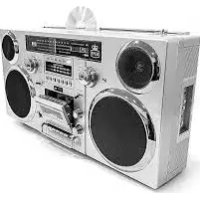
Brooklyn - Cd player/recorder GPO - Free user manual and instructions
Find the device manual for free Brooklyn GPO in PDF.

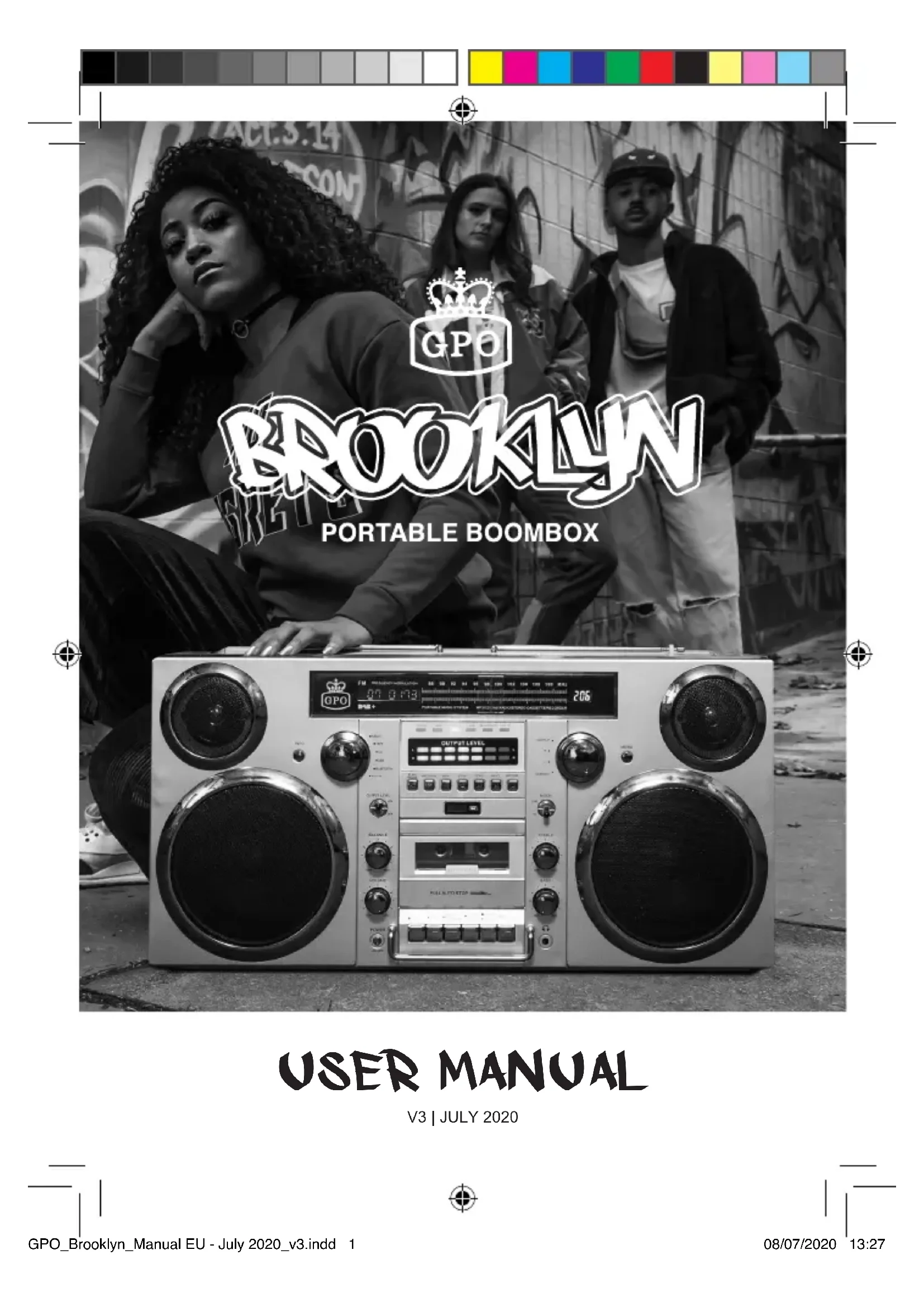


| Product type | Retro boombox with CD player/recorder, cassette player/recorder, DAB+/FM radio, Bluetooth and USB |
| Dimensions (approx.) | 40 × 20 × 30 cm |
| Weight (approx.) | 2.5 kg |
| Power supply | Mains 240 V~ via DC adapter (included) and built-in rechargeable battery |
| Battery | Rechargeable lithium-ion, mains charging, LED indicator (red = charging, blue = full) |
| Battery life | Several hours (mixed use, overnight charging recommended) |
| Main functions | DAB+ and FM radio (telescopic antenna), CD player, cassette player/recorder, USB player, Bluetooth receiver, AUX IN auxiliary input, AUX OUT output, microphone jack, USB recording |
| Controls | Front panel: volume, balance, treble, bass, mode selection, playback controls, search, menu; dedicated controls for cassette |
| Display | LED for track, duration, station, 24h clock, visual equalizer |
| Connectivity | Bluetooth (pairing code 0000), USB-A (playback/recording), 3.5 mm headphone jack, 3.5 mm AUX input, 3.5 mm AUX output, 6.35 mm microphone jack |
| Care and cleaning | Clean with a soft, dry cloth. Do not use abrasive products. Avoid moisture. |
| Safety | Do not open the battery compartment. Use only the supplied adapter. Extend the FM/DAB antenna for optimal reception. |
| Spare parts and repairability | Contact GPO Retro (www.gporetro.com) for replacement battery or repairs. Do not open yourself. |
| Included accessories | Power cable with mains adapter, plug adapter for local socket |
Frequently Asked Questions - Brooklyn GPO
User questions about Brooklyn GPO
0 question about this device. Answer the ones you know or ask your own.
Ask a new question about this device
Download the instructions for your Cd player/recorder in PDF format for free! Find your manual Brooklyn - GPO and take your electronic device back in hand. On this page are published all the documents necessary for the use of your device. Brooklyn by GPO.
USER MANUAL Brooklyn GPO
Thanks for purchasing the GPO Brooklyn Boombox. This iconic 1980s design combines classic styling with a range of modern functionality. Featuring built-in speakers and a range of playback modes, the Boombox will allow you to enjoy Radio, CD, USB and Bluetooth sound anywhere inside or outside your home! For that real authentic 80s feel, the Brooklyn Boombox also features cassette tape playback.
WHEN USING THE DAB OR FM RADIO PLEASE FULLY EXTEND THE ANTENNA TO IMPROVE THE SIGNAL.
5
GETTING STARTED WITH YOUR GPO BROOKLYN
Remove the unit from the packaging and place on a flat, stable surface.
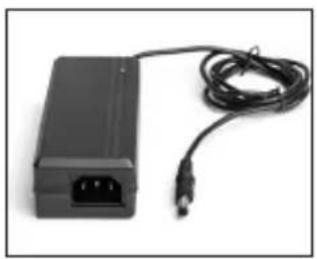
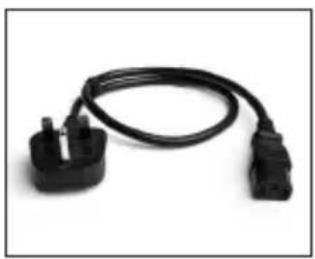
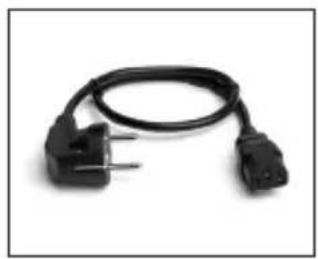
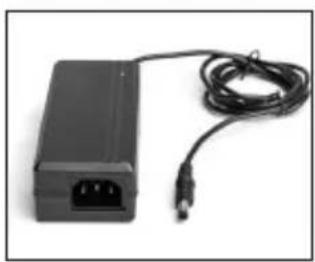
1-UK&EU 2-UK 3-EU
Locate the 3 pieces of cable that make up the power lead. If you believe you are missing one of these pieces, please re-check the packaging, as they sometimes become lodged in the polystyrene.
Identify the piece that fits the mains sockets in your locality (2 or 3) and connect that to the transformer (1).
Confirm that the battery has already been installed by opening the battery compartment cover on the rear of the unit. If not, please see Installing a Battery in Your Brooklyn below.
As the battery is likely to have discharged during transport, you need to start with mains power, so plug the DC end into the rear of the Brooklyn, fix the plug into the mains socket and switch on at the wall. The LED indicator should be red, indicating that your battery is now charging:
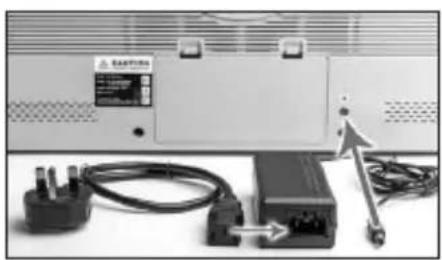
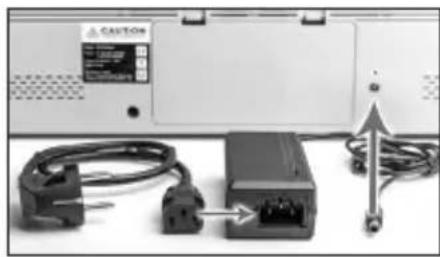
UK EU
For regular use, we recommend charging overnight like this and using your Brooklyn on battery during the day.
Please note: In order to charge a battery optimally, DAB radio is temporarily disabled while the battery is less than 75% charged. If you use it during this time, you may experience significant interference.
USING THE LED INDICATOR
The LED indicator on the rear of your Brooklyn will tell you the charging status:
No Light your Brooklyn is not plugged into the mains; it is running on battery power. Please note that when the display panel flashes, your battery charge is critically low
Red your Brooklyn is plugged into the mains; a battery is installed and charging
Flashing Red/Blue your Brooklyn is running on mains power; no battery is installed
Blue your Brooklyn is plugged into the mains; a battery is installed and is fully charged. It is being held at full charge but not allowed to overcharge


INSTALLING A BATTERY IN YOUR BROOKLYN
Please follow the sequence to install a battery in your GPO Brooklyn:
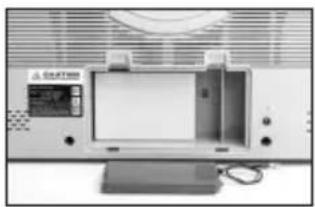
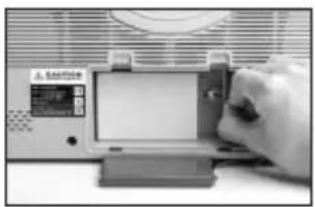
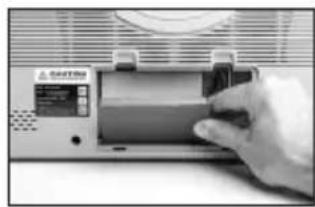
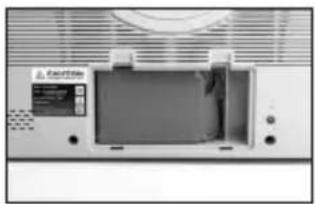
123
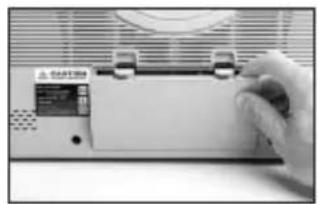
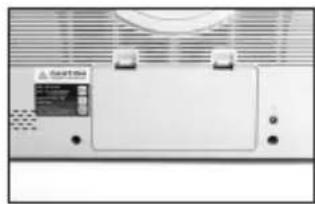
456
To uninstall a battery, simply reverse the sequence.



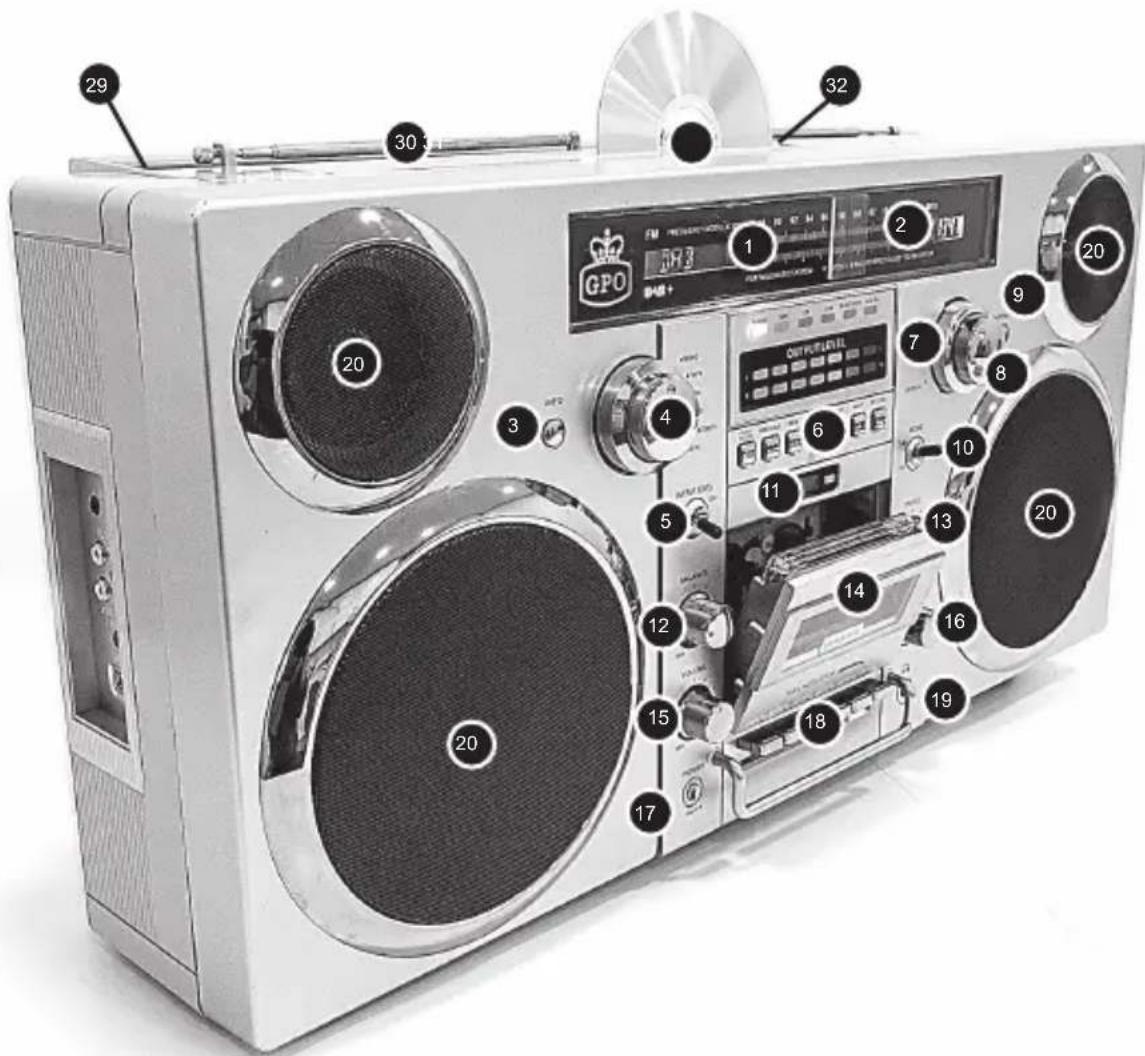
CONTROLLOCATIONS
FRONT
- LED Display
- FM Radio Tuner Display
- Info Button
- Mode Select Knob
- Output Level Switch
6.Playback Controls Play/Pause
Previous
Rewind
Stop
Fast Forward
Next
Record
- Search Knob (External Ring)
- Search Knob (Central Control)
- Menu Button
10.Mode Switch
11.Tape Counter - Balance Knob
- Treble Knob
- Cassette Slot
- Volume Knob
- Bass Knob
-
Power Button
-
Tape Playback Controls
Record
Play
Rewind
Fast Forward
Stop/Eject
Pause
- Headphone Jack
- Speakers
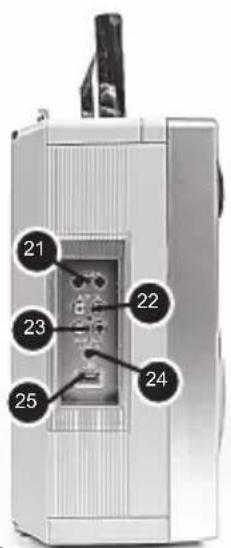
SIDE
- Microphone Jacks
- AUX IN Jacks
- AUX OUT Jacks
- LINE IN Jack
25 USB Slot
REAR
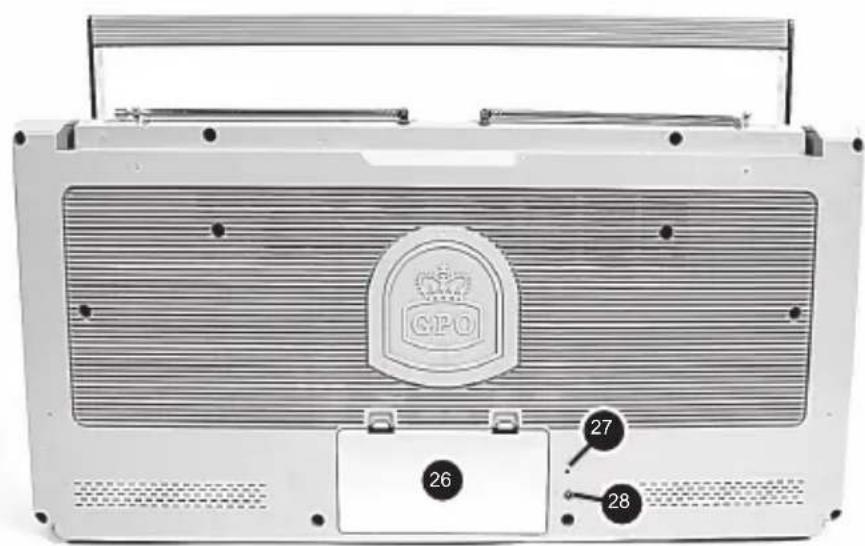
- Battery Compartment - NOTE,DO NOT OPEN
- LED Charging Indicator
- Power Jack
TOP
- Handle
- Aerials
- CD Slot
- CD Eject Button
The GPO Brooklyn Boombox features an integrated rechargeable battery, which allows the unit to be used anywhere, providing you with music on the go.
Before turning on your Brooklyn Boombox for the first time, please ensure that the device is fully charged.
- Remove the unit from the packaging and place on a flat, stable surface
- Use the provided 240V power cable to plug the unit into the mains
- While the unit is charging, the LED indicator on the rear of the unit will show a solid red
- Once the LED indicator shows blue, the unit is fully charged
Once charged, the unit will wait in standby mode until switched on.
To switch on the unit, press the Power button on the front of the unit.


SETTING THE LED CLOCK
When the unit is on standby, a 24 hour LED clock will be displayed for 10 seconds if you press the menu button on the front of the unit.
The time can be set on the clock whilst the unit remains in standby mode:
- Press and hold the central part of the Search Knob on the front of the unit for two seconds
- The hour value on the clock will be highlighted
- Change the hour by turning the central part of the Search Knob clockwise to move the hour forwards or anti-clockwise to move the hour backwards
- Press search again to accept the hour and highlight the minute value
- Change the minute by turning the Search Knob clockwise or anticlockwise
- Press the Search Knob a final time to confirm the time


VOLUME AND BALANCE
When rotating the volume control from 0-30, the LED display will notify you when you have reached MIN or MAX volume.
The balance control is set to balance 00 as standard. The control can be used to change the balance between the left and right speakers, with the change displayed on the LED display.
The treble and bass controls can be set between -7 and +7 to reach your desired level.
RADIO
The GPO Brooklyn Boombox offers FM and DAB radio play functions.

FM
- Turn the unit on using the Power Button
- Turn the Function Knob on the front of the unit to Radio
- Move the Radio Mode switch to the FM position
- Extend the aerials on the top of the unit
- The LED display will now show the word "tuner" and the Radio LED light will be illuminated
- Use the external ring of the Search Knob to choose the correct FM band for your chosen station
- When not in use, retract the aerials

DAB
- Turn the unit on using the Power Button
- Turn the Function Knob to Radio
- Move the Radio Mode switch to the DAB position
- The Radio LED light will be illuminated
- If you have previously scanned for DAB channels, go directly to step number 11
- To scan automatically, press the Menu button and then use the external part of the Search Knob to select Full Scan
- Push in the central part of the Search Knob to begin the automatic DAB station scan
- To scan manually, use the central part of the Search Knob to select Manual Scan
- Push in the central part of the Search Knob to begin the manual DAB station scan
- Select your chosen station by pushing in the central part of the Search Knob. The station will now be added to the DAB station list
- Use the central part of the Search Knob to choose the correct DAB station and push in the knob to begin playback
- By holding down the central part of the Search Knob, your chosen station will be added to the recall list.
- Pressing the Info button on the front of the unit while in DAB mode will prompt the LED screen to display programme and signal information
PLEASE NOTE: In order to charge a battery optimally, DAB radio is temporarily disabled while the battery is less than 75% charged. If you use it during this time, you may experience significant interference
DAB FACTORY RESET
To perform a DAB Factory Reset, press the Menu Button, then use the Search Knob to select System, then Reset. You will be asked to confirm your decision by using the Search Knob to select "Y" on the LED before pressing the Search Knob a final time.
DAB SOFTWARE VERSION CHECK
To check the version of DAB software the unit is running, press the Menu Button, then use the Search Knob to select System, then "SW VER."
The software can be updated using a USB stick loaded with the new software. In the event of a required software update, GPO Retro will make the relevant information available
TAPE
- Turn the unit on using the Power Button
- Press Eject on the tape control panel to open the cassette tape slot
- Insert a cassette tape into the cassette tape slot on the front of the unit
- Close the slot
- Turn the Function Knob to Tape
- The Tape LED light will be illuminated and the timer clock will begin counting up from zero
- This counter can be reset at any point using the reset button next to the timer clock
- Use the play, tracking and stop buttons on the unit to play the cassette
- The cassette auto stop will ensure the tape stops at the end of each side. At this point, eject the tape, remove it, turn it around and re-insert it
- Press play again to resume playback
- To remove the cassette, press Stop/Eject once to stop playback and a second time to eject the tape
- While using any of the unit's other modes, you can press the record and play buttons together to record music to a blank cassette tape
CD
- Turn the unit on using the Power button
- Turn the Function Knob to CD
- The CD LED light will be illuminated
- Insert a CD into the CD tray on top of the unit and close the tray
- PLEASE: On the rear of your Brooklyn is a 4-digit batch number. If this is less than 2250, the label of the CD should face the REAR of the unit when inserted. If you experience a read error, eject the CD, turn it around and re-insert it. If it is 2250 or greater, the CD can be inserted with the label facing either way.
- Use the play, tracking and stop buttons on the unit to play the CD
- To skip to the next track, tap the Next button once
- To move back to a previous track, press the Previous button once
- To move forward through a track, press the FFWD button repeatedly - a long press will NOT move the track forward
- To move backwards through a track, press the REW button repeatedly.
- The LED display will show relevant track and playing time information
- To stop playback, press the Stop button
- To eject the CD, press the eject button to the right of the CD tray
USB
- Turn the unit on using the Power button
- Turn the Function Knob to USB
- Insert a USB drive into the USB slot
- The USB LED will be illuminated, and the LED display will show READ
- Playback will begin automatically
- Use the play, tracking and stop buttons on the unit to play tracks from the USB
- To move forward or backwards through a track, press the FFWD or REW button once, and then press Play/Pause when you reach the correct location on the track
- To stop playback, press the Stop button
- The USB drive can then be safely removed


USB RECORDING
While using unit's CD or Cassette playback mode, you can press the record button to record music to a blank USB stick.
- Press and hold the record button on the main control panel, NOT the record button on the tape control panel
- The LED display will show READY
- Press and hold the record button a second time to confirm recording of the song which is playing
- The LED display will now display a track number and the number of seconds recorded
- The music will be written to the USB, and can then be played from any USB-compatible device
- To stop recording at any point, press Stop on the main control panel
- The LED display will show "REC END"


BLUETOOTH
- Turn the unit on using the Power Button
- Turn the Function Knob to BT
- The BT LED will be illuminated
- Open your Bluetooth-enabled device and use the search function to find and pair with "GPO Brooklyn"
- If prompted, enter the key 0000
- When your device shows that the unit has been paired, use the controls on your device or the unit to choose and play tracks
- While Bluetooth mode is enabled, the unit's control panel will not affect playback
- Once a device is paired with the GPO Brooklyn, the unit will NOT appear in Bluetooth search lists – to solve this issue, use the connected device to unpair the unit and try again


AUX
- Turn the Function Knob to AUX
- The AUX LED will be illuminated
- Use the AUX-IN line on the rear of the unit to connect an external music source
- The unit will then play back music from this source through the main speakers
- Use the AUX-OUT line on the rear of the unit to connect external speakers
- The unit will then play back music from your chosen mode through the external speakers
- Use the unit's controls to select tracks, and the external speakers' volume controls to set the volume

MICROPHONE
- Microphone mode is compatible with all playback modes
- Simply insert a microphone into the MIC jack - sound from your microphone will now be broadcast through the integrated speakers
- Press and hold the fast forward button to increase microphone volume
- Press and hold the rewind button to decrease microphone volume

TROUBLESHOOTING
No Power to the Device
Make sure that the unit is fully charged and that the charging indicator is blue
If not, please charge the device using the supplied charging cable.
If your battery will not charge, contact GPO Retro directly for a
replacement and instructions. DO NOT open the battery compartment without consulting us first
CD isn't Reading
If you have a CD read error, you may have inserted the CD the wrong way. Eject the CD and turn it so that the label side of the CD faces the rear of the unit.
I Can't Control the Music from the Unit
If you are using the Bluetooth function, playback must be controlled from your paired device. CD and USB playback can be controlled from the main panel above the cassette slot, and tape playback from the tape control panel below the tape slot.
I Can't Find the Unit Using Bluetooth
If a device is already paired to the unit and is within connection range, the unit may not appear in future Bluetooth scans. Try unpairing any other devices and try again.
Need Further Help?
Visit www.gporetro.com
GERMAN
Remove the unit from the packaging and place on a flat, stable surface.
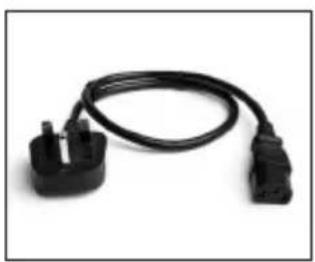
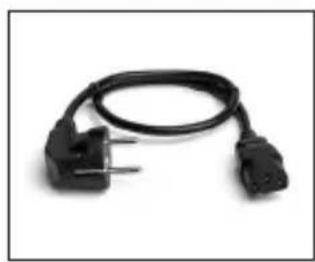
1-UK & EU 2-UK 3-EU
USANDO EL INDICADOR LED
Hereby ProtelX, declares that this equipment (GPO Brooklyn) is in compliance with the essential requirements and other relevant provisions of Directive, you can access a copy of this certificate on www.gporetro.com/Certificate-of-Conformity
DE
ProTelX Ltd, Unit 6, Park 17 Industrial Estate, Moss Lane,
Whitefield, Manchester, M45 8FJ UK


- GETTING STARTED WITH YOUR GPO BROOKLYN
- USING THE LED INDICATOR
- INSTALLING A BATTERY IN YOUR BROOKLYN
- 456
- CONTROLLOCATIONS
- FRONT
- SIDE
- REAR
- TOP
- SETTING THE LED CLOCK
- VOLUME AND BALANCE
- RADIO
- FM
- DAB
- DAB FACTORY RESET
- DAB SOFTWARE VERSION CHECK
- TAPE
- CD
- USB
- USB RECORDING
- BLUETOOTH
- AUX
- MICROPHONE
- TROUBLESHOOTING
- NO POWER TO THE DEVICE
- CD ISN'T READING
- I CAN'T CONTROL THE MUSIC FROM THE UNIT
- I CAN'T FIND THE UNIT USING BLUETOOTH
- NEED FURTHER HELP
- GERMAN
- USANDO EL INDICADOR LED
- DE
Brand : GPO
Model : Brooklyn
Category : Cd player/recorder