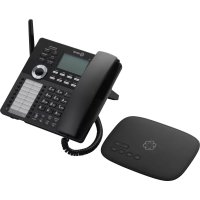
Telo 2 - Headphones Ooma - Free user manual and instructions
Find the device manual for free Telo 2 Ooma in PDF.


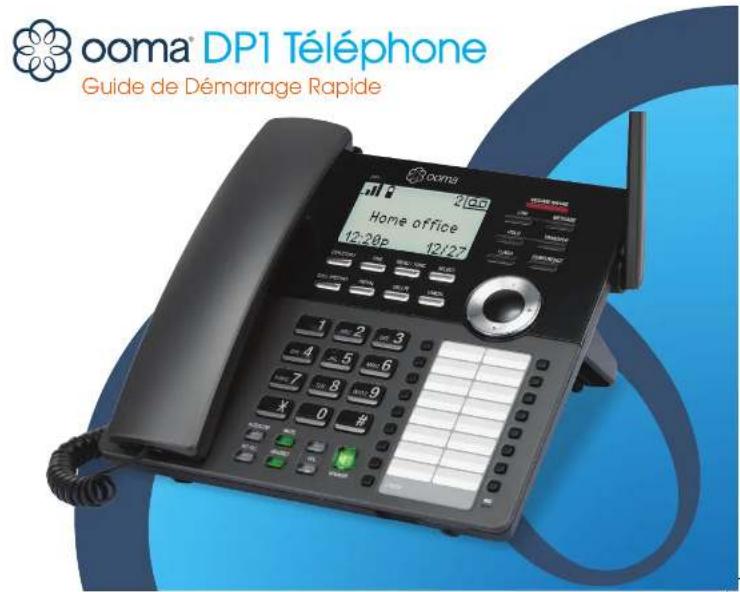
| Product Type | DECT desk phone with handset (headset) |
| Brand | Ooma |
| Model | Telo 2 (compatible with DP1 phone) |
| Power supply | AC adapter (input 100-240 VAC, output 5 VDC) + integrated rechargeable backup battery |
| DECT range | Approximately 50 meters in open field from Ooma Telo base |
| Display | Backlit screen with status indicators (DECT signal, battery charge, ring, voicemail) |
| Main features | Phone calls (in/out), voicemail, directory (synced with my.ooma.com), call list, redial, three-way conferencing, intercom, do not disturb, dual line (LINE1/LINE2) |
| Speed dial keys | 32 speed dial keys (16 + 16 via LOWER) |
| Speaker | Built-in (hands-free) with SPEAKER key |
| Volume adjustment | VOLUME up/down keys: ring volume (idle), handset/speaker/headset volume (during call) |
| Mute | MUTE key with green LED |
| Compatibility | Works exclusively with an Ooma Telo base (Ooma Telo 2) |
| Tilt options | Stand with two positions (low and high) |
| Package contents | DP1 phone, handset, coiled cord, stand, AC adapter, backup battery, user guide, shortcut guide, directory card |
| Care and cleaning | Clean with a soft dry cloth; do not use chemicals or water |
| Safety | Do not use near water (bathtub, sink, etc.); unplug during storms; follow FCC/IC instructions |
| Spare parts and repairability | Replaceable backup battery (CR2032 or similar); AC adapter available through Ooma; repair by authorized service (contact Ooma) |
| Warranty | 2 years (according to manual); extension possible via Ooma Premier |
| General informations | Manufacturer: Ooma Inc., 525 Almanor Ave, Sunnyvale, CA 94085, USA; customer service: 1-866-929-6662 (Canada), 1-888-711-6662 (United States) |
Frequently Asked Questions - Telo 2 Ooma
User questions about Telo 2 Ooma
0 question about this device. Answer the ones you know or ask your own.
Ask a new question about this device
Download the instructions for your Headphones in PDF format for free! Find your manual Telo 2 - Ooma and take your electronic device back in hand. On this page are published all the documents necessary for the use of your device. Telo 2 by Ooma.
USER MANUAL Telo 2 Ooma
Have a Question or Need Assistance?
Here is where you can look for help:
Knowledge base: www.oomd.com/support
User manuals: support.ooma.com/home/manuals
Community forum: www.ooma.com/forums
Live Customer Care: 1-888-711-6662 |USI
1-866-929-6662 (Canada)

ooma®
525 Almanor Ave
Suite 200
Sunnyvale, CA 94085
Learn more at www.ooma.com
© 2018 Coma, Inc. All rights reserved. Patent Pending Coma, Coma DFT, Coma Tolo, Coma Promer, and the Coma logo are trademarks or service marks of Coma, Inc. Other company and product formats mentioned herein and trademarks of their respective companies. Mention of third-party products is for international purpose only and constitutes neither an endorsement nor a recommendation. Coma assumes no responsibility with regard to the performance or use of these products.

ooma DP1 Desk Phone
Quick Start Guide
Introduction
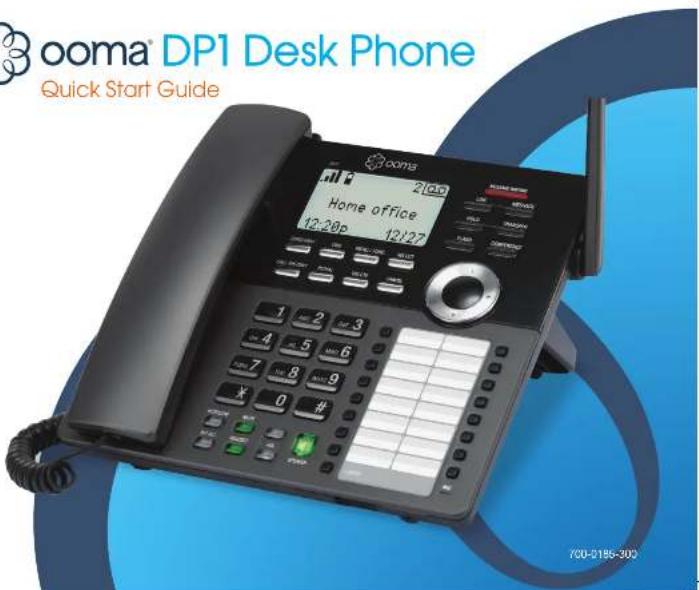
Setting up the Ooma DP1 Desk Phone is quick, and can be accomplished in just a few simple steps. By following the instructions below, you can put it into service immediately without any manual configuration, nominal range of the phone is approximately 150 ft from your Ooma Telo. The actual range may vary depending on the building materials in the environment that the phone is installed in.
Package Contents
- Desktop phone
- Handset and cord
- Deskset stand
• Power adapter - Backup battery
- Quick Start Guide
- Shortcut guide
- Directory card
Have a Question or Need Assistance?
Here is where you can look for help:
Knowledge base: www.ooma.com/support
User manuals: support.oomd.com/home/manuals
Community forum: www.ooma.com/forums
Live Customer Care: 1-888-711-6662 (US)
1-866-929-6662 (Canada)
Step 1 Install the backup battery
In the event of a power failure, the charged backup battery allows the phone to continue to operate for a short time. The backup battery will charge when the phone is connected to AC power.
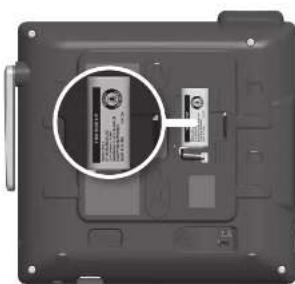
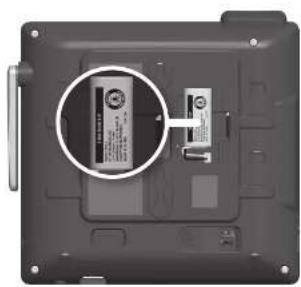
Press down on the tab to open the battery compartment cover. Place the battery in the compartment with the THIS SIDE UP label facing up. Replace the battery compartment cover.

Step 2 Install the mounting bracket
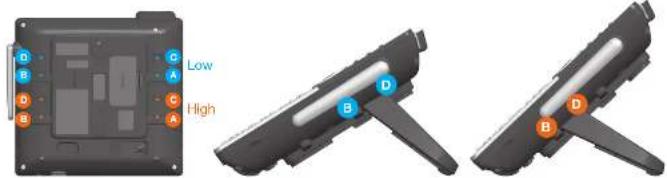
Insert the fixed tabs of the mounting bracket into slots A and B, and then insert the flexible tabs into slots C and D. There are two sets of tabs (High and Low) depending on your positioning preference.
Low tabletop position High tabletop position
Step 3 Connect the handset and power cord to the deskset
Plug the small end of the power adapter into the power jack at the bottom of the desktop phone and the other end to a power outlet. Plug the end of the coiled handset cord into the handset jack at the bottom of the desktop phone.
4
Orna Residential OP1 Desk Plene Q3G Beckl.,EN FR 2018-12 Feb 2017 Rx Inds 562/12/15 9:36 PM
Step 4 Pair the phone with the Ooma Telo
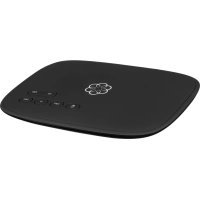
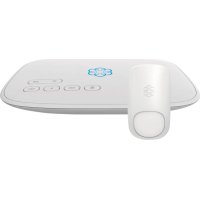
The Ooma DP1 desk phone is perpetually in pairing mode until it is paired with an Ooma Telo. Put your Telo device into pairing mode by pressing the PAGE button on the back of your device for three seconds. The DP1 phone will automatically pair to the Ooma Telo, a confirmation screen will be displayed.
Page key on newer Telos
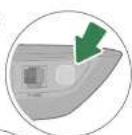
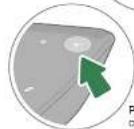
Page key on older Telas
Step 5 Allow phone to download updates
The phone may need to download and install a software upgrade once it is paired. This process may take several minutes.
The phone will display a ready screen when it is available to place and receive calls
5
Quick Reference
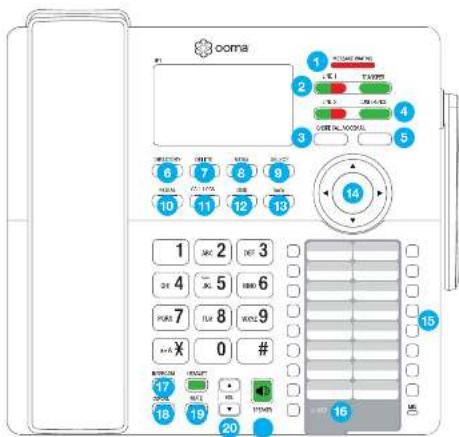
1 MESSAGE WAITING Lights red when a new message has been received.
2 LINE 1/2 Not lit when line is available for a new call. Lights green when line has an active call. Lights red when call is on hold.
3 IGNORE CALL Press to ignore an incoming call. Other devices on the same on the same account may still answer the call.
4 CONFERENCE Press to conference two calls together. Lights green when conferencing is active. Press again to stop the conference, leaving one call active and the other one on hold.
5 VOICEMAIL Press to access your voicemail.
6 DIRECTORY Press to access your contact list.
7 DELETE Press to delete the previous character on the screen.
8 MENU Press to access the phone's menu system.
9 SELECT Press to select the highlighted option on
10 REDIAL Press to show the list of most recently dated numbers.
11 CALL LOGS Press to review recent sent, received, and missed calls.
12 DND Press to toggle Do Not Disturb on or off. Lights green when DND is on.
13 BACK Press to go back one step in the phone's menu system.
14 NAVIGATION PAD Use to navigate the phone's menu system.
15 SPEED DIAL KEYS Program for quick access to 16 frequently-cialed numbers.
16 ACCESS TO LOWER SPEED DIAL Add access to 16 additional frequently-dialed numbers.
17 INTERCOM Press to speak on intercom with another local phone. A list of available intercom devices is displayed. Lights green when intercom mode is active.
18 END CALL Press to end an active call.
19 MUTE Press to toggle the microphone on mute or unmute state. Lights green when the microphone is muted.
20 VOLUME KEYS Press to increase or decrease ringer volume when idle the phone is idle, or handset or speaker volume when in a call.
21 SPEAKER Press to make and receive calls using the built-in speaker. Lights green when SPEAKER is active,
Quick Reference Basic Operation
Screen Icons
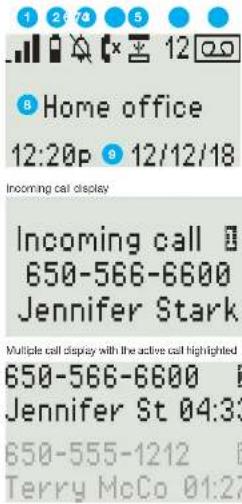
The following screen icons indicate your phone's current status:
1 DECT signal level indicator
Indicates signal strength with the Telo from one bar (weak) to four bars (strong).
2 Battery charge
Indicates backup battery charge. Shown only when the phone is powered by the backup battery.
3 Ringer off Appears when the ringer is disabled.
4 Missed calls indicator
Indicates there are missed calls.
5 LOWER key activated
Lower set of 16 speed keys is in use.
6 Number of new voicemail messages
Indicates the number of new voicemail messages, up to 99. 99+ is displayed if there are more than 99 new voicemail messages.
7 New voicemail indicator
Indicates that there are one or more new voicemail messages.
8 Phone name
9 Time and Date
Placing Calls
Pick up the handset or press the SPEAKER key. Enter the number you wish to dial, and wait for the call to connect. To end the call, press the END CALL key or hang up the handset.
Receiving Calls
Pick up the handset or press the SPEAKER key when the phone rings.
Switching between Two Calls
Press the LINE key corresponding to the held call you wish to retrieve. The current call will be put on hold.
Muting the Microphone
While you are on a call, disable the microphone by pressing the MUTE key. Press the MUTE key again to re-enable the microphone back on.
Volume Adjustment
To adjust ringer volume, press the VOLUME up/down keys while you don't have an active call.
To adjust call volume on the handset or the speaker, press the VOLUME up/down keys while you are in a call.
International Calls
To place an international call, dial 011, followed by the country code and phone number. Depending on your account settings, you may hear the balance of your Prapaid Account before the call is connected.
NOTE To make international calls and access other premium services such as 411, you must make sure that your Prepaid Account has been set up and has sufficient balance.
Calling Features
Directory
The DP1 desktop phone can sync with your Ooma Contact List. You can also add contacts on the DP1 phone from the call logs and redial lists.
Update your Contact list by going to:
my.ooma.com/contacts
You can add new contacts manually or import existing contacts from your iOS or Android phone. Changes to your contact list will sync with the DP1 phone automatically after a few minutes.
Dial a contact from the contact list by pressing the DIRECTORY key. Use the directional pad to select the contact you wish to dial. Press SELECT to call the contact.
Voicemail playback
To access your voicemail, press the VOICEMAIL key and follow the audio prompts.
When you're listening to messages, press 4 to play the previous message, 5 to replay the current message, 6 to skip to the next message, 7 to delete the current message, or 9 to save the current message.
Press the END CALL key to stop voicemail playback.
Call Logs
Review outgoing, incoming and dialed calls by pressing the CALL LOGS key. Use the directional pad to scroll through your recent calls. Return a call by picking up the handset or pressing the SPEAKER key, or the SELECT key twice while the entry you wish to dial is highlighted.
Redial
Press the REDIAL key to bring up a list of recently-dialed numbers. Return a call by picking up the handset or pressing the SPEAKER key, or the SELECT key twice while the entry you wish to redial is highlighted.
Intercom
Press the INTERCOM key and use the directional pad to select the internal phone you wish to call. Press SELECT and wait for the call to connect. When you are finished, hang up the handset or press the SPEAKER or HANDSET key.
Favorites
Set up a list of your favorite callers for easy access. Program a number by pressing MENU and using the directional pad to highlight Speed dial.
Press SELECT
Select an empty speed dial slot and press MENU. Use the dial pad to enter the contact's information, and then press SELECT. You can update the card that was included with your phone to personalize your list of favorites.
Call a favorite contact by pressing the speed dial number next to their name. To dial contacts between 17 and 32 on your list, press the LOWER key before the speed dial key.
Call conferencing
You can hold a conference call between yourself and two other parties.
To set up a three-way conference, you need to have an active call on one line, and a call on hold on the other line, then press the CONFERENCE key to bridge both calls together.
Press the CONFERENCE key again to stop the three-way conference. One call will be placed on hold while the other call stays active.
Call Hold
Put a call on hold by pressing the corresponding LINE key when the call is active.
Retrieve a held call by pressing the corresponding LINE key again.
Premier Features
Ooma Premier Ooma Premier is a collection of advanced calling features that have been designed to enhance the capabilities of your home phone.
With over 25 features to choose from, there's something for everyone!
Premier subscribers can access privacy protecting features to block telemarketers, call forwarding options to prevent missed calls, and many other convenient features that greatly enhance the capabilities of your home phone.
To learn more about all the features available in Ooma Premier, visit: ooma.com/premier
Do Not Disturb (DND)
When Do Not Disturb (DND) is on, calls to that phone will be rejected and sent to your voicemail. Toggle this feature on or off by pressing the DND key. The key will be lit green when DND is on.
Making two calls at once
Press a green LINE key on the phone, and you'll get a new Ooma dial tone.
Forwarding your voicemail
Forward your voicemail to email so you can listen to messages from your smartphone or computer. To set this up, go to: my.ooma.com/voicemail
Staying connected on the go
Afraid to miss a call? Set up your Ooma Telo to forward calls to your cell phone. Choose to forward all calls, only when your Internet is down, or to ring your home phone and cell phone at the same time. Set this up any time at: my.ooma.com/calling
Blocking telemarketers
Blacklists have been designed to help you filter out telemarketers and other unwanted callers. To start blocking callers, visit: my.ooma.com/blacklists
Choosing a virtual number
Select a number from almost any calling area for a home office or to make it easy for friends and family in another state to reach you. Get started at: my.ooma.com/numbers

Identifying callers
Don't recognize the number? Enhanced Caller-ID will look up the caller's name from a national database so you'll have more than just the number to go by.
Monitoring your calls
Listen in as your callers leave their voicemail. The message will be played through the speaker in your Telo. Only answer the phone if you decide you want to take the call.
Setting up 911 notifications
Gain some peace of mind by setting up your Ooma system to send email or text message alerts whenever someone dials 911 from home. To set this up, go to: my.ooma.com/911
Using Ooma on your smartphone
Use your Apple or Android smartphone to make phone calls over any Wi-Fi or 3G/4G data connection with the Ooma Mobile app. To get started, go to: my.ooma.com/products/mobile_app
And much, much more
Explore all the features and benefits of Ooma Premier: ooma.com/premler
Warranty, Safety and Legal Notices
What the Warranty Covers. Often agrees to prove the limited warranty in the holder of a valid proof of purchase ("Consumer" or "you") that the Obama H28 Handset contains in this package ("Products") is true from material details in material and workmanship, subject to the exclusion to noted below. This limited warranty exists only to the Consumer for Products purchased and issued in the United States of America or Canada
What Ooma Will Do. During the warranty period, Ooma or its authorized service representative will repair or replace, as its option, without charge, a Product which is found to be materially defective in materials or materials to and returned to Ooma. Ooma, at its option, may use more or refurbished replacement parts to repair the Product, or may replace the Product with a new or refurbished product or having the same or similar function.
How Long this Warranty Lasts. This product warranty shall occur more (1) year for the date of the Product purchase. Replacement or refurbished parts and products are warranted for the original Product warranty period. This warranty terminates if you sell or invest in your Product.
What this Willmetry Excludes. This limit we say that does not cover it to be seen as shipping and handling for returned and replacement products, or damage to loss due to all the price, or in other services, or all any security of its specified services is made by a company. The company has been acquired from being used to ensure that the company has been acquired to maintain an offer for sale, offering a purchase, abnormal purchase or holding this in any way to increase the value of the company's share of the company's share. The company is now able to use more than 50% of any Product that has been damaged due to recall, attention, or remediation by others other than an authoritarian party to representability of Company's share. In addition, the Company will not have a position on the same side of its own condition, neither facility or other under-seeded, or all any Product, as they identify an information which has been removed, although or not heard like, on any way, the Company will not be able to receive any responsibility for sale. The Company is responsible for sale in Canada, Canada, or that it is denied or without a void percent of purchase or pay if it is direct or complete, until him could cause as a result of any defect or failure of the product to properly account, including, such that limitation you can either be likely or unlikely to
How to Out Warranty Service. To obtain warranty service, call Customer Support, tell you at 1-889-711-6662-JS4 or 1-896-026-5652 (Candal for detailed information, including instructions on how and where to start your Product and on any applicable costs associated with a proposal, replacement or exchange. You may be required to provide proof of purchase before obtaining warranty service, and it is your own responsibility to maintain such prior legal, rights and benefits. Returned products that are determined not to be materially defective will be subject to a handling fee. If you disagree with any of our decisions with respect to warranty service, you have the right to accept that decision as permitted under applicable laws and regulations.
How State Law Applies. This limit warranty gives you specific legal rights. You may plan here other cards to check any from above to state.
Limitation on Liability. THIS WARRANTY IS THE COMPLETE AND EXCLUSIVE WARRANTY AGREEMENT FOR THE PRODUCT BETWEEN YOU AND OKAM, NO ONE IS AUTHORIZED TO MAKE MODIFICATIONS TO THIS UNITED WARRANTY AND YOU SHOULD NOT RELY ON ANY SUCH MODIFICATION. OKAM RESERVED THE RIGHT TO CHANGE IN THE WRANTY WITHOUT PRIOR NOTICE FOR FUTURE SALES. OKAM DECLARES ALL OTHER WARRANTIES WITH
RESPECT TO THIS PRODUCTS, WHERE IN EXPRESS WRITTEN, STATUTORY OR OTHERWISE, INCLUDING WITHOUT INTUITATION COURSE OF DEALING, THE PROCESSED ITEMS OF THIS PROPERTY. ANY INFORMATION IS NOTIFIED WITHOUT ANY OTHER THAN ANY OTHER THAN ANY OTHER THAN ANY OTHER THAN ANY OTHER THAN ANY OTHER THAN ANY OTHER THAN ANY OTHER THAN ANY OTHER THAN ANY OTHER THAN ANY OTHER THAN ANY OTHER THAN ANY OTHER THAN ANY OTHER THAN ANY OTHER THAN ANY OTHER THAN ANY OTHER THAN ANY OTHER THAN ANY OTHER THAN ANY OTHER THAN ANY OTHER THAN ANY OTHER THAN ANY OTHER THAN ANY OTHER THAN ANY OTHER THAN ANY OTHER THAN ANY OTHER THAN ANY OTHER THAN ANY OTHER THAN ANY OTHER THAN ANY OTHER THAN ANY OTHER THAN ANY OTHER THAN ANY OTHER THAN ANOTHER THAN ANY OTHER THAN ANY OTHER THAN ANY OTHER THAN ANY OTHER THAN ANY OTHER THAN ANY OTHER THAN ANY OTHER THAN ANY OTHER THAN ANY OTHER THAN ANY OTHER THAN ANY OTHER THAN ANY OTHER THAN ANY OTHER THAN ANY OTHER THAN ANY OTHER THAN ANY OTHER THAN ANY OTHER THAN ANY OTHER THAN ANY OTHER THAN ANY OTHER THAN ANY OTHER THAN ANY OTHER THAN ANY OTHER THAN ANY OTHER THAN ANY OTHER THAN ANY OTHER THAN ANY OTHER THAN ANY OTHER THAN ANY OTHER THAN ANY OTHER THAN ANY OTHER THAN ANY OTHER THAN ANY OTHER than any other than any other than any other than any other than any other than any other than any other than any other than any other than any other than any other than any other than any other than any other than any other than any other than any other than any other than any other than any other than any other than any other than any other than any other than any other than any other than any other than any other than any other than any other than any other than any other than any other than any other that is not guaranteed by the above pursuant to this条规定. The above pursuant to this条规定 is the correct requirement for the above pursuant to this条规定.
What the FCC wants you to know
This device complies with part 15 of the HCC notes. Operation is subject to the following two conditions: (1) This device may not use harmful interference, and (2) This device must accept any maintenance received, including maintenance that makes cause, continued operation. Privacy of communication may not be ensured when using this device.
This equipment has been healed and found to comply with the limits for a Class B digital device, pursuant to Part 15 of the ECG class. These items are designed to provide reasonable protection or against producing harmful interference in a residential installation. This equipment generates, users, and can reduce radio frequency energy and, if not realized and must increase with the instructions, may cause harmful interference to basic communications. However, there is no guarantee that interference will not occur in a particular installation. If this equipment does cause harmful interference to radio or television reception, which can be determined by timing the equipment off and on the user is once raised to try to correct the Interface by one or more of the following measures:
• Notable in the case of the
* Increase the separation between the equipment and receiver. * Connect the equipment into an outlet on a circuit different from that to which the receiver is connected.
* Consult the center or an experienced radio TV technician in help. * Try making your Curral Lolo and Curral HESI Handels away from devices that may experience maintenance, including computer, wireless devices and electrical appliances (such as microwaves).
Changes or modifications to this equipment not exclusively approved by the party responsible for compliance, or operation of this product in any way other than unstituted to be the Uber Manual could used the user's authority to operate this equipment.
To ensure the safety of many users, the FCG has established criteria for the amount of radio frequency or energy various products may be, or depending on their intended use. This product has been tested and found to comply with the FCG's exposure or tolerance. Please the Deck Price is at least 20cm from nearby portions.
The equipment complex with Part. 83 of the FCC noise. A label that contains among other information, the ACTA registration number is attuned on the back of the device. It trouble is experienced with this equipment, please contact
Company Name: Company
Address: 525 Altamoe Ali, Bantyuleni, CA 94365
TEL: 1-860-711-6062 (US), 1-960-828-6062 (Canada)
This equipment complies with GB31C and GB31F of the FCD RuAs and Regulations defining Hearing Aio Compatible*HAO]. and Volume Control and so such, is deemed incompatible with hearing aids.
The Orms DP1 Desk Phase FOG ID & XFT-OCWADP1A.
Industry Canada Notice
This product meets the applicable Innovation, Science and Economic Development Canada technical specifications. This procedure consists of Industry Canada for an example (BSS standards). Operations is supported by the following non-conditions: [1] this code may not cause harmful interference, and [2] that does not must account any interference, including interference that may cause undesired operation of the device.
When using telephone equipment, including the Ooma DP1 Phone, basic safety procedures should always be followed to reduce the risk of fire, electronic shock, damage to equipment, loss of property, severe injury to persons or other causes of life, including the following:
* Do not use the equipment and/or used accessories near or water water, for example, near a bottle, a wash bowl, kitchen sink circle, and bulb. In a wet basement, near a swimming pool, under the rain, can not plunge any parts in water or any other liquid. * Avoid using this product curing an electrical storm. There may be a remote risk of electric shock from listening.
- Use only the power adapter indicated in this manner, and installed in the original product box, if necessary order a new replacement power adapter from Coma. - Do not insert the power adapter into an envelope on cord, receivable or outlet unless the pronga can be fully inserted. Failure to do so may cause electric shock or excessive heat reaching in a line.
* Do not overload power and ele and extensions cards, otherwise it can result in line or
serious electrical shock
* To prevent over-fracting, slams all parts of the product away from heat sources such as radions, heat registers, snow, or other flutes. Asp. prices and products that produce heat or any areas where proper ventilation is not protected.
* Unplug with caudan the product from power raicate P. I am to service, an sharmed rinal system (uniprilate). These conditions may occur for chemical reactions.
• Crimbing of usual noise. Those of whom may cause fire or electrical shock. • Do not decrease the power adapter, it comes to use electrical parts.
- The classification of the patient was used, it consists of a user's role in the case of a
* Unplug the product from any power cuttes before cleaning. Do not use liquid or
- Door cleaners, use a comp dach or a bronber c bank for clearing.
- The new trading is not in the default "one or power solution."
"or part of the product. It is the product that it has been upled onto the product. If the product has damaged or traveled, it looks to be rolled onto the product. If the product has
been exposed to rain, water or any other liquid, if the othema components of the Coma DBI Etopa, or its house alginia are exposed.
• 2015 DPT Phone, or its power scheme are exp.3000.
- Don't call the Cama LPT. Note to report a job task in the work of the task with a trade contract due to
The point adapter
The power selector is designed to be used by a custom in the case of the power provision. The probe are not designed to hold the power adapter in power in it is plugged upon down. For example, do not use facing down power out of its or ceiling, under a cable or in a cable,
* Use only the RECHARGEABLE battery pack that came with the phone.
* In not try to open, mortals or hum turbines. E produce in or even moving the ingredients contained solely in or near curriculum products could be harmful. Values are a chemical known as state of California to cause cancer.
* Bo careful when handling the batteries. Conductive materials such as brucelars,
It is now, mobile surfaces may result a short-circuit leading to a utility reservoir.
and would recall home or please clinic injectable.
* Do not intermediately short-circuit the batteries.
* Remove the battery pack from the Coma DP1 Phone before ramping or storing the product.
"10. and 2008
(1) 2015年12月30日, there will provide you with the address of the service center.
reasoned by you
© 2018 Corra, Inc. All rights reserved. All rights reserved. Recorded along in whole or in part within written permission to prohibited Corra, the Corra sign, Corra Tota, Corra DPT, and all other Corra company, copied and service name and scope are trademark of Corra, Inc. All other product services or brand names are the property of their respective owners. Patent pending.
SAVE THESE INSTRUCTIONS

One Residential OP1 Desk Phone Q3G BookLN_EN FR 2018-12 Feb 2017 R/Ind 17 18 2/2018 5:35 PM
Présentation
To work non-inces the problems, we can be equivalent, and by a bacter
Like that ECG data point Omn DB1 or XET COVAPB14
Asia Industrial Services
Avis Industrie Canada
so it's the, pica it is a pada, sera to j me, he has said per that per to cada t out
* Ealy Gullner, 2017
Electrical 10 h to trucks
or the best large stock price is also.
anpassable products,
The quick brown fox jumps over the lazy dog.
N. Ifless was to Cama DE1 and were present with the same charge in one unit, it is
morings are an, less branches are even past man's own in the place, and places all
- Use a previous degree 5501150518152 degrees
In fact, the (r) is a prime (r) and is a prime (r) .
- Rechen is also a long year backward, as it is


- OOMA®
- OOMA DP1 DESK PHONE
- QUICK START GUIDE
- INTRODUCTION
- PACKAGE CONTENTS
- HAVE A QUESTION OR NEED ASSISTANCE
- STEP 1 INSTALL THE BACKUP BATTERY
- STEP 2 INSTALL THE MOUNTING BRACKET
- STEP 3 CONNECT THE HANDSET AND POWER CORD TO THE DESKSET
- STEP 4 PAIR THE PHONE WITH THE OOMA TELO
- STEP 5 ALLOW PHONE TO DOWNLOAD UPDATES
- QUICK REFERENCE
- QUICK REFERENCE BASIC OPERATION
- SCREEN ICONS
- PLACING CALLS
- RECEIVING CALLS
- SWITCHING BETWEEN TWO CALLS
- MUTING THE MICROPHONE
- VOLUME ADJUSTMENT
- INTERNATIONAL CALLS
- CALLING FEATURES
- DIRECTORY
- VOICEMAIL PLAYBACK
- CALL LOGS
- REDIAL
- INTERCOM
- FAVORITES
- PRESS SELECT
- CALL CONFERENCING
- CALL HOLD
- PREMIER FEATURES
- DO NOT DISTURB (DND)
- MAKING TWO CALLS AT ONCE
- FORWARDING YOUR VOICEMAIL
- STAYING CONNECTED ON THE GO
- BLOCKING TELEMARKETERS
- CHOOSING A VIRTUAL NUMBER
- IDENTIFYING CALLERS
- MONITORING YOUR CALLS
- SETTING UP 911 NOTIFICATIONS
- USING OOMA ON YOUR SMARTPHONE
- AND MUCH, MUCH MORE
- WARRANTY, SAFETY AND LEGAL NOTICES
- WHAT THE FCC WANTS YOU TO KNOW
- INDUSTRY CANADA NOTICE
- PRÉSENTATION
- ASIA INDUSTRIAL SERVICES
- AVIS INDUSTRIE CANADA
Brand : Ooma
Model : Telo 2
Category : Headphones