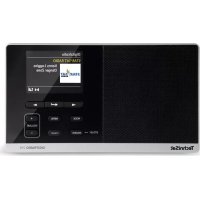
DigitRadio 216 - Radio TECHNISAT - Free user manual and instructions
Find the device manual for free DigitRadio 216 TECHNISAT in PDF.


| Product type | DAB+/FM digital alarm clock radio |
| Brand | TechniSat |
| Model | DigitRadio 216 |
| Dimensions (W x H x D) | 205 mm x 115 mm x 46 mm |
| Weight | Approximately 0.5 kg |
| Power supply | Mains adapter: input 100-240 V, 50/60 Hz; output 6 V, 500 mA; backup batteries: 2 AA batteries (not supplied) |
| Power consumption | Operation: 3 W max; standby: < 1 W |
| Frequency ranges | FM: 87.5 - 108 MHz; DAB/DAB+: 174 - 240 MHz |
| Audio output power | 1 W RMS |
| Reception modes | DAB+, FM (RDS) |
| Number of presets | 20 (shared FM/DAB) |
| Alarm functions | 2 independent alarms with snooze (daily, once, weekend, weekdays), source: FM, DAB or buzzer |
| Sleep function | Adjustable timer: 15, 30, 45, 60, 90 minutes or off |
| Display | Backlit LCD screen, brightness adjustment (3 levels in operation and standby) |
| Audio input/output | 3.5 mm headphone jack (rear) |
| Antenna | Integrated telescopic FM/DAB antenna |
| Cleaning | Soft, dry cloth; do not use solvents, alcohol or abrasive products |
| Safety | Do not open the casing; use only the supplied adapter; avoid moisture and heat sources |
| Repairability | Contact TechniSat customer service (no spare parts supplied) |
| General information | Manual available in multiple languages; EU declaration of conformity at www.technisat.com |
Frequently Asked Questions - DigitRadio 216 TECHNISAT
User questions about DigitRadio 216 TECHNISAT
0 question about this device. Answer the ones you know or ask your own.
Ask a new question about this device
Download the instructions for your Radio in PDF format for free! Find your manual DigitRadio 216 - TECHNISAT and take your electronic device back in hand. On this page are published all the documents necessary for the use of your device. DigitRadio 216 by TECHNISAT.
USER MANUAL DigitRadio 216 TECHNISAT
DAB+ and FM radio with alarm
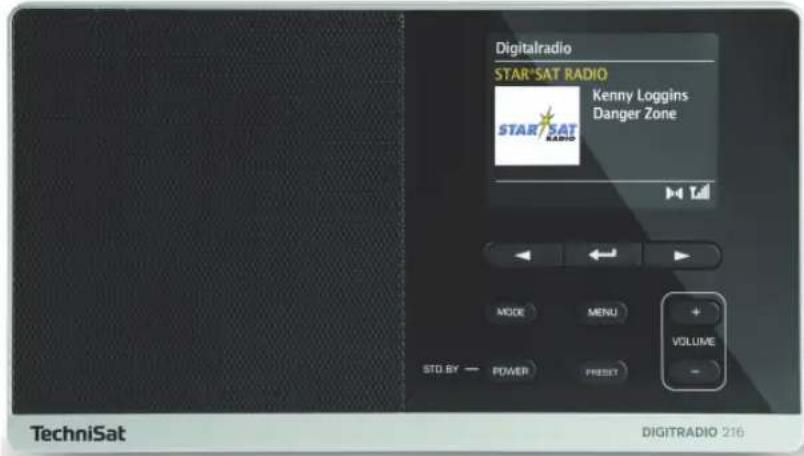
TechniSat
1 Illustrations
1.1 Front view
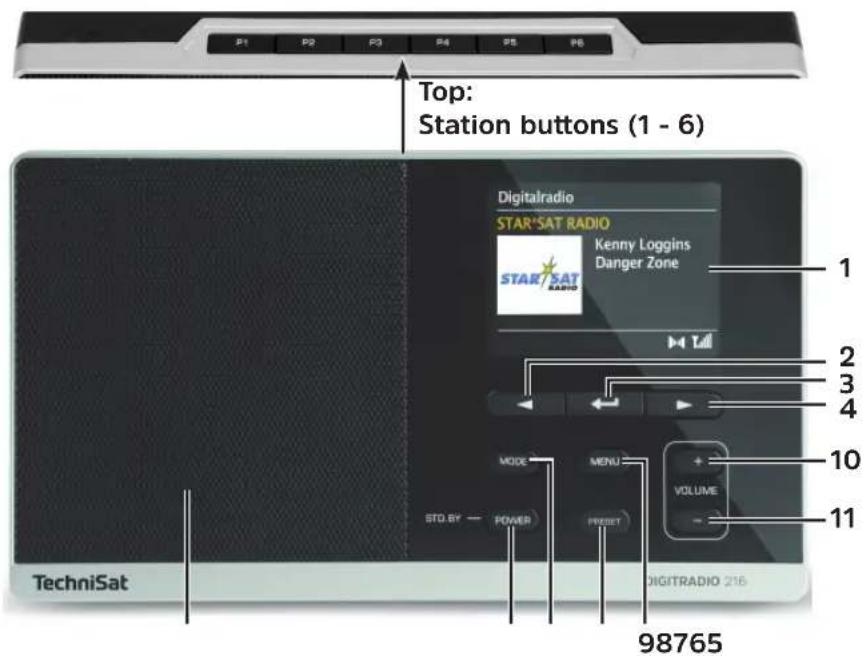
1 Display
2 < Upwards/left selection button
3 SELECTButton for confirming/saving
4 > Downwards/right selection button
5 Speaker
6 MODE Mode selection button
7 On/Standby
8 MENU (hold down to access main menu)
9 PRESET button for favourites memory slots (1 - 20)
10 Volume up
11 Volume down
The direct selection buttons (1 - 6) can be found on the top of the device.
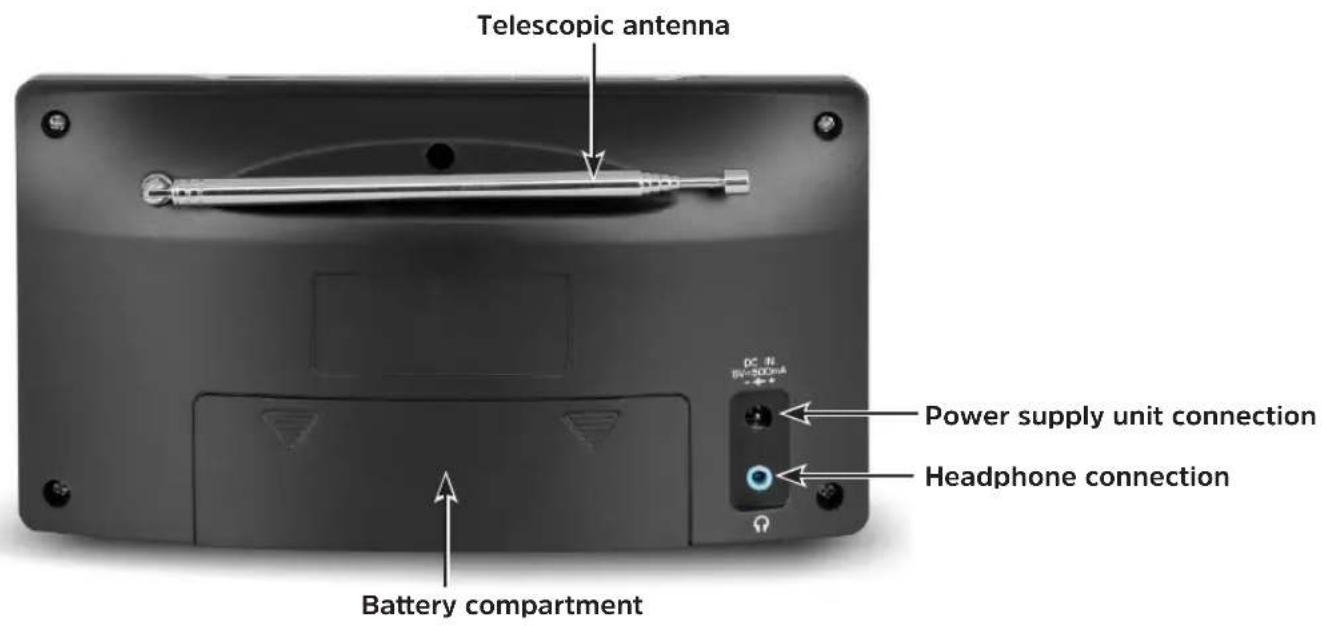
1.2 View from the rear
2 Contents
1 Illustrations 4
1.1 Front view 4
1.2 View from the rear 6
2 Contents. 7
3 Preface 10
3.1 Target group for this instruction manual 10
3.1.1 Intended use 10
3.2 Important information 10
3.2.1 Safety 11
3.2.2 Disposal 15
3.2.3 Legal notices 16
3.2.4 Service instructions 17
4 Setting up the device. 19
5 Description of the DIGITRADIO 216 21
5.1 Scope of delivery 21
5.2 Special features of the DIGITRADIO 216. 21
5.3 Preparing the DIGITRADIO 216 for operation 22
5.3.1 Connecting the power supply unit 22
5.3.2 Improving antenna reception 22
5.3.3 Inserting the battery 23
5.3.4 Using headphones 24
5.4 General device functions 24
5.4.1 Switching on the device 24
5.4.2 Adjusting the volume 25
5.4.3 Retrieving displays 25
5.4.4 Visual displays 26
5.4.5 Switching off the device 27
5.4.6 Switching between DAB/FM mode 27
6 Menu operation 27
7 DAB (digital radio) function 27
7.1 What is DAB+? 27
7.1.1 Data compression 28
7.1.2 Audio stream 28
7.2 DAB (digital radio) reception 28
7.2.1 Performing the station scan 29
7.2.2 Selecting stations 29
7.2.3 Saving DAB stations to a memory slot 30
7.2.4 Retrieving DAB stations from a memory slot 30
7.2.5 删除a saved memory slot 31
7.2.6 Signal strength 31
7.2.7 Dynamic Label Plus 32
7.2.8 Manual setting 32
7.2.9 Inactive stations 32
7.2.10 Volume adjustment (DRC) 32
8 FM mode 33
8.1 FM reception with RDS information 33
8.2 Automatic station scan 33
8.3 Manual station scan 34
8.4 Scan setting 34
8.5 Setting to mono/stereo 35
8.6 Saving FM stations to a memory slot 35
8.7 Retrieving FM stations from a memory slot 35
8.8 删除a saved memory slot 36
9 Other functions 36
9.1 Alarm 36
9.1.1 Setting the alarm time 36
9.1.2 Switching off the alarm after being woken 38
9.1.3 Switching off the alarm 38
9.2 Sleep function 38
10 System settings 39
10.1 Time settings 39
10.1.1 Time/date setting 39
10.1.2 Update settings 39
10.1.3 Set format 40
10.1.4 Setting the date format 40
10.2 Backlight 40
10.3 Language 40
10.4 Factory setting 41
10.5 Software version 41
11 Cleaning 41
12 Troubleshooting 42
13 Technical specifications / manufacturer's instructions 43
3 Preface
This instruction manual will help you to use your radio system, hereinafter referred to as digital radio or device, in a safe and proper way.
3.1 Target group for this instruction manual
The instruction manual is intended for anyone who is installing, operating, cleaning or disposing of the device.
3.1.1 Intended use
The device has been designed to receive DAB/FM radio programmes. The device has been designed for private use and not for commercial purposes.
3.2 Important information
Please observe the following instructions to avoid any safety hazards, to prevent damage to the TV, and to help protect the environment.
Please read all the safety information carefully and keep it for future reference. Always follow all the warnings and instructions in this instruction manual and on the rear of the device.

Caution - This identifies important information that must be observed to prevent device defects, data loss/misuse or undesired operation.

Tip - This identifies information relating to the described function, as well as to another related function that may have to be taken into account, with reference to the corresponding section in the manual.
3.2.1 Safety
For your own protection you should read the safety precautions carefully before using your new device. The manufacturer accepts no liability for damage caused by inappropriate handling, or by non-compliance with the safety precautions.

Do not open the device under any circumstances! Touching live parts poses a danger to life!

Any required intervention may only be performed by qualified staff.

The device must only be operated in an appropriate climate.

In the event of extended transportation in the cold and subsequent moving to warm rooms, do not switch on immediately; wait for the temperature to equalise.

Do not expose the device to dripping or splashing water. If water has penetrated the device, switch it off and inform the Service department.

Do not expose the device to heat sources that will heat it up more than normal use.

In the event of a thunderstorm, disconnect the device from the mains. Overvoltage can damage the device.

In the event of an obvious fault with the device, the emanation of odour or smoke, substantial malfunctions, damage to the housing or fluid ingress, immediately switch off the device and contact the Service department.

The device may only be used with the supplied mains adapter and may only be connected to the mains supply specified for the mains adapter.

Never try to operate the device or mains adapter with another voltage.

The power supply unit must not be connected until the installation has been completed according to regulations.

Do not operate the device if the power supply unit is defective or if the device is damaged in any other way.

When removing the power supply unit from the power outlet, pull on the plug, not the cable.

Do not put the device into operation in the vicinity of baths, swimming pools or splashing water.

Never try to repair a faulty device yourself. Always contact one of our customer service locations.

Foreign bodies, e.g. nails, coins, etc. must not be allowed to fall inside the device. Do not touch the connection contacts with metal objects or fingers. This could lead to short-circuits.
Do not place any objects or open flames such as burning candles on the device.
Even when switched off and on standby, the device is still connected to the mains power supply. If you do not intend to use the device for a prolonged period, remove the mains plug from the power outlet. Only pull on the plug, not on the cable. Remove any inserted batteries.
Do not listen to music or the radio at high volume. Doing so can cause permanent hearing impairment.
This device is not intended to be used by people (including children) with limited physical, sensory or mental capacities or lack of experience and/or knowledge, unless they are supervised by a person responsible for their safety or are instructed by such a person as to how to use the device.
Children must be supervised to ensure that they do not play with the device.
It is forbidden to carry out modifications to the device.
Damaged devices or damaged accessories must not continue to be used.
Handling batteries

Ensure that the batteries are kept out of the reach of children. Children could put the batteries into their mouths and swallow them. This could lead to serious injuries. Therefore ensure that the batteries and remote control are out of reach of young children. Seek medical advice immediately if this occurs!

Normal batteries may not be charged, reactivated using other means, disassembled, heated or disposed of in an open fire (explosion hazard!).

Promptly change batteries that are losing power.

Clean the battery contact and device contacts prior to inserting them.

There is a risk of explosion if a battery is inserted incorrectly.

Dispose of used batteries immediately. Only replace batteries with the correct type of batteries and the correct model number.

Caution! Do not expose batteries to extreme conditions.

Do not place them on radiators, or expose them to direct sunlight.

Leaking or damaged batteries can cause burns if they come into contact with the skin. In this case use suitable protective gloves. Clean the battery compartment with a dry cloth.
3.2.2 Disposal
The device packaging is exclusively comprised of recyclable materials. Please sort the components appropriately, and dispose of them in line with your local waste disposal regulations.
At the end of its service life, this device must not be disposed of with your regular household waste. It must be taken to a recycling collection point for electrical and electronic equipment.
This is indicated by the symbol on the product, the instruction manual or the packaging.
The materials are recyclable according to their identification.
An important contribution is made to our environment by recycling, recovery of materials or other kinds of recycling for old devices.

Please ask local authorities for the location of the relevant disposal point. Please ensure that flat batteries and electronic waste are not disposed of in normal household refuse, but are rather disposed of correctly (returned to the specialist shop, bins for specific waste).
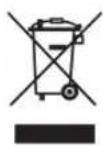
Batteries can contain poisonous substances that harm the environment.
Batteries are subject to European Directive 2006/66/EC and may not be disposed of in normal household waste.
3.2.3 Legal notices

TechniSat herewith declares that the radio system model DIGITRADIO 216 is compliant with Directive 2014/53/EU. The complete text of the EU Declaration of Conformity is available at the following web address:
TechniSat accepts no liability for product damage as a result of external influences, wear or improper handling, unauthorised repairs, modifications or accidents. Changes and printing errors reserved. Version 02/19.

Duplication and reproduction only with the publisher's approval. You can find the current version of the instruction manual in PDF format in the download area of the TechniSat home page at www.technisat.com.
DIGITRADIO 216 and TechniSat registered trademarks of:
D-54550 Daun/Eifel, Germany
www.technisat.com

3.2.4 Service instructions

This product is quality-tested and provided with the legal warranty period of 24 months as from the date of purchase. Please keep your receipt as proof of purchase.

Caution! If you encounter a problem with this equipment, please contact our Technical Hotline as an initial point of contact.
Mon.-Fri.8am-8pm
03925 9220 1800
If the device needs to be sent back, please use the following address only:
39418 Stassfurt, Germany
The names of the companies, institutions or makes referred to are trademarks or registered trademarks of the respective owners.
4 Setting up the device
Place the device on a firm, secure and horizontal base. Make sure the area is well ventilated.
Caution!
Do not place the radio on soft surfaces such as carpets and blankets or near to curtains and wall hangings. These could obstruct the ventilation openings. The necessary flow of air could be interrupted as a result. This could potentially lead to fire in the device.
Do not place the device near to sources of heat, such as radiators. Avoid direct sunlight and very dusty environments.
Do not select a location for the device with high air humidity, e.g. a kitchen or sauna, as the precipitation of condensation water could damage the device. The device is intended for use in a dry environment and in a moderate climate and must not be exposed to dripping or splashing water.
Please note that the device feet could potentially leave coloured marks on some types of furniture surface. Place a protective layer between your furniture and the device.
Keep the DIGITRADIO 216 away from devices that emit intense magnetic fields.
Do not place any heavy objects on the device.
If you move the device from a cold environment to a hot environment, moisture could accumulate inside the device. In this case, wait for around an hour before using the radio.
Lay the mains cable in such a way that nobody can trip over it.
Ensure that the mains cable or the power supply unit are always easily accessible so that the device can be quickly disconnected from the power supply.
The power outlet should be as close to the device as possible. Insert the plug fully into the socket to ensure connection to the mains.
Use a suitable, easy-to-access mains connection and avoid using multiple socket strips.Do not touch the mains plug with wet hands; electric shock hazard.
In the event of a malfunction or the detection of smoke or odour from the housing, remove the plug from the power outlet immediately.
Remove the plug before a storm starts.
Remove the plug and any inserted batteries if the device is not going to be used for a prolonged period, e.g. before going away on a long trip.
If the device is not to be used for a long time, remove the batteries since they could leak and damage the device.
Excessive volume, in particular when using headphones, can damage hearing.
Do not set up the device in the vicinity of equipment that emits intense magnetic fields (e.g. motors, speakers, transformers).
5 Description of the DIGITRADIO 216
5.1 Scope of delivery
Please ensure that all the following accessories are present:
1xDIGITRADIO216
1 x power supply unit
1 x instruction manual
5.2 Special features of the DIGITRADIO 216
The DIGITRADIO 216 is a DAB+/FM receiver with a timer function and can be used to receive digital radio broadcasts.
Digital radio offers a new digital format for listening to crystal clear sound, with no background noise.
- You can store up to 20 DAB and FM stations.
- The radio can receive the following frequencies: FM 87.5-108 MHz (analogue) and DAB 174.9-239.2 MHz (digital).
- The device has a time and date display.
- The device has 2 alarm functions available, as well as a sleep function.
- You can select whether you wish to be awoken with DAB, FM or a buzzer.
5.3 Preparing the DIGITRADIO 216 for operation
5.3.1 Connecting the power supply unit
To do this, insert the connector on the power supply unit provided into the power supply socket on the back of the device and then connect the power supply unit to the mains supply.
Ensure that the operating voltage of the power supply unit matches the mains voltage before you insert it into the wall socket.
When you connect to the mains for the first time, "TechniSat" appears on the display.
When the device is in use, remove the plug from the socket. Pull the plug and not on the cable.
Remove the plug before a storm starts. Remove the plug if the device is not going to be used for a prolonged period, e.g. before going away on a long trip.
The heat generated during operation must be dissipated by means of sufficient air circulation. Therefore the device must not be covered or installed in a closed cupboard. Ensure there is free space of at least 10cm around the device.
5.3.2 Improving antenna reception
The number and quality of the stations to be received depend on the reception conditions at the installation location. Excellent reception can be achieved with the DAB/FM rod antenna.
Align the telescopic antenna and extend it.
It is often important to ensure the exact alignment of the DAB antenna, in particular on the outskirts of the DAB reception area. You can quickly find the location of the nearest transmission tower on the Internet by visiting "www.dabplus.de".
i Start the first scan at a window in the direction of the transmission mast.
When the weather conditions are poor, DAB reception may be limited.
i You can find the optimum antenna alignment using the signal intensity display in the status bar and hence find the best installation location.
5.3.3 Inserting the battery
Open the battery compartment on the rear of the device by pressing gently on the arrows on the battery compartment cover and sliding the cover in the direction of the arrows to remove the cover.
Remove any batteries in the compartment.
Insert new Mignon (AA) batteries/charged rechargeable batteries with the correct polarity as shown on the battery compartment.
Place the battery compartment cover onto the battery compartment and slide it in the opposite direction to the arrows until it clicks into place.
i Promptly change a battery that is losing power.
Leaking batteries can cause damage to the remote control.
If the device is not being used for a prolonged period, remove the batteries.
Important information for disposal: batteries can contain poisonous substances that harm the environment. Therefore, it is imperative that batteries are disposed of according to the legal provisions in force. Never dispose of batteries in normal household waste.
5.3.4 Using headphones
Hearing impairment!
Do not listen to the radio at high volume with headphones. Doing so can cause permanent hearing impairment. Turn down the radio volume to the lowest volume before using headphones. When you connect headphones (not included), the speaker is muted.
Only use headphones with a 3.5 mm jack plug.
Insert the headphone jack into the headphone socket on the rear of the device. Sound is now played exclusively through the headphones.
If you would like to use the speakers again, unplug the headphone jack from the headphone socket on the radio.
5.4 General device functions
5.4.1 Switching on the device
Before switching on for the first time, "Time not set" appears in the display. In order to guarantee good DAB+/FM reception, please fully extend the antenna located on the rear of the device.
Use the On/Standby button on the device to switch the device on or to switch it back to standby/off.

Note:
After switching on for the first time, the operating language must first be selected. Select one of the available languages using the < or > buttons and confirm the selection by pressing SELECT. The device then performs a full channel search in DAB+ mode. While scanning, the display information shows the progress as well as the number of digital radio stations detected.
The first station found in the DAB search is then played.
5.4.2 Adjusting the volume
Adjust the volume using the Volume +/- buttons. The volume setting is shown on the display.
5.4.3 Retrieving displays
By briefly pressing the MENU button, the following information can be seen and scrolled through:
DAB mode:
DLS: continuous text with additional information that the stations may provide
Title,Programme
Artist
Genre
Ensemble/multiplex (group name)
Frequency, channel
Signal strength/Signal error rate
Bitrate in kbps, sound format
Date
FM/VHF mode
RT radio text (if broadcast)
PTY -Programme type
Frequency
Stereo/Mono
Date
In DAB mode, images or slideshows are available depending on the station. You can enlarge these images using the SELECT button. There are 3 views available.
5.4.4 Visual displays
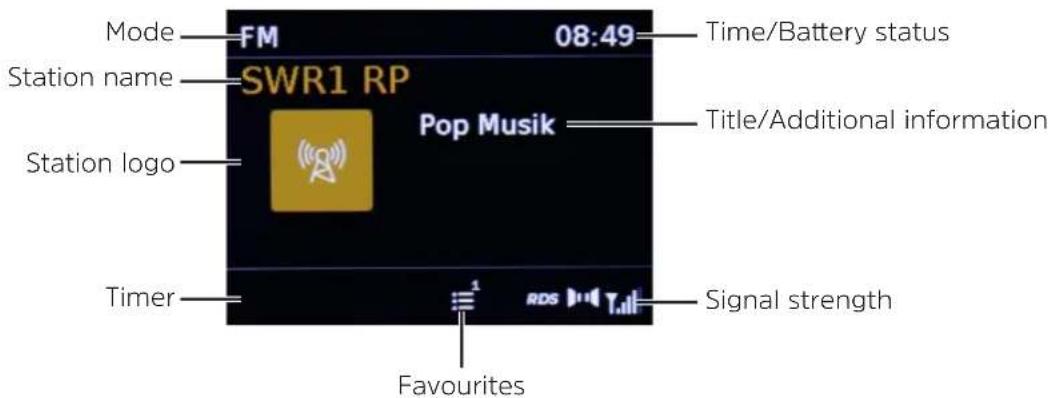
Depending on the selected function, the visual display shown may vary. Take note of the instructions on the display.
5.4.5 Switching off the device
By briefly pressing the On/Standby button, you can switch the device to standby; the date and time appear. Pressing and holding the button will put the device to power-saving mode and the display will switch off.
5.4.6 Switching between DAB/FM mode
Using the MODE button, it is possible to switch between DAB (digital radio) and FM.
6 Menu operation
You can access all of the DIGITRADIO 216 functions and settings via the menu.
Menu navigation is performed primarily using the MENU, < / > and SELECT buttons.
The menu is divided into submenus, which, depending on the mode (DAB or FM), contain different menu items or functions, and the system menu.
To open the menu, hold down the MENU button for approx. 2-3 seconds.
To switch to the submenus or settings, first press the < or buttons and then the SELECT button to select/ save the item or settings.
A checkmark highlights the current selection.
i Close menu: Press the MENU button several times (depending on which submenu/function you are in) or wait for approx. 15 seconds until the current channel is displayed.
7 DAB (digital radio) function
7.1 What is DAB+?
DAB+ is a new digital format through which crystal clear sound with no noise can be enjoyed. Unlike with conventional analogue radio transmitters, with DAB multiple stations are transmitted on one and the same
frequency. This is referred to as an ensemble or multiplex. An ensemble is comprised of the radio station, as well as several service components or data services, which are broadcast individually by the radio stations. For further information go to www.dabplus.de or www.dabplus.ch.
7.1.1 Data compression
With this, digital radio takes advantage of the properties of human hearing. The human ear does not perceive sounds which are found under a specific minimum volume. Data which are found under the so-called audibility threshold can, therefore, be filtered out. This is possible because, in a digital data stream, the relevant relative volume for other units is also saved for every unit of information. Moreover, in an audio signal, the quieter parts are superimposed by louder ones at a specific limit value. All audio information in a piece of music that is below the so-called listening threshold can be filtered out of the transmitted signal. This leads to a reduction of data in the data stream to be transmitted, with no perceptible difference in sound for the listener (HE AAC v2 process as a supplementary codification process for DAB+).
7.1.2 Audio stream
In the case of digital radio, audio streams are continuous data streams that contain the MPEG 1 audio layer 2 frames and thereby represent acoustic information. This enables standard radio channels to be broadcast and listened to on the receiver side.
Digital radio provides you not only with excellent sound quality radio but also additional information. This could relate to the channel currently being broadcast (DLS e.g. track, artist) or could be independent of this (e.g. news, weather, traffic, tips).
7.2 DAB (digital radio) reception
Press the MODE button and select DAB Mode. Digital Radio appears on the display.
7.2.1 Performing the station scan

The automatic scan (Full Scan) scans all DAB Band III stations and thereby finds all stations being broadcast within the reception range.

After the scan is complete, the first station is played back in alphanumeric order.
In order to perform a complete scan, open the menu by holding down the MENU button and use the <,> and SELECT buttons to select the [Auto Scan] menu item.
[Scanning...] appears on the display.

During the scan, a progress bar and the number of stations found is displayed.

If no stations are found, check the antenna and change the installation location if necessary (Point 5.3.2).
7.2.2 Selecting stations
To select a DAB station, press the < or > buttons and confirm the station selection with SELECT.
Alternatively, you can also hold the MENU button down for longer, open the station list in the menu via SELECT and use < or > to select a station.
Then press SELECT to listen to a station.
7.2.3 Saving DAB stations to a memory slot
The programme memory can save up to 20 stations within the DAB range. The saved stations remain stored even in the event of a power cut.
Setting the desired stations.
In order to store a station to a memory slot, hold down the relevant station button on the top of the device while playing until a menu display confirms that it has been stored.
Alternatively:
Hold down the PRESET button. The favourites memory appears. Now use < or > to select a favourites storage slot and press SELECT.
Repeat this process to save additional stations.
7.2.4 Retrieving DAB stations from a memory slot
To access a station you have saved to a station button, press the relevant station button briefly
Alternatively:
Briefly press the PRESET button to access the favourites memory. Use
to select a station, then SELECT to play the station.

If there is no station saved in the selected programme slot, [Memory slot empty] appears.
7.2.5 Deleting a saved memory slot
Simply save a new station to the relevant station button or to the favourites memory as described.
When retrieving the factory settings all memory slots are deleted.
7.2.6 Signal strength
Press the MENU button several times until the signal intensity is shown: The bar modulation (white fields) shows the current level.
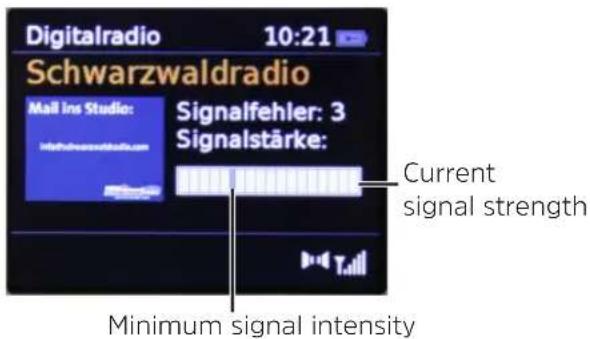
Stations with a signal strength below the required minimum signal intensity are not transmitting a strong enough signal. If required, align the antenna as described in section 5.3.2.
i By briefly pressing the MENU button several times, you can scroll through various information, such as station type, multiplex name, frequency, signal error rate, data bit rate, station format, date.
7.2.7 Dynamic Label Plus
Where supported by the broadcaster, the Dynamic Label Plus service also allows, for example, the name of the current programme or the track and artist to be displayed. Further information can be found under 5.4.3.
7.2.8 Manual setting
This menu item is used to check the reception channels and can be used to position the antenna. If stations are found on the channel, these are added to the station list. In the [Manual setting]menu item, use the < or > buttons and SELECT to select a channel (5A to 13F) and view a display of the signal strength. Where DAB is received on a channel, the ensemble name is displayed. The antenna can now be aligned to the maximum signal intensity.
7.2.9 Inactive stations
This menu item is for removing old stations and those not being received from the station list.
Keep pressing the MENU button and select the [Inactive Stations] menu item.
Confirm by pressing SELECT.
You are then asked if inactive stations should be deleted.
Use < or > to select "Yes" and confirm by pressing SELECT.
7.2.10 Volume adjustment (DRC)
The compression rate can be set using the Volume Adjustment menu item, which balances the dynamic variations and thereby the accompanying volume variations.
Press the MENU button for longer and select Volume Adjustment to choose the desired compression rate. Select the compression rate using < or >:
DRC high - High compression
DRC low - Low compression
DRC off - Compression switched off.
Confirm by pressing SELECT.
8 FM mode
Press the MODE button to switch to FM mode.
When switching on for the first time, the frequency 87.5 MHz is set.
If you have already set or saved a station, the radio plays the last station set.
In the case of RDS stations, the station name appears.
Align the antenna to improve reception (Point 5.3.2).
8.1 FM reception with RDS information
RDS is a procedure for broadcasting additional information via FM stations. Broadcasters with RDS might, for example, broadcast their station name or the programme type. This is shown on the display. The device can display the RDS information - RT (Radio text), PS (Station name), PTY (Programme type).
Briefly press the MENU button to switch between the various information displays (see also Point 5.4.3).
8.2 Automatic station scan
Hold down the < or > buttons for longer (2 to 3 sec.), in order to automatically search for the next station with a sufficient signal.
If an FM station with sufficient signal intensity is found, the scan stops and the station is played. If an RDS station is being received, the station name appears and, possibly, radio text.
i Please use the manual station scan for setting weaker stations.
8.3 Manual station scan
Press the < or > buttons in quick succession to set the desired stations or frequency.
The display shows the frequency in increments of 0.05 MHz.
8.4 Scan setting
With this menu item you can set the sensitivity of the scan.
To do so, keep pressing the MENU button and select Scan Settings. Confirm the selection with SELECT.
Select whether the scan should only stop for stations with a strong signal ([Strong Stations Only] menu item) or for all stations including those with a weak signal ([All Stations]).
With the All Stations setting, the scan stops automatically once all available stations have been detected. This can result in weak stations being played with background noise. When using for the first time, and after applying the factory settings, the [All Stations] menu item is preset.
8.5 Setting to mono/stereo
Keep pressing the MENU button and select Audio Settings.
Using the < or > buttons, select the [Stereo available] or [Mono only] item in order play back in stereo (only available via headphones) or in mono when the FM reception is weak.
Confirm by pressing SELECT.
8.6 Saving FM stations to a memory slot
The station memory can save up to 20 stations in the FM range.
The saved stations remain stored even in the event of a power cut.
Setting the desired stations.
In order to store a station to a memory slot, hold down the relevant station button on the top of the device while playing until a menu display confirms that it has been stored.
Alternatively:
Hold down the PRESET button. The favourites memory appears. Now use
to select a favourites storage slot and press SELECT.
Repeat this process to save additional stations.
8.7 Retrieving FM stations from a memory slot
To access a station you have saved to a station button, press the relevant station button briefly.
Alternatively:
Briefly press the PRESET button to access the favourites memory. Use
to select a station, then SELECT to play the station.
If there is no station saved in the selected programme slot, [Memory slot empty] appears.
8.8 Deleting a saved memory slot
Simply save a new station to the respective memory slot as described.
When retrieving the factory settings all memory slots are deleted.
9 Other functions
9.1 Alarm
The DIGITRADIO 216 has 2 alarms.
Keep pressing the MENU button and then select the [Alarm] menu item using SELECT.
9.1.1 Setting the alarm time
The alarm function cannot be operated until the correct time has been set. Depending on the configuration, this either occurs automatically or has to be set manually.
The time can either be updated manually, via DAB or FM. See Point 10.1.2 for further information.
Select an alarm time memory (Alarm 1 or Alarm 2) using the < or > buttons and SELECT.
Go through all the points one after the other. Confirm each entry with the SELECT button. You can change the relevant values or options using < and .
Alarm >On/Off, to activate or disable the alarm.
Repeat > Daily, Once, Weekend, Work days.
Alarm time > Set the time (and date in case of a one-off alarm) at which you wish to be woken up using the < or > buttons and SELECT.
Source > Select the source with which you wish to be woken up. The options are Buzzer, DAB or FM.
Programme > Last listened to or a station you have saved in the favourites memory.
Duration > 15, 30, 45, 60, 90, 120 minutes: here you specify the duration of the alarm.
Volume > Select the volume with which you wish to be woken up.
To save the alarm with the specified settings, exit the alarm menu by pressing the MENU a number of times or wait for a short while.
The status bar shows an alarm symbol with the corresponding number (I or II) of the active alarm.
9.1.2 Switching off the alarm after being woken
Press the On/Standby button to switch the alarm off.
Press the SELECT button to switch on the snooze function. By repeatedly pressing the SELECT button you can select the length of the interval (5, 10, 15 or 30 minutes). The length of the snooze period depends on the specified duration of the alarm.

The alarm symbol appears on the display again if the alarm repeat is set to Daily, Weekend or Work days.
9.1.3 Switching off the alarm
Select Alarm > Off in the menu of the corresponding alarm.
9.2 Sleep function
Hold down the MENU button and then select the Sleep timer menu item.
Using the < or > and SELECT buttons, you can set the period after which the device is switched to standby from any operating mode, with the following settings/intervals: Off, 15, 30, 45, 60 and 90 minutes.

In the display status bar, a clock symbol appears with the remaining time available until the DigitRadio switches to standby.
10 System settings
10.1 Time settings
In this menu you can set the time and date.
You need to set the time manually before using the alarm function if this is not detected automatically.
Therefore check the time after setting up and using the radio for the first time and reset if necessary. You may need to reset the time after a power cut.
10.1.1 Time/date setting
Hold down the MENU button, then use the < or > and SELECT buttons to select the Time item in the System Settings menu.
Select Time/date setting to set the time and date manually using the < or > and SELECT buttons.
10.1.2 Update settings
Select Update Settings to determine whether the time update should be automatic via DAB or FM or whether you would like to enter it manually.
To do so, select:
Update from all sources (update from DAB and FM)
Update from digital radio (DAB)
Update from FM
Do not update (manual entry)
10.1.3 Set format
Under the Set format option you can activate 12 or 24 hour format. Confirm your selection with SELECT
10.1.4 Setting the date format
Under the Set Date Format option, you can specify DD-MM-YYYY (day, month, year) or MM-DD-YYYY (month, day, year) as the format. Confirm your selection using the SELECT button.
10.2 Backlight
It is possible to set the display brightness both for the operation and standby modes.
Hold down the MENU button, then use the < or > and SELECT buttons to select the Brightness item in the System Settings menu.
Select Operation or Standby to apply the setting for operating mode or standby mode.
You can now set the brightness for operation or standby to one of three levels, High, Medium or Low. Save the selection with SELECT.
10.3 Language
Hold down the MENU button, then use the < or > and SELECT buttons to select the Language item in the System Settings menu.
German, Italian, English, Dutch and French are available.
Save the selection with SELECT.
10.4 Factory setting
If you change the location of the device, e.g. when moving house, it is possible that the saved stations can no longer be received. In this case you can reset the device to factory settings to delete all the saved stations and then launch a new scan.
Hold down the MENU button, then use the < or > and SELECT buttons to select the Factory Settings item in the System Settings menu.
Confirm the query by selecting Yes and pressing SELECT.
All previously stored stations and settings will now be deleted.
10.5 Software version
Hold down the MENU button, then use the < or > and SELECT buttons to select the Software Version item in the System Settings menu.
The device software version is now displayed. This may be helpful if you experience problems with the device. Keep hold of this in case you need to contact the technical hotline.
11 Cleaning
To prevent the risk of an electric shock, you may not clean the device using a wet cloth or under running water. Remove the mains plug prior to cleaning!
i You may not use scouring pads, scouring powder and solvents such as alcohol or petrol.
i Do not use any of the following substances: salt water, insecticides, chlorine or acid-based solvents (ammonium chloride), scouring powder.
Clean the housing using a soft, moist cloth. Do not use solvents, spirit, thinners, etc.; you could damage the surface of the device.
i Only clean the display with a soft, cotton cloth. If required, use a cotton cloth with small amounts of non-alkaline, diluted, water or alcohol-based soap solution.
i Use the cotton cloth to gently rub the surface until it is completely dry.
12 Troubleshooting
If the device does not operate as intended, check the following tables for information.
| Symptom Possible cause/remedy | |
| The device cannot be switched on. The device is not being supplied with power. Connect the power supply unit correctly to the socket and to the device. Insert new batteries. | |
| No sound can be heard. Increase the volume. | |
| The display does not switch on. | Switch off the device using On/Standby, switch back on again. |
| Poor DAB/FM reception. Extend the antenna. Change the position of the antenna or the DigitRadio. | |
| The device cannot be operated. Disconnect the device from the power supply for a minute. | |
If the malfunction has not been resolved, even after performing the checks described, please contact the Technical Hotline (for further information see Seite 17).
13 Technical specifications / manufacturer's instructions
Subject to technical changes and errors. The dimensions are approximate values.
| Reception channels DAB/DAB+, FM | |
| power supply AC Input: 100-240V, 50-60Hz | DC Output: 6V, 500mA |
| Frequencies FM: 87.5-108 MHz | DAB/DAB+: 174 - 240 MHz |
| Power consumption when in operation, 3W (max.) | in standby, under 1W |
| Audio output performance 1W RMS | |
| Dimensions 205 mm x 115 mm x 46 mm |
Disposal instructions:
Disposing of packaging
Your new device was protected by packaging on its way to you. All materials used are environmentally friendly and recyclable. Please collaborate and dispose of the packaging in an environmentally-friendly way. Ask for information from your dealer regarding current disposal means or your local disposal facility.

Risk of suffocation! Do not give packaging and parts thereof to children. Risk of suffocation by films and other packaging materials.

Disposing of the radio
Old devices constitute valuable waste. Valuable raw materials can be recovered through environmentally-friendly disposal. Consult your town or local authority as to the possibilities for environmentally-friendly and proper disposal of the device. The batteries should be removed before disposing of the device.

This device is identified in accordance with the Waste Electrical and Electronic Equipment (WEEE) Directive 2012/19/EU.

At the end of its service life, this device must not be disposed of with your regular household waste. It must be taken to a recycling collection point for electrical and electronic equipment. The symbol on the product, the operating manual or the packaging indicates this. The materials are recyclable according to their identification. An important contribution is made to our environment by recycling, recovery of materials or other kinds of recycling for old devices.

Life-threatening hazard! Remove the mains plug in case of disused devices. Cut through the mains cable and remove with the plug.
Mode d'emploi
DIGITRADIO 216
7.2.7 Dynamic Label Plus
7.2.9 Stations inactives
3.2.4 Service-instructions

7.2.7 Dynamic Label Plus
7.2.7 Dynamic Label Plus
Ensemble/Multiplex (Gruppenname)
Frequenz, Kanal
7.2.7 Dynamic Label Plus
- Illustrations
- Front view
- View from the rear
- Contents
- Menu operation 27
- Preface
- Target group for this instruction manual
- Intended use
- Important information
- Safety
- Handling batteries
- Disposal
- Legal notices
- Service instructions
- Setting up the device
- Caution!
- Description of the DIGITRADIO 216
- Scope of delivery
- Special features of the DIGITRADIO 216
- Preparing the DIGITRADIO 216 for operation
- Connecting the power supply unit
- Improving antenna reception
- Inserting the battery
- Using headphones
- Hearing impairment!
- General device functions
- Switching on the device
- Note:
- Adjusting the volume
- Retrieving displays
- DAB mode:
- FM/VHF mode
- Visual displays
- Switching off the device
- Switching between DAB/FM mode
- Menu operation
- DAB (digital radio) function
- What is DAB+?
- Data compression
- Audio stream
- DAB (digital radio) reception
- Performing the station scan
- Selecting stations
- Saving DAB stations to a memory slot
- Alternatively:
- Retrieving DAB stations from a memory slot
- Deleting a saved memory slot
- Signal strength
- Dynamic Label Plus
- Manual setting
- Inactive stations
- Volume adjustment (DRC)
- FM mode
- FM reception with RDS information
- Automatic station scan
- Manual station scan
- Scan setting
- Setting to mono/stereo
- Saving FM stations to a memory slot
- Retrieving FM stations from a memory slot
- Deleting a saved memory slot
- Other functions
- Alarm
- Setting the alarm time
- Switching off the alarm after being woken
- Switching off the alarm
- Sleep function
- System settings
- Time settings
- Time/date setting
- Update settings
- Set format
- Setting the date format
- Backlight
- Language
- Factory setting
- Software version
- Cleaning
- Troubleshooting
- Technical specifications / manufacturer's instructions
- Disposal instructions:
- Mode d'emploi
- DIGITRADIO 216
- Stations inactives
- Service-instructions
Brand : TECHNISAT
Model : DigitRadio 216
Category : Radio