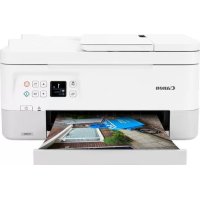
USER MANUAL PIXMA TS7451a CANON
Read Safety and Important Information (addendum) first.
Installing the Printer......page 1
Connecting to a Computer, Smartphone or Tablet...... page 4
Setting Up the Printer

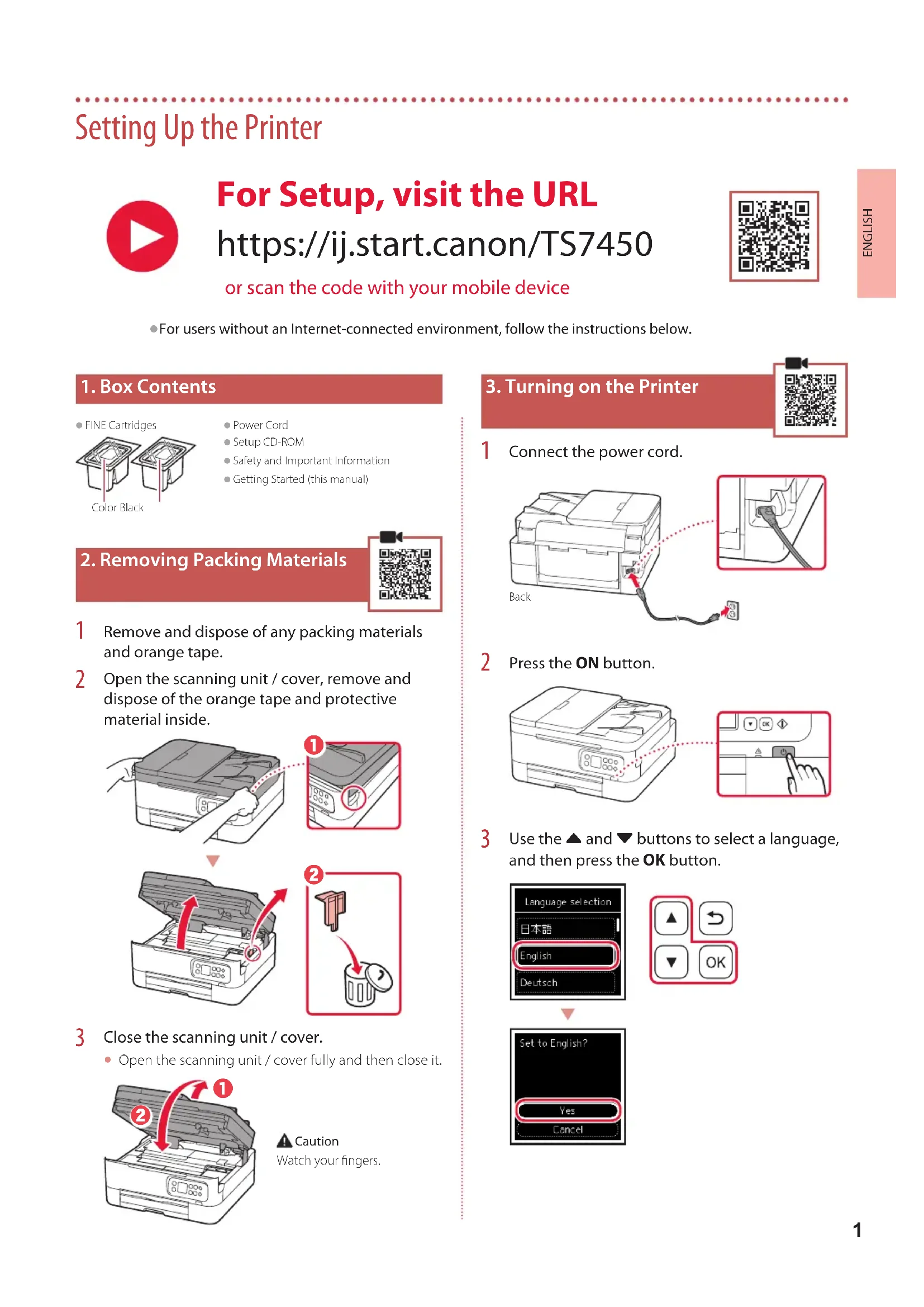
For Setup, visit the URL
https://ij.start.canon/TS7450
or scan the code with your mobile device

- For users without an Internet-connected environment, follow the instructions below.
1. Box Contents
• FINE Cartridges

Color Black
Power Cord
- Setup CD-ROM
● Safety and Important Information
- Getting Started (this manual)
2. Removing Packing Materials

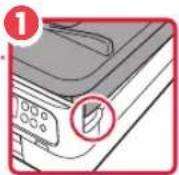
1 Remove and dispose of any packing materials and orange tape.
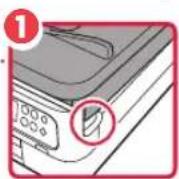
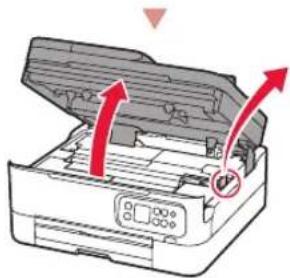
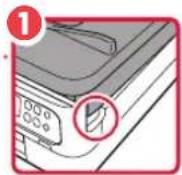
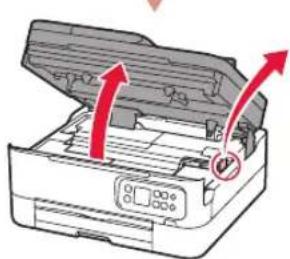
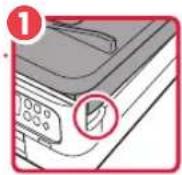
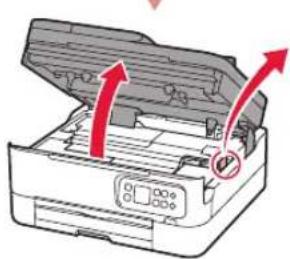
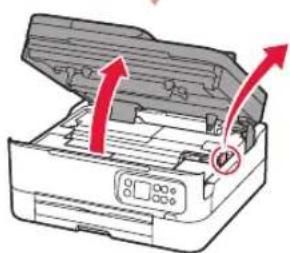
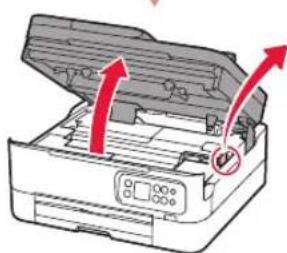
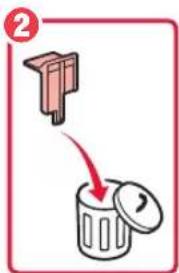
2 Open the scanning unit / cover, remove and dispose of the orange tape and protective material inside.
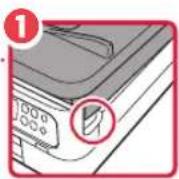
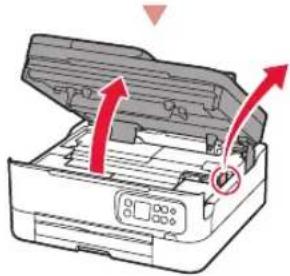
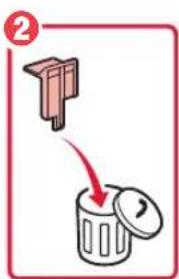
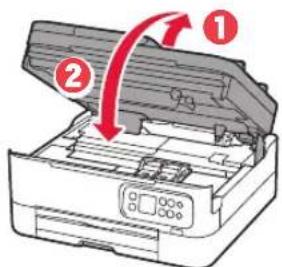
3 Close the scanning unit / cover.
- Open the scanning unit / cover fully and then close it.
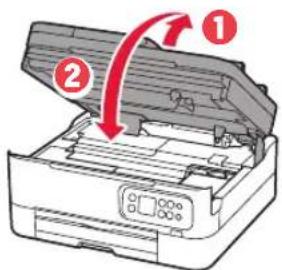

Caution
Watch your fingers.
3. Turning on the Printer

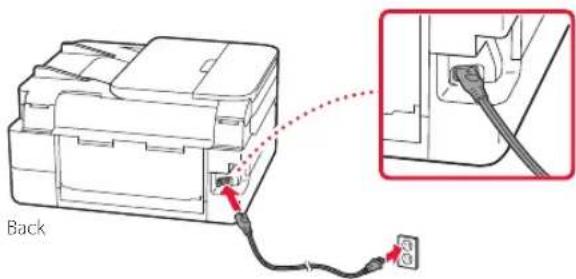
1 Connect the power cord.
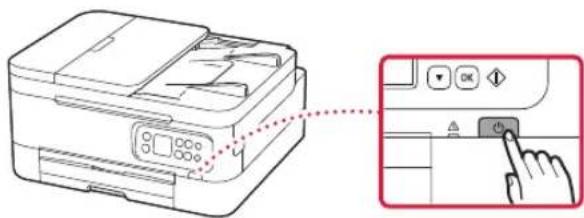
2 Press the ON button.
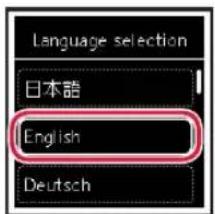
3 Use the ▲ and ▼ buttons to select a language, and then press the OK button.


Setting Up the Printer
4. Installing the FINE Cartridges

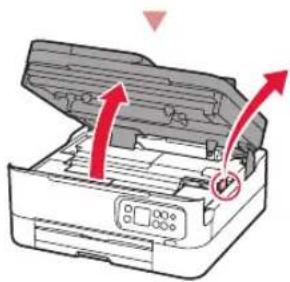
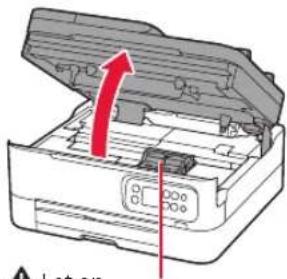
1 Open the scanning unit / cover.
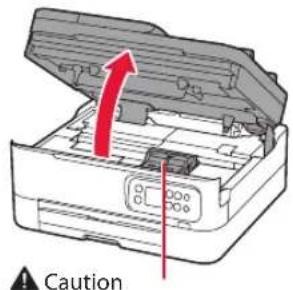
Do not touch the FINE cartridge holder until it stops moving.
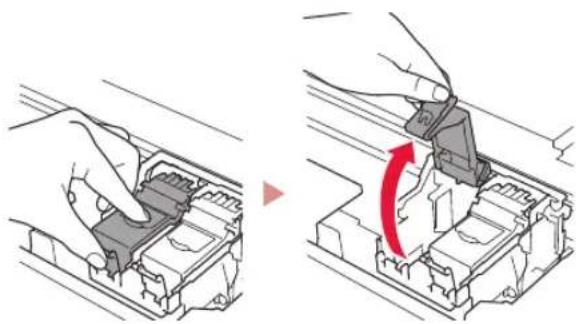
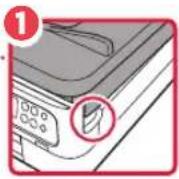
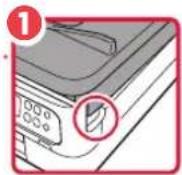
2 Pinch and open the ink cartridge locking cover on the left-hand side.
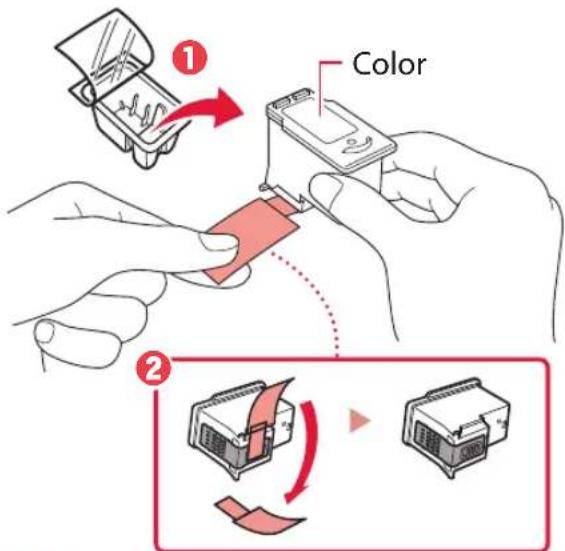
3 Remove the Color FINE cartridge from the container and remove the protective tape.
Important
- Do not touch the ink on the protective tape. It could stain your hands or surrounding objects.
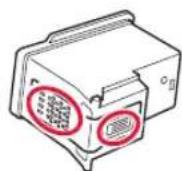
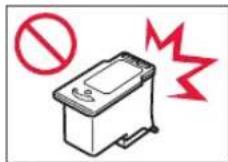
- Do not touch the areas shown in the figure. Otherwise, the printer may not print correctly.
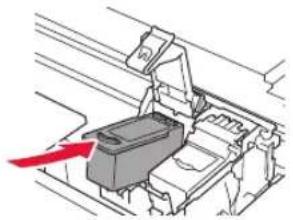
4 Set the Color FINE cartridge in the FINE cartridge holder.
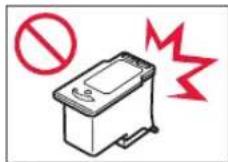
Important
Do not bump the FINE cartridge. Doing so may cause a malfunction.
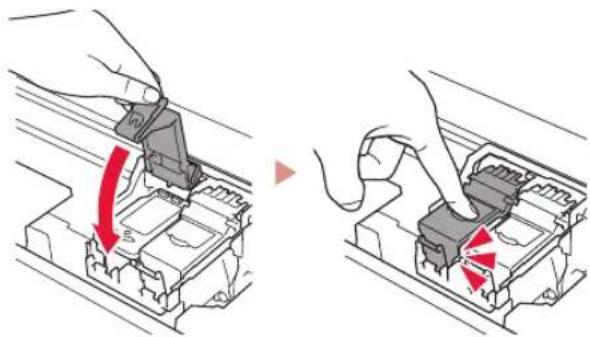
5 Push down the ink cartridge locking cover firmly until it snaps into place to close it completely.
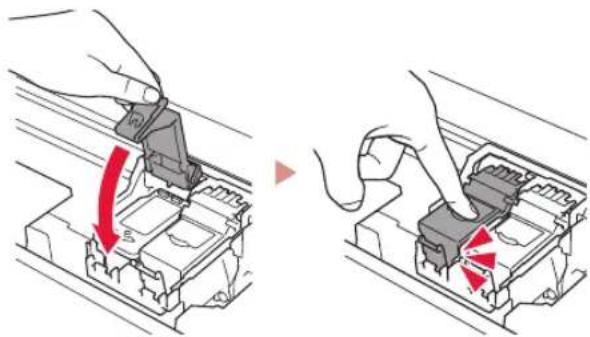
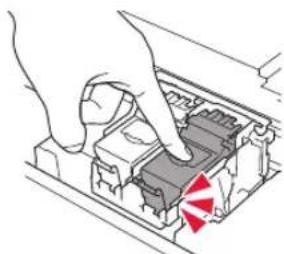
6 Repeat steps 2 to 5 and install the Black FINE cartridge as well, on the right-hand side.
7 Close the scanning unit / cover.
• The printer will start initializing.
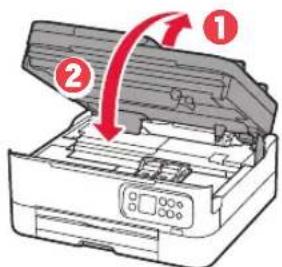
Caution
Watch your fingers.
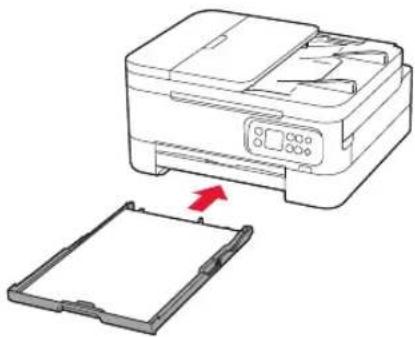
5. Loading Paper

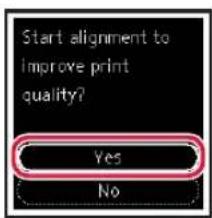
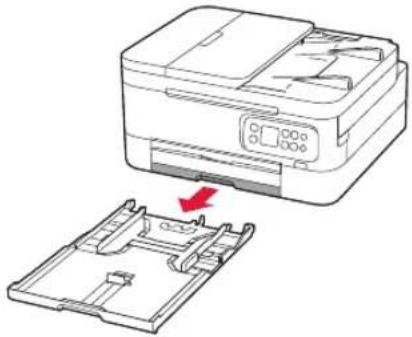
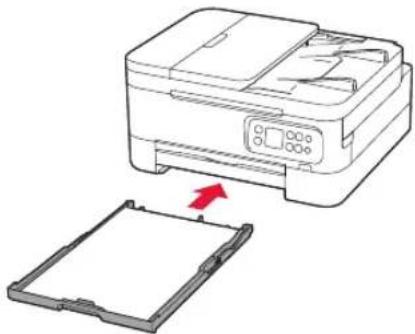
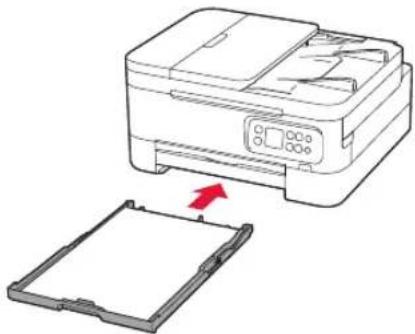
2 Remove the cassette from the printer.
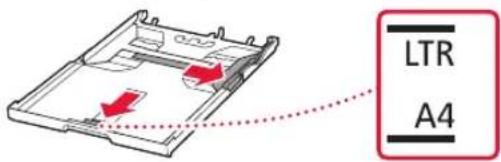
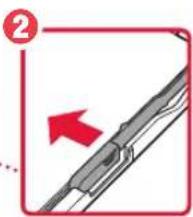
3 Slide apart the paper guides.
- Slide the right paper guide to the right edge. Align the front paper guide with the Letter or A4 mark.
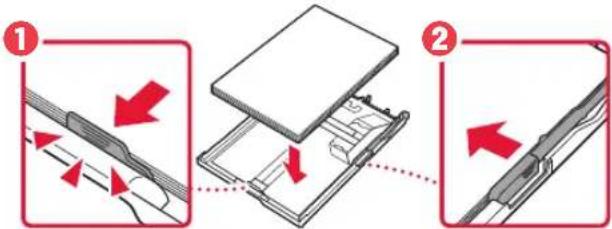
4 Load paper.
- Load 2 or more sheets of Letter or A4 sized plain paper.
- Place the paper against the front paper guide, and align the right paper guide to the width of the paper.
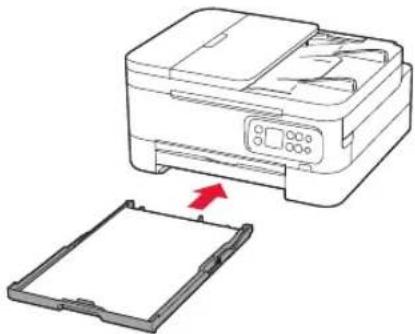
5 Replace the cassette.
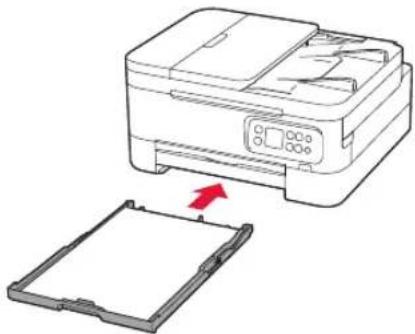
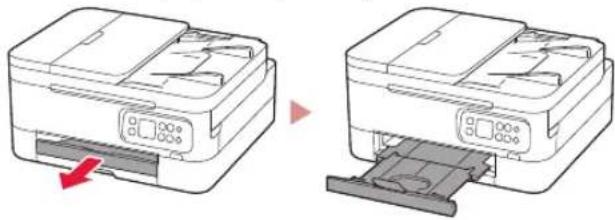
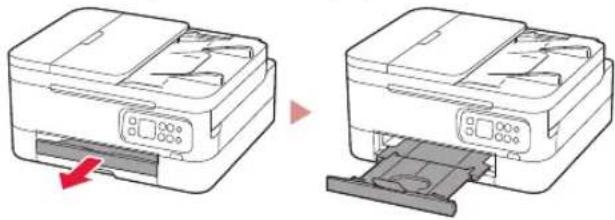
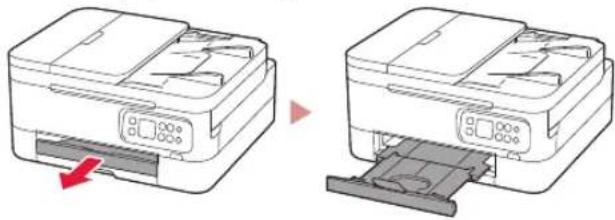
6 Pull out the paper output tray.

Note
The alignment process prints out two double sided sheets.
Do not pull out the paper or use the printer until alignment is complete.
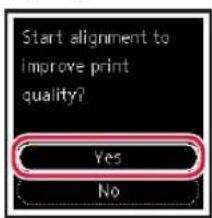
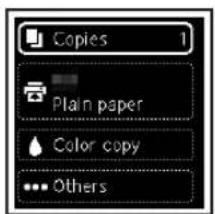
8 Check that the following screen appears.
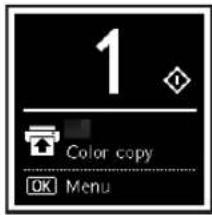
If you will use the printer without connecting any other devices, setup is now complete.
Select the connection method that best matches how you will use the printer.
• To use the printer without connecting to any other devices
→ Setup is now complete.
• To use the printer connecting to a computer or smartphone
→ Proceed to the next page.
What device are you connecting?

Computer Smartphone

Computer and smartphone

6-a
Connecting to a Computer
If you are using multiple computers, perform these steps on each computer.

1 Access the Canon website from your computer.

https://ij.start.canon
2 Select Set Up.
3 Enter your printer's model name and click Go.
4 Click Start.
5 Click (B) Connecting to a Computer/Smartphone.
• The following steps are for Windows users.
6 Click Download.
7 Run the downloaded file.
8 Click Start Setup.
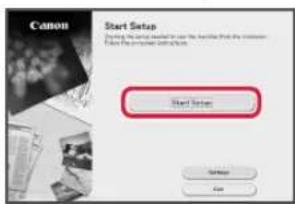
9 Follow the on-screen instructions.
• These operations may take some time.
- To connect to a smartphone as well, see "6-b. Connecting to a Smartphone" on page 5.

Using the Setup CD-ROM
Double click EasySetup.exe in the CD-ROM, and then continue from step 3. If you do not have an internet connection, open the win folder in the CD-ROM and double click SETUP.exe. This will install the printer driver.
6-b
Connecting to a Smartphone
If you are using multiple smartphones, perform these steps on each smartphone.

1 Install the "Canon PRINT Inkjet/SELPHY" app on your smartphone.
- Search for "Canon PRINT" in App Store, or Google Play.
- Access the Canon website to download the app.

2 Open the installed app, and follow the on-screen instructions in the app to add your printer.
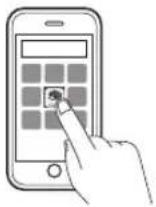
Once you have added your printer, you can print from your smartphone. To print photos, see "Loading Photo Paper" on page 6.
Loading Photo Paper
Photo paper can only be loaded in the rear tray.
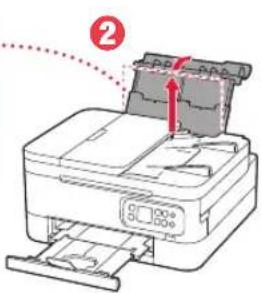
1 Open the rear tray cover and extend the paper support.
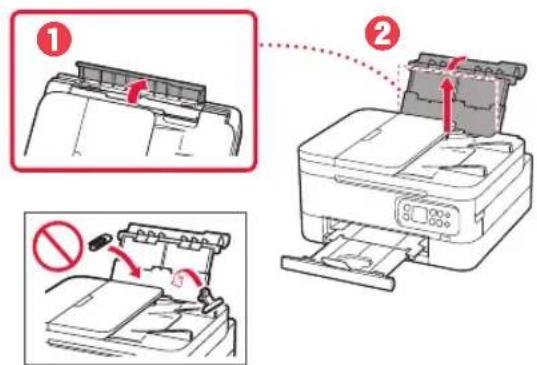
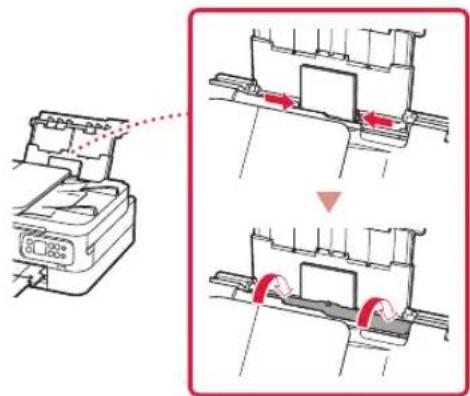
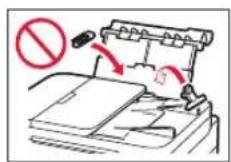
2 Open the feed slot cover and slide the right-hand side paper guide to the far right.
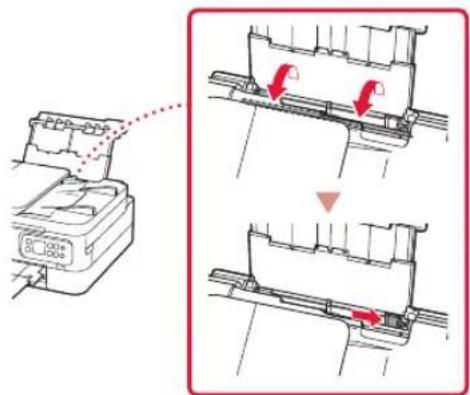
3 Load several sheets of photo paper with the print side facing up.
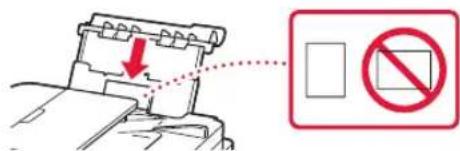
4 Align the paper guide to the paper, and then close the feed slot cover.
- Follow the on-screen instructions to set information for the loaded paper.
Copying
1 Turn on the printer.
2 Load Letter or A4 sized plain paper.
3 Open the document cover and place the document face down on the platen. Align the document with the alignment mark (↓).
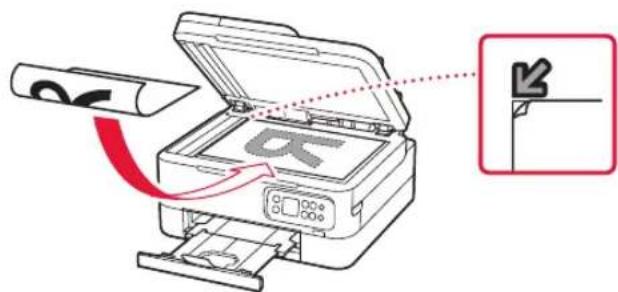
4 Close the document cover.
5 Press the OK button.
6 Select Copy settings, and then press the OK button.
7 Specify print settings using the ▲, ▼ and OK buttons.
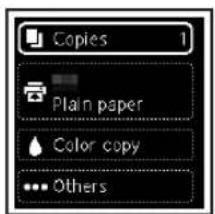
8 Press the Start button.
Configuration de l'imprimante

https://ij.start.canon/TS7450
Attention
Important
Attention
Copie
https://ij.start.canon/TS7450


Vorsicht
Wichtig
Vorsicht

Hinweis
6-a
Kopieren
https://ij.start.canon/TS7450
3 Sluit de scaneenheid / klep.
Let op
De printer instellen
4. De FINE-cartridges installeren

1 Open de scaneenheid / klep.

Let op

Belangrijk
7 Sluit de scaneenheid / klep.

Let op
Opmerking
→ De installatie is nu voltooid.
6-a
Kopiëren
https://ij.start.canon/TS7450

Attenzione
Importante
Importante
Attenzione
Nota
Computer Smartphone

Computer e smartphone

6-a
Copia
https://ij.start.canon/TS7450
Configurando a impressora
4. Instalando os Cartuchos FINE

Importante
Importante
Cuidado
3 Separe as guias do papel.
5 Substitua o cassete.
6 Puxe bandeja de saída do papel.
7 Pressione o botão OK.

Nota
Copiando
https://ij.start.canon/TS7450
Precaución
Importante
Importante
Precaución
5 Reemplace el cassette.
Nota
6-a
Copia
https://ij.start.canon/TS7450

⚠️ Προσοχή
Σημαντικό
⚠️ Προσοχή
Σημείωση
Αντιγραφή
https://ij.start.canon/TS7450

Ställa in skrivaren
4. Installera FINE-kassetterna

⚠ Försiktighet
Viktigt!
5 Byta kassett.
7 Tryck på OK.

Obs!
Kopiera
8 Tryck på Start.

https://ij.start.canon/TS7450
eller skann koden med mobilenheten

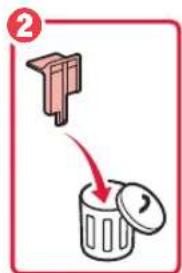
3 Lukk skanneenheten/dekselet.
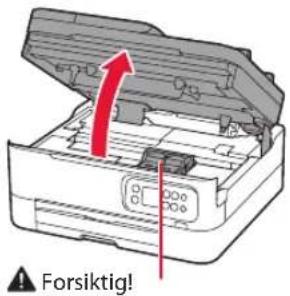
⚠ Forsiktig!
Pass på fingrene.
3. Slå på skriveren

4. Installere FINE-kassettene

1 Åpne skanneenheten/dekselet.
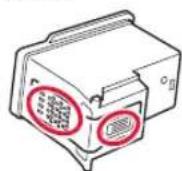
Viktig!
- Ikke berør blekket på den beskyttende tapen. Det kan sette flekker på hendene dine eller andre gjenstander.
- Ikke berør områdene som er vist på figuren. Skriveren vil ellers ikke kunne skrive ut riktig.
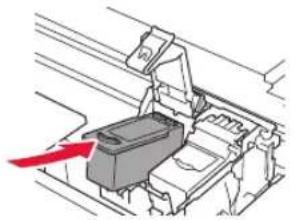
4 Sett FINE-kassetten med farger i FINE-kassettholderen.
Viktig!
Ikke dunk på FINE-kassetten. Dette kan føre til at det oppstår en feil.
5 Skyv läsedekselet for blekkassetter godt ned helt til det klikker på plass, slik at det lukkes helt.
7 Lukk skanneenheten/dekselet.
• Skriveren starter initialisering.
⚠ Forsiktig!
Pass på fingrene.
5. Legge i papir

1 Trykk på OK-knappen.
5 Skift kassetten.
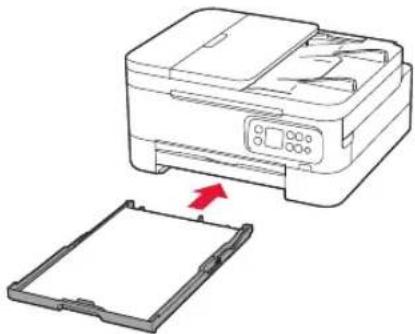
6 Trekk ut papirutmatingsbrettet.
7 Trykk på OK-knappen.


Merk
Justeringsprosessen skriver ut to tosidige ark.
Ikke trekk ut papiret, eller bruk skriveren, før justeringen er ferdig.
Kopiere
4 Lukk dokumentdekselet.
5 Trykk på OK-knappen.
6 Velg Kopiinnstillinger (Copy settings), og trykk deretter på OK-knappen.
7 Angi utskriftsinnstillinger med knappene ▲, ▼ og OK.
https://ij.start.canon/TS7450
eller scan koden med din mobilenhed


4. Installation af FINE-patroner

Vigtigt
Vigtigt
▲ Forsigtig
Pas på dine fingre.
7 Tryk på knappen OK.

Bemærk
Kopiering
https://ij.start.canon/TS7450

Huomio
Varo sormiasi.
Tulostimen asennus
4. FINE-kasettien asentaminen

Tärkeää
Huomio
Varo sormiasi.
5 Aseta kasetti takaisin.
7 Paina OK-painiketta.

Huomautus
Kopointi
8 Paina Aloita (Start)-painiketta.