i905 - Browser ALPINE - Free user manual and instructions
Find the device manual for free i905 ALPINE in PDF.



| Brand | Alpine |
| Model | i905 |
| Category | Vehicle multimedia navigator |
| Screen type | Active matrix TFT touch screen, 9 inches (22.9 cm) |
| Screen resolution | 1280 x 720 pixels (2,764,800 points) |
| Chassis dimensions (W x H x D) | 178 x 50 x 142 mm |
| Screen dimensions (W x H x D) | 214.7 x 136.6 x 29.9 mm |
| Weight | 1.7 kg |
| Power supply | 14.4 V DC (11-16 V allowed) |
| Maximum consumption | 15 A |
| Operating temperature | -20°C to +60°C |
| Audio output power | 50 W x 4 (max.) |
| Bluetooth connectivity | Bluetooth V4.2, profiles HFP, A2DP, AVRCP, etc. |
| USB connectivity | USB 2.0 (2 ports: 2.4 A and 1.5 A) |
| Wi-Fi connectivity | IEEE 802.11 b/g/n (2.4 GHz) and a/n/ac (5 GHz) |
| HDMI connector | 1 input, 1 output |
| Main functions | Apple CarPlay, Android Auto, Radio/RDS, DAB/DAB+/DMB, GPS, hands-free Bluetooth, USB/iPod playback, rear view camera |
| Supported audio formats (USB) | MP3, WMA, AAC, FLAC, WAV, APE |
| Supported video formats (USB) | MP4, MOV, FLV, MKV |
| Safety | Parking brake required for video, mandatory stop for certain functions |
| Maintenance | Clean with a soft dry cloth, avoid solvents |
Frequently Asked Questions - i905 ALPINE
User questions about i905 ALPINE
0 question about this device. Answer the ones you know or ask your own.
Ask a new question about this device
Download the instructions for your Browser in PDF format for free! Find your manual i905 - ALPINE and take your electronic device back in hand. On this page are published all the documents necessary for the use of your device. i905 by ALPINE.
USER MANUAL i905 ALPINE
7-INCH DIGITAL MEDIA STATION
iLX-705D
HALO9 9-INCH DIGITAL MEDIA STATION
iLX-F905D
HALO11 11-INCH DIGITAL MEDIA STATION
iLX-F115D
9-INCH SEPARATE DIGITAL MEDIA STATION
i905
QUICK REFERENCE GUIDE
KURZANLEITUNG
GUIDE DE RÉFÉRENCE RAPIDE
Works with Apple CarPlay
Made for iPhone

works with androidauto






CERTIFIED

HIGH-DEFINITION MULTIMEDIA INTERFACE

Bluetooth®
Contents
WARNING....2
CAUTION 3
Getting Started 4
Apple CarPlay Operation (Optional)......8
Android Auto™ (Optional)......8
Radio/RDS Operation 9
DAB/DAB+/DMB Operation 9
USB Flash drive Operation (Optional)....10
iPod mode on iPhone (Optional)....11
Hands-Free Phone Control 12
Installation....13
Connections....18
Specifications 21
IMPORTANT
Please record the serial number of your unit in the space provided below and keep it as a permanent record.
SERIAL NUMBER:
ISO SERIAL NUMBER: AL
INSTALLATION DATE:
INSTALLATION TECHNICIAN:
PLACE OF PURCHASE:
For details on all functions, refer to the Owner's Manual published on our website at https://www.alpine-europe.com/alpine-europe.html If required, an ALPINE dealer will readily provide you with a print out of the Owner's Manual published on the website.

WARNING
This symbol means important instructions. Failure to heed them can result in serious injury or death.
INSTALL THE PRODUCT CORRECTLY SO THAT THE DRIVER CANNOT WATCH TV/VIDEO UNLESS THE VEHICLE IS STOPPED AND THE PARKING BRAKE IS APPLIED.
It is dangerous for the driver to watch TV/Video while driving a vehicle. Installing this product incorrectly enables the driver to watch TV/Video while driving. This may cause a distraction, preventing the driver from looking ahead, thus causing an accident. The driver or other people could be severely injured.
DO NOT WATCH VIDEO WHILE DRIVING.
Watching the video may distract the driver from looking ahead of the vehicle and cause an accident.
DO NOT OPERATE ANY FUNCTION THAT TAKES YOUR ATTENTION AWAY FROM SAFELY DRIVING YOUR VEHICLE.
Any function that requires your prolonged attention should only be performed after coming to a complete stop. Always stop the vehicle in a safe location before performing these functions. Failure to do so may result in an accident.
KEEP THE VOLUME AT A LEVEL WHERE YOU CAN STILL HEAR OUTSIDE NOISES WHILE DRIVING.
Excessive volume levels that obscure sounds such as emergency vehicle sirens or road warning signals (train crossings, etc.) can be dangerous and may result in an accident. LISTENING AT LOUD VOLUME LEVELS IN A CAR MAY ALSO CAUSE HEARING DAMAGE.
MINIMIZE DISPLAY VIEWING WHILE DRIVING.
Viewing the display may distract the driver from looking ahead of the vehicle and cause an accident.
DO NOT DISASSEMBLE OR ALTER.
Doing so may result in an accident, fire or electric shock.
USE ONLY IN CARS WITH A 12 VOLT NEGATIVE GROUND.
(Check with your dealer if you are not sure.) Failure to do so may result in fire, etc.
KEEP SMALL OBJECTS SUCH AS SCREWS OUT OF THE REACH OF CHILDREN.
Swallowing them may result in serious injury. If swallowed, consult a physician immediately.
USE THE CORRECT AMPERE RATING WHEN REPLACING FUSES.
Failure to do so may result in fire or electric shock.
DO NOT BLOCK VENTS OR RADIATOR PANELS.
Doing so may cause heat to build up inside and may result in fire.
USE THIS PRODUCT FOR MOBILE 12V APPLICATIONS.
Use for other than its designed application may result in fire, electric shock or other injury.
MAKE THE CORRECT CONNECTIONS.
Failure to make the proper connections may result in fire or product damage.
BEFORE WIRING, DISCONNECT THE CABLE FROM THE NEGATIVE BATTERY TERMINAL.
Failure to do so may result in electric shock or injury due to electrical shorts.
DO NOT ALLOW CABLES TO BECOME ENTANGLED IN SURROUNDING OBJECTS.
Arrange wiring and cables in compliance with the manual to prevent obstructions when driving. Cables or wiring that obstruct or hang up on places such as the steering wheel, gear lever, brake pedals, etc. can be extremely hazardous.
DO NOT SPLICE INTO ELECTRICAL CABLES.
Never cut away cable insulation to supply power to other equipment. Doing so will exceed the current carrying capacity of the wire and result in fire or electric shock.
DO NOT DAMAGE PIPE OR WIRING WHEN DRILLING HOLES.
When drilling holes in the chassis for installation, take precautions so as not to contact, damage or obstruct pipes, fuel lines, tanks or electrical wiring. Failure to take such precautions may result in fire.
DO NOT USE BOLTS OR NUTS IN THE BRAKE OR STEERING SYSTEMS TO MAKE GROUND CONNECTIONS.
Bolts or nuts used for the brake or steering systems (or any other safety-related system), or tanks should NEVER be used for installations or ground connections. Using such parts could disable control of the vehicle and cause fire etc.
DO NOT INSTALL IN LOCATIONS WHICH MIGHT HINDER VEHICLE OPERATION, SUCH AS THE STEERING WHEEL OR SHIFT LEVER.
Doing so may obstruct forward vision or hamper movement etc. and results in serious accident.

CAUTION
This symbol means important instructions. Failure to heed them can result in injury or material property damage.
HALT USE IMMEDIATELY IF A PROBLEM APPEARS.
Failure to do so may cause personal injury or damage to the product. Return it to your authorized Alpine dealer or the nearest Alpine Service Center for repairing.
HAVE THE WIRING AND INSTALLATION DONE BY EXPERTS.
The wiring and installation of this unit requires special technical skill and experience. To ensure safety, always contact the dealer where you purchased this product to have the work done.
USE SPECIFIED ACCESSORY PARTS AND INSTALL THEM SECURELY.
Be sure to use only the specified accessory parts. Use of other than designated parts may damage this unit internally or may not securely install the unit in place. This may cause parts to become loose resulting in hazards or product failure.
ARRANGE THE WIRING SO IT IS NOT CRIMPED OR PINCHED BY A SHARP METAL EDGE.
Route the cables and wiring away from moving parts (like the seat rails) or sharp or pointed edges. This will prevent crimping and damage to the wiring. If wiring passes through a hole in metal, use a rubber grommet to prevent the wire's insulation from being cut by the metal edge of the hole.
DO NOT INSTALL IN LOCATIONS WITH HIGH MOISTURE OR DUST.
Avoid installing the unit in locations with high incidence of moisture or dust. Moisture or dust that penetrates into this unit may result in product failure.
Getting Started
Controls Position
The screen design used in the Quick Reference Guide may differ from the actual screen.
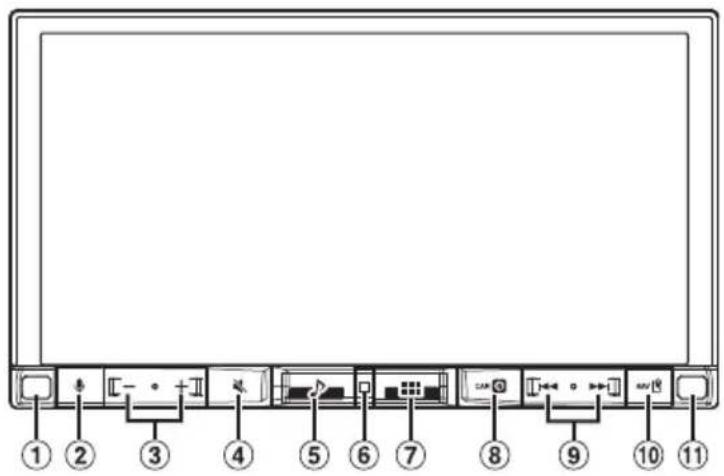
iLX-705D
iLX-F905D/iLX-F115D
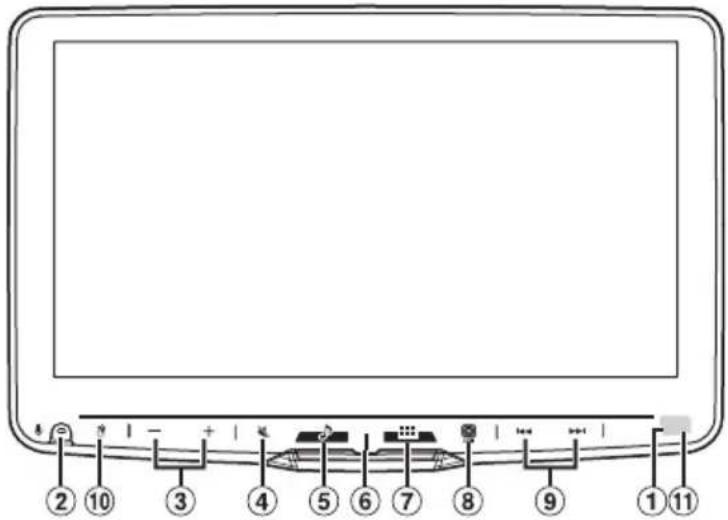
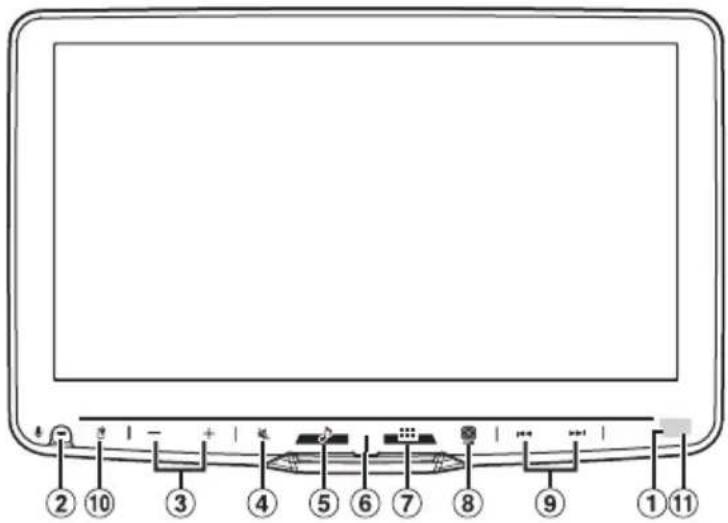
① Dimmer Sensor
Sense the brightness of the car interior.
② button
button
Activate Siri function or voice recognition mode while Apple CarPlay or Android Auto is connected.
③ -/ (DOWN/UP) button
Adjusts the volume.
④ (MUTE) button
Activates/deactivates MUTE mode.
Press and hold this button for at least 2 seconds to turn off the screen/button illumination.
⑤ (Audio) button
Displays the Audio playback screen.
Audio sources can be switched while the Audio playback screen is displayed.
⑥ Power indicator
⑦ (HOME) button
Activates the HOME screen.
The Sound Setup screen is displayed while the HOME screen is displayed.
Press and hold this button for at least 2 seconds to turn the power off.
⑧ (CAM) button
Displays the image of Camera2 (Front/Side/Other) or Camera1 (Rear).
Press for 1 second or more to return to the previous screen.
⑨ / button
Press to seek up/down a station in radio mode or up/down a track, etc., in other audio/visual sources.
⑩ (MAP) button
Displays the map screen for Apple CarPlay / Android Auto when Apple CarPlay or Android Auto is connected.
⑪ Remote Sensor
Point the remote control transmitter towards the remote sensor within a range of 2 meters.
Turning Power On or Off
1 Turn the ignition key to the ACC or ON position.
The system is turned on.
- When using the system for the first time, the HOME screen is displayed.

CAUTION (iLX-F905D/iLX-F115D only)
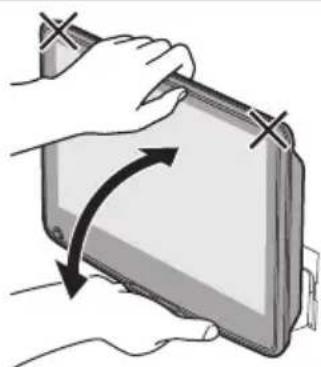
To adjust the display angle, hold the center of the top and bottom of the display to move it. To protect the display, do not hold the left and right ends to move it.
natural_image
Illustration of hands holding a wallet with arrows indicating rotation (no text or symbols)Select the audio source on the HOME screen to perform various settings and operations of the function.
1 Press the (HOME) button.
The HOME screen is displayed.
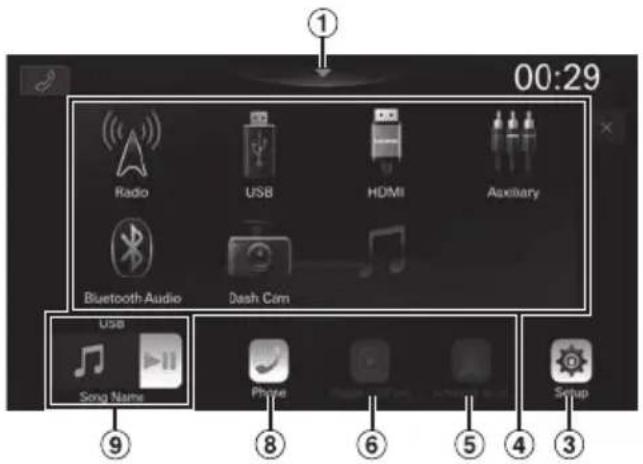
■ Normal mode screen example
■ Enhanced Text mode screen example
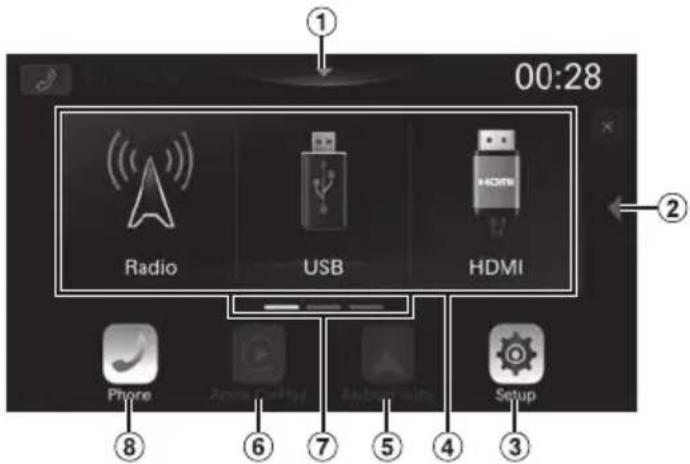
① Touch to display the Sound Setup screen.
② Touch to change the page.
Pages can also be changed by swiping the HOME screen horizontally with your finger.
③ Setup button
Displays the Setup screen.
④ Audio source select area
Touch your desired source icon to change the audio source.
⑤ Android Auto button
Displays the Android Auto screen, high light displayed when an Android Smartphone installed Android Auto App is connected.
⑥ Apple CarPlay button
Displays the Apple CarPlay screen, high light displayed when Apple CarPlay is turned on and an iPhone 6s or later is connected.
⑦ HOME screen navigation
⑧ Phone button
Displays the Phone menu screen.
The Device List screen is displayed when a Hands-free Phone, Apple CarPlay or Android Auto device is not connected.
⑨ Thumbnail window for the current source
Source name, artwork and title information are displayed. Touch the artwork to display the source screen. Touch [▶II] to play/pause a track or video.
The Home screen can be changed to the Enhanced Text mode.
1 Press the (HOME) button.
The HOME screen is displayed.
2 Touch [Setup].
The Setup screen is displayed.
3 Touch [System].
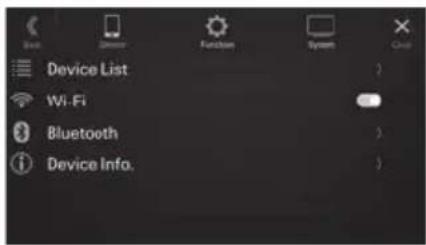
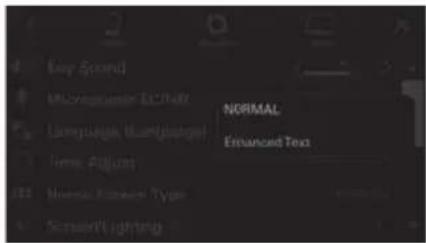
4 Touch [Home Screen Type].
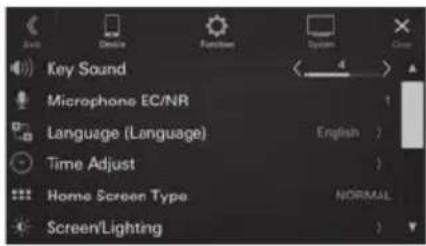
5 Touch [Normal] or [Enhanced Text].
Apple CarPlay Operation (Optional)
Apple CarPlay is a smarter, safer way to use your iPhone in the car. Apple CarPlay takes the things you want to do with your iPhone while driving and puts them right on this unit. You can get directions, make calls, send and receive messages, and listen to music, all in a way that allows you to stay focused on the road.
1 Press the (HOME) button.
The HOME screen is displayed.
2 Touch [Apple CarPlay].
The Apple CarPlay screen is displayed.
- Refer to "Apple CarPlay" in the Owner's Manual for information on how to operate Apple CarPlay.
Owner's manual Android Auto™ (Optional)
Android Auto™ (Optional)
Android Auto brings your favorite smartphone apps into one place, making it easier for drivers to access their favorite navigation, media, and communication apps on the road while minimizing the distractions. Talk to Google on Android Auto™ and get things done with your voice so you can keep your eyes on the road and hands on the wheel. Easily send messages, get directions, control media and more. Just short-press or long-press the voice control button on your steering wheel.
1 Press the (HOME) button.
The HOME screen is displayed.
2 Touch [Android Auto].
The Android Auto screen is displayed.
- Refer to “Android Auto” in the Owner’s Manual for information on how to operate Android Auto.
Radio/RDS Operation
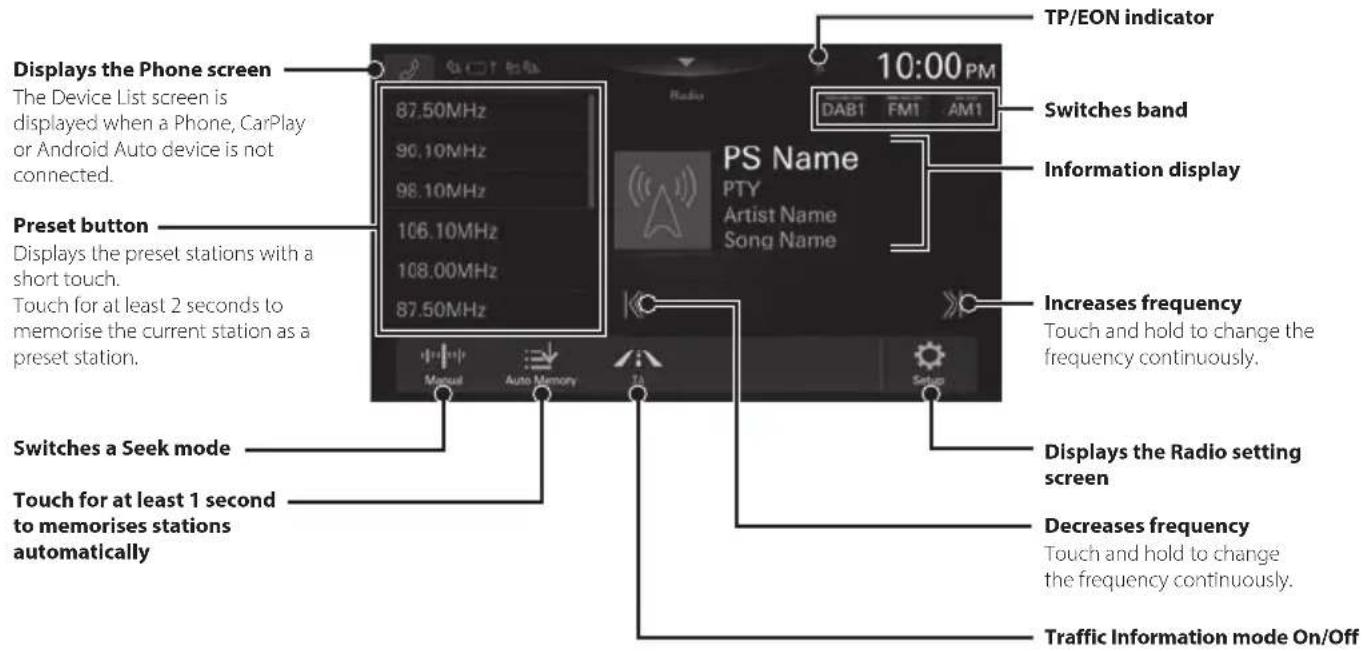
- The patterns of some keys in the Quick Reference Guide may differ from the actual screen.
Owner's manual DAB/DAB+/DMB
DAB/DAB+/DMB Operation
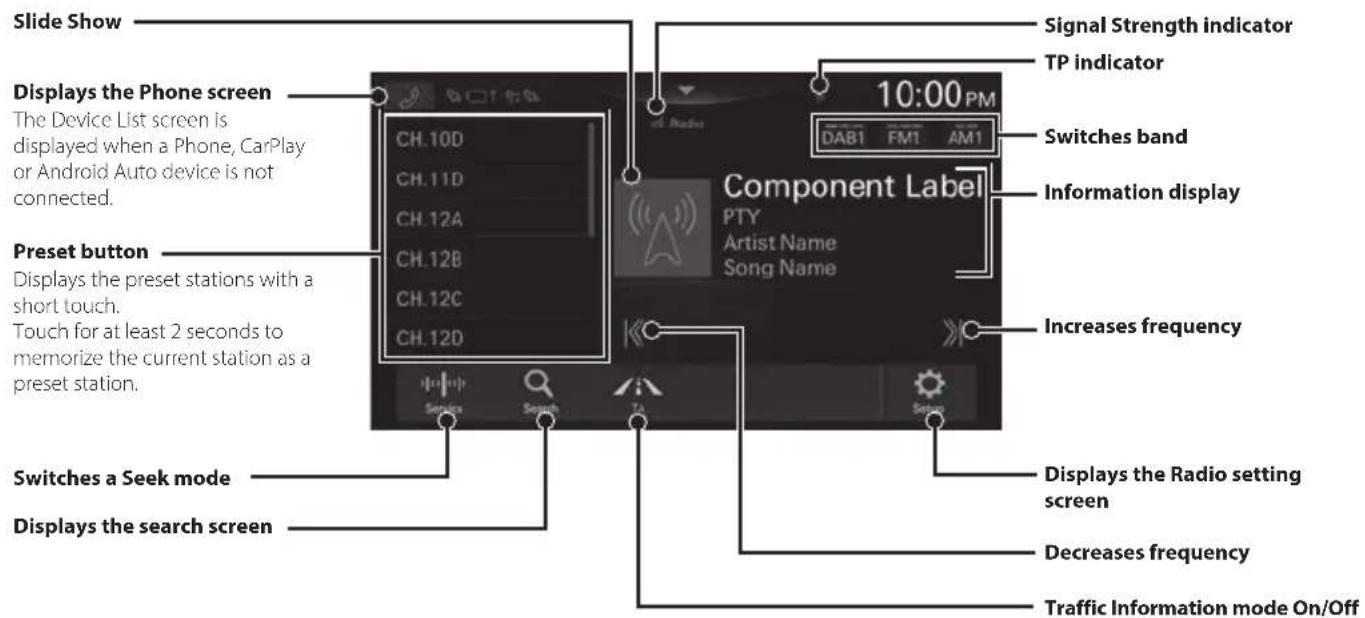
- The patterns of some keys in the Quick Reference Guide may differ from the actual screen.
USB Flash drive Operation (Optional)
You can play back music files (MP3/WMA/AAC/FLAC/WAV/APE) and video files (MP4/MOV/FLV/MKV) stored in a USB flash drive on the internal player of this system.
USB Audio main screen example
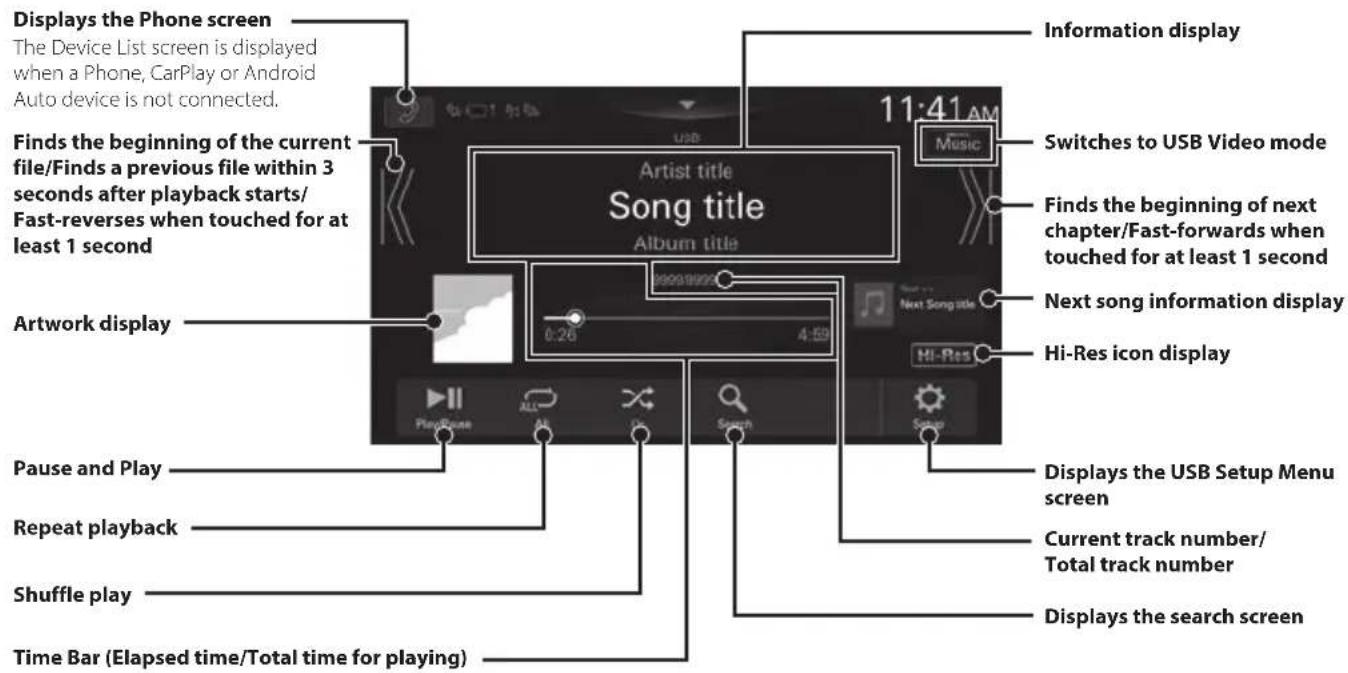
• The patterns of some keys in the Quick Reference Guide may differ from the actual screen.
Searching for a Music File
For example: Searching by Artist name
1 Touch [ (Search)] during playback.
2 Touch [Artists].
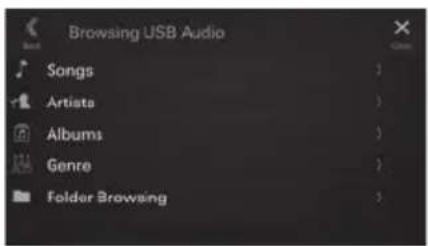
3 Touch the desired artist's name.
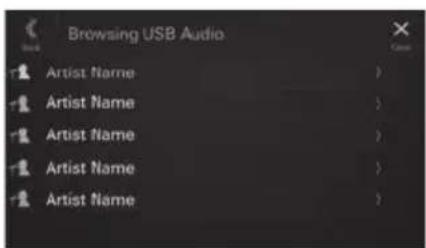
4 Touch the desired album's name.
5 Touch the desired song's name.
The selected song is played back.
iPod mode on iPhone (Optional)
A separately sold Lightning to USB cable is required depending on the type of iPhone.
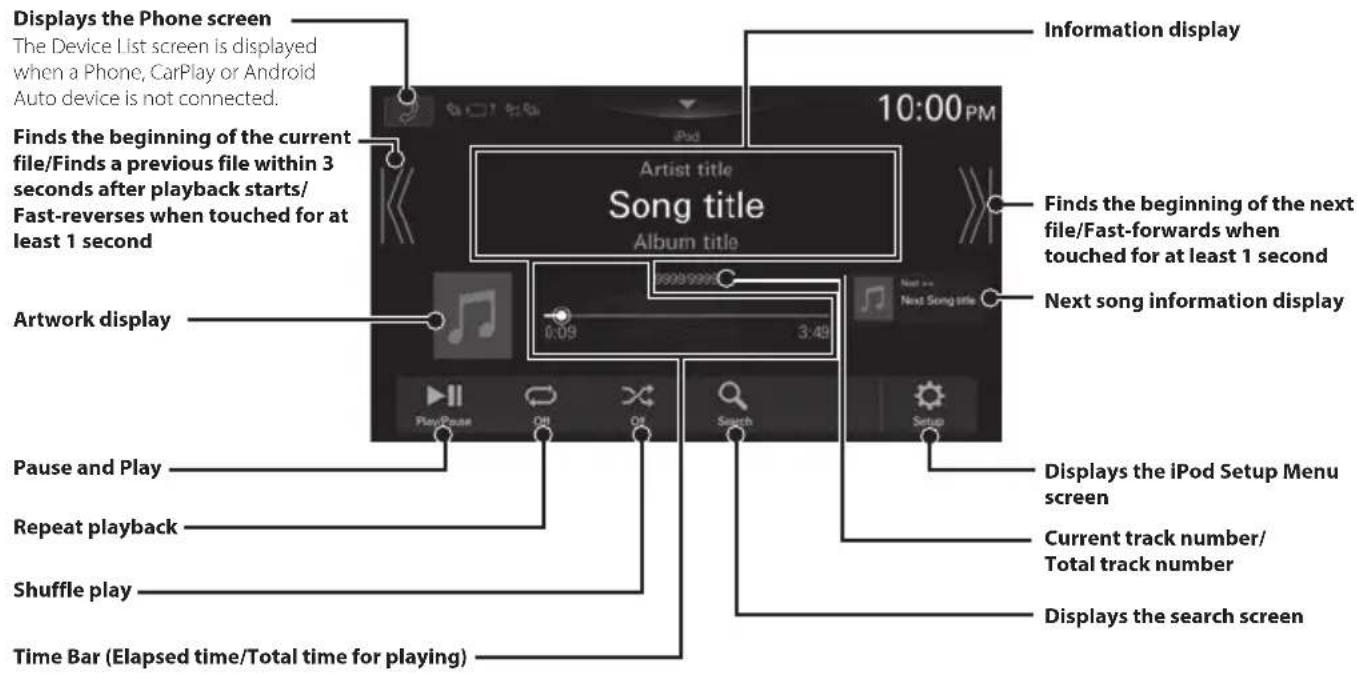
- This unit supports iPhone (iPhone 6s or later) only. For using music playback only, set the “Apple CarPlay” setting to “Off” before connecting with your iPhone.
- The patterns of some keys in the Quick Reference Guide may differ from the actual screen.
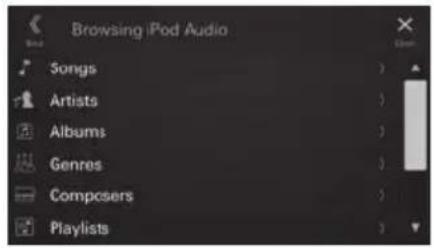
Searching for a Music File
For example: Searching by Artist name
1 Touch [ (Search)] during playback.
2 Touch [Artists].
3 Touch the desired artist's name.
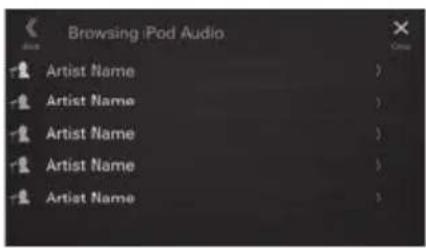
4 Touch the desired album's name.
5 Touch the desired song's name.
The selected song is played back.
Hands-Free Phone Control
The unit can connect with up to two hands-free phones.
How to connect to a Bluetooth compatible device (Pairing)
To display the Setup HOME screen:
- Bring your vehicle to a complete stop at a safe location. Engage the parking brake.
1 Touch [Setup] on the HOME screen.
2 Touch [Device].
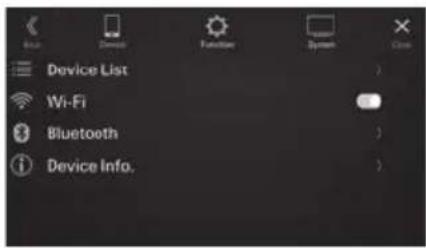
3 Touch [Device List].
4 Touch [Add New Device] to search for a new device.
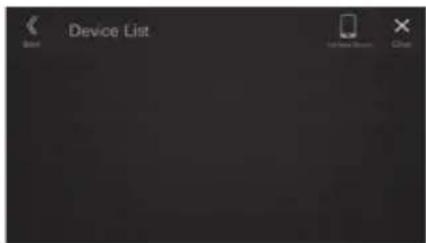
The Select Function screen is displayed.
5 Select the function of the connecting device on the Select Function screen, and touch [OK].
A check mark is displayed for the selected function.
- Hands Free1: The device is used as the first hands-free phone.
- Hands Free2: The device is used as the second hands-free phone.
- Bluetooth Audio: The device is used as an Bluetooth Audio device.
- Apple CarPlay*: The device is used as Apple CarPlay.
* If you want to use Apple CarPlay mode without displaying [Apple CarPlay] on the Select Function screen, select [Hands Free1] or [Hands Free2] to connect your device.
6 When a code is displayed on the device, check that the code is the same as the one on the screen of the unit, and touch [Yes].
7 When the device connection is complete, a message appears and the device returns to normal mode.
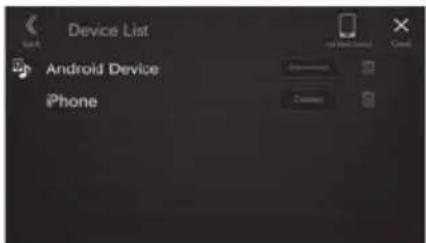
- You can register up to 10 Bluetooth compatible mobile phones.
Answering a Call
1 An incoming call triggers the ringtone and an incoming call display.

2 Touch [ ]. 📞
The call starts.
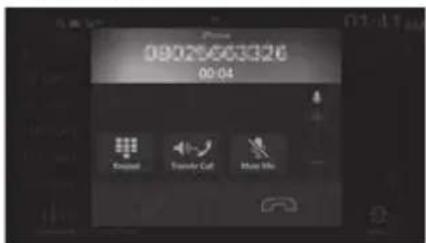
Hanging up the Telephone
1 Touch [ ] (End Call).
The call finishes.
Installation
Note on installation
• Install at an angle between horizontal and 30^ . Note that installing at an angle outside of this range will result in a loss of performance and possible damage.
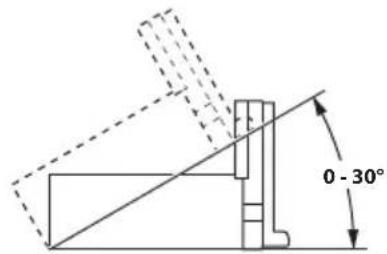
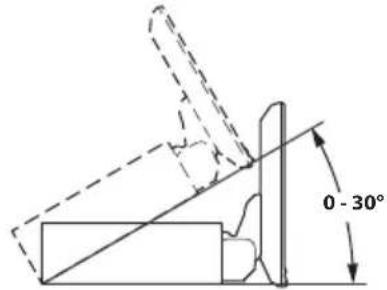
- Do not block the unit's heat sink, which would prevent air circulation. If blocked, heat will accumulate inside the unit and may cause a fire.
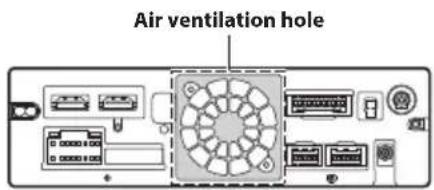
Rear of the Unit
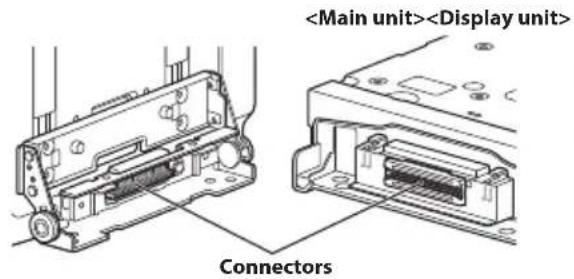
- When installing the display unit and main unit, do not touch the connectors with your hands. (iLX-F905D/iLX-F115D only)
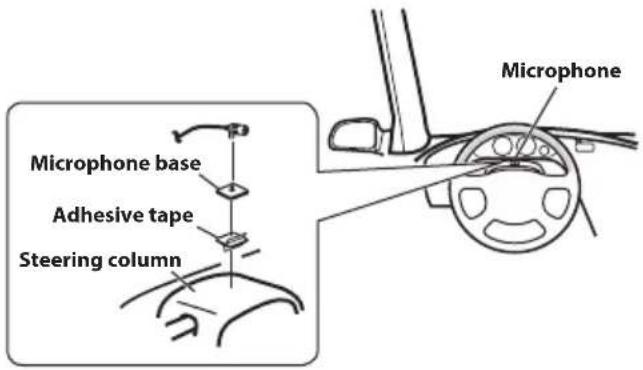
Mounting the Microphone
For safe use, make sure of the following:
- Location is stable and firm.
- Driver's view and operations are not obstructed.
- Microphone is located where the driver's voice can be easily picked up.
When you speak into the microphone, you should not have to change your driving posture. This may cause a distraction, taking your attention away from safely driving your vehicle. Carefully consider direction and distance while mounting the microphone. Confirm that the driver's voice can be easily picked up at the selected location.
Mounting the GPS Antenna inside the vehicle
1 Clean the mounting location.
2 Put on the GPS Antenna mounting plate.
3 Mount the GPS Antenna.
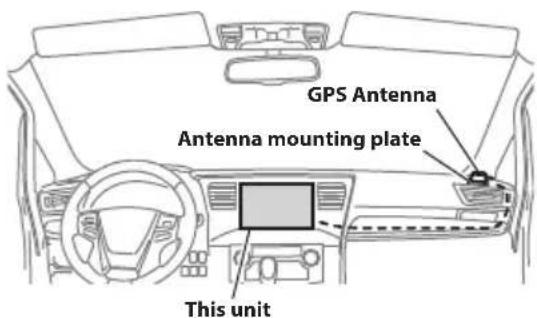
- Do not mount the GPS Antenna inside the centre console.
- Mount the GPS Antenna on a flat plane of the dash board or rear tray.
-
Make sure the GPS Antenna is not covered (obstructed) by any metallic surface or object.
-
If the GPS Antenna is mounted near the unit, the reception becomes poor, and the location of your vehicle may not be displayed correctly.
- Mount the GPS Antenna far away enough from the unit.
- Bundle the GPS Antenna cable away from the rear of the unit.
- Some thermal reflection type or thermal absorption type glass may interrupt high frequency waves. If reception is poor with the antenna installed inside the car, try to mount the antenna outside the car.
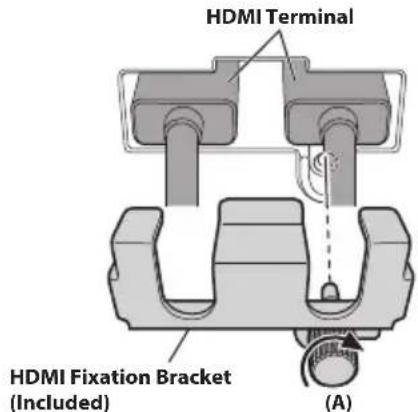
Note on using HDMI Connection Cables
When using HDMI connection cables, secure the cables to the HDMI Terminals with the supplied HDMI Fixation Bracket.
1 Secure the HDMI Fixation Bracket with the screw (A).
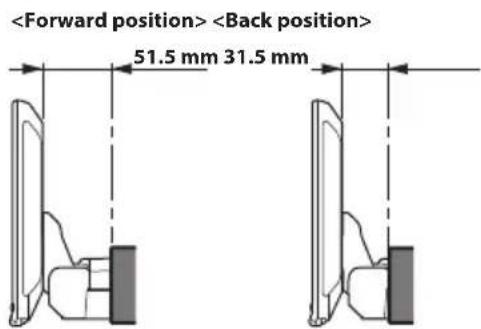
Adjusting the display position (iLX-F905D/iLX-F115D)
Depending on the vehicle, the front-back display position differs. To adjust the front-back position, set the slider to the forward position.
Default setting: Back position
Front-back position
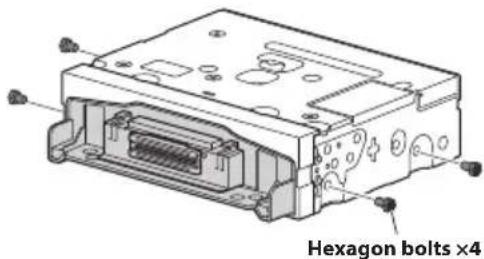
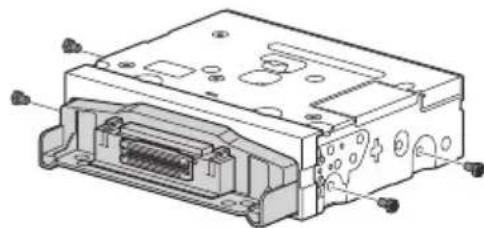
1 Remove 4 hexagon bolts from both sides of the unit.
2 Pull out the slider to the forward position. (To return the slider to the back position, push it in.)
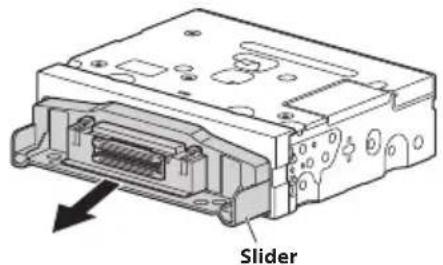
3 Install 4 hexagon bolts to secure the slider.
natural_image
Technical line drawing of an electronic device housing with internal components and mounting holes (no text or symbols)Installing the Unit (iLX-705D)
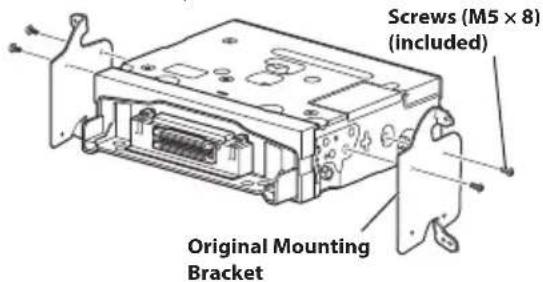
1 Mount the original mounting bracket to the unit using the supplied screws.
If you do not have the original mounting bracket, mount the Double din KIT* (provided with the side mounting bracket), etc. to the main unit.
* Sold separately.

2 Connect all other leads of the unit according to details described in the "Connections" (page 18).
3 Mounting the unit in a car.
- Fix the cables carefully. Do not damage them by tucking them into movable parts, such as a seat rail, or by locating them against sharp or pointed edges.
Installing the Unit (iLX-F905D/iLX-F115D)
1 Mount the original mounting bracket to the main unit using the supplied screws.
- If you do not have the original mounting bracket, mount the Double din KIT* (provided with the side mounting bracket), etc. to the main unit. * Sold separately.
2 Connect all other leads of the main unit according to details described in the "Connections" (page 18).
3 Mount the unit in a car.
- Fix the cables carefully. Do not damage them by mounting them into movable parts, such as the seat rail, or by locating them against sharp or pointed edges.
Adjust the up-down position of the Display unit (iLX-F905D/iLX-F115D)
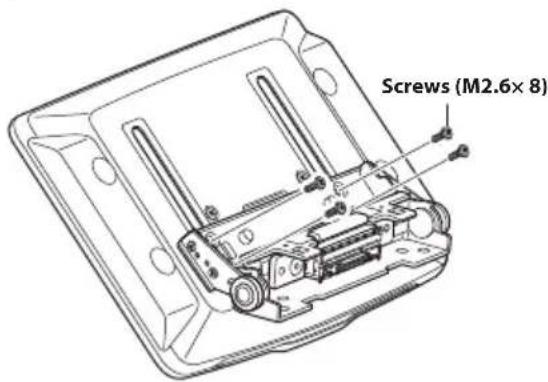
Adjust the up-down position of the display according to the mounting position on the vehicle before mounting the display unit. Default setting: 0 mm
1 Remove the 4 screws on the rear of the display unit, then adjust the up-down position.
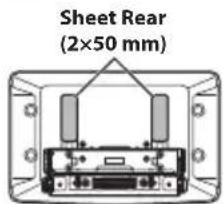
2 Attach the Sheet Rear in a position that aligns with the up-down position of the display unit.
| Sheet Rear(Included) | up-down position |
| 2×50 mm: for up-down position 0 mm or -60mm | |
| 2×35 mm: for up-down position -15 mm or -45mm | |
| 2×20 mm: for up-down position -30 mm |
0 mm
-15 mm
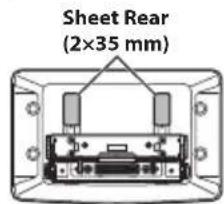
-30 mm
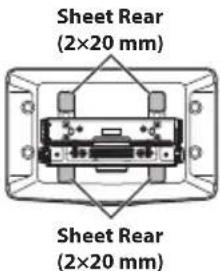
-45 mm
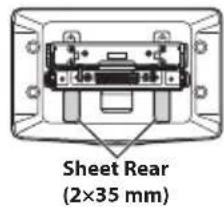
-60 mm
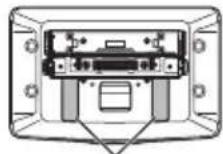
Sheet Rear (2×50 mm)
3 Attach the Cover Rear to the rear of the display unit using 2 screws (M2.6×6). Secure the screws, then attach the Sheet caps.
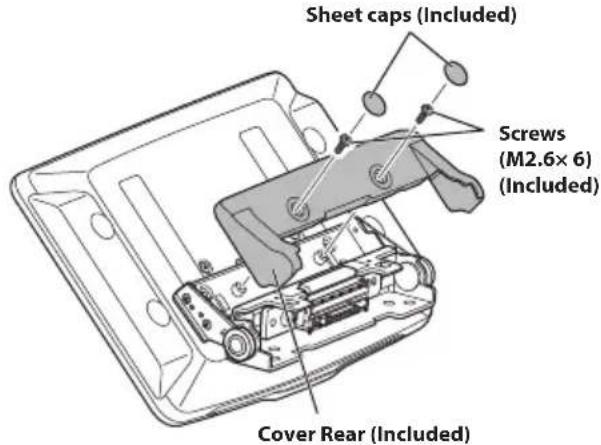
Install the display unit (iLX-F905D/iLX-F115D)
1 Fix the Display unit to the slider of the main unit using 4 screws (M5×8).
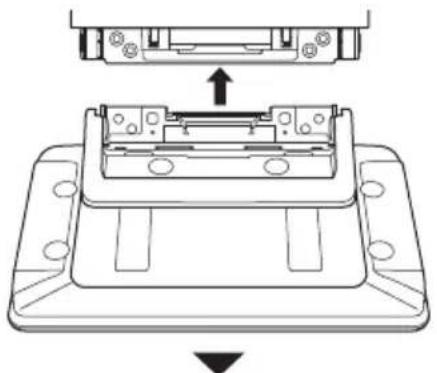
natural_image
Technical diagram of a mechanical assembly with an arrow indicating upward movement, showing internal components and mounting base (no text or symbols)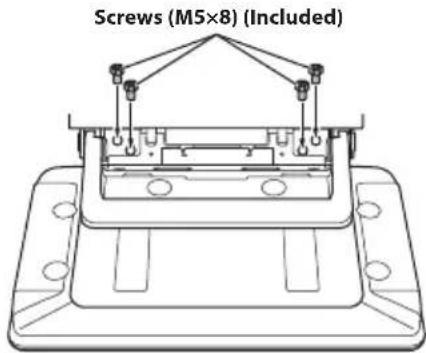

CAUTION
Do not adjust the display angle when the display unit is not fixed to the slider of the main unit using 4 screws (M5 × 8). Doing so may not turn power on.
2 Mount the Power Plate.
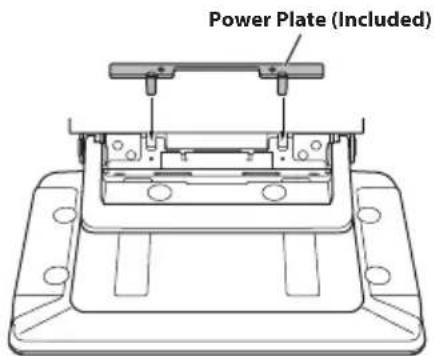
- If the Power Plate is not mounted, the display unit may not be turned power on. Make sure to mount it.
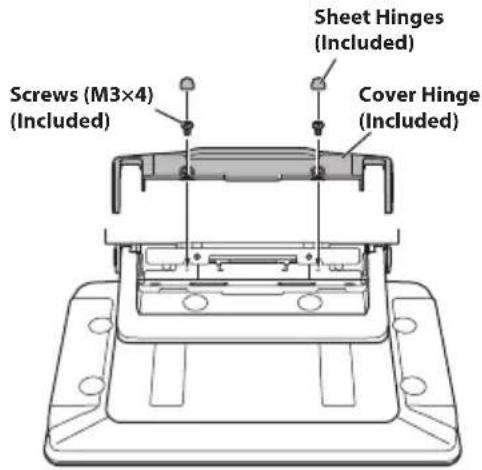
3 Mount the Cover Hinge using 2 screws (M3×4). Secure the screws, then attach the Sheet Hinges.
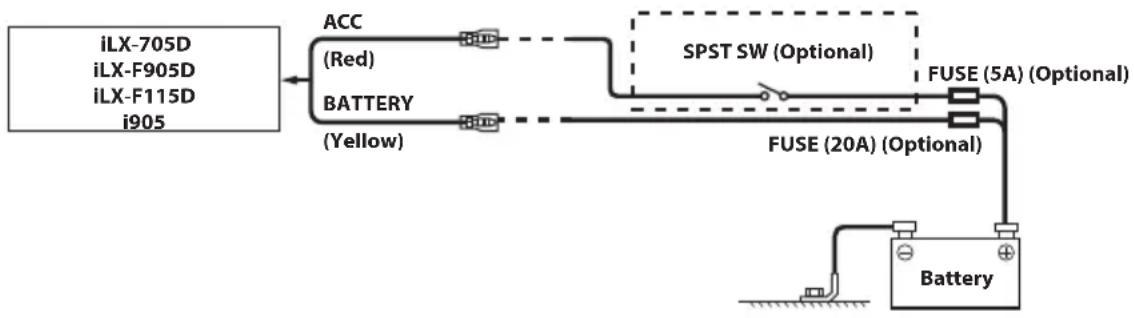
(If the ACC power supply is not available)
flowchart
graph LR
    A["iLX-705D"] --> B["BATTERY (Yellow)"]
    C["iLX-F905D"] --> B
    D["iLX-F115D"] --> B
    E["i905"] --> B
    B --> F["ACC (Red)"]
    B --> G["FUSE (20A) (Optional)"]
    G --> H["SPST SW (Optional)"]
    H --> I["FUSE (5A) (Optional)"]
    I --> J["Battery"]
- If your vehicle has no ACC power supply, add an SPST (Single-Pole, Single-Throw) switch (sold separately) and fuse (sold separately).
- The diagram and the fuse amperage shown above are in the case when the unit is used individually.
- If the switched power (ignition) lead of the unit is connected directly to the positive (+) post of the vehicle's battery, the unit draws some current (several hundred milliamperes) even when its switch is placed in the OFF position, and the battery may be discharged.
Connections
Connection 1
flowchart
graph TD
    A["Sensor ⑥"] --> B["Power cable"]
    A --> C["PRE OUT cable"]
    B --> D["REMO (Blue/White)"]
    C --> E["REVERSE (Orange/White)"]
    D --> F["PARKING BRAKE (Yellow/Blue)"]
    E --> G["ACC (Red)"]
    E --> H["GND (Black)"]
    E --> I["P. ANT (Blue)"]
    E --> J["BATT (Yellow)"]
    F --> K["(Green)"]
    F --> L["(Green/Black)"]
    F --> M["(White)"]
    F --> N["(White/Black)"]
    F --> O["(Gray/Black)"]
    F --> P["(Gray)"]
    F --> Q["(Violet/Black)"]
    F --> R["(Violet)"]
    G --> S["(Green)"]
    G --> T["(Green/Black)"]
    G --> U["(White)"]
    G --> V["(White/Black)"]
    G --> W["(Gray/Black)"]
    G --> X["(Gray)"]
    G --> Y["(Violet/Black)"]
    G --> Z["(Violet)"]
    H --> AA["(Red)"]
    H --> AB["(Blue)"]
    I --> AC["(Red)"]
    I --> AD["(Blue)"]
    J --> AE["(Red)"]
    J --> AF["(Blue)"]
    K --> AG["Antenna"]
    L --> AH["Microphone (included)"]
    M --> AI["To steering remote control interface"]
    N --> AJ["To HDMI Selector Interface"]
    O --> AK["To AUX device (TV Tuner, etc.)"]
    P --> AL["To input terminal of amplifier when adding an external amplifier"]
    Q --> AM["Speaker"]
    R --> AN["Rear Left"]
    R --> AO["Front Left"]
    R --> AP["Front Right"]
    R --> AQ["Rear Right"]
    S --> AR["To amplifier or equalizer"]
    T --> AS["To plus side of the back lamp signal lead of the car"]
    U --> AT["To the parking brake signal lead"]
    V --> AU["To power antenna"]
    W --> AV["Ignition key"]
    X --> AW["Battery"]
flowchart
graph TD
    A["CAMERA cable"] --> B["USB cable 2.4A (Black)"]
    A --> C["USB cable 1.5A (Gray)"]
    A --> D["REAR CAMERA"]
    A --> E["FRONT CAMERA"]
    A --> F["CONNECT2 I/F (UART I/F)"]
    A --> G["LIN"]
    A --> H["DRIVE RECODER IN"]
    A --> I["SPEED SENSOR (Green/White)"]
    B --> J["To USB flash drive, iPhone or Android smartphone."]
    C --> K["To iPhone or Android smartphone (For charging only)."]
    D --> L["To Rear camera"]
    E --> M["To Front or Side camera"]
    F --> N["To CAN Interface box"]
    G --> O["To Dash Cam"]
    H --> P["To the vehicle speed pulse line"]
    I --> Q["GPS Antenna (Included)"]
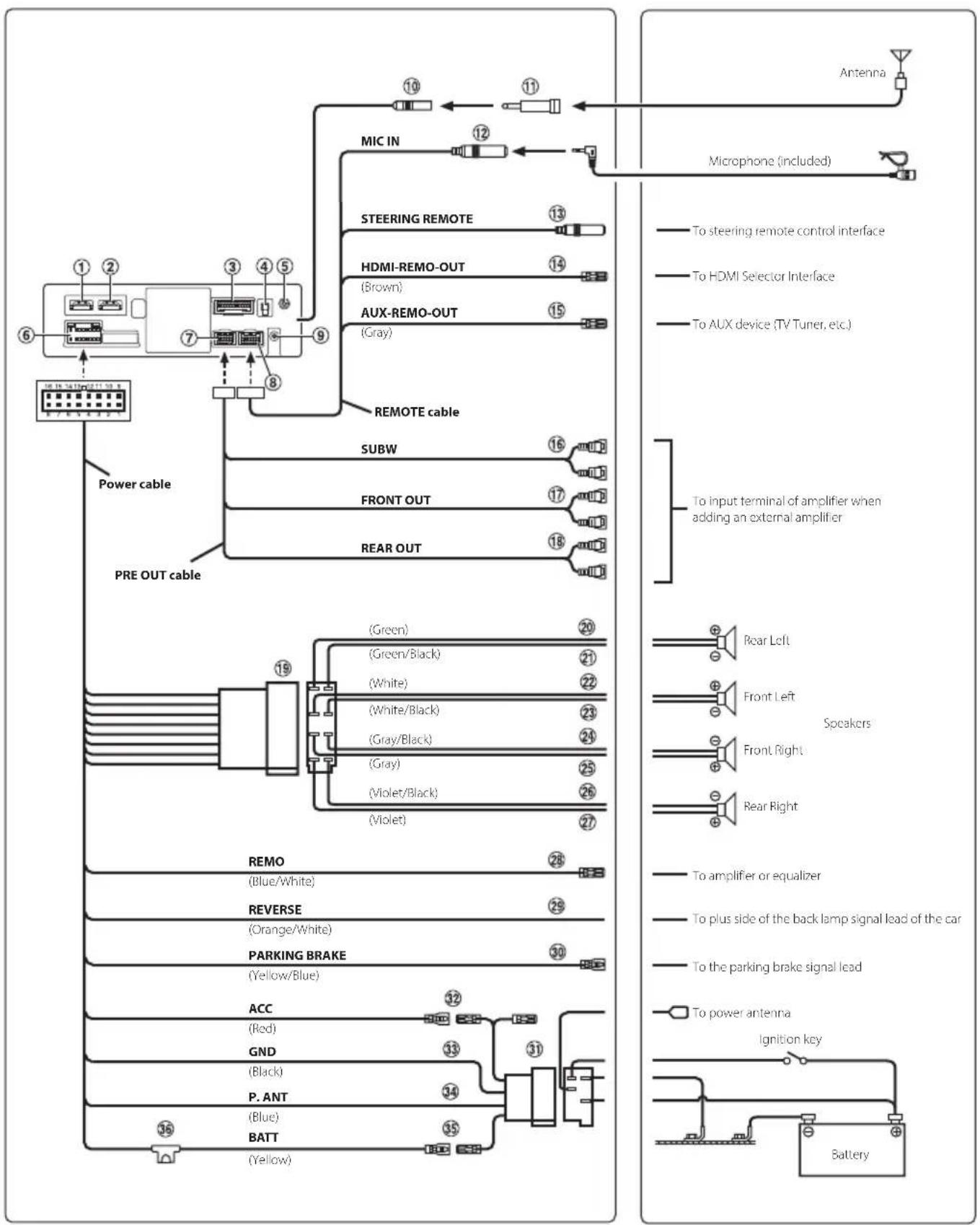
① HDMI Input Connector
② HDMI Output Connector
③ CAMERA Connector
④ GPS Antenna Receptacle
Connect to GPS antenna (Included).
⑤ AUX Input Connector
Input lead for AUX audio signal.
⑥ Power Supply Connector
⑦ PRE OUT Connector
⑧ REM Connector
⑨ DAB Antenna Connector
To DAB Antenna (sold separately).
⑩ Radio Antenna Receptacle
⑪ ISO/JASO Antenna Adapter (sold separately)
ISO/JASO Antenna Adapter may be required, depending on the vehicle.
⑫ MIC Input Connector
To microphone (included).
⑬ Steering Remote Control Interface Connector
To steering remote control interface.
For details about connections, consult your nearest Alpine dealer.
⑭ HDMI-REM-OUT Lead (Brown)
Connect this lead to the remote input lead of your HDMI Selector Interface.
⑮ AUX-REM-OUT Lead (Gray)
Connect this lead to the remote input lead of your AUX device.
⑯ Subwoofer RCA Connectors
RED is right and WHITE is left.
⑰ Front Output RCA Connectors
Can be used as Front Output RCA Connectors. RED is right and WHITE is left.
⑱ Rear Output RCA Connectors
Can be used as Rear Output RCA Connectors. RED is right and WHITE is left.
⑲ ISO Connector (Speaker Output)
20 Left Rear (+) Speaker Output Lead (Green)
21 Left Rear (−) Speaker Output Lead (Green/Black)
22 Left Front (+) Speaker Output Lead (White)
23 Left Front (-) Speaker Output Lead (White/Black)
24 Right Front (−) Speaker Output Lead (Gray/Black)
25 Right Front (+) Speaker Output Lead (Gray)
26 Right Rear (−) Speaker Output Lead (Violet/Black)
27 Right Rear (+) Speaker Output Lead (Violet)
28 Remote Turn-On Lead (Blue/White)
Connect this lead to the remote turn-on lead of your amplifier or signal processor.
29 Reverse Lead (Orange/White)
30 Parking Brake Lead (Yellow/Blue)
Connect this lead to the power supply side of parking brake switch to transmit the parking brake status signals to the unit.
③1 ISO Power Supply Connector
32 Switched Power Lead (Ignition) (Red)
Connect this lead to an open terminal on the vehicle's fuse box or another unused power source that provides (+) 12V only when the ignition is turned on or in the accessory position.
33 Ground Lead (Black)
Connect this lead to a good chassis ground on the vehicle.
Make sure the connection is made to bare metal and is securely fastened using the sheet metal screw provided.
③4 Power Antenna Lead (Blue)
Connect this lead to the +B terminal of your power antenna, if applicable.
- This lead should be used only for controlling the vehicle's power antenna. Do not use this lead to turn on an amplifier or a signal processor, etc.
35 Battery Lead (Yellow)
Connect this lead to the positive (+) post of the vehicle's battery.
36 Fuse Holder (15A)
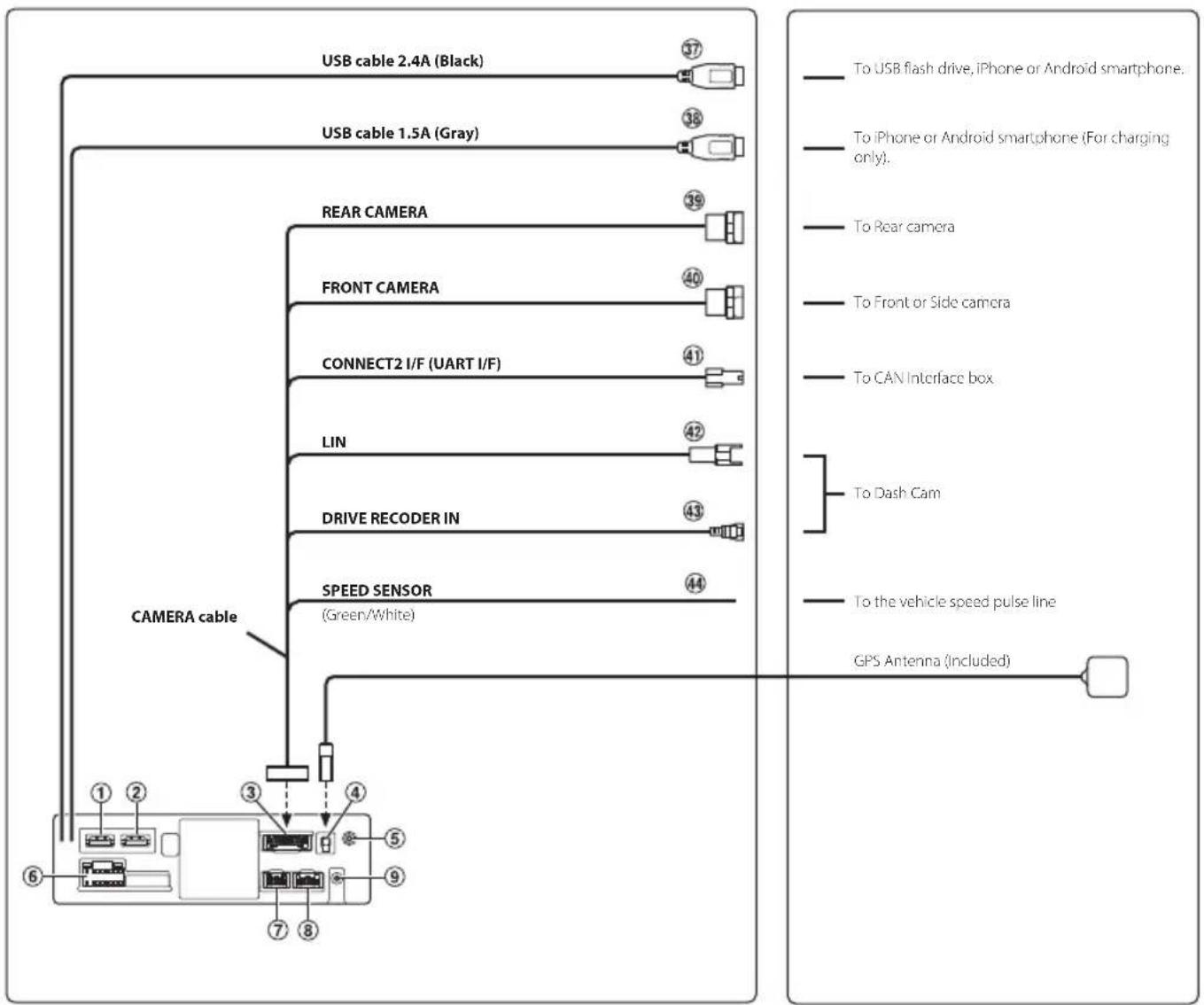
③7 USB Connector (2.4A)
To USB flash drive, iPhone or Android smartphone.
38 USB Connector (1.5A)
To iPhone or Android smartphone (For charging only).
⑲ REAR CAMERA Input Connector
Use when connecting a rear camera.
40 FRONT CAMERA Input Connector
Use when connecting a front camera or side camera.
41 Connect2 (UART) Connector
To Interface Box.
42 LIN Connector
Connect this lead to the LIN connector of the Dash Cam.
43 Drive Recoder Input Connector
Input lead for Dash Cam video signal.
44 Speed Sensor Lead (Green/White)
Improper connection of the speed pulse line may cause important safety features of the vehicle to fail (such as the brakes or air bags). Such failures may result in an accident and loss of life. We strongly recommend that the installation be performed by a trained, authorized Alpine dealer.
Specifications
MONITOR SECTION
Screen Size 7" (iLX-705D)
9" (iLX-F905D)
11" (iLX-F115D)
9" (i905)
Operation System TFT active matrix
Number of Picture Elements 2,764,800 pcs.
(1280×720×RGB)
Effective Number of Picture Elements
99% or more
Color system NTSC / PAL
Illumination System LED
FM TUNER SECTION
Tuning Range 87.5 - 108.0 MHz
Mono Usable Sensitivity 8.1 dBf (0.7 μV/75 ohms)
50 dB Quieting Sensitivity 12 dBf (1.1 μV/75 ohms)
Alternate Channel Selectivity 80 dB
Signal-to-Noise Ratio 65 dB
Stereo Separation 35 dB
AM TUNER SECTION
Tuning Range 531 - 1,602 kHz
Usable Sensitivity 25.1 μV/28 dBf
DAB SECTION
Tuning Range 174.928 - 239.2 MHz
Usable Sensitivity -100 dBm
Signal-to-Noise Ratio 90 dB
USB1 SECTION
USB requirements USB 2.0
Max. Power Consumption 2,400 mA
USB Class USB (Mass Storage Class)
File System FAT16 / 32, exFAT
Number of Channels 2-Channels (Stereo)
Frequency Response ^*1 5 - 40,000 Hz ( ± 1 dB)
Total Harmonic Distortion 0.005% (at 1 kHz)
Dynamic Range 95 dB (at 1 kHz)
Signal-to-Noise Ratio 95 dB
Channel Separation 90 dB (at 1 kHz)
*1 Frequency response may differ depending on the encoder software/bit rate.
USB2 SECTION
Max. Power Consumption 1,500 mA (CDP Support)
USB Class Charge only
HDMI SECTION
Input Format 720p / 480p / VGA
Output Format 720p / 480p
Bluetooth SECTION
Bluetooth Specification Bluetooth V4.2 (2,402 - 2,480 MHz)
Output Power +4.0 dBm/2.51 mW Ave.
(Power class 2)
Profile HFP (Hands-Free Profile)
OPP (Object Push Profile)
PBAP (Phone Book Access Profile)
SPP (Serial Port Profile)
A2DP (Advanced Audio
Distribution Profile)
AVRCP (Audio/Video Remote
Control Profile)
GPS SECTION
Reception Frequency 1575.42 + / - 1.023 MHz
Reception sensitivity (Search) -136 dB max.
Wi-Fi SECTION
Frequency Ranges IEEE 802.11 b/g/n (2.4 GHz)
IEEE 802.11 a/n/ac (5 GHz)
Channels 1 – 13 ch (2.4 GHz)
149 - 165 ch (5 GHz)
Frequency Band 2401 - 2483 MHz (2.4 GHz)
5725 - 5850 MHz (5 GHz)
Output Power (2.4 GHz) Max. 18 dBm
Output Power (5 GHz) Max. 13 dBm (11 a)
Max. 12 dBm (11 n/ac)
Security Protocols WPA3 / WPA2-PSK (TKIP, AES)
GENERAL
Power Requirement 14.4 V DC
(11-16 V allowable)
Operating temperature -20^ to +60^
Power Output 50 W × 4
Maximum Current Consumption
15 A
Audio output level
Preout (Front, Rear): 4V/10k ohms (max.)
Preout (Subwoofer): 4V/10k ohms (max.)
Weight 1.4 kg (iLX-705D)
2.3 kg (iLX-F905D)
2.6 kg (iLX-F115D)
1.7 kg (i905)
CHASSIS SIZE
| iLX-705D | iLX-F905D | iLX-F115D | i905 | |
| Width | 178 mm | 178 mm | 178 mm | 178 mm |
| Height | 50 mm | 50 mm | 50 mm | 50 mm |
| Depth | 149.6 mm | 149.6 mm | 149.6 mm | 142 mm |
DISPLAY SIZE
| iLX-705D | iLX-F905D | iLX-F115D | i905 | |
| Width | 171 mm | 232.5 mm | 268.9 mm | 214.7 mm |
| Height | 96 mm | 151.1 mm | 178 mm | 136.6 mm |
| Depth | 17.7 mm | 54.7 mm | 54.7 mm | 29.9 mm |
- Due to continuous product improvement, specifications and design are subject to change without notice.
-
The LCD panel is manufactured using an extremely high precision manufacturing technology. Its effective pixel ratio is over 99.99% . This means that there is a possibility that 0.01% of the pixels could be either always ON or OFF.
-
Windows Media, and the Windows logo are trademarks, or registered trademarks of Microsoft Corporation in the United States and/or other countries.
- Apple, iPhone, iPod, Lightning and Siri are trademarks of Apple Inc., registered in the U.S. and other countries. App Store is a service mark of Apple Inc.
- Use of the Made for Apple and Works with Apple badges means that an accessory has been designed to connect specifically to the Apple product(s) identified in the Made for Apple badge and to work specifically with the technology identified in the Works with Apple badge, and has been certified by the developer to meet Apple performance standards. Apple is not responsible for the operation of this device or its compliance with safety and regulatory standards. Please note that the use of this accessory with an Apple product may affect wireless performance.
- Use of the Apple CarPlay logo means that a vehicle user interface meets Apple performance standards. Apple is not responsible for the operation of this vehicle or its compliance with safety and regulatory standards. Please note that the use of this product with iPhone may affect wireless performance.
- Google, Android, Google Play and Android Auto are trademarks of Google LLC. To use Android Auto on your car display, you'll need an Android phone running Android 6.0 or higher, an active data plan, and the Android Auto app.
- The terms HDMI and HDMI High-Definition Multimedia Interface, and the HDMI Logo are trademarks or registered trademarks of HDMI Licensing Administrator, Inc. in the United States and other countries.
- The Bluetooth® word mark and logos are registered trademarks owned by the Bluetooth SIG, Inc. and any use of such marks by ALPS ALPINE CO., LTD. is under license.
- The Wi-Fi CERTIFIED™ Logo is a registered trademark of Wi-Fi Alliance®.
• LDAC and LDAC logo are trademarks of Sony Corporation. - The product with this logo is conformed to High-Resolution Audio standard defined by Japan Audio Society. This logo is used under license from Japan Audio Society.
Made for iPhone SE (2nd generation), iPhone 11 Pro Max, iPhone 11 Pro, iPhone 11, iPhone XS Max, iPhone XS, iPhone XR, iPhone X, iPhone 8 Plus, iPhone 8, iPhone 7 Plus, iPhone 7, iPhone SE, iPhone 6s Plus, iPhone 6s.
Inhalt
WARNUNG 2
VORSICHT....3
Erste Schritte....4
natural_image
Illustration of hands holding a rectangular device with an arrow indicating rotation or change (no text or symbols present)natural_image
Technical line drawing of an electronic device housing with internal components and mounting holes (no text or symbols)natural_image
Technical line drawing of an electronic device housing with internal components and mounting holes (no text or symbols)natural_image
Technical line drawing of a mechanical component with an arrow indicating assembly or movement (no text or symbols present)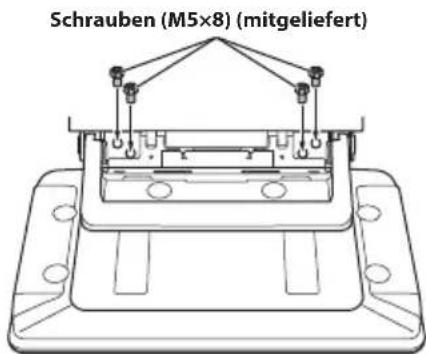
PBAP (Phone Book Access Profile)
SPP (Serial Port Profile)
A2DP (Advanced Audio
Distribution Profile)
AVRCP (Audio/Video Remote
Control Profile)
GNSS
Empfangsfrequenz 1.575,42 + / - 1,023 MHz
iLX-F905D/iLX-F115D
natural_image
Illustration of hands holding a rectangular device with an arrow indicating rotation or movement (no text or symbols present)
- 7-INCH DIGITAL MEDIA STATION
- iLX-705D
- HALO9 9-INCH DIGITAL MEDIA STATION
- iLX-F905D
- HALO11 11-INCH DIGITAL MEDIA STATION
- iLX-F115D
- 9-INCH SEPARATE DIGITAL MEDIA STATION
- i905
- Contents
- IMPORTANT
- WARNING
- INSTALL THE PRODUCT CORRECTLY SO THAT THE DRIVER CANNOT WATCH TV/VIDEO UNLESS THE VEHICLE IS STOPPED AND THE PARKING BRAKE IS APPLIED.
- DO NOT WATCH VIDEO WHILE DRIVING.
- DO NOT OPERATE ANY FUNCTION THAT TAKES YOUR ATTENTION AWAY FROM SAFELY DRIVING YOUR VEHICLE.
- KEEP THE VOLUME AT A LEVEL WHERE YOU CAN STILL HEAR OUTSIDE NOISES WHILE DRIVING.
- MINIMIZE DISPLAY VIEWING WHILE DRIVING.
- DO NOT DISASSEMBLE OR ALTER.
- USE ONLY IN CARS WITH A 12 VOLT NEGATIVE GROUND.
- KEEP SMALL OBJECTS SUCH AS SCREWS OUT OF THE REACH OF CHILDREN.
- USE THE CORRECT AMPERE RATING WHEN REPLACING FUSES.
- DO NOT BLOCK VENTS OR RADIATOR PANELS.
- USE THIS PRODUCT FOR MOBILE 12V APPLICATIONS.
- MAKE THE CORRECT CONNECTIONS.
- BEFORE WIRING, DISCONNECT THE CABLE FROM THE NEGATIVE BATTERY TERMINAL.
- DO NOT ALLOW CABLES TO BECOME ENTANGLED IN SURROUNDING OBJECTS.
- DO NOT SPLICE INTO ELECTRICAL CABLES.
- DO NOT DAMAGE PIPE OR WIRING WHEN DRILLING HOLES.
- DO NOT USE BOLTS OR NUTS IN THE BRAKE OR STEERING SYSTEMS TO MAKE GROUND CONNECTIONS.
- DO NOT INSTALL IN LOCATIONS WHICH MIGHT HINDER VEHICLE OPERATION, SUCH AS THE STEERING WHEEL OR SHIFT LEVER.
- CAUTION
- HALT USE IMMEDIATELY IF A PROBLEM APPEARS.
- HAVE THE WIRING AND INSTALLATION DONE BY EXPERTS.
- USE SPECIFIED ACCESSORY PARTS AND INSTALL THEM SECURELY.
- ARRANGE THE WIRING SO IT IS NOT CRIMPED OR PINCHED BY A SHARP METAL EDGE.
- DO NOT INSTALL IN LOCATIONS WITH HIGH MOISTURE OR DUST.
- Getting Started
- Controls Position
- Turning Power On or Off
- Turn the ignition key to the ACC or ON position.
- CAUTION (iLX-F905D/iLX-F115D only)
- Press the (HOME) button.
- ■ Normal mode screen example
- ■ Enhanced Text mode screen example
- Touch [Setup].
- Touch [System].
- Touch [Home Screen Type].
- Touch [Normal] or [Enhanced Text].
- Apple CarPlay Operation (Optional)
- Touch [Apple CarPlay].
- Android Auto™ (Optional)
- Touch [Android Auto].
- Radio/RDS Operation
- DAB/DAB+/DMB Operation
- USB Flash drive Operation (Optional)
- USB Audio main screen example
- Searching for a Music File
- iPod mode on iPhone (Optional)
- Touch the desired artist's name.
- Touch the desired album's name.
- Touch the desired song's name.
- Hands-Free Phone Control
- How to connect to a Bluetooth compatible device (Pairing)
- Answering a Call
- Hanging up the Telephone
- Installation
- Note on installation
- Mounting the Microphone
- Mounting the GPS Antenna inside the vehicle
- Note on using HDMI Connection Cables
- Secure the HDMI Fixation Bracket with the screw (A).
- Adjusting the display position (iLX-F905D/iLX-F115D)
- Remove 4 hexagon bolts from both sides of the unit.
- Pull out the slider to the forward position. (To return the slider to the back position, push it in.)
- Install 4 hexagon bolts to secure the slider.
- Installing the Unit (iLX-705D)
- Mount the original mounting bracket to the unit using the supplied screws.
- Installing the Unit (iLX-F905D/iLX-F115D)
- Adjust the up-down position of the Display unit (iLX-F905D/iLX-F115D)
- Connections
- Specifications
- MONITOR SECTION
- FM TUNER SECTION
- AM TUNER SECTION
- DAB SECTION
- USB1 SECTION
- USB2 SECTION
- HDMI SECTION
- Bluetooth SECTION
- GPS SECTION
- Wi-Fi SECTION
- GENERAL
- Inhalt
- GNSS
- iLX-F905D/iLX-F115D
Brand : ALPINE
Model : i905
Category : Browser