
OFFICEJET 6500A PLUS E710N - Multifunction Printer HP - Free user manual and instructions
Find the device manual for free OFFICEJET 6500A PLUS E710N HP in PDF.
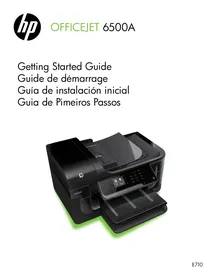


Pick your language and provide your email: we'll send you a specifically translated version.
| Product type | Color inkjet multifunction printer |
| Dimensions (W x D x H) | 50,8 x 45,7 x 25,4 cm |
| Weight | 12,5 kg |
| Power supply | 100-240 V AC, 50/60 Hz |
| Main functions | Print, scan, copy, fax |
| Print speed (black) | Up to 32 ppm |
| Print speed (color) | Up to 31 ppm |
| Maximum print resolution | 6000 x 1200 dpi |
| Input tray capacity | 250 sheets |
| Connectivity | USB 2.0, Ethernet, Wi-Fi (optional) |
| Display | Color touchscreen |
| Ink cartridges | 4 individual cartridges (black, cyan, magenta, yellow) |
| Maintenance and cleaning | Clean print heads regularly via software |
| Security | Password for network access, print security |
| Available spare parts | Ink cartridges, maintenance kit |
| Warranty | 1 year (manufacturer standard) |
Frequently Asked Questions - OFFICEJET 6500A PLUS E710N HP
How to replace ink cartridges?
Open the front cover, wait for the carriages to position, then remove the used cartridge by pushing it down. Insert the new cartridge until it clicks. Close the cover.
How to clean the print heads?
Access the HP printing software, select 'Clean print heads' in the 'Maintenance' tab. Follow the on-screen instructions. You can also repeat the operation if necessary.
How to configure Wi-Fi on the HP Officejet 6500A Plus printer?
On the touchscreen, go to 'Network' > 'Wireless' > 'Wireless Setup Wizard'. Select your network and enter the password. Confirm the connection.
What to do if the printer displays 'Paper jam'?
Open the rear or front cover as indicated. Gently remove the jammed paper without tearing. Also check the input tray. Close and restart printing.
How to scan a document to a computer?
Place the document on the glass or in the feeder. On the screen, choose 'Scan' > 'To computer' > select the target PC. You can also use the HP Scan software.
The printer does not print in color, what to do?
Check that the color cartridges are not empty or clogged. Run a print head cleaning. Ensure the driver is set to color printing.
How to replace the catch tray?
The catch tray is at the front. Pull it towards you to remove it, empty it, then replace it by snapping it in. No tools required.
How to print borderless photos?
In the print settings, select 'Photo paper' as the media type and check the 'Borderless printing' option. Ensure the paper is properly loaded.
What does error code 'E0' on the screen mean?
The 'E0' code generally indicates an internal communication problem. Restart the printer by turning it off and on. If the problem persists, contact HP support.
How to update the printer firmware?
Download the latest firmware from the HP Support website. Transfer it via a USB drive or over the network. Follow the instructions displayed on the printer screen.
User questions about OFFICEJET 6500A PLUS E710N HP
0 question about this device. Answer the ones you know or ask your own.
Ask a new question about this device
No questions yet. Be the first to ask one.
Download the instructions for your Multifunction Printer in PDF format for free! Find your manual OFFICEJET 6500A PLUS E710N - HP and take your electronic device back in hand. On this page are published all the documents necessary for the use of your device. OFFICEJET 6500A PLUS E710N by HP.
USER MANUAL OFFICEJET 6500A PLUS E710N HP
Manual assistant
Powered by Anthropic
Waiting for your message
Product information
Brand : HP
Model : OFFICEJET 6500A PLUS E710N
Category : Multifunction Printer