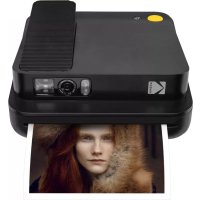
USER MANUAL Smile Classic KODAK
Thank you for purchasing the KODAK SMILE Classic Instant Print Digital Camera. This User Guide is intended to provide you with guidelines to ensure that operation of this product is safe and does not pose risk to the user. Any use that does not conform to the guidelines described in this User Guide may void the limited warranty.
Please read all directions before using the product and retain this guide for reference. This product is intended for household use only. It is not intended for commercial use.
This product is covered by a limited one-year warranty. Coverage is subject to limits and exclusions. See warranty for details.
SPECIFICATIONS
- Dimensions: 4.94" W x 5.91" D x 1.88" H (125.5 x 150.0 x 47.8 mm)
• Weight: 14.4 oz. (408 g)
• Colors Available: Black, Blue, Green, and Red
• Supported Storage: microSD™ cards up to 256GB
- Battery Capacity: 1100 mAh
• Battery Type: Lithium-polymer
- Prints Per Charge: \~35
- Supported Photo Paper: KODAK ZINK 3.5" x 4.25" sticky-back photo paper
BOX CONTENTS
• KODAK SMILE Classic Instant Print Digital Camera
- Micro USB Charging Cable
- Starter Pack of KODAK ZINK Photo Paper
- User Guide / Quick Start Card
4 | ENEN | 5
- Limited Warranty
- Seizure warning: This device utilizes flashing strobe lights which may potentially trigger seizures for people with photosensitive epilepsy and/or other seizure disorders. User discretion is advised.
- Do not attempt to disassemble this device for any reason.
- Never leave your camera or the KODAK ZINK photo paper in an area that might become extremely hot or where it will be exposed to direct sunlight for a long time. This can cause your camera to overheat or suffer other problems.
- Don't get it wet! If you need to clean your camera, use a soft cloth that's been slightly dampened with water or rubbing alcohol, and gently wipe away any dirty spots. Don't submerge the whole thing in water, ever.
- Be careful with your camera. Try not to drop it, or shake it violently. The inside of the camera has a lot of very small parts that could break if they are jostled around too much.
- Do not use products such as alcohol, gasoline, diluent, or any other organic solvent when cleaning or attempting to clean this product.
- Do not use this device in an environment where it will be exposed to heavy dust or humidity/moisture.
- Do not use this camera while bathing or in a shower.
- Do not place or charge the camera where it can fall or be pulled into a tub or sink.
- Do not place, drop, or submerge the camera in water or any other liquid.
- Take care that objects do not fall and liquids are not spilled onto the camera.
SAFETY PRECAUTIONS
PRODUCT OVERVIEW


6 | ENEN | 7

8 | ENEN | 9
GETTING READY FOR USE
- Charge it first: Before you start using your new KODAK SMILE Classic camera, plug it in to your computer or any USB charging block with an output of two amps (2A) or higher. The charging indicator will flash white while the camera charges. Once it turns solid white and stops flashing, it's fully charged and ready to use.
- Load your ZINK® paper into the camera: Follow the steps below to quickly and easily get your new camera loaded with ZINK® sticky-back paper so you can start printing photos!
a. Open the paper tray in the back by releasing the tray cover at the rear of the device. Press down on the arrow and slide the cover toward you.

natural_image
Line drawing of a hand holding a device with a red arrow pointing to the right side (no text or symbols)
b. Load the blue calibration sheet in with the barcode facing down. Place the other plain sheets on top with the glossy side facing you. Try to avoid touching the glossy side so you don't get fingerprints on it.

natural_image
Diagram showing a printer being inserted into a paper airplane, with no visible text or symbols.
c. When you take your first photo after loading the ZINK® paper, the blue calibration sheet will be slowly ejected from the printing slot. Your photo will print after the calibration sheet finishes.
NOTE: Please make sure not to push the paper in too far or else the paper could jam or cause misprinting issues.
-
Insert a microSD™ card into the corresponding slot on the side, located directly underneath the charging port. The KODAK SMILE Classic supports microSD™ cards up to 256GB.
-
Download the KODAK Classic 2-in-1 application from the Google Play™ or Apple® App Store®. The KODAK SMILE Classic works without downloading anything, but the app provides a lot of unique and fun features for your new camera!

natural_image
Illustration of a blue card being inserted into a gray rectangular device (no text or symbols)


TAKING PICTURES WITH THE KODAK SMILE CLASSIC
- Turn the camera on by sliding the power latch toward the rear of the camera so that the viewfinder pops up. You will hear a musical tune and the LED indicator on the side of the camera will blink red, then turn solid green when the power is on.

natural_image
Illustration of a hand pressing a button on a device, showing the left and right views with no text or symbols.
-
If you want to set a 10-second timer, press the timer button on top of the camera, next to the shutter button. The camera flash will blink to count down the seconds, and the camera will also play a sound before taking the picture.
-
Look through the viewfinder to line up your picture, and then press the shutter button on top of the camera.

natural_image
Line drawing of a hand holding a device with a scroll wheel (no text or symbols)
- If you're taking pictures in a low-light setting, the KODAK SMILE Classic will auto-detect the light level and use the strobe flash
when necessary. In a room with fluorescent lighting, you may want to focus on the bolder colors to avoid a washed-out look.
- The camera will then beep to let you know that your picture is processing, and after a couple seconds, it will begin to print the photo from the photo print slot.
- Retrieve your photo after it finishes printing.

natural_image
Illustration of a hand inserting a card into a device (no text or symbols)
PRINTING PICTURES USING THE KODAK CLASSIC 2-IN-1 APP
- Turn the camera on by sliding the power latch toward the rear of the camera so that the viewfinder pops up.
- Make sure Bluetooth® on your phone is enabled.
- Open up the KODAK Classic 2-in-1 application from your phone, follow the instructions to pair your camera with the app, and start using your new KODAK SMILE Classic camera!
If you have trouble connecting to your camera from the application, try following these steps instead:
-
Access your phone's Bluetooth® settings, usually found under the general Settings menu.
-
Make sure the camera is on first, and then allow your phone to scan for new devices.
- You will see "Kodak Classic XX:XX" appear in the Bluetooth® list. The X's will be replaced with specific letters and numbers which correspond to your specific camera. Tap on it to start pairing.
- After a couple of seconds, your phone should say "paired".
If you have a microSD™ card installed in your KODAK SMILE Classic camera, you can easily download and view higher-resolution copies of your photos from any laptop or personal computer.
- Plug the USB connector end of your charging cable into any USB port on your computer (or laptop). Plug the micro USB connector into the charging port of your camera.
- Turn the camera on by sliding the power latch toward the rear of the camera so that the viewfinder pops up. The indicator light above the charging port should start flashing.
- The first time you connect your camera, it will take a few minutes to automatically download the drivers and recognize the camera as an external storage device. Do not disconnect your camera during this process.
- After the camera is plugged in and drivers have been installed, you can access the pictures you've taken by going to your computer's menu and viewing it as an external storage device (usually defaults to E:). You will see a folder called DCIM, and inside that folder will be
another folder called CLASSIC_CAM. This is where you will find copies of all your photos, even the ones you took when the camera had no paper loaded.
- Have fun with viewing, editing, printing, and/or posting these higher-resolution versions of your KODAK SMILE Classic photos from your computer!
- When you're finished, be sure to choose the option to "eject removable storage device" to prevent any issues with your microSD™ card.
TIPS AND TRICKS
- If you don't have any paper, but you do have a microSD™ card installed, any pictures you try to take will be stored on the microSD™ card and can be accessed from your computer at any time. However, only your most recently taken photo will print out once you put more paper in the camera.
- If there is no microSD™ card installed, your KODAK SMILE Classic camera will let you know when it's out of paper by beeping and flashing all LED indicators whenever you try to take a picture. If you don't have a microSD™ card installed, none of the photos you try to take while the camera is out of paper will be stored.
- Important! Don't rest your finger on the shutter button unless you're ready to take a picture or your camera is turned completely off; this camera automatically prints out any images it captures. If you leave your finger resting on the button, you could end up printing a photo you didn't want to take.
LIMITED WARRANTY ON KODAK SMILE CLASSIC INSTANT PRINT DIGITAL CAMERA
THIS LIMITED WARRANTY GIVES YOU SPECIFIC LEGAL RIGHTS AND YOU MAY ALSO HAVE OTHER RIGHTS, WHICH VARY FROM STATE TO STATE.
WE WARRANT THAT DURING THE WARRANTY PERIOD, THE PRODUCT WILL BE FREE FROM DEFECTS IN MATERIALS AND WORKMANSHIP.
LIMITATION OF LIABILITY
TO THE EXTENT NOT PROHIBITED BY LAW, THIS WARRANTY IS EXCLUSIVE AND IN LIEU OF ALL OTHER WARRANTIES, ORAL, WRITTEN, STATUTORY, EXPRESS OR IMPLIED. EXCEPT FOR THE EXPRESS WARRANTIES CONTAINED IN THIS LIMITED WARRANTY STATEMENT AND TO THE EXTENT NOT PROHIBITED BY LAW, WE DISCLAIM ALL OTHER WARRANTIES, EXPRESSED OR IMPLIED, STATUTORY OR OTHERWISE, INCLUDING WITHOUT LIMITATION, THE WARRANTIES OF MERCHANTABILITY AND FITNESS FOR A PARTICULAR PURPOSE. SOME STATES DO NOT ALLOW DISCLAIMERS OF IMPLIED WARRANTIES, SO THIS DISCLAIMER MAY NOT APPLY TO YOU. TO THE EXTENT SUCH WARRANTIES CANNOT BE DISCLAIMED UNDER THE LAWS OF YOUR JURISDICTION, WE LIMIT THE DURATION AND REMEDIES OF SUCH WARRANTIES TO THE DURATION OF THIS EXPRESS LIMITED WARRANTY.
OUR RESPONSIBILITY FOR DEFECTIVE GOODS IS LIMITED TO REPAIR, REPLACEMENT OR REFUND AS DESCRIBED BELOW IN THIS WARRANTY STATEMENT.
WHO MAY USE THIS WARRANTY? C&A Marketing, Inc. located at 114 Tived Lane East, Edison, NJ ("we") extend this limited warranty only to the consumer who originally purchased the product ("you"). It does not extend to any subsequent owner or other transferee of the product.
WHAT DOES THIS WARRANTY COVER? This limited warranty covers defects in materials and workmanship of the KODAK SMILE Classic Instant Print Digital Camera (the "product") for the Warranty Period as defined below.
WHAT DOES THIS WARRANTY NOT COVER? This limited warranty does not cover any damage due to: (a) transportation; (b) storage; (c) improper use; (d) failure to follow the product instructions or to perform any preventive maintenance; (e) modifications; (f) unauthorized repair; (g) normal wear and tear; or (h) external causes such as accidents, abuse, or other actions or events beyond our reasonable control.
WHAT IS THE PERIOD OF COVERAGE? This limited warranty starts on the date of your purchase and lasts for one year (the "Warranty Period"). The Warranty Period is not extended if we repair or replace the product. We may change the availability of this limited warranty at our discretion, but any changes will not be retroactive.
WHAT ARE YOUR REMEDIES UNDER THIS WARRANTY? With respect to any defective product during the Warranty Period, we will, at our sole discretion, either: (a) repair or replace such product (or the defective part) free of charge or (b) refund the purchase price of such product if an exchange unit cannot be provided.
HOW DO YOU OBTAIN WARRANTY SERVICE? To obtain warranty service, you must contact us at 844-516-1539 or by email at kodak@camarketing.com during the Warranty Period to obtain a Defective Merchandise Authorization ("DMA") number. No warranty service will be provided without a DMA number and return shipping costs to our facilities shall be assumed by you, the purchaser. Shipping costs of the replacement unit to you shall be assumed by us.
Should you experience any problems with your product, please contact us before returning the item to the place of purchase.
We're here to help!
U.S. Support:
kodak@camarketing.com
844-516-1539
International Support:
kodakintl@camarketing.com
844-516-1540
kodakphotoplus.com
The Kodak trademark, logo, and trade dress are used under license from Eastman Kodak Company.
Android is a trademark of Google LLC.
Google Play is a trademark of Google LLC.
Bluetooth is a trademark of Bluetooth SIG, Inc. USA.
IOS is a trademark of Cisco in the U.S. and other countries and is used under license.
Apple and App Store are trademarks of Apple Inc. in the U.S. and other countries.
ZINK, ZERO INK, and the ZINK logo are trademarks of ZINK Holdings, LLC.
MicroSD is a trademark of SD-3C, LLC.
All other products, brand names, company names, and logos are trademarks of their respective owners, used merely to identify their respective products, and are not meant to connote any sponsorship, endorsement or approval.
Distributed by C&A Marketing, Inc., 114 Tived Lane East, Edison, NJ 08837.
C&A Marketing UK LTD, 167 Hermitage Road, Crusader Industrial Estate, London N4 1LZ, UK.
Made in China.
© 2019. C&A IP Holdings, LLC. All Rights Reserved.
FEDERAL COMMUNICATION COMMISSION INTERFERENCE STATEMENT
This device complies with Part 15 of the FCC Rules. Operation is subject to the following two conditions: (1) This device may not cause harmful interference, and (2) this device must accept any interference received, including interference that may cause undesired operation.
This equipment has been tested and found to comply with the limits for a Class B digital device, pursuant to Part 15 of the FCC Rules. These limits are designed to provide reasonable protection against harmful interference in a residential installation. This equipment generates, uses and can radiate radio frequency energy and, if not installed and used in accordance with the instructions, may cause harmful interference to radio communications. However, there is no guarantee that interference will not occur in a particular installation. If this equipment does cause harmful interference to radio or television reception, which can be determined by turning the equipment off and on, the user is encouraged to try to correct the interference by one of the following measures:
- Reorient or relocate the receiving antenna.
- Increase the separation between the equipment and receiver.
- Connect the equipment into an outlet on a circuit different from that to which the receiver is connected.
- Consult the dealer or an experienced radio/TV technician for help.
FCC Caution: Any changes or modifications not expressly approved by the party responsible for compliance could void the user's authority to operate this equipment.
This transmitter must not be co-located or operating in conjunction with any other antenna or transmitter.
Radiation Exposure Statement:
This equipment complies with FCC radiation exposure limits set forth for
an uncontrolled environment.
IC Statement
This device complies with RSS247 of Industry Canada. Cet appareil se conforme à RSS247 de Canada d'Industrie. This device complies with Industry Canada license-exempt RSS standard(s). Operation is subject to the following two conditions: (1) this device may not cause interference, and (2) this device must accept any interference, including interference that may cause undesired operation of the device. appareils radio exempts de licence. Son fonctionnement est sujet aux deux conditions suivantes: (1) le dispositif ne doit pas produire de brouillage prejudiciable, et (2) ce dispositif doit accepter tout brouillage recu, y compris un brouillage susceptible de provoquer un fonctionnement indesirable.
The device must not be co-located or operating in conjunction with any other antenna or transmitter.
Radiation Exposure Statement: The product complies with the Canada portable RF exposure limit set forth for an uncontrolled environment and are safe for intended operation as described in this manual.
CAUTION RISK OF EXPLOSION IF BATTERY IS REPLACED BY AN INCORRECT TYPE. DISPOSE OF USED BATTERIES ACCORDING TO THE INSTRUCTIONS
| RECYCLINGThis product bears the selective sorting symbol for Waste electrical and electronic equipment (WEEE). This means that this product must be handled pursuant to European directive 2012/19/EU in order to be recycled or dismantled to minimize its impact on the environment.User has the choice to give his product to a competent recycling organization or to the retailer when he buys a new electrical or electronic equipment. |
INTRODUCCIÓN
natural_image
Line drawing of a hand holding a device with a red arrow pointing to the right side (no text or symbols)
natural_image
Diagram showing a printer being inserted into a paper airplane, with no visible text or symbols.
natural_image
Illustration of a blue card being inserted into a gray rectangular device (no text or symbols)


TOMAR FOTOS CON LA KODAK SMILE CLASSIC
natural_image
Line drawing showing a hand pressing a button on a device, with no text or symbols present.
natural_image
Line drawing of a hand holding a device with a scroll wheel (no text or symbols)
natural_image
Illustration of a hand inserting a card into a device (no text or symbols)
IMPRIMIR FOTOS USANDO LA APP KODAK CLASSIC 2 EN 1
kodak@camarketing.com
844-516-1539
Distribuido por: C&A Marketing, Inc., 114 Tived Lane East, Edison, NJ 08837, USA
C&A Marketing UK LTD, 167 Hermitage Road, Crusader Industrial Estate, London N4 1LZ, UK
natural_image
Line drawing of a hand holding a device with a red arrow pointing to the handle (no text or symbols)
natural_image
Diagram showing a printer being placed on top of a paper sheet, with an arrow indicating the process (no text or symbols present)
natural_image
Illustration of a blue card being inserted into a white rectangular device (no text or symbols)


natural_image
Illustration of a hand pressing a button on a device, showing the left and right views with no text or symbols.
natural_image
Line drawing of a hand holding a device with a paper clip, no text or symbols present
natural_image
Illustration of a hand inserting a card into a device (no text or symbols)
kodak@camarketing.com
844-516-1539
C&A Marketing UK LTD, 167 Hermitage Road, Crusader Industrial Estate, London N4 1LZ, UK
natural_image
Line drawing of a hand holding a device with a red arrow pointing to the right side (no text or symbols)
natural_image
Diagram showing a printer being placed on top of a paper sheet, with an arrow indicating the process (no text or symbols present)
natural_image
Illustration of a blue card being inserted into a gray rectangular device (no text or symbols)


PRENDRE DES PHOTOS AVEC LE KODAK SMILE CLASSIC
natural_image
Line drawing of a hand holding a device with a scroll wheel (no text or symbols)
natural_image
Illustration of a hand inserting a card into a device (no text or symbols)
IMPRIMER DES PHOTOS AVEC L'APPLICATION KODAK CLASSIC 2 EN 1
GARANTIE LIMITÉE SUR VOTRE APPAREIL PHOTO NUMÉRIQUE À IMPRESSION INSTANTANÉE KODAK SMILE CLASSIC
CETTE GARANTIE LIMITÉE VOUS CONFÈRE DES DROITS SPÉCIFIQUES RECONNUS PAR LA LOI. VOUS POURRIEZ DISPOSER DE DROITS SUPPLÉMENTAIRES QUI VARIENT D'UN PAYS À UN AUTRE.
NOUS GARANTISSONS QUE CE PRODUIT SERA EXEMPT DE TOUT DÉFAUT DE FABRICATION ET DE MATÉRIAUX PENDANT LA PÉRIODE DE GARANTIE.
LIMITATION DE RESPONSABILITÉ
NOTRE RESPONSABILITÉ QUANT AUX ARTICLES DÉFECTUEUX SE LIMITE À LA RÉPARATION, AU REMPLACEMENT OU AU REMBOURSEMENT COMME
68 | FRFR | 69
DÉCRIT CI-DESSOUS DANS LA DÉCLARATION DE GARANTIE.
kodak@camarketing.com
844-516-1539
Support technique international :
kodakintl@camarketing.com
844-516-1540
C&A Marketing UK LTD, 167 Hermitage Road, Crusader Industrial Estate, London N4 1LZ, UK
Pulsante timer 10 sec.
Coperchio
vano carta

natural_image
Line drawing of a hand holding a device with a red arrow pointing to the handle (no text or symbols)

natural_image
Diagram showing a printer being inserted into a paper holder, with no text or symbols present.
natural_image
Illustration of a blue card being inserted into a gray device (no text or symbols)


SCATTARE FOTO CON KODAK SMILE CLASSIC
natural_image
Line drawing of a hand holding a device with a scroll wheel (no text or symbols)
natural_image
Line drawing of a hand inserting a card into a device (no text or symbols)
STAMPARE FOTO USANDO L'APP KODAK CLASSIC 2-IN-1
kodak@camarketing.com
844-516-1539
C&A Marketing UK LTD, 167 Hermitage Road, Crusader Industrial Estate, London N4 1LZ, UK